

Page 1
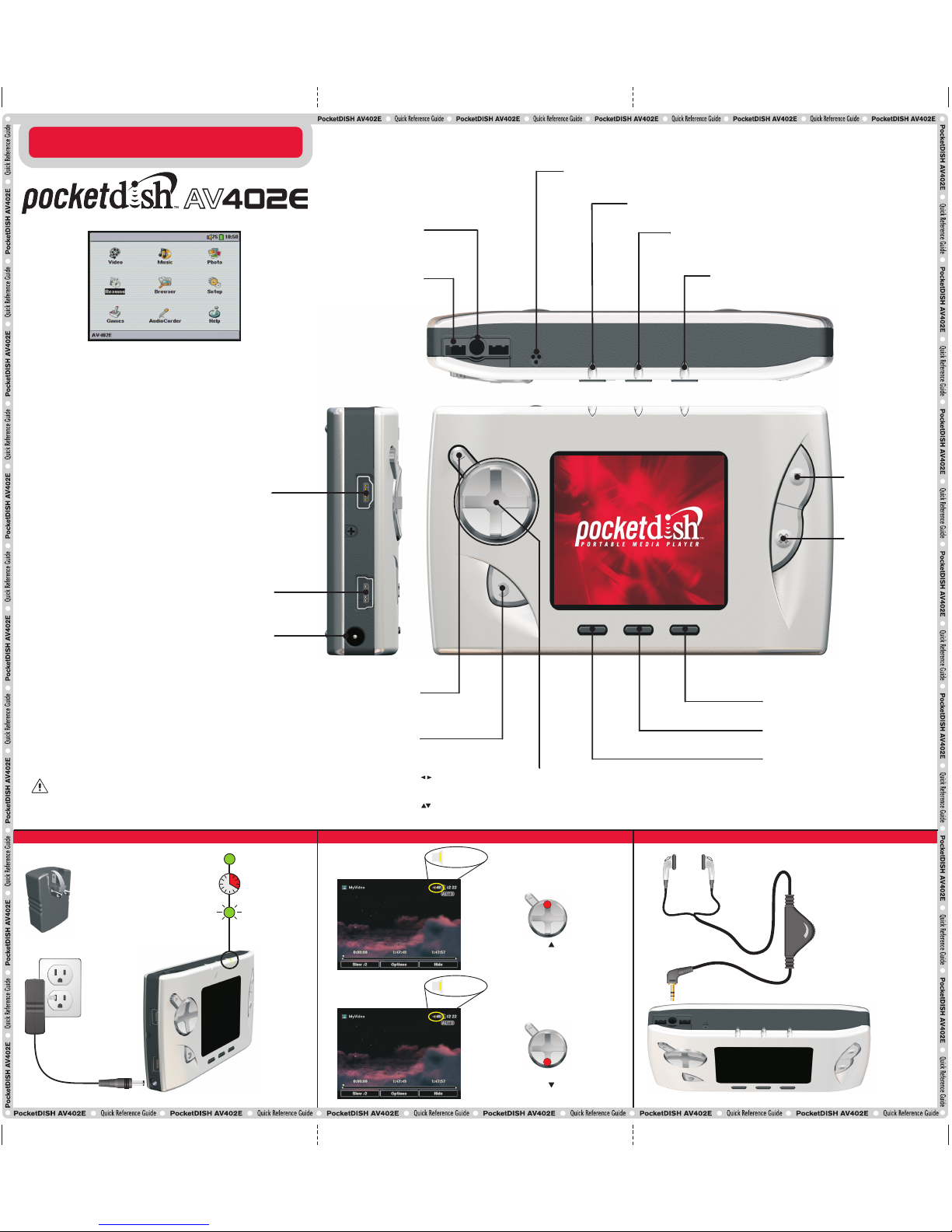
ON: press and hold to turn on
PocketDISH
Play: starts playback
Pause: pauses playback
Enter: acknowledges a selection
Control 1: Play,
Pause, Enter or
Game Control key
Control 2: Stop,
Escape, Exit or
Game Control key
Function key 2: Access the selection menus,
when displayed
TV/LCD - Press and hold to select PocketDISH or
TV for viewing
Function key 1: Access the selection menus,
when displayed
Key lock - Press and hold to activate or deactivate
Function key 3: Access the selection menus,
when displayed
OFF: press and hold to turn off
PocketDISH
Stop: stops playback
Escape: quits a selection
Exit: pauses or exits a game
USB-A (Host): connect USB (mass storage device)
compatible equipment, like a camcorder, digital photo
camera or a USB flash drive
USB-B (Device): connect to a compatible
DISH Network DVR or computer
Power (DC IN): connect to the AC/DC power
adapter that came with the PocketDISH
110Vac/60Hz
Your PocketDISH has a rechargeable Li-Ion battery. The Li-Ion battery is a
high capacity power source. Do not use another battery charger or AC/DC
adapter. For your safety, charge the Li-Ion battery only with the AC/DC
adapter that came with the PocketDISH. Failing to do so can cause
permanent damage to equipment and can result in serious personal injury.
Charge the Battery
Flip down the pins
Connect to power
Up to 4 hours
ON
Flashing
4 Hours
Charging
Ready
Microphone: for digital audio (voice) recordings
HDD: the hard drive is active when lit
ON: shows that the PocketDISH is turned on
CHG: a solid light indicates that PocketDISH is
connected to the battery charger. If charging is
complete, the light flashes
Headphones/AV
Multi-connection: install
the multi-connector for
use with other multimedia
devices
: moves the cursor left/right
Previous/Next: selects previous/next file
Fast Forward/Fast Reverse: advances or reverses quickly.
: moves the cursor up/down
Vol +/-: increases or decreases volume
CHARGE BATTERY
DISH Network content and MPEG-4
DISH Network content, MP3, WMA, WAV
JPG, JPEG, BMP
Mophun 2D/3D Games
Additional on-screen information
Built-in Hard Drive: USB Mass Storage
Device for any file type.
Features include the following: This PDF was downloaded from SatelliteGuys.US
Video Player:
Music Player & Recorder:
Photo Viewer/Slideshow:
Game Console:
Built-in Help:
Browser:
DC-IN
P O R T A B L E M E D I A P L A Y E R
QUICK REFERENCE GUIDE
QUICK REFERENCE GUIDE
Increase
Press and hold to increase
the volume
Press and hold to decrease
the volume
99 ... 00
Decrease
00 ... 99
Volume control:
The volume level of
PocketDISH will effect the
range on the headphone’s
volume control.
Min
Max
VOLUME CONTROL
CONNECT HEADSETCHANGE VOLUME
139532
Page 2
LINE IN
VIDEO
LINE IN
3
DISH Network DVR*
1
2
Contains helpful videos, demos, tools
and documentation
Provides detailed instructions about
your PocketDISH
On the Internet, please visit
www.pocketdish.com
FAQ
FIND AN ANSWER
Turn on the
DVR and
PocketDISH
Connect to power
Connect the
USB cable
5
The PocketDISH pop-up
displays on the TV
Highlight the DISH Network folder and press ON
to view the video files.
Select the desired video file.
Connect the USB cable
The "USB cable attached" pop-up displays.
PocketDISH keys are temporarily disabled
Connect the USB adapter cable and USB cable
USB MASS STORAGE
The "USB device connected - Please wait ..."
pop-up displays. Wait until the Browser displays.
Now you can transfer files from the USB device
to the PocketDISH and vice versa
In the PC system tray (next to the clock), locate and click the
"Safely Remove Hardware" icon. Disconnect PocketDISH
and wait until the automatic file update is completed.
Select Copy or Copy All to send files from your USB device
to PocketDISH.
USB-B
USB MASS STORAGE DEVICE
Safely Remove USB Mass Storage Device
Highlight the Music icon. Press ON
to view the folder content. Note:
PocketDISH comes with demo songs
and Playlist.
Note: keys will have different functions for every game. Review the functions in the game’s settings.
Control 1:
Game Control key
Control 2:
Game Control key
L
R
VOLUME
BASS
TREBLE BALANCE
Connect the analog AV-cable to
the AV connection (center jack).
Press for at least three seconds to
toggle between LCD and TV.
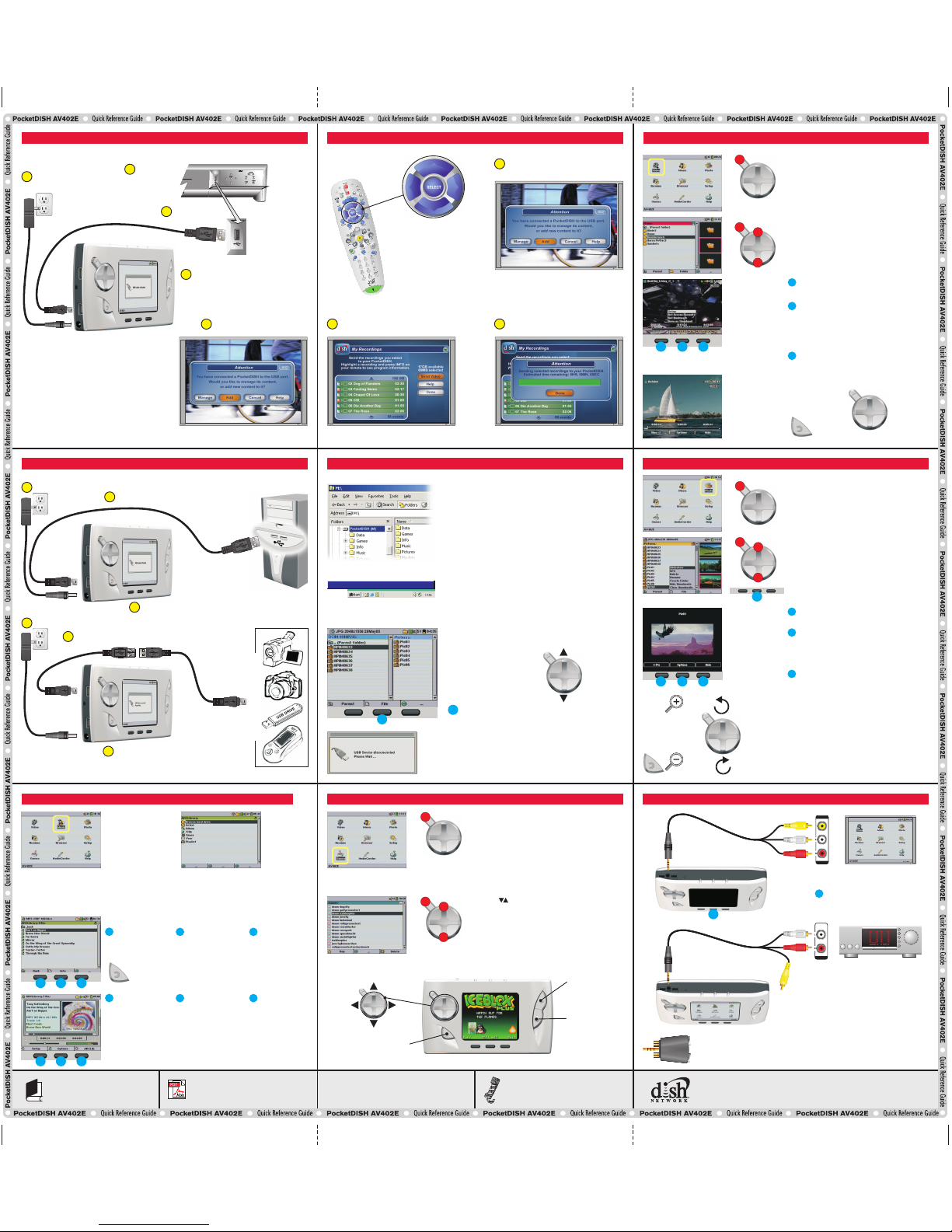
CONNECT A COMPATIBLE DISH NETWORK DVR SEND MY RECORDINGS FROM THE DISH NETWORK DVR PLAYBACK VIDEO
CONNECT A COMPUTER OR A USB MASS STORAGE DEVICE
TRANSFER AUDIO/VIDEO FILES
PLAY A SONG
CONNECT A TV OR AUDIO DEVICE (PLAYBACK)
COMPUTER
USB-A
Make your selection from the
ARCLibrary by Artist, Album,
Title, Genre or Year.
Playlist: select a playlist to
playback multiple songs.
Function key 1:
Back: goes to the
previous menu level.
Function key 2:
Info: displays additional
information.
Function key 3:
No option available.
Function key 1:
Setup: personalize
the playback (Shuffle).
Function key 2:
Info: displays additional
information.
Edit Playlist: create or
modify a Playlist.
Set Bookmark: for
future access to the
selected track.
Function key 3:
ARCLibrary: opens
the music list.
Highlight the desired song and press ON.
VIEW A PHOTO OR SLIDESHOW
Function key 2:
Info: displays additional information.
Delete: deletes the photo.
Save as Wallpaper: saves this photo as a
background (1-Pic view only).
Function key 1:
Display 1, 4 or 9 photos at a time.
Function key 3:
Hide: removes the on-screen menu temporarily
(1-Pic view only).
Highlight the Photo icon.
Press ON to view the folder content.
Note: PocketDISH comes with demo photos.
Highlight the desired photo.
Press ON to view the single photo.
Press Function key 2 and select the Slideshow
option. Press ON to view the slideshow.
Special features (1-Pic view only)
Previous Next
0
90
0
90
Zoom in
Zoom out
Exit: pauses or
exits a game
Highlight the Games icon.
Press ON to view the games.
Note: PocketDISH comes with playable demo
games. You can buy your full games at:
www.archos.com
Use the keys to highlight the game.
Press ON to play the game.
PLAY A GAME
USB-B
USER’S GUIDE
HARD DRIVE
Function key 1:
Normal playback (default).
Slow motion x2, x4, x8.
Function key 2:
Setup: opens setup menu.
Set Screen format:
Auto, Full, 4:3, 16:9.
Set bookmark: future access to selected scene.
Save as thumbnail: for display in the video
browser.
Function key 3:
Hide: removes the on-screen menu temporarily.
Play/Pause
Fast Forward
Fast Reverse
End playback
Highlight the Video icon (also used for playback
of DISH Network audio recordings).
Press ON to view the video list.
Note: PocketDISH comes with demo videos.
End playback.
Connect to power
4
The "USB cable attached"
pop-up displays.
PocketDISH keys are
temporarily disabled
Connect the analog AV-cable to
the AV connection (center jack).
Call the Archos Customer Service Center
at 1-877-300-8879 (toll free).
IF YOU NEED ASSISTANCE
MULTI-CONNECTOR
Line in: connect the Archos FM Radio & Remote Control (not included) or record
from an audio device using the AudioCorder.
AV out: Use the analog A/V cable for playback on a TV or audio device.
e
i
L
i
n n
A
V
ut
o
When the transfer is completed, turn the USB device OFF
and wait until the automatic file update on PocketDISH is
completed.
Select the desired file.
Select file
PocketDISH
USB device
Game Control keys
Open Windows Explorer and locate the PocketDISH drive.
Double click the PocketDISH drive to display it’s content.
Locate the folder where your audio/video files are stored.
Copy the desired files into the correct folder on PocketDISH.
Note: you can also transfer files from PocketDISH to store on
the computer. Locate the desired file and copy it to the folder
on the computer.
* visit www.pocketdish.com for list of compatible receivers
Select Add
Select recordings then select Send video
2
Press SELECT when done
3
Use these buttons to
navigate the screens
displayed by the DVR
1
F1 F2
F3
F1
F2
F3
F1 F2
F3
1
2
3
Connect to power
1
3
2
Safely Remove USB Mass Storage Device
F2
F2
F2
F1 F2
F3
F1 F2
F3
F1
F2
F3
F1
F2
F3
Connect the AV cable to an input on your
TV, and change your TV to that input.
Connect the AV cable to an input on your
audio device, and change the audio
device to that input.
F2
F2
Appearances and specifications may change without prior notice
© 2005 EchoStar Technologies Corporation. All rights reserved worldwide.
F1
F2
F3
Special playback features
Note: For detailed instructions on how to install a game on PocketDISH please refer to the User’s Guide.
 Loading...