

Page 1

Remote Control
Quick Start Guide
Model 54.0
Page 2

You will hear three beeps from the remote
control, indicating it has paired with your
DISH receiver
AUX
SAT TV
4 Press the SAT button on the side of the
remote control
3 Open the front panel of your DISH receiver,
and press the SYS INFO button
SYS INFO
2 Replace the back cover
PULL
54.0
1 Remove the back cover by pushing the latch
upward, and remove the PULL tab
Turn On Your Remote
Page 3

TV
Auxiliary Device
CUSTOMIZATIONS
5 You can also pair your remote with an
Auxiliary Device such as a Blu-ray™ player
or stereo
4 Follow the prompts
TV
Auxiliary
DEVICES
3 Select TV and then TV Pairing Wizard
Remote
Sengs
2 Select Settings and then Remote Control
DVR
SAT
TV
AUX
Guide
1 Press the home button twice
Pair Your Remote
Page 4

To conserve your remote control’s
battery life, its light sensor detects
the amount of light in the room
If the room is suciently dark
when you move your remote, its
buttons will light up automatically!
SAT TV AUX
input
To activate the backlighting on
your remote control, simply
pick it up, move it, or shake it
gently in a dark room
You asked. We listened.
Acvate Backlighng
Page 5
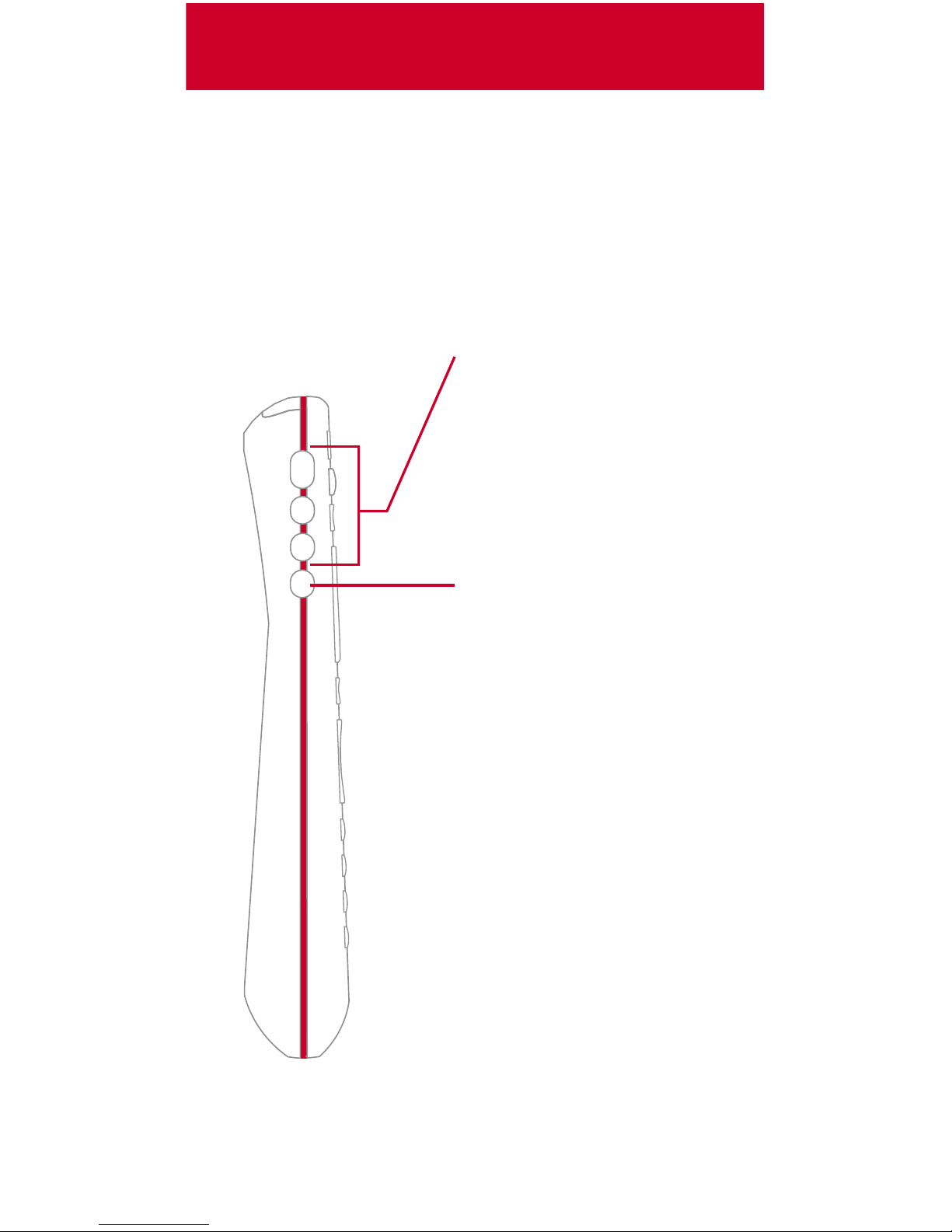
Explore Your Remote
Device Buttons
Use your remote as a
universal remote
control by pairing it
with your TV and an
auxiliary device such
as a Blu-ray™ player
or stereo
Input
Change inputs on your
TV when in TV mode
When in SAT mode,
use this button to swap
picture-in-picture or
multi-view windows
SAT TV AUX
input
Page 6
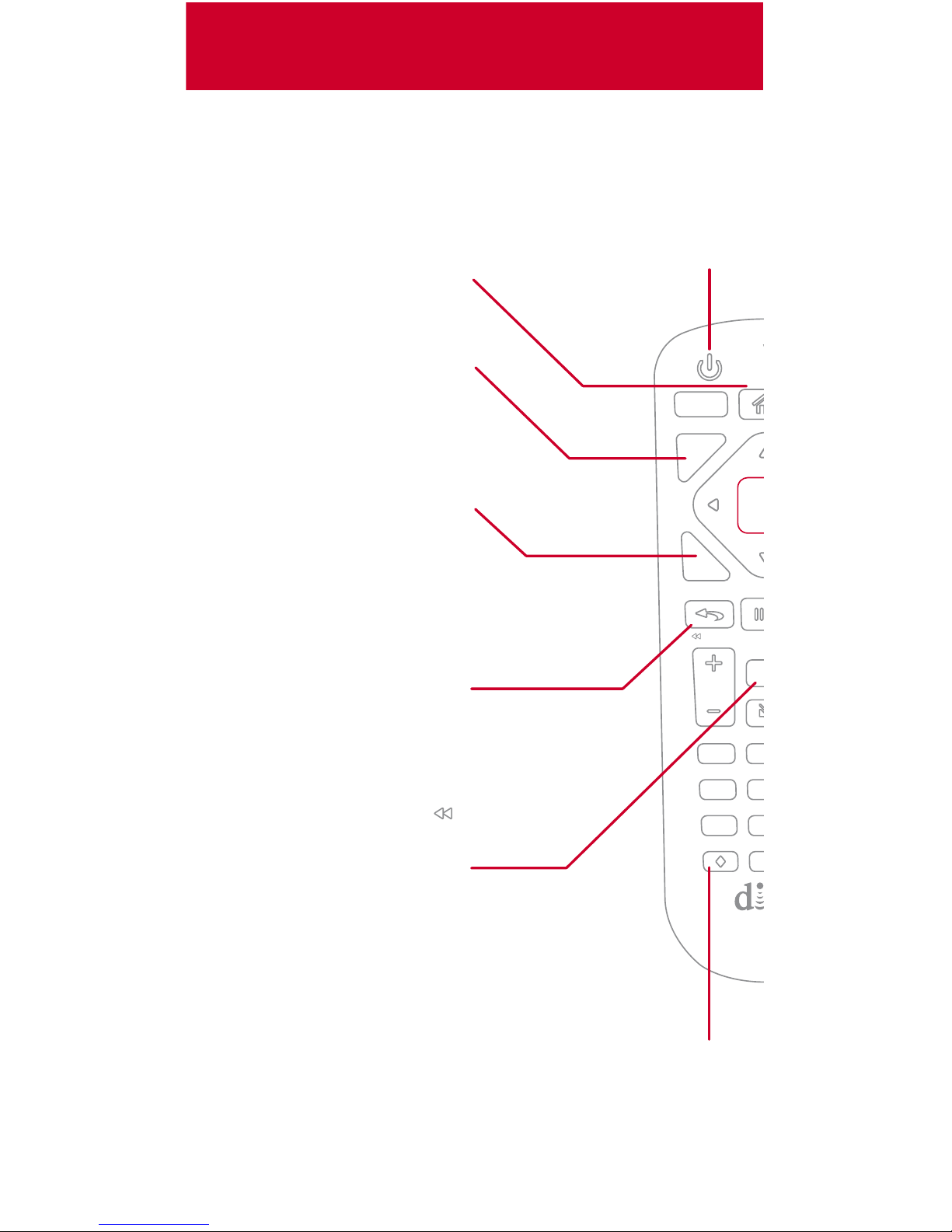
Explore Your Remote
Skip Backward
Press to skip back
10 seconds
Press and hold to
rewind ( )
Power
Turn your TV,
DISH receiver, and
other selected
devices on and o
Back/Live TV
Press to go back
one menu
Press and hold to
go to live TV
Home
Easily find shows,
movies, and sports
that are live, on
your DVR, or on
demand—all in
one place
Options
Access additional
options and features
in the current menu
Recall
2 abc
5 jkl
4 ghi
7 pqrs 8
tuv
1
0
VOL
Back
Select
Options
DVR
SAT
TV
AUX
Live TV
Diamond Button
Customize this button to turn closed
captioning on and o, launch Netflix®, turn
on picture in picture, and more
See Personalize Your Remote in this guide
Recall
While watching TV,
press to tune to
channels you have
watched recently
Page 7
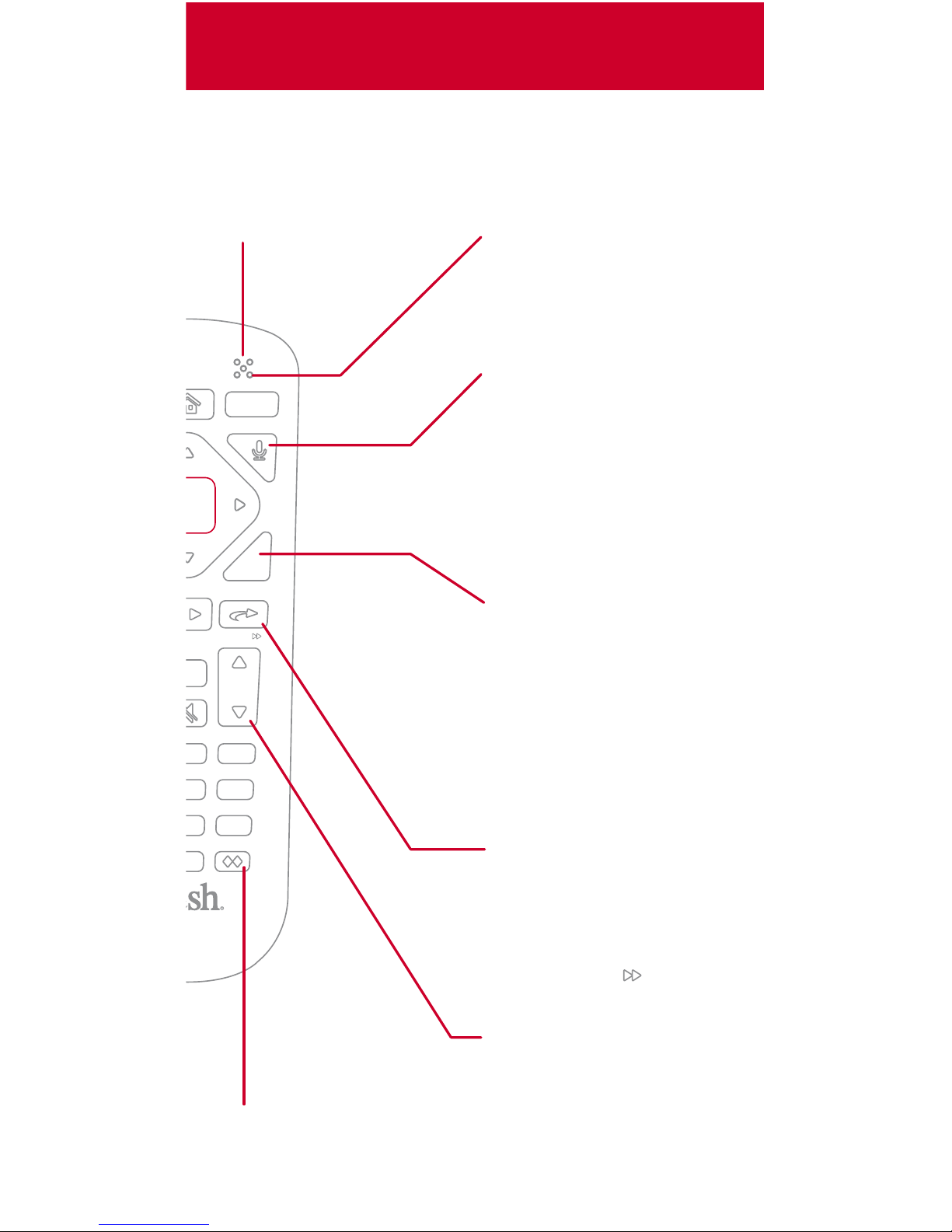
Info
3 def
6 mno
CH
Guide
Help
Voice Control
Find what you’re
looking for by
pressing and holding
this buon, speaking
into the microphone,
and releasing it
Light Sensor
Extends baery life
by determining
whether backlighng
should be acvated
when you pick up the
remote
Info/Help
Press to get more
information about a
program
Press and hold to get
quick tips and tricks
in most menus
Skip Forward
Press to skip forward
30 seconds
Press and hold to
fast-forward ( )
Channel Up & Down
In addition to
changing channels,
use these buttons to
page through menus
such as the Guide
Double-Diamond Button
You can personalize this
button too!
Microphone
Listens to you
when you are using
voice control
Page 8
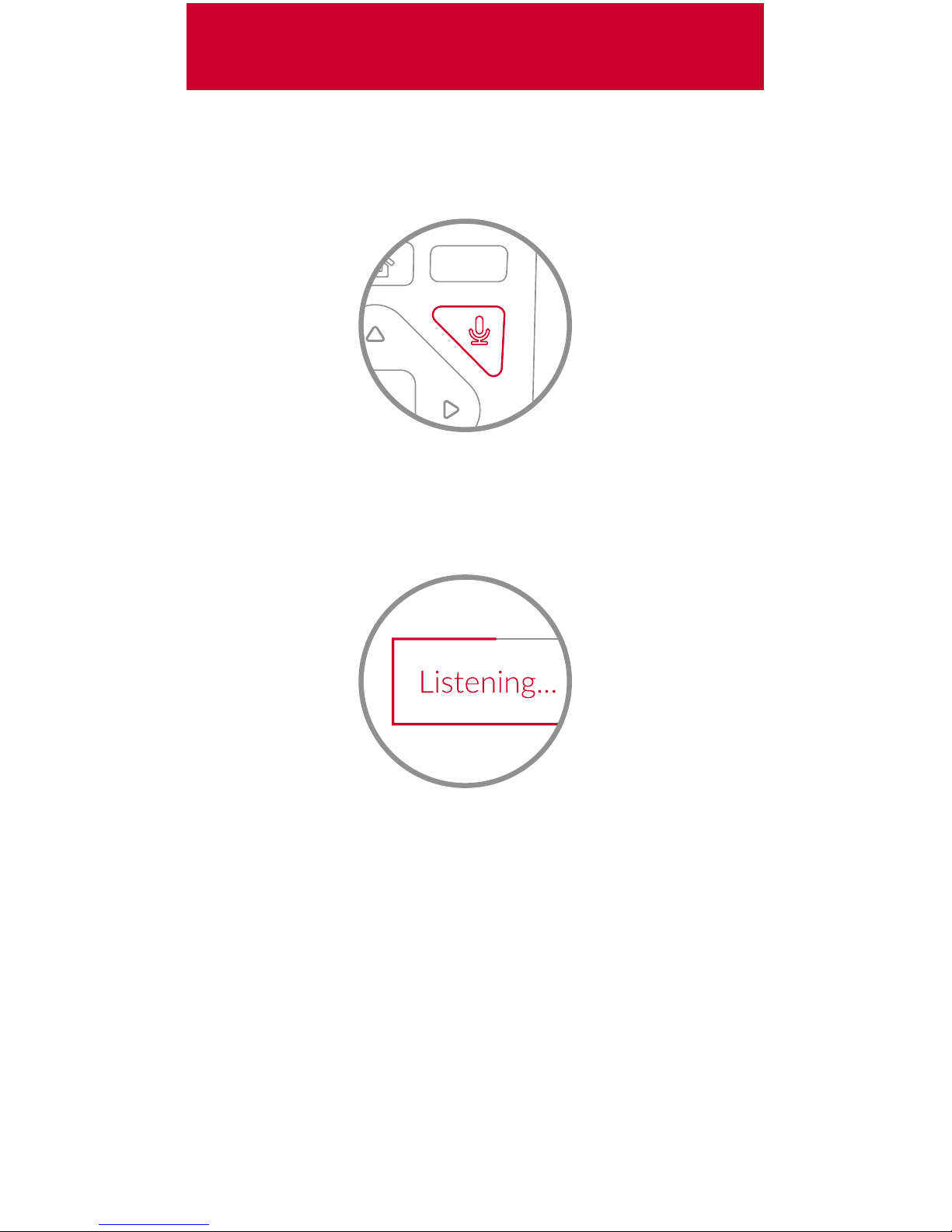
“Watch ESPN”
“Big Bang Theory”
“Batman movies”
“Action movies with Matt Damon”
“Launch Game Finder”
“Denver Broncos”
“Closed captioning on”
“Text to speech on”
4 Try other examples such as
3 Release the voice button
2 Say the name of a movie, TV show, sport,
sports team, actor, collection, or feature
TV
Guide
1 Press and hold the voice button
Take Control with Your Voice
Page 9
That’s it!
3 Select OK
You can turn closed captioning on and o,
launch Netflix®, turn on picture in picture (PiP),
record a program with one click, and more
Records Program
Toggles Audio Descrpon
Stops Recording or Playback
Launches Nelix
2 Select from the menu what you want the
button to do
Info
Recall
2 abc
5 jkl
3 def
6 mno4 ghi
7 pqrs 8 tuv 9 wxyz
1
0
CHVOL
Back
Live TV Help
or
Info
Recall
2 abc
5 jkl
3 def
6 mno4 ghi
7 pqrs 8 tuv 9 wxyz
1
0
CHVOL
Back
Live TV Help
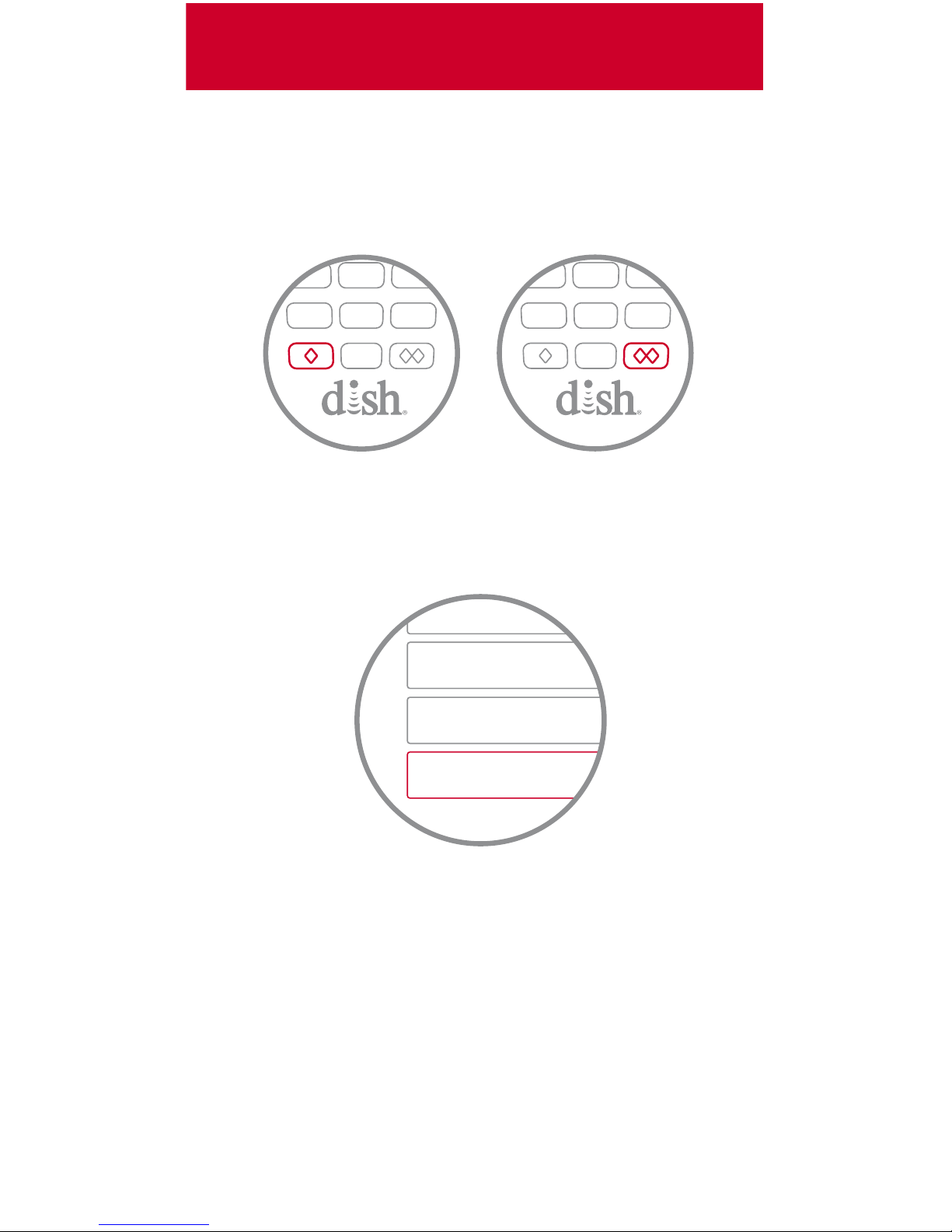
1 Press and hold the diamond or
double-diamond button
Personalize Your Remote
Page 10
You will hear a series of beeps from your
remote, allowing you to find it.
It’s that simple!
LOCATE
REMOTE
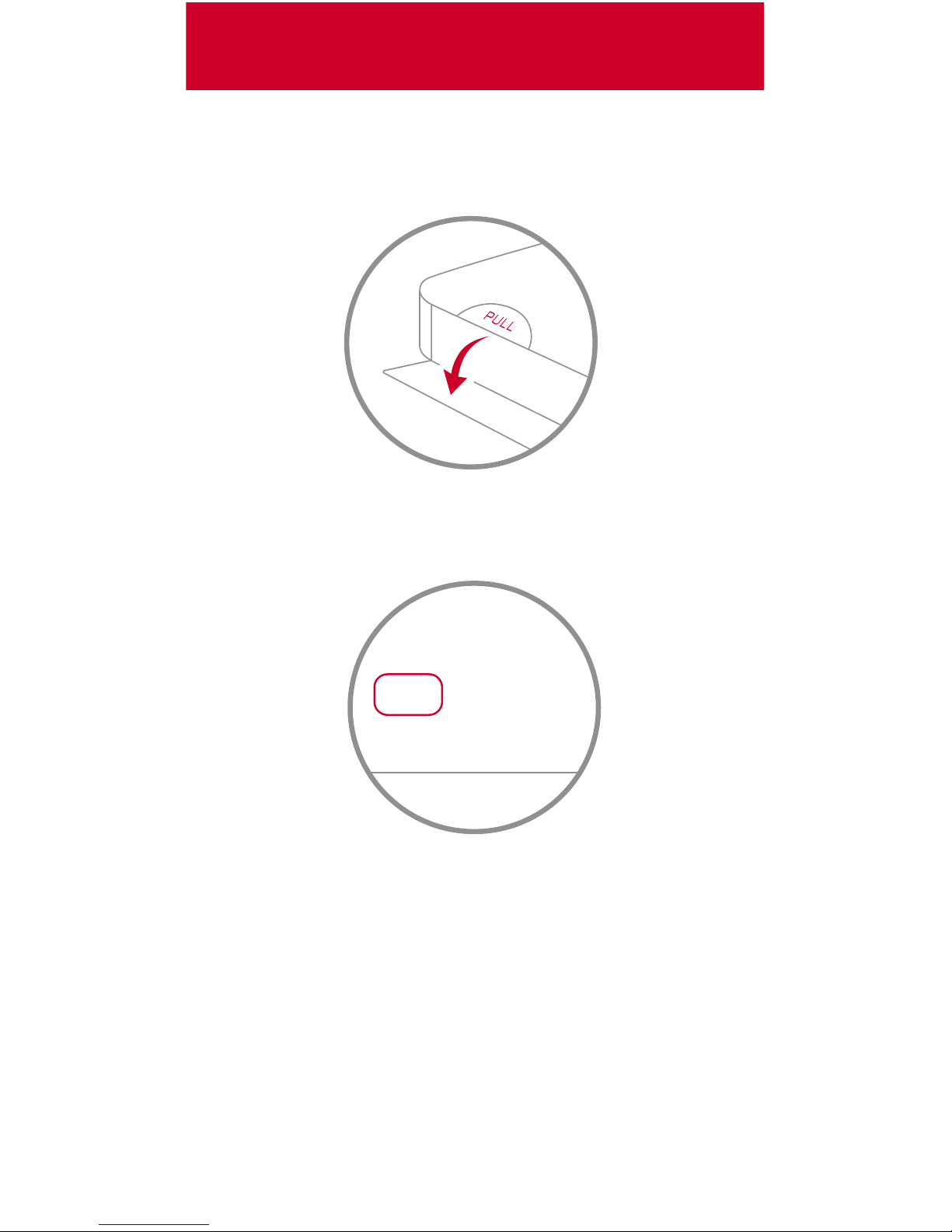
2 Press the LOCATE REMOTE button
1 Open the front panel of your DISH receiver
Locate Your Remote Anytime
Page 11

Refer servicing to qualified personnel when a solid object
or liquid has fallen onto or into the device.
Do NOT attempt to service this device. Refer all servicing to
qualified personnel. Opening covers other than the battery
cover will void the warranty.
This device complies with Part 15 of FCC Rules. Operation is subject to the
following two conditions:
1. This device may not cause harmful interference,
and
2. This device must accept any interference received, including
interference that may cause undesired operation.
This equipment has been tested and found to comply with the limits for a Class B
digital device, pursuant to Part 15 of the FCC Rules. These limits are designed to
provide protection against harmful interference in a residential installation. This
equipment generates, uses, and can radiate radio frequency energy and, if not
installed and used in accordance with the instructions, may cause harmful
interference to radio communications. However, there is no guarantee that
interference will not occur in a particular installation. If this equipment does cause
harmful interference to radio or television reception, which can be determined by
turning the equipment o and on, the user is encouraged to try to correct the
interference by following one or more of the following measures:
∙ Reorient or relocate the receiving antenna.
∙ Increase the separation between the equipment and receiver.
∙ Connect the equipment into an outlet on a circuit dierent from
that to which the receiver is connected.
∙ Consult the dealer or an experienced radio/TV technician for help.
Changes or modifications to this device may void your authority to operate this
equipment.
Safety Instructions
You must keep safety in mind while using this device. Keep these and any other
instructions for future reference.
Observe Warnings: Carefully follow all warnings on the device and in the operating
instructions.
Heat: Do NOT place the device near heat sources such as radiators, stoves, heat
registers, or other appliances that produce heat.
Case and Use
Cleaning: Do NOT use liquid, abrasive, solvent, or aerosol cleaners. Use a damp
cloth for cleaning.
When Not in Use: Remove the batteries if this device is to be left unattended or
unused for a long period of time.
Regulatory Information
Page 12
Press and hold Info/Help
Channel 103
The Hopper Features Guide
mydish.com/support/remotes
DN00XXXX
Warranty, safety, regulatory, and legal information
can be found at mydish.com/support/remotes
Need Help?
 Loading...