

Page 1

Discover Video
Mantis Encoder
User Guide
Version 1.2
10/7/2016
Discover Video LLC
www.discovervideo.com
Page 2

Contents
General Description ..........................................................................3
Installation .........................................................................................4
Find IP Address .................................................................................5
Configuration ....................................................................................5
Setting ................................................................................................5
Record ................................................................................................8
Status ..................................................................................................9
Network Setup ............................................................................... 10
Firmware Update ........................................................................... 10
Account Setup ................................................................................ 11
Restore Default .............................................................................. 11
Front Panel ...................................................................................... 12
Operation & Notes ........................................................................ 13
Mantis Shelf .................................................................................... 14
Mantis Finder.................................................................................. 14
Scaling ............................................................................................. 15
Warranty ......................................................................................... 16
Mantis Encoder
Page 2
Mantis Encoder
Page 3
Mantis Encoder
Chapter 1:
Introduction
General Description
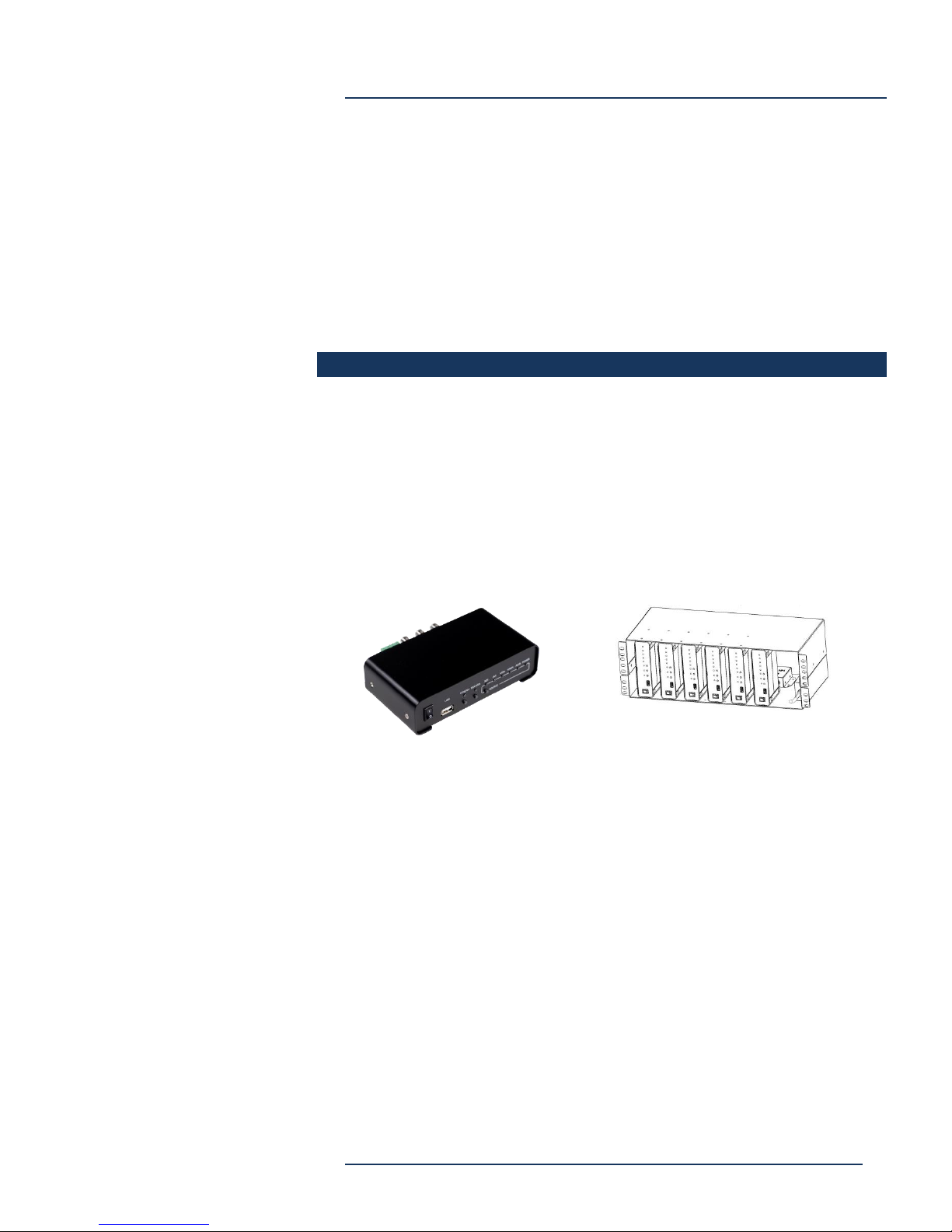
The Discover Video Mantis is a live video encoder that provides live
streaming and recording from a variety of video input types. It is an
economical appliance that is ideal for IPTV, executive broadcasts,
morning announcements, enterprise and web streaming.
The Mantis appliance is compact and is used stand-alone on a desktop
or other surface, and a 6-channel rack shelf is available for high density
applications.
Page 3
Mantis Encoder
Page 4
Mantis Encoder
Chapter 2:
Configuration
Installation
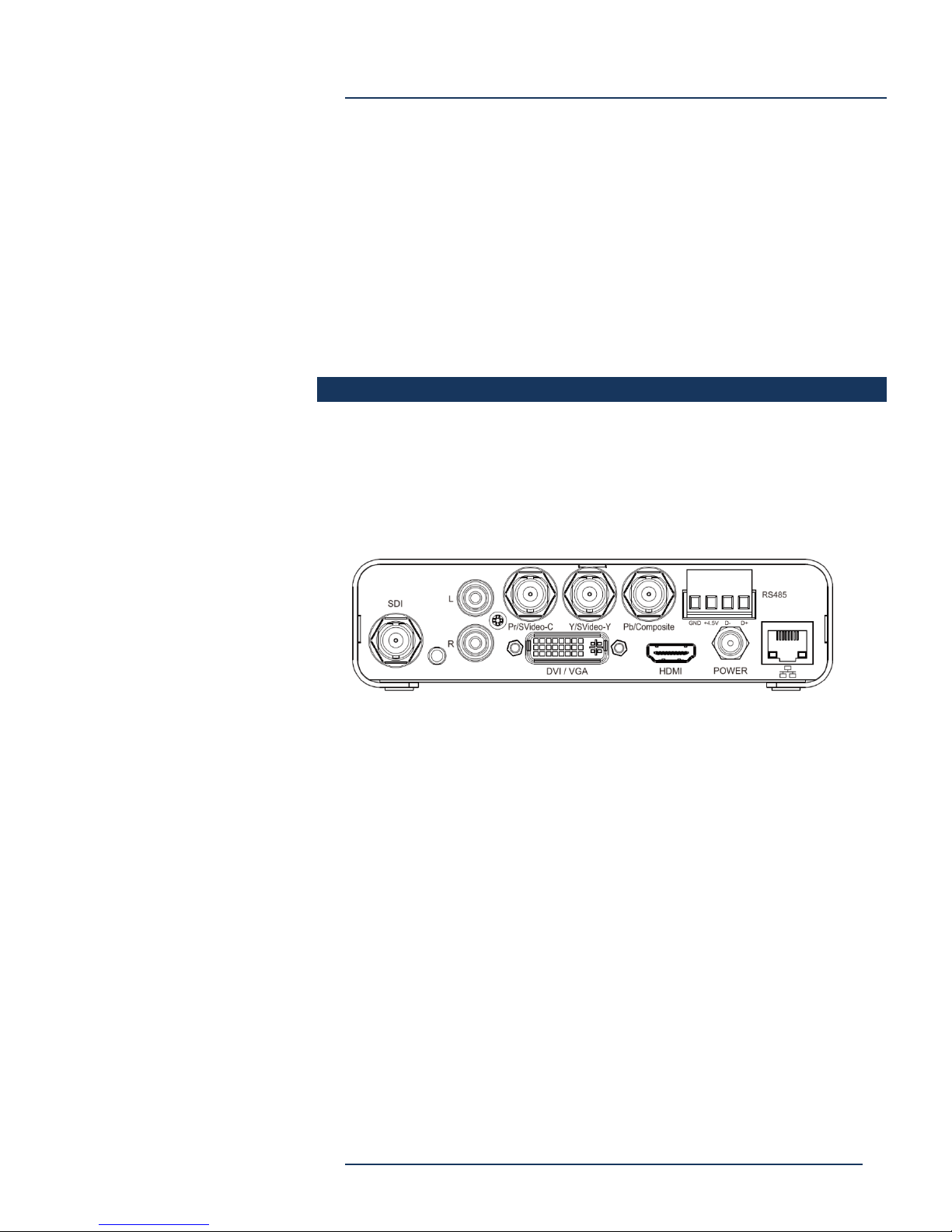
Connect desired Audio/Video input, 10/100 Ethernet, and Power.
Power is supplied by an external AC power supply and connects to the
Mantis via a locking DC connector.
Video Input may be:
HDMI – Via HDMI connector (female)
SDI – Via BNC connector (female)
Component – Via Pr/Y/Pb BNC connectors (female)
Composite/CVBS – Via BNC connector (female)
DVI/VGA – via DVI connector, VGA via adaptor (female)
Audio Input may be digital (included with HDMI or SDI), or may be
analog via Left and Right RCA connectors (female).
Ethernet is standard 10/100 supporting IP V4.
RS-458 connecter is not currently used.
Page 4
Mantis Encoder
Page 5

Mantis Encoder
Find IP Address
Apply power and turn the front panel switch to the on position. Allow a
few minutes for the unit to boot up.
The Mantis is configured for DHCP and will obtain an IP address
automatically. To find the IP address used, insert a USB Flash Drive
into the USB connector and wait a few moments. Mantis will write a
file “IP.txt” which you may then open on a computer to read the IP
address. The USB must be formatted FAT16 or else the file may not
write properly.
You may also use the finder application to discover the IP address over
the network, or you may search your router’s DHCP table to find the IP
address used.
Configuration
Enter the IP address in a browser. When prompted, enter default
username and password:
Username: admin
Password: 000000
Setting
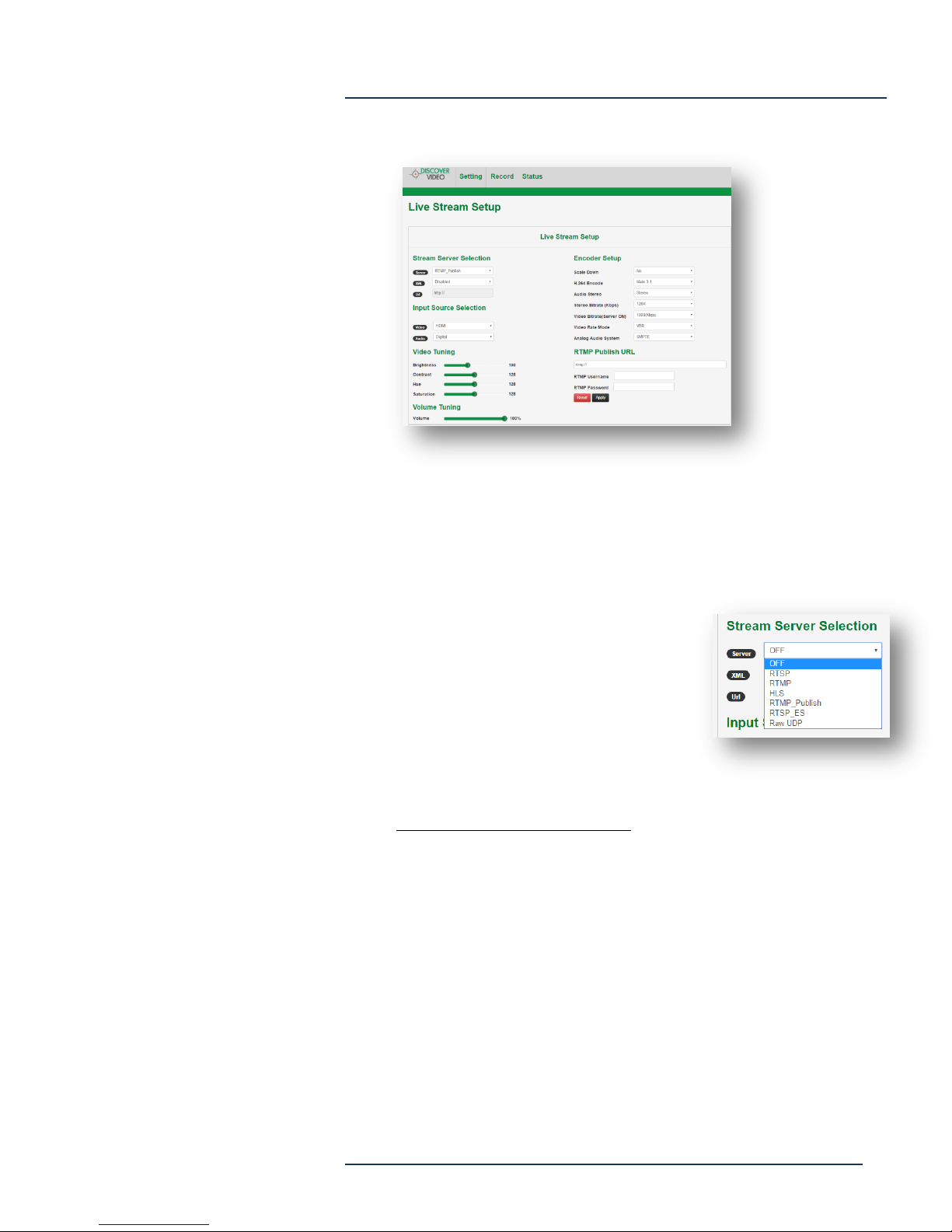
Set up the live streaming using the settings page:
Page 5
Mantis Encoder
Page 6
Server
Mantis Encoder
Off – Streaming is disabled
RTSP – Streaming is available from Mantis
via RTSP
RTMP – Stream is available directly
from Mantis as RTMP
HLS – Stream is available directly
from Mantis as HLS
RTMP Publish – Stream is sent to
Streaming Server (e.g. DEVOS, ARCUS, Streamsie Service, CDN).
This is most used configuration.
RTSP ES – Elementary Stream is available directly from Mantis.
Used in special cases.
RAW UDB – Stream is available from Mantis via IP Multicast
XML
Used for Remote Configuration. Set to disable unless instructed
by Discover Video.
Page 6
Mantis Encoder
Page 7
Mantis Encoder
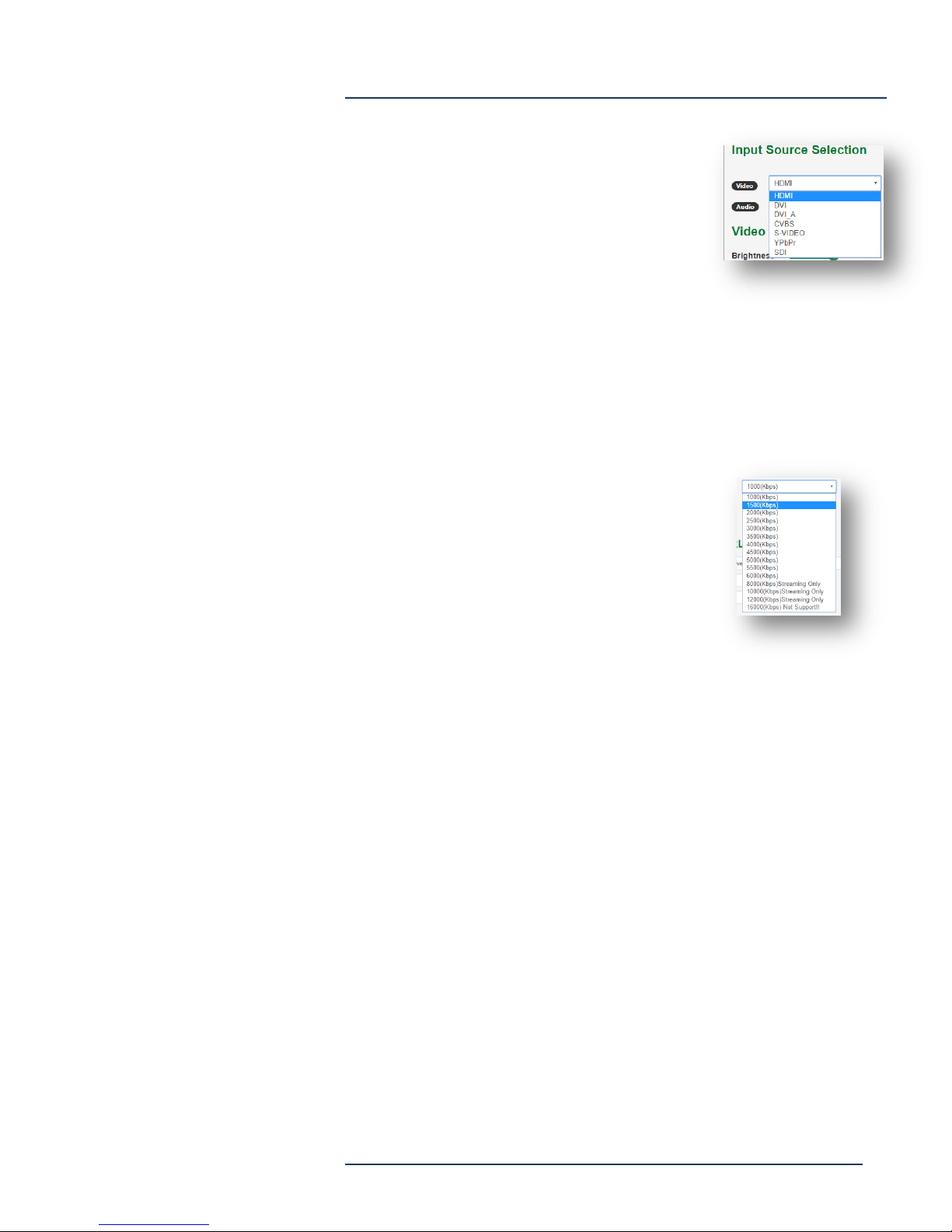
Video
Select the desired video input
Audio
Digital, RCA, Line-in (mini-jack)
Video Tuning / Volume Tuning – not
available for digital inputs
Scale Down – Normally set to “No” where the output resolution
size is same as input, or select output resolution size. Input size
must be scaleable.
H264 Encode – Main 3.0
(recommended), Main 3.1
Audio Stereo – Stereo or Mono
Stereo Bit Rate – Normally 128K, or
select desired rate
Video Bit Rate – Select desired
streaming / recording bit rate
Video Rate Mode – VBR or CBR. VBR recommended.
Analog Audio System – SMPTE (recommended), EBU. Sets the
input type when analog audio is used.
RTMP Publish URL – Available is server set to “RTMP_Publish”.
Enter the URL to push the stream to. If CDN requires
authentication, enter username and password.
RAW UDP Stream – Available if server is set to “RAW UDP”, enter
the IP Class D address and port (e.g. 239.1.2.3 port 5000).
Apply – Enters all values and applies them to the encoder.
Page 7
Mantis Encoder
Page 8
Mantis Encoder
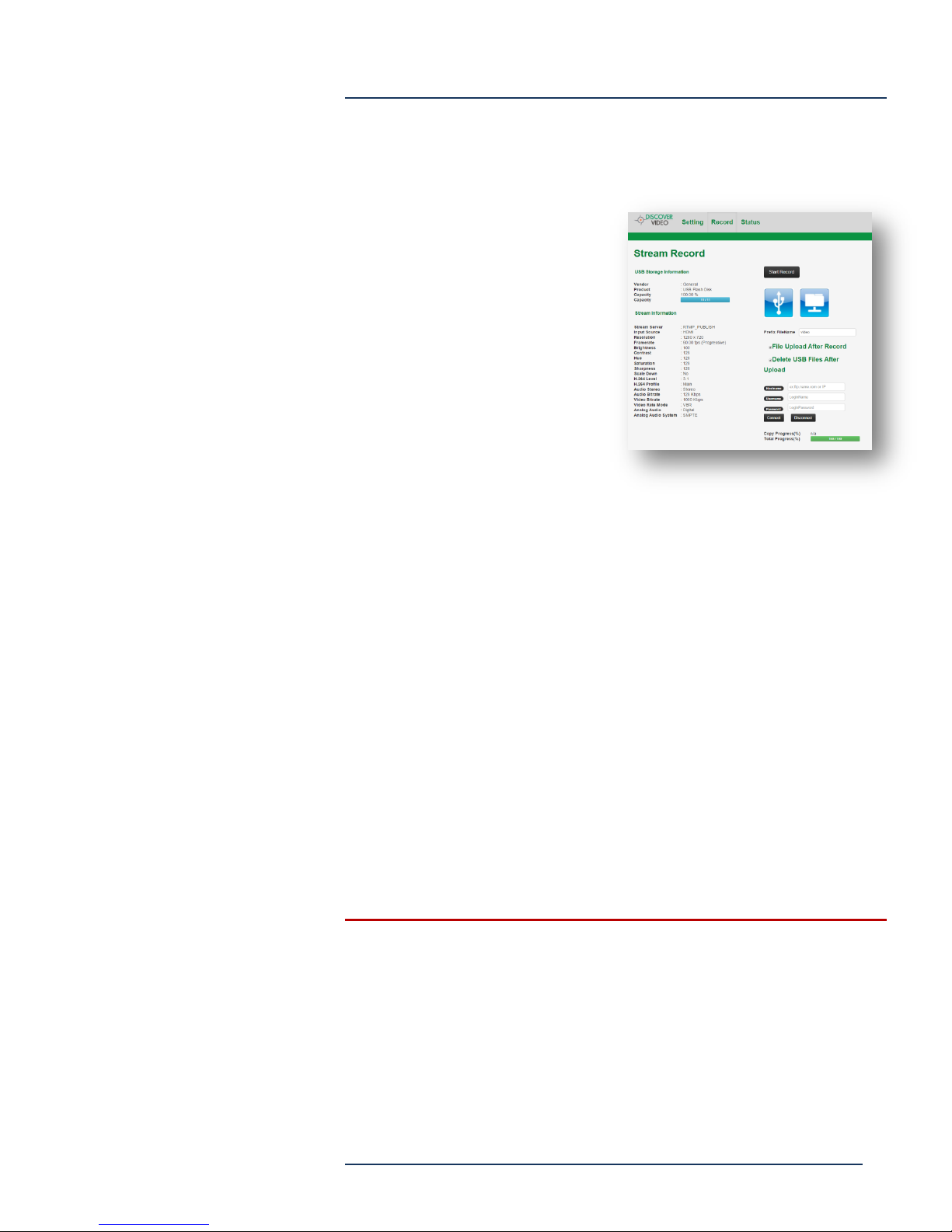
Record
Mantis can record to a USB
device (including a high capacity
drive). To use recording, insert a
USB drive and check that it is
accepted and available on the
Record screen.
Enter a record name prefix. The
recorded file will begin with this
and will append a number plus
“.mp4”.
Click on the USB icon to view the
contents of the USB drive.
Click on the Network Drive icon to view the contents on the FTP server,
if FTP has been configured.
Configure FTP by entering the server, username, and password, then
select “Connect” to allow the Mantis to connect.
Check “File Upload After Record” to automatically upload the just-
recorded file after recording.
Check “Delete USB Files After Upload” to remove the just-uploaded file
after upload is complete (use this to preserve disk space on the USB
drive).
Record – Starts Recording. Changes to “Loading” as recording starts,
then changes to “Stop Record”. Select “Stop Record” to end the
recording. Copy progress will show “Finished” when upload is
complete if “Upload After Record” has been selected.
USB storage must be formatted FAT32
Page 8
Mantis Encoder
Page 9
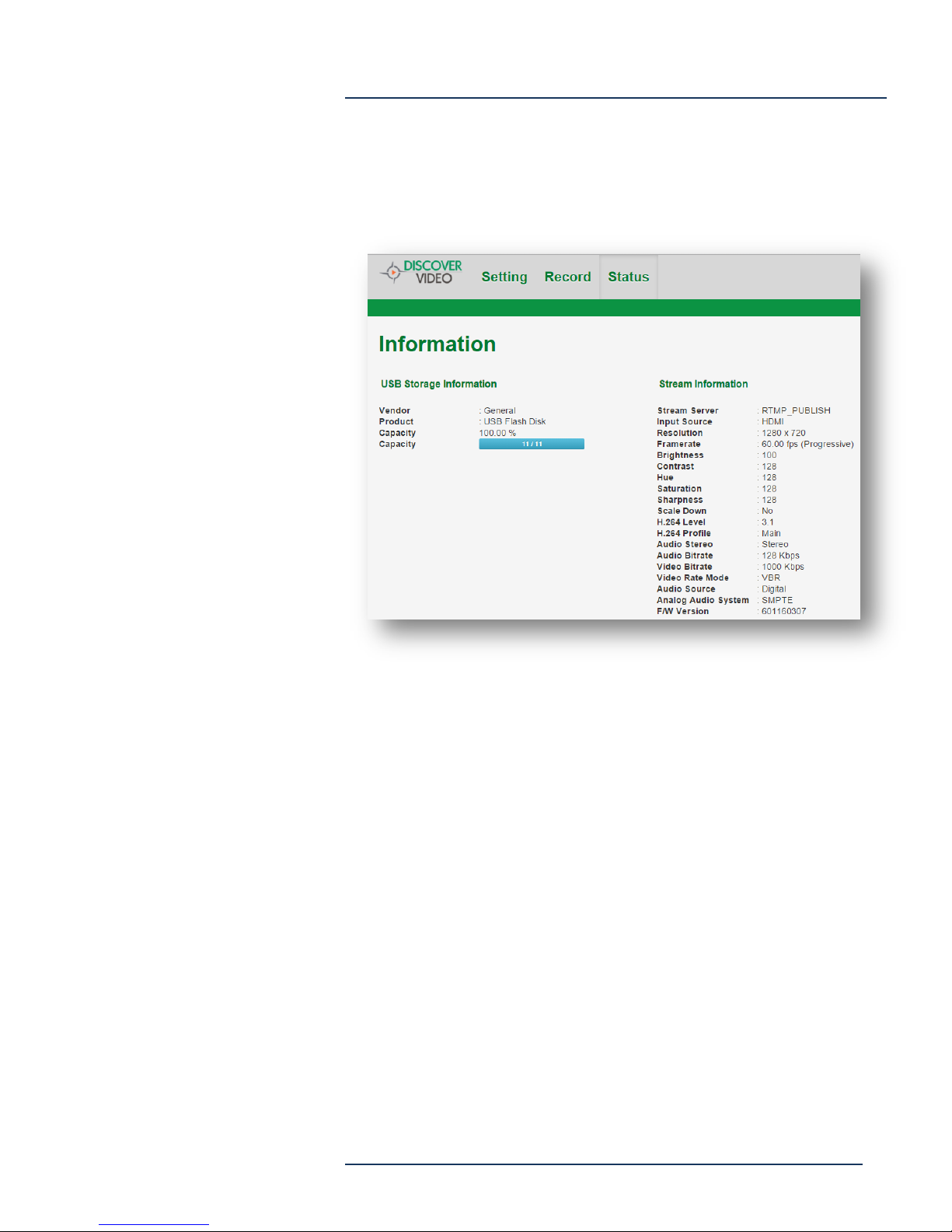
Status
Status shows the current status of the Manis.
Mantis Encoder
Page 9
Mantis Encoder
Page 10
Mantis Encoder
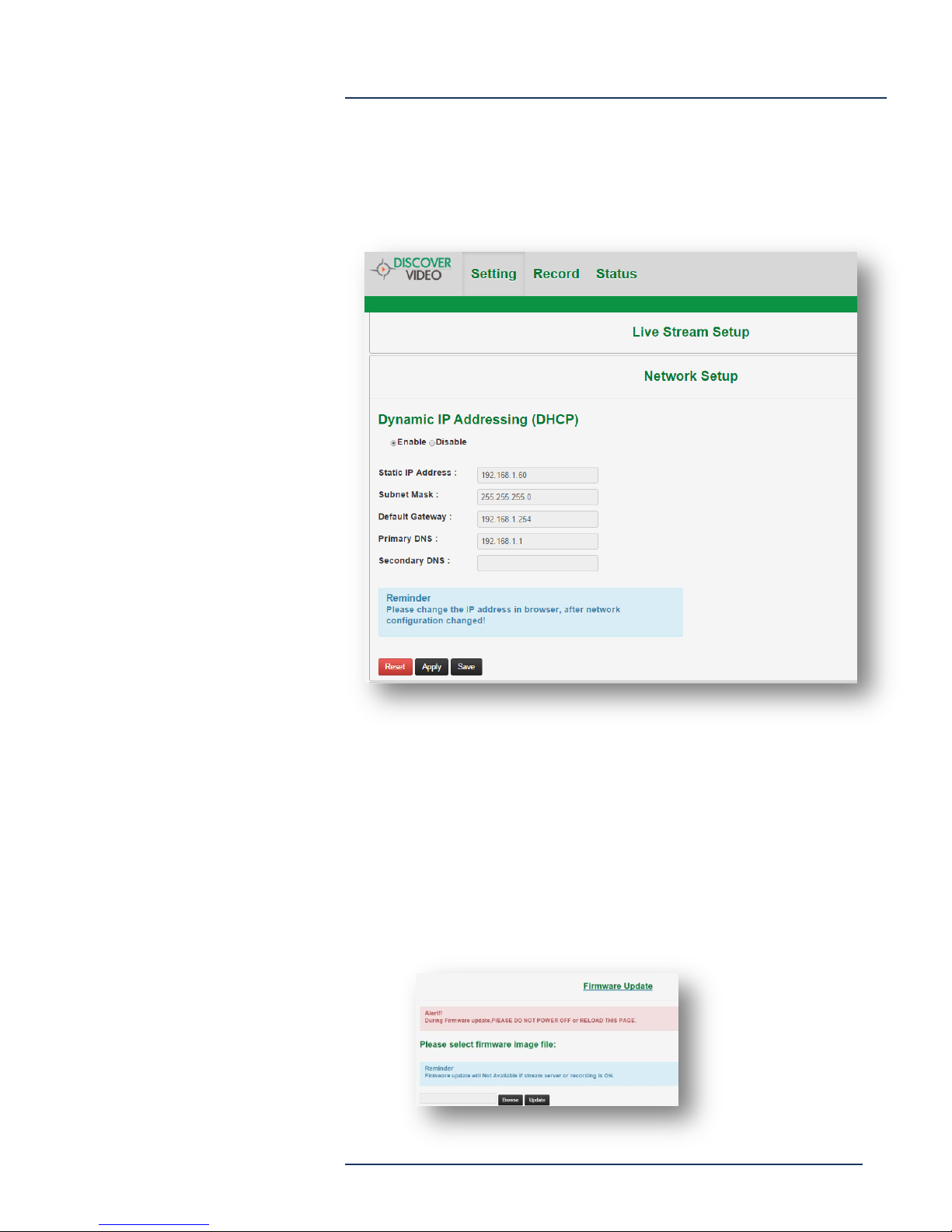
Network Setup
Select Network Setup from the Settings page to configure the network.
You may disable DHCP to set a fixed IP address.
Firmware Update
Select Firmware Update to update the Mantis with files provided by
Discover Video. With the streaming server set to OFF, upload firmware
ending in “A”, followed by “B”. Once the message “Warning, Please
reboot” appears, cycle power to reboot.
Page 10
Mantis Encoder
Page 11
Mantis Encoder
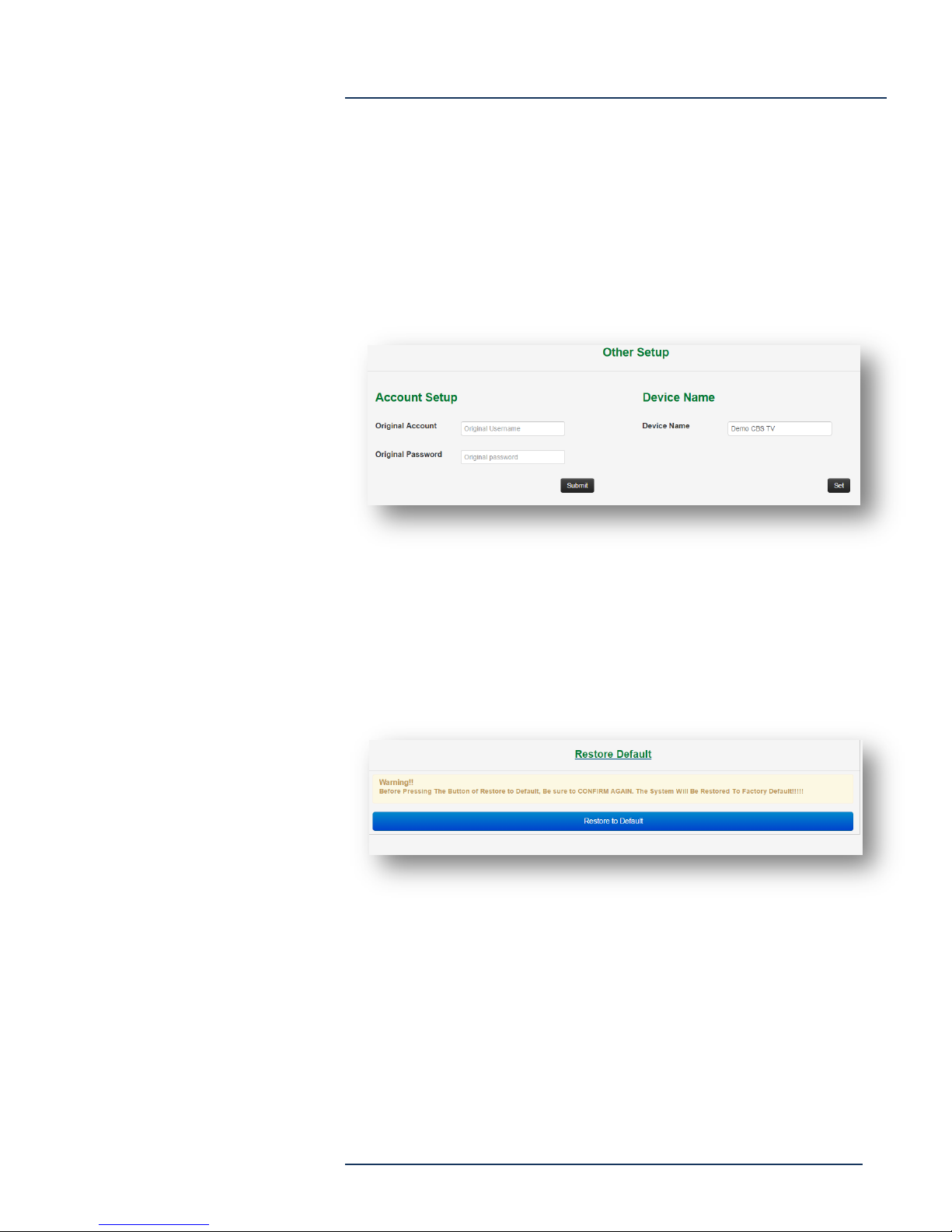
Other Setup
Select Other Setup to change the system password. Enter the original
Account (username) and password then select “Submit”, then enter
new Account (username) and password. Enter a device name for the
Mantis, which will show up in the Mantis Finder program to ease
device identification.
Restore Default
Select Restore Defaults to return the Mantis to factory default settings.
Page 11
Mantis Encoder
Page 12
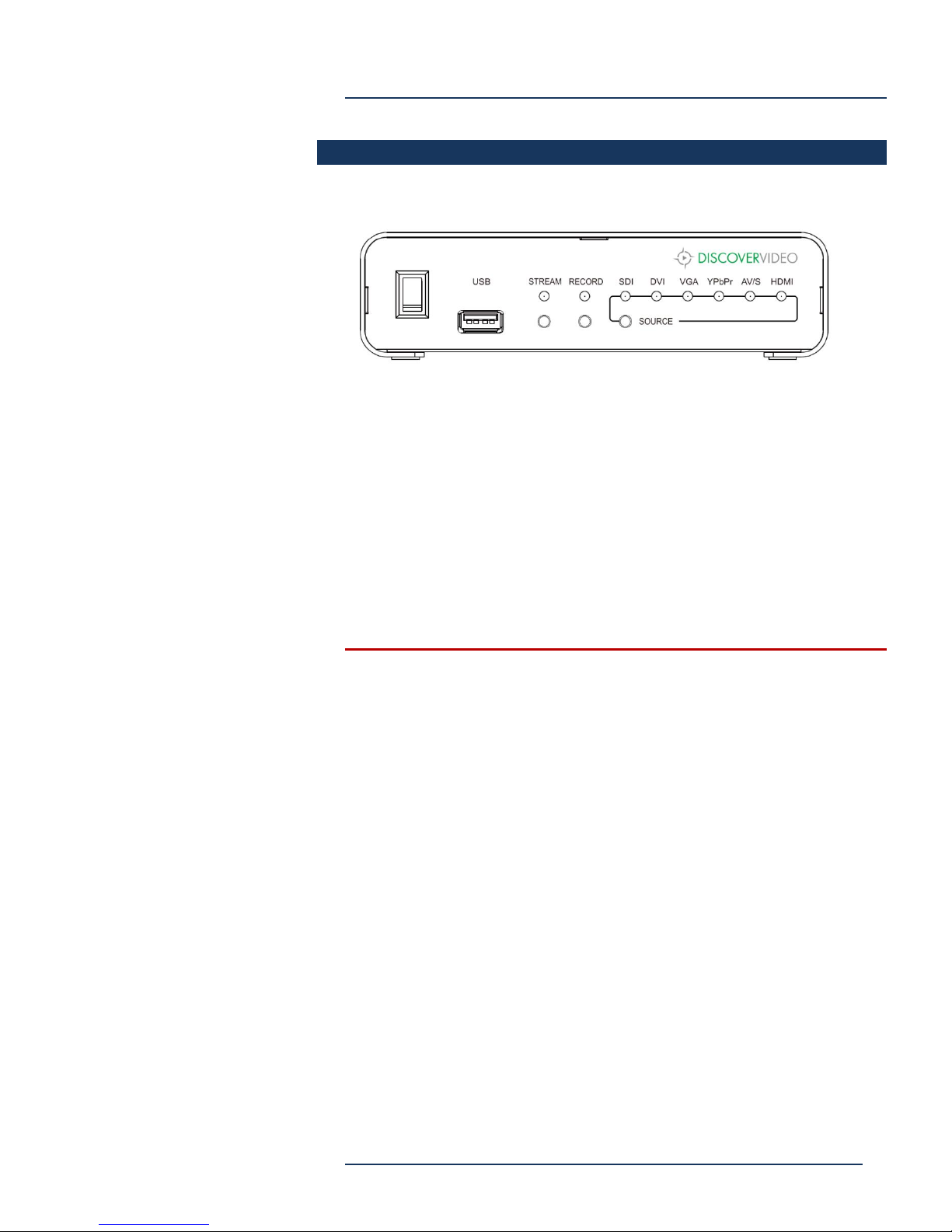
Front Panel
Power – turns power on/off
USB – Optional storage for recording
Stream -- Press once for 3 sec to start streaming. Again to stop.
Record – Press once for 3 sec to start recording. Again to stop.
Mantis Encoder
SDI / DVI / VGA / YPbPr / AV / HDMI – Press to select video input.
NOTE: If XML Configuration is in use, front panel buttons are
disabled.
Page 12
Mantis Encoder
Page 13

Operation & Notes
The Mantis does not deinterlace composite (CVBS) video. Some
devices, including iPhone6 (but not iPhone 5 or iPad) may not
display interlaced video. One work-around to this is to use
HDMI input with an external composite-to-HDMI converter.
When Mantis is set to HLS, the viewing URL is:
http://[username]:[password]@[IP]/hls/live.m3u8. You can view
this directly on most SmartPhones and Tablets.
When Mantis is set to RTMP, the viewing URL is:
rtmp://[IP]/live/Mantis (case sensitive). This can be viewed in the
Discover Video player, 3rd party players, and can be pulled in to
DEVOS via Advanced/Pull function.
When Mantis is set to RTSP, the viewing URL is:
rtsp://[IP:8000]/live (case sensitive). The port cannot be changed.
Mantis Encoder
When Mantis is set to RAW UDP, the stream can be viewed
using VLC player using udp://@[IP]:[Port].
If viewing directly from Mantis via HLS or RTMP, only one
simultaneous viewer is recommended (although several
simultaneous viewers may be possible).
To conduct Upload After Record, you must first connect to FTP
server by selecting the “connect” button.
After recording, you may select the USB icon to show all files on
the recording media. Right-click on a file to download it to your
computer. You can then edit the video, upload it DEVOS, Arcus,
etc.
Be sure to use a high capacity USB storage device, such as a
“Passport”, “Verbatum” or similar flash/disk device. Small
“Thumb Drives” will work, but recording video at high bit rate
creates large files and you will want to be sure you have enough
space! Storage device must be formatted for FAT32.
If Mantis becomes unresponsive, you can restore the product to
factory configuration by inserting USB with the reset code on it
and cycling the power. This software can be downloaded from
http://discovervideo.com/mantis
Page 13
Mantis Encoder
Page 14
Mantis Encoder
Mantis Shelf
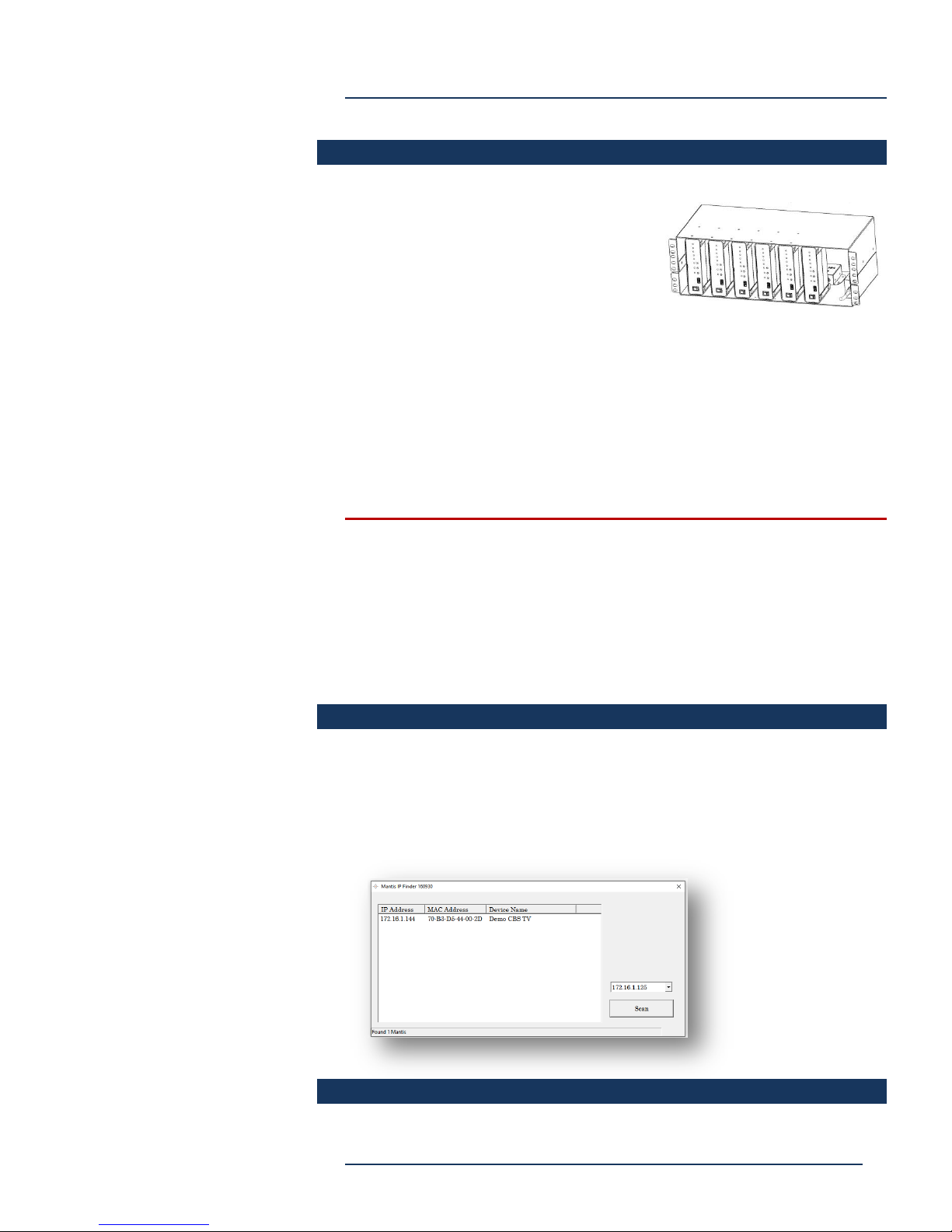
The Mantis Shelf can mount up to six
Mantis encoders and provides power
supply and power distribution to the
encoders.
Install the encoders by securing them
with the included screws (two on top, two on the bottom).
Connect power using the included cables from the power distribution
box to each encoder.
Connect each Mantis to your network via Ethernet (you may find it
convenient to use an inexpensive Ethernet switch associated with each
shelf).
Note that it may be difficult to see the MAC address label once the
Mantis is mounted in the shelf. You should copy the MAC
addresses, or mark them on your own visible labels. The MAC
address help you identify each Mantis when using the Mantis IP
finder program.
Mantis Finder
Use the Mantis IP Finder to locate the Mantis encoders on your
network. The finder must be used on the same network as the
encoders. The discovered encoders will show their MAC addresses to
help you identify the Mantis.
Page 14
Mantis Encoder
Page 15
Output ->
Input
1920x1080
1440x1080
1440x900
1280x720
960x540
720x576
720x480
320x240
1080p60
1080i60
1080p50
1080i50
720p60
720p50
576p60
480p60
PAL
NTSC
Scaling
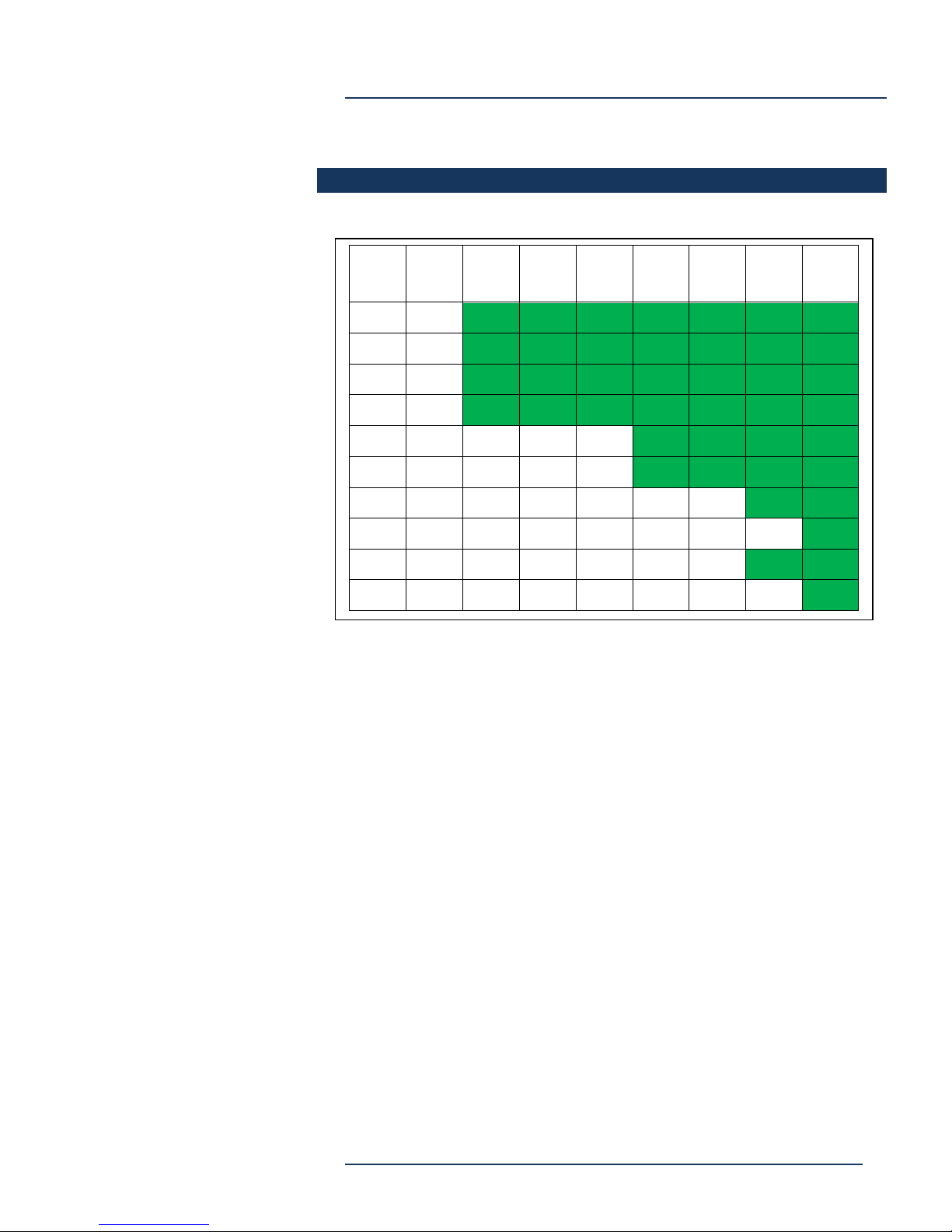
The following scaling settings are supported.
Mantis Encoder
Page 15
Mantis Encoder
Page 16

Mantis Encoder
Warranty
Mantis has a 1 year Return-To-Factory limited warranty, starting on the
date of shipment.
THIS WARRANTY GIVES YOU SPECIFIC LEGAL RIGHTS, AND YOU
MAY ALSO HAVE OTHER RIGHTS WHICH VARY FROM STATE TO
STATE (OR JURISDICTION TO JURISDICTION). DISCOVER VIDEO LLC
RESPONSIBILITY FOR MALFUNCTIONS AND DEFECTS IN HARDWARE
IS LIMITED TO REPAIR AND REPLACEMENT AS SET FORTH IN THIS
WARRANTY STATEMENT. ALL EXPRESS AND IMPLIED WARRANTIES
FOR THE PRODUCT, INCLUDING BUT NOT LIMITED TO ANY IMPLIED
WARRANTIES AND CONDITIONS OF MERCHANTABILITY AND
FITNESS FOR A PARTICULAR PURPOSE, ARE LIMITED IN TIME TO 12
MONTHS FROM DATE OF SHIPMENT. NO WARRANTIES, WHETHER
EXPRESS OR IMPLIED, WILL APPLY AFTER THE LIMITED WARRANTY
PERIOD HAS EXPIRED. SOME STATES DO NOT ALLOW LIMITATIONS
ON HOW LONG AN IMPLIED WARRANTY LASTS, SO THIS LIMITATION
MAY NOT APPLY TO YOU.
WE DO NOT ACCEPT LIABILITY BEYOND THE REMEDIES PROVIDED
FOR IN THIS LIMITED HARDWARE WARRANTY OR FOR
CONSEQUENTIAL OR INCIDENTAL DAMAGES, INCLUDING, WITHOUT
LIMITATION, ANY LIABILITY FOR THIRD-PARTY CLAIMS AGAINST
YOU FOR DAMAGES, FOR PRODUCTS NOT BEING AVAILABLE FOR
USE, OR FOR LOST DATA OR LOST SOFTWARE. OUR LIABILITY WILL
BE NO MORE THAN THE AMOUNT YOU PAID FOR THE PRODUCT
THAT IS THE SUBJECT OF A CLAIM. THIS IS THE MAXIMUM AMOUNT
FOR WHICH WE ARE RESPONSIBLE.
SOME STATES DO NOT ALLOW THE EXCLUSION OR LIMITATION OF
INCIDENTAL OR CONSEQUENTIAL DAMAGES, SO THE ABOVE
LIMITATION OR EXCLUSION MAY NOT APPLY TO YOU.
Page 16
Mantis Encoder
 Loading...