

Page 1

2-Port
Pocket USB KVM switch
Users Manual
(DS-11402-1)
Page 2

Index
1. INTRODUCTION……………………………………………………………………………………………2
1.1
FEATURES …………………….…..………………………………….………………………… ………2
1.2
PHYSICAL DIAGRAM…….…………………………………...…..………………………………………3
1.3 PACKAGE CONTENTS…………………………………...……………..………………………………...3
2. SPECIFICA TIONS………………………………………………………………………………………….4
2.1
GENERAL……………………………………………………………...…………………………………4
3. INSTALLING THE CABLE KVM SWITCH………………………………………………………………5
3.1
SYSTEM REQUIREMENTS………………………………………….…………………………………….5
3.2
HARDWARE INSTALLATION………...………………………...……………..……………………………5
3.3
HOT SWAPPABLE……………………….……………...……………………..………………………….6
3.4
DRIVER INSTALLATION(WINDOWS 98/SE ONLY)..………………………………………………………6
4. OPERATION………………………………………………………………………………………………..9
4.1.P
USH BUTTON OPERATION ................................................................................................. 9
4.1.1.PC SELECTION ............................................................................................................... 9
4.1.2.AUTO-SCAN .................................................................................................................... 9
4.2.HOT KEY OPERATION ....................................................................................................... 10
4.2.1.PC SELECTION ............................................................................................................. 10
4.2.2.AUDIO SELECTION ......................................................................................................... 10
1
Page 3

1. Introduction
Thank you for your purchase of the 2-port USB/VGA Cable KVM Switch with
Audio! You now have a high quality, durable system that enables you to control two
computers and/or servers from one console (USB Mouse, Keyboard, and Monitor).
In addition, proprietary new technology allows you to independently control and
switch audio between two computers.
1.1 Features
1. Controls 2 computers from a single console (Keyboard/Mouse) over USB
connection.
2. Support Windows (98SE or above), Sun Micro , Mac , Linux
3. Supports speaker and Microphone.
4. Emulates a keyboard on each PC to allow your computers to boot normally
without a keyboard error.
5. Supports hot-swap. All devices connected to the KVM can be added or
removed at any time, without shutting the unit down.
6. Supports USB keyboard Hot-Key Switch (for Microsoft Windows series) and
push buttons for easy operation.
7. Supports Auto-Scan function to alternate video between both computers in
preset intervals.
8. Supports LED display for PC and audio status monitoring.
9. Supports VGA resolutions up to 2048x1536 @ 85HZ.
10. Supports Plug and Play.
11. Self powered through USB connection.
12. Supports independent audio switching.
2
Page 4

1.2 Physical Diagram
PC connection 2 LED Indicators (Green)
PC connection 1 LED Indicators (Green)
PC 1 LED Indicators (Red)
PC 2 LED Indicators (Red)
USB Keyboard
VGA Output
USB Mouse
PC Selection Push Button
MIC Jack
PC LED Indicators:
RED LED indicates that the 2-port USB/VGA Cable KVM Switch is switched to
the corresponding PC.
PC connection LED Indicators:
GREEN LED indicates the status of PC connection.
PC Selection Push Button
Speaker Jack
1.3 Package Contents
The product you purchased should contain the following equipment and
accessories:
1. One 2-port USB/VGA Cable KVM Switch with Audio.
2. User Manual.
3
Page 5
2. Specifications
2.1 General
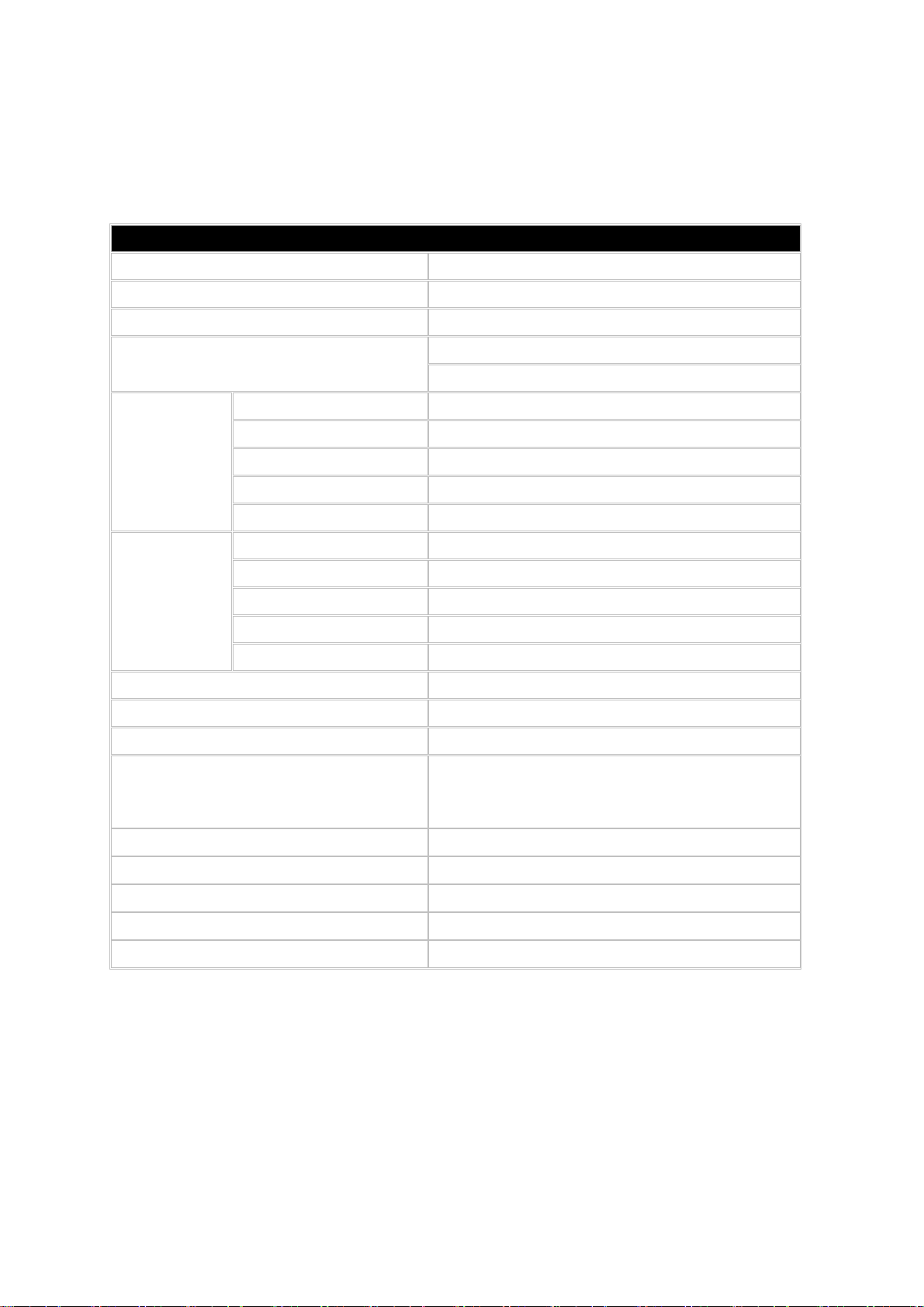
Specification
Number Of Computers Controlled 2
Selection Method USB Keyboard Hot Key and Push button
USB Versions supported 1.1/2.0
LEDs
PC
Connectors
Console Ports
Auto-Scan Interval 10 Seconds
DDC, DDC2 monitor Yes (Max. Resolution: 2048x1536)@85Hz
Hot Swappable Yes
Operating systems supported
USB 2 x Type A USB Connectors
Video 2 x HDB-15 male
Speaker 2 x Stereo speaker plugs
Microphone 2 x Mono microphone plugs
KVM Body 1 x DVI 24+5 Connector (male)
Keyboard / Mouse 2 x Type A USB Connectors (female)
Video 1 x HDB-15 female
Speaker 1 x Stereo speaker jack
Microphone 1 x Mono microphone jack
HOST 1 x DVI 24+5 Connector (female)
Red for PC Selection
Green for PC ON-Line Selection
Windows (98SE or above), Sun Micro, Mac,
Linux
Device driver No
Power By PC USB power
Cable Length 1.20 Meter
Dimensions (LxWxH) 65 x 85 x 25 (mm)
Unit Weight 450 g
4
Page 6
3. Installing the Cable KVM Switch
3.1 System Requirements
(1) A PC with USB port and 1 VGA port.
(2) Windows 98 or later, Mac OS 8/9/OS X, Linux Kernel 2.3 or later.
(3) USB Keyboard and mouse.
(4) Monitor with VGA port.
3.2 Hardware Installation
5
Page 7
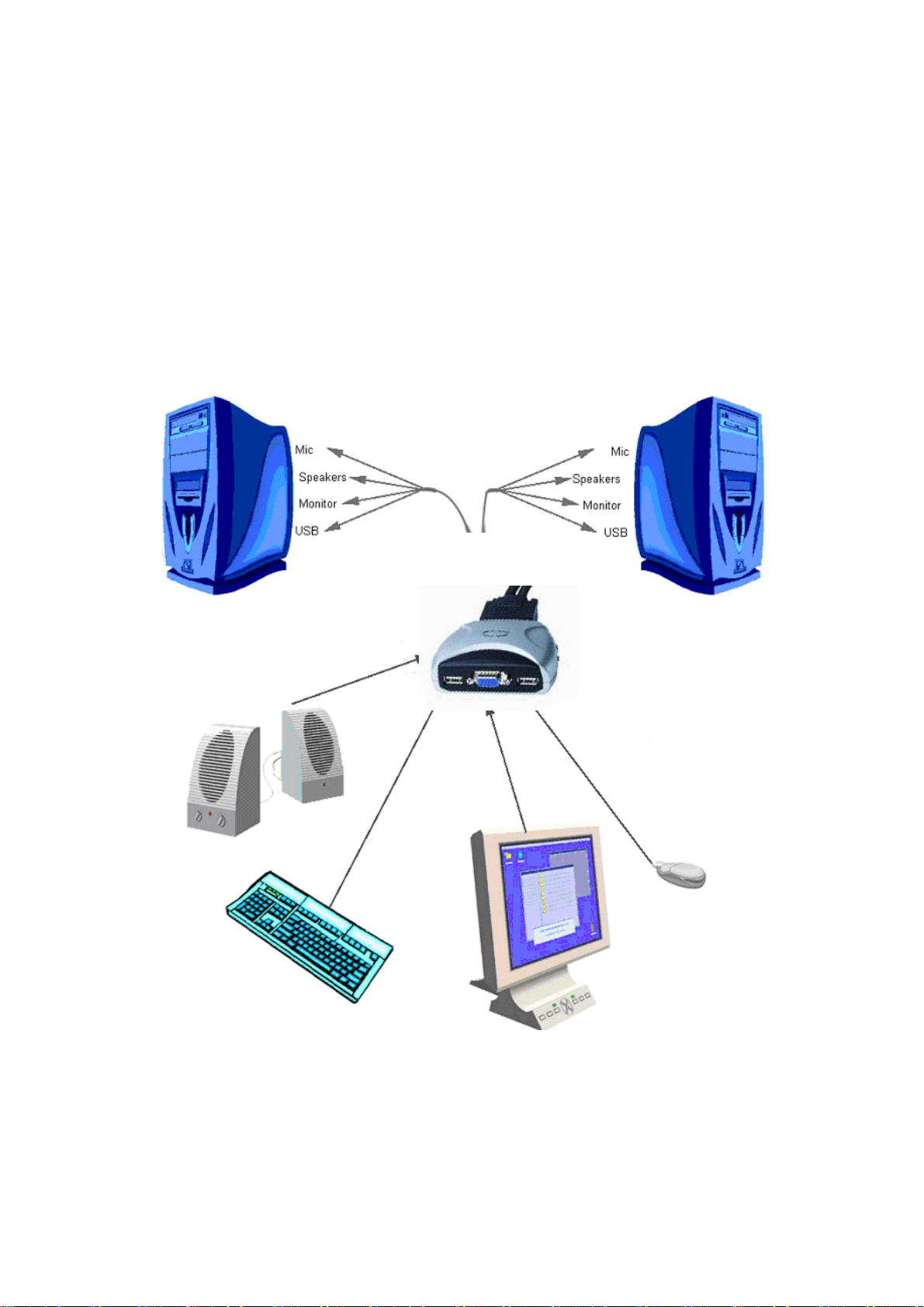
Plug the USB keyboard, USB mouse, and monitor into the corresponding
connectors of your 2-port USB/VGA Cable KVM Switch.
Plug the speakers into the corresponding jacks of your 2-port USB/VGA Cable
KVM Switch.
Connect the KVM cables into the corresponding ports on the computers.
3.3 Hot Swappable
The 2-port USB/VGA Cable KVM Switch supports hot-swap technology. All the
components can be added or removed at any time without shutting the PC down.
3.4 Driver Installation (Windows 98/SE only)
After you connect the 2-port USB/VGA Cable KVM Switch to your PC, Win 98
will automatically detect the device and prompt for the driver installation. Please
install the 2-port USB/VGA Cable KVM Switch by the following instruction from Step
A-E. Please have your Windows 98 CD ready.
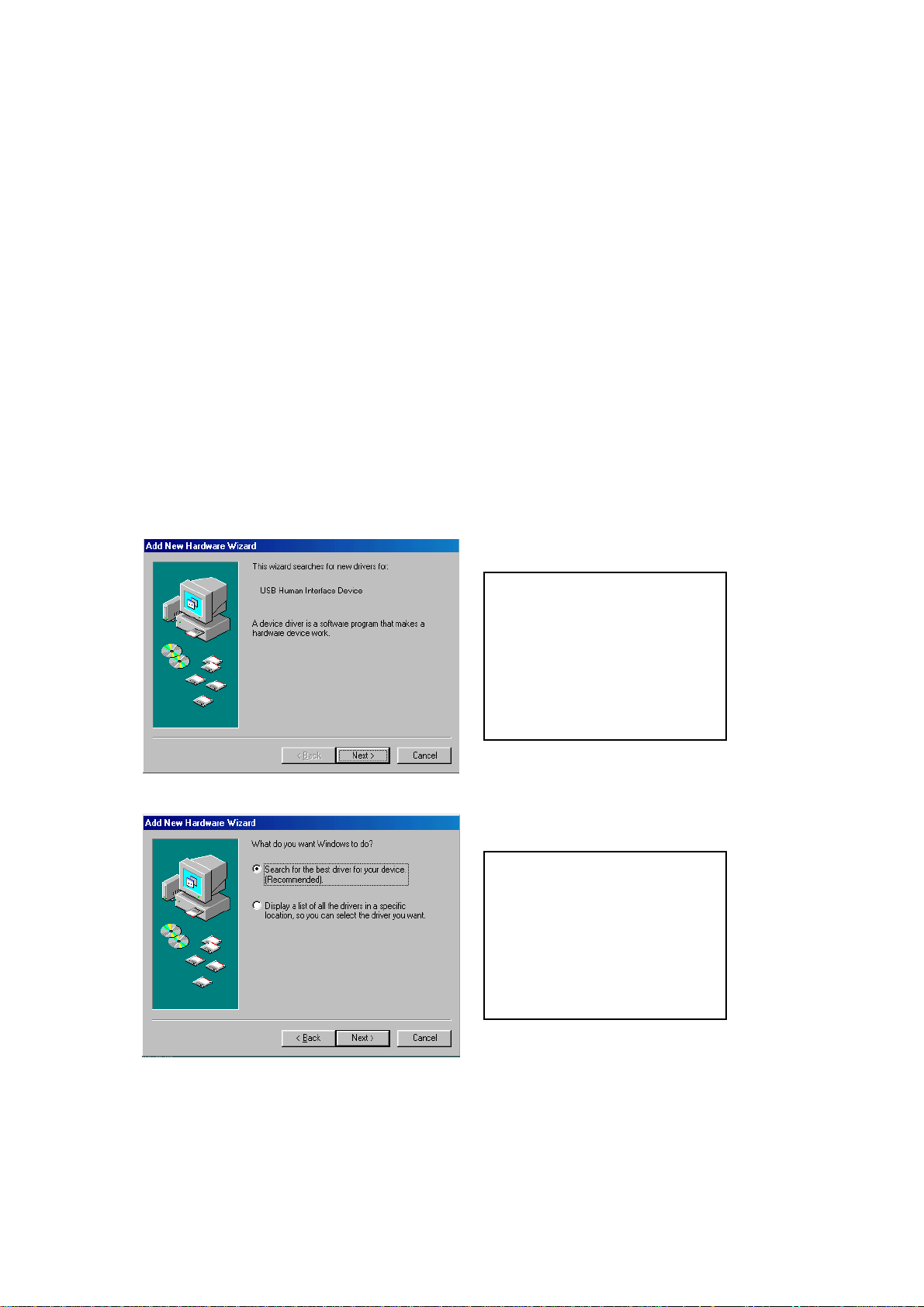
A. Press “Next” to Continue.
(Ref. Fig. A)
Fig. A
B. Select “Search for the
best driver for your device”
and press “Next” to
continue.
(Ref. Fig. B).
Fig. B
6
Page 8
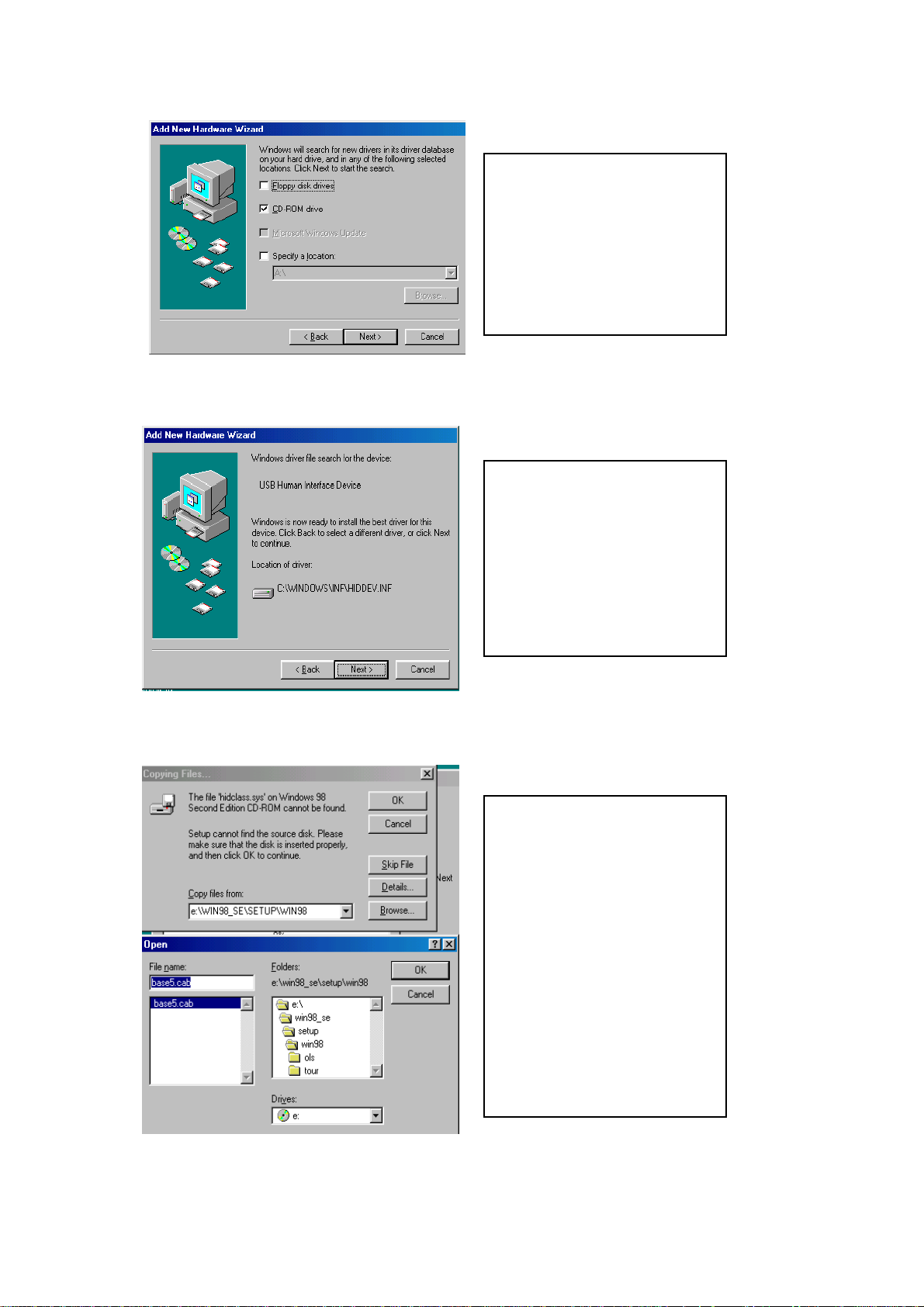
C. Please insert the
“Windows 98” CD into your
CD-ROM drive. Click
“CD-Rom drive” and press
“Next” to continue.
(Ref. Fig. C)
Fig. C
D. Press “Next” to start the
installation process.
Fig. D
(Ref. Fig. D)
D1. Sometimes Windows
cannot locate the necessary
driver automatically. So you
need to choose “Browse” to
specify the location of the
driver on your “Windows
98” CD manually. *
(Ref. Fig. D1)
Fig. D1
7
Page 9
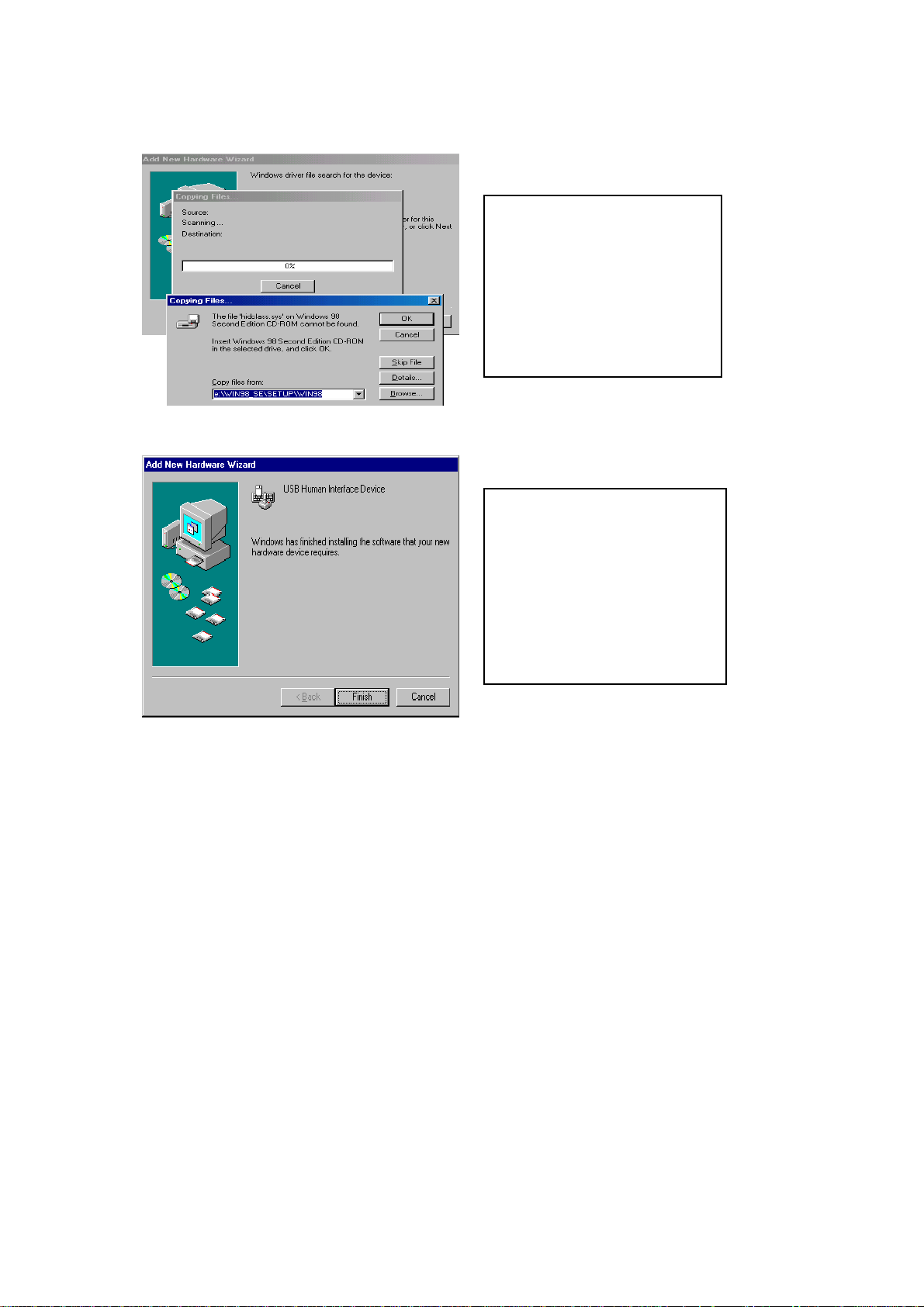
* The driver might be located in a different directory from the figure above.
D2. Press “OK” to continue
(Ref. Fig. D2)
Fig. D2
E. Press “Finish” and
Fig. E
Windows has finished
installing the USB Human
Interface Device driver for
PS/2 keyboard & mouse.
(Ref. Fig. E)
8
Page 10

4. Operation
The 2-port USB/VGA Cable KVM Switch can switch the keyboard, video, mouse
by pushing button and Hot Key.
The switching of Audio inputs (speaker & microphone) is independent and be
controlled by Hot Key only. The Audio inputs is not be switched with PC
selection.
4.1. Push Button Operation
4.1.1. PC Selection
User can switch Computers (Keyboard, Mouse and Video inputs) by
pressing push button directly.
4.1.2. Auto-Scan
Start Auto-Scan
Press and hold push button for longer than 3 seconds will turn the
system into auto-scan mode. The auto-scan time interval is fixed to 10
seconds.
Stop Auto-Scan
Under auto-scan mode, press any push button will stop auto-scan.
9
Page 11
4.2. Hot Key Operation
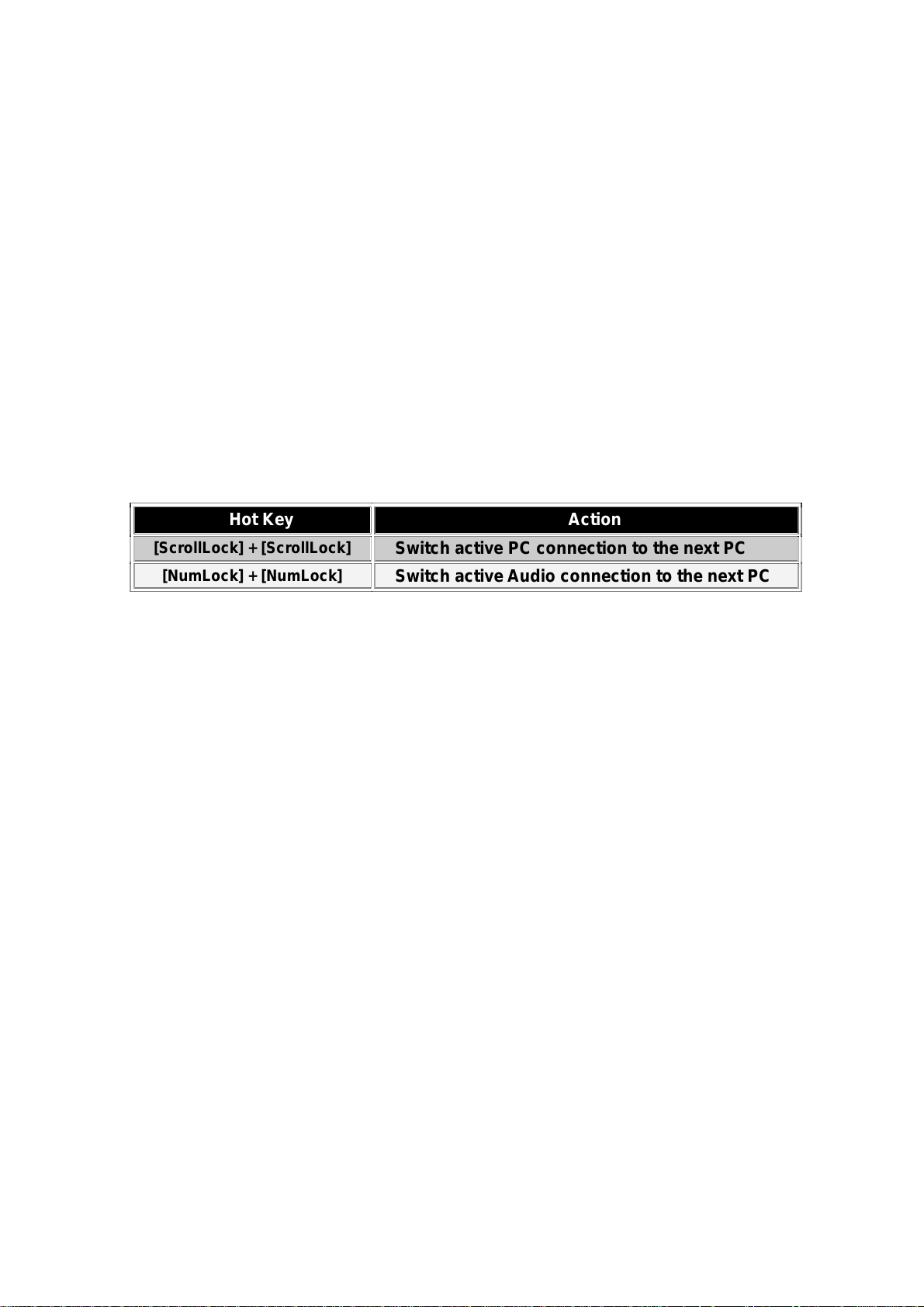
When using the Hot Key sequences, the keys must be pressed within 6 seconds,
otherwise the Hot Key action will terminate.
The Hot Key Operation is only supported under Microsoft Windows series
system.
4.2.1. PC Selection
[ScrollLock] + [ScrollLock] → change the active PC port.
4.2.2. Audio Selection
[NumLock] + [NumLock] → change the active audio port.
Hot Key Action
[ScrollLock] + [ScrollLock]
[NumLock] + [NumLock]
Switch active PC connection to the next PC
Switch active Audio connection to the next PC
10
Page 12

Disclaimer
Information in this document is subject to change without notice. The manufacturer does not make any representations or
warranties (implied or otherwise) regarding the accuracy and completeness of this document and shall in no event be liable for
any loss of profit or any other commercial damage, including but not limited to special, incidental, consequential, or other
damages.
No part of this document may be reproduced or transmitted in any form by any means, electronic or mechanical, including
photocopying, recording or information recording and retrieval systems without the express written permission of the
manufacturer.
All brand names and product names used in this document are trademarks, or registered trademarks of their respective
holders.
FCC Statement
This device generates and uses radio frequency and may cause interference to radio and television reception if not installed
and used properly. This has been tested and found to comply with the limits of a Class B computing device in accordance with
the specifications in Part 15 of the FCC Rules. These specifications are designed to provide reasonable protection against such
interference in a residential installation. However, there is no guarantee that interference will not occur in a particular installation.
If this device does cause harmful interference to radio or television reception, which can be determined by plugging the device
in and out, the user can try to correct the interference by one or more of the following measures:
Reorient or relocate the receiving antenna.
Increase the separation between the device and receiver.
Connect the computer into an outlet on a circuit different from that to which the receiver is connected.
Consult the dealer or an experienced radio/TV technician for help.
11
 Loading...