

Page 1
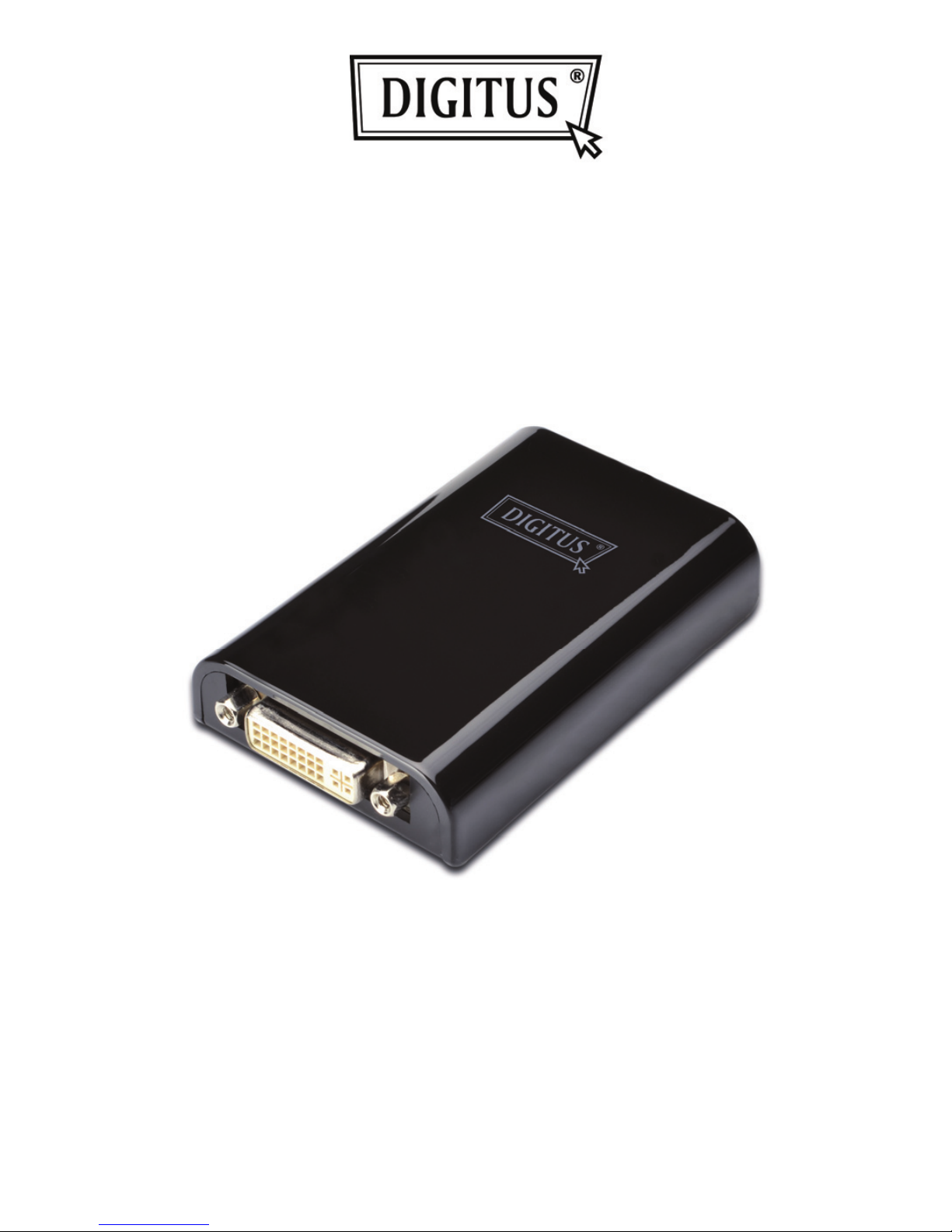
USB 3.0 TO DVI
GRAPHIC ADAPTER
Quick Installation Guide
DA-70451
Page 2

1. Installing the Driver
Caution: DO NOT connect the adapter to your
computer before installing the provided driver.
Insert the provided CD into a computer's disc drive and the
AutoPlay will be launched automatically. If the AutoPlay
does not appear, locate and double-click on the Setup.exe
file in the driver folder.
For Windows Vista
®
/ Windows 7® users:
A. Please click <Run Setup.exe> to execute
the installer program.
B. If you encounter a User Account Control dialog box
when attempting to install a program, enter an
administrator password or click <Allow> / <Yes> to
start the installation.
C. The License agreement will be prompted.
Click <I Accept> to start the driver installation.
D. Click <Yes> to restart or <No> to manually restart later,
if a promoting to restart computer message appears.
Page 3

For Windows XP® users:
A. The License agreement will be prompted.
Click <I Accept> to start the driver installation.
B. Click <Yes> to restart or <No> to manually restart later,
if a promoting to restart computer message appears.
2. Making the Connection
A. Connect the USB 3.0 Display Adapter to a monitor and a
computer. The screen may temporarily go black or flash
during this process.
B. The reminder message will appear on the system tray,
when the adapter has been detected by the operating
system.
3. Changing the Display Mode
There are several ways to utilize the monitor attached on
the adapter. The add-on monitor can be configured to use
either “Mirror mode”, “Extended mode” or be the Primary
display as described in this section.
Page 4
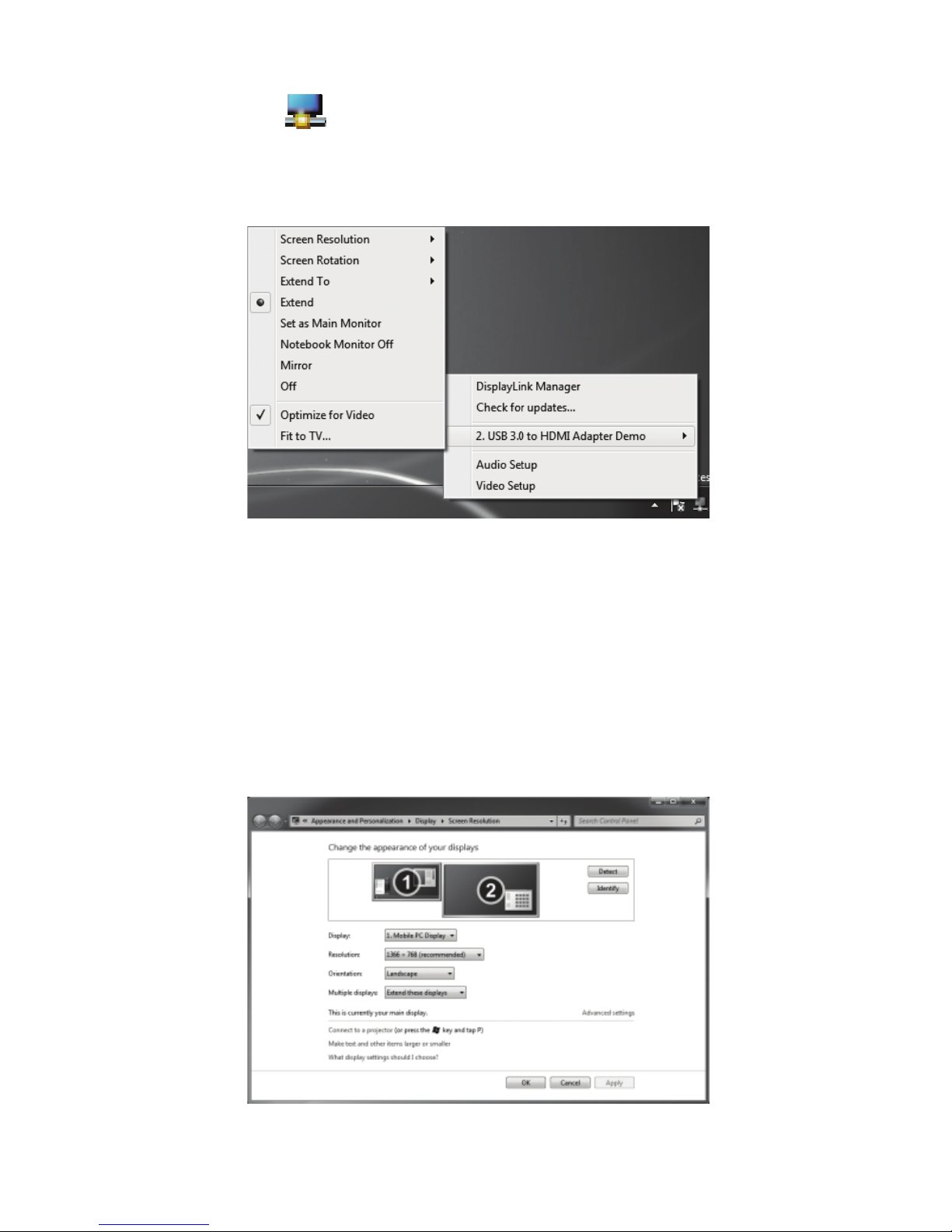
Utility:
A. Click < (utility icon) > in
t
B. Select a preferred option, an
d
Windows configuration:
Position the mouse anywhere on
t
right-click and select <Screen Re
s
Personalize > Display Settings
o
Properties > Settings on Windo
w
he Windows System Tray.
then click it using mouse.
he computer desktop,
olution> on Windows 7®,
n Windows Vista® or
s XP®.
 Loading...