

Page 1
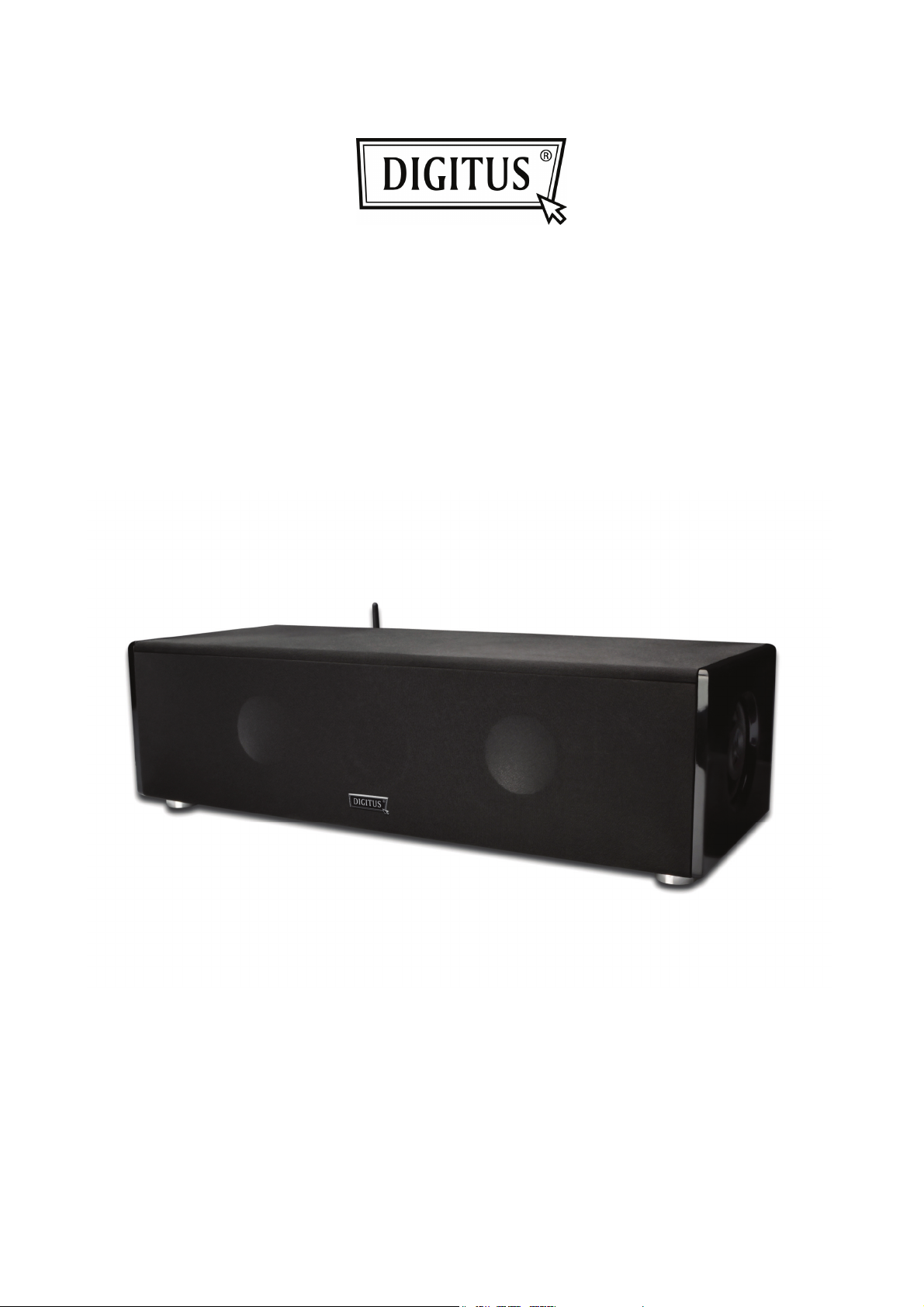
BLUETOOTH
"SOUNDBAR" WITH
SUBWOOFER
Quick Installation Guide
DA-10296
Page 2

BLUETOOTH A2DP FUNCTION
For wireless pairing and playback, please make sure your audio player, such as mobile phone,
laptop, MP3 Player or computer, already features the built-in Bluetooth A2DP function.
Wireless stereo properties
• CSR Bluetooth chipset, built-in
• Supports Bluetooth A2DP
• Compatible with smartphones, tablets, PCs, and almost any Bluetooth device.
INSTALLATION INSTRUCTIONS
The Bluetooth speaker is an easily installed device. Once set-up has been completed, you can
enjoy your music wirelessly. Please set up your devices as described in the following
instructions.
If using a notebook
1. Please set up your Bluetooth speaker, and plug into the power supply.
2. Turn on your notebook and click on “Bluetooth manager“. Then activate the Bluetooth
function and search for “Digitus“. During the pairing procedure, you will be required to
enter a passkey code for connection of the Bluetooth Speaker device, (please key in
0000).
3. Once the pairing has been completed, you will hear a bleep. You need to check
whether the notebook has detected the Bluetooth Speaker device and that this has
been activated. Go to “Control panel “, then go to “Sound”. If an extra speaker has
been found, this will be shown as “Digitus”. If this is the case you can immediately play
and listen to stereo music wirelessly. If not, you need to go through steps 1-3 again.
(Please note: make sure to set Bluetooth Speaker as the default speaker before
playing your music).
4. Please disconnect all media players, and go to “Bluetooth Manager”. Here, you
right-click on the “Digitus” icon, and then click “Connect”. You will hear a bleep
signifying that your Bluetooth speaker will be ready. You can now immediately play
and listen wirelessly.
Page 3

If using Bluetooth USB memory sticks
1. Please set up your Bluetooth USB stick. Make sure the USB connects and works
correctly.
2. Turn on your PC, and click “Bluetooth manager”. Then activate the Bluetooth function
and search for “Digitus“. During the pairing procedure, you will be required to enter a
passkey code for connection of the Bluetooth Speaker device, (please key in 0000).
3. Once the pairing has been completed, you will hear a bleep. You need to check
whether your PC has detected the Bluetooth Speaker device and that this has been
activated. Go to “Control panel “, then go to “Sound”. If an extra speaker has been
found, this will be shown as “Digitus”. If this is the case, you can immediately play and
listen to stereo music wirelessly. If not, you need to go through steps 1-3 again.
(Please note: make sure to set Bluetooth Speaker as the default speaker before
playing your music).
4. Please disconnect all media players, and go to “Bluetooth Manager”. Here, you
right-click on the “Digitus” icon, and then click “Connect”. You will hear a bleep
signifying that your Bluetooth speaker will be ready. You can now immediately play
and listen wirelessly.
If using a mobile phone
1. The brand of your mobile phone is less important. It is, however, important to make
sure that your phone supports the A2DP technology. Otherwise wireless playback of
music files via your mobile phone cannot take place.
2. Go to the “Menu” selection to find the “Bluetooth” icon. Initiate a search for “Digitus” to
set up the Pairing. During the pairing procedure, you will be required to enter a
passkey code for connection of the Bluetooth Speaker device, (please key in 0000).
3. Once the pairing has been completed, you will hear a bleep. You can now immediately
play and listen wirelessly.
Audio Playback
The best performance is achieved with CD quality files (44.1 kHz/16 bit) or High-Definition
music files/audio source-files such as FLAC, AIFF, MP3, ACC (96 kHz/24 bit or above).
The best-performance audio-file formats listed above will sound substantially better than
standard 128 kbps MP3 file-formats.
Page 4

If using MP3 or Video MP3 Player
1. First set up the Bluetooth Transmitter in order to install the Bluetooth Speaker, using
the same procedure as described for mobile phones.
2. If you do not have a Bluetooth Transmitter, you still can use the Bluetooth Speaker for
playing and listening to stereo music. Just plug your MP3/ Video MP3 Player into the
speaker’s 3.5mm jack socket. All Bluetooth speakers are equipped with a built-in
3.5mm x 1 jack input.
No waiting – instant use. Pairing your Bluetooth devices
1. Switch on the “Power” and open “Volume”. Select the “Bluetooth” audio source. Check
that the power is “on”. Check that “Bluetooth” audio source has been selected. If you
remain in “cable” status, you will not be able to hear any music.
2. When entering the auto pairing mode, you will hear a doo-doo sound. You can now
pair the speaker with your own Bluetooth audio device.
3. Once the pairing has been completed, you will hear a “bleep” signal. You are now
ready to play music wirelessly. If another Bluetooth device has been paired please
make sure that this device and/or other paired Bluetooth-enabled devices are not in
close proximity to the one currently used.
 Loading...