

Page 1
Digital Spectrum Solutions, Inc.
Irvine, Ca. 92614
949-252-1111
www.dsicentral.com
1862-N5-P0-0
Model NV-562
User Manual
Page 2
Congratulations! You are the proud owner of a NuVuetm Digital Picture Frame. Boasting
high-quality image resolution the NuVue
tm
is the perfect product for displaying your
favorite digital photos and video clips. With its ease of use and confi guratio n, you can now
display all your favorit e pict ure s or vi deo fil es for everyone to see!
Package Contents
Before using the Digital Picture Frame, be sure to check that all accessories contained
in the package are present:
A. Digital Picture Frame with removable stand
B. AC Adapter
C. USB Cable
D. Stereo Headphones
E. User Manual
Features
9 High resolution 5.6” TFT display
9 Displays images in slideshow fo rmat
9 Plays MP3 Audio
9 Plays MOV Video clips
9 Plays Audio slideshow
9 Built-in Multi-format Card Reader CF/MS/ SD/XD/MMC
9 USB Port for PC connection
9 Simple operation with Au toPlay features
9 Sleek decorative design
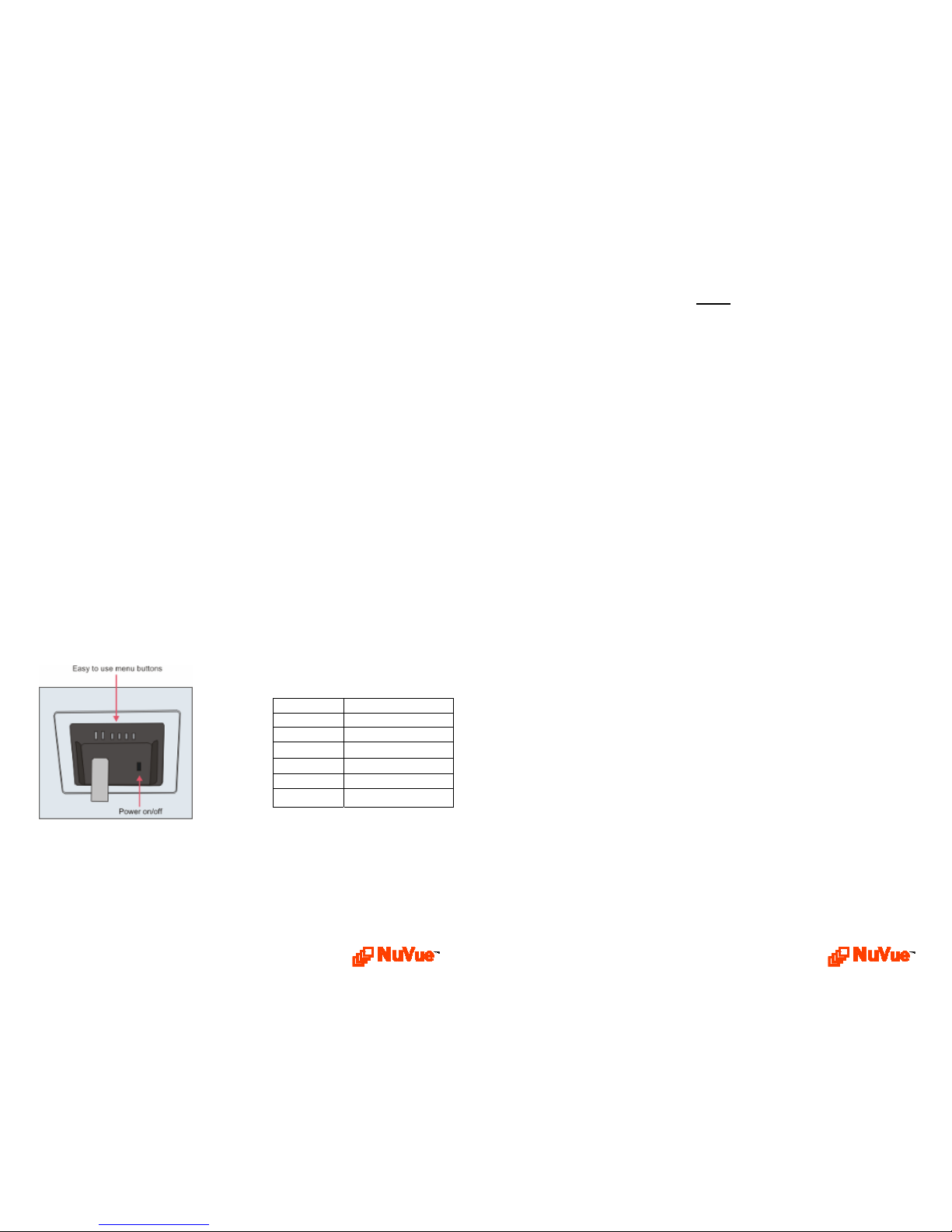
Button Layout
Button Description
ENTER
Play & Enter
STOP/ESC
Stop, Pause & Esc
⇑ UP
Up & Previous
⇓ DOWN
Down & Next
⇐ LEFT
Left, REV & Rotate
⇒ RIGHT
Right, FF & Rotate
Notes
Page 3
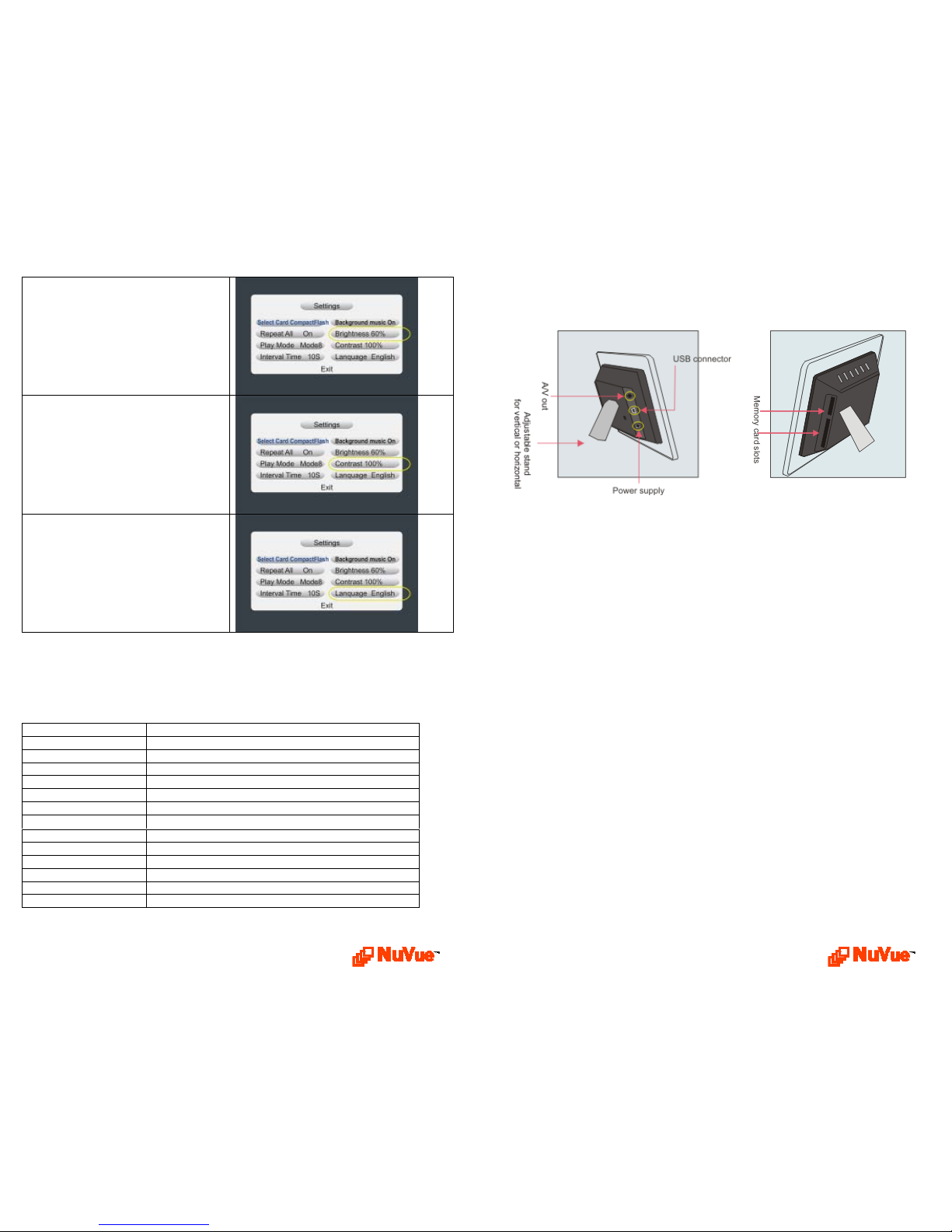
Brightness – Used to adjust the
brightness based on the local lighted
environment. The number is percentage
of full brightness.
Contrast – Used to adjust the contrast
based on the local light environment.
The number is percentage of full
contrast.
Language – Used to select available
languages
Specifications
Model
NV-562
Unit Size
162 (H) x 212 (W) x 50(D) mm
Display Area
84.708(H) x113.28(W) mm
Resolution
320x234
Brightness
250cd/m2 max.
Contrast ratio
150:1
Viewing angle
45/45 (l/r) 15/35(B/T)
Input voltage:
AC110—240V(50HZ—60HZ)
Unit Input Voltage
12VDC @1.5A
Working Temperature
0ºC – 50ºC
Unit Weight
0.70KG
Formats
JPG/JPEG/MP3/MOV
Media
CF/SD/XD/MMC/MS, USB
Max Images
Based on media capacity
Connections
Use the guide below for location of media slots, power connection, USB, and TV Out
Connecting to the USB Port
The USB port is for connecting the NuVue to a PC.
When connected, the PC will
recognize new USB hardware. To the PC the digital frame looks like several media
slot drives, each with their own letter. You can use Explorer to easily drag-n-drop
images from the PC to the media inserted in the digital frame.
Page 4
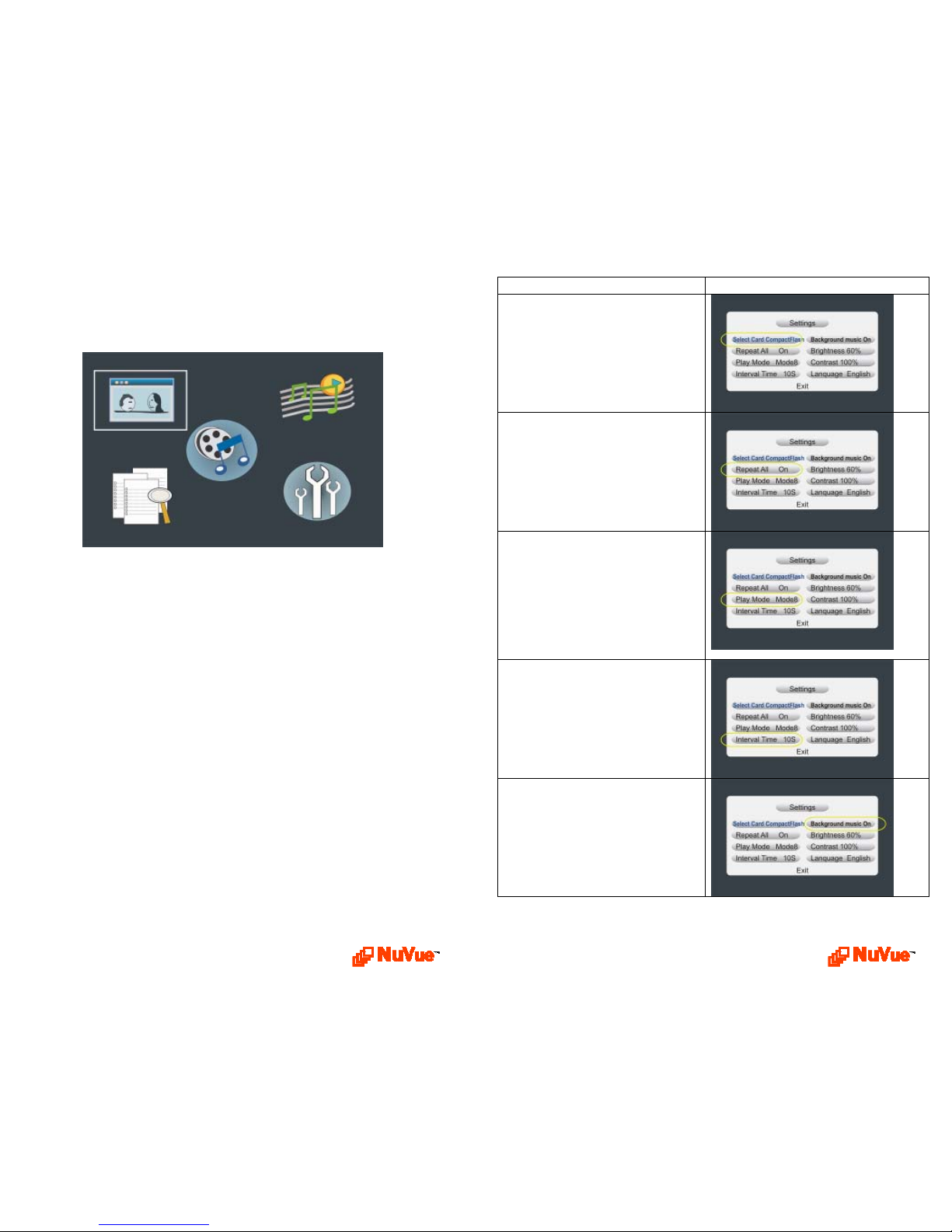
Operation and Navigation
When Power is first turned On, the Main page is displayed. Use the navigation buttons
to locate the desired function. Use the Enter button to select.
Photo
When Photo is selected, the contents will be displayed in thumbnail view, with six
images displayed at a time. Use the navigation buttons to locate the desired image to
Play and depress the Enter button to play. The unit will play the selected image. To
play a slideshow, depress the Enter button again. This will cause the unit to activate
Sequential Play where all image content is played in slideshow format. Use the Stop
button to go back.
Music
When music is selected, the display will present the list of music on the media by title
and begin to play the current selected track. Use the navigation keys to locate the
desired track. Press Enter to play. Use the Stop button to go back. Use the
headphones for listening.
Video
In a similar manner when Video is selected, the display presents a list of the video
clips by title. Use the navigation buttons to locate the desired video. Press Enter to
play. Use the Stop button to go back.
Settings
The Settings Menu is used to view and change useful slideshow and operating
characteristics to customize the look and operation of slideshows. These settings are
defined and explained below. Use the Stop button to go back. Use the navigation
buttons to locate the desired function. The function that is currently selected is
highlighted in Blue. Press Enter to View/Edit. The function will change highlight to
Red.Use the Up/Down buttons to change the value. When complete, press the Enter
button to Save. The function will confirm by changing back to Blue.
Function Sample Screen
Select Card – Used to select a specific
media card when more than one is
inserted.
Repeat All – When On, slideshows will
repeat. Ehwn Off, a slideshow will run
one time.
Transitions – Used to set transition
style for the slideshow. Also included is
a Random selection which will utilize
all transition types randomly between
slides.
Interval Time – Used to select the
display interval. The time is selectable
from 1 – 60 seconds.
Background Music – When On, MP3
music on the media will be played
during a slideshow.
 Loading...