

Page 1
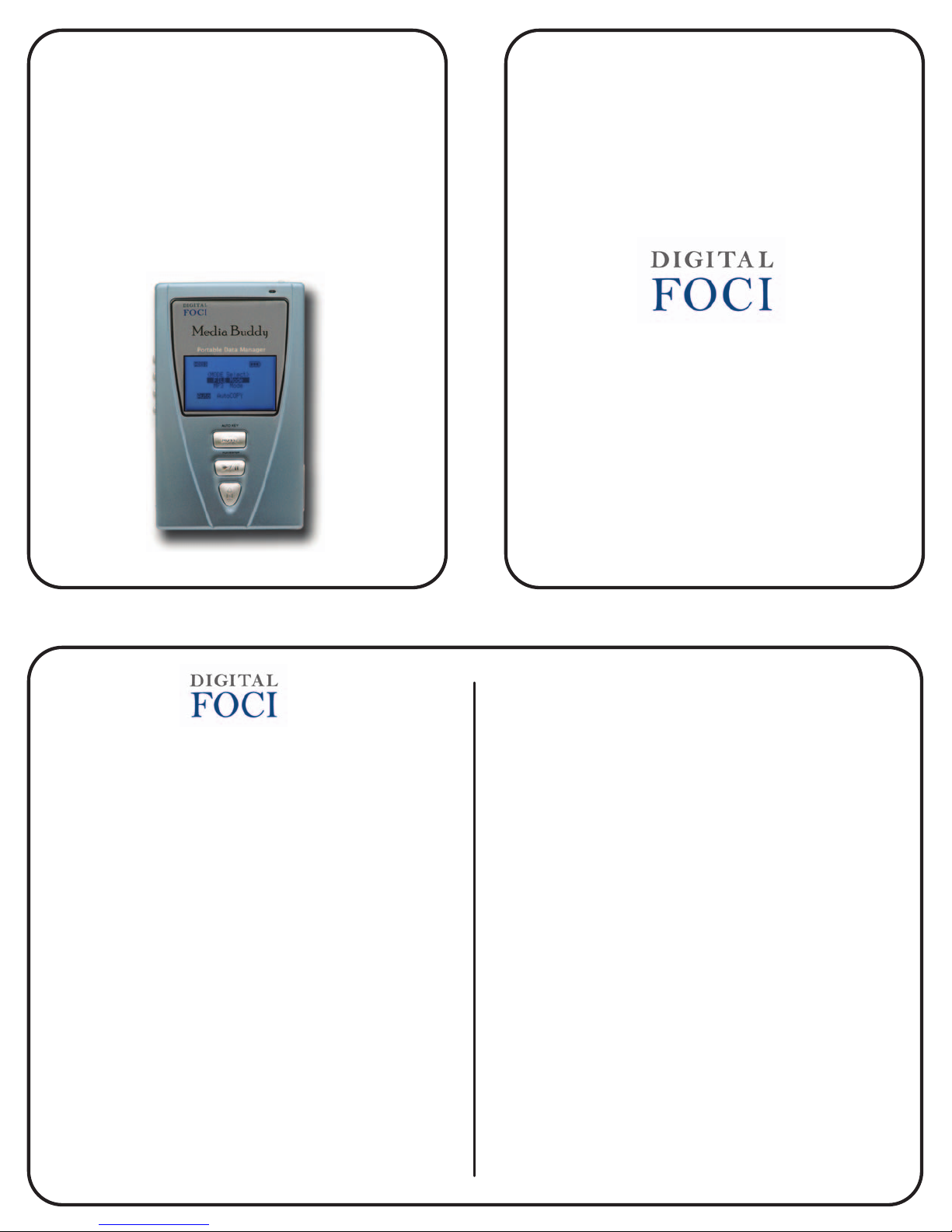
Media Buddy
Portable Data Manager
Quick Start Guide
www.digitalfoci.com
3111 Via Mondo
Rancho Domingues, CA 90221
USA
Thank you for choosing Digital Foci.
Please use this Quick Start Guide to get started with your
Media Buddy.
For more detailed explanations and examples about how to
use your Media Buddy, refer to the included User's Guide.
At Digital Foci, our mission is to enhance your life by smart
usage of digital technology.
We promise to provide you:
Easy-to-use products to help you manage and enjoy
your digital content
Attractive products to accentuate your unique style
Education and support to help you understand the
quickly changing digital technology
We aim to provide you a level of customer satisfaction
that exceeds your expectations.
Let Digital Foci help Optimize your Digital Living.
For more information about your Media Buddy and other
products from Digital Foci, please visit our website at:
www.digitalfoci.com
Congratulations on purchasing your new Media Buddy
Portable Data Manager.
Media Buddy is:
A portable photo storage device for storing your
valuable photos on the road without a computer.
A portable hard drive for backing up important files
from your computer.
A multi-format memory card reader for accessing data
on the memory cards used in your digital camera, MP3
player, mobile phone and PDA.
A data bridge for transferring large files between computers
and from any digital device that utilizes memory cards.
A MP3 player for storing and listening to your favorite
MP3 files.
Package Contents
Media Buddy Carrying case
2.5" hard drive (Pre-installed) User's Guide
Li-Ion battery (Pre-installed) Quick Start Guide
USB cable Resource Disc
AC/DC adapter 100-240 V Warranty Card
Earphones
Version 1.2
Page 2
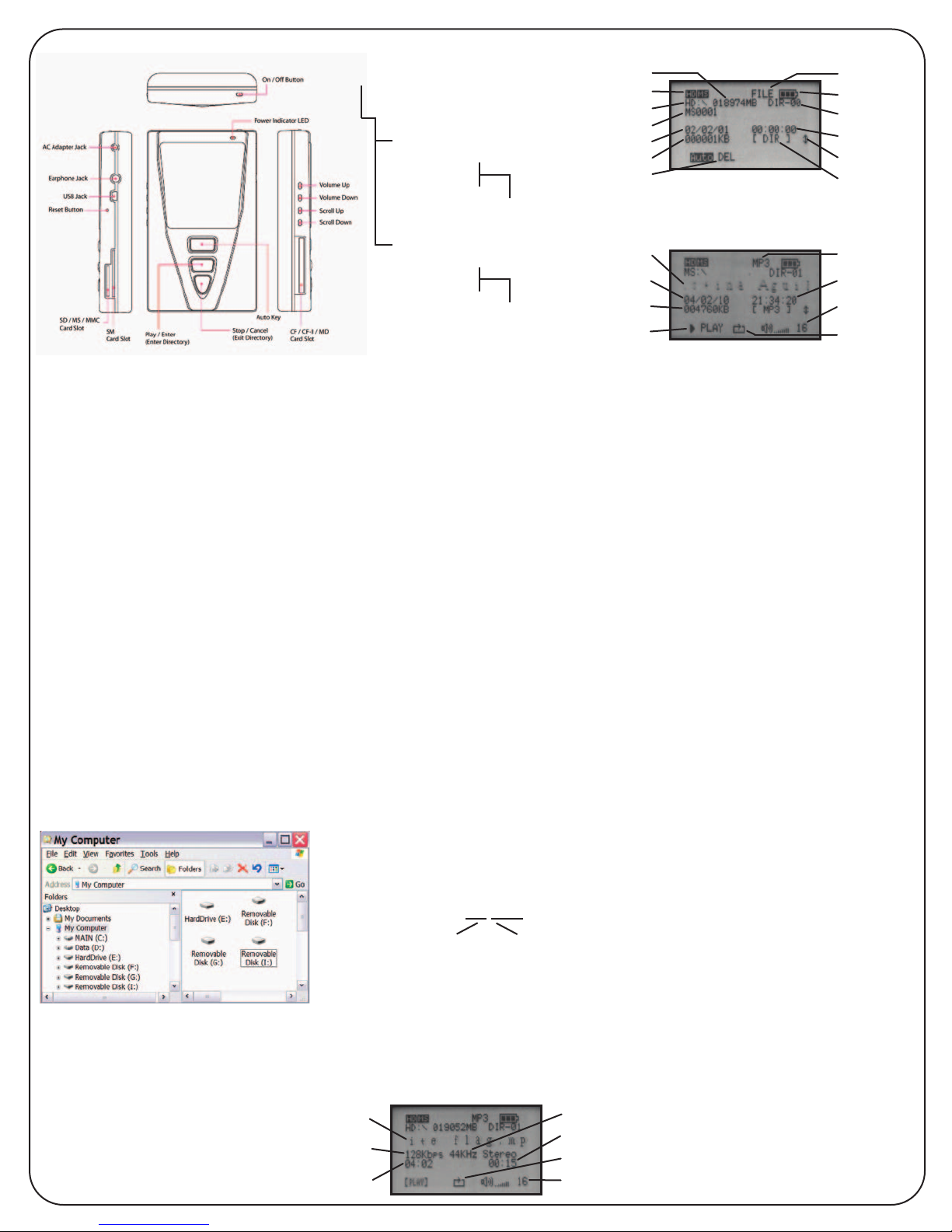
Media Buddy Layout
Powering Media Buddy
Charging the battery
Charge Media Buddy for at least 4 hours with the
AC Adapter prior to using Media Buddy for the
first time.
Power Indicator LED
Green: Media Buddy is powered on.
Red: Media Buddy is charging.
Orange: Media Buddy is powered on and charging.
The on-screen battery indicator will flash.
Battery Saving Feature
After 10 seconds of inactivity, the backlight dims.
After 2 minutes , Media Buddy will auto-shutoff.
Low Battery Warning
When Media Buddy is low on battery, the
battery icon will flash and show no bars.
Connecting Media Buddy to Computer
Connect Media Buddy to your computer via
the included USB cable.
Your computer will automatically recognize*
Media Buddy and show four devices:
- 1 hard drive and 3 removable devices
* For Windows 98SE/2000, and MacOS 8.6 and 9.x,
device drivers from the Resource Disc is required.
On Windows, it will look like this:
Menu Structure
<MODE Select>
FILE Mode
MP3 Mode
FILE Mode
<DEVICE Select>
HD Device
Card Device
FILE Mode Detailed Screen
MP3 Mode
<DEVICE Select>
HD Device
Card Device
MP3 Mode Detailed Screen
Hard drive capacity
Available devices
File/Folder name
Play/Pause status
Navigating Directory Structure
Play/Enter and Stop/Cancel buttons
The Play/Enter button is used to select the
highlighted menu option or enter into the
highlighted directory folder.
The Stop/Cancel button is used to exit out
of the current menu option or out of the
current directory folder and return to the
previous option or folder.
Scroll Up and Scroll Down buttons
The Scroll Up and Scroll Down buttons are
used to move the cursor to highlight the
desired menu option and to browse
through the folders and files.
Understanding Media Buddy
Folder Names
Each time you use the copy function on
Media Buddy, a new folder will be created
to store your copied files.
The folder names are made up of 2 pieces
of information.
The first two characters will be letters
indicating the type of memory card used.
The next 4 characters will be sequential
numbers starting from '0001' that show
the order that the folders were created.
These letter prefixes correspond to
the memory card types:
CF = CompactFlash
SD = Secure Digital (includes MMC)
SM = SmartMedia
MS = Memory Stick
Example:
HD \ MS 0038
Memory Stick
Format
38th folder of
this format
FILE Mode Detailed Screen
Selected device
File/Folder date
File/Folder size
Auto Key action
MP3 Mode Detailed Screen
MP3 file name
MP3 file date
MP3 file size
Using Media Buddy as a
Portable Picture Storage Device
Copying an entire memory card
1. Insert the memory card into the appropriate slot.
Verify on the screen that the corresponding icon
for the inserted card is displayed.
2. Make sure that Media Buddy is at the
<MODE Select> screen and that 'FILE Mode' is
highlighted. Press Auto Key to begin copying.
3. Note the created folder name.
4. At completion, a confirmation screen will show.
5. Press the Play/Enter button to confirm.
Note: If multiple memory cards are inserted when the
Auto Key button is pressed, Media Buddy will copy
each memory card in succession, in different folders.
Copying a specific folder or file
1. Insert the memory card into the appropriate slot.
Verify on the screen that the corresponding icon
for the inserted card is displayed.
2. At the <MODE Select> screen, select 'FILE Mode'.
3. At the <DEVICE Select> screen, select the
memory card with the data to be copied.
4. Locate the folder or file to copy by navigating
through the memory card directory.
5. When you find the folder or file to copy, press the
Auto Key button to make the copy.
6. At completion, a confirmation screen will show.
7. Press the Play/Enter button to confirm.
Note: If you copy multiple folders and files in succession
from the same card without removing it, all the copied
contents will be placed in the same folder.
Note: Copying the same file twice into the same folder,
will prompt the -FILE EXISTS- warning. The file will
NOT be copied.
Warning: DO NOT remove memory cards when data is
being transmitted. Doing this may crash your
computer and cause data loss.
File mode
Battery indicator
Directory level
File/Folder time
Scroll bar
File extension
MP3 mode
Playing time
Volume setting
Repeat setting
The devices are listed in the following order.
(Exact drive letter assignments and hard
drive labels may vary.)
(E:) Media Buddy Hard Drive
(F:) CF memory card slot
(G:) SM memory card slot
(H:) SD/MMC/MS memory card slot
You can access these devices just as you
would any device on your computer.
Version 1.2
MP3 file name
Playback bit rate
Total playing time
Playing MP3 files on Media Buddy
1. From the <MODE Select> screen, select 'MP3 Mode'.
2. Select the device containing the MP3 files to play.
3. Locate the desired directory folder.
Note: In MP3 Mode, only MP3 files will be displayed.
- No File - will display if the folder has no MP3 files.
4. Select the MP3 file to play and press Play/Enter.
Sample rate
Current playing time
Repeat setting
Volume setting
Tips for playing MP3 files
Use the Volume Up/Down buttons to
adjust the volume. (Max. is 32.)
To toggle between pause and play, press
the Play/Enter button.
Use Auto Key to toggle between repeating
a single file and repeating all files in
selected directory folder.
o If the Repeat Setting icon is not displayed,
the current file will repeat.
o If the Repeat Setting icon is displayed, all MP3
files in the selected directory folder will repeat.
 Loading...