

Page 1

SPKR-IP-CS-IC
Getting Started Guide
Introduction
The SPKR-IP-CS-IC is a 2’x2’ IP Ceiling Speaker for use with Singlewire
InformaCast software. The internal amplifier delivers a maximum of 8 watts
of audio and is powered by Power over Ethernet (PoE - 802.3af compatible).
The SPKR-IP-CS-IC is DHCP enabled and will be automatically recognized
by InformaCast when connected to a Multicast enabled network. This
Getting Started Guide covers basic hardware installation and software
configuration of the SPKR-IP-CS-IC.
Specifications
• 8” O.D. Speaker
• 8 Watt Amplifier
• PoE (802.3af)
• Integrated Back Box
• Average Sensitivity – 92 dB SPL, 1W/1M
• Maximum Power rating – 15W @ 8 Ohms
• Magnet Type & Weight – BeFe Ceramic, 5 oz. Nominal
• Frequency Response – 65 Hz - 17 kHz EIA 426A Standard
• Nominal Coverage Angle – 100° Included Angle -6 dB / 2 kHz, Half
space
Page 2
Installation
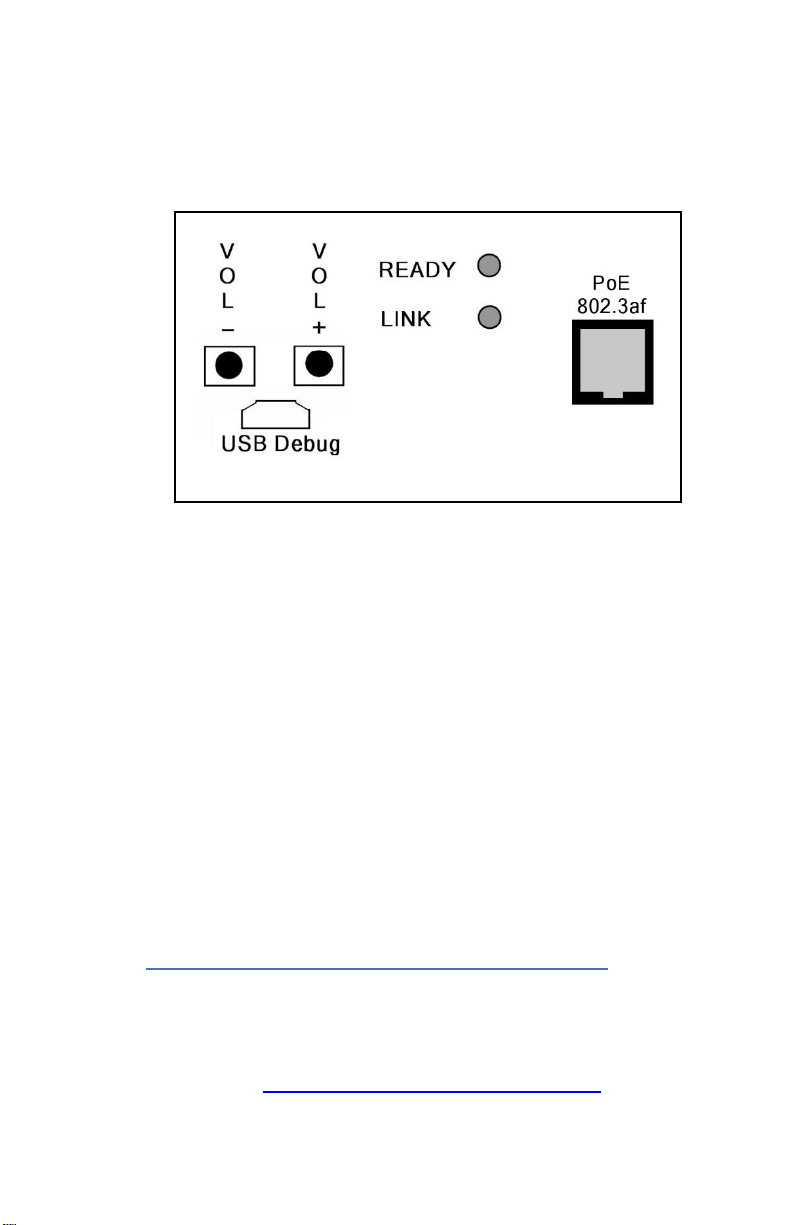
The controls, connectors and LEDs for the SPKR-IP-CS-IC are located on a
faceplate on top of the speaker. There is also a green LED in the speaker grill
that matches the state of the Ready LED.
• Connect the SPKR-IP-CS-IC ceiling speaker to a PoE (802.3af)
network cable. The SPKR-IP-CS-IC will power up within 5 seconds
and request 15.4 watts from the Power Source Equipment
• The red Link LED will turn solid
• The red Ready LED will flash 4x per second
• Once the SPKR-IP-CS-IC ceiling speaker is detected by
InformaCast, the Ready LED will turn solid
• Record the ID# from the label on back of the SPKR-IP-CS-IC for
use during software configuration.
• Optionally, label the speaker grill with one of the extra ID# labels
included in the box
• Install the connected Speaker in a 2’x2’ ceiling grid and verify that
the green Ready LED in the speaker grill is on solid
• Please refer to the Application Note – IP7 for InformaCast
Installation and Configuration Guide available at
www.digitalacoustics.com/support/application-notes/ for additional
information on installation and setup
Digital Acoustics Technical Support
www.digitalacoustics.com/support
Page 3
InformaCast Software
Singlewire InformaCast Software provides the ability to send audio to one or
more IP Speakers from a VoIP based phone system.
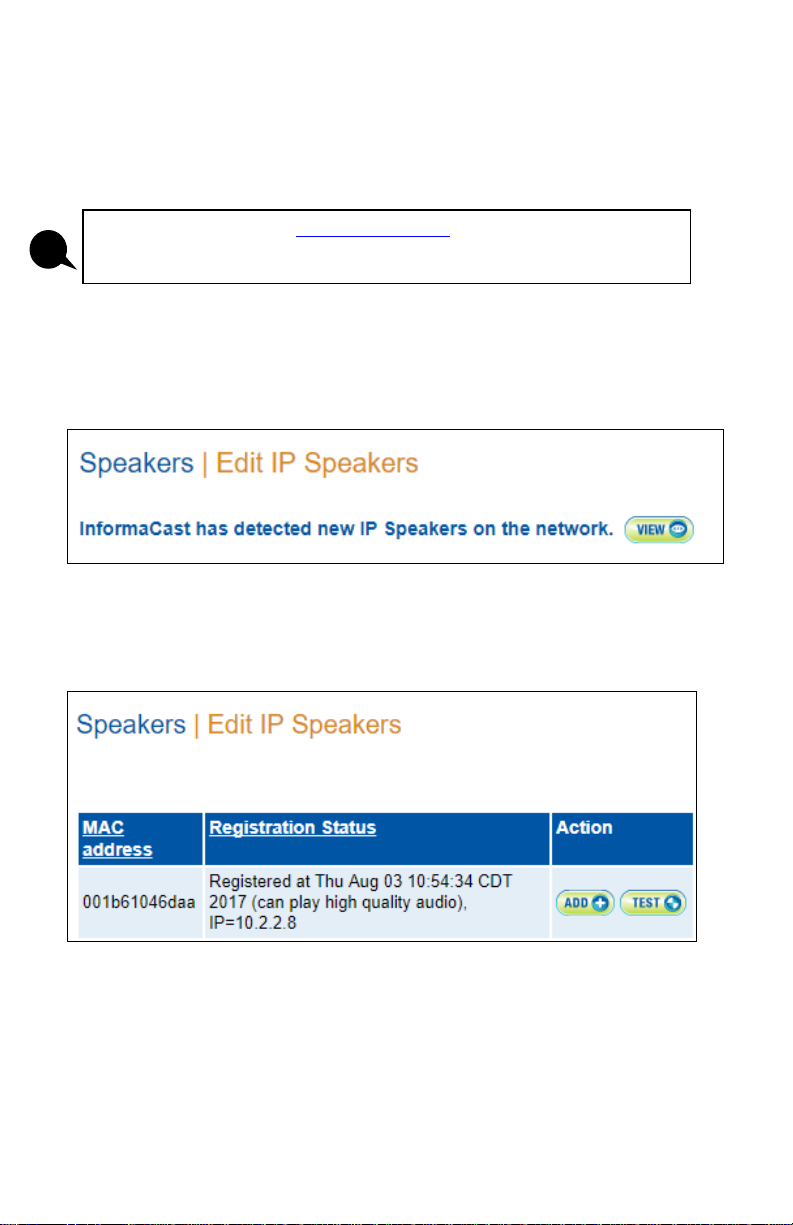
• Open a Web browser to the InformaCast server and select the
Speakers menu option
• Look for the InformaCast has detected new IP Speakers on the
network message and click the View button
• Match the ID# from the label on the back of the SPKR-IP-CS-IC
with the last six digits of the MAC address listed in the Web
browser and press the Add button
• Assign a Name, Description and Volume level and then press the
Add button to complete the installation of the SPKR-IP-CS-IC
Please contact Singlewire (www.singlewire.com) for information on installing
and configuring the InformaCast software.
i
Page 4
Internal Web browser
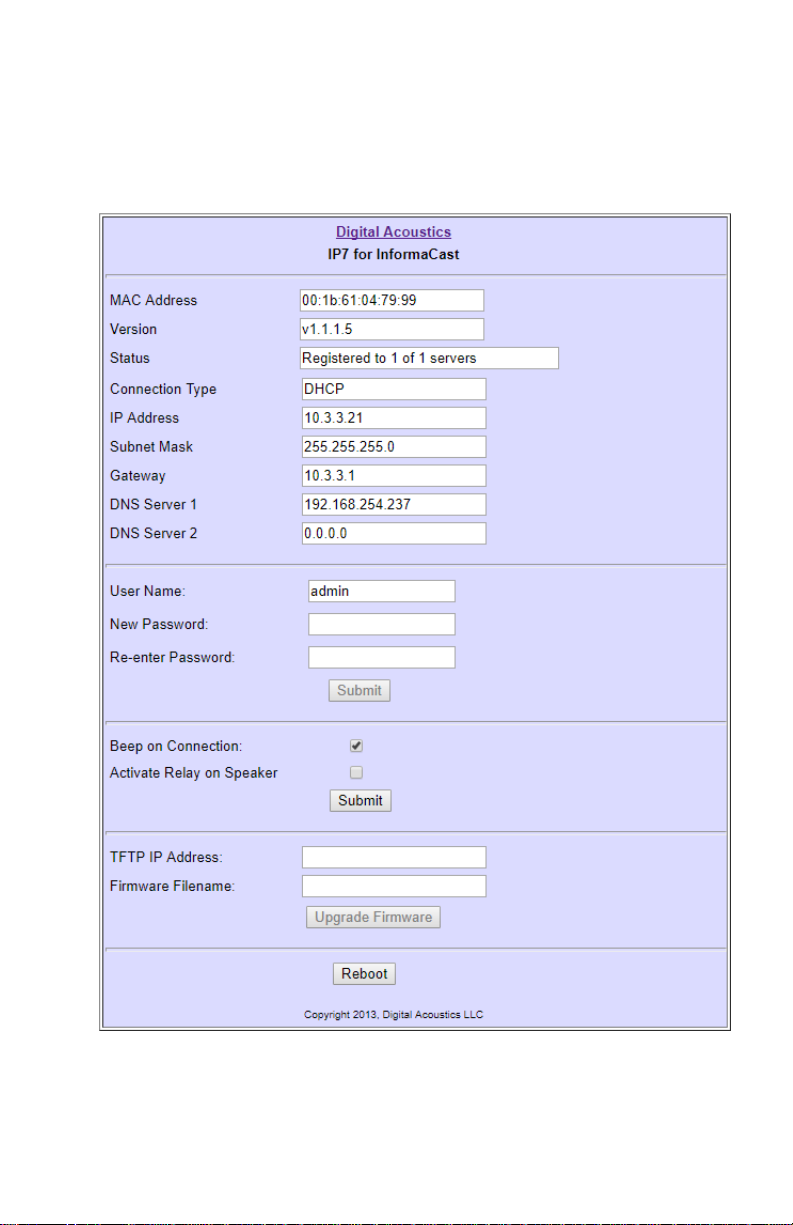
The SPKR-IP-CS-IC can be accessed via a Web browser to set options and
check the status by entering its IP Address into a web browser. The default
User Name and Password is: admin
IP7 and Digital Acoustics® are trademarks of Digital Acoustics LLC.
Other trademarks are the property of their respective owners.
All Rights Reserved ©2017
 Loading...