

Page 1
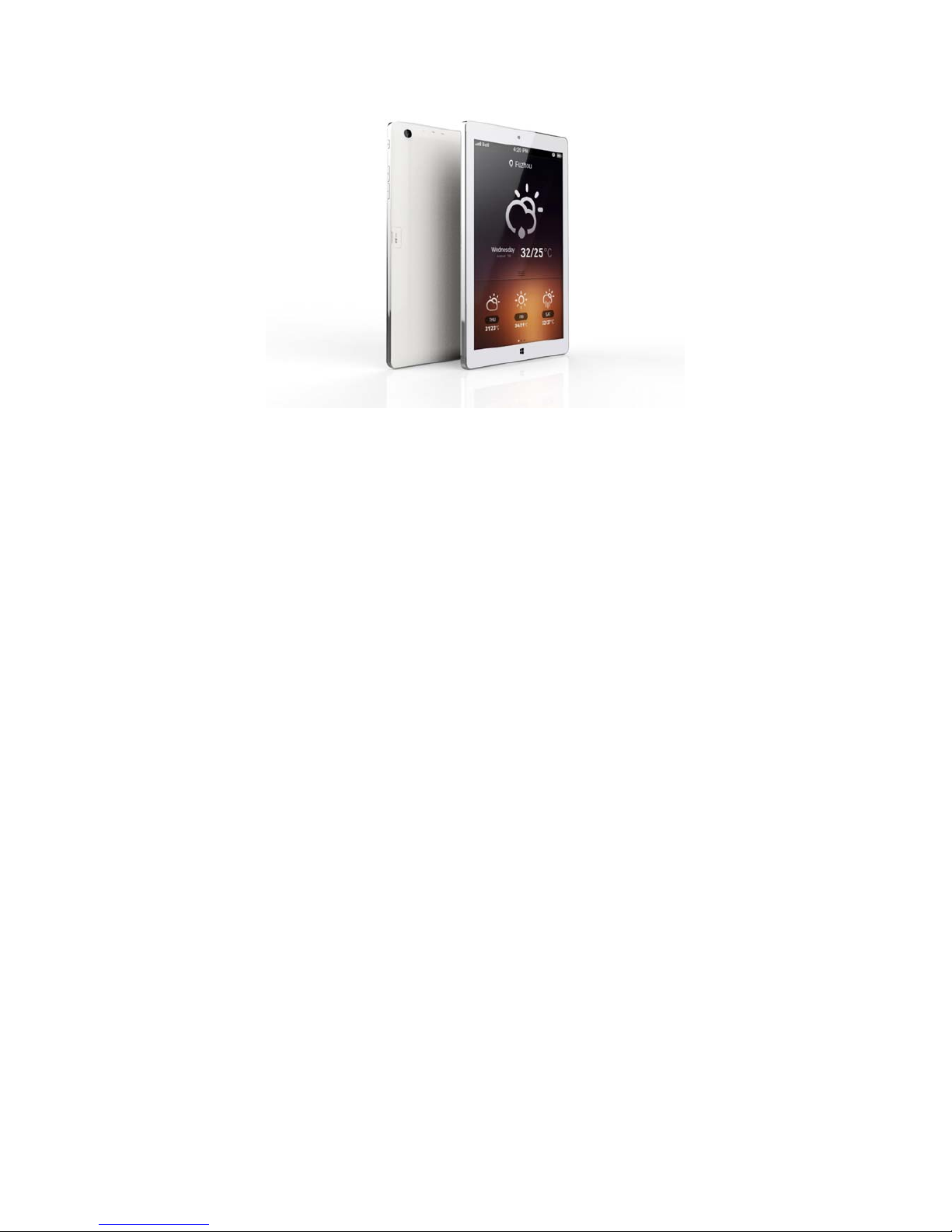
Tablet Instruction
Windows 8.1
Page 2

FCC Warning Statement
of the following measures:
-- Reorient or relocate the receiving antenna.
-- Increase the separation between the equipment and receiver.
-- Consult the dealer or an experienced radio/TV technician for help
Changes or modifications not expressly approved by the party responsible
for compliance could void the user's authority to operate the equipment.
This equipment has been tested and found to comply with the limits for
a Class B digital device, pursuant to Part 15 of the FCC Rules. These limits
are designed to provide reasonable protection against harmful interference
in a residential installation. This equipment generates uses and can radiate
radio frequency energy and, if not installed and used in accordance with the
instructions, may cause harmful interference to radio communications.
However, there is no guarantee that interference will not occur in a particular
installation. If this equipment does cause harmful interference to radio or
television reception, which can be determined by turning the equipment off
and on, the user is encouraged to try to correct the interference by one or
more
-- Connect the equipment into an outlet on a circuit different from that
to which the receiver is connected.
INDUSTRY CANADA NOTICES (IC):
This device complies with Industry Canada license-exempt RSS
standard(s).
Operation is subject to the following two conditions:
(1) this device may not
cause interference, and (2) this device must
accept any interference,
including interference that may cause
undesired operation of the device
Avis d'Industrie Canada (IC):
Cet appareil est conforme avec Industrie Canada exempts de licence
standard RSS (s). Son fonctionnement est soumisaux deux conditions
suivantes: (1) cet appareil ne doit pas provoquer d'interférences et
(2) cet appareil doit accepter toute interférence, y compris celles
pouvant causer un mauvais fonctionnement de l'appareil
Page 3

Attentions:
This manual includes important safety instructions and the information on how to
use correctly, for avoid the accidents happening, so ensure you should read the
manual before using the product.
● Please don’t put the product on the places with high temperature, humidity or
more dust.
● Please don’t put the product on the places with high temperature, especially not
put the products in a car with close windows in summer.
● Not fall off or knock this product strongly, not let IPS panel be shocked,
otherwise it may cause IPS panel broken or display abnormal.
● Please choose the right sound volume, not too big when use earphone, if feel
tinnitus, please turn down the volume or stop using.
● Please do the charge when meet below situations:
A. When the icon of battery capacity display no electricity.
B. System power off automatically, the unit will be power off fast after powering
on again.
C. No response when press the power button.
● Please not open the link suddenly when the player is doing format or the unit is
uploading or downloading, otherwise it will cause the procedure error.
● For the products broken, repair or other reasons caused the memory information
Page 4

lost, our company will be not responsible for this, please follow the manual to do
operations.
● Please not tear down the unit, not use the alcohol, dilue nts or benzene to clear the
products.
● Not use this unit in the forbidden area(such as airplane).
● Not use this unit when driving or walking, otherwise it will cause the accidents.
※ Our company will keep the right with products’ improving, specifications and
designs, and not do the notice.
★ (This product have no function with waterproof)
【Remark】:The pictures in operation manual just for reference.
Page 5

1. Major parameters:
CPU: Intel 3735D Baytrail-T Quad core
Display:8 IPS capacitive panel
Resolution ratio: 800x1280
Storage: 16G flash
OS: Windows 8.1
RAM: 1GB
Battery capacity: 3800mAH
Camera: 0.3M(Front) and 2M(Rear)Pixel
Page 6
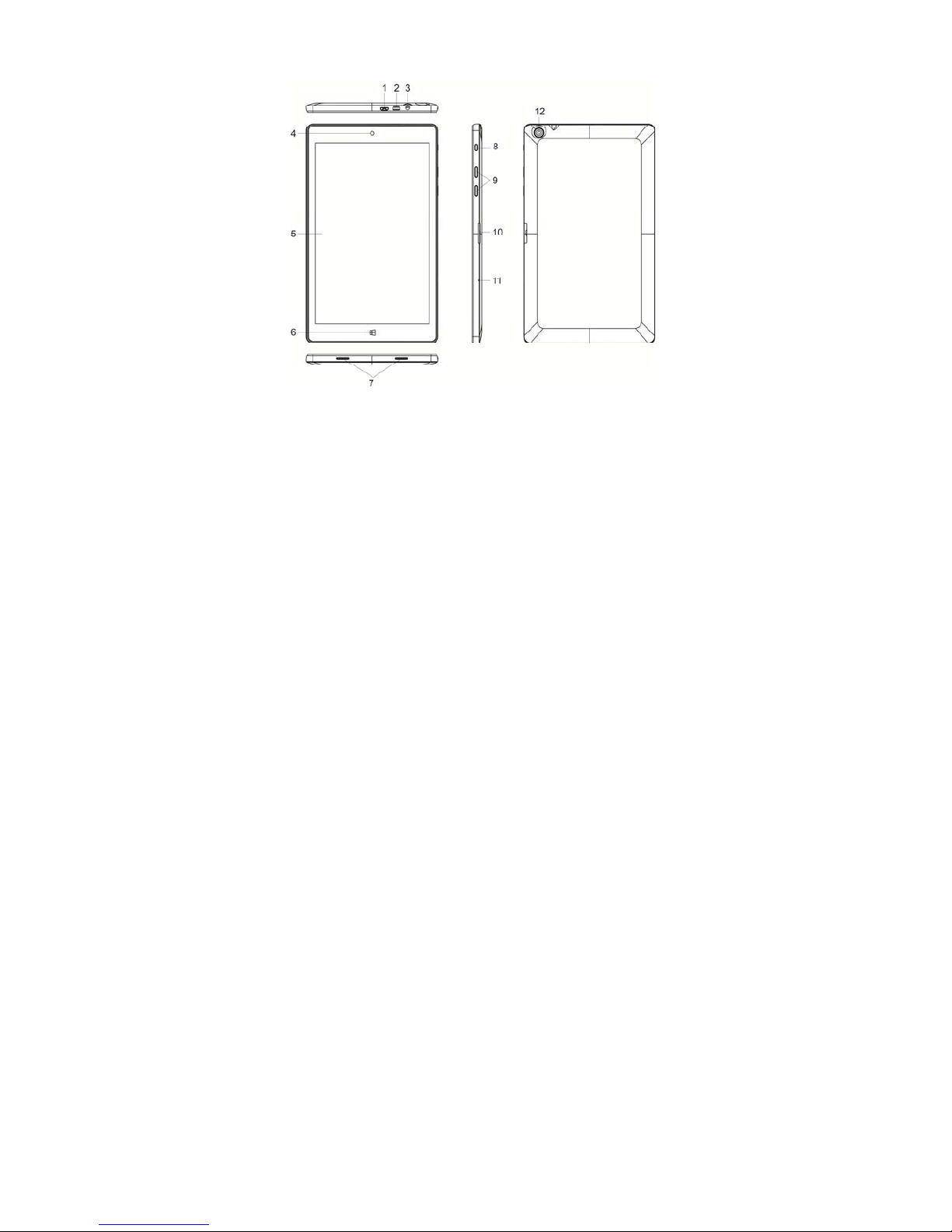
2. Cosmetic and button instruction
Number introduction as below:
1) Micro USB
Can connect the devices with USB keyboard, mouse and U disk…
2) HDMI
HDMI can exchange to external High-definition LCD.
3) Dual using jack with 3.5mm earphone and MIC
Page 7

Can output the sound signals of computer to external speaker or earphone.
4) Front camera
Take a picture or video for front.
5) Touch panel
Can operate the unit by touching.
6) Windows logo
Can back to original desktop.
7) Stereo speaker port
For output the external voice.
8) Power button
Starting up with short press, or enter standby status, or wake up from standby.
Keeping press 4s to enter shut down interface, and keep pressing 10s to compel
the unit shut down.
9) Volume button
Volume up and down.
10) Micro SD slot
Can support the card with Micro SD and Micro SD HC.
11) Internal MIC
Using for video meeting, sound control and record.
12) Rear Camera
Rear camera can take a picture and video.
3. Using your tablet
Page 8

● Starting up: Press the power button to power on(Remark: the tablet no
response if Pressing the power button, your tablet may need do the charge).
● Shut down: Starting up with short press, or enter standby status, or wake
up from Standby(Remark: Keeping press 4s to enter shut down interface,
and keep pressing 10s to compel the unit shut down).
● Standby: Press the power button during the unit is working, can do save
for the Power, and wake up quickly.
● Restart: Open the right super column, click the power, then click “restart”,
the unit will start to do restart procedure.
 Loading...