

Page 1

User Guide
DT800
1
Page 2

Table of Contents
Product Components
Turn Wi-Fi On or Off
Add an Google Account
Minimize data capacity by Canceling synchronization
Home Screen
.........................................................................................8
Settings > WIRELESS & NETWORKS
Settings > DEVICE > Sound
Settings > DEVICE > Display & Factory reset(Reset to default)
Settings > DEVICE > Night Brightness Setting & Sleep mode
Settings > DEVICE > Screenshot Setting & Storage
Settings > DEVICE > Apps & Language&input
Settings > DEVICE > About tablet
Video Player
..........................................................................................16
Music Player
......................................................................................... 17
.............................................................................3
..............................................................................4
.........................................................................5
..............................7
........................................................9
...................................................................10
................11
..................12
................................13
.......................................14
...........................................................15
Specification
......................................................................................... 18
2
Page 3
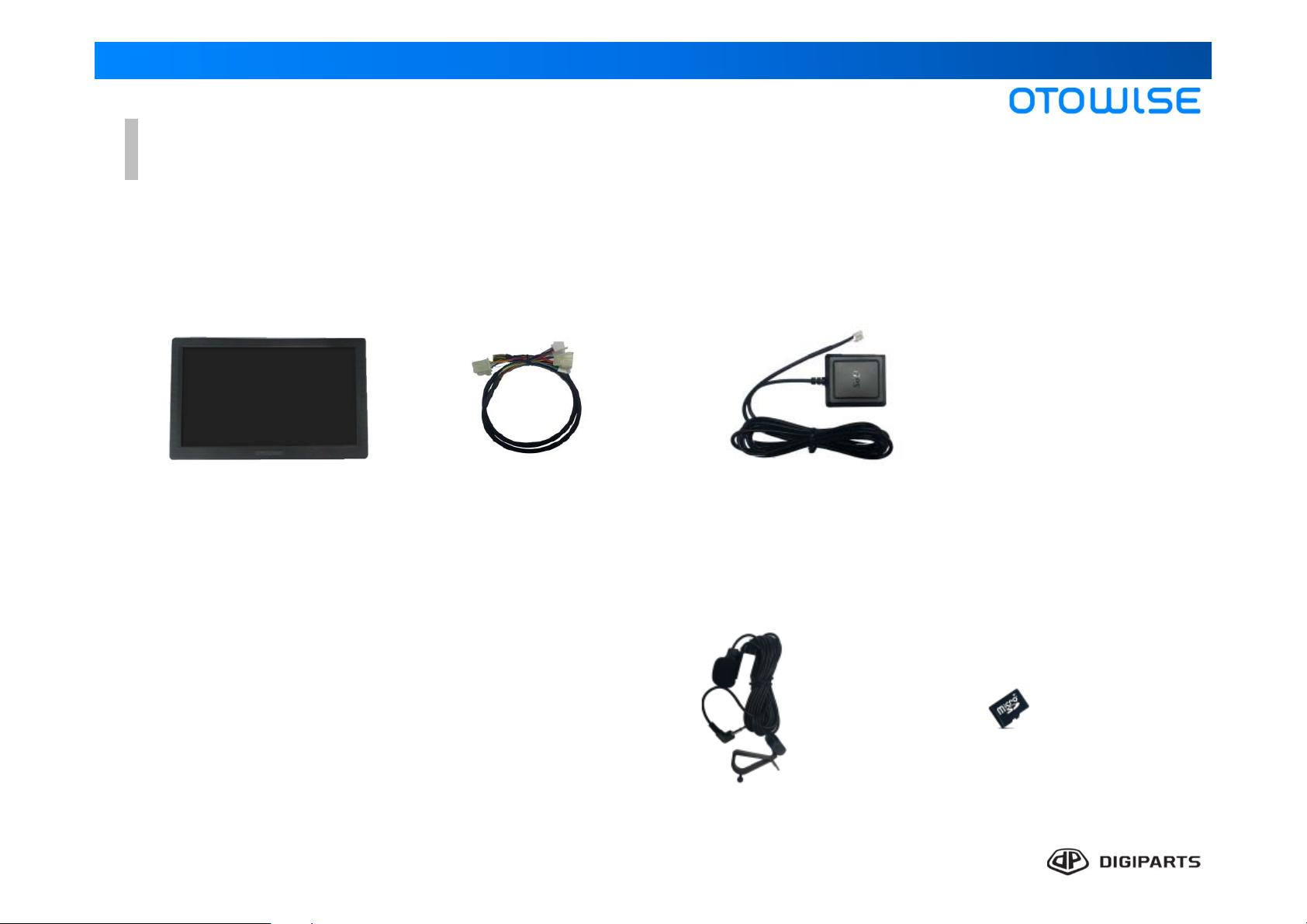
Product Components
Product List
Car Navigation Power Cable
GPS Antenna
Microphone
Micro SD card
(Optional)
3
Page 4
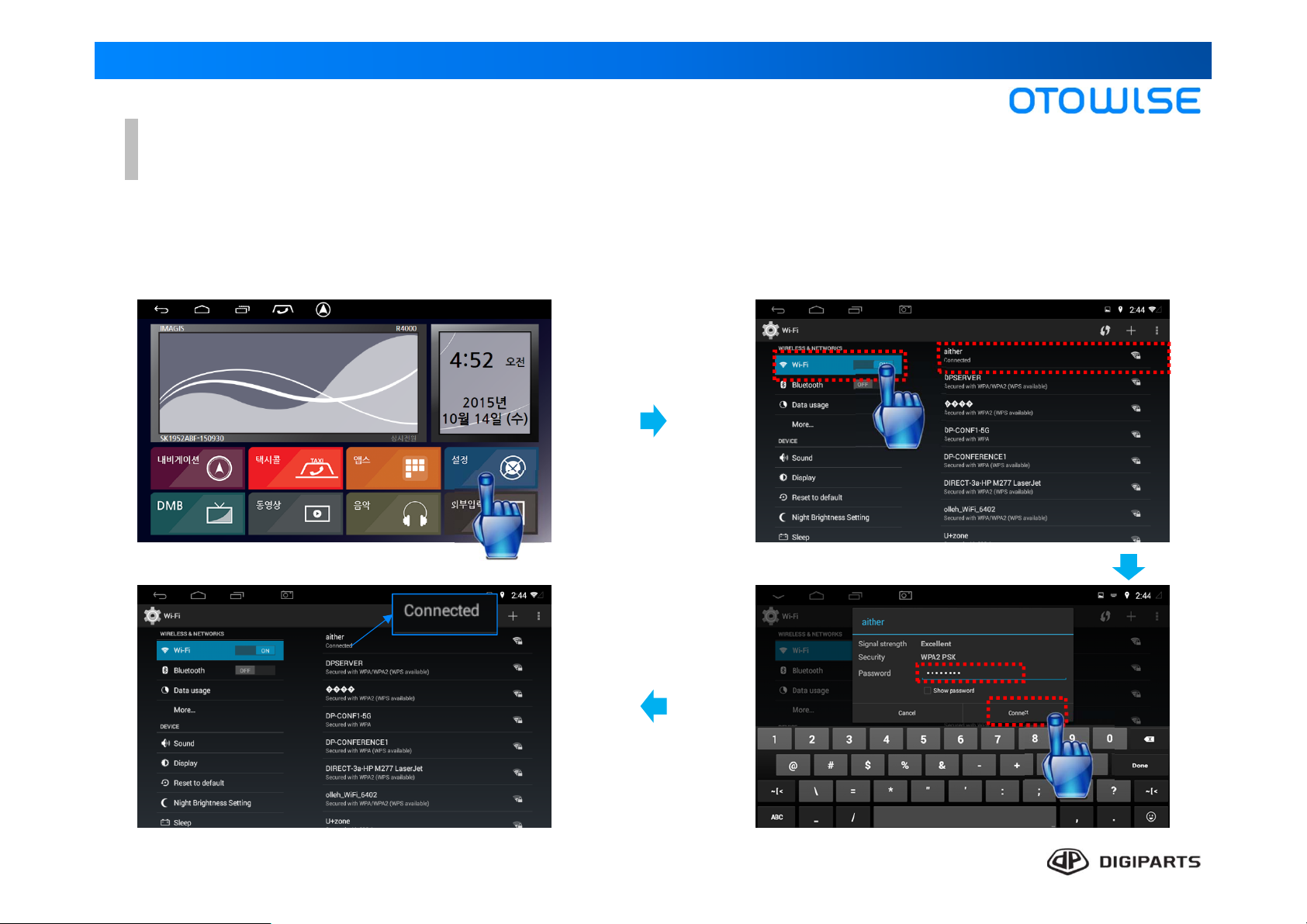
Turn Wi-Fi On or Off
Turning Wi-Fi on makes your device able to discover and connect to compatible in-ra
Wireless Access Point(WAP).
① From a Home screen, Tab settings.
② Tap Wi-Fi, and then tap ON button.
Tap the network you want to connect to.
④ Connection successful.
③ Enter a password to connect.
4
Page 5
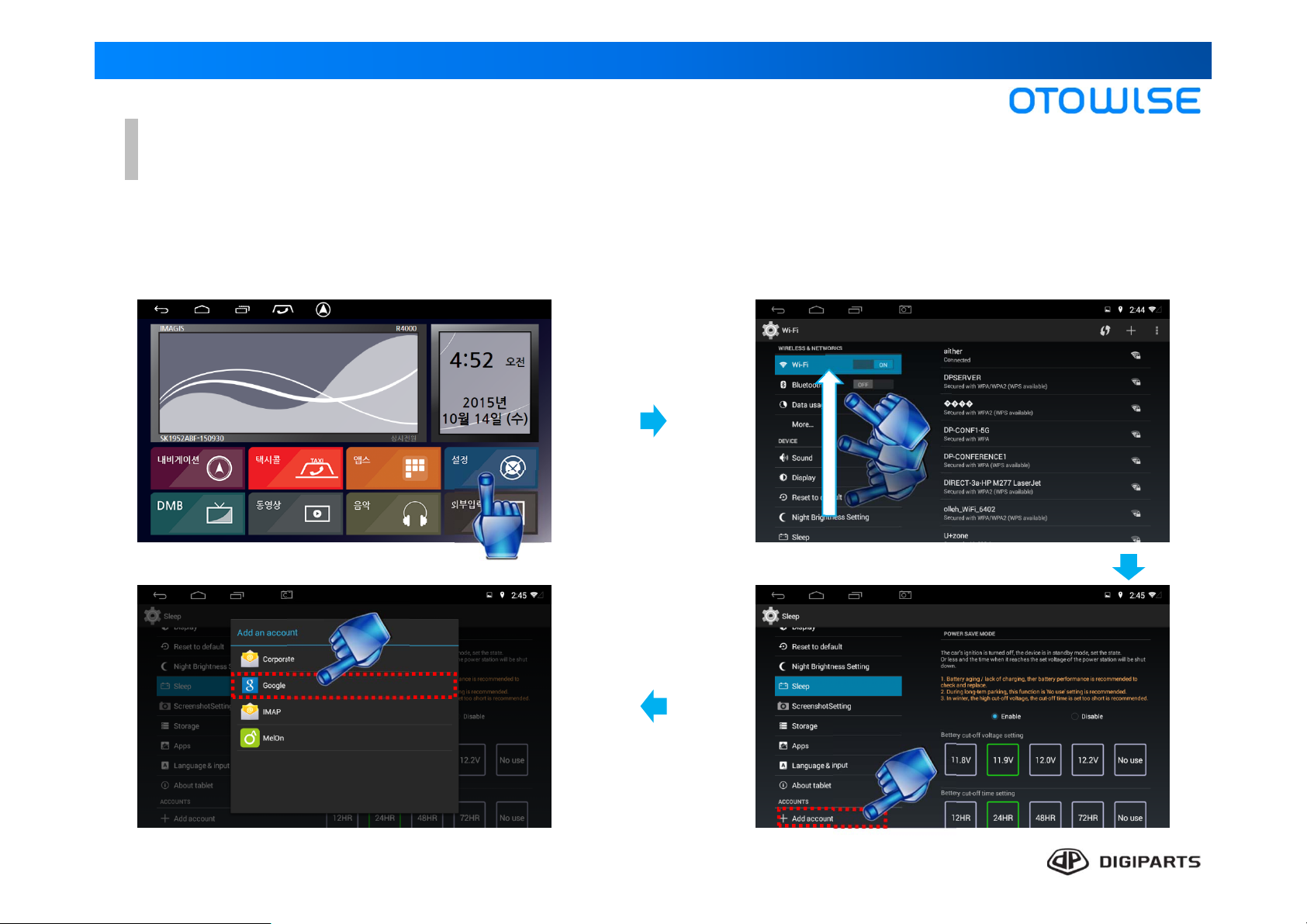
Add an Google Account
Set up and manage your Google Account.
① From a Home screen, Tab settings. ② Swipe up the category area.
④ Tap “Google”.
③ Tap “Add account”.
5
Page 6
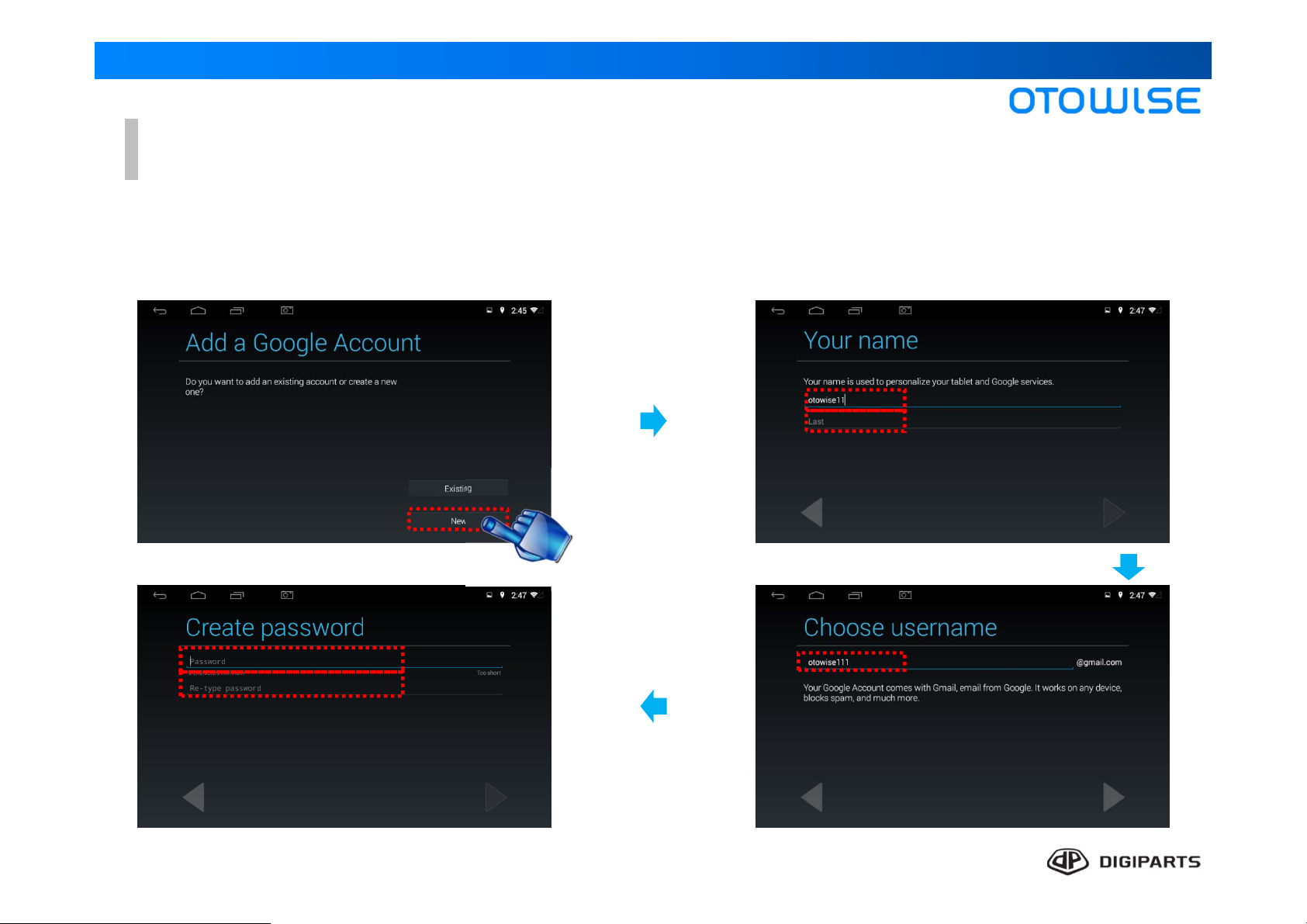
Add an Google Account
When you turn on your device for the first time, set up your existing Google Account
or create a new Google Account.
① Tap “New” ② Input your name. (First & Last name)
④ Create and re-type a password.
③ Input Username.(G-mail)
6
Page 7
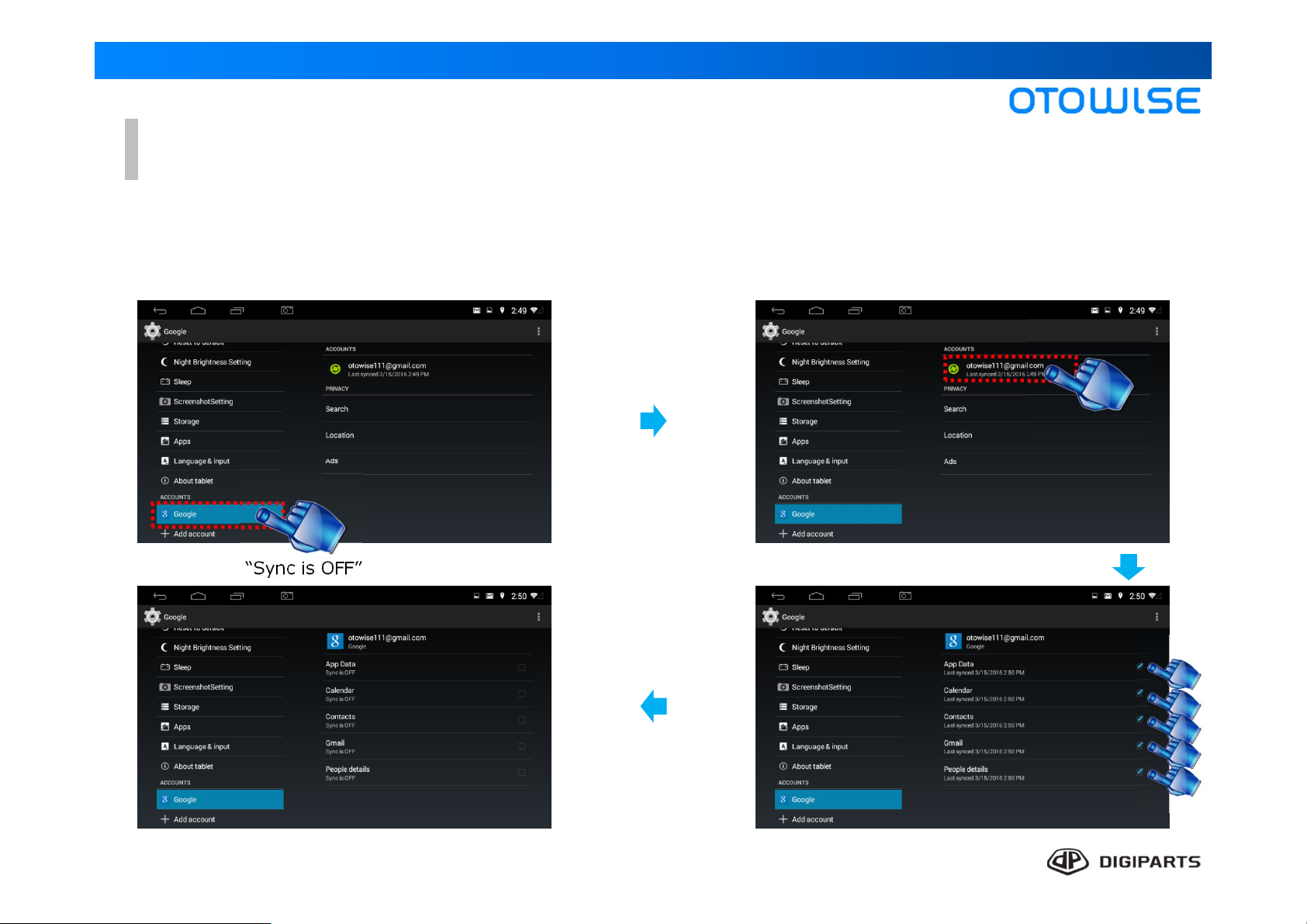
Minimize data capacity by Canceling synchronization
When you hope to save data usage, Cancel synchronization option.
① Tap “Google” ② Tap your google account.
④ Confirm “Sync is OFF” status.
③ Uncheck all category.
7
Page 8

Home Screen
• Function keys
: Back
: home
Function keys
: Recent
: Navigation
• Notification icons: Displays new messages and emails, notifications,
available software updates, and so on.
• Status bar: Displays device status icons (right) and notification icons
(left).
• Status icons: Display information about the device, such as the network
signal strength, battery level, the time, and so on.
• Status icons
• Status bar
• Notification icons
Clock widget
: Display present time &
date
Navigation Apps Settings
This App
Support Korean only
This App
Support Korean only
Movie Music AV-OUT
Main menu
: Display applications short cut icon we
offer.
8
Page 9
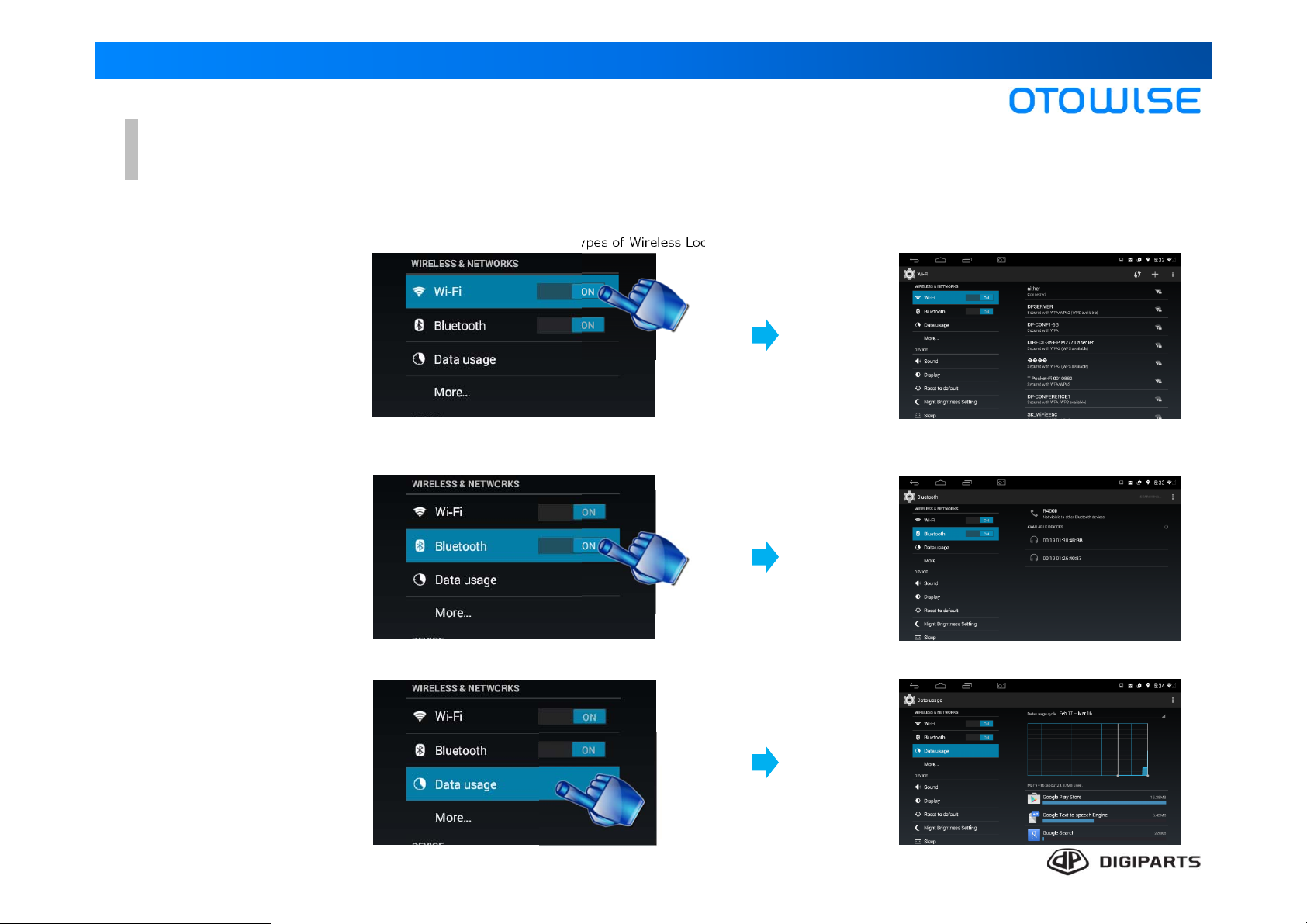
Settings > WIRELESS & NETWORKS
•Wi-Fi
•Bluetooth
•Data usage
Wi-Fi is a term used for certain types of Wireless Local Area Networks (WLAN).
Bluetooth allows you to connect wirelessly to a number of Bluetooth devices,
such as headsets and hands-free car Bluetooth systems, and Bluetooth-enabled computers, printers, and
wireless devices.
Monitor your mobile data usage.
9
Page 10
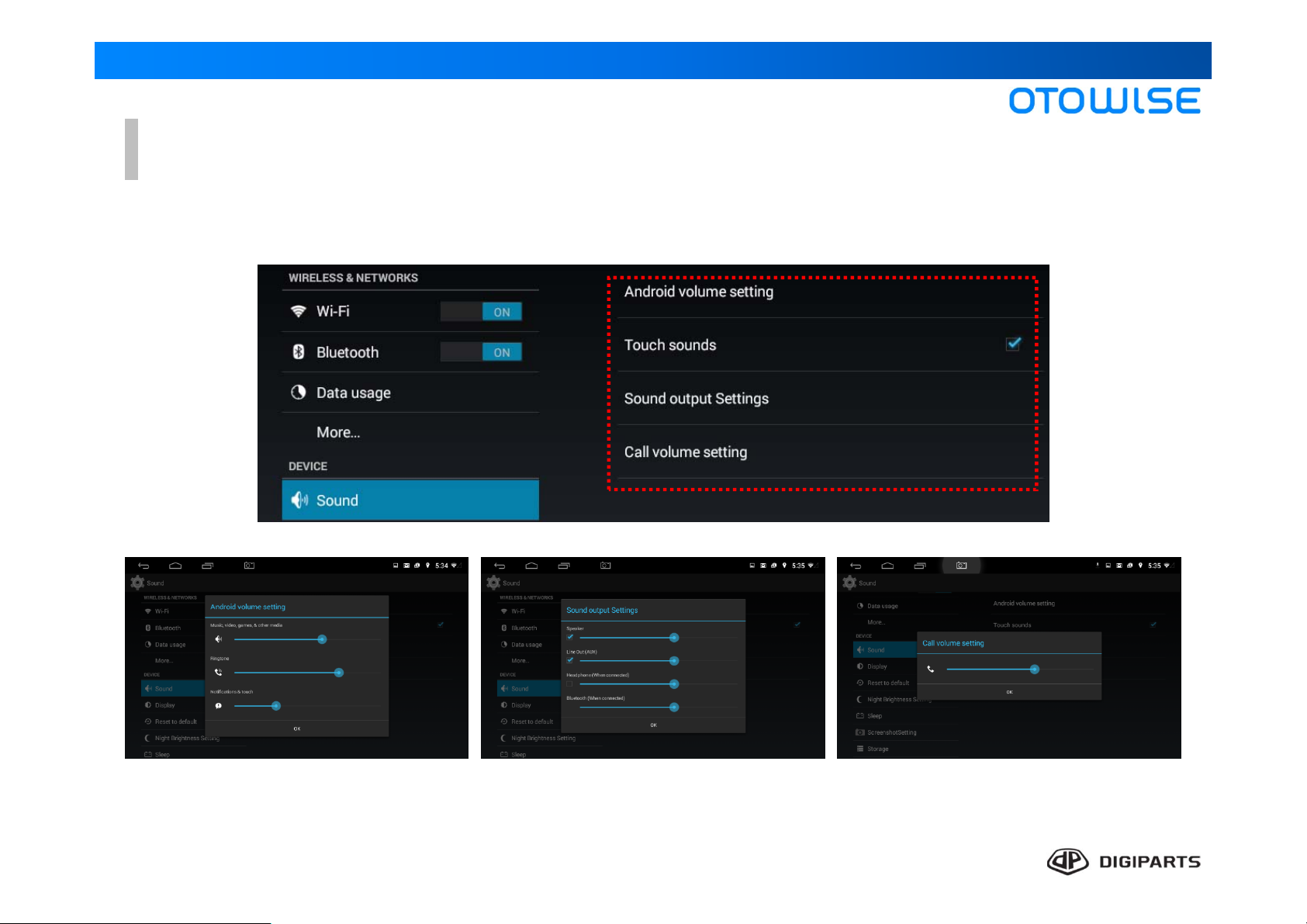
Settings > DEVICE > Sound
•Sound
• Android Volume setting • Sound output Settings • Call volume setting
Configure the sounds used to indicate notifications, screen touches, and other activities.
ⓐ Music, Video, Game & other media
ⓑ Ringtone
ⓒ Notifications & touch
ⓐ Speaker
ⓑ Line Out(AUX)
ⓒ Head phone(When connected)
ⓓ Bluetooth (When connected)
10
ⓐ Call volume setting
Page 11
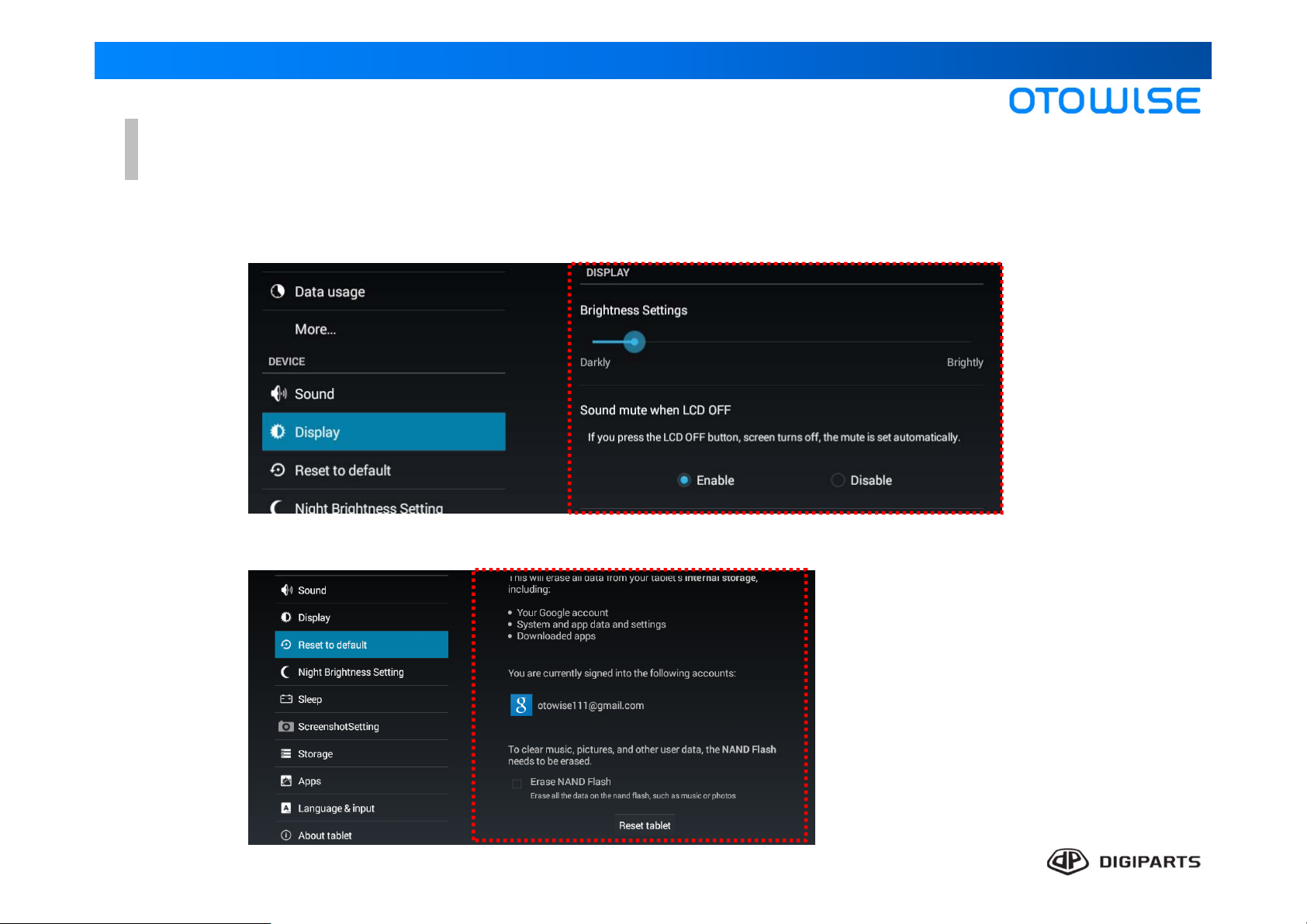
Settings > DEVICE > Display & Factory reset(Reset to default)
•Display
•Factory reset
Configure your display’s brightness, Lcd off option.
You can reset your device to its factory defaults.
11
Page 12

Settings > DEVICE > Night Brightness Setting & Sleep mode
•Night Brightness Setting
•Sleep mode
Set Battery cut-off voltage & time
You can configure Brightness according to the set time.
12
Page 13

Settings > DEVICE > Screenshot Setting & Storage
•Screenshot Setting
•Storage
You can Capture the screen and set the location of screenshot storage
View the device memory and usage.
13
Page 14
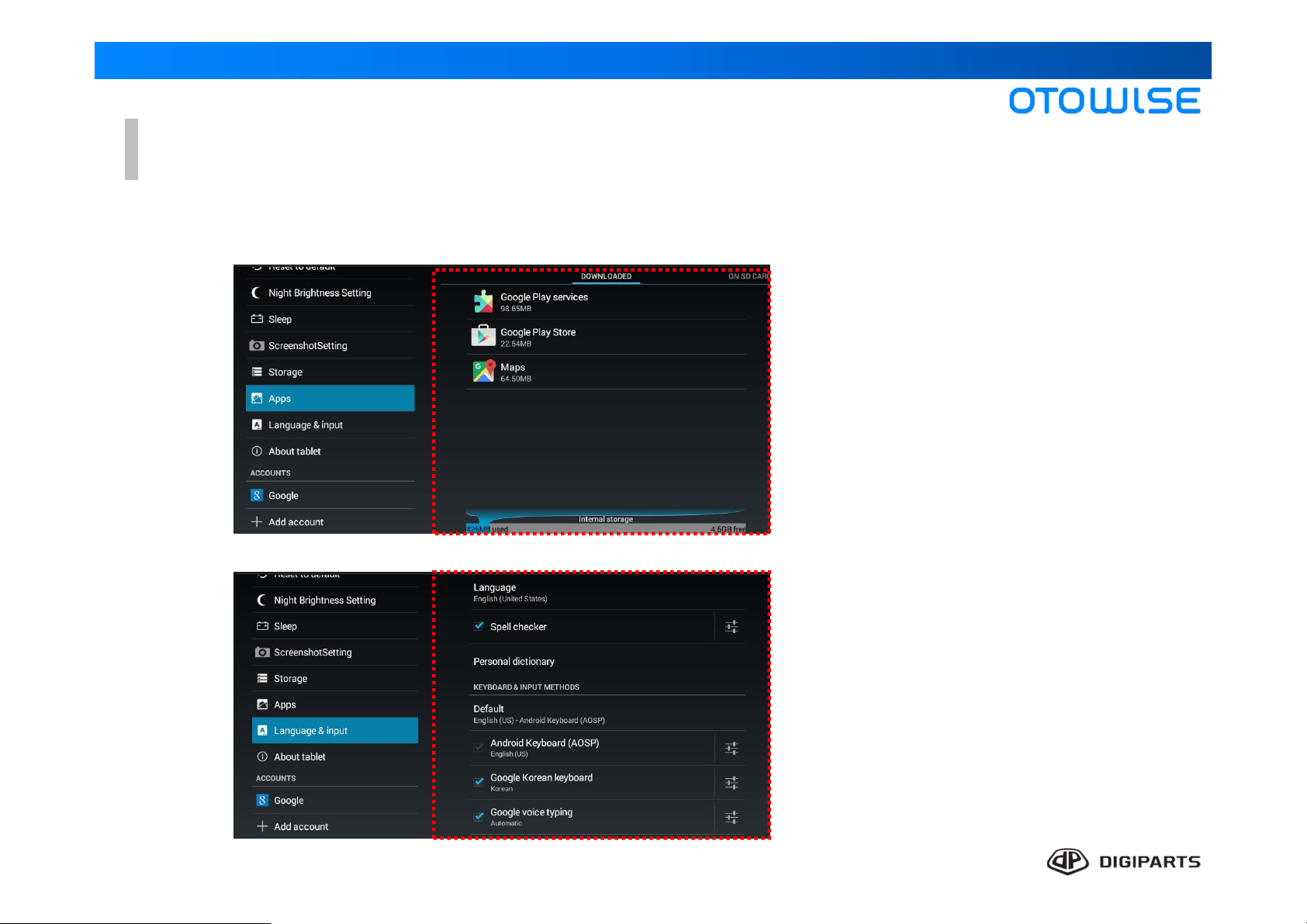
Settings > DEVICE > Apps & Language&input
•Apps
•Language & Input
Manage settings for applications on your device.
Configure your device’s language and input settings.
14
Page 15
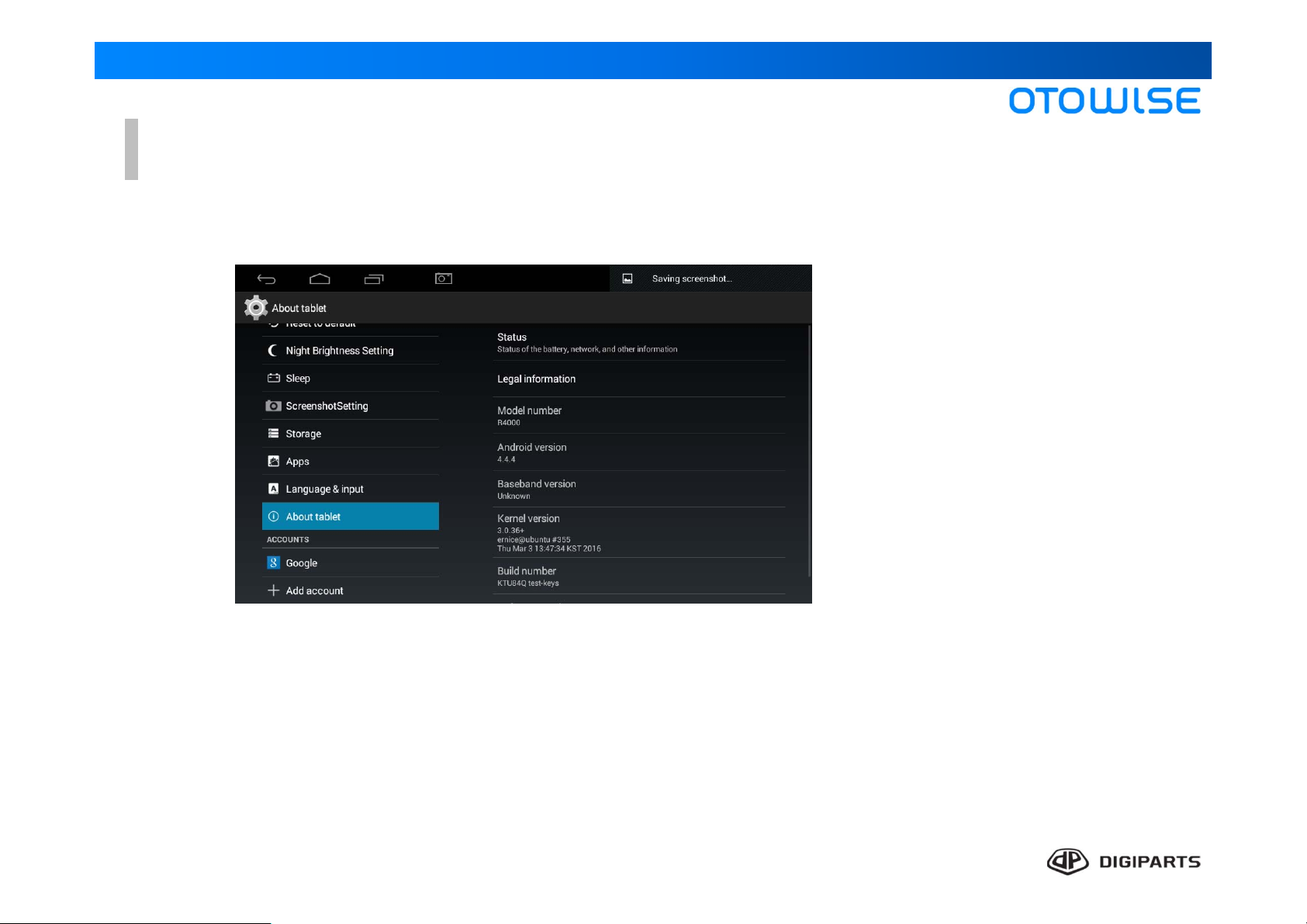
Settings > DEVICE > About tablet
•About tablet
View information about your device, including status, legal information, hardware and software versions, and a
tutorial.
Configure your device’s language and input settings.
15
Page 16

Video Player
Play and manage videos stored on your USB device
* View small size
: You can move the screen(Swipe)
and exit(Touch and hold).
Set brightness
Add to bookmarks
Rewind
Play/Pause
Forward
Full screen
View small size
Back
Additional function
16
Page 17
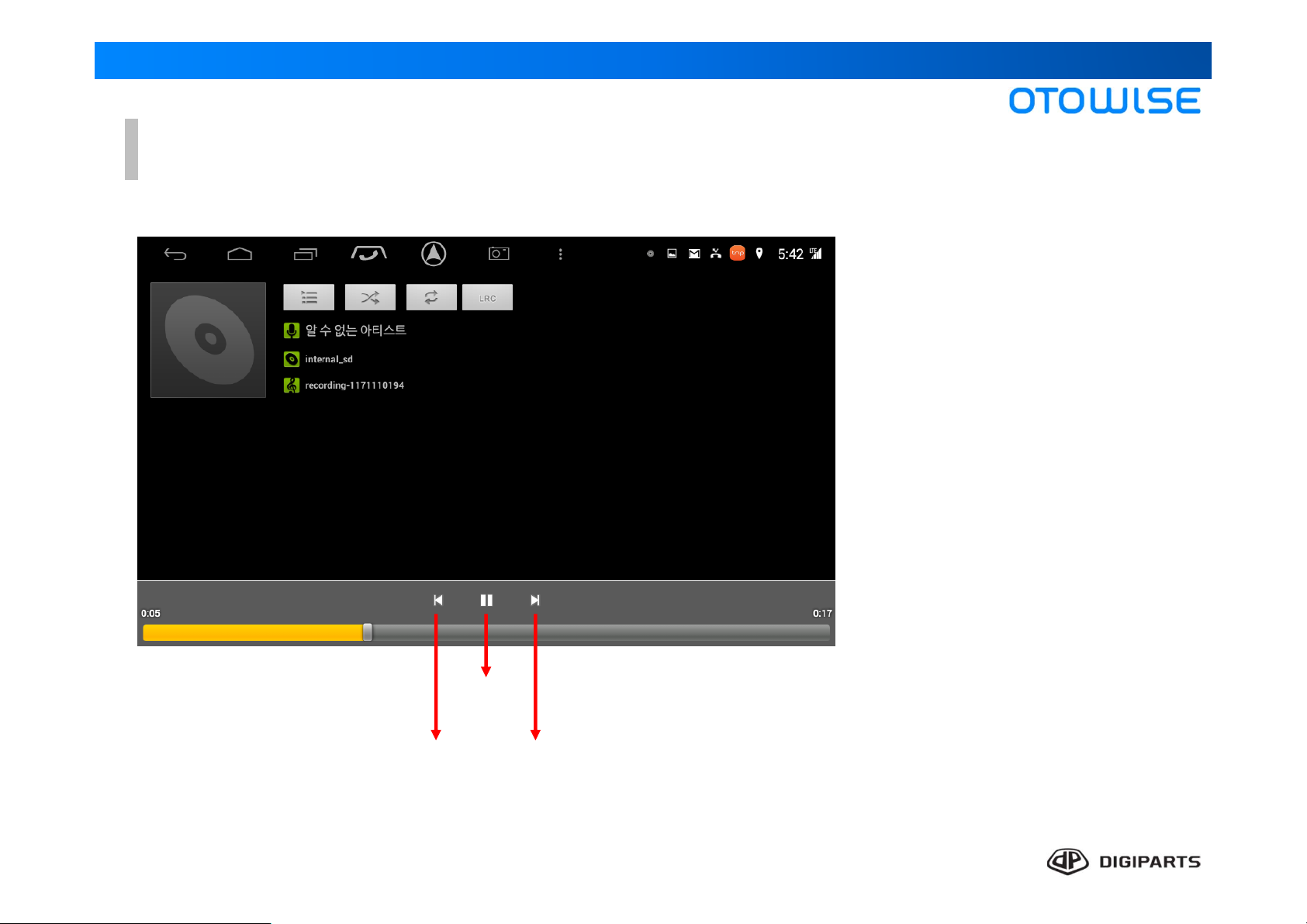
Music Player
Listen to your favorite songs with the Music player.
Play/Pause
Rewind
Forward
17
Page 18

Specification
AP Rockchip PX3 Quad-core(1.6GHz Max) Automotive application processor
RAM 1GB DDR3
System
Network
Interface
Input / Output
Devices
NAND 16GB eMMC
LCD TFT panel 8”, 1024 x 600
Touch 5 point capacitive multi touch
Bluetooth 4.0 AP6330
Wifi 802.11 a/b/g/n 2.4/5.0GHz AP6330
USB OTG x 1ea, Host x 1ea Side - USB 2.0, Atype Connector(OTG)
Modem Carry-in Materials Supporting USB type, UART interface
External Comport In port : UART x 3ea(BT+WiFi, Debug,
Trip)
Extension port : UART x 4ea(GPS,Modem,
etc)
CVBS-IN 1 Rear camera TVP5150AM1-EP, 4Pin type (3.5mm
CVBS-IN 2 AV-in TVP5150AM1-EP, 4Pin type (3.5mm
CODEC MIC 2ea, Aux in 1ea, Mono in 1ea
Line OUT 1ea, Speaker(L/R) 1ea, Aux out
2ea
Speaker 4Ω, MAX 3W, 2ea Stereo Inner speaker
Max 500 cd/㎡
Modem USB(Host)
TTL Level - (BT+Wifi)
RS-232 Level
Jack)
Jack)
ALC5631Q, 4Pin type
(3.5mm phone jack)
Power
T-DMB Antenna (Korean
version)
External control box Micro SD 1ea, USB, Switch 2ea For indash
Switch MODE Switch, REST, reverse LCD
Micro SD Memory SDIO x 1ea Supporting Max 64GB
Power consumption +10 ~ 30 V, 18W
RF tuner & Baseband SoC for T-DMB T3A0N, MCX R/A
18
Page 19

Rated supply voltage : 12V
d.c.( ) symbol (IEC60417-5031) used.
* This product is aimed at Flu
sh Type navigation system
D IGIPARTS, Inc
U-Tower #1901, 120 Heungdeokjungang-ro, Giheung-gu, Yongin-si, Gyeonggido South Korea
TEL : 031-627-5921
E-mail : [email protected]
BRAND : OTOWISE
19
Page 20

 Loading...