

Page 1
Preface
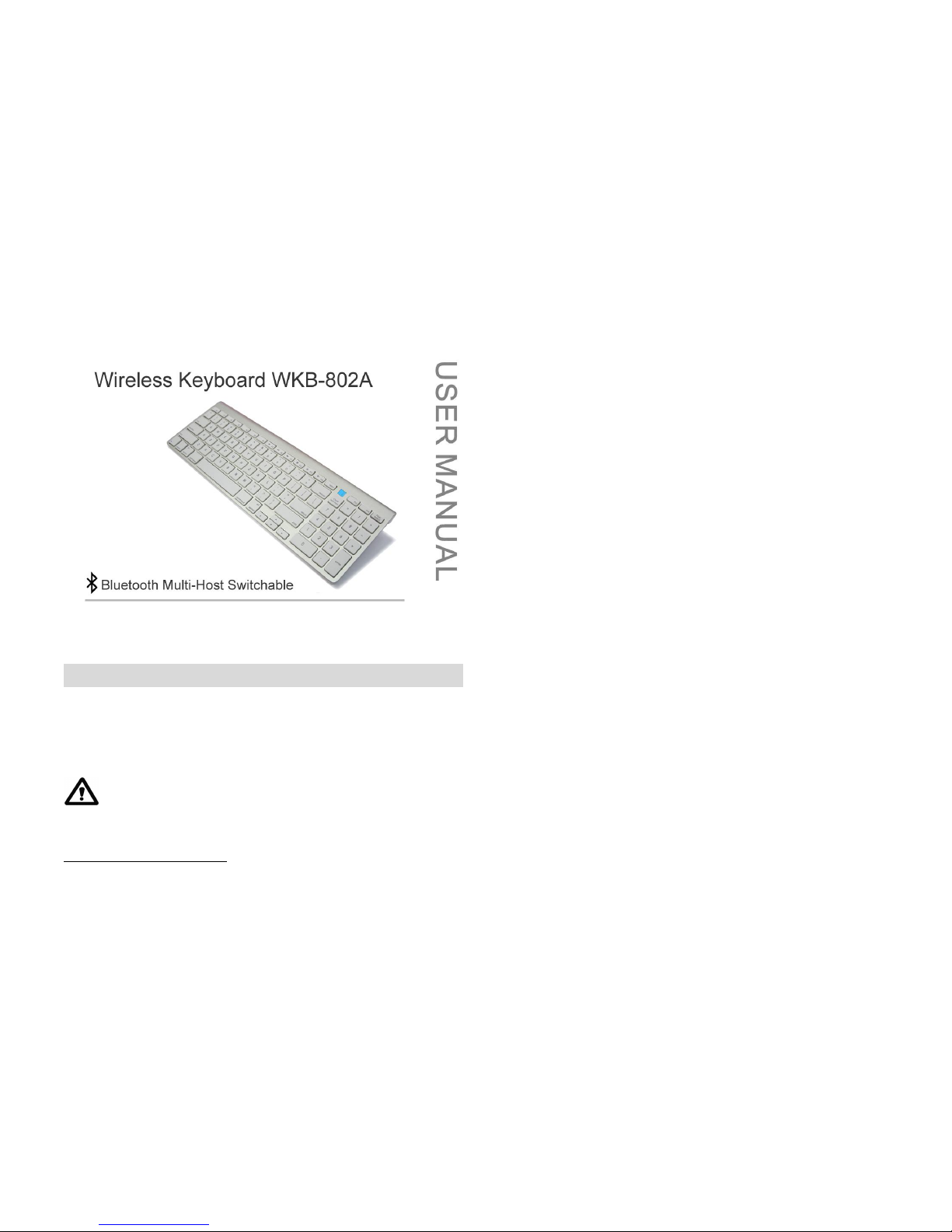
Thank you for purchasing the WKB-802A Bluetooth wireless Keyboard! The WKB-802A
is specifically designed for Bluetooth-enabled Macintosh™ computer*. It can also use it
as an external wireless Keyboard for iPad or iPhone for mass data input. Thanks to its
multi-host switchable support, it can use Mac, iPad or iPhone in between.
Before using the WKB-802A, read this manual and the FAQ carefully. Keep the
User Manual for future reference.
*
See package contents on system requirements. Not all Bluetooth dongles may support t he
WKB-802A Keyboard in all its functions!
Page 2

Key Features
It is compact-size design for space saving environment.
100/101-key compact-size wireless Keyboard with numeric keypad for easy and
fast working with figures, tables, calculations, spread sheets, etc. – a perfect
alternative solution to the USB keyboard!
With multi-host switchable support, it can register up to 8 Bluetooth hosts
Bluetooth wireless technology for convenient wireless access to any Blue-
tooth-enabled Macintosh™ computer. No dongle or driver installation
required!
Can be used as an external wireless Keyboard with iPad or iPhone
*
.
Function keys F1, F2, F3, F4 support Mac OS X for decrease brightness, increase
brightness, expose and dashboard.
F1 Decrease brightness
F2 Increase brightness
F3 Expose
F4 Dashboard
Special function keys, F5, F6, eject and host select keys support iPad and
iPhone for home screen, sleep/wake, onscreen Keyboard and Bluetooth host
select.
F5 Home screen
F6 Sleep/Wake button
eject On-screen Keyboard
host
select
Bluetooth host select
Broadcom Bluetooth chipset.
*
Works with iPad and iPhone 3Gs or later.
Scissor-type membrane keys with non-curved square keycaps for high
comfort typing and reduced typing tiredness.
No dongle or driver installation needed!
Page 3
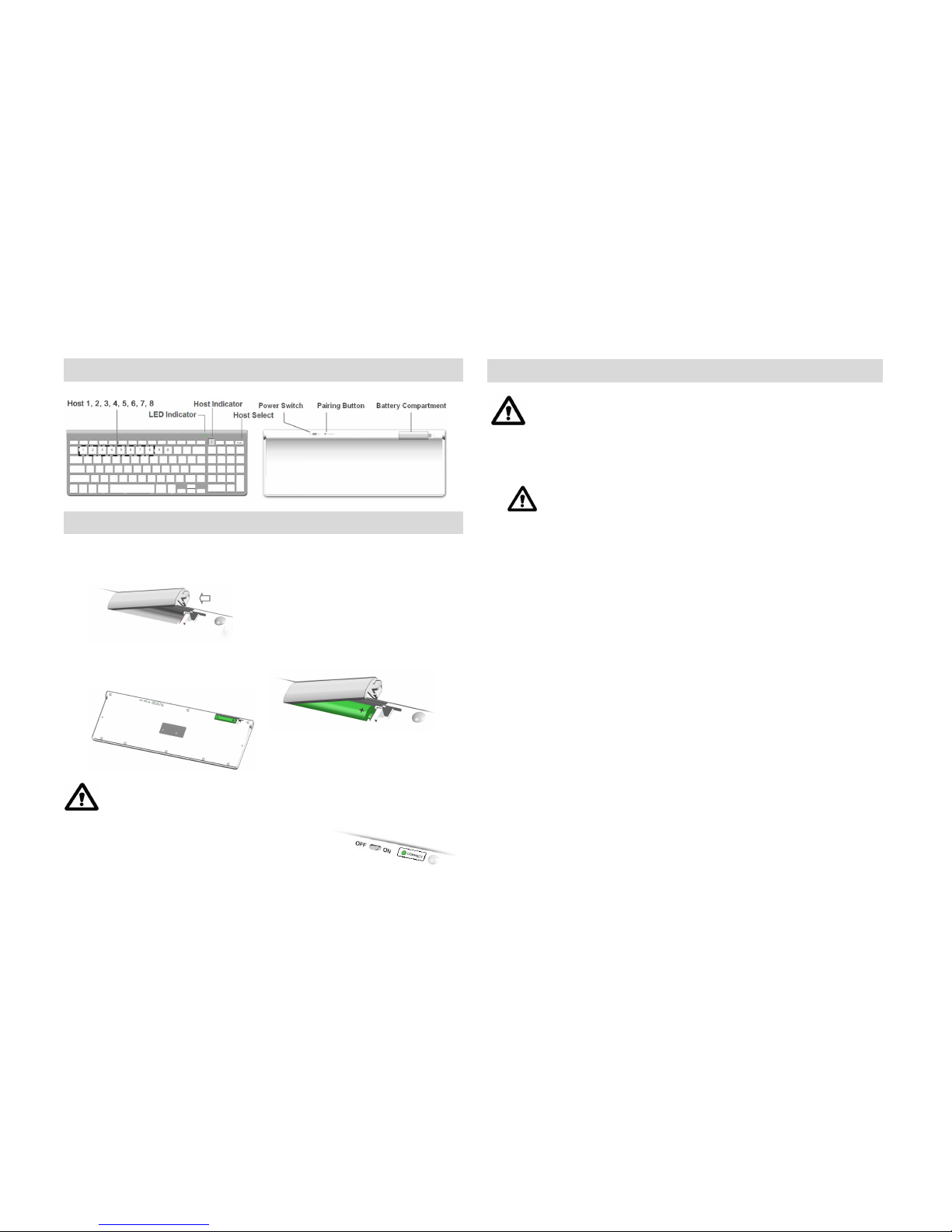
Overview
Getting Started
1. Hold the Keyboard upside down in both hands. Open the battery compartment by
gently pushing trip of battery cover on the arrows with your thumb and lifting
battery cover.
2. Place the 2 AA-size batteries in the battery compartment.
Make sure the batteries are placed according to the polarity symbols (+/-)
shown in the battery compartment!
3. Push the power switch on the Keyboard to turn
on the Keyboard.
Pairing the WKB-802A Bluetooth Keyboard
in Mac OS X
Make sure that you have Bluetooth support on your Macintosh™ and
Mac OS X 10.5.x or higher installed. The WKB-802A Keyboard may work
with older Mac OS X but it is not officially supported.
1. Press “host select “ key and press “1” key, located beneath F1. HTN display will
show 1 on screen.
2. Start to register your keyboard; Choose the Apple menu and open the "System
Preferences." Under “Internet & wireless communication” (OS X 10.6.x)/”Hardware”
(OS X 10.5.x) you should see a Bluetooth icon. If you do not, your Mac does not
have Bluetooth.
3. Enable Bluetooth. Under "System Preferences" click the Bluetooth icon and make
sure you see "Bluetooth: On" under the "Settings" tab. If it's not turned on, click
"Turn Bluetooth On."
4. Go to the menu bar and click the Bluetooth icon, then click "Bluetooth
Preferences."
5. Click the "+" tab (set up new device) in the left window to pair a new Bluetooth
device. The Bluetooth assistant opens. (With Mac OS X 10.5.x, the Bluetooth
assistant may ask what kind of device you are going to pair. Choose “keyboard”
and click “continue”). Your computer now searches automatically for new Bluetooth
devices.
6. Press the Pairing Button on the backside of the WKB-802A Compact-size Keyboard
with a pen to set up a connection to your Macintosh™. The pairing LED starts to
flash in green. Your Macintosh™ should see the WKB-802A Keyboard as “Bluetooth
mini Keyboard”. Click “continue”.
7. In the dialog box the device “Bluetooth mini Keyboard” will appear. If it is not listed,
make sure that WKB-802A Keyboard is turned on and in pairing mode. Then click
"Search Again" in the "Bluetooth Device" dialog box.
8. Click on “Bluetooth mini Keyboard” and press “continue”. The PIN number of the
WKB-802A Keyboard will be shown on your screen.
9. Enter the 8-digit PIN number with your WKB-802A Keyboard according to the
digits shown on your screen and press the “enter” key of your WKB-802A Keyboard.
Do not hold “host select” key and press “1” key
Page 4

Click "OK" and the Bluetooth mini Keyboard should be listed in the "Devices" tab
under "Bluetooth Preferences."
10. LED indicator will become blue color. It means that Bluetooth keyboard is well
linked to Mac.
When you enter a digit on the WKB-802 Keyboard, it is not highlighted as
with some other Bluetooth devices. Keep entering the digits quickly and press
the “enter” key at the end. If you need too long to or enter a wrong digit, you
may have to enter the PIN number again.
Register the WKB-802A to another Bluetooth Host
1. Press “host select “ key and press “2” key, located beneath F2. HTN display will show
2 on screen.
2. Follow the pairing procedure same as step 2 ~ 10 of Pairing the WKB-802A
Bluetooth keyboard.
3. Register the WKB-802A to other Bluetooth enabled devices, up to 8 different hosts.
Swap Bluetooth Host in Between
How to switch the WKB-802A from Mac system (register host 1) to iPad
(register host 2), for example.
1. Press “host select “ key and press “2” key, located beneath F2. HTN display will
show 2 on screen.
2. LED indicator start to flash in green. Then LED indicator will become blue upon the
WKB-802A well link to iPad, host 2.
Using the Pairing Button
1. You may use the pairing button after you have changed the batteries (you need to
set up the WKB-802 Keyboard like you did for the first time) or when the
connection is constantly lost.
It is not necessary to press pairing button after
you have changed the batteries.
2. If you want to use the WKB-802A Keyboard with another Macintosh™ computer,
you need to register the WKB-802 Keyboard again. Please refer to the procedure of
Register the WKB-802A to another Bluetooth Host.
Power Management
To save power, it is highly recommended to power off the WKB-802A Keyboard if
the WKB-802A Keyboard won’t be used for a longer period.
1. To power off the WKB-802A Keyboard, push power
switch of WKB-802A Keyboard to OFF position.
2. To power on the WKB-802A Keyboard again, push
power switch of WKB-802A to ON position. The LED indicator flashes in green. You
may see the message “connected” on your screen. You can use the WKB-802A
Keyboard now.
The pairing time of WKB-802A Keyboard with your Macintosh™
computer normally just takes a few seconds. However, it may take up to 40
seconds with some Bluetooth dongles.
3. The WKB-802A Keyboard greatly reduces the power consumption automatically
when it is in idle mode (connected, but no keying). In fact, the power consumption
in idle mode is only about ¼ (about 0.65 mA) of the consumption of the keying
mode (typing on the WKB-802 Keyboard; about 3 mA). This feature greatly extends
the battery life.
4. The WKB-802A Keyboard uses 2 pcs. AA size batteries. It is highly recommended to
use Alkaline batter y.
Page 5

LED Indication
Different LED flash mode indicates different status of WKB-802A Keyboard.
LED flash in green LED ON 0.5 sec, and then LED
OFF 0.5 sec.
Press pairing button
LED steady in blue
while typing
LED steady ON, and then LED
OFF 2 sec. when no key typing
While typing the key
LED flash in green LED ON 1 sec. and then LED
OFF 0.45 sec.
Out of range or
Signal weak
LED flash in green
very slowly
LED ON 1 sec. and LED OFF 1.5
sec.
Low battery warning
LED steady in green LED ON 5 minutes until release
caps lock
Press caps lock key
FAQ
1. The WKB-802A Keyboard shows an erratic behavior such as a sudden loss of
connection, sleep mode after a short time (i.e. only a few seconds), no
connection possible when trying t o pair, etc.
Erratic behavior of the WKB-802A Keyboard can be a result of (too) low battery
power. You should change the batteries now.
2. The “clear” key under Windows™ has different and sometimes strange
functions such as delete forward, delete backwards, no function at all, numlock
function, clear all, etc.
The WKB-802A Keyboard is designed to work with Mac OS X. However, it can be
used with certain Windows™ OS and programs as well but without support from
the manufacturer.
The “clear” key under Windows™ OS is basically equal to numlock. However, it can
have different functions depending on the software being used. This shortcoming
cannot be changed. Use “delete” and “delete forward” instead to clear any
characters and try to avoid using the “clear” key while working with Windows™ OS.
3. The functi on of F1 ~F12 keys under Windows™ has different and sometimes
strange functi ons.
The WKB-802A Keyboard is designed to work with Mac OS X. However, these
function keys can be used by holding “Fn” key and pressing F1 or F2 and etc. The
function will be same as Windows™ OS.
4. Can the WKB-802A Keyboard be connected with various Macintosh™
computers, i.e. an iMac and a MacBook, and switch back and forth?
No, the WKB-802 can only be connected with one Macintosh™ computer at a time.
When switching to another Macintosh™, the pairing needs to be redone.
It is recommended to delete the “Bluetooth mini Keyboard” first before re-pairing
is performed. You can delete it by choosing the “Bluetooth mini Keyboard” and
clicking on the “-“ sign in the left window. Follow the steps under “Bluetooth
Pairing under Mac OS X”.
5. Can the battery power status be read in the Apple™ System Preferences like
with the Apple™ wireless keyboard?
No, there is no reading for the current battery power status. Once the battery
power is low, the LED will flash very slowly in green or WKB-802A Keyboard will
display an erratic behavior like loosing the connection all the time, having difficulty
to do the pairing, etc.
Page 6

6. On the WKB-802A Keyboard, there is a “.” (decimal) key. In my language, the
“,” is used as the decimal sign. Will the WKB-802A Keyboard display a “.” or a
“,”?
Whether the WKB-802A Keyboard displays a “.” or a “,” depends on the Mac OS
installed (keyboard layout/language), i.e. in French OS/keyboard layout, the
decimal key displays a “,” while in Swiss OS/keyboard layout, a “.” is displayed.
7. During the process of pairing the WKB-802A Keyboard with the Macintosh™,
there is a window displayed called “Keyboard identification”. I am supposed to
press the key next to the shift key.
The message can be ignored. Simply press the red button in the upper left corner
to close this window. Your Macintosh™ will recognize the WKB-802 Keyboard.
All rights reserved. All trade names are registered trademarks of the respective manufacturers listed. All
specifications are subject to change without prior notice.
This device complies with Part 15 of the FCC Rules. Operation is subject to the
following two conditions:
(1) This device may not cause harmful interference, and (2) This device must accept
any interference received, including interference that may cause undesired
operation.
Federal Communication Commission Interference Statement
This equipment has been tested and found to comply with the limits for a Class B
digital device, pursuant to Part 15 of the FCC Rules. These limits are designed to
provide reasonable protection against harmful interference in a residential installation.
This equipment generates, uses and can radiate radio frequency energy and, if not
installed and used in accordance with the instructions, may cause harmful interference
to radio communicati ons. However, there is no guarantee that i nterference will not
occur in a particular installation. If this equipment does cause harmful interference to
radio or television reception, which can be determined by turning the equipment off
and on, the user is encouraged to try to correct the interference by one of the following
measures:
. Reorient or relocate the receiving antenna.
. Increase the separation between the equipment and receiver.
. Connect the equipment into an outlet on a circuit different from that to which the
receiver is connected.
. Consult the dealer or an experienced radio/TV technician for help.
FCC Caution: To assure continued compliance, any changes or modificati ons not
expressly approved by the party responsible for compliance could void the user's
authority to operate this equipment. (Example - use only shielded interface cabl es
when connecting to computer or peripheral devices).
FCC Radiation Exposure Statement
This equipment complies with FCC RF radiation exposure limits set forth for an
uncontrolled environment.
 Loading...