

Page 1
Installation Guide/User manual
UNIVERSAL RDS
INTEGRATION KIT
Page 2

2
UNIVERSAL RDS
Copyrights and Trademarks
Copyright 2011 DICE Electronics, LLC.
The DICE Electronics logo is a trademark of DICE Electronics, LLC.
iPod is trademark of Apple, Inc.
All rights reserved.
Printed in the U.S.A.
Page 3

3
UNIVERSAL RDS
Warning and safety
Product registration
Universal RDS kit contents
Frequency conguration settings
Compatible iPod & iPhone Models
Installation
Connection diagram
Note to Installers
Charging
Basic operation
Optional wireless remote funtion for iPod
Troubleshooting
Firmware update
Disclaimer & Warranty
Installation notes
..........................................................4
.........................................................5
..............................................6
.....................................6
..................................7
.......................................................................8
.........................................................9
............................................................10
.......................................................................11
.............................................................12
......................13
.............................................................14
............................................................17
...................................................18
............................................................19
Table of Contents
Page 4

4
UNIVERSAL RDS
Please read these instructions carefully before proceeding. Failure to follow instructions may result in
improper operation or injury. Neither DICE Electronics, LLC. nor Apple Inc., its regional ofces, distributors or
resellers take any responsibility for any damage or injury as a result of using the integration kit.
- Do not open, disassemble or alter the interface in any way.
- Do not insert anything into the casing.
- Do not cut or try to alter cables in any way and always use the correct connections.
- Only operate unit when stationary or ask passengers to operate it for you.
- Do not allow the Apple iPod to distract you from driving.
- Exercise good judgement and keep your eyes on the road at all times.
- Do not expose unit to extreme temperatures, humidity or shock.
- Keep the unit and iPod away from uids.
- Keep away from children! - Interface components may contain small parts, can be broken or disassembled
and components may become loose from vibration and heat. Small components and packaging materials
may be a chocking hazard when handled by children.
Warning and safety!
Page 5

5
UNIVERSAL RDS
Thank you for purchasing the DICE Universal RDS integration kit for iPod. Please review our user manual
and installation guide before operating the unit. This interface was designed and manufactured to seamlessly
integrate with your vehicle’s factory entertainment system.
In order to validate your warranty period and to receive telephone or online support and product rmware
updates, you MUST register your DICE product.
To register your DICE product, please complete the following steps:
1. Visit http://www.register.diceelectronics.com
2. Look up and save the serial number of the product.
3. Complete the product registration form.
4. Submit the form.
5. Save the registration/support/warranty sheet in a safe place for future reference.
If you are unable to complete the registration via internet, please call DICE Electronics at 1-888-342-3999.
Congratulations on your purchase!
Product registration
Page 6
6
UNIVERSAL RDS
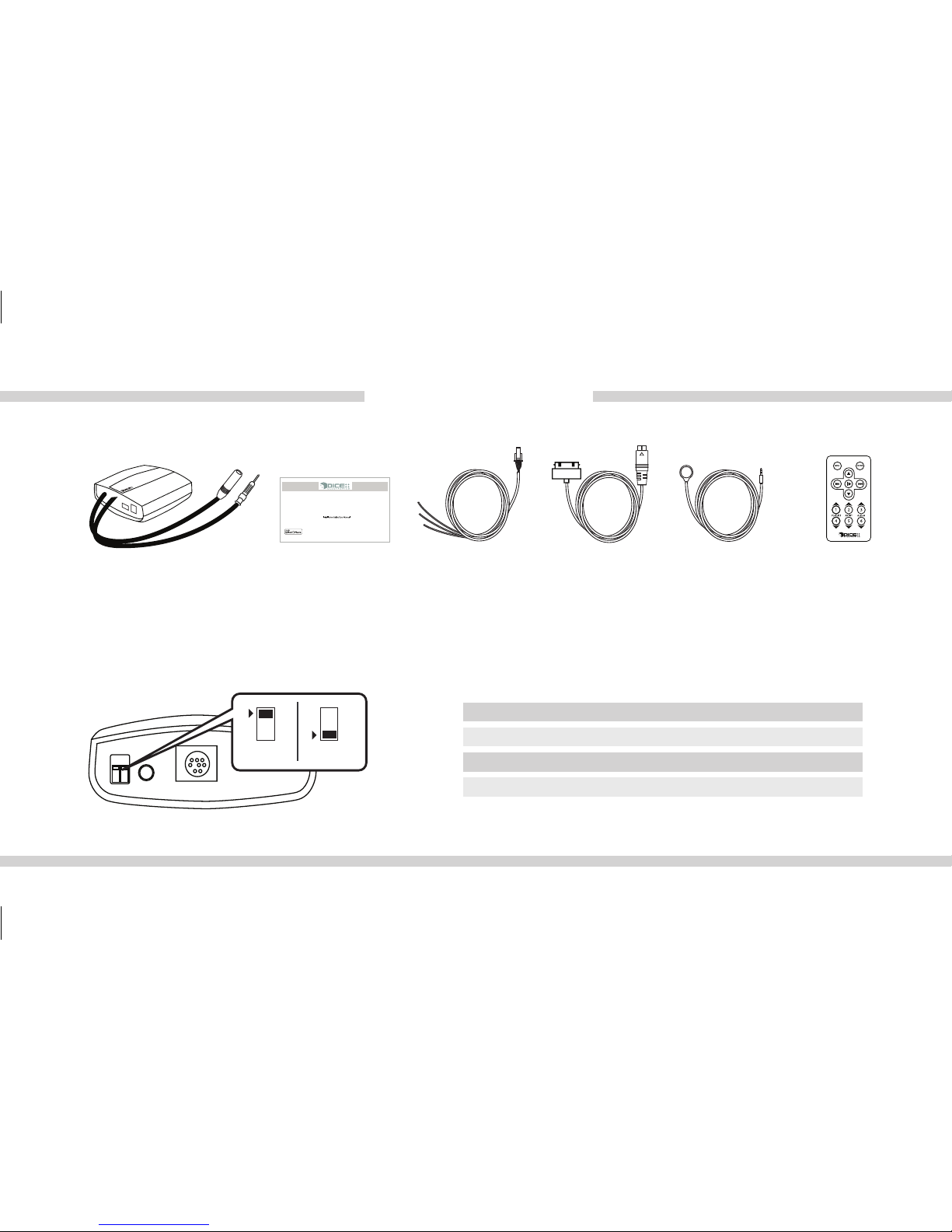
Universal RDS kit contents
Frequency conguration settings:
Universal RDS module
ON/OFF Switch Positions
FM (MHz) Dip switch 1 Dip switch 2
Module
frequency selector switch
user manual
pro-install power
cable
IR receiver
(optional)
wireless remote
(optional)
UNIVERSAL RDS
ON
OFF
88.7
93.3
97.5
107.7
OFF
ON
ON
OFF
OFF
OFF
ON
ON
DICE dock
cable
Page 7
7
UNIVERSAL RDS
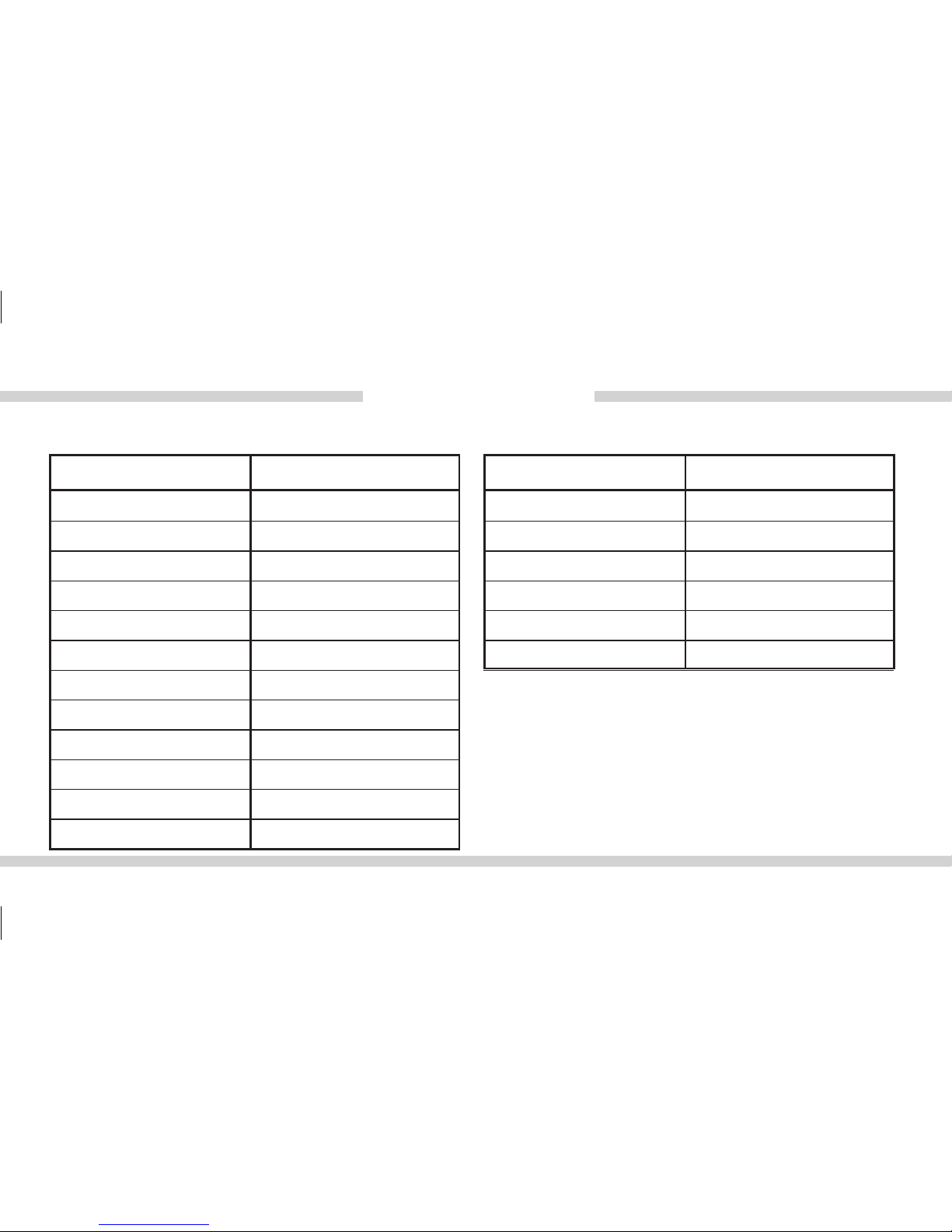
Supported iPod models and rmware version requirements
Model Model
1G nano 160 GB classic
iPod 5G 5G nano
2G nano 3G touch
iPod classic iPhone 4
3G nano 4G touch
iPod touch 6G nano
iPhone
iPhone 3G
4G nano
120 GB classic
2G touch
iPhone 3GS
Firmware / OS Version Firmware / OS Version
1.3.1 2.0.4
1.3 1.0.2
1.1.3 iOS 4.2.1
1.1.2 iOS 4.2.1
1.1.3 iOS 4.2.1
iOS 3.1.3 1.1
iOS 3.1.3
iOS 4.2.1
1.0.4
2.0.1
iOS 4.2.1
iOS 4.2.1
Page 8
8
UNIVERSAL RDS
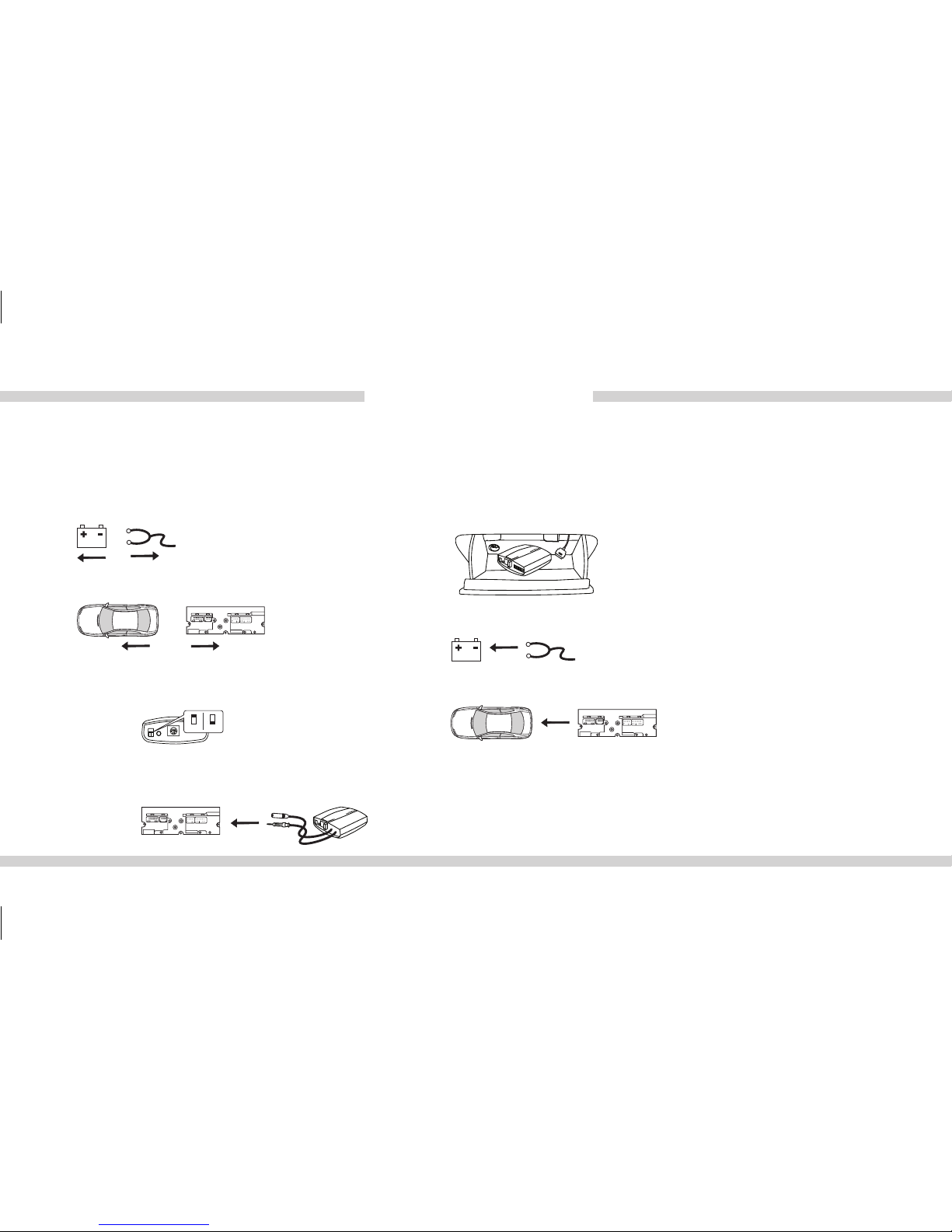
Installation
1.Verify compatibility, certain radios require
antenna adapter(s), not included in the kit.
6. Test for 12V constant, 12V switched, and ground sources.
Splice into with leads from power cable.
7. Route kit to glovebox or other accessible location.
8. Connect battery & test*
9. Complete install by re-installing radio
10. Save frequency to a preferred preset on the radio if
desired.
2. Disconnect battery
3. Remove radio from car
5. Install Universal RDS cable. Plug the factory radio antenna to the receptacle on the
module.
ON
OFF
4. Set the DIP switches for the frequency
selector switch to the desired setting.
Page 9
9
UNIVERSAL RDS
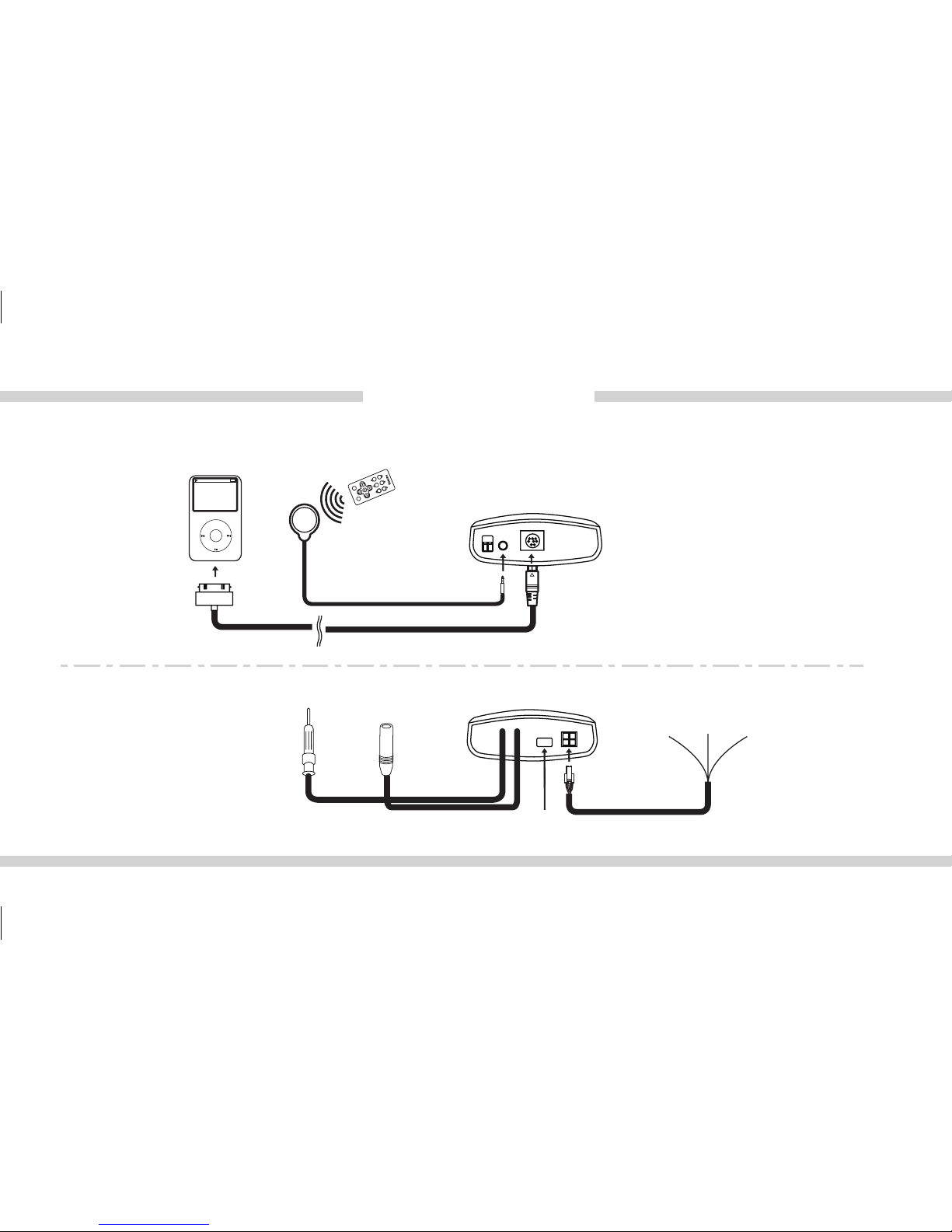
Connection Diagram
DICE dock cable for iPod
USB
upgrade port
+12
(yellow)
ground
(black)
ignition
(red)
power cable
iPod
Module
(front)
Module(back)
IR receiver
(optional)
Wireless remote
(optional)
MENU
P
L
AY
L
I
S
T A
R
T
I
S
T
A
L
B
U
M
1
M
E
N
U
S
O
U
R
C
E
2 3
4
5 6
antenna
out
antenna
in
Page 10

10
UNIVERSAL RDS
Attention installer! Please read the following!
DICE Electronics strongly recommends that the unit be installed in an easily accessible place!
DO NOT PLACE IT BEHIND THE RADIO!
Whether the unit is professionally or self installed, put the module where you, the end user can get to it easily
in the future. (Have the installer show you where the box is.)
Installing the DICE module behind the radio will make it difcult to:
-Add possible future upgrades, changing software, adding new features, improving operation;
-Access the DIP switches located on the module;
-Remove the unit in case of failure.
MAKE SURE THAT THE MODULE IS IN AN ACCESSIBLE PLACE!
Page 11
11
UNIVERSAL RDS
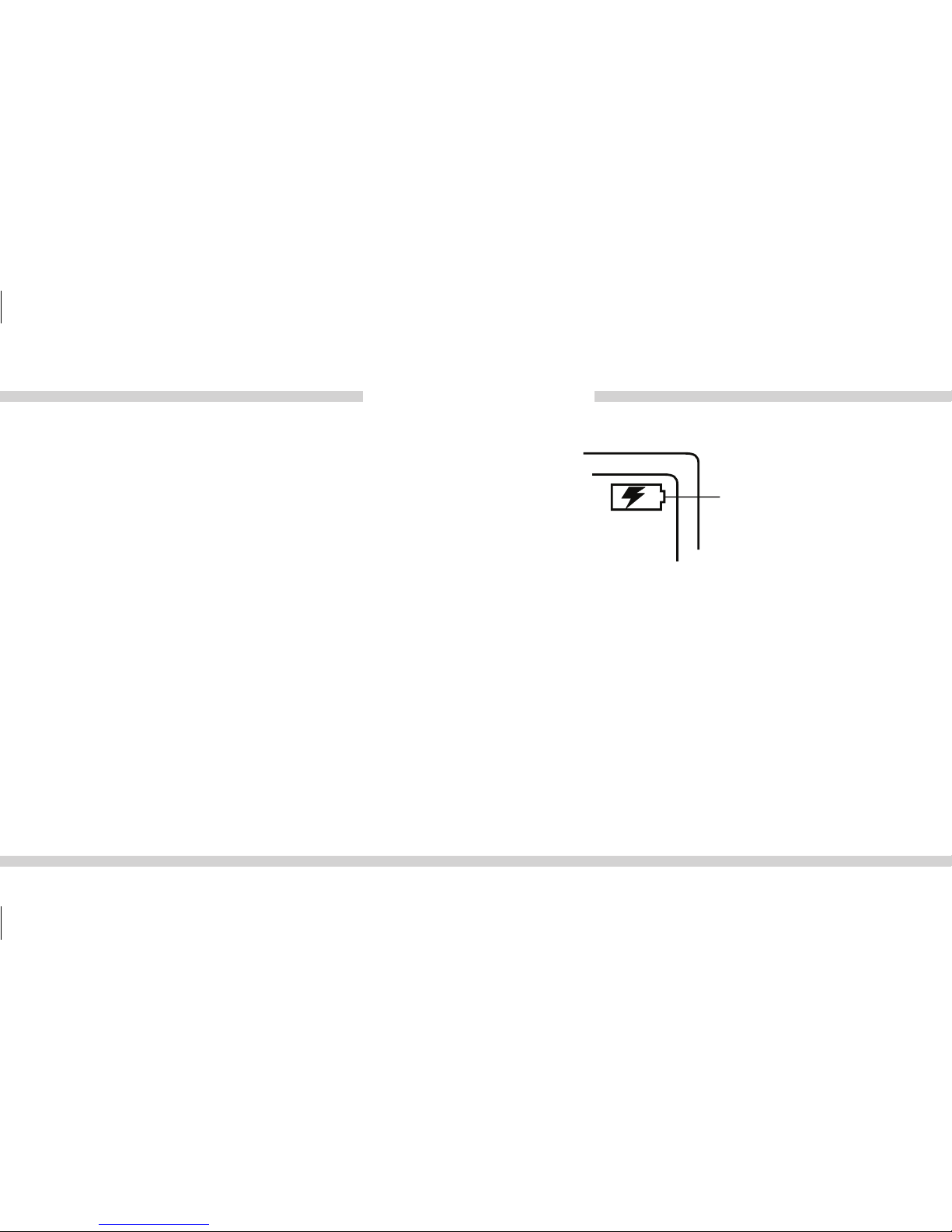
The interface automatically charges the battery of the iPod when
connected and your vehicle ignition key is in the ON position.
Charging may be shown by an
icon that appears on the upper
right corner of the iPod screen.
May vary by model.
Charging
Page 12

12
UNIVERSAL RDS
Basic Operation
1. Power on the radio and select the FM source.
2. Tune the radio to the frequency set by the conguration switches (see pg 6)
3. Connect your iPod or iPhone via DICE docking cable for iPod to the Universal RDS module.
4. Select/control desired music on you iPod/iPhone.
5. Use the optional wireless remote for control.
Page 13
13
UNIVERSAL RDS
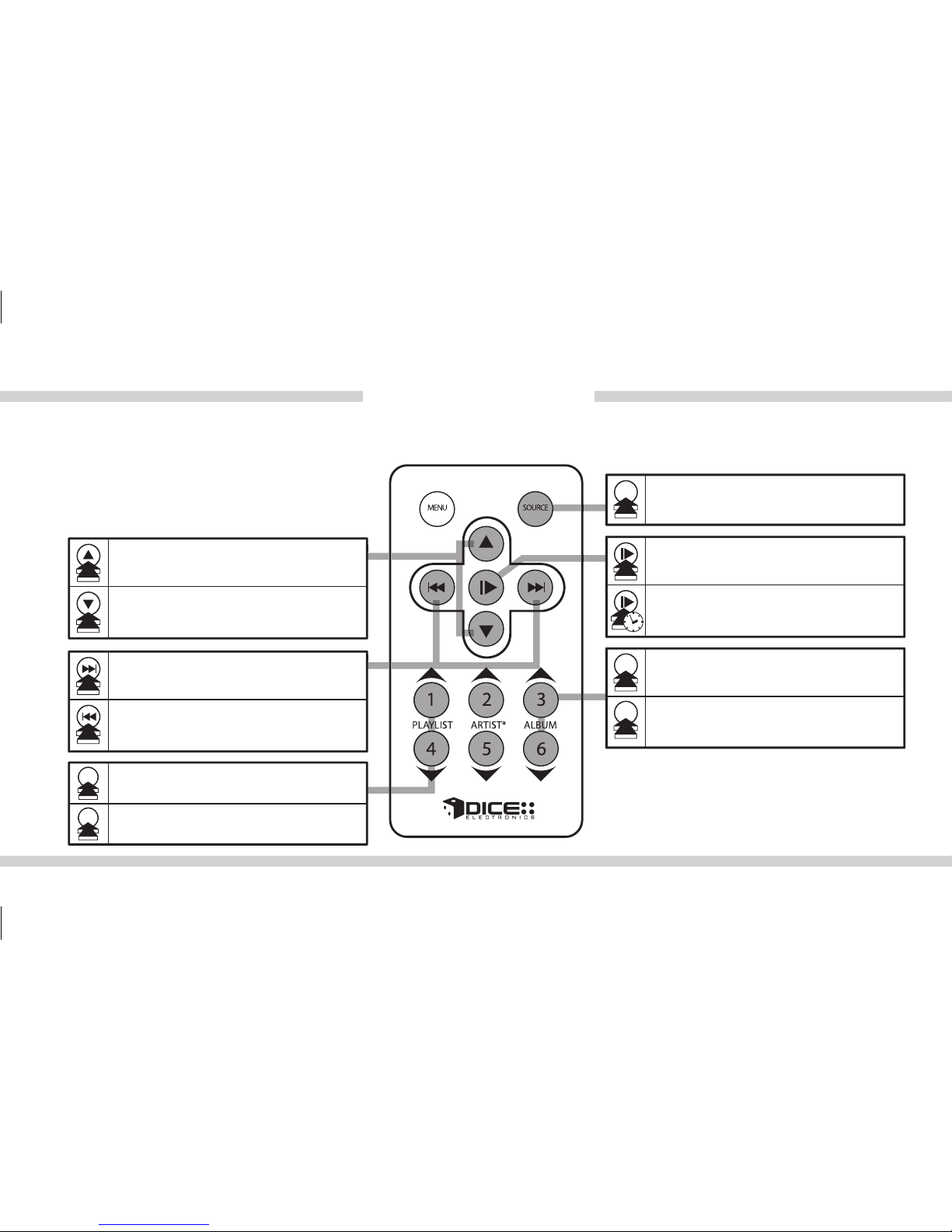
Optional wireless remote function for iPod
Shufe SONG (within a PLAYLIST) /
Shufe ALBUM / Shufe off
Module on/off
Skip to the next ALBUM
* ARTIST is currently not supported
Skip to the previous ALBUM
No function assigned to this button
Play / Pause (when paused, the radio will
return to FM station)
Repeat one / Repeat all / Repeat off
Next Track
Previous Track
Skip to the next PLAYLIST
Skip to the previous PLAYLIST
SOURCE
3
1
4
6
Page 14
14
UNIVERSAL RDS
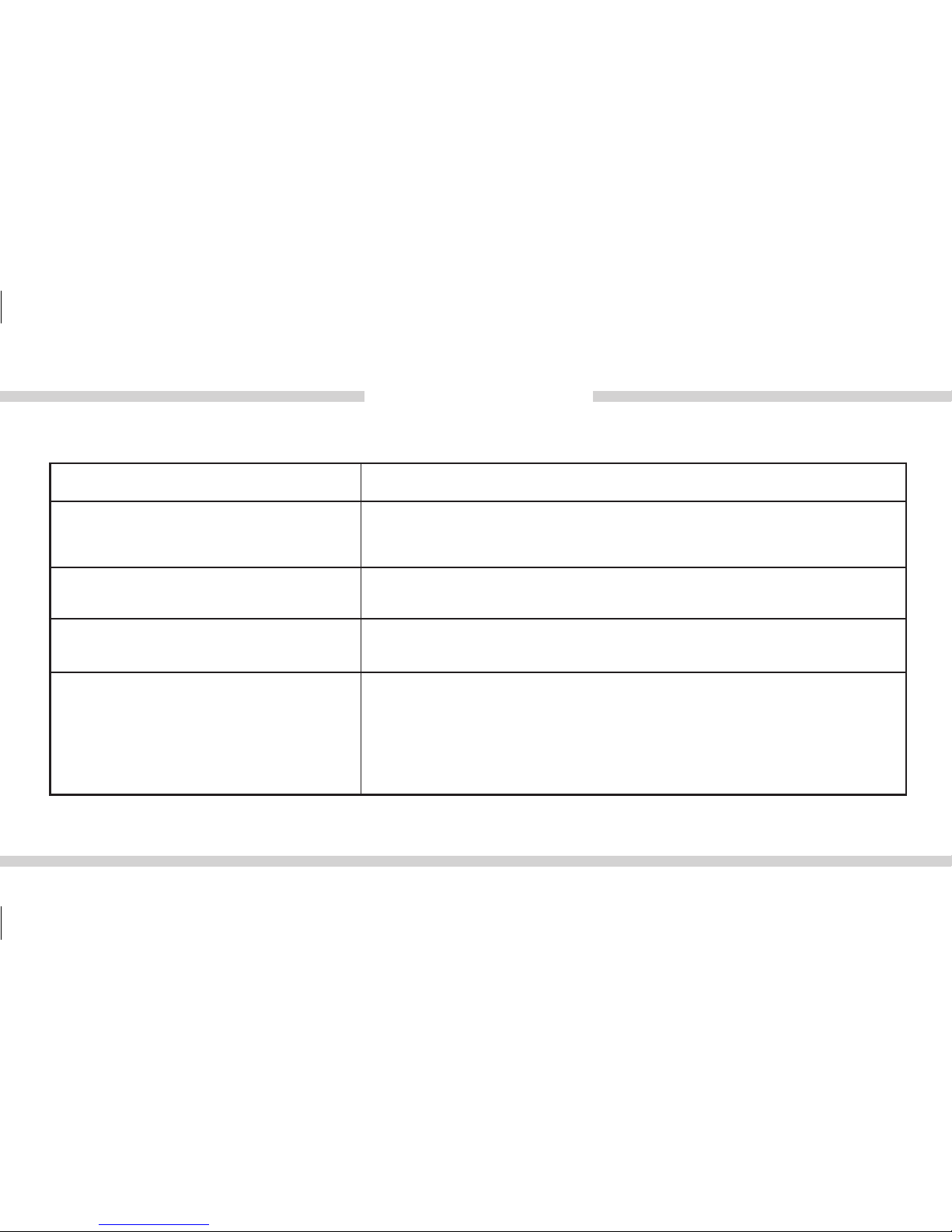
Troubleshooting
Problem Solution
Text is not displaying on the screen of
the radio.
Text from the iPod will only display if the radio is RDS capable. Look for RDS
capability: RDS capable radios will show text in addition to the frequency
such as song information while listening to certain FM stations.
Check all connections. See if iPod charges while connected to computer or
wall charger. You may need to reset the iPod.
Please make sure that the iPod dock connection is not loose. Make sure that
an iPod case is not preventing the dock connector from being fully seated.
Disconnect and reconnect the device. If iPod is not responding please try
resetting it. Check the wireless remote’s battery and IR receiver connection.
Make sure all EQ and BASS boost options are turned off on your iPod.
iPod does not charge.
Music is distorted or sound level is too
low with iPod connected.
Why is the remote not controlling the
iPod?
Page 15

15
UNIVERSAL RDS
Problem Solution
No audio from iPod source.
Reset the iPod. Verify proper connection to iPod/interface. Check for
compatibility.
The iPod does not have playable audio les or end of a playlist is reached.
Please select a new Playlist by browsing there on the iPod or remote.
Playback of content selected on the iPod before connected to the interface
continues until new content is selected.
Check DIP switch settings and make sure that radio is tuned to selected
frequency. With the ignition OFF, disconnect Power harness from module for
a few seconds and reconnect.
Why does the radio display show
“EMPTY/STOP” and no music plays?
Cannot hear audio from iPod.
Why does category read
“PRESELCTD”?
Page 16

16
UNIVERSAL RDS
Problem Solution
Text from iPod/iPhone music App
doesn’t show.
Audio stream from internet radio is routed through the Universal RDS kit, but
text information is not available.
Content control must be done directly on the iPod/iPhone, or via the optional
remote control.
If you have the optional remote control, you can press the SOURCE button
to switch between iPod/iPhone and factory antenna feed.
When an iPod/iPhone is connected to the Universal RDS kit, the interface
cuts out the factory antenna feed to prevent interference form strong local
stations. Disconnecting the iPod/iPhone restores the antenna connection.
I can’t control the iPod/iPhone from
the radio.
Cannot hear AM/FM radio stations.
Page 17
17
UNIVERSAL RDS
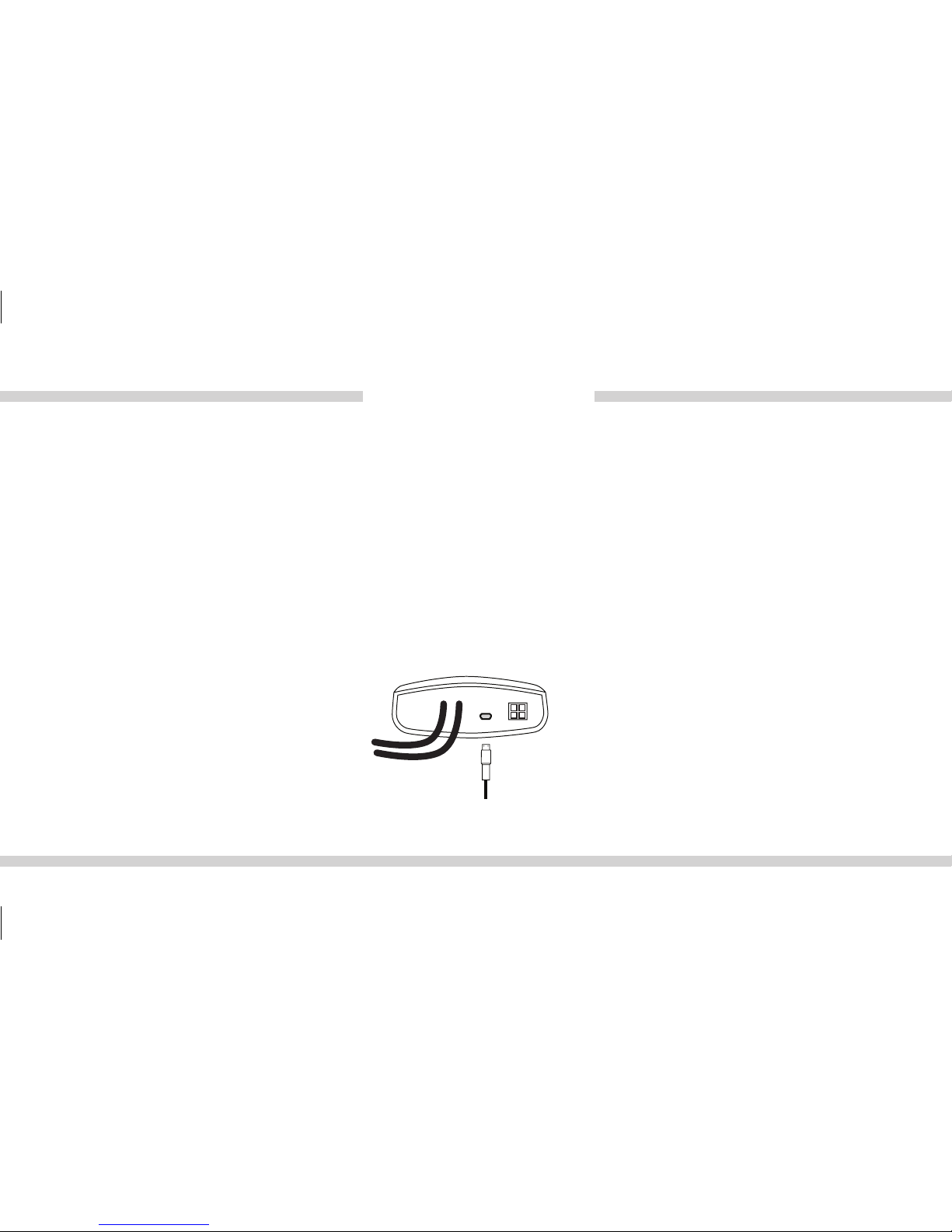
STEP 1: Disconnect the Universal RDS module from the vehicle.
STEP 2: Download and install necessary software from www.diceelectronics.com
STEP 3: Open software to follow instructions for updating Universal RDS unit.
STEP 4: Plug in Universal RDS via mini USB cable and update.
STEP 5: Disconnect and reinstall the unit into the vehicle.
Firmware update
Mini USB port for software update
Universal RDS module
FW Update Power
Page 18

18
UNIVERSAL RDS
Important disclaimer, please read!
Unauthorized reproduction or reverse engineering is strictly prohibited! Intellectual property included is distributed under specic
license agreement with respective owners and is licensed only, not sold. No warranty, explicit or implied, is stated. Neither DICE
Electronics, LLC., nor any of its agents, distributors, dealers or vendors shall be liable for damages.
IN NO EVENT SHALL DICE ELECTRONICS’ LIABILITY EXCEED THE PRICE PAID FOR THE PRODUCT FROM DIRECT,
INDIRECT, SPECIAL, INCIDENTAL, OR CONSEQUENTIAL DAMAGES RESULTING FROM THE USE OF THE PRODUCT, ITS
ACCOMPANYING SOFTWARE OR ITS DOCUMENTATION.
Support and warranty!
If you experience any problems or need help, please contact you local dealer or call DICE Electronics, LLC. At 888-342-3999 or visit us
at http://diceelectronics.com/product-support
Products carry a 1 year limited warranty that protects you from defects in material and workmanship of products sold by DICE
Electronics or its authorized agents, distributors and dealers. The warranty period begins the day a product is purchased by the end
user. Products found to be defective during the warranty period will either be repaired or replaced by DICE Electronics at no charge
unless warranty is void. Unauthorized attempt of repair or alteration of the product in any way immediately voids this warranty.
Warranty does not extend to cosmetics or nish. A DICE product specialist must determine that a defect is present in the product and
issue an RMA. Be sure that all wiring is connected as described in the user manual and all related equipment is functioning properly.
DICE Electronics disclaims any liability for other incurred damages resulting from product defects. Any expenses in the removal and
reinstallation of products are not covered by this warranty.
PLEASE NOTE: International customers requiring a product replacement, please contact the dealer your product was purchased from!
Disclaimer & Warranty
Page 19
19
UNIVERSAL RDS
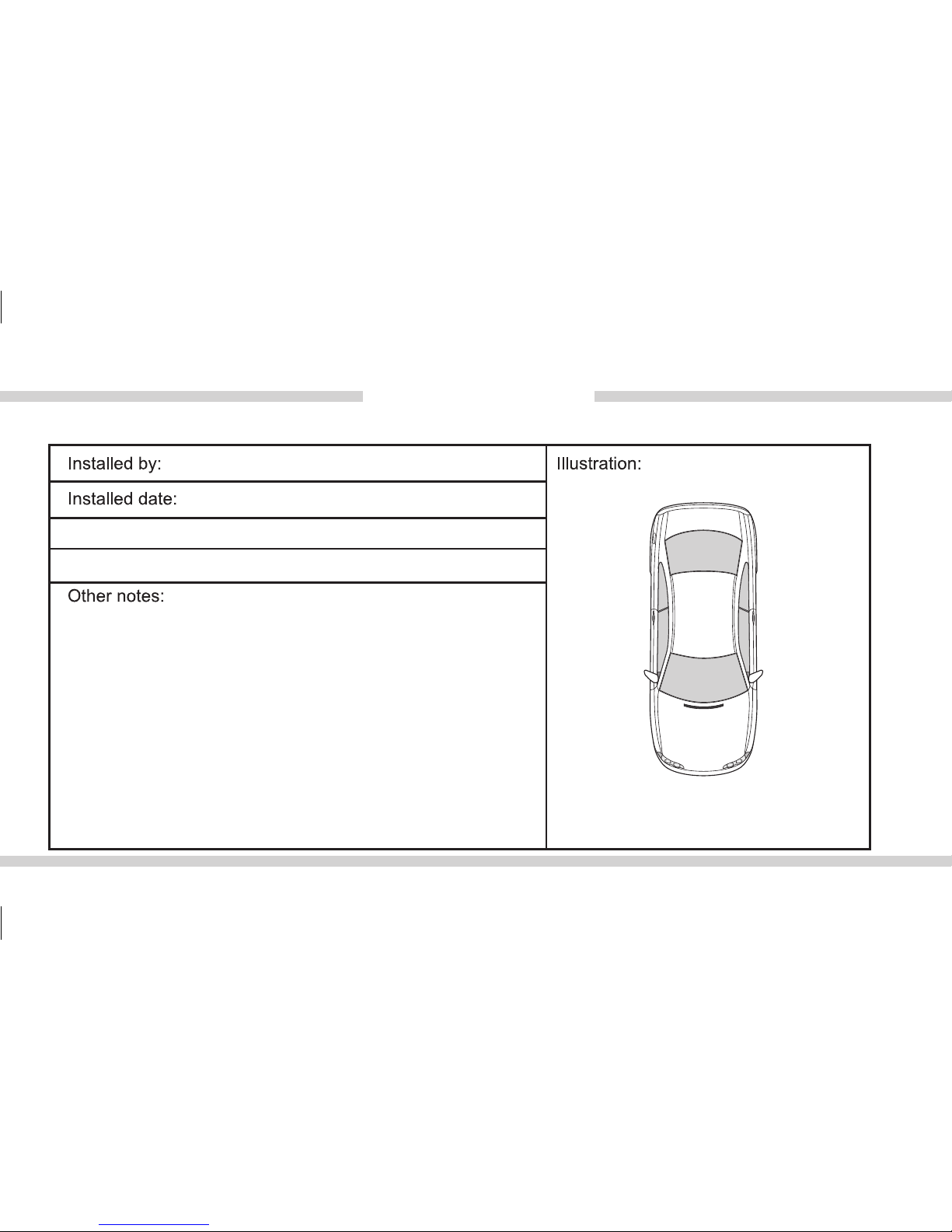
Installation notes:
Congured frequency:
Serial number:
Page 20

Universal RDS
www.diceelectronics.com
UNI-150-PRO-033111
 Loading...