

Page 1

DIAMOND DATA
CD-ROM DRIVES
USER’S GUIDE
for all Diamond Data IDE/ATAPI
interface CD-ROM drive models
DIAMOND DATA CD-ROM DRIVES User’s Guide
Mitsubishi Electric Australia 1
Page 2
Copyright
Copyright ©1998 Mitsubishi Electric Australia Pty. Ltd. All rights reserved.
No part of this publication may be reproduced, transmitted, transcribed,
stored in a retrieval system or translated into any language or computer
language, in any form or by any means, electronic, mechanical, magnetic,
optical, chemical, manual or otherwise, without the prior written permission
of this company.
Disclaimer
This company makes no representations or warranties, either expressed
or implied, with respect to the contents hereof and specifically disclaims
any warranties, merchantability or fitness for any particular purpose.
Further, this company reserves the right to revise this publication and to
make changes from time to time in the contents hereof without obligation
of this company to notify any person of such revision or changes
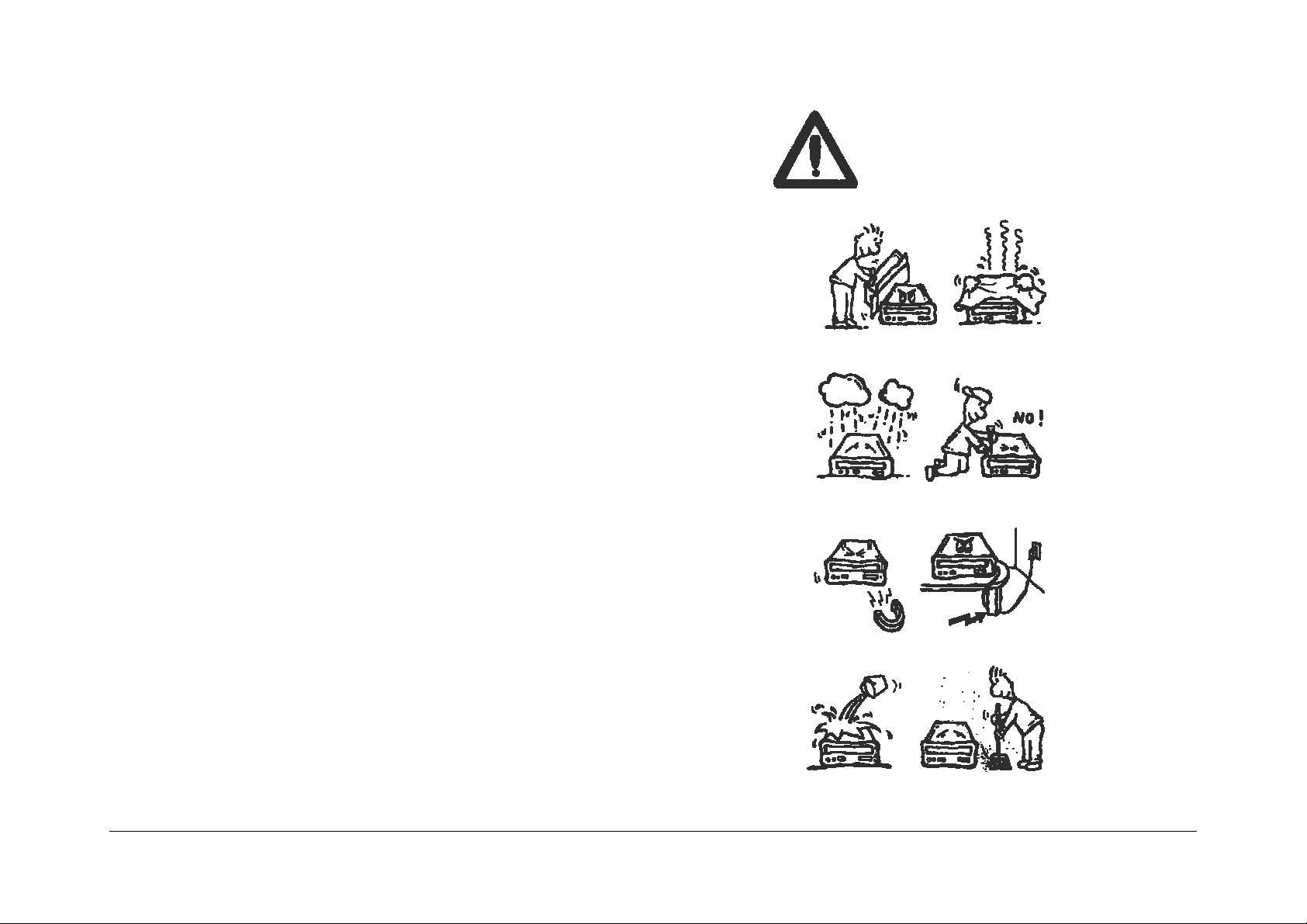
SAFETY INSTRUCTIONS
1. Follow all warnings and instructions marked on the product.
2. Danger: Invisible laser radiation when open. Avoid direct exposure to
beam.
3. Unplug this product from the wall outlet before cleaning. Do not use
liquid cleaners or aerosol cleaners. Use a damp cloth for cleaning.
CAUT ION
4. Openings in the front panel and the back or bottom are provided for
ventilation. To protect it from overheating, these openings must not be
blocked or covered. This product should never be placed near or over a
radiator or heat register, or in a built-in installation unless proper
ventilation is provided.
DIAMOND DATA CD-ROM DRIVES User’s Guide
Mitsubishi Electric Australia 2
Page 3
Product Description
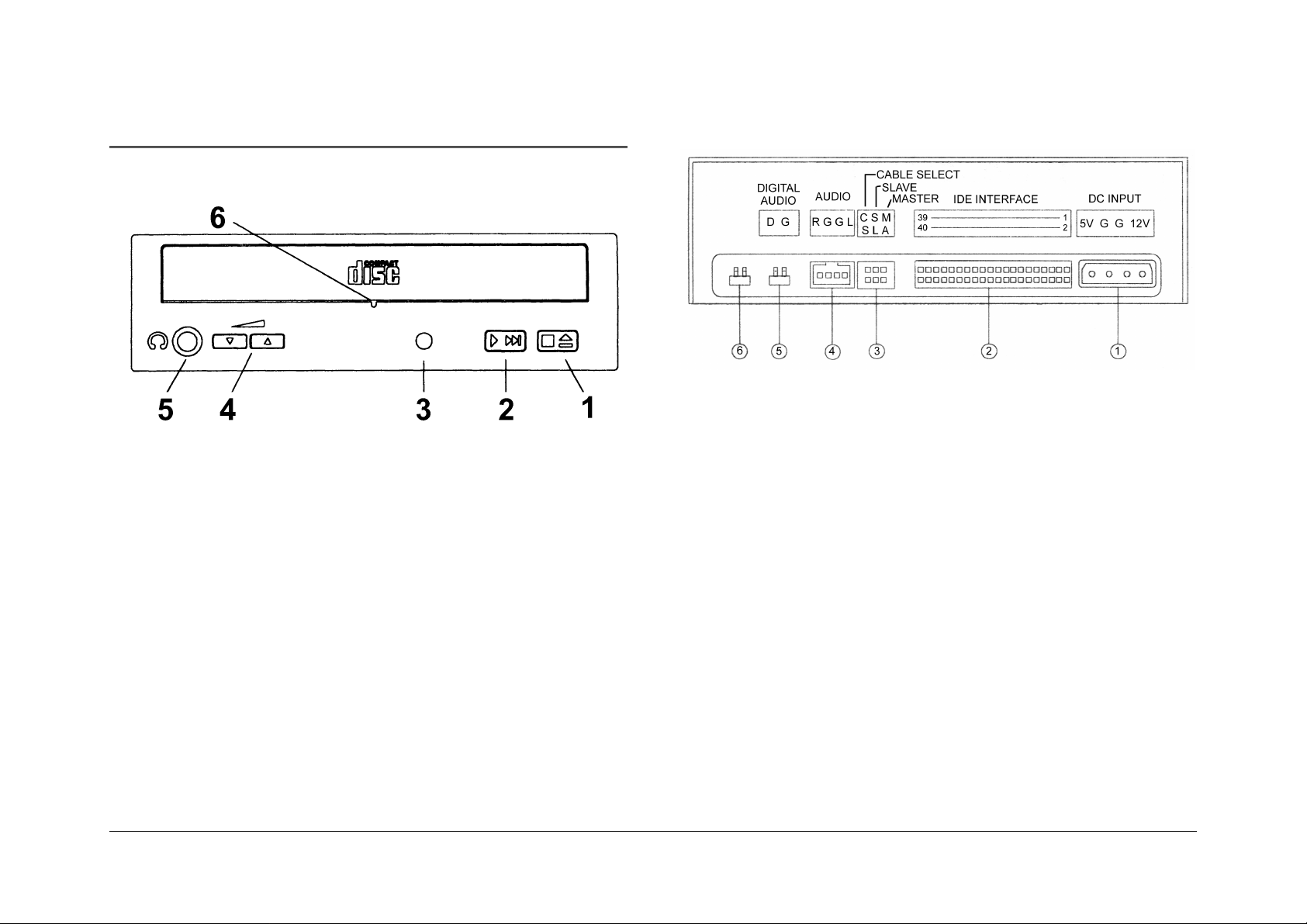
Front View
Disc Tray Button
1.
removal.
Audio Play/Sk ip Track Contr ol B utton
2.
information track of an audio CD.
Busy Indicator
3.
disc; flashes during seek operation.
opens and closes for disc loading and
lights up while data is bein g r eed from tie
plays and skips one
Rear View
Power Supply Connector
1.
the computer ’s power supply.
Interface Connector
2.
pin IDE interface cable.
IDE Device Conf iguration Jumper
3.
slave mode by default, T he CD- ROM drive can be
configured as a master driv e if the jumper is installed on
"MA".
connects t he CD- ROM drive to
connects t he CD- ROM drive to t he 40-
is installed on "SL" for
Headphone Vo lume Control
4.
level
Headphone Jack
5.
amplified sp eakers.
Emergency Eject Hole
6.
eject the tray manually.
DIAMOND DATA CD-ROM DRIVES User’s Guide
Mitsubishi Electric Australia 3
is used for at taching headp hones or self-
. Insert a str aightened paper c lip to
adjusts head phone sound
Audio Line Out Connector
4.
right audio outputs.
Digital Audio Output
5.
outputting the digital signal.
Testing Jump er
6.
testing purpos es .
is reserved for manufacturer's internal
has two channels for left and
offers high quality audio b y directly
Page 4

Installation
disk driv e that you are using, followed by a colon ( :) and
then press
Enter
.
Hardware Instal lat io n
Please follo w those steps to install the CD-ROM drive:
1. Turn off t he c omp uter and all peripheral devic es , and
disconnect t he c omputer’s power cord.
2. Remove the computer housing or casing. Place the CDROM drive in a 5.2 5- inch bay.
3. Secure the drive into the half-height drive bay using four
screws.
4. Connect the 4-pin drive power cable and 40-pi n IOE
interface ca ble. The coloure d edge of the lDE cab le must
be aligned with t he P in 1 position.
5. Re-install the c omputer housing or casing.
6. Reconnect the c omputer power c ord, and turn the
computer on.
Software Installation
4. Type
5. Follow the instructions on the screen.
6. You can choose Express Set up or Custom Setup. It Is
7. Reboot your system.
NOTE: Please read t he RE A DME file in the device driver disk
Emergency Eject
If for any reason be tray does not ejec t automatically, insert a
straightened paper clip or similar object int o the emergency
eject hole to manually eject t he tray. The length of the
straightened s ec tion should be approximately 50 mm.
Be sure to turn t he power to the co mputer off before manually
ejecting a disc.
Setup,
recommende d that you use Express S etup.
to learn more about using this dr ive.
and then press Enter.
For Windows 95, 98, NT or OS/ 2 Warp, no external device
driver is need ed. For DOS and Windows 3.1, the installation
procedure is as f ollows:
1. Turn on your com puter and boot to MS-DOS.
2. Insert the CD- ROM Device Driver disk into a 3.5” floppy
disk driv e.
3. At the command prompt, type the drive letter of the floppy
DIAMOND DATA CD-ROM DRIVES User’s Guide
Mitsubishi Electric Australia 4
 Loading...