

Page 1
HD Media Wonder
MP900
Page 2

Preface
Thanks very much for choosing the Diamond HD Media Wonder
high-definition player. In order to make it more convenient for you
to use the player proficiently, we provide you with a user manual.
Please read it carefully before use and properly save it for reference.
Statements
Though Diamond Multimedia has checked and proofread this
manual, and because of the product firmware is occasionally updated,
there might be some situations in this manual inconsistent with the
real product, which are without prior notice, so please visit the
www.diamondmm.com website for query.
The pictures in the manual are only for reference, and if some of
them are inconsistent with their actual appearances, please subject to
the actual ones.
Page 3

Preface …………………………………………………………………………………
Statements ……………………………………………………………………………
1. Product Descriptions ……………………………………………………………..
1.1Product functional features …………………………………………………………
1.2 Product specifications ………………………………………………………………
1.3 Remote controller outline …………………………………………………………
1.4 Replace the batteries of remote controller………………………………………….
2.Connection between U6 and television……………………………………………….
2.1 AV connection………………………………………………………………………
2.2 High-definition YUV connection ………………………………………………..
2.3HDMI and coaxial connection………………………………………………………
2.4 Notes………………………………………………………………………………..
2.5 MP900 diagram…………………………………………………………………….
3.Instructions of operation………………………………………………………………
3.1Choose memory device……………………………………………………………..
3.2Descriptions of home menu…………………………………………………………
3.3Movie playing……………………………………………………………………….
3.4 Music, Pictures, TXT and FLASH playing ………………………………………
3.5 File browsing……………………………………………………………………….
3.6 System settings……………………………………………………………………...
4. FAQ …………………………………………………………………………………
5. Faults and solutions………………………………………………………………….
6.Accessory kits………………………………………………………………………..
7.Specifications…………………………………………………………………………
Page 4

1. Product Descriptions
1.1Product functional features
support JPEG, M-JPEG, PNG, TIFF, BMP, GIF picture files
support MP3, WMA, APE ,OGG,FLAC music files
support REAL, MPEG1(VCD), MPEG2(DVD), MPEG4,
H.264 movie files, and the corresponding suffixal file names are:
.dat .avi .mpg .mpeg .mkv .rm .rmvb .vob .ts .m2ts .mp4 .swf
support TXT text files
support SD/MMC card reader including SDHC .support hot plug
support HDMI-1.3 high-definition digital interface (output 480P, 576P,
720P, 1080P)
support USB flash drive, USB mobile hard disk
support copy and delete function between USB devices, SD/MMC
cards and multi-partitions of hard disk
support coaxial digital audio output
clear and concise file management interface
1.2 Product specifications
Power: Input of adaptor is 100-240VAC(50Hz/60Hz), output of
adaptor is 9VDC-1A.
Host dimension: 120×30 mm (diameter×height )
Adapted environment:
Operations:temperature limited to 0-40℃, and humidity limited to
20%-80%
Storage:temperature limited to -20-45℃, and humidity limited to
10%-90%
1.3 Remote controller outline
Page 5
F
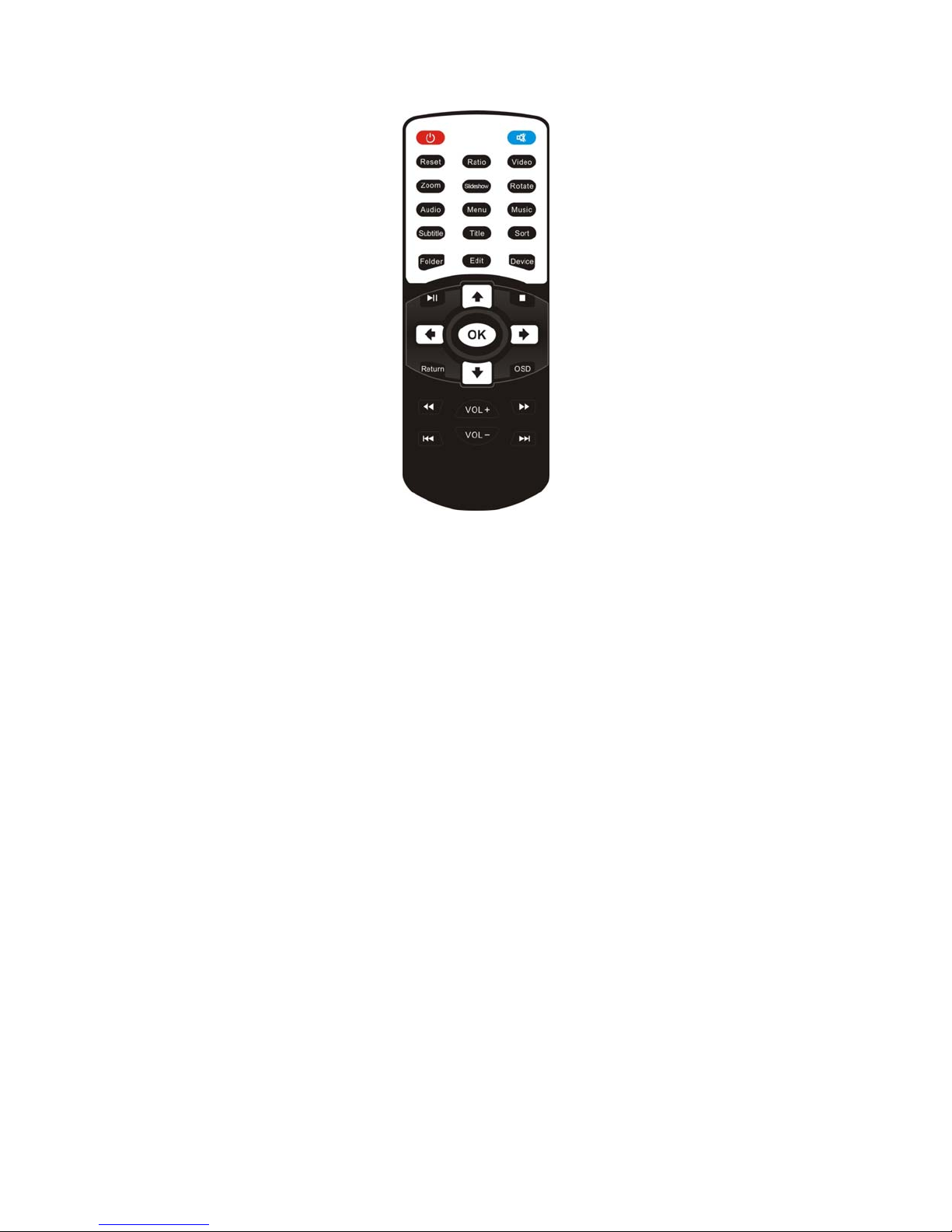
unctions of remote controller's keys:
RESET: press it after powering on to restore it to NTSC composite video output.;
RATIO: switch the display ratio on the screen when playing movie files,.
VIDEO: press it to switch the video output resolutions between NTSC, PAL, 480I,
480P, 576I, 576P, 720P, 1080I and 1080P.
ZOOM: press it to zoom the playing pictures out;
SLIDE SHOW: Combine photos with background music automatically when the
current memory device play photo files and music files at the same time.
ROTATE: press it to rotate the pictures in four directions of 0°, 90°, 180°,270°;
AUDIO: press it to switch between channels and tracks when playing multi-channels
or multi-tracks movie files, ;
SUBTITLE: press it to switch between “close subtitle and “open subtitle” when
playing AVI movies with external subtitle files ;
SORT: press it to switch the sorting modes of the files such as sorting by time or file
names.
FOLDER: press it to switch the file display styles, between the folder & file structure
EDIT: press it to copy and delete the selected files in the file mode;
DEVICE: press it to switch the accessed memory devices, such as switch from a USB
device to memory cards.
EXIT: press it to exit the current playing state or back to the previous menu.
OSD: press it to open or close the operation menu and the currently playing file
information in playing state.
1.4 Replace the batteries of remote controller
Load and replace the batteries:
Page 6

①pull out the battery from the rear;
②put 2025 battery into the slot, paying attention to the positive and
negative electrodes;
③make sure the battery lip is on.
2. Connection between U6 and television
2.1 AV connection
Connect the composite terminal of AV cable (tri-color RCA of red, white and yellow)
to AV output of U6, correspondingly connect another terminal of AV cable to AV input
of television.
2.2 High-definition YUV connection
Connect the composite terminal of YUV cable (tri-color RCA of green, blue and red)
to YUV output of U6, correspondingly connect another terminal of YUV cable to
YUV(YCbCr or YPb/Pr) input of television. In addition, connect with the AV cable as
above-mentioned 2.1 for audio connection, or connect the AV cable from coaxial
output of U6 to coaxial input of external amplifier.
2.3 HDMI and coaxial connection
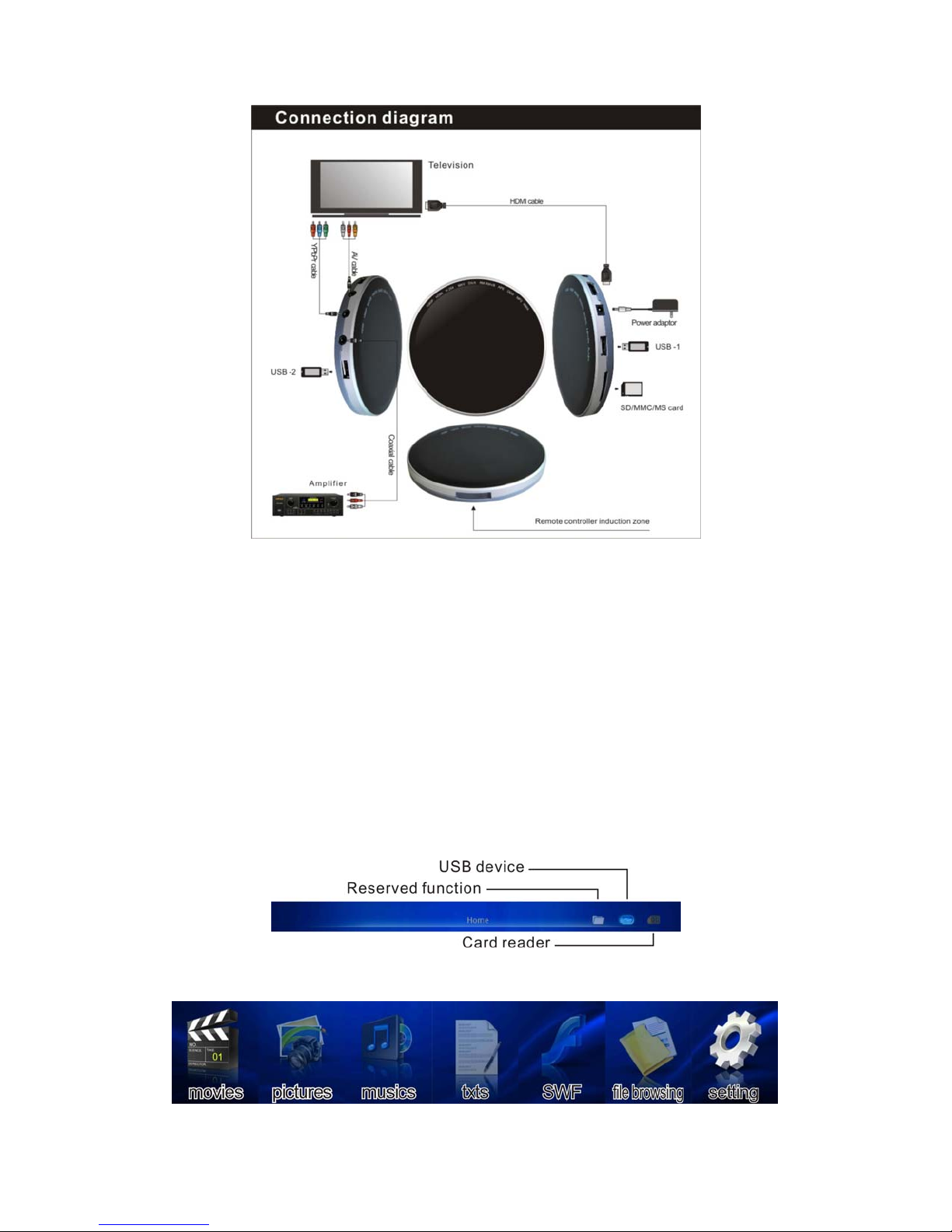
Please refer to the connection diagram
2.4 Notes:
①after connecting the player with the television, make sure a correct
connection between the player and television .
②when connecting with the television, make sure a correct selection of
television signal source, if no image under the right selection,
please press the video key on the remote controller to switch output
signals of the product till matching with the television signals.
③when your television supports high-definition input, it is
recommended to choose "720P or 1080P" mode to watch.
④coaxial(SPDIF) connection : connect the yellow terminal to amplifier
with AV cable, or connect the blue terminal to amplifier with YUV( the
high-definition video signal) cable.
2.5 Diagram of U6 and the peripheral device
Page 7
3. Instructions of operation
The default setting is power on after the player is plugged in with the blue
light on. Turn off the player by pressing "POWER" key on IR remote controller.
3.1Choose memory device:
Press “DEVICE” key on the remote controller, you can see the icon on the
upper right corner is switching, the bright icon is the currently selected
memory device.
Indication of the icon status:
Dark gray color: there is no this type device plugged on the player
White color: there is a device plugged on the player but being un-selected
Bright blue color: there is a device plugged on the player and being selected
3.2Descriptions of home menu:
Page 8
3.3Movie playing:
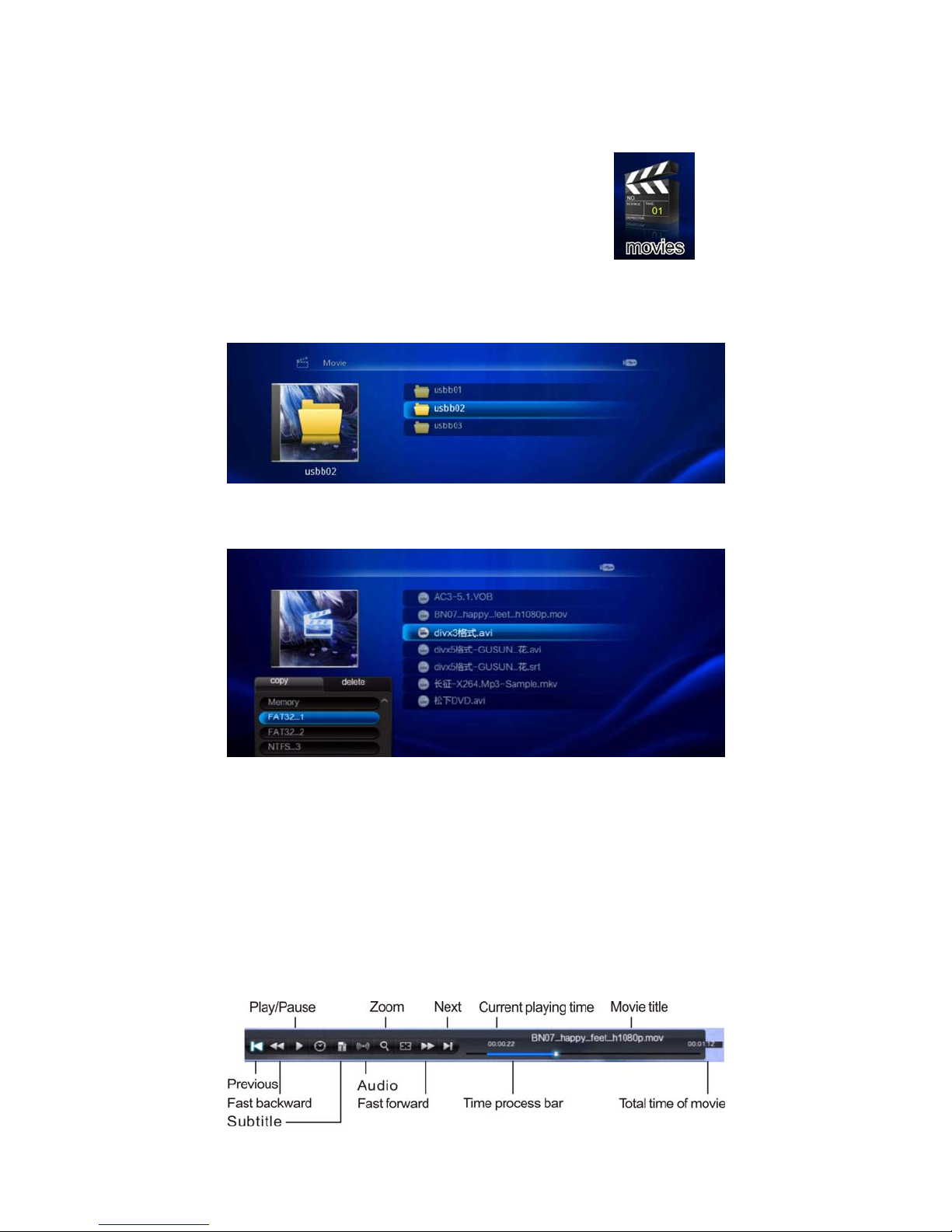
In the home menu, move the cursor through the arrow keys to press
“OK” to enter Movie mode, if the selected device is USB device with
multi-partitions (such as USB mobile hard disk), the following screen appears, and
this screen prompts the users to select preferred partition.
Use the “UP/DOWN” arrow keys to move the cursor, then press “OK” to enter
corresponding partition, at this time, you can see some movie files or folders.
Move the cursor to the folders, press “OK” to enter this directory, and press “Exit”
key to exit this directory, if move the cursor files to the movie files, press “OK” to
play it; when playing, you can press “FAST FORWARD, FAST BACKWARD,
PAUSE” key to achieve what you want; press “AUDIO” key to switch left and right
channel or audio track to select different languages (if the file itself supports); press
“SUBTITLE” key to open or close the subtitle (available if the subtitle file exists);
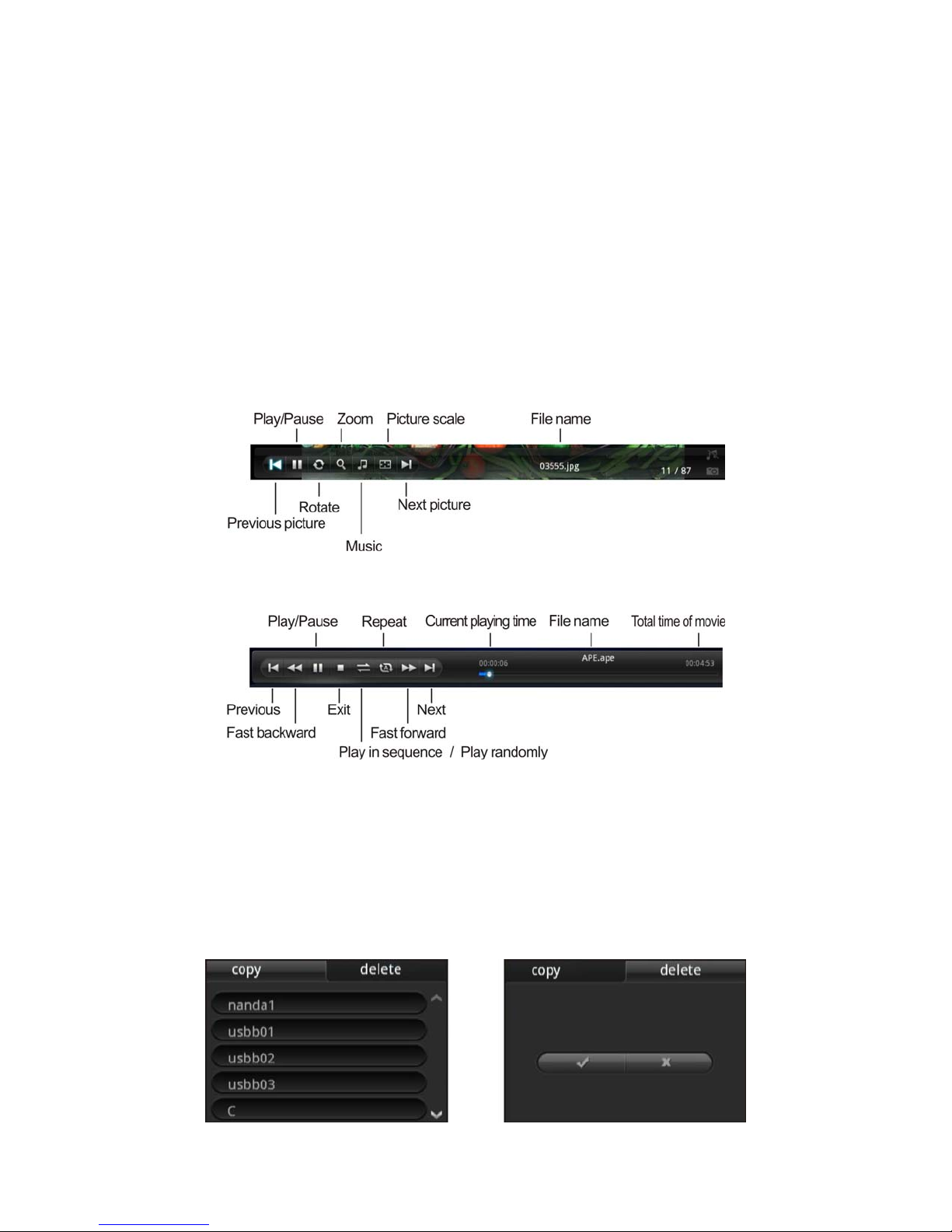
press “OSD” key, a function menu and the time information of this video file will be
popped up from the bottom of the screen, the function menu icon is shown as
followed:
Page 9
Note: proper application of the subtitles
1: the subtitle is consistent with the movie file name for example, if the movie file
name is ABC123.avi , the subtitle must be: ABC123.srt or ABC123.en.srt (The .en is
the subtitle language, it can be .tr .de .fr etc..)
(The .str is the format of the subtitle file, it can be .srt .ssa .sub etc..)
2: the subtitle cannot be too long or contain complex symbols (it is suggested to
change the subtitle into a short name consistent with the movie title)
3: the movie and caption files must be put under the same directory.
3.4 Music, Pictures, TXT and FLASH playing
Pictures, music, text, and flash playing can be selected as the similar operation mode
of movie playing.
The function menu icon of playing mode is shown as followed:
3.5 File browsing
Select the file browsing mode, all movie,picture,music, text and swf flash files will be
displayed. Move the cursor to the corresponding files, press “OK” to play; In the file
browsing mode, you can copy and delete these files. Move the cursor to the desired
files, press “edit” to pop up copy and delete options, through left and right arrows to
select the desired options, then press “√”to edit the corresponding files. This mode
is similar to the computer resource management operation.
Page 10
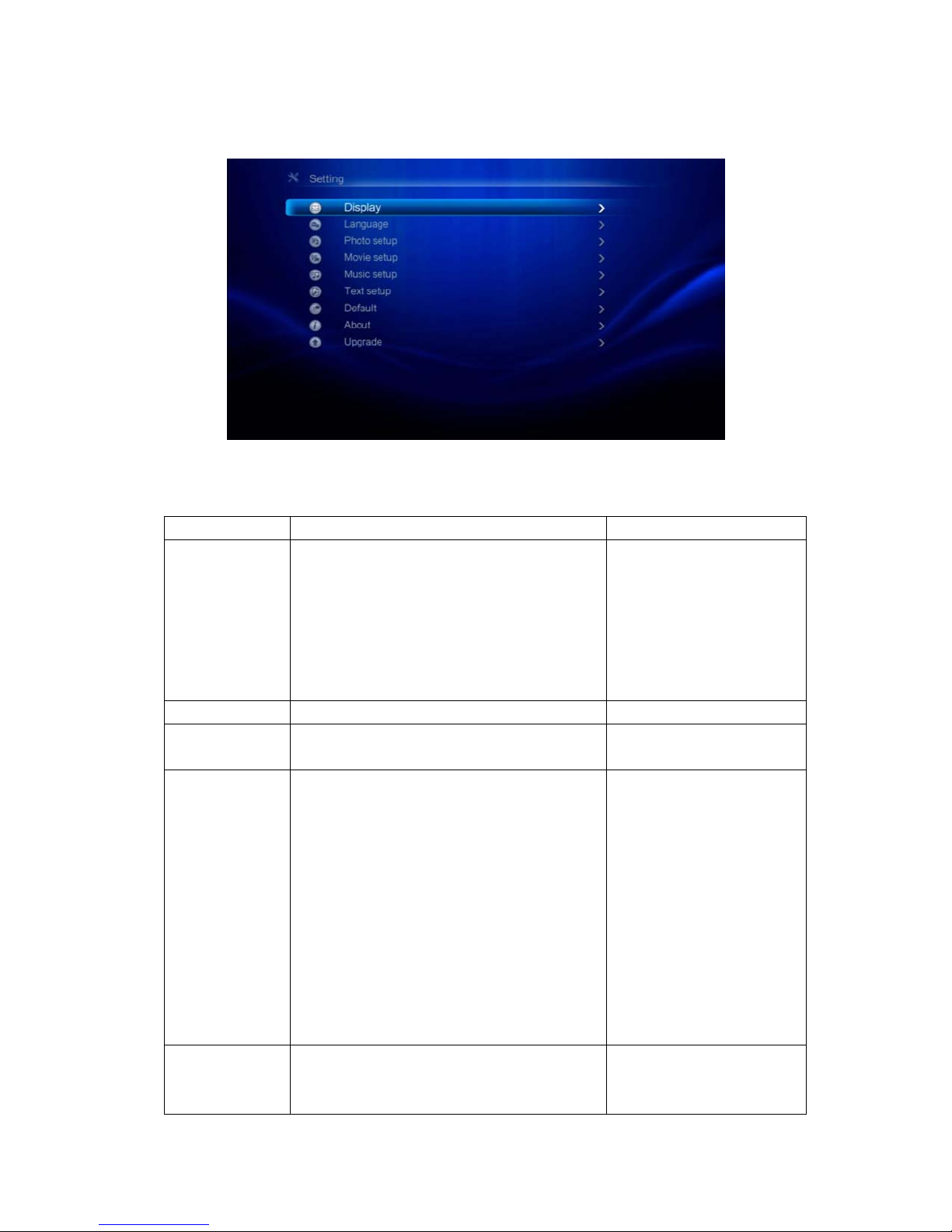
3.6 System settings
Select the system setting items by using arrow keys, press "OK" to confirm the setting
changes, press "back" to exit system setting
Please refer to the below table for details.
Setting items Detail setting menu Memo
Display NTSC composite video
PAL composite video
NTSC interlaced(480I)
NTSC progressive(480P)
PAL interlaced(576I)
PAL progressive(576P)
720P,1080I,1080P
Display-Mode 16:9,4:3 Set TV display ratio
Language English Chinese Set the display language
Picture setting View-set picture folder display method
Sort-set film arrangement method
Directory-set whether to display based on
the folder directory method
Repeat-set whether to repeatedly display
Picture clip-set the display method of the
pictures
Picture playing interval-set the duration
time of each picture when playing in
slideshow
Picture effect-set the replacement effect
when playing pictures in slideshow
Movie setting View-set movie folder display method
Sort-set file arrangement method
Directory-set based on the folder directory
mode.
Recommendation: if your
television supports
high-definition display,
please select 720P or
1080P to watch.
of the menu
The parameter settings
relevant to picture
displaying
The parameter settings
relevant to picture
displaying
Page 11
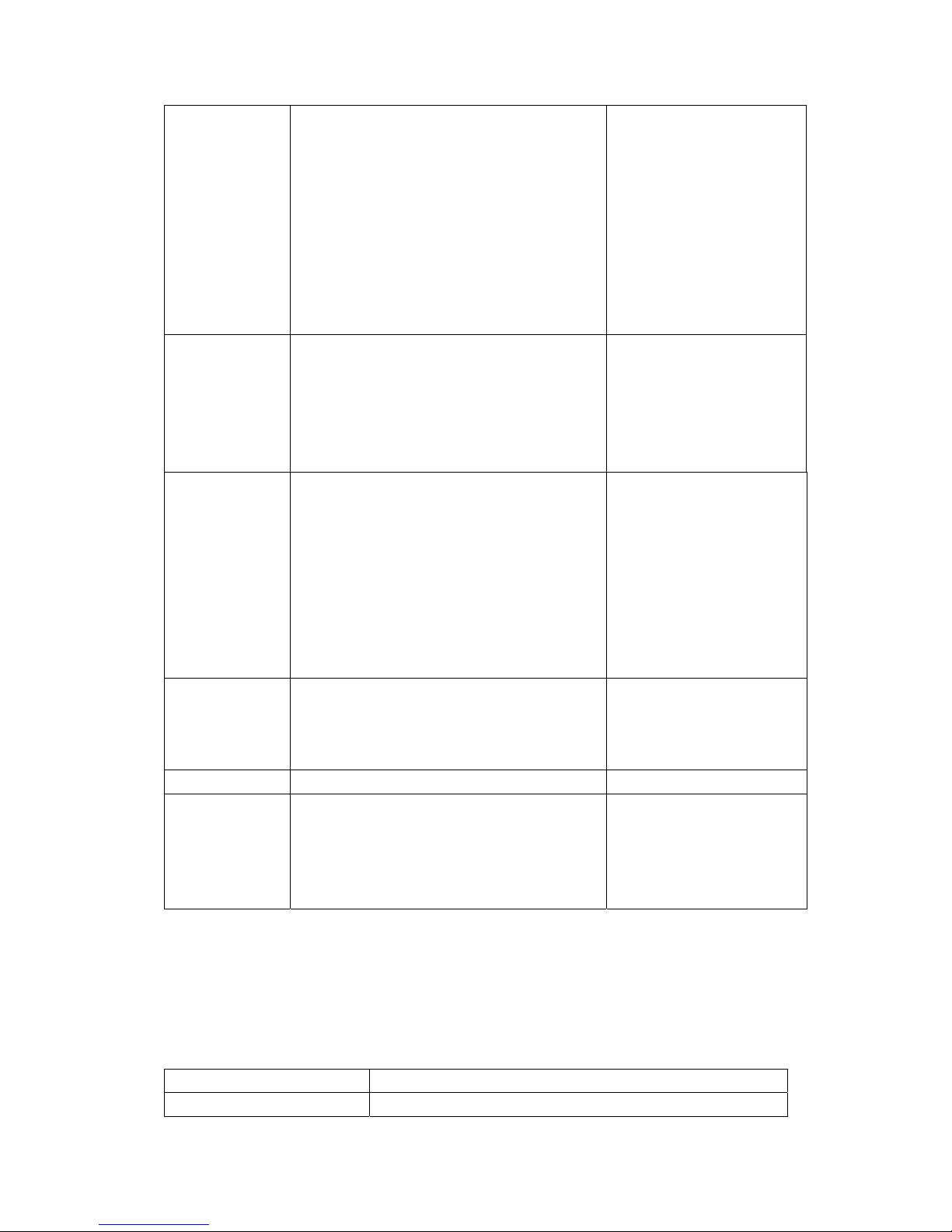
method
Repeat-set whether to repeatedly display
Caption-set display method of the caption
(referring to the extension caption).
Resume play-exit when playing the
movie, whether to continue playing in
next playing
Caption code-set the code format of
extension caption
Music setting View-set music folder display method
Sort-set file arrangement method
Directory-set based on the folder directory
method
Repeat-set whether to repeatedly display
Lyrics-extension lyrics
Text setting Sort-set file arrangement method
Directory-set whether to display based on
the folder directory method
Font color-set character colors
Automatic browsing speed-set playing
speed
Resume play-exit when playing the
movie, whether to continue playing in
next playing
Default Set to the factory-default settings Factory-default settings
About Display the software version information
Upgrade Software updates Please make sure no
The parameter settings
relevant to picture
displaying
The parameter settings
relevant to text displaying
are usually composite
video outputting and
Chinese display.
power off during software
upgrading, the third party
software upgrading is
prohibited.
4. FAQ
Questions Answers
If this player is You should buy an adapter that can be compatible with
Page 12

incompatible with
memory card, what can l
do?
Does this player have
built-in memory?
the memory card. For example ,if you have an XD card,
you can buy an adapter compatible with the memory
card, and connect the player with XD card. By using this
memory card adapter.
No, It doesn’t have the built-in memory to store
multi-media files. You should use compatible memory
card, USB flash disk or USB hard disk.
5. Faults and Solutions
Faults Reasons and solutions
No power or cannot power
on
IF you still cannot play the media product when the
When you insert a
memory card or USB flash
disk, the file can not play
There is no picture on the
television
No sound The audio cable is not well inserted or wrongly
The plug of the power adapter is inserted completely
into the host socket, and the other terminal is connected
with mains socket (some models might use the power
adapter), after the right connection, press the “POWER”
key on the IR remote controller.
above operations are checked correctly, please contact
our customer service department for maintenance
Non-supported file format
No files in the memory device
Make sure at least one file in the memory card
Make sure the file formats compatible with the
specification table of U6
The video cable is not well inserted or wrongly inserted.
Please insert the video cable properly and make sure the
correct and good connection between the video cable
and the television. Any more questions, please contact
our customer service department for settlement.
If the player signal inputting mode can not match with
the TV signal source, Press ”video” on the remote
controller. If there is still no display on television, please
contact our customer service department for
maintenance.
inserted-please insert the audio cable properly and make
sure the correct and good connection between the audio
cable and the television (it is supposed to connect the
audio base on the television being the same group as the
video), and turn up the remote controller volume of both
the television and the remote controller. Any more
questions, please contact our customer service
department for settlement.
Page 13
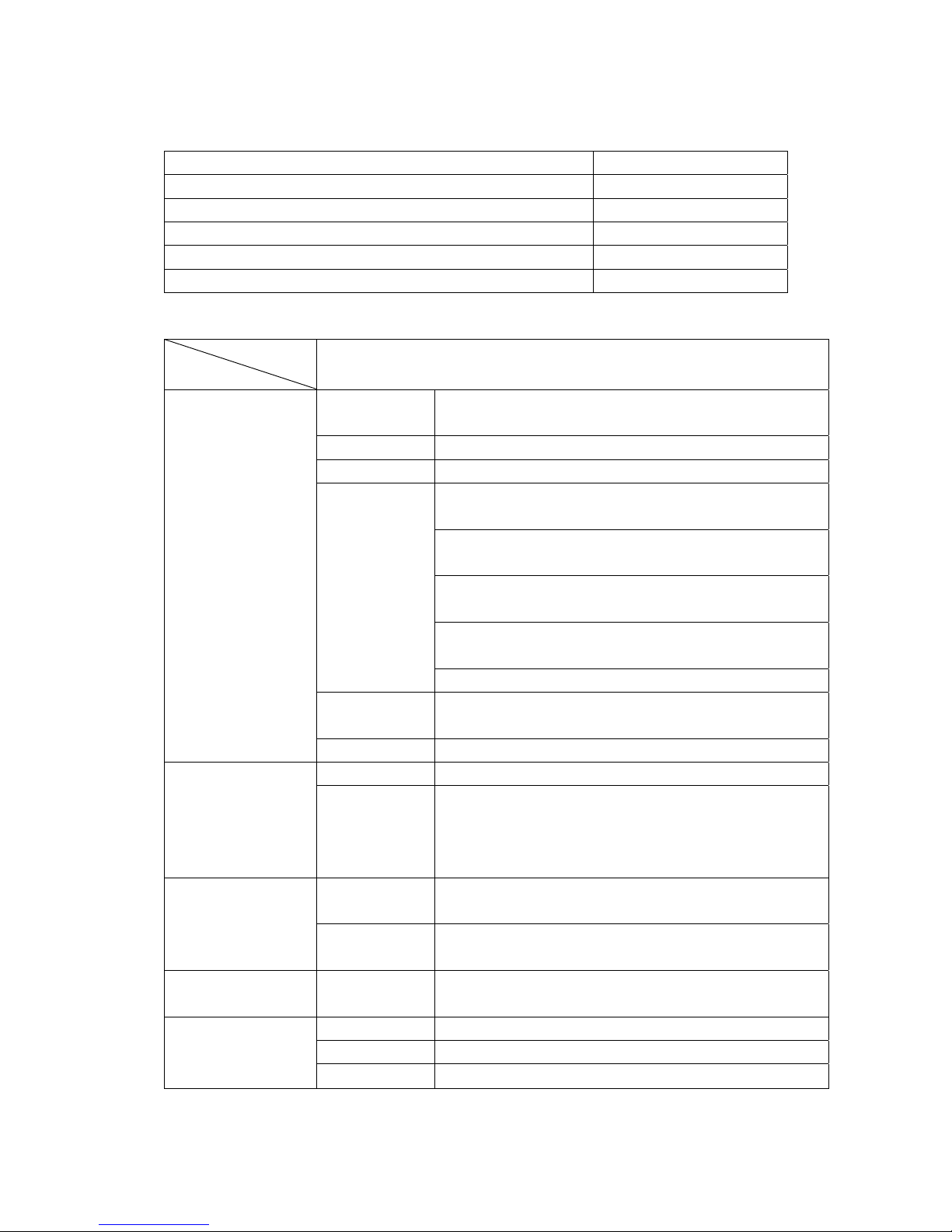
6. Accessory kits
Remote Controller 1
Power Adaptor 1
7. Specifications
Accessories Quantity
AV C a b l e 1
YPbPr Cable 1
User Manual 1
Parameter
item
System Format Audio Format PCM,MPEG,LAYER//,RealAudio,MP3,WAM
Input interface Memory Card SD/SDHC/MMC
Output interface Audio
Other interface Remote
Electronic
parameter
MP900
A,OGG,DOLBY AC3,DTS,AAC,FLAC,and APE
Photo Format JPG,BMP,GIF,TIFF
Txt Format TEXT
Video Format Real Video 8/9/10:Video file package RM /RMVB,
resolution up to1280*720,bit rate up to 30Mbps.
Mpeg-1:Video file package DAT/ MPG/ MPEG,
resolution up to 1920*1080,bit rate up to 80Mbps.
MPEG-4:Video file package AVI/ DivX/ XviD,
resolution up to 1920*1080,bit rate up 35Mbps.
H.264:Video file package AVI/2TS/MKV,resolution
up to1920*1080,bit rate up to 35Mbps.
M-JPEG: resolution up to 640x480,30fps
Subtitle
Format
File System FAT16.FAT32.NTFS
USB Two ways of USB2.0Host the max output current of
interface
Video
interface
Sensor
Video 1.0V±0.1V(75Ω load):S/N≥55dB
audio 2.0V±0.2V(10KΩ load):S/N≥85dB
power 9VDC,1A(support 7-12VDC)
*.SRT,*.SMI,*.ASS,*.SSA
USB2.0Host is 1A/5V which can directly connected
to a variety of mobile hard disk and no need for
additional power supply. Support hot plug.
Stereo output with 3.5mm socket; Coaxial output:
CVBS output; YCbCr/YPbPr output; HDMI1.3.
Effective range is more than 6m
Page 14

Technical Support
Diamond Technical Support staff is here to help resolve any issues that you
may be experiencing. Prior to contacting technical support please make sure
you have the following information available.
1. Model #: (Printed on the bar code, located on the box)
2. Installation CD Version: (printed on the CD label)
3. The version of Windows that your system is running.
4. The manufacturer and model # of your computer.
5. CPU type and speed (example: Intel Pentium4 2.4GHZ)
6. A complete description of the problem that you are
experiencing including any steps that you have taken to try
to resolve the issue.
Technical Support Options
Free Telephone Support
818-357-5165
(long distance rates may apply)
Mon - Fri, 8 - 4:30 PST
http://www.diamondmm.com
SHIPPING
Starting June 1st 2009 Diamond Multimedia will pay for shipping cost from Diamond back to US and Canadian customers
provided the product is indeed under warranty and there is no damage caused by improper installation or modification of the
merchandise. Customers located outside of the United States and Canada or using military addresses (APO,etc) will be
required to pay for return shipping. Average shipping times range from 5 to 10 days, depending on actual shipment destination.
Shipments made outside the US may take longer to deliver.
Diamond Multimedia reserves the right to claim for shipping fees along with service charges for any product that is returned
incomplete or not under warranty. Return Authorization ( RMA ) is required for all warranty return products.
Page 15

ONE YEAR LIMITED WARRANTY
The warranty described below is extended only to the original buyer and is not transferable.
Diamond warrants to the original purchaser of the hardware product, that the product is free from defects in materials or workmanship
under normal use and service for a period of one (1) year from the date of purchase. All cables and accessories
provided with a Diamond product are warranted to be free from defects in materials or workmanship under normal use and
service for a period of for (90) ninety days from date of purchase. Diamond’s sole obligation under this warranty shall be, at Diamond’s
option, to: (I) repair the defective product or parts; (II) deliver to customer an equivalent product or part to replace the defective product.
When a product or part is replaced or exchanged, that item becomes the customer’s property and the replaced or exchanged item
becomes Diamond’s property. When a refund or replacement product is given, the defective product becomes Diamond’s property.
Replacement parts or products may be new or include serviceable used parts with at least the same functional equivalence to the
original product. If, at the time of repair, a product is "out of warranty" or within the last ninety (90) days of the warranty period, Diamond
warrants any repair for ninety (90) days. All software provided is subject to the terms of the associated software end-user license
agreement.
WARRANTY EXCLUSIONS AND LIMITATIONS
TO BE ELIGIBLE FOR THIS WARRANTY, YOU NEED TO PROVIDE THE ORIGINAL SALES RECEIPT SHOWING THE
DATE OF PURCHASE OF THE PRODUCT. DIAMOND MAY REQUEST THE ORIGINAL SALES RECEIPT OR A COPY AS
PROOF OF THE DATE OF PURCHASE.
Diamond does not warrant third party products which Diamond distributes "AS IS" unless otherwise specified. Third party
products may be warranted by the third party.
Diamond makes no warranty or representation that: (I) the operation of the product will be uninterrupted or error free; (II)
defects in the product will be corrected; or (III) that the product will meet Customer’s requirements or work in combination with
any hardware or software provided by third parties.
TO THE FULLEST EXTENT ALLOWED BY LAW, THE WARRANTIES, REMEDIES AND LIMITATIONS CONTAINED HEREIN
ARE EXCLUSIVE AND ARE IN LIEU OF ALL OTHER WARRANTIES, TERMS OR CONDITIONS, EXPRESS OR IMPLIED,
EITHER IN FACT OR BY OPERATION OF LAW, STATUTORY OR OTHERWISE, INCLUDING WITHOUT LIMITATION,
WARRANTIES, TERMS OR CONDITIONS OF MERCHANTABILITY, FITNESS FOR A PARTICULAR PURPOSE, QUALITY,
CORRESPONDENCE WITH DESCRIPTION AND NON-INFRINGEMENT, ALL OF WHICH ARE EXPRESSLY DISCLAIMED.
DIAMOND WILL NOT BE LIABLE UNDER THIS WARRANTY IF ITS TESTING AND EXAMINATION DISCLOSE THAT THE
ALLEGED DEFECT OR MALFUNCTION IN THE PRODUCT OR SOFTWARE DOES NOT EXIST OR WAS CAUSED BY
CUSTOMER’S OR ANY THIRD PARTY’S MISUSE, NEGLECT, IMPROPE R INSTALLATION OR TESTING, UNAUTHORIZED
ATTEMPTS TO OPEN, REPAIR OR MODIFY THE PRODUCT OR SOFTWARE, OR ANY OT HER CAUSE BEYOND THE
RANGE OF THE INTENDED USE, OR BY ACCIDENT, FIRE, LIGHTNING, OTHER HAZARDS, OR ACTS OF GOD. THIS
WARRANTY WILL NOT APPLY TO PRODUCTS USED FOR NUCLEAR RELATED, WEAPONS RELATED, MEDICAL OR
LIFE SAVING PURPOSES. TO THE FULLEST EXTENT ALLOWED BY LAW, DIAMOND ALSO EXCLUDES FOR ITSELF AND ITS
SUPPLIERS ANY LIABILITY, WHETHER BASED IN CONTRACT OR TORT (INCLUDING NEGLIGENCE), FOR INCIDENTAL,
CONSEQUENTIAL,
INDIRECT, SPECIAL OR PUNITIVE DAMAGES OF ANY KIND, OR FOR LOSS OF REVENUE OR PROFITS, LOSS OF
BUSINESS, LOSS OF INFORMATION OR DATA, OR OTHER FINANCIAL LOSS ARISING OUT OF OR IN CONNECTION
WITH THE SALE, INSTALLATION, MAINTENANCE, USE, PERFORMANCE, FAILURE, OR INTERRUPTION OF ITS
PRODUCTS, EVEN IF DIAMOND, ITS SUPPLIERS OR ITS RESELLER HAS BEEN ADVISED OF THE POSSIBLITY OF
SUCH DAMAGES. DIAMOND’S SOLE LIABILITY WITH RESPECT TO ITS PRODUCT IS LIMITED TO REPAIR OR
REPLACEMENT OF THE PRODUCT, AT DIAMOND ’S OPTION. THIS DIS CLAIM ER OF LIABILITY FOR DAMAGES WILL
NOT BE AFFECTED IF ANY REMEDY PROVIDED HEREIN SHALL FAIL FOR ESSENTIAL PURPOSE.
DISCLAIMER: Some jurisdictions may not allow the exclusion or limitation of incidental or consequential damages for products
Page 16

supplied to consumers, or the limitation of liability for personal injury, so the foregoing limitations and exclusions may not apply
or may be limited in their application to you. When implied warranties are not allowed to be excluded in their entirety, they will
be limited to the duration of the applicable written warranty. This warranty gives you specific legal rights that may vary depending on the
law of the applicable jurisdiction.
OBTAINING WARRANTY SERVICE: Please review the "help" resources referred to in your products accompanying documentation
before seeking warranty service. If the product is still not functioning properly after making use of these resources, please access the
support page at http://www.diamondmm.com/support.php for warranty instructions and services. Some additional charges may apply for
phone support.
 Loading...