

Page 1
VX Series IP PBX System User Guide
Revision: 1.6
DIAL Systems IP PBX User Guide
VX Series IP PBX User Guide
DC Apex Integrators (S) Pte Ltd | 80, Genting Lane, #03-07, Ruby Industrial Complex, Singapore 349565 | 1
Tel: +65 6274 3408 | Fax: +65 6399 3408 | Email: [email protected] | Url: www.dc-apex.com.sg
Page 2

VX Series IP PBX System User Guide
Revision: 1.6
Table of Contents
Introduction......................................................................................................................................... 3
Features............................................................................................................................................. 4
Voicemail............................................................................................................................................ 4
Recording Busy/Unavailable Message.............................................................................................. 4
Playing Back Messages..................................................................................................................... 5
Call Transfer....................................................................................................................................... 6
Attended Transfer............................................................................................................................... 6
Blind Transfer..................................................................................................................................... 6
Extension Dialling .............................................................................................................................. 6
Call Parking (Transfer, 70)......................................... ........................................................................ 6
Call Forwarding................................................................................................................................... 7
Call Divert – All Calls …...................................................................................................................... 7
Call Divert – Busy (*90/*91)................................................................................................................ 7
Call Pick up – (**)................................................................................................................................ 7
Group Pick up – (*8)........................................................................................................................... 7
Call Recording (On Demand and Always).......................................................................................... 7
Web User Interface............................................................................................................................. 8
System Tab......................................................................................................................................... 8
PBX Tab ............................................................................................................................................. 9
Agenda Tab ….................................................................................................................................... 9
Calender / Address Book ….............................................................................................................. 10
DC Apex Integrators (S) Pte Ltd | 80, Genting Lane, #03-07, Ruby Industrial Complex, Singapore 349565 | 2
Tel: +65 6274 3408 | Fax: +65 6399 3408 | Email: [email protected] | Url: www.dc-apex.com.sg
Page 3

VX Series IP PBX System User Guide
Revision: 1.6
Introduction
This user guide will teach you how to use the various features and functions that will make
phone calls more convenient and easy to use. Let us begin.
DC Apex Integrators (S) Pte Ltd | 80, Genting Lane, #03-07, Ruby Industrial Complex, Singapore 349565 | 3
Tel: +65 6274 3408 | Fax: +65 6399 3408 | Email: [email protected] | Url: www.dc-apex.com.sg
Page 4

VX Series IP PBX System User Guide
Revision: 1.6
Features
The DIAL Systems VX Series IP PBX comes with many features that will enhance your calling
experience and make communicating a lot easier with shortcut keys and functionality that
will assist you in making things more convenient for use.
Here are the common basic features for the end user that comes built-in to the system:
● Extension Dialing
● Call Transfer
● Call Parking
● Call Forwarding
Voicemail
The VX 100 / 200 comes built-in with unlimited voicemail. However, the option to use the
voicemail account tied to the individual extensions is in the administrator menu. For more
information, you may refer to the Administrator Manual.
Setting up your voicemail has never been easier with the DIAL System. The few things
you may want to do is record your personalized busy/away message, change your mailbox
password and finally be able to playback and erase messages in your mailbox.
Recording Busy/Unavailable Message
Follow these simple steps to record your personalized message:
● Dial *97 or Press the Message Button from your deskphone to access your mailbox
● The system will prompt you for your password (Default password: your extension number)
● Select '0' for 'Advanced Options'
● Select '1' or '2' to record busy or unavailable message
● Record your message and then press the '#' key to end
When this is done, your Busy/Unavailable message will be played to the caller whenever
you are unable to answer a call.
DC Apex Integrators (S) Pte Ltd | 80, Genting Lane, #03-07, Ruby Industrial Complex, Singapore 349565 | 4
Tel: +65 6274 3408 | Fax: +65 6399 3408 | Email: [email protected] | Url: www.dc-apex.com.sg
Page 5

VX Series IP PBX System User Guide
Revision: 1.6
Playing Back Messages
To play back your voicemail messages, simply follow these steps.
From your own phone:
● Dial *97 or Press Message Button to access your mailbox
● The system will prompt you for your password (Default password: your extension number)
● Press '1' to listen to new messages
● The newest message will then be played
● Press '3' for advanced options such as sending a reply, viewing the message envelope (caller
details etc)
● Press '5' to repeat the message
● Press '7' to delete the message
● Push '8' to forward the message to another extension
● Press '9' to save the message
● Press '*' to return to the main menu
From any other phone:
● Dial *98 to access the voicemail
● Key in your extension number
● The system will prompt you for your password (Default password: your extension number)
● Press '1' to listen to new messages
● The newest message will then be played
● Press '3' for advanced options such as sending a reply, viewing the message envelope (caller
details etc)
● Press '5' to repeat the message
● Press '7' to delete the message
● Push '8' to forward the message to another extension
● Press '9' to save the message
● Press '*' to return to the main menu
DC Apex Integrators (S) Pte Ltd | 80, Genting Lane, #03-07, Ruby Industrial Complex, Singapore 349565 | 5
Tel: +65 6274 3408 | Fax: +65 6399 3408 | Email: [email protected] | Url: www.dc-apex.com.sg
Page 6

VX Series IP PBX System User Guide
Revision: 1.6
Call Transfer
The DIAL Systems VX-100 / 200 IP PBX enables you to easily transfer calls from extension to
extension. From Cisco IP Phone you may perform an Attended or Unattended call transfer.
Attended Transfer (Xfer)
An attended transfer allows the person to whom the call is being transfered to decide to accept the call before it is
transferred.
From IP Phone:
Dial Xfer You have Ten seconds to enter the target extension. Dial the destination number for the caller to be transferred
to. If the person at
the target extension wants to accept the transfer Dial Xfer again – the call will be automatically transferred. If the person
does not want to accept the call they must hang up their phone. Transferred calls will rings at target for 25 Second before
if goes to their Voicemail
Blind Transfer (Bxfer)
An unattended transfer immediately transfers the call to the destination number. To perform an unattended transfer, first
tell the caller that you will be placing them on hold.
Cisco IP Phone only:
Dial “Bxfer” from the Softkey Button. The caller will hear music while they wait. Dial the destination number for the
caller to be transferred follow by #. The caller will be directly transferred to the extension.
Extension Dialling
For Cisco IP Phone, simply dial the extension number you wish to call. You may need to dial # afterwhich.
Call Parking
Call parking allows you to place the current caller on hold (in what is called a parking lot),
This feature tells the called party a Call Parking Lots Number which in turns allows other extensions to dial the Call
Parking lots number to retrieve the parked calls.
From IP Phone:
Dial 'Xfer' then 70 (70 is the Call Parking Feature code). System will announce parking lot number (example: 71-79).
Dial # to place the call on the announced lot.
From Analog Phone (Analog Telephone Adaptor):
Dial 'Flash' then 70 (70 is the Call Parking Feature code). System will announceparking lot number (example: 71-79).
Dial # to place the call on the announced lot.
Afterwhich, inform other phone users to retrieve the parked calls by dialing “71”
Note: Call Parking Lots are from 71 to 79. For Analog Phone, use Flash Key instead to replace Xfer.
DC Apex Integrators (S) Pte Ltd | 80, Genting Lane, #03-07, Ruby Industrial Complex, Singapore 349565 | 6
Tel: +65 6274 3408 | Fax: +65 6399 3408 | Email: [email protected] | Url: www.dc-apex.com.sg
Page 7

VX Series IP PBX System User Guide
Revision: 1.6
Call Forwarding
Call forwarding allows you to automatically forward incoming calls to another destination, which can be another
extension, a hunt group number or an external phone number. You can specify different destinations for different
conditions, for example, when you are already engaged on a call or when you are out of the office and unavailable.
When setting call forward, you will be prompted for the destination number to which calls should be forwarded. Enter the
destination number and press #. The destination number will be read back to you to confirm.
When diverting your calls to an external phone number depending on the PBX Setting, include an outside line prefix (for
example, 9).
Call Forwarding – All Calls (*72/*73)
Call Divert for all calls will automatically forward all your calls to the specified destination.
From IP-Phone:
To activate Call Fowarding – All Calls: Dial “Call forwarding” soft key button then destinations
To deactivate Call Divert – All Calls: Dial “Cancel Call Forward” on soft key button
From Analog Phone (Analog Telephone Adaptor):
To activate Call Fowarding – All Calls: Dial *72 plus the Destination number then #
To deactivate Call Divert – All Calls: Dial “*73”
Call Forwarding – Busy (*90/*91)
Call forwarding when Busy automatically forwards incoming calls to another destination only when
your extension is already engaged on another call. You won't be notified when forwarded.
All Phone Type:
To activate Call Divert on Busy dial *90 plus the Destination number then #
To deactivate Call Divert on Busy dial *91.
Call Forwarding – No Answer (*52/*53)
Call forwarding only when no answer ringing time reached. Calls will automatically forwards to another destination.
You won't be notified when forwarded.
All Phone Type:
To activate Call Divert on Busy dial *52 plus the Destination number then #
To deactivate Call Divert on Busy dial *53.
Call Pick up and Group Pick up (** and *8)
All Phone Type:
Group Pick up - When there is a ringing call within the same group, dial *8.
Call pick up – To pick up a specific ringing extension, dial ** follow by the extension number.
Call Recording (On Demand and Always)
This feature requires Voice Logging Modules
On Demand Recording –
When the extensions are being set as “On Demand Recording”. simple dial *1 to start recording during conversation.
After end of conversation, *1 to stop recording.
Refer to the Web User Interface instruction for Recorded Voice retrieval.
Always recording –
This setting automatically records conversation permanently.
Refer to the Web User Interface (next page) instruction for Recorded Voice retrieval.
DC Apex Integrators (S) Pte Ltd | 80, Genting Lane, #03-07, Ruby Industrial Complex, Singapore 349565 | 7
Tel: +65 6274 3408 | Fax: +65 6399 3408 | Email: [email protected] | Url: www.dc-apex.com.sg
Page 8
VX Series IP PBX System User Guide
Revision: 1.6
Web User Interface
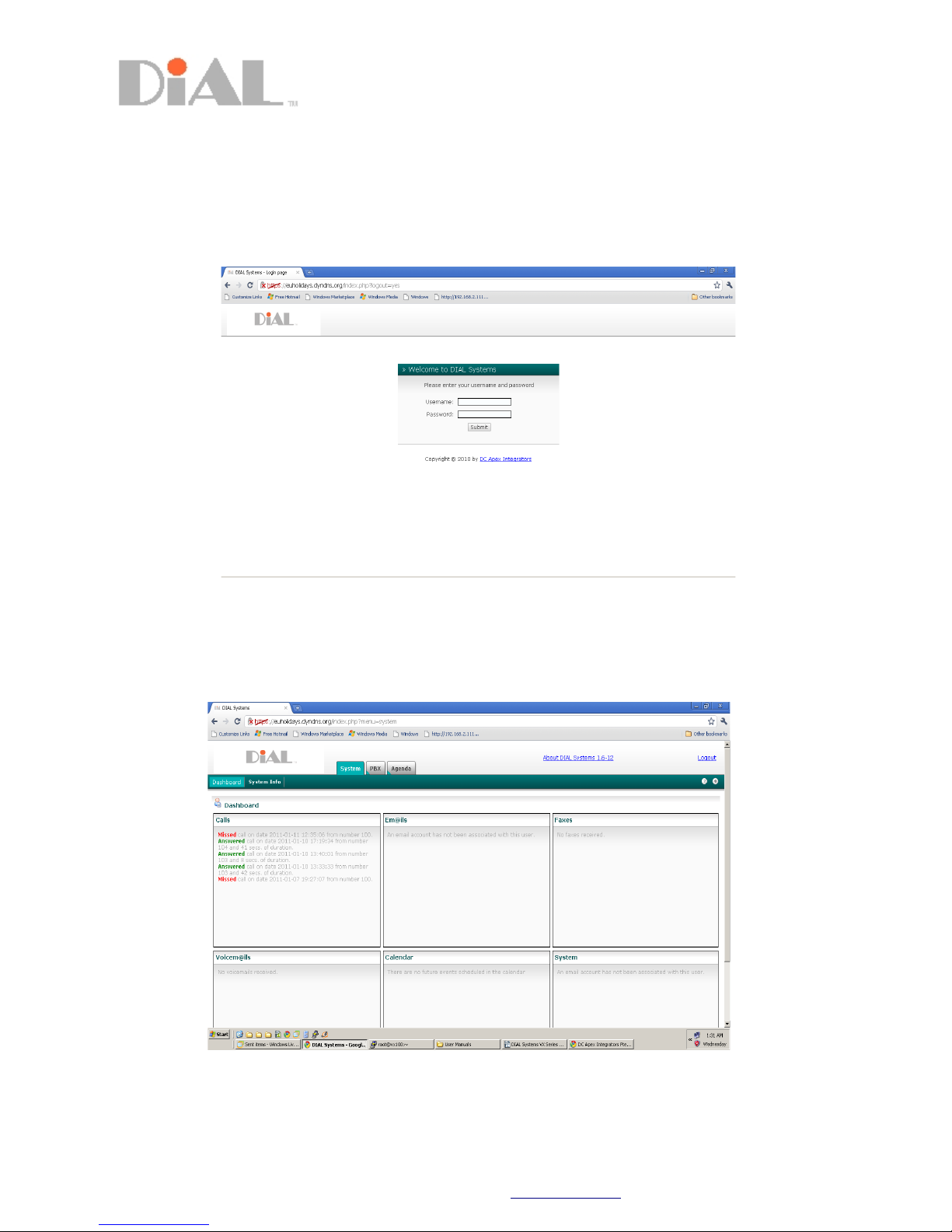
This Interface allows you to access to your own Voice Mails, Voice Recording, Calender and Address
Book. Open your Web browser the type the address of the IP PBX you will see Log in page as shown
below.
Type your User name as Password to access the page.
Note: Contact your administrator for if you are experiencing difficulty accessing to your extension page.
System Tab-
This is the default page. The Dash Board will show the latest updates of your call details, voice mails, calender and
system information. Fax and emails are currently not available.
DC Apex Integrators (S) Pte Ltd | 80, Genting Lane, #03-07, Ruby Industrial Complex, Singapore 349565 | 8
Tel: +65 6274 3408 | Fax: +65 6399 3408 | Email: [email protected] | Url: www.dc-apex.com.sg
Page 9
VX Series IP PBX System User Guide
Revision: 1.6
PBX Tab- Voicemail and Monitoring
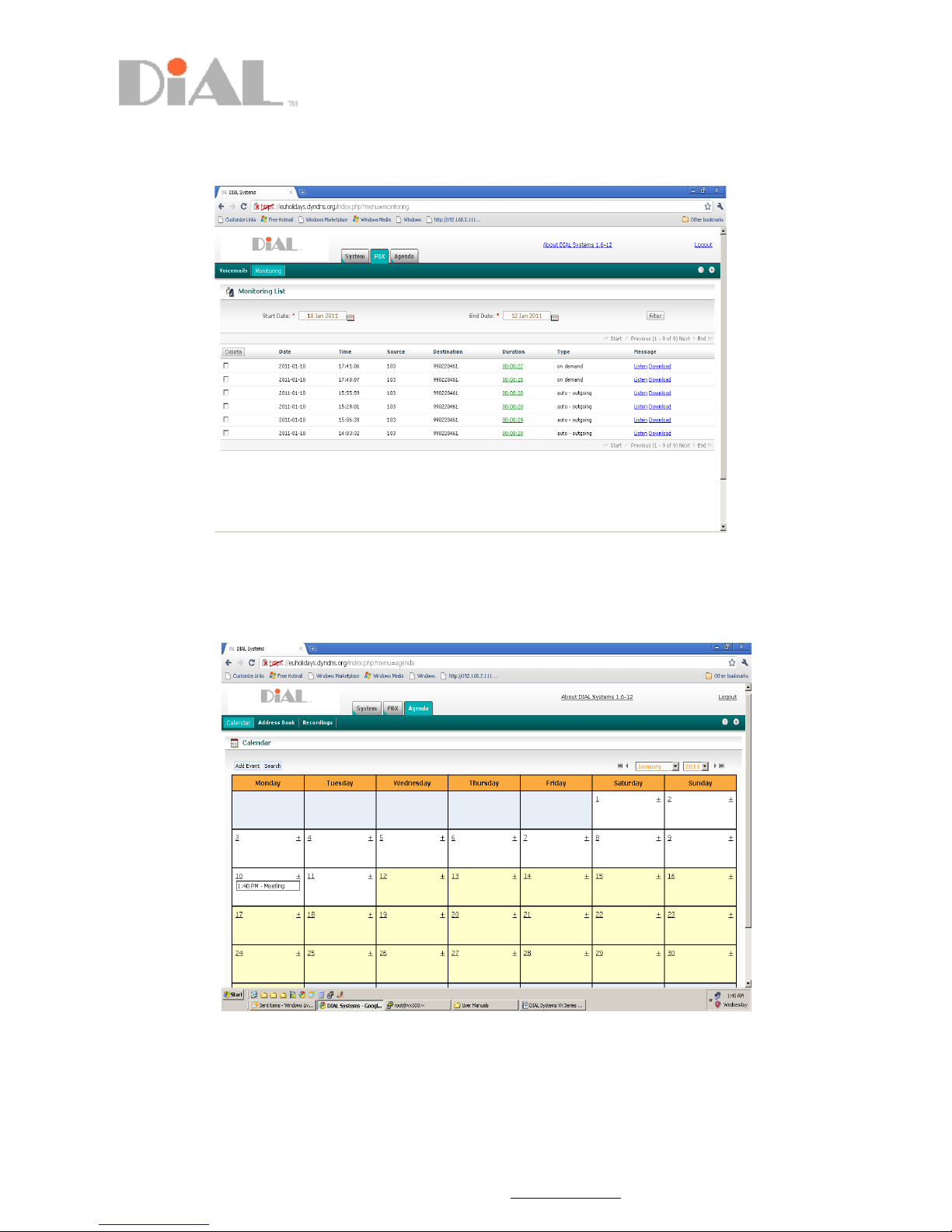
This page will shows the Voice Mail Details and Call Recording Details. Filter from start date and end date to show the
details. You may click on the “Listen” button to play the file from your computer media player.
Agenda Tab-
Agenda page shows all schedules created as a reminder.
DC Apex Integrators (S) Pte Ltd | 80, Genting Lane, #03-07, Ruby Industrial Complex, Singapore 349565 | 9
Tel: +65 6274 3408 | Fax: +65 6399 3408 | Email: [email protected] | Url: www.dc-apex.com.sg
Page 10
VX Series IP PBX System User Guide
Revision: 1.6
Calender-
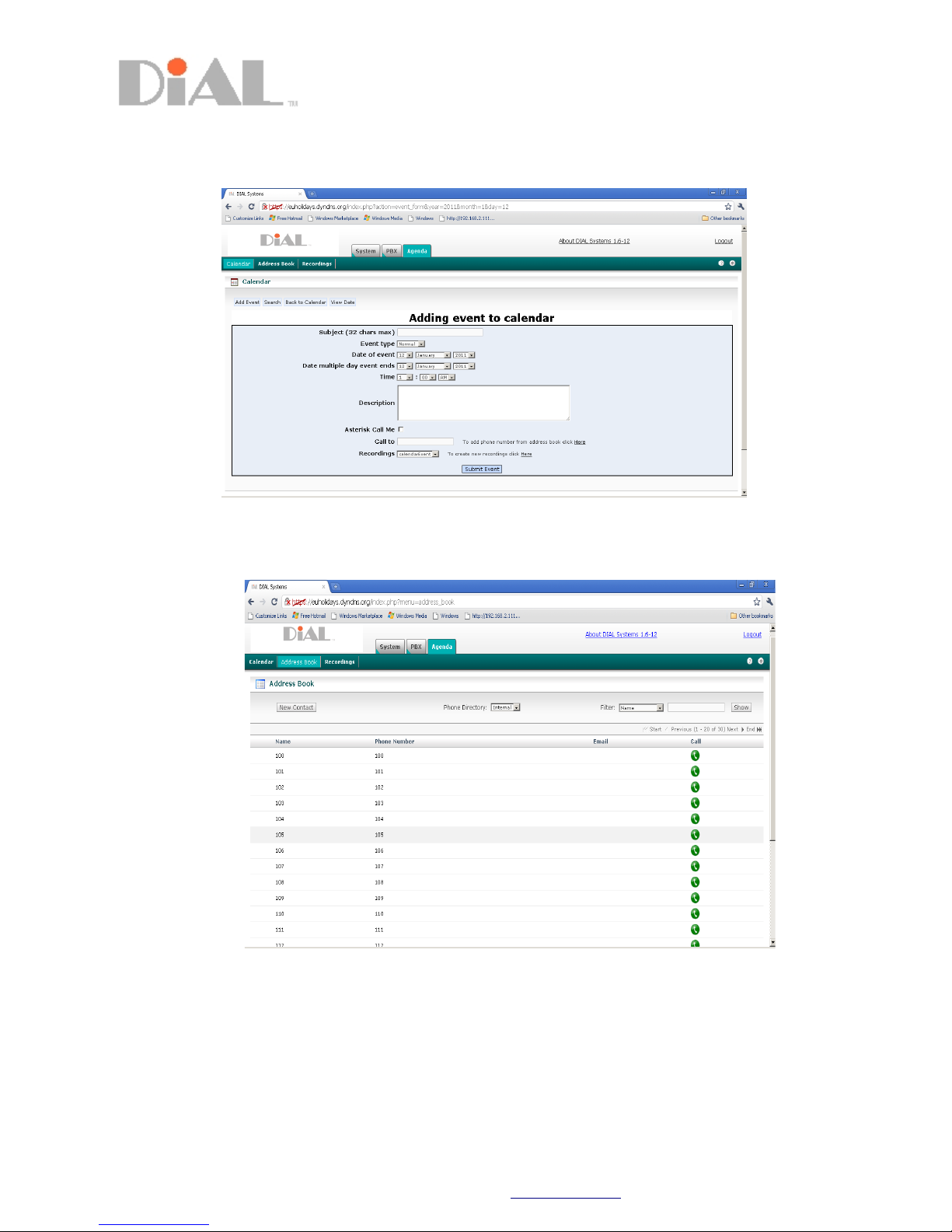
Click Add Event, you will see this page as shown on this picture, add a new event and check with Asterisk Call Me. The
System will ring to your ext to inform you with robotic voice reminder.
Address Book-
Select Internal or External for Address Book.
Internal means internal extensions. You may click on the phone icon to call. Your phone will call back, when you picks up,
the PBX will then dial to the party immediately.
External means Outside Call.
Note: Administrator are required to create external numbers with names in order to shown on this page.
DC Apex Integrators (S) Pte Ltd | 80, Genting Lane, #03-07, Ruby Industrial Complex, Singapore 349565 | 10
 Loading...