

Page 1
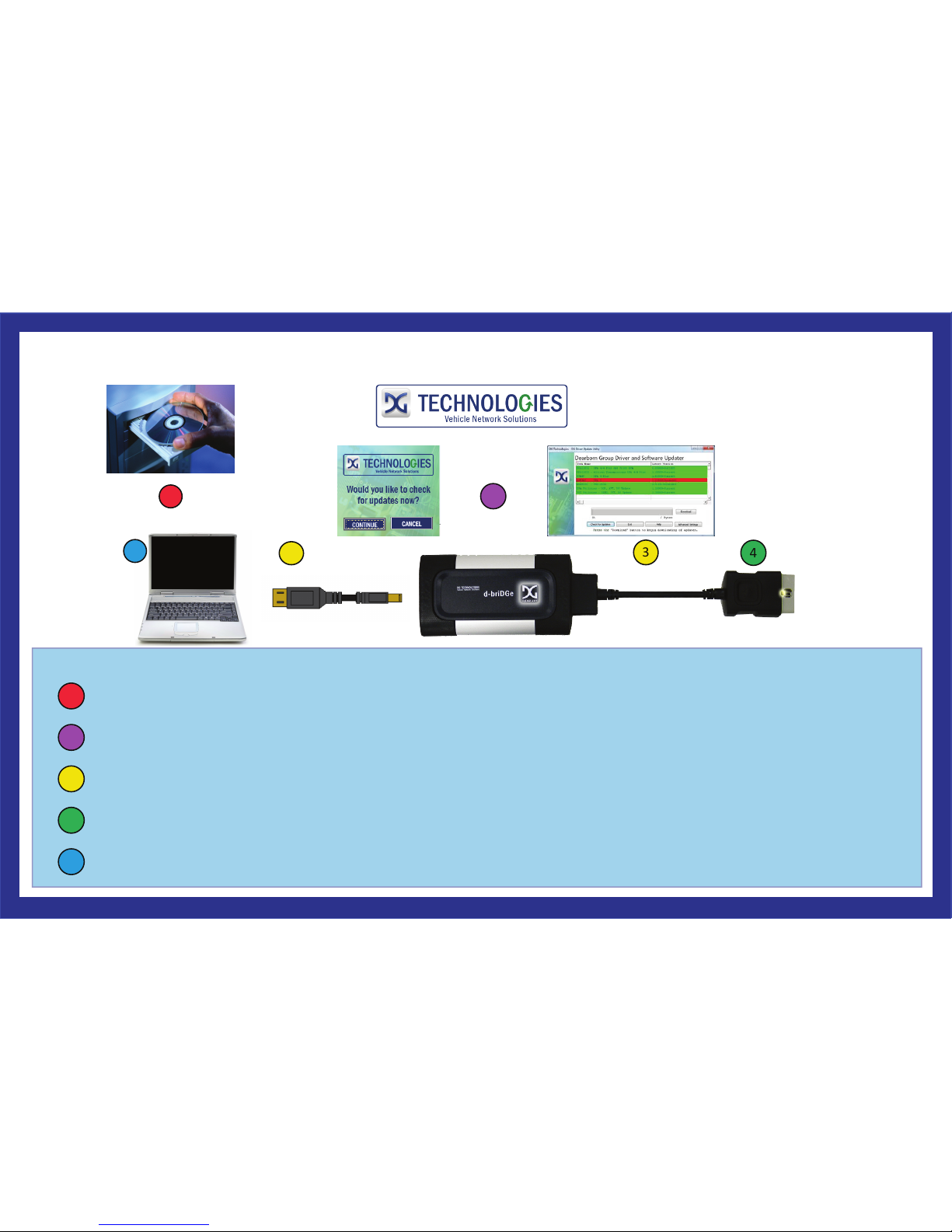
3
d-briDGe Quickstart Guide
1
3
Configure your J2534 compliant diagnostic application to use the d-briDGe. The "d-briDGe User Manual" contains information for
configuring many of the "common" applications. If your application is not covered in the manual, consult the documentation that
came with your application on how to configure for J2534 compliant devices.
Instructions:
Using the USB cable, connect the d-briDGe to your PC. Connect the vehicle cable to the d-briDGe.
2
2
Aer reboong, you will be prompted to check for updates. Connect to the Internet and press “Connue”, then press the “Check for
Updates” buon. If there are updates (Red), press the “Download” buon. DG Update will download and start the installaon.
Install J2534 compliant PC drivers from the d-briDGe CD.
4
Make certain to first connect the vehicle cable to the d-briDGe as stated in 3 above.
Finally, connect the other end of the vehicle cable to the vehicle’s diagnosc port.
1
4
5
3
5
33604 West Eight Mile Road Farmington Hills, MI 48335 | 248.888.2000 | www.dgtech.com | [email protected] | store.dgtech.com
Page 2
33604 West Eight Mile Road Farmington Hills, MI 48335 | 248.888.2000 | www.dgtech.com | [email protected] | store.dgtech.com
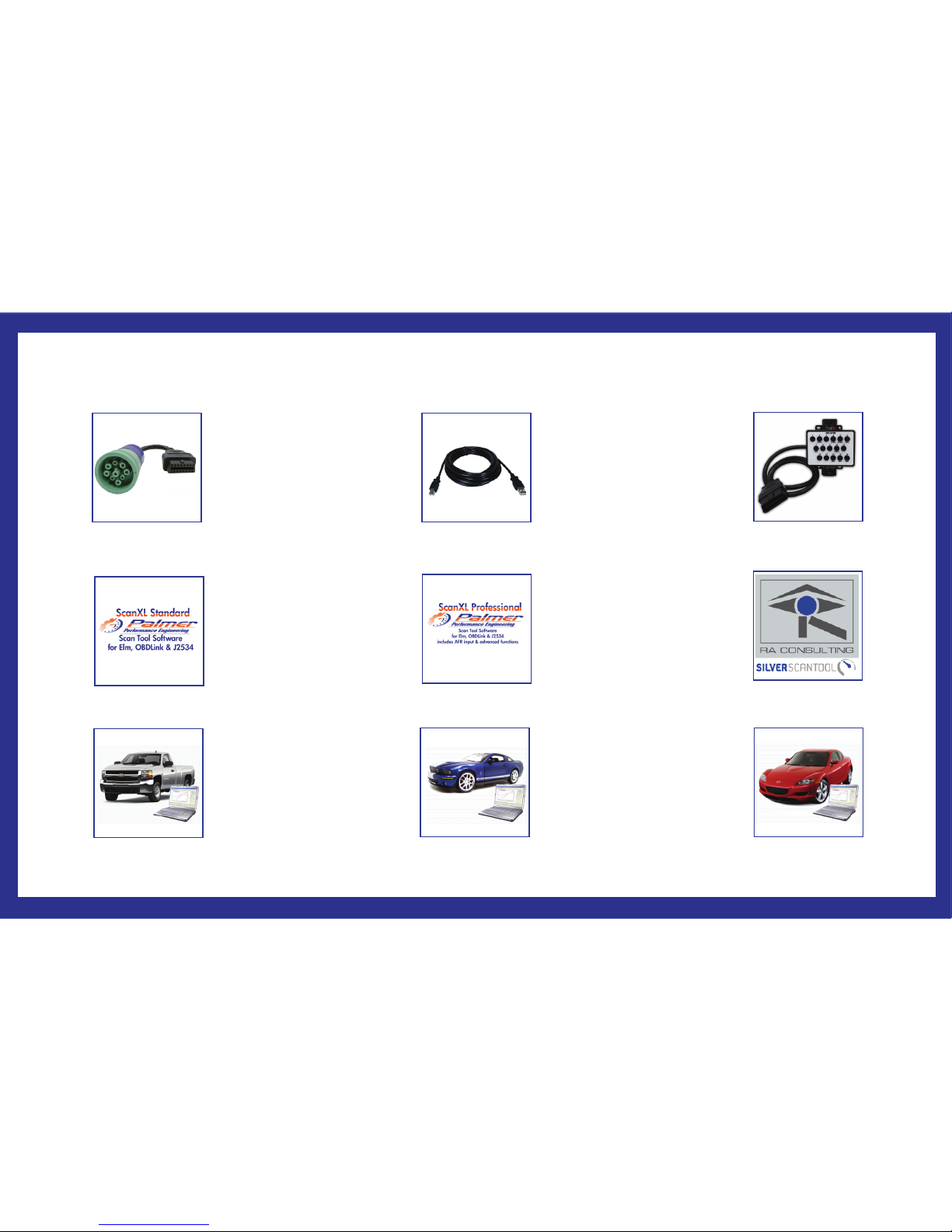
d-briDGe Accessories
DG-DBRIDGE-CT-CABLE
J1962 to 9-pin Deutsch
DG-15 FT USB CABLE
15’ USB CABLE
PE-20301
Palmer ScanXL STD
PE-20302
Palmer ScanXL PRO
PE-20310
Palmer ScanXL GM ENH
GM Enhanced Add-On
PE-20311
Palmer ScanXL FORD ENH
FORD Enhanced Add-On
PE-20312
Palmer ScanXL MAZDA ENH
MAZDA Enhanced Add-On
RA-SST-PC
RA CONSULTING SST
DG-OBDII-BOX
16 PIN BREAKOUT BOX
 Loading...