

Page 1
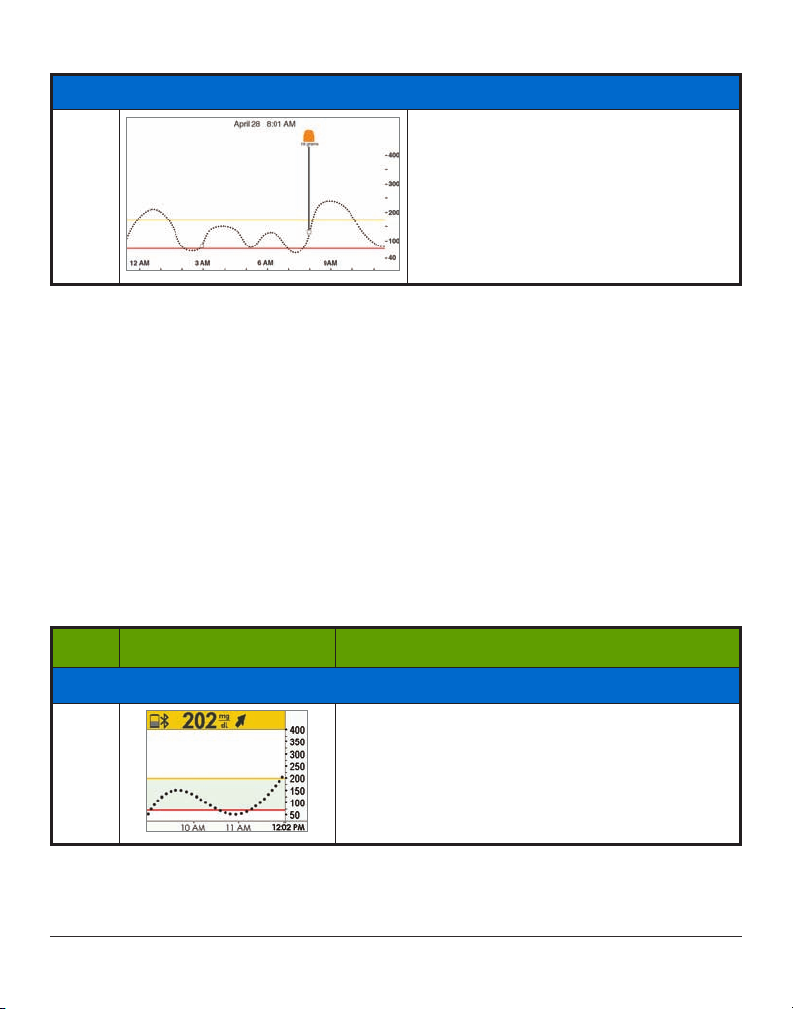
Enter Stress Event
(Continued from previous page)
14
Tur n to landscape.
The receiver and app don’t talk to one another. If you enter an Event only into the receiver,
while the information will appear on Dexcom reports, you won’t get an Event marker on your
app’s Trend screen.
The app has Event markers on its screen, the receiver doesn’t.
There may be times when you want or need to enter Events on the Dexcom G5
Mobile Receiver.
Enter Events: Dexcom G5 Mobile Receiver
While the Event data is the same between display devices, the flow is not the same, including
how to enter the Event’s date and time. The following table reviews how to enter the same
Carb/Stress Event data from the previous scenario: Carbs at 85, and a Stress Event.
Entering Events: Receiver
Step What you see What you do
Enter Carbs Event
1
Default screen
Press
Select
to go to Main Menu.
Dexcom G5 Mobile System User Guide
(Continued on next page)
168Daily Events Aect Your Glucose Trends and Patterns
Page 2
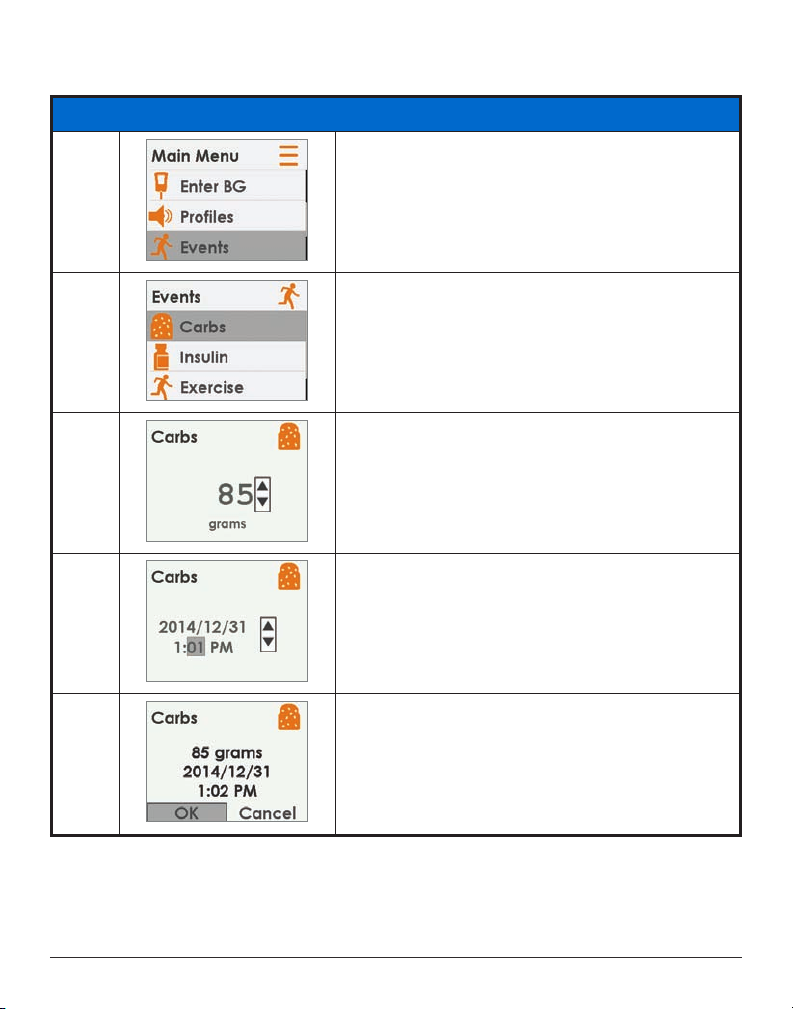
Enter Carbs Event
2
(Continued from previous page)
Press
Down Arrow
Select
Press
.
until
Events
is highlighted.
3
Highlight
Press
Carbs
Select
.
.
Add up all carb grams from lunch.
4
5
6
Arrow up to “85.”
Press
Select
.
Press Left/
Right Arrows
• Left: Backwards
• Right: Forward
Press
Select
.
Confirmation screen.
Press
Select
.
(Continued on next page)
to change time and date.
Dexcom G5 Mobile System User Guide
Daily Events Aect Your Glucose Trends and Patterns
169
Page 3
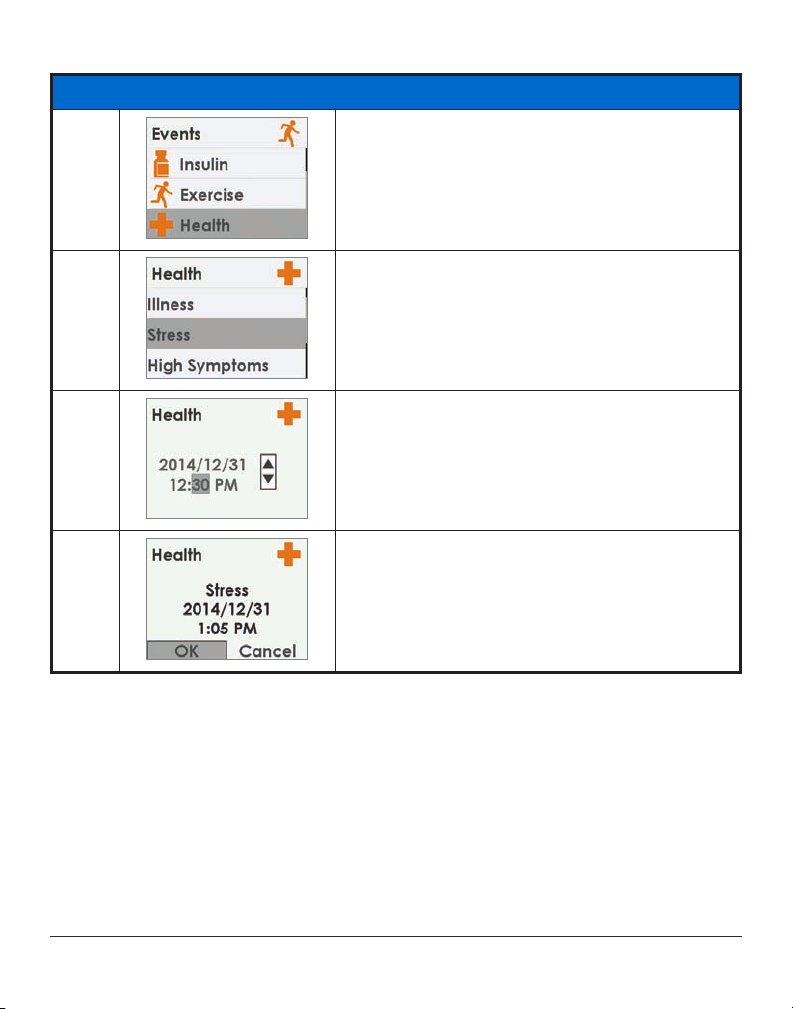
Enter Health Event
(Continued from previous page)
7
8
9
Press
Down Arrow
Press
Down Arrow
Press
Select
.
Press
Left/Right Arrows
• Left: Backwards
• Right: Forward
Press
Select
.
until
Health
.
to
Stress
.
to change time and date.
Verify information is correct.
10
Left/Right Arrows
Press Up/
Press
Select
Down Arrows
to save.
to highlight field.
to change numbers.
Press
10.4 Viewing Events
Events entered into your receiver can only be viewed on a Dexcom report; there are no
markers on your receiver’s screen.
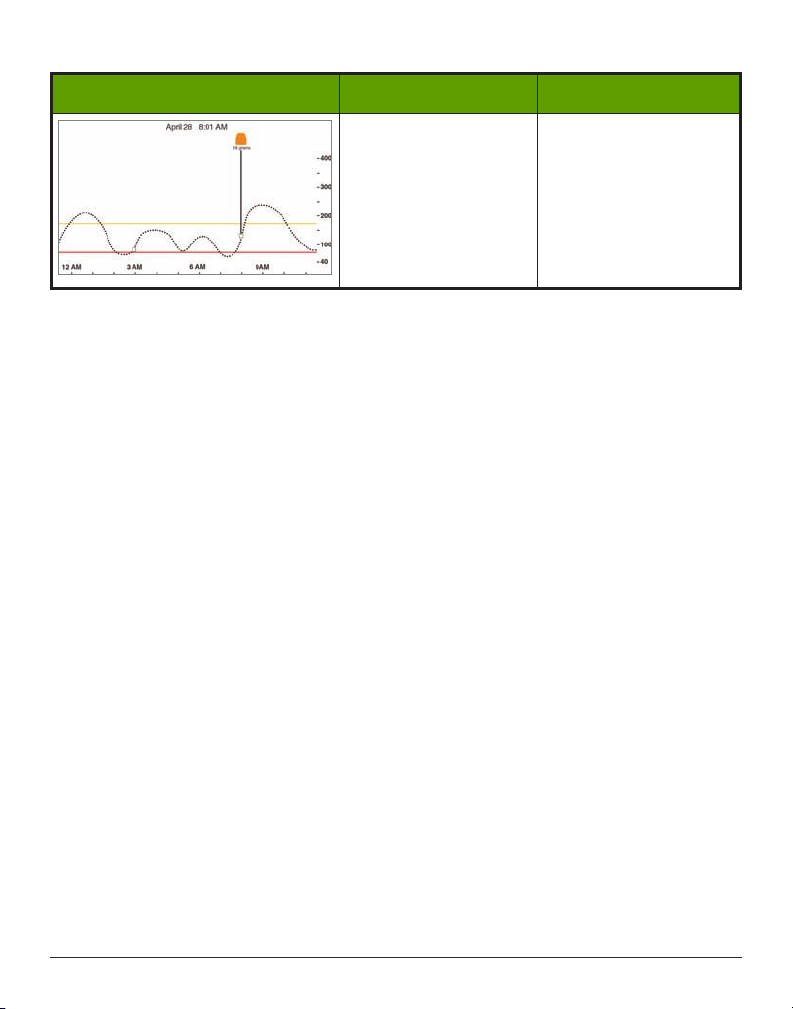
On your smart device, turn to landscape to view your Event markers. A single small
square marks all Events. Slide your finger across the screen or tap the square to get your
Event’s information.
Dexcom G5 Mobile System User Guide
170Daily Events Aect Your Glucose Trends and Patterns
Page 4
Landscape What it does What you do
Landscape Only
Show Event details.
Landscape Only
• Tap
square
• Slide finger across
screen
Once you have allowed your Share Follower’s access to your Trend screen, they too will be
able to view your Events. See Part 5 for more information.
Summary
Now You Can:
• Define Event
• Describe each Event
• Create an Event
○ Dexcom G5 Mobile App
○ Dexcom G5 Mobile Receiver
• Recognize Event Markers on the Dexcom G5 Mobile App
○ Describe how Event Markers are different in portrait and landscape view
• Describe how to view Events entered via your receiver
What’s Next?
In the next chapter, you will learn about your trend’s Alarm and Alerts helping you monitor
you glucose levels. You’ll also learn how you know when your system loses its signal and
stops communicating.
Dexcom G5 Mobile System User Guide
Daily Events Aect Your Glucose Trends and Patterns
171
Page 5

Dexcom G5 Mobile System User Guide
Page intentionally left blank
172Daily Events Aect Your Glucose Trends and Patterns
Page 6

Chapter 11
Next Steps:
Sensor Glucose Alarm and Alerts
11.1 Introduction
Monitoring your glucose trends is critical in managing your diabetes. But what happens if
you’re driving, in a meeting, at the movies, and can’t or, don’t want to, keep looking at your
display device?
Dexcom’s G5 Mobile CGM System understands there are times when you can’t look at your
receiver or smart device; however you still need to know of actionable glucose trends or if
you’re not getting your sensor glucose readings.
This chapter reviews the sensor glucose Alarm and Alerts based on your sensor glucose
readings, allowing you to proactively manage your glucose trend levels and make sure your
transmitter is communicating with your display device.
In the next chapter, you’ll learn how to customize the Alarm and Alerts.
After this chapter you will be able to:
• Define an Alarm
• Define an Alert
• Identify the different types of Alerts
• Describe the difference between an Alarm and an Alert
• Recognize different Alarm/Alert prompts and sounds
• Determine signal loss is preventing you from getting an Alarm or Alert
• Describe recommended app settings
• Successfully clear an Alert notification
○ Dexcom G5 Mobile App
○ Dexcom G5 Mobile Receiver
Your trending information is one of the greatest benefits of the Dexcom G5 Mobile System.
It’s important to focus on your trends and rate of change arrows, rather than the exact
number of your glucose reading
Dexcom G5 Mobile System User Guide
Sensor Glucose Alarm and Alerts
173
Page 7

11.2 Safety Statements
The Alarm and Alerts were designed to keep you safe, helping you avoid severe lows and
highs or from missing your readings. The following safety statements help ensure you get
your Alerts and Alarm.
WARNING
Do:
Verify your smart device settings let you get Alarm and Alerts.
To receive Alarm/Alerts you must:
1. Make sure Dexcom G5 Mobile App Notifications are turned on in
2. Verify app hasn’t been shut down.
3. Adjust volume so you can hear sounds.
4. Tur n
5. Tur n off
Bluetooth
Do Not Disturb
on.
.
6. Keep Dexcom G5 Mobile App running in the background.
7. Restart app after device is restarted.
Why: Your apps settings do not override phone settings.
Consequences: Missing severe low or high Alarm or Alerts.
WARNING
Don’t:
Never assume the Dexcom G5 Mobile CGM System’s Alarm/Alert vibrations are
different from other vibrating apps.
Do:
Look at your smart device and check if vibration is a Dexcom G5 Mobile CGM System
Alarm or Alert.
Why: Medical device apps don’t have special priority over your smart device’s features.
You can’t determine if the vibration is coming from your Dexcom G5 Mobile App or
another app.
Consequences: Missing severe low or high Alarm or Alerts.
Settings
menu
WARNING
Do:
Unplug headphones from your smart device when not in use.
Why: If headphones are plugged in while not being used, you won’t hear an Alarm or Alert.
Consequences: Missing severe low or high Alarm or Alerts.
Dexcom G5 Mobile System User Guide
174Sensor Glucose Alarm and Alerts
Page 8
PRECAUTION
Don’t:
Never prevent communication between transmitter and display devices.
Do:
Keep smart device and receiver within 20 feet of transmitter and away
from obstructions.
Why: If your transmitter display device(s) are more than 20 feet apart or are separated by
an obstruction, they might not communicate.
Types of obstruction differ and not all types have been tested. Obstructions can include
water, walls, metal, etc.
Water (e.g., swimming, surfing, bathing, etc.) can severely limit communication range.
Consequences: Missing severe low or high Alarm or Alerts.
PRECAUTION
Do:
Set smart device and receiver settings separately.
Why: Settings are specific to each display device and don’t carry over to other devices. If
you set up one device and then use another, you won’t get an Alarm or Alert.
Consequences: Missing severe low or high Alarm or Alerts.
PRECAUTION
Do:
Verify smart device and receiver are turned on.
Why: Neither the receiver nor smart device will generate sensor glucose readings, Alarm
or Alerts if turned off.
Consequences: Missing severe low or high Alarm or Alerts.
11.3 Alarm and Alerts
As part of managing your diabetes, you learned how to read your Trend screen and how
to enter Events. In this chapter, you’ll learn how Alarm and Alerts can keep you safe from
severe lows or highs.
Depending on your display device, you can customize how you receive your Alarm or Alerts.
Dexcom G5 Mobile System User Guide
Sensor Glucose Alarm and Alerts
175
Page 9

What Is an Alarm?
While there are a variety of Alerts, there is just one Alarm
set at 55 mg/dL. The Alarm will repeat every 5 minutes until you clear the Alarm (see Chapter
12 on how to customize the sounds). If you clear the Alarm and your sensor glucose readings
do not go over 55 mg/dL in the next 30 minutes, you get another Alarm.
Unlike Alerts, the Urgent Low Alarm setting can’t be changed or turned off
safety net: your glucose level is dangerously low—pay attention now!
, the Urgent Low Alarm (Alarm) is
. Think of it as a
What Are Alerts?
An Alert is a message telling you your glucose trend levels need attention.
Low/High glucose Alerts tell you when your sensor glucose readings are outside your target
glucose ranges. Think of them as an FYI: You need to know what’s happening, Rising/Falling
Alerts tell you your glucose levels are changing quickly. Their default settings are Off (see
Chapter 12 on how to turn them on).
Alerts message you with vibrations (vibrations not available on all smart devices), visual
prompts, sounds, or a combination of all three.
Unlike the Alarm, you can customize your different Alert’s target range (Chapter 12).
During your initial set up, you establish your low and high alert levels. As mentioned before,
this chapter is a review of the Alarm and Alerts, recommended smart device settings and the
receiver’s default Alert settings.
Chapter 12 will show you how to change their settings: customize glucose levels prompts,
how you are notified, and in some cases, how often you get notified. The following are
the defaults.
Default Alerts
Low/High Alerts
Your Low/High Alerts have the same color coding as your Trend Graph screen:
1. Red: Glucose levels are below your low threshold.
a. Default setting of 80 mg/dL.
2. Gray: Glucose levels are within your high/low Alert levels.
a. No Alerts.
3. Yellow: Glucose levels are above your high threshold.
a. Default setting of 200 mg/dL.
Dexcom G5 Mobile System User Guide
176Sensor Glucose Alarm and Alerts
Page 10

Rise Rate/Fall Rate/Repeat/Signal Loss Alerts
Rise Rate and Fall Rate Alerts warn you when your glucose levels are changing rapidly, either
down or up, and look similar to the rate of change arrows. Repeat Alerts let you know if your
sensor glucose readings continue to be above or below your Alert levels.
Glucose Level Alerts
1. Rise Rate
a. Default setting is Off—No Alert.
b. Need to change settings to receive Rising Alert.
2. Fall Rate
a. Default setting is Off—No Alert.
b. Need to change settings to receive Falling Alert.
3. Repeat
a. Default setting is Off—No Alert.
b. Need to change settings to receive Repeat Alert.
Signal Loss Alert
Signal Loss tells you when you and the transmitter are too far from your display device
or something is blocking your transmitter signal, causing you not to get sensor glucose
readings. The default setting for Signal Loss is On.
Now you have the basics for Dexcom’s G5 Mobile’s Alarm/Alerts feature. Next, you will learn
about each Alarm/Alert in more detail.
11.4 Alarm and Alerts Screens
When you fall within an Alarm or Alert target range, your display device tells you. As
mentioned in previous chapters you won’t get any Alarm or Alerts within five minutes
of calibration.
Let’s first review how the information is presented visually across the devices. While the
Alarm/Alerts prompts look different on the display devices, they reflect the same information.
After prompts we’ll separately review the vibration and audible Alarm/Alerts for app
and receiver.
Alarm and Alerts look different based on your display device, but reflect the
same information.
Dexcom G5 Mobile System User Guide
Sensor Glucose Alarm and Alerts
177
Page 11
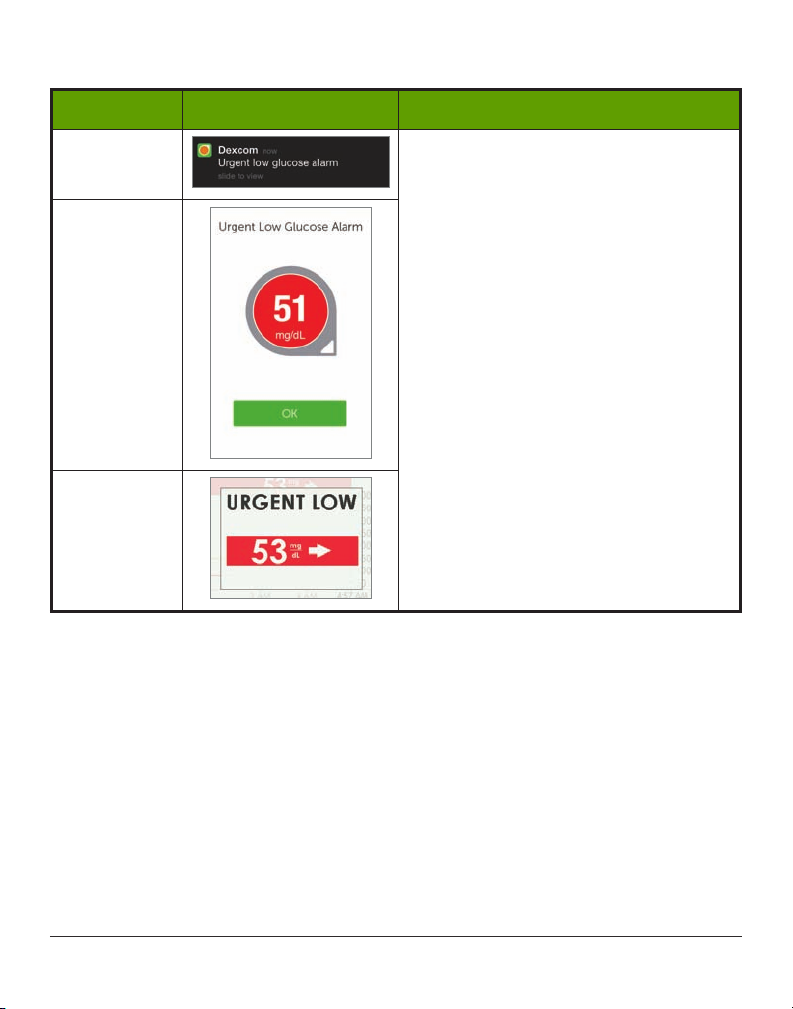
Urgent Low Glucose Alarm
Device What you see What it means
Smart Device:
Lock Screen
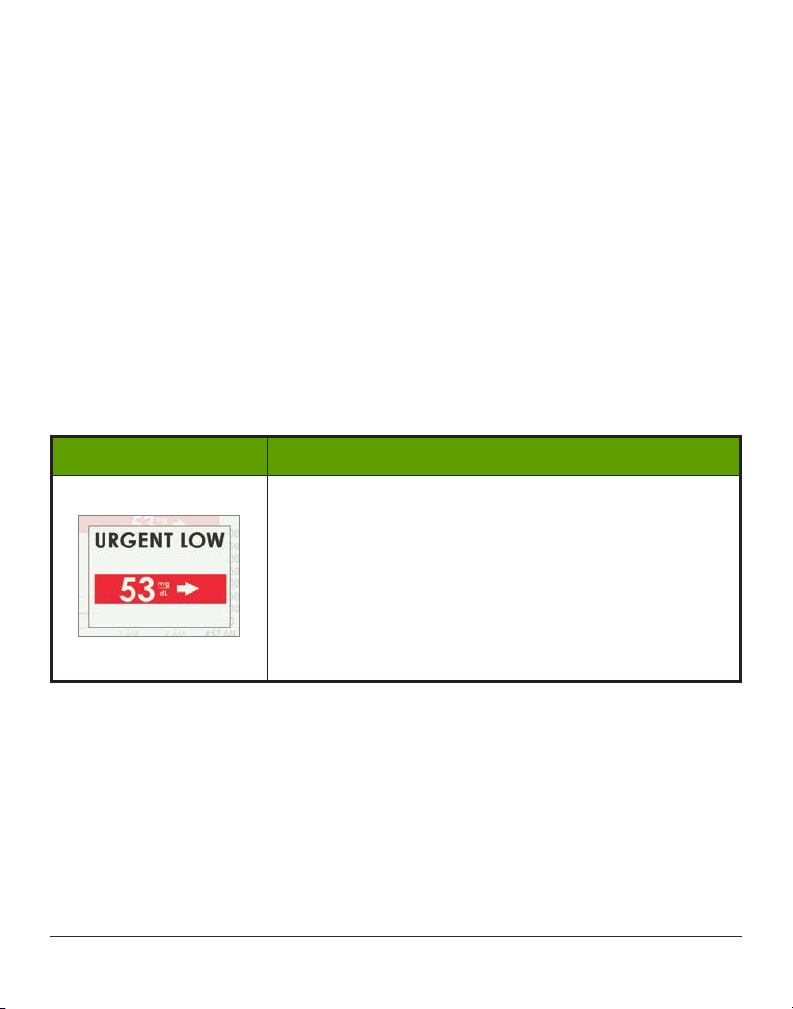
Sensor glucose reading at or below 55
Smart Device:
In App
Receiver
mg/dL.
Shows last glucose value.
Arrows reflect rate of change.
Check BG meter to make treatment
decisions.
Dexcom G5 Mobile System User Guide
178Sensor Glucose Alarm and Alerts
Page 12
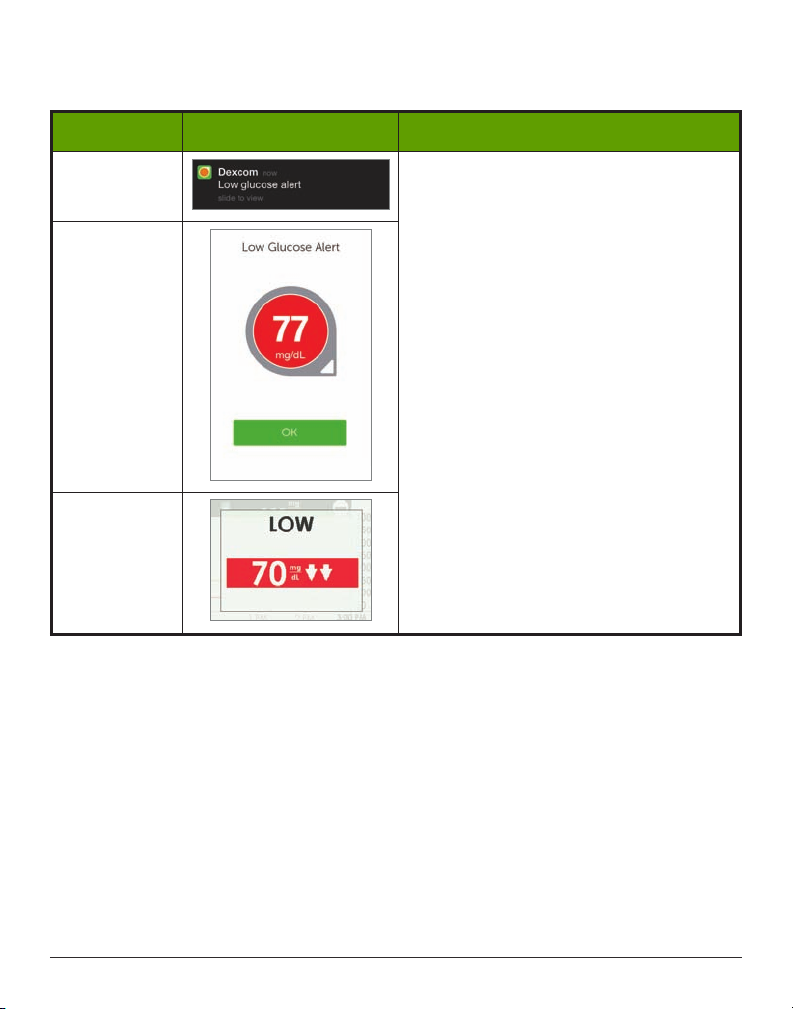
Low/High Glucose Alerts
Device What you see What it means
Smart Device:
Lock Screen
Sensor glucose reading at or below your
low Alert level.
Smart Device:
In App
Receiver
(Continued on next page)
Shows most current sensor glucose
reading.
Arrows reflect rate of change.
Can be set to repeat between 15 minutes
to 4 hours.
Check your BG meter to make any
treatment decisions.
Dexcom G5 Mobile System User Guide
Sensor Glucose Alarm and Alerts
179
Page 13
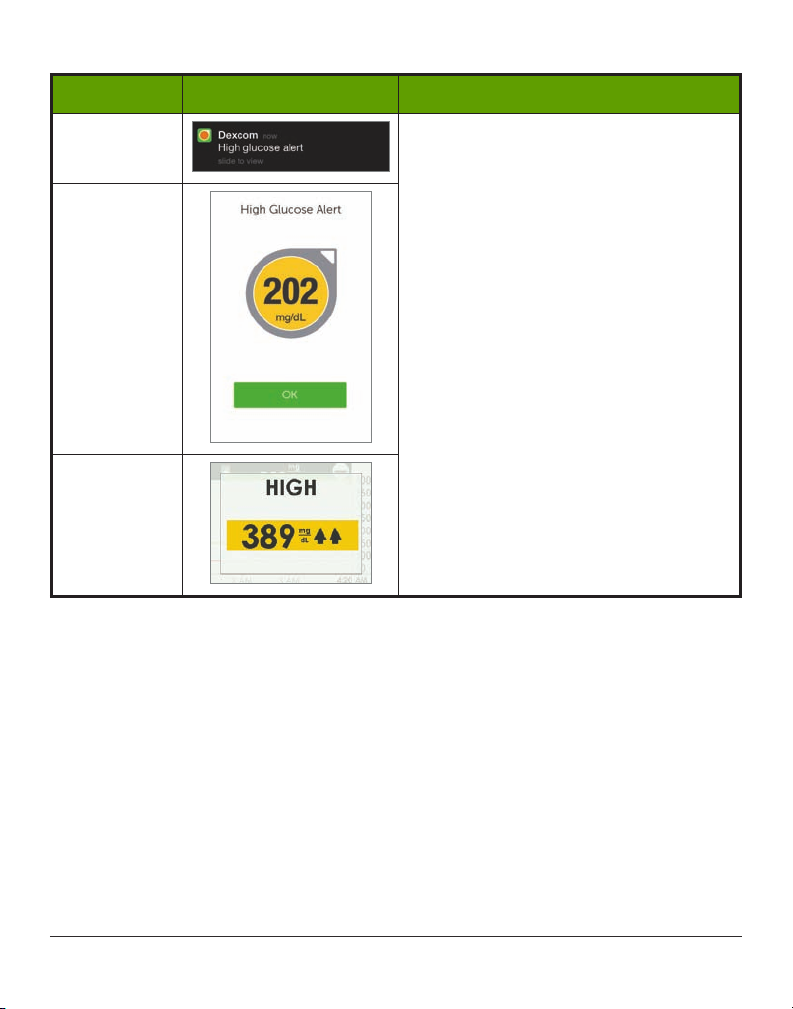
(Continued from previous page)
Device What you see What it means
Smart Device:
Lock Screen
Sensor glucose reading at or above your
high Alert level.
Smart Device:
In App
Receiver
Shows most current sensor glucose
reading.
Arrows reflect rate of change.
Can be set to repeat between 15 minutes
to 4 hours.
Check BG meter to make treatment
decisions.
Dexcom G5 Mobile System User Guide
180Sensor Glucose Alarm and Alerts
Page 14
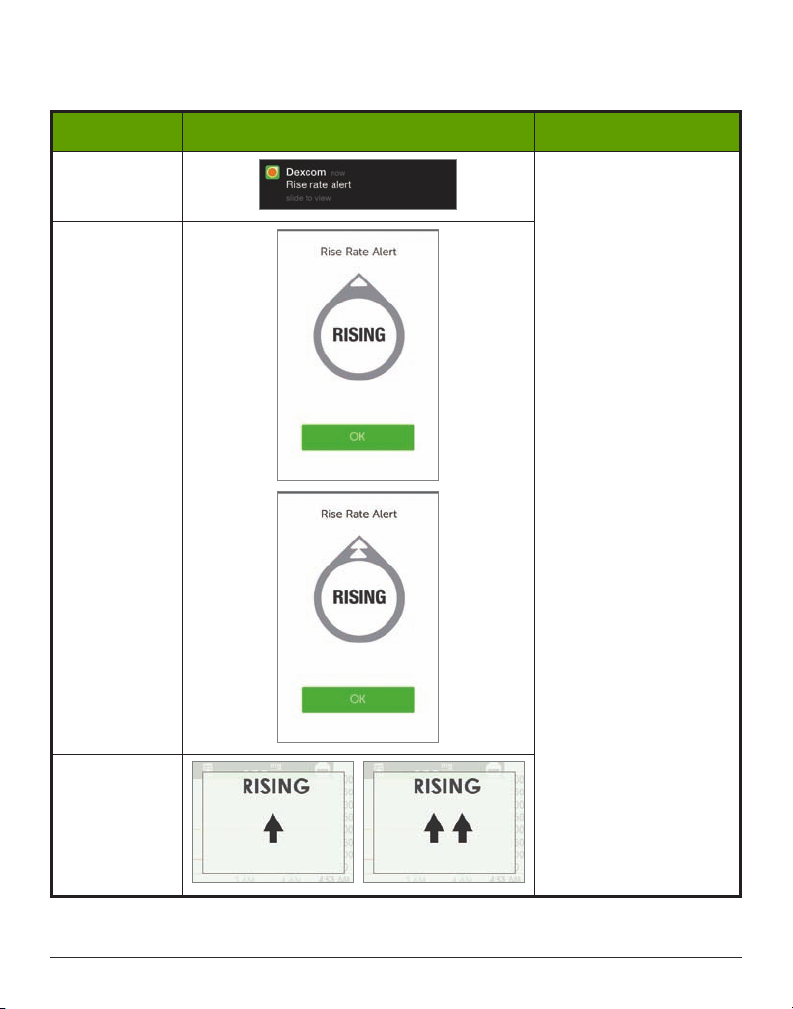
Rise Rate/Fall Rate Alerts
Device What you see What it means
Smart Device:
Lock Screen
Sensor glucose readings
Smart Device:
In App
rising quickly.
Number of arrows shows
how fast (2 mg/dL/min;
3+ mg/dL/min).
Check BG meter to make
any treatment decisions.
Receiver
Dexcom G5 Mobile System User Guide
Sensor Glucose Alarm and Alerts
(Continued on next page)
181
Page 15
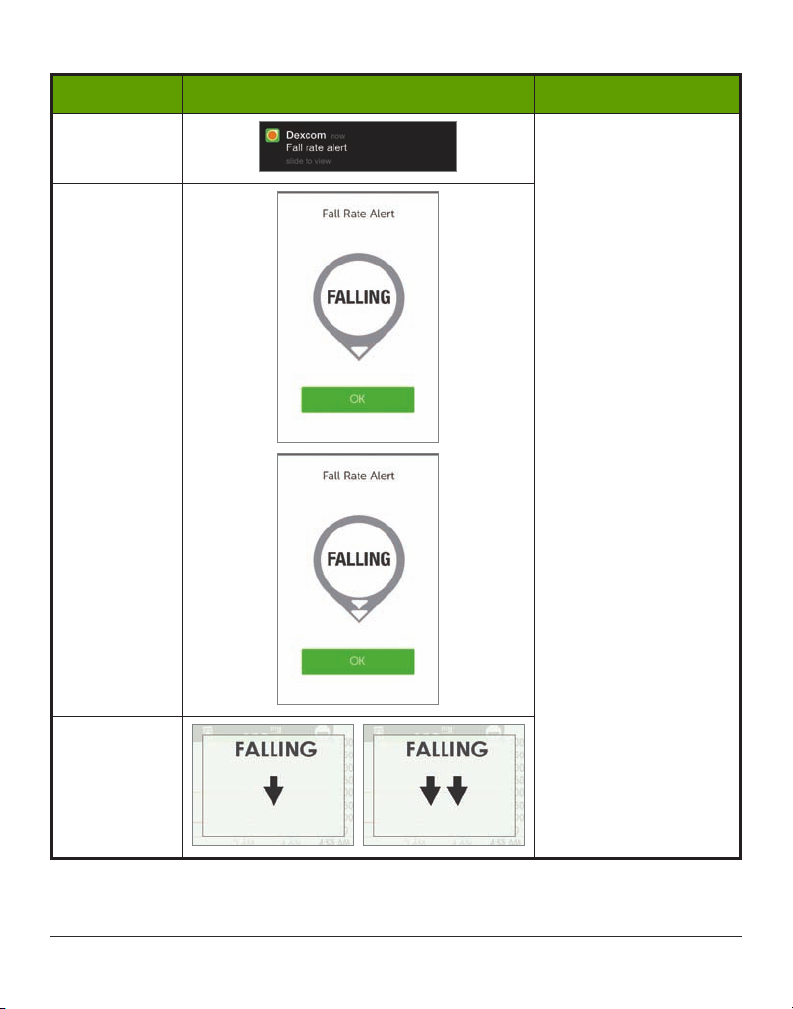
(Continued from previous page)
Device What you see What it means
Smart Device:
Lock Screen
Sensor glucose readings
Smart Device:
In App
falling quickly.
Number of arrows shows
how fast (2 mg/dL/min;
3+ mg/dL/min).
Check BG meter to make
any treatment decisions.
Receiver
Dexcom G5 Mobile System User Guide
182Sensor Glucose Alarm and Alerts
Page 16
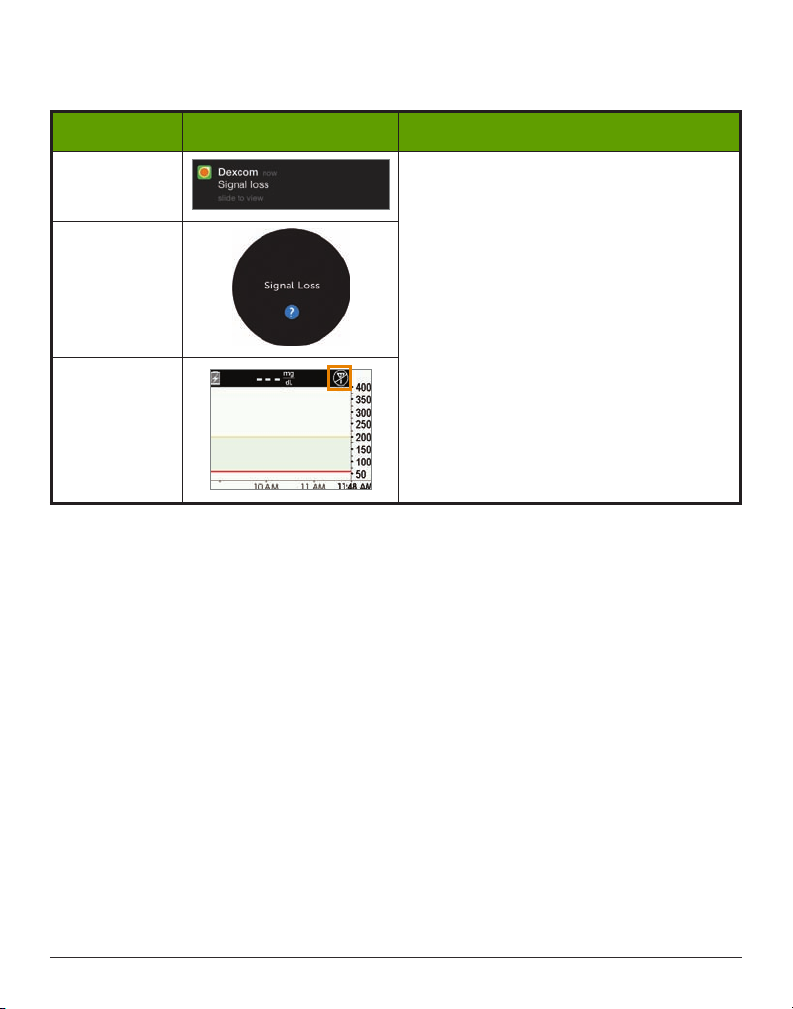
Signal Loss Alert
Device What you see What it means
Smart Device:
Lock Screen
Smart Device:
In App
Your receiver and transmitter are not
communicating.
You will not receive Alarm/Alerts.
Check BG meter to check your glucose and
make any treatment decisions.
Receiver
11.5 App: Alarm/Alert Recommended Settings
The receiver is a stand-alone medical device and used solely to monitor your glucose trends.
The app cannot override the smart devices general settings.
The app can’t override your smart device settings:
• When your smart device is on Silent, you’ll still receive Alarms and Alerts visual prompts
and messages, but not vibrations if you haven’t adjusted your smart device settings
• Some smart devices don’t have a Vibration feature, so you won’t get any
vibration notifications
• When your ringer’s volume is low, you may not hear an Alarm or Alert
• When your smart device is in Do Not Disturb mode, you won’t receive any Alarm/Alerts.
The Dexcom G5 Mobile App can’t override the Do Not Disturb setting
• If you don’t enable your Dexcom G5 Mobile push Notifications settings during set up, you
won’t get any Alarm/Alerts
• Check in Settings under Notifications on how your Alarm/Alerts are prioritized
For information on smart device settings, see your smart device’s instructions.
Dexcom G5 Mobile System User Guide
Sensor Glucose Alarm and Alerts
183
Page 17
If you are concerned about missing an Alarm or Alert (e.g., due to smart device settings,
app shutting off due to lack of storage, low smart device battery, etc.), bring your receiver
with you.
11.6 Receiver: Default Beeps and Vibrations
The Dexcom G5 Mobile Receiver’s Alarm/Alerts are vibrations and a beep, or a series of
beeps, based on the Alarm or Alert. Beeps and vibrations are preprogrammed into the
receiver, and unlike the smart device, the volume can’t be changed.
In Chapter 12 you’ll learn how to adjust the volume and intensity of your Alarm/Alerts.
The following is a table of the receiver’s default beep and vibration patterns. If you clear
the Alert’s initial vibration, you won’t get any beeps or sounds unless you’ve turned on the
Repeat Alert.
In the next section, you’ll learn how to clear the Alarm/Alerts.
Urgent Low Glucose Alarm
What you see Beeps and vibration
Initial Default Alert:
Vibrates 4x’s.
After 5 Minutes:
Vibrates/beeps 4x’s every 5 minutes until cleared or sensor
glucose readings go above Alarm level.
After 30 Minutes:
After clearing Alarm, continues to notify if sensor glucose
readings remain at or below Alarm level.
Dexcom G5 Mobile System User Guide
184Sensor Glucose Alarm and Alerts
Page 18
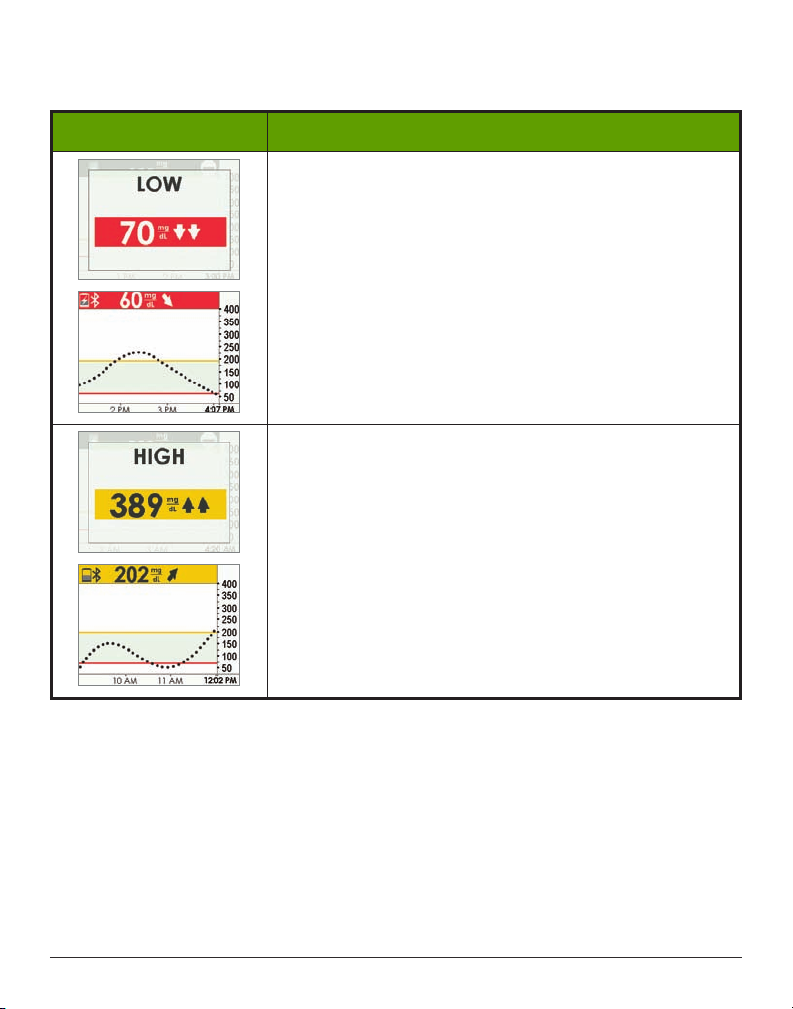
Low/High Glucose Alerts
What you see Beeps and vibration
Initial Default Alert:
Vibrates 3x’s.
After 5 Minutes:
Vibrates/beeps 3x’s every 5 minutes until cleared.
Trend screen will continue to reflect Alert until sensor
glucose readings go above Alert level.
Initial Default Alert:
Vibrates 2x’s.
After 5 Minutes:
Vibrates/beeps 2x’s every 5 minutes until cleared.
Trend screen will continue to reflect Alert until sensor
glucose readings go below Alert level.
Dexcom G5 Mobile System User Guide
Sensor Glucose Alarm and Alerts
185
Page 19
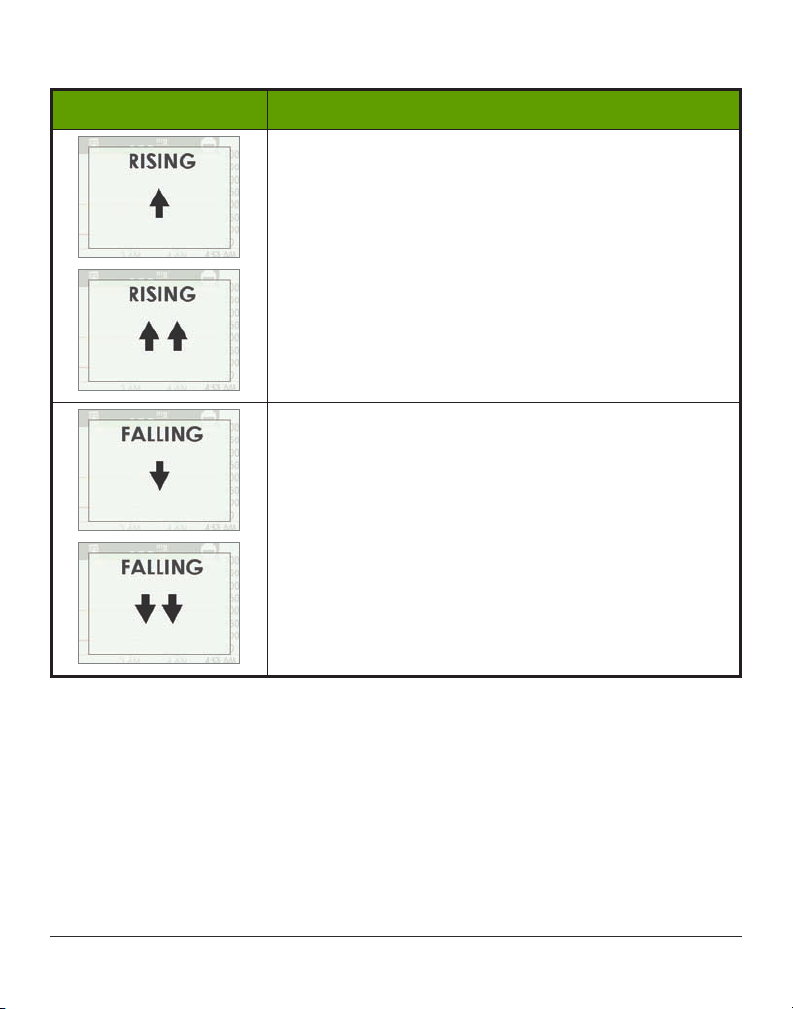
Rise Rate/Fall Rate Alerts
What you see Beeps and vibration
Initial Default Alert:
None/Off.
After Setting Change:
Vibrates 2x’s, 2 sounds.
After 5 Minutes:
Vibrates/beeps 2x’s every 5 minutes until cleared.
Initial Default Alert:
None/Off.
After Setting Change:
Vibrates 3x’s.
After 5 Minutes:
Vibrates/beeps 3x’s every 5 minutes until cleared or sensor
glucose reading drops below Alert level.
Dexcom G5 Mobile System User Guide
186Sensor Glucose Alarm and Alerts
Page 20
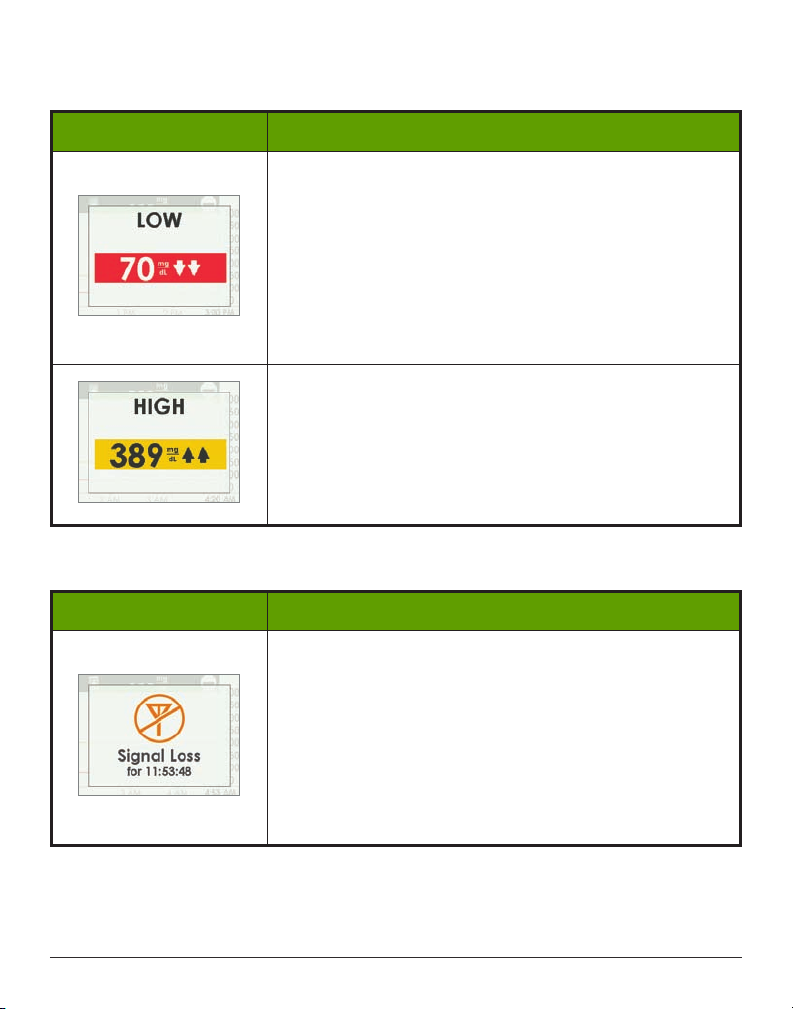
Low Repeat/High Repeat
What you see Beeps and vibration
Initial Default Alert:
None/Off.
After Setting Change:
Vibrates 3x’s.
After 5 Minutes:
Vibrates/beeps 3x’s every 5 minutes until cleared.
Will re-alert if sensor glucose readings drop at or below 55
mg/dL.
Initial Default Alert:
None/Off.
After Setting Change:
Vibrates 2x’s.
After 5 Minutes:
Vibrates/beeps 2x’s every 5 minutes until cleared.
Signal Loss Alert
What you see Beeps and vibration
Initial Default Alert:
On.
After Setting Change:
Vibrates 1x.
After 5 Minutes:
Vibrates/beeps 1x every 5 minutes for a total of 6 times if not
cleared.
After 6 times it will not alert again.
Dexcom G5 Mobile System User Guide
Sensor Glucose Alarm and Alerts
187
Page 21
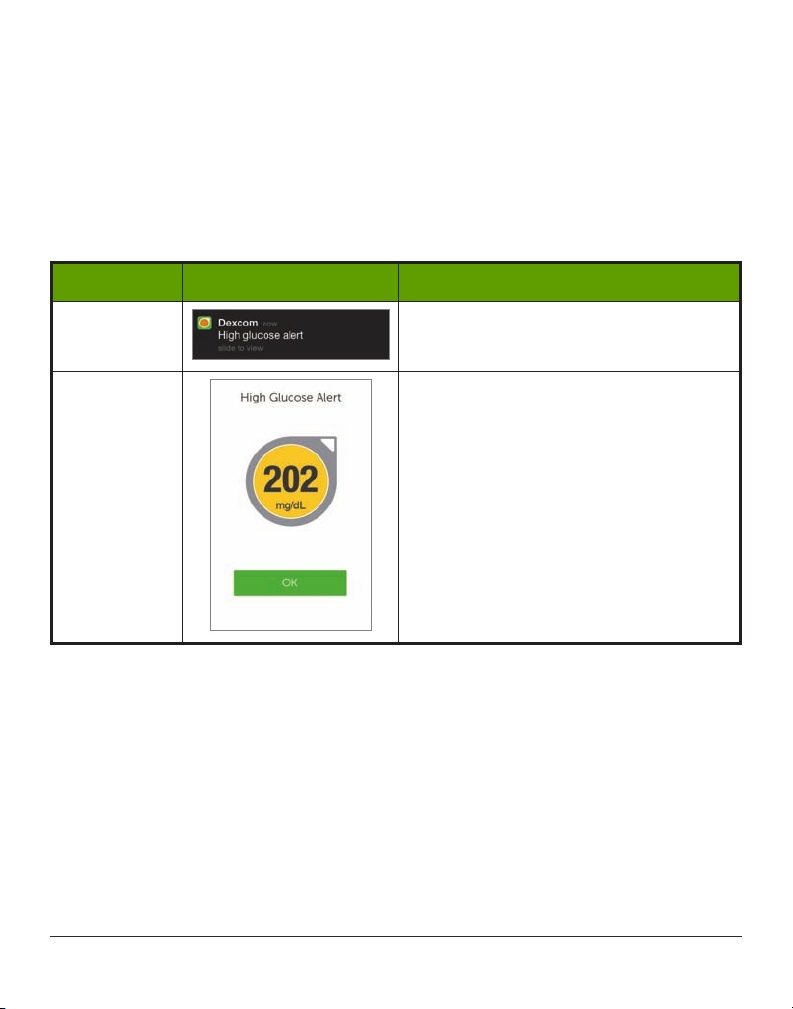
11.7 Clearing Alarm/Alerts
Alerts require you to acknowledge and clear them. How this is done depends on your display
device. If using both display devices, you’ll need to clear each separately.
Due to their medical importance, the Alarm is more persistent. Even after acknowledging and
clearing an Alarm, if your sensor’s glucose readings remain at or below 55 mg/dL, an Alarm
will sound every 30 minutes until readings are above 55 mg/dL.
Clearing Your Smart Device
Device What you see What you do
Smart Device:
Lock Screen
Smart Device:
In App
Slide
Alarm
or
Alert
to access app.
Tap OK to accept Alarm or Alert.
Dexcom G5 Mobile System User Guide
188Sensor Glucose Alarm and Alerts
Page 22
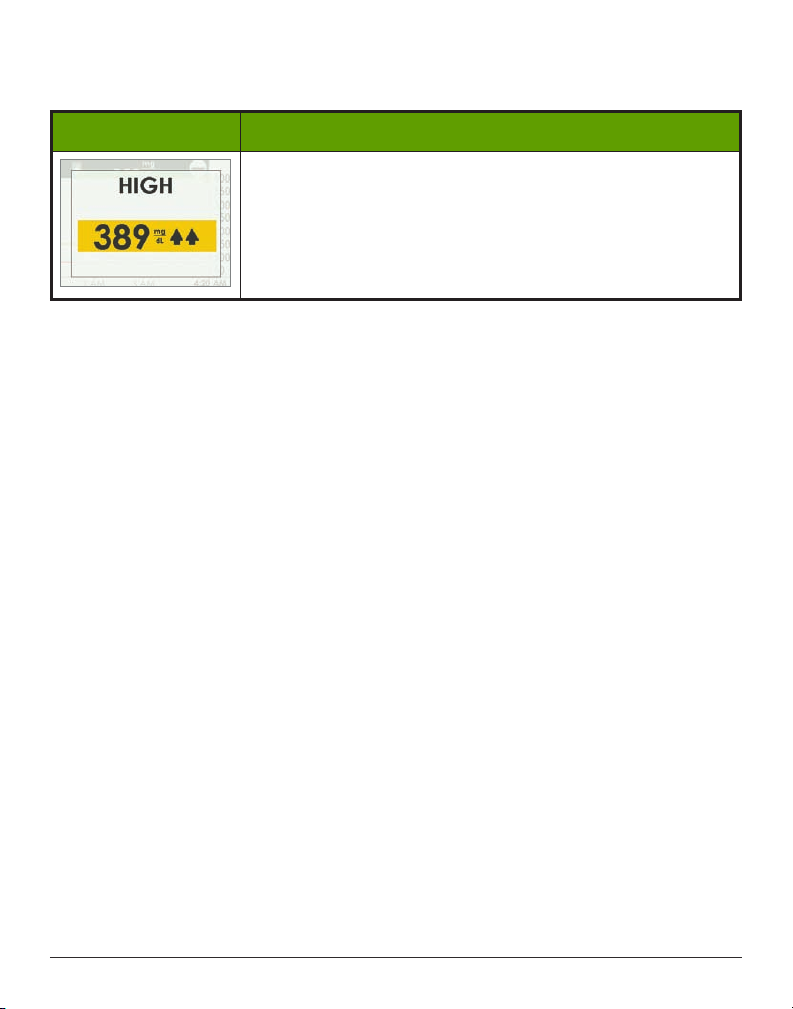
Clearing Your Receiver
What you see What you do
Press
Select
.
Once cleared, you won’t receive the same Alert unless you hit the Alert’s target range
again. Your Alarm will repeat even after clearing if your glucose levels do not return to your
target range.
Summary
Now You Can:
• Define an Alarm
• Define an Alert
• Identify the different types of Alerts
• Describe the difference between an Alarm and an Alert
• Recognize different Alarm/Alert prompts and sounds
• Determine if signal loss is preventing you from getting an Alarm/Alert
• Describe recommended app settings
• Successfully clear an Alert notification
○ Dexcom G5 Mobile App
○ Dexcom G5 Mobile Receiver
What’s Next?
Up to now, you have learned about the Alarm or Alert default settings. But what do you
do if you want to decrease the High Alert glucose level threshold, or you want to continue
getting a Low Alert notification if your glucose levels don’t improve, even though you cleared
the message?
How do you make your Alarm/Alerts fit your needs?
Dexcom G5 Mobile System User Guide
Sensor Glucose Alarm and Alerts
189
Page 23

Dexcom G5 Mobile System User Guide
Page intentionally left blank
190Sensor Glucose Alarm and Alerts
Page 24

Chapter 12
Next Steps:
On the Go With G5: Customizing Your Alarm
and Alerts
12.1 Introduction
The receiver and app come with default glucose Alert level settings, but perhaps they don’t
reflect the glucose level that works best for you.
Perhaps you’re in a meeting and can only clear an Alert, yet want to make sure your Alert
repeats, or continues, until you’re able to take corrective measures. Maybe you’d like to get a
Rising/Falling glucose Alert, but their settings are off by default. How do you turn them on?
In this chapter, you’ll learn how to personalize your Alarm and Alerts tones and
glucose levels.
Afterwards, you will be able to:
• Customize your Low/High Alerts
○ Dexcom G5 Mobile App
○ Dexcom G5 Mobile Receiver
• Adjust Alarm sound notification
• Use receiver’s Advanced Alerts
○ Low/High Repeat
○ Rise/Fall Alerts
○ Signal Loss
Each display device has customization options; however the setup flow is different. Before
making any changes to your Alert levels, talk with your healthcare professional.
First, let’s take a look at personalizing your app Alarm and Alerts, and then we’ll review the
same process for the receiver.
Dexcom G5 Mobile System User Guide
On the Go With G5: Customizing Your Alarm and Alerts
191
Page 25
12.2 Safety Statement
WARNING
Do:
If using both receiver and app for to get an Alarm or Alert, change settings in each
display device.
Why: Any changes to the G5 Mobile app will not carry over to the receiver.
Consequences: Missing severe low or high Alarm or Alerts.
12.3 Changing App Alarm and Alerts
App Screen Overview
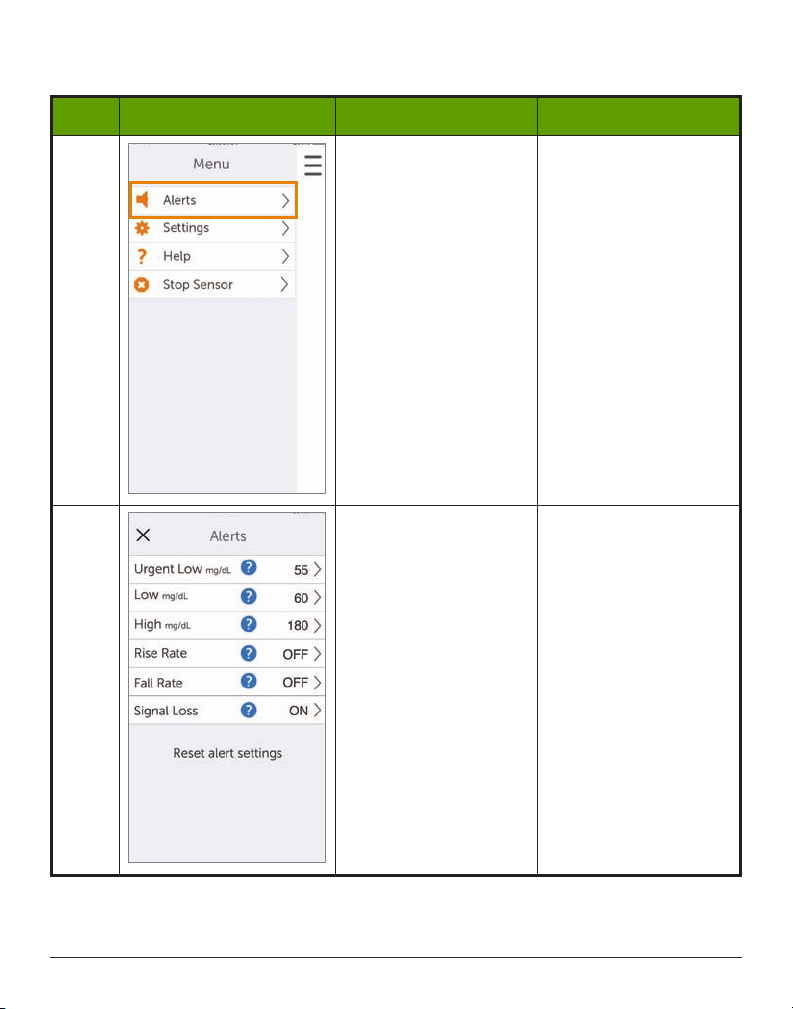
The Alerts Main Menu lists all customizable Alerts and Alarm and their current settings. Part
of your initial set up included setting your Low/High Alerts. In this chapter, you’ll learn how to
change them.
Before learning how to change your settings, let’s review the app’s Alerts Main Menu screen.
Customizing Alerts: App Alarm/Alerts Screen
Overview
Step What you see What it means What you do
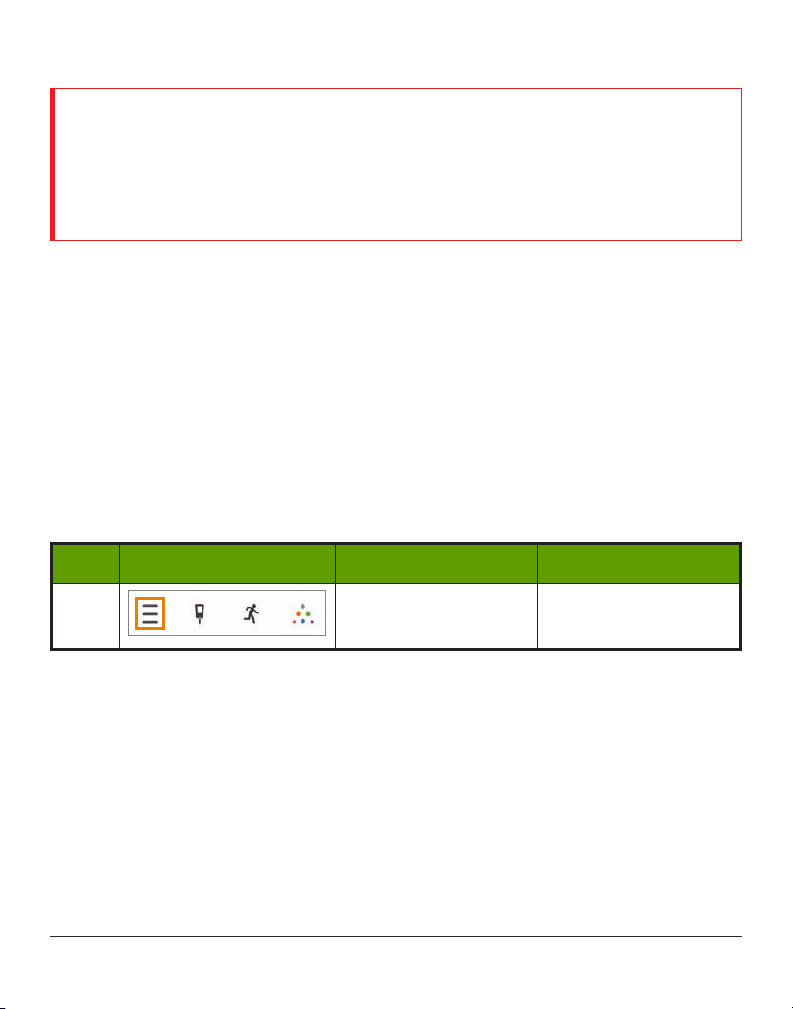
1 Access Main Menu. Tap
(Continued on next page)
Dexcom G5 Mobile System User Guide
Main Menu
icon.
192On the Go With G5: Customizing Your Alarm and Alerts
Page 26
(Continued from previous page)
Step What you see What it means What you do
2
Access Alerts Main
Menu.
Tap
Alerts
.
All customizable Alarm
and Alerts.
Current Alert settings.
3
All alerts have:
•
On/Off
switch
•
Notify me
•
Sound
options
options
Tap
Alarm/Alert
want to change.
you
(Continued on next page)
Dexcom G5 Mobile System User Guide
On the Go With G5: Customizing Your Alarm and Alerts
193
Page 27
(Continued from previous page)
Step What you see What it means What you do
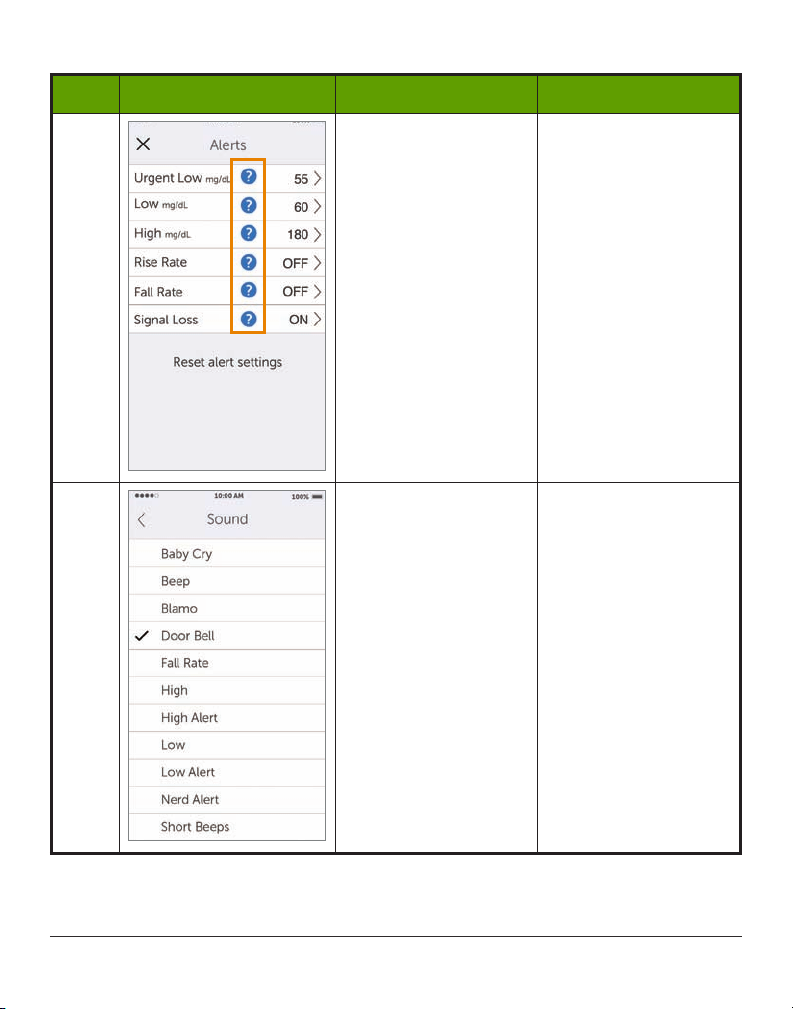
“?” explains:
4
• Message options
• Recommended
settings
Urgent Low Glucose
Alarm:
• Preset at 55
mg/dL and cannot
• Each Alarm/Alert
5
be changed
•
Repeat
preset at 30
minutes and can’t
be changed
•
Sound
is the only
change option
Tap
“?”
for Alarm/Alert
information.
Tap
Sound
sound.
to change
Dexcom G5 Mobile System User Guide
194On the Go With G5: Customizing Your Alarm and Alerts
Page 28
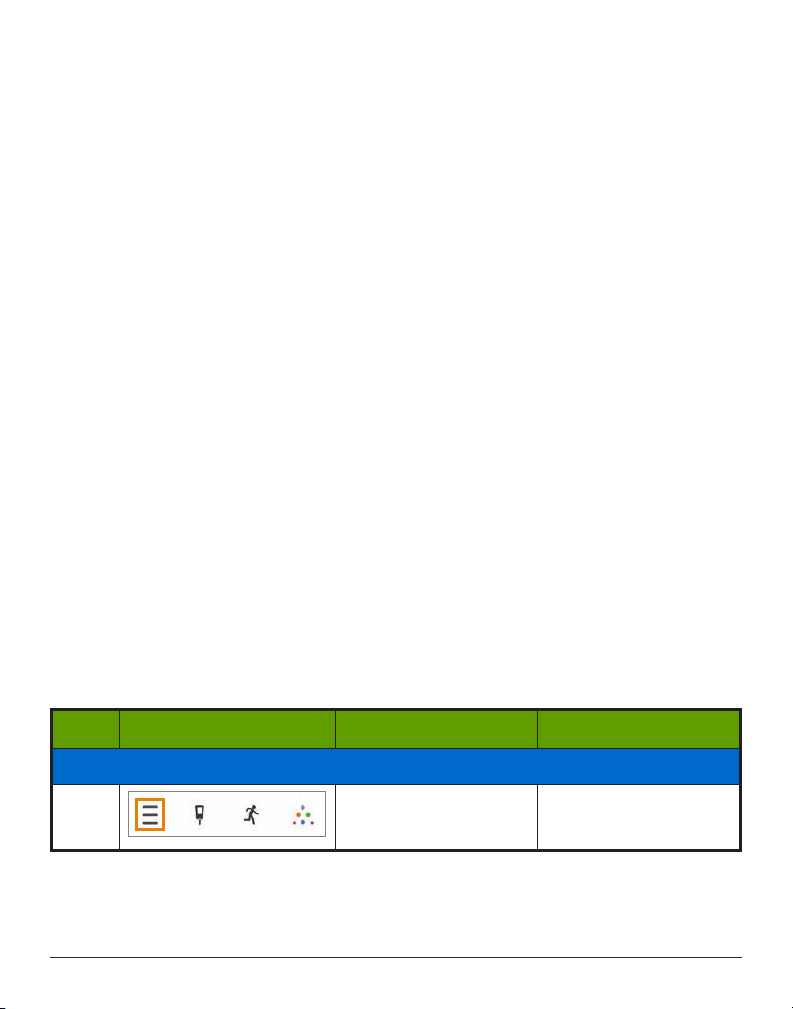
Steps to Customize App Alarm/Alerts
Although the results will vary depending on what Alarm or Alert you are customizing, the
steps to change your Alarm or Alert are the same:
From app’s Main Menu:
1. Tap
Alerts
.
2. Tap the
3. Tap
4. Tap
5. Tap
In this following example, we’ll change the High Alert level from 200 mg/dL to 190 mg/dL,
repeating every hour if you continue to stay high, with a Door Bell sound.
Alert
you want.
a. Tap On or
Notify me
Off
switch to turn on desired Alerts.
.
a. Change the Alert glucose level (mg/dL).
i. Scroll selection wheel, find your desired Alert level.
ii. Tap to highlight.
iii. Tap
Save
.
Repeat
.
a. Change the amount of time you want between your High/Low Alerts if your
sensor glucose readings continue to be low or high.
i. Scroll selection wheel, find your desired Alert level.
ii. Tap to highlight.
iii. Tap
Save
.
Sound
.
a. Assign a different sound to each Alarm or Alert.
i. Scroll selection wheel, find your desired sound.
ii. Tap to highlight.
iii. Tap
back arrow
.
Customizing Alerts: App
Step What you see What it means What you do
Access Alerts’ Main Menu
1
Dexcom G5 Mobile System User Guide
On the Go With G5: Customizing Your Alarm and Alerts
Access Main Menu. Tap
(Continued on next page)
Main Menu
icon.
195
Page 29
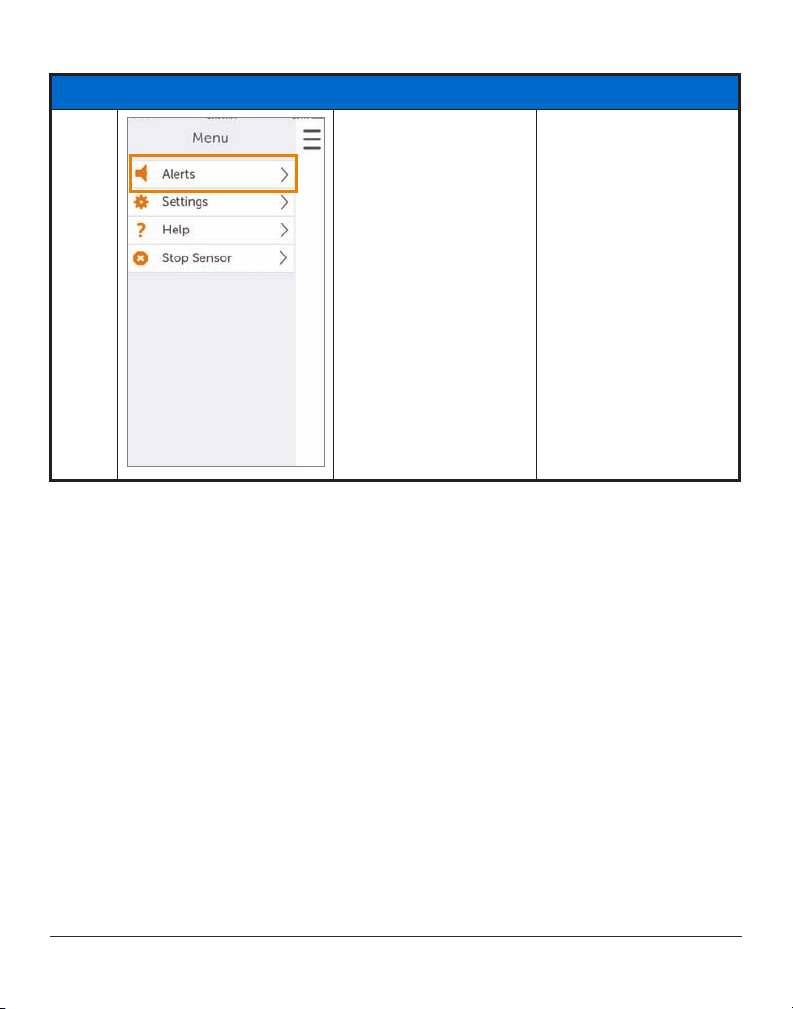
Access Alerts’ Main Menu
(Continued from previous page)
2
Access Alerts Main
Menu.
(Continued on next page)
Tap
Alerts
.
Dexcom G5 Mobile System User Guide
196On the Go With G5: Customizing Your Alarm and Alerts
Page 30
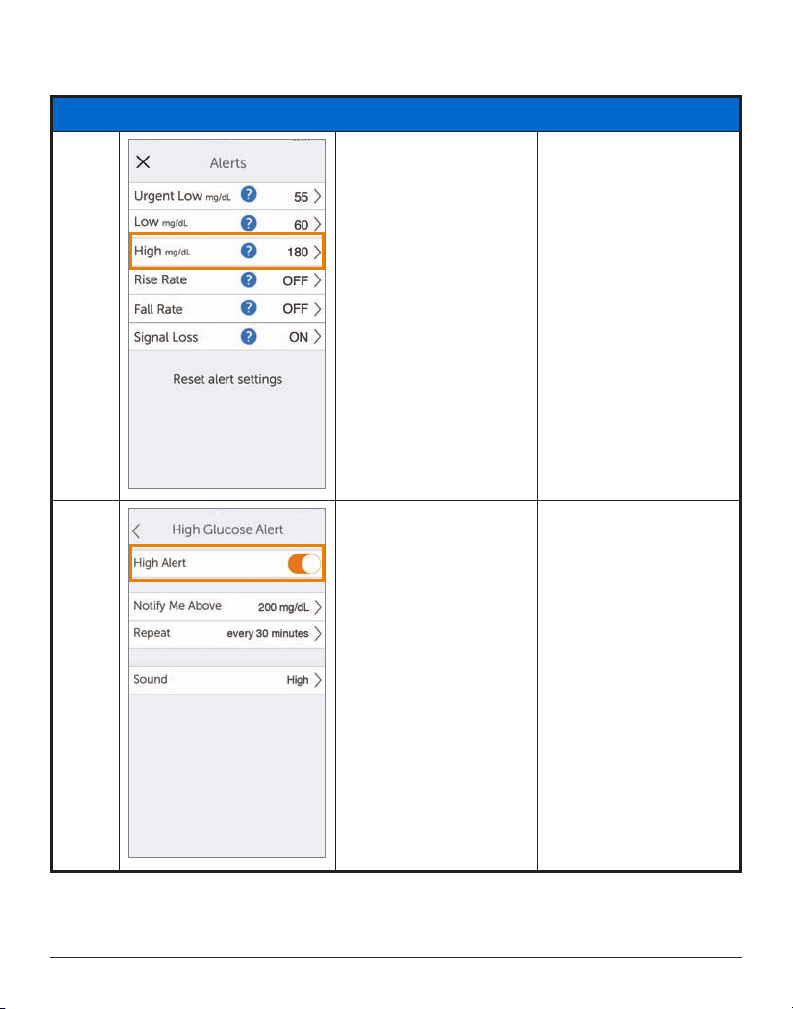
Changing an Alert
(Continued from previous page)
3
Access High Alert
settings (mg/dL).
Shows High Alert
4
options and current
settings.
Tap
High mg/dL
Check
High Alerts
• On - Orange
• Off - Gray
.
is On.
(Continued on next page)
Dexcom G5 Mobile System User Guide
On the Go With G5: Customizing Your Alarm and Alerts
197
Page 31
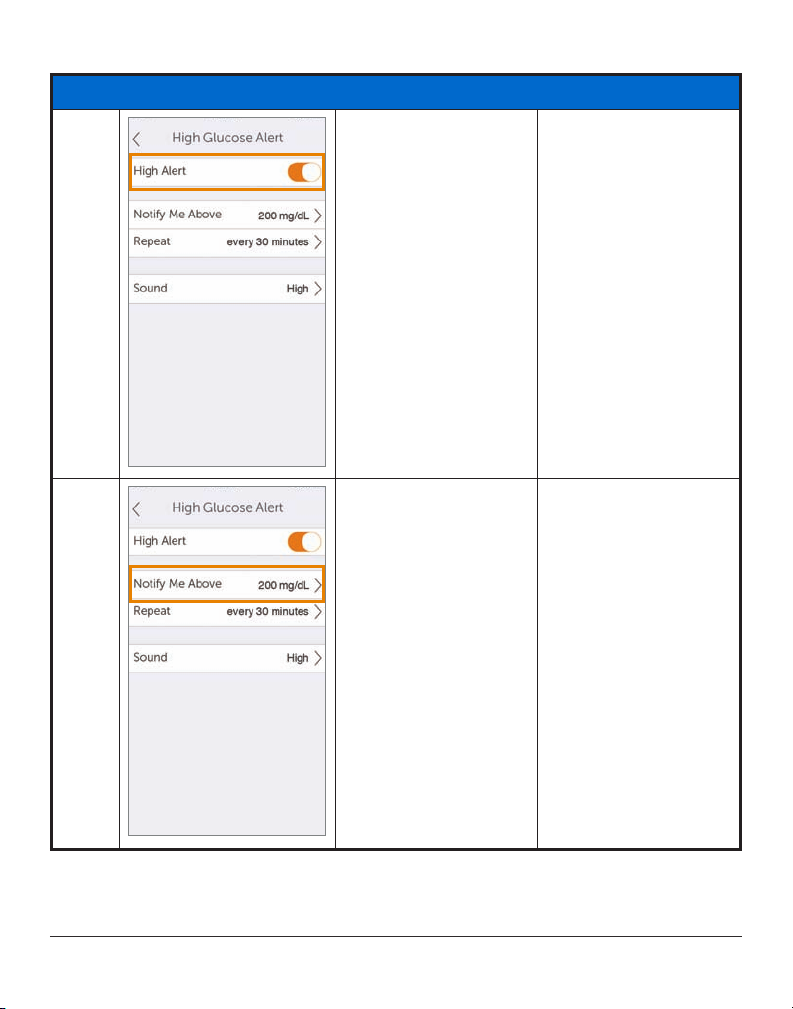
Changing an Alert
5
(Continued from previous page)
Won’t get Alerts if Off.
If Off:
On
Slide to On.
• On - Orange
• Off - Gray
6
Dexcom G5 Mobile System User Guide
Change High Alert
(mg/dL).
(Continued on next page)
Tap
Notify Me Above
.
198On the Go With G5: Customizing Your Alarm and Alerts
Page 32
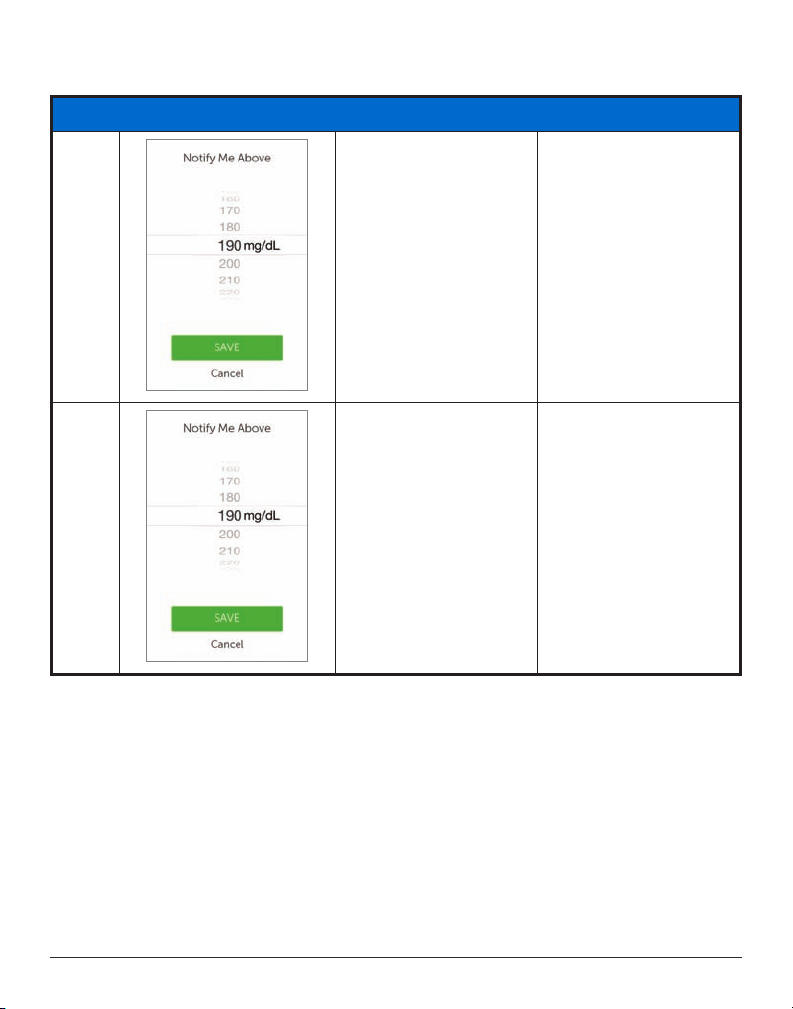
Changing an Alert
(Continued from previous page)
Change glucose level
7
from current level
(mg/dL).
Scroll selection wheel.
Stop at 190.
Saves new High Alert
glucose level (mg/dL).
8
Returns to
Alert
Notify Me Above
High Glucose
screen options.
set at
Tap
Save
.
190 mg/dL.
(Continued on next page)
Dexcom G5 Mobile System User Guide
On the Go With G5: Customizing Your Alarm and Alerts
199
Page 33
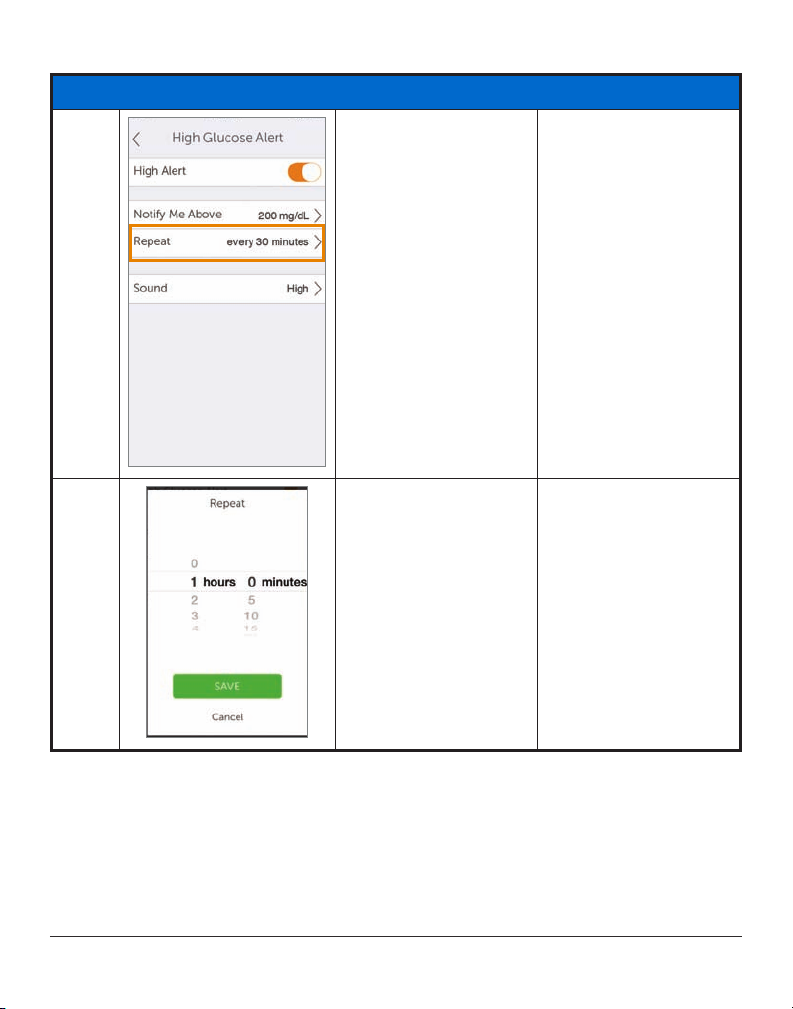
Changing an Alert
9
10
(Continued from previous page)
Changes how often
your High Alert repeats
after initial Alert and
confirmation.
Repeats only if you are
above your high glucose
level.
Changing the current
repeat setting.
Can select in five
minute steps (range 15
minutes-4 hours).
Tap
Repeat
.
Scroll selection wheel.
Stop at 1 hour.
Dexcom G5 Mobile System User Guide
(Continued on next page)
200On the Go With G5: Customizing Your Alarm and Alerts
Page 34
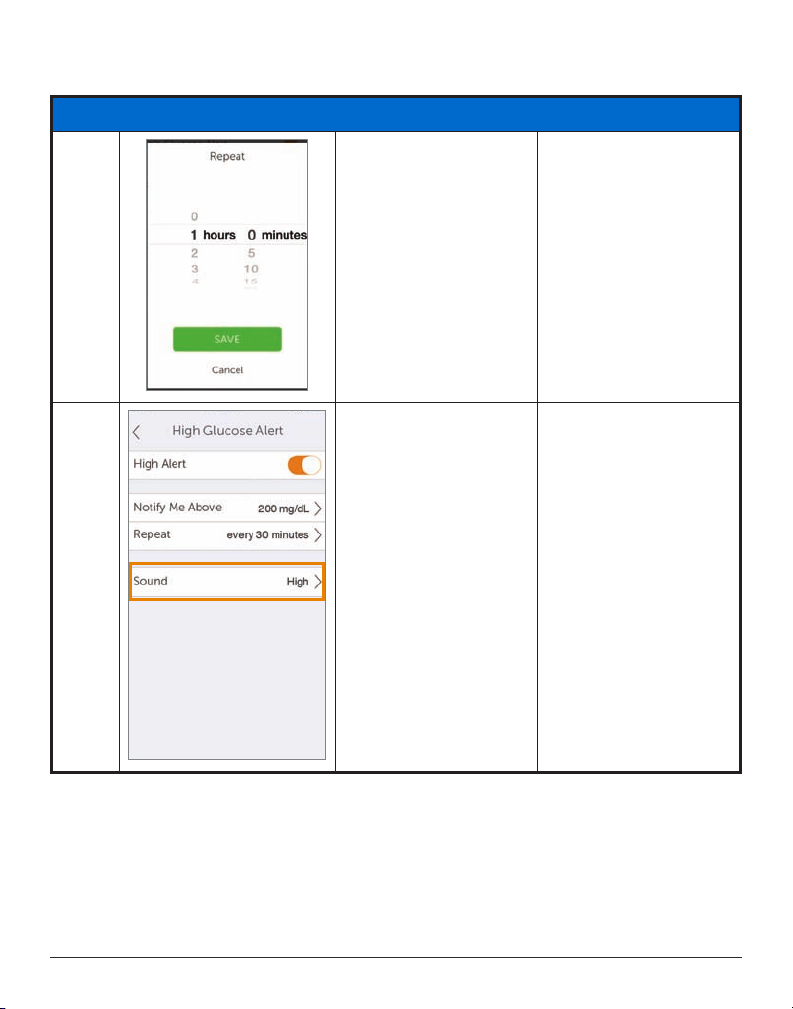
Changing an Alert
11
(Continued from previous page)
Saves your new repeat
timing.
Returns to
Alert
Repeat
High Glucose
screen options.
shows how often
you’ll get notified.
Tap
Save
.
12
Dexcom G5 Mobile System User Guide
On the Go With G5: Customizing Your Alarm and Alerts
Customize Alert sound. Tap
(Continued on next page)
Sound
.
201
Page 35
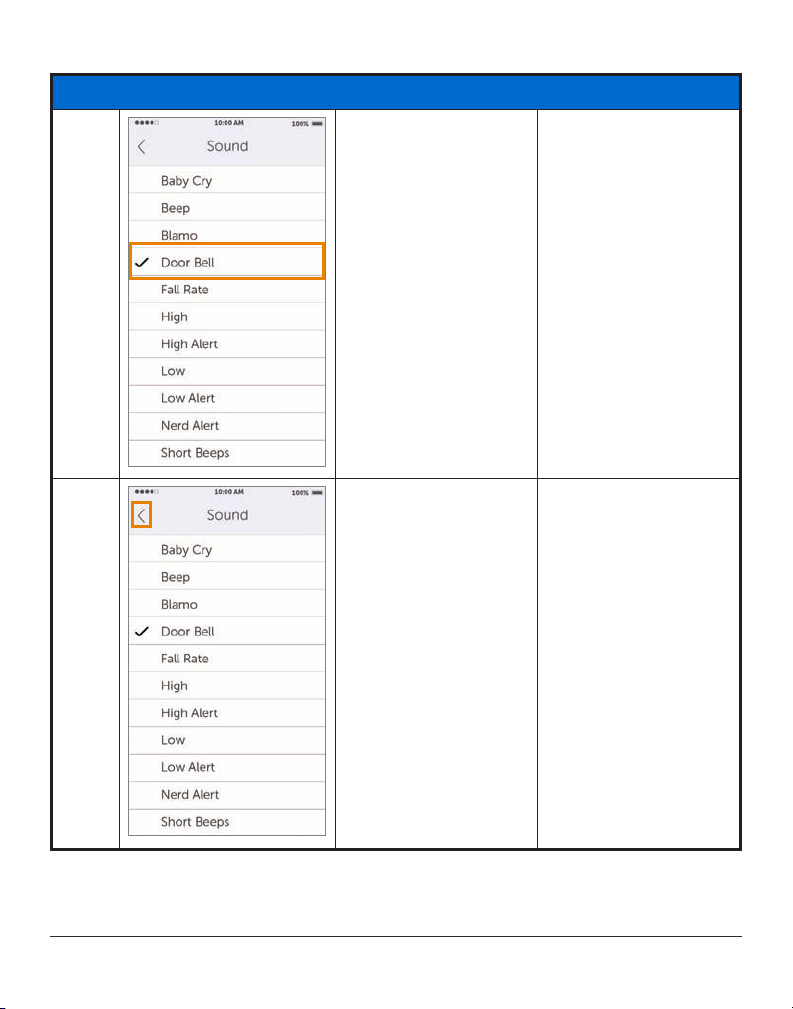
Changing an Alert
13
14
(Continued from previous page)
Changes current sound
setting.
Saves your new Alert
sound.
Return to High Glucose
Alert Menu.
Tap
Doorbell
Tap
Sound
again to hear
sound sample.
Tap
Back Arrow
.
.
Dexcom G5 Mobile System User Guide
(Continued on next page)
202On the Go With G5: Customizing Your Alarm and Alerts
Page 36
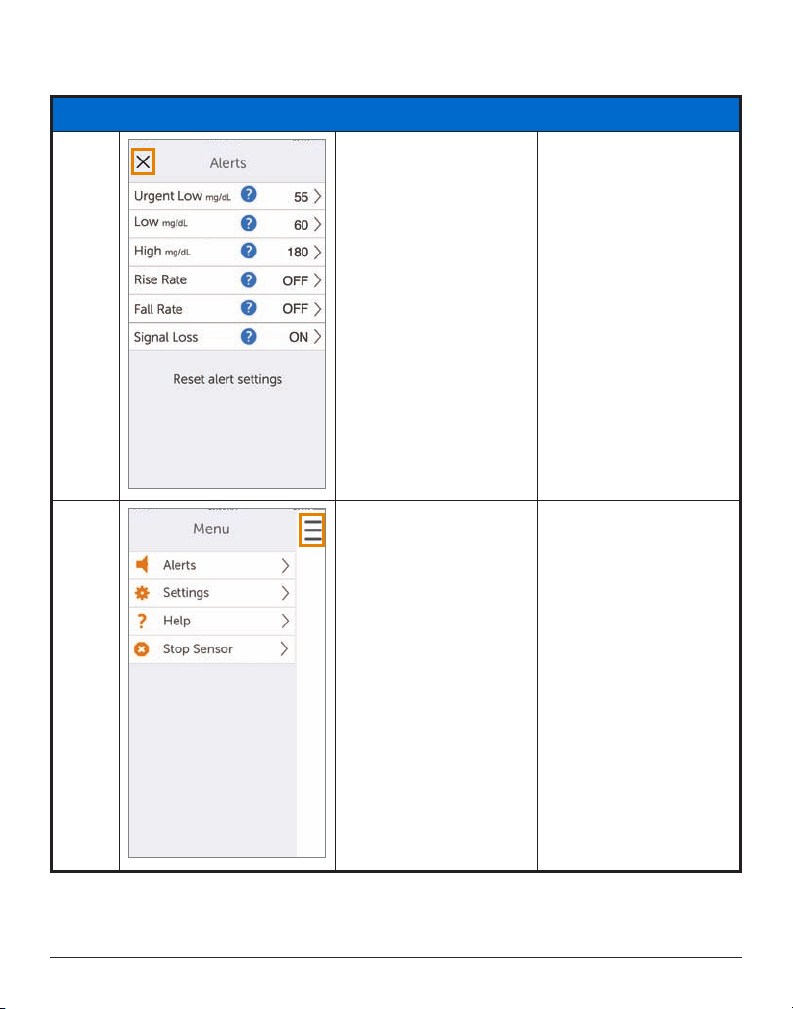
Changing an Alert
(Continued from previous page)
15
16
Return to Main Menu. Tap
Tap
Return to trend screen.
Or
Swipe right.
“X”
.
Menu
icon
Dexcom G5 Mobile System User Guide
On the Go With G5: Customizing Your Alarm and Alerts
203
Page 37

Any changes to the app will not carry over to the receiver. If using both, make the same
changes in the receiver you made in your smart device. If you don’t, you may miss an Alarm
or Alert.
12.4 Changing Receiver Alarm and Alerts
You’ll notice a flow difference between the app and the receiver when personalizing your
Alarm/Alerts. With the app, all Alert adjustments are made from one screen, whereas in the
receiver, you make changes in different screens.
Unlike the app, you change your receiver’s tones (known as Profiles) through a number of
different screens in the Profiles menu.
Profiles
Profiles determine the sound and volume of your Alarm and Alerts.
As mentioned in the previous chapter, the receiver uses a series of beeps/vibrations for an
Alarm or Alert. The receiver doesn’t have the same variety of tones as the app; however you
can adjust their volume. While the receiver doesn’t have a silent mode, selecting
replace audible beeps with quiet vibrations. The only exception is the Alarm: the urgent low
Alarm can’t be turned off.
Changes made in
(see next table), all Alerts are in Soft mode. In Chapter 10, you learned how many beeps each
Alarm/Alert has.
Normal
is the default setting for your receiver sound Profiles.
Attentive
The receiver first vibrates when sending you an Alarm or Alert. If you clear the alert at the
first vibration by pressing the
Alarm/Alert tones. If you would like to continue to get your Alarm or Alert after clearing, later
in this chapter you’ll learn about setting up Repeat Alerts.
uses a rising or falling melody instead of beeps.
HypoRepeat
every 5 seconds until your sensor glucose value rises above 55 mg/dL or you confirm by
pressing the
The next table lists the different sound Profiles, starting with the quietest, working its way up
to the loudest.
Profiles
are applied to all of the receiver’s Alarm/Alerts. If you choose
Select
is very similar to the
Select
button.
button on your navigation wheel, you won’t get any
Normal
Profile, but keeps repeating the fixed low alarm
Vibrate
will
Soft
Dexcom G5 Mobile System User Guide
204On the Go With G5: Customizing Your Alarm and Alerts
Page 38
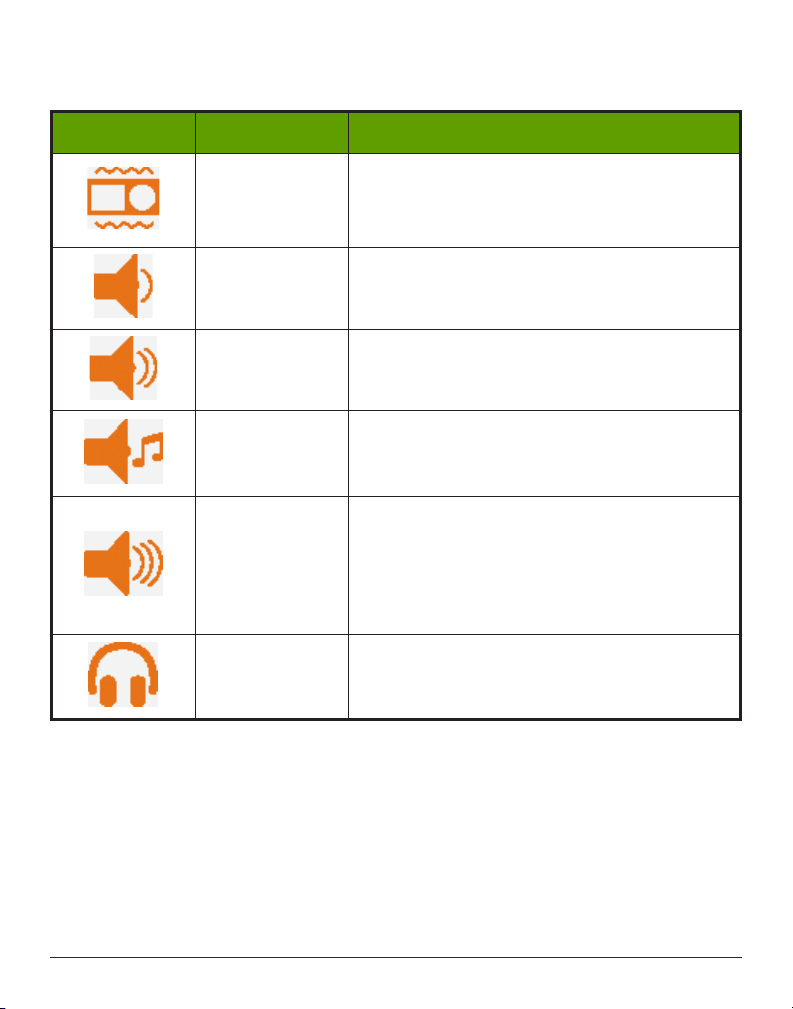
Alarm/Alert Sound Profiles
Icon Profile name Notification description
Vibration only.
Vibrate
Soft Lower volume beeps.
Only sound is your receiver vibrating.
Vibrate is not available for the Alarm.
Normal
Medium volume beeps.
Default Profile.
No beeps.
Attentive
• Rising melody for High and Rising Alerts
• Dropping melody for Low and Falling Alerts
Medium volume beeps.
Urgent low Alarm only.
HypoRepeat
Repeats fixed low alarm every 5 seconds until
sensor glucose reading rises above 55 mg/dL or is
confirmed.
Try It Sample
Profile
setting before selecting.
After choosing your sound profile, changing it is just a few steps away! Change your
throughout the day depending on what lays ahead: In a meeting? Select
ball game after work? Select
Attentive
.
Vibrate
. Going to a
The next table shows how to change a sound Profile, then sample how it sounds.
Profile
Dexcom G5 Mobile System User Guide
On the Go With G5: Customizing Your Alarm and Alerts
205
Page 39
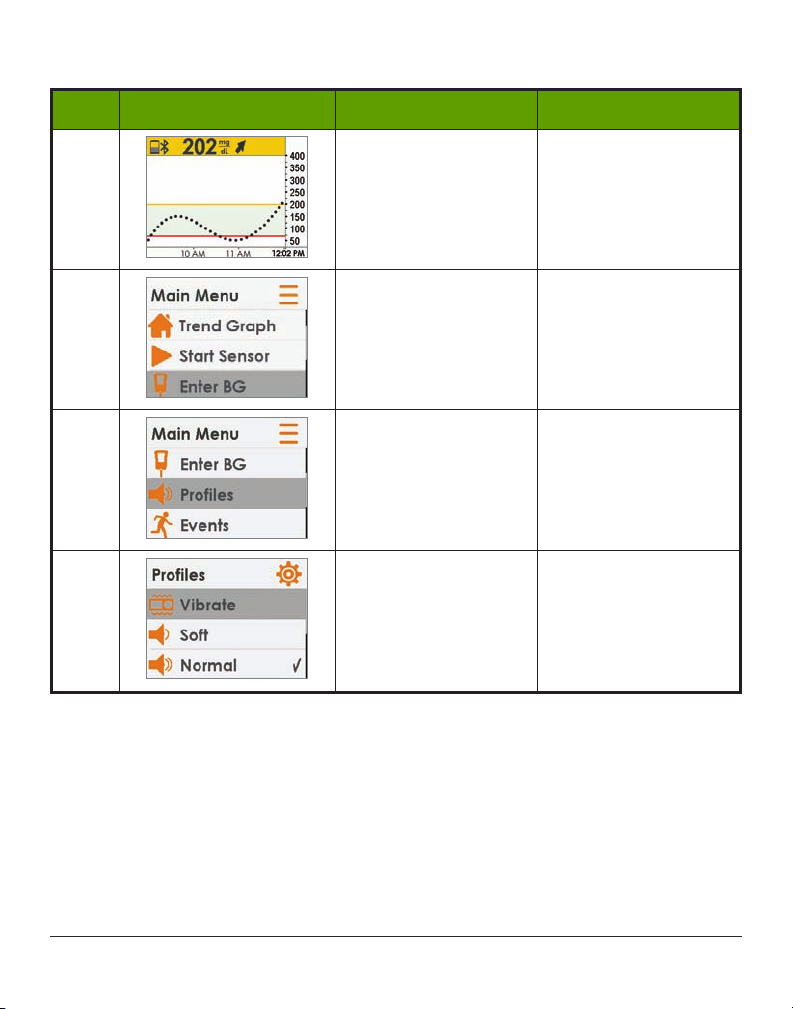
Customizing Sound Profiles: Receiver
Step What you see What it means What you do
1 Go to Main Menu. Press
2
Second Main Menu
screen.
Press
Profiles
screen.
Press
3
Profiles adjusts volume
of Alarm/Alerts.
Stop at
Press
Press
4
Choose sound
Profile
.
Stop at desired
Press
(Continued on next page)
Select
.
Down Arrow
.
on second
Up/Down Arrow
Profiles
.
Select
.
Up/Down Arrow
Profile
Select
.
.
.
.
Dexcom G5 Mobile System User Guide
206On the Go With G5: Customizing Your Alarm and Alerts
Page 40
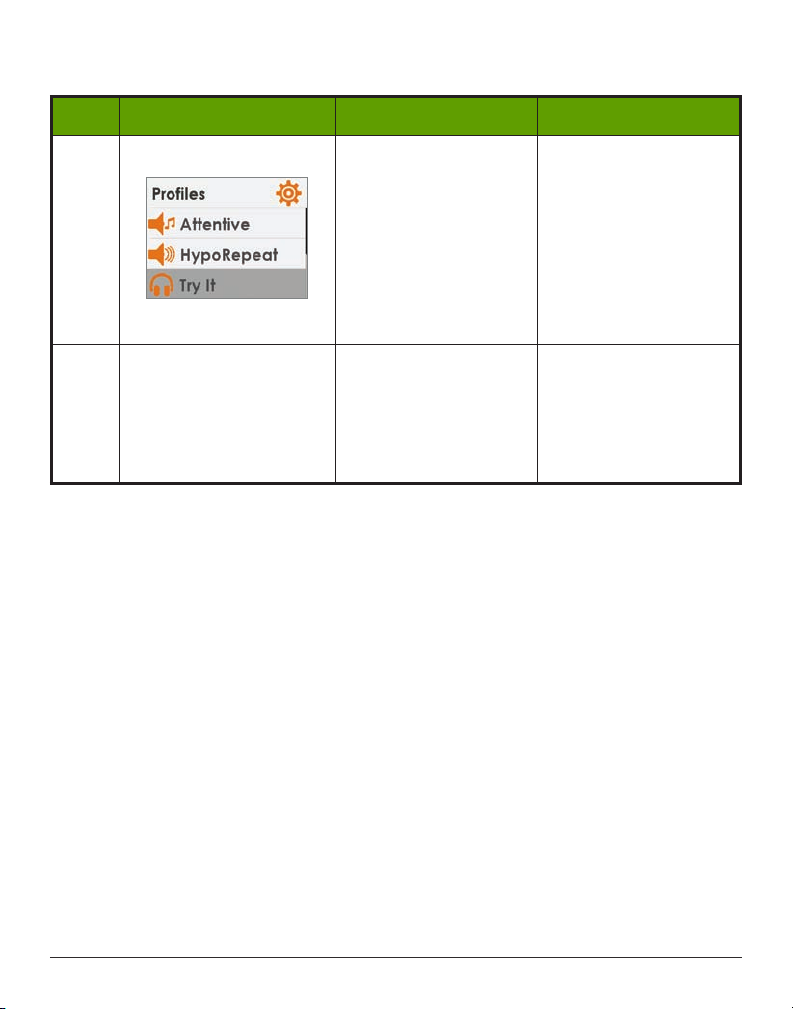
(Continued from previous page)
Step What you see What it means What you do
Sample sound:
Press
Down Arrow
5
Selected
marked.
Profile
check
Stop at
Press
sound play.
Try It
Select
.
.
to have the
Exit Profiles:
Press
Left Arrow
.
Repeat steps 2-5 to
change Profile.
6 N/A Repeat as needed.
To Exit:
Left Arrow
Press
Main Menu
to
.
Profiles allow you to change your Alarm and Alerts tones. The Alerts menu gives you options
for personalizing your glucose level Alerts, repeating Alerts, turning your Rising/Falling Alerts
on and turning on your Signal Loss Alert.
Alerts Main Menu
Low/High
Advanced
Loss Alert.
Alert option lets you adjust your low/high glucose Alert level (mg/dL).
gives you options to turn on Low/High Repeat, Rise/Fall Alerts and Signal
Low/High Repeat
In the previous chapter, you learned clearing an Alert stops it from repeating. If you want to
continue to be re-alerted until your glucose levels are back in your target range, turn on the
Repeat
option.
Rise/Fall Rate
Your trend screen provides visual cues letting you know your sensor glucose readings are
falling or rising rapidly.
Dexcom G5 Mobile System User Guide
On the Go With G5: Customizing Your Alarm and Alerts
207
Page 41
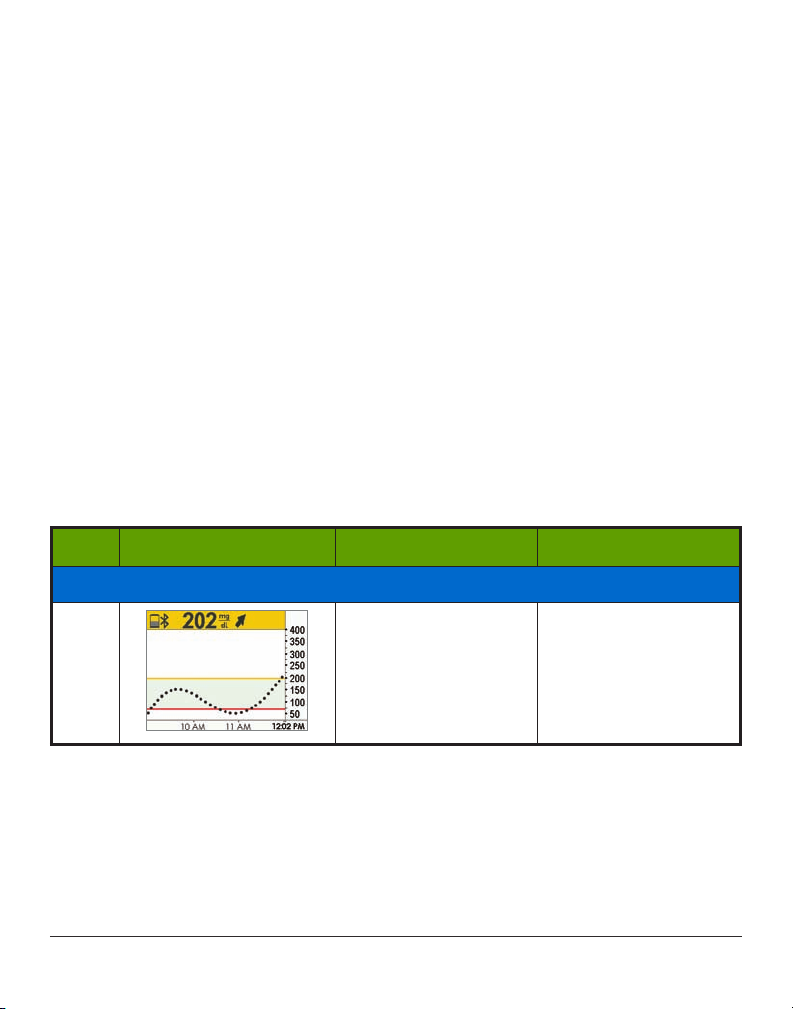
Constantly looking at your screen may not be practical. You can customize your Rise/Fall
Alert with vibrations or beeps letting you know when your glucose is rising or falling (2
mg/dL/min or 30 mg/dL up or down in 15 minutes) or rising or falling rapidly (3 or more
mg/dL/min or 45 mg/dL or more up or down in 15 minutes).
The default setting for Repeat and Rise/Fall Rate is
It’s important you discuss your alert settings with your healthcare professional.
Off
.
Signal Loss
Signal Loss Alert tells you when your transmitter and receiver aren’t communicating. Set the
Signal Loss and get alerted if your sensor glucose readings have stopped due to a signal loss
anywhere from 20 to 200 minutes.
The default setting for Signal Loss is On.
Steps to Customize Receiver Alarm/Alerts
Using the same example from changing your app Alerts, let’s change the receiver’s High Alert
notification level from 200 mg/dL to 190 mg/dL, repeating every 60 minutes.
Follow the same steps turning on the Rise/Fall Alerts, and adjusting your Low Alerts.
Customizing Alerts: Receiver
Step What you see What it means What you do
Change High Alert Level
1
Dexcom G5 Mobile System User Guide
Go to Main Menu. Press
(Continued on next page)
Select
.
208On the Go With G5: Customizing Your Alarm and Alerts
Page 42
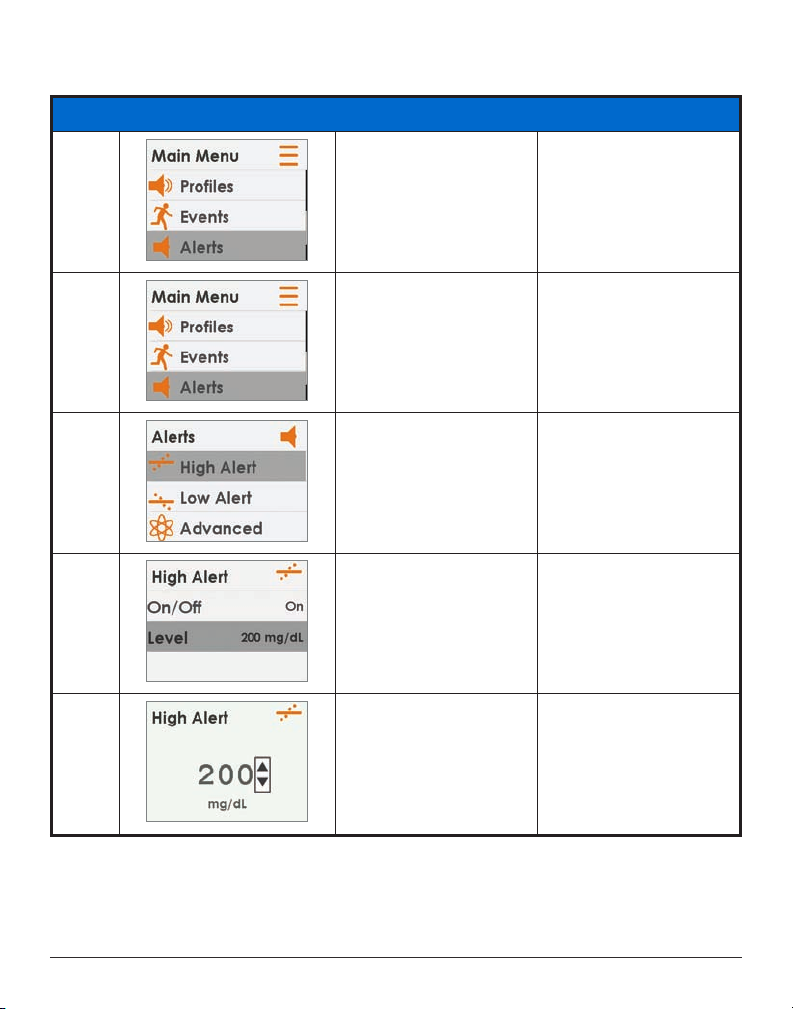
Change High Alert Level
2
(Continued from previous page)
Alerts option from the
Main Menu.
Press
Stop
Down Arrow
at Alerts
.
.
3
Enter Alerts menu
option.
Press
Select
.
Alerts’ option menu.
4
High/Low/Advanced
(Repeat, Rise/Fall,
Lists different Alerts:
Press Up/
Stop at
Press
Down Arrow
High Alert
Select
.
.
.
Signal Loss) Alerts.
Press
Alert’s current settings.
5
Change your current
High Alert level.
Current setting.
Use
6
Up/Down
change your High Alert
arrows to
Down Arrow
Stop at
Press
Press
Level
Select
Down Arrow
Stop at 190 mg/dL.
.
.
.
.
level (mg/dL).
(Continued on next page)
Dexcom G5 Mobile System User Guide
On the Go With G5: Customizing Your Alarm and Alerts
209
Page 43
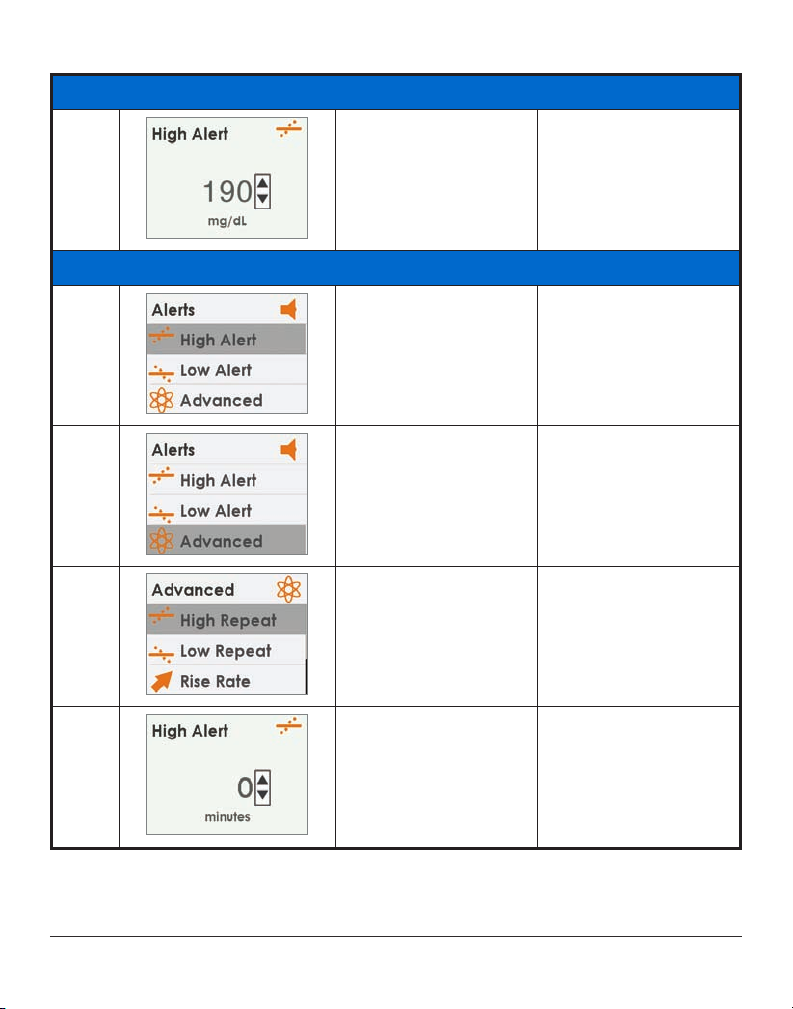
Change High Alert Level
7
Turn Repeart On
(Continued from previous page)
Saves new High Alert
level.
Return to Alerts Menu.
Press
To exit:
Press
Select
.
Left Arrow
.
10
11
Alerts Menu.
8
Choose Advanced to get
to Repeat Alert.
9
Enter Advanced Alert
options.
Press
Down Arrow
Stop at
Press
Select
Advanced
Advanced
on
.
.
.
Main Advanced screen.
Set Repeat Alerts.
Turn On Rise/Fall Rate
Arrow to
Press
High Repeat
Select
.
.
Alerts.
Initial screen shows
current repeat minutes.
Change time frame in 5
Press Up/
Down Arrow
Stop at 60 minutes.
.
minute increments.
(Continued on next page)
Dexcom G5 Mobile System User Guide
210On the Go With G5: Customizing Your Alarm and Alerts
Page 44
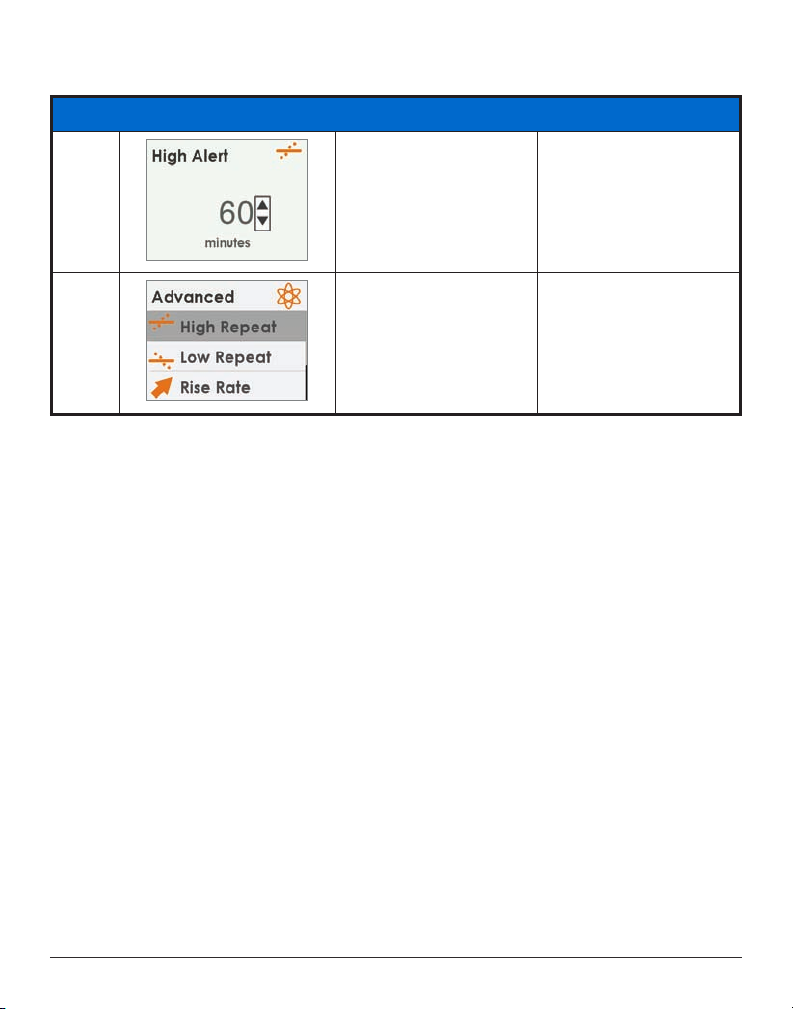
Turn Repeat On
(Continued from previous page)
12
13
Changed
High Alert.
Changed completed.
Return to
Repeat
time for
Alerts Menu
Press
Select
.
To exit:
.
Press
Left Arrow
.
It doesn’t matter which device you first use to customize your Alarm/Alert settings, key is
making sure you make the same changes in both or you may miss an Alarm or Alert.
Summary
Now You Can:
• Customize your glucose trend Low/High level notifications
○ Dexcom G5 Mobile App
○ Dexcom G5 Mobile Receiver
• Adjust Alarm tones
• Set up receiver’s Advanced Alerts
○ Low/High Repeat
○ Rise/Fall Rate
○ Signal Loss
What’s Next?
Believe it or not, you are becoming a pro at using your Dexcom G5 Mobile CGM System!
You’ve set up the app and receiver, started a session, calibrated, followed your glucose
trends, paid attention to your Alarm/Alerts, prompts, and ended a session!
The next chapters begin our fourth part of the user guide: information you need to know, but
unlike the previous chapters, typically not part of your day-to-day Dexcom G5 Mobile CGM
System experience.
Dexcom G5 Mobile System User Guide
On the Go With G5: Customizing Your Alarm and Alerts
211
Page 45

The next part, Part 4: Everything Else G5, reviews the technical specifications, the warranty,
how to take care of the Dexcom G5 Mobile components, going through security when
traveling, contacting the Help Desk, Troubleshooting information, and symbols on system
components and packages.
Dexcom G5 Mobile System User Guide
212On the Go With G5: Customizing Your Alarm and Alerts
Page 46
EVERYTHING ELSE G5
• Warranty
• Maintenance
• Travel Tips
• Customer Service Contacts
• Technical Information
• Troubleshooting
• Package Symbols
Page 47

Page intentionally left blank
Page 48

Chapter 13
Everything Else G5:
Warranty: The Fine Print
13.1 Introduction
Sometimes stuff happens. Dexcom has you covered!
The following is our warranty information outlining what we do cover, what we don’t and
for how long. First the receiver’s limited warranty information, then the transmitter’s limited
warranty information.
13.2 Receiver Warranty Information
Dexcom G5 Mobile CGM System’s Limited Warranty
What’s Covered and for How Long?
Dexcom, Inc. (“Dexcom”) provides a limited warranty to the original purchaser (“you” or
“Purchaser”) that the Dexcom G5 Mobile Receiver (the “Receiver”) is free from defects
in material and workmanship under normal use (“Limited Warranty”) for the period
starting from the shipment date and continuing for a year following the shipment date
(“Warranty Period”):
Dexcom G5 Mobile Receiver: 1 year from shipment date
NOTE: If you received this Receiver as a replacement for an in-warranty Receiver, the Limited
Warranty for the original Receiver shall continue for the Warranty Period on the original
Receiver, but the replacement is not subject to any other warranty.
What’s Not Covered?
This Limited Warranty is based on the Purchaser properly using the CGM system in
accordance with the documentation provided by Dexcom. You are not permitted to use
the CGM system otherwise. You understand that misusing the CGM system, improperly
accessing it or the information it processes and transmits, “jailbreaking” your CGM system or
cell phone, and taking other unauthorized actions may put you at risk, cause the CGM system
to malfunction, is not permitted and voids your Limited Warranty.
Dexcom G5 Mobile System User Guide
Warranty: The Fine Print
215
Page 49

This Limited Warranty does not cover:
1. Defects or damage resulting from accident, misuse, abuse, neglect, unusual physical,
electrical or electromechanical stress, modification of any part of the product, or
cosmetic damage.
2. Equipment with the ID number removed or made illegible.
3. All surfaces and other externally exposed parts that are scratched or damaged due to
normal use.
4. Malfunctions resulting from the use of the Receiver in conjunction with accessories,
ancillary products, and peripheral equipment, whether hardware or software, not
furnished or approved by Dexcom.
5. Defects or damage from improper testing, operation, maintenance, installation,
or adjustment.
6. Installation, maintenance, and service of products or services other than the CGM
system (which may be subject to a separate limited warranty), whether provided by
Dexcom or any other party; this includes your cell phone or smart device and your
connection to the Internet.
7. Equipment which has been taken apart physically or which has had any of its software
accessed in any unauthorized manner.
8. Water damage to the Receiver.
a. Receiver is not water resistant.
b. Do not get the receiver wet at any time.
Dexcom’s Obligations Under the Limited Warranty
During the Warranty Period, Dexcom will replace, without charge to purchaser, any defective
Dexcom G5 Mobile Receiver.
To return, you must send the Receiver to an authorized Dexcom Technical Support
Department. Make sure you package the Receiver adequately for shipping.
The return package needs to include:
1. Receiver
2. Sales receipt or comparable substitute proof of sale showing the date of purchase
3. Receiver’s Serial Number
4. Seller’s name and address
Call Dexcom Technical Support Department for delivery information help:
• Toll free: 1.877.339.2664
• Charges may apply: 1.858.200.0200
Upon receipt, Dexcom will promptly replace the defective Receiver.
Dexcom G5 Mobile System User Guide
216Warranty: The Fine Print
Page 50

If Dexcom determines the Receiver isn’t covered by this Limited Warranty, Purchaser must
pay all shipping charges for the Receiver’s return by Dexcom.
Limits on Dexcom’s Warranty and Liability Obligations
The Limited Warranty described above is the exclusive warranty for the Receiver, and in lieu
of all other warranties, expressed or implied, either in fact or by operation of law, statutory
or otherwise.
Dexcom expressly excludes and disclaims all other warranties, including without limitation
any warranty of merchantability, fitness for a particular purpose, or non-infringement, except
to the extent prohibited by applicable law.
Dexcom shall not be liable for any special, incidental, consequential, or indirect damages,
however caused, and on any theory of liability, arising in any way out of the sale, use,
misuse, or inability to use, any Dexcom G5 Mobile CGM System or any feature or service
provided by Dexcom for use with the Dexcom G5 Mobile CGM System.
These limits on Dexcom’s warranty and liability obligations apply even if Dexcom, or its
agent, has been advised of such damages and notwithstanding any failure of essential
purpose of this Limited Warranty and the limited remedy provided by Dexcom.
This Limited Warranty is only provided to the original Purchaser and can’t be transferred to
anyone else, and states Purchaser’s exclusive remedy.
If any portion of this Limited Warranty is illegal or unenforceable by reason of any law, such
partial illegality or enforceability shall not affect the enforceability of the remainder of this
Limited Warranty. This Limited Warranty will be enforced to the maximum extent permitted
by law.
13.3 Transmitter Warranty Information
Dexcom G5 Mobile Transmitter Limited Warranty
What’s Covered and for How Long?
Dexcom, Inc. (“Dexcom”) provides a limited warranty to the original purchaser that the
Dexcom G5 Mobile Transmitter is free from defects in material and workmanship under
normal use for the period commencing on the date of first use by the original purchaser (the
“Date of First Use”) and expiring three (3) months thereafter; provided, that, the Date of First
use occurs within five (5) months of the date of shipment (or disbursement) of the transmitter
to the original purchaser.
Dexcom G5 Mobile System User Guide
Warranty: The Fine Print
217
Page 51

NOTE: If you received this Transmitter as a replacement for an in-warranty Transmitter, the
Limited Warranty for the original Transmitter shall continue for the Warranty Period on the
original Transmitter, but the replacement is not subject to any other warranty.
What’s Not Covered?
This Limited Warranty is based on the Purchaser properly using the CGM system in a
timely manner and in accordance with the documentation provided by Dexcom. You are not
permitted to use the CGM system otherwise. You understand that misusing the CGM system,
improperly accessing it or the information it processes and transmits, “jailbreaking” your
CGM system or cell phone, and taking other unauthorized actions may put you at risk, cause
the CGM system to malfunction, is not permitted and voids your Limited Warranty.
This Limited Warranty does not cover:
1. Defects or damage resulting from accident, misuse, abuse, neglect, unusual physical,
electrical or electromechanical stress, modification of any part of the product, or
cosmetic damage.
2. Equipment with the ID number removed or made illegible.
3. All surfaces and other externally exposed parts that are scratched or damaged due to
normal use.
4. Malfunctions resulting from the use of the Transmitter in conjunction with accessories,
ancillary products, and peripheral equipment, whether hardware or software, not
furnished or approved by Dexcom.
5. Defects or damage from improper testing, operation, maintenance, installation,
or adjustment.
6. Installation, maintenance, and service of products or services other than the CGM
system (which may be subject to a separate limited warranty), whether provided by
Dexcom or any other party; this includes your cell phone or smart device and your
connection to the Internet.
7. Equipment which has been taken apart physically or which has had any of its software
accessed in any unauthorized manner.
8. Water damage to Transmitter.
a. Beyond specifications listed in Dexcom G5 Mobile CGM System’s User Guide.
b. User Guide is included in the Dexcom G5 Mobile System’s Receiver package.
c. Located on dexcom.com.
Dexcom G5 Mobile System User Guide
218Warranty: The Fine Print
Page 52

13.4 Dexcom’s Obligations Under the Limited
Warranty
During the Warranty Period, Dexcom will replace, without charge to purchaser, any defective
Dexcom G5 Mobile Transmitter.
To return, you must send the Transmitter to an authorized Dexcom Technical Support
Department. Make sure you package the Transmitter adequately for shipping.
The return package needs to include:
1. Transmitter
2. Sales receipt or comparable substitute proof of sale showing the date of purchase
3. Transmitter’s Serial Number
4. Seller’s name and address
Call Dexcom Technical Support Department for delivery information or help:
• Toll free: 1.877.339.2664
• Charges may apply: 1.858.200.0200
Upon receipt, Dexcom will promptly replace the defective Transmitter.
If Dexcom determines the Transmitter isn’t covered by this Limited Warranty, Purchaser must
pay all shipping charges for the Transmitter’s return by Dexcom.
Limits on Dexcom’s Warranty and Liability Obligations
The Limited Warranty described above is the exclusive warranty for the Transmitter, and
in lieu of all other warranties, expressed or implied, either in fact or by operations of law,
statutory or otherwise.
Dexcom expressly excludes and disclaims all other warranties, including without limitation
any warranty merchantability, fitness for a particular purpose, or non-infringement, except to
the extent prohibited by applicable law.
Dexcom shall not be liable for any special, incidental, consequential, or indirect damages,
however caused, and on any theory of liability, arising in any way out of the sale, use,
misuse, or inability to use, any Dexcom G5 Mobile CGM System or any feature or service
provided by Dexcom for use with the Dexcom G5 Mobile CGM System.
These limits on Dexcom’s warranty and liability obligations apply even if Dexcom, or its
agent, has been advised of such damages and notwithstanding any failure of essential
purpose of this Limited Warranty and the limited remedy provided by Dexcom.
Dexcom G5 Mobile System User Guide
Warranty: The Fine Print
219
Page 53

This Limited Warranty is only provided to the original Purchaser and can’t be transferred to
anyone else, and states Purchaser’s exclusive remedy.
If any portion of this Limited Warranty is illegal or unenforceable by reason of any law, such
partial illegality or enforceability shall not affect the enforceability of the remainder of this
Limited Warranty.
This Limited Warranty will be enforced to the maximum extent permitted by law.
Dexcom G5 Mobile System User Guide
220Warranty: The Fine Print
Page 54

Chapter 14
Everything Else G5:
How to Take Care of Your Dexcom G5 Mobile
CGM System
14.1 Introduction
There are not a lot of moving parts in the Dexcom G5 Mobile CGM System, so maintenance
is relatively simple: keep it clean, keep display device (s) dry and protected, use accessory
parts, like the USB cable, etc., given to you with the system and store according to each
piece’s labeling instructions.
This chapter only covers Dexcom parts (sensor, transmitter, and receiver). Follow the
manufacturer’s instructions when caring for your smart device.
After this chapter, you will be able to:
1. Demonstrate proper maintenance
a. Sensor
b. Transmitter
c. Receiver
d. Charge receiver battery
2. Determine what accessories you may use
3. Identify the best storage methods
a. Sensor
b. Transmitter
c. Receiver
4. How to safely dispose of
a. Sensor
b. Transmitter
c. Receiver
Dexcom G5 Mobile System User Guide
How to Take Care of Your Dexcom G5 Mobile CGM System
221
Page 55

14.2 Basic Maintenance
Sensor
1. Keep in sterile package until ready for use.
2. Check package label for expiration date.
a. Expiration date format is YYYY-MM-DD (year-month-day) format.
b. Don’t use if sensor has expired.
i. May provide inaccurate sensor glucose readings.
ii. May be unsterile.
Transmitter
1. Keep in box until ready for use.
a. Check transmitter and don’t use if damaged.
2. Transmitter is reusable, however only by the same person.
a. Never share transmitter with anyone.
3. Between uses, clean outside of the transmitter with damp cloth or alcohol wipes. Let
dry before use or storage.
4. When not in use.
a. Protect transmitter by returning to its packaging or another safe place.
b. Store between 32° F-113° F.
Receiver
1. Check receiver casing, if it’s cracked or damaged, don’t use.
a. May get an electric shock.
2. Keep receiver dry—it is only splash resistant.
a. Don’t submerge in liquid.
b. Don’t spill fluids on receiver.
3. Keep battery charged.
a. Only use Dexcom USB charging/download cable.
4. Keep the micro USB port cover closed if not using USB cable.
a. Prevents fluid from getting inside receiver.
Charging Receiver’s Battery
The receiver’s status bar lets you see its battery level and prompts you when the battery is
getting low. While the receiver is being charged, you will continue to get your sensor glucose
readings if the transmitter and receiver are within 20 feet of each other.
Dexcom G5 Mobile System User Guide
222How to Take Care of Your Dexcom G5 Mobile CGM System
Page 56
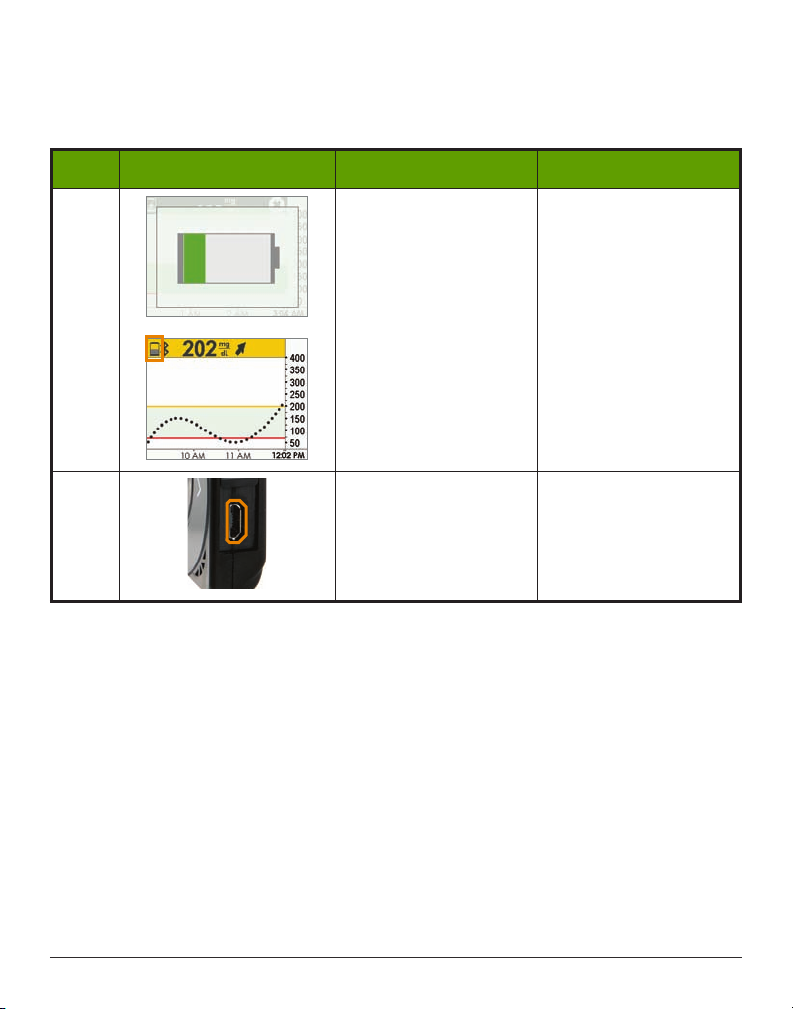
Each charge lasts approximately three days. If your receiver’s battery was drained, after
charging, you may need to reset its time and date. If this is required, the system tells you to
reset and takes you to the time/date setting screens.
Step What you see What it means What you do
1 Low Battery Charge your battery.
Open
USB port door
2
Micro USB Port
Plug
USB cable
for recharging.
(Continued on next page)
.
into port
Dexcom G5 Mobile System User Guide
How to Take Care of Your Dexcom G5 Mobile CGM System
223
Page 57
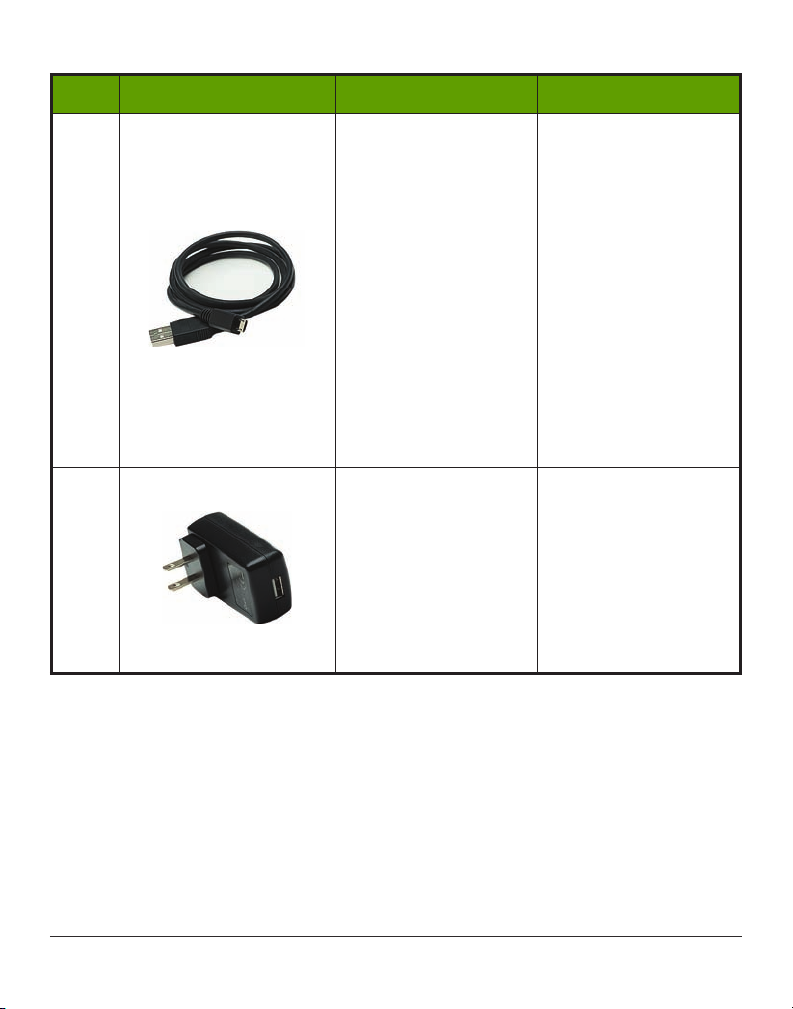
(Continued from previous page)
Step What you see What it means What you do
3 Micro USB Cable
4
Wall Charger
(Continued on next page)
Plug into
receiver
to
charge battery.
Don’t plug into a
computer port to charge
Don’t use an external
USB hub, it doesn’t
provide enough power to
charge battery.
Battery can only be
charged using the
adapter/wall charger.
Charge battery before
each new sensor
session.
Plug
USB cable
adapter/wall charger
into
.
Plug wall charger into
an electrical outlet
to charge receiver’s
battery.
Don’t block access to
the charger.
Dexcom G5 Mobile System User Guide
224How to Take Care of Your Dexcom G5 Mobile CGM System
Page 58
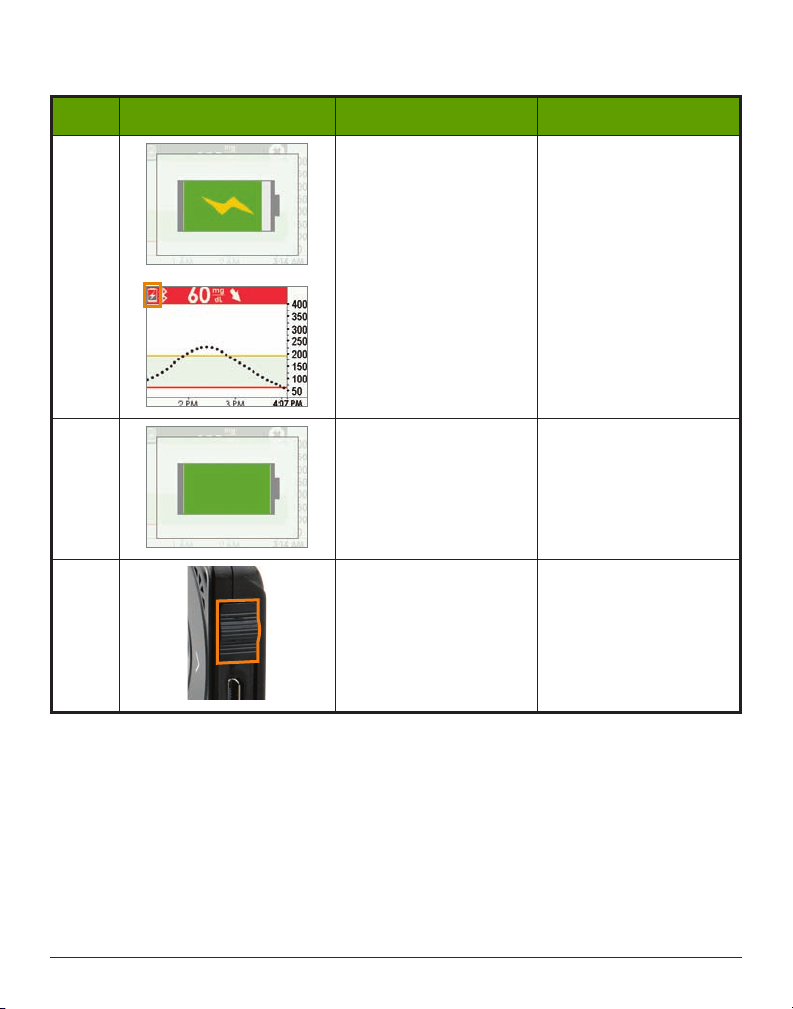
(Continued from previous page)
Step What you see What it means What you do
5 Battery Charging
6
Battery Charged
Keep charging until
icons are solid.
Unplug
wall charger
from outlet when fully
charged.
Remove
USB cable
receiver.
Close
6
USB Port Door
USB port door
after removing USB
cable to keep receiver
clean and dry.
Accessories
1. Only use Dexcom-supplied parts (including cables and chargers).
a. Use of non-Dexcom supplied parts may affect safety and performance.
2. Insert cables only as directed.
a. Do not force cables in place.
3. Look at cables for signs of wear and tear. Do not use if worn or damaged.
There is no repair service available for any Dexcom G5 Mobile CGM System parts.
from
Dexcom G5 Mobile System User Guide
How to Take Care of Your Dexcom G5 Mobile CGM System
225
Page 59

If you experience problems, call Dexcom Technical Support, available 24 hours, 7 days a
week, toll free at 1.877.339.2664 or toll at 1.858.200.0200 to report the issue.
14.3 Storage
Storing your Dexcom G5 Mobile CGM System correctly helps prevents system failures.
Sensor
1. Keep the sensor in its sterile packaging until you are ready to use it.
2. Store at temperatures between 36° F-77° F.
a. Stored outside of this range may cause inaccurate sensor glucose readings.
b. May store in refrigerator if it’s within this temperature range.
c. Sensors should not be stored in freezer.
3. Store at humidity levels between 15%-85% relative humidity.
Transmitter
1. Keep transmitter protected when not in use.
2. Store at temperatures between 32° F-113° F.
3. Store at humidity levels between 10%-95% relative humidity.
Receiver
1. Keep receiver protected when not in use.
2. Fully charge the battery before storing for over 3 months.
3. Store at temperatures between 32° F-104° F.
4. Store at humidity levels between 10%-95% relative humidity.
Dexcom G5 Mobile System User Guide
226How to Take Care of Your Dexcom G5 Mobile CGM System
Page 60
14.4 Checking App and Receiver Information
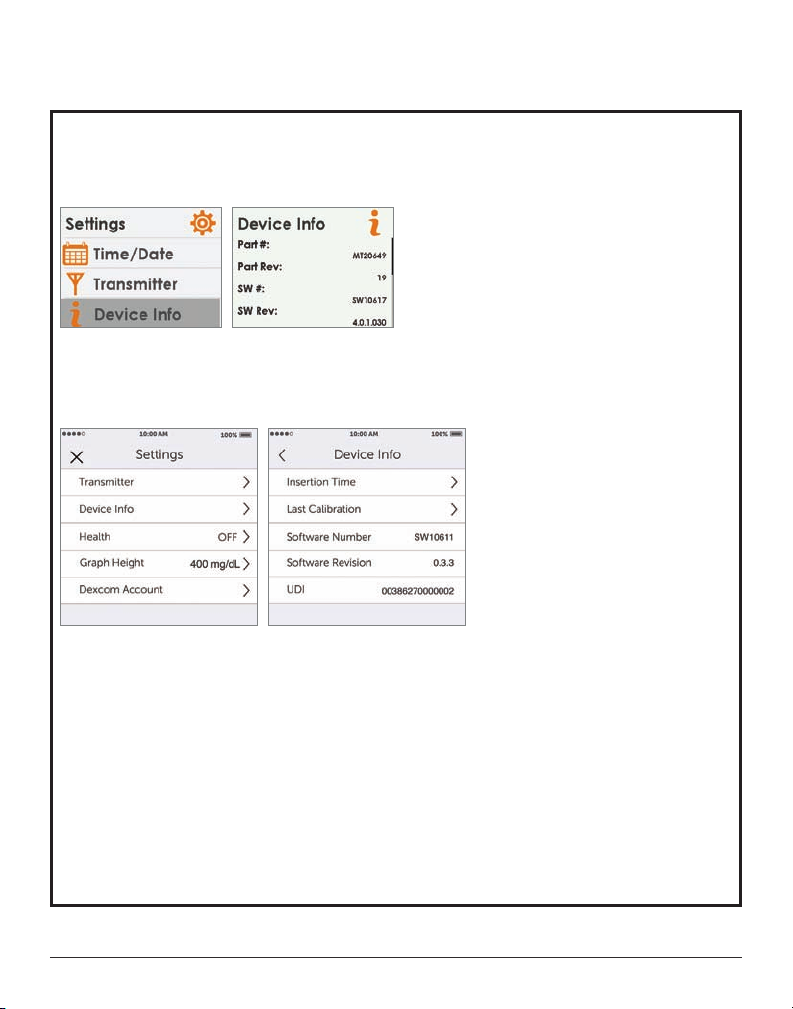
CHECKING YOUR APP & RECEIVER SOFTWARE VERSION
You can check your app or receiver for information about your CGM system at any time.
Receiver
1. From the Settings menu, press Up or
2. Press
Select
. Information about your sensor session and system will show.
App
1. From Main Menu, tap
2. Tap
Device Info.
Settings.
Available Information
• Insertion Time
• Last Calibration
• Transmitter Battery
• Transmitter SN
• Serial Number
• Part Number
• Part Revision
• Software Number
Down arrows
to scroll to “Device Info.”
Dexcom G5 Mobile System User Guide
How to Take Care of Your Dexcom G5 Mobile CGM System
227
Page 61

14.5 System Disposal
Different municipalities have different requirements when throwing away electronics
(receiver and transmitter) and parts that have come in contact with blood or other bodily
fluids (sensor).
Consult your area’s local waste management authorities for proper disposal instructions.
Taking care of your Dexcom G5 Mobile CGM System is pretty easy. In the next chapter,
traveling with your Dexcom G5 Mobile CGM System, you’ll learn how simple it is to see the
world with your Dexcom G5 Mobile CGM System!
Dexcom G5 Mobile System User Guide
228How to Take Care of Your Dexcom G5 Mobile CGM System
Page 62

Chapter 15
Everything Else G5:
On the Go With Dexcom G5 Mobile CGM
System: Getting Through Security
15.1 Introduction
Dexcom G5 Mobile can be a great travel companion; you can go through metal detectors, be
handwanded, and even keep your receiver on during your flight.
This chapter only covers the Dexcom G5 Mobile CGM System. It doesn’t cover steps you need
to take when traveling with your smart device. See your smart device’s instruction for use to
learn how to travel with it.
After this chapter, you will be able to:
1. Explain proper procedure if you prefer a full body pat down.
2. Describe steps needed for a TSA officer to inspect Dexcom G5 Mobile CGM
System components.
3. Identify when your display device(s) can be on during a flight.
4. Contact TSA directly with your security questions.
15.2 Going Through Security
Walk-Through Metal Detectors
Transmitter and Sensor
No worries about wearing your transmitter and sensor when going through security.
Go through walk-in metal detectors or, if you prefer, be handwanded without worrying about
damaging your transmitter or sensor.
If you’re concerned or uncomfortable about walking through the metal detector, the
Transportation Security Administration (TSA) requests you tell the Security Officer you’re
wearing a continuous glucose monitor and want a full-body pat-down with a visual
inspection of your sensor and transmitter.
Let the Security Officer know the sensor can’t be removed because it’s inserted under the skin.
Dexcom G5 Mobile System User Guide
On the Go With Dexcom G5 Mobile CGM System: Getting Through Security
229
Page 63

X-Ray Machines
Receiver, Extra Sensors
Don’t put your Dexcom G5 Mobile CGM System components through x-ray machines.
Before your screening process begins, ask the TSA Officer to perform a visual inspection of
the receiver and your extra sensors. Place all Dexcom G5 Mobile components in a separate
bag before handing over to the Security Officer.
For other medical supplies, such as medications, meters, and strips, check manufacturer’s
instructions or the TSA website.
Body Scanners
Use of AIT body scanners has not been studied and therefore we recommend hand-wanding
or full body pat down and visual inspection in those situations.
In the Plane
You may keep the receiver on:
1. Before take-off
2. While in flight
3. After landing
The Dexcom G5 Mobile CGM System is safe for use on U.S. commercial airlines.
If you choose to use your smart device, the airlines request you put your smart devices
in airplane mode. You can do this, but still keep your
receive sensor glucose information on your smart device.
Bluetooth
on and you will be able to
Technical Information
The Dexcom G5 Mobile Transmitter is an M-PED with emission levels that meet
RTCA/DO160, Section 21, Category M. Per FAA Advisory, Circular #91-21, 1B,
dated 8/25/06.
Any M-PED that meets this standard in all modes may be used onboard the aircraft without
any further testing by the operator.
This device can withstand exposure to common electrostatic (ESD) and electromagnetic
interference (EMI).
Still Have Questions?
Visit the TSA’s website if you have any questions or concerns at tsa.gov.
Dexcom G5 Mobile System User Guide
230On the Go With Dexcom G5 Mobile CGM System: Getting Through Security
Page 64

Email: [email protected]
Phone: Call 1.866.289.9673
Dexcom G5 Mobile System User Guide
On the Go With Dexcom G5 Mobile CGM System: Getting Through Security
231
Page 65

Dexcom G5 Mobile System User Guide
Page intentionally left blank
232On the Go With Dexcom G5 Mobile CGM System: Getting Through Security
Page 66

Chapter 16
Everything Else G5:
Need Help? You’re Not Alone!
Dexcom has two support teams to help you, each with their own specialty:
• Technical Support Team
• Patient Care Team
16.1 Dexcom Technical Support
Provides replacement units, resolves technical issues or takes product complaints.
Call your Dexcom Technical Support Team, 24 hours a day, 7 days a week, if something is
wrong with your Dexcom G5 Mobile CGM System.
By Phone
Dexcom Technical Support Phone Numbers:
Toll Free: 1.877.339.2664
Toll Call: 1.858.200.0200
By Email
Email: [email protected]
If you prefer to email, to help us help you best, include the following information in your email:
• Name of patient
• Date of Birth
• The technical issue you
• When the problem happened (date and time)
• Patient’s address
• Patient’s phone number
• Item SKU number and description (e.g., name of the device)
• Lot number and/or serial number(s) of affected devices (e.g., sensor)
Dexcom G5 Mobile System User Guide
Need Help? You’re Not Alone!
233
Page 67
What Can They Help Me With?
The Dexcom Technical Support Team helps you with all CGM system related issues as well
as software related issues.
Dexcom Technical Support does not offer medical advice.
16.2 Patient Care Team
The Patient Care Team (PCT) is a group of Certified Diabetes
Educators (CDE®) and Registered Nurses (RNs) offering you customer
care and individualized education services around Dexcom CGM.
Your PCT provides education and support throughout your CGM experience, such as:
• Initial CGM Product Training
• Ongoing Dexcom product education (e.g., how to use a specific feature)
• How to maximize Dexcom CGM use
• Dexcom CGM reporting software and features
• How to review and understand Dexcom CGM reports
By Phone
Available Monday-Friday 5:30 am-8:00 pm PST (subject to change)
Toll Free: 1.877.339.2664
Toll Call: 1.858.200.0200
By Email
Email: [email protected]
If you prefer to email, to help us help you best, include the following information in your email:
• Name
• DOB
• Contact phone number
• Reason for inquiry or education needed
For additional Dexcom CGM education, check the Dexcom website:
dexcom.com/web-based-education
Dexcom G5 Mobile System User Guide
234Need Help? You’re Not Alone!
Page 68

16.3 Sales Support Team
Inside Sales Support Team
For help with:
• First-time orders
• Re-orders
• Tracking shipments
• Locating a local Dexcom representative
By Phone
Dexcom Inside Sales Support Phone Numbers:
Toll Free: 1.877.339.2664
Toll Call: 1.858.200.0200
By Email
Dexcom Inside Sales Support Email: [email protected]
By Fax
1.877.633.9266
16.4 Corporate
Dexcom Website:
Dexcom.com
Dexcom Address:
6340 Sequence Drive
San Diego, CA 92121
Dexcom G5 Mobile System User Guide
Need Help? You’re Not Alone!
235
Page 69

Dexcom G5 Mobile System User Guide
Page intentionally left blank
236Need Help? You’re Not Alone!
Page 70

Chapter 17
Everything Else G5:
Technical Information
17.1 Device Performance Characteristics
NOTE: We recommend that you review the information in this chapter with your healthcare
professional to understand how well the Dexcom G5 Mobile CGM System performs.
The Dexcom G5 Mobile CGM System (the System) uses a glucose sensor to continuously measure and
monitor your glucose levels. The sensor is “calibrated” using a commercially available blood glucose
meter. Once calibrated, the System reports glucose readings up to every 5 minutes. The System was
evaluated clinical studies in which System readings were compared to blood glucose values to assess
its performance and how well the System readings compare to a laboratory test method that measures
blood glucose values. Additionally, subjects performed self-monitoring blood glucose meter tests at
home to assess the System performance in real use environment.
Although the performance characteristics of the System are presented in the following, there is no
commonly accepted statistical approach for capturing performance of continuous glucose monitors
(CGMs), such as the Dexcom G5 Mobile CGM System.
Clinical Study Overview
The System performance was evaluated in four separate prospective clinical studies. Two studies
included adults, and two studies included pediatrics. In the following sections and tables, the studies
will be identified as follows:
Adult Studies (18 years and older)
Original Adult Study: the Receiver included software version SW10050
Software 505 Adult Study: the Receiver included software version SW10505
Pediatric Studies (2 to 17 years)
Original Pediatric Study: the Receiver included software version SW10050
Software 505 Pediatric Study: the Receiver included software version SW10505
The Dexcom G5 Mobile CGM System incorporates the algorithm from software version SW10505 and
has a new software number.
Overview of Adult Studies
The System performance for adults was evaluated in two separate prospective clinical studies:
Original Adult Study (software SW10050) and the Software 505 Adult Study (software SW10505).
Dexcom G5 Mobile System User Guide
Technical Information
237
Page 71

Differences between the studies include the number of subjects enrolled, the number of Systems worn
by each participant, the SMBG meter used, and the number of clinic days each subject participated in
during the study. An overview of each study is provided here.
The Original Adult Study enrolled 72 subjects, and the Software 505 Adult Study enrolled 51
subjects. All subjects had Type 1 or Type 2 diabetes mellitus, and required insulin or oral medication to
manage their diabetes. In the Original Adult Study, 83% of subjects had Type 1 diabetes, and 17% of
subjects had Type 2 diabetes. In the Software 505 Adult Study, 86% of subjects had Type 1 diabetes,
and 14% of subjects had Type 2 diabetes. Both studies included subjects greater than 18 years of age.
Subjects in both studies used the System for seven days. In the Original Adult Study, thirty-six
subjects each wore 2 sensors; in the Software 505 Adult Study, all subjects wore 1 sensor only.
Throughout the 7-day wear period, the sensor was calibrated with an average of 2 fingersticks per
day (approximately once every 12 hours). In the Original Adult Study, subjects used the LifeScan
OneTouch
®
Ultra®2 meter and in the Software 505 Adult Study, subjects used Bayer’s CONTOUR®
®
NEXT USB meter.
In the Original Adult Study, all subjects were evaluated in a controlled clinic environment on all three
clinic days: Day 1, Day 4, and Day 7 of the 7-day wear period. In the Software 505 Adult Study,
subjects were evaluated in one of the three clinic days so there are fewer data samples than in the
Original Adult Study. While using the System in the clinic, subjects had their blood glucose measured
every 15 minutes with a reliable laboratory method, the Yellow Springs Instrument 2300 STAT Plus
™
Glucose Analyzer. This instrument is referred to as the “YSI.” Readings from the System were reported
every 5 minutes and paired with YSI values in order to characterize how well the System readings
agreed with laboratory standard blood glucose results. The remainder of the study took place at home,
and the System performance was also paired with the comparative meter results, referred to as the
“SMBG.”
Overview of Pediatric Studies
The System performance for children and adolescents was evaluated in two separate prospective
clinical studies: the Original Pediatric Study (SW10050) and the Software 505 Pediatric Study
(SW10505). Differences between the studies include the number of subjects enrolled, the number of
Systems worn by each participant, the SMBG meter used, the length of time subjects were evaluated
in a controlled clinic environment and whether or not subjects ages 13-17 had their glucose levels
intentionally manipulated during the study. An overview of each study is provided here.
The Original Pediatric Study enrolled 176 subjects, with 16% of subjects younger than 6-years old,
and the Software 505 Pediatric Study enrolled 79 subjects, with 20% of subjects younger than
6-years old. All subjects had Type 1 or Type 2 diabetes mellitus and required insulin or oral medication
to manage their diabetes. In the Original Pediatric Study, about 99% of subjects had Type 1 diabetes
and 1% had Type 2 diabetes. In the Software 505 Pediatric Study, all subjects had Type 1 diabetes.
Sensors were inserted in either the abdomen or upper buttocks.
Subjects in all studies used the System for seven days. In the Original Pediatric Study, all subjects
wore 2 sensors; in the Software 505 Pediatric Study, all subjects wore 1 sensor only. Throughout
Dexcom G5 Mobile System User Guide
238Technical Information
Page 72

the 7-day wear period, the sensors were calibrated with an average of 2 fingersticks per day
(approximately once every 12 hours), using self-monitoring blood glucose (SMBG) meter values. The
Original Pediatric Study used the LifeScan
Study used Bayer’s CONTOUR
®
NEXT USB meter.
®
OneTouch® Verio® IQ meter; the Software 505 Pediatric
All subjects were evaluated in a controlled clinic environment on Day 1, Day 4 or Day 7 of the
7-day wear period. While using the System in the clinic, subjects provided at least two fingerstick
measurements per hour, and subjects ages 6-17 also provided venous blood for comparison to
a laboratory method, the Yellow Springs Instrument 2300 STAT Plus
™
Glucose Analyzer. This
instrument is referred to as the “YSI.” In the Original Pediatric Study, subjects’ glucose levels were
not intentionally manipulated during this study; in the Software 505 Pediatric Study, subjects ages
13-17 had their glucose levels intentionally manipulated during the clinic session. Readings from the
System were reported every 5 minutes and paired with YSI values collected every 15 minutes in order
to characterize how well the System readings agreed with laboratory standard blood glucose results.
The remainder of the study took place at home, and the System performance was also paired with the
comparative meter results, referred to as the “SMBG.”
Dexcom G5 Mobile System User Guide
Technical Information
239
Page 73
Table 1-A. System Agreement to YSI within CGM Glucose Ranges (Adult)
CGM
Glucose
Range1
Study
(mg/dL)
Overall
40-60
61-80
81-180
181-300
30 1-35 0
351-40 0
1
CGM readings are within 40-400 mg/dL, inclusive.
2
Both sets of study data are presented and are labeled as Original (SW10050) or Software 505
Original 9152 7 1% 82% 92% 3%
Software 505 2263 86% 93% 98% 1%
Original 512 67% 78% 88% 6%
Software 505 120 89% 94% 98% 0%
Original 781 73% 85% 94% 2%
Software 505 226 91% 96% 99% 0%
Original 3853 67% 78% 91% 3%
Software 505 738 84% 92% 98% 1%
Original 2784 72% 84% 93% 4%
Software 505 798 86% 93% 98% 1%
Original 775 82% 91% 97% 2%
Software 505 229 86% 94% 98% 1%
Original 447 74% 84% 91% 5%
Software 505 152 80% 92% 97% 0%
2
Number
of Paired
CG M-YSI
Percent
Within
15/15%
YSI
Percent
Within
20/20%
YSI
Percent
Within
30/30%
YSI
(SW10505).
Percent
Greater
than
40/40%
YSI
Dexcom G5 Mobile System User Guide
240Technical Information
Page 74
Table 1-B. System Agreement to YSI within CGM Glucose Ranges
(Pediatric)
CGM
Glucose
Range1
(mg/dL)
Overall
40-60
61-80
81-180
181-300
30 1-35 0
351-40 0
1
CGM readings are within 40-400 mg/dL, inclusive.
2
Both sets of study data are presented and are labeled as Original (SW10050) or Software 505
Study
Original 2922 55% 68% 85% 7%
Software 505 2262 81% 91% 96% 2%
Original 19 63% 74% 79% 21%
Software 505 86 54% 74% 9 1% 3%
Original 76 61% 82% 92% 4%
Software 505 142 77% 82% 90% 3%
Original 1155 56% 69% 84% 6%
Software 505 805 78% 88% 97% 1%
Original 1380 55% 68% 85% 7%
Software 505 957 89% 96% 99% 1%
Original 206 48% 62% 80% 11%
Software 505 209 81% 91% 94% 5%
Original 86 48% 61% 79% 12%
Software 505 63 64% 81% 83% 8%
2
Number
of Paired
CG M-YSI
Percent
Within
15/15%
YSI
Percent
Within
20/20%
YSI
Percent
Within
30/30%
YSI
(SW10505).
Percent
Greater
40/40%
than
YSI
Agreement Relative to YSI
Agreement between the System and blood glucose values is characterized using paired System and
YSI values. The System and YSI results were compared by pairing the YSI blood glucose value to a
System glucose reading that occurred immediately after the YSI was collected.
The agreement of the System to blood glucose value was assessed by calculating the percentage
of System readings that were within 15%, 20%, 30% and greater than 40% of the YSI values. For
readings less than or equal to 80 mg/dL the absolute difference in mg/dL between the two glucose
results was calculated. For values greater than 80 mg/dL the absolute percent difference (%) from
the YSI values was calculated. The percentages of total readings within 15 mg/dL or 15%, 20 mg/dL
Dexcom G5 Mobile System User Guide
Technical Information
241
Page 75

or 20%, 30 mg/dL or 30% or greater than 40 mg/dL or 40% are provided in Table 1-A and 1-B. The
tables are categorized within CGM glucose ranges. When you see a CGM reading on your receiver,
this table shows you how likely that reading matches your blood glucose level (measured by YSI in
the study).
For example, in the SW10505 Adult Study (Table 1-A), the total number of data pairs considered in
the analysis was 2263. Of these, 93% of the System readings fall within ± 20 mg/dL of the YSI blood
glucose values ≤ 80 mg/dL and within ± 20% of YSI blood glucose values > 80 mg/dL.
Dexcom G5 Mobile System User Guide
242Technical Information
Page 76
Table 2-A. Number and Percentage of YSI Values When CGM Readings are
“LOW” or “HIGH” (Adult)
YSI mg/dL
CGM
Readings
Study
1
CG M-YSI
Pairs
< 55 < 60 < 70 < 80 ≥ 80
n 66 84 123 142 13 155
Original
“LOW”
Software
505
Cumulative
Percent
42% 54% 79% 92% 8%
n 11 16 17 18 0 18
Cumulative
Percent
61% 89% 94% 100% 0%
YSI mg/dL
CGM
Readings
Study
1
CG M-YSI
Pairs
> 340 > 320 > 280 > 240 ≤ 240
n 189 220 238 246 2 248
Original
“HIGH”
Software
505
1
Both sets of study data are presented and are labeled as Original (SW10050) or Software 505
Cumulative
Percent
76% 89% 96% 99% 1%
n 40 43 45 45 0 45
Cumulative
Percent
89% 96% 100% 100% 0%
(SW10505).
Tot al
Tot al
Dexcom G5 Mobile System User Guide
Technical Information
243
Page 77
Table 2-B. Number and Percentage of YSI Values When CGM Readings are
“LOW” or “HIGH” (Pediatric)
YSI mg/dL
CGM
Readings
“LOW”
CGM
Readings
“HIGH”
1
Both sets of study data are presented and are labeled as Original (SW10050) or Software 505
Study
Original
Software
505
Study
Original
Software
505
1
1
CG M-YSI
Pairs
n 0 0 0 0 13 13
Cumulative
Percent
n 3 5 10 15 1 16
Cumulative
Percent
CG M-YSI
Pairs
n 38 51 68 69 1 70
Cumulative
Percent
n 14 19 22 23 1 24
Cumulative
Percent
< 55 < 60 < 70 < 80 ≥ 80
0% 0% 0% 0% 100%
19% 31% 63% 94% 6%
YSI mg/dL
> 340 > 320 > 280 > 240 ≤ 240
54% 73% 97% 99% 1%
58% 79% 92% 96% 4%
(SW10505).
Tot al
Tot al
Agreement When CGM Reads “LOW” or “HIGH”
The System reports glucose readings between 40 and 400 mg/dL. When the System determines the
glucose reading is below 40 mg/dL, it displays “LOW” in the Receiver Status Box. When the Dexcom
G5 Mobile System determines that the glucose level is above 400 mg/dL, it displays “HIGH” in the
Receiver Status Box. Because the System does not display glucose values below 40 mg/dL or above
400 mg/dL, the comparisons to the actual blood glucose levels (as determined by the YSI analyzer)
when CGM is classified as “LOW” or “HIGH” are included separately in Table 2-A and 2-B. The tables
include the numbers and the cumulative percentages when YSI values were less than certain glucose
levels (for “LOW”), and when YSI values were greater than certain glucose levels (for “HIGH”).
Dexcom G5 Mobile System User Guide
244Technical Information
Page 78

For example, in the Software 505 Adult Study (Table 2-A), when the System displayed “LOW” (18
occasions), 100% (18 out of 18) of the YSI values were less than 80 mg/dL, and 94% (17 out of 18) of
the YSI values were less than 70 mg/dL. When the System displayed “HIGH” (45 occasions), 100% (45
out of 45) of the YSI values were greater than 240 mg/dL, and 100% (45 out of 45) of the YSI values
were greater than 280 mg/dL.
Dexcom G5 Mobile System User Guide
Technical Information
245
Page 79
Table 3-A. Concurrence of CGM Readings and YSI Values (Original Adult
Study)
CGM
(mg/dL)
Row Percentage of Matched Pairs in each CGM Glucose Range
40-6061-8081-
< 40
120
< 40 6% 48% 37% 7% 1% 0% 0% 0% 0% 0% 0% 155
40-60 4% 49% 36% 11% 1% 0% 0% 0% 0% 0% 0% 512
61-80 0% 22% 51% 24% 1% 0% 0% 0% 0% 0% 0% 781
81-120 0% 2% 17% 66% 13% 1% 0% 0% 0% 0% 0% 17 06
121-160 0% 0% 1% 25% 60% 13% 2% 0% 0% 0% 0% 14 92
161-200 0% 0% 0% 2% 28% 53% 16% 2% 0% 0% 0% 1240
201- 250 0% 0% 0% 0% 3% 21% 51% 21% 3% 1% 0% 1181
251- 300 0% 0% 0% 0% 0% 4% 19% 49% 24% 3% 0% 1018
301- 350 0%
0% 0% 0% 0% 0% 3% 28% 51% 16% 1% 775
351- 400 0% 0% 0% 0% 0% 0% 3% 10% 43% 38% 7% 447
> 400 0% 0% 0% 0% 0% 0% 1% 6% 21% 57% 15% 248
YSI (mg/dL)
121-
160
161200
201-
250
251-
300
301-
350
351400> 400
Number
of Paired
CG M-YS I
Dexcom G5 Mobile System User Guide
246Technical Information
Page 80
Table 3-B. Concurrence of CGM Readings and YSI Values (Software 505
Adult Study)
CGM
(mg/dL)
Row Percentage of Matched Pairs in each CGM Glucose Range
40-6061-8081-
< 40
120
< 40 6% 83% 11% 0% 0% 0% 0% 0% 0% 0% 0% 18
40-60 2% 74% 22% 3% 0% 0% 0% 0% 0% 0% 0% 12 0
61-80 0% 19% 68% 13% 0% 0% 0% 0% 0% 0% 0% 226
81-120 0% 0% 19% 72% 8% 1% 0% 0% 0% 0% 0% 347
121-160 0% 0% 0% 17 % 72% 11% 0% 0% 0% 0% 0% 246
161-200 0% 0% 0% 0% 25% 59% 16% 0% 0% 0% 0% 286
201- 250 0% 0% 0% 0% 0% 16% 70% 13% 1% 0% 0% 376
251- 300 0% 0% 0% 0% 0% 2% 16% 6 1% 14% 7% 0% 281
301- 350 0%
0% 0% 0% 0% 0% 2% 28% 59% 10% 1% 229
351- 400 0% 0% 0% 0% 0% 0% 0% 4% 47% 45% 5% 152
> 400 0% 0% 0% 0% 0% 0% 0% 0% 20% 38% 42% 45
YSI (mg/dL)
121-
160
161200
201-
250
251-
300
301-
350
351400> 400
Number
of Paired
CG M-YS I
Dexcom G5 Mobile System User Guide
Technical Information
247
Page 81
Table 3-C. Concurrence of CGM Readings and YSI Values (Original
Pediatric Study)
CGM
(mg/dL)
Row Percentage of Matched Pairs in each CGM Glucose Range
40-6061-8081-
< 40
120
< 40 0% 0% 0% 54% 31% 15% 0% 0% 0% 0% 0% 13
40-60 0% 21% 58% 16% 5% 0% 0% 0% 0% 0% 0% 19
61-80 0% 21% 45% 30% 4% 0% 0% 0% 0% 0% 0% 76
81-120 0% 1% 20% 66% 12% 1% 0% 0% 0% 0% 0% 338
121-160 0% 0% 1% 36% 54% 7% 1% 0% 0% 0% 0% 511
161-200 0% 0% 0% 4% 40% 48% 6% 1% 0% 0% 0% 596
201- 250 0% 0% 0% 1% 9% 4 4% 41% 5% 0% 0% 0% 658
251- 300 0% 0% 0% 0% 2% 7% 50% 36% 3% 0% 2% 432
301- 350 0%
0% 0% 0% 0% 2% 18% 59% 21% 0% 0% 206
351- 400 0% 0% 0% 0% 0% 0% 3% 28% 50% 16% 2% 86
> 400 0% 0% 0% 0% 0% 0% 1% 14% 41% 36% 7% 70
YSI (mg/dL)
121-
160
161200
201-
250
251-
300
301-
350
351400> 400
Number
of Paired
CG M-YS I
Dexcom G5 Mobile System User Guide
248Technical Information
Page 82
Table 3-D. Concurrence of CGM Readings and YSI Values (Software 505
Pediatric Study)
CGM
(mg/dL)
Row Percentage of Matched Pairs in each CGM Glucose Range
40-6061-8081-
< 40
120
< 40 6% 25% 63% 6% 0% 0% 0% 0% 0% 0% 0% 16
40-60 0% 33% 60% 6% 1% 0% 0% 0% 0% 0% 0% 86
61-80 0% 8% 64% 26% 2% 0% 0% 0% 0% 0% 0% 142
81-120 0% 1% 15% 69% 13% 1% 1% 0% 0% 0% 0% 314
121-160 0% 0% 0% 15% 66% 18% 1% 0% 0% 0% 0% 313
161-200 0% 0% 0% 1% 18% 66% 15% 0% 0% 0% 0% 355
201- 250 0% 0% 0% 0% 1% 17% 68% 14% 0% 0% 0% 444
251- 300 0% 0% 0% 0% 0% 0% 26% 58% 16 % 0% 0% 336
301- 350 0%
0% 0% 0% 0% 0% 4% 40% 46% 9% 0% 209
351- 400 0% 0% 0% 0% 0% 0% 3% 14% 62% 21% 0% 63
> 400 0% 0% 0% 0% 0% 0% 4% 13% 29% 38% 17% 24
YSI (mg/dL)
121-
160
161200
201-
250
251-
300
301-
350
351400> 400
Number
of Paired
CG M-YS I
Concurrence of System and Laboratory Reference
Table 3-A (Original Adult Study), 3-B (Software 505 Adult Study), 3-C (Original Pediatric Study)
and 3-D (Software 505 Pediatric Study) are categorized by ranges of CGM glucose readings. These
tables describe, for each range of CGM glucose readings, what percentage of paired YSI values were in
the same glucose range (shaded) or in glucose ranges above and below the paired CGM readings. For
example, based on the Software 505 Adult Study, when CGM readings are within 81 to 120 mg/dL,
you can expect your blood glucose levels are within 81 to 120 mg/dL 72% of time.
Dexcom G5 Mobile System User Guide
Technical Information
249
Page 83
Table 4-A. System Difference to YSI within CGM Glucose Ranges (Adult)
CGM
Glucose
Range1
Study
(mg/dL)
Overall
*40-60
*61-80
81-180
181-300
301-350
351-400
1
CGM readings are within 40 to 400 mg/dL, inclusive.
2
Both sets of study data are presented and are labeled as Original (SW10050) or Software 505
Original 915 2 2.9% 1.7% 13.3% 9.8%
Software 505 2263 2.5% 2.4% 9.0% 7.0%
Original 512 -10.0 -8.2 13.5 9.7
Software 505 120 -3.3 -2.1 6.9 4.8
Original 781 -2.4 -0.4 11.4 8.6
Software 505 226 0.8 1.4 6.7 5.4
Original 3853 4.8% 3.0% 13.8% 9.8%
Software 505 738 3.9% 4.1% 9.6% 8.2%
Original 2784 2.1% 0.0% 11. 9% 9.2%
Software 505 798 0.6% 0.4% 8.0% 6.1%
Original 775 3.8% 2.8% 9.8% 7.9%
Software 505 229 4 .1% 3.4% 8.0% 5.8%
Original 447 10.4% 7.7 % 12.8% 9.1%
Software 505 152 7. 2% 6.3% 9.2% 7.2%
2
Number
of Paired
CG M-YSI
Mean
Percent
Difference
Median
Percent
Difference
Mean
Absolute
Percent
Difference
(SW10505).
*
For CGM ≤ 80 mg/dL, the difference and absolute difference in mg/dL are included instead of percent
differences (%).
Median
Absolute
Percent
Difference
Dexcom G5 Mobile System User Guide
250Technical Information
Page 84
Table 4-B. System Difference to YSI within CGM Glucose Ranges
(Pediatric)
CGM
Glucose
Range1
(mg/dL)
Overall
*40-60
*61-80
81-180
181-300
301-350
351-400
1
CGM readings are within 40 to 400 mg/dL, inclusive.
2
Both sets of study data are presented and are labeled as Original (SW10050) or Software 505
Study
Original 2922 13.5% 11.6 % 17. 4% 13.5%
Software 505 2262 1.8% 1.2 % 10.4% 7. 9%
Original 19 -18.1 -9.1 19.2 9.1
Software 505 86 -15.3 -13 .2 16.1 13 .2
Original 76 -3.7 -2.3 13.4 10.6
Software 505 142 -4.8 -1.0 11.8 7.7
Original 115 5 11. 9% 9.7% 17. 0% 13.0%
Software 505 805 1.9 % 0.7% 10.6% 8.1%
Original 1380 14.8% 12.4% 17.4% 13.3%
Software 505 957 2.2% 1.0% 8.1% 6.5%
Original 206 19.2% 15.9 % 19.4% 15 .9%
Software 505 209 7.8% 6.5% 11.0% 7.9%
Original 86 18.5% 15.5% 19.1% 15.5%
Software 505 63 14.9% 11.6% 15. 2% 11.6%
2
Number
of Paired
CG M-YSI
Mean
Percent
Difference
Median
Percent
Difference
Mean
Absolute
Percent
Difference
(SW10505).
*
For CGM ≤ 80 mg/dL, the difference and absolute difference in mg/dL are included instead of percent
differences (%).
Median
Absolute
Percent
Difference
Accuracy Relative to YSI
Accuracy between matched pairs was also estimated by calculating the percent difference between
the System reading and the YSI value. For example, if the YSI value is 100 mg/dL and the System
reading is 90 mg/dL, a 10% difference between the System and the YSI is reported. The System and
YSI values were compared by pairing the System reading that fell immediately after the YSI value
was collected.
Dexcom G5 Mobile System User Guide
Technical Information
251
Page 85

In the example above, the System reading is less than the YSI value, so the percent difference reading
is negative. The mean percent difference is the average of all positive and negative percent differences
between the two devices; it tells you if the System reads higher or lower on average than the YSI
within each glucose range.
Another estimate used to show the accuracy of the System is the absolute percent difference. The
absolute percent difference tells you the percent difference or “distance” between the System and YSI
values, but does not tell you whether the System is reading, on average, higher or lower than the YSI
laboratory standard. The mean absolute percent difference is the average “distance” (regardless if
positive or negative) between System readings and YSI values.
Accuracy measures in differences for both the Original Adult and Software 505 Adult Studies are
summarized in Table 4-A. Accuracy measures in differences for both the Original Pediatric and
Software 505 Pediatric Studies are summarized in Table 4-B. Table 4-A and 4-B are categorized
within CGM glucose ranges.
For example, in the Software 505 Adult Study (Table 4-A), overall, on average, the System reads
2.5% different (Mean Percent Difference) than the reference and 9.0% absolute different (Mean
Absolute Difference) than the reference values. The Median Percent Difference shows that half of
the time the System reads 2.4% or less than the YSI blood glucose values and the Median Absolute
Percent Difference shows that half of the time the System reads about 7.0% or less than the YSI blood
glucose values.
Dexcom G5 Mobile System User Guide
252Technical Information
Page 86
Table 5-A. Hypoglycemia Alert and Detection Rate Evaluation in
Reference to YSI 15 Minutes Before and After (Adult)
Hypoglycemia
Alert Level
Study
1
(mg/dL)
55
60
70
80
90
1
Both sets of study data are presented and are labeled as Original (SW10050) or Software 505
Original 50% 50% 71% 29%
Software 505 71% 29% 68% 32%
Original 64% 36% 75% 25%
Software 505 85% 15% 83% 17%
Original 79% 21% 83% 17%
Software 505 92% 8% 91% 9%
Original 87% 13% 86% 14%
Software 505 95% 5% 90% 10%
Original 90% 10% 89% 11%
Software 505 96% 4% 94% 6%
(SW10505).
Tru e
Alert
Rate
False
Alert
Rate
Hypoglycemia
Detection Rate
Hypoglycemia
Missed
Detection Rate
Dexcom G5 Mobile System User Guide
Technical Information
253
Page 87
Table 5-B. Hypoglycemia Alert and Detection Rate Evaluation in
Reference to YSI 15 Minutes Before and After (Pediatric, Ages 6-17 Years)
Hypoglycemia
Alert Level
Study
1
(mg/dL)
55
60
70
80
90
100
1
Both sets of study data are presented and are labeled as Original (SW10050) or Software 505
Original 0% 100% 0% 100%
Software 505 22% 78% 75% 25%
Original 11% 89% 25% 75%
Software 505 42% 58% 78% 23%
Original 47% 53% 50% 50%
Software 505 68% 32% 75% 25%
Original 55% 45% 55% 45%
Software 505 86% 14% 9 1% 9%
Original 69% 31% 62% 38%
Software 505 90% 10% 93% 7%
Original 75% 25% 62% 38%
Software 505 91% 9% 93% 7%
(SW10505).
Tru e
Alert
Rate
False
Alert
Rate
Hypoglycemia
Detection Rate
Hypoglycemia
Missed
Detection Rate
Dexcom G5 Mobile System User Guide
254Technical Information
Page 88
Table 5-C. Hypoglycemia Alert and Detection Rate Evaluation in
Reference to SMBG 30 Minutes Before and After (Pediatric, Ages 2-5
Years)
Hypoglycemia
Alert Level
(mg/dL)
55
60
70
80
90
100
1
Both sets of study data are presented and are labeled as Original (SW10050) or Software 505
Software 505 25% 75% 100 % 0%
Software 505 20% 80% 100 % 0%
Software 505 20% 80% 100 % 0%
Software 505 61% 39% 100 % 0%
Software 505 78% 22% 100% 0%
Software 505 82% 18% 100% 0%
1
Study
Original 3% 97% 57% 43%
Original 11% 89% 62% 38%
Original 29% 71% 77% 23%
Original 35% 65% 85% 15%
Original 51% 49% 89% 11%
Original 64% 36% 91% 9%
(SW10505).
Tru e
Alert
Rate
False
Alert
Rate
Hypoglycemia
Detection Rate
Hypoglycemia
Missed
Detection Rate
Low and High Glucose Alerts
The ability of the System to detect high and low glucose levels is assessed by comparing System
results to YSI results at low and high blood glucose levels and determining if the alert may have
sounded. The System and YSI values were compared by pairing the System reading that occurred
immediately after the YSI value was collected. We suggest that you ask your doctor what alert settings
would be best for you.
The Low Glucose Alert
Estimates of how well the adjustable Low Glucose Alert performs are presented in Table 5-A, 5-B and
5-C. Table 5-A represents the hypoglycemia alert evaluation within 15 minutes of the YSI value in the
adult studies. Table 5-B represents the alert evaluation within 15 minutes of the YSI value for a subset
of the pediatric population—subjects age 6 to 17 years who had YSI measurements every 15 minutes.
Dexcom G5 Mobile System User Guide
Technical Information
255
Page 89

Table 5-C represents the alert evaluation within 30 minutes of an SMBG reading for 2- to 5-year old
subjects in the pediatric studies.
Hypoglycemia Alert Rate
The Alert Rate shows how often the alert is right or wrong. The True Alert Rate is the % of time
the device alarmed when the blood glucose level was at or below the alert setting within 15 or 30
minutes before or after the device alarmed. The False Alert Rate is the % of time the device alarmed
when the blood glucose level was above the alert setting within 15 or 30 minutes before or after the
device alarmed.
For example, if you set the Low Glucose Alert to 70 mg/dL and your alarm sounds, how often can you
expect your blood sugar to actually be low? In the Software 505 Adult Study (Table 5-A), when your
alarm sounds, you can expect your blood sugar to be below 70 mg/dL approximately 92% of the time
and above 70 mg/dL approximately 8% of the time within the 15 minute period before or after your
alarm sounds.
Hypoglycemia Detection Rate
The Detection Rate shows how often the device recognizes and alerts you to an episode of
hypoglycemia or how often it misses such an event. The Hypoglycemia Detection Rate is the % of
time the blood glucose level was at or below the alert setting and device alarmed within 15 or 30
minutes before or after the blood glucose was at or below the alert settings. The Hypoglycemia Missed
Detection Rate is the % of time the blood glucose was at or below the alert setting, but the device did
not alarm within 15 or 30 minutes before or after the blood glucose was at or below the alert setting.
For example, if you set the Low Glucose alert to 70 mg/dL, how often will your alarm alert you if your
blood glucose goes below 70 mg/dL? In the Software 505 Adult Study (Table 5-A), when your blood
sugar goes below 70 mg/dL, you can expect your alarm to sound 91% of the time and not to sound
approximately 9% of time within the 15 minute period before or after your blood sugar goes below
70 mg/dL.
Dexcom G5 Mobile System User Guide
256Technical Information
Page 90
Table 6-A. Hyperglycemia Alert and Detection Rate Evaluation in
Reference to YSI 15 Minutes Before and After (Adult)
Hyperglycemia
Alert Level
Study
1
(mg/dL)
120
140
180
200
220
240
300
1
Both sets of study data are presented and are labeled as Original (SW10050) or Software 505
Original 95% 5% 98% 2%
Software 505 98% 2% 100% 0%
Original 94% 6% 97% 3%
Software 505 97% 3% 99% 1%
Original 92% 8% 97% 3%
Software 505 97% 3% 99% 1%
Original 92% 8% 97% 3%
Software 505 96% 4% 98% 2%
Original 91% 9% 95% 5%
Software 505 94% 6% 98% 2%
Original 91% 9% 94% 6%
Software 505 93% 7% 95% 5%
Original 82% 18% 86% 14%
Software 505 86% 14% 90% 10%
(SW10505).
Tru e
Alert
Rate
False
Alert
Rate
Hyperglycemia
Detection Rate
Hyperglycemia
Missed
Detection Rate
Dexcom G5 Mobile System User Guide
Technical Information
257
Page 91
Table 6-B. Hyperglycemia Alert and Detection Rate Evaluation in
Reference to YSI 15 Minutes Before and After (Pediatric, Ages 6-17 Years)
Hyperglycemia
Alert Level
Study
1
(mg/dL)
120
140
180
200
220
240
300
1
Both sets of study data are presented and are labeled as Original (SW10050) or Software 505
Original 91% 9% 98% 2%
Software 505 98% 2% 99% 1%
Original 87% 13% 99% 1%
Software 505 97% 3% 98% 2%
Original 75% 25% 99% 1%
Software 505 94% 6% 98% 2%
Original 71% 29% 98% 2%
Software 505 94% 6% 97% 3%
Original 67% 33% 97% 3%
Software 505 93% 7% 96% 4%
Original 62% 38% 96% 4%
Software 505 88% 12% 94% 6%
Original 43% 57% 93% 7%
Software 505 69% 31% 8 4% 16%
(SW10505).
Tru e
Alert
Rate
False
Alert
Rate
Hyperglycemia
Detection Rate
Hyperglycemia
Missed
Detection Rate
Dexcom G5 Mobile System User Guide
258Technical Information
Page 92
Table 6-C. Hyperglycemia Alert and Detection Rate Evaluation in
Reference to SMBG 30 Minutes Before and After (Pediatric, Ages 2-5
Years)
Hyperglycemia
Alert Level
(mg/dL)
120
140
180
200
220
240
300
1
Both sets of study data are presented and are labeled as Original (SW10050) or Software 505
Software 505 97% 3% 99% 1%
Software 505 98% 2% 100% 0%
Software 505 99% 1% 93% 7%
Software 505 98% 2% 93% 7%
Software 505 10 0% 0% 97% 3%
Software 505 99% 1% 98% 2%
Software 505 95% 5% 96% 4%
1
Study
Original 92% 8% 98% 2%
Original 90% 10% 98% 2%
Original 87% 13% 96% 4%
Original 85% 15% 96% 4%
Original 81% 19% 95% 5%
Original 80% 20% 95% 5%
Original 71% 29% 90% 10%
(SW10505).
Tru e
Alert
Rate
False
Alert
Rate
Hyperglycemia
Detection Rate
Hyperglycemia
Missed
Detection Rate
The High Glucose Alert
Estimates of how well the adjustable High Glucose Alert performs are presented in Table 6-A, 6-B and
6-C. Table 6-A represents the hyperglycemia alert evaluation within 15 minutes of the YSI value in the
adult studies. Table 6-B represents the alert evaluation within 15 minutes of the YSI value for a subset
of the pediatric population—subjects age 6 to 17 years who had YSI measurements every 15 minutes.
Table 6-C represents the alert evaluation within 30 minutes of an SMBG reading for 2- to 5-year old
subjects in the pediatric studies.
Hyperglycemia Alert Rate
The Alert Rate shows how often the alert is right or wrong. The True Alert Rate is the % of time
the device alarmed when the blood glucose level was at or above the alert setting within 15 or 30
Dexcom G5 Mobile System User Guide
Technical Information
259
Page 93

minutes before or after the device alarmed. The False Alert Rate is the % of time the device alarmed
when the blood glucose level was below the alert setting within 15 or 30 minutes before or after the
device alarmed.
For example, if you set the High Glucose alert to 200 mg/dL and your alarm sounds, how often can you
expect your blood sugar to actually be high? In the Software 505 Adult Study (Table 6-A), when your
alarm sounds, you can expect your blood sugar to be at or above 200 mg/dL approximately 96% of the
time and not be above 200 mg/dL approximately 4% of the time within the 15 minute period before or
after your alarm sounds.
Hyperglycemia Detection Rate
The Detection Rate shows how often the device recognizes and alerts you to an episode of
hyperglycemia or how often it misses such an event. The Hyperglycemia Detection Rate is the % of
time the blood glucose level was at or above the alert setting and the device alarmed within 15 or
30 minutes before or after the blood glucose was at or above the alert settings. The Hyperglycemia
Missed Detection Rate is the % of time the blood glucose was at or above the alert setting, but the
device did not alarm within 15 or 30 minutes before or after the blood glucose was at or above the
alert setting.
For example, if you set your High Glucose alert to 200 mg/dL, how often will your alarm alert you if
your blood glucose goes at or above 200 mg/dL? In the Software 505 Adult Study (Table 6-A), when
your blood sugar goes above 200 mg/dL, you can expect your alarm to sound 98% of the time and not
to sound approximately 2% of time within the 15 minute period before or after your blood sugar goes
above 200 mg/dL.
Dexcom G5 Mobile System User Guide
260Technical Information
Page 94
Table 7-A. Percentage of System Readings1 within YSI Values With Data
Stratified in 2-Hour Increments After Calibration (Adult)
Percent
Within
15/15%
YSI
Time from
Calibration
0-2 hours
2-4 hours
4-6 hours
6-8 hours
8-10 hours
10-12 ho urs
12-14 hours
1
CGM readings are within 40 to 400 mg/dL, inclusive.
2
Both sets of study data are presented and are labeled as Original (SW10050) or Software 505
Study
Original 1929 78% 88% 96% 2%
Software 505 469 93% 97% 99% 0%
Original 1516 69% 8 1% 91% 4%
Software 505 389 90% 97% 99% 0%
Original 15 47 69% 79% 91% 5%
Software 505 383 85% 91% 97% 2%
Original 1520 68% 79% 92% 3%
Software 505 380 79% 90% 97% 2%
Original 1555 71% 82% 92% 4%
Software 505 347 83% 92% 98% 0%
Original 1068 65% 77% 91% 4%
Software 505 295 80% 90% 98% 0%
Original 17 65% 76% 82% 12%
Software 505 0 -- -- -- --
2
Number
of Paired
CG M-YSI
Percent
Within
20/20%
YSI
Percent
Within
30/30%
YSI
(SW10505).
Percent
Greater
than
40/40%
YSI
Dexcom G5 Mobile System User Guide
Technical Information
261
Page 95
Table 7-B. Percentage of System Readings1 within YSI Values with Data
Stratified in 2-Hour Increments after Calibration (Pediatric)
Percent
within
15/15%
YSI
Time from
Calibration
0-2 hours
2-4 hours
4-6 hours
6-8 hours
8-10 hours
10-12 ho urs
12-14 hours
1
CGM readings are within 40 to 400 mg/dL, inclusive.
2
Both sets of study data are presented and are labeled as Original (SW10050) or Software 505
Study
Original 648 65% 75% 87% 7%
Software 505 545 83% 91% 97% 1%
Original 649 51% 67% 86% 7%
Software 505 460 72% 89% 96% 2%
Original 630 51% 61% 80% 10%
Software 505 428 77% 88% 95% 2%
Original 409 52% 68% 85% 5%
Software 505 325 88% 92% 94% 3%
Original 296 53% 69% 84% 7%
Software 505 305 86% 93% 97% 1%
Original 253 58% 74% 89% 5%
Software 505 198 89% 94% 98% 0%
Original 37 32% 38% 65% 22%
Software 505 1 10 0% 100% 100% 10 0%
2
Number
of paired
CG M-YSI
Percent
within
20/20%
YSI
Percent
within
30/30%
YSI
(SW10505).
Percent
greater
than
40/40%
YSI
Calibration Stability
The System must be calibrated every 12 hours. To demonstrate performance of the System over a
12-hour calibration period, Systems were evaluated to verify that performance remains consistent
over the 12-hour calibration period. Systems were evaluated in 2-hour increments after calibration.
Performance was estimated at each 2-hour interval and stratified by glucose values by calculating
the percentage of System readings within 15 mg/dL or 15%, 20 mg/dL or 20%, 30 mg/dL or 30%, 40
mg/dL or 40% and greater than 40 mg/dL or 40% of the YSI values in Table 7-A and 7-B.
Dexcom G5 Mobile System User Guide
262Technical Information
Page 96
Table 8-A. Sensor Stability Relative to YSI (Accuracy Over Time1) - (Adult)
Number
Day
of
Wear
Day
1
Day
4
Day
7
1
CGM readings are within 40 to 400 mg/dL, inclusive.
2
Both sets of study data are presented and are labeled as Original (SW10050) or Software 505
2
Study
Original 3023 16.7% 13.2% 59% 71% 86% 6%
Software 505 680 10.7% 7. 9% 77% 84% 96% 2%
Original 3108 11.4% 8.2% 77% 87% 95% 2%
Software 505 777 8.0% 6.4% 89% 96% 99% 0%
Original 3021 11.9 % 8.9% 76% 87% 95% 2%
Software
505
of
Paired
CGM-
YSI
806 8.5% 7. 2% 90% 97% 99% 0%
Mean
Absolute
Percent
Differences
Median
Absolute
Percent
Differences
Percent
Within
15/15%
YSI
Percent
Within
20/20%
YSI
Percent
Within
30/30%
(SW10505).
YSI
Percent
Greater
than
40/40%
YSI
Dexcom G5 Mobile System User Guide
Technical Information
263
Page 97
Table 8-B. Sensor Stability Relative to YSI (Accuracy Over Time1) (Pediatric, Ages 6-17 Years)
Number
Day
of
Wear
Day
1
Day
4
Day
7
1
CGM readings are within 40 to 400 mg/dL, inclusive.
2
Both sets of study data are presented and are labeled as Original (SW10050) or Software 505
2
Study
Original 1016 21.2% 15.8% 48% 61% 78% 15%
Software 505 74 0 12.7% 8.5% 75% 83% 91% 4%
Original 810 16.0% 13.9% 52% 66% 87% 3%
Software 505 795 8.1% 6.7% 89% 97% 100% 0%
Original 1096 15.1% 11. 3% 63% 76% 89% 4%
Software
505
of
Paired
CGM-
YSI
727 10.4% 8.4% 80% 91% 98% 1%
(SW10505).
Mean
Absolute
Percent
Differences
Median
Absolute
Percent
Differences
Percent
Within
15/15%
YSI
Percent
Within
20/20%
YSI
Percent
Within
30/30%
YSI
Percent
Greater
than
40/40%
YSI
Dexcom G5 Mobile System User Guide
264Technical Information
Page 98
Table 8-C. Sensor Stability Relative to SMBG (Accuracy Over Time1) (Pediatric, Ages 2-17 Years)
Number
Day
of
Wear
Day
1
Day
2
Day
3
Day
4
Day
5
Day
6
Day
7
1
CGM readings are within 40 to 400 mg/dL, inclusive.
2
Both sets of study data are presented and are labeled as Original (SW10050) or Software 505
2
Study
Original 3216 18.8% 14.2% 53% 65% 81% 10%
Software 505 893 14.8% 10.7% 64% 79% 91% 5%
Original 2148 16.2% 12.4% 60% 74% 87% 6%
Software 505 436 13. 2% 10.4% 69% 81% 95% 3%
Original 1977 15.2 % 11. 0% 63% 76% 89% 5%
Software 505 441 13.8% 11.3 % 66% 77% 91% 2%
Original 2830 14.0% 10.9% 66% 79% 91% 4%
Software 505 850 10.7% 8.5% 79% 91% 97% 1%
Original 1768 15.4% 10.7% 67% 78% 90% 5%
Software 505 374 11.4% 8.7% 74% 86% 96% 1%
Original 1704 14.3% 9.8% 68% 79% 90%
Software 505 410 12.3% 9.2% 72% 80% 93% 2%
Original 2675 12.4% 9.2% 72% 83% 94% 3%
Software 505 860 11. 3% 8.6% 79% 90% 96% 2%
of
Paired
CGM-
SMBG
(SW10505).
Mean
Absolute
Percent
Differences
Median
Absolute
Percent
Differences
Percent
Within
15/15%
SMBG
Percent
Within
20/20%
SMBG
Percent
Within
30/30%
SMBG
Percent
Greater
than
40/40%
SMBG
4%
Sensor Stability
Relative to YSI
Sensors can be worn for up to 7 days. Performance was estimated by calculating the percentage of
System readings within 15 mg/dL or 15%, 20 mg/dL or 20%, 30 mg/dL or 30% , 40 mg/dL or 40%
and greater than 40 mg/dL or 40% of the YSI values at the beginning (Day 1), middle (Day 4) and
end (Day 7) of the System lifecycle. The average and median of the absolute percent differences are
included in Table 8-A and 8-B showing consistent accuracy and sensor stability over the 7-day life of
the sensor.
Dexcom G5 Mobile System User Guide
Technical Information
265
Page 99

Relative to SMBG (Pediatric Study)
Performance was also estimated by calculating the percentage of system readings within various
percentages of the SMBG values at each day of the sensor wear period (Table 8-C). The average and
median of the absolute percent differences are included in the table.
Precision of System Readings
A subset of subjects wore two Systems at the same time. This was to look at how similarly two
Systems function on the same subject (sensor precision). Precision was evaluated by comparing the
glucose readings from the two Systems worn on the same subject at the same time.
In the Original Adult Study, 36 subjects wore two Systems. Results showed that System readings
from the two sensors generally agreed with each other within 9% (absolute percent difference) with
a 7% coefficient of variation. In the Original Pediatric Study, all subjects wore two Systems. Results
showed that System readings from the two sensors generally agreed with each other within 10%
(absolute percent difference) with a 7% coefficient of variation. Only one System was worn in the
Software 505 Adult and Software 505 Pediatric Studies so precision data was not collected.
Sensor Life
Sensors may be worn for up to 7 days (168 hours). To estimate how long a sensor will work over
7 days, all sensors worn were evaluated to determine how many days/hours of readings each
sensor provided.
In the Original Adult Study, 108 sensors were evaluated. Ninety-four percent (94%) of the sensors
lasted until Day 7 (145-168 hours). There were 6 (6%) sensors that ended early, four of which lasted
more than 3 days.
In the Software 505 Adult Study, 51 sensors were evaluated. Ninety-eight percent (98%) of the
sensors lasted until Day 7 (145-168 hours). There was 1 (2%) sensor that ended early, which lasted
until day 5 of the sensor wear.
In the Original Pediatric Study, 351 sensors were evaluated. Eighty-five percent (85%) of the sensors
lasted until Day 7 (145-168 hours).
In the Software 505 Pediatric Study, 77 sensors were evaluated. Ninety-four percent (94%) of the
sensors lasted until Day 7 (145-168 hours).
Dexcom G5 Mobile System User Guide
266Technical Information
Page 100
Table 9-A. Number of Readings Provided by Each Sensor Over 7-Days
(Adult)
% of Total Possible
Readings Provided
0-25%
26-50%
51-75%
76 -100%
1
Both sets of study data are presented and are labeled as Original (SW10050) or Software 505
Study
Original 16 7-491 2%
Software 505 0 0%
Original 719-914 4%
Software 505 856-856 2%
Original 1267-126 7 1%
Software 505 1253-1253 2%
Original 1811-19 92 94%
Software 505 1497-1992 96%
(SW10505).
1
Total Readings
Provided
(Min-Max)
% of Systems Providing
That Number of Readings
Dexcom G5 Mobile System User Guide
Technical Information
267
 Loading...