

Page 1

User Manual
1
Page 2

© 2013 Dexcom, Inc. All rights reserved.
The Dexcom logo, Dexcom and Dexcom G4 are registered trademarks of Dexcom, Inc. Dexcom G4
PLATINUM, Dexcom SHARE, Dexcom Share, Dexcom Follower, Follow Dashboard and
GlucoMonster are trademarks of Dexcom, Inc. Apple, the Apple logo, iPad, iPhone and iPod touch
are trademarks of Apple Inc., registered in the U.S. and other countries. App Store is a service mark
of Apple, Inc. The Bluetooth word mark and logos are registered trademarks owned by Bluetooth
SIG, Inc. LTE is a trademark of ETSI. All other product or company names that may be mentioned in
this publication are tradenames, trademarks or registered trademarks of their respective owners.
2
Page 3

CHAPTER ONE
Learning About
Dexcom SHARE
08 Glossary
14 Symbols
15 System Overview
16 System Components
17 Conditions That Affect Use
17 Benefits
18 Indications for Use
18 Contraindications
18 Important User Information
19 Warnings
19 Precautions
23 Risks
25 User Agreement
CHAPTER TWO
Setting Up the
Dexcom Share App
27 Dexcom Share App
Description
28 Setting Up Cradle
30 Creating a Dexcom Share Account
31 Pairing Cradle
32 Inviting Followers
3 Table of Contents
Page 4

CHAPTER THREE
Using the
Dexcom Share App
35 Dexcom Share Status
36 Status Tabs
36 Troubleshooting Status
38 GlucoMonster
39 Follower List
41 Inviting Followers
41 Editing Followers
41 Stop Sharing with Followers
42 Removing Followers
42 Account Tab
42 Pairing New iPhone or iPod touch
43 Replacing Cradle
44 Registering New Receiver
45 The More Tab
CHAPTER FOUR
Using the
Dexcom Follow App
47 Dexcom Follow App
Description
47 Receiving Follow Invitation Email
48 Types of Glucose
Notifications
49 Changing Glucose
Notifications
51 Type of Status Change
Notifications
51 Follow Dashboard
52 Sharer Statuses
4 Table of Contents
Page 5

53 Sharer Trend Graph
55 Finding Out More
CHAPTER FIVE
Maintaining
Dexcom SHARE
57 Cradle Working and
Storage Conditions
57 Cradle Maintenance
and Cleaning
57 USB Cable Maintenance
CHAPTER SIX
Troubleshooting,
Warranty and
Customer Support
60 Dexcom Share App Troubleshooting
61 Receiver Troubleshooting
61 Cradle Troubleshooting
64 Sharing Checklist
65 Dexcom Follow App Troubleshooting
66 Follower Questions
67 Following Checklist
69 Warranty Information
72 Contact Customer Support
5 Table of Contents
Page 6

CHAPTER SEVEN
Technical
Information
74 Guidance and
Manufacturer’s
Declaration
76 FCC Requirements
CHAPTER EIGHT
Index
82 Index
6 Table of Contents
Page 7

CHAPTER ONE
Learning About
Dexcom SHARE
7
Page 8
Glossary
Term Definition
Airplane mode A setting on iPhone® or iPod touch® where wireless features
are disabled in order to comply with airline regulations.
Application or
app
Blood
glucose meter
Blood
glucose value
Bluetooth
Cradle Allows the Dexcom G4TM PLATINUM Receiver to send sensor
Default A manufacturer’s preset option for a device setting.
Delay Amount of set time that passes before a notification is sent to
Dexcom
SHARE Cloud
A software program, such as the Dexcom ShareTM app and
the Dexcom FollowTM app, designed to run on iPhone or iPod
touch.
A device used to measure how much glucose is in the blood.
The measurement of glucose in the blood.
Bluetooth
communicate when positioned less than 30 feet apart.
glucose information and notifications to the Sharer’s iPhone
or iPod touch using
a Follower.
A secure online storage server where Dexcom Share app
information is stored and then shared with Followers.
®
wireless technology allows devices to wirelessly
Bluetooth.
Dexcom Follow
app
Receives the Sharer’s glucose information and notifications
data from the Dexcom SHARE Cloud.
8 Learning About Dexcom SHARE
Page 9

Dexcom G4
PLATINUM
Receiver
Dexcom G4
PLATINUM
Sensor
Dexcom G4
PLATINUM
System
Dexcom G4
PLATINUM
Transmitter
Dexcom Share
app
Dexcom
SHARE System
The Dexcom G4® PLATINUM System part that collects
glucose information from the sensor and transmitter. It is also
referred to as receiver.
The Dexcom G4 PLATINUM System part that includes an
applicator and wire.
Continuous glucose monitoring system made of a sensor,
transmitter, and receiver.
The Dexcom G4 PLATINUM System part that wirelessly
sends glucose information to the receiver.
Receives glucose information when the Dexcom G4
PLATINUM Receiver is in the Cradle. Sends glucose
information to the Dexcom SHARE Cloud using an internet
connection.
Secondary notification system using the following
components: the Dexcom G4 PLATINUM System, the
Cradle,
iPod
Follower’s iPhone or iPod touch and the Dexcom Follow app.
Bluetooth
touch, the Dexcom Share app, the internet, the
wireless technology, the Sharer’s iPhone or
9 Learning About Dexcom SHARE
Page 10

Do Not Disturb A setting on iPhone or iPod touch where all incoming calls,
alerts, and notifications are silenced. Do not disturb can be
set to specific times and can be set to allow exceptions
(people who can disturb you).
Follower A person that receives the Sharer’s shared information.
TM
Follow
Dashboard
On the Dexcom Follow app, the Follow Dashboard
the glucose information of up to five (5) Sharers.
shows
Follower’s
iPhone or iPod
touch
GlucoMonster The GlucoMonsterTM character displays the status of Dexcom
Hyperglycemia High blood glucose. Same as “high.” The default high alert in
Hypoglycemia Low blood glucose. Same as “low.” The default low alert in
Invite/
Follow Invitation
email
Runs the Dexcom Follow app.
SHARE.
your receiver is set to 200 mg/dL. Consult your health care
provider to determine the appropriate hyperglycemic setting
for you.
your receiver is set to 80 mg/dL. Consult your health care
provider to determine the appropriate hypoglycemic setting
for you.
An email request for a person to download the Dexcom
Follow app and receive the Sharer’s shared information.
10 Learning About Dexcom SHARE
Page 11
TM
iPhone The Dexcom Share app is compatible with an iPhone 4S or
later. The Dexcom Follow app is compatible with an iPhone 4
or later.
iPod touch The Dexcom Share app is compatible with an iPod touch 5th
generation or later. The Dexcom Follow app is compatible
with an iPod touch 4th generation or later.
Jailbroken The removal of limitations set by the manufacturer on an
iPhone or iPod touch. Jailbroken iPhones and iPod touches
are not permitted to be used in connection with Dexcom
SHARE.
mg/dL Milligrams per deciliter. The standard unit of measure for
sensor glucose information in the United States.
Mobile data
connections
No more data
notification
Not Sharing When the Sharer chooses to temporarily not share glucose
Notification A visual message that appears on the screen of the
Cellular networks, such as 3G, 4G and LTE
iPhone or iPod touch to access the internet.
Notifies the Follower when the Sharer is unable to share
glucose information.
information with the Follower.
Follower’s iPhone or iPod touch. The notification may also
include a sound, depending on the iPhone’s or iPod touch’s
settings.
, used by
11 Learning About Dexcom SHARE
Page 12
Obstruction An object that prevents the wireless communication between
devices, such as wall thickness or radio waves.
Online store Internet store for downloading applications to an iPhone or
iPod touch.
Pairing Act of wireless connecting the iPhone or iPod touch to the
Cradle using Bluetooth.
Power
adaptor
Profile Located in Follow Dashboard and displays the Sharer’s
Range Maximum distance two devices can communicate wirelessly
Real-time
continuous
glucose
monitoring
Repeat Amount of time the Follower chooses before they wish to
Sensor glucose
reading
Charges the Cradle.
glucose information, trend arrow and profile picture.
without obstruction.
Data the Sharer receives on the Dexcom G4 PLATINUM
Receiver. Although your Dexcom Follow app might be similar
to what you see on the receiver, it cannot be considered
real-time because there are many layers of communication
between the receiver and the Dexcom Follow app.
receive a repeated notification.
A glucose measurement taken by the Dexcom G4
PLATINUM System.
12 Learning About Dexcom SHARE
Page 13
Sharer The patient. The person who uses the Dexcom G4
PLATINUM System.
Sharer’s
iPhone or iPod
touch
Sharing The act of electronically transmitting glucose information from
Simultaneous
voice and data
Standard home
glucose
monitoring
Trend arrow The arrow next to the Sharer’s glucose value, located on the
Trend graph Displays the pattern of the Sharer’s glucose information.
USB cable Connects the Cradle to the power adaptor.
Runs the Dexcom Share app.
the Sharer’s iPhone or iPod touch to Follower’s iPhone or
iPod touch.
The ability to make a phone call and access the Internet on
the same cellular connection at the same time.
Self-monitoring of blood glucose using blood taken from the
finger and a blood glucose meter.
Sharer’s profile on the Dexcom Follow app. Is the same trend
arrow that is found on the Dexcom G4 PLATINUM Receiver.
USB port The connection point on the Dexcom G4 PLATINUM
Receiver that snaps into the Cradle.
Wi-Fi or
wireless internet
A wireless technology that allows electronic devices access
to the internet. These networks can include your home
internet system or one found at a public location.
13 Learning About Dexcom SHARE
Page 14
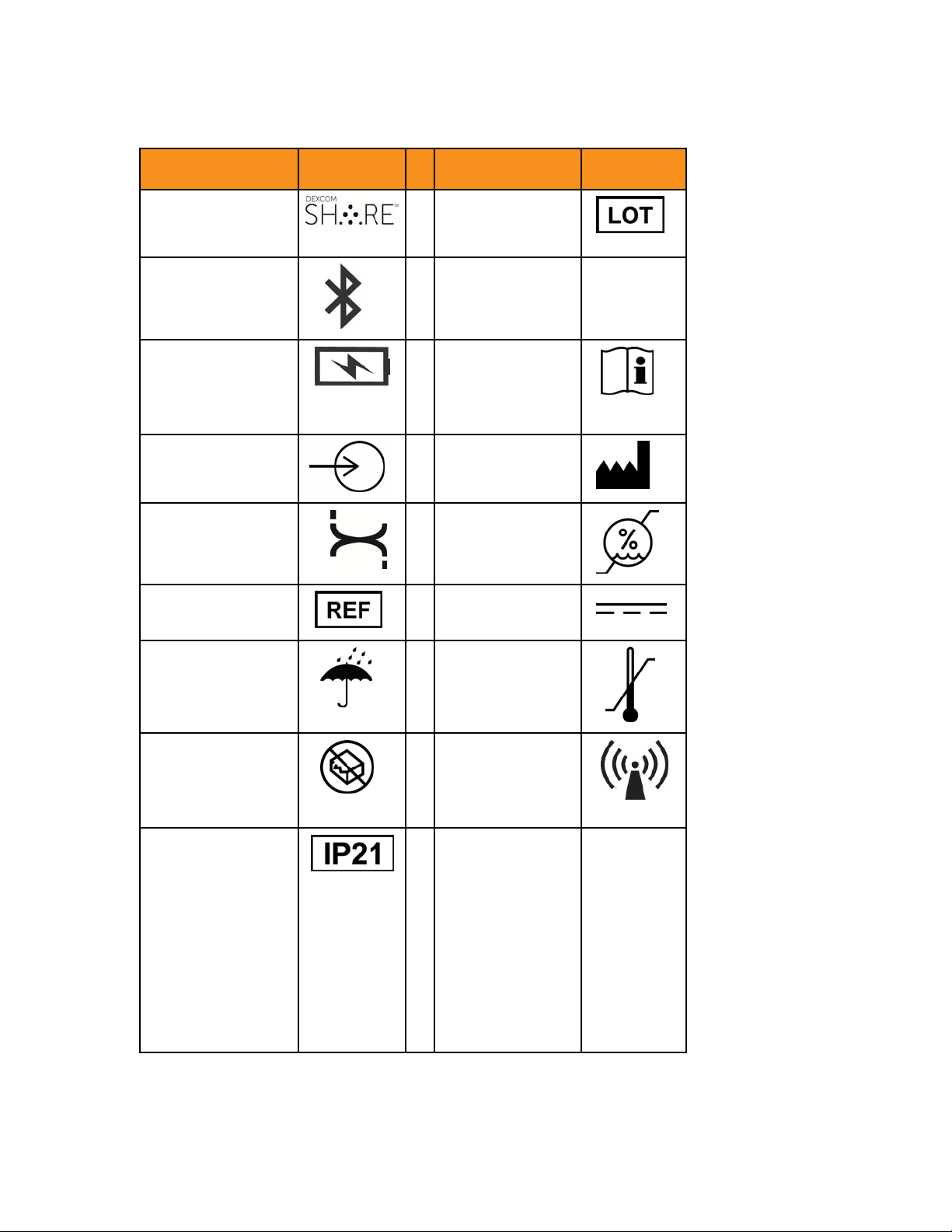
Symbols
Description Symbol
Dexcom SHARE
logo
Bluetooth
Receiver charging
Input
Dexcom logo
Catalog number
logo
Description Symbol
Batch code
Copyright
Consult
instructions for
use
Manufacturer
Humidity
limitation
Direct current
©
Keep dry
Do not use if
package is
damaged
Protected against
solid foreign
objects of 12.5
mm and greater
Protection against
vertically falling
water drops
14 Learning About Dexcom SHARE
Temperature
Non-ionizing
limitation
raditaion
Page 15
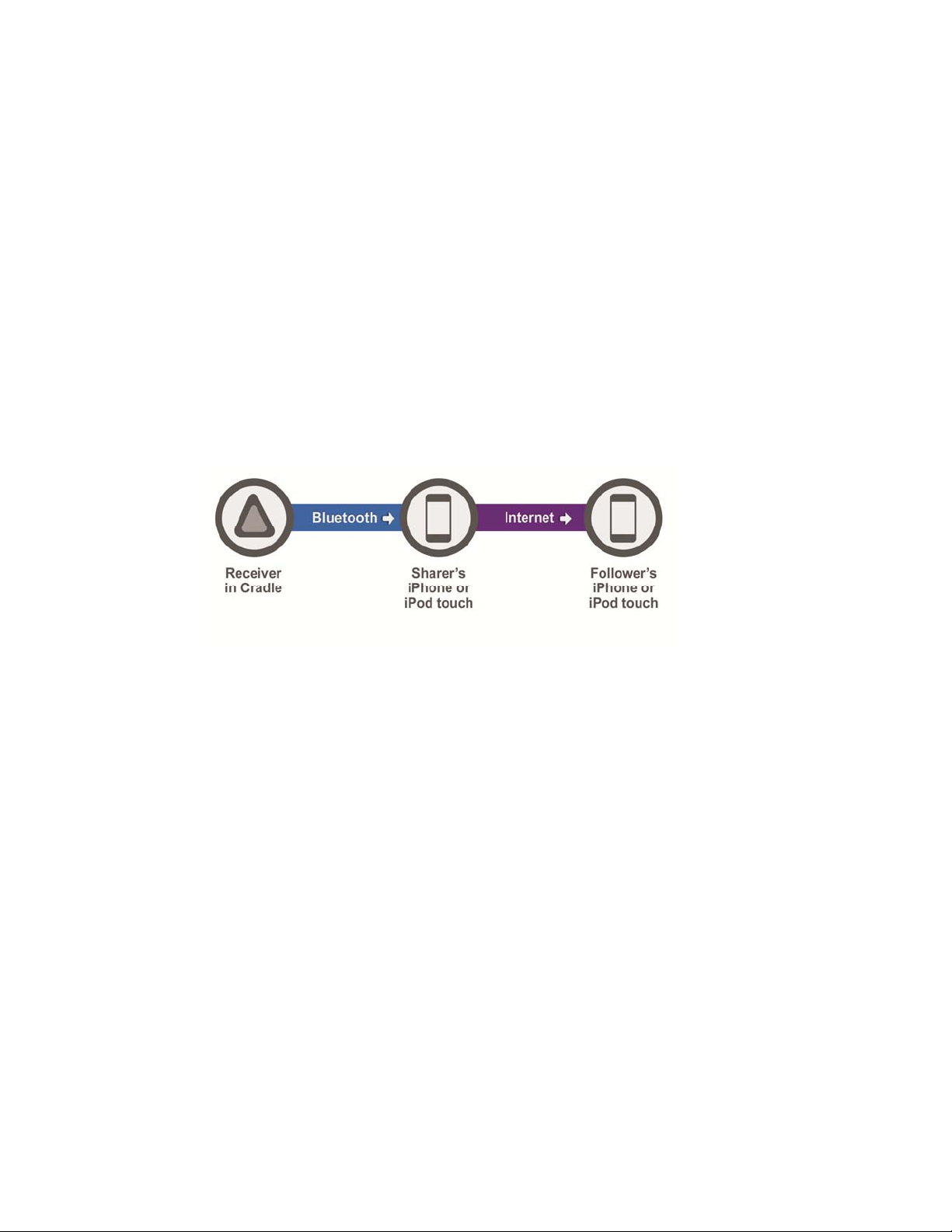
System Overview
Dexcom SHARETM remote monitoring system lets one person, the Sharer, transfer
Dexcom G4TM PLATINUM Continuous Glucose Monitoring information to another
person, the Follower. Dexcom SHARE consists of the following components:
Dexcom G4 PLATINUM System, Cradle,
Sharer’s iPhone® or iPod® Touch, the Dexcom ShareTM app, the internet, the
Follower’s iPhone or iPod touch and the Dexcom FollowTM app.
When the Sharer’s receiver is in the powered Cradle, the Cradle transfers glucose
Bluetooth
®
wireless technology, the
information using
then is sent to the Dexcom SHARE Cloud using either Wi-Fi or a cellular data plan.
Lastly, the glucose information is sent from the Dexcom SHARE Cloud to the
Follower’s iPhone or iPod touch using Wi-Fi or the Follower’s cellular data plan.
Bluetooth
to the Sharer’s iPhone or iPod touch. The information
15 Learning About Dexcom SHARE
Page 16
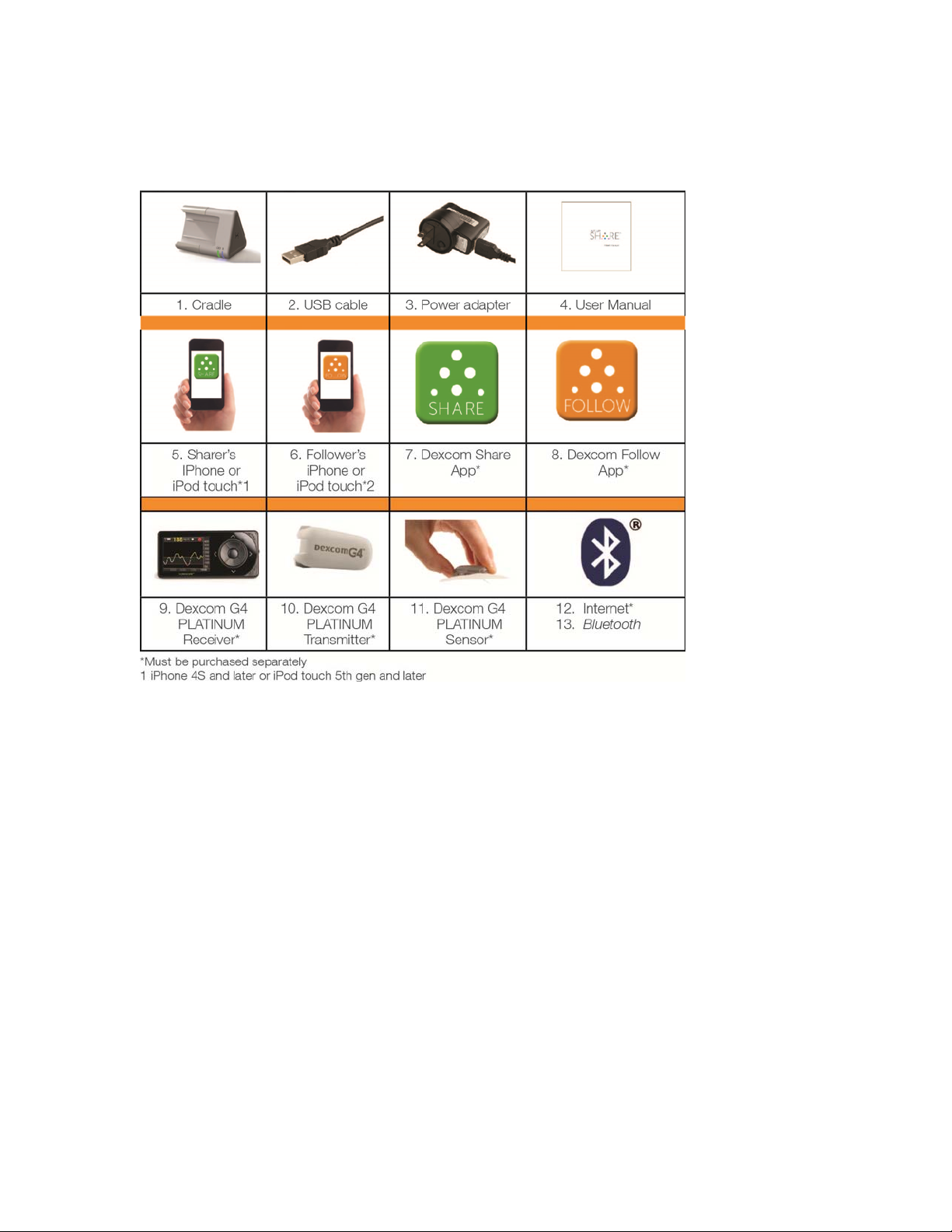
System Components
16 Learning About Dexcom SHARE
Page 17

Conditions That Affect Use
Dexcom SHARE should not be used in a wet environment. Once
Sharing is established, make sure the settings on the Cradle,
Sharer’s iPhone or iPod touch and Follower’s iPhone or iPod touch
are not altered. Make sure the Sharer’s iPhone or iPod touch and
Follower’s iPhone or iPod touch have enough battery power to
maintain Sharing. Dexcom recommends charging both iPhone or
iPod touch when Sharing.
Benefits
Patients usually respond when their continuous glucose monitoring
(CGM) systems alert them. However experts advise that an
additional CGM alert to another person may be helpful in increasing
the detection of low glucose or high glucose, especially at night.
Dexcom SHARE enables this additional awareness, even when the
Sharer and Follower are not in the same place.
Dexcom SHARE may provide improved quality of life and greater
peace of mind to patients, their caregivers and support team by
allowing the Dexcom G4 PLATINUM System alerts, alarms and
trend graphs to be checked remotely.
17 Learning About Dexcom SHARE
Page 18

Indications for Use
The purpose of Dexcom SHARE is to notify another person, the
Follower, of the patient’s Dexcom G4 PLATINUM Continuous
Glucose Monitoring System sensor glucose information when the
G4 PLATINUM Receiver is docked in the Dexcom SHARE Cradle.
Dexcom SHARE provides secondary notification and does not
replace real time continuous glucose monitoring (G4 PLATINUM
System) or standard home blood glucose monitoring.
Contraindications
There are no contraindications for Dexcom SHARE.
Important User Information
Please review the indications, contraindications, warnings,
precautions, cautions and other important information in the
Dexcom G4 PLATINUM System User’s Guide. Dexcom SHARE is
an optional accessory of the Dexcom G4 PLATINUM System. If
you do not have the Dexcom G4 PLATINUM System User’s Guide
you can view it on www.dexcom.com or call 1-888-738-3646 to
request a copy.
18 Learning About Dexcom SHARE
Page 19

Warnings
Dexcom SHARE does not work alone. Dexcom SHARE does
not replace the Dexcom G4 PLATINUM System and requires the
Dexcom G4 PLATINUM Receiver to be docked in the Dexcom
SHARE Cradle to communicate glucose information to the Follower.
Dexcom SHARE is not compatible with any previous Dexcom®
CGM System or any other CGM device.
You cannot use Dexcom SHARE to make treatment decisions, such
as how much insulin to take. Dexcom SHARE does not replace a
blood glucose meter. Always use the values from a blood glucose
meter for treatment decisions. Blood glucose values may differ
from the sensor glucose information. Using the sensor glucose
information for treatment decisions could lead to low or high blood
glucose values.
Precautions
Do not use Dexcom SHARE as the main source of CGM glucose
trend information. Use the Dexcom G4 PLATINUM Receiver as
the main device to track sensor glucose information, notifications
and alarms. At times, the patient will be unable to share data using
Dexcom SHARE, and the Follower might miss helping the patient in
19 Learning About Dexcom SHARE
Page 20

the event of low or high blood glucose values.
Do not rely solely on the Follower to alert the patient of low or
high glucose events or other important information. At times, the
Follower may not receive data, and the patient will not be notified of
this fact.
When using Dexcom SHARE, make sure the Dexcom G4
PLATINUM Receiver is docked in the Cradle and fully connected.
Make sure the charger cable is connected to the Cradle and
plugged into the electrical outlet. If not, the patient will be unable to
share data, and the Follower might miss helping the patient in the
event of low or high blood glucose values.
Set the Dexcom G4 PLATINUM Receiver to a sound alert when
the receiver is docked in the Dexcom SHARE Cradle. Do not set
the receiver to “vibrate” profile. You may not notice the receiver
vibrations when the receiver is docked in the Cradle, and you may
miss a CGM alert.
20 Learning About Dexcom SHARE
Page 21

You cannot use Dexcom SHARE unless there is a
connection between the Cradle and the patient’s iPhone or iPod
Bluetooth
touch. The
and obstructions between the Cradle and the iPhone or iPod touch.
If the patient’s iPhone or iPod touch does not have a connection or
loses the connection, the patient will be unable to share data, and
the Follower might miss helping the patient in the event of low or
high blood glucose values.
Do not use Dexcom SHARE unless both the patient’s and Follower’s
iPhone or iPod touch have active internet connections in order
to share data. If either the patient or the Follower do not have a
connection, lose the connection, turn off the connection (“airplane
mode”) or if either iPhone or iPod touch is in do not disturb mode,
the patient will be unable to share data, and the Follower might miss
helping the patient in the event of low or high blood glucose values.
To check this, make sure that the Follower’s iPhone or iPod touch
can receive text messages. Follow notifications and text messages
work by a similar process on iPhone or iPod touch.
Bluetooth
range can vary and depends on the distance
Make sure the patient’s and Follower’s iPhone or iPod touch have
charged batteries and are connected to electrical outlets. If not,
the patient will be unable to share data, and the Follower might miss
21 Learning About Dexcom SHARE
Page 22

helping the patient in the event of low or high blood glucose values.
If the patient’s iPhone or iPod touch is powered off or restarted, make sure the
Dexcom Share app is reopened after the iPhone or iPod touch is turned back on in
order to resume sharing. If the Dexcom Share app is not reopened, the patient will
be unable to share data, and the Follower might miss helping the patient in the
event of low or high blood glucose values.
Do not turn off system sounds in the Follower’s iPhone or iPod
touch at any time that he or she wants Follow notifications to be
heard. The iPhone or iPod touch settings override the Dexcom
Follow app, and all notifications will be silent even if the Follower
has selected a Dexcom Follow app notification sound. If the iPhone
or iPod touch is on vibrate, the Dexcom Follow app notifications will
only vibrate.
Check the delay settings on the patient’s iPhone or iPod touch
to make sure they are not too long. The Follower will not receive
notifications until after the time period in the delay has passed, and
the Follower might miss helping the patient in the event of low or
high blood glucose values if the delay is too long.
The patient should not choose to Not Share with the Follower at any
time when he or she wants the Follower to get notifications. During
the time the patient chooses to “Not Share”, the Follower will not
receive notifications and might miss helping the patient in the event
of low or high blood glucose values.
22 Learning About Dexcom SHARE
Page 23

Check the Dexcom Follow app’s trend graph if the Follower’s
iPhone or iPod touch has been off or if there is no data connection
(e.g., internet/Wi-Fi or mobile data service/3G/4G/LTE is lost,
connection is turned off in airplane mode, or iPhone or iPod touch is
placed in do not disturb). When the iPhone or iPod touch is turned
back on, the Follower will only receive the most recent notification
and might miss helping the patient in the event of prior low or high
blood glucose values.
Sharers and Followers should check whether their cellular service
carriers support voice and data at the same time (simultaneous
voice and data). If their carriers do not support simultaneous
voice and data, the Dexcom Share app may not be able to share
glucose values and the Dexcom Follow app may not be able to
receive notifications or glucose values during phone calls. Dexcom
SHARE will resume sharing after the phone call has ended, and the
Follower will receive any waiting notifications after the phone call has ended.
Risks
Dexcom SHARE is an optional accessory to the Dexcom G4TM
PLATINUM Continuous Glucose Monitoring (CGM) System. The
main risks involved with using Dexcom SHARE are based on
misunderstanding its purpose.
Remember that Dexcom SHARE is a secondary notification system,
not a real-time remote monitoring system. With Dexcom SHARE,
there are 3 distinct parts of glucose monitoring:
1. Blood glucose meter - use this to make any treatment decisions.
2. Dexcom G4 PLATINUM CGM System - use the Dexcom G4
PLATINUM System to complement, but not replace, information
obtained from the blood glucose meter. It detects glucose
23 Learning About Dexcom SHARE
Page 24

trends and tracks glucose patterns.
3. Dexcom SHARE - this is an optional add-on to the Dexcom
G4 PLATINUM System that can share glucose information and
notifications with up to five (5) other people. Shared glucose
information can add another level of awareness.
Using the wrong glucose information for treatment decisions
could lead to low or high glucose. Blood glucose values from a
blood glucose meter may differ from the information displayed on
Dexcom Follow app. All treatment decisions should be made using
a blood glucose meter, not the glucose information displayed on the
Dexcom Follow app. Followers who are concerned by notifications
on the Dexcom Follow app should contact the patients and remind
them to check their blood glucose with a blood glucose meter
before driving a car or making any treatment decisions, such as
taking insulin or eating fast-acting carbohydrates.
Sharers should not rely on Followers to notify them about low or
high glucose. Any problems with the Cradle, iPhone or iPod touch,
Bluetooth
Dexcom SHARE Cloud or not being in the communication range
could cause data to not be shared with the Follower. In addition,
if the “Delay” setting is too long, the Follower might not be aware
24 Learning About Dexcom SHARE
, wireless internet connection, mobile data connection,
Page 25

of glucose level changes in a reasonable time. Therefore, Dexcom
SHARE should be used only to give a secondary level of awareness
and should not be expected to always communicate and transfer
sensor glucose information.
Jailbroken iPhones and iPod touches
Dexcom requires patients and Followers to not use Dexcom SHARE
apps on a jailbroken iPhone or iPod touch. A jailbroken iPhone or
iPod touch do not offer a reliable means to use Dexcom SHARE.
They present an unacceptable level of security and inaccuracy risk
to the user and are not authorized to use Dexcom SHARE.
User Agreement
Your use of Dexcom SHARE system is subject to the terms of the
most current Dexcom SHARE End User License Agreement posted
at www.dexcom.com/share, and the Dexcom SHARE Privacy Policy
posted at www.dexcom.com/share, as those documents are
updated from time to time according to their terms.
25 Learning About Dexcom SHARE
Page 26

CHAPTER TWO
Setting Up the
Dexcom Share App
26
Page 27

Dexcom Share App Description
What the Dexcom Share app does:
1. Connects the Sharer’s iPhone or iPod touch with their Cradle via
Bluetooth.
2. Connects the Sharer’s iPhone or iPod touch with their
Follower’s iPhone or iPod touch via either a Wi-Fi or mobile data
Connection.
3. Invites Followers and sends Followers setting recommendations.
4. Displays the status of the Sharer’s Cradle, Sharer’s iPhone or
iPod touch, and the Dexcom SHARE Cloud.
What the Dexcom Share app does not do:
1. Display Dexcom G4 PLATINUM Sensor information.
2. Display the Dexcom G4 PLATINUM Receiver’s trend graph.
3. Provide glucose notifications to the Sharer.
4. Lets you know when the Follower is not receiving glucose
Information.
Tips
1. Read the Dexcom G4 PLATINUM System User Manual before
using Dexcom SHARE.
2. Always confirm information with a blood glucose meter before
27 Setting Up the Dexcom Share App
Page 28
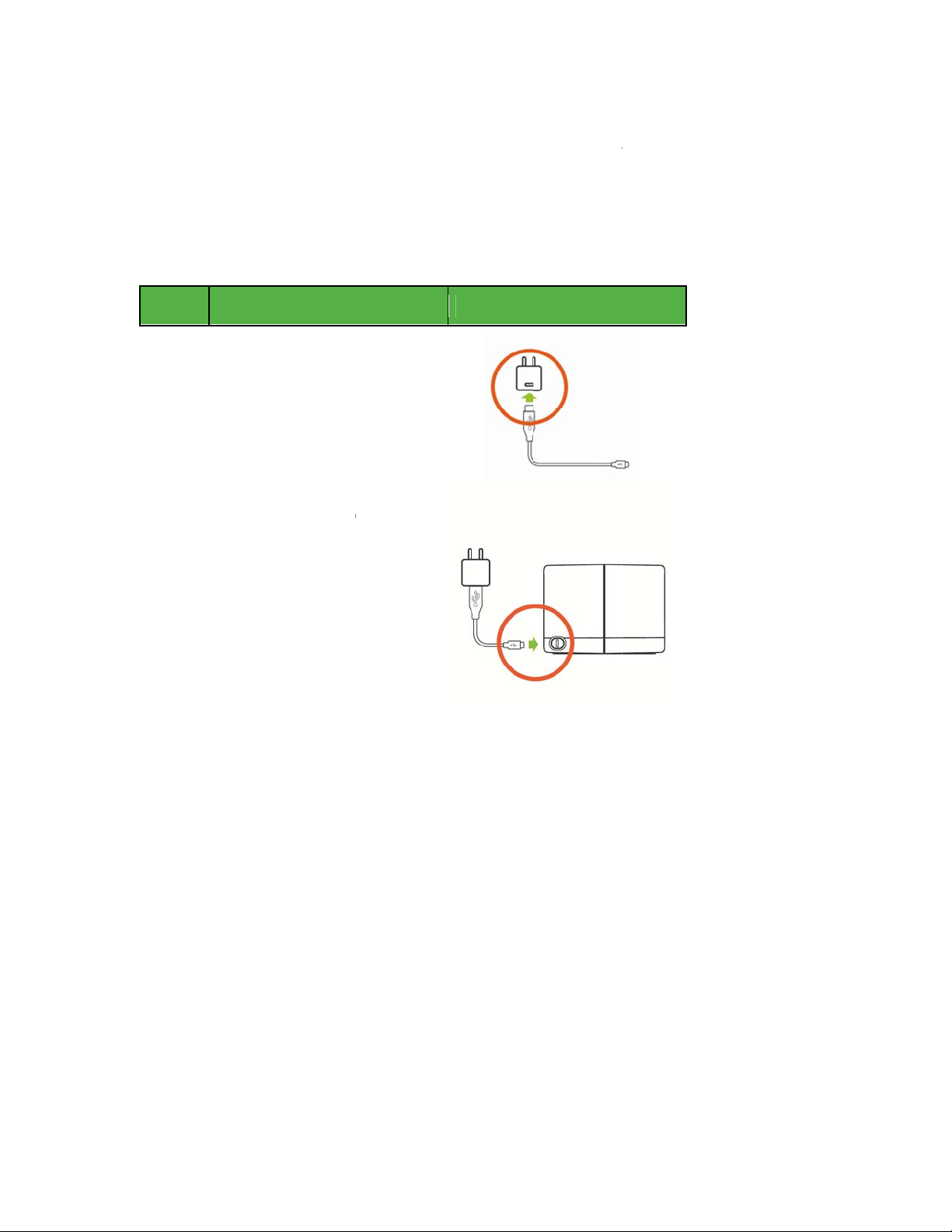
p
1
2
e
making t
r
c
e
a
e
t
e
a
n
o
f
m
e
o
p
n
s
o
t
3
. The Shar
eatment d
er should c
cisions.
heck the st
atus scree
after inser
ting the
Set
ting Up
Ste
Step
power
Step
cable in
Cradle.
receiver i
properly.
Instru
Plug th
Plug th
nto the Cr
Cradle
tion
USB cable i
dapter.
smaller end
o the back o
dle to mak
to the
f the USB
the
sure the
Illustrati
ystem is fu
n
nctioning
28 S
tting Up t
he Dexco
Share Ap
Page 29
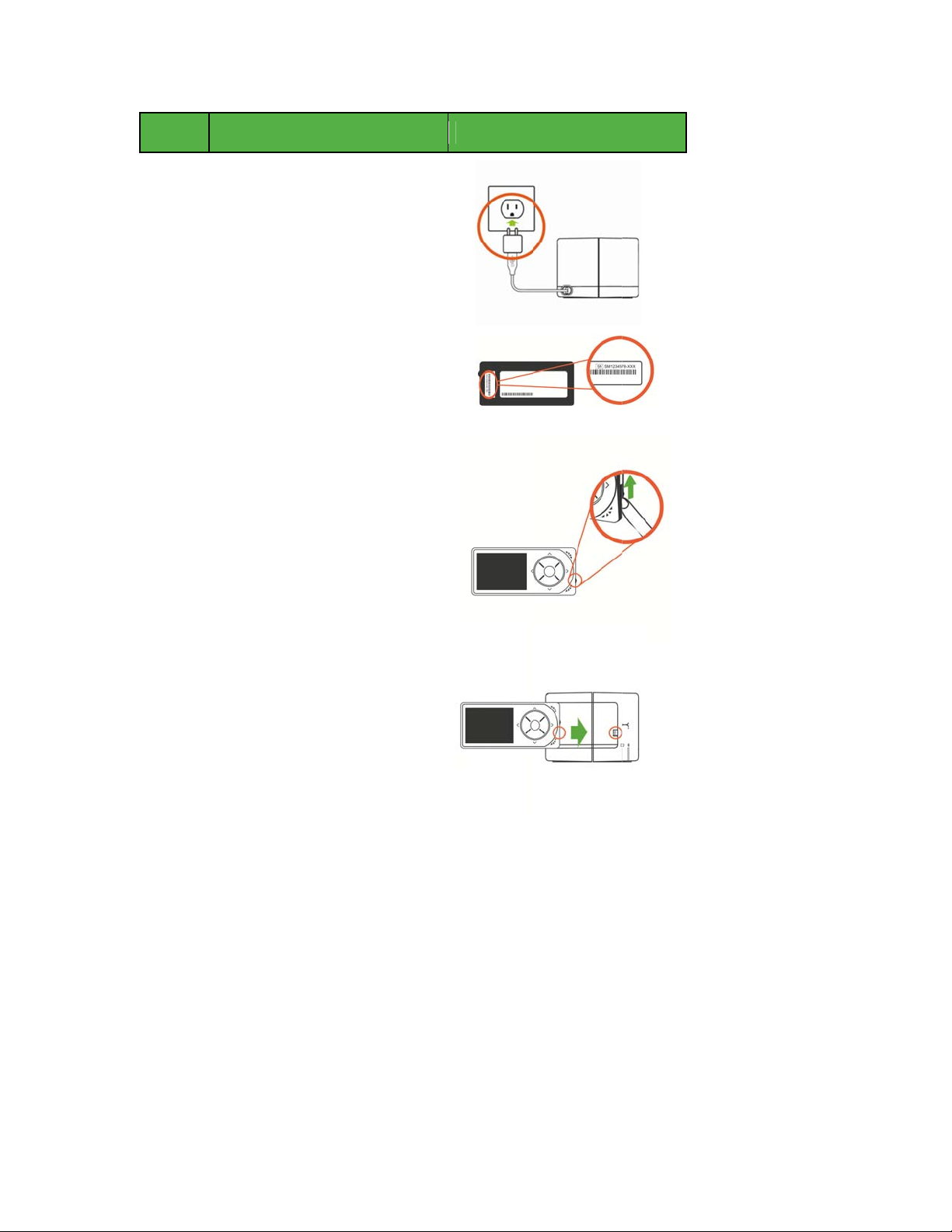
Ste
p
3
4
5
6
e
c
e
o
o
u
r
i
h
r
e
s
t
g
h
e
o
r
m
p
o
Step
Step
Step
Step
Instru
Plug th
power
Write d
(SN) fo
receive
Step 2
section
Open t
receive
upward
Slide th
toward
tion
power adap
utlet.
wn the serial
nd on the ba
. You’ll need
n the “Pairin
later in this c
e USB port o
by sliding th
.
receiver int
the USB po
er into a
number
ck of your
this for
the Cradle”
apter.
n your
cover
the Cradle
t.
Illustrati
n
29 S
tting Up t
e Dexco
Share Ap
Page 30
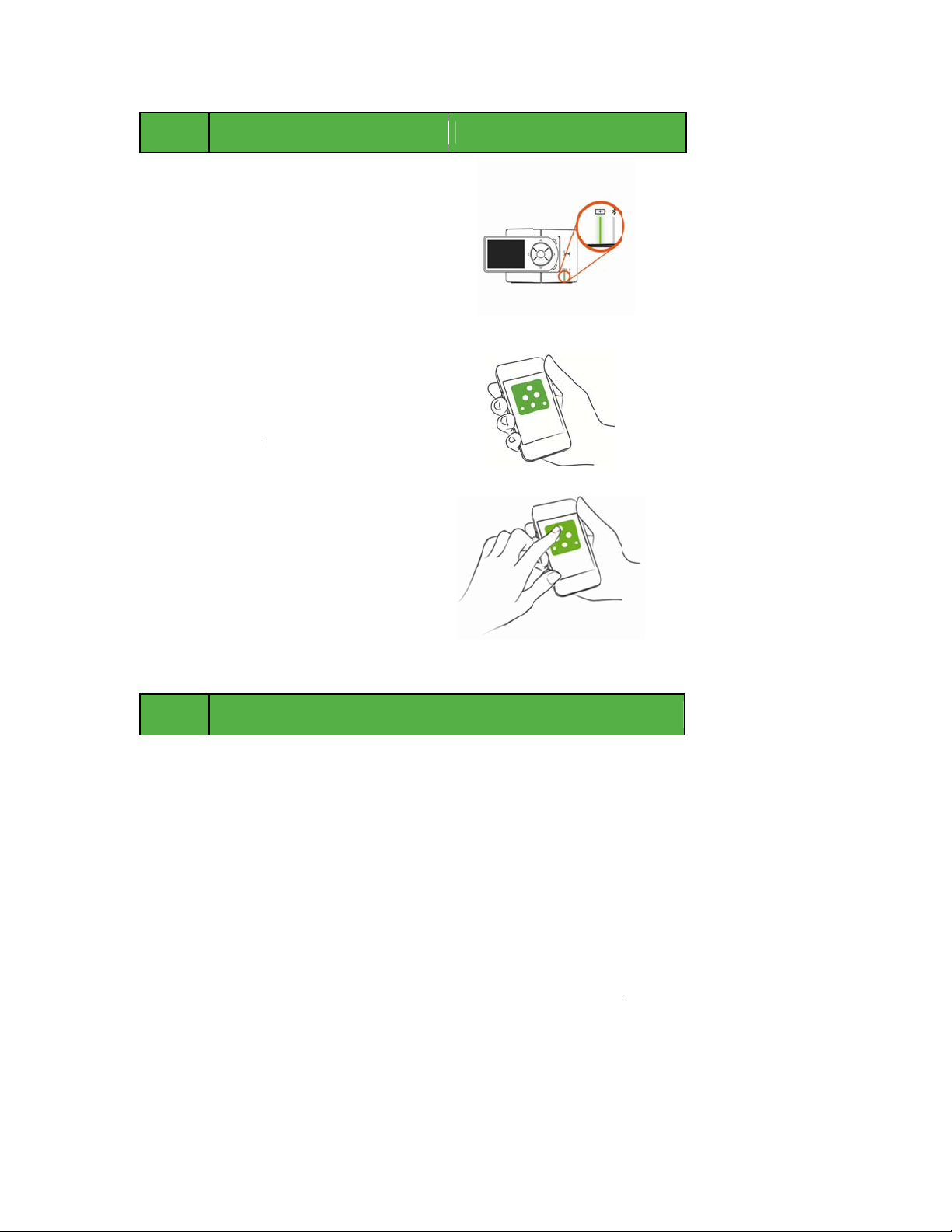
Ste
p
7
8
9
e
p
1
2
3
4
e
c
e
w
a
m
o
f
t
c
r
h
e
t
h
r
r
g
w
o
m
o
s
S
m
s
u
r
o
o
h
a
e
m
A
o
n
t
i
h
w
o
l
p
o
t
n
a
s
w
.
s
n
n
a
x
o
o
s
Step
Step
Step
Instru
The gre
the left)
receiver
Downlo
app fro
your iPh
manual
Launch
to begin
tion
n charging li
ill illuminate
is properly d
d the Dexco
the online st
ne or iPod t
or instruction
he Dexcom
Sharing!
ht (light on
hen the
cked.
Share
ore. See
uch user
.
hare app
Illustrati
n
Cr
Ste
Step
Press t
If you d
Step
accoun
Step
the Sha
Followe
Step
used to
30 S
ating a
Instru
Please
Either p
Press t
Enter th
tting Up t
Dexco
tion
ead the term
e “Accept” b
cline, you wil
ess the “Log
or sign up t
e “Tap to Edi
er’s iPhone
’s display. C
e Sharer’s n
invite Follow
he Dexco
Share
and conditi
tton to conti
l not be able
n” button if t
set up a ne
t” button to c
r iPod touch.
oosing a ph
me and emai
rs.
Share Ap
ccoun
ns of the lice
ue using the
o share.
e Sharer alre
account.
hoose an exi
The photo
to is optional
address. Thi
se agreeme
Dexcom Sh
ady has a De
ting photo fr
ill be visible
.
email addre
t.
re app.
com
m
n the
ss is
Page 31

Step Instruction
Step 5 Enter a username and password. Email addresses cannot be used
as usernames.
Step 6 Re-enter your password for confirmation.
Pairing Cradle
Pairing connects your Cradle to your iPhone or iPod touch using
Bluetooth
. Pair the Cradle at any time by pressing on the “Pair
Cradle” button located in the account tab. NOTE: Only one
Bluetooth
may be paired to the Cradle at a time. If you need to
pair a different iPhone or iPod touch at a later time (if you lose your
iPhone or iPod touch for example), please see Pairing a New
iPhone or iPod touch section in Chapter Three.
31 Setting Up the Dexcom Share App
Page 32
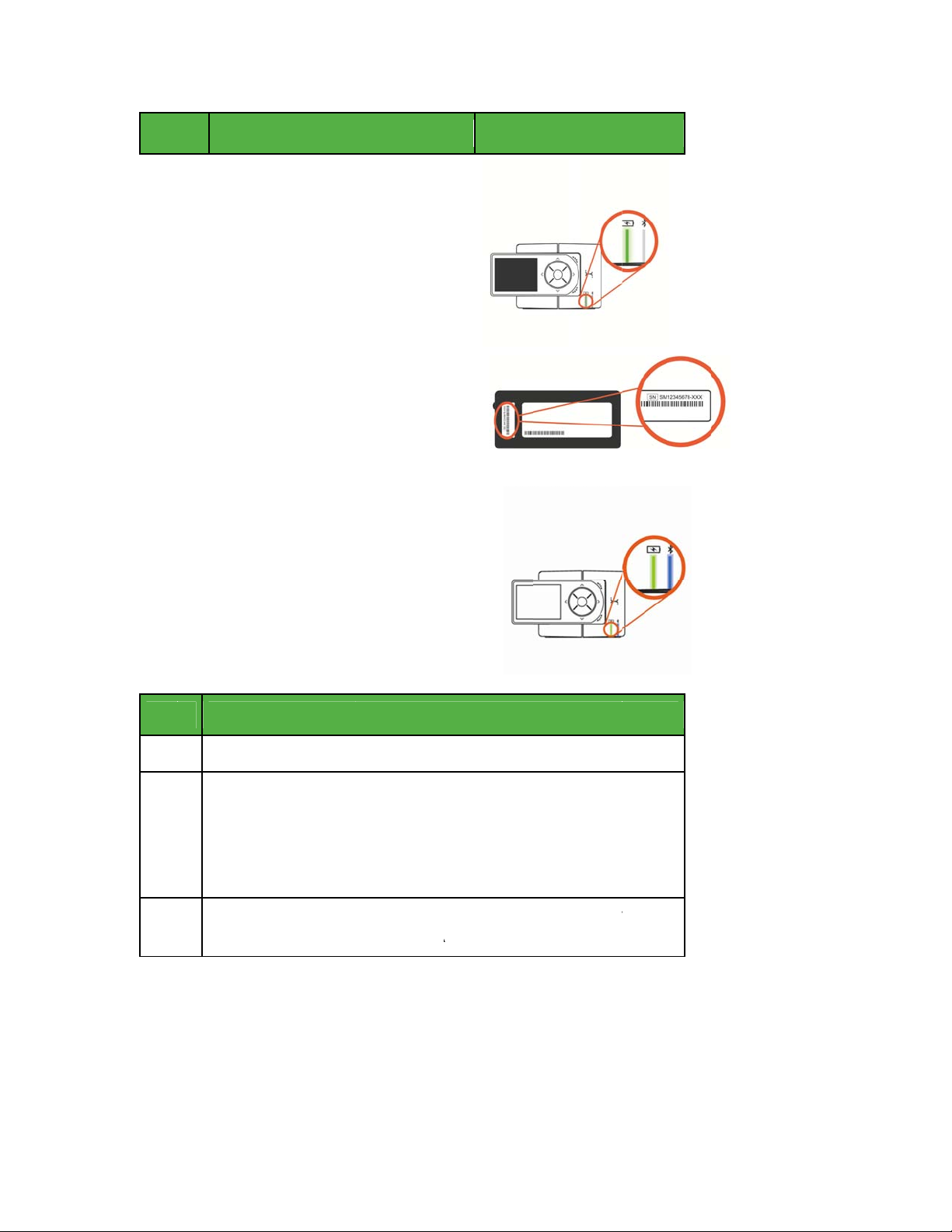
Ste
p
1
2
3
p
e
c
u
t
s
o
e
u
e
e
e
’
a
w
r
w
h
e
p
e
i
w
o
P
p
g
b
e
t
t
o
w
m
t
l
d
d
o
e
h
s
a
t
r
A
p
a
e
s
a
r
t
r
e
F
u
o
y
e
Step
Step
Step
Instru
Make s
Cradle,
the blue
Cradle i
Enter y
from St
section
will then
iPod to
is found
The blu
remain l
tion
re the receiv
he Cradle is
light (light on
blinking.
ur receiver s
p 4 in the Se
n Chapter T
search for y
ch to pair. W
, press the “
light will sto
it when pairin
r is in the
lugged in an
right) on the
rial number
ting up Crad
o. Your Crad
ur iPhone or
hen your Cra
air” button.
blinking an
is complete
Illustr
d
e
le
le
.
tion
Inv
iting Fo
Ste
Step
Step
Step
32 S
Instruc
1 Press th
2 Enter th
Follower
will get
the Follo
touch. P
3 Choose
pressing
tting Up t
llowers
tion
followers ta
Follower’s ni
s email addr
Follow Invita
er can acce
ess the “Nex
hether or n
the on/off s
e Dexco
to invite a F
ckname and
ss to confirm
ion email at t
s this email
” button.
t the Followe
itch next to
Share Ap
llower.
mail addres
the correct
is email add
ccount from
will see the
llow Trend G
. Re-enter th
ddress. The
ess. Make s
their iPhone
rend graph b
aph View.
ollower
re
r iPod
y
Page 33
Step Instruction
Step 4 Choose whether or not the Follower will get low, urgent low and high
glucose notifications on their iPhone or iPod touch. Notifications are
sent when the glucose level and delay setting conditions are met.
Step 5 Press the “Send Invitation” button to send a Follow Invitation email to
the Follower. Once your Follow Invitation email is sent, the Sharer
cannot adjust the Follower’s recommended settings.
Step 6 To add more Followers, press the followers tab on the bottom of the
Dexcom Share app screen. Then press “Invite Followers” button. You
may invite a total of five (5) Followers per Dexcom SHARE account.
When finished adding Followers, press the “Done” button.
33 Setting Up the Dexcom Share App
Page 34

CHAPTER THREE
Using the
Dexcom Share App
34
Page 35
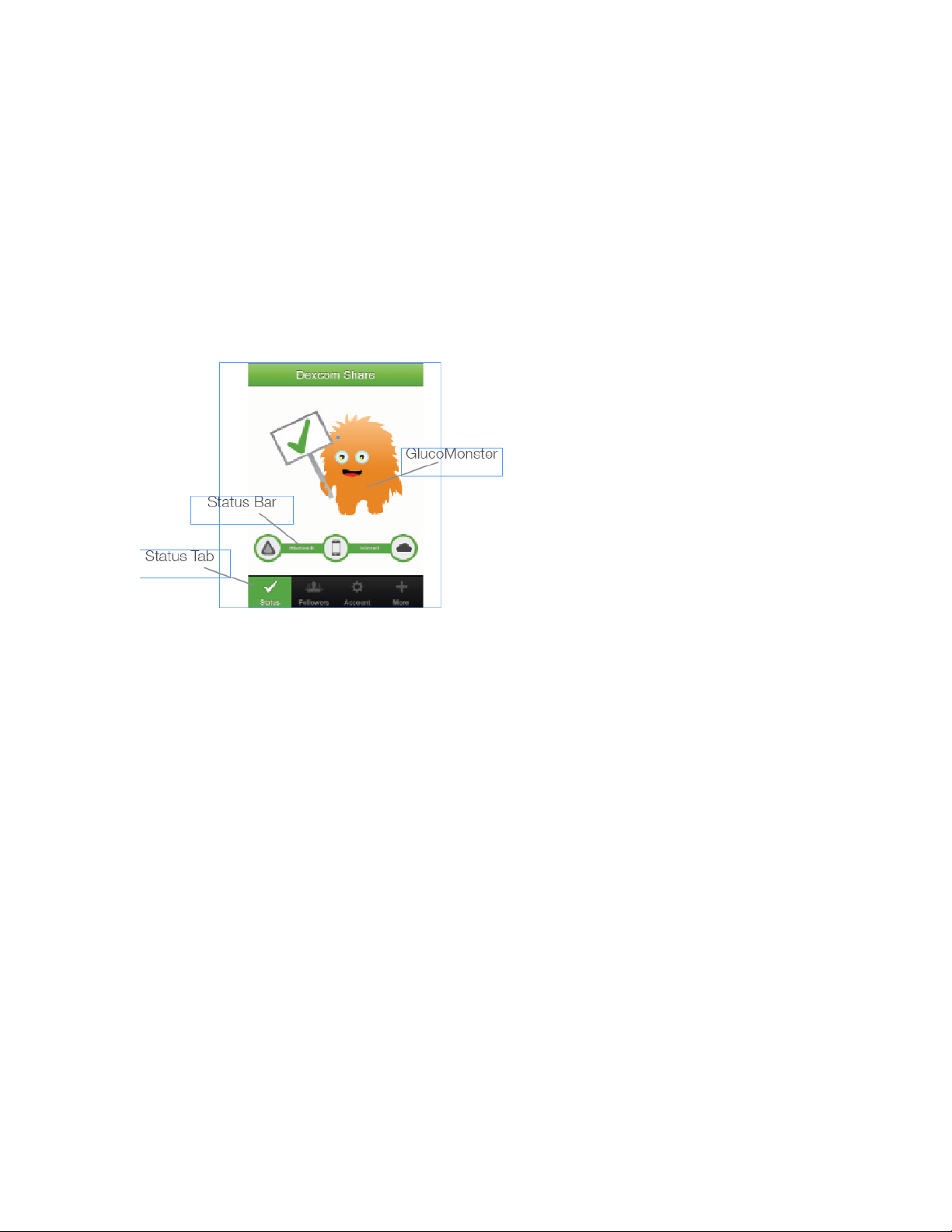
Dexcom SHARE Status
The Sharer can refer to the status tab to check the status of
Dexcom SHARE. The status screen consists of a status bar,
GlucoMonster
the system is functioning correctly or not. The Sharer should check
the status Tab after inserting the receiver into the Cradle to make
sure that the system is functioning properly.
TM
character, and status tab. All indicate whether
35 Using the Dexcom Share App
Page 36
Status Tabs
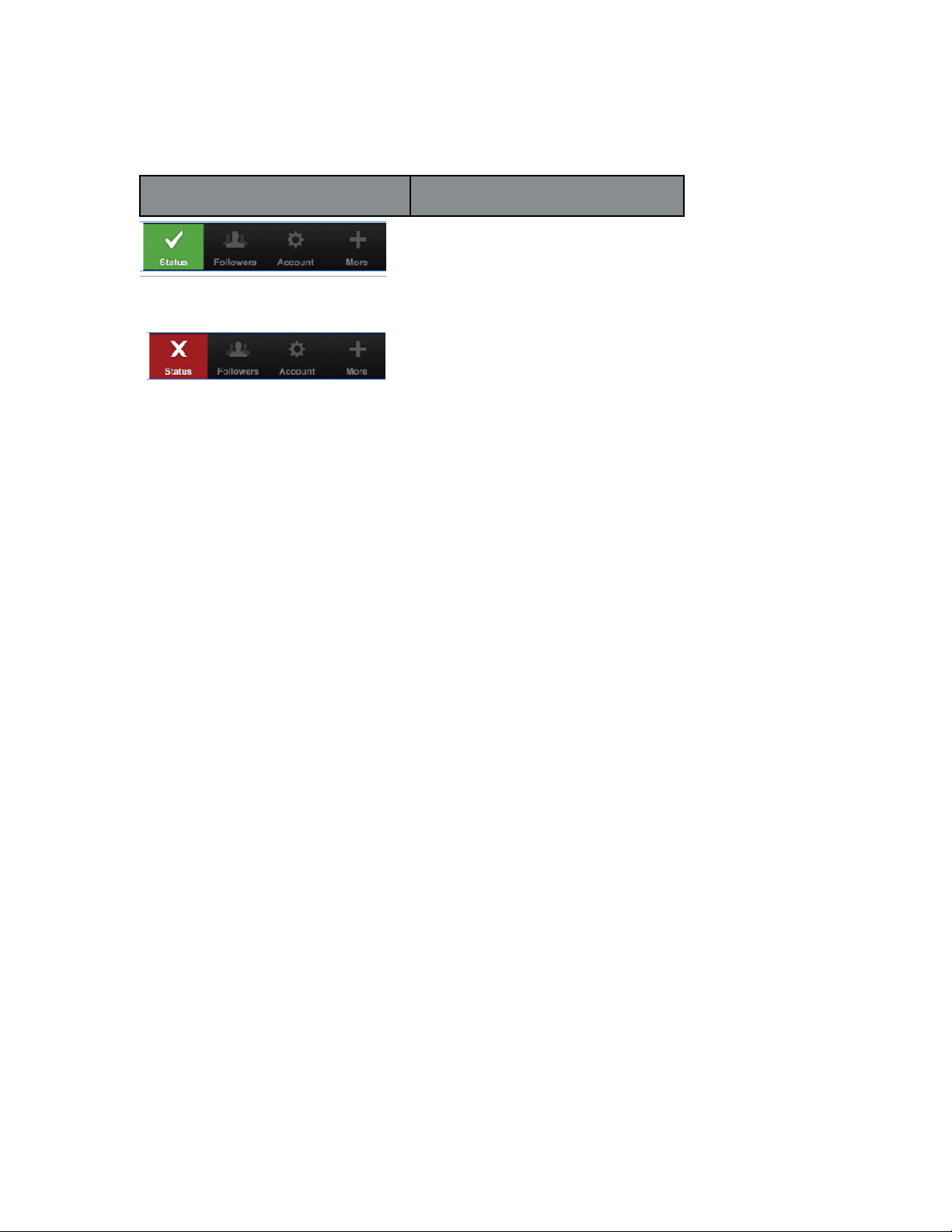
The table below explains the two possible states of the status tabs:
Status Tab Description
The status tab is green and displays
a Checkmark icon when Dexcom
SHARE is sending glucose information.
The status tab is red and displays an
X icon when Dexcom SHARE is not
working. The Sharer should refer to
the status bar when the system is not
working.
When a device or connection is not working, Dexcom SHARE will
not work. The Sharer will not be able to send their glucose levels to
their Follower.
Troubleshooting Status
The status bar is a useful tool for troubleshooting. It can help
identify where a problem is occurring when Dexcom SHARE is
not working. The table below provides troubleshooting tips for
the following status bar displays. The status bar can indicate a
component that is causing Dexcom SHARE to not work.
NOTE: Whether or not Dexcom SHARE is working and the Followers
36 Using the Dexcom Share App
Page 37
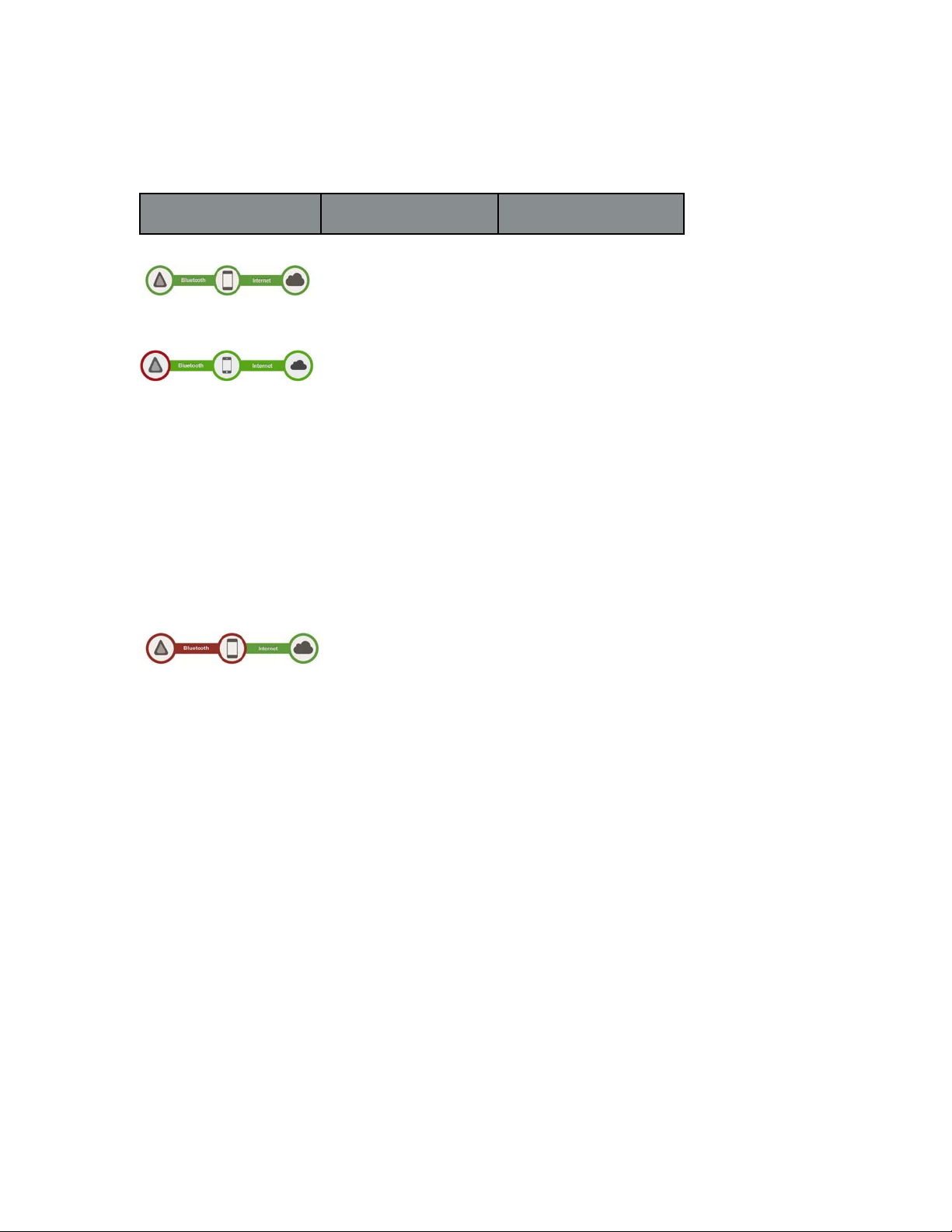
are receiving glucose notifications, you must always refer to your receiver for your
glucose readings and alerts.
Status Bar Status Description Troubleshooting
This status bar means Not applicable
connections are working
This status bar means Sharer should make sure:
there is an issue with:
• CGM Data • Receiver is in Cradle
• Cradle • Cradle is paired
This status bar means Sharer should make sure:
there is an issue with: •
•
Sharer’s iPhone or iPod
Bluetooth
• Cradle is ON
• There is a glucose value
on the receiver
• Transmitter is in range
• Unpower and repower
your Cradle
• Unlock and re-dock the
receiver to the Cradle
Bluetooth
• Cradle is within 15ft of
touch
is ON
37 Using the Dexcom Share App
Page 38
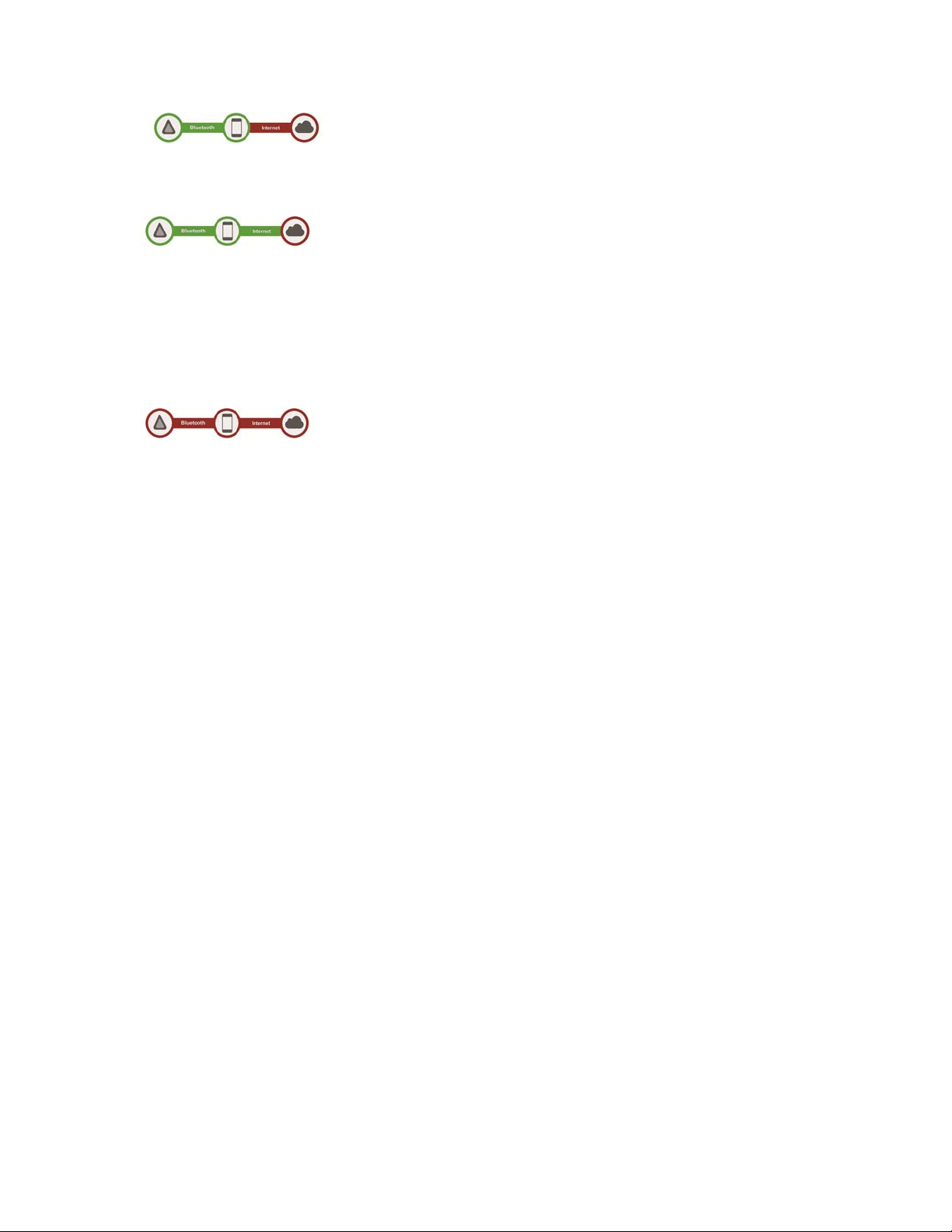
This Status Bar means Sharer should make sure:
there is an issue with: • iPhone or iPod touch
• internet connection has internet connection
This Status Bar means There is a problem in
there is an issue with: internet transmission and
• Dexcom SHARE SHARE is not working.
Cloud The Sharer should
check later or follow up
with his or her internet
connectivity provider.
This Status Bar means Sharer should make sure:
there is an issue with: • Airplane Mode is OFF
• Sharer’s iPhone
or iPod touch
GlucoMonster
The GlucoMonster is a cartoon character that displays the status
of Dexcom SHARE. The status of the system is reflected by the
GlucoMonster’s mood. The table below explains the GlucoMonster’s
two moods:
38 Using the Dexcom Share App
Page 39
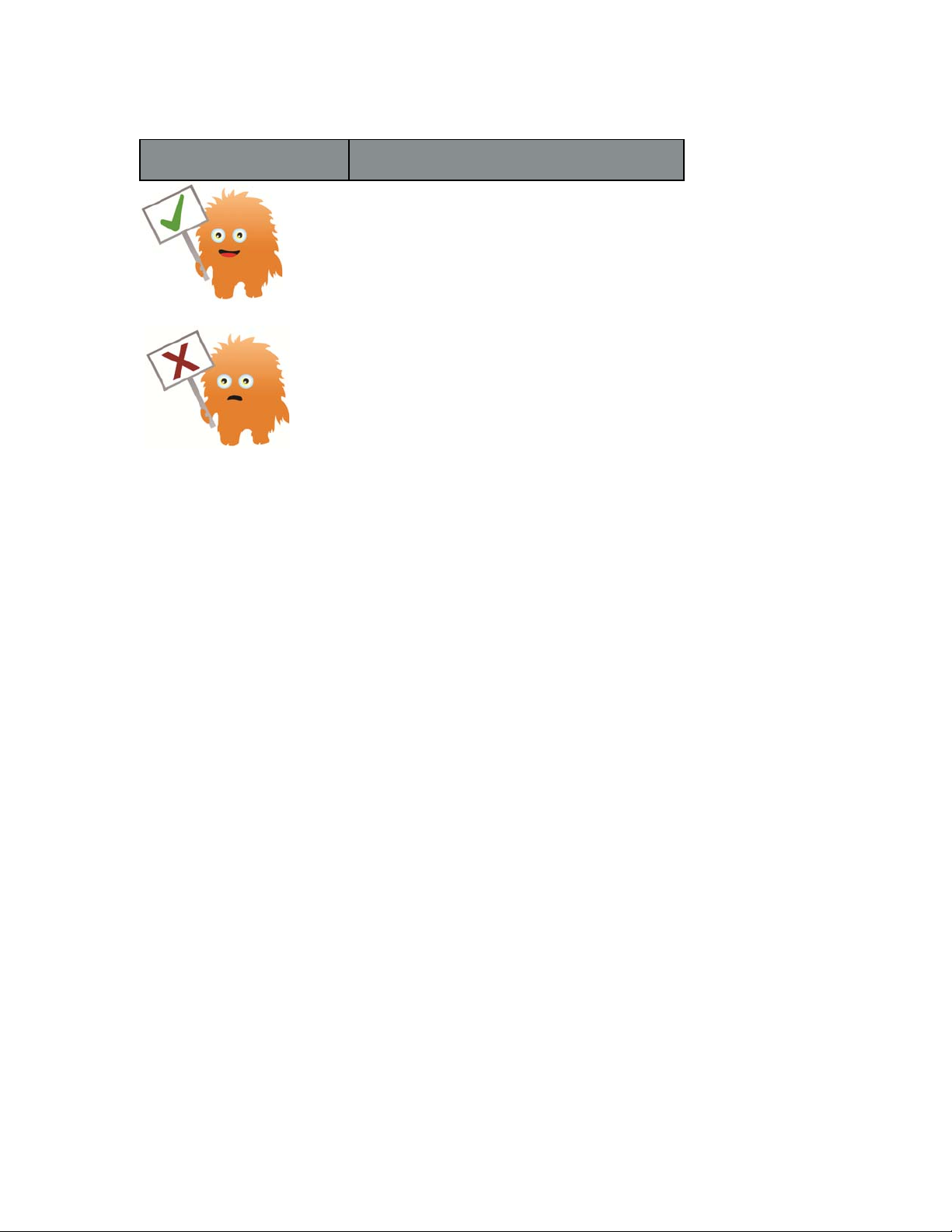
GlucoMonster Description
The GlucoMonster will smile and hold up a sign
with a Checkmark on it if Dexcom SHARE is
working.
The GlucoMonster will frown and hold up a sign
with an X on it if Dexcom SHARE is not working.
The Sharer can refer to the status bar to find
where the system is not working. Press on the
GlucoMonster for additional information.
Follower List
The followers tab allows the Sharer to manage their Followers.
The Sharer can either invite a new Follower, edit the nickname,
Email address and trend graph visibility of a current Follower, or Not
Share data with a current Follower. The table below explains the
different icons and statuses that can be displayed in the Follower
Dashboard:
39 Using the Dexcom Share App
Page 40
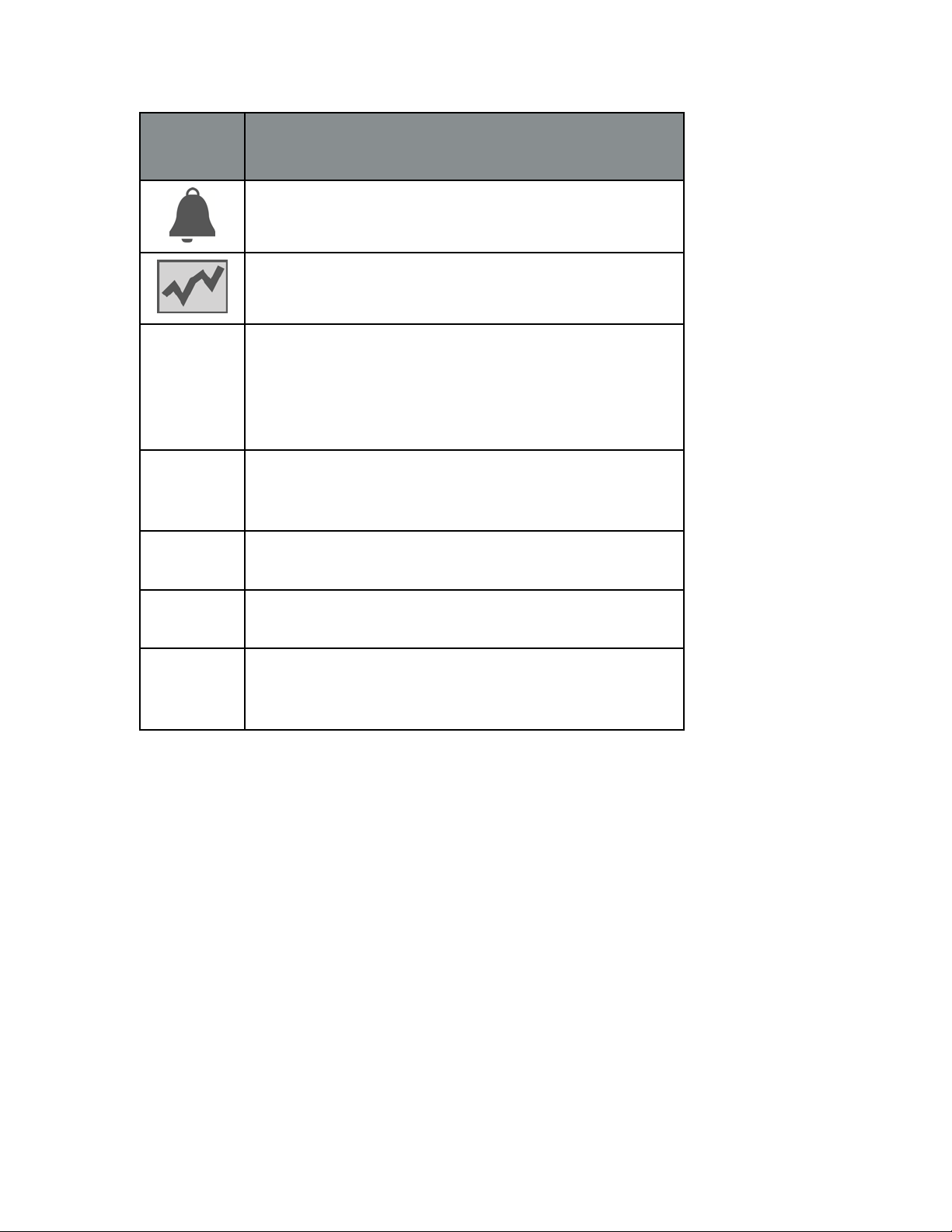
Icon/
Status
Definition
Follower is set to receive notifications from their Sharer..
Follower is able to view their Sharer’s trend graph
Removed by
Follower
Invitation
Expired
Active Follower accepted the Follow Invitation email and now can
Invited Follower has been sent a Follow Invitation email but has not
Not Sharing Sharer temporarily stopped sharing with Follower. Follower will
40 Using the Dexcom Share App
Follower removed the Sharer from the Dexcom Follow app.
The Follower will not receive any of the Sharer’s glucose
information, notifications or trend graph updates. The Sharer
can remove the Follower from their list by pressing on the
“Remove” button, found in the Follower’s notification settings.
Follower did not accept their Sharer’s Follow Invitation email
within 7 days. The Sharer can invite their Follower again by
pressing on the + icon in the top right corner of the screen.
receive the Sharer’s glucose information.
accepted it yet.
not receive any of the Sharer’s glucose information,
notifications, or trend graph updates.
Page 41

Inviting Followers
See the Inviting Followers section in Chapter Two.
Editing Followers
The Sharer can edit a current Follower’s nickname and email
address by pressing on the Follower. The Sharer can also decide if
the Follower can see the Sharer’s trend graph. NOTE: The Sharer
cannot change any Follower notification settings after the Follow
Invitation email is sent to the Follower.
Stop Sharing with Followers
The Sharer can press the “Stop Sharing” button, located below
the Follower’s notification settings, to temporarily suspend glucose
information and notifications from being sent to the Follower.
Sharing is suspended until the Sharer presses the “Start Sharing”
button.
For reasons of safety and intended use, the Follower will receive
a message notifying them that their Sharer’s data has been set to
stop sharing. The dashboard in the Follower’s app will also notify
the Follower when the Sharer has decided to stop sharing glucose
information.
41 Using the Dexcom Share App
Page 42

Removing Followers
The Sharer can remove a Follower by selecting a Follower and then
pressing the “Remove Follower” button. The Follower will no longer
receive glucose information or notifications and will be removed
from the Follower list.
Account Tab
The account tab allows the Sharer to edit username and email
address, and to pair the Cradle with a
Bluetooth
.
Pairing New iPhone or iPod touch
Only one iPhone or iPod touch can be paired to the Cradle at a
time. To pair to a different iPhone or iPod touch, such as when the
Sharer purchases a new iPhone or iPod touch, the Cradle must be
reset.
42 Using the Dexcom Share App
Page 43
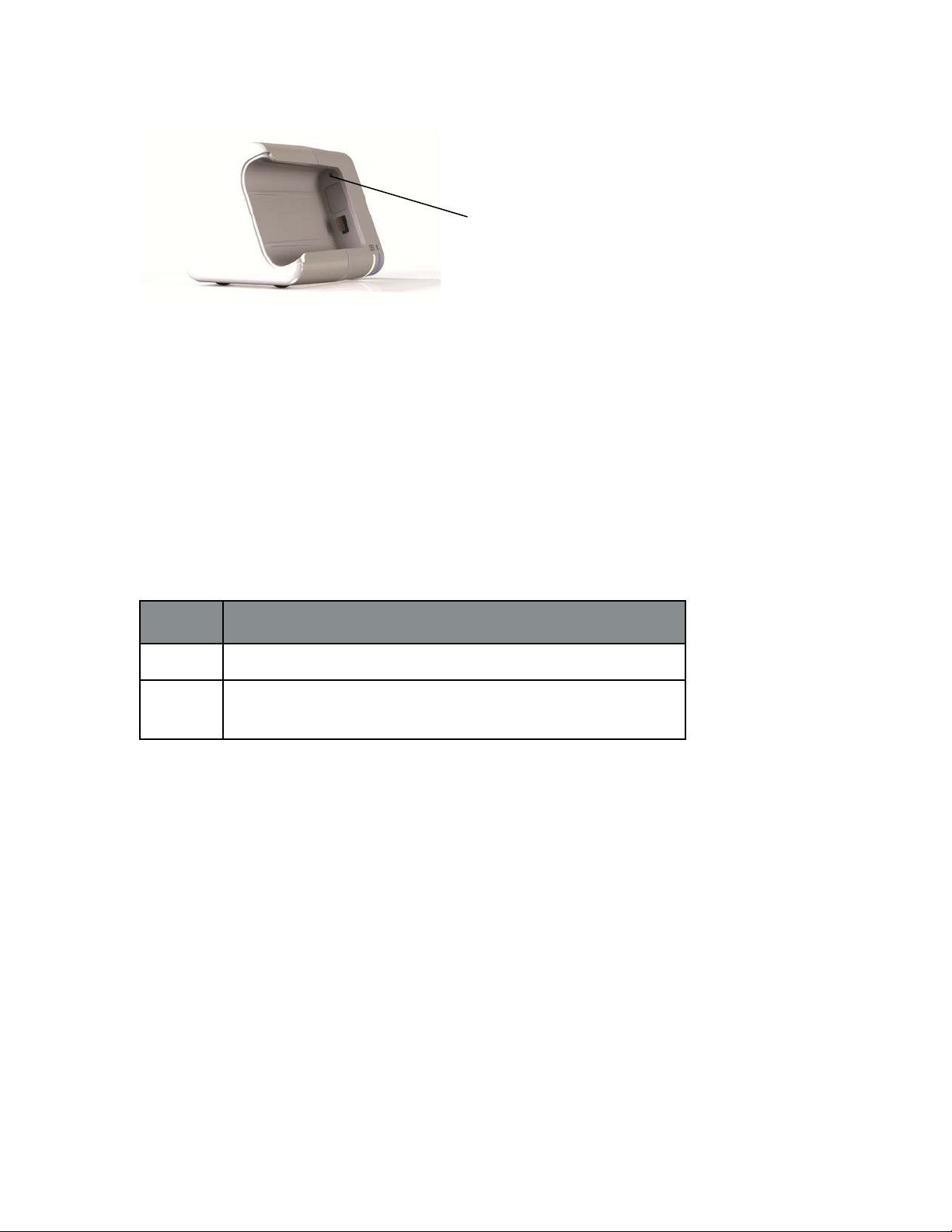
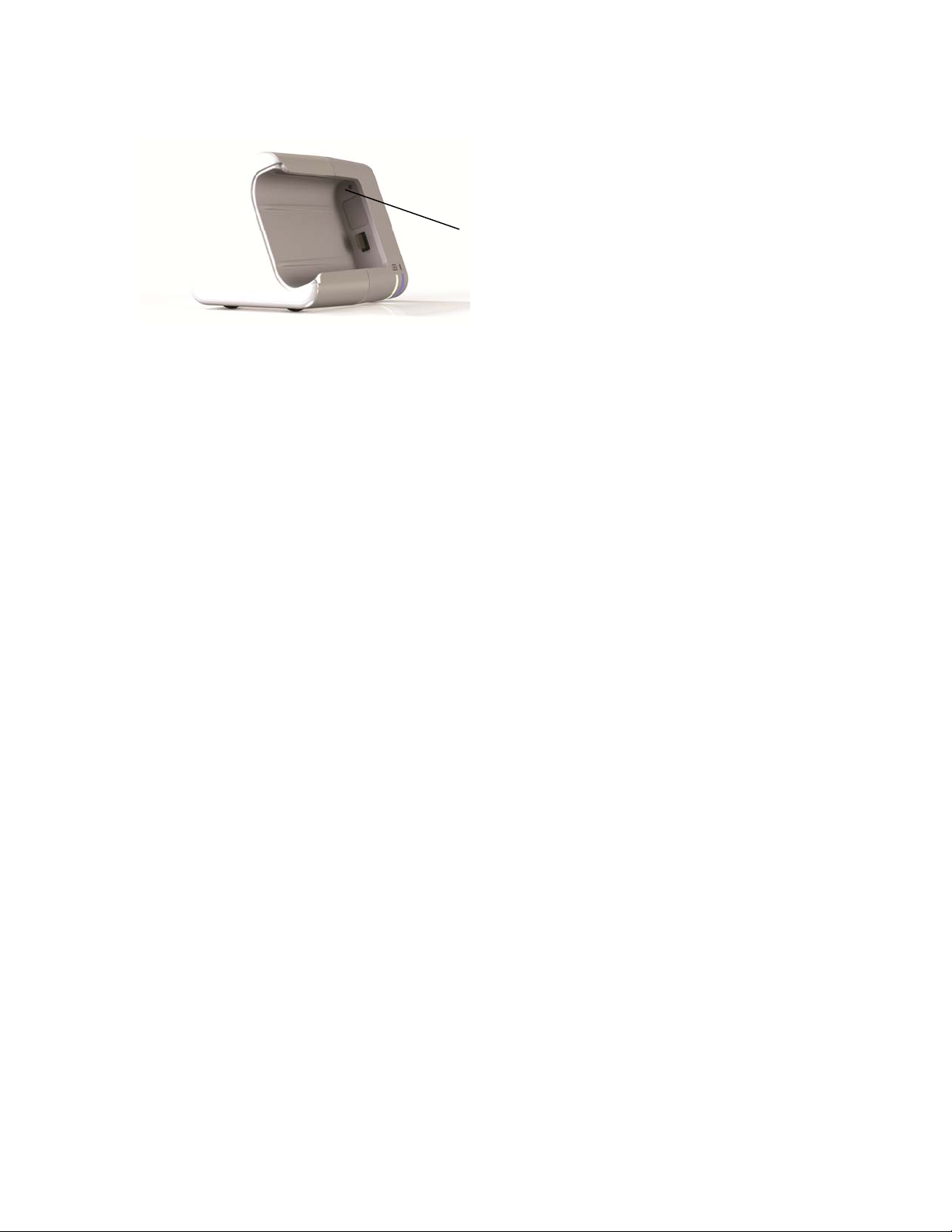
Reset button
To reset the Cradle, first make sure the Cradle is powered. Next,
press the reset button with a pointed instrument such as the end of
a paper clip. The reset button is on the Cradle above the USB port.
Both lights will flash for 2 seconds to indicate that the pairing data
previously stored in the Cradle has been now erased. Then proceed
with the Pairing Cradle section in Chapter Two.
Replacing Cradle
If it becomes necessary to replace the Cradle, follow the directions
below after receiving the new Cradle.
Step Instruction
Step 1 In the account tab, press the “Pair Cradle” button.
Step 2
43 Using the Dexcom Share App
Exit the Dexcom Share app and go into the
the Sharer’s iPhone or iPod touch.
Bluetooth
settings on
Page 44
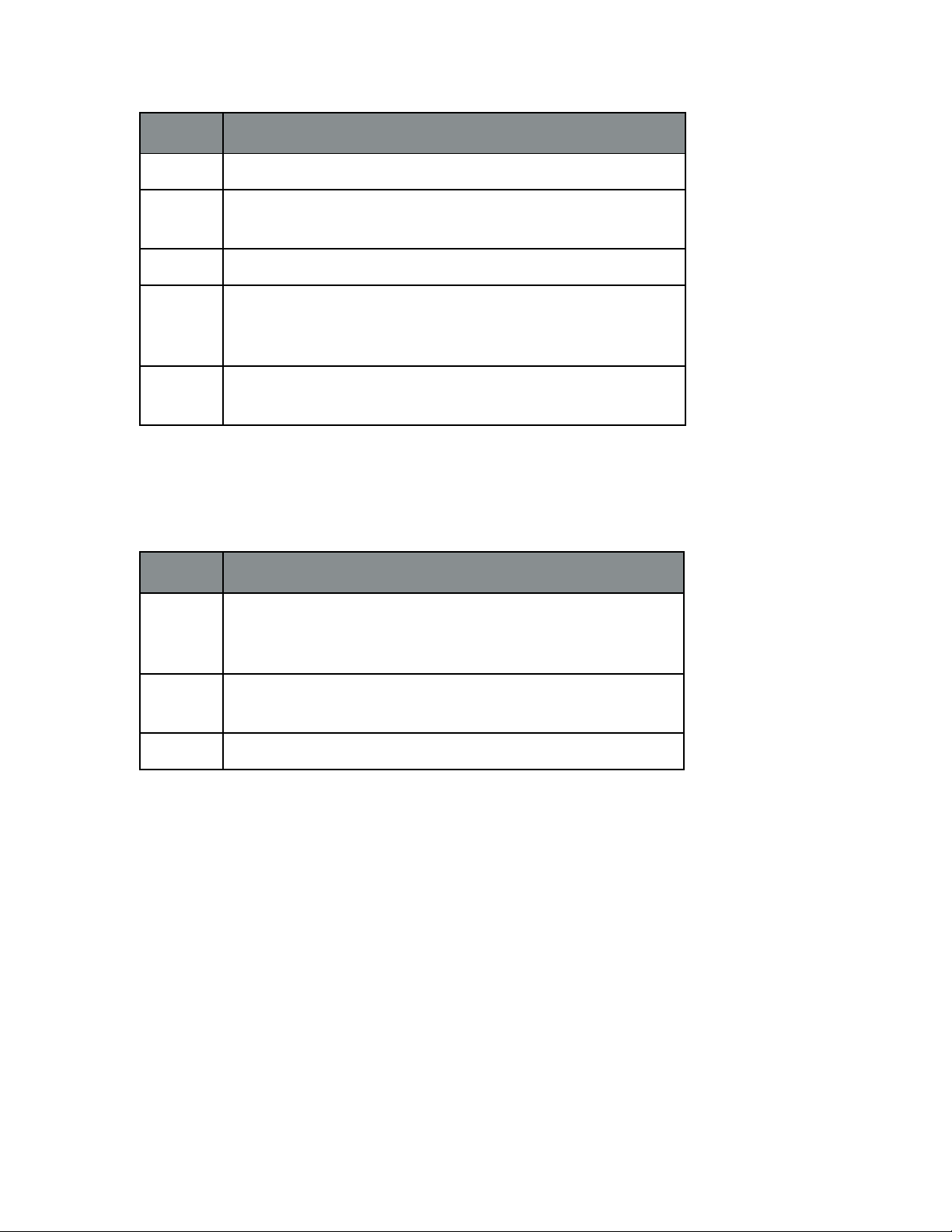
Step Instruction
Step 3 Select the device named DEXCOMCR.
Step 4 Press “Forget this Device” to remove the original Cradle from the
Bluetooth
list of
Step 5 Plug in the Cradle to a power outlet.
Step 6 If replacing with a used Cradle, push and hold the reset button on
the Cradle until both lights on the Cradle flash. If replacing with a
new Cradle, ignore this step.
Step 7 Reopen the Dexcom Share app and proceed with the
pairing wizard.
devices.
Registering New Receiver
Only one receiver can be connected to a Cradle at a time. Follow
these requirements to connect a new receiver to the Cradle:
Step Instruction
Step 1 Make sure the Cradle is powered. Press the reset button on the
Cradle with a pointed instrument. The location of the reset button
is below this table.
Step 2 Slide the new receiver into the Cradle. Make sure that the blue light
is blinking.
Step 3 Follow the Pairing Cradle section in Chapter Two.
44 Using the Dexcom Share App
Page 45
Reset button
The More Tab
The more tab in the lower right corner of the app provides extra
information on Dexcom SHARE and the Dexcom Share app, such
as the Safety Statement, Privacy Practices information, the System
Overview, Customer Support and the Instructions for Use. The
more tab also provides a link to Dexcom SHARE Frequently Asked
Questions (FAQs) on the Dexcom website. The Sharer can also
choose to email a friend about Dexcom SHARE by pressing on the
“Tell a Friend” button.
45 Using the Dexcom Share App
Page 46

CHAPTER FOUR
Using the
Dexcom Follow App
46
Page 47
Dexcom Follow App Description
What the Dexcom Follow app does:
1. Allows the Follower to view the Sharer’s glucose information
and to receive notifications.
2. Allows the Follower to view the Sharer’s trend graph, if the
Sharer grants permission.
What the Follower app does not do:
1. Provide treatment advice.
2. Interact with the Dexcom G4 PLATINUM Receiver.
Receiving Follow Invitation Email
The Sharer must first send a Follow Invitation email to the
Follower from the Sharer’s Dexcom Share app. Once the Follower
receives the Follow Invitation email, please follow these steps on the
Follower’s iPhone or iPod touch:
Step Instruction
Step 1 Open the Follow Invitation email on the Follower’s iPhone or iPod
touch.
Step 2 Press the “Download App” button. The online store will
automatically open and show the Dexcom Follow app description.
Step 3 Press the “Install App” button.
47 Using the Dexcom Follow App
Page 48
Step Instruction
Step 4 Then go back to the Follow Invitation email and press the “Start
Following” button.
Step 5 Please read the terms and conditions of the license agreement.
Press the “Accept” button to continue using the Dexcom Follow
app. If you decline, you will not be able to follow your Sharer.
Step 6 In the Dexcom Follow app, press the “Accept” button to accept
the Follow Invitation email. The Follow Invitation email expires after
seven days.
Types of Glucose Notifications
A glucose notification is a visual message saying “Glucose
notification from [Sharer’s name]” that appears on the screen of the
Follower’s
Bluetooth
. The notification may also include a sound,
depending on the settings on iPhone or iPod touch. The table
below describes the different causes of notifications the Follower
can choose to receive from their Sharer.
Notification
Definition
Cause
Low
Notification
Sharer’s sensor glucose value was at or below the Follower’s
set glucose value for the low notification. Follower will be sent
a notification once the delay setting is met.
48 Using the Dexcom Follow App
Page 49
Notification
Cause
Definition
Urgent Low
Notification
High
Notification
Sharer’s sensor glucose value was at or below the Follower’s
set glucose value for the urgent low notification. A notification
is immediately sent to the Follower. There is no delay setting.
Sharer’s sensor glucose value was at or above the Follower’s
set glucose value for the high notification. Follower will be
sent a notification once the delay setting is met.
Changing Glucose Notifications
The Follower can choose when low, urgent low, and high
notifications are sent. Initially, the Sharer sends recommended
notification settings with the Follow Invitation email. The
notifications of the Sharer’s glucose information is initially based
on these settings. However, the Follower may change these
notification settings:
1. Glucose level - Glucose value that initiates a notification to the
Follower’s iPod or iPod touch.
2. Delay - Time delay between when a Glucose value is met
and when the Follower’s iPhone or iPod touch is sent a
49 Using the Dexcom Follow App
Page 50
notification if the glucose value condition continues to be met.
3. Sounds - The sounds the Follower’s iPhone or iPod touch
makes when receiving notifications.
4. Repeat – Repeats the notifications after a chosen period of
time if the glucose value conditions have not improved. This
option is not available for urgent low notifications, which
automatically repeat every 30 minutes.
The Follower can edit the Follower’s notification settings by following
these steps:
Step Instruction
Step 1 Press on the Sharer’s profile in the Follow Dashboard. Next, press on
the settings icon in the top right corner.
Step 2 Slide the on/off switch to activate the notification.
Step 3 To change the glucose value that triggers a notification, select the box
with the number in it.
Step 4 Choose whether or not a notification has a delay. To change the
delay, select the box with the number in it.
Step 5 Choose whether or not to repeat low and high notifications.
50 Using the Dexcom Follow App
Page 51

Type of Status Change Notifications
There are 3 status changes that cause notifications. The status
change notifications notify the Follower of changes to the Sharer’s
sharing status:
1. Not Sharing - Sharer decides to temporarily stop sharing.
2. Removed by Sharer - Sharer permanently removes Follower
from Sharer’s follower list.
3. No More Data – This notification is sent whenever active glucose
sharing is interrupted for any reason, other than the Sharer
removing the receiver from the Cradle. This notification may
Include events such as receiver glucose data gaps, Cradle
power interruption or Sharer connectivity issues. The Follower
should contact the Sharer for more information about the data
interruption.
Follow Dashboard
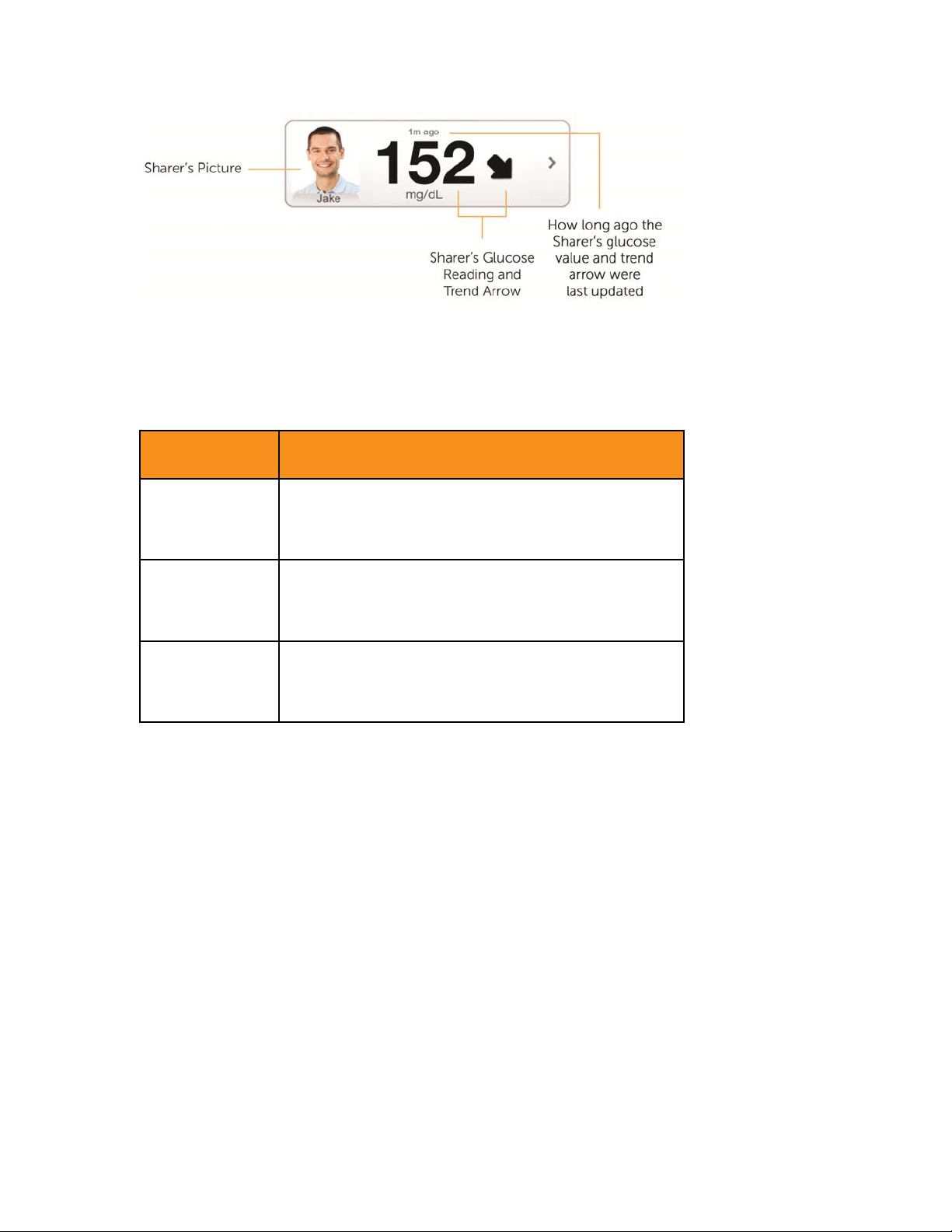
The Follow Dashboard allows the Follower to view their Sharer’s glucose
information and trend arrow. The Sharer’s picture and trend graph
are also available if the Sharer enabled sharing of this information.
51 Using the Dexcom Follow App
Page 52
Sharer Statuses
There are instances when a Sharer’s glucose information will not
be available to their Follower. The Follow Dashboard will display the
status of the Sharer.
Sharer Status Description
Removed by
Sharer
Active Sharer is using the SHARE System. The Follower can
Active - NO DATA Sharer is active but there is something wrong with the
Follower was removed from the Sharer’s follower
list. They will not receive any of the Sharer’s glucose
information, notifications, or trend graph updates.
receive the Sharer’s glucose information, notifications and
trend graphs (if granted permission by the Sharer).
system. The message, NO DATA, will appear in the
Sharer’s profile.
52 Using the Dexcom Follow App
Page 53
Sharer Status Description
Disconnected Sharer is currently not using Dexcom SHARE. The
Follower will not receive glucose information, notifications
or trend graph updates.
Not Sharing Sharer temporarily not sharing with the Follower. The
Follower will not receive any of their Sharer’s glucose
information, notifications or trend graph updates. Sharer
can choose to start sharing again at any time.
Sharer Trend Graph
The Follower can access their Sharer’s trend graph and notification
settings by pressing on their Sharer’s profile on the Follow Dashboard. The
Follower can only view the Sharer’s trend graph if granted access
to it by the Sharer.
The following diagram and table explain the trend graph and its
components.
53 Using the Dexcom Follow App
Page 54
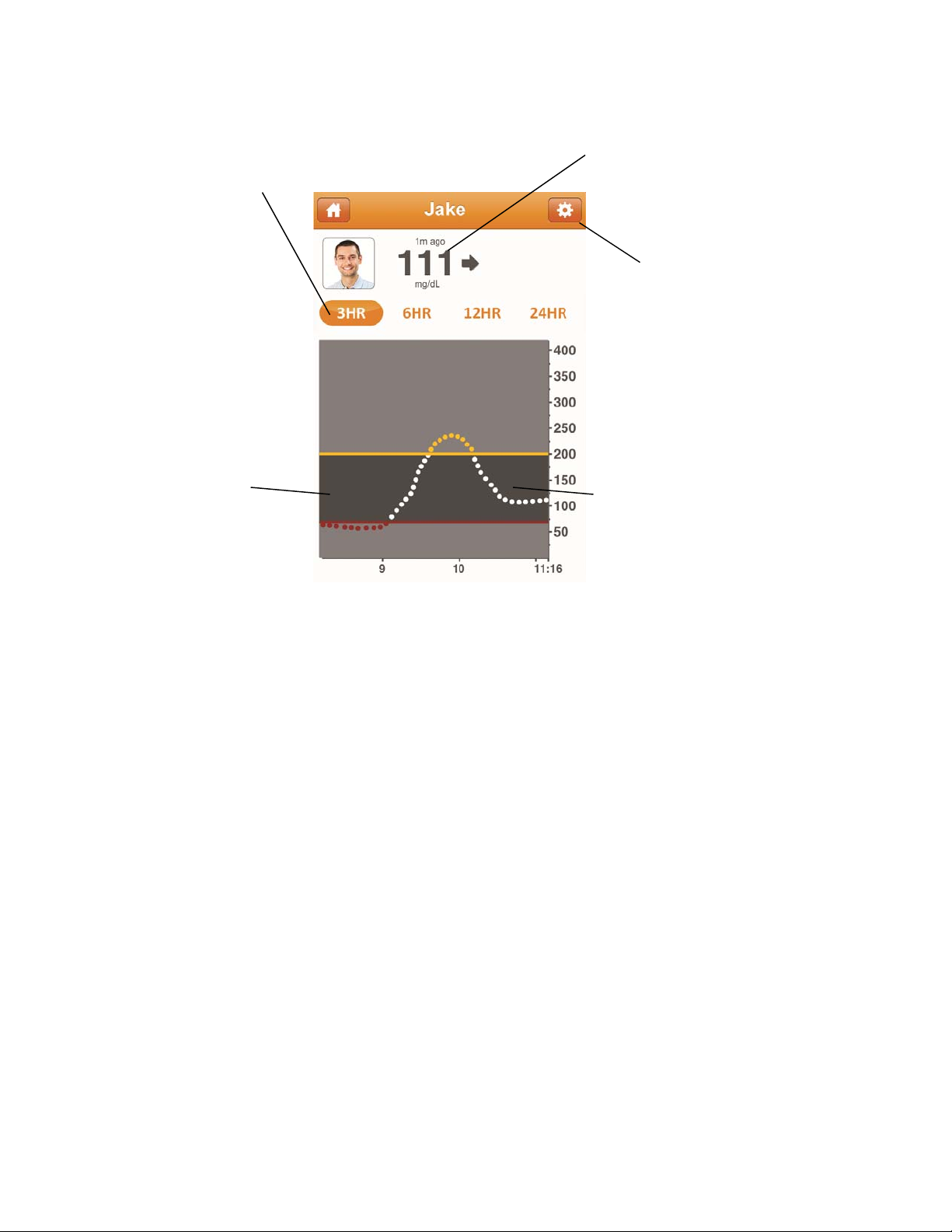
Time duration Time since
setting of 3, 6, last glucose
12 or 24 hours value
Notification
setting
Trend graph Glucose target range
(between thresholds)
54 Using the Dexcom Follow App
Page 55
Trend Graph
Description
Component
Time Duration Setting Allows the Follower to choose the time duration of
the Sharer’s trend graph. The Follower can change
the time duration by pressing on the “3HR”,”6HR”,
“12HR”, or “24HR” buttons.
Trend Graph Displays the pattern of the Sharer’s glucose
information.
Notification Settings Allows the Follower to access their Sharer’s
notification settings.
Glucose Target Range
(between thresholds)
Displays the low and high notification glucose levels
the Follower set for their Sharer.
Finding Out More
The Follower can find out more about Dexcom SHARE and the
Dexcom Follow app by pressing the information icon on the top
left corner of the Follow Dashboard screen. The Follower can access the
Safety Statement, Privacy Practices information, the Product Tour,
Instructions for Use, Customer Support and Frequently Asked
Questions (FAQs). Also, the Follower can email a friend about
Dexcom SHARE by pressing the “Tell a Friend” button.
55 Using the Dexcom Follow App
Page 56

CHAPTER FIVE
Maintaining
Dexcom SHARE
56 Maintaining Dexcom SHARE
Page 57
Cradle Working and Storage Conditions
Characteristics Min Max
Working/Storage Temperature 50° F 113° F
Relative Humidity 10% 95%
Direct Current - 5 VDC, 1 Amp Not applicable
Cradle Maintenance and Cleaning
Do not spill fluid on the Cradle or place the Cradle in liquid.
Keep the Cradle on a flat surface when it is in use. To remove dust
and grime:
1. Unplug your Cradle from the power source.
2. Use a damp, soft, lint-free cloth. Avoid getting moisture in
openings and around the USB adapter.
3. Do not use aerosol sprays, solvents, alcohol, or abrasives.
USB Cable Maintenance
1. Routinely look at cables for signs of wear and tear.
2. Only use the Dexcom-supplied USB cable and charger. Use of
non-Dexcom supplied parts may affect safety and performance.
57 Maintaining Dexcom SHARE
Page 58

There is no repair service available for your Dexcom SHARE
System. If you experience problems with your system, contact
Dexcom Technical Support. Contact information is found in
Chapter Six, Toubleshooting, Warranty and Customer Support.
Product Disposal
Consult your local waste management authorities for instructions
to dispose of devices containing electronic waste (transmitter and
Cradle) and blood contacting parts (sensor and applicator).
58 Maintaining Dexcom SHARE
Page 59

CHAPTER SIX
Troubleshooting,
Warranty and
Customer Support
59 Troubleshooting, Warranty and Customer Support
Page 60
Dexcom Share App Troubleshooting
Troubleshooting Status
- See the Troubleshooting Status section
in Chapter Three.
Forgot Username
- Follow these steps if you forgot your username.
Step Instruction
Step 1 Press the Forgot Username link in the login screen.
Step 2 Enter the Sharer’s email address that was used to setup their Dexcom
account. An email containing their username(s) will be sent to this
email address.
Step 3 Once the email is received, open it on the same iPhone or iPod touch
that has the Dexcom Share app. The email will show the username(s)
linked to the email address. Press on the username to log in.
Forgot Password
-
Follow these steps if you forgot your password.
Step Instruction
Step 1 Press the Forgot Password link in the login screen.
Step 2 Enter the Sharer’s username and press the “Submit” button. An email
containing the password will be sent to the email address used to set
up their Dexcom account.
60 Troubleshooting, Warranty and Customer Support
Page 61

Step Instruction
Step 3 Once the email is received, open it on the same iPhone or iPod touch
that has the Dexcom Share app. Press the “Reset Password” button.
Do I have a Dexcom account?
In the Dexcom Share app, press the forgot Username link on the
login screen. Provide your email address. If you have a Dexcom
Store or Dexcom SHARE account, you will receive an email that
contains your username at the provided email.
Receiver Troubleshooting
Why won’t my receiver dock with my Cradle?
- Make sure the USB port cover is slid all the way up.
- Make sure the USB port is not bent.
- Refer to Chapter Two, Setting up Cradle, for more instruction.
Cradle Troubleshooting
Why won’t my Cradle’s charging light illuminate?
- Make sure the Cradle is properly plugged in to a power outlet.
- Make sure the receiver is properly docked into the Cradle.
- Refer to Chapter Two, Setting up Cradle, for more instruction.
61 Troubleshooting, Warranty and Customer Support
Page 62

Why won’t my Cradle’s
- Make sure the Cradle is paired to the Sharer’s iPhone or iPod
touch, by following the directions in Chapter Two, Pairing Cradle.
I tried to re-pair my iPhone or iPod touch with the Cradle.
Bluetooth
light illuminate?
Why can’t my Dexcom Share app find my Cradle?
- Make sure your Cradle is powered on, and the receiver is docked
into the Cradle.
- Make sure the Cradle’s blue light is blinking. If it is not blinking,
remove the receiver from the Cradle and then press the reset
button for five (5) seconds. Finally, slide the receiver back in the
Cradle.
- Make sure you correctly entered your receiver serial number (see
Setting Up the Cradle)
- Make sure
- Delete any DEXCOMCR devices in your Bluetooth devices list.
- Make sure you did not enter SN as the first two (2) digits of the
serial number. SN is the serial number symbol and not actually
part of the serial number.
Why won’t the blue light on my Cradle stop blinking?
- Your Cradle is trying to pair with your iPhone or iPod touch. Until
Bluetooth
is ON
62 Troubleshooting, Warranty and Customer Support
Page 63

you successfully pair the Cradle with an iPhone or iPod touch, it
will continue to blink. Check the GlucoMonster in the Share app if
the blue light on your Cradle does not stop blinking.
If I am replacing the Cradle, do I have to set up my Followers
again?
- You do not have to set up your Followers again if you replace your
- You do have to pair the Cradle with your iPhone or iPod touch
If I am replacing my iPhone or iPod touch, what do I do?
- You will need to install the Dexcom Share app and follow the
Does unplugging and plugging the Cradle back in require me
to set up the Share app or Follow app again?
- In most cases the answer is no. Check the GlucoMonster on
Cradle.
again. Select the Pair Cradle in the account tab.
setup wizard. Reset your Cradle by pressing the reset button for at
least five (5) seconds. Then, log in using your account you already
created and follow the instructions to pair to your Cradle again.
the Share app to see if the Cradle is properly connected to the
Sharer’s iPhone or iPod touch. Press on the GlucoMonster if it is
63 Troubleshooting, Warranty and Customer Support
Page 64

holding a sign with an X on it . The GlucoMonster will guide you
in making sure that your Cradle is connected with your iPhone or
iPod touch.
Sharing Checklist
Follow these requirements to share:
1. Make sure your iPhone or iPod touch is compatible with the Dexcom Share app. To see
a list of supported iPhone and iPod touch models and Apple Operating System (iOS)
versions, go to the following link:
http://www.dexcom.com/share-compatibility
2. The Dexcom Share app is open or running in the background.
3. Sharer’s iPhone or iPod touch has an active internet connection, either
Wi-Fi, 3G, 4G, or LTE. The Sharer can check to see if the internet
connection is working by trying to open a webpage on the Sharer’s
iPhone or iPod touch.
4. Sharer’s iPhone or iPod touch has Airplane mode is turned OFF.
5. Sharer’s iPhone or iPod touch sound is on in order to hear
Notifications.
6. Sharer’s iPhone or iPod touch is sufficiently charged or charging.
7. Sharer’s iPhone or iPod touch is within 15 feet of the Cradle.
8. Sharer’s iPhone or iPod touch has 35MB of available memory.
9. Refer to the iPhone or iPod touch user manual for further instructions.
64 Troubleshooting, Warranty and Customer Support
Page 65
Tips
1. Read the Dexcom G4 PLATINUM System User’s Guide before using
Dexcom SHARE.
2. Always confirm information with a blood glucose meter before you
making treatment decision.
3. Do not disable alerts on your receiver when using Dexcom SHARE.
Dexcom Follow App Troubleshooting
When the Dexcom Follow app is not working, the Dashboard
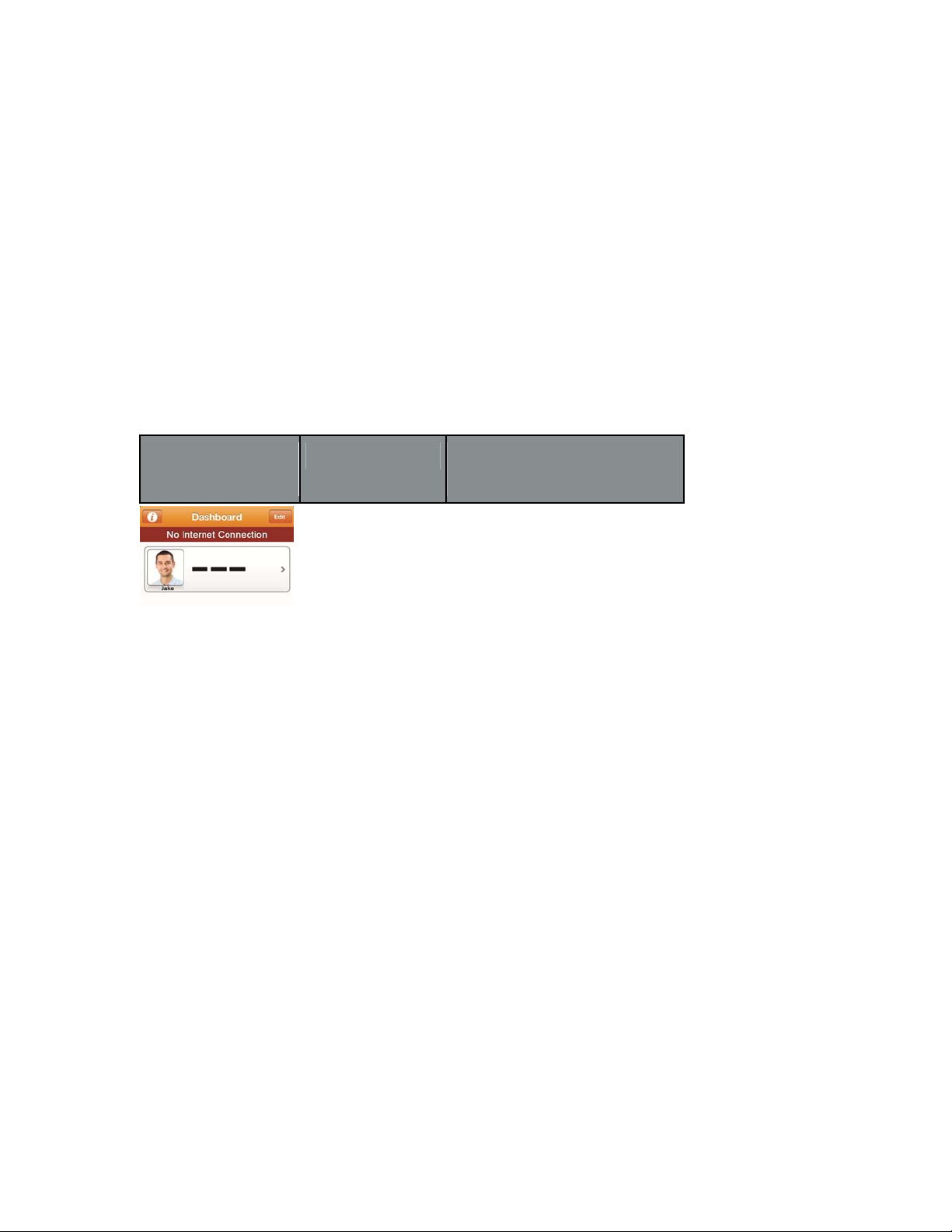
screen will notify the Follower. The table below explains the different
statuses of the Dexcom Follow app and provides troubleshooting
tips for each status.
Follower System
Description Troubleshooting Tip
Status Screen
Follower’s iPhone Make sure the Follower’s iPhone
or iPod touch does or iPod touch has Wi-Fi, 3G, 4G,
not have an internet or LTE internet connection. The
connection. Follower can check to see if the
internet connection is working by
trying to open a webpage on the
Follower’s iPhone or iPod touch.
65 Troubleshooting, Warranty and Customer Support
Page 66
Follower System
Description Troubleshooting Tip
Status Screen
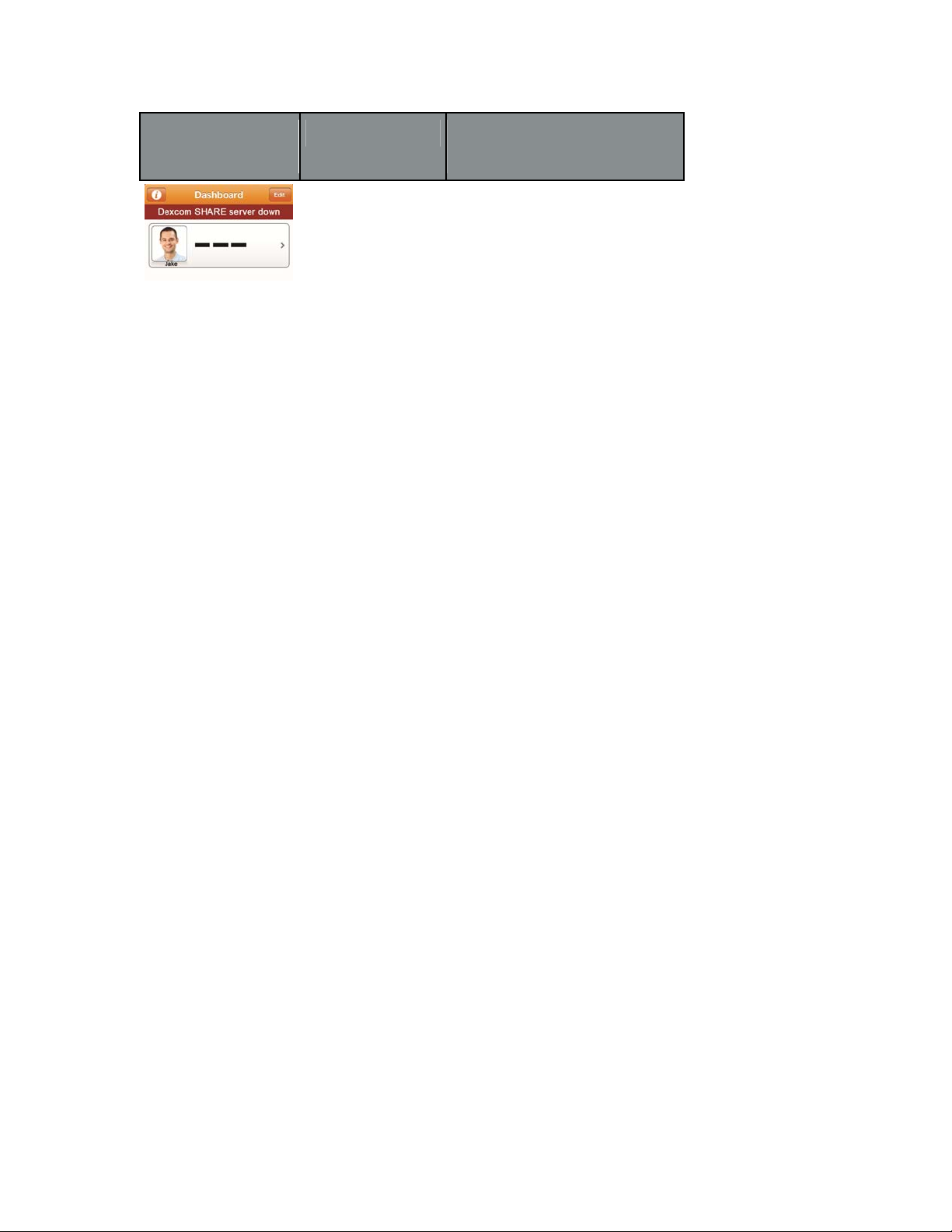
Dexcom SHARE Dexcom SHARE Cloud is
Cloud is not temporarily not working. Follower
working will not be able to receive
notifications from the Sharer.
The Follower should remind the
Sharer to always refer to the
Dexcom G4 PLATINUM Receiver
first for CGM information.
Follower Questions
Why is the Follow app indicating that I don’t have an internet
connection?
- Because you do not have a Wi-Fi connection and do not have
cellular connectivity. Connect to a Wi-Fi network or move into an
area that has cellular data service.
Why is the Follow app indicating that I have push
notifications disabled?
- You have disabled the ability for Dexcom Share to send you
notifications. Go to your settings app under notifications, find the
Dexcom Follow app and turn notification center on and set the
alert style to Banners or Alerts. Set the sounds to on and set view
in lock screen to on.
66 Troubleshooting, Warranty and Customer Support
Page 67

Why is the Follow app indicating that the Dexcom Share
System is down?
- The Dexcom SHARE Cloud is temporarily down. We are working on
restoring it and it should be up shortly. Continue using your CGM
system normally and check back with Dexcom Share later.
My Sharer went low (or high) and I did not receive a
notification. Why?
- Ensure your low, urgent low or high notifications are turned on.
- Check the delay setting for the notifications. If the delay is a value
other than 0, you must be below (or above) the threshold for that
amount of time before a notification is sent.
Following Checklist
Follow these requirements to ensure a successful Dexcom Follow app
setup.
1. Make sure your iPhone or iPod touch is compatible with the Dexcom Share app. To
see a list of supported iPhone and iPod touch models and Apple Operating System
(iOS) versions, go to the following link:
http://www.dexcom.com/share-compatibility
2. Follower’s iPhone or iPod touch has Airplane mode turned OFF.
3. Follower’s iPhone or iPod touch is not in Do Not Disturb.
4. Follower’s iPhone or iPod touch sound is on if you would like to hear
67 Troubleshooting, Warranty and Customer Support
Page 68

notifications.
5. Follower’s iPhone or iPod touch is sufficiently charged or charging.
6. Follower’s iPhone or iPod touch has 35MB of available memory.
7. Refer to the iPhone or iPod touch user manual for further instruction.
8. Make sure you do not disable your Dexcom Follow app notifications in
the iPhone or iPod touch notifications center.
Tips
1. Read the Dexcom G4 PLATINUM System User’s Guide before using
Dexcom SHARE.
2. Always confirm information with a blood glucose meter before you
make treatment decisions.
NOTE: The Dexcom SHARE Frequently Asked Questions (FAQs) are updated regularly.
Please see the following link for the latest FAQs:
http://www.dexcom.com/share-faq
68 Troubleshooting, Warranty and Customer Support
Page 69

Warranty Information
DEXCOM SHARE® CRADLE LIMITED WARRANTY
Dexcom Inc. (“Dexcom”) provides a limited warranty to the original
purchaser that the DEXCOM® SHARE™ Cradle (the “Cradle”) is
free from defects in material and workmanship under normal use and
service (“Limited Warranty”) for the period commencing upon the
date of shipment and continuing for the 12 month period of time
after that date (“Warranty Period”).
This Limited Warranty is conditioned upon proper use of the
product by the purchaser. This Limited Warranty does not cover: (a)
defects or damage resulting from accident, misuse, abuse, neglect,
unusual physical, electrical or electromechanical stress, modification
of any part of the product, or cosmetic damage; (b) equipment that
has the ID number removed or made illegible; (c) all surfaces and
other externally exposed parts that are scratched or damaged due
to normal use; (d) malfunctions resulting from the use of the product
in conjunction with accessories, products or ancillary or peripheral
equipment not furnished or approved by Dexcom; (e) defects or
damage from improper testing, operation, maintenance, installation
or adjustment; (f) installation, maintenance, and service of products;
(g) equipment that has been disassembled; or (h) water damage to
the Cradle (the Cradle is not water resistant; do not get the Cradle
69 Troubleshooting, Warranty and Customer Support
Page 70

wet at any time).
During the Warranty Period, Dexcom will replace, at Dexcom’s
sole option, without charge to purchaser, any defective Cradle
that is subject to the Limited Warranty. To obtain service under
this Limited Warranty, purchaser must return the product to an
authorized Dexcom Customer Support Department in an adequate
container for shipping, accompanied by purchaser’s sales receipt or
comparable substitute proof of sale showing the date of purchase,
the ID number of the product, and the seller’s name and address.
To obtain assistance on where to deliver the Cradle, please contact
Dexcom, Inc. 858.200.0200. Upon receipt, Dexcom will promptly
replace the defective product. If Dexcom determines that any
product is not covered by this Limited Warranty, Dexcom shall have
no obligation to replace such product and purchaser must pay all
shipping charges for the return of such product.
THE LIMITED WARRANTY OF DEXCOM DESCRIBED ABOVE
IS EXCLUSIVE AND IN LIEU OF ALL OTHER WARRANTIES,
EXPRESS OR IMPLIED, EITHER IN FACT OR BY OPERATION OF
LAW, STATUTORY OR OTHERWISE, AND DEXCOM EXPRESSLY
EXCLUDES AND DISCLAIMS ALL SUCH OTHER WARRANTIES,
INCLUDING WITHOUT LIMITATION, ANY WARRANTY OF
70 Troubleshooting, Warranty and Customer Support
Page 71

MERCHANTABILITY, FITNESS FOR A PARTICULAR PURPOSE,
OR NON-INFRINGEMENT. EXCEPT TO THE EXTENT PROHIBITED
BY APPLICABLE LAW, DEXCOM SHALL NOT BE LIABLE FOR
ANY SPECIAL, INCIDENTAL, CONSEQUENTIAL, OR INDIRECT
DAMAGES, HOWEVER CAUSED AND ON ANY THEORY OF
LIABILITY, ARISING IN ANY WAY OUT OF THE SALE, USE,
MISUSE OR INABILITY TO USE ANY SEVEN PLUS SYSTEM.THIS
LIMITATION SHALL APPLY EVEN IF DEXCOM OR ITS AGENT HAS
BEEN ADVISED OF SUCH DAMAGES AND NOTWITHSTANDING
ANY FAILURE OF ESSENTIAL PURPOSE OF THIS LIMITED
REMEDY THIS LIMITED WARRANTY SHALL NOT EXTEND TO
ANYONE OTHER THAN THE ORIGINAL PURCHASER OF THIS
PRODUCT AND STATES PURCHASER’S EXCLUSIVE REMEDY.
IF ANY PORTION OF THIS LIMITED WARRANTY IS ILLEGAL OR
UNENFORCEABLE BY REASON OF ANY LAW, SUCH PARTIAL
ILLEGALITY OR ENFORCEABILITY SHALL NOT AFFECT THE
ENFORCEABILITY OF THE REMAINDER OF THIS LIMITED
WARRANTY WHICH PURCHASER ACKNOWLEDGES IS AND
WILL ALWAYS BE CONSTRUED TO BE LIMITED BY ITS TERMS
OR AS LIMITED AS THE LAW PERMITS.
DEXCOM SHARE™ APP AND DEXCOM FOLLOW™ APP
AS PART OF DEXCOM SHARE, DEXCOM MAKES AVAILABLE
71 Troubleshooting, Warranty and Customer Support
Page 72

TWO DEXCOM SHARE APPS, THE DEXCOM SHARE APP
AND THE DEXCOM FOLLOW APP (THE “SHARE APPS”). THE
SHARE APPS ARE MADE AVAILABLE FOR AUTHORIZED USE
ACCORDING TO THE TERMS OF THE END USER LICENSE
AGREEMENT AVAILABLE AT WWW.DEXCOM.COM/SHARE.
NO OTHER TERMS APPLY, AND AS DESCRIBED IN THAT END
USER LICENSE AGREEMENT, THE SHARE APPS ARE PROVIDED
“AS-IS” AND WITHOUT WARRANTIES EXCEPT TO THE EXTENT
REQUIRED BY LAW OTHERWISE.
NO MEDICAL ADVICE
WARNING: DEXCOM SHARE DOES NOT PROVIDE ANY MEDICAL
ADVICE AND MAY NOT BE RELIED UPON FOR THAT PURPOSE
.
DO NOT MAKE FUNDAMENTAL CHANGES IN YOUR TREATMENT
PROGRAM WITHOUT TALKING TO YOUR HEALTHCARE
PROFESSIONALS.
Contact Customer Support
Toll-free phone number 1-888-738-3646
Available 6am - 6pm PST
Email [email protected]
72 Troubleshooting, Warranty and Customer Support
Page 73

CHAPTER SEVEN
Technical Information
73 Technical Information
Page 74
Receiver
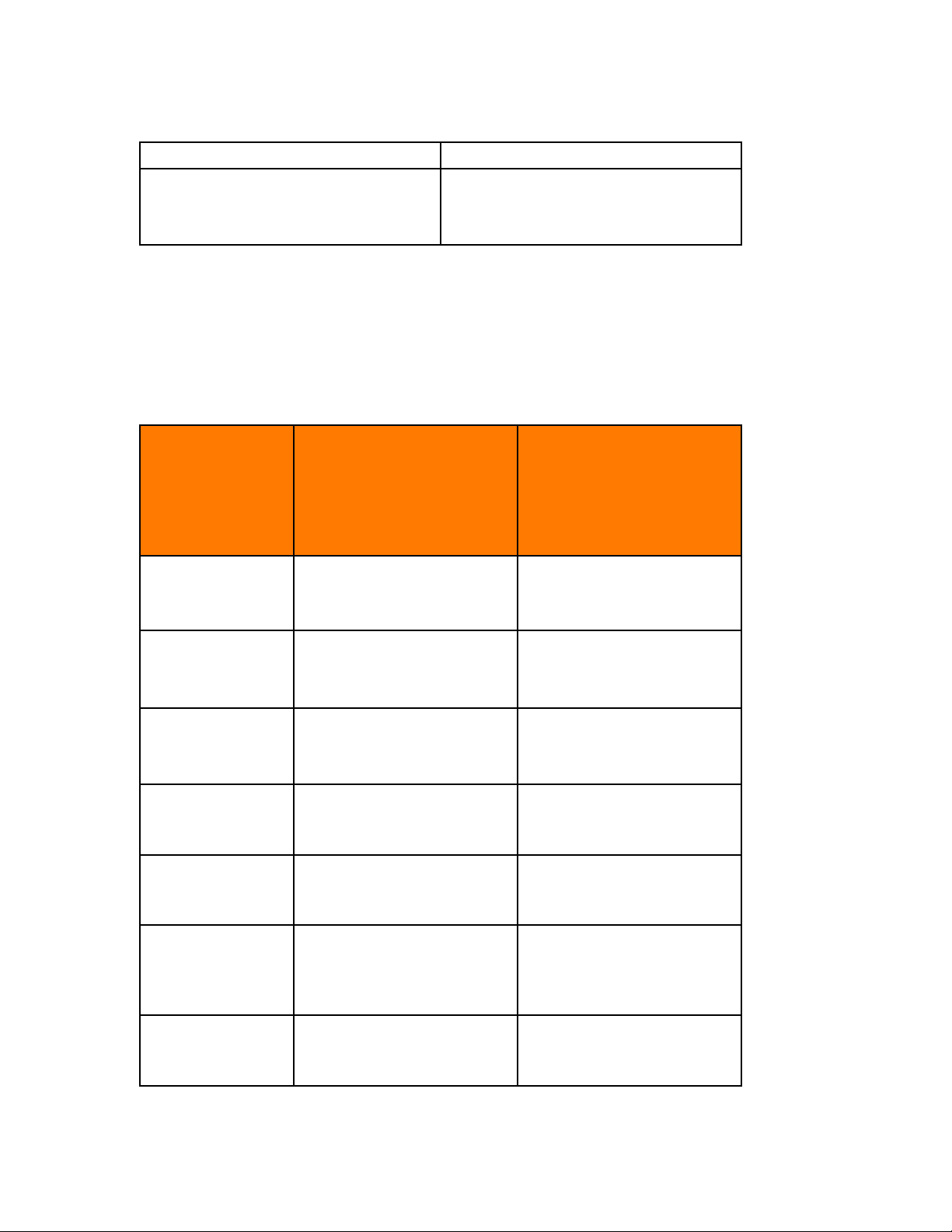
Reading Frequency Every 5 minutes
Charging time The fully drained receiver will take
approximately 5 hours to be fully charged
when connected to the Dexcom SHARE
Cradle
Guidance and Manufacturer’s Declaration –
Electromagnetic Immunity
The Cradle (P/N MT22006) is intended for use in the electromagnetic
Environment specified below. The customer or the user of the Cradle
should ensure that it is used in such an environment.
Specification
Minimum Test Level
Test Level Completed
Required per
IEC/EN 60601-1-2 for
Non-Life Support
Equipment
IEC/EN 61000-4-2
- Electrostatic
Discharge Immunity
IEC/EN 61000-4-3
- RF Radiated Fields
Immunity
IEC/EN 61000-4-4
-Electrical Fast
Transient Immunity
Air discharge up to ± 8 kV;
Contact discharge up to ± 6 kV
Radiation field strength of 3V/m
from 80 – 2500 MHz
(80% AM, 1 kHz)
Power line pulses of ± 2kV
direct;
I/O line pulses of ± 1kV
Air discharge up to ± 8 kV;
Contact discharge up to ± 6 kV
Radiation field strength of 3V/m
from 80 – 2500 MHz
(80% AM, 1 kHz)
Power line pulses of ± 2kV
direct;
I/O line pulses of ± 1kV
IEC/EN 61000-4-5
-Lightning Surge
Immunity
IEC/EN 61000-4-6
-RF Common Mode
Immunity
IEC/EN 61000-4-8
-Power Frequency
Magnetic Field
Immunity
IEC/EN 61000-4-11
- Voltage Dips and
Short Interruptions
Power line surges of ± 2kV
common, ± 1kV differential
mode
150 kHz - 80 MHz at 3 Vrms
1 kHz 80% amplitude
modulated
Inductive loop at 50 Hz and
60Hz, to 3 amps (rms) per
meter
Voltage Dips of >95%, 30%
and 60%; Interruptions of
>95%.
74 Technical Information
Power line surges of ± 2kV
common, ± 1kV differential
mode
150 kHz - 80 MHz at 3 Vrms
1kHz 80% amplitude
modulated
Inductive loop at 50 Hz and
60Hz, to 3 amps (rms) per
meter
Voltage Dips of >95%, 30%
and 60%; Interruptions of
>95%.
Page 75
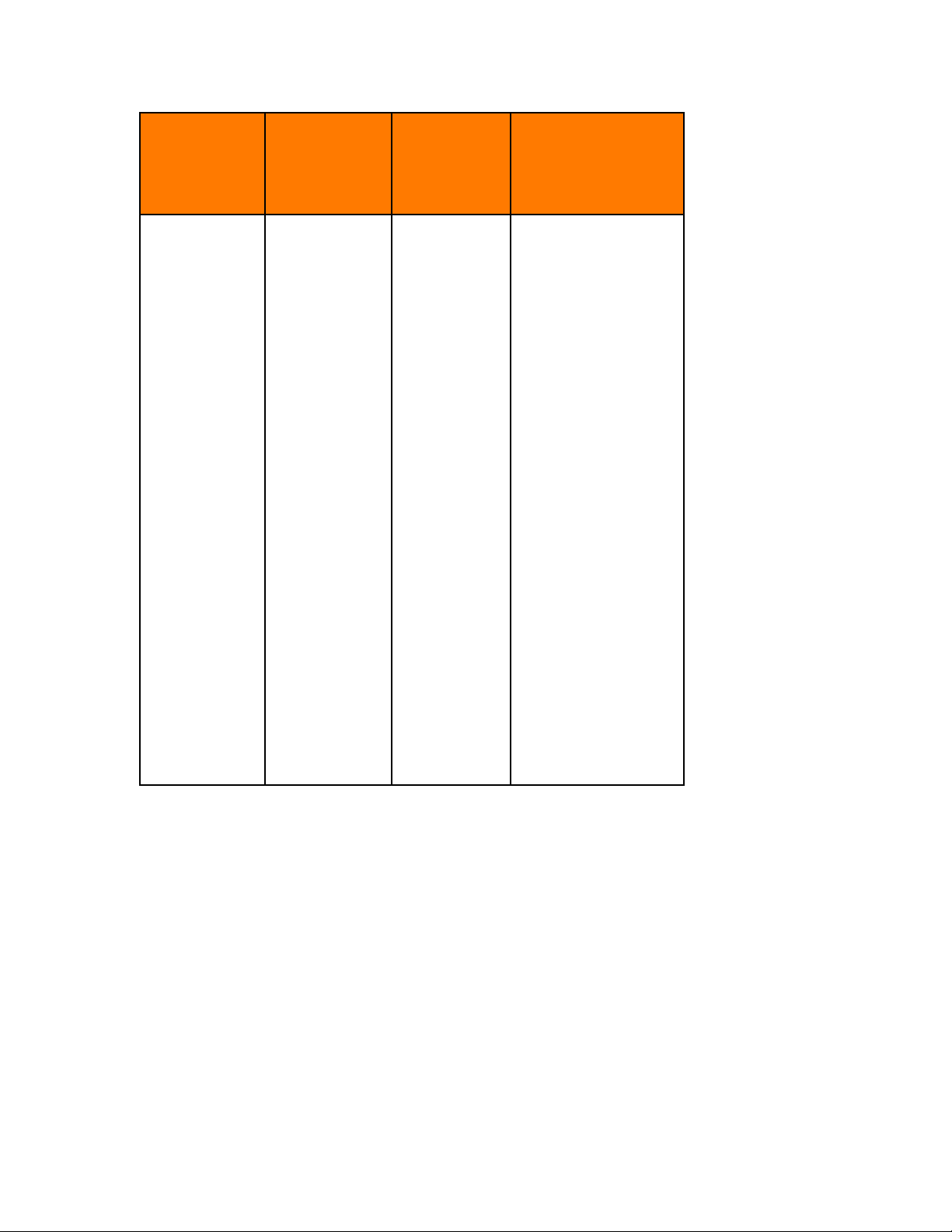
Immunity
IEC 60601
Receiver
Electromagnetic
Test
Conducted RF
IEC 61000- 4-6
(Cradle only)
Radiated RF
IEC 61000-4-3
Test Level
3 Vrms
150 kHz to 80
MHz
3 V/m
80 MHz to 2.5
GHz
Compliance
Level
3 Vrms
10 V/m
Environment
Guidance
Portable and mobile RF
communications
equipment should be
used no closer to any
part of the receiver,
including cables, than
the recommended
separation distance
calculated from the
equation applicable to
the frequency of the
transmitter.
Recommended
Separation Distance
d = 1.2 √P 150 kHz to
80 MHz
d = 1.2 √P 80 MHz to
800 MHz
d = 2.3 √P 800 MHz to
2.5 GHz
Where P is the
maximum output power
rating of the transmitter
75 Technical Information
Page 76
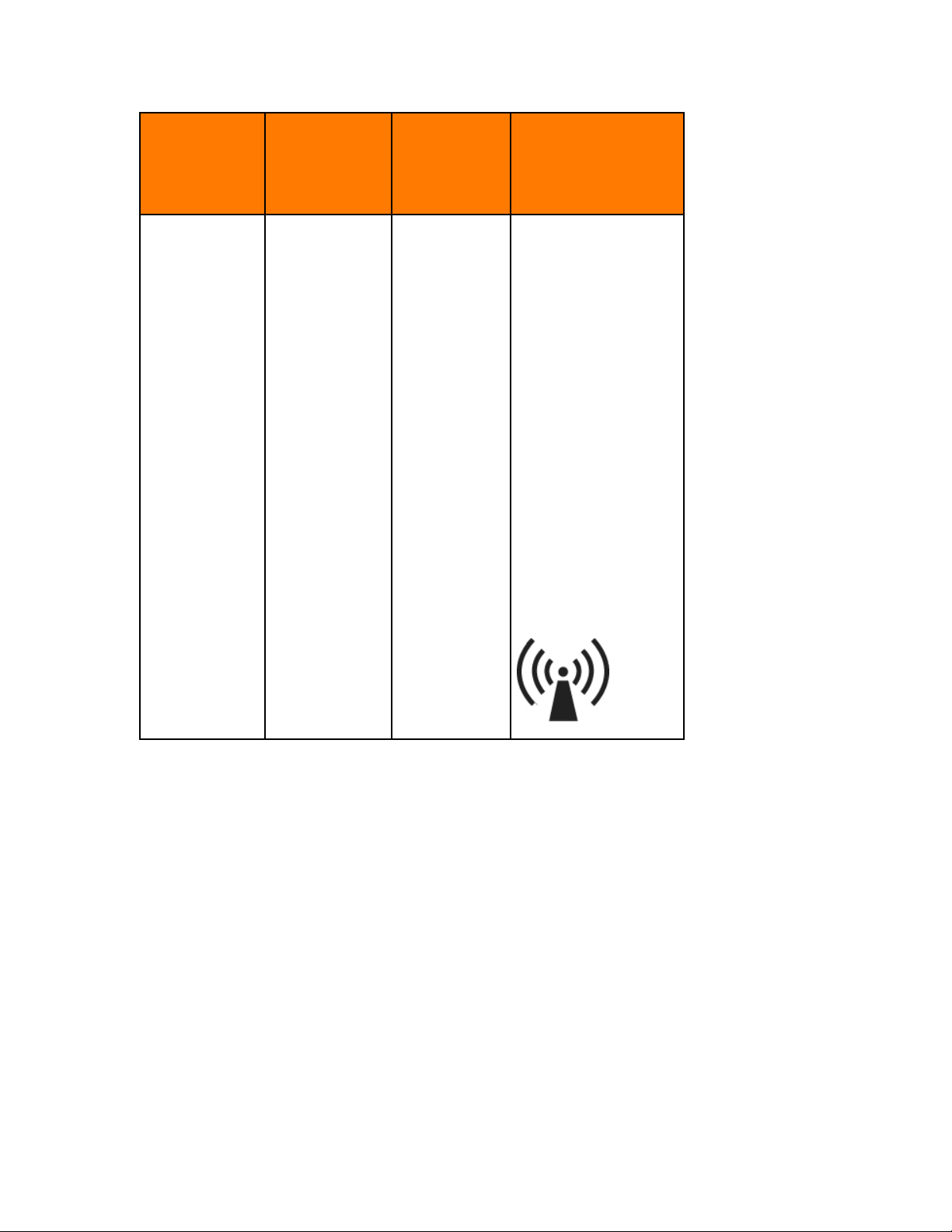
Immunity
IEC 60601
Receiver
Electromagnetic
Test
Test Level
Compliance
Level
Environment
Guidance
in watts (W) according
to the transmitter
manufacturer and d is
the recommended
separation distance in
meters (m).
Field strengths from
fixed RF transmitters, as
determined by an
electromagnetic site
surveya should be less
than the compliance
level in each frequency
rangeb.
Interference may occur
in the vicinity of
equipment marked with
following symbol:
NOTE 1: At 80 MHz and 800 MHz, the higher frequency range applies.
NOTE 2: These guidelines may not apply in all situations. Electromagnetic propagation is affected by
absorption and reflection from structures, objects and people.
76 Technical Information
Page 77

a. Field strengths from fixed transmitters, such as base stations for radio
(cellular/cordless) telephones and land mobile radios, amateur radio, AM
and FM radio broadcast, and TV broadcast cannot be predicted theoretically
with accuracy. To assess the electromagnetic environment due to fixed RF
transmitters, an electromagnetic site survey should be considered. If the
measured field strength in the location in which the Dexcom G4 PLATINUM
System is used exceeds the applicable RF compliance level above, the
Dexcom G4 PLATINUM System should be observed to verify normal
operation. If abnormal performance is observed, additional measures may
be necessary, such as reorienting or relocating the Dexcom G4 PLATINUM
System.
b. Over the frequency range 150 kHz to 80 MHz, field strengths should be
less than 3 V/m.
Recommended Separation Distances Between Portable and
Mobile RF Communications Equipment and the Cradle
The Cradler is intended for use in an electromagnetic environment in which
radiated RF disturbances are controlled. The customer or the user of the
Cradle can help prevent electromagnetic interference by maintaining a
minimum distance between portable and mobile RF communications
equipment (transmitters) and the Cradle as recommended below, according
to the maximum output power of the communications equipment. Portable
and mobile RF equipment include: baby monitors,
wireless routers, microwave ovens, laptops with internal Wi-Fi adapters, GSM
cell phones, RFID scanners and hand-held security metal detector often used
by security screeners.
Bluetooth
wireless headsets,
77 Technical Information
Page 78
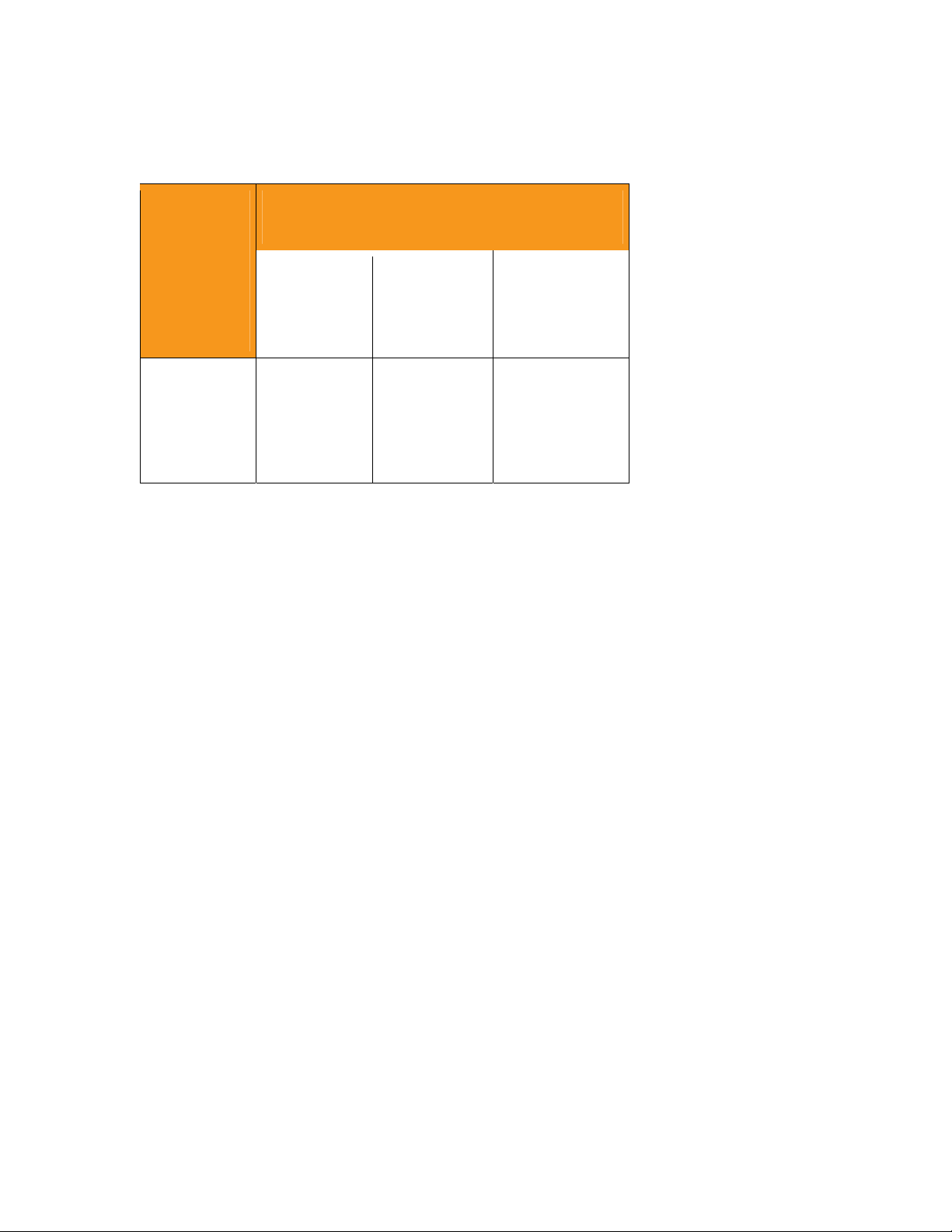
Minimum Recommended Distance Between
Transmitter and Cradle
Rated
maximum
Output
Power of
Transmitter
Separation Distance
According to Frequency of Transmitter (m)
150 kHz to 80
MHz
d = 1.2 P
1/2
80 MHz to 800
MHz
d = 1.2 P
1/2
800 MHz to 2.5
GHz
d = 2.3 P
1/2
(W)
0.01
0.1
1
10
100
For transmitters rated at a maximum output power not listed above, the
recommended separation distance (d) in feet can be estimated using the
equation applicable to the frequency of the transmitter, where P is the
maximum output power rating of the transmitter in watts (W) according to the
transmitter manufacture.
NOTE 1: At 80 MHz and 800 MHz, the separation distance for the higher
frequency range applies.
NOTE 2: These guidelines may not apply in all situations. Electromagnetic
propagation is affected by absorption and reflection from structures, objects and people.
0.12
0.38
1.2
3.8
12
0.12
0.38
1.2
3.8
12
0.23
0.73
2.3
7.3
23
78 Technical Information
Page 79
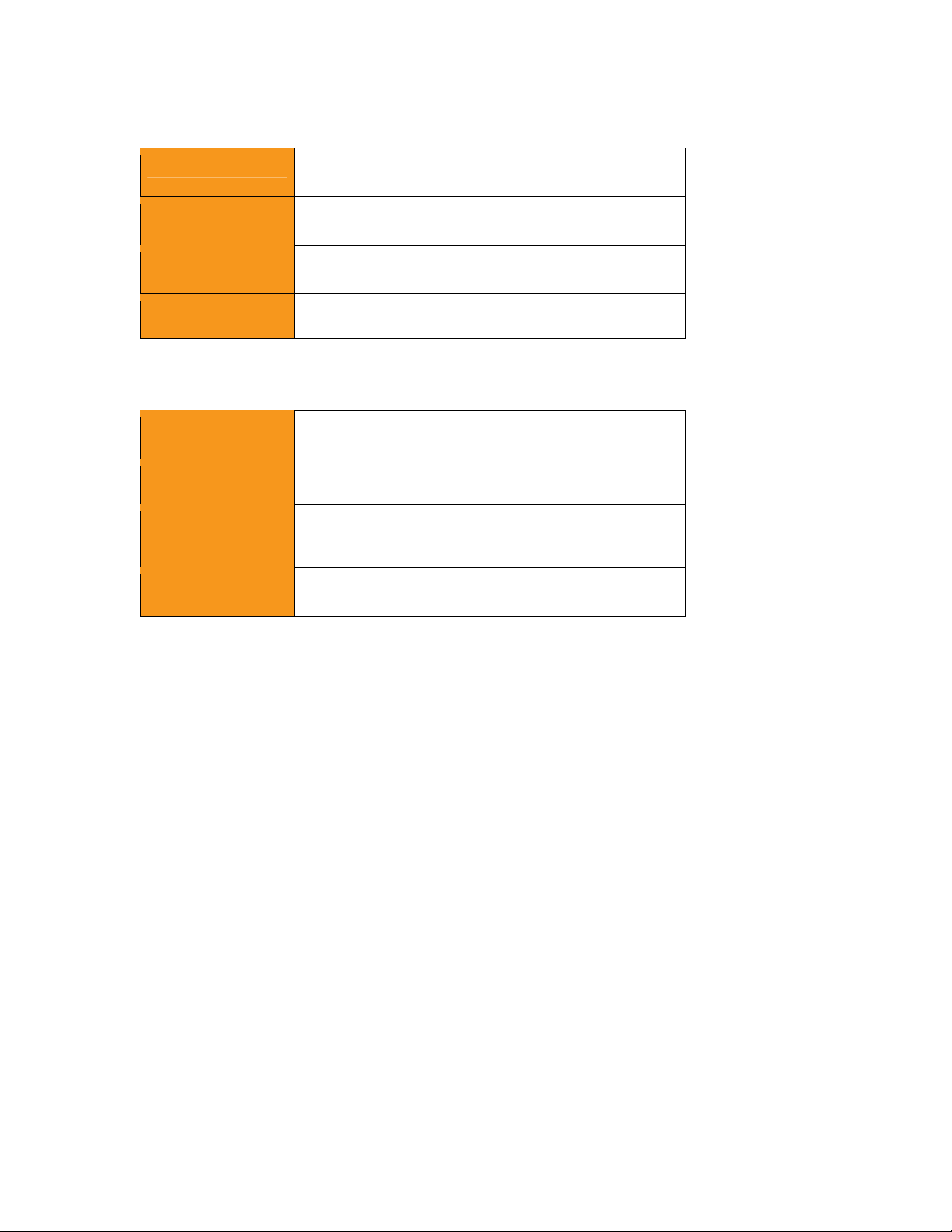
USB Charging/Download Cable Specifications
Dexcom P/N MT20655
Input/Output 5V DC, 1A
Type USB A to USB micro B
Length 3 feet
Power Supply/Charger Specifications
Dexcom P/N MT21255
Class II
Input AC Input 100-240 Vac, 50/60Hz, 0.2A, 0.2A rms at
100Vac
DC Output
5V DC, 1A (5.0 Watts)
79 Technical Information
Page 80

FCC Requirements
The Dexcom SHARE Cradle covered by this user manual has been certified under FCC ID:
PH29006.
INFORMATION TO USER
This device complies with Part 15 of the FCC Rules. Operation is subject to the following two
conditions: (1) This device may not cause harmful interference, and (2) This device must accept any
interference received, including interference that may cause undesired operation.
This equipment has been tested and found to comply with the limits for Class B Digital Device,
pursuant to Part 15 of the FCC Rules. These limits are designed to provide reasonable protection
against harmful interference in a residential installation. This equipment generates and can radiate
radio frequency energy and, if not installed and used in accordance with the instructions, may cause
harmful interference to radio communications. However, there is no guarantee that interference will
not occur in a particular installation. If this equipment does cause harmful interference to radio or
television reception, which can be determined by turning the equipment off and on, the user is
encouraged to try to correct the interference by one or more of the following measures.
Reorient or relocate the receiving antenna
Increase the separation between the equipment and the Cradle
Connect the equipment into an outlet on a circuit different from that to which the Cradle is
connected
Consult the dealer or an experienced radio/TV technician for help
Any changes or modifications not expressly approved by the party responsible for compliance could
void the user’s authority to operate the equipment.
80 Technical Information
Page 81

CHAPTER EIGHT
Index
81 Index
Page 82

Index
A
Account
Creation 30
Tab 42
Airplane mode, definition 8
Application or App
Definition 8
Follow, see Dexcom Follow app
Share, see Dexcom Share app
B
Benefits 17
Blood Glucose Meter, definition 8
Blood Glucose Value, definition 8
Bluetooth, definition 8
C
Conditions That Affect Use 17
Contraindications 18
Cradle
Definition 8
Maintenance and Cleaning 57
Pairing 12, 31, 42
Replacing 43
Resetting 43
Setting up 28
Troubleshooting 61
Storage Conditions 57
82 Index
Page 83

Working Conditions 57
Customer Support Contact Information 72
D
Default, definition 8
Delay, definition 8
Dexcom Follow app
Definition 8
Description 47
Troubleshooting 65
Dexcom SHARE System
Definition 9
System Components 16
System Overview 15
Dexcom Share app
Definition 9
Account Creation 30
Description 27
Troubleshooting 60
Dexcom SHARE Cloud, definition 8
Do Not Disturb, definition 10
F
Follow app, see Dexcom Follow app
Follow Dashboard 51
Definition 10
Follower
Definition 10
Editing 41
83 Index
Page 84

Inviting 41
List 39
Questions 66
Removing 42
Stop Sharing with 41
Follower’s iPhone or iPod touch
Definition 10
Requirements Checklist 67
G
Glossary 8
GlucoMonster 35, 38
Definition 10
Glucose Notifications
Changing 49
Types 48
Guidance and Manufacturer’s Declaration 74
H
Hyperglycemia, definition 10
Hypoglycemia, definition 10
I
Important User Information 18
Indications for Use 18
Information Icon 55
Invite/Invitation
Definition 10
Inviting Followers 32, 41
Receiving Follow Invitation Emails 47
84 Index
Page 85

iPhone
Definition 11
Requirements 64, 67
iPod touch
Definition 11
Requirements 64, 67
J
Jailbroken
Definition 11
iPhones and iPod touches 25
M
mg/dL, definition 11
Maintenance 56
Cradle 57
USB Cable 57
Mobile Data Connections, definition 11
More Tab 45
N
No More Data Notification
Definition 11
Status Change Notification, type 51
Not Sharing
Definition 11
Follower Dashboard, status 40
Notification
Definition 11
Changing Glucose 49
85 Index
Page 86

Glucose 48
Status Change 51
O
Obstruction, definition 12
Online store, definition 12
P
Pairing
Definition 12
Cradle 31
New iPhone or iPod touch 42
Registering New Receiver 44
Wizard 44, 63
Password
Dexcom Share account, creating 31
Forgotten 60
Power adaptor, definition 12
Precautions 19
Profile, definition 12
R
Range, definition 12
Real-time continuous glucose monitoring, definition 12
Receiver
Registering new 44
Troubleshooting 61
Repeat, definition 12
Requirements
Sharing Checklist 64
86 Index
Page 87

Following Checklist
67
Risks 23
S
Sensor, definition 9
Sensor glucose reading, definition 12
Share app, see Dexcom Share app
Sharer, definition 13
Trend graph 53
Sharer’s iPhone or iPod touch
Definition 13
Requirements Checklist 63, 67
Sharing, definition 13
Standard home glucose monitoring, definition 13
Status 35
Change Notification 50
GlucoMonster 38
Sharer 52
Tabs 36
Troubleshooting 36
Storage Conditions, Cradle 56
Symbols 14
System, see Dexcom SHARE 9
T
Tab
Account 42
Followers 39
More 45
87 Index
Page 88

Status 36
Technical Information 75
Transmitter, definition 9
Trend arrow, definition 13
Trend graph
Definition 13
Sharer 53
Troubleshooting
Cradle troubleshooting 61
Dexcom Share app troubleshooting 60
Dexcom Follow app troubleshooting 65
Receiver troubleshooting 61
Status 36
U
USB cable
Definition 13
Maintenance 57
USB port, definition 13
User Agreement 25
Username
Dexcom SHARE Account, creating 30
Forgotten 60
W
Warnings 19
Warranty Information
Wi-Fi or wireless internet, definition
13
69
88 Index
LBL-011973 Rev X02 MT22247_Draft
 Loading...