

Page 1
65 Aleksandar Stamboliyski Str., 8000 Burgas, Bulgaria
Tel.: +359 56 820027, Fax: +359 56 836700
Email: [email protected], Web: www.devabroadcast.com
DB91-RX
Compact IP Audio Decoder
Quick User Guide
BEFORE YOU USE THIS PRODUCT
In order to be able to enjoy all the benefits of owning your new
DEVA product, please verify first that the latest software and
firmware release were installed.
Visit www.devabroadcast.com/downloads
recent software and firmware downloads, prior the installation.
for the most
DEVA Broadcast Limited is an ISO 9001:2008 certified company.
Page 2
This Quick user guide will make the installation of DB91-RX quick and easy. Applying these principles, you
can simplify the process and save yourself extra time and effort. For more information about the Safety
precautions and the Operating environment recommendations please refer to the User Manual.
Connection
STEP 1
1. Connect the device to a local network or to the Internet by a cable with an RJ-45 connector;
2. Connect the DB91-RX to the power supply.
RECOMMENDATION: Preferably, connect the device to a DHCP Server network from which DB91-RX
will receive an IP address.
DB91-RX is controlled trough a build in WEB Server and a standard web browser can be used to monitor
its status or to make some adjustments.
To operate the device you need to know its IP Address. In case you are not aware of it, you can hear it
through the headphones when you turn on the the device. Alternatively, use the Network discovery feature
at Local networks (for reference see Step 3).
Configuration
STEP 2
Network discovery is a network setting that defines whether your computer can see (find) other computers
and devices on the network and whether other computers on the network can see your computer. By
default, Windows Firewall blocks network discovery but you can enable it.
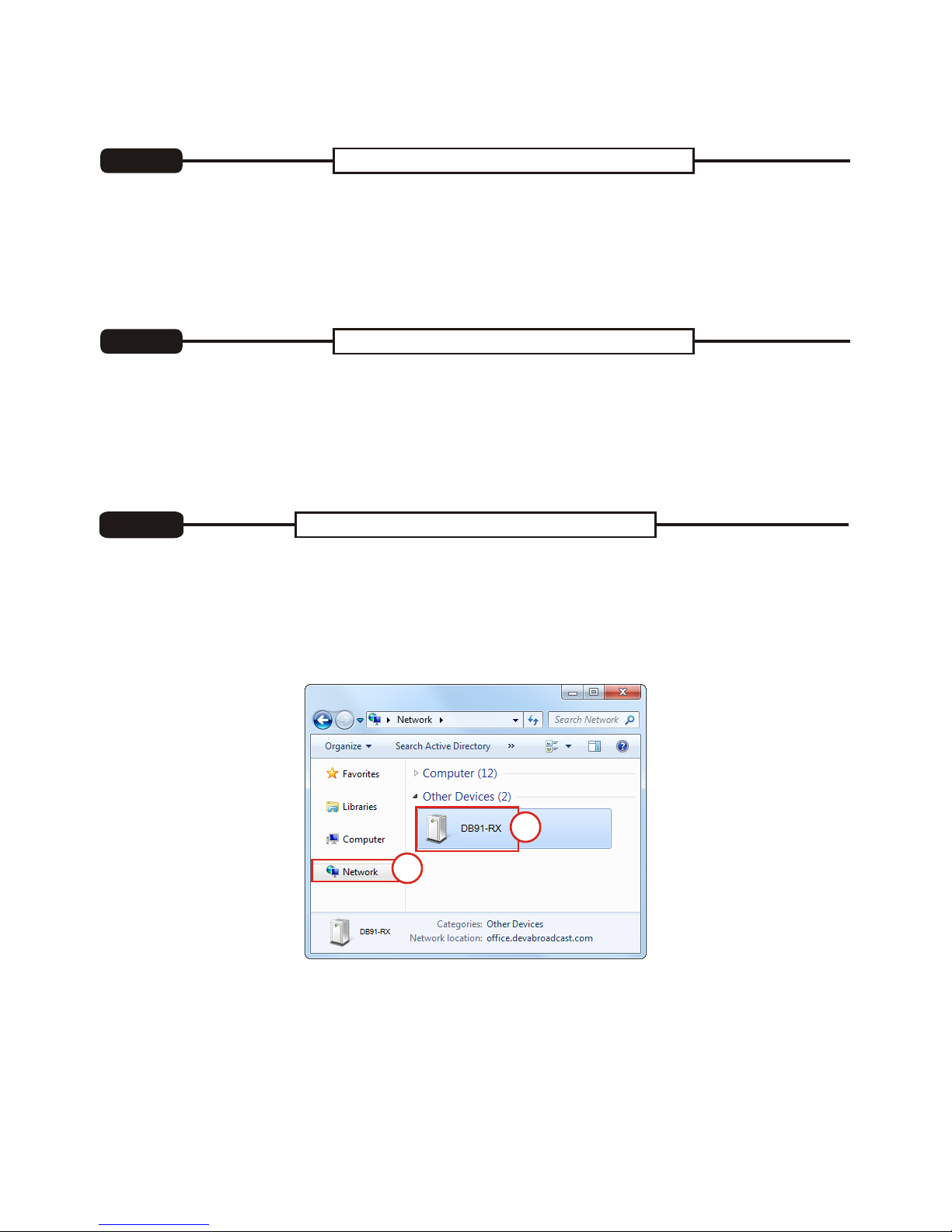
If you have already enabled this function on your computer just open a new Explorer bar and click on .
The device must be displayed.
1. Open Advanced sharing settings by clicking the Start button, and then on "Control Panel". In the
search box, type "network", click "Network and Sharing Center", and then, in the left pane click "Change
advanced sharing settings";
2. Select your current network profile;
3. Click Turn on network discovery, and then click Save changes. If you're prompted for an
administrator password or confirmation, type the password or provide confirmation.
4. To access the device open a new Explorer bar and click on . If you have successfully enabled the
network discovery option, the device will be displayed. Double click on will open a new WEB browser
window requiring username and password. Default values being -Username: user or admin, Password:
pass.
(1)
(1)
(2)
1
2
Network discovery for Windows 7
STEP 3
Page 3
WEB Interface
STEP 4
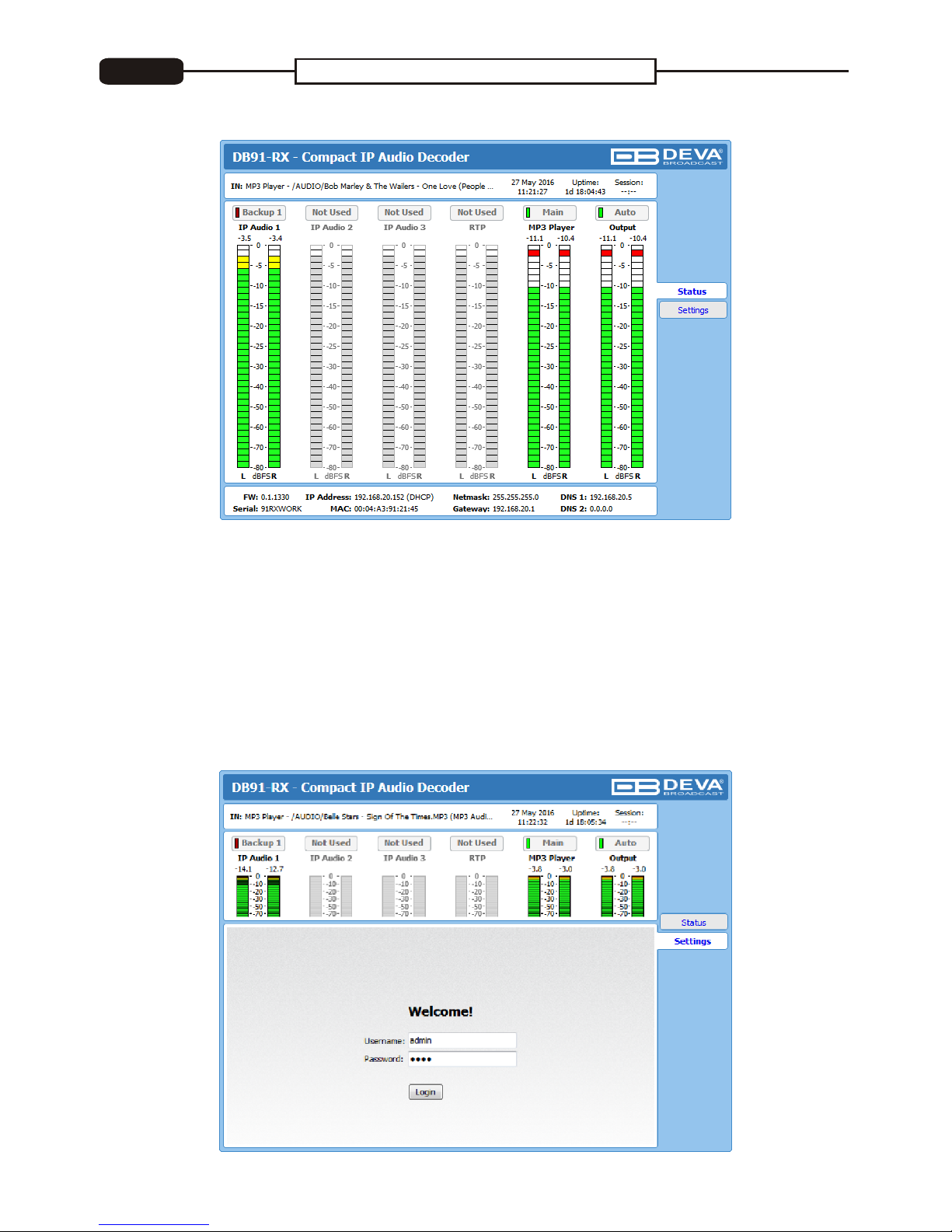
A successful log-in in the WEB Interface will look like this:
The DB91-RX provides you with a protected access to the device settings. Upon pressing the Settings
button, a window requiring username and password will appear.
In order to make the necessary adjustments to the device please log in as ADMINISTRATOR which
will give you full control over the settings. The default values are username: admin, password: pass.
The main Status window contains information on the device's current status - the LED bar-graph
representation of the audio sources. The interactive buttons placed over the LED bar-graphs allow the
audio source to be manually changed.
If the mouse cursor is pointed at a label of an audio source, a balloon containing information for the Codec,
Bit rate and Sample rate will appear (as depicted above).
Page 4
Please refer to the User manual for detailed information on
how to configure and explore your device.
Device Settings
STEP 5
Thank you for choosing DEVA!
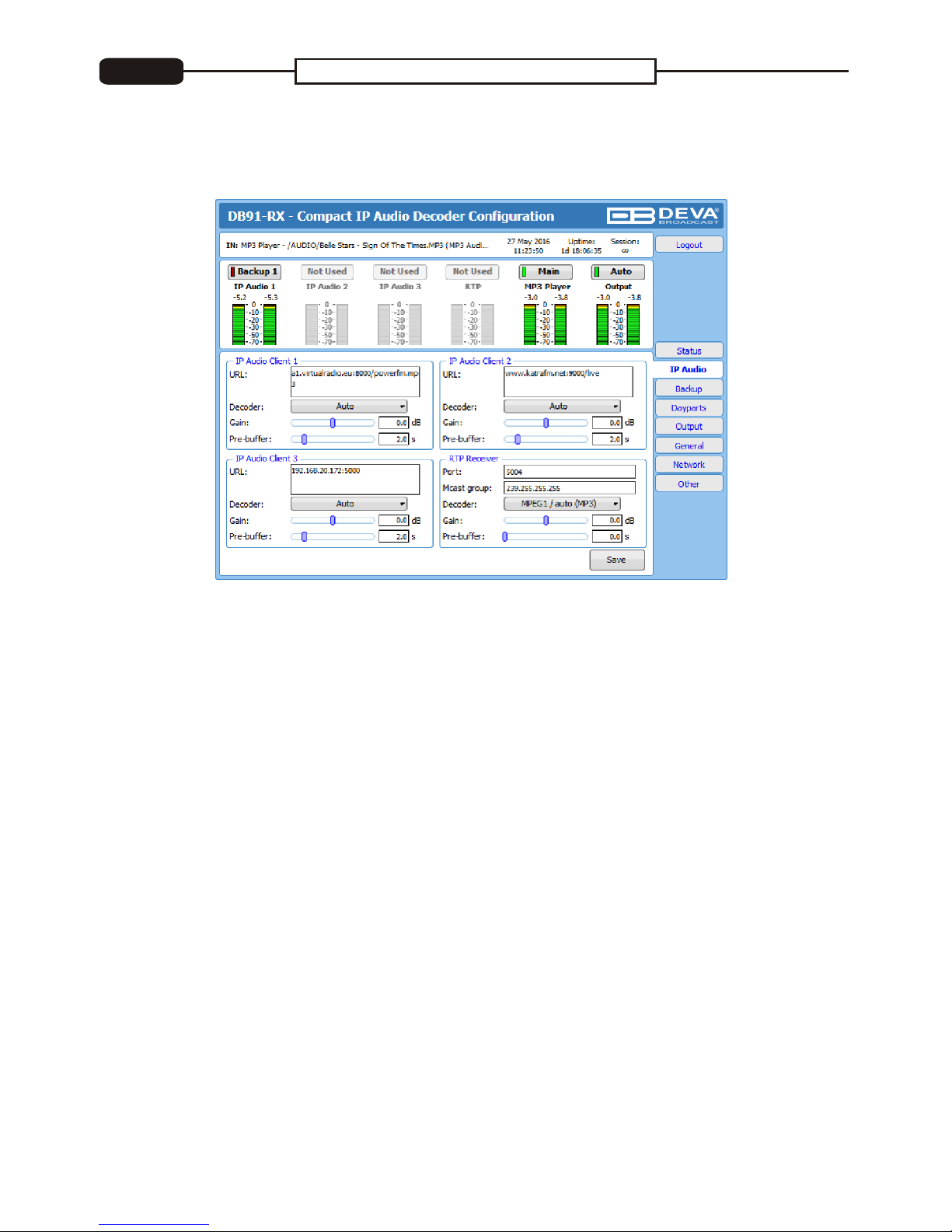
Upon entering the device's settings, you will be able to apply needed adjustments to the DB91-RX. In
order the applied settings to be used press the [Save] button, placed on the bottom right part of each
screen.
For further information on the available options and features, please refer to the User Manual which can be
found on www.devabroadcast.com/downloads, and the accompanying CD.
 Loading...