

Page 1
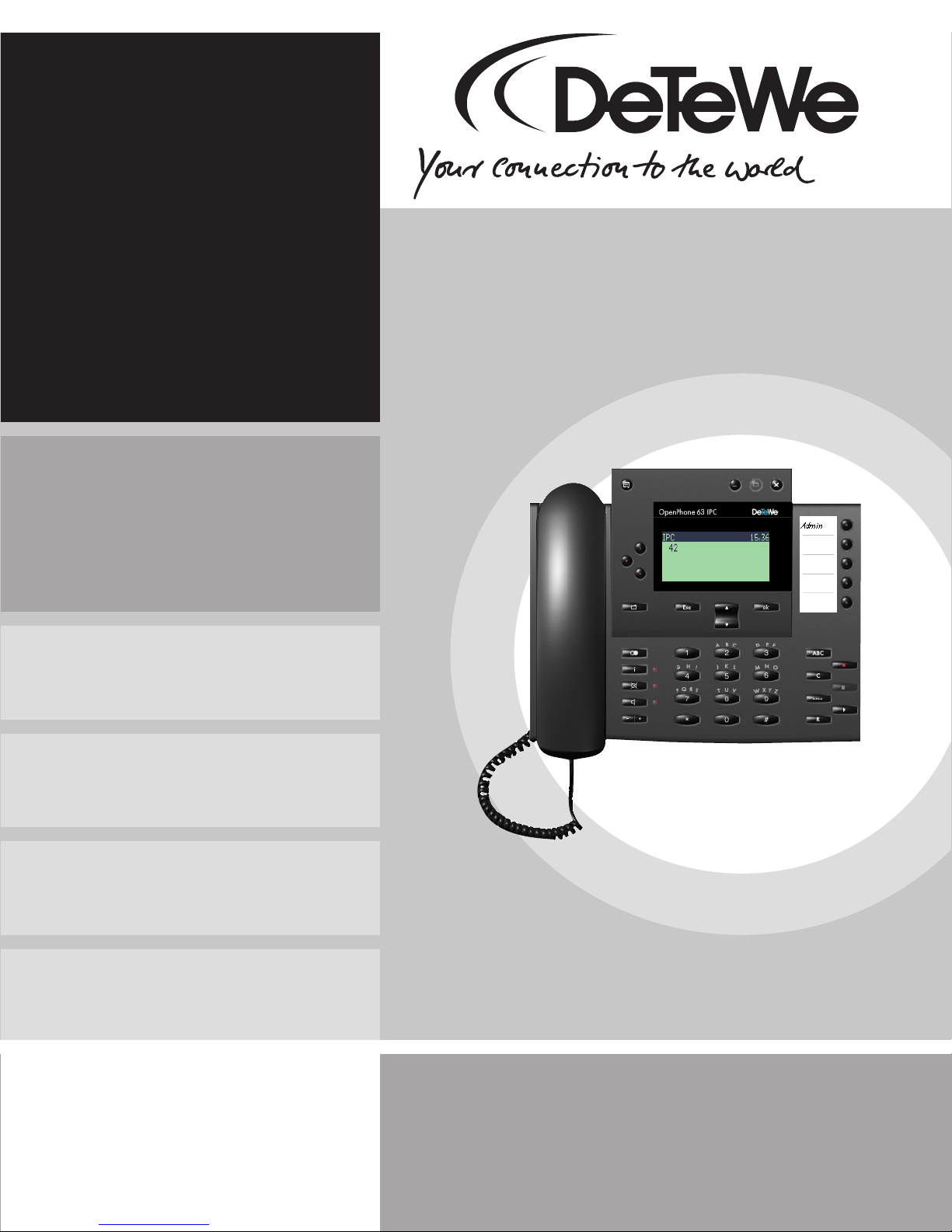
OpenPhone IPC
on the OpenCom 100
Communications System
User Guide
Page 2

Welcome to DeTeWe
Thank you for choosing this DeTeWe
product. Our product meets the
strictest requirements with regard to
quality and design.
OpenPhone IPC
The following operating instructions will assist you in using your
OpenPhone IPC and answer most of
the questions that may arise.
OpenCom 100
Product Family
This user guide applies to the
OpenCom 100 product family
comprising the OpenCom 107,
OpenCom 130, OpenCom 131,
OpenCom 150 and OpenCom 510
systems.
If a reference is made in the text to
the OpenCom 100, the description
applies to all systems; if the individual characteristics are different, a
special note is given.
If you require further technical support or information about other
DeTeWe products, please refer to our
website at
www.detewe.de.
It provides additional notes and tips
on the product.
We hope you enjoy using
OpenPhone IPC.
Page 3

Contents
OpenPhone IPC on
the OpenCom 100
Communications
System 3
General Information 3
Abbreviations and Terminology 4
System Requirements 5
Minimum . . . . . . . . . . . . . . . . . . . . . . 5
Recommended . . . . . . . . . . . . . . . . . 5
Characteristics 5
Installation 6
Functionality 8
OpenPhone IPC Configuration 9
OpenCom Tab. . . . . . . . . . . . . . . . . . . 9
Display Tab . . . . . . . . . . . . . . . . . . . . . 9
Audio Tab . . . . . . . . . . . . . . . . . . . . . 10
Output volume Tab. . . . . . . . . . . . . 10
Input volume Tab . . . . . . . . . . . . . . 11
Voicemail Tab. . . . . . . . . . . . . . . . . . 11
Using the OpenPhone IPC with
an Interface 12
Programme Start. . . . . . . . . . . . . . . 12
Usage. . . . . . . . . . . . . . . . . . . . . . . . . 12
Drag & Drop 17
Volume Settings 18
Audio Functionality 18
Audio functionality with a
deactivated Answering
Machine . . . . . . . . . . . . . . . . . . . 19
Audio functionality with an
activated Answering Machine 20
Application Menu 21
Taskbar Symbol 21
1
Page 4

2
Page 5

OpenPhone IPC on the
OpenCom 100
Communications System
General Information
The OpenPhone IPC is a system terminal that can be operated with the
OpenCom 100.
This system terminal refers to a PCsoftware based communications solution. Besides the OpenCom 100,
for the operation of the
OpenPhone IPC there are no specific
hardware requirements.
The OpenPhone IPC’s technology is
based on VoIP (Voice over Internet
Protocol).
In this user guide the highlights of
the OpenPhone IPC are described
which set it apart from the hardware-based system telephones
OpenPhone 61, OpenPhone 63 and
OpenPhone 65.
Note: For usage of the
OpenPhone IPC, please refer to the
“OpenPhone 61, 63, 65 on the
OpenCom 100 Communications
System” user guide.
OpenPhone IPC General Information
3
Page 6

Abbreviations and Terminology
AEC (Acoustic Echo Cancellation):
Filter out those frequencies emitted
by the loudspeaker that would be
picked up by the microphone. Prevents the call-partner at the other
end from receiving their own echo.
Codecs:
Compression (and decompression)
of audio data, in real time, before
transportation via the Internet Protocol thus reducing network load.
DirectSound:
Application programming interface
developed by Microsoft for controlling the sound card. Makes is possible to simultaneously output the audio data of multiple applications.
Using Microsoft Windows XP, AEC is
also supported.
RAS (Remote Access Server):
Makes the creation of a network
connection via Modem, ISDN or DSL
possible.
RTP / RTCP (Real Time Protocol /
Real Time Control Protocol):
Protocols for the transportation of
real-time audio data via the Internet
Protocol.
Skin:
Interchangeable graphical user interface.
TAPI (Telephony Application
Programming Interface):
A from Microsoft and Intel developed programming interface for telephony applications using Microsoft
Windows.
Dynamic Jitter Buffer
Adjustment:
Smooths out delays, caused by differing network utilisation, that can
occur during transportation of realtime audio data via the Internet Protocol.
Echo suppression:
While a call-partner is talking, the
microphone is suppressed. Reduces
the voice echo for the call-partner.
TSP (TAPI Service Provider):
Hardware dependent driver module
to provide TAPI functionality for specific devices (e.g. for the
OpenCom 100).
VAD (Voice Activity Detection):
Recognition of speech pauses that,
to reduce network load, are not sent.
4
Abbreviations and Terminology OpenPhone IPC
Page 7

System Requirements
Minimum
■ CPU: PII 500 MHz or comparable
processor
■ RAM: 64 MB
■ Hard drive capacity: 20 MB
■ VGA: 800 * 600, 8 bit
■ Sound: full-duplex capable
sound card
■ Microphone / Loudspeaker
■ Network or RAS connection
■ Operating System: Microsoft
Windows 98 / ME / 2000 / XP
Recommended
■ CPU: PIII 1 GHz or comparable
processor
■ RAM: 128 MB
■ Hard drive capacity: 50 MB
■ VGA: 800 * 600, 16 bit
■ Sound: full-duplex capable
sound card
■ Headset
■ 10 Mbit/s Network connection
■ Microsoft Windows XP
Characteristics
■ Photo-realistic user interface
with Skin technology
■ Fully-fledged system terminal
with all features comparable
with OpenPhone65IP
■ Automatic software update
(from OpenCom 100)
■ Answering machine with e-mail
notification
OpenPhone IPC System Requirements
■ Recording of calls
■ Sending of audio e-mails
■ Tone generator for call melodies,
DTMF and notification tones
similar to the OpenPhone 61,
OpenPhone 63 and
OpenPhone 65
■ Complete usage via PC keyboard
is possible
5
Page 8
■ Alphanumeric dialling via PC
keyboard
■ Control from CTI applications of
other providers is possible
■ Suitable for workplaces for the
sight-impaired
■ Dialling of call numbers/names
via “Drag & Drop”
■ Automatic RAS dial-in configura-
ble
■ Local voice echo (dependent on
the sound card)
■ Configuration assistant (includ-
ing sound card configuration)
Installation
■ Voice codecs G.711, G.729A,
G.723.1 each with VAD (Voice
Activity Detection) and dynamic
jitter buffer adjustment
■ RTP/RTCP
■ Echo suppression, AEC (Acoustic
Echo Cancellation) when using
DirectSound with Microsoft
Windows XP
Please note that for the installation
of OpenPhone IPC you must have
administrator privileges of your PC.
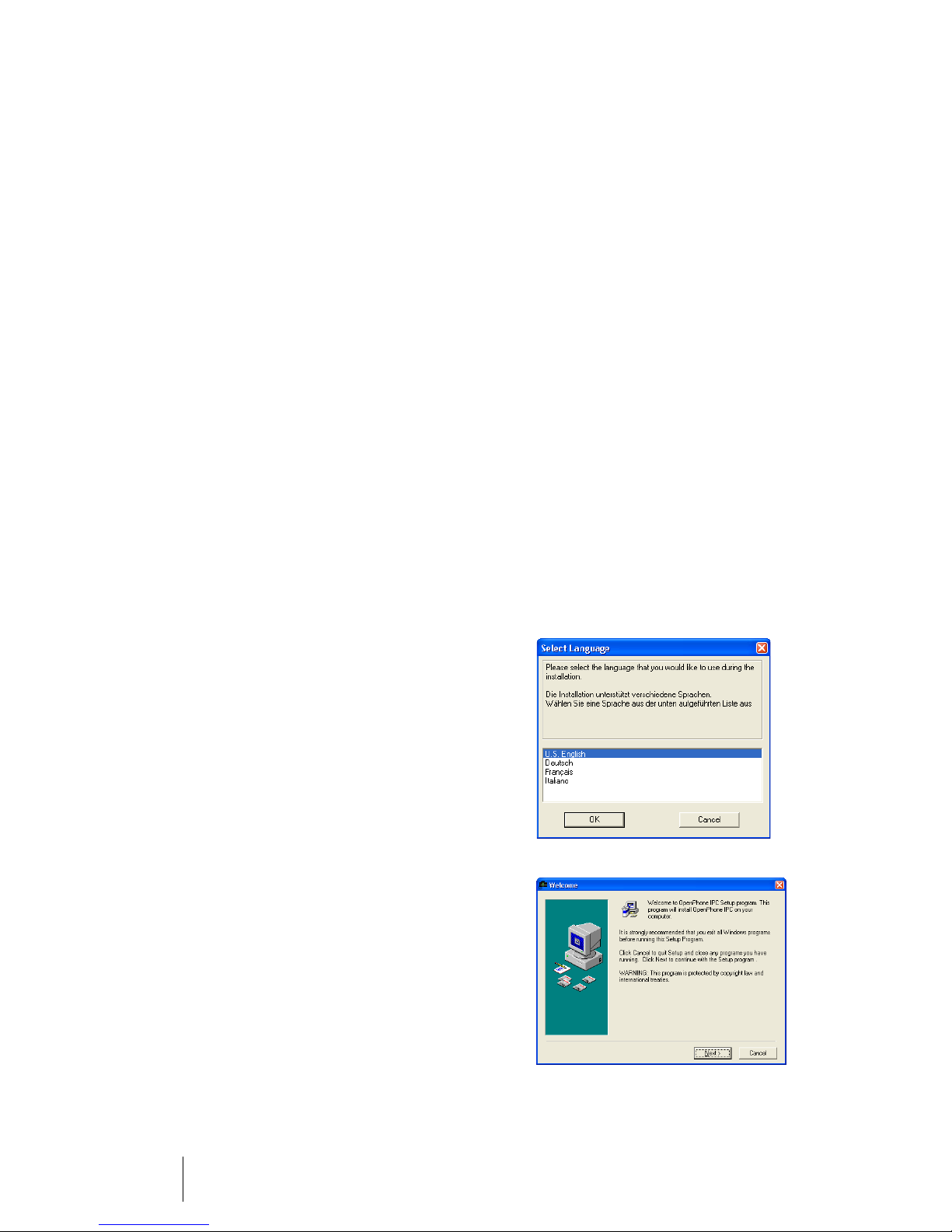
1. Execute the “IPhoneSetup.exe”
file.
2. Select the language in which the
installation should be done and
click on OK.
3. Click on Next.
6
Installation OpenPhone IPC
Page 9
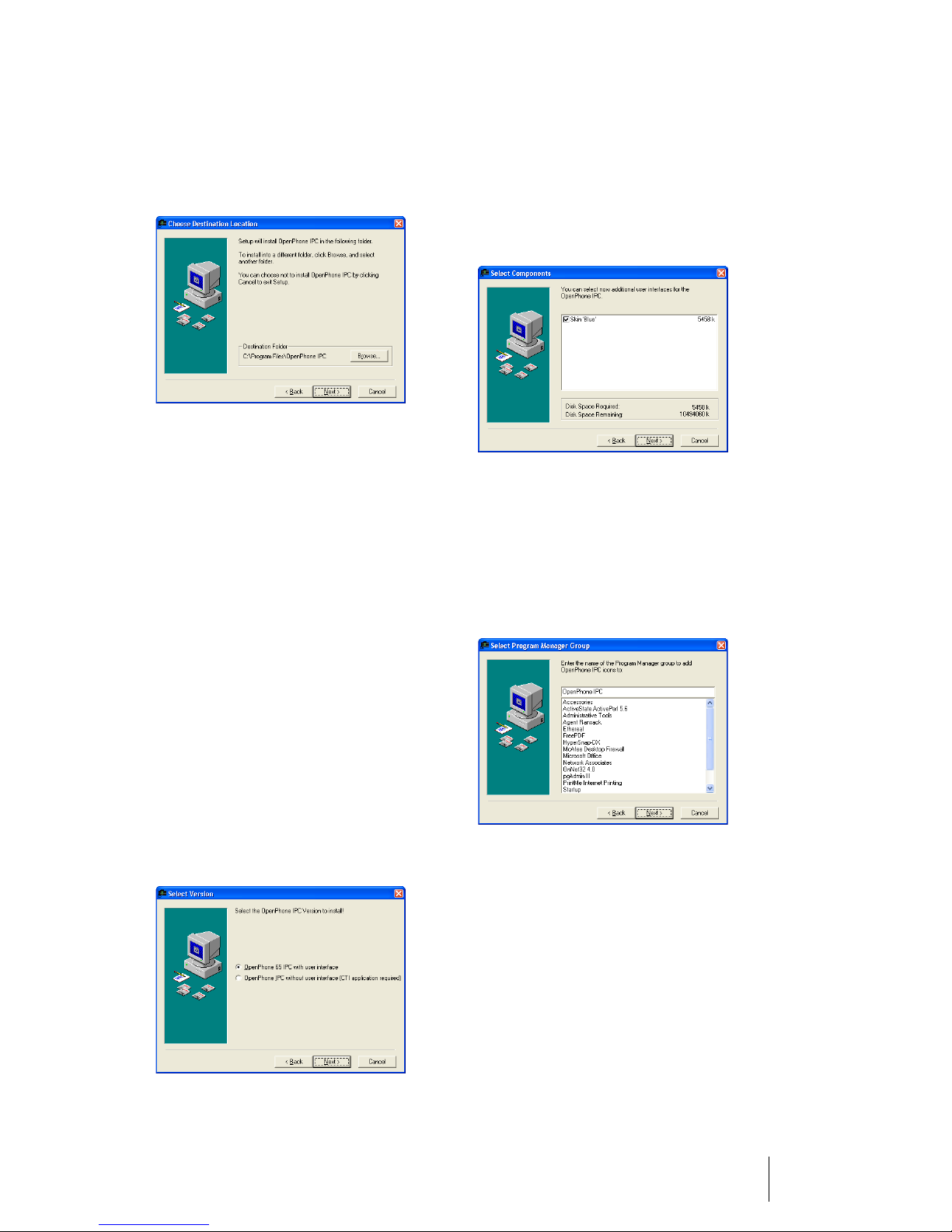
4. Now select the directory on your
hard drive into which you would
like to install OpenPhone IPC
and confirm with Next.
5. Now select the desired alternative:
OpenPhone IPC with Interface:
OpenPhone IPC with an interface for mouse and/or keyboard
usage. This alternative is skincapable and can also be used
with an CTI application.
If you have selected the
OpenPhone IPC with interface
then you can now select the
skins you additionally like to install. Subsequently click on
Next.
6. Now select the directory in the
Start-menu where
OpenPhone IPC should be installed. Then click on Next.
OpenPhone IPC without Interface:
OpenPhone IPC without an interface is only usable with an CTI
application and is not usable
without an CTI application.
7. To start the installation, now
click on Next.
OpenPhone IPC Installation
7
Page 10
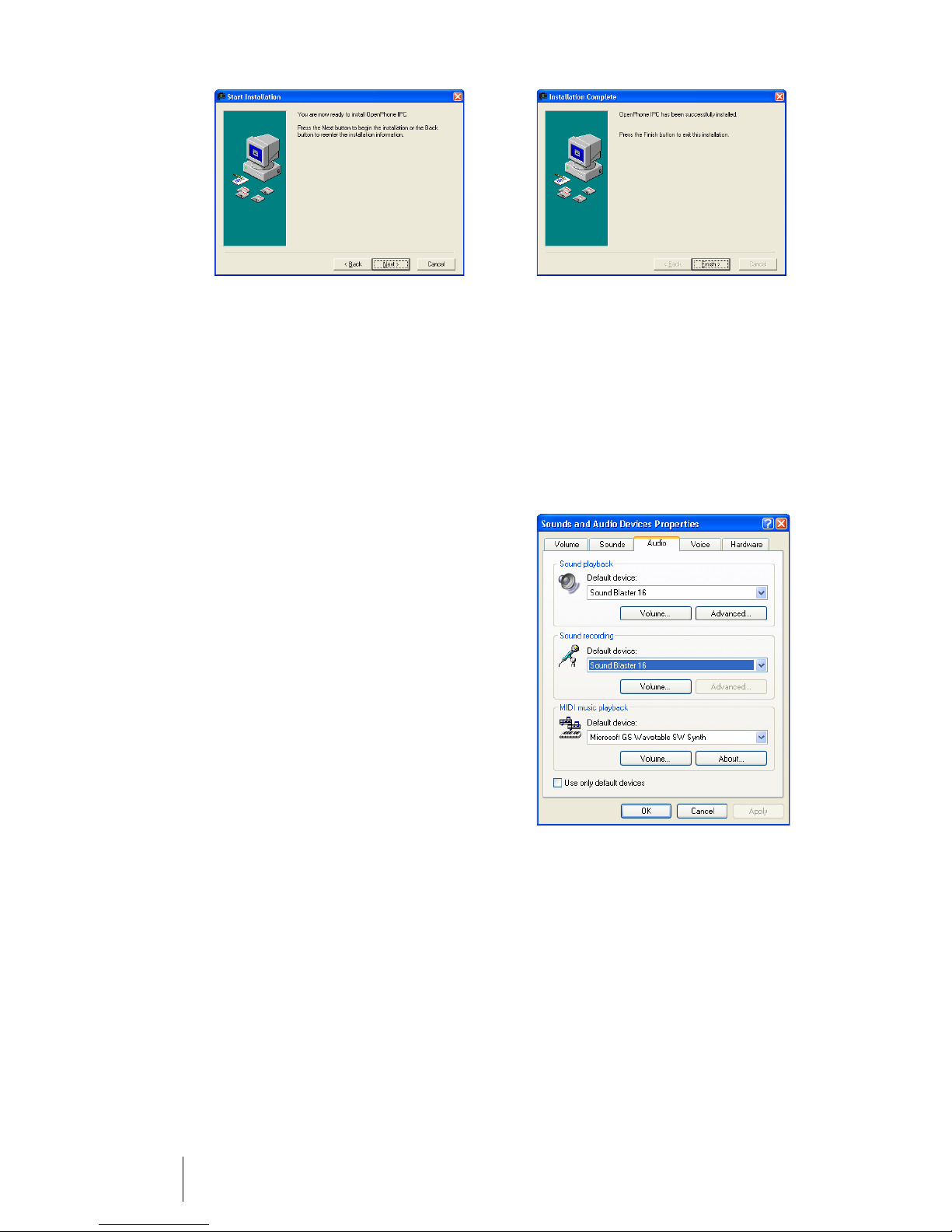
8. After the successful completion
of the installation, click on
Finish.
Functionality
Provided it is not already present on
your PC the installation of
OpenPhone IPC automatically installs a current version of DirectX.
With the standard installation of DirectX, DirectSound is configured
with default settings that avoid
processor-load. Possibly the audio
quality will suffer because of this.
With the following steps the quality
can be adapted.
Note: To adapt the DirectSound audio quality, you will require administrator privileges!
1. Select from Control Panel:
Sounds and Multimedia the tab
Audio.
8
Functionality OpenPhone IPC
2. In the section Sound playback,
click on the Advanced button.
Subsequently select the Per-
formance tab. Change the
Hardware acceleration to Full
and the Sample rate conversion quality to Best. Confirm
the settings with OK.
Page 11
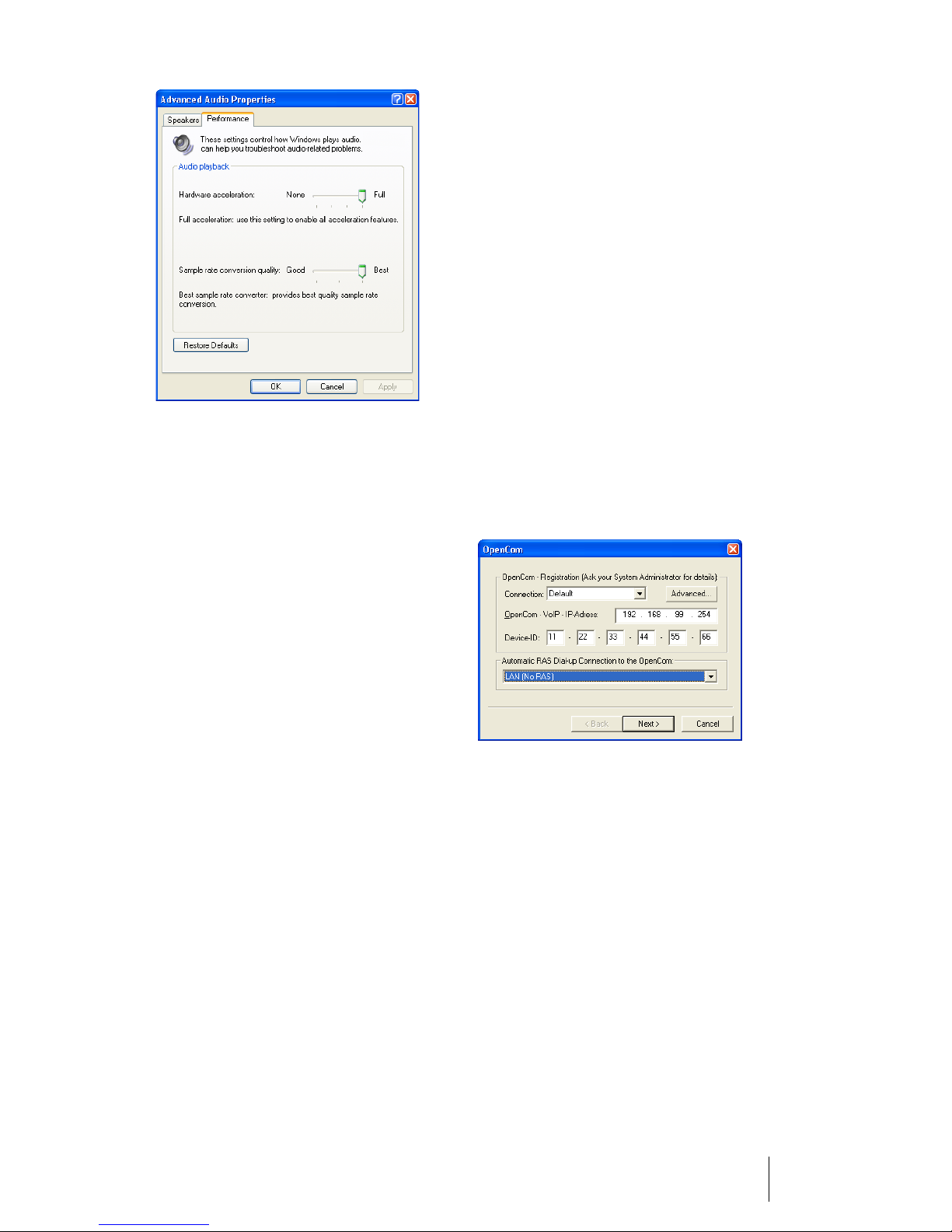
3. In the section Sound recording
on the Advanced button (if
available). Change the Hard-
ware acceleration to Full and
the Sample rate conversion
quality to Best. Confirm the
changes with OK.
4. Close the Audio tab with OK.
OpenPhone IPC Configuration
When starting the OpenPhone IPC
for the first time, automatically the
configuration assistant is opened
with which the OpenPhone IPC can
be configured. These options can
subsequently be accessed via the
Options menu entry.
OpenCom Tab
The here required data
(OpenCom 100’s IP address and the
device ID) can be obtained from your
system administrator. The Connec-
tion setting should only be changed
if you want to connect to the
OpenCom 100 via a RAS dial-up connection.
Display Tab
This tab is not available for the interface-less version of the
OpenPhone IPC. Select the desired
interface from the Skin selection
and the Device type.
Activate the Truecolor version for
optimal display quality. This option
is only available if the graphic card
OpenPhone IPC OpenPhone IPC Configuration
9
Page 12
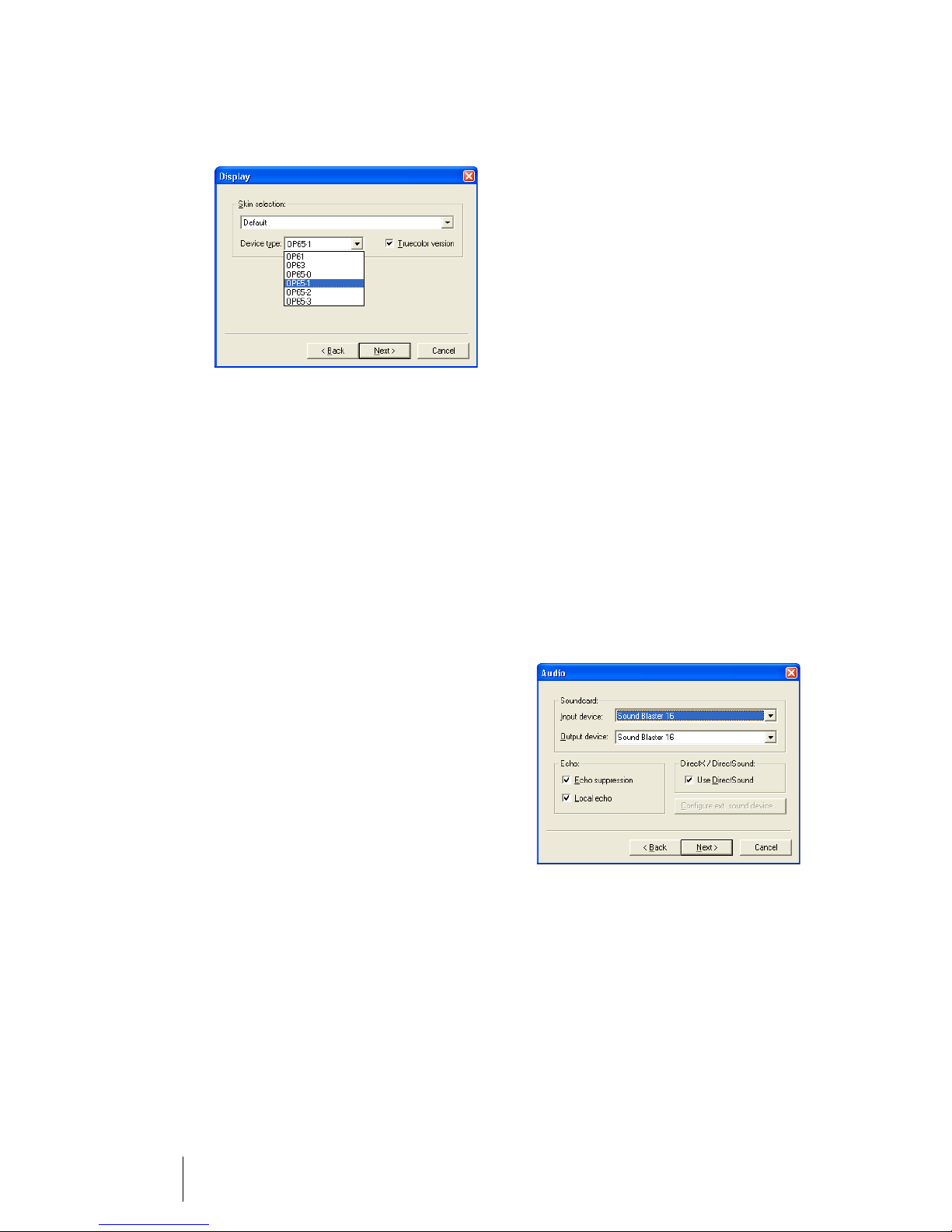
permits a colour depth of 16 bit
(65536 colours) or more.
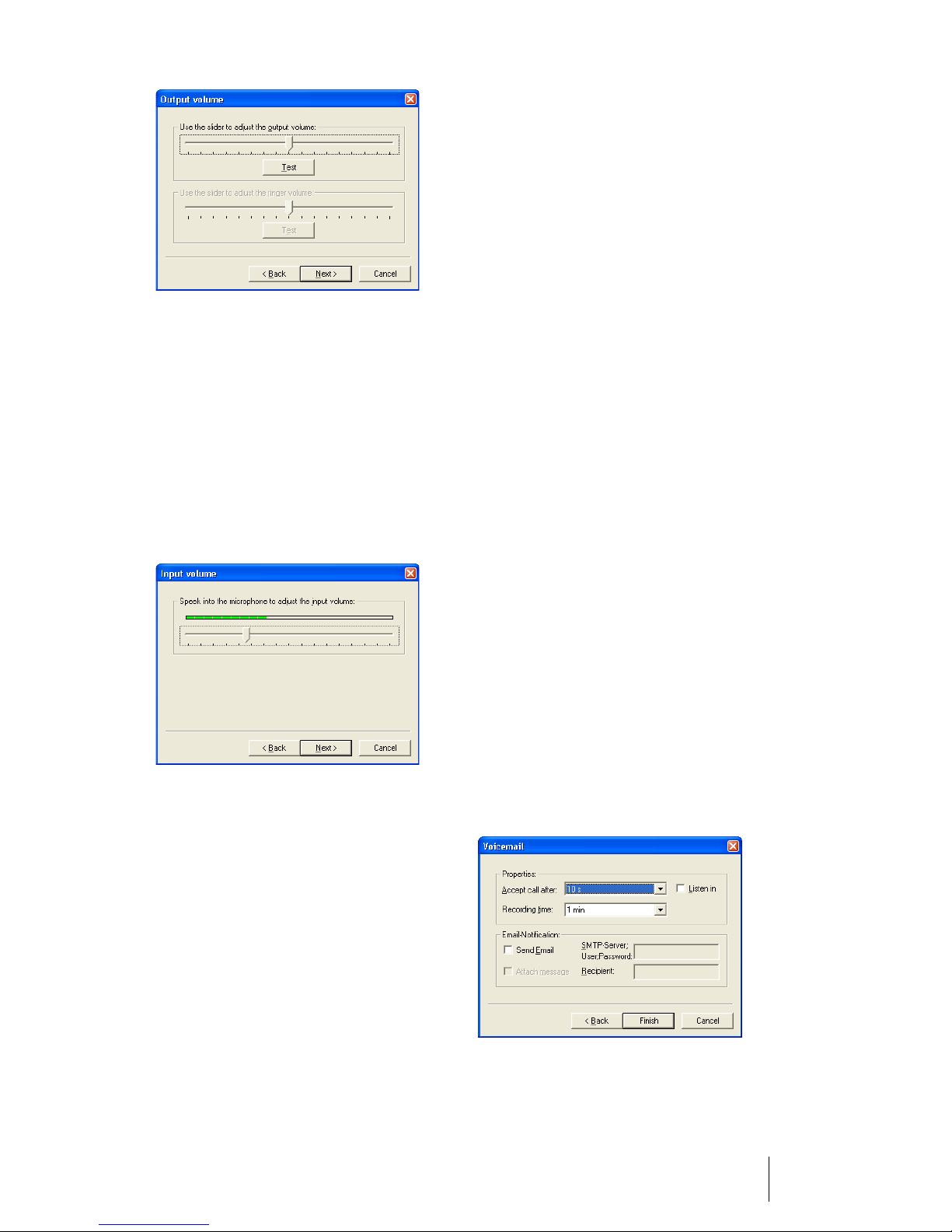
Audio Tab
Select the sound card for the audio
input and output. The selection is
necessary if multiple sound cards or
sound-card drivers are installed. The
settings for input and output must
refer to the same device. Even when
using DirectSound, the system’s
sound and multimedia settings must
select the same device for input and
output.
uration you should deactivate the
Echo suppression option.
The Local echo option is only available if your sound card supports the
direct output of microphone data to
the loudspeaker. Thereby the speech
in suppressed form is playback on
your loudspeaker, without delay, as
you are accustomed from your telephone. This option is only recommendable when using a headset.
The Use DirectSound option allows
multiple applications to output
acoustic signals simultaneously. In
this way, you can also use, for example, the OpenPhone IPC parallel to
playing music data. If you experience problems with the input and
output of audio data, then deactivate this option.
The Echo suppression option servers to reduce the audible echo for
the call-partner. A echo will be audible if you use a loudspeaker and microphone or a badly suppressed
headset. If this option is activated
then as soon as the call-partner
speaks during calls via the receiver,
the microphone is suppressed and
for hands-free calls it is muted. With
DirectSound under Microsoft
Windows XP, AEC (Acoustic Echo
Cancellation) is used. For this config-
10
OpenPhone IPC Configuration OpenPhone IPC
Output volume Tab
Click on Test, the ring tone will be
played. Move the slide control to a
position where the ring tone is
played back in an adequate and audible volume level.
Page 13
Input volume Tab
Speak into the microphone at normal volume. Pay attention to the distance from the microphone. Wait
until the slide control has come to
rest.
ure the immediate, without any
delay answering of calls.
■ Select the maximum call dura-
tion. With a setting of “0” you
can configure the operation
without message-recording
(only announcement).
■ Activate the Listen in option to
playback the message on the
loudspeaker during the call. This
allows you to decide whether
you wish to accept the call.
■ Activate the Send Email option
to send an e-mail notification for
each call. Enter the data for a
SMTP server. If a user login is required for the SMTP server, then
you can enter the user name and
password, separated by a semicolon respectively, in the same
entry field. In recipient enter the
e-mail address of the recipient
of the notification. Activate the
Attach message option to send
the recorded message as part of
the e-mail.
Voicemail Tab
This tab is not available for the interface-less version of the
OpenPhone IPC. Here you configure
the internal answering machine:
■ Select the time after which the
call should be answered by the
internal answering machine.
With a setting of “0” you config-
OpenPhone IPC OpenPhone IPC Configuration
11
Page 14

An e-mail notification contains the
following data: Date and time of the
call, call number or name of the
caller (if known), as well as the recorded-message as attachment
(when activated).
Using the OpenPhone IPC with an
Interface
If you have installed the
OpenPhone IPC with an user interface, then after the start of the programme, a telephone user-interface
is displayed.
Should you have selected the user
interface alternative “Default Skin”
then the user interface corresponds
to a OpenPhone 61, OpenPhone 63
or OpenPhone 65. The
OpenPhone 65 alternative can additionally be shown with up to three
keypad modules. Additionally the
following keys are available:
■ Key to minimise, restore or close
the OpenPhone IPC
Programme Start
After starting the OpenPhone IPC,
the display will show the status of
the log-in to the OpenCom 100. During the log-in the OpenPhone IPC
software version’s compatibility to
the OpenCom 100 is checked. Potentially the software will now be updated from the OpenCom 100. In this
case, confirm the output of the installation script by pressing any key.
■ Key to operate the
OpenPhone IPC’s recording function
■ Key to call-up the options menu
12
Using the OpenPhone IPC with an Interface OpenPhone IPC
Usage
The OpenPhone IPC can be used selectively with the mouse or the keyboard of the workplace computer.
The usage corresponds to an
OpenPhone 61, OpenPhone 63 or
OpenPhone 65.
Page 15

When inputting via the keyboard,
pay attention to the input mode of
the terminal. Between numeric and
alphanumeric input is differentiated.
For example, if you enter a call
number you will be in numeric input
mode. When you search for a name
in the telephone book, you will be in
alphanumeric input mode. On the
terminal to enter a “C”, for example,
you must press the “2” key three
times. When inputting letter “C” on
the keyboard, the OpenPhone IPC
automatically converts it to the corresponding digit key. For the entry of
digits in numeric input mode you
should always use the numeric pad
of your workplace computer.
Press the shift key on the workplace
computer and simultaneously a second key in order to enter a long keypress on the OpenPhone IPC. For example, the OpenPhone IPC’s ABC key
has the functions telephone book
(“short”) and language selection
(“long”). Example: with the key combination Ctrl+A you open the telephone book. With the key combination Shift+Ctrl+A you reach the
language selection.
The following table describes the assignment of the workplace computer’s keyboard to the OpenPhone IPC
keys:
Ctrl Shift PC Key(s) (Alpha)
numeric
0-9 Numeric
* Numeric Digit input
/ Numeric Digit input
✔ ✔
✔
0-9 Alphanu-
meric
abc… Alphanu-
meric
abc… Alphanu-
meric
дцьщъы… Alphanu-
meric
Phone Key(s) Comment
-
-
a
-> b -> c …
(long)
A
-> B -> C …
a
-> b -> c -> 2
ä
-> â -> à …
->
Digit input
Digit input
Tex t input
Tex t input /
Toggle between
uppercase and
lowercase
Tex t input
OpenPhone IPC Using the OpenPhone IPC with an Interface
13
Page 16

Ctrl Shift PC Key(s) (Alpha)
numeric
Phone Key(s) Comment
✔
дцьщъы… Alphanu-
meric
(long)
A
-> B -> C -> 2
Ä
-> Â -> À …
->
!"$?*#… Alphanu-
Text input /
Toggle between
uppercase and
lowercase
Text input
meric
!
-> " -> $ …
0-9 Alphanu-
Text input
meric
a
-> b -> c ->
✔
Enter (Receiver)
F1-F9
2
Short key press
(1-9)
✔
✔
F1-F9
(1-9)
F1-F10
(1-10,
Long key press
Short key press
Keypad module)
✔ ✔
✔
✔ ✔
✔
✔ ✔
✔
F1-F10
Long key press
(1-10,
Keypad module)
F11 Short key press
✔
F11 Long key press
F11 Short key press
F11 Long key press
FShort key press
FLong key press
Back Short key press
✔
Back Long key press
CShort key press
14
Using the OpenPhone IPC with an Interface OpenPhone IPC
Page 17

Ctrl Shift PC Key(s) (Alpha)
numeric
Phone Key(s) Comment
✔ ✔
CLong key press
Page up
Short key press
(UP)
✔
Page up
Long key press
(UP)
Page down
Short key press
(DOWN)
✔
Page down
Long key press
(DOWN)
+ Numeric
✔
+ Numeric
- Numeric
✔
- Numeric
(+)
(+)
(-)
(-)
Short key press
Long key press
Short key press
Long key press
Arrow up
Short key press
(UP)
✔
Arrow up
Long key press
(UP)
Arrow
down
✔
Arrow
down
Arrow left
✔
Arrow left
Arrow right
✔
Arrow right
(DOWN)
(DOWN)
(-)
(-)
(+)
(+)
Short key press
Long key press
Short key press
Long key press
Short key press
Long key press
OpenPhone IPC Using the OpenPhone IPC with an Interface
15
Page 18

Ctrl Shift PC Key(s) (Alpha)
numeric
Enter Short key press
Phone Key(s) Comment
✔
✔ ✔
✔
✔ ✔
✔
✔ ✔
✔
✔
Enter Long key press
0Short key press
0Long key press
Esc Short key press
✔
Esc Long key press
WShort key press
WLong key press
AShort key press
ALong key press
IShort key press
✔ ✔
✔
✔ ✔
✔
✔ ✔
✔
✔ ✔
✔
✔ ✔
ILong key press
MShort key press
MLong key press
LShort key press
LLong key press
RShort key press
RLong key press
XShort key press
XLong key press
16
Using the OpenPhone IPC with an Interface OpenPhone IPC
Page 19

Ctrl Shift PC Key(s) (Alpha)
numeric
Phone Key(s) Comment
✔
✔
✔
✔
✔
✔
Insert Insert call
number or name
from clipboard
V Insert call
number or name
from clipboard
Q Answering
machine On/Off
ERecording: Start/
Pause
S Recording: Stop
PRecording:
Playback/Pause
Drag & Drop
You can take call numbers from
other applications to create connections. If the application supports
Drag & Drop, then mark the call
number with the mouse. Click on the
marked call number with the left
mouse key and pull it, while holding
the mouse key, onto OpenPhone IPC.
The transferred call number will now
be dialled.
Note: The connection will only be
created after picking up the receiver
or pressing the hands-free key respectively.
Drag & Drop also functions with
names with which the
OpenPhone IPC’s telephone book is
search after transfer. The closest
matching entry will be marked.
OpenPhone IPC Drag & Drop
17
Page 20
Volume Settings
During the call state, when playing
back a recording or doing any other
actions that use the sound card, the
OpenPhone IPC temporarily modifies the volume settings of the workplace computer. This volume setting
is preset in the Options dialogue. On
completion of the action, the previous volume setting is restored.
Note: If during a call the volume or
microphone sensitive of the sound
card are changed, then this configuration is saved for the OpenPhone IPC
and used for future calls.
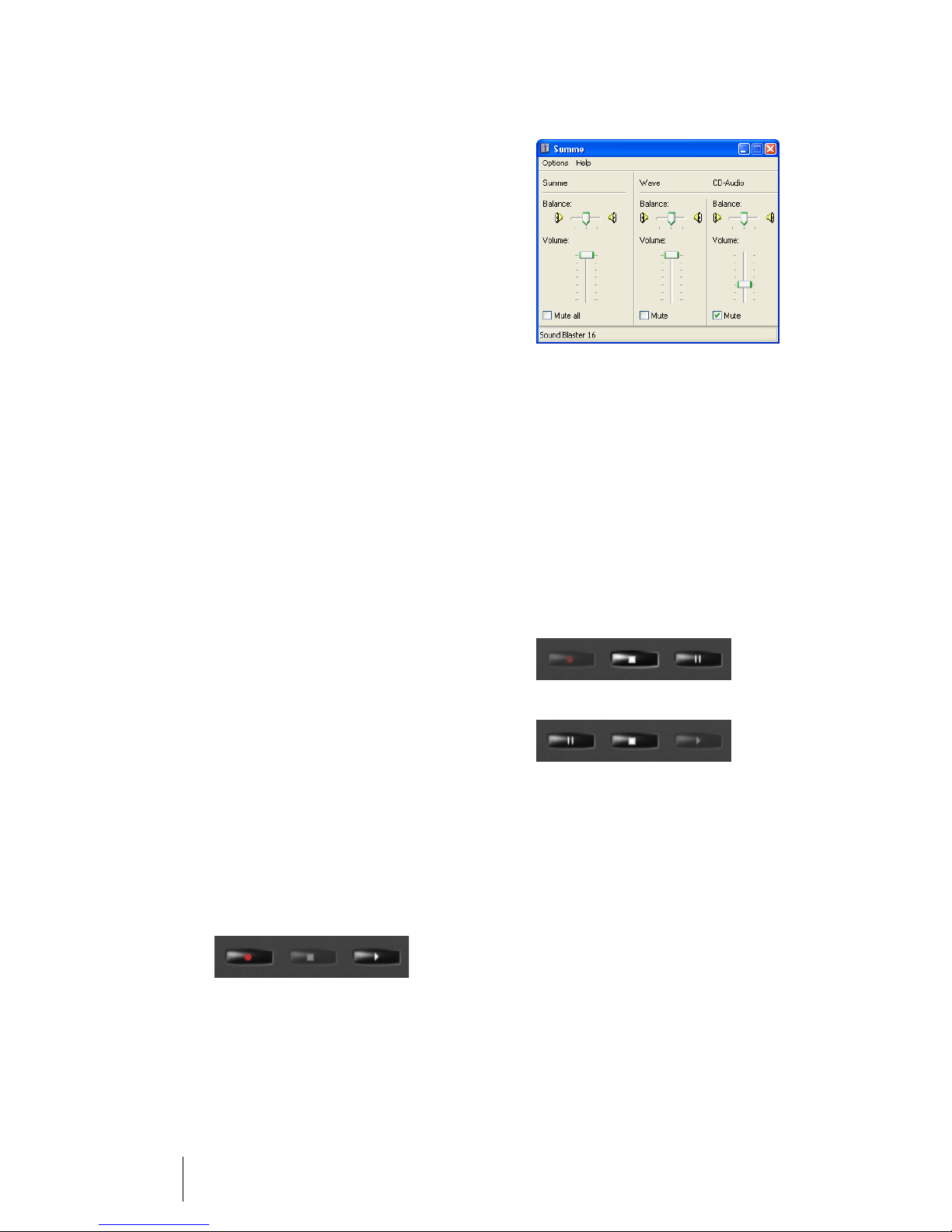
Audio Functionality
In addition to the telephony functionality, the OpenPhone IPC permits the recording of calls and the
recording of audio e-mails. Furthermore the OpenPhone IPC can be
used as an answering machine.
The operation of these functions is
done via the three extra keys “Rec”,
“Stop” and “Play”.
The keys “Rec” and “Play” can, depending on the operational state,
change to pause keys.
The function of the keys is dependent on whether the answering machine has been activated or not. The
playback of answering machine
messages and recordings is also possible via Drag & Drop with an audio
file.
18
Volume Settings OpenPhone IPC
Page 21
Audio functionality with a
deactivated Answering
Machine
The three keys “Rec”, “Stop” and
“Play” server to record calls and playback recordings. Audio e-mails can
also be sent. The functionality of the
keys depends on whether the
OpenPhone IPC is ideal or not.
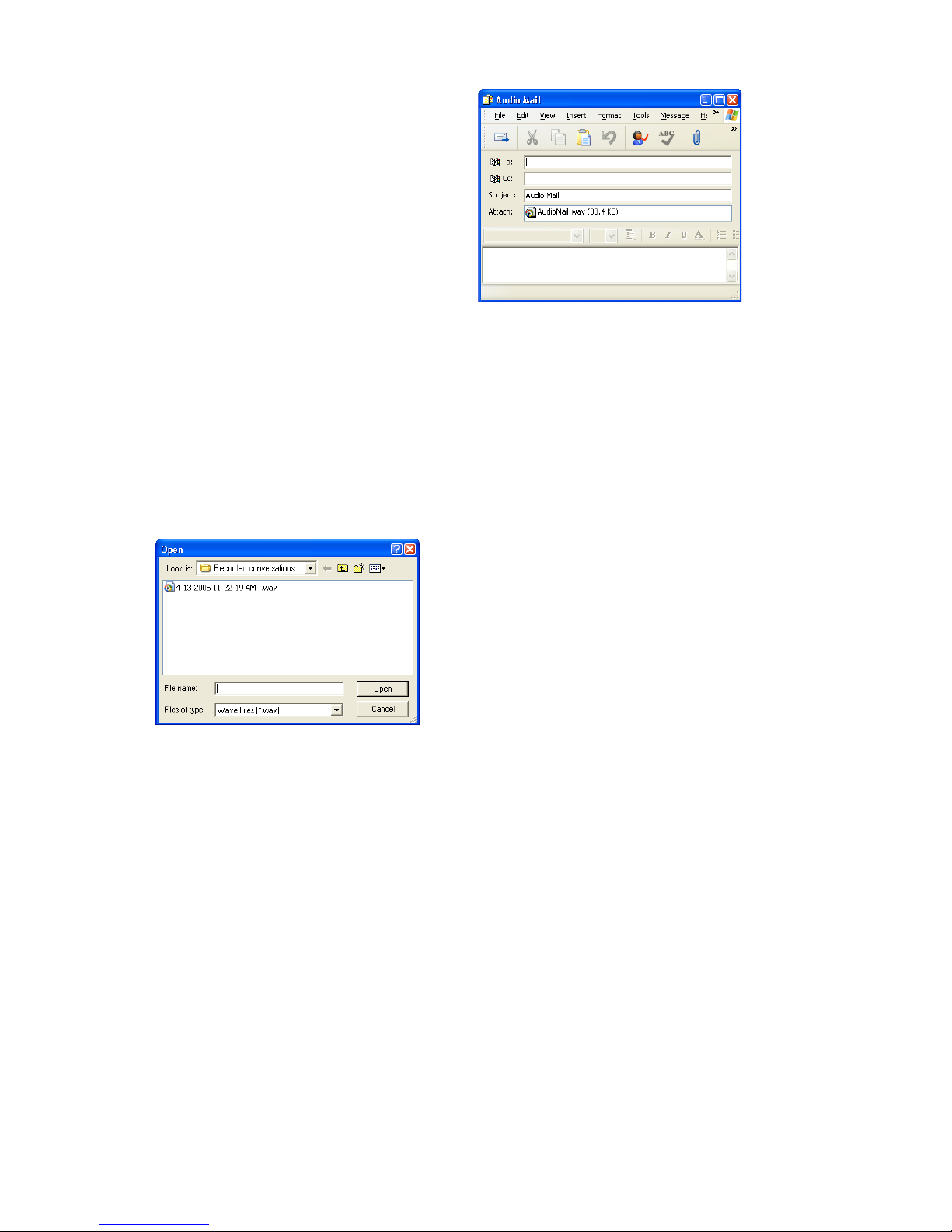
If the OpenPhone IPC is in the ideal
state, click on the “Play” key to playback a previously recorded recording. Select an audio file from the
Open dialogue. During the playback
“Stop” and “Pause” are possible.
If the OpenPhone IPC is in call state
then click on “Play” to select a previously recorded recording and to play
it back on the call-partner’s loudspeaker. During playback “Stop” and
“Pause” are possible.
In call state the current call can be
recorded with the “Rec” key. During
the recording “Stop” and “Pause” are
possible. The start of the recording is
signalled to the call-partner by a notification tone.
The “Rec” key can be used in the
ideal state to record an audio e-mail
with the microphone. During the recording “Stop” and “Pause” are possible. At the end of the recording an
e-mail programme opens with a predefined e-mail which has the recorded file as an attachment.
Please note: At the end of the
call, these functions are stopped.
Note: The recordings are stored in
the directory My Documents/
Recordings or in the Recordings
subdirectory of the OpenPhone IPC’s
installation directory. The file names
contain the date, time as well as
the call number or name of the callpartner.
OpenPhone IPC Audio Functionality
19
Page 22

Audio functionality with
an activated Answering
Machine
When the answering machine is activated a welcoming text can be recorded, via the microphone, with the
“Rec” key. During the recording
“Stop” and “Pause” are possible. On
completion, for control purposes,
the welcoming text is played back
once via the loudspeaker.
If a call is being conducted or if an
answering machine call is accepted,
then the recording mode is temporarily activated. In this case, with the
three keys “Rec”, “Stop” and “Play” a
recording can be controlled.
Note: The recordings are stored in
the directory My Documents/An-
swering Machine Recordings or in
the Answering Machine Recordings
subdirectory of the OpenPhone IPC’s
installation directory. The file names
contain the date, time as well as the
call number or name of the call-partner.
Via the symbol in the taskbar (see
Task ba r Sy mb ol starting on page 21),
the arrival of new answering machine messages is indicated. The
symbol in the taskbar indicates new
messages until one of the messages
is selected for playback.
The selection dialogue for received
messages is opened by pressing the
“Play” key. The selected message will
then be playback via the loudspeaker. During playback “Stop” and
“Pause” are possible.
20
Audio Functionality OpenPhone IPC
Page 23
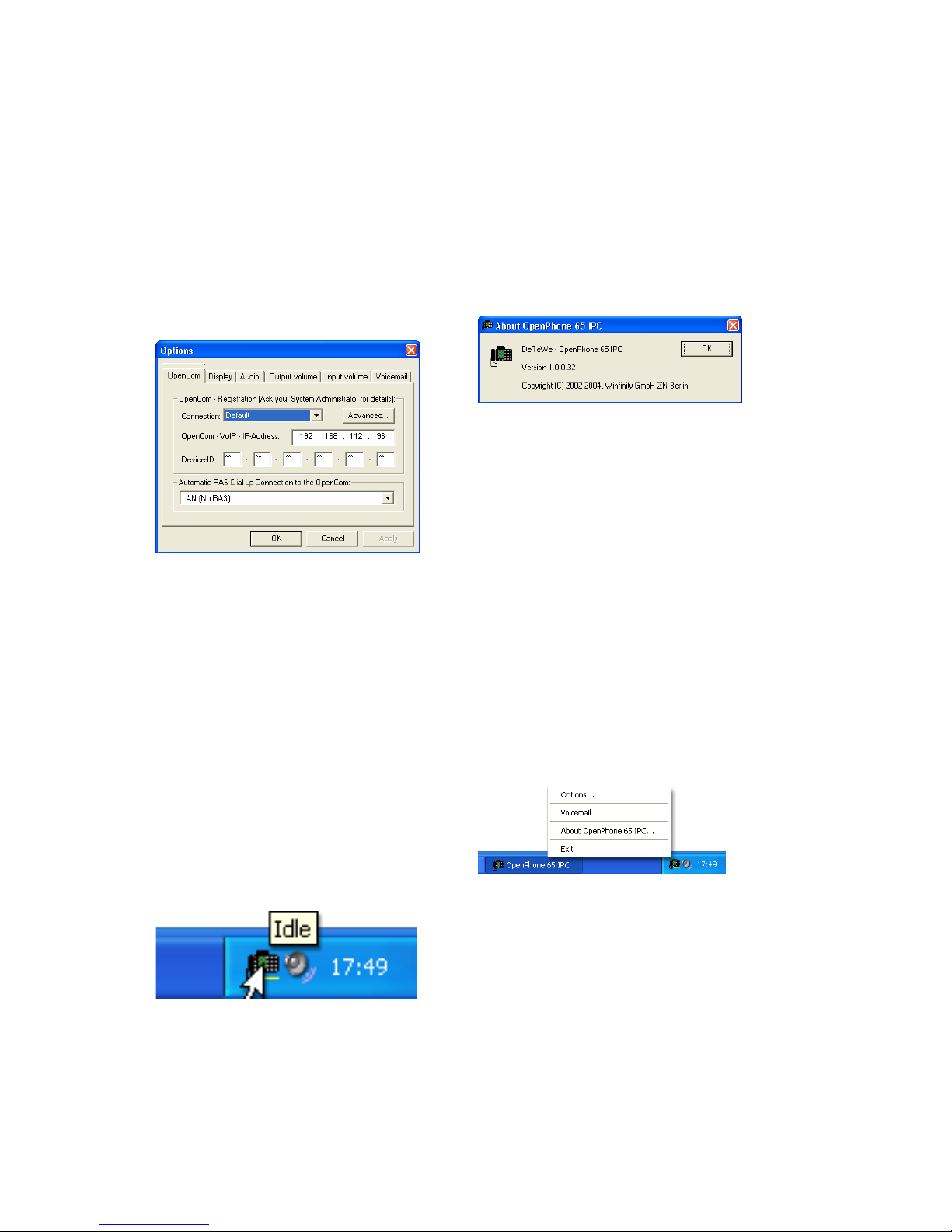
Application Menu
The application menu is opened
with a mouse click on the application symbol. The following functions
are available via the application
menu:
■ Opening of Options dialogue
■ Activation and deactivation of
the answering machine (only
with the OpenPhone IPC alternative with interface)
■ Querying the software version
■ Ending the OpenPhone IPC
Tas kb a r S y m b o l
After the start of the OpenPhone IPC
there appears a new symbol in the
info-region of the taskbar. This symbol displays the current state of the
terminal. When you move the
mouse over the symbol, the state is
faded in as text.
Double click on the symbol with the
left mouse key to minimise or restore the OpenPhone IPC. With the
right mouse key you open the application menu.
OpenPhone IPC Application Menu
21
Page 24

Notes
22
Taskbar Symbol OpenPhone IPC
Page 25

Notes
OpenPhone IPC Taskbar Symbol
23
Page 26

Notes
24
Taskbar Symbol OpenPhone IPC
Page 27

Page 28

In the UK:
DeTeWe Ltd • 1 Frogmore Road • Hemel Hempstead • Herts, HP3 9TG
www.detewe.co.uk
Other countries:
DeTeWe Systems GmbH • Zeughofstraße 1 • D-10997 Berlin • Germany
www.detewe.de
As of June 2005
Subject to changes
 Loading...