

Page 1
Quick Start Guide
NBD-14105SSDES
Page 2
ENG-1
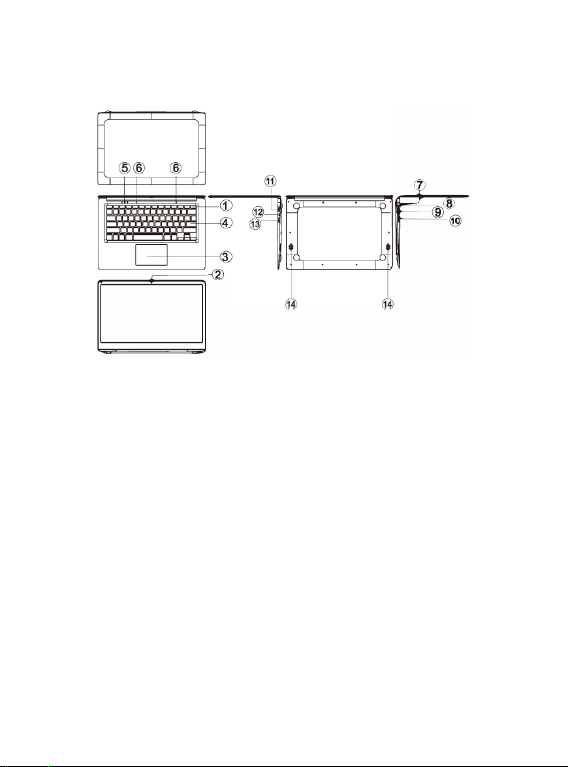
Unit at a Glance
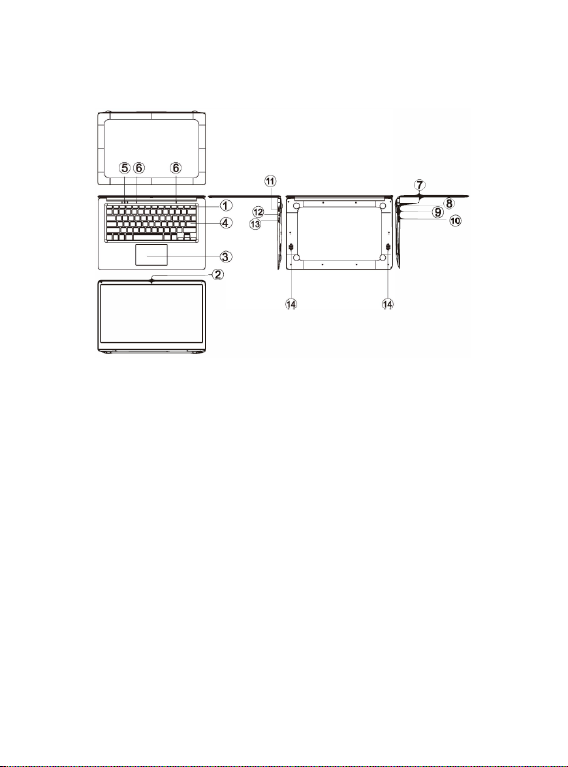
1. Power button: Press it down to start or close the screen panel.
You can also let the computer to enter dormancy through this button or wake
from the dormancy mode.
2. Front camera: take pictures, shoot video.
3. Touchpad: The device can be operated directly.
4. Keyboard board: the device can be operated directly.
5. Indicators:
1. is the blue light when the Caps Lock indicator Caps Lock;
2. charging indicator, red when charging connector adapter;
3. work light, bright blue when the machine starts to work.
6. Microphone: it can transmit audio signals to a device at work.
7. Charge indicator: red light when plug adapter
8. DC charging base: use the built-12V/2A charger.
9. USB Interface: You can insert U disk, mouse, and keyboard directly.
10. Mini-HDMI Interface: High-Definition Multimedia Interface.
11. Headphone jack: This jack device can transmit audio signals to the speakers or
headphones.
12. USB Interface: You can insert U disk, mouse, and keyboard directly.
13. Micro SD card slot: built-in memory card reader slot that supports Micro SD
format.
14. Speakers: the built-in speaker lets you hear the sound of work without additional
connected devices.
Page 3
ENG-2
Interface Introduction
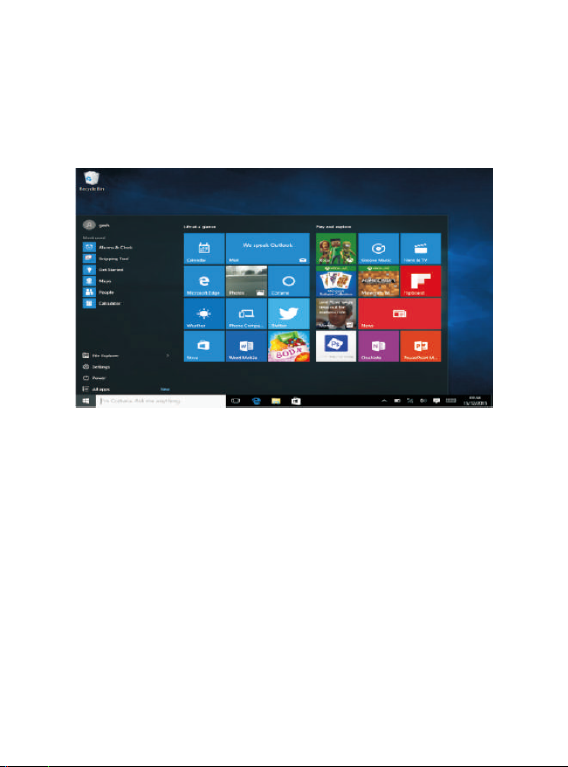
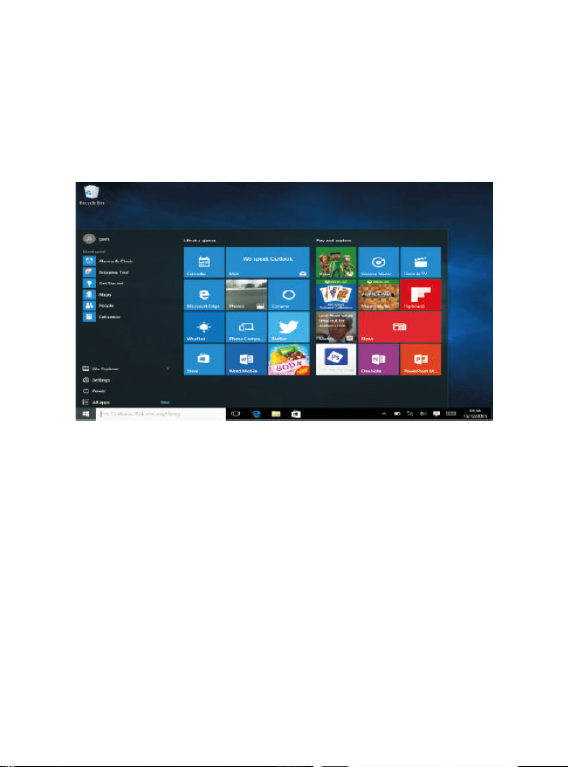
Windows 10 start image: On the start screen, you can see many programs fixed in
the image. These application programs are displayed in the form of “magnet”. As long
as you dick them, you can easily visit them. You need to log on your Microsoft
account before the application program completely runs.
Applications Introduction
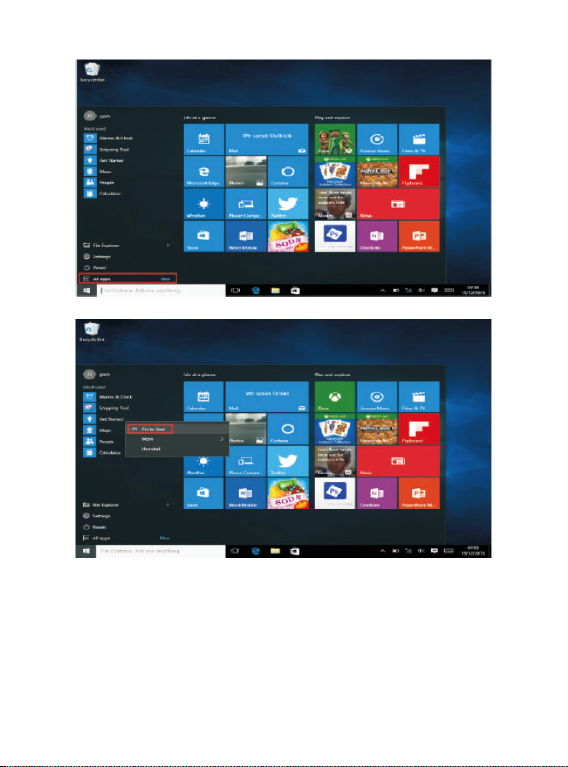
In addition to already fixed on the start screen of the application, you can open all
applications in the Home page.
If you want to add multiple applications on the Start screen, refer to the operation as
shown below
(1) Right-dick on the Properties icon
(2) Select fixed at the beginning of the page
Page 4
ENG-3
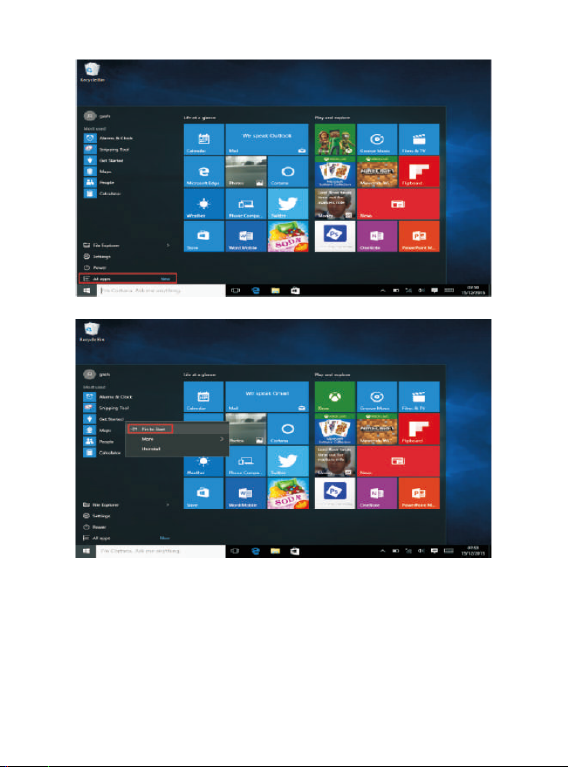
Conversely, if you want to cancel or delete start screen a certain application, (1)
Right-click
(2) and then select the undock from the start page.
Page 5
ENG-4
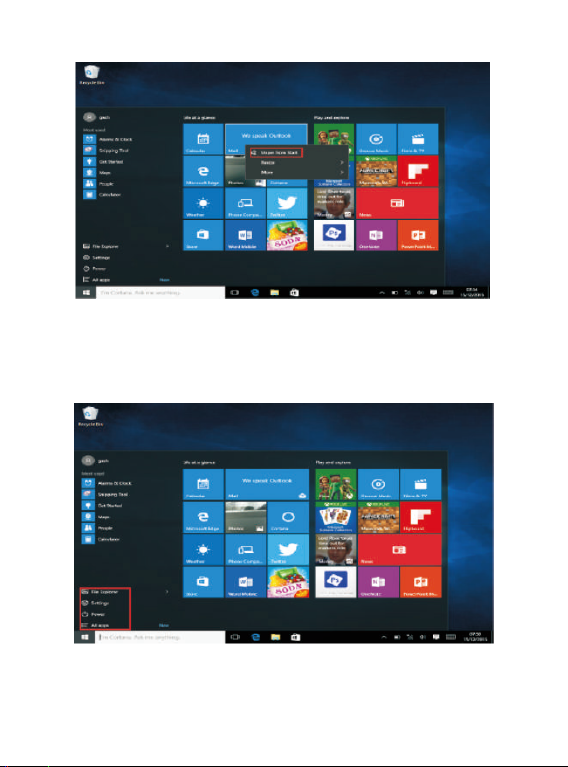
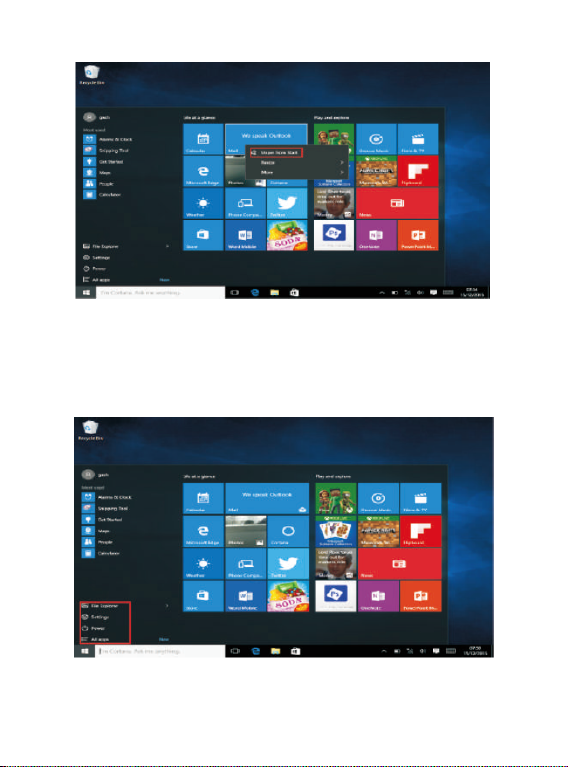
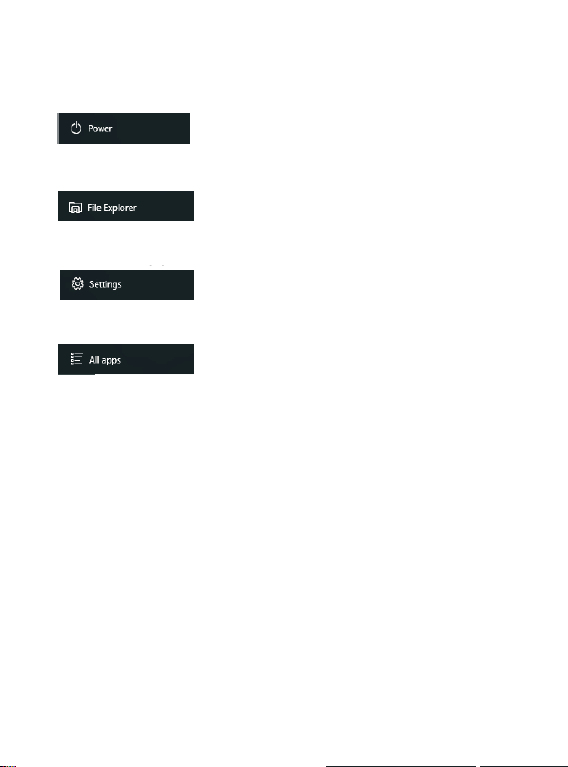
Menu bar
Touch or USB mouse to click with windows home button appears on the menu bar.
Expand the menu bar from the screen, usually: a file manager, settings, power supply
and all applications, you can sleep / shutdown / restart the device.
Page 6
ENG-5
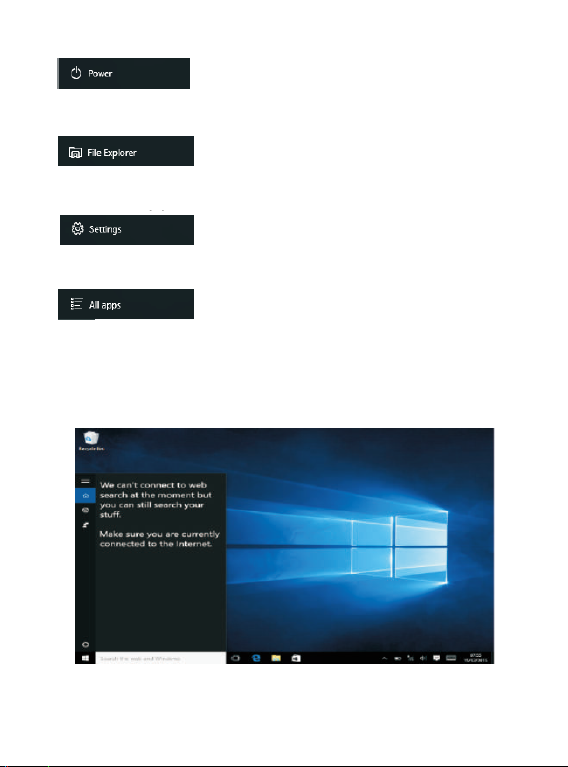
You can manage your files and applications in the device.
You can set up your device.
You can choose more applications.
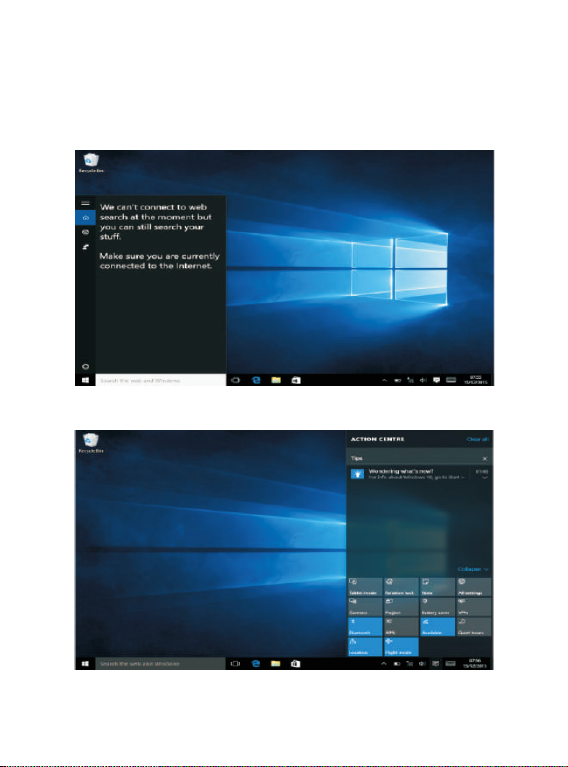
Search menu
After Hunan can login account can be set up after the language or text dialogue, if
not logged on account only for text searches.
Device menu. Click on the notification menu.
Page 7
ENG-6
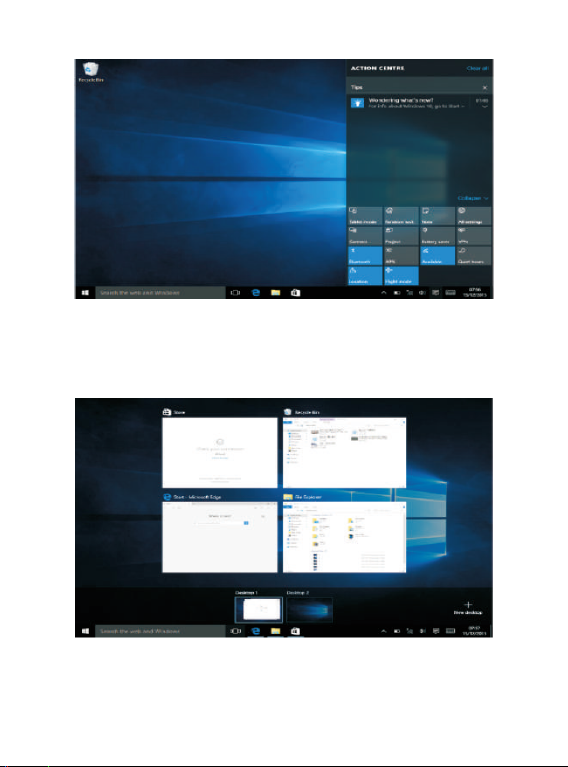
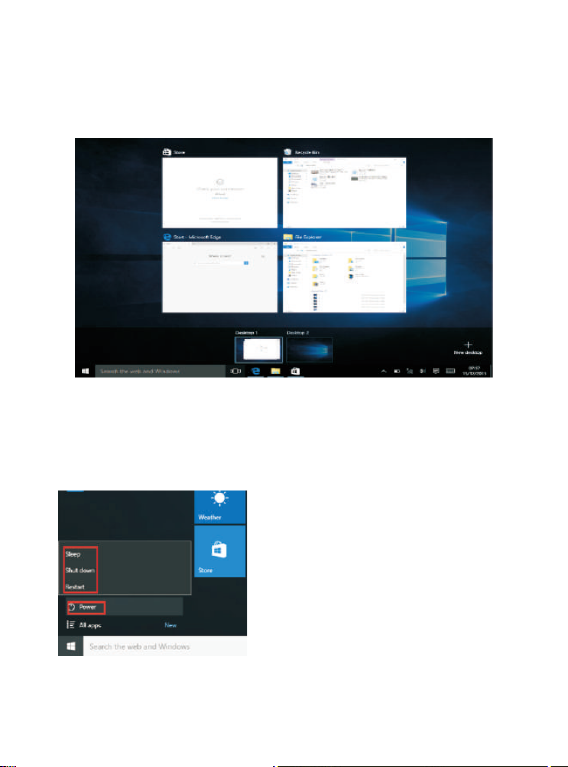
Multitasking operating interface
Click the Desktop task view to operating a multi-tasking and multi-desktop window.
Page 8
ENG-7
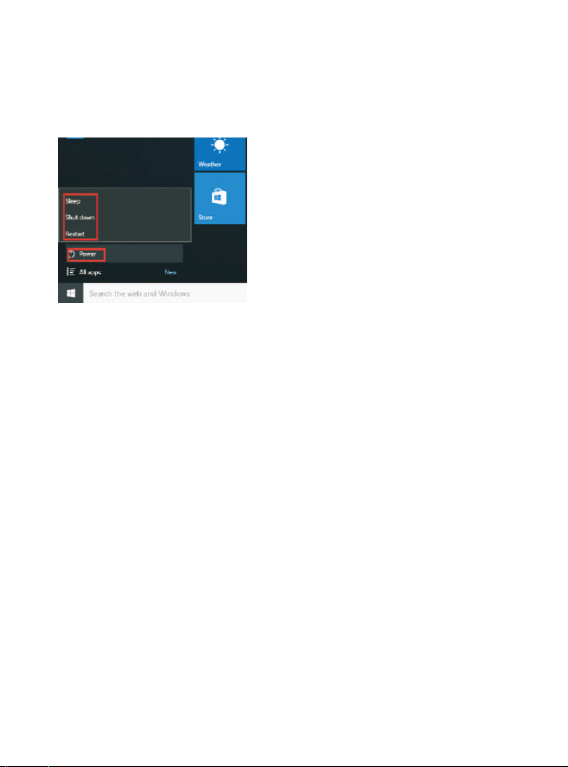
Basic Operations
Sleep, restart, power off
Short press the power button Hibernation.
Page 9
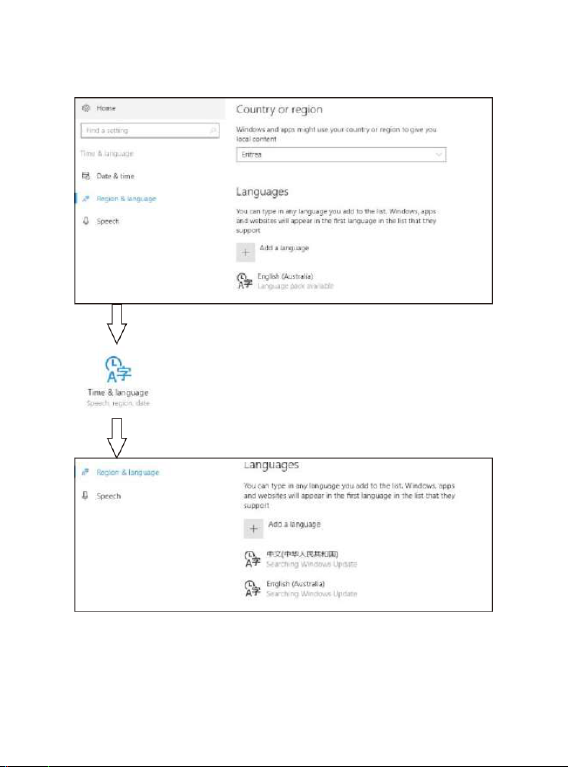
ENG-8
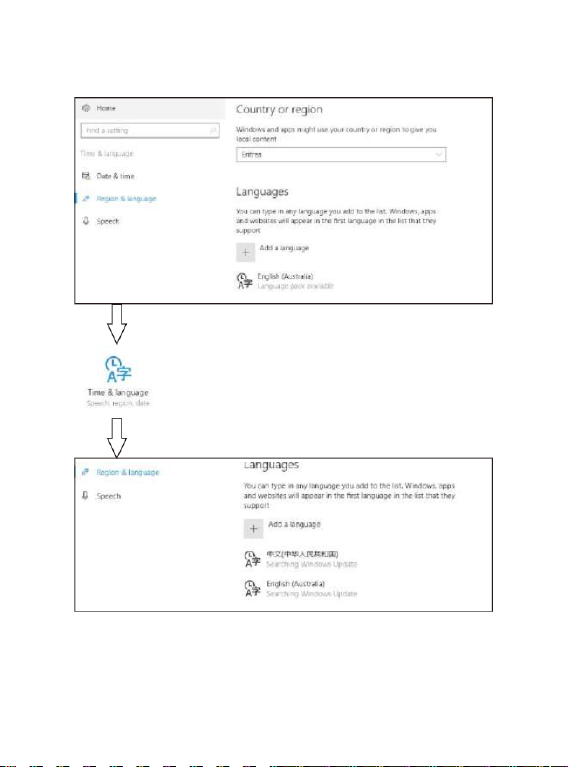
How to change language
Page 10
ENG-9
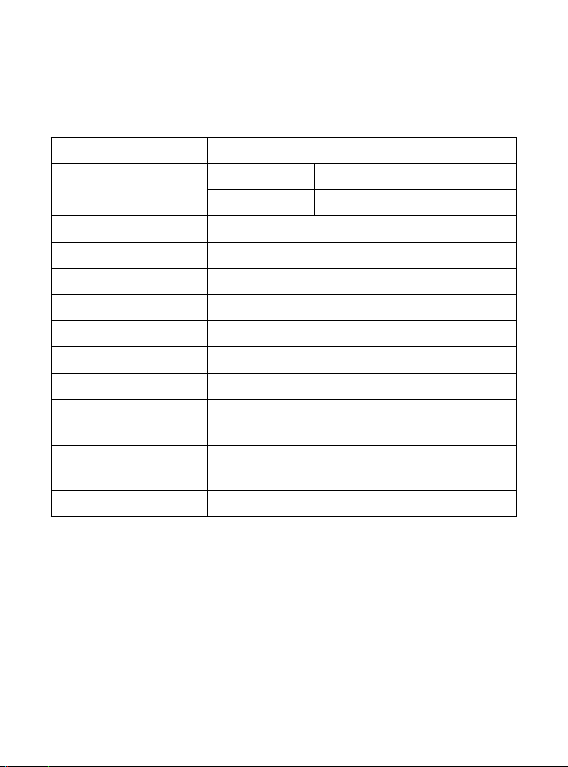
Specifications
Processor
Intel Celeron N4020
RAM
4G
Storage
ROM
64 GB+256GB SSD
Display
14.1” TN Panel
Wi-Fi Networking
IEEE 802.11 b/g/n
Audio Output
3.5mm headphone
USB Host
1xUSB3.0, 1xUSB2.0
HDMI
MINI HDMI x1
Bluetooth
4.0
Camera
Front 0.3MP
Operating
System
WINDOWS 10
Power
Rechargeable Li-poly battery
Power Adapter(DC IN 12V, 2A)
Speakers
2x1 W speakers
Page 11

ENG-10
ALL RIGHTS RESERVED, COPYRIGHT DENVER ELECTRONICS A/S
www.denver-electronics.com
Electric and electronic equipment and included batteries contains materials,
components and substances that can be hazardous to your health and the
environment, if the waste material (discarded electric and electronic equipment and
batteries) is not handled correctly.
Electric and electronic equipment and batteries is marked with the crossed out trash
can symbol, seen above. This symbol signifies that electric and electronic equipment
and batteries should not be disposed of with other household waste, but should be
disposed of separately.
As the end user it is important that you submit your used batteries to the appropriate
and designated facility. In this manner you make sure that the batteries are recycled
in accordance with legislature and will not harm the environment.
All cities have established collection points, where electric and electronic equipment
and batteries can either be submitted free of charge at recycling stations and other
collection sites, or be collected from the households. Additional information is
available at the technical department of your city.
Operating Frequency Range Wifi: 2.400 ~2.4835GHz
Operating Frequency Range Bluetooth: 2.400 ~ 4.000GHz
Max output Power: Wifi 16dBm BT 8dBm
Hereby, Inter Sales A/S declares that the radio equipment type NBD-14105SSDES is
in compliance with Directive 2014/53/EU. The full text of the EU declaration of
conformity is available at the following internet address: www.denver-electronics.com
and then click the search ICON on topline of website. Write model number: NBD14105SSDES .Now enter product page, and red directive is found under
downloads/other downloads.
DENVER ELECTRONICS A/S
Omega 5A, Soeften
DK-8382 Hinnerup
Denmark
Page 12
ENG-11
facebook.com/denverelectronics
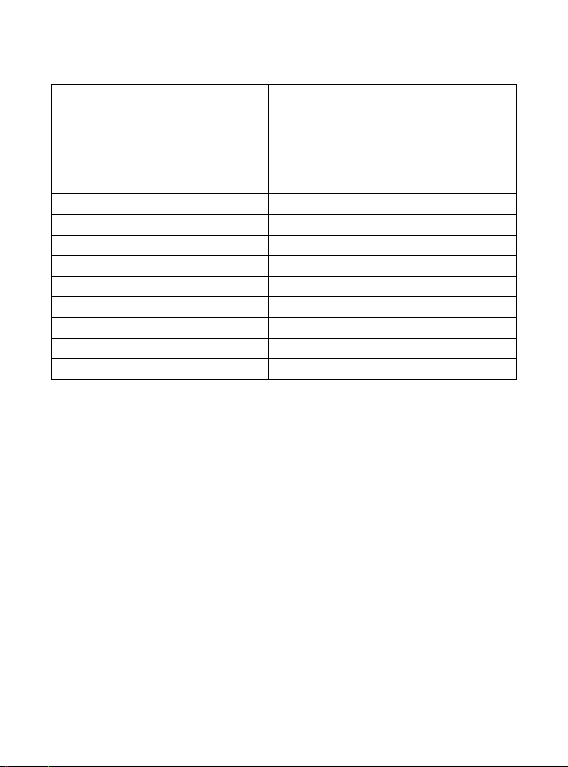
Manufacturer's name or trade mark,
commercial registration number and
address
SHENZHEN HENGTAIYING
TECHNOLOGY CO.,LTD
Commercial registration
number:9144030008010049XB
Southeast 2F,11Block,Kaetat Industrial
Park,Liaokeng Village,Shiyan Street,Bao’an
District, Shenzhen City, Guangdong, China
Model identifier
HTY24-1202000E
Input voltage
100-240V
Input AC frequency
50/60 Hz
Output voltage
12V
Output current
2A
Output power
24W
Average active efficiency
>86.2%
Efficiency at low load (10%)
>76.8%
No-load power consumption
<0.1W
Page 13
Guía de inicio rápido
NBD-14105SSDES
Page 14
ESP-1
Unidad a la vista
1. Botón de alimentación: Púlselo para iniciar o cerrar el panel de la pantalla.
Asimismo puede permitir que el ordenador entre en hibernación a través de
este botón o despertarse del modo hibernación.
2. Cámara frontal: Toma imágenes, filma vídeos.
3. Pantalla táctil: Se puede operar directamente el aparato.
4. Tablero del teclado: Se puede operar directamente el aparato.
5. Indicador:
1. Es la luz azul cuando el indicador de bloqueo de mayúsculas está
activado;
2. indicador de carga, rojo cuando está el adaptador del conector de carga;
3. luces de trabajo, AZUL brillante cuando la máquina empieza a funcionar.
6. Micrófono: Puede transmitir señales de audio a un dispositivo en el trabajo.
7. Indicador de carga Luz roja cuando se conecta el adaptador
8. Base de carga CC: use el cargador integrado de 12V/2A.
9. Interfaz USB: Puede insertar el disco U, el ratón o el teclado directamente.
10. Interfaz Mini-HDMI: Interfaz multimedia de alta definición.
11. Toma de auriculares: Esta toma del dispositivo puede transmitir señales de
audio a los altavoces o AURICULAR.
12. Interfaz USB: Puede insertar el disco U, el ratón o el teclado directamente.
13. Ranura para tarjeta micro SD: Ranura de lector de tarjeta de memoria integrada
que es compatible con el formato Micro SD.
14. Altavoces: los altavoces integrados le permiten oír el sonido del trabajo son
aparatos conectados adicionales.
Page 15
ESP-2
Introducción a la interfaz
Imagen de inicio de Windows 10: En la pantalla de inicio, puede ver muchos
programas fijados en la imagen. Estos programas de aplicaciones se muestran en la
forma de “imán”. Siempre y cuando se haga clic en ellos se les puede visitar de
forma fácil. Es necesario que inicie sesión en su cuenta de Microsoft antes de que se
inicie completamente el programa de la aplicación.
Introducción a las aplicaciones
Además de la pantalla de inicio ya fijada de la aplicación, puede abrir todas las
aplicaciones en la página principal.
Si desea añadir múltiples aplicaciones a la pantalla de inicio, remítase al
funcionamiento tal y como se muestra debajo.
(1) Haga clic con el botón derecho del ratón en el icono de propiedades
(2) Seleccione fijo al inicio de la página
Page 16
ESP-3
De forma contraria, si desea cancelar o eliminar la pantalla de inicio en cierta
aplicación, (1) haga clic con el botón derecho del ratón
(2) después seleccione desbloquear de la página de inicio.
Page 17
ESP-4
Barra del menú
Toque con el ratón o en el USB para hacer clic en la ventana; aparece el botón de
inicio en la barra del menú.
Page 18
ESP-5
Expanda la barra del menú desde la pantalla, normalmente: un organizador de
archivos, configuración, alimentación y todas las aplicaciones; puede hacer un
retardo/cerrar/reiniciar el dispositivo.
Puede organizar los archivos y aplicaciones en el dispositivo.
Puede configurar el dispositivo.
Puede elegir más aplicaciones.
Page 19
ESP-6
Menú buscar
Una vez que usuario pueda iniciar sesión en la cuenta, se puede configurar el idioma
o el diálogo del texto; si no se inicia sesión en la cuenta solo se pueden hacer
búsquedas de texto.
Menú de dispositivos. Haga clic en el menú de notificación.
Page 20
ESP-7
Interfaz de funcionamiento multitarea
Haga clic en la vista de tareas del escritorio para operar la ventana de multitareas y
multiescritorio.
Funciones básicas
Retardo, reinicio, apagado
Pulse brevemente el botón de alimentación para la hibernación.
Page 21
ESP-8
Cómo cambiar el idioma
Page 22
ESP-9
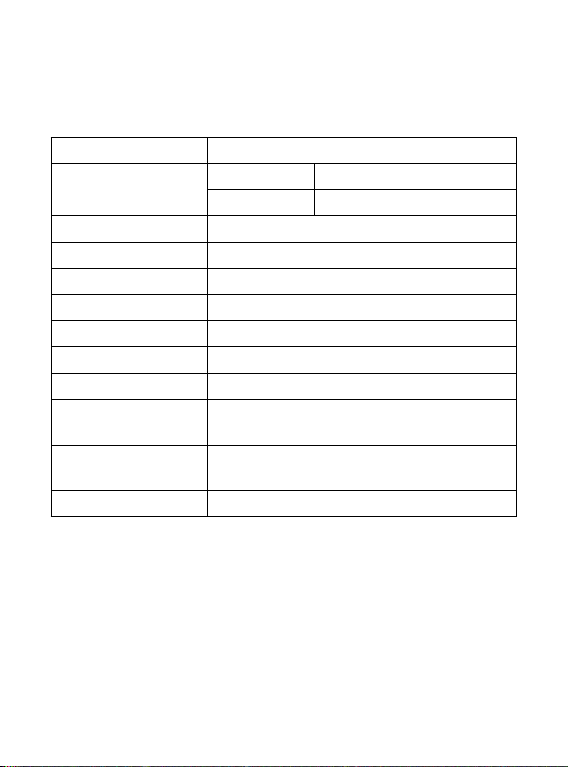
Especificaciones
Procesador
Intel Celeron N4020
RAM
4G
Almacenamiento
ROM
64 GB+256GB SSD
Pantalla
Panel RN de 14.1”
Red Wi-Fi
IEEE 802.11 b/g/n
Salida de audio
Auricular de 3.5mm
Host USB
1 x USB3.0, 1 x USB2.0
HDMI
1 MINI HDMI
Bluetooth
4.0
Cámara
Frontal de 0.3MP
Funcionamiento
Sistema
WINDOWS 10
Alimentación
Batería recargable de polilitio
Adaptador de alimentación (DC IN 12V, 2A)
Altavoces
2 altavoces de 1 W
Page 23
ESP-10
TODOS LOS DERECHOS RESERVADOS, COPYRIGHT DENVER ELECTRONICS
Los equipos eléctricos y electrónicos, y las pilas o baterías incluidas, contienen
materiales, componentes y sustancias que pueden ser perjudiciales para su salud y
para el medio ambiente si el material de desecho (equipos eléctricos y electrónicos y
baterías) no se manipula correctamente.
El equipo eléctrico y electrónico y las pilas aparecen marcadas con un símbolo de un
cubo de basura tachado, véase arriba. Este símbolo indica que los equipos
eléctricos y electrónicos y sus pilas o baterías no deben ser eliminados con el resto
de residuos domésticos, sino que deben eliminarse por separado.
Como usuario final, es importante que usted remita las pilas o baterías usadas al
centro adecuado de recogida. De esta manera se asegurará de que las pilas y
baterías se reciclan según la legislación y no dañarán el medio ambiente.
Todas las ciudades tienen establecidos puntos de recogida en los que puede
depositar los equipos eléctricos y electrónicos y sus pilas o baterías gratuitamente, o
solicitar que los recojan en su hogar. Puede obtener información adicional en el
departamento técnico de su ciudad.
Alcance de frecuencia operativa Wifi: 2.400 ~2.4835GHz
Alcance de frecuencia operativa Bluetooth: 2.400 ~ 4.000GHz
Potencia de salida máxima: Wifi 16dBm BT 8dBm
Por la presente, Inter Sales A/S declara que el equipo de radio tipo NBD14105SSDES cumple con la Directiva 2014/53/EU. El texto completo de la
declaración de conformidad de la UE está disponible en la siguiente dirección de
Internet: www.denver-electronics.com y posteriormente busque el ICONO situado en
la línea superior de la página. Escriba el número de modelo: NBD-14105SSDES.
A/S
Page 24

ESP-11
Ahora entre en la página del producto y la directiva RED se encuentra bajo
descargas/otras descargas.
DENVER ELECTRONICS A/S
Omega 5A, Soeften
DK-8382 Hinnerup
Dinamarca
facebook.com/denverelectronics
Page 25
ESP-12
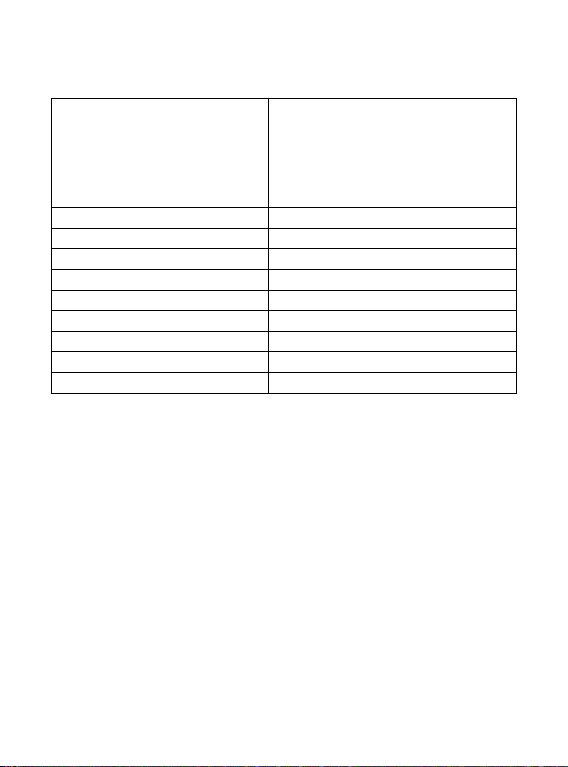
Nombre o marca, número de registro
comercial y dirección del fabricante
SHENZHEN HENGTAIYING
TECHNOLOGY CO.,LTD
Commercial registration
number:9144030008010049XB
Southeast 2F,11Block,Kaetat Industrial
Park,Liaokeng Village,Shiyan Street,Bao’an
District, Shenzhen City, Guangdong, China
Identificador de modelo
HTY24-1202000E
Tensión de entrada
100-240 V
Frecuencia CA de entrada
50/60 Hz
Tensión de salida
12 V
Corriente de salida
2 A
Potencia de salida
24 W
Eficacia activa promedio
>86,2%
Eficiencia con poca carga (10 %)
>76,8%
Consumo energético sin carga
<0,1 W
 Loading...