

Page 1
Contents Basic part Advanced part Headphones app Troubleshooting Appendix
Denon PerL
True Wireless In-Ear Headphones AH-C10PL
Owner’s Manual
1
Page 2
Contents Basic part Advanced part Headphones app Troubleshooting Appendix
Basic part
Part names and functions
What’s in the box
Fitting your earbuds
Turning your earbuds on/off
Downloading the Denon Headphones app
Bluetooth® operation
Personalizing your earbuds
Updating your Denon PerL
Advanced part
Charging the earbuds and charging case
Checking the earbuds battery and charging case battery
Using the earbuds touch buttons
Making and receiving voice calls with your earbuds
Connecting your earbuds to other products
Changing ear tips and wings attachments
Cleaning the earbuds
Headphones app
Denon Headphones app features
4
Choosing the level of immersion
5
ANC (Active Noise Cancellation) and social mode
6
Changing the earbuds voice language
7
Enabling EU volume limiter
7
Switching and adding hearing profiles
8
9
10
11
12
12
14
15
16
17
18
19
20
21
21
22
2
Page 3
Contents Basic part Advanced part Headphones app Troubleshooting Appendix
Troubleshooting
Troubleshooting
Resetting your earbuds
If your Denon PerL won't charge
If your earbuds won’t perform the personalization process
If your earbuds won’t connect to the Denon Headphones app
If you’re having trouble connecting your earbuds via Bluetooth
Bluetooth cutting in and out?
If you’re having trouble making calls with your earbuds
If you’re having trouble with sound quality
If the touch buttons aren’t working correctly
Can’t find what you’re looking for? Try the following
23
23
23
24
25
25
26
26
27
27
28
Appendix
Trademark information
Specifications
29
30
3
Page 4
qw
L
rqwe
Contents Basic part Advanced part Headphones app Troubleshooting Appendix
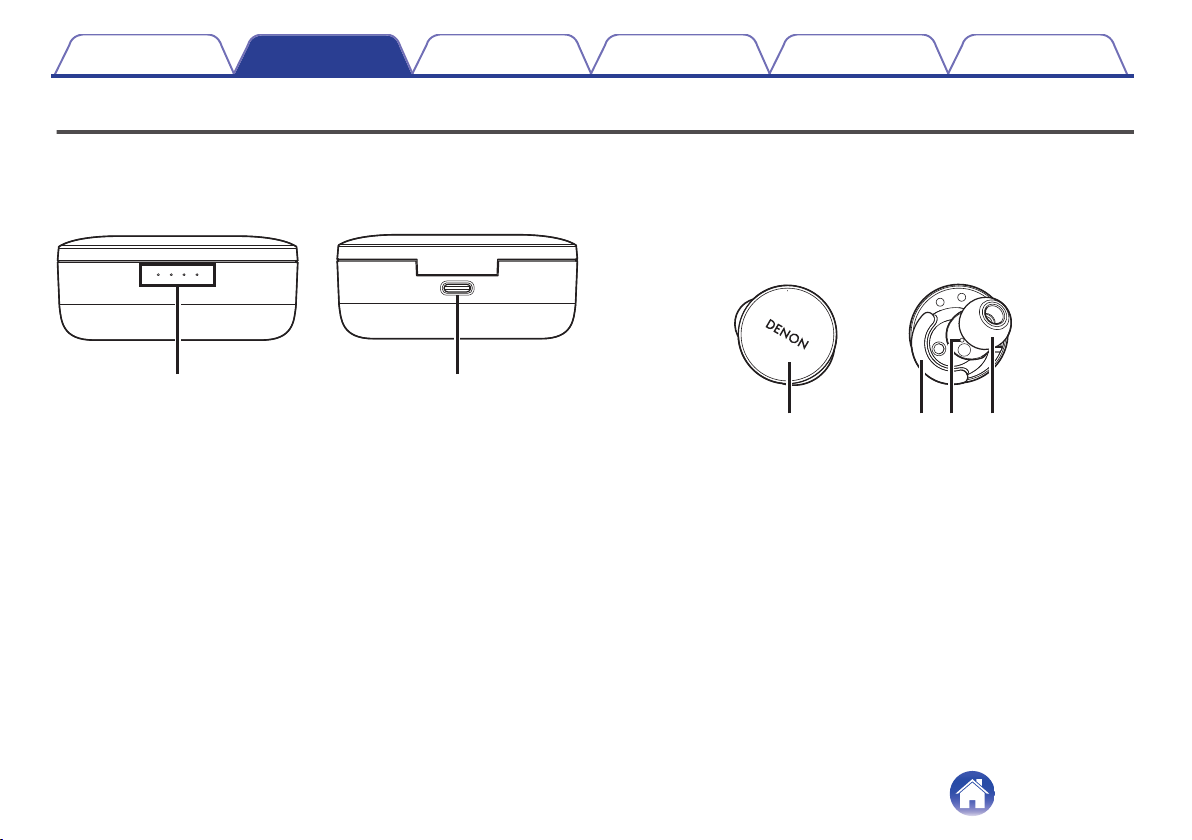
Part names and functions
o
Charging case
LED charging light
A
USB-C charging port
B
o
Earbuds
Voice call microphone
A
Removable ear tip
B
Removable wing attachment
C
Touch buttons
D
4
Page 5
Contents Basic part Advanced part Headphones app Troubleshooting Appendix
What’s in the box
Your Denon PerL will come with:
1. Earbuds
2. USB-A to USB-C charging cable
3. Charging case
4. Multi-sized silicone ear tips (x4)
5. Foam tips (x1)
6. Wing attachments (x2)
5
Page 6
L
123
L
Contents Basic part Advanced part Headphones app Troubleshooting Appendix
Fitting your earbuds
o
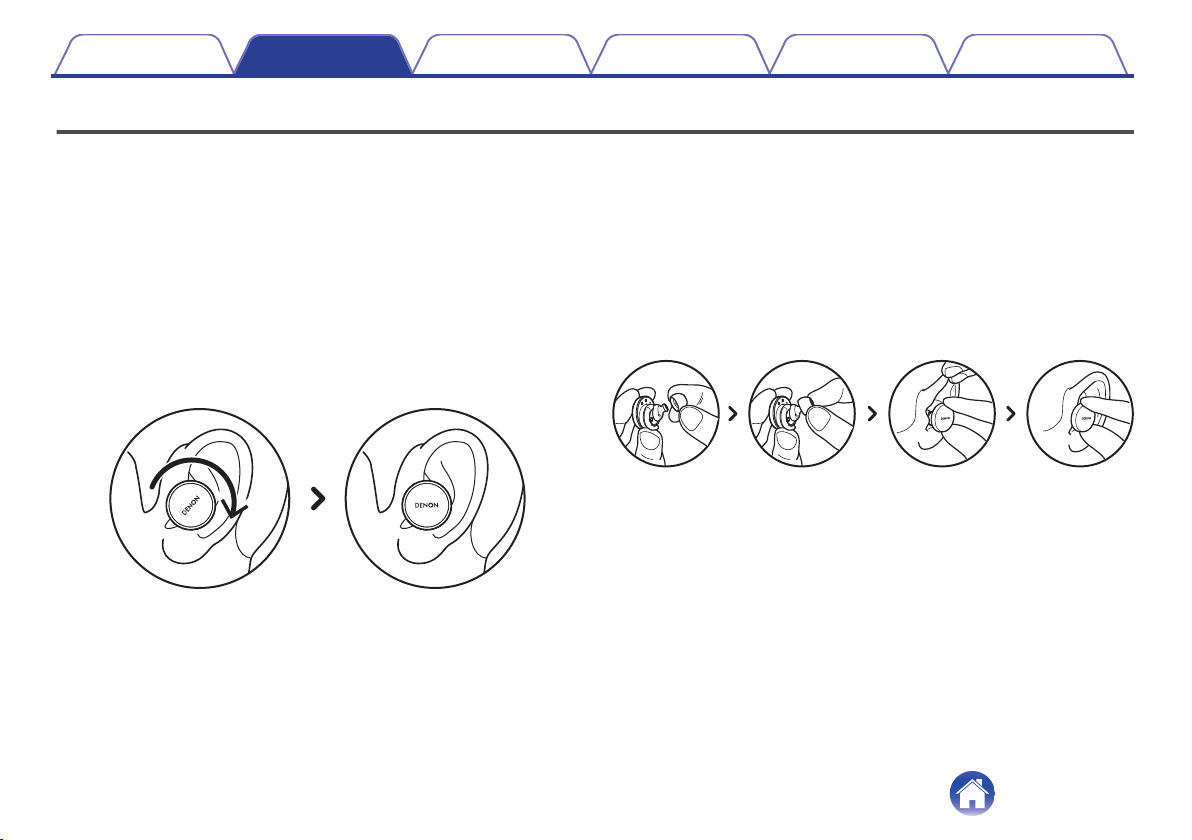
Put your earbuds on
Left and Right - Hold the ear bud marked L in your left
1
hand, and the ear bud marked R in your right hand.
Adjust the fit - Insert the earbuds into your ears and
2
slightly twist backwards to find the right fit. Your
earbuds should feel secure and comfortable.
To ensure your earbuds fits comfortably, try the
3
different sized ear tips and wing attachments to find
what works best for you.
o
If you’re using foam tips, you’ll need to:
Compress the foam tip by rolling your fingers.
1
Pull your ear back. Insert the entire foam tip into your
2
ear and slightly twist backwards.
Hold in place for 15-30 seconds for foam to expand and
3
create a seal.
6
Page 7
Contents
Basic part Advanced part Headphones app Troubleshooting Appendix
Turning your earbuds on/off
To power on: Remove your earbuds from the charging case.
To power off: Place your earbuds into the charging case.
Power reserve: By default, your earbuds will pause playback if one
earbud has been removed from your ears and resume when placed back
on. Your earbuds will automatically power off after 60 seconds if both
earbuds have been removed from your ears. You can customise the
power reserve functionality within the Denon Headphones app.
Downloading the Denon
Headphones app
To set up your earbuds, you will need to personalize it via the Denon
Headphones app.
You can download the Denon Headphones app from:
iOS — the App Store
0
Android — Google Play
0
Denon Headphones app system requirements:
0
iOS — iOS 9.3+ and Bluetooth® 4
0
Android — Android 5.0+ and Bluetooth® 4
7
Page 8
Contents
Basic part Advanced part Headphones app Troubleshooting Appendix
Bluetooth® operation
o
Connecting your earbuds with Bluetooth
You will need to connect your earbuds to your mobile device via Bluetooth
to access the Denon Headphones app and personalize your earbuds.
To connect your earbuds via Bluetooth for the first time:
Remove your earbuds from the charging case and
1
place them in your ears to turn them on.
Your earbuds will automatically enter discoverable mode and be
pairable if it has not been previously connected to a device.
On your mobile device go to “Settings” > “Bluetooth”
2
Select “Denon PerL XXX”.
3
XXX is the Denon PerL unique pairing number.
o
Swapping between Bluetooth devices
You can pair to your earbuds by entering discoverable mode. Your
earbuds will automatically enter discoverable mode and be pairable for 2
minutes when removed from the charging case if it has not been
previously connected to a device. Alternatively, you can also enter
discoverable mode by tapping and holding the touch buttons on both
earbuds simultaneously for 2 seconds, or via “Device Settings” in the
Denon Headphones app.
When your earbuds is in discoverable mode, select “Denon PerL XXX” in
the Bluetooth settings of any device you would like to switch to. A voice
prompt will announce “Bluetooth device changed.” You have now
swapped your connection. Your earbuds will remember up to 8 devices,
allowing you to easily switch between them without having to re-enter
discoverable mode after initial pairing. Simply select “Denon PerL XXX” in
the Bluetooth menu of any previously paired device to reconnect.
8
Page 9
Contents
Basic part Advanced part Headphones app Troubleshooting Appendix
Personalizing your earbuds
Before you can start using your earbuds, you will need to create your
unique hearing profile. Your earbuds automatically learns how you hear by
running a quick hearing test.
o
Before personalizing your earbuds
Download the Denon Headphones app.
1
In the Denon Headphones app, tap “Create an account”
2
and enter your details. If you already have a Denon
account, then tap “Log in” instead.
Select “Denon PerL”.
3
Pair your earbuds with your mobile device.
4
o
Personalizing your earbuds
In the Denon Headphones app, tap “Begin” to begin
1
personalization.
Adjust your earbuds by rotating them back and forth
2
until you see two constant ticks on the Denon
Headphones app screen. Once you have a good fit,
personalization starts and takes about a minute.
Tap “Personalised” to hear music with your hearing
3
profile applied.
Tap the “Social Mode” button to hear your
4
surroundings.
Customize your earbuds touch buttons. You can also
5
do this later via “Device Settings”.
Your earbuds is now personalized with your unique hearing profile.
9
Page 10
Contents Basic part Advanced part Headphones app Troubleshooting Appendix
Updating your Denon PerL
In order to access the latest features for your Denon PerL make sure you
update:
Your Denon Headphones app
o
To update the Denon Headphones app, open the App Store (for iOS
devices) or Google Play (for Android devices) to check for available
updates.
Your Denon PerL
o
Some improvements may be added to the Denon PerL with a firmware
upgrade. These will be either automatically applied to your device or you
may need to perform the below.
Open the Denon Headphones app.
1
A message will appear that an update is available, tap
2
“Start update”, or, tap menu icon (
Settings” > “Software update” > “Start update”
Your upgrade will begin.
3
) > “Device
10
Page 11
Contents Basic part Advanced part Headphones app Troubleshooting Appendix
Charging the earbuds and charging case
The earbuds battery provides 6 hours of wireless use, and up to 24 hours of use when using the charging case.
To charge your earbuds
0
Place them in the charging case and close the lid. Your earbuds shuts down and charges when placed inside the charging case. Your charging case
holds multiple full charges for your earbuds so you can charge on the move. To keep your earbuds charged, put them in the charging case when you're
not using them. The earbuds take approximately two hours to fully charge via the charging case.
To charge your charging case via USB
0
Connect the case to the included USB-C charging cable and plug it into a computer or wall adapter. The LED lights will pulse when charging. Once fully
charged, the LED lights will turn solid. The charging case takes approximately two hours to fully charge via the charging cable.
11
Page 12
Contents Basic part Advanced part Headphones app Troubleshooting Appendix
Checking the earbuds battery and
charging case battery
Checking the earbuds battery
o
While connected to your earbuds, you can check the battery indicator in
the top-right corner of the Denon Headphones app.
A voice prompt will announce “battery low” when your earbuds needs
0
charging.
A voice prompt will announce “battery critical” when your earbuds is
0
about to power off.
Checking the charging case battery
o
The charging case has 4 LEDs which indicate the level of charge of the
case battery when opened for 4 seconds.
Using the earbuds touch buttons
The earbuds has touch buttons on each side that you can tap to perform
useful functions.
You can customize your touch buttons in the
o
Denon Headphones app
Open the Denon Headphones app with your earbuds
1
connected via Bluetooth to your device.
Tap on the menu icon at the top left ( ) .
2
Tap on “Device Settings” > “Configure touch buttons”.
3
Choose the tap controls you wish to adjust.
4
12
Page 13
Contents Basic part Advanced part Headphones app Troubleshooting Appendix
Tap/Double tap/Triple tap/Double tap and hold
o
gestures
In the Denon Headphones app, the following functions can be assigned to
each Tap/Double tap/Triple tap/Double tap and hold operation.
Enable/disable social mode
0
Enable/disable social mode and pause
0
Voice assistant
0
Play/Pause
0
Play/Pause music & Answer calls/Hang-up calls
0
Play/Pause music & Answer calls
0
Next Track
0
Previous Track
0
Enable/disable Immersion Mode
0
Increase immersion level
0
Decrease immersion level
0
Volume up
0
Volume down
0
Tap and hold
o
Tap and hold both touch buttons for 2 seconds to enter discoverable
mode.
Tap and hold one of the touch buttons for 10 seconds to perform a hard
reset on the corresponding earbud. Earbuds reset independently. To reset
both sides, tap and hold both touch buttons for 10 seconds, or return them
to the charging case.
Tap and hold touch button gestures are not user configurable.
13
Page 14
Contents Basic part Advanced part Headphones app Troubleshooting Appendix
Making and receiving voice calls
with your earbuds
The earbuds includes highly sensitive microphones for enhanced voice
call quality.
When your earbuds is connected via Bluetooth, you can answer voice
calls:
Directly on your phone;
0
Or by using the earbuds touch buttons, if the answer call function has
0
been assigned to a touch button within the Denon Headphones app.
14
Page 15
Contents Basic part Advanced part Headphones app Troubleshooting Appendix
Connecting your earbuds to other products
You can connect your earbuds to other products using Bluetooth.
o
Computers
Mac
Tap and hold down both touch buttons on each side of
1
your earbuds to enter pairing mode.
On your Mac, choose “Apple menu” > “System
2
Preferences”, then click Bluetooth.
Select “Denon PerL XXX” on the device list.
3
PC
Tap and hold down both touch buttons on each side of
1
your earbuds to enter pairing mode.
Click the Bluetooth icon on your computer’s taskbar.
2
From Bluetooth & other devices, click add Bluetooth or
3
other device.
Select “Denon PerL XXX”.
4
o
TVs
Audio configurations on TVs vary. Check your TV’s connectivity is
compatible with Denon PerL connectivity.
15
Page 16
Contents Basic part Advanced part Headphones app Troubleshooting Appendix
Changing ear tips and wings attachments
o
Changing your earbuds ear tips
The Denon PerL comes with five ear tip sizes. Try all the ear tip sizes to
find the ones that best fit your ears. You’ll know you have a good seal if the
sound around you quietens when you put on your earbuds.
To remove an ear tip gently pull with your fingers at the base of the ear tip,
where it is attached to the earbuds.
To attach an ear tip, push the new ear tip all the way down over the
opening and onto the earbuds.
o
Changing the earbuds wings attachments
The Denon PerL comes with two wing sizes/types.
Try both wing sizes to find the ones that best fit your ears. The earbuds
can also be used without the wings.
To change the earbuds wings:
Gently pull the wing to remove.
1
Push the new wing onto the earbuds.
2
Check the new wing is pushed on all the way.
3
To check the wings are fitted correctly, the hole on the
4
wing should be aligned with the notch on your
earbuds. The earbuds should fit comfortably in your
ear and create a seal. You will know you have a good
seal if the sound around you quietens.
16
Page 17
Contents Basic part Advanced part Headphones app Troubleshooting Appendix
Cleaning the earbuds
Your earbuds needs cleaning from time to time.
Please note: Never use alcohol, cleaning solvents, or strong detergents
when cleaning the earbuds.
To clean the ear tips:
Remove the ear tips, and wash them with water and a
1
mild detergent.
Rinse and dry the ear tips and set aside.
2
Reattach the ear tips.
3
Wipe the earbuds with a soft, damp cloth.
4
17
Page 18
qt
y
u
iQ0
r
o
ew
Contents Basic part Advanced part Headphones app Troubleshooting Appendix
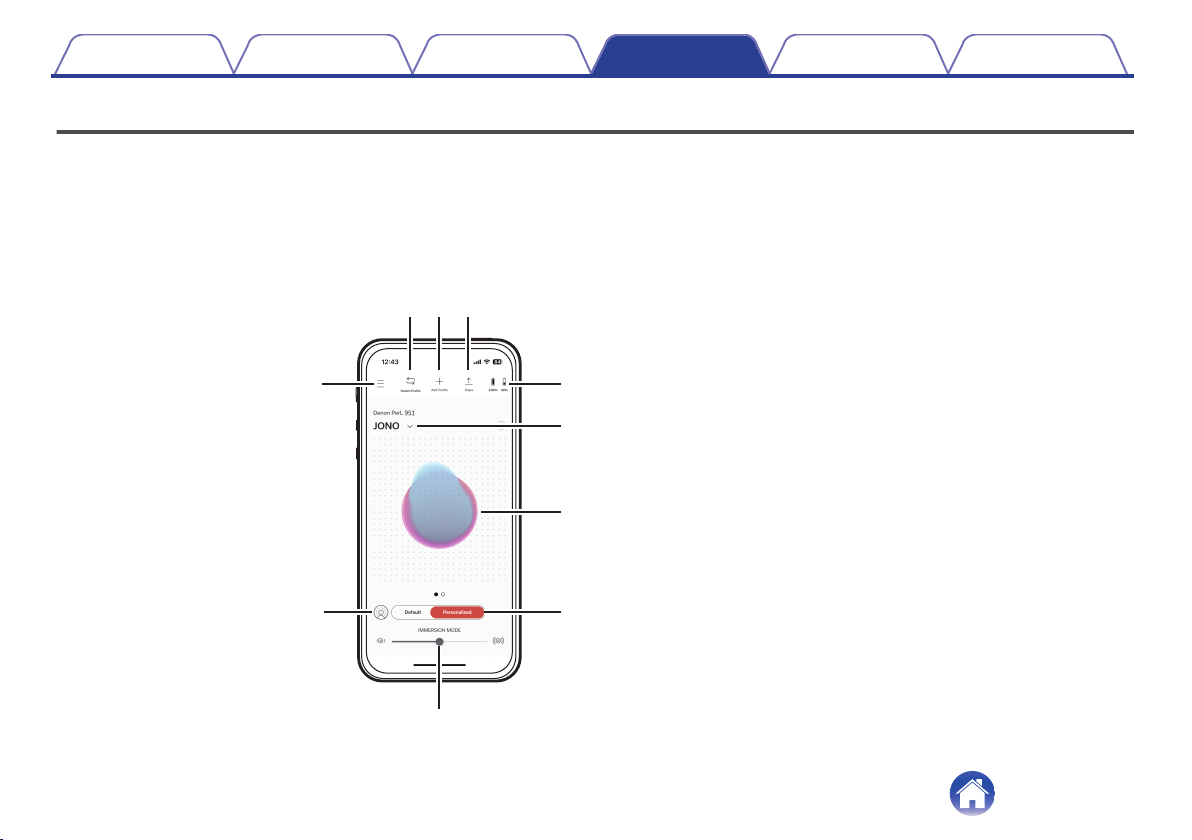
Denon Headphones app features
Read on for everything that you need to know about the Denon Headphones app.
With the Denon Headphones app, you can adjust the level of immersion, change or add hearing profiles, check battery status, enable/disable ANC and
social mode, and more.
To set up the earbuds with the Denon Headphones app, remove the earbuds from the charging case and connect them to the Denon
Headphones app.
Menu
A
Switch profile
B
Add new profile
C
Share profile
D
Battery
E
Change profile
F
Unique hearing profile
G
Personalised mode
H
Immersion
I
Social mode
J
18
Page 19
Contents Basic part Advanced part Headphones app Troubleshooting Appendix
Choosing the level of immersion
Open the Denon Headphones app.
1
Use the immersion slider to choose your preferred
2
level of bass.
Please note: Always set your immersion to a comfortable, moderate level
when using your earbuds for an extended period of time.
19
Page 20
Contents Basic part Advanced part Headphones app Troubleshooting Appendix
ANC (Active Noise Cancellation) and social mode
ANC (Active Noise Cancellation) reduces outside noise so you can focus
on your music.
Social mode passes outside sound into your earbuds so you can hear
conversations and your surroundings. ANC is enabled by default.
You can toggle between ANC and social mode via the touch buttons or inapp:
o
Touch buttons
You can configure the touch buttons to enable/disable social mode in the
Denon Headphones app. This will toggle between social mode and ANC.
o
In-app
Tap the social mode button on the homepage of the Denon Headphones
app.
o
Enabling/disabling social mode & ANC
Open the Denon Headphones app with your earbuds
1
connected via Bluetooth to your device.
Tap on the menu icon at the top left ( ) .
2
Tap on “Device Settings”.
3
Scroll down to “Enable Social Mode & ANC (Active
4
Noise Cancellation)”.
Tap on the button to completely enable or disable
5
social mode & ANC.
20
Page 21
Contents Basic part Advanced part Headphones app Troubleshooting Appendix
Changing the earbuds voice
language
The earbuds voice guides you through personalizing your earbuds,
announces the battery level and identifies connected devices. To change
the language:
Open the Denon Headphones app.
1
Tap on the menu icon at the top left ( ) .
2
Tap on “Device Settings” > “Change voice language”.
3
Choose your preferred language.
4
To confirm the change, tap “Yes”.
5
Please note: It takes approximately 10 minutes for the voice language to
change.
Enabling EU volume limiter
To change the EU volume limit setting:
Open the Denon Headphones app with your earbuds
1
connected via Bluetooth to your device.
Tap on the menu icon at the top left ( ) .
2
Tap on “Device Settings”.
3
Scroll down to “Enable EU volume limiter”.
4
Tap on the setting to toggle it on or off.
5
21
Page 22
Contents Basic part Advanced part Headphones app Troubleshooting Appendix
Switching and adding hearing profiles
You can store up to three hearing profiles on your earbuds at a time.
o
Switching profiles
Open the Denon Headphones app.
1
Tap profile name on the Denon Headphones app
2
homepage.
Tap the hearing profile you’d like to switch to.
3
o
Adding a hearing profile
Open the Denon Headphones app.
1
Tap “Add Profile” on the Denon Headphones app
2
homepage at the top center.
If you own the earbuds you are using, select “Owner”.
3
If you are using someone else’s earbuds, select
“Another person”.
Follow the app prompts to add your new hearing
4
profile.
22
Page 23
Contents
Basic part Advanced part Headphones app Troubleshooting Appendix
Troubleshooting
If you’re ever having trouble with your Denon PerL, read the following troubleshooting.
Resetting your earbuds
Device reset
1. Hold down the touch buttons on both sides of the earbuds for 10 seconds to reset.
Factory reset
1. Open the Denon Headphones app.
2.
Tap menu icon (
This will delete your hearing profiles.
0
If your Denon PerL won't charge
Make sure you’re charging with the Denon PerL USB-C cable only.
0
If you’re trying to charge with a computer, then try using a different USB port or a wall charger.
0
If you’re trying to charge with a wall charger, then try charging with a computer.
0
If you’re attempting to charge with a USB hub, then make sure it’s powered.
0
) > “Device Settings” > “Perform factory reset”
23
Page 24
Contents
Basic part Advanced part Headphones app Troubleshooting Appendix
If your earbuds won’t perform the personalization process
Check our Fitting your earbuds guide in Basic part to ensure you have the correct fit. (v p. 6)
0
Make sure your earbuds is sitting securely in your ears, remove any accessories which sit near your ears, and if you have long hair, tie it back.
0
Check there are no obstructions blocking the mesh e.g. wax build up, packaging remnants etc. Any blockages will impact the ability of the Denon PerL
0
to detect your hearing.
Make sure you’re in a quiet place, sit still and try not to talk during personalization.
0
Check you have a stable internet and Bluetooth connection.
0
Check your mobile device and the Denon Headphones app have been updated to the latest version.
0
Further troubleshooting:
‘Forget’ your Denon PerL from your device's Bluetooth settings, and pair again.
0
Reset the device you are trying to connect to.
0
Delete and reinstall the Denon Headphones app.
0
Reset your earbuds.
0
Clean your earbuds.
0
24
Page 25
Contents
Basic part Advanced part Headphones app Troubleshooting Appendix
If your earbuds won’t connect to the Denon Headphones app
Check your mobile device and the Denon Headphones app have been updated to the latest version.
0
Close and re-open the Denon Headphones app.
0
Check your earbuds is connected to your mobile device with Bluetooth. You need to be connected with Bluetooth to use the Denon Headphones app.
0
Bluetooth will only activate when no cables are connected.
Check your internet connection is stable.
0
Delete the Denon Headphones app, restart your mobile device and then reinstall the Denon Headphones app.
0
Reset your earbuds.
0
If you’re having trouble connecting your earbuds via Bluetooth
Check your earbuds and device are charged.
0
Ensure your earbuds and device are within 10 feet (about 3 m) of each other.
0
Check you’re connecting to Denon PerL XXX, not Denon PerL XXX [LE].
0
Denon PerL XXX [LE] is the Denon PerL low-energy mode, which will automatically connect after you’ve connected to Denon PerL XXX.
0
Move away from other Bluetooth devices, microwaves and wireless routers to avoid interference.
0
Further troubleshooting:
Re-start your device and try pairing your earbuds with Bluetooth again.
0
If you’ve previously paired your earbuds with Bluetooth, then remove your earbuds from your device’s paired device list and try pairing again.
0
Reset your earbuds.
0
25
Page 26
Contents
Basic part Advanced part Headphones app Troubleshooting Appendix
Bluetooth cutting in and out?
Bluetooth is designed for short distances, so you might experience some interference from time to time. To minimize Bluetooth interference, try the
following:
Move your paired device closer to the earbuds.
0
Move your earbuds and device away from other Bluetooth devices, microwaves and wireless routers.
0
Update your earbuds and mobile device to the latest versions.
0
If you’re having trouble making calls with your earbuds
Follow these steps if you’re having trouble making and receiving phone calls, or calls via Skype, FaceTime or other calling apps.
Check your earbuds is connected with Bluetooth.
0
Check that nothing is blocking your earbuds microphones.
0
The microphones are located on each side of your earbuds.
0
Disconnect your earbuds from your device and then reconnect.
0
Check your Bluetooth connection.
0
Poor call quality can be caused by a poor Bluetooth connection.
0
Reset your earbuds.
0
26
Page 27
Contents
Basic part Advanced part Headphones app Troubleshooting Appendix
If you’re having trouble with sound quality
To get the highest sound quality from your earbuds:
Use a lossless file format, such as AIFF, WAV or FLAC.
0
Use a lossless streaming service, such as Tidal.
0
If you’re using Spotify or a similar streaming service, use the high-quality streaming option. Ensure to check the streaming quality options in the
0
platform’s settings.
Check the device is not in Social Mode.
0
If you’re using MP3 or MP3-like files, use high-bitrate MP3, Ogg or AAC files. Or use minimum 256kbps (and preferably 320kbps) files with modern
0
codecs.
Personalize your earbuds again.
0
The earbuds uses sensitive microphones to personalize, so movements, outside noises and heavy breathing can affect your hearing profile.
If the touch buttons aren’t working correctly
Check your earbuds touch buttons have been set-up correctly via the Denon Headphones app.
0
Reset your earbuds.
0
27
Page 28
Contents Basic part Advanced part Headphones app Troubleshooting Appendix
Can’t find what you’re looking for? Try the following
Check your earbuds is charged.
0
Check your mobile device and the Denon Headphones app have been updated to the latest version.
0
Check your Bluetooth is connected.
0
Further Troubleshooting
Forget your earbuds from your device's Bluetooth settings, and pair again.
0
Reset the device which you are trying to connect to.
0
Delete and reinstall the Denon Headphones app.
0
Reset your earbuds.
0
Clean your earbuds.
0
28
Page 29
Contents Basic part Advanced part Headphones app Troubleshooting Appendix
Trademark information
The Bluetooth® word mark and logos are registered trademarks owned
by the Bluetooth SIG, Inc. and any use of such marks by D&M Holdings
Inc. is under license. Other trademarks and trade names are those of
their respective owners.
Qualcomm aptX is a product of Qualcomm Technologies, Inc. and/or its
subsidiaries.
Qualcomm is a trademark of Qualcomm Incorporated, registered in the
United States and other countries. aptX is a trademark of Qualcomm
Technologies International, Ltd., registered in the United States and other
countries.
App Store® is registered in the U.S. and other countries.
Google Play and the Google Play logo are trademarks of Google LLC.
29
Page 30
Contents Basic part Advanced part Headphones app Troubleshooting Appendix
Specifications
Power supply: 5V dc, 0.35A
Wireless frequency band: 2400-2483.5 MHz
Continuous playback time: Approx. 6 hours (Earbuds)
Charging time: Approx. 2 hours (Earbuds)
Approx. 24 hours (with 3 × recharge via the charging case)
Approx. 2 hours (Charging case)
30
Page 31

www.denon.com
31
©2023 DEI Sales, Inc. All Rights Reserved.
3520 10918 00ASA
 Loading...