

Page 1
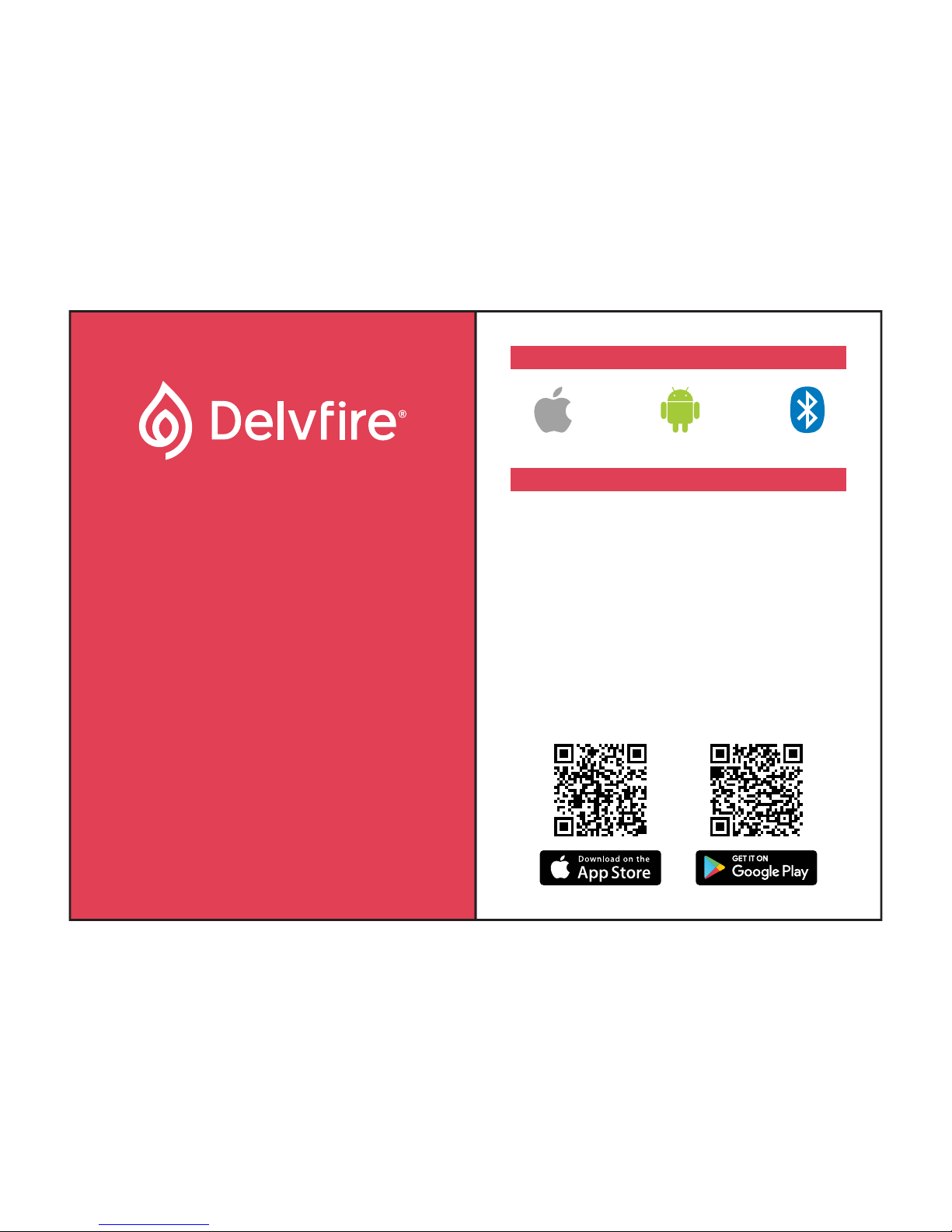
Android 4.5 & aboveiOS 7.1 & above Bluetooth 4.0
1. Download the ‘VeryFit 2.0’ App
To set up your wristband you will first need to pair it with your
phone/tablet using the VeryFit 2.0 App. There are 2 options
for downloading and installing it:
Option 1: Search for ‘VeryFit 2.0’ in the App store
Search for and download the ‘VeryFit 2.0’ App from the Apple
or Google Play store. If you are installing on an iPad, you will
need to select the ‘iPhone Only’ search option in the Apple
store to reveal the VeryFit 2.0 App.
Option 2: Scan QR code to download the App
Use a QR code scanning App on your phone/tablet to scan
the relevant QR code below. This will open the corresponding
App store ready for you to download the ‘VeryFit 2.0’ App.
QUICK START GUIDE
PHONE / TABLET REQUIREMENTS
USER MANUAL
delvfire.com
IGNITE
Smart Activity Wristband
ID115
Page 2
2. Charge your wristband
3. Pair your wristband
On your phone/tablet, open the ‘VeryFit 2.0’ App and follow
the on screen set up instructions. When you reach the ‘Add
Device’ page and searching has completed, tap on ‘ID115’ in
the list and tap OK. Your wristband will vibrate briefly to
confirm that you have successfully paired it. Continue to
follow the on screen instructions to complete the set up
process.
If the App fails to find your wristband, check that your
phone/tablet’s Bluetooth is enabled, plug your wristband into
a USB socket and repeat the search.
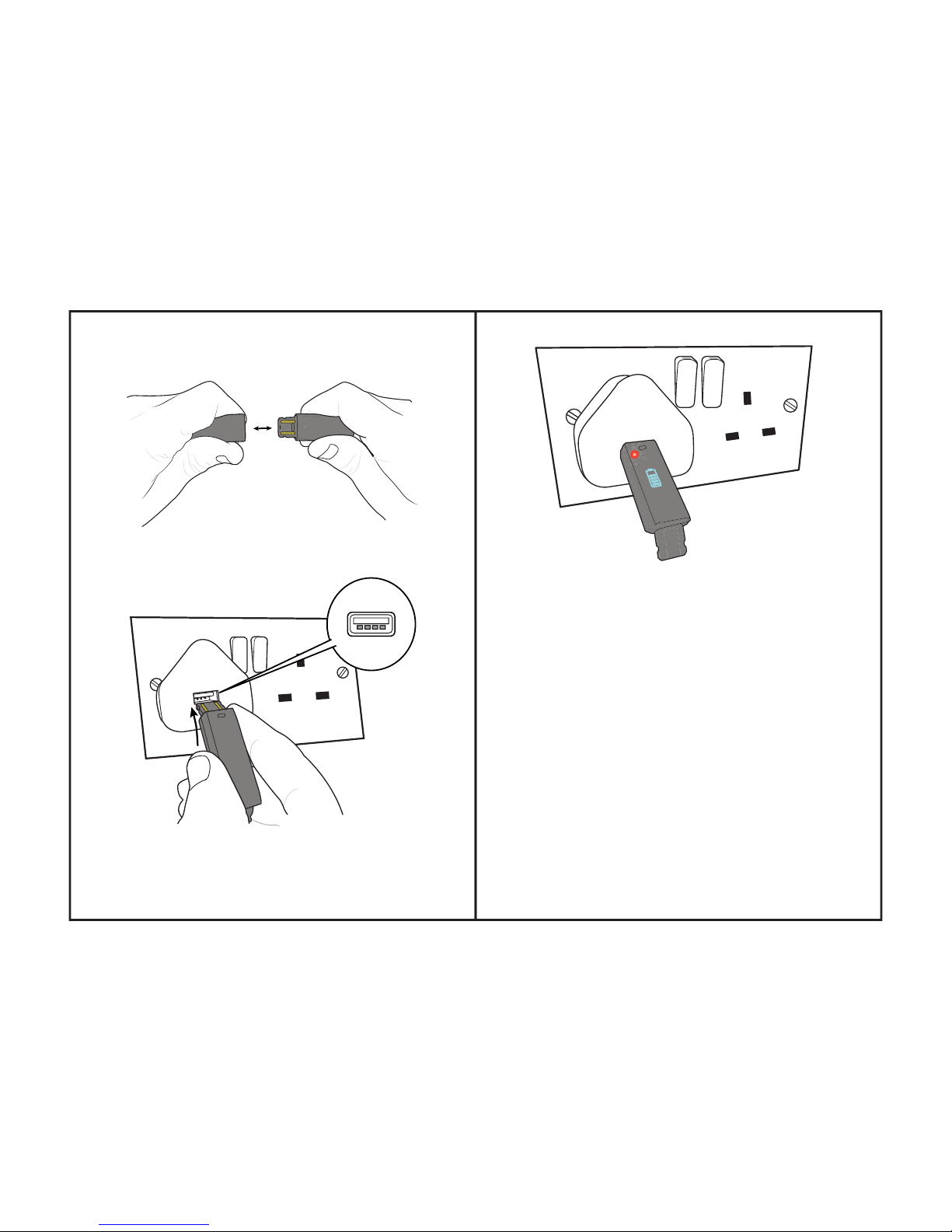
Plug the body of your wristband into a USB socket, ensuring
that the 2 gold coloured charging strips are facing the 4
charging contacts inside the USB socket.
Once plugged into a USB socket, a red light and charging
symbol will appear to indicate that your wristband has started
charging. If the screen does not light up, ensure that you have
plugged it in the correct way round and that the gold coloured
charging strips are facing the 4 contacts inside the USB
ports.
Your wristband will take 1-2 hours to fully charge.
Remove both straps from the body of your wristband to
expose the 2 gold coloured USB charging strips at one end.
Page 3
1. Normal Mode
HOW TO USE
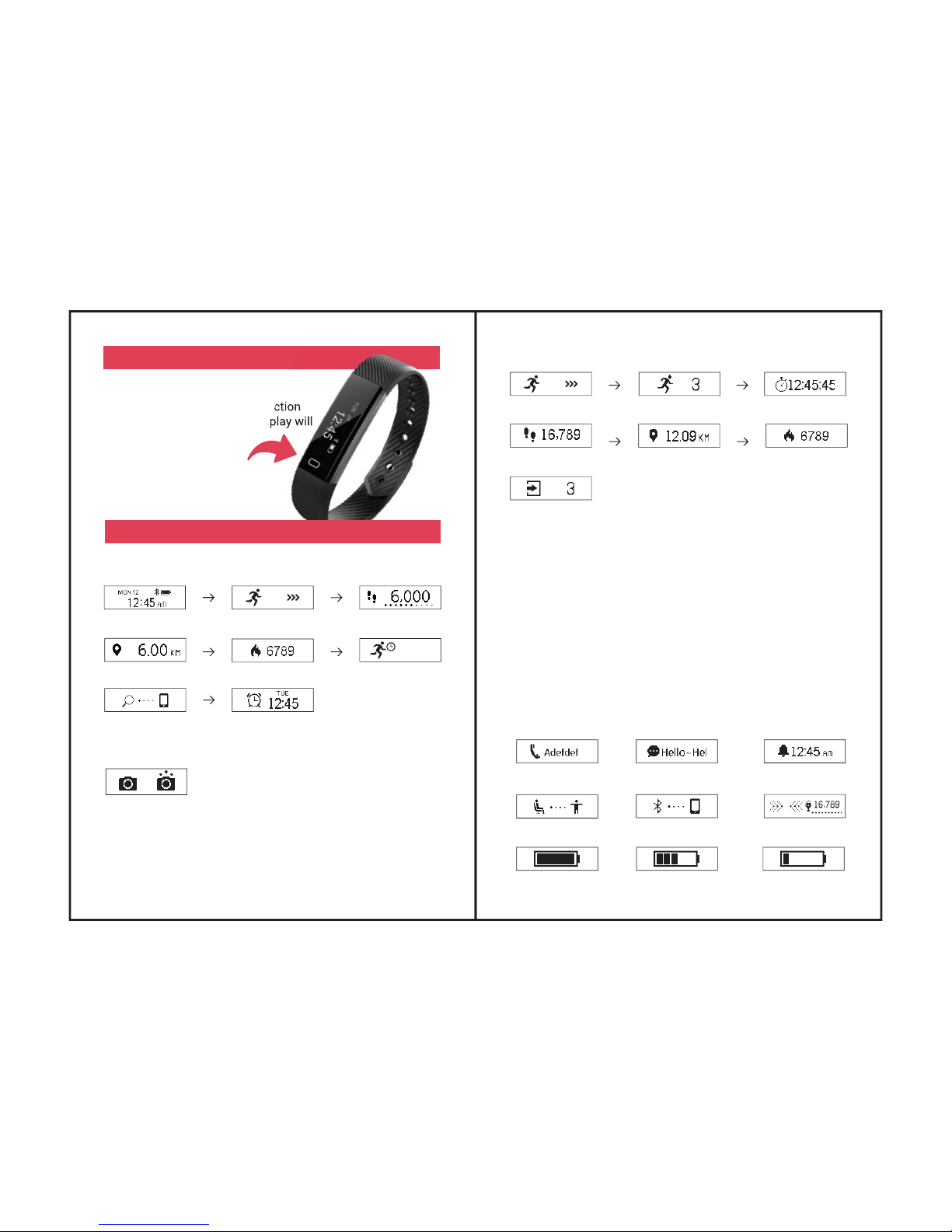
Function Button
Tapping the touch sensitive function
button at the bottom of the display will
cycle through your stats.
2. Remote Camera
To take photos remotely using your wristband, open the
‘VeryFit 2.0’ App, tap ‘Device’ from the menu bar and select
‘Take Photo’. Position your mobile device in the desired
location for taking a photo and use the function button on
your wristband to take a photo. Rotating your wrist will also
take a photo when this mode is active.
Find Phone
Alarm
Date/Time
Steps
Sports Mode
Distance
Calories Active Minutes
120
MIN
MODES
Incoming Call
Message
Alarm
Anti-Lost
Goal Achieved
4. Notification Mode
Fully Charged
Reminder to Move
Charging
Low Power
Sports mode allows you to track stats for a specific period of
time. For example, you may wish to see how many calories
you have burned or steps you have achieved during a run or
other type of activity.
To start Sports Mode, tap the function button until Sports
Mode appears, then long press the function button and
Sports Mode will begin. Whilst in this mode you can cycle
through different stats by tapping the function button. When
you no longer require Sports Mode and you have finished
reviewing your stats, you can exit this mode by long pressing
the function button again.
3. Sports Mode
Steps
Distance
Calories
Stop Mode
Start
Stop Watch
Sports Mode
Page 4
DFIGNID115-R2
Model: ID115-XXX
Main Body Size: 38 x 15 x 10mm
Wrist Size: Smallest – 14cm, Largest 21cm
Screen: 22mm OLED Touch Sensitive
Battery: Built-in rechargeable 60mAh Lithium Polymer
Waterproof: IP7x (splash proof)
System Requirements: Apple iOS 7.1 & above (iPhone 4s &
above, iPad 3rd Gen & above, iPod Touch 5th Gen & above)
Android 4.5 & above
Bluetooth Version: 4.0 & above
Package Contents
1 x Delvfire Ignite Activity Wristband
1 x Instruction Manual
1 x Warranty Card
SPECIFICATIONS
NEED HELP?
Visit us www.delvfire.com
Email us [email protected]
Call, Text & Social App Alerts
See alerts for incoming calls, text messages and notifications
from Facebook, Whatsapp, Twitter, Instagram and more.
Remote Camera Control
Take photos with your phone/tablet using your wristband to
trigger the shot remotely.
Anti-Lost
Your wristband will alert you if you move more than 5 metres
away from your phone/tablet.
Find Phone
Use your wristband to trigger an audio alert on your
phone/tablet until you have located it.
Wristband Data Storage
Activity data displayed on the wristband is reset every day at
midnight. Up to 7 days of data can be stored on the wristband
without the need to sync it to the App. To sync your data,
open the App and swipe down anywhere on the main page.
Progress will then be indicated at the top of the page.
Activity Tracking
Your wristband tracks daily activities including steps,
distance, calories burned and minutes you were active for
during the day. Your stats can be checked on your wristband
at anytime, or by using the App for a more detailed view.
Sleep Tracking
Your wristband will automatically track how long and how
well you sleep. Stats including light sleep, deep sleep and
duration awake can be viewed in the App.
Silent Alarms
Set an alarm in the App and your wristband will vibrate to
wake you peacefully.
Reminders to Move
Your wristband will give you gentle reminders to stay active
throughout the day if you are stationary for too long.
FUNCTIONS
Page 5
FAQs - Charging
Why isn’t a charger included?
Your wristband is charged by USB and can be plugged into
any USB socket on a computer, phone/tablet charger or
power bank. This does away with the need for a special
charger and messy cables. For the correct way to charge your
wristband, refer to section 2 of the Quick Start Guide on the
other side of this user manual.
Why won’t my wristband charge?
The most common problems are a) the wrong end of the
wristband body has been inserted into the USB socket, b) the
2 gold coloured charging strips on the wristband are not
facing the 4 charging contacts inside the USB socket. Refer to
section 2 of the Quick Start Guide on the other side of this
user manual for more information.
Pairing
Why can’t I pair my wristband?
1. Make sure your phone/tablet meets the minimum requirements of Apple iOS 7.1 & above (iPhone 4s & above, iPad 3rd
Gen & above, iPod Touch 5th Gen & above), Android 4.5 &
above, Bluetooth Version: 4.0 & above.
2. Make sure your phone/tablet has Bluetooth switched on.
3. Whilst seaching for your wristband during set up within the
App, ensure that the wristband’s display is on and close to
your phone/tablet.
If you are still unable to pair your wristband to your
phone/tablet within the VeryFit 2.0 App then please do the
following exactly as instructed:
1. Switch off your phone/tablet and restart it.
2. Ensure your phone/tablet’s Bluetooth is switched on.
3. Delete the VeryFit 2.0 App from your phone/tablet.
4. Open the Bluetooth settings on your phone/tablet and
delete/forget all devices listed (you can add these back later).
5. Reinstall the VeryFit App (don't open the App at this point).
6. Plug your wristband into a USB socket away from other USB
devices that might cause interference and make sure that the
charging symbol is on screen to show that it's charging.
7. Open the VeryFit App and run through the set up. At the
point where the App starts searching for your wristband, hold
your phone/tablet close to your wristband and ensure that the
wristband’s display is turned on.
8. You should now be able to select ID115 (your wristband)
from the device list to complete the set up process.
Steps
Why isn’t my step counter working correctly?
First you need to install the VeryFit 2.0 App and run through
the set up process to pair it to your phone/tablet. Your wristband will not function correctly if you skip this.
When you first set up your wristband it will go through an
initial calibration phase which can take up to a day to complete. During this time you may find that steps may either not
register correctly or appear to jump around. This is completely normal. After the first day of use, step counting will register
and record as expected.
It's also worth pointing out that after the calibration period,
the display will not always update in real time (step-by-step)
as you are walking. Under certain circumstances the screen
will update in batches of steps. This is especially apparent
when walking whilst watching the display.
Page 6
If after the initial calibration period your steps are not registering, we recommend resetting your wristband. To do this, open
the VeryFit App and go to User > System Settings > Restart
Device and tap Confirm Reboot. This will backup the data on
your wristband and factory reset it. Once this operation is
complete your data will be restored back to your wristband.
Why do my steps keep reverting back?
If you walk less than 35 steps within a certain amount of time,
these steps will not be stored. This is to help improve accuracy by filtering out movements other than steps, for example
typing on a keyboard and washing your hands.
Syncing
Why isn’t my activity data showing in the App?
To transfer your activity data from your wristband to the App
on your phone/tablet, open the VeryFit 2.0 App and swipe
down anywhere on the main page (the first page you see
when you open the App).
Misc.
Why can’t I see all functions on my wristband?
Some functions require turning on from within the VeryFit 2.0
App before they will appear on your wristband.
How do I factory reset my wristband?
Make sure your wristband is connected to the App. Open the
VeryFit 2.0 App and go to User > System Settings > Restart
Device and tap Confirm Reboot. This will backup the data on
your wristband and factory reset it. Once this operation is
complete your data will be copied back to your wristband.
How do I install the VeryFit 2.0 App on an iPad?
First check that your iPad is 3rd generation & above and is
running Apple iOS 7.1 & above.
1. Tap the Apple Store icon on your iPad and search for
VeryFit 2.0.
2. Change the search filter option (normally top left of the
Apple Store App) from 'iPad Only' to 'iPhone Only'.
3. Tap the 'Get' button next to VeryFit 2.0 to install it.
Is my phone/tablet compatible?
Apple
iPhone 4s & above
iPad 3rd Gen & above
iPod Touch 5th Gen & above
OS: Apple iOS 7.1 & above
Android
OS: Android 4.5 & above
Bluetooth v4.0 & above
Windows
Not currently supported
Is my wristband waterproof?
Although this wristband is certified IP67 waterproof, we
recommend that you only use it for day-to-day activities like
showering and washing your hands. We don't recommend
that you swim with it or leave it submerged in water for ANY
length of time.
Will my wristband work independently of a phone/
tablet?
In order to set up your wristband you first have to pair it with a
Page 7
© 2017 Copyright Beronetti Limited
Delvfire™ is a registered trademark of Beronetti Limited
phone/tablet. The wristband needs to know the current
time/date from your phone/tablet, plus information such as
your age, height, weight, preferred units of measurement
(metric or imperial) and your activity and sleep goals. This all
goes towards the tracking algorithm it uses to calculate
activity/sleep stats. However, once you've been through the
initial set up there is no need to keep it connected to your
phone/tablet in order for it to function correctly.
Can I connect more than one wristband to my
phone/tablet?
Yes, you can connect up to 2 wristbands to a single
phone/tablet. To do this you will need to install a second App
to pair with the second wristband. We recommend
‘VeryFit Pro’.
How do I get call, text or social alerts on my wristband?
First, ensure that Bluetooth is enabled on your phone/tablet
and that the following settings are turned on within the
Device tab of the App: Call Alert (to see incoming calls), SMS
Alert (to see incoming text messages), SNS Alert (for social
alerts like Facebook, Instagram, WhatsApp).
How do I set the time and date?
The date and time get set automatically when you pair your
wristband to your phone/tablet during the set up process in
the App. If you need to change the time in future e.g the
clocks have gone back/forward, you simply open the VeryFit
App on your phone/tablet and swipe down anywhere on the
main page to initiate a sync.
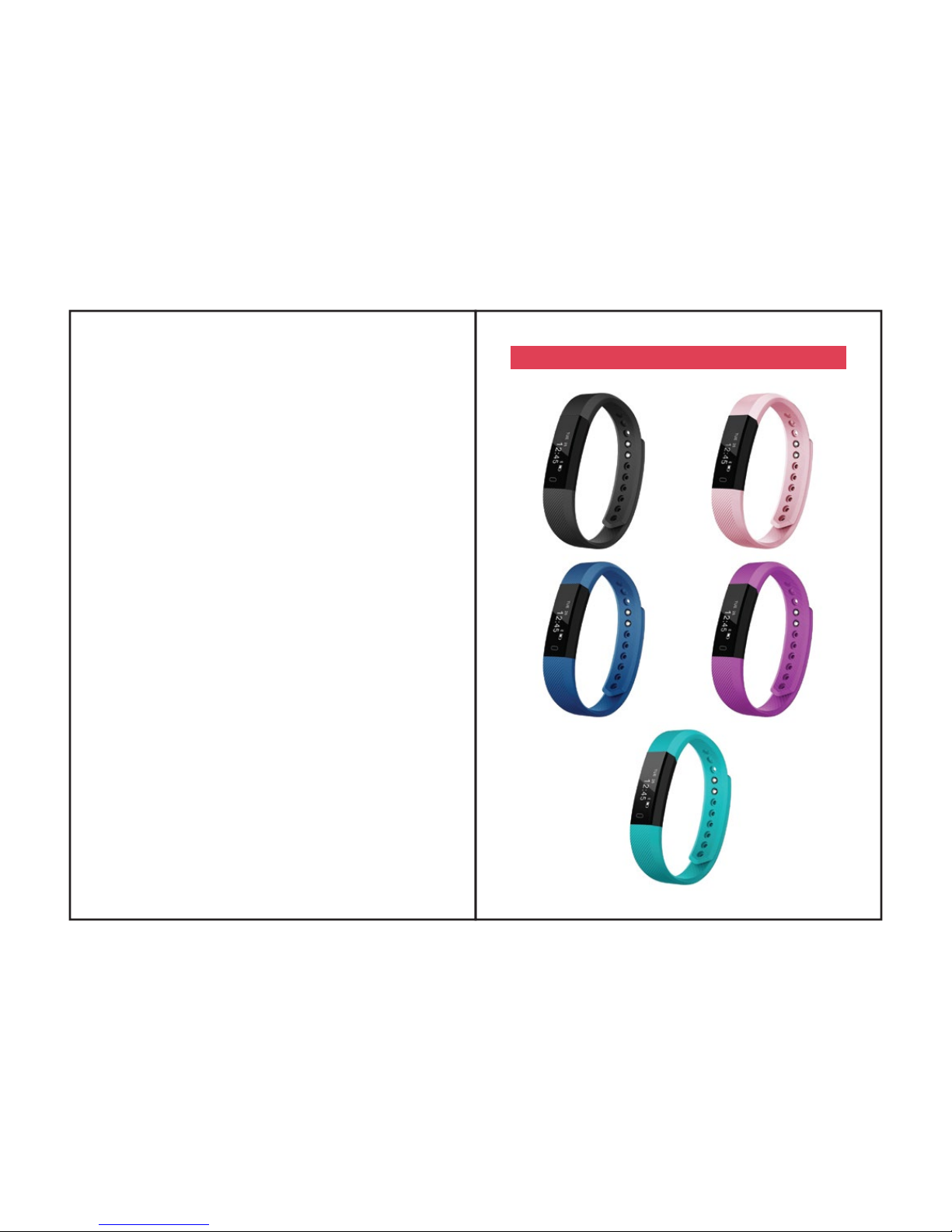
OTHER COLOURS AVAILABLE
 Loading...