

Page 1
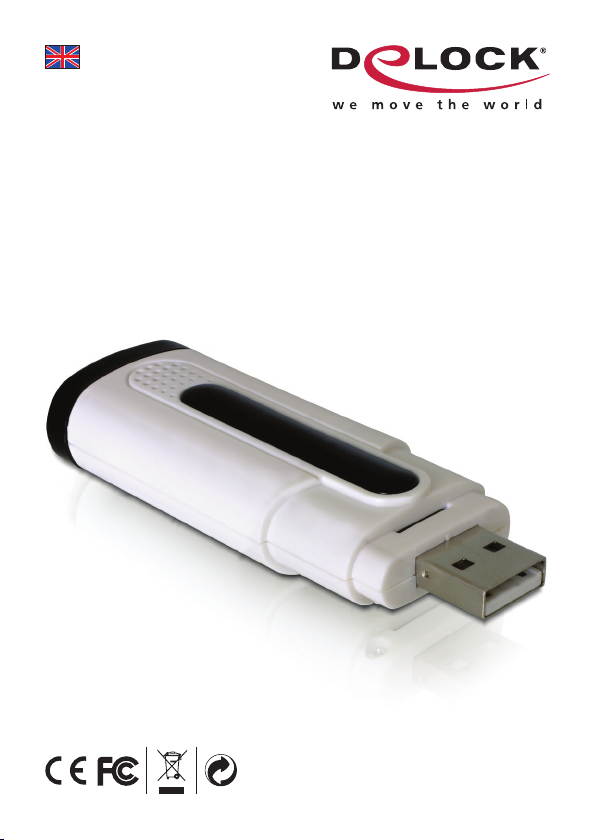
User manual
USB2.0 DVB-T Receiver
Product-No:61648
User manual no:61648-a
www.delock.com
Page 2

Description
Using the Delock DVB-T receiver you can receive radio and TV on your PC or
notebook. You only have to be in a region where DVB-T is being broadcast. The
receiver is especially suitable for notebooks on the road, because no additional
power supply is required.
Specication
•USB2.0specication,compatibletoUSB1.1
• Support DVB-T Radio
• TimeShift functions, automatic station searching
• With videotext function, EPG
• Up to HDTV (1920*1080i) resolution
• Recording of TV programs in MPEG2 format
• Programming of automatic recording
• Software with multilingual surface: English, German, Italian, Poland, French,
Spanish, Portuguese, Turkish, Russian, Korean, Traditional Chinese,
Simple Chinese
• Plug & Play
System requirements
• PC or Notebook with a free USB Port
• Pentium 4, 2.0 GHz CPU or higher
• 256MB RAM
• VGA Graphics card with minimum 32MB for HDTV
• Minimum 50MB free HDD space
• Microsoft Direct X9.0 or higher
• Microsoft Media Player 9.0 or higher
• Windows 2000, XP (SP2) 32,64bit/ Vista 32,64bit
Package content*
• DVBT Dongle
• Antenna, Remote control, USB cable
• CD ROM with driver and Software
• User manual
*Make sure that the product package contains all items before operation. If any
item is missing or damaged, then please contact your dealer immediately.
-1-
Page 3

Note:
Follow the general instructions for installation of the receiver. If necessary, read
the manual of your computer, or ask a specialist for help.
Driver Installation
1. Switch on your computer.
Connect the antenna to the DVBT receiver.
2.
3. Put the driver CD in the CD ROM drive and click on "Driver Install".
4. Connect the DVBT receiver to a free USB port of your computer.
5. Choose "Software Install".
Now the assistant for the Software Installation will appear.
6.
7. Choose your language and click "OK".
8. Click on "Next".
9. Readthelicenseagreementandconrmitby"Yes".
10. Choose the path where you would like to save the Software TotalMedia and
click on "Next".
11. Click on "Next" and follow the instructions.
12. After the Software is installed, click on "Finish".
13. Click on "Next" in order to install the infrared receiver.
14. Click on "Install".
15. Choose "Yes, I want to restart my computer now" and click on "Finish".
16. After restart the Total Media Software is installed.
17. Start the Software and register it with this assistant.
18. After this please choose "Settings", "TV", "Next".
19. Choose a region, e.g. "Belgium" and click on "Next".
20. Click on "Start" in order to start the channel search.
21. Click each time on "Next" and than on "Save".
22. After the channels are found you can enjoy digital TV.
-2-
Page 4

Support Delock
If you have further questions, please contact our customer support
support@delock.de
Youcanndcurrentproductinformationonourhomepage:www.delock.com
Final clause
Information and data contained in this manual are subject to change without
notice in advance. Errors and misprints excepted.
Copyright
No part of this user manual may be reproduced, or transmitted for any purpose,
regardless in which way or by which means, electronically or mechanically,
without explicit written approval of Delock.
Edition: 07/2008
-3-
 Loading...