

Page 1

Inspiron 20 3000
Setup and Specifications
Computer Model: Inspiron 20-3064
Regulatory Model: W15B
Regulatory Type: W15B005
Page 2
Notes, cautions, and warnings
NOTE: A NOTE indicates important information that helps you make better
use of your computer.
CAUTION: A CAUTION indicates either potential damage to hardware or loss
of data and tells you how to avoid the problem.
WARNING: A WARNING indicates a potential for property damage, personal
injury, or death.
© 2016 Dell Inc. All rights reserved. This product is protected by U.S. and international
copyright and intellectual property laws. Dell and the Dell logo are trademarks of Dell Inc. in
the United States and/or other jurisdictions. All other marks and names mentioned herein may
be trademarks of their respective companies.
2016 - 08
Rev. A00
Page 3

Contents
Set up your computer.................................................................4
Views..............................................................................................9
Front................................................................................................................... 9
Left....................................................................................................................10
Right.................................................................................................................. 11
Back.................................................................................................................. 12
Tilt..................................................................................................................... 13
Easel stand..................................................................................................13
Pedestal stand............................................................................................ 14
Specifications............................................................................. 15
Dimensions and weight................................................................................... 15
System information..........................................................................................15
Memory............................................................................................................ 15
Communications............................................................................................. 16
Audio.................................................................................................................16
Storage............................................................................................................. 16
Media-card reader........................................................................................... 16
Display...............................................................................................................17
Camera............................................................................................................. 17
Ports and connectors.......................................................................................17
Video.................................................................................................................18
Power adapter..................................................................................................18
Stand.................................................................................................................18
Computer environment...................................................................................19
Getting help and contacting Dell...........................................20
Self-help resources......................................................................................... 20
Contacting Dell................................................................................................20
3
Page 4

Set up your computer
CAUTION: Place the computer on a soft and clean surface to avoid
scratching the display.
4
Page 5
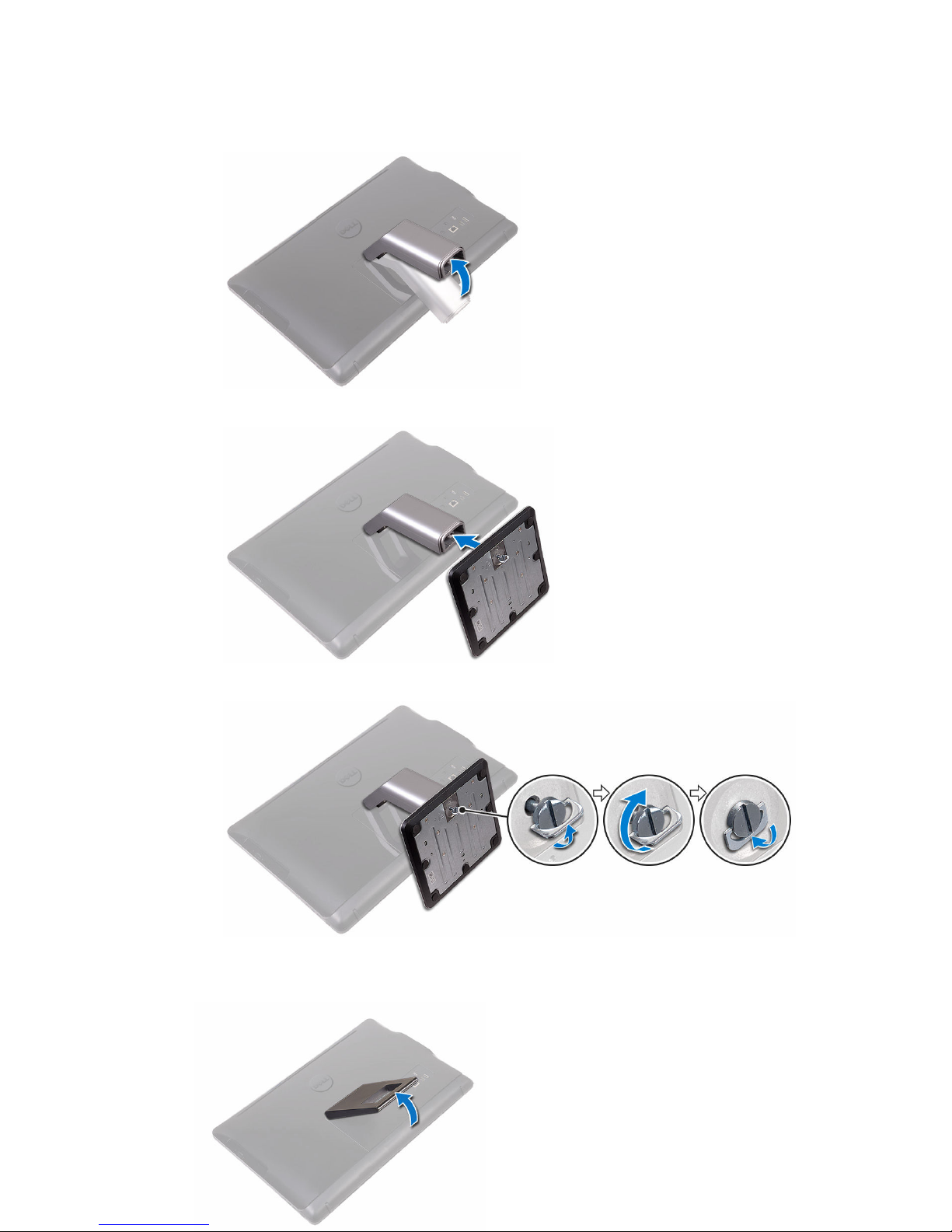
1 Set up the stand.
Pedestal stand
a) Lift the stand riser.
b) Attach the base.
c) Tighten the captive screw to secure the base to the stand riser.
Easel stand
Lift the stand.
5
Page 6
2 Set up the keyboard and mouse.
See the documentation that shipped with the keyboard and mouse.
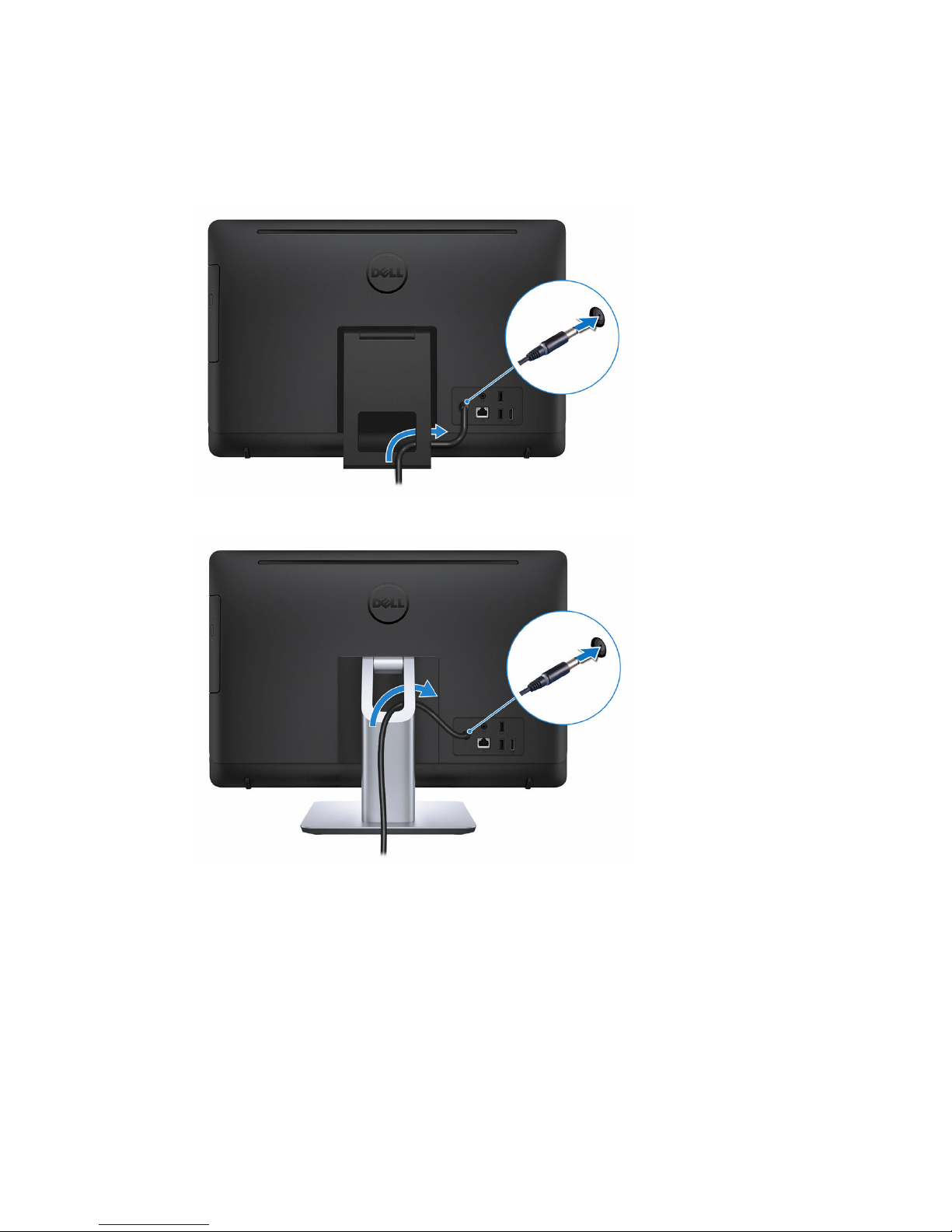
3 Route the power cable through the routing guide on the stand and
connect the power adapter.
Easel stand
Pedestal stand
6
Page 7
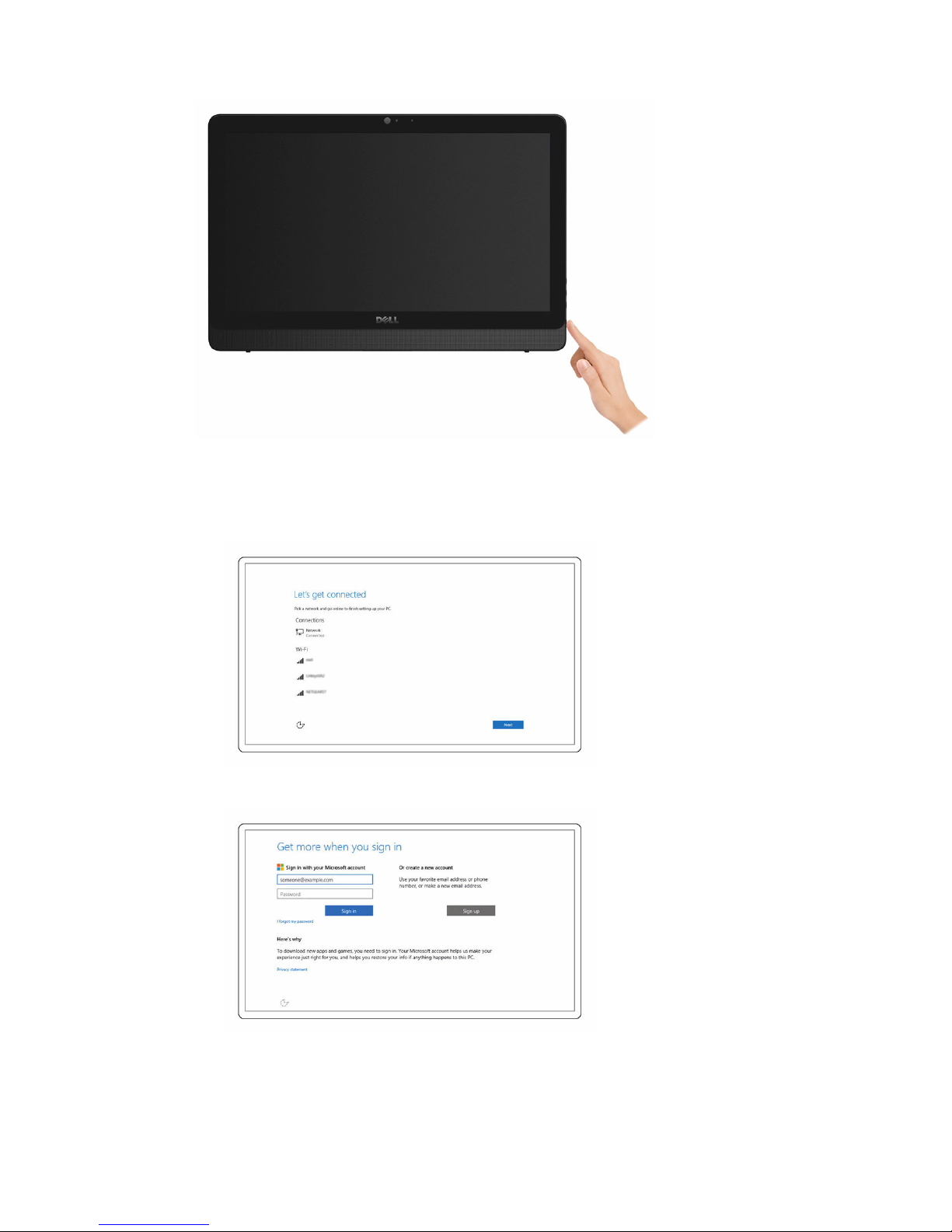
4 Press the power button.
5 Finish operating system setup.
For Windows:
a) Connect to your network.
b) Sign in to your Microsoft account or create a local account.
For Ubuntu:
Follow the instructions on the screen to finish setup.
7
Page 8
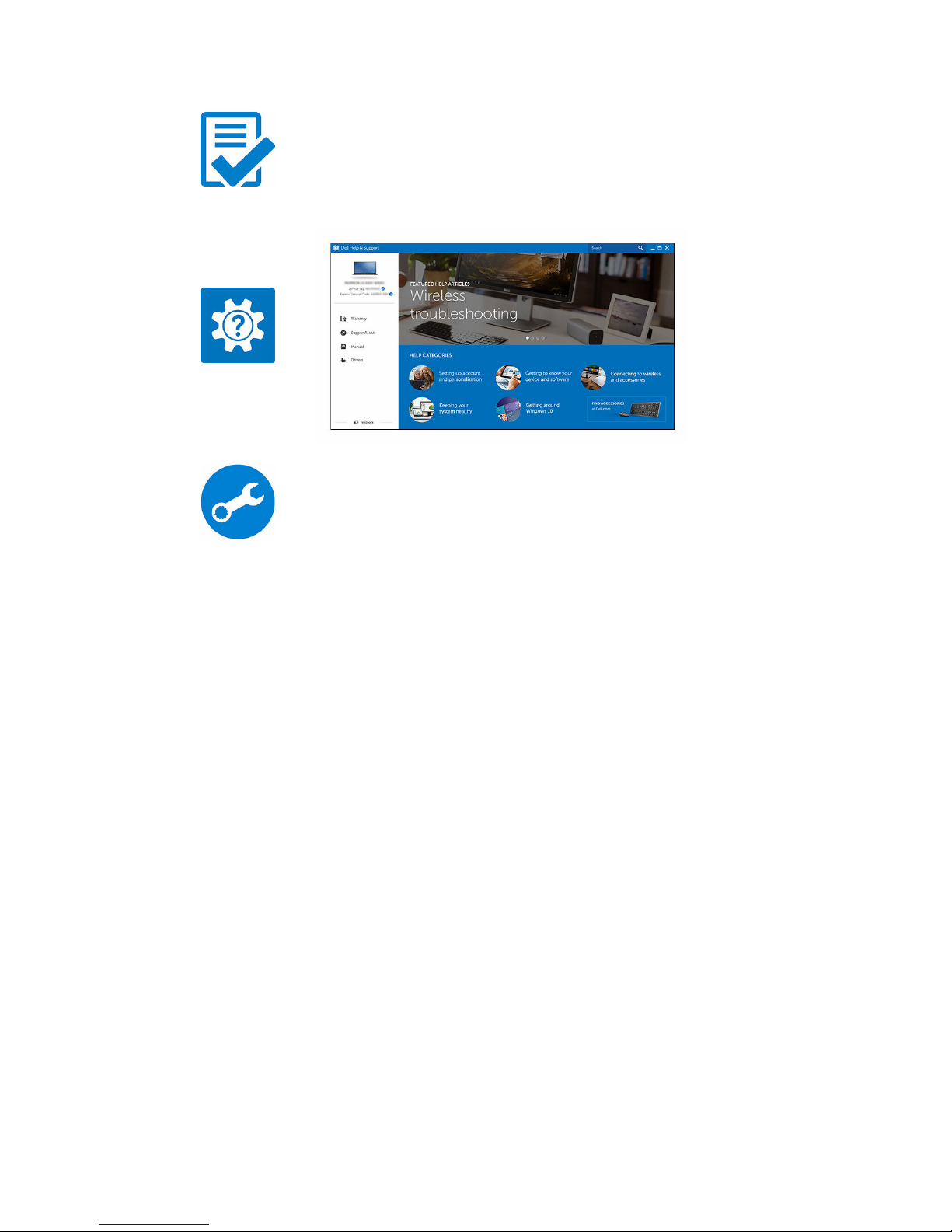
6 Locate Dell apps.
Register your computer
Dell Help & Support
SupportAssist — Check and update your computer
8
Page 9
Views
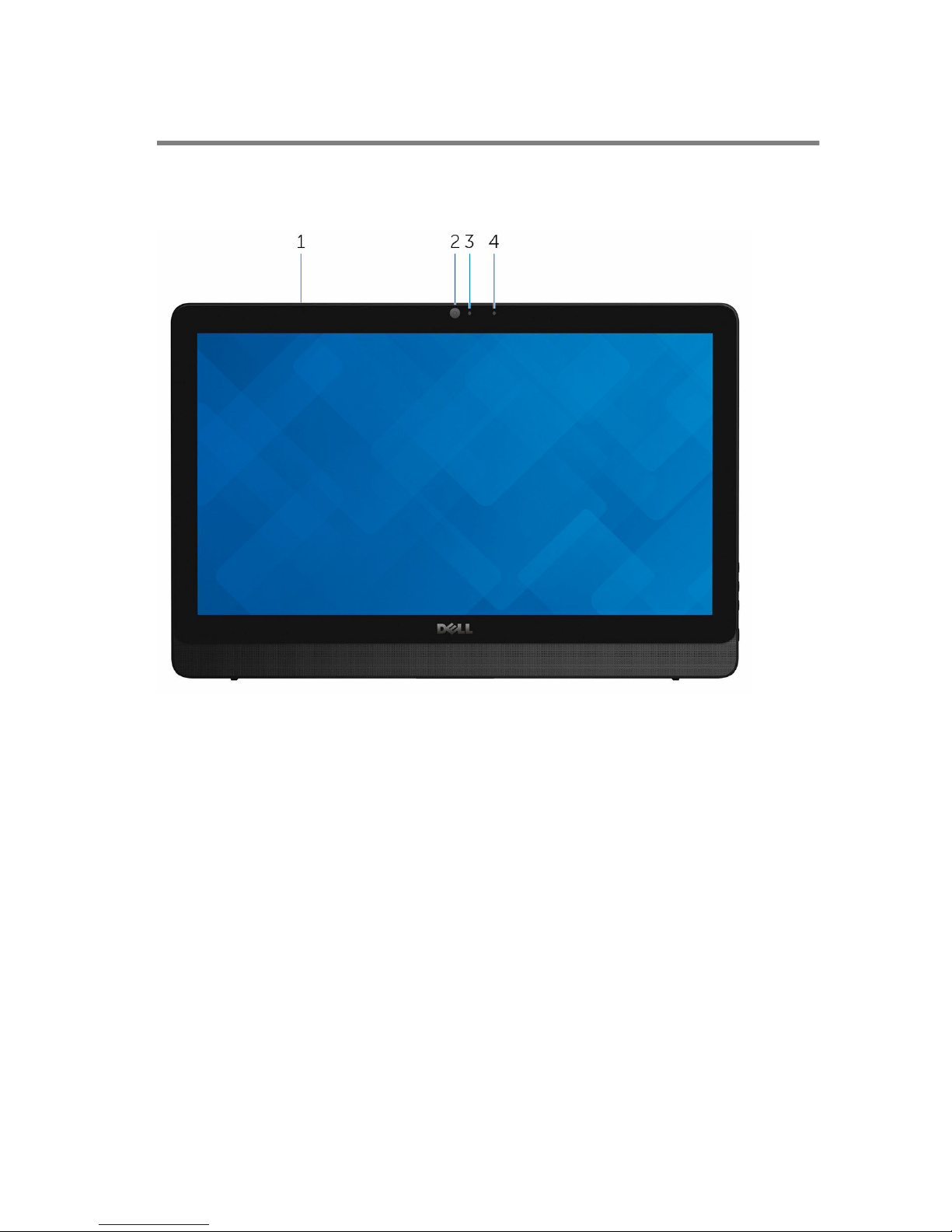
Front
1 Microphone (for touch screen model)
Provides high-quality digital sound input for audio recording, voice calls,
and so on.
2 Camera
Enables you to video chat, capture photos, and record videos.
3 Camera-status light
Turns on when the camera is in use.
4 Microphone (for non-touch screen model)
Provides high-quality digital sound input for audio recording, voice calls,
and so on.
9
Page 10
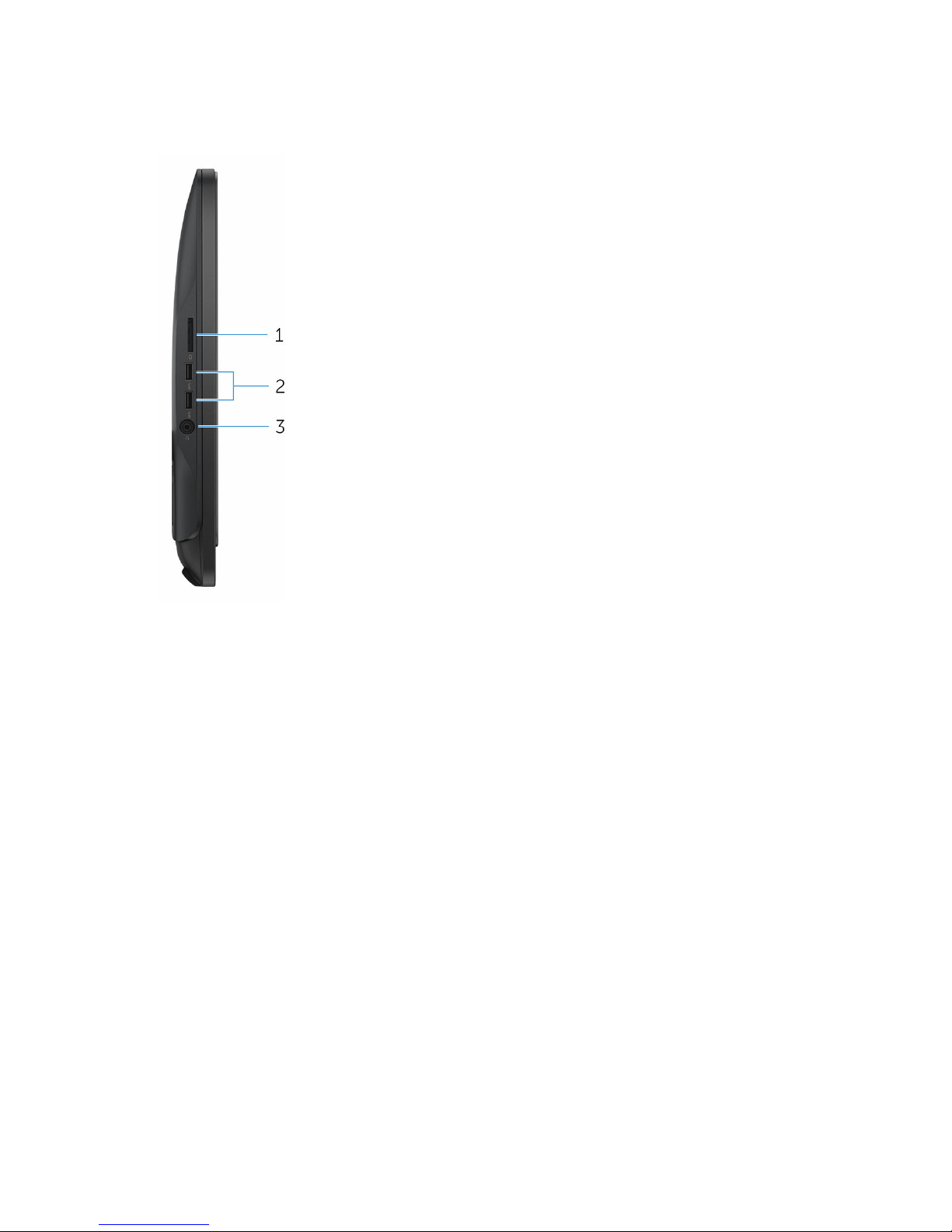
Left
1 Media-card reader
Reads from and writes to media cards.
2 USB 3.0 ports (2)
Connect peripherals such as storage devices and printers. Provides data
transfer speeds up to 5 Gbps.
3 Headset port
Connect a headphone or a headset (headphone and microphone
combo).
10
Page 11
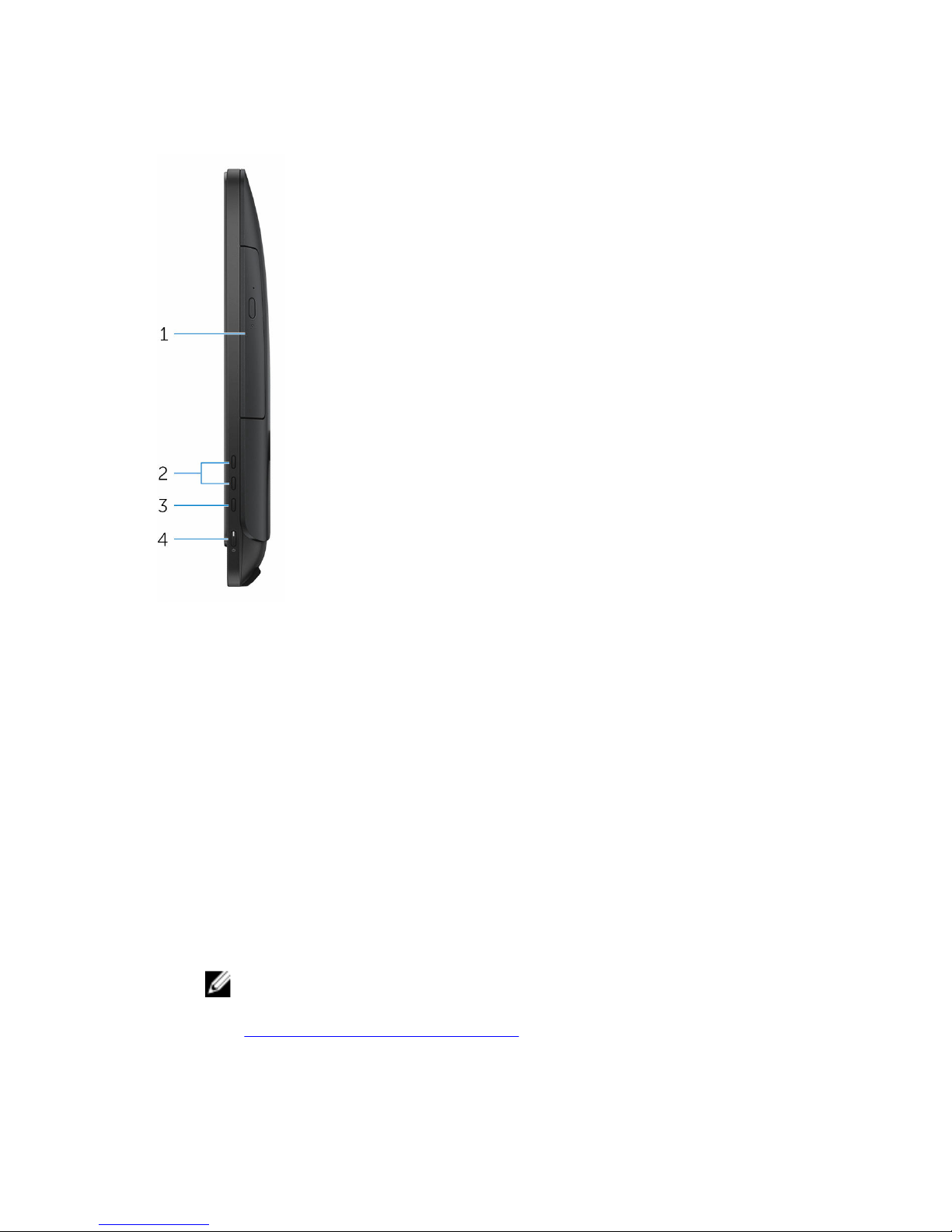
Right
1 Optical drive (optional)
Reads from and writes to CDs and DVDs.
2 Display-brightness control buttons (2)
Press to increase or decrease the display brightness.
3 Input-source selection button
Press to select the video-input source.
4 Power button
Press to turn on the computer if it is turned off, in sleep state, or in
hibernate state.
Press to put the computer in sleep state if it is turned on.
Press and hold for 4 seconds to force shut-down the computer.
NOTE: You can customize the power-button behavior in Power
Options. For more information, see Me and My Dell at
www.dell.com/support/manuals.
11
Page 12
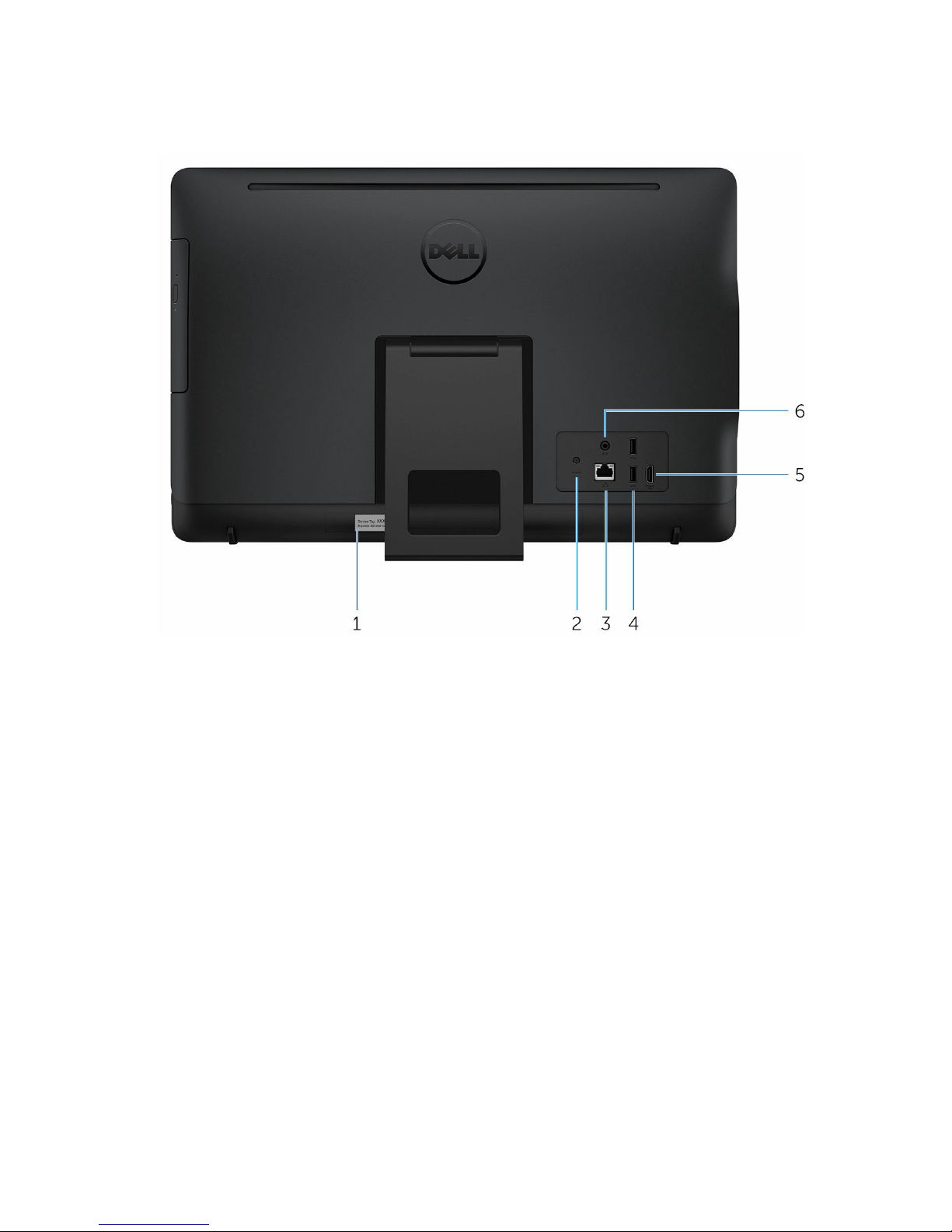
Back
1 Service Tag label
The Service Tag is a unique alphanumeric identifier that enables Dell
service technicians to identify the hardware components in your
computer and access warranty information.
2 Power-adapter port
Connect a power adapter to provide power to your computer and
charge the battery.
3 Network port (with lights)
Connect an Ethernet (RJ45) cable from a router or a broadband modem
for network or internet access.
The two lights next to the connector indicate the connectivity status and
network activity.
4 USB 2.0 ports (2)
Connect peripherals such as storage devices and printers. Provides data
transfer speeds up to 480 Mbps.
12
Page 13
5 HDMI-in port
Connect a gaming console, Blu-ray player, or other HDMI-out enabled
devices.
6 Audio-out port
Connect audio-output devices such as speakers, amplifiers, and so on.
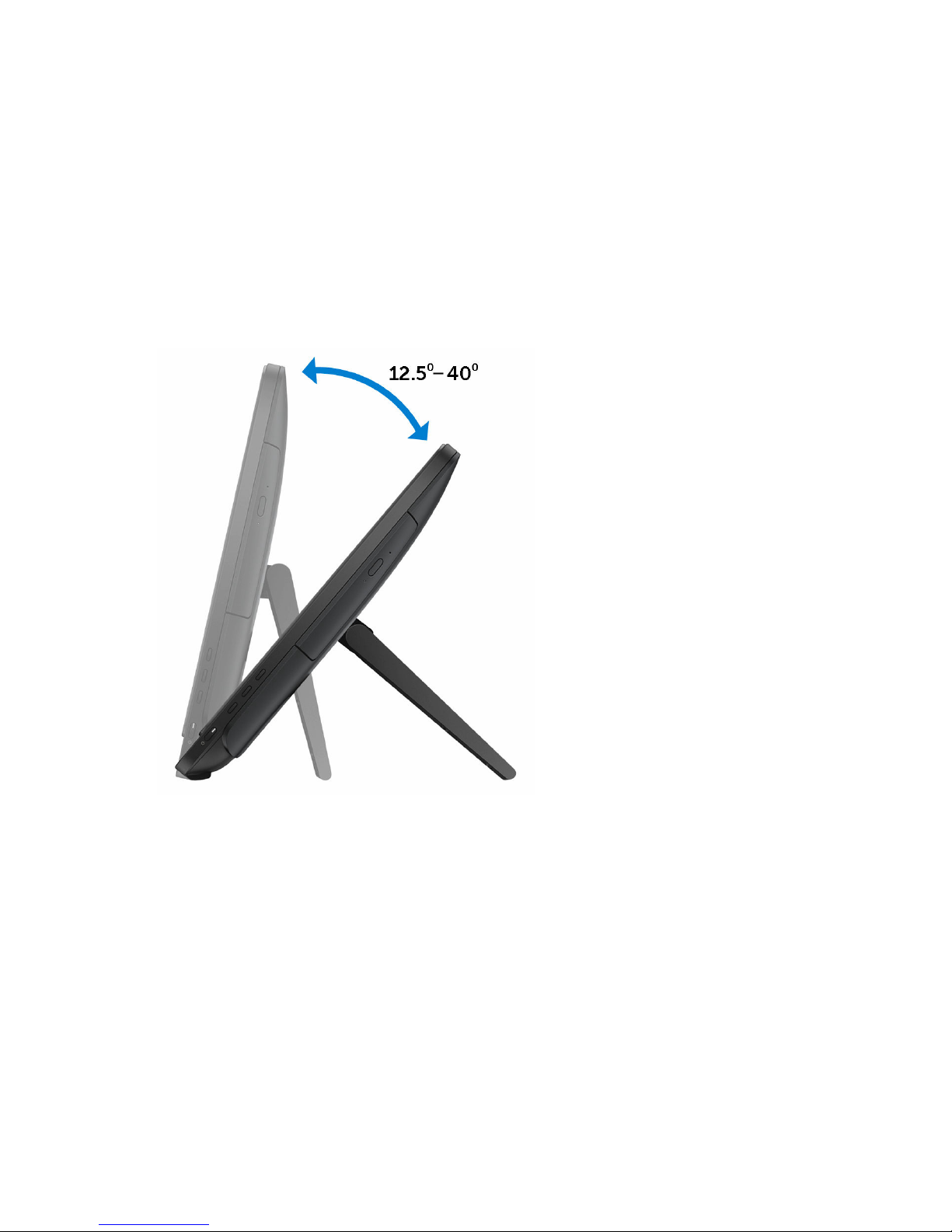
Tilt
Easel stand
13
Page 14
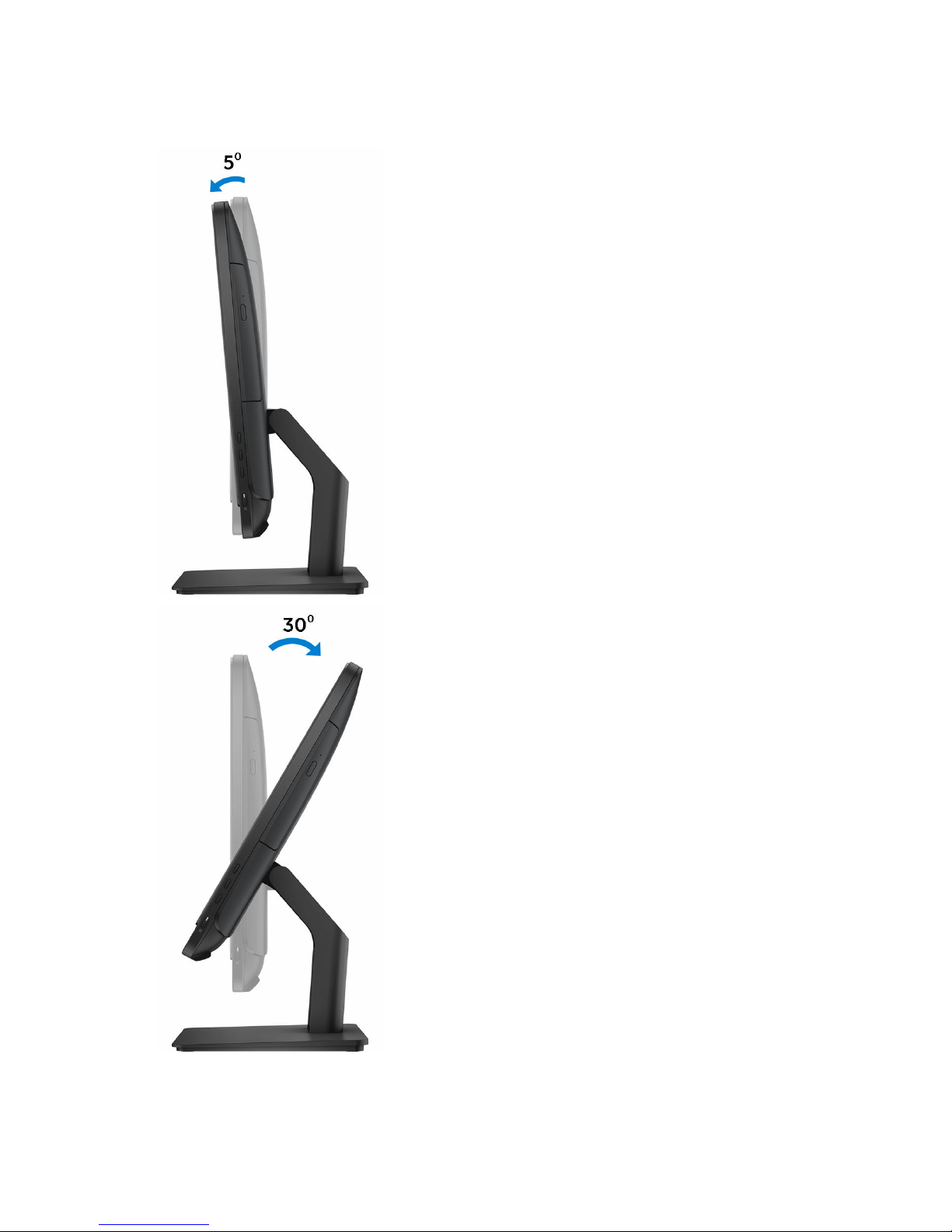
Pedestal stand
14
Page 15

Specifications
Dimensions and weight
Height 317.64 mm (12.51 in)
Width 480.52 mm (18.92 in)
Depth
• Touch screen – 33.10 mm (1.30 in)
• Non-touch screen – 34.20 mm (1.35 in)
Weight without stand:
Touch screen 4.21 kg (9.28 lb)
Non-touch screen 3.43 kg (7.56 lb)
NOTE: The weight of your laptop varies
depending on the configuration
ordered and the manufacturing
variability.
System information
Computer model
Inspiron 20-3060
Processor
• 7th Generation Intel Core i3
• 7th Generation Intel Core i5
System chipset Integrated in processor
Memory
Slots
Two SODIMM slots
Type
DDR4
Speed Up to 2400 MHz
Configurations supported 2 GB, 4 GB, and 8 GB
15
Page 16

Communications
Ethernet 10/100 Mbps Ethernet controller integrated
on system board
Wireless
• Wi-Fi 802.11ac
• Wi-Fi 802.11b/g/n
• Bluetooth 4.2
Audio
Controller
Realtek ALC3661 Waves MaxxAudio Pro
Speakers Two
Speaker Output
• Average: 3 W
• Peak: 3.50 W
Microphone Digital-array microphones
Volume controls Program menus
Storage
Interface
• SATA 3 Gbps for optical drive
• SATA 6 Gbps for hard drive
Hard drive One 2.5-inch drive
Optical drive One 9.5-mm DVD+/-RW drive (optional)
Media-card reader
Type
One 4-in-1 slot
Cards supported
• SD card
• MultiMediaCard (MMC)
• SD Extended Capacity (SDXC) card
16
Page 17

• SD High Capacity (SDHC) card
Display
Type
• 19.5-inch HD+ touch screen
• 19.5-inch HD+ non-touch screen
Resolution (maximum) 1600 x 900
Pixel pitch 0.2745 mm x 0.2745 mm
Height 263 mm (10.35 in)
Width 452 mm (17.80 in)
Diagonal 495.30 mm (19.50 in)
Refresh rate 60 Hz
Controls Brightness can be controlled through the
display-brightness increase/decrease
button
Camera
Resolution
• Still image: 0.92 megapixels
• Video: 1280 x 720 at 30 FPS (maximum)
Diagonal viewing angle 74 degrees
Ports and connectors
External
Network One RJ45 port
USB
• Two USB 2.0 ports
• Two USB 3.0 ports
Audio/Video
• One HDMI-in port
• One audio line-out port
17
Page 18
External
• One headset port
Internal
M.2 card One M.2 slot for WLAN and Bluetooth
combo card
Video
Integrated Discrete
Controller
Intel HD Graphics 620 Nvidia GeForce 920M
Memory Shared system memory
2 GB GDDR5
Power adapter
Type 65 W 90 W
Input current
(maximum)
1.70 A 2.50 A
Output current
(continuous)
3.34 A 4.62 A
Input Voltage 100 VAC to 240 VAC
Input frequency 50 Hz to 60 Hz
Rated output voltage 19.50 VDC
Temperature range:
Operating
0°C to 40°C (32°F to 104°F)
Temperature range:
Storage
–40°C to 70°C (–40°F to 158°F)
Stand
Easel Pedestal
Height 174.80 mm (6.88 in) 184.17 mm (7.25 in)
Width 120 mm (4.72 in) 204.98 mm (8.07 in)
18
Page 19
Easel Pedestal
Depth 22.48 mm (0.89 in) 13.90 mm (0.55 in)
Weight 0.56 kg (1.23 lb) 1.50 kg (3.31 lb)
Computer environment
Airborne contaminant level: G1 as defined by ISA-S71.04-1985
Operating Storage
Temperature range 0°C to 35°C
(32°F to 95°F)
–40°C to 65°C
(–40°F to 149°F)
Relative humidity
(maximum)
10% to 90%
(non-condensing)
0% to 95%
(non-condensing)
Vibration (maximum)*0.66 GRMS 1.30 GRMS
Shock (maximum) 110 G
†
160 G
‡
Altitude (maximum) –15.2 m to 3048 m
(–50 ft to 10,000 ft)
–15.2 m to 10,668 m
(–50 ft to 35,000 ft)
* Measured using a random vibration spectrum that simulates user environment.
† Measured using a 2 ms half-sine pulse when the hard drive is in use.
‡ Measured using a 2 ms half-sine pulse when the hard-drive head is in parked position.
19
Page 20
Getting help and contacting
Dell
Self-help resources
You can get information and help on Dell products and services using these
self-help resources:
Information about Dell products and
services
www.dell.com
Dell Help & Support app
Get started app
Accessing help in Windows 10 In Windows search, type Help and
Support, and press Enter.
Online help for operating system
www.dell.com/support/windows
www.dell.com/support/linux
Troubleshooting information, user
manuals, setup instructions, product
specifications, technical help blogs,
drivers, software updates, and so on
www.dell.com/support
Learn about your operating system,
setting up and using your computer,
data backup, diagnostics, and so on.
See Me and My Dell at
www.dell.com/support/manuals.
Contacting Dell
To contact Dell for sales, technical support, or customer service issues, see
www.dell.com/contactdell.
NOTE: Availability varies by country and product, and some services may
not be available in your country.
20
Page 21

NOTE: If you do not have an active internet connection, you can find
contact information on your purchase invoice, packing slip, bill, or Dell
product catalog.
21
 Loading...