

Dell EMC VxRail E Series, VxRail V Series, VxRail P Series, VxRail G Series, VxRail S Series Network Manual
Page 1
-
DELL EMC VxRAIL™ NETWORK GUIDE
Physical and Logical Network Considerations and Planning
ABSTRACT
This is a planning and consideration guide for VxRail Appliances. It can be used to
understand better the networking required for VxRail implementation. This
whitepaper does not replace the requirement for implementation services with
VxRail Appliances and should not be used in an attempt to implement the
required networking for VxRail Appliances.
December 2018
WHITE PAPER
Page 2

2 | Network Planning Guide
© 2018 Dell Inc. or its subsidiaries
Table of contents
Intended Use and Audience ........................................................................................................................................................................ 4
Introduction to VxRail ................................................................................................................................................................................... 4
Planning Your Data Center Network for VxRail ................................................................................................................................ 5
VxRail Hardware and the Physical Network Infrastructure ..................................................................................................................... 5
VxRail Clusters, Appliances and Nodes ........................................................................................................................................................ 5
Network Switch ....................................................................................................................................................................................................... 7
Topology and Connections ................................................................................................................................................................................. 9
Out-of-Band Management (optional) ......................................................................................................................................................... 10
VxRail Feature-Driven Decision Points ............................................................................................................................................... 10
VMware Validated Design on VxRail .......................................................................................................................................................... 10
Dell-EMC SmartFabric Network Mode ....................................................................................................................................................... 11
vSAN Stretched Cluster ..................................................................................................................................................................................... 12
VxRail Hardware and Switch Selection Decision Points .............................................................................................................. 12
Planning the VxRail Implementation ................................................................................................................................................... 13
Step 1: Decide on VxRail Single Point of Management ............................................................................................................................. 14
Step 2: Plan the VxRail Logical Network ........................................................................................................................................................ 14
Step 3: Plan Network Settings for VxRail Management Components ............................................................................................... 17
Step 4: Identify unique hostnames for VxRail management components ...................................................................................... 19
Step 5: Identify external applications and settings for VxRail .............................................................................................................. 21
Step 6: Create DNS records for VxRail management components ..................................................................................................... 21
Step 7: Prepare Customer-Supplied vCenter Server ................................................................................................................................. 22
Step 8. Reserve IP addresses for VxRail vMotion and vSAN networks ............................................................................................. 23
Step 9. Decide on VxRail Logging Solution .................................................................................................................................................... 24
Step 10: Decide on Passwords for VxRail Management .......................................................................................................................... 24
Step 11: Prepare for Dell EMC SmartFabric services enablement ...................................................................................................... 25
Setting up the upstream network for VxRail .................................................................................................................................... 26
Setting up the network switch for VxRail connectivity ................................................................................................................ 27
Step 1. Plan Switch Configuration ..................................................................................................................................................................... 27
Enable Multicast for VxRail Internal Management Network ........................................................................................................... 27
Enable Unicast or Multicast for VxRail vSAN Network....................................................................................................................... 27
Enable Uplinks to pass inbound and outbound VxRail network traffic ...................................................................................... 28
Enable Inter-switch Communication .......................................................................................................................................................... 28
Enable Inter-switch Links................................................................................................................................................................................ 28
Step 2. Plan Switch Port Configuration ........................................................................................................................................................... 28
Determine switch port mode ......................................................................................................................................................................... 28
Do not enable Link Aggregation on VxRail Switch Ports ................................................................................................................... 29
Page 3

3 | Network Planning Guide
© 2018 Dell Inc. or its subsidiaries
Limit Spanning Tree Protocol on VxRail Switch Ports ....................................................................................................................... 30
Step 3. Configure Ports and VLANs on Your Switch(es) .......................................................................................................................... 30
Confirm Your Data Center Network...................................................................................................................................................... 32
Configuring a Workstation/Laptop for VxRail Initialization ..................................................................................................... 33
Perform Initialization to create VxRail cluster ................................................................................................................................ 34
After VxRail Initialization Network Considerations ...................................................................................................................... 35
Support for NSX ......................................................................................................................................................................................................... 35
Using Unassigned VxRail Physical Ports ........................................................................................................................................................ 35
VxRail Network Configuration Table ................................................................................................................................................... 36
VxRail Password Tables ............................................................................................................................................................................. 38
VxRail Setup Checklist ................................................................................................................................................................................ 39
Appendix A: NSX Support on VxRail ..................................................................................................................................................... 41
Appendix B: VxRail Open Ports Requirement .................................................................................................................................. 44
Appendix C: Physical Network Switch Examples ........................................................................................................................... 46
Page 4

4 | Network Planning Guide
© 2018 Dell Inc. or its subsidiaries
Intended Use and Audience
This guide discusses the essential network details for VxRail deployment planning purposes only. It also introduces best practices,
recommendations, and requirements for both physical and virtual network environments. The guide has been prepared for anyone
involved in planning, installing, and maintaining VxRail, including Dell EMC field engineers and customer system and network
administrators. This guide should not be used to perform the actual installation and set-up of VxRail. Please work with your Dell
EMC service representative to perform the actual installation.
Introduction to VxRail
Dell EMC VxRail™ Appliances are a hyper-converged infrastructure (HCI) solution that consolidates compute, storage and network
into a single, highly available, unified system. With careful planning, VxRail Appliances can be rapidly deployed into an existing data
center environment, and the end product is immediately available to deploy applications and services.
VxRail is not a server. It is an appliance based on a collection of nodes and switches integrated as a cluster under a single point of
management. All physical compute, network and storage resources in the appliance are managed as a single shared pool, and
allocated to applications and services based on customer-defined business and operational requirements.
The compute nodes are based on Dell EMC PowerEdge servers. The G Series consists of up to four nodes in a single chassis,
whereas all other models based on a single node. A 10Gb Ethernet switch (or a 1Gb Ethernet switch for certain models of VxRail) is
required. A workstation/laptop for the VxRail user interface is also required.
VxRail has a simple, scale-out architecture, leveraging VMware vSphere® and VMware vSAN™ to provide server virtualization and
software-defined storage, with simplified deployment, upgrades, and maintenance through VxRail Manager.. Fundamental to the
VxRail clustered architecture is network connectivity. It is through the logical and physical networks that individual nodes act as a
single system providing scalability, resiliency and workload balance.
The VxRail software bundle is preloaded onto the compute nodes, and consists of the following components (specific software
versions not shown):
• VxRail Manager
• VMware vCenter Server™
• VMware vRealize Log Insight™
• VMware vSAN
• VMware vSphere
• Dell-EMC Secure Remote Support (SRS)/VE
Licenses are included for all components except VMware vSphere. The vSphere licenses can be purchased through Dell EMC,
VMware or your preferred VMware reseller partner.
The VxRail Appliances also includes licenses for software that can be downloaded, installed and configured:
• Dell EMC RecoverPoint for Virtual Machines (RP4VM) - 5 Full VM Licenses per single node VxRail appliance (15 for the G
Series appliance)
Page 5

5 | Network Planning Guide
© 2018 Dell Inc. or its subsidiaries
Planning Your Data Center Network for VxRail
The network considerations for VxRail are no different from those of any enterprise IT infrastructure: availability, performance,
and extensibility. VxRail Appliances are delivered to your data center ready for deployment. The nodes in the appliance can attach
to any compatible network infrastructure at 10 or 25GbE speeds with either RJ45 or SFP+ ports. Some models with single
processors can attach to compatible 1GbE network infrastructure. Most production VxRail network topologies use dual top-of-therack (ToR) switches to eliminate the switch as a single point of failure. This document will guide you through the key phases and
decision points for a successful VxRail implementation. The key phases are:
Step 1. Select the VxRail hardware and physical network infrastructure that best aligns with your business and
operational objectives
Step 2. Plan and prepare for VxRail implementation in your data center before product delivery
Step 3. Set up the network switch infrastructure in your data center for VxRail before product delivery
Step 4. Prepare for physical installation and VxRail initialization into the final product
NOTE:
Follow all of the guidance and decision point described in this document; otherwise, VxRail will not implement
properly, and it will not function correctly in the future. If you have separate teams for network and servers in your
data center, you will need to work together to design the network and configure the switch(es).
VxRail Hardware and the Physical Network Infrastructure
VxRail nodes connect to one or more network switches, with the final product forming a VxRail cluster. VxRail communicates with
the physical data center network through a virtual distributed switch deployed in the VxRail cluster. The virtual distributed switch
and physical network infrastructure integration provide connectivity for the virtual infrastructure, and to enable virtual network
traffic to pass through the physical switch infrastructure. In this relationship, the physical switch infrastructure serves as a
backplane, supporting network traffic between virtual machines in the cluster, and enabling virtual machine mobility and
resiliency. In addition, the physical network infrastructure enable I-O operations between the storage objects in the VxRail vSAN
datastore, and provides connectivity to applications and end users outside of the VxRail cluster
This section describes the physical components and selection criteria for a VxRail cluster:
• VxRail clusters, appliances and nodes
• Network switch
• Topology and connections
• Workstation/laptop
• Out-of-band management (optional)
VxRail Clusters, Appliances and Nodes
A VxRail appliance consists of a set of server nodes that are designed and engineered for VxRail. A VxRail physical node starts as a
standard Dell PowerEdge server. The Dell PowerEdge server next goes through a manufacturing process following VxRail product
engineering specifications to produce a VxRail node ready for customer shipment. A set of prepared VxRail nodes are prepared and
delivered to the customer site based on a purchase order. The set of VxRail nodes are delivered ready for data center installation
and connectivity into the data center network infrastructure. Once the data center installation and network connectivity is
complete, and the equipment is powered on, the VxRail management interface is used to perform the initialization process, which
forms the final product: a VxRail cluster.
A VxRail cluster starts with a minimum of 3 nodes and can scale to a maximum of 64 nodes. The selection of the VxRail nodes to
form a cluster is primarily driven by planned business use cases, and factors such as performance and capacity. Five series of
VxRail models are offered, each targeting specific objectives:
Page 6
6 | Network Planning Guide
© 2018 Dell Inc. or its subsidiaries
VxRail Series
Target Objective
E-Series
Entry Level
V-Series
Virtual Desktop Enablement
P-Series
High Performance
S-Series
Storage Dense
G-Series
Compute Dense and Space Optimized
(2U4N chassis)
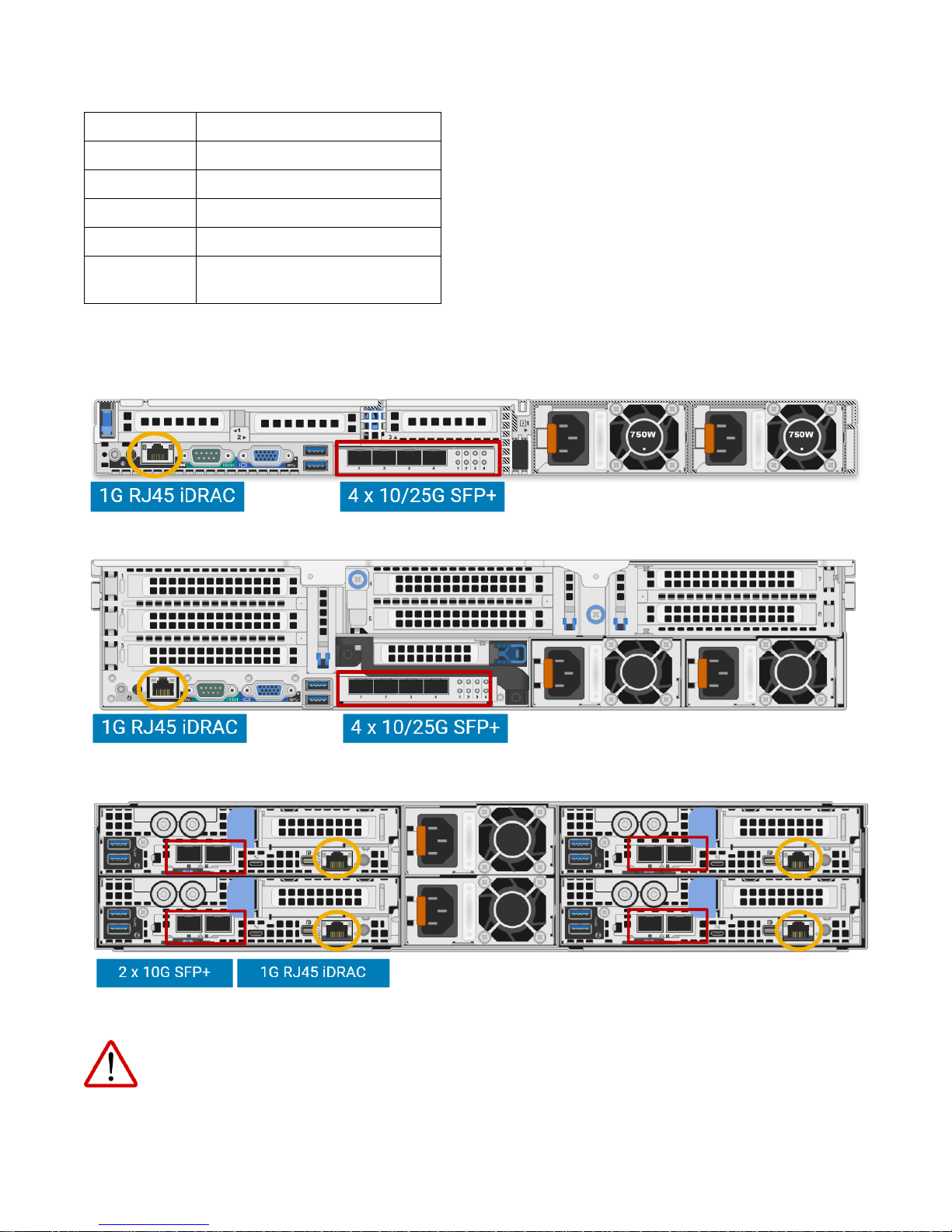
Each VxRail model series offers choices for network connectivity. The following illustrations show some of the physical network
port options for the VxRail models.
Figure 1. Back view of VxRail E Series on Dell 14th Generation PowerEdge Servers
Figure 2. Back view of VxRail V, P and S Series on Dell 14th Generation PowerEdge Servers
Figure 3. Back view of VxRail G-Series node on Dell 14th Generation PowerEdge Servers
In addition to network connectivity, review the physical power, space and cooling requirements for your planned
infrastructure to ensure data center compatibility.
Page 7
7 | Network Planning Guide
© 2018 Dell Inc. or its subsidiaries
Network Switch
VxRail is broadly compatible with most customer networks and Ethernet switches, including Dell network switch products.
Switch requirements
• The switch(es) must support both IPv4 and IPv6 network protocols
• The switch(es) connected directly to VxRail nodes must support multicast on switch ports for all models of VxRail
o VxRail Releases prior to Release 4.5.0: both IPv4 and IPv6 multicast pass-through must be supported. Layer 3
multicast is not required.
o VxRail Releases starting with Release 4.5.0: IPv6 multicast pass-through and IPv4 unicast must be supported.
NOTE:
IPv6 multicast only needs to be enabled on the switch ports connected to VxRail Appliances. The multicast traffic
required by VxRail is limited to those switch ports that service VxRail.
• Layer 3 support is not required on the switch(es) connected directly to VxRail nodes
VxRail Node Connectivity Options
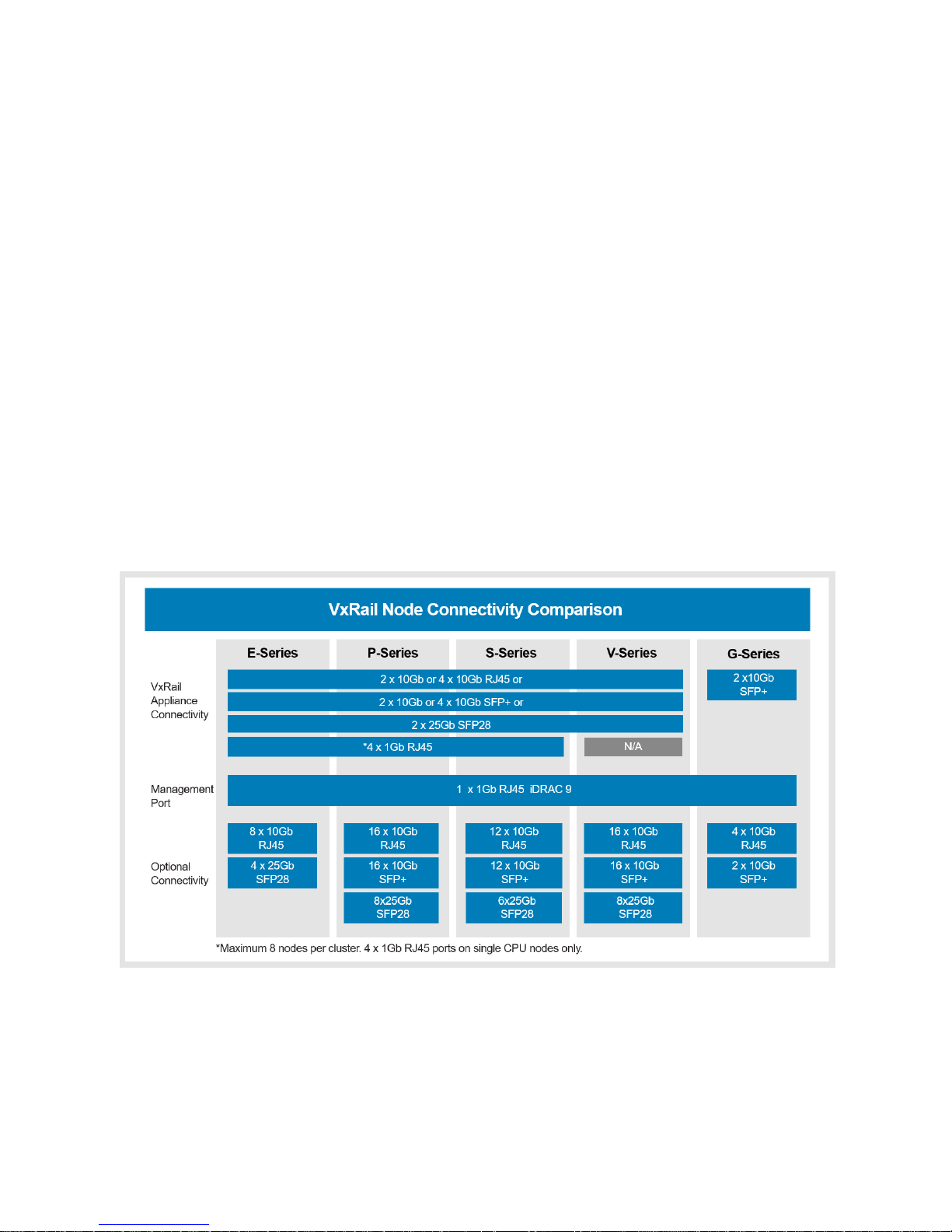
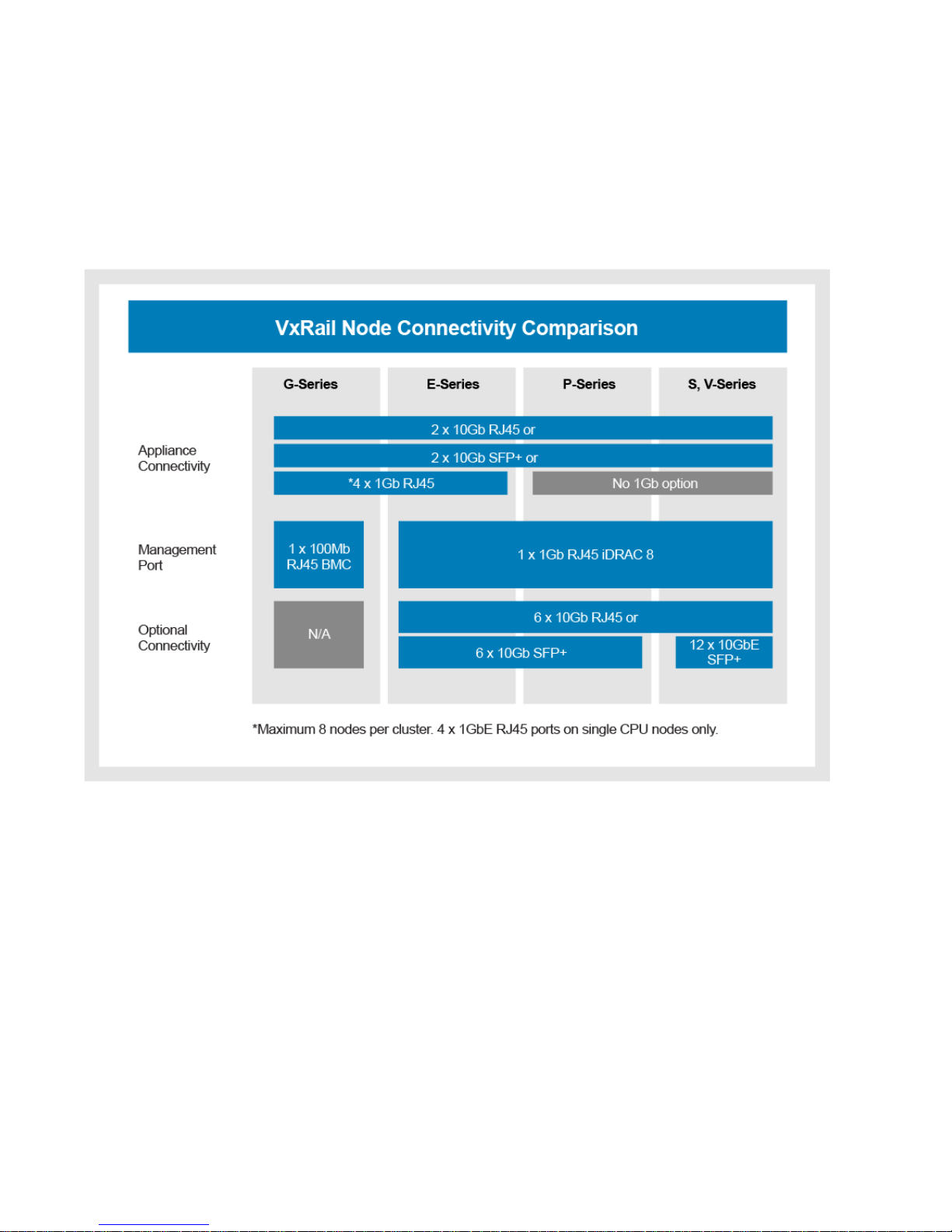
The figures below show the appliance connectivity options supported on the Network Daughter Cards (NDCs) for each VxRail node
model, including the Dell 14th generation servers and Dell 13th generation servers, and the connectivity requirements for the
management port. In addition, the figures also the available options supported for each VxRail node model for network
connectivity not reserved for VxRail usage.
Figure 4. VxRail 14th Generation Node Connectivity Summary
• E, P, S and V Series (14th Generation Dell EMC PowerEdge Servers) Appliance Connectivity Options
o 2x10GbE in either SFP+ or RJ-45 NIC ports
o 4x10GbE in either SFP+ or RJ-45 NIC ports
Page 8
8 | Network Planning Guide
© 2018 Dell Inc. or its subsidiaries
o 2x25GbE SFP28 ports
• E, P, and S Series (14th Generation Dell EMC PowerEdge Servers)
o 1GbE connectivity is supported on single processor models only
• G Series (14
th
Generation Dell EMC PowerEdge Servers) Appliance Connectivity Options
o 2x10GbE SFP+ ports
Figure 5. VxRail Pre-14th Generation Node Connectivity Summary
• E, P, S and V Series (13th Generation Dell EMC PowerEdge Servers)
o 2x10GbE + 2x1GbE in either SFP+ or RJ-45 NIC ports
• E, P, and S Series (13th Generation Dell EMC PowerEdge Servers)
o 1GbE connectivity is supported on single processor models only
o The 2x10GbE ports will auto-negotiate to 1GbE when used with 1GbE networking.
VxRail Networking Rules and Restrictions
• The VxRail NICs on the Network Daughter Cards (NDCs) assigned to VxRail and selected for configuration during VxRail
initialization process are reserved exclusively for VxRail usage, and cannot be used for other purpose.
• VxRail initialization process will not touch any optional connectivity (PCIe NICs). Customers can use the ports for their own
purposes such as VM networks, iSCSI, or NFS, etc.
Page 9
9 | Network Planning Guide
© 2018 Dell Inc. or its subsidiaries
• VxRail nodes supporting 10GbE can be configured with either 2 ports supporting VxRail cluster network traffic, or all 4 ports
can be configured for the VxRail cluster network traffic.
• 4 ports are required for each VxRail node when utilizing 1GbE networking on the supported single processor models.
• All-flash VxRail models must use either 10GbE or 25GbE NICs. 1GbE is not supported for all-flash.
• The network hardware configuration in a VxRail appliance must have same NDC across all VxRail nodes.
o VxRail nodes with RJ45 ports and SFP+ ports cannot be mixed in the same VxRail appliance
o The port speed for each VxRail node (25GbE, 10GbE, 1GbE) must be the same in the VxRail appliance
o These restrictions are not applicable to optional connectivity ( PCI-e NICs)
• One (1) additional port on the switch or one logical path on the VxRail external management VLAN is required for a
workstation/laptop to access the VxRail user interface for the cluster.
Topology and Connections
Various network topologies for switch(es) and VLANs are possible with VxRail Appliances. Complex production environments will
have multiple core switches and VLANs. A site diagram showing the proposed network components and connectivity is highly
recommended before cabling and powering on VxRail Appliances.
Be sure to follow your switch vendor’s best practices for performance and availability. For example, packet buffer banks may
provide a way to optimize your network with your wiring layout.
Decide if you plan to use one or two switches for VxRail. One switch is acceptable and is often seen in test/development. To support
high availability and failover in production environments, two or more switches are required. The VxRail appliance is an entire
software-defined data center dependent on the physical top-of-rack switch for network communications. A lack of network
redundancy places you at risk of losing availability to all of the virtual machines operating on the appliance.
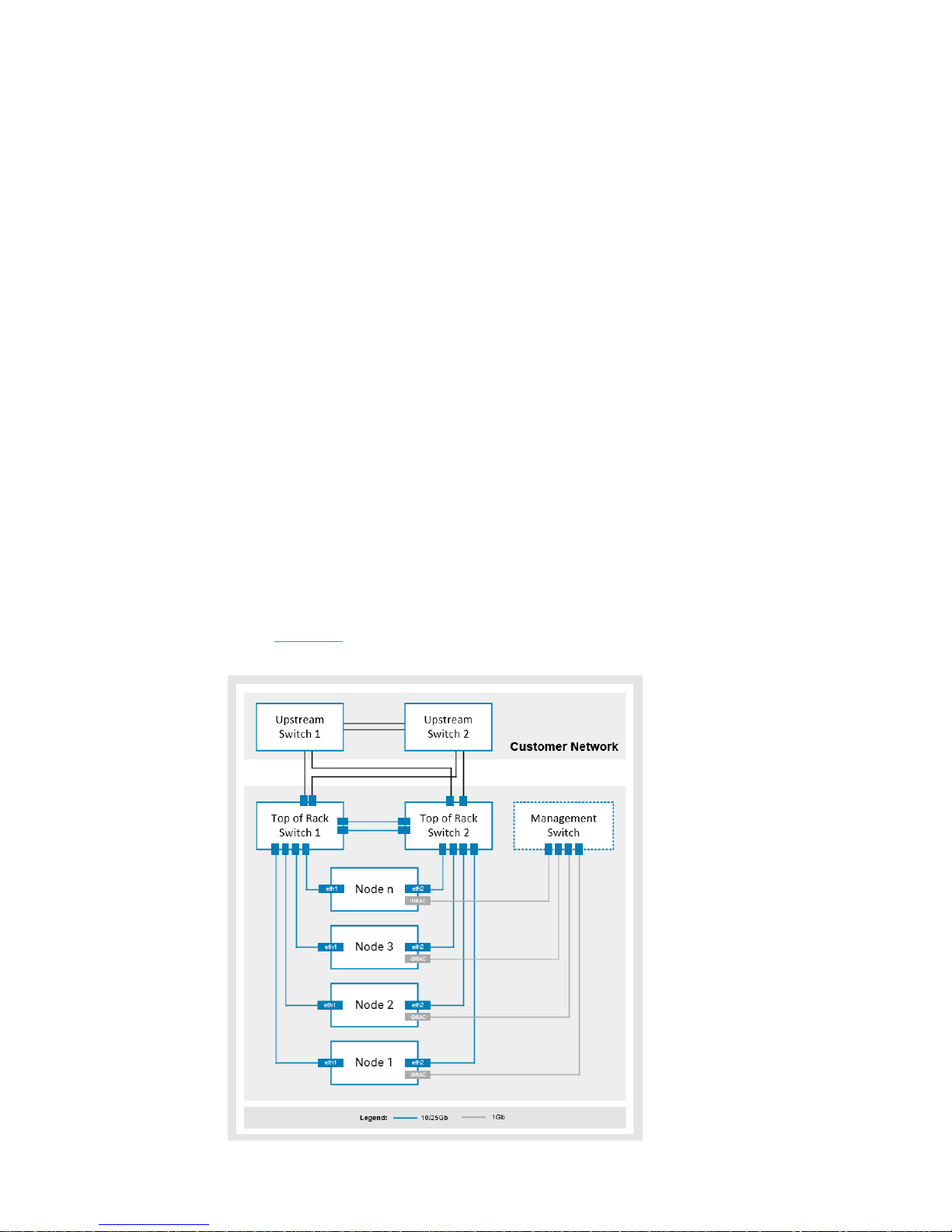
The figure shows the recommended physical network setup using a management switch (for iDRAC) and two ToR switches. Other
network setups can be found in Appendix C
Page 10

10 | Network Planning Guide
© 2018 Dell Inc. or its subsidiaries
Figure 6. Network topology of a 4-node VxRail cluster connected to two 10GbE switches using
2x10Gb connections per node, and a separate switch for out-of-band management
For 13th generation PowerEdge servers in the E, P, S and V series VxRail Appliances utilizing 1GbE with two switches, the
switches must be interconnected.
Out-of-Band Management (optional)
If the VxRail Appliances are located at a data center that you cannot access easily, we recommend setting up an out-of-band
management switch to facilitate direct communication with each node.
To use out-of-band management, connect the internal Dell Remote Access Controller (iDRAC) port to a separate switch to provide
physical network separation. Default values, capabilities, and recommendations for out-of-band management are provided with
server hardware information. The default credentials are:
Username: root Password: calvin
You will need to reserve an IP address for each iDRAC in your VxRail cluster (one per node).
VxRail Feature-Driven Decision Points
Certain applications, software stacks and product features supported on VxRail can have an impact the architecture, deployment
and operations of the cluster. If your plans for VxRail include any of the feature sets or software stacks listed in this section, make
note of the requirements each of these may have on your plans for VxRail
VMware Validated Design on VxRail
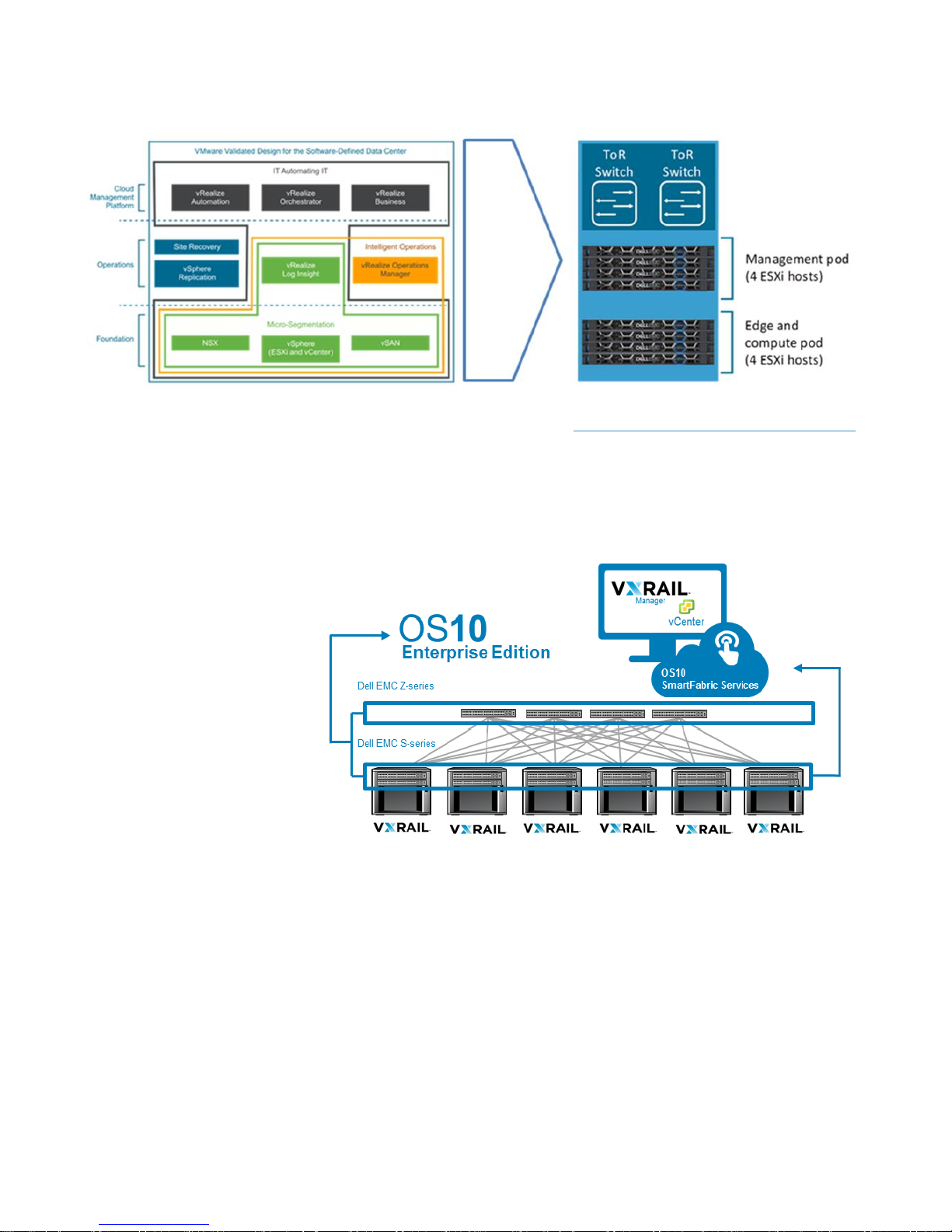
VMware Validated Design (VVD) on VxRail enables VMware’s vRealize and NSX capabilities to be deployed on VxRail. The
integrated solution involves a complete end-to-end validation of the hardware and software stack for interoperability and
scalability. VMware Validated Design on VxRail includes the following software stack:
• vRealize Automation
• vRealize Orchestrator
• vRealize Operations Manager
• vRealize Log Insight
• vRealize Business
• vRealize Network Insight
• NSX
• vSphere Enterprise Plus
• vSAN
If your plans include the deployment of VVD on VxRail, make note of the following requirements:
• A minimum of 8 VxRail nodes are required.
o A minimum of 4 VxRail nodes are for the Management pod,
o A minimum of 4 nodes are required for the Edge and Compute pod
• The nodes in the Management pod require a minimum of 192GB of RAM
• The nodes in the Management pod require a minimum of 2 sockets with a total of at least 8 CPU cores
• The VxRail nodes in both the Management pod and Edge and Compute pod must be configured with 2x10Gb Ethernet ports
Page 11
11 | Network Planning Guide
© 2018 Dell Inc. or its subsidiaries
More detailed information on VMware Validated Design on VxRail is located here: https://community.emc.com/docs/DOC-66332
Dell-EMC SmartFabric Network Mode
Dell network switches support SmartFabric services, which enables the configuration and operations of the switches to be
controlled outside of the standard management console through a REST-API interface. Certain Dell switch models support
initializing the switches with a VxRail personality profile at power-on, which then forms a unified network fabric, and enables
VxRail becomes the source for the
automated configuration and
administration of the Dell switches.
In this profile setting, VxRail will use
the SmartFabric feature to discover
VxRail nodes and Dell switches on the
network, perform zero-touch
configuration of the switch fabric to
support VxRail deployment, and then
create a unified hyper-converged
infrastructure of the VxRail cluster
and Dell switch network fabric.
For ongoing VxRail cluster network
management after initial deployment,
the Dell-EMC OMNI (Open Manage
Network Interface) vCenter plug-in is
provided free of charge. The Dell-EMC OMNI plug-in will monitor state changes to the virtual network settings and properties on
the vCenter instance, and synchronize those changes to the Dell SmartFabric services using the REST-API interface. In this scenario,
there is no need to manually reconfigure the switches connected to the VxRail nodes when an update such as a new VLAN, new
portgroup, or new virtual switch, is made in the vClient.
Deploying VxRail with the Dell-EMC SmartFabric feature will impact infrastructure planning:
• The Dell-EMS SmartFabric feature is supported on new VxRail deployments starting with version 4.7 of the VxRail software
• The VxRail nodes with version 4.7 software must be connected to a Dell S4100 series switch
• The Dell S4100 series switch must be running OS10 software
• The Dell S4100 series switches require an OS10 Enterprise license to enable SmartFabric services feature
Utilizing the Dell-EMC SmartFabric feature with VxRail requires an understanding of several key points:
Page 12
12 | Network Planning Guide
© 2018 Dell Inc. or its subsidiaries
• At the time of VxRail deployment, you must choose the method of network switch configuration. Enabling the VxRail
personality profile on the switches resets the switches to the default state, and passes switch configuration responsibility to
VxRail. If you choose this method, all of the switch configuration functionality except basic management functions are disabled
at the console, and VxRail and the Dell-EMC OMNI plug-in are the tools going forward for network switch configuration
management.
• The Dell network switches enabled in VxRail personality profile mode can support no other connected devices except VxRail
nodes.
• You must deploy a separate Ethernet switch to support out-of-band management for the iDRAC feature on the VxRail nodes.
• Configuring Dell switches using SmartFabric mode does not use standard OS10 commands on the console to configure the
switches. The representation of the switch configuration from the console is not in sync with the SmartFabric configuration.
• Disabling the VxRail personality profile on the Dell network switches will delete the network configuration set up by
SmartFabric services. If a VxRail cluster is operational on the Dell switch fabric, the cluster must be deployed.
vSAN Stretched Cluster
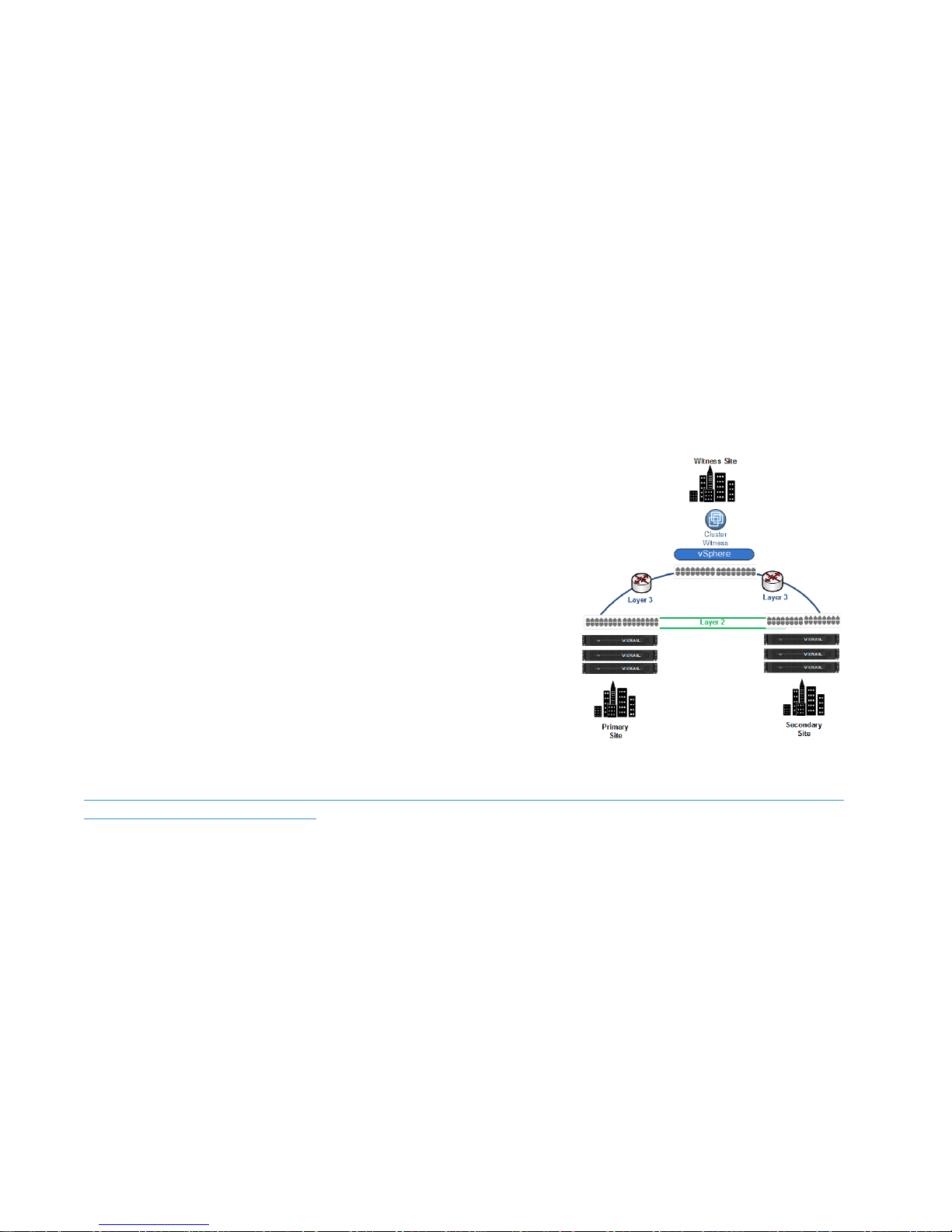
vSAN stretched cluster is a VMware solution to support synchronous I/O on a vSAN datastore over distance, and is supported on
VxRail. A vSAN stretched cluster enables site-level failure protection with no loss
of service or loss of data.
If your plans include the deployment of vSAN stretched cluster on VxRail, make
note of the following requirements:
• Three data center sites required: two data center sites (Primary and
Secondary) host the VxRail infrastructure, and the third site is required to
support a witness to monitor the stretched cluster
• A minimum of 3 VxRail nodes is required in the Primary site, and a minimum
of 3 VxRail nodes is required in the Secondary site
• A minimum of 1 top-of-rack switch for the VxRail nodes is required in the
Primary and Secondary sites
• An ESXi instance is required at the Witness site
The vSAN stretched cluster feature has strict networking guidelines, specifically
for the WAN, that must be adhered to for the solution to work.
More detailed information on vSAN stretched cluster and the networking requirements is located here:
https://www.dellemc.com/resources/en-us/asset/white-papers/products/converged-infrastructure/h15275-vxrail-planningguide-virtual-san-stretched-cluster.pdf
VxRail Hardware and Switch Selection Decision Points
Step 1. Assess your requirements and perform a sizing exercise to decide on the quantity and characteristics of the
VxRail nodes you need to meet planned workload and targeted use cases
Step 2. Determine the optimal VxRail port speed to meet planned workload requirements, and to calculate the number of
physical switch ports for connectivity
o VxRail supports 1GbE, 10GbE and 25GbE connectivity options
o VxRail supports either 2 or 4 connections per node to the physical switch
Step 3. Decide whether you want to attach the VxRail nodes to the switches with RJ45 connections or SFP+ connections
o VxRail nodes with RJ-45 ports require CAT5 or CAT6 cables. CAT6 cables are included with every VxRail
Page 13

13 | Network Planning Guide
© 2018 Dell Inc. or its subsidiaries
o VxRail nodes with SFP+ ports require optics modules (transceivers) and optical cables, or Twinax Direct-Attach-
Copper (DAC) cables. These cables and optics are not included; you must supply your own. The NIC and switch
connectors and cables must be on the same wavelength.
Step 4. Determine the number of additional ports and port speed on the switch(es) for the uplinks to your core network
infrastructure to meet VxRail workload requirements. Select a switch or switches that provide sufficient port
capacity and characteristics.
Step 5. Reserve one additional port on the switch for a workstation/laptop to access the VxRail management interface for
the cluster
o The additional port for access to the management interface is removed if connectivity is available elsewhere on
the logical path on the VxRail management VLAN
Step 6. Select a switch or switches that support the features and functionality required for VxRail
o IPV6 multicast is a requirement for VxRail device discovery
o If you want VxRail to be the source for the automated configuration of the top-of-rack switches, be sure to select
a supported Dell switch model and license
Step 7. Determine whether a single switch will meet business ojectives, as it is a potential single point of failure. Dual
top-of-rack (ToR) switches provide protection from a switch failure.
o If you are deploying dual top-of-rack switches, it is best practice to reserve ports on each switch for inter-switch
links
Step 8. Decide whether to deploy a separate switch to support connectivity to the VxRail management port on each node
o Dell iDRAC supports 1GbE connectivity. You can choose to deploy a dedicated 1GbE switch for this purpose.
You can also use open ports on the top-of-rack switches unless you elect to have VxRail to be the source for the
automated configuration for the top-of-rack switches.
Planning the VxRail Implementation
VxRail is an entire software-defined data center in an appliance form factor. All administrative activities, including initial
implementation and initialization, configuration, capacity expansion, online upgrades, and maintenance and support are handled
within the VxRail management system. When the VxRail appliance is installed in your data center, connected to your network, and
the physical components powered on, the VxRail management system will automate the full implementation of the final softwaredefined data center based on your settings and input.
Before getting to this phase, several planning and preparation steps need to be undertaken to ensure a seamless integration of the
final product into your data center environment. These planning and preparation steps include:
1. Decide on VxRail Single Point of Management
2. Plan the VxRail logical network
3. Identify IP address range for VxRail logical networks
4. Identify unique hostnames for VxRail management components
5. Identify external applications and settings for VxRail
6. Create DNS records for VxRail management components
7. Prepare Customer-Supplied vCenter Server
8. Reserve IP addresses for VxRail vMotion and vSAN networks
9. Decide on VxRail Logging Solution
10. Decide on passwords for VxRail management
Page 14
14 | Network Planning Guide
© 2018 Dell Inc. or its subsidiaries
Use the VxRail Setup Checklist and the VxRail Network Configuration Table to help create your network plan. References to
rows in this document are to rows in the VxRail Network Configuration Table.
Once you set up VxRail Appliances, and complete the initial initialization phase to produce the final product, the
configuration cannot be changed easily. Consequently, we strongly recommend that you take care during this
planning and preparation phase to decide on the configurations that will work most effectively for your organization.
Step 1: Decide on VxRail Single Point of Management
The unified resources of a VxRail appliance create a virtual infrastructure that is defined and managed as a vSphere cluster under a
single instance of vCenter. A decision must be made to use the VxRail vCenter Server, which is deployed in the cluster, or a Customer
Supplied vCenter Server, which is external to the cluster. During the VxRail initialization process which creates the final product,
you must select whether to deploy VxRail vCenter Server on the cluster, or deploy the cluster on an external Customer Supplied
vCenter Server. Once the initialization process is complete, migrating to a new vCenter single point of management requires
professional services assistance, and is difficult to change.
Multiple VxRail clusters can be configured on a single Customer Supplied vCenter Server, while a deployment with VxRail vCenter
Server is limited to a single VxRail cluster. The Customer Supplied vCenter Server option is more scalable, provides more
configuration options, and is the recommended choice. Refer to the Dell EMC VxRail vCenter Server Planning Guide for details.
Dell EMC strongly recommends that you take care during this planning and preparation phase, and decide on the
single point of management option that will work most effectively for your organization Once VxRail initialization has
configured the final product, the configuration cannot be changed easily.
Step 2: Plan the VxRail Logical Network
The physical connections between the ports on your network switches and the NICs on the VxRail nodes enable communications
for the virtual infrastructure within the VxRail cluster. The virtual infrastructure within the VxRail cluster uses the virtual
distributed switch to enable communication within the cluster, and out to IT management and the application user community.
VxRail has pre-defined logical networks to manage and control traffic within the cluster and outside of the cluster. Certain VxRail
logical networks must be made accessible to the outside community. For instance, connectivity to the VxRail management system is
required by IT management. End users and application owners will need to access their virtual machines running in the VxRail
cluster. Other types of VxRail-generated network traffic, such as device discovery, the network traffic supporting I-O to the vSAN
datastore, or the network used to dynamically migrate virtual machines between VxRail nodes to balance workload, can stay within
the VxRail cluster.
Virtual LANs (VLANs) are the method used to define the VxRail logical networks within the cluster, and the method used to control
the paths a logical network is allowed to pass through. A VLAN, represented as a numeric ID, is assigned to a VxRail logical network.
The same VLAN ID is also configured on the individual ports on your top-of-rack switches, and also on the virtual ports in the
virtual distributed switch during the automated implementation process. When an application or service in the VxRail cluster
sends a network packet on the virtual distributed switch, the VLAN ID for the logical network is attached to the packet. The packet
will only be able to pass through the ports on the top-of-rack switch and the virtual distributed switch where there is a match in
VLAN IDs. Isolating the VxRail logical network traffic using separate VLANs is highly recommended (but not required).
As a first step, the network team and virtualization team should to meet in advance to plan VxRail’s network architecture.
• The virtualization team needs to meet with the application owners to determine which specific applications and services
planned for VxRail are to be made accessible to specific end users. This will determine the number of logical networks that are
needed to support traffic from non-management virtual machines.
• The network team needs to define the pool of VLAN IDs needed to support the VxRail logical networks, and determine which
VLANs will restrict traffic to the cluster, and which VLANs will be allowed to pass through the switch up to the core network
• The network team needs to plan to configure the VLANs on the upstream network, and on the switch(es) attached to the
VxRail nodes
Page 15
15 | Network Planning Guide
© 2018 Dell Inc. or its subsidiaries
• The virtualization team needs to assign the VLAN IDs to the individual VxRail logical networks.
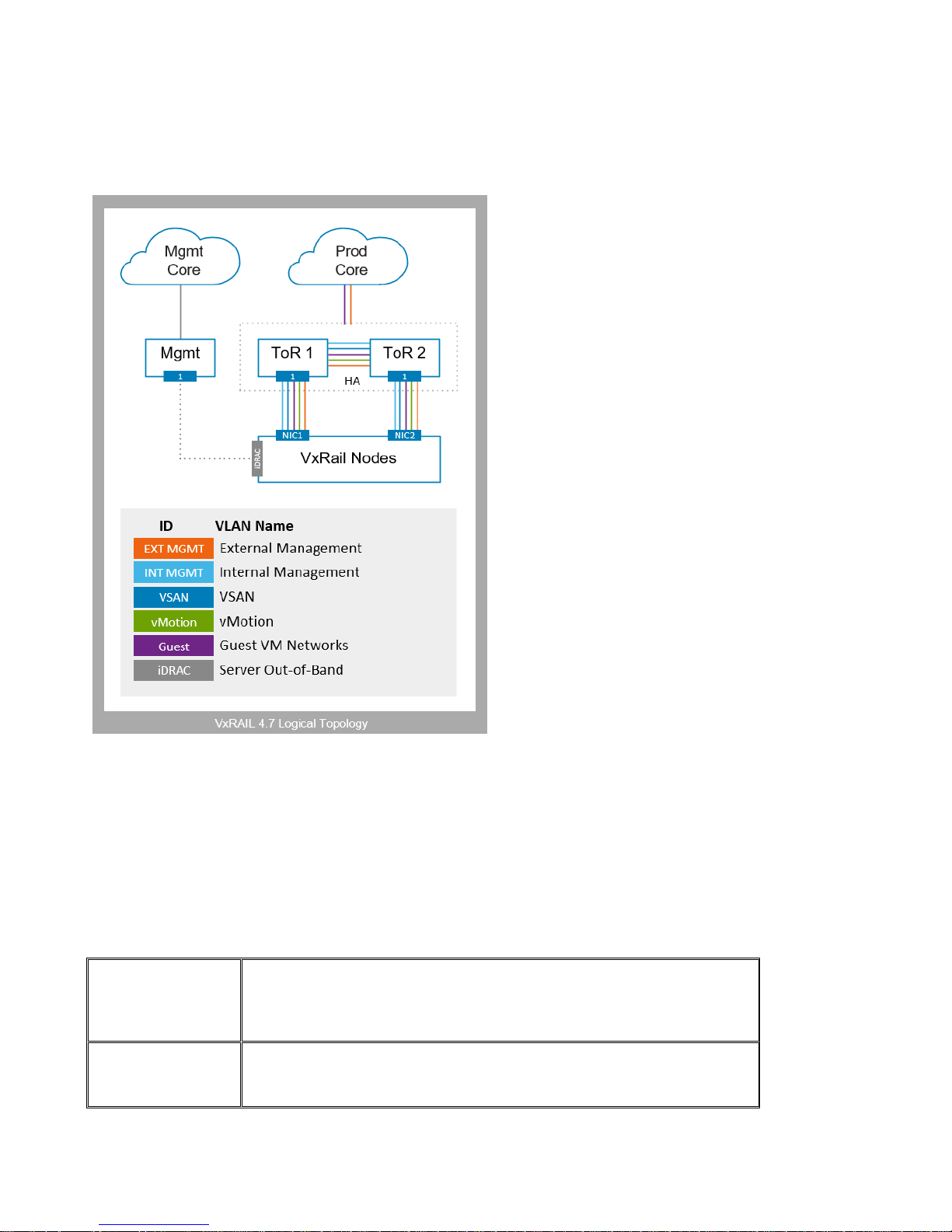
VxRail groups the logical networks in the following categories: External Management, Internal Management, vSAN, vSphere
vMotion, and Virtual Machine. VxRail will assign the settings you specify for each of these logical networks during the
initialization process.
Before VxRail version 4.7, both external and internal
management traffic shared the external management
network. Starting with version 4.7 of VxRail, the external
and internal management networks are broken out into
separate networks.
External Management traffic includes all VxRail Manager,
vCenter Server, and ESXi communications. The external
management VLAN also carries traffic for vRealize Log
Insight. All VxRail external management traffic is untagged
by default, and should be able to go over a Native VLAN on
your top-of-rack switches. If this path is not accessible, you
will not be able to build VxRail and configure the ESXi hosts
without performing customizations first.
There are two methods that allow you to tag external
management traffic:
1. Configure each VxRail port on your switch to tag the
management traffic and route it to the desired VLAN.
2. Alternately, you can configure a custom management VLAN
to allow tagged management traffic after you power on each
node, but before you run VxRail initialization. Your Dell EMC
service representative will take care of this during installation.
The Internal Management network is used solely for
device discovery by VxRail Manager during initial
implementation and node expansion. This network traffic is
non-routable, and is isolated to the network switches
connected to the VxRail nodes. Powered-on VxRail nodes
advertise themselves on the Internal Management network
using IPV6 multicast, which is required on this network, and discovered by VxRail Manager. The default VLAN of 3939 is configured
on each VxRail node shipped from the factory. If a different VLAN value is used for this network, then the new VLAN must be
applied to each VxRail node on-site, or device discovery will fail.
In VxRail Appliances, vSphere vMotion and vSAN traffic cannot be routed, and is isolated with the VxRail cluster. This traffic will
be tagged for the VLANs you specify in VxRail initialization.
The Virtual Machine network(s) are for the virtual machines running your applications and services. Dedicated VLANs are
preferred to divide Virtual Machine traffic, based on business and operational objectives. VxRail will create one or more VM
Networks for you, based on the name and VLAN ID pairs that you specify. Then, when you create VMs in vSphere Web Client to run
your applications and services, you can easily assign the virtual machine to the VM Network(s) of your choice. For example, you
could have one VLAN for Development, one for Production, and one for Staging.
Network Configuration
Table
✓
Row 1
Enter the external management VLAN ID for VxRail management network
(VxRail Manager, ESXi, vCenter Server/PSC, Log Insight). If you do not plan to
have a dedicated management VLAN and will accept this traffic as untagged,
enter “0” or “Native VLAN.”
Network Configuration
Table
✓
Row 2
Enter the internal management VLAN ID for VxRail device discovery. The default
is 3939. If you do not accept the default, the new VLAN must be applied to each
VxRail node before cluster implementation.
Page 16
16 | Network Planning Guide
© 2018 Dell Inc. or its subsidiaries
Network Configuration
Table
✓
Row 34
Enter a VLAN ID for vSphere vMotion.
(Enter a 0 in the VLAN ID field for untagged traffic)
Network Configuration
Table
✓
Row 38
Enter a VLAN ID for vSAN.
(Enter a 0 in the VLAN ID field for untagged traffic)
Network Configuration
Table
✓
Rows 39-40
Enter a Name and VLAN ID pair for each VM guest network you want to create.
You must create at least one VM Network.
(Enter a 0 in the VLAN ID field for untagged traffic)
NOTE:
If you plan to have multiple independent VxRail clusters, we recommend using different VLAN IDs for vSAN traffic
and management traffic across multiple VxRail clusters to reduce network traffic congestion.
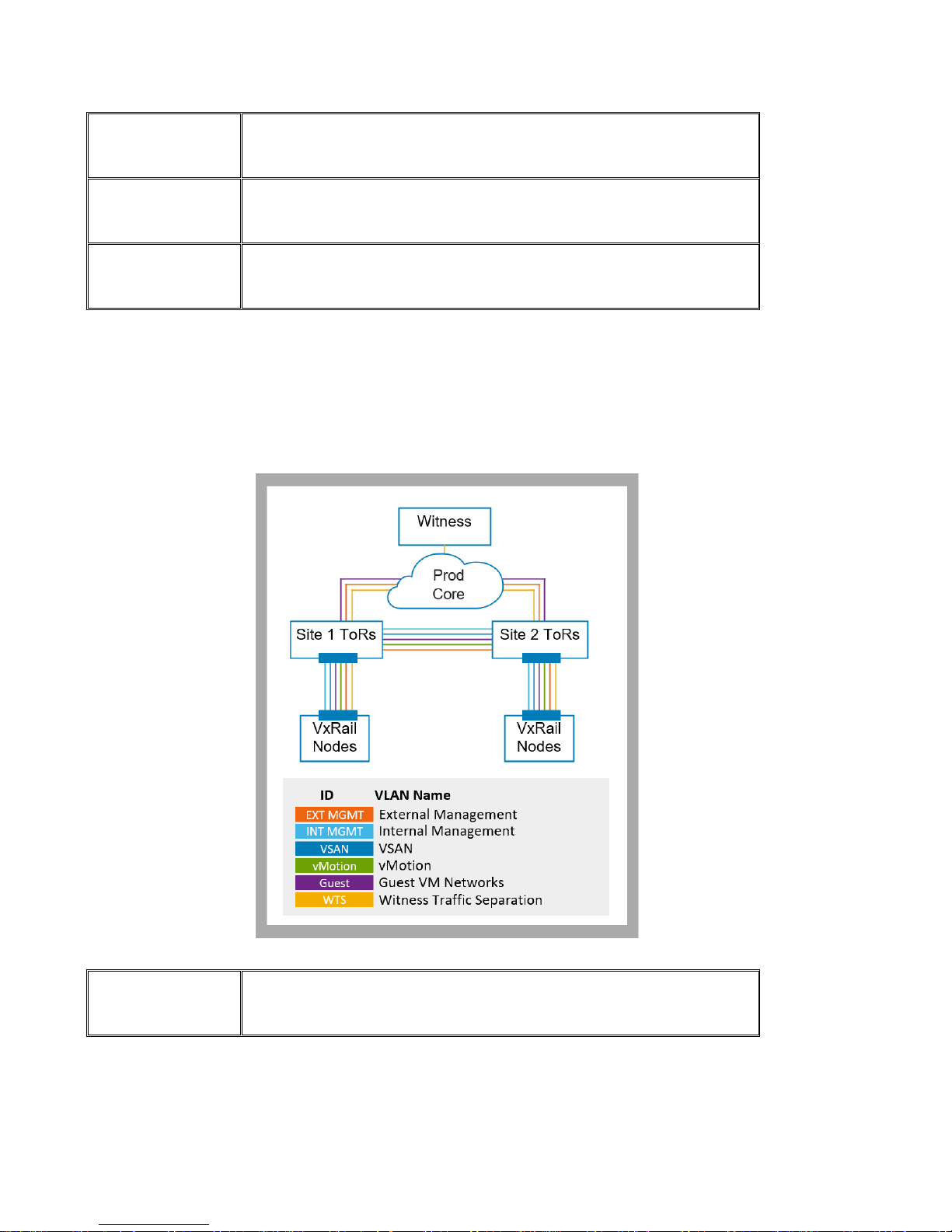
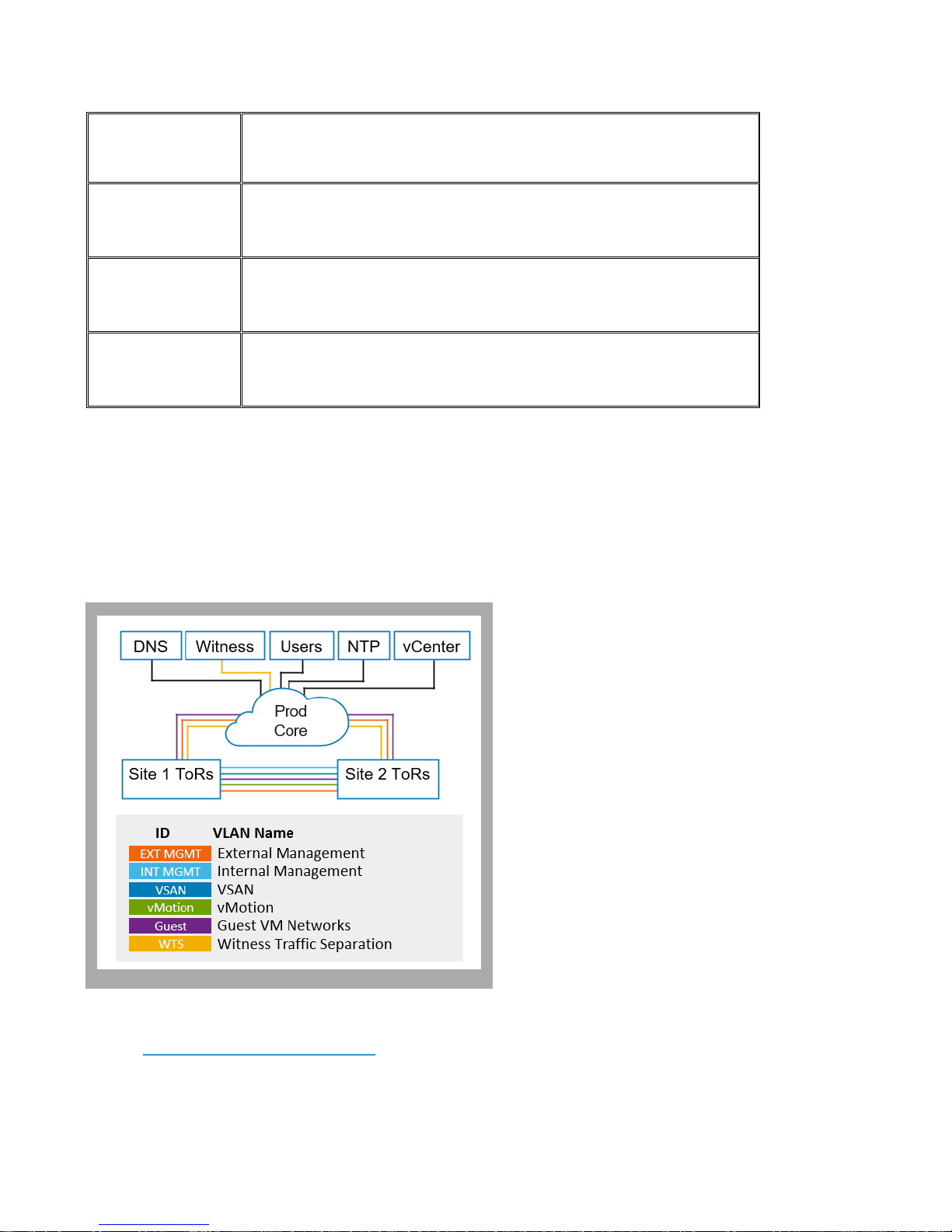
For stretched cluster, the VxRail nodes can optionally connect to the witness over a separate Witness Traffic Separation network.
For this network, , a VLAN is required for this Witness Traffic Separation network. The Witness Network Separation traffic must
be able be able to pass through upstream to the witness site. This is not a requirement for the other VxRail logical networks.
Network Configuration
Table
✓
Row 50
Enter the Witness Traffic Separation VLAN ID.
Page 17
17 | Network Planning Guide
© 2018 Dell Inc. or its subsidiaries
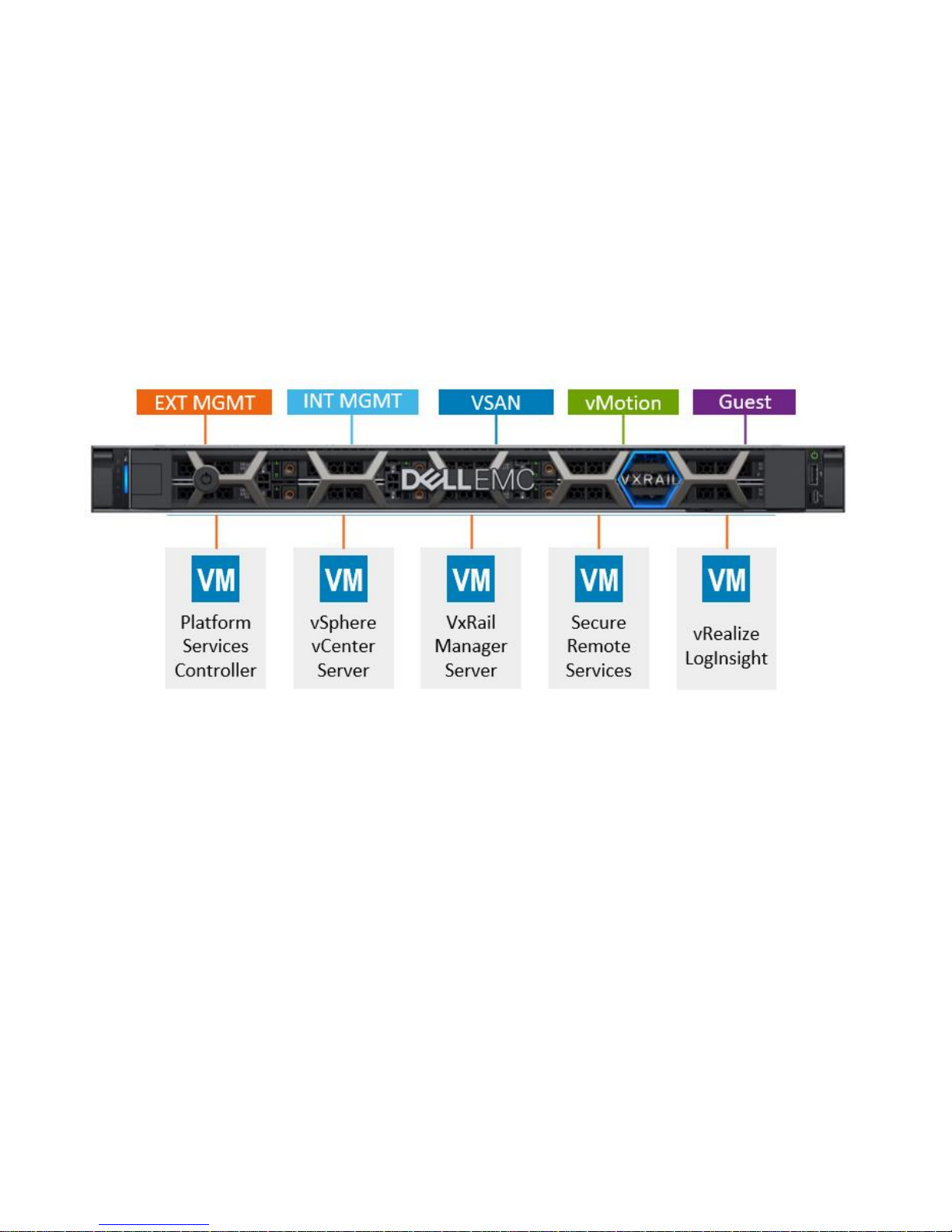
Step 3: Plan Network Settings for VxRail Management Components
During the VxRail automated implementation process, IP addresses entered are assigned to the components within the VxRail
cluster that are part of the Management network. The IP addresses assigned to the components within the Management network
must follow certain rules:
• The IP address scheme be a public IP address range
• The IP address must be free, and cannot be in use
• The IP addresses assigned to the VxRail nodes must be contiguous (sequential order)
• The IP address range must all be in the same subnet (non-routable)
The decisions you make on the final VxRail configuration planned for your data center impacts the number of IP addresses you will
need to reserve.
Figure 7. VxRail Management Components and Required Networks
• Decide if you want to reserve additional IP addresses in the VxRail management system to assign to VxRail nodes in the future
for expansion purposes. When a new node is added to an existing VxRail cluster, it will assign an IP address from the unused
reserve pool, or prompt you to enter an IP address manually.
• Decide whether you will use the vCenter instance that is deployed in the VxRail cluster, or if you will use an external vCenter
already operational in your data center. If you choose to use the vCenter instance deployed on the VxRail cluster, you will need
to reserve an IP address for vCenter and an IP address for the Platform Service Controller
• Decide if you will use vSphere Log Insight that can be deployed in the VxRail cluster
o If you choose to the vCenter instance that is deployed in the VxRail cluster, then you have the option to deploy
vSphere Log Insight, use an existing syslog server in your data center, or no logging at all. Reserve one IP
address if you choose to deploy vSphere Log Insight in the VxRail cluster
o If you choose to use an external vCenter already operational in your data center for VxRail, then vSphere Log
Insight will not be deployed
• VxRail supports the Dell-EMC ‘call home’ feature, where alerts from the appliance are routed to customer service. The Secure
Remote Gateway is required to enable alerts from VxRail to be sent to Dell-EMC customer service
o Decide whether to use an existing Secure Remote Services gateway in your data center for ‘call-home’, deploy a
virtual instance of the Secure Remote Services gateway in the VxRail cluster for this purpose, or none at all
Page 18
18 | Network Planning Guide
© 2018 Dell Inc. or its subsidiaries
o Reserve 1 IP address if you choose to deploy SRS-VE (Secure Remote Services Virtual Edition) in the VxRail
cluster
• If you are planning to deploy a VxRail cluster that requires a witness at a remote third site, such as VxRail stretched cluster,
then two IP addresses are required to deploy the witness virtual appliance.
o One IP address is assigned to the witness management network
o One IP address is assigned to the witness vSAN network.
o Both networks must be able to route to the VxRail cluster requiring the remote site witness
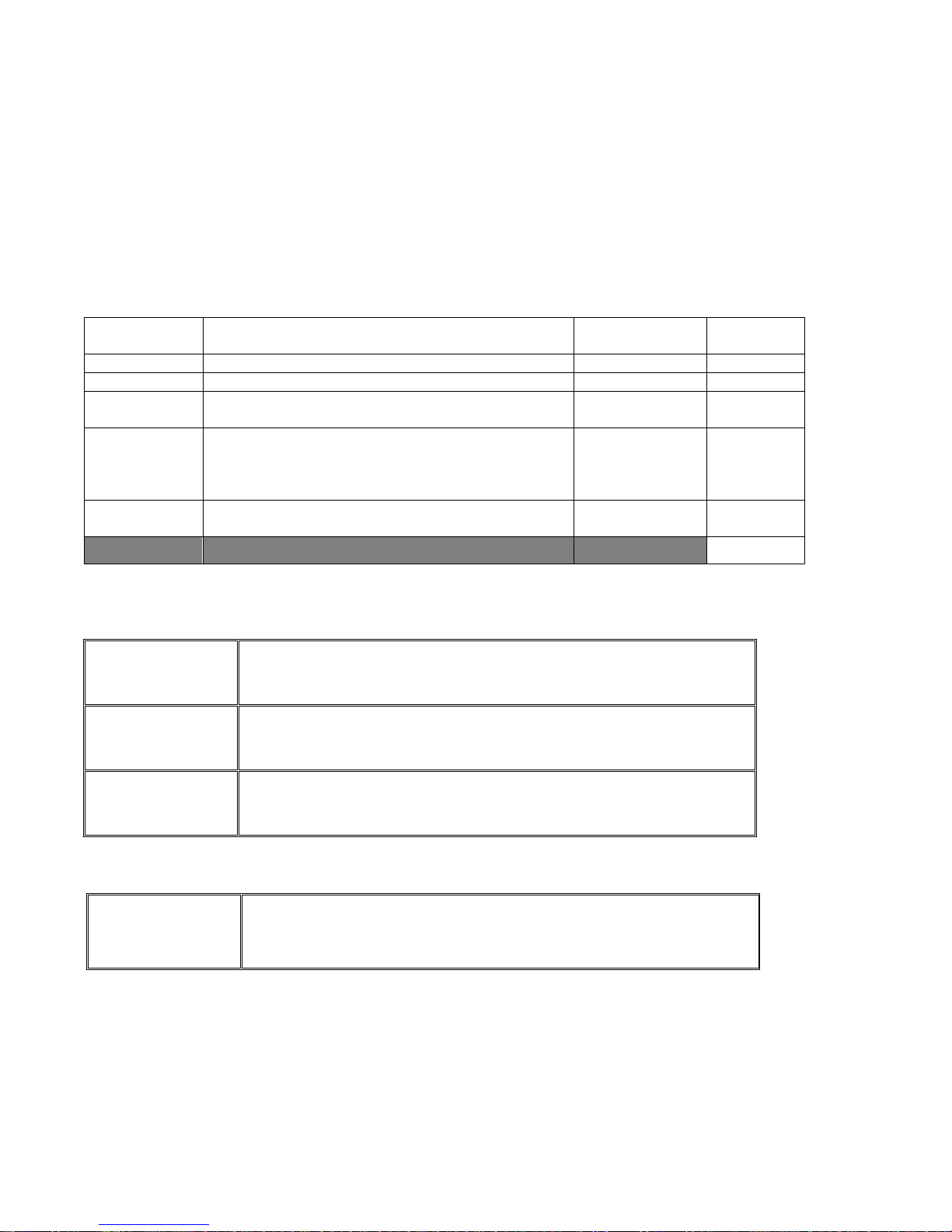
Use the table below to determine the number of public IP addresses required for the Management logical network:
Component
Condition
Contiguous?
IP Address
Count
VxRail Node
One per VxRail Node
Yes
VxRail Manager
One
No
1
vCenter
If you are supplying vCenter Server for VxRail: 0
If you are using vCenter on VxRail: 2
No
Log Insight
If you are supplying vCenter Server for VxRail: 0
If you are supplying a syslog server for VxRail: 0
If you will not enable logging for VxRail: 0
If you are using Log Insight on VxRail: 1
No
SRS-VE
If you are planning to deploy SRS Gateway on VxRail: 1
If you will not deploy SRS Gateway on VxRail: 0
No
TOTAL
Request your networking team to provide you with a pool of unused IP addresses required for the VxRail Management logical
network. Record the IP address range for the ESXi hosts. These IP addresses are required.
Network Configuration
Table
✓
Rows 12 and 13
Enter the starting and ending IP addresses for the ESXi hosts - a continuous IP
range is required, with a minimum of 4 IPs.
Network Configuration
Table
✓
Row 27
Enter the subnet mask for the VxRail External Management network
Network Configuration
Table
✓
Rows 28
Enter the gateway for the VxRail External Management network
Record the permanent IP address for VxRail Manager. This is required.
Network Configuration
Table
✓ Row 25
Enter the permanent IP address for VxRail Manager
If you are going to deploy vCenter on the VxRail cluster, record the permanent IP address for vCenter and Platform Service
Controller. Leave these entries blank if you will provide an external vCenter for VxRail
Page 19
19 | Network Planning Guide
© 2018 Dell Inc. or its subsidiaries
Network Configuration
Table
✓ Row 15
Enter the IP address for VxRail vCenter
Network Configuration
Table
✓ Row 17
Enter the IP address for VxRail Platform Service Controller
Record the IP address for Log Insight. Leave this entry blank if you will not deploy Log Insight on VxRail
Network Configuration
Table
✓ Row 42
Enter the IP address for vSphere Log Insight
Record the 2 IP addresses for the witness virtual appliance. Leave blank if a witness is not required for your VxRail deployment
Network Configuration
Table
✓
Row 48
Enter IP address for Witness Management Network
Network Configuration
Table
✓
Rows 49
Enter IP address for Witness vSAN Network
Step 4: Identify unique hostnames for VxRail management components
Each of the VxRail management components you will deploy in the VxRail cluster will require you to assign an IP address, and also
assign a fully-qualified hostname. During initialization, each of these VxRail management components will be assigned a hostname
and IP address.
You need to make a decision on the naming format for the hostnames to be applied to the required VxRail management
components: each ESXi host, and VxRail Manager. If you decide to deploy the vCenter Server in the VxRail cluster, then that also
requires a hostname. In addition, if you decide to deploy Log Insight in the VxRail cluster, that needs a hostname as well.
You cannot easily change the hostnames and IP addresses of the VxRail management components after initial
implementation
Domain
Begin the process by selecting the domain you want to use for VxRail, and want to assign to the fully-qualified hostnames. Be aware
that DNS is a requirement for VxRail, so select a domain where the naming services can support that domain.
ESXi Hostnames
All ESXi hostnames in a VxRail cluster are defined by a naming scheme that comprises: an ESXi hostname prefix (an alphanumeric
string), a separator (“None” or a dash ”-“), an iterator (Alpha, Num X, or Num 0X), an offset1 (empty or numeric), a suffix2 (empty or
alphanumeric string with no .) and a domain. The Preview field shown during VxRail initialization is an example of the hostname of
1
Offset is available starting in VxRail Release 4.0.200. It is only applicable when the iterator is numeric.
2
Suffix is available starting in VxRail Release 4.0.200.
Page 20
20 | Network Planning Guide
© 2018 Dell Inc. or its subsidiaries
the first ESXi host. For example, if the prefix is “host,” the separator is “None,” the iterator is “Num 0X”, the offset is empty, and the
suffix is “lab”, and the domain is “local,” the first ESXi hostname would be “host01lab.local”. The domain is also automatically
applied to the VxRail management components. (Example: my-vcenter.local).
Example 1
Example 2
Example 3
Prefix
host
myname
esxi-host
Separator
None
- - Iterator
Num 0X
Num X
Alpha
Offset
4
Suffix
lab Domain
local
college.edu
company.com
Resulting hostname
host01.local
myname-4lab.college.edu
esxi-host-a.company.com
Network Configuration
Table
✓
Rows 6-11
Enter an example of your desired ESXi host-naming scheme. Be sure to show
your desired prefix, separator, iterator, offset, suffix and domain.
VxRail Manager Hostname
A hostname must be assigned to VxRail Manager. The domain is also automatically applied to the chosen hostname. Dell-EMC
recommends following the naming format selected for the ESXi hosts to simplify cluster management.
Network Configuration
Table
✓
Row 25
Enter the hostname for VxRail Manager.
VxRail vCenter Server Hostname
NOTE:
You can skip this section if you plan to use an external vCenter Server in your data center for VxRail. These action
items are only applicable if you plan to use the VxRail vCenter Server.
If you want deploy a new vCenter Server on the VxRail cluster, you will need to specify a hostname for the VxRail vCenter Server
and Platform Services Controller (PSC) virtual machines. Again, the domain is also automatically applied to the chosen hostname,
and Dell-EMC recommends following the naming format selected for the ESXi hosts to simplify cluster management.
Network Configuration
Table
✓
Row 14
Enter an alphanumeric string for the new vCenter Server hostname. The domain
specified will be appended.
Network Configuration
Table
✓
Row 16
Enter an alphanumeric string for the new Platform Services Controller hostname.
The domain specified will be appended.
Log Insight Hostname
NOTE:
You can skip this section if you plan to use an external syslog server instead of Log Insight, if you plan to use an
external vCenter Server in your data center for VxRail, or will not enable logging.
If you decide to deploy Log Insight to the VxRail cluster, then the management component must be assigned a hostname. You can
choose whether to use your own third-party syslog server, use the vRealize Log Insight solution included with VxRail, or no logging.
You can only select the vRealize Log Insight option if you also choose to use the VxRail vCenter Server.
The domain is also automatically applied to the chosen hostname. Dell-EMC recommends following the naming format selected for
the ESXi hosts to simplify cluster management.
Page 21
21 | Network Planning Guide
© 2018 Dell Inc. or its subsidiaries
Network Configuration
Table
✓
Row 41
Enter the hostname for Log Insight.
Step 5: Identify external applications and settings for VxRail
VxRail is dependent on specific applications in your data center to be available to VxRail over your data center network. These data
center applications must be accessible to the VxRail management network.
Time Zone, NTP Server
A time zone is required. It is configured on vCenter Server and each ESXi host during VxRail initial configuration.
An NTP server is not required, but it is recommended. If you provide an NTP server, vCenter Server will be configured to use it. If
you do not provide at least one NTP server, VxRail uses the time that is set on ESXi host #1 (regardless of whether the time is
correct or not).
Make sure the NTP IP address is accessible from the network to which VxRail will be connected to and is functioning
properly
Network Configuration
Table
✓
Row 3
Enter your time zone.
Network Configuration
Table
✓
Row 4
Enter the hostname(s) or IP address(es) of your NTP server(s).
DNS Server
One or more external, customer-supplied DNS servers are required for VxRail. The DNS server you select for VxRail must be able to
support naming services for all of the VxRail management components (VxRail Manager, vCenter, etc.).
Make sure that the DNS IP address is accessible from the network to which VxRail is connected and functioning
properly.
Network Configuration
Table
✓
Row 5
Enter the IP address(es) for your DNS server(s).
Step 6: Create DNS records for VxRail management components
Lookup records must be created in your selected DNS for every VxRail management component you are deploying in the cluster,
Page 22
22 | Network Planning Guide
© 2018 Dell Inc. or its subsidiaries
and are assigning a hostname and IP address. These components can include VxRail Manager, VxRail vCenter Server, VxRail
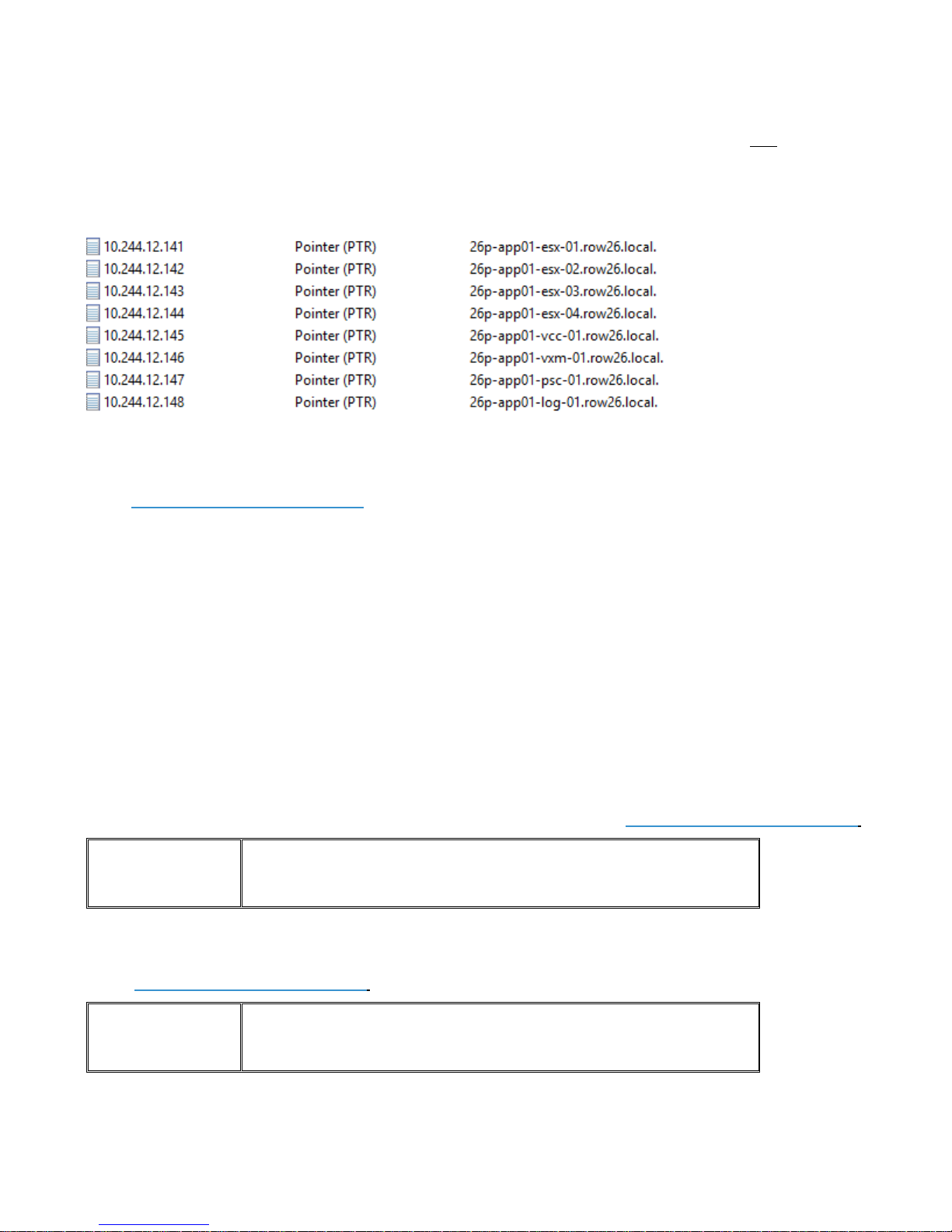
Platform Service Controller, Log Insight, and each ESXi host in the VxRail cluster. The DNS entries must support both forward and
reverse lookups.
Figure 8. Sample DNS Forward Lookup Entries
Figure 9. Sample DNS Reverse Entries
Use the VxRail Network Configuration Table to determine which VxRail management components you will be including in your
planned VxRail cluster, and have assigned a hostname and IP address. vMotion and vSAN IP addresses are not configured for
routing by VxRail, so there are no entries required in the DNS server.
Step 7: Prepare Customer-Supplied vCenter Server
NOTE:
You can skip this section if you plan to use the VxRail vCenter Server. These action items are only applicable if you
plan to use a Customer-Supplied vCenter Server in your data center for VxRail
Certain pre-requisites must be completed and settings provided before VxRail initialization if you decide to use a CustomerSupplied vCenter as the VxRail cluster management platform. During the VxRail initialization process, it will connect to your
Customer-Supplied vCenter in order to perform the necessary validation and configuration steps to deploy the VxRail cluster on
your vCenter instance.
• Determine if your Customer-Supplied vCenter Server is compatible with your VxRail version.
o Refer to the Knowledge Base article “VxRail: VxRail and external vCenter interoperability matrix” on the Dell-
EMC product support site for the most current support matrix.
• Enter the FQDN of your selected, compatible Customer Supplied vCenter Server in the VxRail Network Configuration Table.
Network Configuration
Table
✓ Row 19
Enter the FQDN of the Customer Supplied vCenter Server
• Determine whether your Customer Supplied vCenter Server has an embedded or external Platform Services Controller. If the
Platform Services Controller is external to your Customer-Supplied vCenter, enter the Platform Services Controller FQDN in
the VxRail Network Configuration Table.
Network Configuration
Table
✓ Row 18
Enter the FQDN of the Customer Supplied Platform Services Controller (PSC)
Leave this row blank if the PSC is embedded in the Customer Supplied vCenter Server.
Page 23

23 | Network Planning Guide
© 2018 Dell Inc. or its subsidiaries
• Decide on the Single Sign-on (SSO) domain configured on your Customer-Supplied vCenter you want to use to enable
connectivity for VxRail, and enter the domain in the VxRail Network Configuration Table.
Network Configuration
Table
✓ Row 20
Enter the Single Sign-on (SSO) domain for the Customer Supplied vCenter Server. (For example
vsphere.local)
• The VxRail initialization process will require login credentials to your Customer-Supplied vCenter. The credentials must have
the privileges to perform the necessary configuration work for VxRail. You have two choices:
o Provide vCenter login credentials with administrator privileges
o Create a new set of credentials in your vCenter for this purpose. Two new roles will be created and assigned to
this user by your Dell EMC Representative.
Network Configuration
Table
✓ Row 21
Enter the administrative username/password for the Customer Supplied vCenter Server., or the
VxRail non-admin username/password you will create on the Customer Supplied vCenter
Server
• A set of credentials need to be created in the Customer-Supplied vCenter for VxRail management with no permissions and no
assigned roles. These credentials are assigned a role with limited privileges during the VxRail initialization process, and then
assigned to VxRail to enable connectivity to the Customer-Supplied vCenter after initialization completes.
o If this is the first VxRail cluster on the Customer-Supplied vCenter, enter the credentials you will create in the
Customer-Supplied vCenter
o If you have already an account for a previous VxRail cluster in the Customer-Supplied vCenter, enter those
credentials
Network Configuration
Table
✓ Row 22
Enter the full VxRail management username/password.
(For example, [email protected])
• The VxRail initialization process will deploy the VxRail cluster under an existing Data Center in the Customer-Supplied
vCenter. Create a new Data Center, or select an existing Data Center on the Customer Supplied vCenter.
Network Configuration
Table
✓ Row 23
Enter the name of a datacenter on the Customer Supplied vCenter Server.
• Specify the name of the Cluster that will be created by the VxRail initialization process in the selected Data Center. This name
must be unique, and not used anywhere in the Data Center on the Customer-Supplied vCenter.
Network Configuration
Table
✓ Row 24
Enter the name of the cluster that will be used for VxRail.
Step 8. Reserve IP addresses for VxRail vMotion and vSAN networks
An IP address is required for the vMotion and vSAN networks for each ESXi host in the VxRail cluster. The vMotion and vSAN
networks are not routable by default, so a private address range is acceptable. The IP addresses must be contiguous, with the
Page 24

24 | Network Planning Guide
© 2018 Dell Inc. or its subsidiaries
specified range in a sequential order. The IP address range must be large enough to cover the number of ESXi hosts planned for the
VxRail cluster, but a larger IP address range can be specified to cover for planned expansion.
Network Configuration
Table
✓ Rows 31 and 32
Enter the starting and ending IP addresses for vSphere vMotion. Routing is not configured for
vMotion.
Network Configuration
Table
✓ Row 33
Enter the subnet mask for vMotion.
Network Configuration
Table
✓ Rows 35 and 36
Enter the starting and ending IP addresses for vSAN. Routing is not configured for vSAN.
Network Configuration
Table
✓ Row 37
Enter the subnet mask for vSAN.
Step 9. Decide on VxRail Logging Solution
Decide whether to use your own third-party syslog server, use the vRealize Log Insight solution included with VxRail, or no logging.
You can only select the vRealize Log Insight option if you also choose to use the VxRail vCenter Server. If you choose instead to use
a Customer-Supplied vCenter Server, then the choices are to use your own third-part syslog server, or no logging. If you choose the
vRealize Log Insight option, the IP address assigned to Log Insight must be on the same subnet as the VxRail management network
Network Configuration
Table
✓ Row 42 or
✓ Row 43
Enter the IP address for vRealize Log Insight or the hostname(s) of your existing third-party
syslog server(s). Leave blank for no logging.
Step 10: Decide on Passwords for VxRail Management
You will need to assign a password to the accounts that are members of the VxRail management ecosystem. Refer to the tables in
VxRail Password Table to use as worksheets for your passwords.
NOTE:
The Dell EMC service representative will need passwords for the VxRail accounts in this table. For security
purposes, you can choose to enter the passwords during the VxRail initialization process, as opposed to providing
them visibly in a document.
• For ESXi hosts, passwords must be assigned to the ‘root’ account. You can choose to use one password for each ESXi host, or
apply the same password to each host.
• For VxRail Manager, a password must be assigned to the ‘root’ account [Row 1]. This credential is for access to the console.
• Access to the VxRail Manager web interface will use the ‘administrator@<SSO Domain>’ credentials
o If you choose to deploy the VxRail vCenter Server, then VxRail Manager and vCenter share the same default
administrator login, ‘admi[email protected]’. Enter the password you want to use [Row 2]
o If you choose to use a Customer-Supplied vCenter Server, then VxRail Manager will use the same
‘administrator@<SSO Domain>’ login credentials you use for access to the Customer-Supplied vCenter Server
• If you choose to deploy the VxRail vCenter Server:
o Enter the ‘root’ password for the VxRail vCenter Server [Row 3]
Page 25
25 | Network Planning Guide
© 2018 Dell Inc. or its subsidiaries
o Enter a password for ‘management’ for the VxRail vCenter Server [Row 4]
o A Platform Services Controller will be deployed also. Enter the ‘root’ password for the Platform Services
Controller [Row 5]
• If you choose to deploy vRealize Log Insight:
o Enter a password for ‘root’ [Row 6]
o Enter a password for ‘admin’ [Row 7]
Passwords must align with VMware vSphere complexity rules. Passwords must contain between 8 and 20 characters with
at least one lowercase letter, one uppercase letter, one numeric character, and one special character. For more
information about password requirements, see the vSphere password documentation and vCenter Server password
documentation.
Step 11: Prepare for Dell EMC SmartFabric services enablement
NOTE:
Skip this section if you do not plan to enable Dell-EMC SmartFabric services to pass control of switch configuration
to VxRail
If you have decided to want to enable the Dell-EMC SmartFabric feature, and pass control of switch configuration management to
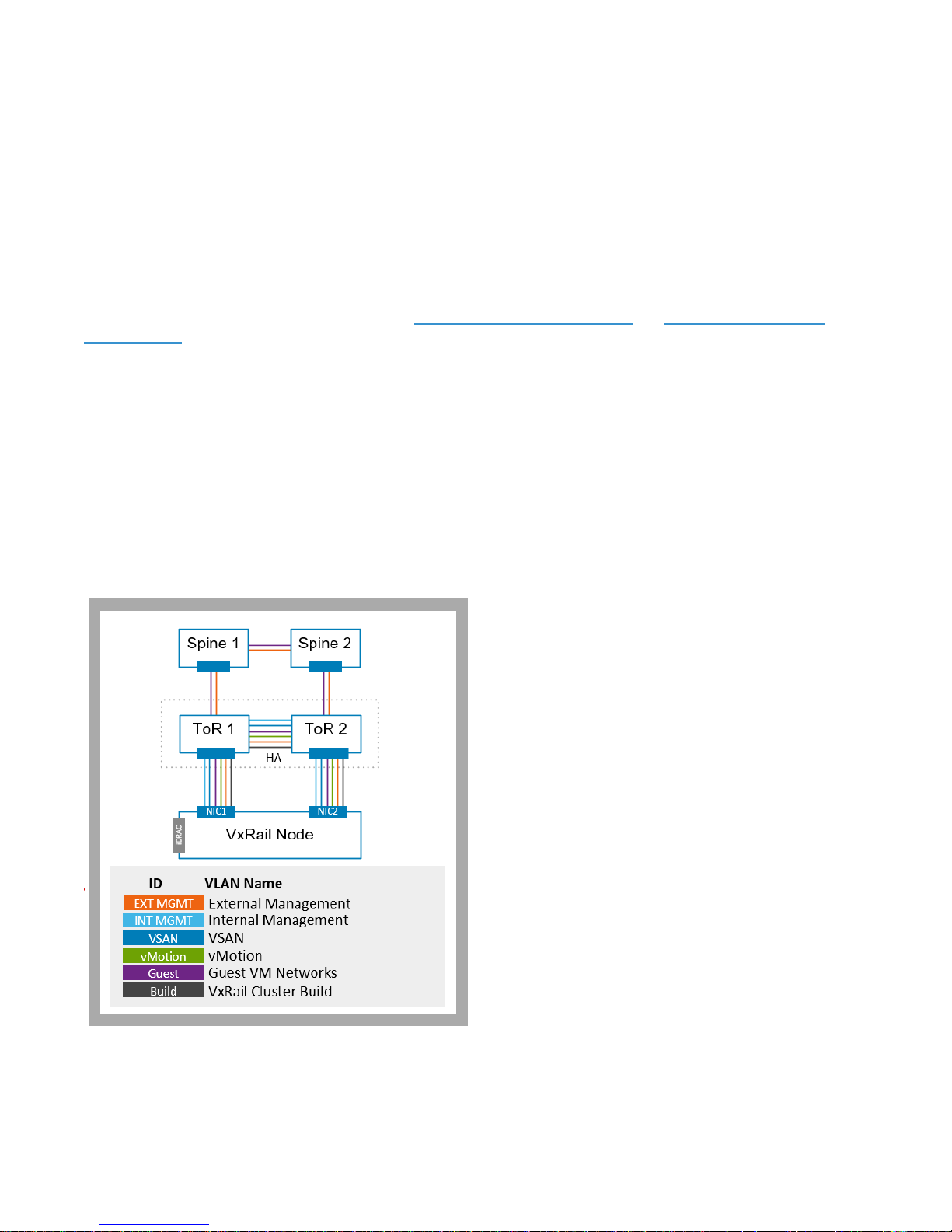
VxRail and the Dell-EMC OMNI vCenter plug-in, then a VLAN for the VxRail Cluster Build Network must be defined.
When the VxRail personality profile is enabled on a pair of Dell switches running in SmartFabric mode, a VLAN must be entered as
part of the configuration process. This VLAN is assigned to every switch data port as ‘untagged’. This establishes an access network
across the entire switch fabric for the purpose of enabling connectivity to VxRail Manager for initial configuration.
At the time of VxRail personality profile enablement on the Dell switch fabric, the VxRail Cluster Build Network and the Internal
Management Network are both established on every data port
on the switch pair. The switches and VxRail nodes advertise
themselves at power-on on the Internal Management Network,
and are discovered by VxRail Manager on the same network.
VxRail Manager then connects itself to the VxRail Cluster Build
network to enable access on the ‘untagged’ network for cluster
implementation. During the cluster implementation process,
VxRail Manager will connect itself to the External Management
Network, and transition off of the VxRail Cluster Build Network.
At the completion of the cluster implementation process,
includes all VxRail Manager, vCenter Server, and ESXi
management communications occurs over the External
Management Network, freeing the VxRail Cluster Build Network
for additional clusters to be added to the switch fabric.
Be aware that the VLAN assigned to the VxRail Cluster Build
Network is permanent, and can only be changed by resetting
the Dell-EMC switch fabric back to the factory default state.
The Dell-EMC OMNI (Open Management Network Interface)
plug-in needs to be deployed on the vCenter instance to support
automated switch management after the VxRail cluster is built.
The Dell-EMC OMNI vCenter plug-in is required for each DellEMC switch fabric pair, and requires network properties during
the deployment process
Record the VxRail Cluster Build Network VLAN and the network settings for Dell-EMC OMNI vCenter plug-in.
Page 26
26 | Network Planning Guide
© 2018 Dell Inc. or its subsidiaries
Network Configuration
Table
✓ Row 44
If you plan to enable Dell-EMC SmartFabric services on your switches and
enable the VxRail personality profile, enter a VLAN ID for the VxRail Cluster
Build Network.
Network Configuration
Table
✓ Row 45
Enter the IP address for Dell-EMC OMNI vCenter plug-in
Network Configuration
Table
✓ Row 46
Enter the subnet mask for Dell-EMC OMNI vCenter plug-in
Network Configuration
Table
✓ Row 47
Enter the gateway for Dell-EMC OMNI vCenter plug-in
Setting up the upstream network for VxRail
The upstream network from the VxRail cluster must be configured to allow passage for VxRail networks that require external
access. The switches supporting direct connectivity to the VxRail cluster (TOR switch) should pass the external-facing VxRail
network traffic through a pair of switch ports upstream to a pair of switch ports on the next network layer (spine switch). The
switch at the next layer needs to direct this network traffic to the appropriate end user community.
The VxRail External Management Network should only be accessible to your location’s IT infrastructure and personnel. IT
administrators require access to this network for day-to-day management of the VxRail cluster, and the VxRail cluster is dependent
on outside applications such as DNS and NTP to operate
correctly.
VxRail Virtual Machine Networks support access to
applications and software deployed on the virtual machines
on the VxRail cluster. While you must create at least one
VxRail Virtual Machine Network at VxRail initial
implementation, additional VxRail Virtual Machine
Networks can be added to support the end user community.
The spine switch must be configured to direct the traffic
from these VxRail Virtual Machine Networks to the
appropriate end users.
The VxRail Cluster Build Network is required only if you
plan to enable Dell-EMC SmartFabric services, and extend
VxRail automation to the switch layer. The VxRail Cluster
Build Network enables access to VxRail Manager during
initial implementation using a jump host.
The VxRail Witness Traffic Separation Network is
optional if you plan to deploy a stretched cluster. The
VxRail Witness Traffic Separation Network enables
connectivity between the VxRail nodes with the witness at
an offsite location. The remote site witness monitors the
health of the vSAN datastore on the VxRail cluster over this network.
Using the VxRail Network Configuration Table, perform the following steps:
Step 1. Configure the External Management Network VLAN (Row 1) on the spine switch
Step 2. Configure all of the VxRail Virtual Machine Network VLANs (Rows 39,40) on the spine switch
Page 27

27 | Network Planning Guide
© 2018 Dell Inc. or its subsidiaries
Step 3. If applicable, configure the VxRail Cluster Build Network VLAN (Row 44) on the spine switch
Step 4. If applicable, configure the VxRail Witness Traffic Separation Network VLAN (Row 50) on the spine switch
Step 5. Create a logical pair (port channel) on the spine switch ports that will connect downstream to the uplinks on the
TOR switch.
o Make sure the port channel settings (active/passive) on the spine switch will match the setting on the TOR switch
o Configure all of the external VLANs on this port channel
Step 6. Create logical pairs (port channels) as necessary to direct VxRail network traffic to the appropriate end
destination
Setting up the network switch for VxRail connectivity
You may skip this section if you plan to enable Dell-EMC SmartFabric services, and extend VxRail automation to
the TOR switch layer
For the VxRail initialization process to pass validation and build the cluster, you must configure the ports that VxRail will connect
to on your switch before you plug in VxRail nodes and powering them on.
Set up your switch by following these steps:
1. Plan switch configuration
2. Plan switch port configuration
3. Configure ports and VLANs on your switch(es)
NOTE:
This section provides guidance for preparing and setting up your switch for VxRail. Be sure to follow your vendor’s
documentation for specific switch configuration activities and for best practices for performance and availability.
Step 1. Plan Switch Configuration
Enable Multicast for VxRail Internal Management Network
VxRail Appliances have no backplane, so communication between its nodes is facilitated via the network switch. This
communication between the nodes uses VMware’s Loudmouth auto-discovery capabilities, based on the RFC-recognized "Zero
Network Configuration" protocol. New VxRail nodes advertise themselves on the network using the VMware Loudmouth service,
and are discovered by VxRail Manager with the Loudmouth service. VMware’s Loudmouth service depends on IPv6 multicast, and
IPv6 multicast is required for the VxRail internal management network.
The network switch ports that connect to VxRail nodes must allow for pass-through of multicast traffic on the VxRail Internal
Management VLAN. Multicast is not required on your entire network, just on the ports connected to VxRail nodes.
VxRail creates very little traffic via IPv6 multicast for auto-discovery and device management. It is recommended to limit traffic
further on your switch by enabling MLD Snooping and MLD Querier.
If MLD Snooping is enabled, then MLD Querier must be enabled. If MLD Snooping is disabled, then MLD Querier must be disabled.
For VxRail clusters running at version 4.7 or later, VxRail management traffic is segmented into two separate logical networks: one
which is external to service administrators and end users, and a second internal network used solely for auto-discovery and device
management, and is isolated from the upstream network. Multicast needs to be enabled only on this second internal management
network.
Enable Unicast or Multicast for VxRail vSAN Network
Starting in VxRail Release 4.5.0, all vSAN traffic replaces multicast with unicast. This change helps to reduce network configuration
complexity and simplifies switch configuration.
Page 28

28 | Network Planning Guide
© 2018 Dell Inc. or its subsidiaries
Prior to VxRail 4.5.0, IPv4 multicast is required for the vSAN VLAN. The network switch(es) that connect to VxRail must allow for
pass-through of multicast traffic on the vSAN VLAN. Multicast is not required on your entire network, just on the ports connected to
VxRail.
There are two options to handle vSAN IPv4 multicast traffic. Either limit multicast traffic by enabling both IGMP Snooping and
IGMP Querier or disable both of these features. We recommend enabling both IGMP Snooping and IGMP Querier if your switch
supports them.
IGMP Snooping software examines IGMP protocol messages within a VLAN to discover which interfaces are connected to hosts or
other devices interested in receiving this traffic. Using the interface information, IGMP Snooping can reduce bandwidth
consumption in a multi-access LAN environment to avoid flooding an entire VLAN. IGMP Snooping tracks ports that are attached to
multicast-capable routers to help manage IGMP membership report forwarding. It also responds to topology change notifications.
Disabling IGMP Snooping may lead to additional multicast traffic on your network.
IGMP Querier sends out IGMP group membership queries on a timed interval, retrieves IGMP membership reports from active
members, and allows updates to group membership tables. By default, most switches enable IGMP Snooping but disable IGMP
Querier. You will need to change the settings if this is the case.
If IGMP Snooping is enabled, then IGMP Querier must be enabled. If IGMP Snooping is disabled, then IGMP Querier must be
disabled.
If your switch does not support IGMP Snooping or MLD Snooping, VxRail multicast traffic will be broadcast in one broadcast
domain per VLAN. There is minimal impact on network overhead as management traffic is nominal.
For questions on your switch handles multicast traffic, contact your switch vendor.
Enable Uplinks to pass inbound and outbound VxRail network traffic
The uplinks on the switches must be configured to allow passage for external network traffic to administrators and end users. This
includes the VxRail external management network (or combined VxRail management network prior to version 4.7) and Virtual
Machine network traffic.
Conversely, the uplinks need to be configured to block traffic from the VxRail vMotion network and the vSAN network from
passage upstream. For VxRail clusters running at version 4.7 or later, the VxRail internal management network must be blocked
from outbound passage.
Enable Inter-switch Communication
In a multi-switch environment, configure the ports used for inter-switch communication to allow passage for all of the VxRail
virtual networks. Both switches must be configured to allow passage of IPv6 multicast traffic used for device discovery, and IPv4
traffic (unicast starting in VxRail Release 4.5.0 and multicast in prior releases).
Enable Inter-switch Links
If you are using multiple switches, connect them via trunked interfaces on each switch and ensure that all VLANs used for VxRail
are carried across the trunk following the requirements in this user guide.
Step 2. Plan Switch Port Configuration
Determine switch port mode
The decision on which port mode to configure on your switch is based on the plan for the VxRail logical networks, and whether
VLANs will be used to segment VxRail network traffic. Ports on a switch operate in one of the following modes:
• Access mode – The port accepts only untagged packets and distributes the untagged packets to all VLANs on that port. This is
typically the default mode for all ports.
• Trunk mode – When this port receives a tagged packet, it passes the packet to the VLAN specified in the tag. To configure the
acceptance of untagged packets on a trunk port, you must first configure a single VLAN as a “Native VLAN.” A “Native VLAN” is
when you configure one VLAN to use as the VLAN for all untagged traffic.
Page 29
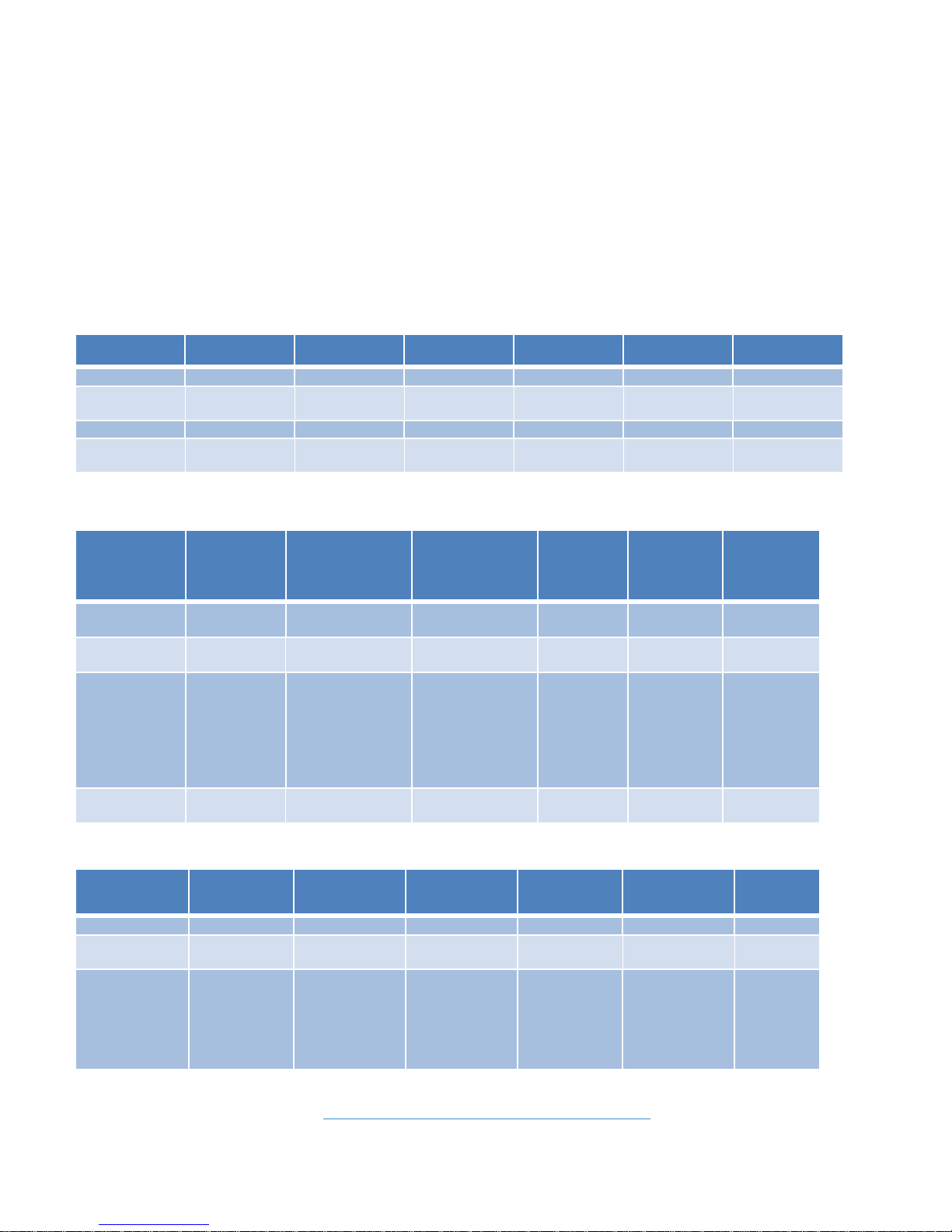
29 | Network Planning Guide
© 2018 Dell Inc. or its subsidiaries
• Tagged-access mode – The port accepts only tagged packets.
Do not enable Link Aggregation on VxRail Switch Ports
Do not use link aggregation, including protocols such as LACP and EtherChannel, on any ports directly connected to VxRail nodes.
VxRail Appliances use the vSphere active/standby configuration (NIC teaming) for network redundancy. However, LACP could be
enabled on non-system ports, such as additional NIC ports or 1G ports, for user traffic.
VxRail uses vSphere Network I/O Control (NIOC) to allocate and control network resources for the four predefined network traffic
types required for operation: Management, vSphere vMotion, vSAN and Virtual Machine. The respective NIOC settings for the
predefined network traffic types are listed in the tables below for the various VxRail Models. 3
4x10GbE Traffic Configuration
Traffic Type
Requirements
UPLINK1(10Gb)
VMNIC0
UPLINK2(10Gb)
VMNIC1
UPLINK3(10Gb)
VMNIC2
UPLINK4(10Gb)
VMNIC3
NIOC Shares
Management
IPv6 multicast
Active
Standby
Unused
Unused
40
vSphere
vMotion
Unused
Unused
Standby
Active
50
vSAN
IPv4 unicast
Unused
Unused
Active
Standby
100
Virtual
Machines
Standby
Active
Unused
Unused
60
2x10GbE or 2x25GbE Traffic Configuration
Traffic Type
Requirements
UPLINK1(10Gb or
25Gb)
VMNIC0
UPLINK2(10Gb or
25Gb)
VMNIC1
UPLINK3
No VMNIC
UPLINK4
No VMNIC
NIOC Shares
Management
IPv6
multicast
Active
Standby
Unused
Unused
20
vSphere
vMotion
Active
Standby
Unused
Unused
50
vSAN
VxRail
starting with
4.5 (IPv4
unicast)
VxRail prior
to 4.5 (IPv4
multicast)
Standby
Active
Unused
Unused
100
Virtual
Machines
Active
Standby
Unused
Unused
30
1GbE Traffic Configuration
Traffic Type
Requirements
UPLINK1 (1Gb)
VMNIC0
UPLIINK2(1Gb)
VMNIC1
UPLINK3(1Gb)
VMNIC2
UPLINK4(1Gb)
VMNIC3
NIOC
Shares
Management
IPv6 multicast
Active
Standby
Unused
Unused
40
vSphere
vMotion
Unused
Unused
Standby
Active
50
vSAN
VxRail starting
with 4.5 (IPv4
unicast)
VxRail prior to
4.5 (IPv4
multicast)
Unused
Unused
Active
Standby
100
3
For a general overview on NIOC shares refer to http://frankdenneman.nl/2013/01/17/a-primer-on-network-io-control/.
Page 30

30 | Network Planning Guide
© 2018 Dell Inc. or its subsidiaries
Virtual
Machines
Standby
Active
Unused
Unused
60
Limit Spanning Tree Protocol on VxRail Switch Ports
Network traffic must be allowed uninterrupted passage between the physical switch ports and the VxRail nodes. Certain Spanning
Tree states can place restrictions on network traffic, and can force the port into an unexpected timeout mode. These conditions
caused by Spanning Tree can disrupt VxRail normal operations and impact performance.
If Spanning Tree is enabled in your network, ensure that the physical switch ports connected to VxRail nodes are configured with a
setting such as ‘Portfast’, or set as an edge port. These settings set the port to forwarding state, so no disruption occurs. Because
vSphere virtual switches do not support STP, physical switch ports connected to an ESXi host must have a setting such as ‘Portfast’
configured if spanning tree is enabled to avoid loops within the physical switch network.
Step 3. Configure Ports and VLANs on Your Switch(es)
Now that you understand the switch requirements, it is time to configure your switch(es). The VxRail network can be configured
with or without VLANs. For performance and scalability, it is highly recommended to configure VxRail with VLANs. As listed in the
VxRail Setup Checklist, you will be configuring the following VLANs:
For VxRail clusters at version 4.7 or higher:
o VxRail External Management VLAN (recommended is untagged/native)
o VxRail Internal Management VLAN: make sure that IPv6 multicast is configured/enabled on this VLAN.
For VxRail clusters prior to version 4.7:
o VxRail Management VLAN (recommended is untagged/native): make sure that IPv6 multicast is
configured/enabled on this VLAN.
For VxRail clusters at version 4.5 or higher:
o vSAN VLAN: Make sure that IPv4 unicast mode is configured/enabled
For VxRail clusters prior to version 4.5:
o vSAN VLAN: Make sure that IPv4 multicast is configured/enabled. Enabling IGMP snooping and querier is highly
recommended.
•
vSphere vMotion VLAN
Page 31
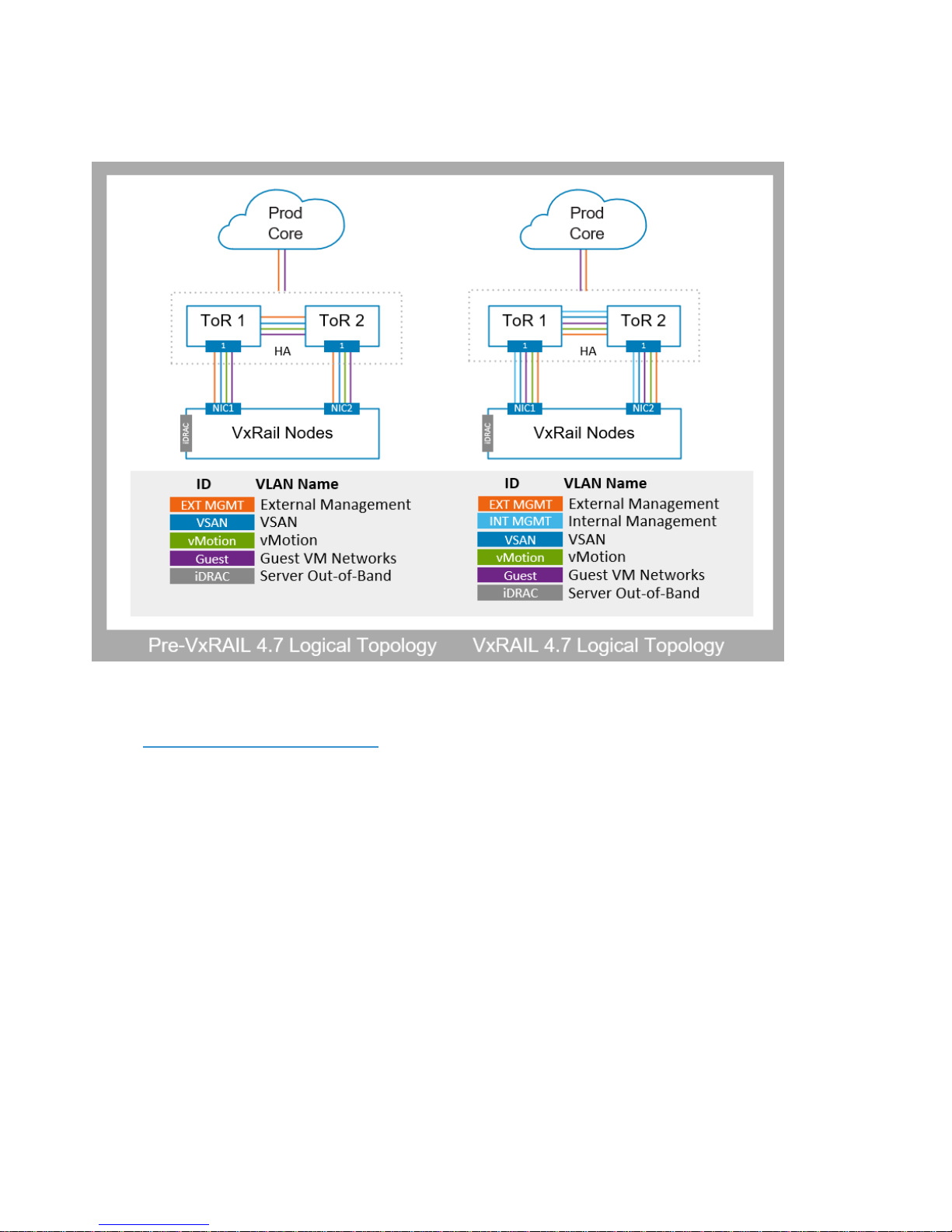
31 | Network Planning Guide
© 2018 Dell Inc. or its subsidiaries
•
VM Networks VLANs
Figure 10. VxRail Logical Networks: Prior to version 4.7 and version 4.7 and later
•
If required, the additional VxRail Witness Traffic Separation VLAN
Using the VxRail Network Configuration Table, perform the following steps:
Step 1. Configure a VLAN on the switch(es) for each VxRail logical network
Step 2. Configure each switch port that will be connected to a VxRail node
o Set the switch port mode to the appropriate setting
o Set the port to the appropriate speed or to auto-negotiate speed
Step 3. Configure the External Management VLAN (Row 1) on the switch ports. If you entered “Native VLAN,” then
set the ports on the switch to accept untagged traffic and tag it to the custom management VLAN ID. Untagged
management traffic is the recommended management VLAN setting on VxRail.
Step 4. For VxRail version 4.7 and higher, configure the Internal Management VLAN (Row 2) on the switch ports.
Step 5. You must set the management VLAN (prior to version 4.7) or internal management VLAN (version 4.7 or higher)
to allow IPv6 multicast traffic to pass through the VxRail switch ports. Depending on the type of switch you have,
you may need to turn on IPv6 and multicast directly on the port or on the VLAN. If necessary, consult the switch
manufacturer for further instructions on how to configure these settings.
Step 6. Configure a vSphere vMotion VLAN (Row 34) on the switch ports.
Step 7. Configure a vSAN VLAN (Row 38) on the switch ports. For release prior to VxRail version 4.5.0, set to allow
IPv4 multicast traffic to pass through. For VxRail version 4.5.0 and higher, set to allow IPv4 unicast traffic to pass
through.
Page 32

32 | Network Planning Guide
© 2018 Dell Inc. or its subsidiaries
Step 8. Configure the VLANs for your VM Networks (Rows 39-41) on the switch ports.
Step 9. Configure the switch uplinks to allow the External Management VLAN (Row 1) and VM Network VLANs
(Rows 39-40) to pass through. Include the optional VxRail Witness Traffic Separation VLAN (Row 50) on
the uplinks if required.
Step 10. Configure the inter-switch links to allow the all VLANs to pass through if deploying dual switches
Confirm Your Data Center Network
Upon completion of the switch configuration, there should be unobstructed network paths between the switch ports and the ports
on the VxRail nodes, and the VxRail management network and VM network should have unobstructed passage to your data center
network. Before forming the VxRail cluster, the VxRail initialization process will perform a number of verification steps, including:
• Verify switch and data center environment supportability
• Verify passage of VxRail logical networks
• Verify accessibility of required data center applications
• Verify compatibility with the planned VxRail implementation
Certain data center environment and network configuration errors will cause validation to fail, and the VxRail cluster will not be
formed. When validation fails, the data center settings and switch configurations must undergo troubleshooting to resolve the
problems reported.
Confirm the settings on the switch, using the switch vendor instructions for guidance:
1. Confirm that IPv4 multicast (VxRail release prior to 4.5.0) or unicast (VxRail Release 4.5.0 and beyond) and IPv6 multicast are enabled
for the VLANs described in this document.
2. If you have two or more switches, confirm that IPv4 multicast/unicast and IPv6 multicast traffic is transported between them.
3. Remember that external management traffic will be untagged on the native VLAN on your switch. If this has changed, then the switches
and/or ESXi hosts must be customized with the new VLAN.
4. Remember that internal device discovery network traffic will use the default VLAN of 3939. If this has changed, then all ESXi hosts must
be customized with the new VLAN, or device discovery will not work.
5. Confirm the switch ports that will attach to VxRail nodes allow passage of all VxRail network VLANs
6. Confirm the switch uplinks allow passage of VxRail networks for external users
If you have positioned a firewall between the switch(es) planned for VxRail and the rest of your data center network, be sure the
required firewall ports are open for VxRail network traffic
Confirm your firewall settings:
1. Verify VxRail will be able to communicate with your DNS server
2. Verify VxRail will be able to communicate with your NTP server
3. Verify your IT administrators will be able to communicate with the VxRail management system
4. If you plan to use a Customer-Supplied vCenter, verify open communication between the vCenter instance and the VxRail managed hosts
5. If you plan to use a third-party syslog server instead of Log Insight, verify open communication between the syslog server and the VxRail
management components
6. If you plan to deploy a separate network for ESXi host management (iDRAC), verify your IT administrators will be able to communicate
with the iDRAC network
7. If you plan to use an external Secure Remote Services (SRS) gateway in your data center instead of SRS-VE deployed in the VxRail
cluster, verify open communications between VxRail management and the SRS gateway.
Refer to Appendix B for information of VxRail port requirements
Page 33
33 | Network Planning Guide
© 2018 Dell Inc. or its subsidiaries
Confirm your data center environment:
1. Confirm that you cannot ping any IP address reserved for VxRail management components
2. Confirm that your DNS server(s) are reachable from the VxRail external management network
3. Confirm the forward and reverse DNS entries for the VxRail management components
4. Confirm that your management gateway IP address is accessible
5. If you have configured NTP servers, or a third-party syslog server, confirm that you can reach them from your configured VxRail external
management network
6. If you plan to use a Customer-Supplied vCenter, confirm it is accessible from the VxRail external management network
7. If you deployed a witness at a remote site to monitor vSAN, confirm it is accessible to the VxRail external management network and
VxRail vSAN network
Configuring a Workstation/Laptop for VxRail Initialization
A workstation/laptop with a web browser for the VxRail user interface is required to perform the initialization process. It must be
either plugged into the top-of-rack switch, or able to logically reach the VxRail external management VLAN from elsewhere on your
network; for example, a jump server (https://en.wikipedia.org/wiki/Jump_server). If you are planning to enable Dell-EMC
SmartFabric services, and extend VxRail automation to the switch layer, then the jump host must be able to also reach the VxRail
Cluster Build Network VLAN as well as the VxRail external management VLAN. Once the VxRail initialization process is complete,
the switch port or jump host is no longer required to manage VxRail.
Don’t try to plug your workstation/laptop directly into a VxRail server node to connect to the VxRail management
interface for initialization. It must be plugged into your network or switch, and the workstation/laptop must be logically
configured to reach the necessary networks.
A supported web browser is required to access VxRail management interface. The latest versions of Firefox, Chrome, and Internet
Explorer 10+ are all supported. If you are using Internet Explorer 10+ and an administrator has set your browser to “compatibility
mode” for all internal websites (local web addresses), you will get a warning message from VxRail. Contact your administrator to
whitelist URLs mapping to the VxRail user interface.
To access the VxRail management interface to perform initialization, you must use the temporary, pre-configured VxRail initial IP
address: 192.168.10.200/24. This IP address will automatically change during VxRail initialization to your desired permanent
address, and assigned to VxRail Manager during cluster formation.
Example
Configuration
VxRail
Workstation/laptop
IP address/netmask
IP address
Subnet mask
Gateway
Initial (temporary)
192.168.10.200/24
192.168.10.150
255.255.255.0
192.168.10.254
Post-configuration
(permanent)
10.10.10.100/24
10.10.10.150
255.255.255.0
10.10.10.254
Your workstation/laptop will need to be able to reach both the temporary VxRail initial IP address and the permanent VxRail
ManagerIP address (Row 26 from VxRail Network Configuration Table). VxRail initialization will remind you that you may need to
reconfigure your workstation/laptop network settings to access the new IP address.
It is best practice to give your workstation/laptop or your jump server two IP addresses on the same network port, which allows
for a smoother experience. Depending on your workstation/laptop, this can be implemented in several ways (such as dual-homing
or multi-homing). Otherwise, change the IP address on your workstation/laptop when instructed to and then return to VxRail
Manager to continue with the initialization process.
If you cannot reach the VxRail initial IP address, Dell EMC support team can configure a custom IP address, subnet mask, and
gateway on VxRail Manager before initialization.
Page 34

34 | Network Planning Guide
© 2018 Dell Inc. or its subsidiaries
If a custom VLAN ID will be used for the VxRail management network other than the default “Native VLAN”, make sure
the workstation/laptop can also access this VLAN.
Perform Initialization to create VxRail cluster
If you have successfully followed all of the steps listed in this document, you are ready to move to the final phase: connect the
laptop/workstation to a switch port, and perform VxRail initialization. These steps are done by Dell EMC service representatives,
and are included here to help you understand the complete process.
Step 1. Before coming on-site, the Dell EMC service representative will have contacted you beforehand to capture and
record the information described in the VxRail Network Configuration Table and walk through the VxRail
Setup Checklist.
Step 2. If your planned VxRail deployment requires a witness at a remote data center location, the witness virtual
appliance is deployed
Step 3. Install the VxRail nodes into a rack in the data center. For ease of manageability, install the network switches
supporting the VxRail cluster into the same rack
Step 4. Attach Ethernet cables between the ports on the VxRail nodes and switch ports configured to support VxRail
network traffic
Step 5. Power on all three or four initial nodes to form the initial VxRail cluster. Do not turn on any other VxRail nodes
until you have completed the formation of the VxRail cluster with the first three or four nodes.
Step 6. Connect a workstation/laptop configured for VxRail initialization to access the VxRail external management
network on your selected VLAN. It must be either plugged into the switch or able to logically reach the VxRail
external management VLAN from elsewhere on your network.
Step 7. Open a browser to the VxRail initial IP address to begin the VxRail initialization process
Step 8. The Dell EMC service representative will populate the input screens on the menu with the data collected and
recorded in the VxRail Network Configuration Table.
Step 9. If you have enable Dell-EMC SmartFabric services, then VxRail will automatically configure the switches
connected to VxRail nodes
Step 9. VxRail performs the verification process, using the information input into the menus
Step 10. After validation is successful, the initialization process will begin to build a new VxRail cluster
Step 11. The new permanent IP address for VxRail Manager will be displayed.
o If you configured the workstation/laptop to enable connectivity to both the temporary VxRail IP address and the
new permanent IP address, then the browser session will make the switch automatically
o If not, you need to manually change the IP settings on your workstation/laptop to be on the same subnet as the
new VxRail IP address
o If your workstation/laptop cannot connect to the new IP address that you configured, you will get a message to fix
your network and try again. If you are unable to connect to the new IP address after 20 minutes, VxRail will revert
to its un-configured state and you will need to re-enter your configuration at the temporary VxRail IP address
o After the build process starts, if you close your browser, you will need to browse to the new, permanent VxRail IP
address
Step 12. Progress is shown as the VxRail cluster is built.
Step 13. When you see the Hooray! page, VxRail initialization is complete and a new VxRail cluster is built. Click the
Manage VxRail button to continue to VxRail management. You should also bookmark this IP address in your
browser for future use.
Step 14. Connect to VxRail Manager using either the VxRail Manager IP address (Row 26) or the fully-qualified domain
name (FQDN) (Row 25) that you configured on your DNS server
Page 35

35 | Network Planning Guide
© 2018 Dell Inc. or its subsidiaries
Step 15. If the Dell-EMC SmartFabric services was enabled to pass control of switch configuration to VxRail, the Dell-EMC
OMNI plug-in is deployed on the vCenter instance
After VxRail Initialization Network Considerations
Support for NSX
VxRail is fully compatible with other software in the VMware ecosystem, including VMware NSX. A primer on deploying NSX on
VxRail can be found in Appendix A. Refer to the VMware Product Interoperability Matrixes for specific versions of NSX supported
on vSphere specific versions.
Using Unassigned VxRail Physical Ports
For VxRail nodes order with extra physical network ports, VxRail Manager will not manage the optional PCI-e NICs. Customers can
configure the additional ports in vCenter for non-VxRail system traffic, such as VM networks, iSCSI, NFS, etc.
The supported operations include:
• Create a new vSphere Standard Switch(VSS), and connect unused ports to the VSS.
• Connect unused ports to new port groups on the default vSphere Distributed Switch.
• Create a new vSphere Distributed Switch(VDS), add VxRail nodes to the new VDS, and connect their unused network ports to
the VDS.
• Create new VMKernel adapters and enable services of IP Storage and vSphere Replication.
• Create new VM Networks and assign then to new port groups.
NOTE:
Customers need to follow the official instructions/procedures from VMware and Dell-EMC for any of these
operations.
Unsupported Operations:
o Migrating or moving VxRail system traffic to these optional ports. VxRail system traffic includes the management,
vSAN, vCenter Server and vMotion Networks.
o Migrating VxRail system traffic to other port groups.
o Migrating VxRail system traffic to another vSphere Distributed Switch(VDS).
NOTE:
Performing any of these unsupported operations will impact the stability and operations of the VxRail cluster, and
likely cause a failure in the VxRail cluster.
Page 36
36 | Network Planning Guide
© 2018 Dell Inc. or its subsidiaries
VxRail Network Configuration Table
The Dell EMC service representative will use a VxRail Pre-Site Installation tool with the following information:
Row
Category
Description
1
VxRail
External
Management
VLAN ID
The recommended is untagged traffic on the Native VLAN. If you want the host to send only
tagged frames, manually configure the VLAN on each ESXi™ host using DCUI, and set
tagging for your management VLAN on your switch before you deploy VxRail.
2
Internal
Management
VLAN ID
This network traffic should stay isolated on the top-of-rack switches. The default VLAN ID is
3939.
3
System
Global settings
Time zone
4
NTP server(s)
5
DNS server(s)
6
Management
ESXi
hostnames and
IP addresses
ESXi hostname prefix
7
Separator
8
Iterator
9
Offset
10
Suffix
11
Domain
12
ESXi starting address for IP pool
13
ESXi ending address for IP pool
14
vCenter Server
Leave blank if
Customer
Supplied VC
vCenter Server hostname
15
vCenter Server IP address
16
Platform Services Controller hostname
17
Platform Services Controller IP address
18
Customer
Supplied
vCenter Server
Leave blank if
VxRail VC
Customer Supplied Platform Services Controller (PSC) Hostname (FQDN)
Leave blank if PSC is embedded in Customer Supplied vCenter Server
19
Customer Supplied vCenter Server hostname (FQDN)
20
Customer Supplied vCenter Server SSO domain
21
admin username/password or the newly created VxRail non-admin username and password
22
New VxRail management username and password
23
Customer Supplied datacenter name
24
New cluster name
25
VxRail Manager
VxRail hostname
26
VxRail IP address
27
Networking
Subnet mask
28
Gateway
31
vMotion
Starting address for IP pool
32
Ending address for IP pool
33
Subnet mask
34
VLAN ID
35
vSAN
Starting address for IP pool
36
Ending address for IP pool
37
Subnet mask
38
VLAN ID
39
VM
Networks
… (unlimited
number)
VM Network name and VLAN ID
40
VM Network name and VLAN ID
41
Solutions
Logging
vRealize Log Insight™ hostname
42
vRealize Log Insight IP address
43
Syslog Server (instead of Log Insight)
Optional Feature-Driven Settings
44
SmartFabric
VxRail Cluster
If the VxRail personality profile is to be enabled on a pair of Dell switches running SmartFabric
Page 37
37 | Network Planning Guide
© 2018 Dell Inc. or its subsidiaries
Build Network
VLAN ID
services, then this VLAN is entered at the time of profile enablement. The VLAN is permanent,
and can only be changed by a switch fabric reset.
45
Dell-EMC
OMNI plug-in
IP address
46
Subnet Mask
47
Gateway
48
Witness Site
Management IP
Address
Witness management network IP address
49
vSAN IP
Address
Witness vSAN network IP address
50
Stretched
Cluster
Witness Traffic
Separation
VLAN ID
Optional to enable witness traffic separation on stretched cluster
Page 38
38 | Network Planning Guide
© 2018 Dell Inc. or its subsidiaries
VxRail Password Tables
Row
Item
Account
Password
1
VxRail Manager
root 2
VxRail vCenter Server
administrator@<SSO Domain>
3 root 4
management
5 VxRail Platform Service Controller
root 6
vRealize Log Insight
root 7
admin
Item
Account
Password
ESXi Host #1
root ESXi Host #2
root ESXi Host #3
root ESXi Host #4
root
Page 39

39 | Network Planning Guide
© 2018 Dell Inc. or its subsidiaries
VxRail Setup Checklist
Physical Network
✓ VxRail cluster: Decide if you want to plan for additional nodes beyond the initial three (or four)-node cluster. You can have up to 64 nodes in
a VxRail cluster
✓ VxRail ports: Decide how many ports to configure per VxRail node, what port type, and what network speed
✓ Network switch: Ensure your switch supports VxRail requirements, and provides the connectivity option you chose for your VxRail nodes.
Verify cable requirements.
✓ Data Center: Verify the required external applications for VxRail are accessible over the network and correctly configured
✓ Topology: Decide if you will have a single or multiple switch setup for redundancy.
✓ Workstation/laptop: Any operating system with a browser to access the VxRail user interface. The latest versions of Firefox, Chrome, and
Internet Explorer 10+ are all supported.
✓ Out-of-band Management (optional): One available port that supports 1Gb for each VxRail node.
Logical Network
Reserve VLANs
✓ One external management VLAN with IPv6 multicast for traffic from VxRail, vCenter Server, ESXi (recommended is
untagged/native).
✓ One internal management VLAN for auto-discovery and device management. The default is 3939.
✓ One VLAN with IPv4 unicast (starting with VxRail 4.5.0) or IPv4 multicast (prior to Release 4.5.0) for vSAN traffic.
✓ One VLAN for vSphere vMotion.
✓ One or more VLANs for your VM Network(s).
✓ If you are planning to enable Dell-EMC SmartFabric services, one VLAN for the VxRail cluster build network
✓ If you enabling witness traffic seperation, one VLAN for the VxRail witness traffic separation network
System
✓ Time zone.
✓ Hostname or IP address of the NTP server(s) on your network (recommended).
✓ IP address of the DNS server(s) on your network (required).
✓ Forward and reverse DNS records for VxRail management components
Management
✓ Decide on your VxRail host naming scheme. The naming scheme will be applied to all VxRail management
components
✓ Reserve three or more contiguous IP addresses for ESXi hosts.
✓ Decide if you will use a vCenter Server that is Customer Supplied or new to your VxRail cluster.
✓ VxRail vCenter Server: Reserve two IP addresses for vCenter Server and PSC
✓ Customer Supplied vCenter Server: Determine hostname and IP address for vCenter and PSC , administration user, and
name of vSphere data center. Create a VxRail management user in vCenter. Decide on a unique VxRail cluster name.
(Optional) Create a VxRail non-admin user.
✓ Reserve one IP address for VxRail Manager.
✓ Determine default gateway and subnet mask.
✓ Select passwords for VxRail management components
vMotion and vSAN
✓ Reserve three or more contiguous IP addresses and a subnet mask for vSphere vMotion.
✓ Reserve three or more contiguous IP addresses and a subnet mask for vSAN.
Solutions
✓ To use vRealize Log Insight: Reserve one IP address
✓ To use an existing syslog server: Get the hostname or IP address of your third-party syslog server.
Witness Site
✓ If witness is required, reserve one IP address for the management network and one IP address for the vSAN network
Workstation
✓ Configure your workstation/laptop to reach the VxRail initial IP address.
✓ Make sure you also know how to configure the laptop to reach the VxRail Manger IP address after configuration.
Page 40

40 | Network Planning Guide
© 2018 Dell Inc. or its subsidiaries
Set up Switch
✓ Configure your selected external management VLAN (recommended is untagged/native).
✓ If applicable, configure your internal management VLAN
✓ Confirm that IPv6 multicast is configured/enabled on either the external management VLAN (prior to version 4.7) or
internal management VLAN (version 4.7 and later)
✓ Configure your selected VLANs for vSAN, vSphere vMotion, and VM Networks.
✓ If applicable, configure your witness traffic separation VLAN
✓ In multi-switch environments, configure the management and vSAN VLANs to carry the multicast and unicast traffic
respectively between switches.
✓ Configure uplinks to carry upstream network VLANs
✓ Configure one port as an access port for laptop/workstation to connect to VxRail Manager for initial configuration
✓ Confirm configuration and network access.
Workstation/Laptop
✓ Configure your workstation/laptop to reach the VxRail Manager initial IP address.
✓ Configure the laptop to reach the VxRail Manager IP address after permanent IP address assignment
Page 41

41 | Network Planning Guide
© 2018 Dell Inc. or its subsidiaries
Appendix A: NSX Support on VxRail
VxRail supports VMware NSX software-defined networking (SDN) through vCenter Server. vCenter Server offers a fully integrated
option for SDN and network-layer abstraction with NSX. The NSX network-virtualization platform delivers for networking what
VMware delivers for compute and storage. In much the same way that server virtualization allows operators to programmatically
create, snapshot, delete, and restore software-based virtual machines (VMs) on demand, NSX enables virtual networks to be
created, saved, deleted, and restored on demand without requiring reconfiguration of the physical network. The result
fundamentally transforms the datacenter network-operational model, reduces network-provisioning time from days or weeks to
minutes, and dramatically simplifies network operations. NSX is a non-disruptive solution that is deployed on any IP network,
including existing datacenter network designs or next-generation fabric architectures from any networking vendor.
With network virtualization, the functional equivalent of a “network hypervisor” reproduces the complete set of Layer 2 to Layer 7
networking services (e.g., switching, routing, access control, firewalling, QoS, and load balancing) in software. Just as VMs are
independent of the underlying x86 hardware platform and allow IT to treat physical hosts as a pool of compute capacity, virtual
networks are independent of the underlying IP network hardware and allow IT to treat the physical network as a pool of transport
capacity that can be consumed and repurposed on demand.
NSX coordinates ESXi’s vSwitches and the network services pushed to them for connected VMs to effectively deliver a platform—or
“network hypervisor”—for the creation of virtual networks. Similar to the way that a virtual machine is a software container that
presents logical compute services to an application, a virtual network is a software container that presents logical network
services—logical switches, logical routers, logical firewalls, logical load balancers, logical VPNs and more—to connected workloads.
These network and security services are delivered in software and require only IP packet forwarding from the underlying physical
network.
To connected workloads, a virtual network looks and operates like a traditional physical network. Workloads “see” the same Layer
2, Layer 3, and Layers 4-7 network services that they would in a traditional physical configuration. It’s just that these network
services are now logical instances of distributed software modules running in the hypervisor on the local host and applied at the
vSwitch virtual interface.
The following NSX components are illustrated in Figure 11:
• NSX vSwitch operates in ESXi server hypervisors to form a software abstraction layer between servers and the physical
network.
• NSX Controller is an advanced, distributed state management system that controls virtual networks and overlays transport
tunnels. It is the central control point for all logical switches within a network and maintains information of all virtual
machines, hosts, logical switches, and VXLANs.
• NSX Edge provides network-edge security and gateway services to isolate a virtualized network. You can install NSX Edge
either as a logical (distributed) router or as a services gateway.
• NSX Manager is the centralized network management component of NSX, installed as a virtual appliance on an ESXi host.
Page 42
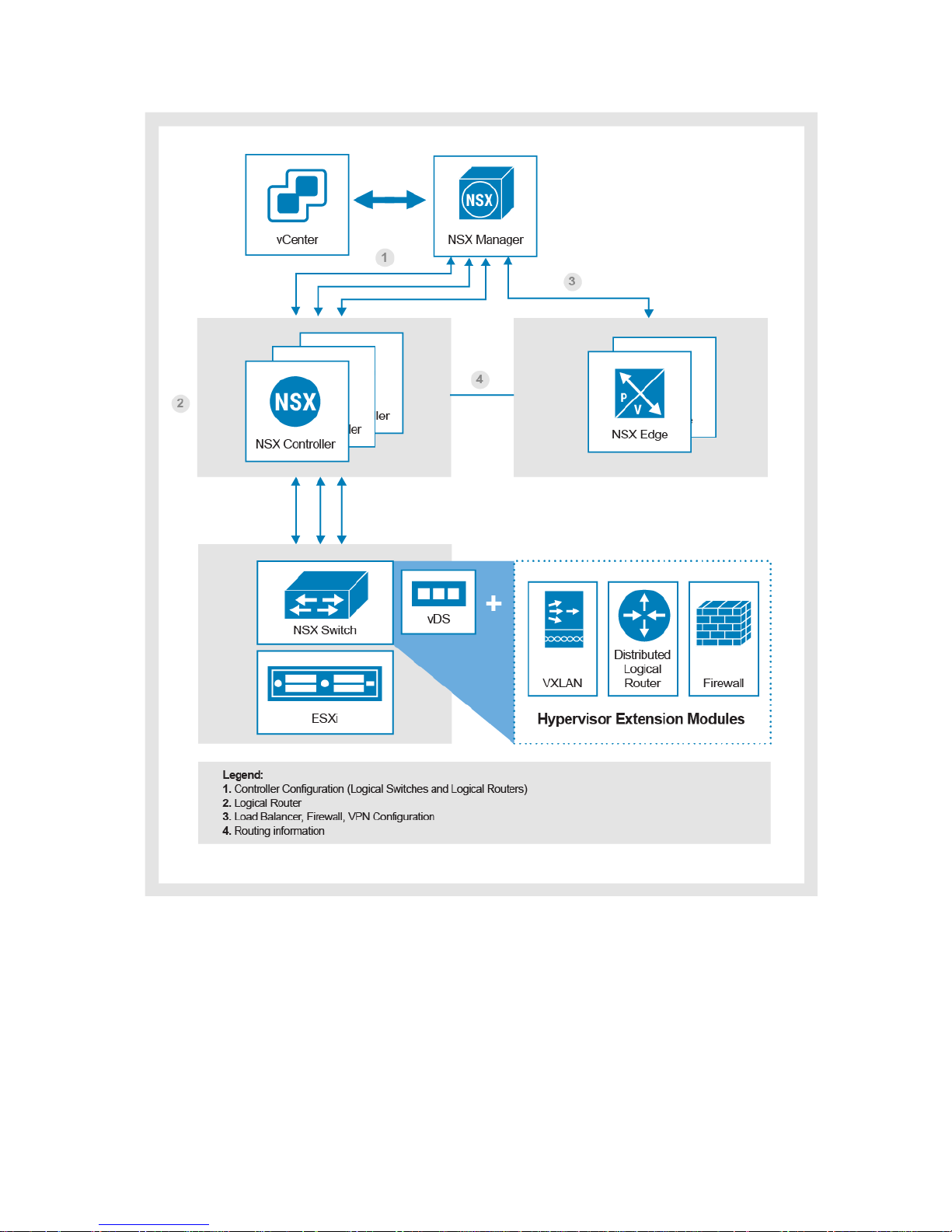
42 | Network Planning Guide
© 2018 Dell Inc. or its subsidiaries
Figure 11. NSX component information flow: NSX Manager, NSX Controller, NSX Edge, NSX vSwitch
One NSX Manager maps to a single vCenter Server and multiple NSX Edge, vShield Endpoint, and NSX Data Security instances.
Before you install NSX in your vCenter Server environment, consider your network configuration and resources using the chart
below.
Page 43

43 | Network Planning Guide
© 2018 Dell Inc. or its subsidiaries
NSX Resource Requirements:
Memory
Disk Space
vCPU
NSX Manager
12GB
60GB
4
NSX Edge:
• Compact
• Large
• Extra Large
• Quad Large
512MB
1GB
8GB
1GB
512MB
512MB
4.5GB (with 4GB swap)
512MB
1
2
6
4
vShield Endpoint
1GB
4GB
2
NSX Data Security
512MB
6GB per ESXi host
1
In a VxRail cluster, the key benefits of NSX are consistent, simplified network management and operations, plus the ability to
leverage connected workload mobility and placement. With NSX, connected workloads can freely move across subnets and
availability zones. Their placement is not dependent on the physical topology and availability of physical network services in a
given location. Everything a VM needs from a networking perspective is provided by NSX, wherever it resides physically. It is no
longer necessary to over-provision server capacity within each application/network pod. Instead, organizations can take
advantage of available resources wherever they’re located, thereby allowing greater optimization and consolidation of resources.
VxRail easily inserts into existing NSX environments and provide NSX awareness so network administrators can leverage
simplified network administration. See the VMware NSX Design Guide for NSX best practices and design considerations.
For additional information related to NSX, refer to the following materials:
• VMware NSX Network Virtualization Platform Technical White Paper at http://www.vmware.com/files/pdf/products/nsx/VMware-NSX-
Network-Virtualization-Platform-WP.pdf
• Reference Design Guide: VMware NSX for vSphere at https://www.vmware.com/files/pdf/products/nsx/vmw-nsx-network-virtualization-
design-guide.pdf
Page 44
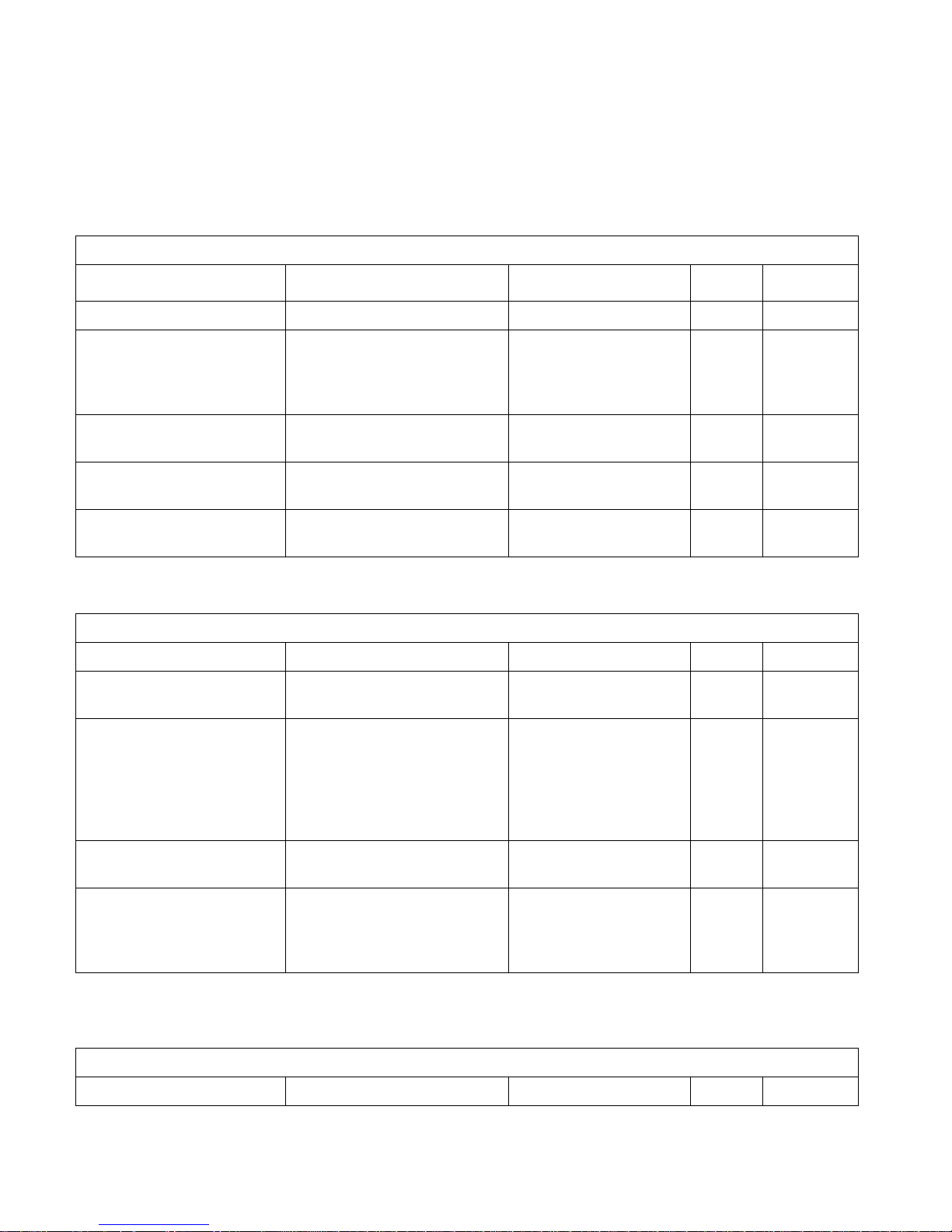
44 | Network Planning Guide
© 2018 Dell Inc. or its subsidiaries
Appendix B: VxRail Open Ports Requirement
Use the tables in this appendix for guidance on firewall settings specific for the VxRail cluster
The VxRail cluster needs to be able to connect to specific applications in your data center. DNS is required and NTP is optional.
Open the necessary ports to enable connectivity to the external syslog server, and for LDAP and SMTP
Data Center Application Access
Description
Source Device(s)
Destination Device(s)
Protocol
Port(s)
DNS
VxRail Manager, Dell iDRAC
DNS Server(s)
UDP
53
NTP Client
Host ESXi Management Interface,
Dell iDRAC,
VMware vCenter Servers,
VxRail Manager
NTP Server(s)
UDP
123
SYSLOG
Host ESXi Management Interface,
vRealize Log Insight
Syslog Server
TCP
514
LDAP
VMware vCenter Servers, PSC
LDAP Server
TCP
389, 636
SMTP
ESRS Gateway VMs, vRealize Log
Insight
SMTP Server (s)
TCP
25
Open the necessary firewall ports to enable IT administrators to manage the VxRail cluster
Administration Access
Description
Source Device(s)
Destination Device(s)
Protocol
Port(s)
ESXi Management
Administrators
Host ESXi Management
Interface
TCP. UDP
902
VxRail Management GUI/Web
Interfaces
Administrators
VMware vCenter Server,
VxRail Manager, Host ESXi
Management,
Dell iDRAC port,
vRealize Log Insight,
PSC
TCP
80, 443
Dell server management
Administrators
Dell iDRAC
TCP
623, 5900,
5901
SSH & SCP
Administrators
Host ESXi Management,
vCenter Server Appliance,
Dell iDRAC port,
VxRail Manager Console
TCP
22
If you plan to use a customer-supplied vCenter Server instead of deploying a vCenter Server in the VxRail cluster, open the
necessary ports so that the vCenter instance can manage the ESXi hosts
vCenter and vSphere
Description
Source Device(s)
Destination Device(s)
Protocol
Port(s)
Page 45
45 | Network Planning Guide
© 2018 Dell Inc. or its subsidiaries
vSphere Clients to vCenter Server
vSphere Clients
vCenter Server
TCP
5480, 8443,
9443, 10080,
10443
Managed Hosts to vCenter
Host ESXi Management
vCenter Server
TCP
443, 902,
5988,5989,
6500, 8000,
8001
Managed Hosts to vCenter
Heartbeat
Host ESXi Management
vCenter Server
UDP
902
If you plan to enable Dell-EMC ‘call-home’ with an external SRS gateway already deployed in your data center, open the necessary
ports to enable communications between the SRS gateway and VxRail Manager
VxRail Manager and External SRS Gateway
Description
Source Device(s)
Destination Device(s)
Protocol
Port(s)
SRS Connect Home
VxRail Manager
SRS Gateway
TCP
21,5400-5413
SRS Remote Support
SRS Gateway
VxRail Manager
TCP
22
SRS Process Connect Home Files
VxRail Manager
SRS Gateway
TCP
25
SRS Device Notification
VxRail Manager
SRS Gateway
TCP
443
SRS Management
VxRail Manager
SRS Gateway
TCP
9443
Additional firewall port settings may be necessary depending on your data center environment. The list of documents in this table
is provided for reference purposes.
Description
Reference
List of Incoming and Outgoing Firewall Ports
for ESXi 6.5 Hosts
List of Incoming and Outgoing Firewall Ports for ESXi 6.5 Hosts
List of Incoming and Outgoing Firewall Ports
for ESXi 6.0 Hosts
List of Incoming and Outgoing Firewall Ports for ESXi 6.0 Hosts
Required port to access VMware vCenter
Server and VMware ESXi hosts
TCP and UDP Ports required to access VMware vCenter Server and VMware ESXi hosts
Secure Remote Services Port Requirements
Dell EMC Secure Remote Services Documentation
Page 46
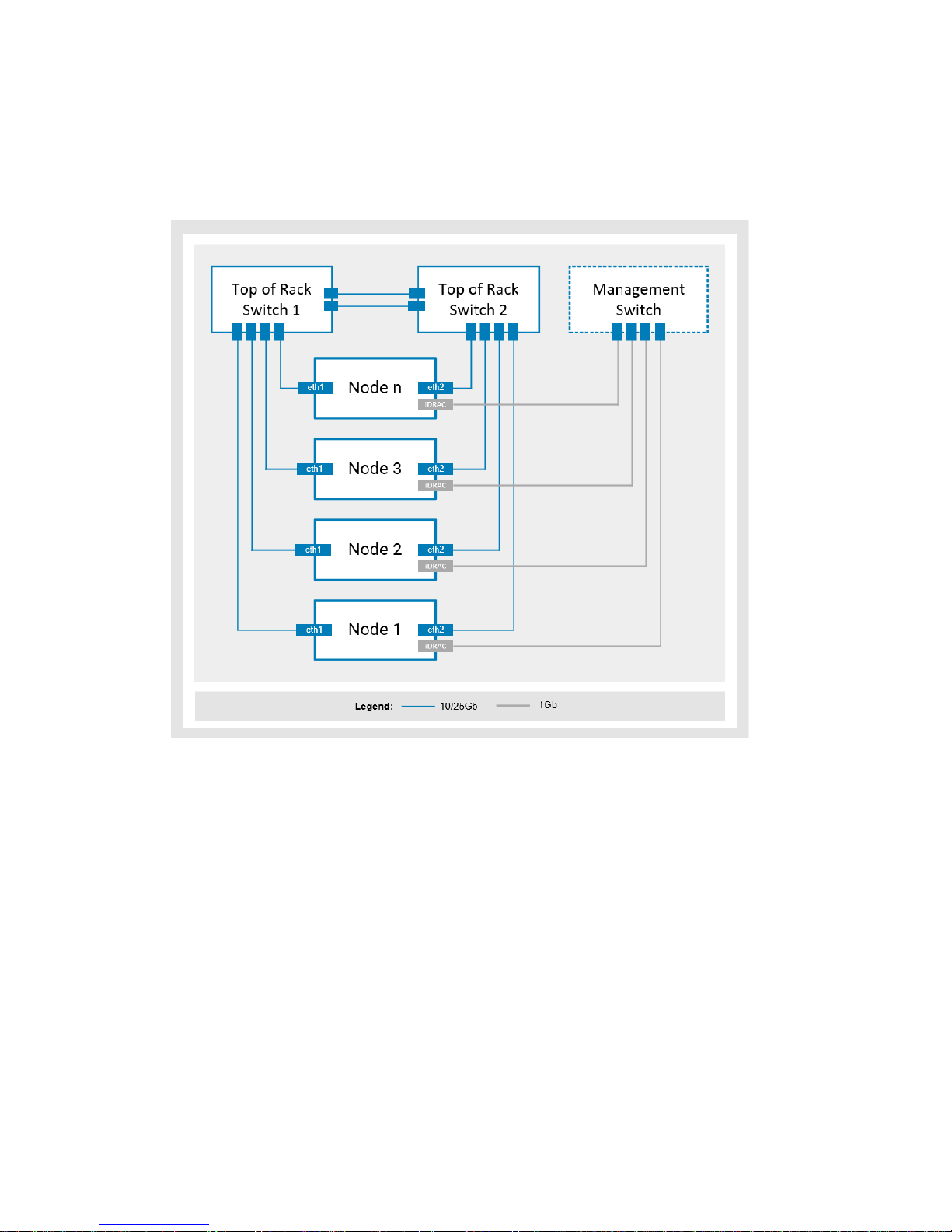
46 | Network Planning Guide
© 2018 Dell Inc. or its subsidiaries
Appendix C: Physical Network Switch Examples
These diagrams show different physical network switch wiring examples. They are provided as illustrative examples.
Figure 12. VxRail nodes with 2 ports connected to 2 x ToR switches, 1 x Optional Management Switch
with iDRAC
Page 47
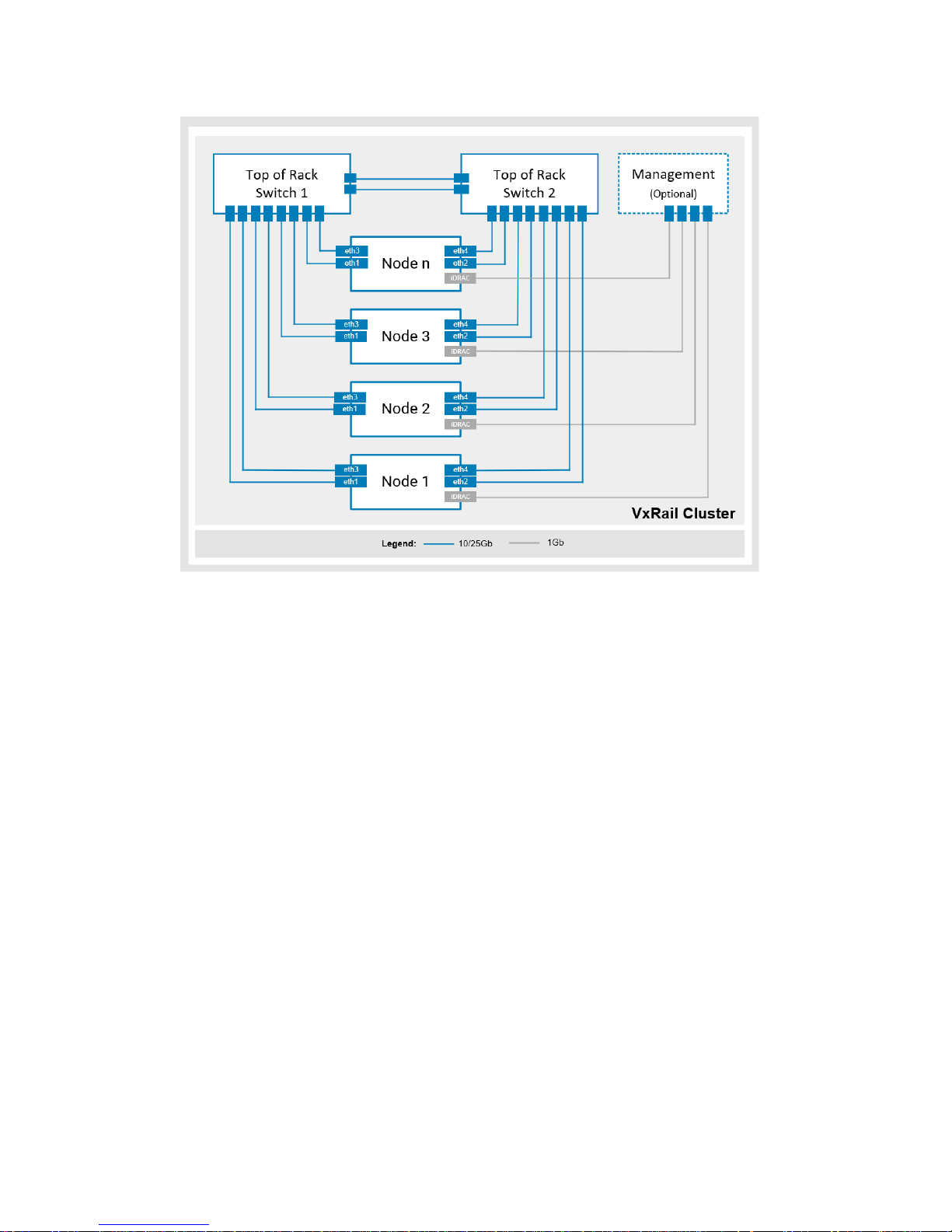
47 | Network Planning Guide
© 2018 Dell Inc. or its subsidiaries
Figure 13. VxRail nodes with 4 ports connected to 2 x ToR switches, 1 x Optional Management Switch
with iDRAC
Page 48
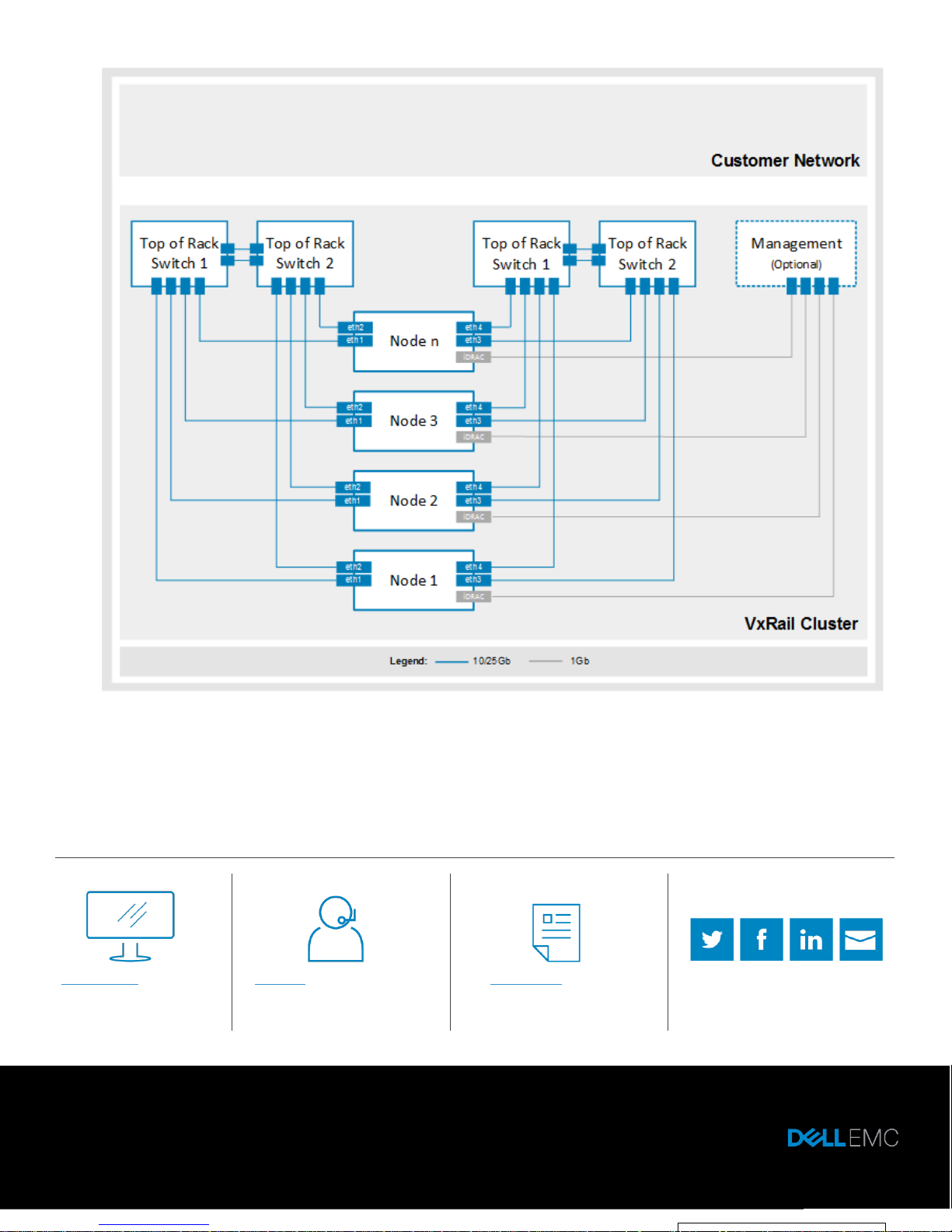
48 | Network Planning Guide
© 2018 Dell Inc. or its subsidiaries
Figure 14. VxRail nodes with 4 ports connected to 4 x ToR switches, 1 x Optional Management Switch
with iDRAC
© 2018 Dell Inc. or its subsidiaries. All Rights Reserved. Dell, EMC and other trademarks are trademarks of
Dell Inc. or its subsidiaries. Other trademarks may be trademarks of their respective owners. Reference
Number: H15300.7
Learn more about Dell
EMC VxRail Appliances
Contact a Dell EMC Expert
View more resources
Join the conversation
@DellEMC_CI
with #VxRail
 Loading...