

Dell OptiPlex Systems, OptiPlex DHS, OptiPlex DHP, OptiPlex DHM Setup And Quick Reference Manual
Page 1
www.dell.com | support.dell.com
Dell™ OptiPlex™ Systems
Setup and Quick
Reference Guide
Guia de configuração e de referência rápida
Guía de instalación y de referencia rápida
Models DHS, DHP, and DHM
Page 2

www.dell.com | support.dell.com
Dell™ OptiPlex™ Systems
Setup and Quick
Reference Guide
Page 3

Notes, Notices, and Cautions
NOTE: A NOTE indicates important information that helps you make better
use of your computer.
NOTICE: A NOTICE indicates either potential damage to hardware or loss of
data and tells you how to avoid the problem.
CAUTION: A CAUTION indicates a potential for property damage,
personal injury, or death.
____________________
Information in this document is subject to change without notice.
© 2000–2002 Dell Computer Corporation. All rights reserved.
Reproduction in any manner whatsoever without the written permission of Dell Computer
Corporation is strictly forbidden.
Tr ademarks used in this text:
Dell, OptiPlex
, and the
DELL
logo are trademarks of Dell Computer
Corporation;
Microsoft
and
Windows
are registered trademarks of Microsoft Corporation.
Other trademarks and trade names may be used in this document to refer to either the entities
claiming the marks and names or their products. Dell Computer Corporation disclaims any
proprietary interest in trademarks and trade names other than its own.
November 2002 P/N 38WYD Rev. A07
Page 4

Contents 3
Contents
About This Guide . . . . . . . . . . . . . . . . . . . . . . . . . . 5
Finding Information for Your Computer
. . . . . . . . . . . . . . 5
CAUTION: Safety Instructions . . . . . . . . . . . . . . . . . . . 8
General
. . . . . . . . . . . . . . . . . . . . . . . . . . . . . 8
When Using Your Computer
. . . . . . . . . . . . . . . . . . . . 10
When Working Inside Your Computer
. . . . . . . . . . . . . 11
Getting Started/Setup
. . . . . . . . . . . . . . . . . . . . . . . 12
Solving Problems . . . . . . . . . . . . . . . . . . . . . . . . . 16
Using the Drivers and Utilities CD
. . . . . . . . . . . . . . . 17
Dell Diagnostics
. . . . . . . . . . . . . . . . . . . . . . . . . . 18
When to Use the Dell Diagnostics
. . . . . . . . . . . . . . . 18
Starting the Dell Diagnostics
. . . . . . . . . . . . . . . . . . 18
Running the Dell ID E Hard Drive Diagnostics . . . . . . . . . 20
Regulatory Information . . . . . . . . . . . . . . . . . . . . . . 20
Limited Warranties and Return Policy
. . . . . . . . . . . . . . 21
Limited Warranty for the U.S.
. . . . . . . . . . . . . . . . . 21
"Total Satisfaction" Return Policy (U.S. Only)
. . . . . . . . . . 24
Limited Warranty Terms for Canada . . . . . . . . . . . . . . 25
"Total Satisfaction" Return Policy (Canada Only)
. . . . . . . . 28
Dell Software and Peripherals (Canada Only)
. . . . . . . . . . 28
One-Year End-User Manufacturer Guarantee
(Latin America and the Caribbean Only) . . . . . . . . . . . . 29
Intel
®
Warranty Statement for Pentium® and
Celeron
®
Processors Only (U.S. and Canada Only) . . . . . . . 31
Page 5

4 Contents
Page 6

Setup and Quick Reference Guide 5
About This Guide
This document contains getting started/setup, solving problems, safety,
regulatory, and warranty information about your Dell™ OptiPlex™
computer.
To obtain the latest versions of the documents on your hard drive, see the
Dell support website at support.dell.com.
Regulatory model numbers appear throughout this document; their chassis
type equivalents are shown below:
Finding Information for Your Computer
Regulatory Model Numbers and Chassis Types
DHS = small desktop (SD) chassis
DHP = small form-factor (SF) chassis
DHM = small mini-tower (SMT) chassis
What Are You Looking For? Find it Here
• A diagnostic program for my computer
• Drivers for my computer
• My computer documentation
• My device documentation
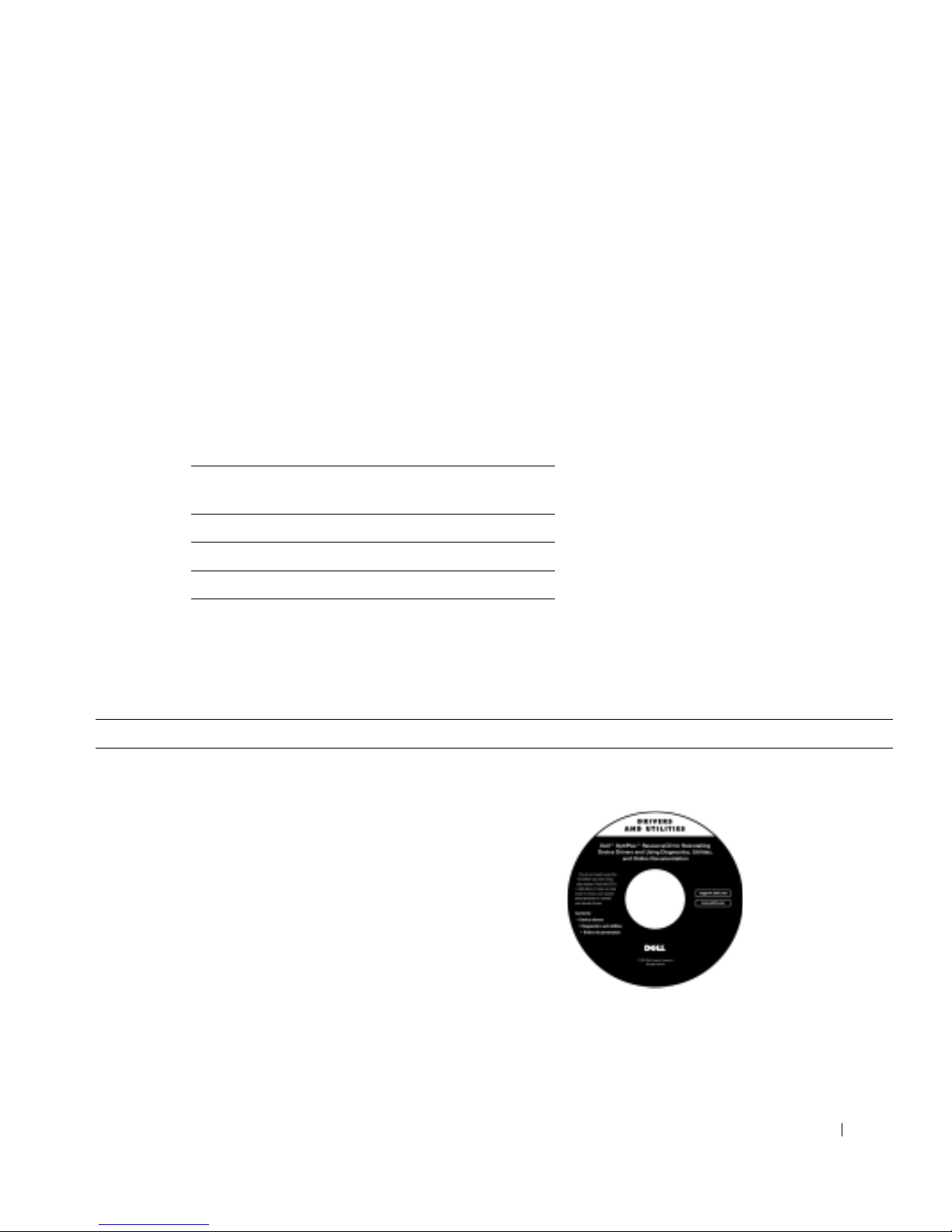
Drivers and Utilities CD (also known as the ResourceCD)
You can use this CD to access documentation, reinstall drivers, or run
diagnostics tools.
Page 7
6 Setup and Quick Reference Guide
www.dell.com | support.dell.com
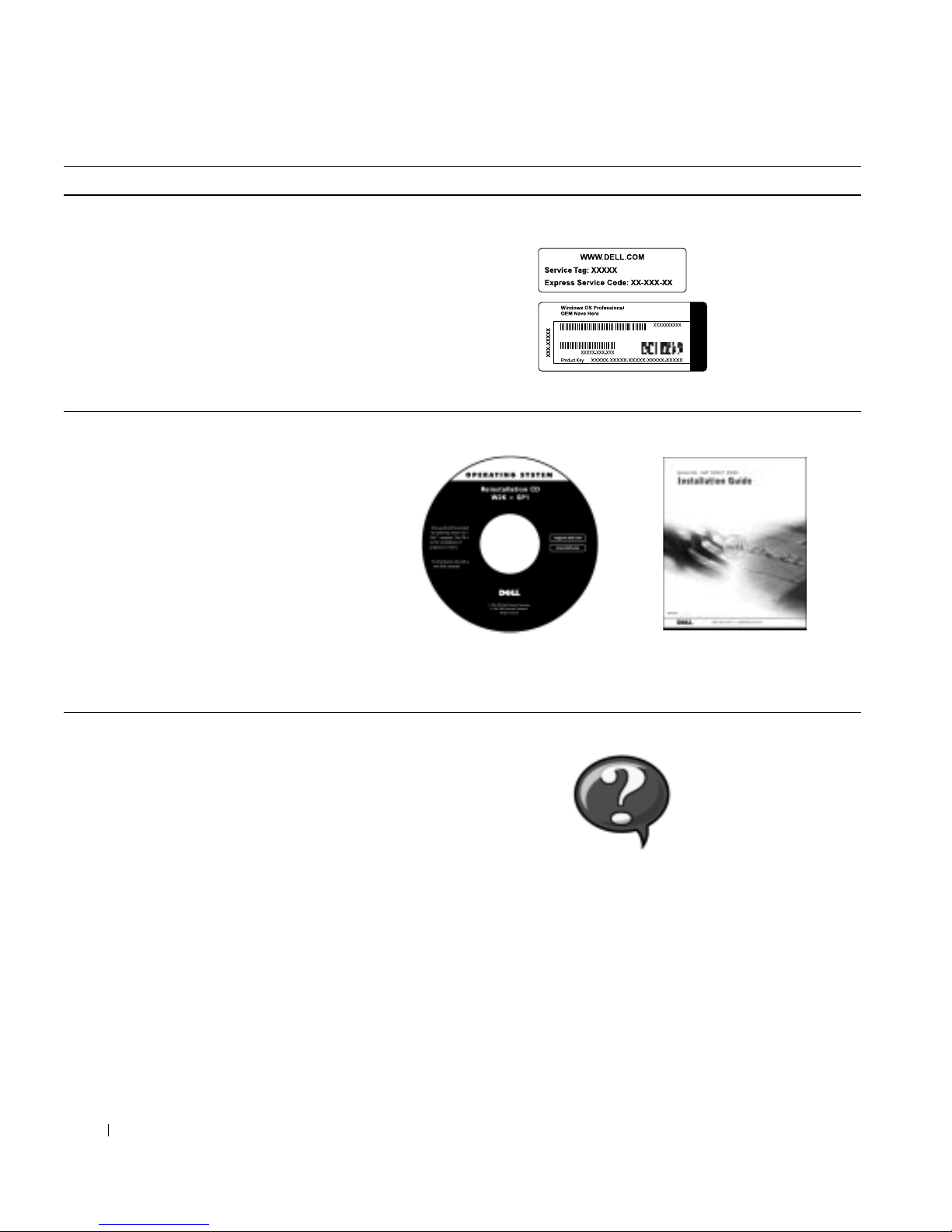
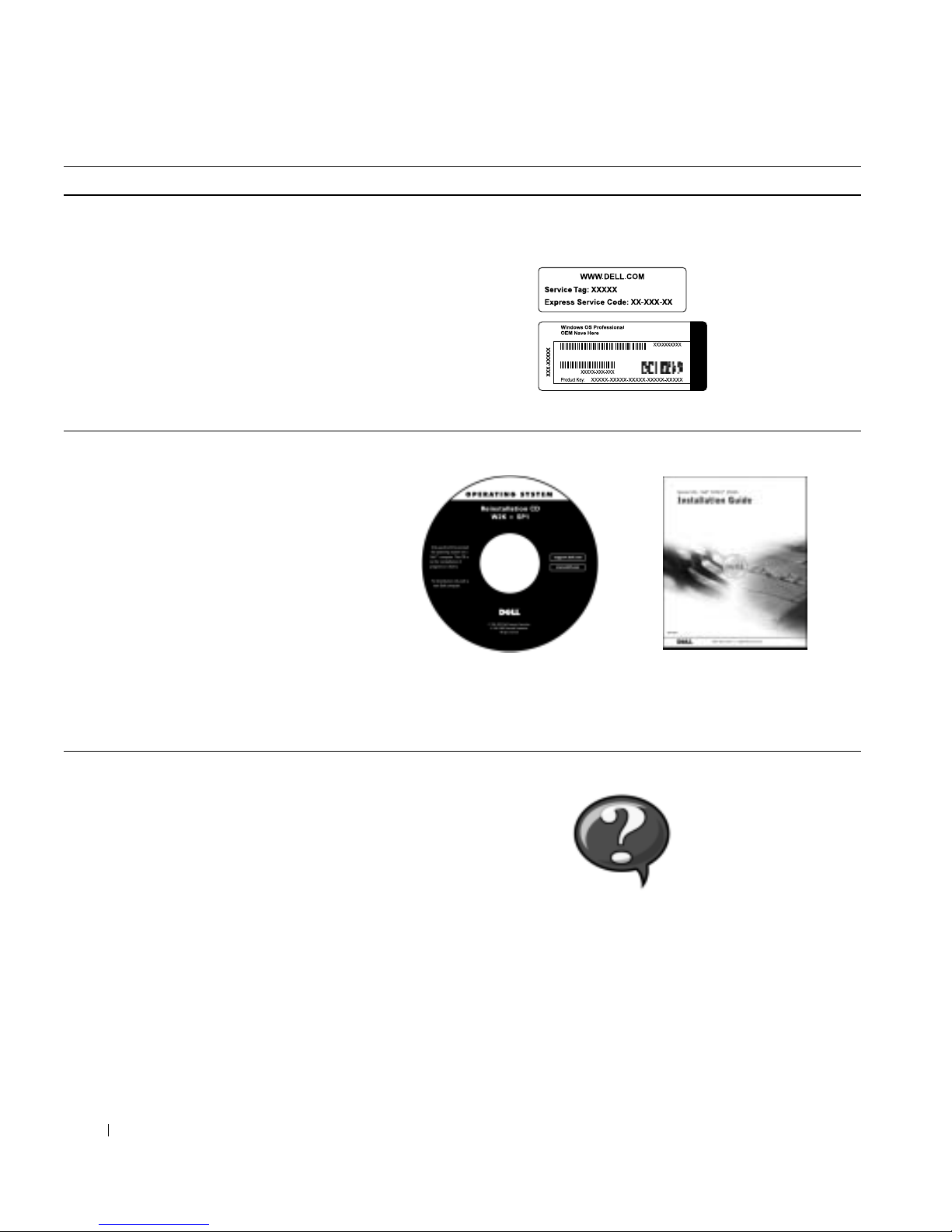
• Express Service Code and Service Tag
Number
•Microsoft
®
Windows® License Label
(Product Key)
Express Service Code and Product Key
Located on your computer.
• How to reinstall my operating system Operating System CD and Installation Guide
If you reinstall your operating system, use the Drivers and Utilities
CD to reinstall drivers for the devices that came with your computer.
• How to remove and replace parts
• Technical specifications
• How to configure system settings
• How to troubleshoot and solve problems
User’s Guide icon
Depending on your operating system, double-click the User’s Guides
icon on your desktop or click the Start button and then click Help
and Support to access the electronic documentation stored on your
hard drive.
What Are You Looking For? Find it Here
Page 8

Setup and Quick Reference Guide 7
• Latest drivers for my computer
• Answers to technical service and support
questions
• Online discussions with other users and
technical support
• Documentation for my computer
Dell Support website
The Dell Support website provides several online tools, including:
• Knowledge Base — hints, tips, and online courses
• Customer Forum — online discussion with other Dell customers
• Upgrades — upgrade information for components, such as
memory, the hard drive, and the operating system
• Customer Care — contact information, or der status, warranty, and
repair information
• Downloads — drivers, patches, and software updates
• Reference — computer documentation, product specifications,
and white papers
•Service call status
• Top technical issues for my computer
• Fr eque ntly asked questions
•File downloads
• Details on my computer’s configuration
• Service contract for my computer
Dell Premier Support website
The Dell Premier Support website is customized for corporate,
government, and education customers. This site may not be available
in all regions.
• How to use Windows XP
• Documentation for my computer and
devices
Windows XP Help and Support Center
1 Click the Start button, and then click Help and Support.
2 Type a word or phrase that describes your problem, and then click
the arrow icon.
3 Click the topic that describes your problem.
4 Follow the instructions shown on the screen.
What Are You Looking For? Find it Here
Page 9
8 Setup and Quick Reference Guide
www.dell.com | support.dell.com
CAUTION: Safety Instructions
Use the following safety guidelines to help ensur e your own personal safety and to help protect
your computer and working environment from potential damage.
General
• Do not attempt to service the computer yourself unless you are a trained service
technician. Always follow installation instructions closely.
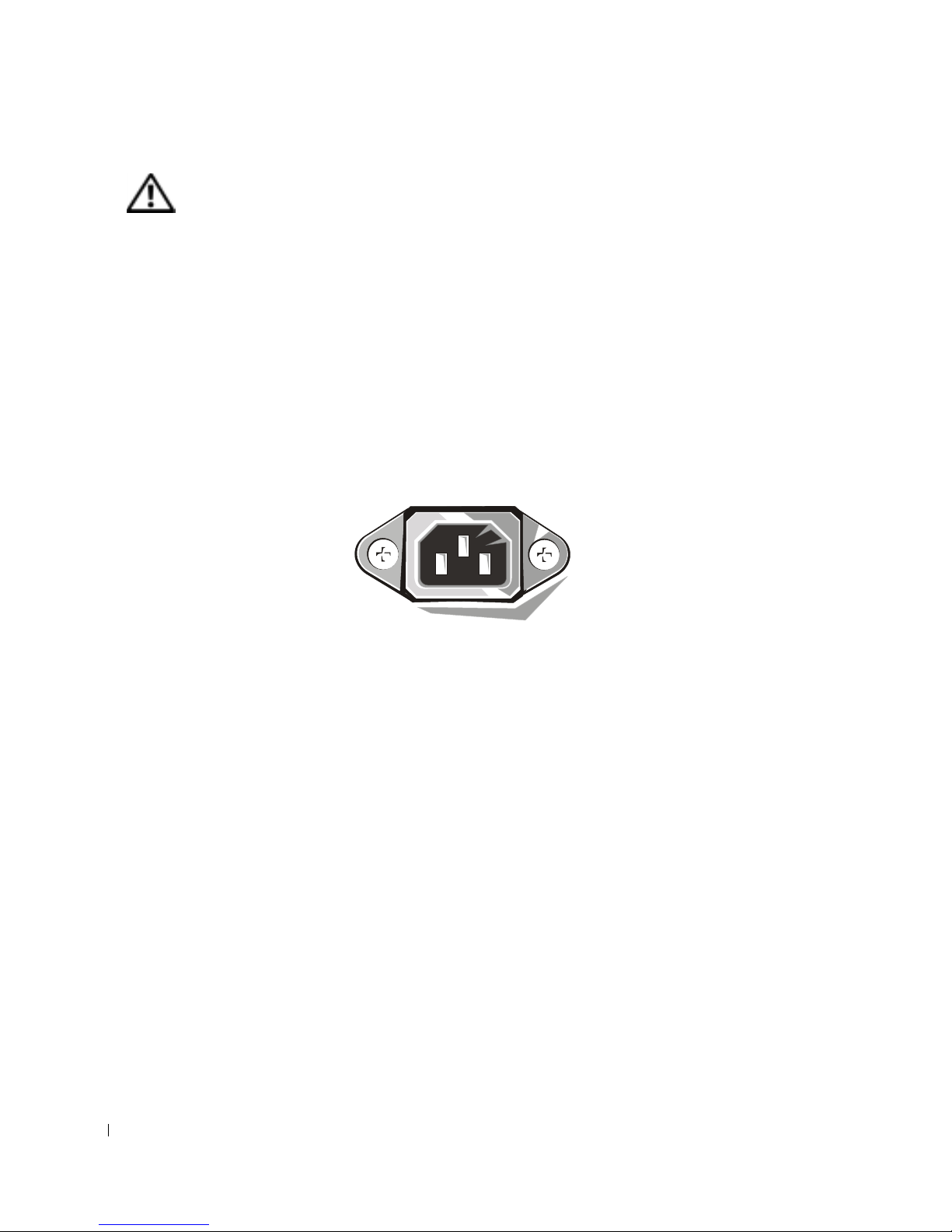
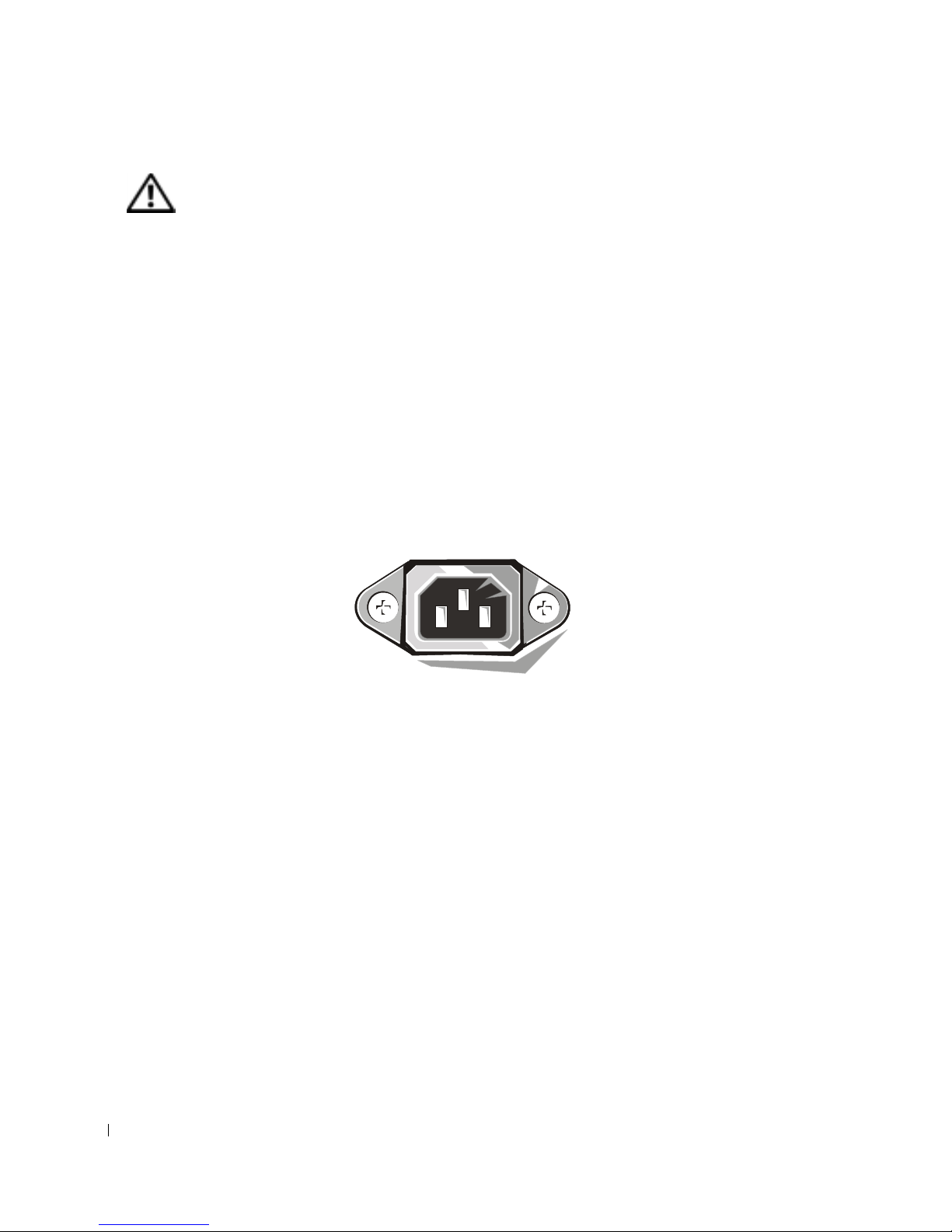
• To help prevent electric shock, plug the computer and device power cables into properly
grounded electrical outlets. These cables are equipped with 3-prong plugs to help ensure
proper grounding. Do not use adapter plugs or remove the grounding prong from a cable .
If you must use an extension cable, use a 3-wire cable with properly grounded plugs.
• To help avoid the potential hazard of electric shock, do not use your computer during an
electrical storm.
• To help avoid the potential hazard of electric shock, do not connect or disconnect any
cables or perform maintenance or reconfiguration of this product during an electrical
storm.
• If your computer includes a modem, the cable used with the modem should be
manufactured with a minimum wire size of 26 American wire gauge (AWG) and an FCCcompliant RJ-11 modular plug.
• Before you clean your computer, disconnect the computer from the electrical outlet.
Clean your computer with a soft cloth dampened with water. Do not use liquid or aerosol
cleaners, which may contain flammable substances.
• To help avoid possible damage to the system board, wait 5 seconds after turning off the
computer before disconnecting a device from the computer.
Page 10

Setup and Quick Reference Guide 9
• To avoid shorting out your computer when disconnecting a network cable, first unplug
the cable from the network adapter on the back of your computer, and then from the
network jack. When reconnecting a network cable to your computer, first plug the cable
into the network jack, and then into the network adapter.
• To help protect your computer from sudden, transient increases and decreases in
electrical power, use a surge suppressor, line conditioner, or uninterruptible power supply
(UPS).
• Ensure that nothing rests on your computer’s cables and that the cables are not located
where they can be stepped on or tripped over.
• Do not push any objects into the openings of your computer. Doing so can cause fire or
electric shock by shorting out interior components.
• Keep your computer away from radiators and heat sources. Also, do not block cooling
vents. Avoid placing loose papers underneath your computer; do not place your computer
in a closed-in wall unit or on a bed, sofa, or rug.
• Do not spill food or liquids on your computer. If the computer gets wet, consult your
User’s Guide.
CAUTION: Safety Instructions
(continued)
Page 11
10 Setup and Quick Reference Guide
www.dell.com | support.dell.com
When Using Your Computer
As you use your computer, observe the following safe-handling guidelines.
CAUTION: Do not operate your computer with any cover(s) (including computer
covers, bezels, filler brackets, front-panel inserts, and so on) removed.
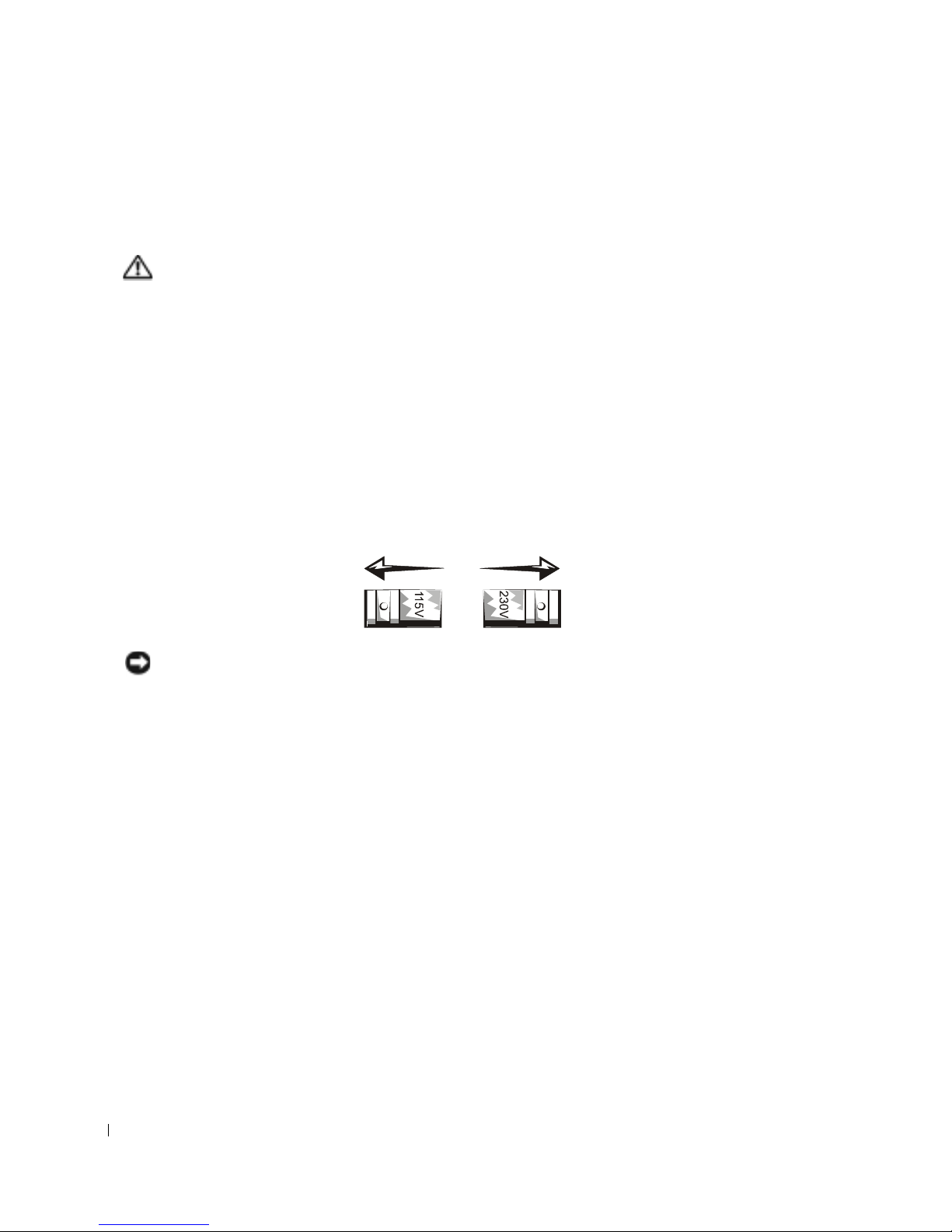
• Your computer is equipped with one of the following:
– A fixed-voltage power supply — Computers with a fixed-voltage power supply do not
have a voltage selection switch on the back panel and operate at only one voltage (see
the regulatory label on the outside of the computer for its operating voltage).
– An auto-sensing voltage circuit — Computers with an auto-sensing voltage circuit do
not have a voltage selection switch on the back panel and automatically detect the
correct operating voltage.
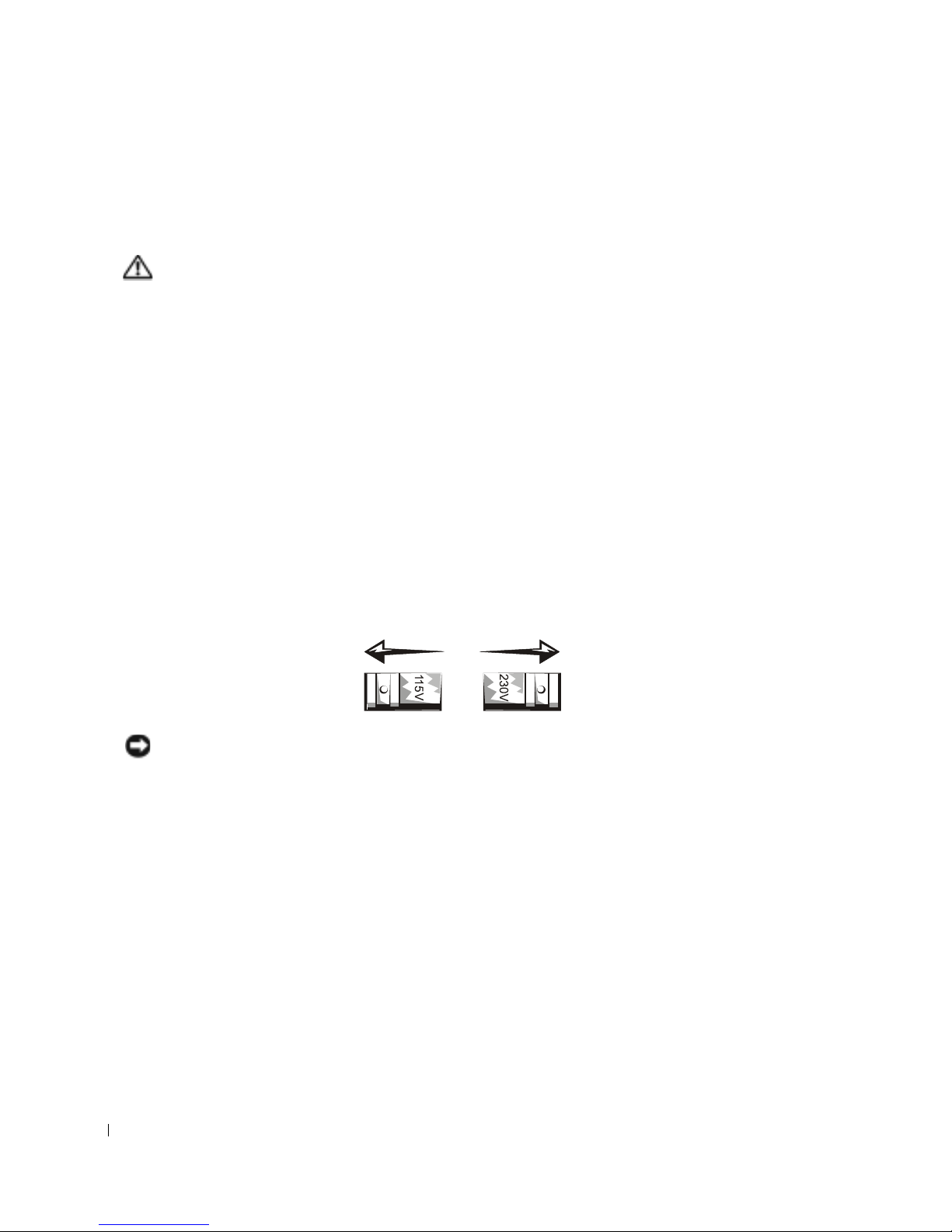
– A manual voltage selection switch — Computers with a voltage selection switch on
the back panel must be manually set to operate at the correct operating voltage.
NOTICE: To help avoid damaging a computer with a manual voltage selection switch, set the
switch for the voltage that most closely matches the AC power available in your location. F or Japan,
the voltage selection switch must be set to the 115- V position even though th e AC power available in
Japan is 100 V. Also, ensure that your monitor and attached devices are electrically rated to
operate with the AC power available in your location.
• Before working inside the computer, unplug the computer to help prevent electric shock
or system board damage. Certain system board components continue to receive power
any time the computer is connected to AC power.
Page 12

Setup and Quick Reference Guide 11
When Working Inside Your Computer
Before you open the computer cover, perform the following steps in the sequence indicated.
CAUTION: Do not attempt to service the computer yourself, except as explained in
your online Dell documentation or in instructions otherwise provided to you by Dell.
Always follow installation and service instructions closely.
NOTICE: To help avoid possible damage to the system board, wait 5 seconds after turning off the
computer before removing a component from the system board or disconnecting a device from the
computer.
1 Perform an orderly computer shutdown using the operating system menu.
2 Turn off your computer and any devices connected to the computer.
3 Ground yourself by touching an unpainted metal surface on the chassis, such as the metal
around the card-slot openings at the back of the computer, before touching anything
inside your computer.
While you work, periodically touch an unpainted metal surface on the computer chassis
to dissipate any static electricity that might harm internal components.
4 Disconnect your computer and devices, including the monitor, from their electrical
outlets. Also, disconnect any telephone or telecommunication lines from the computer.
Doing so reduces the potential for personal injury or shock.
In addition, take note of these safety guidelines when appropriate:
• When you disconnect a cable, pull on its connector or on its strain-relief loop, not on the
cable itself. Some cables have a connector with locking tabs; if you are disconnecting this
type of cable, press in on the locking tabs before disconnecting the cable. As you pull
connectors apart, keep them evenly aligned to avoid bending any connector pins. Also,
before you connect a cable, ensure that both connectors are correctly oriented and
aligned.
• Handle components and cards with care. Do not touch the components or contacts on a
card. Hold a card by its edges or by its metal mounting bracket. Hold a component such
as a microprocessor chip by its edges, not by its pins.
CAUTION: There is a danger of a new battery exploding if it is incorrectly installed.
Replace the battery only with the same or equivalent type recommended by the
manufacturer. Do no t dispose of the battery along with household waste. Contact
your local waste disposal agency for the ad dress of the nearest battery deposit site.
When Using Your Computer
(continued)
Page 13
12 Setup and Quick Reference Guide
www.dell.com | support.dell.com
Getting Started/Setup
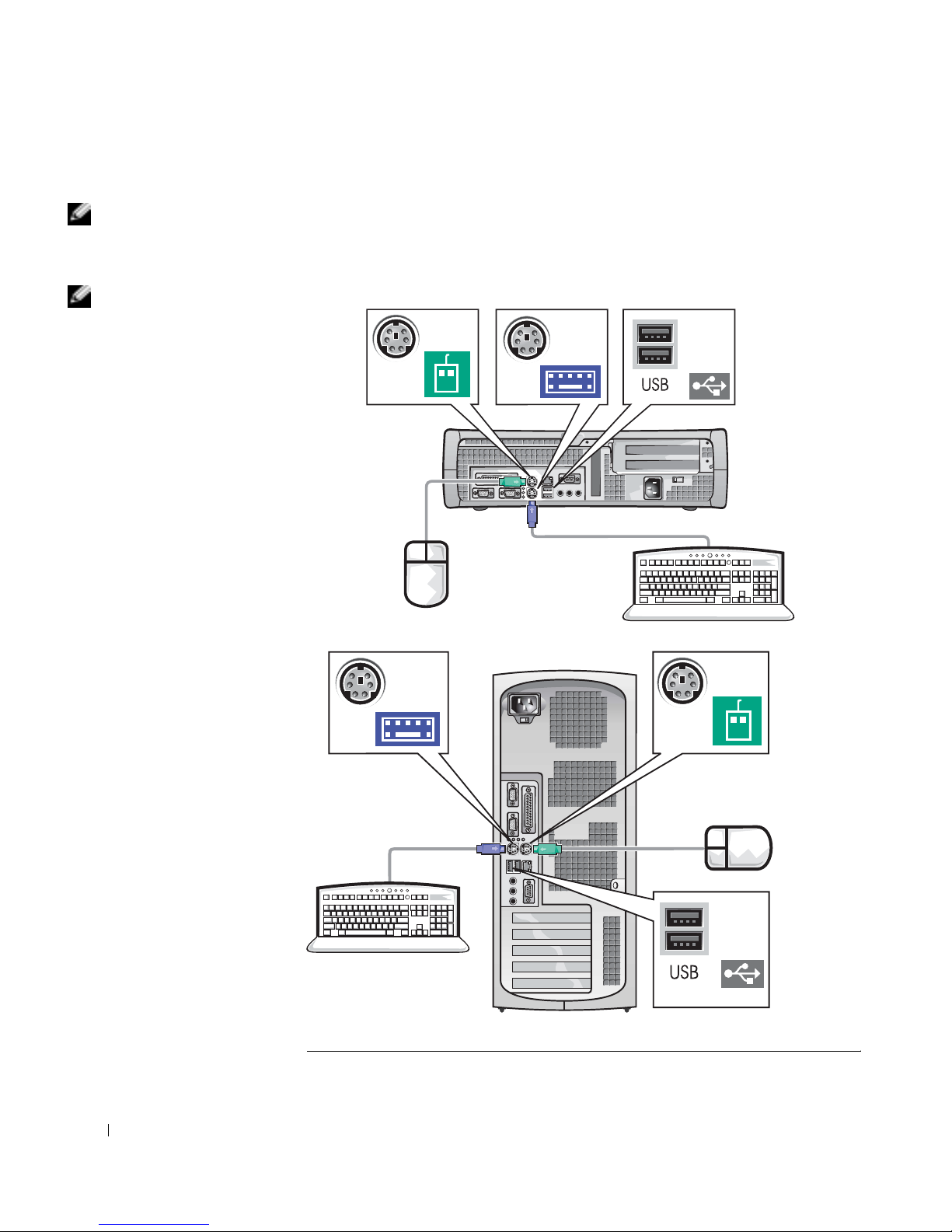
NOTE: Connect only one
keyboard and one mouse.
Use the following steps to connect e xternal devices to your computer via the
input/output (I/O) panel. The back of your Dell system, including the I/O
panel, may look different from the examples shown here.
NOTE: If you have a
Universal Serial Bus
(USB)-compliant mouse
or keyboard, use the USB
connectors on the back of
your system.
1
Page 14
Setup and Quick Reference Guide 13
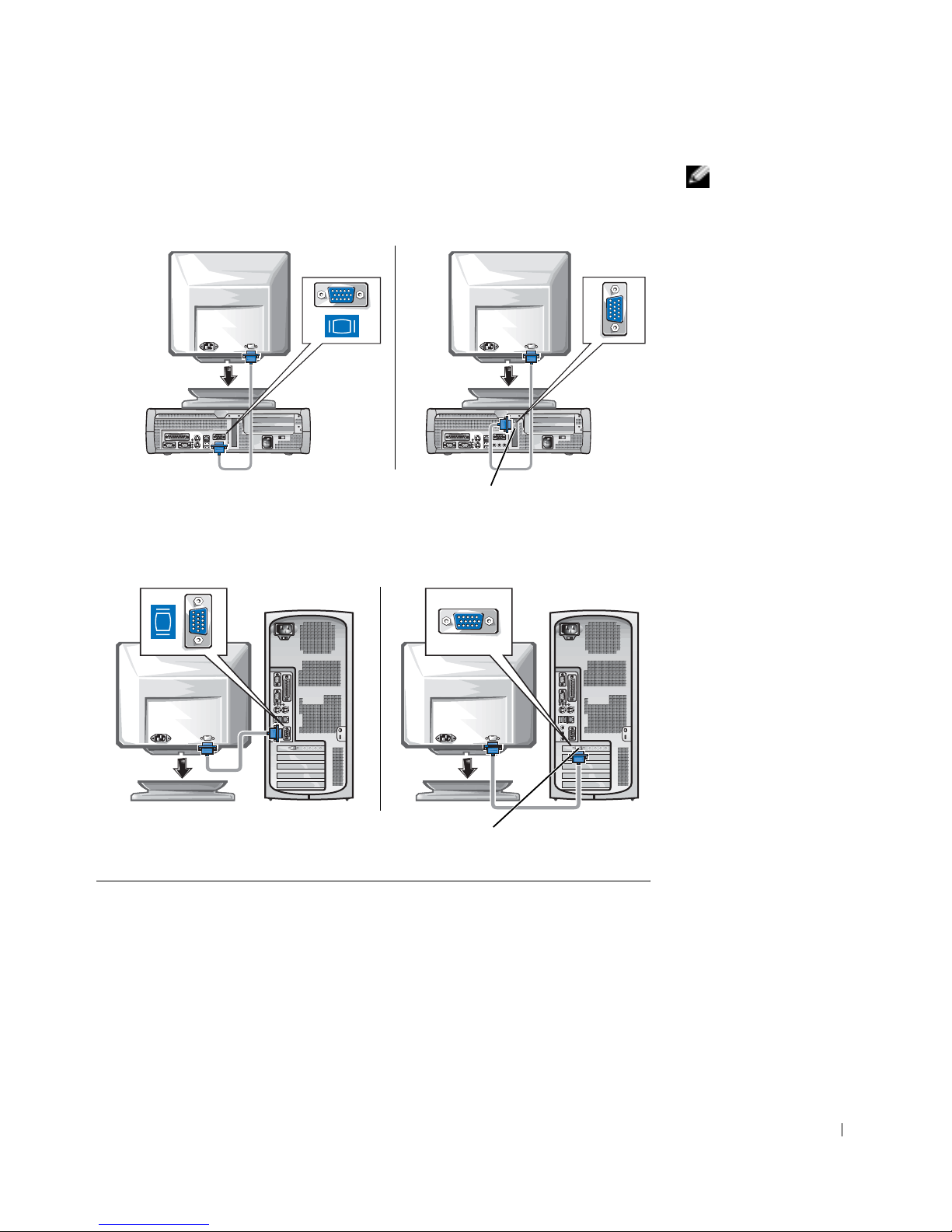
NOTE: If your system
has two video connectors,
the integrated video
connector is disabled and
has a protective cap on it.
Use the expansion card
connector , as shown in the
illustrations on the right
in step 2.
2
System with
one video connector
System with
two video connectors
video connector on expansion card
System with
one video connector
System with
two video connectors
video connector on expansion card
Page 15

14 Setup and Quick Reference Guide
www.dell.com | support.dell.com
NOTE: If your system
has two audio connectors,
use the one on the
expansion card, as shown
in the illustrations on the
right in step 3.
NOTE: Auto-select power
supplies do not require a
voltage selection switch.
Your computer may not
have this switch.
3
diagnostic lights diagnostic lights
diagnostic
lights
diagnostic
lights
4
Verify that the voltage selection switch is set correctly for your location.
Fo r more information, see "When Using Your Computer" on page 10.
Page 16
Setup and Quick Reference Guide 15
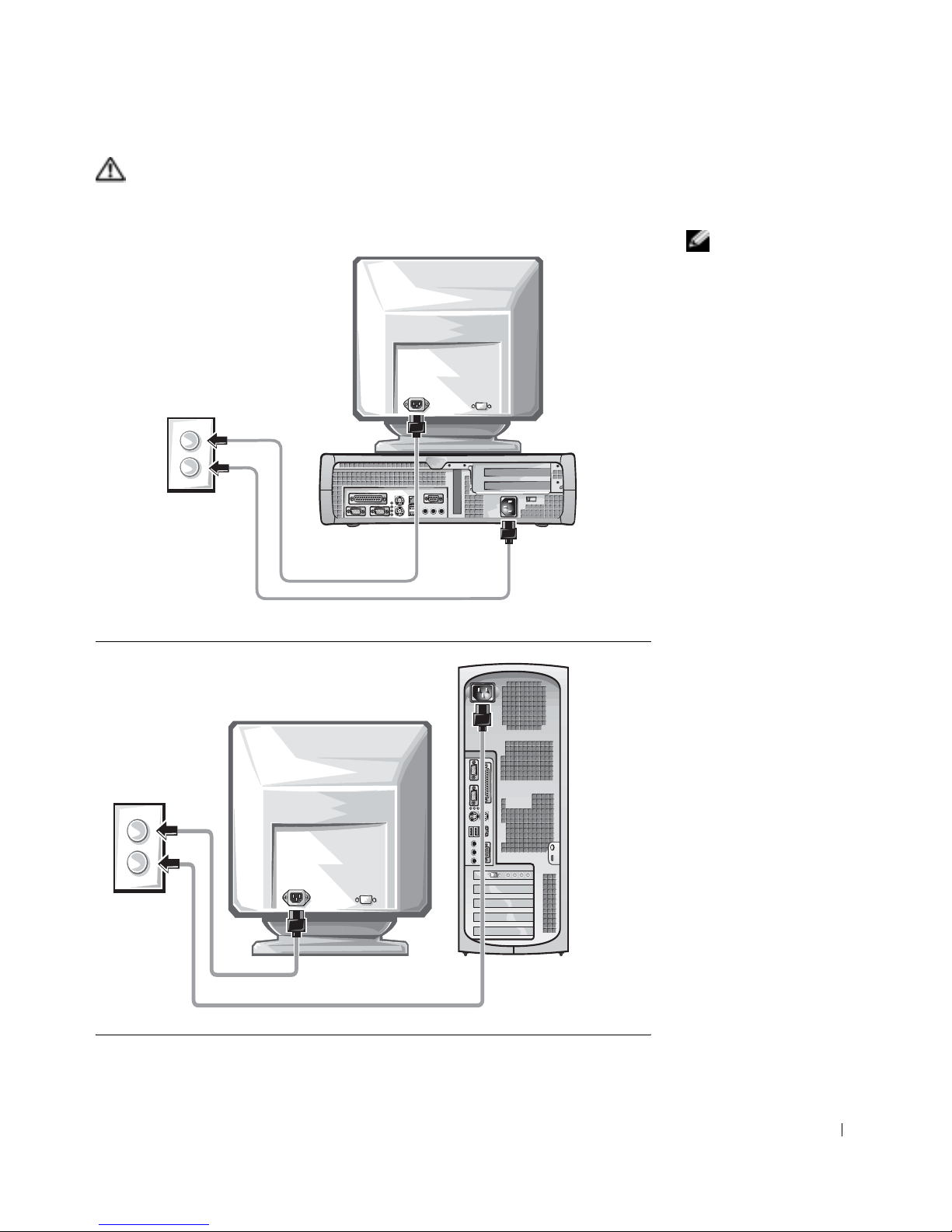
CAUTION: To help prevent electric shock, use only the power
cable provided and ensure that it is plugged into a properly
grounded power sourc e.
NOTE: Some monitors
have the video connector
underneath the back of
the screen. See the
documentation that came
with your monitor for its
connector locations.
5
Page 17
16 Setup and Quick Reference Guide
www.dell.com | support.dell.com
Read the software license agreement and follow the operating system setup
instructions on the screen.
Congratulations! You have completed your system setup.
Depending on your operating system, double-click the User’s Guides icon
on your desktop ( ), or click the Start button and then select Help
and Support to access the electronic documentation stored on your hard
drive.
Solving Problems
Dell provides a number of tools to help you if your system does not perform
as expected. For the latest troubleshooting information available for your
system, see the Dell Support website at support.dell.com. You can also find
descriptions of Dell troubleshooting tools in the section titled "Getting
Help" in your online User’s Guide.
If computer problems occur that require help from Dell, write a detailed
description of the error, beep codes, or diagnostics light patterns; record
your Express Service Code and Service Tag Number below; and then
contact Dell from the same location as your computer.
6
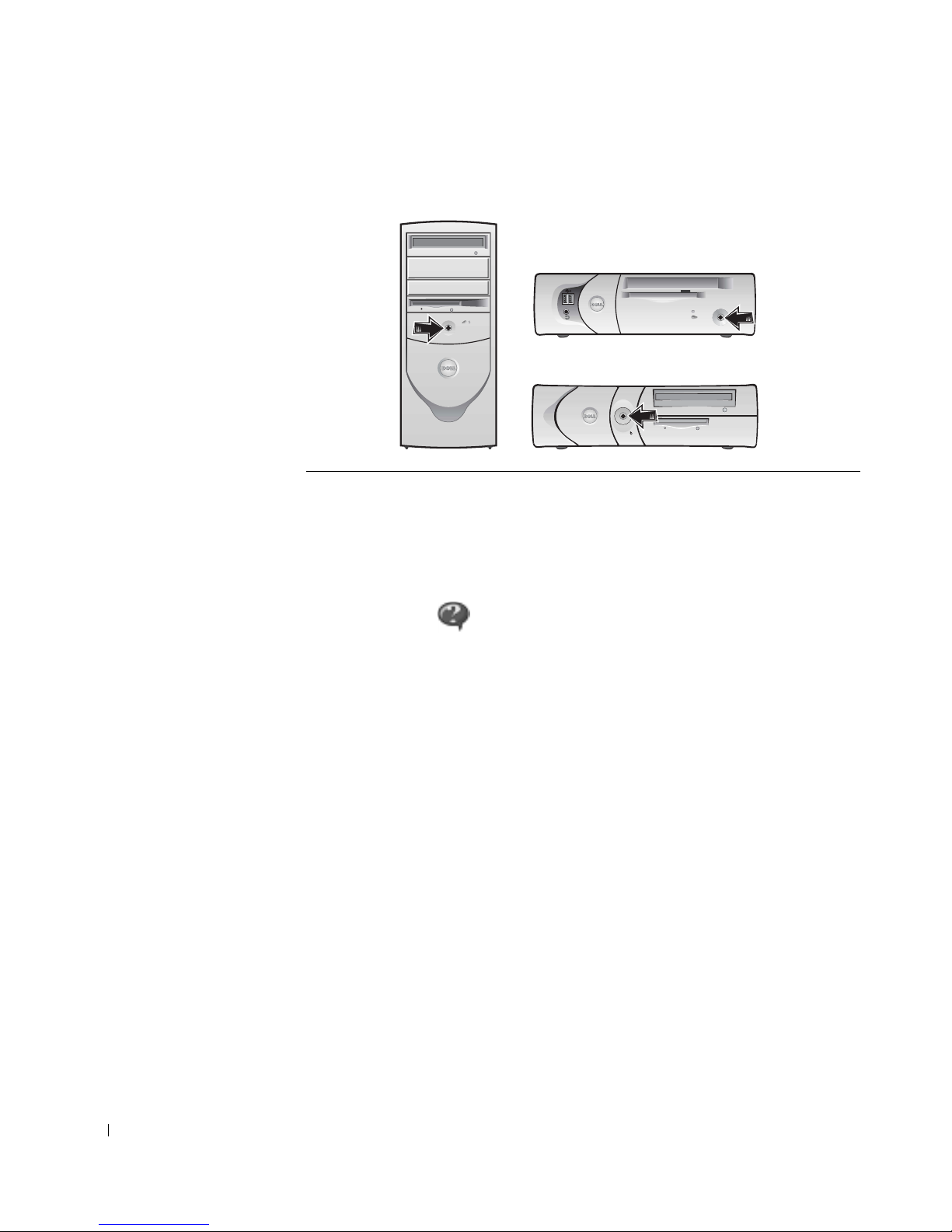
Turn on the computer and monitor.
Page 18

Setup and Quick Reference Guide 17
See "Finding Information for Your Computer" on page 5 for an example of
the express service code and service tag numbers.
Express Service Code:___________________________
Service Tag Number:___________________________
Your computer includes the following tools that can help you solve a
problem:
Using the Drivers and Utilities CD
To use the Drivers and Utilities CD (also known as the ResourceCD) while
you are running the Windows operating system:
NOTE: To access device
drivers and user
documentation, you must
use the
Drivers and
Utilities CD
while you are
running Windows.
1
Turn on the computer and allow it to boot to the Windows desktop.
2 Insert the Drivers and Utilities CD into the CD drive.
If you are using the Drivers and Utilities CD for the first time on this
computer, the ResourceCD Installation window opens to inform you
that the Drivers and Utilities CD is about to begin installation.
3 Click OK to continue.
To complete the installation, respond to the prompts offered by the
installation program.
4 Click Next at the Welcome Dell System Owner screen.
DELL DIAGNOSTICS — The Dell Diagnostics tests various components in
your computer and helps to identify the cause of computer problems. For more
information, see "Starting the Dell Diagnostics" on page 18.
THE FOLLOWI NG FEATURES CAN INDICATE A POSSIBLE FAILURE AND
HELP YOU TROUBLESHOOT A COMPUTER PROBLEM. SEE YOUR
User’s
Guide
FOR MORE INFORMATION —
S
YSTEM LIGHTS — Located on the front of the computer
D
IAGNOSTIC LIGHTS — Located on the back of the computer
S
YSTEM MESSAGES — Appear on your monitor screen
B
EEP CODES — A series of audible beeps emitted by your computer
Page 19

18 Setup and Quick Reference Guide
www.dell.com | support.dell.com
5 Select the appropriate System Model, Operating System, Device
Type, and Topic.
Drivers for Your Computer
To display a list of device drivers for your computer:
1 Click My Drivers in the Topic pull-down menu.
The Drivers and Utilities CD scans your computer’s hardware and
operating system, and then a list of device drivers for your system
configuration is displayed on the screen.
2 Click the appropriate driver and follow the instructions to download
the driver to your computer.
To view all available drivers for your computer, click Drivers from the Topic
pull-down menu.
Dell Diagnostics
When to Use the Dell Diagnostics
If you experience a problem with your computer, perform the checks in
"Solving Problems" in the User’s Guide and run the Dell Diagnostics before
you contact Dell for technical assistance. Running the Dell Diagnostics may
help you resolve the problem without contacting Dell. If you do contact
Dell, the test results can provide im portant information for Dell's service
and support personnel.
NOTICE: If your hard drive fails, run the Dell IDE Hard Drive Diagnostics
(see "Running the Dell IDE Hard Drive Diagnostics" on page 20).
Starting the Dell Diagnostics
Enter system setup as explained in the User’s Guide, review your computer’s
configuration information, and ensure that the device you want to test
displays in system setup and is active.
Start the Dell Diagnostics from either your hard drive or from the Drivers
and Utilities CD (also known as the ResourceCD).
Page 20

Setup and Quick Reference Guide 19
Starting the Dell Diagnostics From Your Hard Drive
1 Shut down and restart the computer.
2 When the DELL
®
logo appears, press <F12> immediately.
NOTE: If you receive a
message stating that no
Diagnostics utility
partition has been found,
follow the instructions to
run the Dell Diagnostics
from your
Drivers and
Utilities
CD.
If you wait too long and the Windows logo appears, continue to wait
until you see the Windows desktop. Then shut down your computer
through the Start menu and try again.
3 When the boot device list appears, highlight Boot to Utility P artition
and press <Enter>.
4 When the Dell Diagnostics Main Menu appears, select the test you
want to run.
5 Close the test screen to return to the Main Menu screen. To exit the
Dell Diagnostics and restart the computer, close the Main Menu
screen.
Starting the Dell Diagnostics From the Drivers and Utilities CD
1 Insert the Drivers and Utilities CD into the CD drive.
2 Shut down and restart the computer.
When the DELL logo appears, press <F12> immediately.
If you wait too long and the Windows logo appears, continue to wait
until you see the Windows desktop. Then shut down your computer
through the Start menu and try again.
NOTE: This feature
changes the boot sequence
for one time only. On the
next start-up, the
computer boots according
to the devices specified in
system setup.
3
When the boot device list appears, highlight IDE CD-ROM Device
and press <Enter>.
4 Select the IDE CD-ROM Device option from the CD boot menu.
5 Select the Boot from CD-ROM option from the menu that appears.
6 Type 1 to start the ResourceCD menu.
7 Type 2 to start the Dell Diagnostics.
8 Select Run the 32 Bit Dell Diagnostics from the numbered list. If
multiple versions are listed, select the version appropriate for your
platform.
9 When the Dell Diagnostics Main Menu appears, select the test you
want to run.
10 When the tests are completed, remove the CD.
Page 21

20 Setup and Quick Reference Guide
www.dell.com | support.dell.com
11 Close the test screen to return to the Main Menu screen. To exit the
Dell Diagnostics and restart the computer, close the Main Menu
screen.
Running the Dell IDE Hard Drive Diagnostics
The Dell IDE Hard Drive Diagnostics is a utility that tests the hard drive to
troubleshoot or confirm a hard drive failure.
1 Turn on your computer (if your computer is already on, restart it).
2 When F2 = Setup appears in the upper-right corner of the screen,
press <Ctrl><Alt><D>.
3 Follow the instructions on the screen.
If a failure is r e ported, see "Hard Drive Problems" in your User’s Guide.
Regulatory Information
NOTE: Additional
regulatory information
regarding your system can
be found in your
User’s
Guide.
Electromagnetic Interference (EMI) is any signal or emission, radiated in
free space or conducted along power or signal leads, that endangers the
functioning of a radio navigation or other safety service or seriously
degrades, obstructs, or repeat edly interrupts a licensed radio
communications service.
Your Dell computer system is designed to comply with applicable
regulations regarding EMI. Changes or modifications not expressly
approved by Dell could void the user’s authority to operate the equipment.
Page 22

Setup and Quick Reference Guide 21
Limited Warranties and Return Policy
Dell-branded hardware products purchased in the U.S. or Canada come with either a 90-day (U.S. only), one-year,
two-year, three-year, or four-year limited warranty. To determine which warranty you purchased, see the invoice
that accompanied your hardware product(s). The following sections describe the limited warranties and return
policy for the U.S., the limited warranties and return policy for Canada, and the manufacturer guarantee for Latin
America and the Caribbean .
Limited Warranty for the U.S.
What is covered by this limited warranty?
This limited warranty covers defects in materials and workmanship in your—our end-user customer's—Dellbranded hardware products, including Dell-branded peripheral products, such as monitors, keyboards, pointing
devices (mice), and wireless devices.
What is not covered by this limited warranty?
This limited warranty does not cover:
• Software, including the operating system and software added to the Dell-branded hardware products
through our factory-integration system, third-party software, or the re loading of software
• Non-Dell-branded products and accessories
• Problems that result from:
– External causes such as accident, abuse, misuse, or problems with electrical power
– Servicing not authorized by us
– Usage that is not in accordance with product instructions
– Failure to follow the product instructions or failure to perform preventive maintenance
– Problems caused by using accessories, parts, or components not supplied by us
• Products with missing or altered service tags or serial numbers
• Products for which we have not received payment
THIS WARRANTY GIVES YOU SPECIFIC LEGAL RIGHTS, AND YOU MAY ALSO HAVE OTHER
RIGHTS WHICH VARY FROM STATE TO STATE (OR JURISDICTION TO JURISDICTION). DELL'S
RESPONSIBILITY FOR MALFUNCITONS AND DEFECTS IN HARDWARE IS LIMITED TO REPAIR
AND REPLACEMENT AS SET FORTH IN THIS WARRANTY STATEMENT. ALL EXPRESS AND
IMPLIED WARRANTIES FOR THE PRODUCT, INCLUDING BUT NOT LIMITED TO ANY IMPLIED
WARRANTIES AND CONDITIONS OF MERCHANTABILITY AND FITNESS FOR A PARTICULAR
PURPOSE, ARE LIMITED IN TIME TO THE TERM OF THE LIMITED WARRANTY PERIOD
REFLECTED ON YOUR INVOICE. NO WARRANTIES, WHETHER EXPRESS OR IMPLIED, WILL
APPLY AFTER THE LIMITED WARRANTY PERIOD HAS EXPIRED. SOME STATES DO NOT ALLOW
LIMITATIONS ON HOW LONG AN IMPLIED WARRANTY LASTS, SO THIS LIMITATION MAY NOT
APPLY TO YOU.
WE DO NOT ACCEPT LIABILITY BEYOND THE REMEDIES PROVIDED FOR IN THIS LIMITED
WARRANTY OR FOR CONSEQUENTIAL OR INCIDENTAL DAMAGES, INCLUDING, WITHOUT
LIMITATION, ANY LIABILTY FOR THIRD PARTY CLAIMS AGAINST YOU FOR DAMAGES, FOR
PRODUCTS NOT BEING AVAILABLE FOR USE, OR FOR LOST DATA OR LOST SOFTWARE. OUR
LIABILITY WILL BE NO MORE THAN THE AMOUNT YOU PAID FOR THE PRODUCT THAT IS THE
SUBJECT OF A CLAIM. THIS IS THE MAXIMUM AMOUNT FOR WHICH WE ARE RESPONSIBLE.
Page 23

22 Setup and Quick Reference Guide
www.dell.com | support.dell.com
SOME STATES DO NOT ALLOW THE EXCLUSION OR LIMITATION OF INCIDENTAL OR
CONSEQUENTIAL DAMAGES, SO THE ABOVE LIMITATION OR EXCLUSION MAY NOT APPLY TO
YOU.
How long does this limited warranty last?
This limited warranty lasts for the time period indicated on your invoice, except that the limited warranty on Dellbranded batteries lasts only one year and the limited warranty on the lamps for Dell-branded projectors lasts only
ninety days. The limited warranty begins on the date of the invoice. The warranty period is not extended if we
repair or replace a warranted product o r any parts. Dell may change the availability of limited warranties, at its
discretion, but any changes will not be retroactive.
What do I do if I need warranty service?
Before the warranty expires, please call us at the relevant number listed in the following table. Please also have your
Dell service tag number or order number available.
What will Dell do?
During the first 90 days of the 90-day limited warranty and the first year of all other limited warranties: For the
first 90 days of the 90-day limited warranty and the first year of all other limited warranties, we will repair any Dellbranded h ardwa re products returned to us that prove to be defective in materials or workmanship. If we are not
able to repair the product, we will replace it with a comparable product that is new or refurbished.
When you contact us, we will issue a Return Material Authorization Number for you to include with your return.
You must return the products to us in their original or equivalent packaging, prepay shipping charges, and insure
the shipment or accept the risk if the product is lost or damaged in shipment. We will return the repaired or
replacement products to you. We will pay to ship the repaired or replaced products to you if you use an address in
the United States (excluding Puerto Rico and U.S. possessions and territories). Otherwise, we will ship the product
to you freight collect.
Individual Home Consumers:
Technical Support 1-800-624-9896
Customer Service 1-800-624-9897
Individual Home Consumers who purcha sed through
an Employee Purchase Program:
Technical Support and Customer Service 1-800-822-8965
Home and Small Business Commercial Customers:
Technical Support and Customer Service 1-800-456-3355
Medium, Large, or Global Commercial Customers,
Healthcare Customers, and Value Added Resellers
(VARs):
Technical Support and Customer Service 1-800-822-8965
Government and Education Customers:
Technical Support and Customer Service 1-800-234-1490
Dell-Branded Memory
1-888-363-5150
Page 24

Setup and Quick Reference Guide 23
If we determine that the product is not covered under this warranty, we will notify you and inform you of service
alternatives that are available to you on a fee basis.
NOTE: Before you ship the product(s) to us, make sure to back up the data on the hard drive(s) and any other
storage device(s) in the product(s). Remove any confidential, proprietary, or personal information and removable
media such as floppy disks, CDs, or PC Cards. We are not responsible for any of your confidential, proprietary, or
personal information; lost or corrupted data; or damaged or lost removable media.
During the remaining years: For the remaining period of the limited warranty, we will replace any defective part
with new or refurbished parts, if we agree that it needs to be replaced. When you contact us, we will require a valid
credit card number at the time you request a replacement part, but we will not charge you for the replacement part
as long as you return the original part to us within thirty days after we ship the replacement part to you. If we do
not receive the orig inal part within thirty days, we will charge to your credit card the then-current standard price for
that part.
We will pay to ship the part to you if you use an address in the United States (excluding Puerto Rico and U.S.
possessions and territories). Otherwise, we will ship the part freight collect. W e will also include a prepaid shipping
container with each replacement part for your use in returning the replaced part to us.
NOTE: Before you replace parts, make sure to back up the data on the hard drive(s) and any other storage
device(s) in the product(s). We are not responsible for lost or corrupted data.
What if I purchased a service contract?
If your on-site service contract is with Dell, on-site service will be provided to you under the terms of the on-site
service agreement. Please refer to that contract for details on how to obtain service.
If you purchased through us a service contract with one of our third-party service providers, please refer to that
contract for details on how to obtain service.
How will you fix my product?
We use new and refurbished parts made by various manufacturers in performing warranty repairs and in building
replacement parts and systems. Refurbished parts and systems are parts or systems that have been returned to Dell,
some of which were never used by a customer. All parts and systems are inspected and tested for quality.
Replacement parts and systems are covered for the remaining period of the limited warranty for the product you
bought.
What do I do if I am not satisfied?
We pride ourselves on our great cu stomer service. If you are not satisfied with the service you receive under this
limited warranty, please let us know. We have found that the best way to resolve issues regarding our limited
warranty is to work together. If, after those discussions, you are still not satisfied, we believe arbitration is the most
expeditious way to resolve your concerns. Therefore, ANY CLAIM, DISPUTE, OR CONTROVERSY
(WHETHER IN CONTRACT, TORT, OR OTHERWISE, WHETHER PREEXISTING, PRESENT, OR
FUTURE, AND INCLUDING STATUTORY, COMMON LAW, INTENTIONAL TORT, AND EQUITABLE
CLAIMS) AGAINST DELL arising from or relating to this limited warranty, its interpretation, or the breach,
termination, or validity thereof, the relationships which result from this limited warranty (including, to the full
extent permitted by applicable law, relationships with third parties), Dell's advertising, or any related purchase
SHALL BE RESOLVED EXCLUSIVELY AND FINALLY BY BINDING ARBITRATION ADMINISTERED
BY THE NATIONAL ARBITRATION FORUM (NAF) under its Code of Procedure then in effect (available via
the Internet at www.arb-forum.com/ or via telephone at 1-800-474-2371). The arbitration will be limited solely to
the dispute or controversy between you and Dell. Any award of t he arbitrator(s) shall be final and binding on each
of the parties, and may be entered as a judgment in any court of competent jurisdiction. Information may be
obtained and claims may be filed with the NAF at P.O. Box 50191, Minneapolis, MN 55405. This pr ovi sio n appl ies
Page 25

24 Setup and Quick Reference Guide
www.dell.com | support.dell.com
only to individual home consumers and consumers who purchased through an employee purchase program. It does
not apply to small, medium, large, and global commercial customers or government, education, and healthcare
customers.
May I transfer the limited warranty?
Limited warranties on systems may be transferred if the current owner transfers ownership of the system and
records the transfer with us. The limited warranty on Dell-branded memory may not be transferred. You may
record your transfer by going to Dell's website:
• If you are an Individua l Home Consumer, go to www.dell.com/us/en/dhs/topics/sbtopic_015_ccare.htm
• If you are a Small, Medium, Large, or Global Commercial Customer, go to
www.dell.com/us/en/biz/topics/sbtopic_ccare_nav_015_ccare.htm
• If you are a Government, Education, or Healthcare Customer, or an Individual Consumer who purchased
through an employee purchase program, go to www.dell.com/us/en/pub/topics/sbtopic_015_ccare.htm
If you do not have Internet access, call your customer care representative or call 1-800-624-9897.
"Total Satisfaction" Return Policy (U.S. Only)
W e value our relationship with you and want to make sure that you're satisfied with your purchases. That's why we
offer a "Total Satisfaction" return policy for most products that you—the end-user customer—purchase directly
from Dell. Under this policy, you may return to Dell products that you purchased directly from Dell for a credit or
a refund of the purchase price paid, less shipping and handling and applicable restocking fees as follows:
• New Hardware Products and Accessories — All new hardware, accessories, parts, and unopened software
still in its sealed package, excluding the products listed below, may be returned within thirty days from the
invoice date. To return applications software or an operating system that has been installed by Dell, you
must return the entire computer. A different return policy applies to nondefective products purchased
through Dell's Software and Peripherals division by customers of our Small and Medium Business divisions.
Those products may be returned within thirty days from the invoice date, but a fifteen percent (15%)
restocking fee will be deducted from any refund or credit. The "Total Satisfaction" Return Policy and
Software and Peripherals division return policy are not available for Dell | EMC storage products, EMCbranded products, or enterprise software.
• Reconditioned or Refurbished Dell-Branded Hardware Products and Parts — All reconditioned or
refurbished Dell-branded server and storage products may be returned within thirty days from the invoice
date. All other reconditioned or refurbished Dell-branded hardware products and parts may be returned
within fourteen days of the invoice date.
To return products, e-mail or call Dell customer servi c e to receive a Credit Return Authorization Number within
the return policy period applicable to the product you want to return. You must obtain a Credit Return
Authorization Number in order to return the product. See "Getting Help" in your customer documentation (or
www.dell.com/us/en/gen/contact.htm) to find the appropriate contact information for obtaining customer
assistance.
You must ship the products to Dell within five days of the date that Dell issues the Credit Return Authorization
Number. You must also return the products to Dell in their original packaging, in as-new condition along with any
media, documentation, and all other items that were included in the original shipment, prepay shipping charges,
and insure the shipment or accept the risk of loss or damage during shipment.
Page 26

Setup and Quick Reference Guide 25
Limited Warranty Terms for Canada
What is covered by this limited warranty?
This limited warranty covers defects in materials and workmanship in your—our end-user customer's—Dellbranded hardware products, including Dell-branded monitors, keyboards, wireless access points, and pointing
devices (mice).
What is not covered by this limited warranty?
This limited warranty does not cover:
• Software, including the operating system and software added to the Dell-branded hardware products
through our factory-integration system, or the r eloading of the software
• Non-Dell branded products and accessories
• Problems that result from:
– External causes such as accident, abuse, misuse, or problems with electrical power
– Servicing not authorized by us
– Usage that is not in accordance with product instructions
– Failure to follow the product instructions or failure to perform preventive maintenance
– Problems caused by using accessories, parts, or components not supplied by us
• Products with missing or altered service tags or serial numbers
• Products for which we have not received payment
THIS WARRANTY GIVES YOU SPECIFIC LEGAL RIGHTS, AND YOU MAY ALSO HAVE OTHER RIGHTS
WHICH V ARY FROM PROVINCE TO PROVINCE. DELL'S RESPONSIBILITY FOR MALFUNCTIONS AND
DEFECTS IN PRODUCT IS LIMITED TO REPAIR AND REPLA CEMENT AS SET FORTH IN THIS
WARRANTY STATEMENT, FOR THE TERM OF THE WARRANTY PERIOD REFLECTED ON YOUR
INVOICE. EXCEPT FOR THE EXPRESS WARRANTIES CONTAINED IN THIS WARRANTY STATEMENT,
DELL DISCLAIMS ALL OTHER W ARR ANTIES AND CONDITIONS, EXPRESS OR IMPLIED, INCL UDING
WITHOUT LIMITATION IMPLIED WARRANTIES AND CONDITIONS OF MERCHANTABILITY AND
FITNESS FOR A P ARTICULAR PURPOSE, STATUTORY OR OTHERWISE. SOME PROVINCES DO NOT
ALLOW THE EXCLUSION OF CERTAIN IMPLIED WARRANTIES OR CONDITIONS, OR LIMITATIONS
ON HOW LONG AN IMPLIED WARRANTY OR CONDITION LASTS. THEREFORE, THE FOREGOING
EXCLUSIONS AND LIMITATIONS MAY NOT APPLY TO YOU.
WE DO NOT ACCEPT LIABILITY BEYOND THE REMEDIES PROVIDED FOR IN THIS WARRANTY
STATEMENT OR FOR SPECIAL, INDIRECT, CONSEQUENTIAL, OR INCIDENTAL DAMAGES,
INCLUDING, WITHOUT LIMITATION, ANY LIABILTY FOR THIRD PARTY CLAIMS AGAINST YOU
FOR DAMAGES, FOR PRODUCTS NOT BEING AVAILABLE FOR USE, OR FOR LOST DATA OR LOST
SOFTWARE. OUR LIABILITY WILL BE NO MORE THAN THE AMOUNT YOU PAID FOR THE
PRODUCT THAT IS THE SUBJECT OF A CLAIM. THIS IS THE MAXIMUM AMOUNT FOR WHICH
WE ARE RESPONSIBLE.
SOME PROVINCES DO NOT ALLOW THE EXCLUSION OR LIMITATION OF SPECIAL, INDIRECT,
INCIDENTAL, OR CONSEQUENTIAL DAMAGES, SO THE ABOVE LIMITATION OR EXCLUSION
MAY NOT APPLY TO YOU.
Page 27

26 Setup and Quick Reference Guide
www.dell.com | support.dell.com
How long does this limited warranty last?
This limited warranty lasts for the time period indicated on your invoice, except that the limited warranty on Dellbranded batteries lasts only one year and the limited warranty on the lamps for Dell-branded projectors lasts only
ninety days. The limited warranty begins on the date of the invoice. The warranty period is not extended if we
repair or replace a warranted product or any parts. Dell may change the terms and availability of limited warranties,
at its discretion, but any changes will not be retroactive (that is, the warranty terms in place at the time of purchase
will apply to your purchase).
What do I do if I need warranty service?
Before the warranty expires, please call us at the relevant number listed in the following table. Please also have your
Dell service tag number or order number available.
What will Dell do?
During the first year of all limited warranties: During the first year of all limited warranties, we will repair any
Dell-branded hardware products returned to us that pro ve to be defective in materials or workmanship. If we are
not able to repair the product, we will replace it with a comparable product that is new or refurbished.
When you contact us, we will issue a Return Material Authorization Number for you to include with your return.
You must return the products to us in their original or equivalent packaging, prepay shipping charges, and insure
the shipment or accept the risk if the product is lost or damaged in shipment. We will return the repaired or
replacement products to you. We will pay to ship the repaired or replaced products to you if you use an address in
Canada. Otherwise, we will ship the product to you freight collect.
If we determine that the problem is not covered under this warranty, we will notify you and inform you of service
alternatives that are available to you on a fee basis.
NOTE: Before you ship the product(s) to us, make sure to back up the data on the hard drive(s) and any other
storage device(s) in the product(s). Remove any confidential, proprietary or personal information, removable
media, such as floppy disks, CDs, or PC Cards. We are not responsible for any of your confidential, proprietary or
personal information; lost or corrupted data; or damaged or lost removable media.
Individual Home Consumers; Home Office and Small
Business Customers:
Technical Support and Customer Service 1-800-847-4096
Medium, Large, and Global Commercial Customers;
Government, Education, and Healthc are Customers;
and Value Added Resellers (VARs):
Technical Support 1-800-387-5757
Customer Service 1-800-326-9463
Government or Education Customers, or Ind ividual
Home Consumers who purchased through an
Employee Purchase Program:
Technical Support 1-800-387-5757
Customer Service 1-800-326-9463 (Extension 8221 for Individual
Consumers)
Dell-Branded Memory
1-888-363-5150
Page 28

Setup and Quick Reference Guide 27
During the remaining years following the first year of all limited warranties: We will replace any defective part
with new or refurbished parts, if we agree that it needs to be replaced. When you contact us, we will require a valid
credit card number at the time you request a replacement part, but we will not charge you for the replacement part
as long as you return the original part to us within thirty days after we ship the replacement part to you. If we do
not receive the orig inal part within thirty days, we will charge to your credit card the then-current standard price for
that part.
We will pay to ship the part to you if you use an address in Canada. Otherwise, we will ship the part freight collect.
W e will also include a prepaid shipping container with each replacement part for your use in returning the replaced
part to us.
NOTE: Before you replace parts, make sure to back up the data on the hard drive(s) and any other storage
device(s) in the product(s). We are not responsible for lost or corrupted data.
What if I purchased an on-site service contract?
If your service contract is with Dell, service will be provided to you under the terms of the service contract. Please
refer to that contract for details on how to obtain service. Dell's service contracts can be found online at
www.dell.ca or by calling Customer Care at 1-800-847-4096. If you purchased through us a service contract with
one of our third-party service providers, please refer to that contract (mailed to you with your invoice) for details
on how to obtain service.
How will you fix my product?
We use new and refurbished parts made by various manufacturers in performing warranty repairs and in building
replacement parts and systems. Refurbished parts and systems are parts or systems that have been returned to Dell,
some of which were never used by a customer. All parts and systems are inspected and tested for quality.
Replacement parts and systems are covered for the remaining period of the limited warranty for the product you
bought. Dell owns all parts removed from repaired products.
What do I do if I am not satisfied?
We pride ourselves on our great cu stomer service. If you are not satisfied with the service you receive under this
limited warranty, please let us know. We have found that the best way to resolve issues regarding our limited
warranty is to work together. If, after those discussions, you are still not satisfied, we believe arbitration is the most
expeditious way to resolve your concerns. Therefore, ANY CLAIM, DISPUTE, OR CONTROVERSY
(WHETHER IN CONTRACT, TORT, OR OTHERWISE, WHETHER PREEXISTING, PRESENT OR
FUTURE, AND INCLUDING STATUTORY, COMMON LAW, INTENTIONAL TORT, AND EQUITABLE
CLAIMS) AGAINST DELL arising from or relating to this limited warranty, its interpretation, or the breach,
termination or validity thereof, the relationships which result from this limited warranty (including, to the full
extent permitted by applicable law, relationships with third parties), Dell's advertising, or any related purchase
SHALL BE RESOLVED EXCLUSIVELY AND FINALLY BY BINDING ARBITRATION ADMINISTERED
BY THE NATIONAL ARBITRATION FORUM (NAF) under its Code of Procedure then in effect (available via
the Internet at www.arb-forum.com/, or via telephone at 1-800-474-2371). The arbitration wi ll be limited solely to
the dispute or controversy between you and Dell. Any award of t he arbitrator(s) shall be final and binding on each
of the parties, and may be entered as a judgment in any court of competent jurisdiction. Information may be
obtained and claims may be filed with the NAF at P.O. Box 50191, Minneapolis, MN 55405.
Page 29

28 Setup and Quick Reference Guide
www.dell.com | support.dell.com
May I transfer the limited warranty?
Limited warranties on systems may be transferred if the current owner transfers ownership of the system and
records the transfer with us. The limited warranty on Dell-branded memory may not be transferred. You may
record your transfer by going to our website:
• If you are an Individua l Home Consumer, go to www.dell.com/us/en/dhs/topics/sbtopic_016_ccare.htm
• If you are a Home Office, Small, Medium, Large, or Global Commercial Customer, go to
www.dell.com/us/en/biz/topics/sbtopic_ccare_nav_016_ccare.htm
• If you are a Government, Education, or Healthcare Customer, or an Individual Home Consumer who
purchased through an Employee Purchase Program, go to
www.dell.com/us/en/pub/topics/sbtopic_016_ccare.htm
If you do not have Internet access, please call Dell at 1-800-326-9463.
"Total Satisfaction" Return Policy (Canada Only)
If you are an end-user customer who bought new products directly from Dell, you may return them to Dell up to
30 days after you receive them for a refund or credit of the product purchase price. If you are an end-user customer
who bought reconditioned or refurbished pr oducts from Dell, you may return them to Dell within 14 days after the
date of invoice for a refund or credit of the product purchase price. In either case, the refund or credit will not
include any shipping and handling charges shown on your invoice and will be subject to a fifteen percent (15%)
restocking fee, unless otherwise prohibited by law. If you are an organization that bought the products under a
written agreement with Dell, the agreement may contain different terms for the return of products than specified
by this policy.
To return products, you must call Dell Customer Service at 1-800-387-5759 to receive a Credit Return
Authorization Number. T o expedite the process of y our refund or cr edit, Dell e xpects you to r eturn the products to
Dell in their original packaging within five days of the date that Dell issues the Credit Return Authorization
Number. You must also prepay shipping charges and insure the shipment or accept the risk of loss or damage
during shipment. You may return software for a refund or credit only if the sealed package co ntaining the floppy
disk(s) or CD(s) is unopened. Returned products must be in as-new condition, and all of the manuals, floppy
disk(s), CD(s), power cables, and other items included with a product must be returned with it. For customers who
want to return, for refund or credit only, either application or operating system software that has been installed by
Dell, the whole system must be returned, along with any media and documentation that may have been included
in the original shipment.
The "Total Satisfa ction" Return Policy does not apply to Dell | EMC storage products. It also does not apply to
products purchased through Dell's Software and Peripherals division. For those products, please instead refer to
Dell's Software and Peripheral's then-current return policy (see the following section, "Dell Software and
Peripherals").
Dell Software and Peripherals (Canada Only)
Third-Party Software and Peripherals Products
Similar to other resellers of software and peripherals, Dell does not warrant third-party products. Third-party
software and peripheral products are covered by the warranties provided by the original manufacturer or publisher
only. Third party manufacturer warranties vary from product to product. Consult your product do cumentation for
specific warranty information. More information may also be available from the manufacturer or publisher.
Page 30

Setup and Quick Reference Guide 29
While Dell offers a wide selection of software and peripheral products, we do not specifically test or guarantee that
all of the products we offer work with any or all of the various models of Dell computers, nor do we test or
guarantee all of the products we sell on the hundreds of different brands of computers available today. If you have
questions about compatibility, we recommend and encourage you to contact the third-party software and
peripheral product manufacturer or publisher directly.
Dell-Branded Peripheral Products
Dell does provide a limited warranty for new Dell-branded peripheral products (products for which Dell is listed as
the manufacturer) such as monitors, batteries, memory, docking stations, and projectors). To determine which
limited warranty applies to the product you purchased, see the Dell invoice and/or the product documentation
that accompanied your product. Descriptions of Dell's limited warranties are described in preceding sections.
Return Policy
If you are an end-user customer who bought Dell Software and Peripherals products directly from a Dell company,
you may return Dell Software and Peripherals products that are in as-new condition to Dell up to 30 days from the
date of invoice for a refund of the product purchase price if already paid. This refund will not include any shipping
and handling charges shown on your invoice; you are responsible for those.
To return products, you must call Dell Customer Service at 1-800-387-5759 to receive a Credit Return
Authorization Number. You must ship the Dell Software and Peripherals products back to Dell in their original
manufacturer's packaging (which must be in as-new condition), prepay shipping charges, and insure the shipment
or accept the risk of loss or damage during shipment.
To qualify for refund or replacement, returned products must be in as-new condition, software products must be
unopened, and all of the manuals, floppy disk(s), CD(s), power cables, and other items included with a product
must be returned with it.
One-Year End-User Manufacturer Guarantee (Latin America and the
Caribbean Only)
Guarantee
Dell Computer Corporation ("Dell") warrants to the end user in accordance with the following provisions that its
branded hardware products, purchased by the end user from a Dell company or an authorized Dell distributor in
Latin America or the Caribbean, will be free from defects in materials, workmanship, and design affecting normal
use, for a period of one year from the original purchase date. Products for which proper claims are made will, at
Dell’s option, be repaired or replaced at Dell’s expense. Dell owns all parts removed from repaired products. Dell
uses new and reconditioned parts made by various manufacturers in performing repairs and building replacement
products.
Exclusions
This Guarantee does not apply to defects resulting from: improper or inadequate installation, use, or maintenance;
actions or modifications by unauthorized third parties or the end user; accidental or willful damage; or normal wear
and tear.
Page 31

30 Setup and Quick Reference Guide
www.dell.com | support.dell.com
Making a Claim
Claims must be made in Latin America or the Caribbean by contacting the Dell point of sale within the guarantee
period. The end user must always supply proof of purchase, indicating name and address of the seller, date of
purchase, model and serial number, name and address of the customer, and details of symptoms and configuration
at the time of malfunction, including peripherals and software used. Otherwise, Dell may refuse the guarantee
claim. Upon diagnosis of a warranted defect, Dell will make arrangements and pay for ground freight and insurance
to and from Dell’s repair/replacement center. The end user must ensure that the defective product is available for
collection properly packed in original or equally protective packaging together with the details listed above and the
return number provided to the end user by Dell.
Limitation and Statutory Rights
Dell makes no other warranty , guarantee or like statement other than as explicitly stated above, and this Guarantee
is given in place of all other guarantees whatsoever, to the fullest extent permitted by law. In the absence of
applicable legislation, this Guarantee will be the end user’s sole and exclusive remedy against Dell or any of its
affiliates, and neither Dell nor any of its affiliates shall be liable for loss of profit or contracts, or any other indirect
or consequential loss arising from negligence, breach of contract, or howsoever.
This Guarantee does not impair or affect mandatory statutory rights of the end user against and/or any rights
resulting from other contracts concluded by the end user with Dell and/or any other seller.
Dell World Trade LP
One Dell Way, Roun d Rock, TX 78682, USA
Dell Computadores do Brasil Ltda (CNPJ No. 72.381.189/0001-10)/
Dell Commercial do Brasil Ltda (CNPJ No. 03 405 822/0001-40)
Avenida Industrial Belgraf, 400
92990-000 - Eldorado do Sul – RS - Brasil
Dell Computer de Chile Ltda
Coyancura 2283, Piso 3- Of.302,
Providencia, Santiago - Chile
Dell Computer de Colombia Corporation
Carrera 7 #115-33 Oficina 603
Bogota, Colombia
Dell Computer de Mexico SA de CV
Paseo de la Reforma 2620 - 11° Piso
Col. Lomas Altas
11950 México, D.F.
Page 32

Setup and Quick Reference Guide 31
Intel® Warranty Statement for Pentium® and Celeron® Processors Only
(U.S. and Canada Only)
Intel’s Three Year Limited Warranty
Limited Warranty
Intel warrants that its family of Pentium® and Celeron® processors, if properly used and installed, will be free from defects in materials and workmanship and will substantially
conform to Intel’s publicly available specifications for a period of three (3) years after the date the Pentium or Celeron processor was purchased (whether purchased separately
or as part of a computer system).
If the Pentium or Celeron processor, which is the subject of this Limited Warranty, fails during the warranty period for reasons covered by this Limited Warranty, Intel, at its option, will:
• REPAIR the Pentium or Celeron processor by means of hardware and/or software; OR
• REPLACE the Pentium or Celeron processor with another Pentium or Celeron processor; OR
if Intel is unable to repair or replace the particular Pentium or Celeron processor,
• REFUND the then-current value of the Pentium or Celeron processor.
THIS LIMITED WARRANTY, AND ANY IMPLIED WARRANTIES THAT MAY EXIST UNDER STATE LAW, APPLY ONLY TO THE ORIGINAL PURCHASER OF THE
PENTIUM OR CELERON PROCESSOR, OR PENTIUM OR CELERON PROCESSOR-BASED COMPUTER AND LAST ONLY FOR AS LONG AS SUCH PURCHASER
CONTINUES TO OWN THE PROCESSOR.
Extent of Limited Warranty
Intel does not warrant that your Pentium or Celeron processor will be free from design defects or errors known as "errata." Current characterized errata are available upon request.
This limited warranty is for purchasers in the United States and Canada only. The limited warranty does not cover any costs relating to removal or replacement of any Pentium or
Celeron processors that are soldered or otherwise permanently affixed to your system’s motherboard.
This limited warranty does not cover damages due to external causes, including accident, problems with electrical power, usage not in accordance with product instructions,
misuse, neglect, alteration, repair, improper installation, or improper testing.
How to Obtain Warranty Service
To obtain warranty service for your Pentium or Celeron processor, you may contact your computer system manufacturer in accordance with its instructions, or you may contact Intel.
To request warranty service from Intel, you should call Intel at 1-800-628-8686 during the warranty period during normal business hours (Pacific Time), excluding holidays. Please
be prepared to provide:
(1) your name, address, and telephone numbers;
(2) proof of purchase;
(3) this Intel warranty card;
(4) a description of the computer system including the brand and model; and
(5) an explanation of the problem.
[Note: The Customer Service Representative may need additional information from you depending on the nature of the problem.]
The replacement processor is warranted under this written warranty and is subject to the same limitations and exclusions for the remainder of the original warranty period or one
(1) year, whichever is longer.
WARRANTY LIMITATIONS AND EXCLUSIONS
THESE WARRANTIES REPLACE ALL OTHER WARRANTIES, EXPRESS OR IMPLIED INCLUDING, BUT NOT LIMITED TO, THE IMPLIED WARRANTIES OF
MERCHANTABILITY AND FITNESS FOR A PARTICULAR PURPOSE. INTEL MAKES NO EXPRESS WARRANTIES BEYOND THOSE STATED HERE. INTEL
DISCLAIMS ALL OTHER WARRANTIES, EXPRESS OR IMPLIED, INCLUDING, WITHOUT LIMITATION, IMPLIED WARRANTIES OF MERCHANTABILITY
AND FITNESS FOR A PARTICULAR PURPOSE.
SOME LAWS DO NOT ALLOW THE EXCLUSION OF IMPLIED WARRANTIES SO THIS LIMITATION MAY NOT APPLY TO YOU. IF THESE LAWS APPLY, THEN ALL
EXPRESS AND IMPLIED WARRANTIES ARE LIMITED IN DURATION TO THE LIMITED WARRANTY PERIOD. NO WARRANTIES APPLY AFTER THAT PERIOD.
SOME LAWS DO NOT ALLOW LIMITATIONS ON HOW LONG AN IMPLIED WARRANTY LASTS, SO THIS LIMITATION MAY NOT APPLY TO YOU.
LIMITATIONS OF LIABILITY
INTEL’S RESPONSIBILITY UNDER THIS, OR ANY OTHER WARRANTY, IMPLIED OR EXPRESS, IS LIMITED TO REPAIR, REPLACEMENT OR REFUND, AS SET
FORTH ABOVE. THESE REMEDIES ARE THE SOLE AND EXCLUSIVE REMEDIES FOR ANY BREACH OF WARRANTY. INTEL IS NOT RESPONSIBLE FOR INDIRECT,
SPECIAL, INCIDENTAL, OR CONSEQUENTIAL DAMAGES RESULTING FROM ANY BREACH OF WARRANTY OR UNDER ANY OTHER LEGAL THEORY
INCLUDING, BUT NOT LIMITED TO, LOST PROFITS, DOWNTIME, GOODWILL, DAMAGE TO OR REPLACEMENT OF EQUIPMENT AND PROPERTY, AND ANY
COSTS OF RECOVERING, REPROGRAMMING, OR REPRODUCING ANY PROGRAM OR DATA STORED IN OR USED WITH A SYSTEM CONTAINING YOUR
PENTIUM PROCESSOR. SOME JURISDICTIONS DO NOT ALLOW THE EXCLUSION OR LIMITATION OF INCIDENTAL OR CONSEQUENTIAL DAMAGES, SO THE
ABOVE LIMITATIONS OR EXCLUSIONS MAY NOT APPLY TO YOU.
THE LIMITED WARRANTY GIVES YOU SPECIFIC LEGAL RIGHTS, AND YOU MAY ALSO HAVE OTHER RIGHTS THAT VARY FROM JURISDICTION TO JURISDICTION.
Page 33

32 Setup and Quick Reference Guide
www.dell.com | support.dell.com
Intel Pentium® and Celeron® Processors are backed by a three-year limited warranty.
Please refer to the reverse side of this card for complete warranty details.
Intel’s Commitment to Quality
Intel is committed to producing the highest quality processors available. That’s why we have hundreds of people dedicated to continuously improve our design, manufacturing,
and testing technology.
We put every one of our Pentium® and Celeron® processors through a rigorous battery of tests during the design and manufacturing processes.
To verify that the new chip will correctly run the software written for Intel Architecture processors, a team of Intel engineers is dedicated to compatibility testing. In a state-of-art lab,
this group runs an extensive set of operating systems, applications, network tests and stress tests repeatedly to ensure that the processor is compatible with representative software.
Just as importantly, we work with hardware and software companies in the computer industry to ensure that our processors are compatible with their products.
Additionally, a sampling of Intel processors are subjected to a rigorous "burn-in" test whereby the chip is operated at higher-than-normal temperatures and voltages. During this
burn-in period, the processor experiences the equivalent of weeks of normal usage. These units are monitored for failures as part of our ongoing quality assurance process.
As a result, today’s microprocessors from Intel are among the most reliable components in computers.
What are ’Errata’?
Exhaustive product testing can highlight differences between the actual behavior of the microprocessor and its specifications. Sometimes the discrepancies are caused by a design
defect or error, which we call errata. Rigorous validation identifies most errata during the development of the processor, but we do detect additional errata during the life cycle of
a microprocessor.
When an erratum is identified, our engineers work to characterize it and find a solution. We work with system designers and software developers to ensure that the discrepancy does
not affect their products. If necessary, special software or hardware solutions (sometimes known as "work arounds") are implemented in the system design to prevent computer
users from encountering the problem. Errata may then be corrected in future revisions of the microprocessor.
No microprocessor is perfect, and Intel recognizes that some consumers want to know about any errata, whether or not the errata affect them. Intel makes documentation of all
characterized Pentium and Celeron processor errata publicly available through our Technical Documentation Service.
At Intel, our goal is to make every computer user satisfied with his or her Pentium or Celeron processor. Should you have any questions, comments or concerns about your Intel
microprocessor, please call us at 1-800-628-8686.
©1997, 1998 Intel Corporation. All rights reserved.
Page 34

www.dell.com | support.dell.com (em Inglês)
Sistemas Dell™ OptiPlex™
Guia de configuração e de
referência rápida
Page 35

Notas, Avisos e Cuidados
NOTA: uma nota indica informações importantes que ajudam a utilizar melhor
o computador.
AVISO: um aviso de cuidado indica riscos para o hardware ou de perda de
dados e ensina como evitar o problema.
CUIDADO: um aviso de cuidado indica riscos de danos materiais,
lesões pessoais ou morte.
____________________
As informações neste documento estão sujeitas a alterações sem aviso prévio.
© 2002 Dell Computer Corporation. Todos os direitos reservados.
É terminantemente proibida a reprodução de qualquer natureza sem a permissão por escrito da
Dell Computer Corporation.
As marcas comerciais utilizadas neste texto:
Dell, OptiPlex
e o logotipo da
DELL
são marcas
comerciais da Dell Computer Corporation;
Microsoft
e
Windows
são marcas comerciais
registradas da Microsoft Corporation.
Outras marcas e nomes comerciais podem ser utilizados neste documento para fazer referência
às entidades proprietárias das marcas e nomes e aos seus produtos. A Dell Computer Corporation
renuncia qualquer interesse proprietário em marcas e nomes comerciais que não sejam de sua
propriedade.
Novembro de 2002 P/N 38WYD Rev. A07
Page 36

Conteúdo 35
Conteúdo
Sobre este Guia . . . . . . . . . . . . . . . . . . . . . . . . . . . 37
Como encontrar informações sobre o computador
. . . . . . . . . 37
CUIDADO: Instruções de segurança . . . . . . . . . . . . . . . . 40
Geral
. . . . . . . . . . . . . . . . . . . . . . . . . . . . . . 40
Ao utilizar o computador
. . . . . . . . . . . . . . . . . . . . . . 42
Ao trabalhar dentro do computador
. . . . . . . . . . . . . . . 43
Primeiros passos/Configuração
. . . . . . . . . . . . . . . . . . . 44
Solução de problemas . . . . . . . . . . . . . . . . . . . . . . . 49
Utilização do CD de Drivers e Utilitários
. . . . . . . . . . . . 50
Programa Dell Diagnostics
. . . . . . . . . . . . . . . . . . . . . 51
Quando usar o Dell Diagnostics
. . . . . . . . . . . . . . . . . 51
Como iniciar o programa Dell Diagnostics
. . . . . . . . . . . . 52
Como executar os testes de diagnóstico da unidade de
disco rígido IDE da Dell . . . . . . . . . . . . . . . . . . . . . 53
Informações sobre regulamentação
. . . . . . . . . . . . . . . . 54
Garantias limitadas e Política de devolução . . . . . . . . . . . . 55
Garantia de um ano do fabricante para o usuário final
(somente para América Latina e Caribe)
. . . . . . . . . . . . 55
Page 37

36 Conteúdo
Page 38
Guia de configuração e de referência rápida 37
Sobre este Guia
Este documento contém informações sobre primeiros passos/configuração;
solução de problemas; regulamentação, segurança e garantia do computador
Dell™ OptiPlex™.
Para obter as últimas versões dos documentos em sua unidade de disco
rígido, consulte o site de suporte da Dell no endereço support.dell.com (em
Inglês).
Números de regulamentação do modelo aparecem por todo este
documento; seus tipos de chassi equivalentes estão relacionados a seguir:
Como encontrar informações sobre o
computador
Números de regulamentação do modelo e tipos
de chassi
DHS = chassi de mesa pequeno (SD)
DHP = chassi de fator de forma pequeno (SF)
DHM = chassi tipo mini-torre (SMT) pequeno
O que você está procurando? Encontre aqui
• Um programa de diagnóstico para o
computador
• Drivers para o computador
• Documentação do computador
• Documentação do dispositivo
CD de Drivers e Utilitários (também conhecido como
ResourceCD)
Você pode usar este CD para acessar documentação, reinstala r drivers
ou executar ferramentas de diagnóstico.
Page 39
38 Guia de configuração e de referência rápida
www.dell.com | support.dell.com (em Inglês)
• Código de serviço expresso e Número da
Etiqueta de Serviço
• Etiqueta de licença do Microsoft
®
Windows
®
(Product Key)
Código de serviço expresso e Product Key
(código do produto)
Localizada no computador.
• C omo reinstalar o sistema operacional CD do sistema operacional e Guia de instalação
Se você reinstalar o sistema operacional, use o CD Drivers e Utilities
(Drivers e Utilitários) para reinstalar os drivers para os dispositivos
que acompanham o computador.
• Como remover e recolocar peças
• Especificações técnicas
• Como configurar as definições do sistema
• C omo solucionar problemas
Ícone do Guia do usuário
Dependendo do seu sistema operacional, clique duas vezes no ícone
User’s Guides (Guia do usuário) na área de trabalho ou clique no
botão Start (Iniciar) e, em seguida, clique em Help and Support
(Ajuda e Suporte) para acessar a documentação eletrônica
armazenada na sua unidade de disco.
O que você está procurando? Encontre aqui
Page 40

Guia de configuração e de referência rápida 39
• Últimos drivers para o computador
• Obtenha respostas sobre o serviço técnico
e perguntas feitas ao suporte
• Discussões on-line com outros usuários e
suporte técnico
• Documentação para o computador
Página do suporte da Dell na Internet
O site de suporte da Dell fornece várias ferramentas on-line,
incluindo:
• Knowledge Base (Base de conhecimentos) — sugestões, dicas e
cursos on-line
• Customer Forum (Fórum de clientes) — discussão on-line com
outros clientes da Dell
• Upgrades (Atualizações) — informações sobre atualização para
componentes, tais como a memória, o disco rígido e o sistema
operacional
• Customer care (Atendimento ao cliente) — informações sobre
contato, status de pedidos e informações sobre garantia e reparo
• Downloads — drivers, correções e atualizações de software
• Reference (Referência) — documentação do computador,
especificações do produto e informações técnicas
• Status das chamadas de serviço
• Questões técnicas importantes para o
computador
• Perguntas mais freqüentes
• Downloads de arquivos
• Detalhes sobre a configuração do
computador
• Contrato de serviço para o computador
Página do Dell Premier Support na Internet
O site Dell Premier Support na Internet é personalizado para clientes
do governo, corporativos e do setor educacional. Este site pode não
estar disponível em alguns países.
• Como usar o Windows XP
• Documentação para o computador e
dispositivos
Centro de ajuda e suporte do Windows XP
1 Clicar no botão Iniciar e então clicar em Ajuda e suporte.
2 Digitar uma palavra ou frase que descreva seu problema e, então,
clicar no ícone da seta.
3 Clicar no tópico que descreve seu problema.
4 Siga as instruções mostradas na tela.
O que você está procurando? Encontre aqui
Page 41
40 Guia de configuração e de referência rápida
www.dell.com | support.dell.com (em Inglês)
CUIDADO: Instruções de segurança
Use as seguintes diretrize s de segurança para que o ajudem a garanti r a sua segura nça pessoa l e
a proteger o computador e o ambiente de trabalho contra possíveis danos.
Geral
• Não tente consertar o computador sozinho a menos que você seja um técnico
especializado. Sempre siga atentamente as instruções de instala ção.
• P ar a evitar choque elétrico, conecte os cabos de energia do computador e dos dis posit ivos
com tomadas elétricas adequadamente aterradas. Estes cabos são equipados com plugues
de três pinos para assegurar o aterramento apropriado. Não use plugues adaptadores nem
remova o pino de aterramento de um cabo. Se for necessário usar um cabo de extensão,
use um cabo de 3 fios com conectores adequadamente aterrados.
• Para evitar o risco potencial de ocorr er choque elétrico, não utilize o computador durante
tempestades.
• Pelo mesmo motivo, também não conecte ou desconecte quaisquer cabos e não faça a
manutenção ou a reconfiguração deste produto durante uma tempestade.
• Se o seu computador tiver um modem, o cabo a ser utilizado para este deve ser fabricado
com uma fiação de calibre mínimo de 26 AWG (American wire gauge [calibre americano
de fiação]) e com um plugue modular RJ-11 em conformidade com as exigências da FCC.
• Antes de limpar o seu computador, desconecte-o da tomada. Faça a limpeza com um
pano macio umedecido em água. Não utilize limpadores líquidos ou em aeros ol, pois
podem conter substâncias inflamáveis.
• Para evitar possíveis danos à placa de sistema, aguarde 5 segundos após desligar o
computador para desconectar um dispositivo do computador.
Page 42

Guia de configuração e de referência rápida 41
• Para evitar a ocorrência de curto-circuito no seu computador ao desconectar um cabo de
rede, primeiro desconecte o cabo do adaptador de rede na traseira do equipamento e
depois da tomada de rede. Ao reconectar o cabo de rede ao seu computador, primeiro
encaixe o cabo na tomada de rede e só depois conecte a outra ponta no adaptador de rede.
• Para ajudar a proteger o computador de repentinas e transitórias oscilações de voltagem,
use um estabilizador, um condicionador de linha ou uma UPS (uninterru ptible power
supply [fonte de alimentação ininterrupta]).
• Assegure-se de que nada esteja apoiado nos cabos do computador e que os cabos não
estejam em locais onde possam ser pisados ou se possa tropeçar neles.
• Não empurre nenhum objeto para dentro das aberturas do computador. Isso pode causar
incêndio ou choque elétrico por curto-circuito nos componentes internos.
• Mantenha o computador afastado de fontes de radiação e de calor. Além disso, não
bloqueie as aberturas de ventilação. Evite colocar folhas de papel debaixo do computador;
não o coloque em um ambiente fechado (como dentro de armários ou móveis sem
ventilação) ou ainda sobre a cama, sofá ou tapete.
• Não deixe cair alimentos ou líquidos no computador. Se o computador for molhad o,
consulte o Guia do usuário.
CUIDADO: Instruções de segurança
(continuação)
Page 43
42 Guia de configuração e de referência rápida
www.dell.com | support.dell.com (em Inglês)
Ao utilizar o computador
Ao utilizar o computador, observe as seguintes regras para o manuseio com segurança.
CUIDADO: não opere o computador com qual(is)quer tampa(s) removida(s)
(inclusive tampas de computadores, painéi s, suportes de preenchimento, inserções
do painel frontal, etc.).
• Seu computador está equipado com um dos seguintes tipos de alimentação:
– Uma fonte de alimentação de voltagem única — Computadores com este tipo de
fonte de alimentação não possuem um interruptor seletor de voltagem no painel
traseiro e operam apenas em uma única voltagem (veja a etiqueta de regulamentação
na parte externa do computador para verificar qual é a voltagem de operação do
equipamento).
– Um circuito de voltagem com sensor automático — Computadores com este tipo de
circuito não possuem um seletor de voltagem no painel traseiro e detectam
automaticamente a voltagem correta de operação do equipamento.
– Um seletor de voltagem manual — Computadores com este tipo de seletor precisam
ser configurados manualmente no painel traseiro para funcionarem na voltagem
correta.
AVISO: Para evitar danos ao computador que possui um seletor de voltagem, defina a voltagem
para a que mais se aproximar à do fornecimento de CA (Corrente Alternada) disponível na sua
cidade. Para o Japão, o seletor de voltagem precisa estar selecionado na posição de 115 V mesmo
que o fornecimento de energia no Japão seja de 100 V. Certifique-se também de que o monitor e os
dispositivos conectados sejam certificados para operarem com o fornecimento de energia disponível
em sua localidade.
• Antes de trabalhar na parte interna do computador, desconecte o computador para evitar
choque elétrico ou danos à placa do sistema. Certos componentes da placa de sistema
continuam a receber energia sempre que o computador estiver conectado a uma fonte
de CA.
Page 44

Guia de configuração e de referência rápida 43
Ao trabalhar dentro do computador
Antes de abrir a tampa do computador, execute as etapas a seguir na seqüência indicada.
CUIDADO: não tente fazer o serviço sozinho, a não ser como explicado na
documentação on-line da Dell ou em instruções fornecidas de outra forma pela Dell.
Sempre siga rigorosamente as instruções de instalação e serviço.
AVISO: para evitar possíveis danos à placa de sistema, aguarde 5 segundos depois de desligar o
computador para remover um componente dessa placa ou desconectar um dispositivo periférico do
computador.
1 Faça um desligamento or denado do computador através do menu do sistema operacional.
2 Desligue o computador e todos os dispositivos conectados a ele.
3 Faça o aterramento tocando uma superfície de metal não pintada no chassi, como o
metal ao redor das aberturas do slot da placa na parte de trás do computador, antes de
tocar qualquer componente interno do computador.
Enquanto trabalha, toque periodicamente uma superfície de metal não pintada no chassi
do computador para dissipar qualquer eletricidade estática q ue possa prejudicar os
componentes internos.
4 Desconecte o computador e os dispositivos, incluindo o monitor, de suas respectivas
tomadas. Além disso, desconecte todas as linhas telefônicas ou de telecomunicações do
computador.
Isso reduz a possibilidade de ocorrer lesões pessoais ou choque.
Além disso, observe estas diretrizes de segurança, quando apropriado:
• Ao desconectar um cabo, puxe-o pelo seu conector ou pelo loop de alívio de tensão e não
pelo cabo em si. Alguns cabos têm um conector com presilhas de travamento; se estiver
desconectando algum desses tipos de cabos, pressione essas presilhas antes de desconectálos. Uma vez desconectados, mantenha os conectores alinhados evitando dobrar
quaisquer pinos conectores. Além disso, antes de conectar um cabo, certifique-se de que
ambos os conectores estejam corretamente direcionados e alinhados.
Ao utilizar o computador
(continuação)
Page 45

44 Guia de configuração e de referência rápida
www.dell.com | support.dell.com (em Inglês)
Primeiros passos/Configuração
NOTA: conecte somente
um teclado e um mouse.
Siga as seguintes etapas para conectar dispositivos externos ao computador
através do painel de E/S (Entrada/Saída). A traseira do seu computador
Dell, incluindo o painel E/S, pode ser diferente dos exemplos mostrados
aqui.
• Manuseie componentes e placas com cuidado. Não toque os component es ou os contatos
em uma placa. Segure uma placa pelas suas bordas ou pelo suporte de montagem de
metal. Segure um componente como um "chip" de microprocessador pelas suas bordas e
não por seus pinos.
CUIDADO: há perigo de uma nova bateria explodir se for instalada incorretamente.
Substitua a bateria somente por outra do mesmo tipo ou de tipo equivalente
recomendado pelo fabricante. Não descarte a bateria com o lixo doméstico. Entre
em contato com a empresa responsável pela coleta de lixo para obter o endereço do
depósito de baterias mais próximo.
Ao utilizar o computador
(continuação)
Page 46
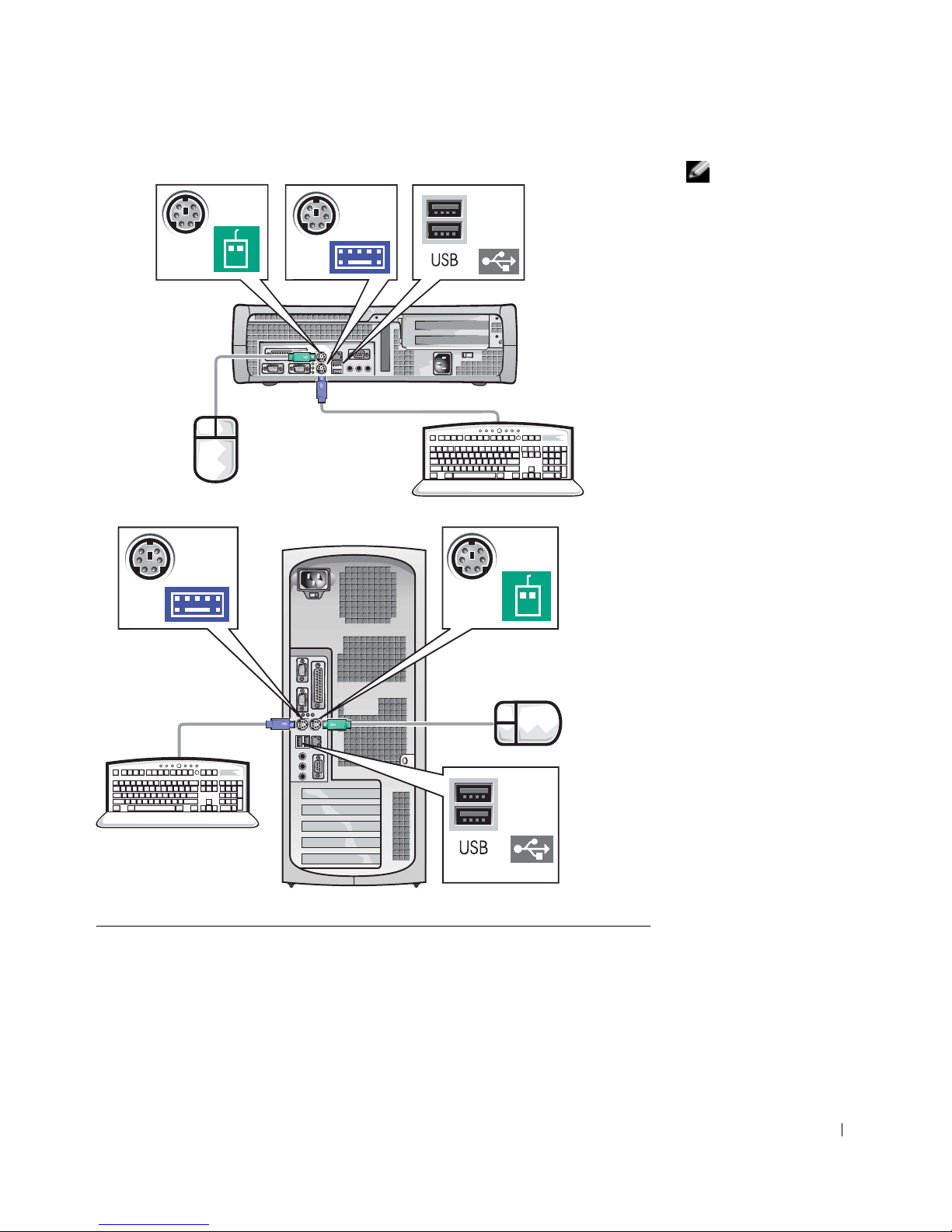
Guia de configuração e de referência rápida 45
NOTA: se você tiver um
mouse ou teclado
compatível com USB
(Universal Serial Bus
[barramento serial
universal]), use os
conectores USB na parte
traseira do seu
computador.
1
Page 47
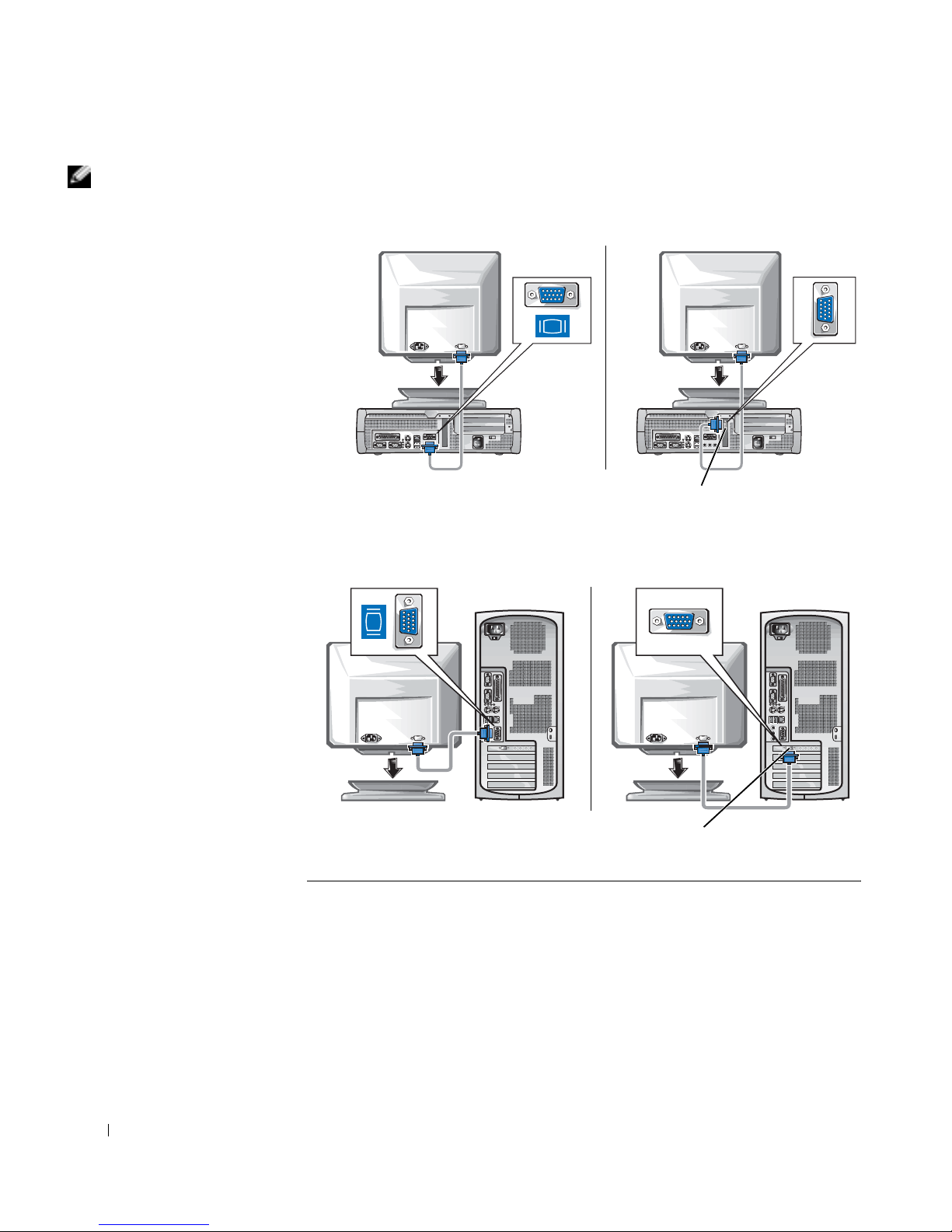
46 Guia de configuração e de referência rápida
www.dell.com | support.dell.com (em Inglês)
NOTA: se o seu
computador tiver dois
conectores de vídeo, o
conector de vídeo
integrado está desativado
e possui uma tampa
protetora sobre ele. Use o
conector da placa de
expansão, conforme
mostrado nas ilustrações
da direita na etapa 2.
2
Sistema com um
conector de vídeo
Sistema com dois
conectores de vídeo
conector de vídeo na placa de expansão
Sistema com um
conector de vídeo
Sistema com dois
conectores de vídeo
conector de vídeo na placa de expansão
Page 48
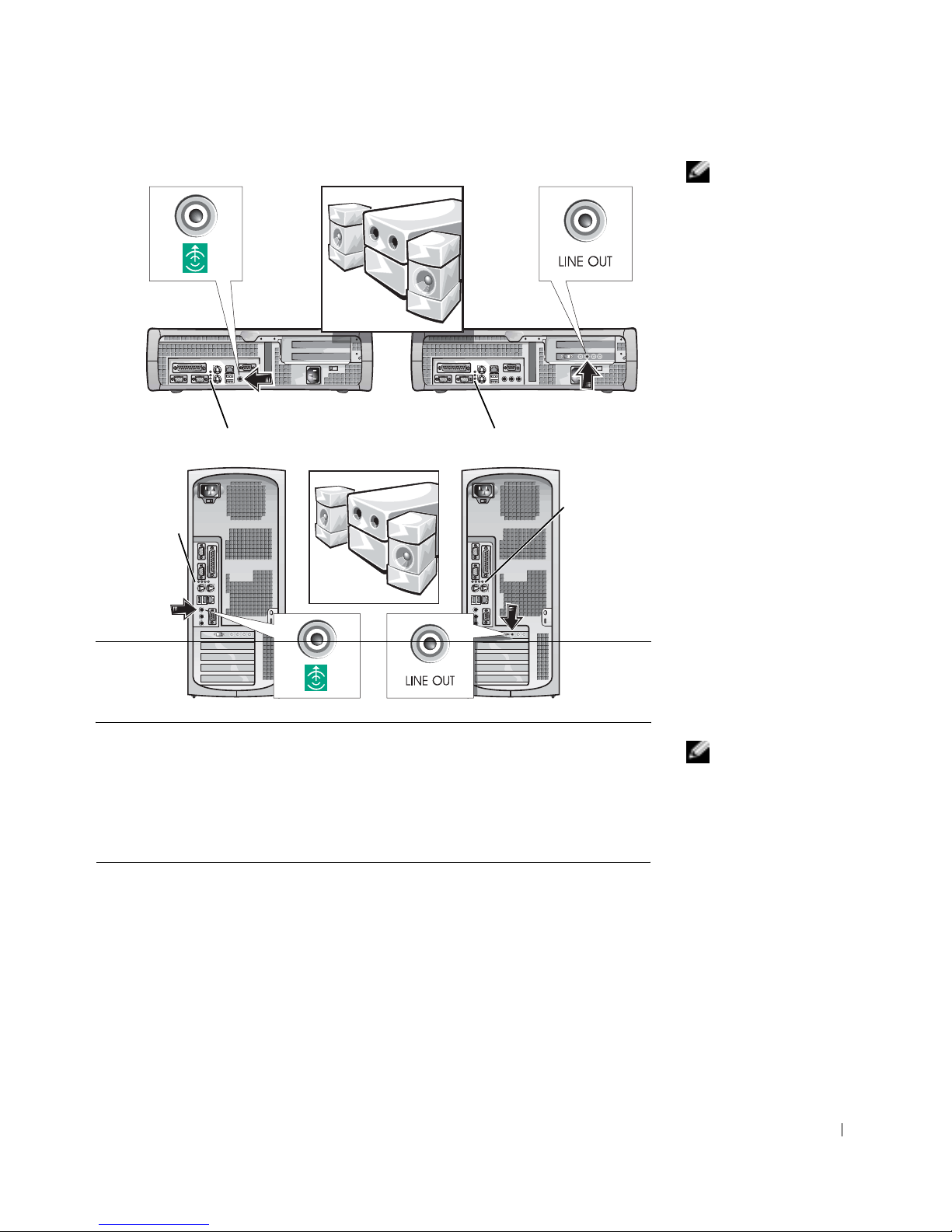
Guia de configuração e de referência rápida 47
NOTA: se o seu
computador tiver dois
conectores de áudio, use o
conector da placa de
expansão, conforme
mostrado nas ilustrações
à direita na etapa 3.
NOTA: as fontes de
alimentação de seleção
automática não exigem
um interruptor de seleção
de voltagem. Seu
computador pode não ter
este interruptor.
3
luzes de diagnósticos luzes de diagnósticos
luzes de
diagnósticos
luzes de
diagnósticos
4
Verifique se o interruptor do seletor de voltagem está corretamente
definido para a sua região. Para mais informações, consulte a "Ao
utilizar o computador" na página 42.
Page 49
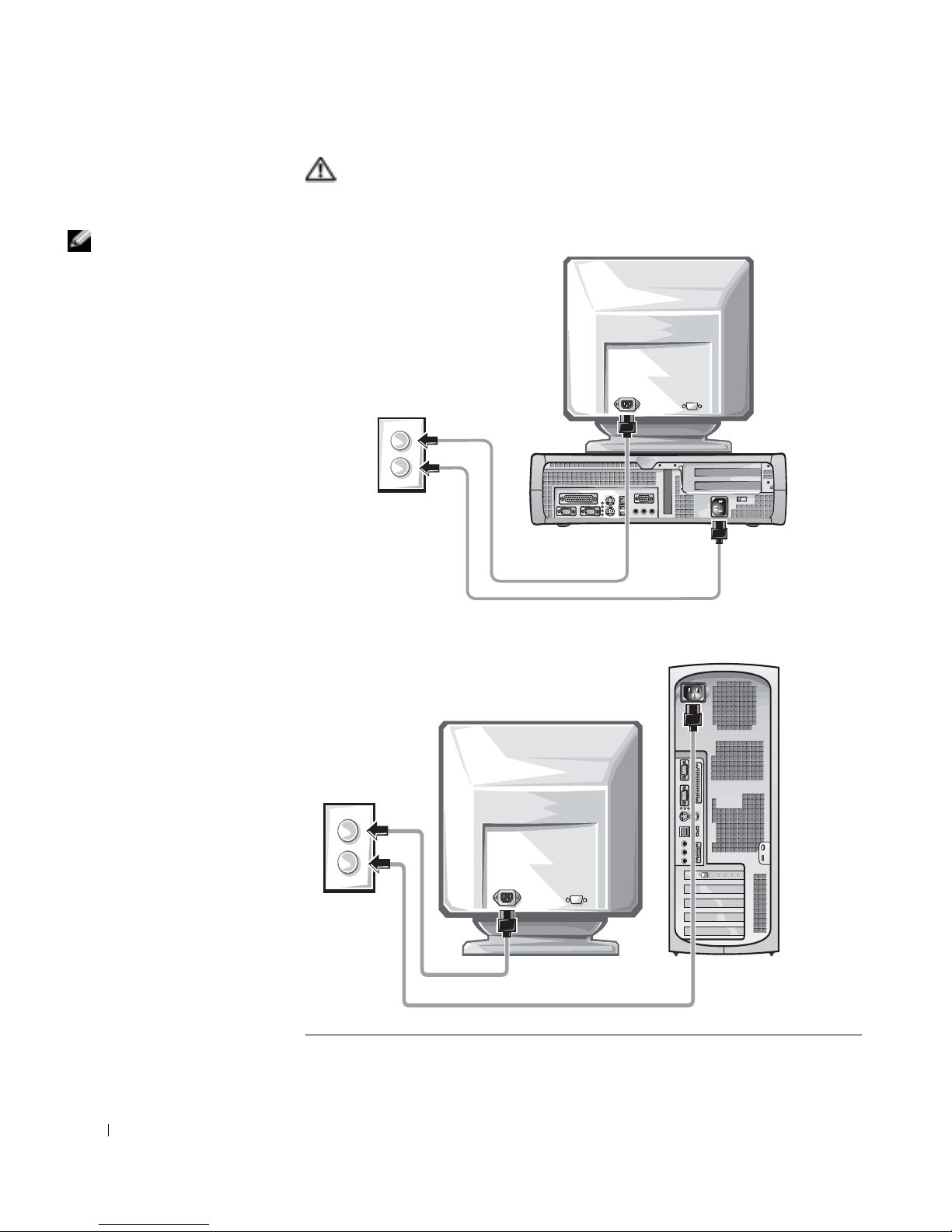
48 Guia de configuração e de referência rápida
www.dell.com | support.dell.com (em Inglês)
CUIDADO: para evitar choque elétrico, use apenas o cabo de força
fornecido com o equipamento e certifique-se de que esteja
conectado a uma fonte de força adequadamente aterrada.
NOTA: em alguns
monitores o conector de
vídeo fica localizado na
parte de trás da tela,
embaixo da mesma.
Consulte a documentação
que acompanha o seu
monitor para a
localização do conector.
5
Page 50
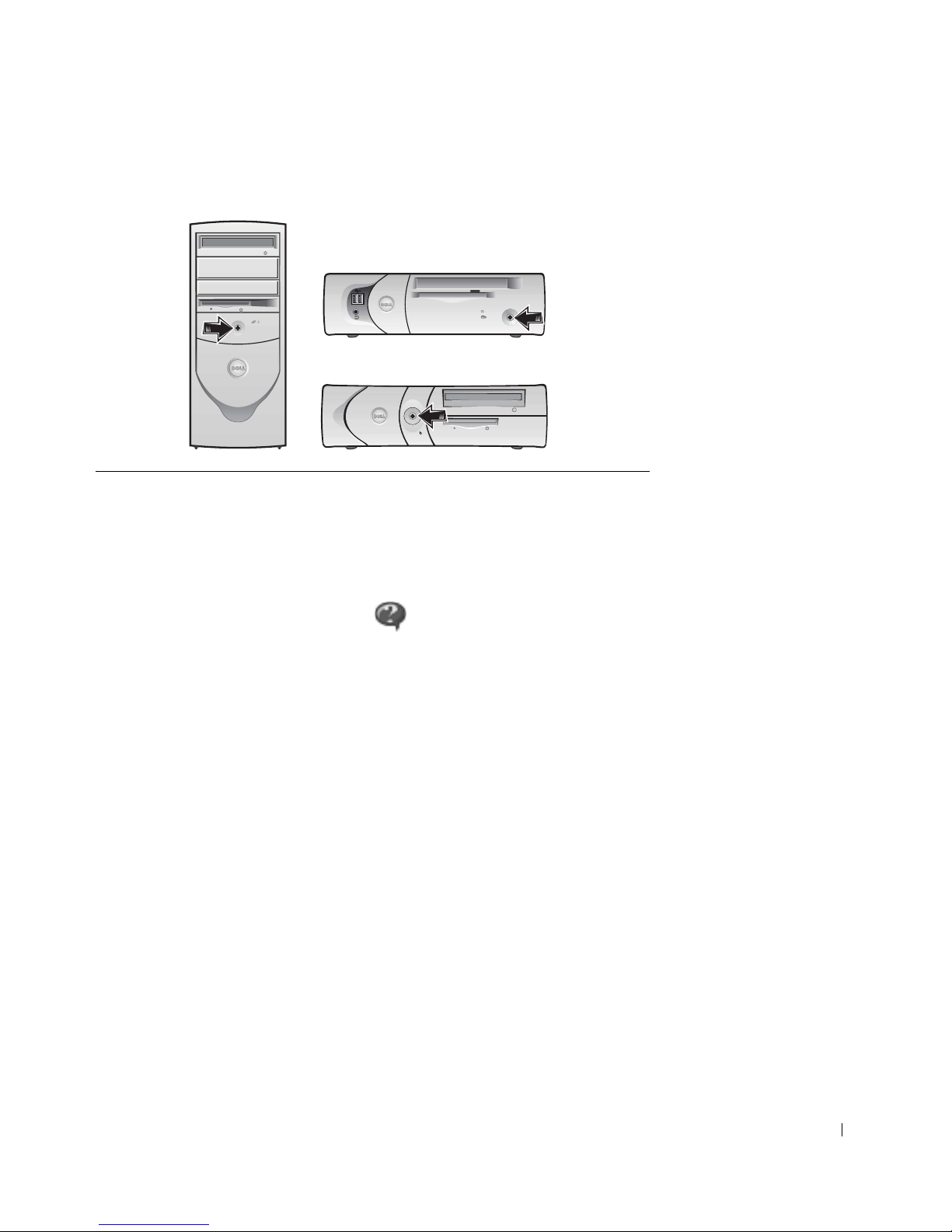
Guia de configuração e de referência rápida 49
Leia o contrato de licença do software e siga as instruções de configuração
do sistema operacional na tela.
Parabéns! Você completou a configuração do seu sistema.
Dependendo do seu sistema operacional, clique duas vezes no ícone
Guia do usuário na área de trabalho ( ) ou clique no botão Iniciar e,
em seguida, selecione Ajuda e suporte para acessar a documentação
eletrônica armazenada na sua unidade de disco.
Solução de problemas
A Dell fornece uma série de ferramentas para ajudá-lo caso o seu sistema
não apresente o desempenho esperado. Para as informações mais recentes
disponíveis para o seu computador sobre solução de problemas, consulte a
página de suporte da Dell na Internet no endereço support.dell.com (em
Inglês). Também é possível encontrar descrições das ferramentas da Dell
para a solução de problemas na seção "Obtenção de ajuda" do Guia do
usuário on-line.
Se ocorrerem problemas no co mputador que e xij am a ajuda da Dell, escr eva
uma descrição detalhada do erro, os códi gos de bipe ou os padrões das lu zes
de diagnósticos; anote o código de serviço expresso e o número da Etiqueta
de Serviço abaixo e, em seguida, contate a Dell do mesmo local em que
estiver o seu computador.
6
Ligue o computador e o monitor.
Page 51

50 Guia de configuração e de referência rápida
www.dell.com | support.dell.com (em Inglês)
Consulte "Como encontrar informações sobre o computador" na página 37
para obter um exemplo dos números de código de serviço expresso e da
etiqueta de serviço.
Código de serviço expresso:___________________________
Número da etiqueta de serviço:___________________________
O seu computador possui as seguintes ferramentas que podem ajudá-lo a
resolver problemas:
Utilização do CD de Drivers e Utilitários
Para utilizar o CD de Drivers e Utilitários (também conhecido por
ResourceCD) enquanto estiver executando o sistema operacional:
NOTA: para acessar os
drivers de dispositivos e a
documentação do usuário,
você precisará utilizar o
CD de
Drivers e
Utilitários
enquanto
estiver executando o
Windows.
1
Ligue o computador e deixe que inicialize a área de trabalho do
Windows.
2 Inserir o CD de Drivers e Utilitários na unidade de CD.
Caso esteja utilizando o CD de Drivers e Utilitários pela primeira vez
nesse computador, a janela ResourceCD Installation (Instalação do
ResourceCD) abre para informá-lo de que o CD de Drivers e
Utilitários está pronto para começar a instalação.
3 Clique em OK para continuar.
Para completar a instalação, responda às solicitações do programa de
instalação.
PROGRAMA DELL DIAGNOSTICS — O programa Dell Diagnostics testa
vários componentes em seu computador e ajuda a identificar a causa dos
problemas do computador. Para mais informações, consulte a "Como iniciar o
programa Dell Diagnostics" na página 52.
OS RECURSOS ABAIXO PODEM INDICAR UMA POSSÍVEL FALHA E
AJUDÁ-LO A SOLUCIONAR UM PROBLEMA DO COMPUTADOR.
CONSULTE O Guia do usuário PARA MAIS INFORMAÇÕES —
L
UZES DO SISTEMA — Localizadas na parte da frente do computador
L
UZES DE DIAGNÓSTICOS — Localizadas na parte de trás do computador
M
ENSAGENS DO SISTEMA — Aparecem na tela do monitor
C
ÓDIGOS DE BIPE — Uma série de bipes emitidos pelo computador
Page 52

Guia de configuração e de referência rápida 51
4 Clique em Next (Próximo) na tela Welcome Dell System Owner
(Bem-vindo, proprietário do sistema Dell).
5 Escolha o System Model (Modelo de sistema), o Operating System
(Sistema operacional), o Device Type (Tipo de dispositivo), e o
Topic (Tópico) apropriados.
Drivers para o seu computador
Para exibir uma relação de drivers de dispositivos para o computador:
1 Clique em My Drivers (Meus drivers) no menu suspenso Tópicos.
O CD de Drivers e Utilitários faz uma varredura no hardware do
computador e no sistema operacional e depois exibe na tela uma lista
dos drivers de dispositivos para a configuração do seu sistema.
2 Clique no driver apropriado e siga as instruções para fazer o downlo ad
do driver para o seu computador.
P ara visualizar todos os drivers disponíveis para o seu computador, clique em
Drivers a partir do menu suspenso Tópico.
Programa Dell Diagnostics
Quando usar o Dell Diagnostics
Se tiver problemas com o computador, faça as verificações em "Solução de
problemas" no Guia do usuário e execute o Dell Diagnostics antes de entrar
em contato com a assistência técnica da Dell. Executar o programa
Dell Diagnostics pode ajudá-lo a resolver o problema sem precisar entrar em
contato com a Dell. Se contatar a Dell, os resultados do teste podem
fornecer informações importantes para o pessoal de atendimento e suporte
da Dell.
AVISO: se o seu disco rígido falhar, execute o Dell IDE Hard Drive
Diagnostics (Testes de diagnóstico do disco rígido IDE da Dell) (consulte
"Como executar os testes de diagnóstico da unidade de disco rígido IDE da
Dell" na página 53).
Page 53

52 Guia de configuração e de referência rápida
www.dell.com | support.dell.com (em Inglês)
Como iniciar o programa Dell Diagnostics
Entre na configuração do sistema seguindo as explicações do Guia do
usuário, verifique as informações de configuração do computador e
certifique-se de que o dispositivo que deseja testar aparece na configuração
do sistema e está ativo.
Inicie o programa Dell Diagnostics a partir do disco rígido ou do CD de
Drivers e Utilitários (também conhecido por ResourceCD).
Como iniciar o programa Dell Diagnostics a partir do disco rígido
1 Desligue e reinicie o computador.
2 Quando o logotipo DELL
®
aparecer, pressione <F12>
imediatamente.
NOTA: Se receber uma
mensagem avisando que
não foi encontrada uma
partição do utilitário, siga
as instruções para
executar o programa Dell
Diagnostics a partir do
CD de Drivers e
Utilitários.
Se você esperar muito e o logotipo do Windows aparecer, continue a
esperar até que apareça a área de trabalho do Windows. Em seguida,
desligue o computador através do menu Iniciar e tente novamente.
3 Quando a lista do dispositivo de inicialização aparecer, destaque Boot
to Utility Partition (Inicializar para partição do uti litário) e pressione
<Enter>.
4 Quando aparecer o Menu principal do programa Dell Diagnostics,
selecione o teste que você deseja executar.
5 Feche a tela de teste para retornar para a tela do Main Menu (Menu
principal). Para sair do programa Dell Diagnostics e reiniciar o
computador, feche a tela do Menu principal.
Como iniciar o programa Dell Diagnostics a partir do CD de Drivers e
Utilitários
1 Insira o CD de Drivers e Utilitários na unidade de CD.
2 Desligue e reinicie o computador.
Quando o logotipo DELL aparecer pressione <F12> imediatamente.
Se você esperar muito e o logotipo do Windows aparecer, espere até
que apareça a área de trabalho do Windows. Em seguida, desligue o
computador pelo menu Iniciar e tente novamente.
Page 54

Guia de configuração e de referência rápida 53
NOTA: esse recurso
altera a seqüência de
inicialização apenas uma
vez. Na próxima
inicialização, o
computador iniciará de
acordo com os
dispositivos especificados
na configuração do
sistema.
3
Quando a lista do dispositivo de inicialização aparecer, destaque IDE
CD-ROM Device (Dispositivo de CD-ROM IDE) e pressione
<Enter>.
4 Selecione a opção Dispositivo de CD-ROM IDE no menu de
inicialização do CD.
5 Selecione a opção Boot from CD-ROM (Inicializar pelo CD-ROM)
no menu que aparecer.
6 Digite 1 para iniciar o menu do ResourceCD.
7 Digite 2 para iniciar o programa Dell Diagnostics.
8 Selecione Run the 32 Bit Dell Diagnostics (Executar o programa Dell
Diagnostics de 32 bits) na lista relacionada. Se constarem várias
versões na lista, selecione a versão apropriada para a sua plataforma.
9 Quando aparecer o Menu principal do programa Dell Diagnostics,
selecione o teste que deseja executar .
10 Quando os testes forem concluídos, remova o CD.
11 Feche a tela de teste para retornar para a tela do Menu principal. Para
sair do programa Dell Diagnostics e reiniciar o computador, feche a
tela do Menu principal.
Como executar os testes de diagnóstico da unidade de disco
rígido IDE da Dell
O teste de diagnóstico da unidade de disco rígido IDE da Dell é um
utilitário que testa o disco rígido para solucionar ou c onfirmar uma falha no
mesmo.
1 Ligue o computador (se já estiver ligado, reinicie-o).
2 Quando aparecer a mensagem F2 = Setup no canto superior direito
da tela, pressione <Ctrl><Alt><D>.
3 Siga as instruções da tela.
Se houver mensagens de falha, consulte "Problemas do disco rígido" no
Guia do usuário.
Page 55

54 Guia de configuração e de referência rápida
www.dell.com | support.dell.com (em Inglês)
Informações sobre regulamentação
NOTA: informações
adicionais de
regulamentação sobre o
seu sistema podem ser
encontradas no Guia do
usuário.
EMI (Electromagnetic Interference [interferência eletromagnética]) é
qualquer sinal ou emissão , i rradiada no espaço livr e ou conduzida por fiação
de energia ou de sinal, que põe em perigo o funcionamento de um serviço
de rádio navegação ou outro serviço de segurança ou que degrada
seriamente, obstrui ou interrompe repetidamente um serviço licenciado de
comunicação por rádio.
O computador da Dell é projetado para estar de acordo com as
regulamentações aplicáveis sobre EMI. Note que as regulamentações da
FCC definem quais alterações ou modificações não ap rovadas
expres samente pela Dell podem a n u l ar a autoridade do usuário para operar
o equipamento.
Page 56

Guia de configuração e de referência rápida 55
Garantias limitadas e Política de devolução
Os produtos de hardware com a marca Dell comprados nos EUA ou no Canadá vêm com uma garantia limitada de
90 dias (esta, somente nos EUA) ou de um, dois, três ou quatro anos. Para identificar qual garantia foi comprada,
consulte a nota fiscal da Dell que acompanha seu hardware. As seções a seguir explicam as garantias limitadas e a
política de devolução referentes aos EUA, as garantias limitadas e a política de devolução para o Canadá e a
garantia do fabricante para a América Latina e Caribe.
Garantia de um ano do fabricante para o usuário final (somente para América
Latina e Caribe)
Garantia
A Dell Computer Corporation ("Dell”) garante ao usuário final de acordo com as seguintes condições que seus
produtos de hardware, adqu iridos pelo usuário fina l de uma empresa ou distribuidor autorizado da Dell na América
Latina ou no Caribe, estarão livres de defeito de materiais, de mão-de-obra e de projeto que possam afetar a
utilização normal dos mesmos, pelo período de um ano a partir da data original da compra. Os produtos para os
quais forem feitas reivindicações apropriadas serão, a critério da Dell, reparados ou substituídos às custas da Dell. A
Dell é proprietária de todas as partes removidas de produtos consertados. A Dell usa peças novas e recondicionadas
feitas por vários fabricantes na execução de reparos e na montagem de produtos de reposição.
Exclusões
Esta garantia não se aplica a defeitos resultantes de: instalação, uso ou manutenção impróprios ou inadequados;
ações ou modificações por terceiros não autorizados ou pelo usuário final; dano acidental ou proposital ou desgaste
normal.
Como fazer uma reivindicação
As reivindicações devem ser feitas na América Latina ou no Caribe contatando o ponto de venda da Dell dentro do
período de garantia. O usuário final deve sempre fornecer prova da compra, indicando nome e endereço do
vendedor, data da com pra, mode lo e número de série, nome e endereço do cliente e detalhes dos sintomas e da
configuração no momento da falha, in cluindo os periféricos e software usados. Caso contrário, a Dell pode recusar
a reivindicação de garantia. Após o diagnóstico de um defeito coberto pela garantia, a Dell tomará providências e
pagará pelo frete terrestre e pelo seguro do centro de reparo/reposição da Dell e para este. O usuário final deve
assegurar que o produto defeituoso esteja disponível para coleta adequadamente embalado, em sua embalagem
original ou em outra igualmente protetora, juntamente com os detalhes relacionados acima e o número de retorno
fornecido pela Dell.
Page 57

56 Guia de configuração e de referência rápida
www.dell.com | support.dell.com (em Inglês)
Limitação e direitos estatutários
A Dell não faz nenhuma outra garantia ou declaração semelhante além das explicitamente declaradas acima, e esta
Garantia é dada no lugar de quaisquer outras garantias, na extensão máxima permitida pela lei. Na ausência de
legislação aplicável, esta Garantia será a única e exclusiva remediação do usuário final contra a Dell ou qualquer de
suas afiliadas, e nem a Dell nem nenhuma de suas afiliadas deverá ser responsável por perda de lucro ou de
contratos ou por qualquer outra perda indireta ou conseqüencial re sultante de negligência, quebra de contrato ou
o que quer que seja.
Esta Garantia não prejudica ou afeta os direitos estatutários obrigatórios do usuário final contra e/ou quaisquer
direitos resultantes de outros contratos concluídos pelo usuário final com a Dell e/ou algum outro vendedor.
Dell World Trade LP
One Dell Way, Roun d Rock, TX 78682, USA
Dell Computadores do Brasil Ltda (CNPJ No. 72.381.189/0001-10)/
Dell Commercial do Brasil Ltda (CNPJ No. 03 405 822/0001-40)
Avenida Industrial Belgraf, 400
92990-000 - Eldorado do Sul – RS - Brasil
Dell Computer de Chile Ltda
Coyancura 2283, Piso 3- Of.302,
Providencia, Santiago - Chile
Dell Computer de Colombia Corporation
Carrera 7 #115-33 Oficina 603
Bogota, Colombia
Dell Computer de Mexico SA de CV
Paseo de la Reforma 2620 - 11° Piso
Col. Lomas Altas
11950 México, D.F.
Page 58

www.dell.com | support.dell.com
Sistemas Dell™ OptiPlex™
Guía de instalación y de
referencia rápida
Page 59

Notas, avisos y precauciones
NOTA: Una NOTA indica inf ormación importante que le ayuda a conseguir un
mejor rendimiento de su equipo.
AVISO: Un AVISO indica la posibilidad de daños al hardware o pérdida de
datos y le explica cómo evitar el problema.
PRECAUCIÓN: Una PRECAUCIÓN indica un potencial de daños a
la propiedad, de lesiones personales o de muerte.
____________________
La información contenida en este documento puede ser modificada sin previo aviso.
© 2000–2002 Dell Computer Corporation. Quedan reservados todos los derechos.
Queda estrictamente prohibida la reproducción de este documento en cualquier forma sin la
autorización por escrito de Dell Computer Corporation.
Marcas comerciales utilizadas en este texto:
Dell, OptiPlex
y el logotipo
DELL
son marcas
comerciales de Dell Computer Corporation;
Microsoft
y
Windows
son marcas comerciales
registradas de Microsoft Corporation.
Otras marcas y otros nombres comerciales pueden utilizarse en este documento para hacer
referencia a las entidades que los poseen o a sus productos. Dell Computer Corporation renuncia
a cualquier interés sobre la propiedad de marcas y nombres comerciales que no sean los suyos.
Noviembre de 2002 P/N 38WYD Rev. A07
Page 60

Contenido 59
Contenido
Acerca de esta guía . . . . . . . . . . . . . . . . . . . . . . . . . 61
Búsqueda de información para su equipo
. . . . . . . . . . . . . 61
PRECAUCIÓN: Instrucciones de seguridad . . . . . . . . . . . . 64
En general
. . . . . . . . . . . . . . . . . . . . . . . . . . . 64
Al usar el equipo
. . . . . . . . . . . . . . . . . . . . . . . . . . 66
Al trabajar en el interior de su equipo
. . . . . . . . . . . . . . 67
Para comenzar/Configuración
. . . . . . . . . . . . . . . . . . . 68
Solución de problemas . . . . . . . . . . . . . . . . . . . . . . . 73
Utilización del CD Drivers and Utilities
. . . . . . . . . . . . . 74
Diagnósticos Dell
. . . . . . . . . . . . . . . . . . . . . . . . . . 75
Cuándo utilizar los Diagnósticos Dell
. . . . . . . . . . . . . . 75
Inicio de los Diagnósticos Dell
. . . . . . . . . . . . . . . . . . 75
Ejecución de los Diagnósticos de la unidad de disco
duro IDE de Dell. . . . . . . . . . . . . . . . . . . . . . . . . 77
Información reglamentaria
. . . . . . . . . . . . . . . . . . . . . 77
Garantías limitadas y política de devoluciones . . . . . . . . . . . 79
Garantía limitada para los EE.UU.
. . . . . . . . . . . . . . . 79
Política de devoluciones "Satisfac ció n total"
(EE.UU. solamente). . . . . . . . . . . . . . . . . . . . . . . 82
Garantía del fabricante para el usuario final por un año
(únicamente Latinoamérica y el Caribe) . . . . . . . . . . . . . 83
Page 61

60 Contenido
Page 62
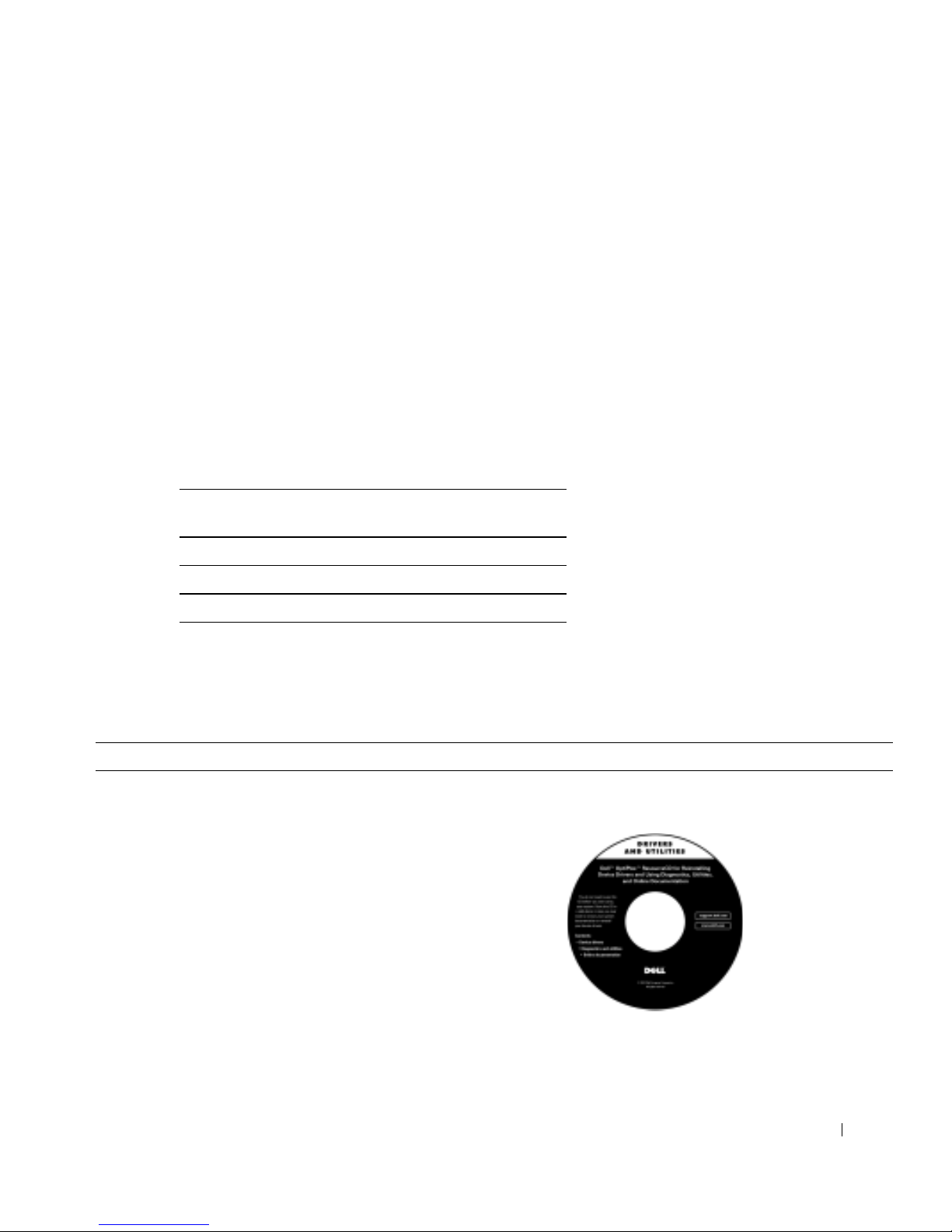
Guía de instalación y de referencia rápida 61
Acerca de esta guía
Este documento contiene información sobre cómo comenzar e instalar el
sistema, solución de problemas, información sobre la garantía, seguridad y
reglamentaciones de su equipo Dell
™ OptiPlex™.
P ara obtener las versiones más recientes de los documentos en su unidad de
disco duro, consulte el sitio web de asistencia Dell Support en
support.dell.com.
Los números de modelo reglamentarios aparecen a lo largo de este
documento; a continuación se muestran los equivalentes de sus tipos de
chasis:
Búsqueda de información para su
equipo
Números de modelo reglamentarios y tipos de
chasis
DHS = chasis de escritorio pequeño (SD)
DHP = chasis de factor de forma pequeño (SF)
DHM = chasis de mini gabinete vertical pequeño (SMT)
¿Qué está buscando? Encuéntrelo aquí
• Un programa de diagnóstico para mi
equipo
• Controladores para mi equipo
• Documentación de mi equipo
• Documentación de mi dispositivo
CD Drivers and Utilities (también conocido como
ResourceCD)
Puede utilizar este CD para acceder a la documentación, instalar
controladores o ejecutar las herramientas de diagnósticos.
Page 63
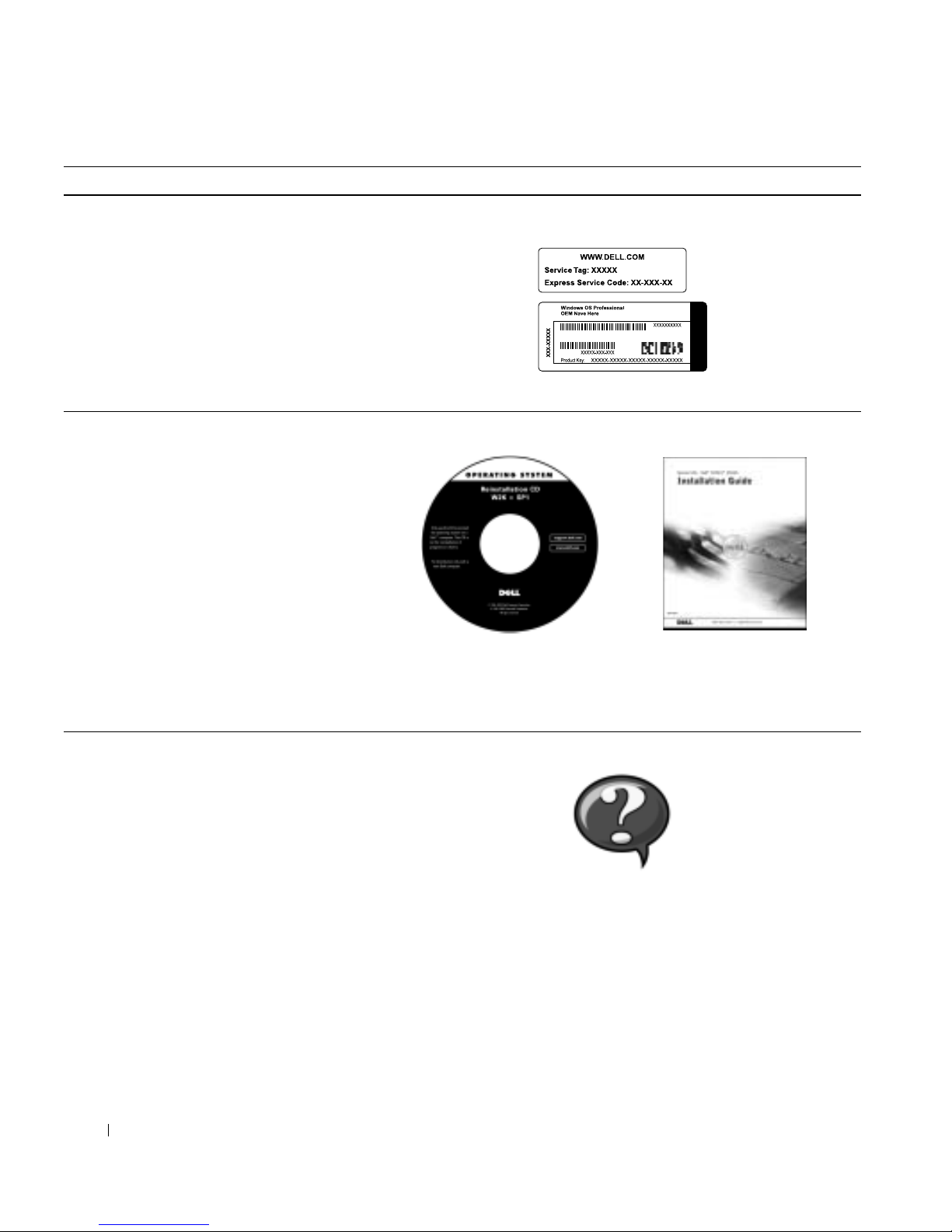
62 Guía de instalación y de referencia rápida
www.dell.com | support.dell.com
• Código de servicio rápido y número de
etiqueta de servicio
• Etiqueta de licencia (clave del producto)
Microsoft
®
Windows
®
Código de servicio rápido y clave del producto
Ubicados en su equipo.
• Cómo volver a instalar el sistema
operativo
CD de sistema operativo y Guía de instalación
Si vuelve a instalar el sistema operativo, use el CD Drivers and
Utilities para volver a instalar controladores para los dispositivos
incluidos con el equipo.
• Cómo desmontar y reemplazar piezas
• E specificaciones técnicas
• Cómo configurar los valores del sistema
• C ómo manejar y solucionar problemas
Icono de la Guía del usuario
Dependiendo de su sistema operativo, haga doble clic en el icono
User's Guides (Guías del usuario) ubicado en el escritorio , o haga clic
en el botón Start (Inicio) y luego haga clic en Help and Support
(Ayuda y asistencia) para acceder a la documentación electrónica
almacenada en la unidad de disco duro.
¿Qué está buscando? Encuéntrelo aquí
Page 64

Guía de instalación y de referencia rápida 63
• Controladores más recientes para mi
equipo
• R espuestas a preguntas sobre asistencia o
servicio técnico
• Discusiones en línea con otros usuarios y
asistencia técnica
• Documentación para mi equipo
Sitio web de Asistencia Dell Support
El sitio web Dell Support proporciona varias herramientas en línea,
incluyendo:
• Base de aprendizaje: trucos, consejos y cursos en línea
• Foro para clientes: discusiones en línea con otros clientes de Dell
• Actualizaciones: información sobre la actualización de
componentes, tales como la memoria, la unidad de disco duro y el
sistema operativo
• Atención al cliente: información de contacto, estado de pedidos,
garantía e información de reparaciones
• Descargas: controladores, revisiones y actualizaciones de software
• Referencia: documentación del equipo, especificaciones del
producto y papeles blancos
• E stado de llamadas de servicio
• Asuntos técnicos principales sobre mi
equipo
• Preguntas frecuentes
• Descargas de archivos
• Detalles de la configuración de mi equipo
• Contrato de servicio para mi equipo
Sitio web de Asistencia Dell Premier Support
El sitio web de Asistencia Dell Premier Support está personalizado
para clientes corporativos, gubernamentales y del ámbito educativo.
Es posible que este sitio no esté disponible en todas las regiones.
• Cómo utilizar Windows XP
• Documentación para el equipo y los
dispositivos
Centro de ayuda y asistencia para Windows XP
1 Haga clic en el botón Inicio y luego haga clic en Ayuda y
asistencia.
2 Teclee una palabra o frase que describa su problema y luego haga
clic en el icono de flecha.
3 Haga clic en el tema que describe su problema.
4 Siga las instrucciones que aparecen en la pantalla.
¿Qué está buscando? Encuéntrelo aquí
Page 65
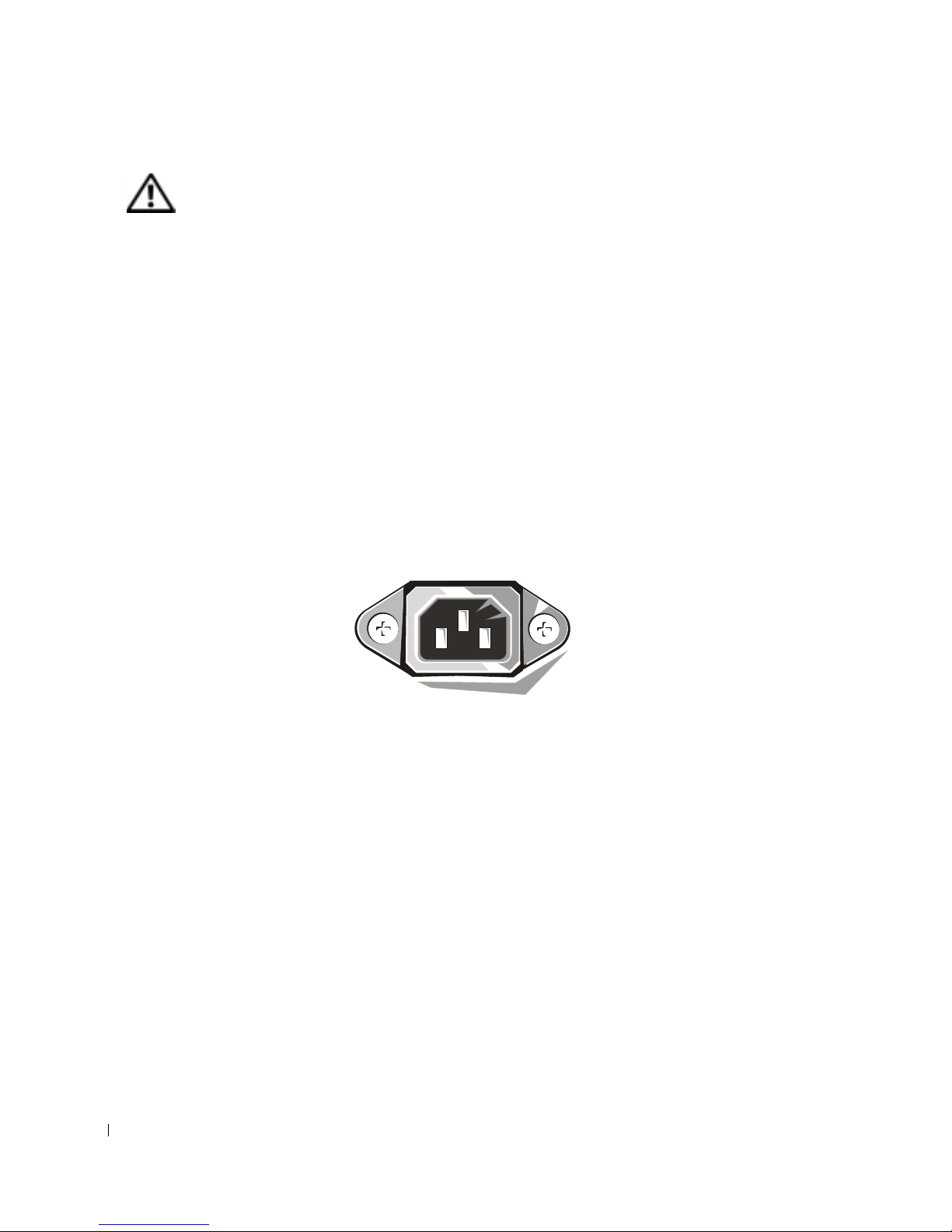
64 Guía de instalación y de referencia rápida
www.dell.com | support.dell.com
PRECAUCIÓN: Instrucciones de seguridad
Utilice las pautas de seguridad siguientes para ayudar a garantizar su seguridad personal y
ayudar a proteger su equipo y el ambiente de trabajo contra un daño potencial.
En general
• No trate de dar servicio al equipo usted mismo, a menos que sea un técnico de servicio
capacitado. Siga siempre las instrucciones de instalación al pie de la letra.
• Para prevenir choques eléctricos, conecte el equipo y los cables de alimentación del
dispositivo a sus enchufes eléctricos con conexión apropiada a tierra. Estos cables están
equipados con 3 enchufes de clavijas que ayudan a garantizar una conexión a tierra
correcta. No utilice enchufes adaptadores ni r etire la clavija de cone xión a tierra de ningún
cable. Si necesita utilizar un cable de extensión, utilice un cable de 3 líneas con enchufes
adecuadamente conectados a tierra.
• Para ayudar a evitar los peligros potenciales de choques eléctricos, no use el equipo
durante tormentas eléctricas.
• Para ayudar a evitar los peligros potenciales de choques eléctricos, no conecte ni
desconecte los cables, ni realice mantenimiento o reconfiguración de este producto
durante una tormenta eléctrica.
• Si su equipo incluye un módem, el cable que se utilice con el módem debe estar fabricado
con un cable que tenga una medida mínima de 26 AWG (American wire gauge [Medida
estadounidense de cables]) y un conector modular RJ-11 compatible con las
especificaciones de la FCC.
• Antes de limpiar el equipo, desconéctelo del enchufe eléctrico. Limpie el equipo con un
paño suave humedecido co n agu a. No use limpiadores líquidos o en aerosol que puedan
contener sustancias inflamables.
• Para evitar posibles daños a la placa base, espere 5 segundos una vez apagado el equipo
antes de desconectar un dispositivo del equipo.
Page 66

Guía de instalación y de referencia rápida 65
• Para evitar cortocircuitos en el equipo al momento de desconectar un cable de red,
desconecte primero el cable del adaptador de red de la parte posterior del equipo y luego
del enchufe de la red. Cuando vuelva a conectar el cable de red al equipo, conecte primero
el cable al enchufe de la red y después al adaptador de red.
• Para ayudar a proteger su equipo contra altas y bajas de energía eléctrica transitorias y
bruscas, utilice un protector contra voltajes extremos, un acondicionador de línea, o un
UPS (Uninterruptible Power Supply [sistema de energía ininterrumpida]).
• Asegúrese de que no haya ningún objeto encima de los cables del equipo y de que éstos
estén en un lugar en que no puedan pisarse y no se pueda tropezar con ellos.
• No introduzca ningún objeto por las aberturas del equipo. Esto podría ocasionar un
incendio o un choque eléctrico al provocar un cortocircuito entre los componentes
internos.
• Mantenga el equipo alejado de radiadores y fuentes de calor. Asimismo, no obstruya las
rendijas de ventilación. Evite colocar papeles sueltos debajo del equipo; no coloque el
equipo en una unidad limitada por paredes cerradas o una cama, un sofá o una alfombra.
• No derrame comida o líquidos sobre el equipo. Si el equipo se moja, consulte la Guía del
usuario.
PRECAUCIÓN: Instrucciones de seguridad
(continuación)
Page 67
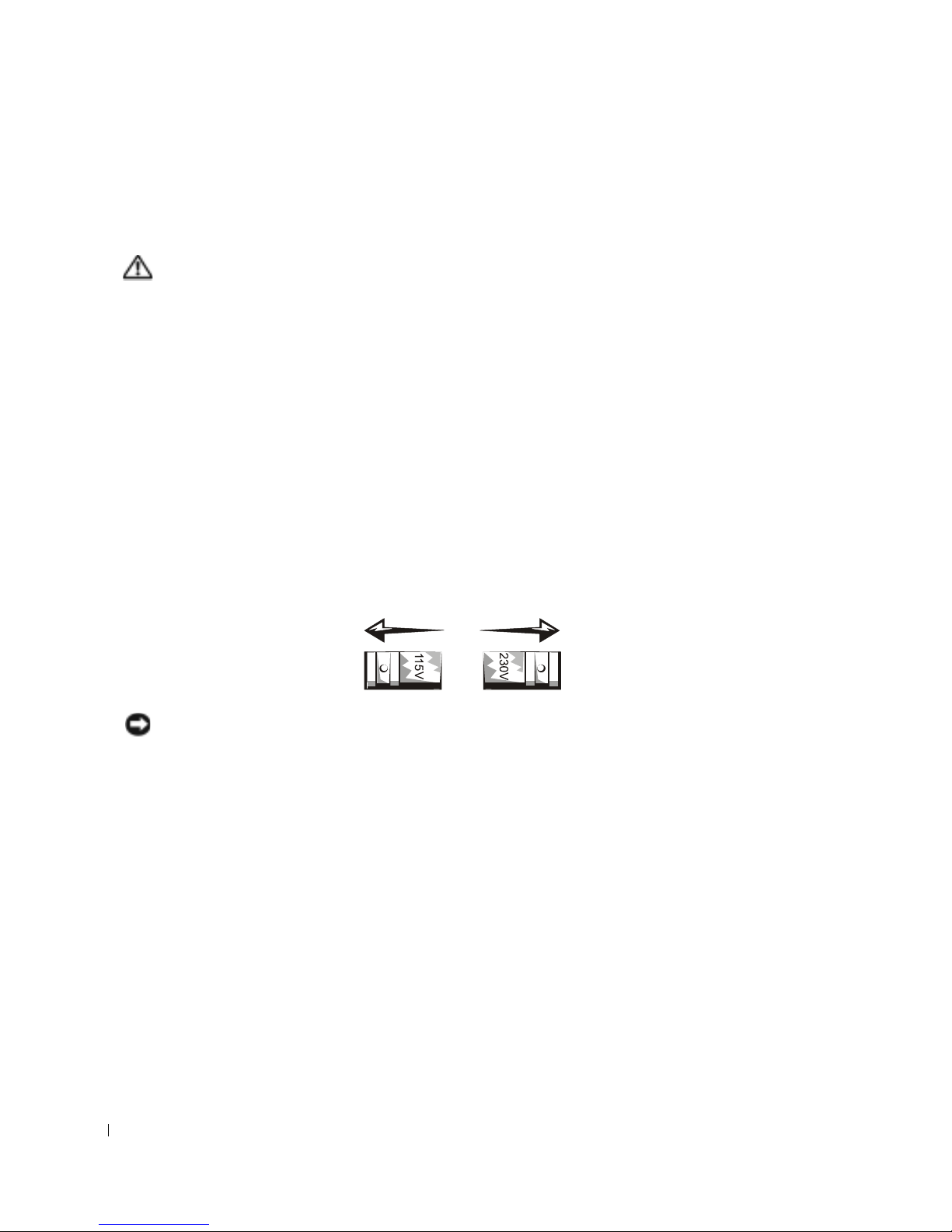
66 Guía de instalación y de referencia rápida
www.dell.com | support.dell.com
Al usar el equipo
Cuando utilice el equipo, respete las siguientes pautas de manejo seguro.
PRECAUCIÓN: No permita el funcionamiento del equipo si ha retirado alguna
cubierta(s) (incluyendo cubiertas de la PC, biseles, soportes de relleno, carátulas
del panel anterior, etc.).
• Su equipo está provisto de uno de los siguientes elementos:
– Un suministro de energía de voltaje fijo: Los equipos con suministro de energía de
voltaje fijo no tienen un interruptor para la selección de voltaje en el panel posterior y
funcionan solamente con un voltaje (consulte la etiqueta reglamentaria en el e xterior
del equipo para saber cuál es su voltaje de operación).
– Un circuito de detección automática de voltaje: Los equipos con circuito de
detección automática de voltaje no tienen un interruptor para la selección de voltaje
en el panel posterior y automáticamente detectan el voltaje de operación correcto.
– Un interruptor manual para la selección de voltaje: Los equipos con un interruptor
para la selección de voltaje en el panel posterior se deben ajustar manualmente para
que funcionen con el voltaje de operación correcto.
AVISO: Para ayudar a prevenir daños a un equipo con un interruptor manual para la selección de
voltaje, coloque el interruptor en la posición de voltaje que mejor coincida con la corriente alterna
disponible en su localidad. En Japón, el conmutador de selección d e voltaje debe ma rcar la posición
115 V incluso si el suministro de corriente alterna disponible en Japón es de 100 V. También
asegúrese de que el monitor y los dispositivos conectados estén clasificados eléctricamente para
operar con la alimentación de corriente alterna disponible en su localidad.
• Antes de trabajar en el interior de la PC, desenchufe el equipo para ayudar a evitar
descargas eléctricas o daños a la placa base. Algunos componentes de la placa base
continúan recibiendo energía siempre que el equipo esté conectado a la corriente alterna.
Page 68

Guía de instalación y de referencia rápida 67
Al trabajar en el interior de su equipo
Antes de abrir la cubierta de la PC, realice los siguientes pasos en el orden indicado.
PRECAUCIÓN: No intente darle servicio al equipo usted mismo, excepto los
servicios que se explican en la documentación en línea Dell o en instrucciones que
se le hayan proporcionado por parte de Dell. Siga siempre las instrucciones de
instalación y servicio al pie de la letra.
AVISO: Con el fin de prevenir un posible daño a la placa base, espere cinco segundo s después de
apagar el equipo para desmontar un componente de la placa base o desconectar un dispositivo del
equipo.
1
Realice un apagado ordenado del equipo utilizando el menú del sistema operativo.
2 Apague el equipo y los dispositivos conectados al mismo.
3 Conéctese a tierra tocando una superficie metálica sin pintura en el chasis, tal como el
metal alrededor de aberturas de las ranuras para tarjetas en la parte posterior del equipo,
antes de tocar cualquier objeto en el interior de su equipo.
Conforme trabaje, toque periódicamente una superficie metálica sin pintura en el chasis
del equipo para disipar la electricidad estática que podría dañar los componentes
internos.
4 Desconecte el equipo y los dispositivos, incluido el monitor, de los enchufes eléctricos.
Asimismo, desconecte las líneas de teléfono o de telecomunicaciones conectadas al
equipo.
El hacerlo reduce la posibilidad de sufrir lesiones personales o choques eléctricos.
Asimismo, observe las pautas de seguridad corr espondientes:
• Cuando desconecte un cable, tire de su conector o de su lazo liberador de tensión, y no
del cable mismo. Algunos cables tienen un conector con lengüetas de seguro; si va a
desconectar este tipo de cable, oprima las lengüetas hacia adentro antes de desconectarlo.
Cuando separe conectores, manténgalos al ineados para evitar doblar sus patas. Asimismo ,
antes de conectar un cable, asegúrese de que los conectores estén orientados y alineados
correctamente.
Al usar el equipo
(continuación)
Page 69

68 Guía de instalación y de referencia rápida
www.dell.com | support.dell.com
Para comenzar/Configuración
NOTA: Conecte sólo un
teclado y un mouse.
Siga los siguientes pasos para conectar dispositivos externos al equipo por
medio del panel de E/S (entrada/salida). La parte posterior de su sistema
Dell, incluyendo el panel de E/S, puede ser distinta a los ejemplos que se
muestran aquí.
• Maneje con cuidado los componentes y las tarjetas. No toque los componentes ni los
contactos de las tarjetas. Sujete las tarjetas por sus bordes o por su soporte metálico de
montaje. Sujete componentes tales como un chip microprocesador por sus bordes y no
por sus patas.
PRECAUCIÓN: Existe el peligro de que una nueva batería explote si no se instala
correctamente. Reemplace la batería únicamente con otra del mismo tipo o su
equivalente recomendado por el fabricante. No deseche la batería junto con los
desechos domésticos. Comuníquese con su agencia de desechos local para obtener la
dirección del depósito de baterías más cercano.
Al usar el equipo
(continuación)
Page 70
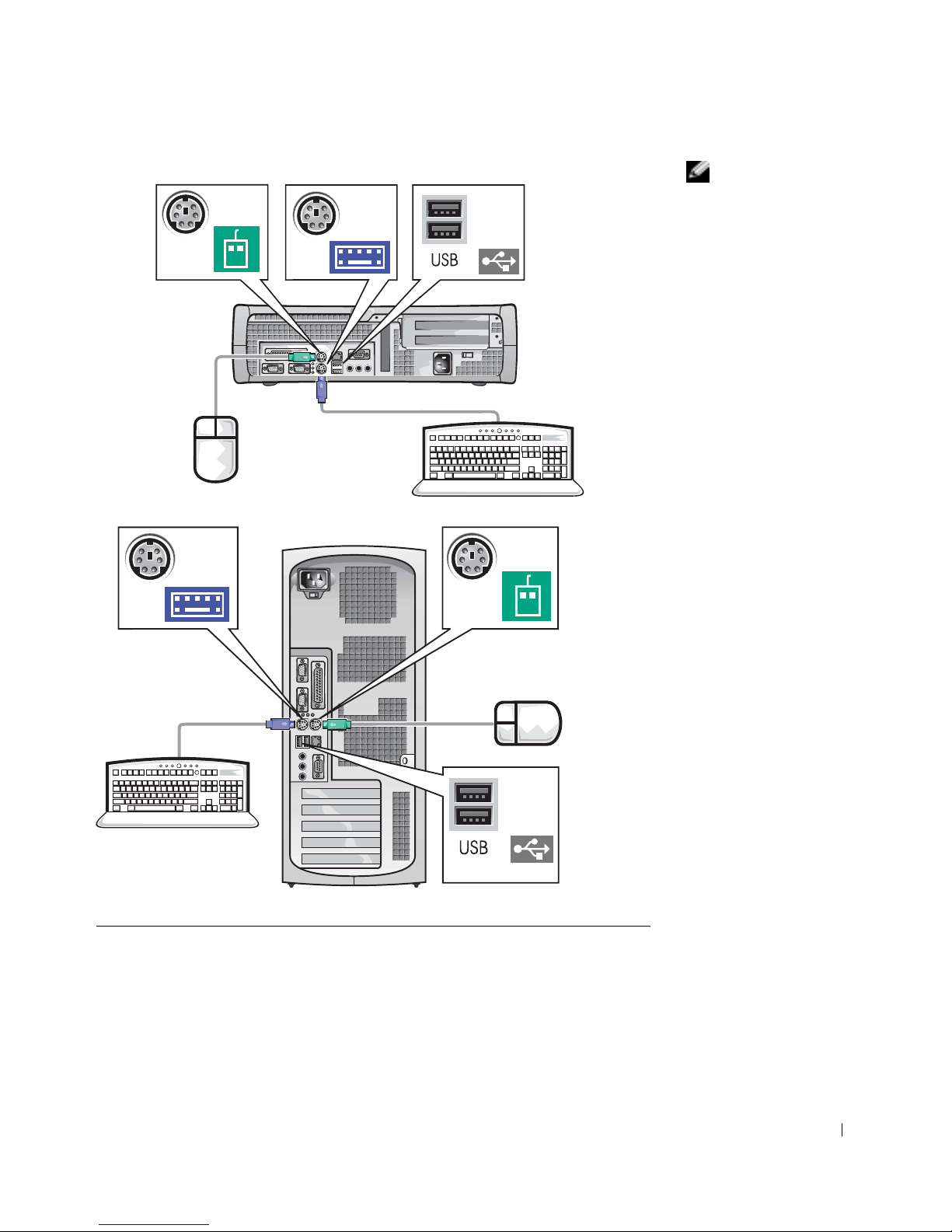
Guía de instalación y de referencia rápida 69
NOTA: Si tiene un mouse
o un teclado compatible
con un USB (Universal
Serial Bus [bus serie
universal]), utilice los
conectores USB de la
parte posterior del
sistema.
1
Page 71
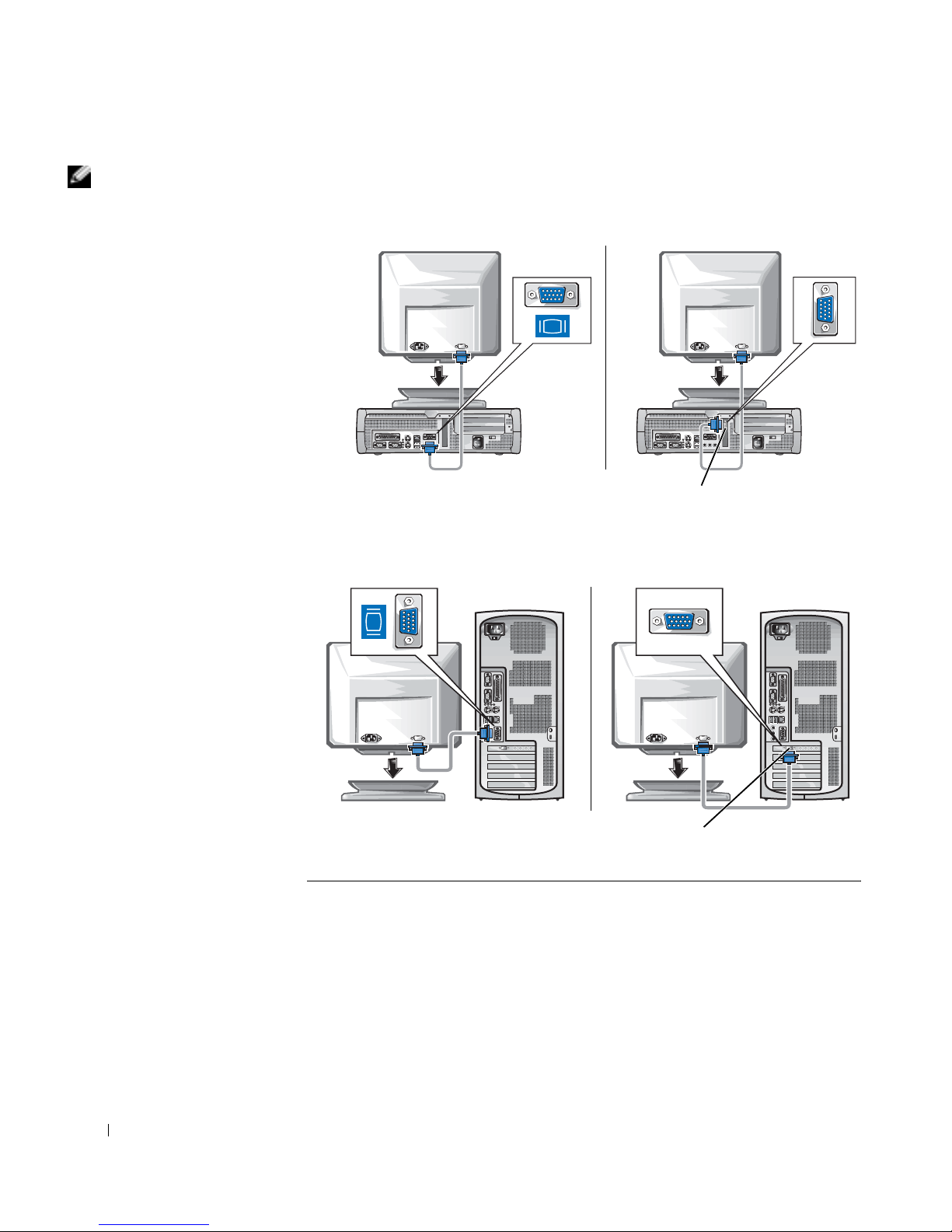
70 Guía de instalación y de referencia rápida
www.dell.com | support.dell.com
NOTA: Si su equipo
cuenta con dos conectores
de vídeo, el conector de
vídeo integrado está
desactivado y tiene una
tapa protectora. Utilice el
conector de la tarjeta de
expansión, como se
muestra en las
ilustraciones de la
derecha en el paso 2.
2
Sistema con un
conector de vídeo
Sistema con dos
conectores de vídeo
conector de vídeo en la tarjeta de expansión
Sistema con un
conector de vídeo
Sistema con dos
conectores de vídeo
conector de vídeo en la tarjeta de expansión
Page 72
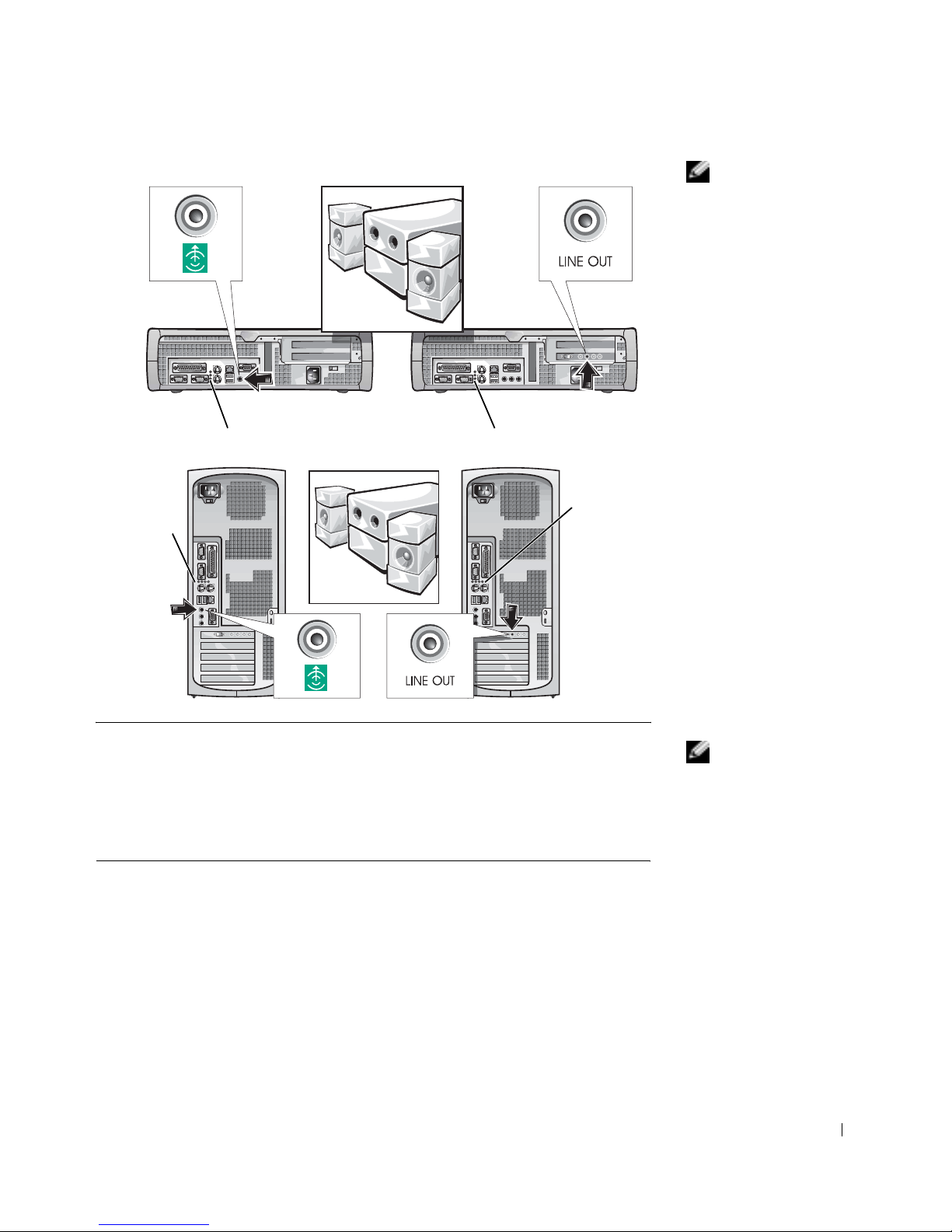
Guía de instalación y de referencia rápida 71
NOTA: Si su sistema
dispone de dos conectores
de audio, utilice el que se
encuentra en la tarjeta de
expansión, como se
muestra en las
ilustraciones de la
derecha en el paso 3.
NOTA: Los suministros
de energía de selección
automática no necesitan
un interruptor de
selección de voltaje. Es
posible que su equipo no
disponga de este
interruptor.
3
luces de diagnóstico luces de diagnóstico
luces de
diagnóstico
luces de
diagnóstico
4
Compruebe que el interruptor de selección de voltaje esté en la
posición correcta para su área. Para obtener más información, consulte
"Al usar el equipo" en la página 66.
Page 73
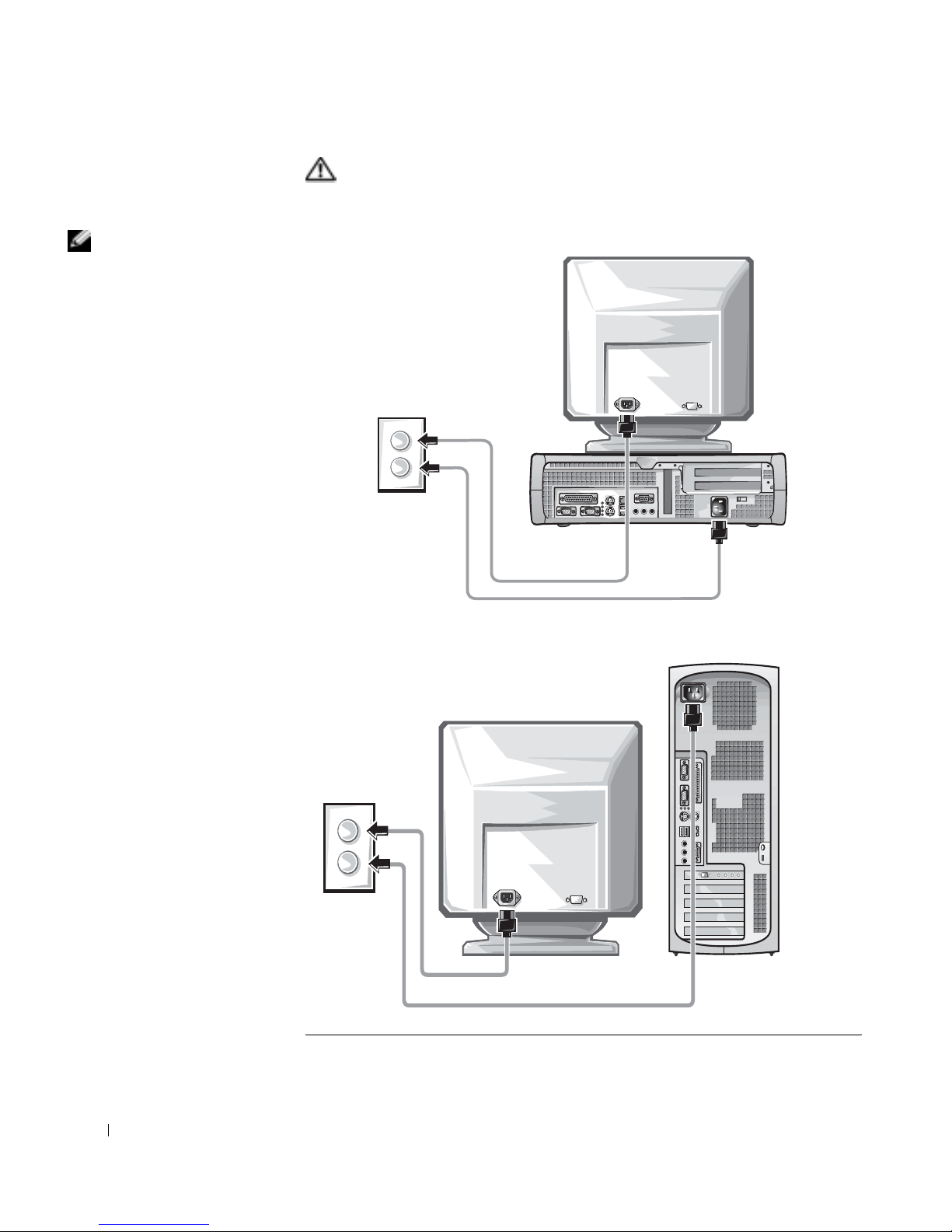
72 Guía de instalación y de referencia rápida
www.dell.com | support.dell.com
PRECAUCIÓN: Para evitar un choque eléctrico, utilice sólo el
cable de alimentación que se haya suministrado y asegúrese de
que esté conectado a una fuente de energía conectada a tie rra.
NOTA: Algunos
monitores tienen el
conector de vídeo debajo
de la parte posterior de la
pantalla. Consulte la
documentación que se
incluyó con el monitor
para ver la ubicación de
los conectores.
5
Page 74
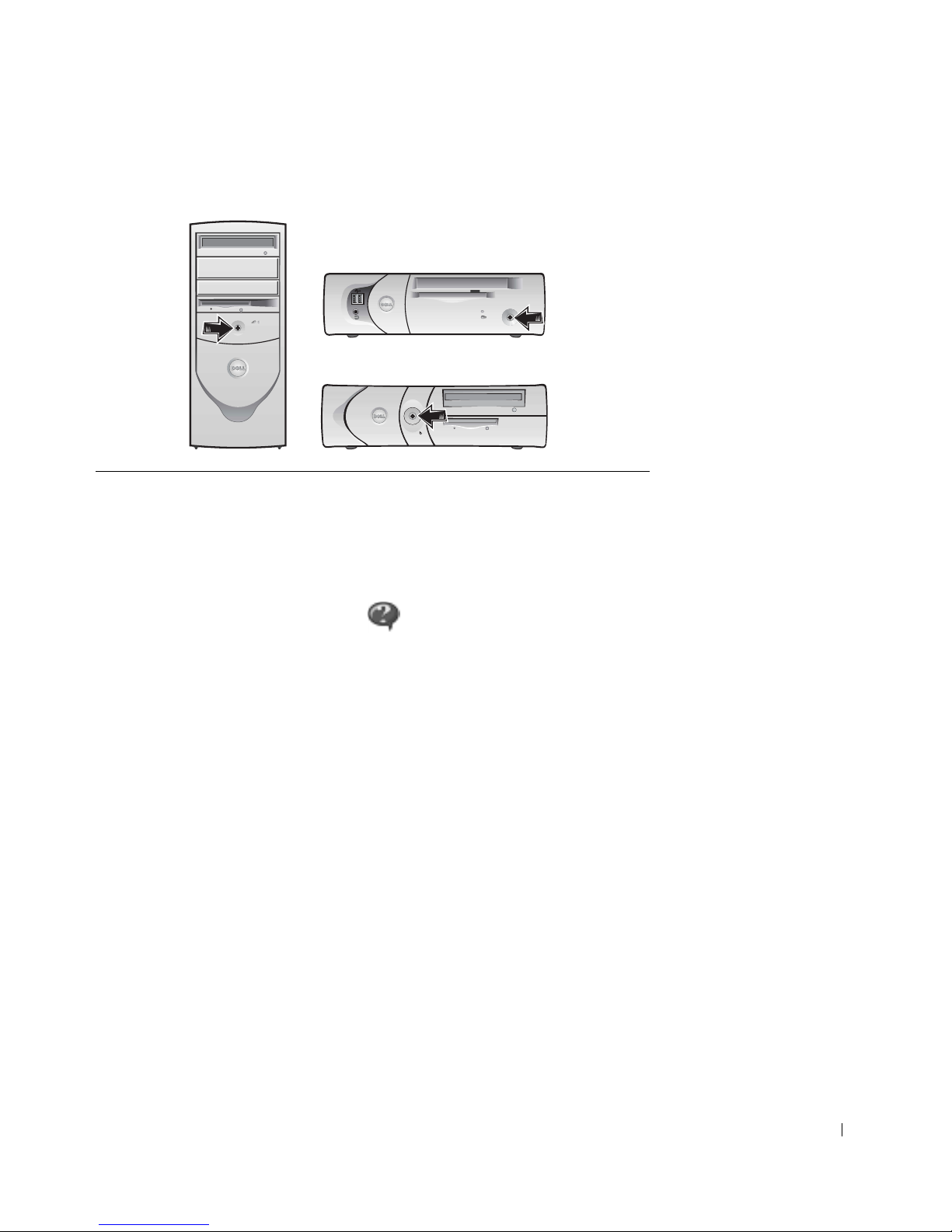
Guía de instalación y de referencia rápida 73
Lea el acuerdo de licencia del softwar e y siga la s instrucciones de instalación
del sistema operativo que aparecen en la pantalla.
¡Felicitacio nes ! Ha completado la configuración del sistema.
Dependiendo de su sistema operativo, haga doble clic en el icono Guías
del usuario ubicado en el escritorio ( ), o haga clic en el botón Inicio y
luego seleccione Ayuda y asistencia para acceder a la documentación
electrónica almacenada en la unidad de disco duro.
Solución de problemas
Dell proporciona una serie de herramientas para ayudarlo si su sistema no
funciona como se espera. P ara obtener la información más actualizada sobre
la solución de problemas disponible para su sistema, consulte el sitio web
Dell Support en support.dell.com. También puede encontrar descripciones
de las herramientas de solución de problemas de Dell en la sección titulada
“Obtención de ayuda” en la Guía del usuario en línea.
Si el equipo tiene problemas que requieren la ayuda de Dell, escriba una
descripción detallada del error, códigos de sonido o patrones de luz de
diagnósticos; escriba su código de servicio rápido y número de etiqueta de
servicio a continuación y póngase en contacto con Dell en el mismo lugar en
que adquirió su equipo.
6
Encienda el equipo y el monitor.
Page 75

74 Guía de instalación y de referencia rápida
www.dell.com | support.dell.com
Consulte "Búsqueda de información para su equipo" en la página 61 para
ver un ejemplo del código de servicio rápido y números de etiqueta de
servicio.
Código de servicio rápido:___________________________
Número de etiqueta de servicio:___________________________
Su equipo incluye las herramientas siguientes que le pueden ayudar a
solucionar un problema:
Utilización del CD Drivers and Utilities
Para usar el CD Drivers and Utilities (también conocido como
ResourceCD) mientras se ejecuta el sistema operativo Windows:
NOTA: Para acceder a
los controladores de
dispositivos y la
documentación del
usuario debe utilizar el
CD
Drivers and Utilities
mientras ejecuta
Windows.
1
Encienda el equipo y permita que se inicie el escritorio de Windows.
2 Inserte el CD Drivers and Utilities en la unidad de CD.
Si está utilizando el CD Drivers and Utilities por primera vez en este
equipo, se abrirá la ventana ResourceCD Installation (Instalación de
ResourceCD) para informarle que el CD Drivers and Utilities está a
punto de empezar su instalación.
3 Haga clic en OK (Aceptar) para continuar.
P ara completar la instalación, r esponda a las peticiones ofr ecidas por el
programa de instalación.
DIAGNÓSTICOS DELL: Los Diagnósticos Dell prueban diversos componentes
en el equipo y le ayudan a identificar la causa de los problemas del mismo. Para
obtener más información, consulte "Inicio de los Diagnósticos Dell" en la
página 75.
LAS SIGUIENTES CARACTERÍSTICAS PUEDEN INDICAR UNA POSIBLE
FALLA Y AYUDARLE A SOLUCIONAR UN PROBLEMA CON EL EQUIPO.
CONSULTE LA
Guía del usuario
PARA OBTENER MÁS INFORMACIÓN .
L
UCES DEL SISTEMA: Ubicadas en la parte anterior del equipo.
L
UCES DE DIAGNÓSTICO: Ubicadas en la parte posterior del equipo
M
ENSAJES DEL SISTEMA: Aparecen en la pantalla del monitor
C
ÓDIGOS DE SONIDO: Serie de sonidos audibles que emite el equipo
Page 76

Guía de instalación y de referencia rápida 75
4 Haga clic en Next (Siguiente) en la pantalla Welcome Dell System
Owner (Bienvenida al propietario del sistema Dell).
5 Seleccione el System Model (Modelo del sistema), Operating System
(Sistema operativo), Device Type (Tipo de dispositivo) y Topic
(Tema) adecuado.
Controladores para su equipo
Para visualizar una lista de controladores de dispositivos para su equipo:
1 Haga clic en My Drivers (Mis controladores) en el menú desplegable
Tema.
El CD Drivers and Utilities examina el sistema operativo y el hardware
del equipo y después aparece en la pantalla una lista de los
controladores de dispositivos de la configuración del sistema.
2 Haga clic en el controlador adecuado y siga las instrucciones para
descargar el controlador en su equipo.
Para ver todos los controladores disponibles para su equipo, haga clic en
Drivers (Controladores) en el menú desplegable Tema.
Diagnósticos Dell
Cuándo utilizar los Diagnósticos Dell
Si tiene algún problema con su equipo, realice las verificaciones que
aparecen en "Resolución de problemas" en la Guía del usuario y ejecute los
Diagnósticos Dell antes de comunicarse con Dell para obtener asistencia
técnica. La ejecución de los Diagnósticos Dell le puede ayudar a resolver el
problema sin tener que ponerse en contacto con Dell. Si sí se comunica con
Dell, los resultados de las pruebas pueden proporcionar información
importante para el personal de servicio y asistencia de Dell.
AVISO: Si la unidad de disco duro falla, ejecute los Diagnósticos de la unidad
de disco duro IDE de Dell (consulte la sección "Ejecución de los Diagnósticos
de la unidad de disco duro IDE de Dell." en la página 77).
Inicio de los Diagnósticos Dell
Ejecute el programa Configuración del sistema como se explica en la Guía
del usuario, revise la información de configuración de su equipo y asegúrese
de que el dispositivo que desea probar aparezca en la configuración del
sistema y esté activo.
Page 77

76 Guía de instalación y de referencia rápida
www.dell.com | support.dell.com
Inicie los Diagnósticos Dell, ya sea desde la unidad de disco duro o desde el
CD Drivers and Utilities (también conocido como el ResourceCD).
Inicio de los Diagnósticos Dell desde la unidad de disco duro
1 Apague y reinicie el equipo.
2 Cuando aparezca el logotipo DELL
®
, oprima <F12>
inmediatamente.
NOTA: Si recibe un
mensaje diciendo que no
se ha encontrado ninguna
partición de utilidad de
los diagnósticos, siga las
instrucciones para
ejecutar los Diagnósticos
Dell desde el CD Drivers
and Utilities.
Si espera demasiado y aparece el logotipo de Windows, siga esperando
hasta que aparezca el escritorio de Windows. Luego apague el equipo
mediante el menú Inicio e inténtelo de nuevo.
3 Cuando aparezca la lista de dispositivos de inicio, resalte Boot to
Utility Partition (Iniciar en la partición de utilidad) y oprima
<Entrar>.
4 Cuando aparezca el menú principal de los Diagnósticos Dell,
seleccione la prueba que desea ejecutar.
5 Cierre la pantalla de prueba para regresar a la pantalla Main Menu
(Menú principal). Para salir de los Diagnósticos Dell y reiniciar el
equipo, cierre la pantalla Menú principal.
Inicio de los Diagnósticos Dell desde el CD Drivers and Utilities
1 Inserte el CD Drivers and Utilities en la unidad de CD.
2 Apague y reinicie el equipo.
Cuando aparezca el logotipo DELL, oprima <F12> inmediatamente.
Si espera demasiado y aparece el logotipo de Windows, siga esperando
hasta que aparezca el escritorio de Windows. Luego apague el equipo
mediante el menú Inicio y vuelva a intentarlo.
NOTA: Esta
característica cambia la
secuencia de inicio
solamente una vez. La
próxima vez, el equipo se
iniciará de acuerdo con
los dispositivos
especificados en la
configuración del sistema.
3
Cuando aparezca la lista de dispositivos de inicio, resalte IDE
CD-ROM Device (Dispositivo de CD-ROM IDE) y oprima
<Entrar>.
4 Seleccione la opción Dispositivo de CD-ROM IDE del menú de
inicio del CD.
5 Seleccione la opción Boot from CD-ROM (Iniciar desde CD-ROM)
del menú que aparece.
6 Introduzca 1 para iniciar el menú del ResourceCD.
7 Introduzca 2 para iniciar los Diagnósticos Dell.
Page 78

Guía de instalación y de referencia rápida 77
8 Seleccione Run the 32 Bit Dell Diagnostics (Ejecutar los
Diagnósticos Dell de 32 bits) de la lista numerada. Si se enumeran
múltiples versiones, seleccione la versión adecuada para su plataforma.
9 Cuando aparezca el menú principal de los Diagnósticos Dell,
seleccione la prueba que desea ejecutar.
10 Cuando las pruebas se hayan completado, quite el CD.
11 Cierre la pantalla de prueba para regresar a la pantalla Menú principal.
Para salir de los Diagnósticos Dell y reiniciar el equipo, cierre la
pantalla Menú principal.
Ejecución de los Diagnósticos de la unidad de disco duro IDE de
Dell.
Los Diagnósticos de la unidad de disco duro IDE de Dell son una utilidad
que prueba la unidad de disco duro para solucionar o confirmar un fallo de
la unidad de disco duro.
1 Encienda el equipo (si el equipo ya está encendido, reinícielo).
2 Cuando aparezca F2 = Setup (F2 = Configuración) en la
esquina superior derecha de la pantalla, oprima
<Control><Alt><D>.
3 Siga las instrucciones que aparecen en la pantalla.
Si se reporta un error, consulte "Problemas de la unid ad de di sco duro "
en la Guía del usuario.
Información reglamentaria
NOTA: Puede encontrar
más información sobre
reglamentaciones en la
Guía del usuario
.
La EMI (Electromagnetic Interference [interferencia electromagnét ica]) es
cualquier señal o emisión, irradiada en el espacio o conducida mediante
cables de alimentación o de señales, que pone en peligro el funcionamiento
de dispositivos de navegación por radio u otros dispositivos de seguridad o
que degrada seriamente, obstruye o interrumpe re petidamente un servicio
de radiocomunicaciones con licencia.
El sistema del equipo Dell está diseñado para cumplir con todas las
reglamentaciones relacionadas con la EMI. Los cambios o modificaciones
no aprobados expresamente por Dell podrían anular la autoridad para
operar el equipo.
Page 79

78 Guía de instalación y de referencia rápida
www.dell.com | support.dell.com
Page 80

Guía de instalación y de referencia rápida 79
Garantías limitadas y política de devoluciones
Los productos de hardware marca Dell comprados en EE. UU. o Canadá vienen con un a garantía limitada de
90 días (EE. UU. solamente), un año, dos años, tres años o cuatro años. Para determinar qué garantía adquirió,
consulte la factura incluida con sus productos de hardware. Las siguientes secciones describen las garantías
limitadas y la política de devoluciones en los EE.UU., las garantías limitadas y la política de devoluciones en
Canadá y la garantía del fabricante para Latinoamérica y el Caribe.
Garantía limitada para los EE.UU.
¿Qué cubre esta garantía limitada?
Esta garantía limitada cubre defectos en los materiales y la mano de obra de los productos de hardware marca Dell
de nuestro usuario cliente, incluyendo productos periféricos marca Dell, como monitores, teclados, dispositivos
para apuntar (mouse) y dispositivos inalámbricos.
¿Qué no cubre esta garantía limitada?
Esta garantía limitada no cubre:
• Software, incluyendo el sistema operativo y el software que se haya agregado a los productos de hardware de
marca Dell a través de nuestro sistema de integración de fábrica, software de terceros, o la duplicación de
software
• Productos y accesorios que no sean de marca Dell
• Problem as causados por:
– Causas externas tales como un accidente, abuso, mal uso o problemas con la energía eléctrica
– Servicio no autorizado por Dell
– Uso que no concuerde con las instrucciones del producto
– La falta de seguimiento de las instrucciones del producto o de la realización de mantenimiento
preventivo
– Problemas causados por el uso de accesorios, piezas o componentes que no hayan sido provistos por
Dell
• Productos con etiquetas de servicio o números de serie alterados o sin ellos
• Productos de los cuales no hayamos recibido su pago
ESTA GARANTÍA LE PROPORCIONA DERECHOS LEGALES ESPECÍFICOS Y USTED PODRÍA A LA
VEZ TENER OTROS DERECHOS, LOS CUALES VARÍAN DE UN ESTADO A OTRO (O DE UNA
JURISDICCIÓN A OTRA). LA RESPONSABILIDAD DE DELL CON RESPECTO A DEFECTOS Y MAL
FUNCIONAMIENTO DEL HARDW ARE ESTÁ LIMITADA A LA REP AR A CIÓN Y EL REEMP LAZO TAL
Y COMO SE EXPRESA EN ESTA DECLARACIÓN DE GARANTÍA. TODA GARANTÍA EXPRESA O
IMPLÍCITA PARA EL PRODUCTO, INCLUYENDO PERO NO LIMITADA A, LAS GARANTÍAS
IMPLÍCITAS Y CONDICIONES DE COMERCIABILIDAD Y ADAPTABILIDAD PARA UN PROPÓSITO
EN PARTICULAR, ESTÁN LIMITADAS POR EL TIEMPO Y LOS TÉRMINOS DEL PERIODO DE LA
GARANTÍA LIMITADA ESTABLECIDOS EN SU FACTURA. NINGUNA GARANTÍA, YA SEA EXPRESA
O IMPLÍCITA , TENDRÁ VALIDEZ DESPUÉS DE QUE EL PERIODO DE LA GA RANTÍA HAYA
EXPIRADO. ALGUNOS ESTADOS NO PERMITEN LAS LIMITACIONES EN CUANTO A LA
DURACIÓN DE LAS GARANTÍAS IMPLÍCITAS, ASÍ QUE ES POSIBLE QUE ESTA LIMITACIÓN NO
LE CORRESPONDA.
Page 81

80 Guía de instalación y de referencia rápida
www.dell.com | support.dell.com
NO ACEPTAMOS NINGUNA OBLIGACIÓN MÁS ALLÁ DE LAS CONSIDERADAS EN ESTA
GARANTÍA LIMITADA NI POR DAÑOS ACCIDENTALES O CONSECUENCIALES, INCLUYENDO,
SIN LIMITACIÓN, CUALQUIER OBLIGACIÓN POR RECLAMOS DE TERCERAS PARTES CONTRA
USTED POR DAÑOS, POR PRODUCTOS NO DISPONIBLES PAR A SU USO O POR INFORMACIÓN O
SOFTWARE PERDIDOS. NUESTRA OBLIGACIÓN SÓLO SERÁ POR LA CANTIDAD QUE USTED
PAGÓ POR EL PRODUCTO SUJETO DE UNA RECLAMACIÓN. ESTA ES LA CANTIDAD MÁXIMA
POR LA QUE SOMOS RESPONSABLES.
ALGUNOS ESTADOS NO PERMITEN LA EXCLUSIÓN O LIMITACIÓN DE DAÑOS ACCIDENTALES
O CONSECUENCIALES, POR LO QUE ES POSIBLE QUE LA LIMITACIÓN O EXCLUSIÓN
ANTERIOR NO SEA APLICABLE A USTED.
¿Cuánto dura esta garantía limitada?
Esta garantía limitada dura el periodo indicado en su factura, excepto en el caso de la garantía limitada de las
baterías marca Dell, que dura un año, y de la garantía limitada de las lámparas para proyectores marca Dell, que
dura noventa días. La garantía limitada comienza en la fecha de la factura. El periodo de la garantía no se extiende
si reparamos o reemplazamos un producto o piezas garantizadas. Es posible que Dell cambie la disponibilidad de
las garantías limitadas a su discreción, pero cualquier cambio no será retroactivo.
¿Qué debo hacer si necesito servicio de garantía?
Antes de que la garantía expire, llámenos al número adecuado que se lista en la siguiente tabla. Por favor tenga a la
mano el número de la etiqueta de servicio de Dell o el número del pedido .
Clientes residenciales indi viduales:
Asistencia técnica 1-800-624-9896
Servicio al cliente 1-800-624-9897
Clientes residenciales indi viduales que comp raron
mediante un programa de compras para em pleados:
Asistencia técnica y servicio al cliente 1-800-822-8965
Clientes comerciales residenciales y de pequeñas
empresas:
Asistencia técnica y servicio al cliente 1-800-456-3355
Clientes comerciales medianos, grandes o gl obales,
clientes del sector de la salud y VAR (value added
resellers [distribuidores de valor agregado]):
Asistencia técnica y servicio al cliente 1-800-822-8965
Clientes gubernamentales y del sector educativo:
Asistencia técnica y servicio al cliente 1-800-234-1490
Memoria marca Dell
1-888-363-5150
Page 82

Guía de instalación y de referencia rápida 81
¿Qué hará Dell?
Durante los primeros 90 días de la garantía limitada de 90 días y durante el primer año de todas las demás
garantías limitadas: Durante los primeros 90 días de la garantía limitada de 90 días y durante el primer año de
todas las demás garantías limitadas, repararemos todos los productos de hardware marca Dell que nos hayan sido
devueltos y que se demuestre que tienen defectos en sus materiales o mano de obra. Si no podemos reparar el
producto, lo reemplazaremos con un producto comparable, nuevo o reconstruido.
Cuando usted se comunique con nosotros, emitiremos un número de autorización de devolución de material para
que lo incluya en su devolución. Debe devolver los productos a Dell en su empaque original o en uno equivalente,
prepagar los cargos de envío y asegurar el envío o aceptar el riesgo si el producto se pierde o se daña durante su
transporte. Nosotros le haremos llegar los productos reparados o reemplazados. Pagaremos el envío de los
productos reparados o reemplazados si usa una dirección en los Estados Unidos (excluyendo Puerto Rico y las
posesiones y territorios de EE.UU.). Si no es así, le enviaremos el producto con un servicio de transporte por cobrar.
Si determinamos que el producto no está cubierto por esta garantía, le notificaremos y le informaremos acerca de
las alternativas de servicio bajo cuota disponibles.
NOTA: Antes de enviarnos los productos, aseg úrese de hacer copias de seguridad de la información contenida en
la(s) unidad(es) de disco duro y en cualquier otro dispositivo de almacenamiento en el(los) producto(s). Elimine
cualquier información confidencial, exclusiva o personal y desmonte los medios extraíbles tales como discos, CD o
tarjetas PC. No nos hacemos responsables por ninguna información confidencial, patentada o personal; por
información perdida o dañada ni por medios extraíbles dañados o perdidos.
Durante los años restantes: Durante el periodo restante de la garantía limitada, reemplazaremos cualquier pieza
defectuosa con piezas nuevas o reconstruidas si consideramos que se deben reemplazar. Cuando se comunique con
nosotros, le solicitaremos un número válido de tarjeta de crédito en el momento en que solicite una pieza de
repuesto, pero no haremos ningún cargo por la pieza de repuesto siempr e y cuando nos devuelva la pieza original
durante los treinta días siguientes al envío de la pieza de repuesto. Si no recibimos la pieza original durante los
treinta días siguientes, haremos un cargo en su tarjeta de crédito por el precio vigente estándar de la pieza.
Nosotros pagaremos el envío de la pieza si usa una dirección en Estados Unidos (excluyendo Puerto Rico y las
posesiones y territorios de EE.UU). Si no es así, le enviaremos la pieza con un servicio de transporte por cobrar.
Dell incluirá un contenedor para envío prepagado con cada pieza de repuesto para que lo use al devolver la pieza
reemplazada a Dell.
NOTA: Antes de reemplazar piezas, asegúrese de hacer una copia de segurida d en la(a) unidad( es) de disco d uro
y en cualquier otro dispositivo de almacenamiento que haya en el(los) producto(s). No nos hacemos responsables
por información perdida o dañada.
¿Qué sucede si compré un contrato de servicio?
Si su contrato de servicio a domicilio es con Dell, el servicio a domicilio le será proporcionado bajo los términos del
acuerdo de servicio a domicilio. Por favor refiérase al contrato para obtener detalles sobre cómo obtener el servicio.
Si compró a través de nosotros un contrato de servicio con uno de nuestros proveedores de servicio asociados, por
favor refiérase a ese contrato para obtener detalles sobre cómo obtener el servicio.
¿Cómo repararán mi producto?
Usamos piezas nuevas y reconstruidas elaboradas por diversos fabricantes al realizar reparaciones de garantía y al
construir piezas y sistemas de repuesto. Las piezas y sistemas reconstruidos son piezas o sistemas que han sido
devueltos a Dell, algunos de los cuales no fueron usados nunca por un cliente. Todas las piezas y sistemas se
inspeccionan y se prueban para asegurar su calidad. Las piezas y sistemas de repuesto están cubiertas por el periodo
restante de la garantía limitada para el producto que compró.
Page 83

82 Guía de instalación y de referencia rápida
www.dell.com | support.dell.com
¿Qué debo hacer si no estoy satisfecho?
Estamos orgullosos de proporcionar un excelente servicio al cliente. Si no está satisfecho con el servicio que reciba
bajo esta garantía limitada, por favor infórmenos. Hemos aprendido que la mejor manera de resolver problemas
relacionados con nuestra garantía limitada es trabajando juntos. Si después de esas conversaciones, aún no está
satisfecho, creemos que el arbitraje es la forma más rápida de resolver sus quejas. Por lo tanto, CUALQUIER
RECLAMACIÓN, DISPUTA O CONTROVERSIA (YA SEA EN CONTRATO, AGRAVIO O DE
CUALQUIER OTRA FORMA; YA SEA PREEXISTENTE, PRESENTE O FUTURA, E INCLUYENDO
RECLAMACIONES ESTATUTARIAS, POR LEY COMÚN, POR AGRAVIO INTERNACIONAL Y
EQUIVALENTES) CONTRA DELL que surjan de esta garantía limitada o se relacionen con la misma, de su
interpretación o de su violación, ter minación o validez, de las relaciones que resulten de esta garantía limitada
(incluyendo, con el mayor alcance permitido por la ley aplicable, las relaciones con terceras partes), de la
publicidad de Dell o de cualquier compra relacionada DEBERÁN SER RESUELTAS EXCLUSIVA Y
FINALMENTE POR ARBITRAJE OBLIGATORIO ADMINISTRADO POR EL NAF (NATIONAL
ARBITRA TION FORUM [FORO NA CIONAL DE ARBITR AJE]) bajo su Código de procedimiento vigente en
ese momento (disponible mediante Internet en www.arb-forum.com/ o telefónicamente en el 1-800-474-2371). El
arbitraje se limitará exclusivamente a la disputa o controversia entre usted y Dell. Cualquier resolución de los
árbitros deberá ser final y obligatoria para ambas partes, y podrá ser introducida como un juicio en cualquier corte
de jurisdicción competente. Es posible obtener información y presentar reclamaciones al NAF en: P.O. Box 50191,
Minneapolis, MN 55405. Esta estipulación es aplicabl e solamente a clientes residenciales y a clientes que
compraron mediante un programa de compras para empleados. No es aplicable a clientes comerciales pequeños,
medianos, grandes y globales ni a clientes gubernamentales y de los sectores educativo y de salud.
¿Puedo transferir la garantía limitada?
Es posible transferir las garantías limitadas de sistemas si el propietario actual transfiere la propiedad del sistema y
registra la transferencia con nosotros. No es posible transferir la garantía limitada de las memorias marca Dell.
Puede registrar su transferencia en el sitio web de Dell:
• Si usted es un consumidor residencial individual, visite
www.dell.com/us/en/dhs/topics/sbtopic_015_ccare.htm
• Si es un cliente comercial pequeño, mediano, grande o global, visite
www.dell.com/us/en/biz/topics/sbtopic_ccare_nav_015_ccare.htm
• Si es un cliente de una institución gubernamental, educativa o de salud, o bien un consumidor individual
que adquirió el producto por medio de un programa de compras para empleados, visite
www.dell.com/us/en/pub/topics/sbtopic_015_ccare.htm
Si no tiene acceso a Internet, llame a nuestro representante de atención al cliente o llame al 1-800-624-9897.
Política de devoluciones "Satisfacción total" (EE.UU. solamente)
Valoramos nuestra relación con usted y deseamos asegurarnos de que esté satisfecho con sus compras. Por eso le
ofrecemos una política de devoluciones de "satisfacción total" para la mayoría de los productos que usted, el cliente
final, compre directamente a Dell. De acuerdo con esta política, usted puede devolver a Dell los productos que
Page 84

Guía de instalación y de referencia rápida 83
haya comprado directamente a Dell por un crédito o reembolso del precio de compra pagado, menos los cargos por
manejo, envío y reabastecimiento que sean aplicables, de la siguiente manera:
• Productos y accesorios de hardware nuevos: T odo el hardware nuevo, accesorios, piezas y software no abierto
que aún esté en su empaque sellado, excluyendo los productos mencionados a continuación, se pueden
devolver dentro de los treinta días siguientes a la fecha de la factura. Para devolver aplicaciones de software o
un sistema operativo que Dell haya instalado, usted debe devolver el equipo completo. Se aplica una política
de devoluciones diferente a productos no defectuosos comprados a través de la División de software y
periféricos de Dell por clientes de nuestras divisiones de empresas pequeñas y medianas. Esos productos se
pueden devolver dentro de los treinta días siguientes a la fecha de la factura, pero se deducirá un cargo de
reabastecimiento de quince por ciento (15%) de cualquier reembolso o crédito. La política de devoluciones
"Satisfacción total" y la política de devoluciones de la División de software y periféricos no están disponibles
para productos de almacenamiento Dell | EMC, productos marca EMC ni software empresarial.
• Productos y piezas de hardware reacondicionados o reconstruidos de marca Dell: Todos los productos de
almacenamiento y de servidores de marca Dell reacondicionados o reconstruidos se pueden devolver en los
treinta días siguientes a la fecha de la factura. T odos l os demás productos y piezas de hardware de marca Dell
reacondicionados o reconstruidos se pueden devolver dentro de los catorce días siguientes a la fecha de la
factura.
Para devolver productos, envíe un mensaje de correo electrónico o llame al servicio al cliente de Dell para recibir un
número de autorización para crédito por devolución dentro del periodo de política de devoluciones que se aplique
al producto que desea devolver. Debe contar con un número de autorización de devolución de crédito para poder
devolver el producto. Consulte "Obtención de ayuda" en la documentación de clientes (o bien
www.dell.com/us/en/gen/contact.htm) para encontrar la información de contacto adecuada con el fin de obtener
servicio de asistencia al cliente.
Debe enviar los productos a Dell dentro de los cinco días siguientes a la fecha en que Dell emita el número de
autorización de devolución de crédito. También debe devolver los productos a Dell en sus empaques originales,
como si fueran nuevos, junto con todos los medios, documentación y todos los demás artículos incluidos en el
envío original, prepagar los cargos por envío y asegurar el envío o aceptar el riesgo de pérdida o daño durante el
transporte.
Garantía del fabricante para el usuario final por un año (únicamente
Latinoamérica y el Caribe)
Garantía del fabricante
Dell Computer Corporation ("Dell") garantiza al usuario en acuerdo con las siguientes provisiones que los
productos de hardware que llevan su marca, adquiridos por el usuario por medio de una compañía de Dell o un
distribuidor de Dell autorizado en Latinoamérica o el Caribe, estarán libres de defectos en materiales, mano de
obra y diseño que puedan afectar su uso normal por un periodo de un año a partir de la fecha original de compra.
Los productos para los cuales se haga una debida reclamación serán, según la decisión de Dell, reparados o
reemplazados a cuenta de Dell. Todas las piezas desmontadas de los equipos reparados son propiedad de Dell. Dell
utiliza piezas nuevas y reacondicionadas hechas por varios fabricantes cuando hace reparaciones y en la fabricación
de productos de reemplazo.
Exclusiones
Esta garantía no es aplicable a defectos causados por: instalación, uso o mantenimiento inadecuado o incorrecto;
acciones o modificaciones por terceras personas no autorizadas o por el usuario; daños accidentales o intencionales;
o por desgaste normal.
Page 85

84 Guía de instalación y de referencia rápida
www.dell.com | support.dell.com
Cómo realizar una reclamación
Las reclamaciones deben ser hechas en Latinoamérica o el Caribe poniéndose en contacto con el lugar de ventas de
Dell dentro del periodo de garantía. El usuario siempre debe proporcionar un compro bante de adquisición,
indicando el nombre y la dirección del vendedor, la fecha de adquisición, números de serie y de modelo, nombre y
dirección del cliente, y los detalles de los síntomas y de la configuración al momento en el que ocurrió la falla,
incluyendo los dispositivos periféricos y el software que se estaban utilizando. De lo contrario, Dell puede rehusar
la demanda. Una vez diagnosticado un defecto bajo la garantía, Dell se encargará del problema y pagará el envío
por tierra, así como el seguro de ida y venida al centro de reparación y reemplazo Dell. El usuario final se debe
encargar de que el producto defectuoso esté disponible para ser recogido debidamente empacado en la caja original
o en una caja protectora similar junto con los detalles que se mencionan anteriormente y el número de devolución
proporcionado al usuario por Dell.
Limitación y derechos estatutarios
Dell no ofrece ninguna otra garantía o declaración similar que la explícitamente descrita anteriormente y esta
garantía se ofrece en lugar de toda otra garantía, al máximo permitido por la ley. En la ausencia de leyes aplicables
esta garantía será el único y exclusivo recurso del usuario en contra de Dell o cualquiera de sus socios, y ni Dell ni
cualquiera de sus socios serán responsables por la pérdida de ganancias o contratos, o cualquier otra pérdida
indirecta o por consecuencia del descuido, violación de contrato o cualquier otro evento.
Esta garantía no perjudica o afecta los derechos legales obligatorios del usuario en contra y/o cualquier otro
derecho que resulte de otros contratos entre el usuario y Dell, y/o cualquier otro vendedor.
Dell World Trade LP
One Dell Way, Round Rock, TX 78682, EE.UU.
Dell Computadores do Brasil Ltda (CNPJ No. 72.381.189/0001-10)/
Dell Commercial do Brasil Ltda (CNPJ No. 03 405 822/0001-40)
Avenida Industrial Belgraf, 400
92990-000 - Eldorado do Sul – RS - Brasil
Dell Computer de Chile Ltda
Coyancura 2283, Piso 3- Of.302,
Providencia, Santiago - Chile
Dell Computer de Colombia Corporation
Carrera 7 #115-33 Oficina 603
Bogotá, Colombia
Dell Computer de México SA de CV
Paseo de la Reforma 2620 - 11° Piso
Col. Lomas Altas
11950 México, D.F.
Page 86

www.dell.com | support.dell.com
038WYDA07
Printed in the U.S.A.
Impresso nos EUA.
Impreso en los EE.UU.
P/N 38WYD Rev. A07
Page 87

www.dell.com | support.dell.com
038WYDA07
Printed in Brazil.
Impresso no Brasil.
Impreso en Brasil.
P/N 38WYD Rev. A07
 Loading...