

Page 1

Cisco Nexus B22 Fabric Extender for Dell
Getting Started Guide
This Getting Started Guide describes the Cisco Nexus B22 Fabric Extender for Dell and how to start
using it. This Getting Started Guide includes the following sections:
• Information about the Cisco Nexus B22 Fabric Extender for Dell, page 1
• Shipping Box Contents, page 2
• Dell Blade System Architecture, page 4
• Installing the Cisco Nexus B22 Fabric Extender for Dell, page 7
• Updating NX-OS, page 8
• Configuring the Cisco Nexus B22 Fabric Extender for Dell, page 9
• Additional Information, page 21
• Additional Information, page 21
• Related Documentation, page 21
• Technical Support, page 21
Information about the Cisco Nexus B22 Fabric Extender for Dell
The Cisco Nexus B22 Fabric Extender for Dell provides an extension of the Cisco Nexus switch fabric
to the Dell blade servers.
The Cisco Nexus B22 Fabric Extenders behave as remote line cards for a parent Cisco Nexus switch.
The Fabric Extenders are essentially extensions of the parent Cisco Nexus switch fabric, with the Fabric
Extenders and the parent Cisco Nexus switch together forming a distributed modular system. The Cisco
Nexus B22 Fabric Extender for Dell support is limited to the Cisco Nexus 5500 series of switches.
Each Cisco Nexus B22 Fabric Extender connects via 10-Gigabit Ethernet to up to 16 servers within a
Dell BladeEnclosure and contains 8 10-Gigabit Ethernet fabric uplinks towards the parent Cisco Nexus
switch. Multiple low cost options are available for fabric connections between the Cisco Nexus B22 and
the parent Cisco Nexus switch. Low-cost connections up to 10 meters can be made with copper Twin-ax
Americas Headquarters:
Cisco Systems, Inc., 170 West Tasman Drive, San Jose, CA 95134-1706 USA
Page 2

Shipping Box Contents
cable, and longer connections up to 100 meters can use the Fabric Extender Transceiver. Other standard
10 Gigabit Ethernet optics such as 10Gbase-SR, 10Gbase-LR, and 10Gbase-ER are also supported for
these fabric connections.
The Cisco Nexus B22 Fabric Extender for Dell has the following features:
• Sixteen internal 10-Gigabit Ethernet KR ports to the Blade servers.
• Eight External 10-Gigabit Ethernet SFP+ ports
• One Bicolor LED (Green/Amber) for external up link ports and no LED's for internal ports.
• Thermal monitoring
• Thermal management provided by the M1000e Blade Enclosure
• Hot pluggable
• 12V power from chassis
Finding the Latest Documentation Online
Use the following links to check for the latest documentation for your server product:
• http://www.cisco.com/en/US/products/ps10110/tsd_products_support_series_home.html
• http://support.dell.com/support/edocs/systems/pem/en/index.htm
Check these links often to verify that your documentation is up to date.
Shipping Box Contents
The Cisco Nexus B22 Fabric Extender for Dell shipping box contains:
• Cisco Nexus B22 Fabric Extender for Dell, with 16 internal host ports and 8 external network ports.
The shipping box is available with or without the Fabric Extender Transceiver (FET). The product ID
of the bundle with the Cisco Nexus B22 Fabric Extender and the Fabric Extender Tranceiver is
N2K-B22DELL-F ( Dell part number 4PTY0) and contains 16 Fabric Extender Transceivers.
Figure 1 shows the Cisco Nexus B22 Fabric Extender for Dell.
Cisco Nexus B22 Fabric Extender for Dell Getting Started Guide
2
Page 3

Figure 1 Cisco Nexus B22 Fabric Extender for Dell
Shipping Box Contents
1 Eight External 10-Gigabit SFP+ ports 2 Power LED (Left) and Health (LED Right)
Cisco Nexus B22 Fabric Extender for Dell Getting Started Guide
3
Page 4
Dell Blade System Architecture
Dell Blade System Architecture
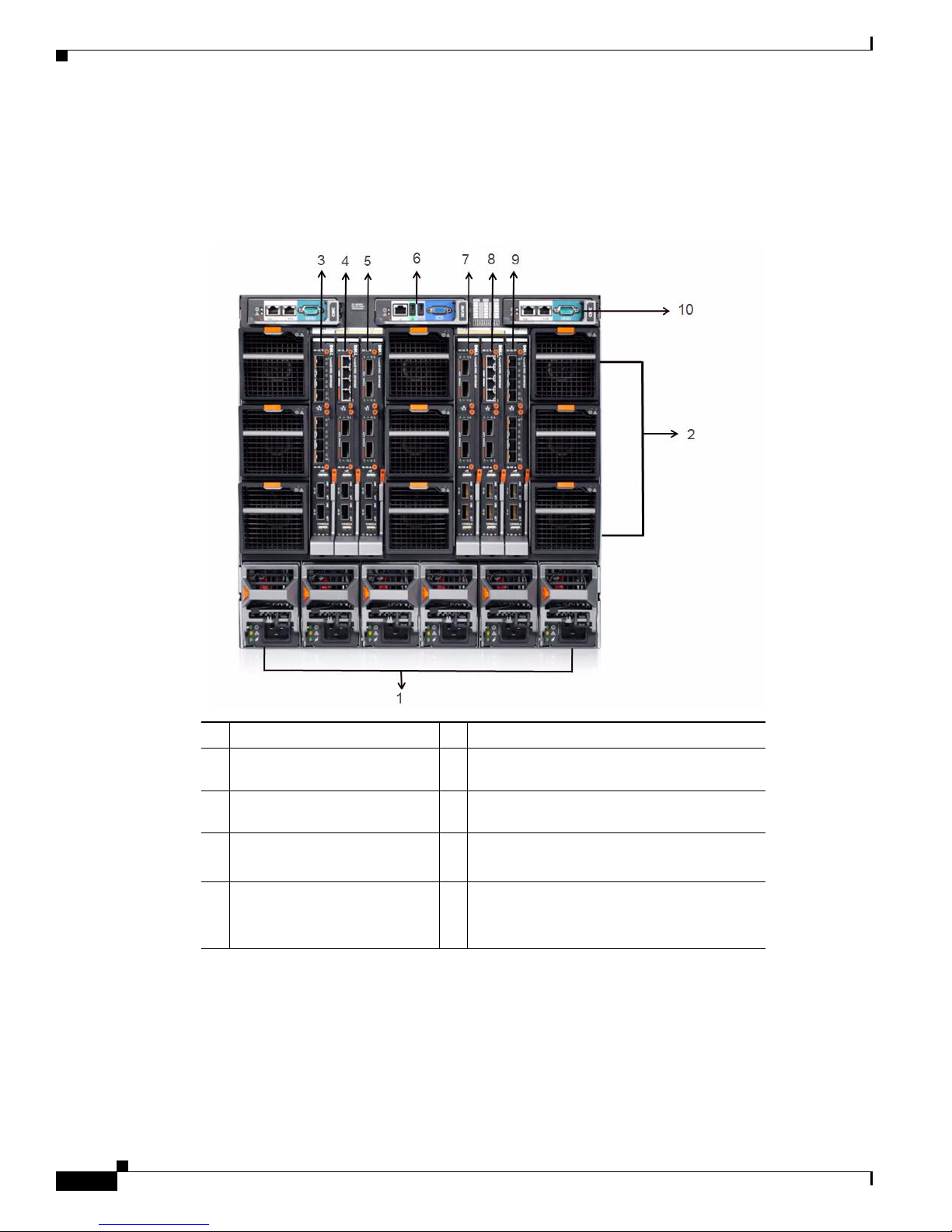
Figure 2 shows the rear view of the blade chassis, in which you install the switch module.
Figure 2 Rear View of the Blade Chassis
Power Supply Units
1
Fan Units
2
Fabric A1
3
(This is A1 IOM position)
Fabric B1
4
(This is B1 IOM position)
Fabric C1
(This is C1 IOM position)
5
iKVM
6
Fabric C2
7
(This is C2 IOM position)
Fabric B2
8
(This is B2 IOM position)
Fabric A2
(This is A2 IOM position)
9
Chassis Management Controller (CMC)
(located at the top left and right corner of
10
blade chassis)
Consider these prerequisites before you install the switch module:
• Fill any unoccupied interconnect bays or any unoccupied power module bays in the blade chassis
with blanks.
• The switch module should be installed into the I/O slot that corresponds to the I/O fabric (A, B,
or C) where a 10GE KR Ethernet Adapter, or 10GE Converged Network Adapter (CNA), within
the blade server, is appropriately installed. The Chassis Management Controller (CMC) GUI can
Cisco Nexus B22 Fabric Extender for Dell Getting Started Guide
4
Page 5

be used to view the location of network adapters installed in the Blade servers. Browse to the CMC
IP address and login, then under Server Overview, click on the servers to determine which I/O
fabric contains the 10GE adapters.
• For complete instructions for installing a switch module into the blade server enclosure, refer to
the section on installing an I/O module in the Dell PowerEdge M1000e Enclosure Owner’s
Manual.
• See the Dell documentation for information on the port mapping between the blade chassis and the
switch modules.
M1000e I/O Module Port Mapping
Full-Height Blades
Full height blades support up to 2 LOM or bNDC adapters, with at least 2 port connections each.
For a full-height blade in bay n:
• Adapter1, port 1 connects to I/O module A1, port n.
• Adapter1, port 2 connects to I/O module A2, port n.
• Adapter2, port 1 connects to I/O module A1, port n+8.
Dell Blade System Architecture
• Adapter2, port 2 connects to I/O module A2, port n+8.
Full-height blades support four mezzanine cards, with 2 port connections each:
• Slot Mezz1_Fabric_C supports Fabric C
Mezz1 Port 1 to I/O Module C1, port n
Mezz1 Port 2 to I/O Module C2, port n
• Slot Mezz2_Fabric_B supports Fabric B, port n.
Mezz2 Port 1 to I/O Module B1, port n
Mezz2 Port 2 to I/O Module B2, port n
• Slot Mezz3_Fabric_C supports Fabric C, port n+8.
Mezz3 Port 1 to I/O Module C1, port n+8
Mezz3 Port 2 to I/O Module C2, port n+8
• Slot Mezz4_Fabric_B supports Fabric B, port n+8.
Mezz4 Port 1 to I/O Module B1, port n+8
Mezz4 Port 2 to I/O Module B2, port n+8
Mezzanine card type must match the fabric type of the I/O modules installed in corresponding I/O
module slots.
Half-Height Blades
Half-height blades support a LOM or bNDC adapter, with at least 2 port connections.
For a half-height blade in bay n:
• Adapter port 1 connects to I/O module A1, port n.
Cisco Nexus B22 Fabric Extender for Dell Getting Started Guide
5
Page 6

Dell Blade System Architecture
• Adapter port 2 connects to I/O module A2, port n.
Half-height blades support two mezzanine cards:
• Slot Mezz1_Fabric_C supports Fabric C
• Slot Mezz2_Fabric_B supports Fabric B, port n.
Mezzanine card type must match the fabric type of the I/O modules installed in corresponding I/O
module slots.
Quarter-Height Blades
Quarter-height blades, 4 within a sleeve (Blade a, b, c and d), each support a LOM, with 2 port
connections (the second port connection is only available to I/O modules with 32 ports).
I/O modules with 16 internal ports require populating both A1 and A2 in order to connect to all Quarter
Height Blade positions within a sleeve.
Mezz1 Port 1 to I/O Module C1, port n
Mezz1 Port 2 to I/O Module C2, port n
Mezz2 Port 1 to I/O Module B1, port n
Mezz2 Port 2 to I/O Module B2, port n
For a sleeve in enclosure slot n:
• Blade a LOM port 1 connects to I/O module A1, port n.
• Blade b LOM port 1 connects to I/O module A2, port n.
• Blade c LOM port 1 connects to I/O module A1, port (n+8).
• Blade d LOM port 1 connects to I/O module A2, port (n+8).
Second adapter port requires a 32 port I/O Module:
• Blade a LOM port 2 connects to I/O module A2, port (n+16).
• Blade b LOM port 2 connects to I/O module A1, port (n+16).
• Blade c LOM port 2 connects to I/O module A2, port (n+24).
• Blade d LOM port 2 connects to I/O module A1, port (n+24).
A quarter-height blade supports a single mezzanine card slot:
The mezzanine card slot Fabric supported (B or C) depends on the position in the sleeve where the blade
is installed. Each mezzanine card has two port connections.
For a sleeve in enclosure slot n:
• Blade a Mezzanine card supports Fabric C
Mezz Port 1 to I/O Module C1, port n
Mezz Port 2 to I/O Module C2, port n
• Blade b Mezzanine card supports Fabric B
Mezz Port 1 to I/O Module B1, port n
Mezz Port 2 to I/O Module B2, port n
• Blade c Mezzanine card supports Fabric C
Mezz Port 1 to I/O Module C1, port n+8
Cisco Nexus B22 Fabric Extender for Dell Getting Started Guide
6
Page 7

Dell FEX LEDs
Installing the Cisco Nexus B22 Fabric Extender for Dell
Mezz Port 2 to I/O Module C2, port n+8
• Blade d Mezzanine card supports Fabric B
Mezz Port 1 to I/O Module B1, port n+8
Mezz Port 2 to I/O Module B2, port n+8
Mezzanine card type must match the fabric type of the I/O modules installed in corresponding I/O
module slots.
Tabl e 1 shows the descrition of the Dell FEX LEDs:
Ta b l e 1 IOM Dell Defined LED behavior Chart
Power LED (Green)
Module State
Module Off OFF OFF
Boot in Progress ON OFF
Normal Boot
(No faults)
IOM Fault
(Self -Diagnosed)
IOM Fault
(Misconfiguration or other CMC detected fault)
Module Identify
(Activated from CMC)
ON ON
ON Blink (1Hz)
OFF Blink (1Hz)
ON Blink (1Hz)
Health LED
(Blue/Amber)
Blue
Amber
Amber
Blue
Installing the Cisco Nexus B22 Fabric Extender for Dell
Caution Properly ground yourself before handling the Fabric Extender.
Populate all the chassis interconnect bays with a connection blade or one of the blank panels provided
with the chassis.
To install the Cisco Nexus B22 Fabric Extender for Dell in the chassis:
1. Locate the appropriate interconnect bay at the rear of the chassis. See the setup and installation guide
provided with the chassis.
2. Press the handle latch to release the handle.
Cisco Nexus B22 Fabric Extender for Dell Getting Started Guide
7
Page 8
Updating NX-OS
Note The Cisco Nexus B22 Fabric Extender for Dell is a hot-pluggable device. The chassis may be on or off
during installation.
3. Align the Cisco Nexus B22 Fabric Extender for Dell with the appropriate interconnect bay,
according to the specific configuration for the chassis. Push the switch firmly into the interconnect
bay.
4. Press the installation handle into the latch to lock the switch into place.
5. Connect the cables.
6. Configure the parent Cisco Nexus switch to recognize and boot up the Cisco Nexus B22 Fabric
Extender for Dell.
Updating NX-OS
To achieve the best performance, Dell recommends updating to the latest NX-OS software version.
Note The minimum version of NX-OS is 5.2(1)N1(3)
The minimum CMC firmware versions are:
M1000e CMC Firmware Version 4.3
The Cisco Nexus B22 Fabric Extender for Dell downloads the necessary firmware from the connected
Cisco Nexus switch. You can update the Cisco Nexus Switch without any disruptions using the install
all command. Contact the company from whom your Cisco Nexus Switch was purchased.
You can download NX-OS software from the Cisco website:
http://www.cisco.com/cisco/software/navigator.html?mdfid=282076290&i=rm
The Cisco Nexus B22 Fabric Extender for Dell is managed by its parent Cisco Nexus switch over the
fabric interfaces through a zero-touch configuration model. You upgrade the Fabric Extender by
upgrading the software on the parent Cisco Nexus switch.
When a Fabric Extender is properly associated with a parent switch, the following upgrade operations
are performed:
• The switch checks the software image compatibility and upgrades the Fabric Extender if necessary.
• The switch pushes the configuration data to the fabric extender. The Fabric Extender does not store
any configuration locally.
• The Fabric Extender updates the switch with its operational status. All fabric extender information
is displayed using the switch commands for monitoring and troubleshooting.
In-Service Software Upgrades (ISSUs) are supported on the parent Cisco Nexus switches. An ISSU can
update the software images on your device without disrupting data traffic. An ISSU updates the
Kickstart, System, and Fabric Extender image.
The install all command triggers the ISSU on the parent Cisco Nexus switches and the Cisco Nexus B22
Fabric Extender for Dell. The command provides the following benefits:
• You can upgrade the parent Cisco Nexus switches and the Cisco Nexus B22 Fabric Extender for Dell
using just one command.
• You can receive descriptive information about the intended changes to your system before you
continue with the installation. For example, it identifies potential disruptive upgrades.
Cisco Nexus B22 Fabric Extender for Dell Getting Started Guide
8
Page 9

Configuring the Cisco Nexus B22 Fabric Extender for Dell
• You can continue or cancel the upgrade when you see this question (the default is no):
Do you want to continue (y/n) [n] : y
• You can upgrade the Cisco NX-OS software using a nondisruptive procedure.
• The command automatically checks the image integrity, which includes the running kickstart and
system images. The command sets the kickstart and system boot variables.
• The command performs a platform validity check to verify that a wrong image is not used.
• The Ctrl-c escape sequence gracefully ends the install all command. The command sequence
completes the update step in progress and returns to the EXEC prompt.
• After issuing the install all command, if any step in the sequence fails, the upgrade ends.
• The following message appears to warn you about the impact of upgrading the power sequencer:
Warning: please do not remove or power off the module at this time.
Note: Power-seq upgrade needs a power-cycle to take into effect.
On success of power-seq upgrade, SWITCH OFF THE POWER to the system and then, power it
up.
• You can force a disruptive upgrade.
For additional information, see the Cisco Nexus 5000 Series NX-OS Software Upgrade and Downgrade
Guide.
Configuring the Cisco Nexus B22 Fabric Extender for Dell
This section describes how to configure a Cisco Nexus B22 Fabric Extender for Dell with a Cisco Nexus
5500 series switch and includes the following sections:
• Associating a Fabric Extender to a Fabric Interface, page 9
• Configuring the Fabric Extender, page 12
• Redistributing the Links, page 12
• Displaying Fabric Extender Information, page 14
Associating a Fabric Extender to a Fabric Interface
A Fabric Extender is connected to the switch through physical Ethernet interfaces or an EtherChannel.
By default, the switch does not allow the attached Fabric Extender to connect until it has been assigned
a chassis ID and is associated with the connected interface.
Note The Fabric Extender may connect to the switch through a number of separate physical Ethernet
interfaces or at most one EtherChannel interface.
This section includes the following topics:
• Associating a Fabric Extender to an Ethernet Interface, page 10
• Associating a Fabric Extender to an EtherChannel, page 10
• Disassociating a Fabric Extender from an Interface, page 11
Cisco Nexus B22 Fabric Extender for Dell Getting Started Guide
9
Page 10
Configuring the Cisco Nexus B22 Fabric Extender for Dell
Associating a Fabric Extender to an Ethernet Interface
To associate the Fabric Extender to an Ethernet interface, perform this task:
Command Purpose
Step 1
Step 2
Step 3
Step 4
Step 5
switch# configure terminal
switch(config)# interface ethernet slot/port
switch(config-if)# switchport mode fex-fabric
switch(config-if)# fex associate FEX Number
switch# show interface ethernet port/slot
fex-intf
This example shows how to associate the Fabric Extender to an Ethernet interface on the switch:
switch# configure terminal
Enter configuration commands, one per line. End with CNTL/Z.
switch(config)# interface ethernet 1/19
switch(config-if)# switchport mode fex-fabric
switch(config-if)# fex associate 102
Enters configuration mode.
Specifies an Ethernet interface to configure.
Sets the interface to support an external Fabric
Extender.
Associates the chassis ID to the Fabric Extender
unit attached to the interface. The range of the
chassis ID is from 100 to 199.
(Optional) Displays the association of a Fabric
Extender to an Ethernet interface.
This example shows how to display the association of the Fabric Extender and the switch:
switch# show interface ethernet 1/19 fex-intf
Fabric FEX
Interface Interfaces
-------------------------------------------------- Eth1/19 Eth100/1/16 Eth100/1/15 Eth100/1/14 Eth100/1/13
Eth100/1/12 Eth100/1/11 Eth100/1/10 Eth100/1/9
Eth100/1/8 Eth100/1/7 Eth100/1/6 Eth100/1/5
Eth100/1/4 Eth100/1/3 Eth100/1/2 Eth100/1/1
Associating a Fabric Extender to an EtherChannel
To associate the Fabric Extender to an EtherChannel, perform this task:
Command Purpose
Step 1
Step 2
Step 3
Step 4
Step 5
switch# configure terminal
switch(config)# interface port-channnel
channel
switch(config-if)# switchport mode
fex-fabric
switch(config-if)# fex associate FEX
Number
switch# show interface port-channel
channel fex-intf
Enters configuration mode.
Specifies an EtherChannel to configure.
Sets the EtherChannel to support an external Fabric
Extender.
Associates the FEX Number to the Fabric Extender
unit attached to the interface. The range of the FEX
Number is from 100 to 199.
(Optional) Displays the association of a Fabric
Extender to an EtherChannel interface.
Cisco Nexus B22 Fabric Extender for Dell Getting Started Guide
10
Page 11
Configuring the Cisco Nexus B22 Fabric Extender for Dell
This example shows how to associate the Fabric Extender to an EtherChannel interface on the switch:
switch# configure terminal
Enter configuration commands, one per line. End with CNTL/Z.
switch(config)# interface port-channel 2
switch(config-if)# switchport mode fex-fabric
switch(config-if)# fex associate 100
switch(config-if)# exit
switch(config)# interface ethernet 1/19
switch(config-if)# switchport mode fex-fabric
switch(config-if)# fex associate 100
switch(config-if)# channel-group 2
switch(config-if)# exit
switch(config)# interface ethernet 1/20
switch(config-if)# switchport mode fex-fabric
switch(config-if)# fex associate 100
switch(config-if)# channel-group 2
switch(config-if)# exit
switch(config)# interface ethernet 1/21
switch(config-if)# switchport mode fex-fabric
switch(config-if)# fex associate 100
switch(config-if)# channel-group 2
switch(config-if)# exit
switch(config)# interface ethernet 1/22
switch(config-if)# switchport mode fex-fabric
switch(config-if)# fex associate 100
switch(config-if)# channel-group 2
switch(config-if)# exit
Note You have to associate each Ethernet interface that is a member of the EtherChannel as a fabric interface
as shown in the above example.
This example shows how to display the association of the Fabric Extender and the switch:
switch# show interface port-channel 2 fex-intf
Fabric FEX
Interface Interfaces
-------------------------------------------------- Po2 Eth100/1/1 Eth100/1/2 Eth100/1/3 Eth100/1/4
Eth100/1/5 Eth100/1/6 Eth100/1/7 Eth100/1/8
Eth100/1/9 Eth100/1/10 Eth100/1/11 Eth100/1/12
Eth100/1/13 Eth100/1/14 Eth100/1/15 Eth100/1/16
Disassociating a Fabric Extender from an Interface
To disassociate the Fabric Extender from an interface, perform this task:
Command Purpose
switch(config-if)# no fex associate
Disassociates the Fabric Extender unit attached to the
interface.
Cisco Nexus B22 Fabric Extender for Dell Getting Started Guide
11
Page 12
Configuring the Cisco Nexus B22 Fabric Extender for Dell
Configuring the Fabric Extender
To configure global features for a Fabric Extender, perform this tasks:
Command Purpose
Step 1
Step 2
Step 3
switch# configure terminal
switch(config)# fex FEX Number
switch(config-fex)# description desc
switch(config-fex)# no description
switch(config-fex)# pinning max-links
uplinks
switch(config-fex)# no pinning max-links
switch(config-fex)# serial serial
switch(config-fex)# no serial
Enters configuration mode.
Enters configuration mode for the specified Fabric
Extender FEX Number. The range of the FEX
Number is from 100 to 199.
Specifies the description. The default is the string
FEXxxxx where xxxx is the FEX Number. If the FEX
Number is 123, the description is FEX0123.
Deletes the description.
Defines the number of uplinks. The default is 1. The
range is from 1 to 8.
This command is only applicable if the Fabric
Extender is connected to its parent switch using one
or more statically pinned fabric interfaces. There can
only be one EtherChannel connection.
Resets the number of uplinks to the default.
Defines a serial number string. If this command is
configured, then a switch will only allow the
corresponding FEX Number to associate (using the
fex associate command) if the Fabric Extender
reports a matching serial number string.
Configuring a serial number other than that of the
given Fabric Extender will force the Fabric Extender
offline.
Deletes the serial number string.
Caution Changing the number of uplinks with the pinning max-links command or the no pinning max-links
command disrupts all the host interface ports of the Fabric Extender.
Redistributing the Links
When you provision the Fabric Extender with statically pinned interfaces, the downlink host interfaces
on the Fabric Extender are pinned to the fabric interfaces in the order they were initially configured. If
you want to maintain a specific relationship of host interfaces to fabric interface across reboots, you
should re-pin the links.
Note The ports are distributed across the number specified in the pinning max-links section. So if you only
have 4 uplinks, you do not want to have max 8 since it will leave half your internal ports unmapped.
Cisco Nexus B22 Fabric Extender for Dell Getting Started Guide
12
Page 13
You may want to perform this function in these two situations:
• A change in the max-links configuration.
• If you need to maintain the pinning order of host interfaces to fabric interfaces.
Changing the Number of Links
If you initially configured port 19 on the parent switch as your only fabric interface, all 16 host interfaces
are pinned to this port. If you provision another port, for example 20, then you must enter the pinning
max-links 2 command to redistribute the host interfaces. All host interfaces are brought down and host
interfaces 1 to 8 are pinned to fabric interface 19 and host interfaces 9 to 16 are pinned to fabric interface
20.
Maintaining the Pinning Order
The pinning order of the host interfaces is initially determined by the order in which the fabric interfaces
were configured. In this example, four fabric interfaces were configured in the following order:
switch(config-fex)#
switch(config-fex)#
switch(config-fex)# show interface ethernet 1/19 fex-intf
Fabric FEX
Interface Interfaces
-------------------------------------------------- Eth1/19 Eth100/1/4 Eth100/1/3 Eth100/1/2 Eth100/1/1
Configuring the Cisco Nexus B22 Fabric Extender for Dell
switch(config-fex)# show interface ethernet 1/20 fex-intf
Fabric FEX
Interface Interfaces
-------------------------------------------------- Eth1/20 Eth100/1/8 Eth100/1/7 Eth100/1/6 Eth100/1/5
switch(config-fex)# show interface ethernet 1/21 fex-intf
Fabric FEX
Interface Interfaces
-------------------------------------------------- Eth1/21 Eth100/1/12 Eth100/1/11 Eth100/1/10 Eth100/1/9
switch(config-fex)# show interface ethernet 1/22 fex-intf
Fabric FEX
Interface Interfaces
-------------------------------------------------- Eth1/22 Eth100/1/16 Eth100/1/15 Eth100/1/14 Eth100/1/13
The next time that you reboot the Fabric Extender, the configured fabric interfaces are pinned to the host
interfaces in an ascending order by port number of the fabric interface. If you want to configure the same
fixed distribution of host interfaces without restarting the Fabric Extender, enter the fex pinning
redistribute command.
To redistribute the host interfaces on the Fabric Extender, perform this task:
Command Purpose
switch# fex pinning redistribute FEX
Number
Redistributes the host connections. The range of the
FEX number is from 100 to 199.
Cisco Nexus B22 Fabric Extender for Dell Getting Started Guide
13
Page 14
Configuring the Cisco Nexus B22 Fabric Extender for Dell
This example shows how to redistribute the host interfaces on a Fabric Extender:
switch# fex pinning redistribute 100
Caution The fex pinning redistribute command disrupts all the host interface ports of the Fabric Extender.
For additional information about configuring the Cisco Nexus B22 Fabric Extender for Dell and parent
Cisco Nexus Switches, see the following documentation:
• Cisco Nexus 2000 Series Fabric Extender Software Configuration Guide
http://www.cisco.com/en/US/products/ps10110/tsd_products_support_configure.html
• Cisco Nexus 5000 Series NX-OS Software Configuration Guide
http://www.cisco.com/en/US/products/ps9670/tsd_products_support_configure.html
Displaying Fabric Extender Information
This section describes the show commands that are available to display the configuration and status of
the Fabric Extender and includes the following topics:
• Displaying Configuration Information, page 14
• Displaying Chassis Management Information, page 16
Displaying Configuration Information
To display configuration information about the defined interfaces, perform one of these tasks:
Command Purpose
switch# show fex [FEX Number [detail]
switch# show interface type number fex-intf
switch# show interface fex-fabric
This example shows how to display all the attached Fabric Extender units:
switch(config-fex)# show fex
FEX FEX FEX FEX
Number Description State Model Serial
-----------------------------------------------------------------------100 FEX0100 Online N2K-B22DELL-P FOC1516ZZLS
switch(config-fex)#
This example shows how to display the detailed status of a specific Fabric Extender:
N5596-2-Dell# show fex 160 detail
FEX: 160 Description: FEX0160 state: Online
FEX version: 5.2(1)N1(3) [Switch version: 5.2(1)N1(3)]
FEX Interim version: 5.2(1)N1(3)
Switch Interim version: 5.2(1)N1(3)
Extender Serial: FOC1625R0JK
Extender Model: N2K-B22DELL-P, Part No: 73-14668-02
Displays information about a specific Fabric
Extender or all attached units.
Displays the Fabric Extender ports pinned to a
specific switch interface.
Displays the switch interfaces that have detected a
Fabric Extender uplink.
Cisco Nexus B22 Fabric Extender for Dell Getting Started Guide
14
Page 15
Configuring the Cisco Nexus B22 Fabric Extender for Dell
Bay: A2
Enclosure: Dell M1000e Slot A2
Service Tag:
Card Id: 210, Mac Addr: 0c:d9:96:a2:07:02, Num Macs: 64
Module Sw Gen: 21 [Switch Sw Gen: 21]
post level: complete
Pinning-mode: static Max-links: 1
Fabric port for control traffic: Eth1/1
FCoE Admin: false
FCoE Oper: true
FCoE FEX AA Configured: false
Fabric interface state:
Eth1/1 - Interface Up. State: Active
Fex Port State Fabric Port
Eth160/1/1 Down Eth1/1
Eth160/1/2 Down Eth1/1
Eth160/1/3 Down Eth1/1
Eth160/1/4 Down Eth1/1
Eth160/1/5 Down Eth1/1
Eth160/1/6 Down Eth1/1
Eth160/1/7 Down Eth1/1
Eth160/1/8 Down Eth1/1
Eth160/1/9 Down Eth1/1
Eth160/1/10 Down Eth1/1
Eth160/1/11 Down Eth1/1
Eth160/1/12 Down Eth1/1
Eth160/1/13 Down Eth1/1
Eth160/1/14 Down Eth1/1
Eth160/1/15 Down Eth1/1
Eth160/1/16 Down Eth1/1
Logs:
11/13/2012 11:16:24.279906: Module register received
11/13/2012 11:16:24.280679: Image Version Mismatch
11/13/2012 11:16:24.281110: Registration response sent
11/13/2012 11:16:24.281275: Requesting satellite to download image
11/13/2012 11:20:30.369615: Image preload successful.
11/13/2012 11:20:31.488788: Deleting route to FEX
11/13/2012 11:20:31.520840: Module disconnected
11/13/2012 11:20:31.521393: Module Offline
11/13/2012 11:22:02.719250: Module register received
11/13/2012 11:22:02.720395: Registration response sent
11/13/2012 11:22:03.42785: Module Online Sequence
11/13/2012 11:22:04.622252: Module Online
N5596-2-Dell#
This example shows how to display the Fabric Extender interfaces pinned to a specific switch interface:
switch(config-fex)# show interface ethernet 1/19 fex-intf
'Fabric FEX
Interface Interfaces
-------------------------------------------------- Eth1/19 Eth100/1/4 Eth100/1/3 Eth100/1/2 Eth100/1/1
This example shows how to display the switch interfaces that are connected to a Fabric Extender uplink:
switch(config-fex)# show interface fex-fabric
Fabric Fabric Fex FEX
Fex Port Port State Uplink Model Serial
--------------------------------------------------------------100 Eth1/19 Active 1 N2K-B22DELL-P FOC1514256S
100 Eth1/20 Active 2 N2K-B22DELL-P FOC1514256S
100 Eth1/21 Active 3 N2K-B22DELL-P FOC1514256S
100 Eth1/22 Active 4 N2K-B22DELL-P FOC1514256S
switch(config-fex)#
Cisco Nexus B22 Fabric Extender for Dell Getting Started Guide
15
Page 16
Configuring the Cisco Nexus B22 Fabric Extender for Dell
Note The above example shows a Fabric Extender with four uplink connections.
This example shows how to display the SFP+ transceiver and diagnostic optical monitoring (DOM)
information for Fabric Extender uplinks:
switch# show interface ethernet 1/40 transceiver
Ethernet1/40
sfp is present
name is CISCO-EXCELIGHT
part number is SPP5101SR-C1
revision is A
serial number is ECL120901AV
nominal bitrate is 10300 MBits/sec
Link length supported for 50/125mm fiber is 82 m(s)
Link length supported for 62.5/125mm fiber is 26 m(s)
cisco id is -cisco extended id number is 4
switch# show interface ethernet 1/40 transceiver fex-fabric
Ethernet1/40
sfp is present
name is CISCO-EXCELIGHT
part number is SPP5101SR-C1
revision is A
serial number is ECL120601U0
nominal bitrate is 10300 MBits/sec
Link length supported for 50/125mm fiber is 82 m(s)
Link length supported for 62.5/125mm fiber is 26 m(s)
cisco id is -cisco extended id number is 4
Note The first show command above shows the SFP+ transceiver that is plugged into the parent switch
interface. The second show command displays the SFP+ transceiver that is plugged into the uplink port
on the Fabric Extender.
Displaying Chassis Management Information
To display configuration information used on the switch supervisor to manage the Fabric Extender,
perform one of these tasks:
Command Purpose
switch# show diagnostic result fex FEX
Number
switch# show inventory fex FEX Number
switch# show module fex FEX Number
This example shows how to display the module information about all connected Fabric Extender units:
N5596-2-Dell# show module fex
FEX Mod Ports Card Type Model Status
--- --- ----- ---------------------------------- ------------------ ----------160 1 16 Fabric Extender 16x10GE + 8x10G Module N2K-B22DELL-P present
Displays results from the diagnostic test for a Fabric
Extender.
Displays inventory information for a Fabric Extender.
Displays module information about a Fabric
Extender.
Cisco Nexus B22 Fabric Extender for Dell Getting Started Guide
16
Page 17
Configuring the Cisco Nexus B22 Fabric Extender for Dell
FEX Mod Sw Hw World-Wide-Name(s) (WWN)
--- --- -------------- ------ ----------------------------------------------160 1 5.2(1)N1(3) 0.203 --
FEX Mod MAC-Address(es) Serial-Num
--- --- -------------------------------------- ---------160 1 0cd9.96a2.0700 to 0cd9.96a2.070f FOC1625R0JK
N5596-2-Dell#
N5596-2-Dell#
N5596-2-Dell#
N5596-2-Dell# show module fex 160
FEX Mod Ports Card Type Model Status
--- --- ----- ---------------------------------- ------------------ ----------160 1 16 Fabric Extender 16x10GE + 8x10G Module N2K-B22DELL-P present
FEX Mod Sw Hw World-Wide-Name(s) (WWN)
--- --- -------------- ------ ----------------------------------------------160 1 5.2(1)N1(3) 0.203 --
FEX Mod MAC-Address(es) Serial-Num
--- --- -------------------------------------- ---------160 1 0cd9.96a2.0700 to 0cd9.96a2.070f FOC1625R0JK
N5596-2-Dell#
N5596-2-Dell#
This example shows how to display the inventory information about a specific Fabric Extender unit:
switch(config-fex)# show inventory fex 100
NAME: "FEX 100 CHASSIS", DESCR: "N2K-B22DELL-P CHASSIS"
PID: N2K-B22DELL-P , VID: V00 , SN: FOC1613R0UP
NAME: "FEX 100 Module 1", DESCR: "Fabric Extender Module: 16x10GE, 8x10GE Supervisor"
PID: N2K-B22DELL-P , VID: V00 , SN: FOC16125KR8
switch(config-fex)#
This example shows how to display diagnostic test results for a specific Fabric Extender unit:
N5596-2-Dell# show diagnostic result fex 160
FEX-160: Fabric Extender 16x10GE + 8x10G Module SerialNo : FOC1625R0JK
Overall Diagnostic Result for FEX-160 : OK
Test results: (. = Pass, F = Fail, U = Untested)
TestPlatform:
0) SPROM: ---------------> .
1) Inband interface: ---------------> .
2) Fan: ---------------> .
3) Power Supply: ---------------> .
4) Temperature Sensor: ---------------> .
Eth 1 2 3 4 5 6 7 8
Port -------------------------
. . . . . . . .
Eth 9 10 11 12 13 14 15 16
Port ------------------------
. . . . . . . .
TestFabricPorts:
Fabric 1 2 3 4 5 6 7 8
Port -------------------------
. . . . . . . .
N5596-2-Dell#
Cisco Nexus B22 Fabric Extender for Dell Getting Started Guide
17
Page 18

Configuring the Cisco Nexus B22 Fabric Extender for Dell
This example shows how to display the environment status for a specific Fabric Extender unit:
N5596-2-Dell# show environment fex 132
Temperature Fex 132:
----------------------------------------------------------------Module Sensor MajorThresh MinorThres CurTemp Status
(Celsius) (Celsius) (Celsius)
----------------------------------------------------------------1 Die-1 110 105 52 ok
N5596-2-Dell#
This example shows how to display the SPROM for a specific Fabric Extender unit:
N5596-2-Dell# show sprom fex 160 all
DISPLAY FEX 160 SUP sprom contents
Common block:
Block Signature : 0xabab
Block Version : 3
Block Length : 160
Block Checksum : 0x1834
EEPROM Size : 65535
Block Count : 3
FRU Major Type : 0x6002
FRU Minor Type : 0x0
OEM String : Cisco Systems, Inc.
Product Number : N2K-B22DELL-P
Serial Number : FOC162511NQ
Part Number : 73-14668-02
Part Revision : 04
Mfg Deviation : 0
H/W Version : 0.203
Mfg Bits : 0
Engineer Use : 0
snmpOID : 9.12.3.1.9.78.14.0
Power Consump : 625
RMA Code : 0-0-0-0
CLEI Code : Cxxxx
VID : V00
Supervisor Module specific block:
Block Signature : 0x6002
Block Version : 2
Block Length : 103
Block Checksum : 0x27e9
Feature Bits : 0x0
HW Changes Bits : 0x0
Card Index : 11074
MAC Addresses : 00-00-00-00-00-00
Number of MACs : 0
Number of EPLD : 0
Port Type-Num : 1-8
Sensor #1 : -128,-128
Sensor #2 : -128,-128
Sensor #3 : -128,-128
Sensor #4 : -128,-128
Sensor #5 : -128,-128
Sensor #6 : -128,-128
Sensor #7 : -128,-128
Sensor #8 : -128,-128
Max Connector Power: 625
Cooling Requirement: 8
Ambient Temperature: 40
Cisco Nexus B22 Fabric Extender for Dell Getting Started Guide
18
Page 19
DISPLAY FEX 160 backplane sprom contents:
Common block:
Block Signature : 0xabab
Block Version : 3
Block Length : 160
Block Checksum : 0x19e7
EEPROM Size : 65535
Block Count : 5
FRU Major Type : 0x6001
FRU Minor Type : 0x0
OEM String : Cisco Systems, Inc.
Product Number : N2K-B22DELL-P
Serial Number : FOC1625R0JK
Part Number : 68-4555-01
Part Revision : 09
Mfg Deviation : 0x00000
H/W Version : 0.203
Mfg Bits : 0
Engineer Use : 0
snmpOID : 9.12.3.1.3.1211.0.0
Power Consump : 0
RMA Code : 0-0-0-0
CLEI Code : Cxxxxx
VID : V00
Chassis specific block:
Block Signature : 0x6001
Block Version : 3
Block Length : 39
Block Checksum : 0x2ef
Feature Bits : 0x0
HW Changes Bits : 0x0
Stackmib OID : 0
MAC Addresses : 0c-d9-96-a2-07-00
Number of MACs : 64
OEM Enterprise : 0
OEM MIB Offset : 0
MAX Connector Power: 0
WWN software-module specific block:
Block Signature : 0x6005
Block Version : 1
Block Length : 0
Block Checksum : 0x66
wwn usage bits:
00 00 00 00 00 00 00 00
00 00 00 00 00 00 00 00
00 00 00 00 00 00 00 00
00 00 00 00 00 00 00 00
00 00 00 00 00 00 00 00
00 00 00 00 00 00 00 00
00 00 00 00 00 00 00 00
00 00 00 00 00 00 00 00
00 00 00 00 00 00 00 00
00 00 00 00 00 00 00 00
00 00 00 00 00 00 00 00
00 00 00 00 00 00 00 00
00 00 00 00 00 00 00 00
00 00 00 00 00 00 00 00
00 00 00 00 00 00 00 00
00 00 00 00 00 00 00 00
00 00 00 00 00 00 00 00
00 00 00 00 00 00 00 00
00 00 00 00 00 00 00 00
00 00 00 00 00 00 00 00
Configuring the Cisco Nexus B22 Fabric Extender for Dell
Cisco Nexus B22 Fabric Extender for Dell Getting Started Guide
19
Page 20

Configuring the Cisco Nexus B22 Fabric Extender for Dell
00 00 00 00 00 00 00 00
00 00 00 00 00 00 00 00
00 00 00 00 00 00 00 00
00 00 00 00 00 00 00 00
00 00 00 00 00 00 00 00
00 00 00 00 00 00 00 00
00 00 00 00 00 00 00 00
00 00 00 00 00 00 00 00
00 00 00 00 00 00 00 00
00 00 00 00 00 00 00 00
00 00 00 00 00 00 00 00
00 00
License software-module specific block:
Block Signature : 0x6006
Block Version : 1
Block Length : 16
Block Checksum : 0x77
lic usage bits:
00 00 00 00 00 00 00 00
DISPLAY FEX 160 UPLINK sprom contents
Common block:
Block Signature : 0x0
Block Version : 0
Block Length : 0
Block Checksum : 0x0
EEPROM Size : 0
Block Count : 0
FRU Major Type : 0x0
FRU Minor Type : 0x0
OEM String :
Product Number :
Serial Number :
Part Number :
Part Revision :
Mfg Deviation :
H/W Version : 0.0
Mfg Bits : 0
Engineer Use : 0
snmpOID : 0.0.0.0.0.0.0.0
Power Consump : 0
RMA Code : 0-0-0-0
CLEI Code :
VID : V00
Supervisor Module specific block:
Block Signature : 0x0
Block Version : 0
Block Length : 0
Block Checksum : 0x0
Feature Bits : 0x0
HW Changes Bits : 0x0
Card Index : 0
MAC Addresses : 00-00-00-00-00-00
Number of MACs : 0
Number of EPLD : 0
Port Type-Num : 0-0
Sensor #1 : 0,0
Sensor #2 : 0,0
Sensor #3 : 0,0
Sensor #4 : 0,0
Sensor #5 : 0,0
Sensor #6 : 0,0
Sensor #7 : 0,0
Sensor #8 : 0,0
Cisco Nexus B22 Fabric Extender for Dell Getting Started Guide
20
Page 21

Max Connector Power: 0
Cooling Requirement: 0
Ambient Temperature: 0
N5596-2-Dell#
Additional Information
For more information on the association between the server mezzanine bays and the chassis interconnect
bays, see the setup and installation guide provided with your FEX. For more information see the Dell
websites:
• Dell PowerEdge M1000e Enclosure Owners Manual.
http://support.dell.com/support/edocs/systems/pem/en/index.htm
The location where you install the mezzanine card determines where you need to install the connection
blades such as the Cisco Nexus B22 Fabric Extender for Dell.
Note For specific information about the Blade system chassis internal port mapping, see the setup and
installation guide provided with the FEX.
Additional Information
Related Documentation
Documentation for Cisco Nexus 5500 Series Switches is available at the following URL:
http://www.cisco.com/en/US/products/ps9670/tsd_products_support_series_home.html
Documentation for the Cisco Nexus 2000 Series Fabric Extenders is available at the following URL:
http://www.cisco.com/en/US/products/ps10110/tsd_products_support_series_home.html
Information about the Dell BladeServers is available at:
http://www.dell.com/us/business/p/poweredge-m1000e/pd?refid=pedge_m1000e&baynote_bnrank=0&
baynote_irrank=0&~ck=baynoteSearch&isredir=true
Technical Support
Technical support for the Cisco Nexus B22 Fabric Extender for Dell can be obtained from either Cisco
or Dell. This topic includes the following sections:
• For Dell Support, page 22
• For Cisco Support, page 22
Cisco Nexus B22 Fabric Extender for Dell Getting Started Guide
21
Page 22

Technical Support
For Dell Support
For hardware replacement under warranty, contact Dell.
For support information, see the Dell support and downloads page at:
http://support.dell.com/support/index.aspx?~ck=pn
Dell offers country specific support. Use the country selector on the Dell support and downloads page
to find support or contact information.
For contact options in the United States, see
http://support.dell.com/support/topics/global.aspx/support/dellcare/contact_technical_support?c=us&l
=en&s=gen
To contact Dell by phone call 1-888-Dell. This service is available 24 hours a day, 7 days a week. For
continuous quality improvement, calls may be recorded or monitored.
For Cisco Support
For configuration or troubleshooting assistance, the Cisco Nexus B22 Fabric Extender for Dell is
covered under the Cisco support contract of the parent Cisco Nexus switch.
For information on obtaining documentation, submitting a service request, and gathering additional
information, see the monthly What’s
revised Cisco
New in Cisco Product Documentation, which also lists all new and
technical documentation, at:
http://www.cisco.com/en/US/docs/general/whatsnew/whatsnew.html
Subscribe to the What’s New in Cisco Product Documentation as an RSS feed and set content to be
delivered directly to your desktop using a reader application. The RSS feeds are a free service. Cisco currently
supports RSS
Cisco and the Cisco Logo are trademarks of Cisco Systems, Inc. and/or its affiliates in the U.S. and other countries. A listing of Cisco's trademarks
can be found at
partner does not imply a partnership relationship between Cisco and any other company. (1005R)
©2012 Cisco Systems, Inc. All rights reserved
Ve r si o n 2.0.
www.cisco.com/go/trademarks. Third party trademarks mentioned are the property of their respective owners. The use of the word
Cisco Nexus B22 Fabric Extender for Dell Getting Started Guide
22
 Loading...