

Page 1

FILE LOCATION: C:\Documents and Settings\julie_Woodson\My
Documents\eDocs\Edocks\emon\en\source\title.fm
DELL CONFIDENTIAL – PRELIMINARY 7/22/08 – FOR PROOF ONLY
Template Last Updated - 2/21/2007
Dell™ E-Monitor Stand
User’s Guide
www.dell.com | support.dell.com
Page 2

FILE LOCATION: C:\Documents and Settings\julie_Woodson\My
Notes, Notices, and Cautions
NOTE: A NOTE indicates important information that helps you make better use of
your computer.
NOTICE: A NOTICE indicates either potential damage to hardware or loss of data
and tells you how to avoid the problem.
CAUTION: A CAUTION indicates a potential for property damage, personal injury,
or death.
____________________
Information in this document is subject to change without notice.
© 2008 Dell Inc. All rights reserved.
Reproduction in any manner whatsoever without the written permission of Dell Inc. is strictly
forbidden.
Trademarks used in this text: Dell, and the DELL logo are trademarks of Dell Inc.
Other trademarks and trade names may be used in this document to refer to either the entities claiming
the marks and names or their products. Dell Inc. disclaims any proprietary interest in trademarks and
trade names other than its own.
June 2008 Rev. A00
DELL CONFIDENTIAL – PRELIMINARY 7/22/08 – FOR PROOF ONLY
Page 3

FILE LOCATION: C:\Documents and Settings\julie_Woodson\My
Documents\eDocs\Edocks\emon\en\source\bookTOC.fm
Contents
1 About Your Dell™ E-Monitor Stand . . . . . . 5
2 Using Your E-Monitor Stand
Connecting the E-Monitor Stand to E-Port or E-Port Plus Port
Replicators
E-Monitor Stand Power and Docking Status
Removing a Port Replicator From the Monitor Stand
. . . . . . . . . . . . . . . . . . . . . . . . . 7
. . . . . . . . . . . 7
. . . . . . 10
. . 11
3 Specifications . . . . . . . . . . . . . . . . . . . . . 13
4 Finding Information
Glossary
. . . . . . . . . . . . . . . . . . . . . . . . . . . . . 17
. . . . . . . . . . . . . . . . . 15
Contents
3
Page 4

FILE LOCATION: C:\Documents and Settings\julie_Woodson\My
Documents\eDocs\Edocks\emon\en\source\bookTOC.fm
4 Contents
Page 5
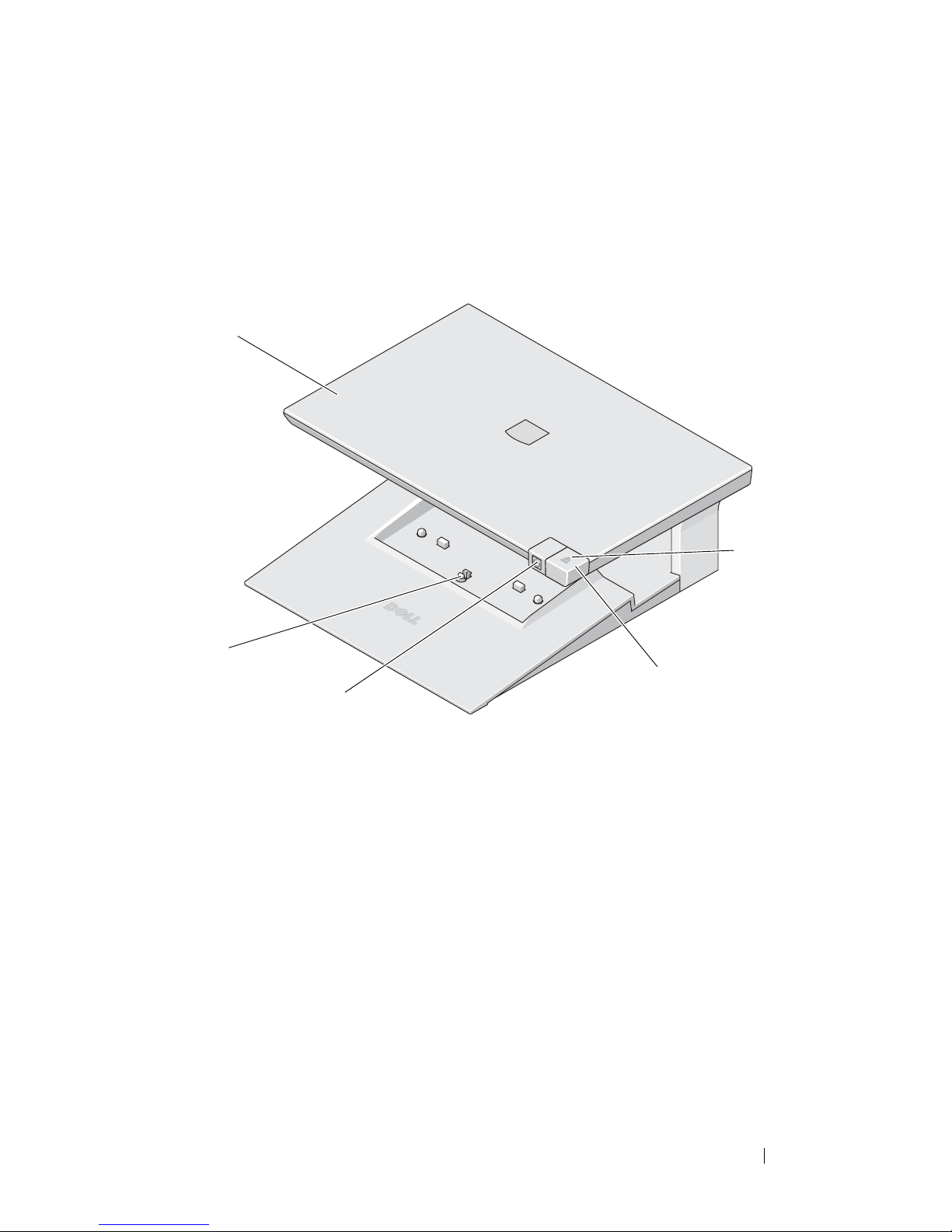
About Your Dell™ E-Monitor Stand
The Dell™ E-Monitor Stand works with Dell E-Family laptop computers and
port replicators. The E-Monitor Stand supports:
• Dell E-Family laptop computers sizes 12.1" to 17"
• Dell E-Port and Dell E-Port Plus port replicators
• Monitors with up to a 19" base footprint
1
5
2
4
3
1 monitor stand 2 release tab for port replicator
3 power button 4 eject button
5 docking light
DELL CONFIDENTIAL – PRELIMINARY 7/22/08 - FOR PROOF ONLY
Template Last Updated - 2/7/2007 About Your Dell™ E-Monitor Stand 5
Page 6

FILE LOCATION: C:\Documents and Settings\julie_Woodson\My
Documents\eDocs\Edocks\emon\en\source\about.fm
1
2
3
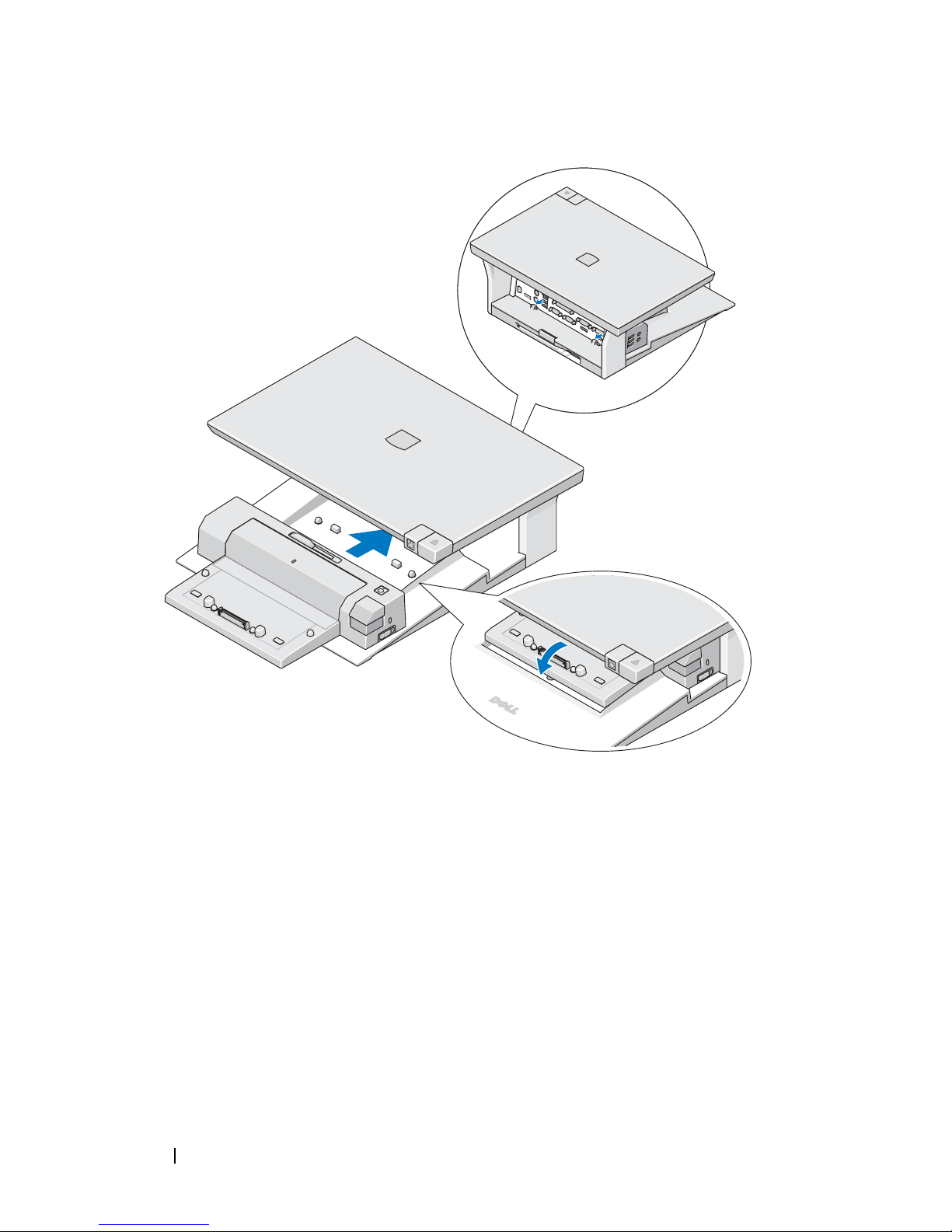
1 guide posts for port replicator 2 release button for port replicator
3 cable to connect monitor stand to
port replicator
DELL CONFIDENTIAL – PRELIMINARY 7/22/08 - FOR PROOF ONLY
6 About Your Dell™ E-Monitor Stand
Page 7

Using Your E-Monitor Stand
CAUTION: Before you begin any of the procedures in this section, follow the
safety information that shipped with your computer.
NOTICE: The monitor stand supports a CRT with a base footprint of up to 19" or a
flat panel monitor with a base footprint of up to 20". Heavier or larger monitors may
damage the stand, laptop, or port replicator.
Connecting the E-Monitor Stand to E-Port or EPort Plus Port Replicators
1
With the front of the port replicator raised slightly, slide the port replicator
toward the back of monitor stand until the port replicator rests against the
guide posts.
2
Push down on the port replicator to secure it to the release tab on the
monitor stand.
DELL CONFIDENTIAL – PRELIMINARY 7/22/08 - FOR PROOF ONLY
Template Last Updated - 2/7/2007 Using Your E-Monitor Stand 7
Page 8
FILE LOCATION: C:\Documents and Settings\julie_Woodson\My
Documents\eDocs\Edocks\emon\en\source\using.fm
DELL CONFIDENTIAL – PRELIMINARY 7/22/08 - FOR PROOF ONLY
8 Using Your E-Monitor Stand
Page 9
FILE LOCATION: C:\Documents and Settings\julie_Woodson\My
Documents\eDocs\Edocks\emon\en\source\using.fm
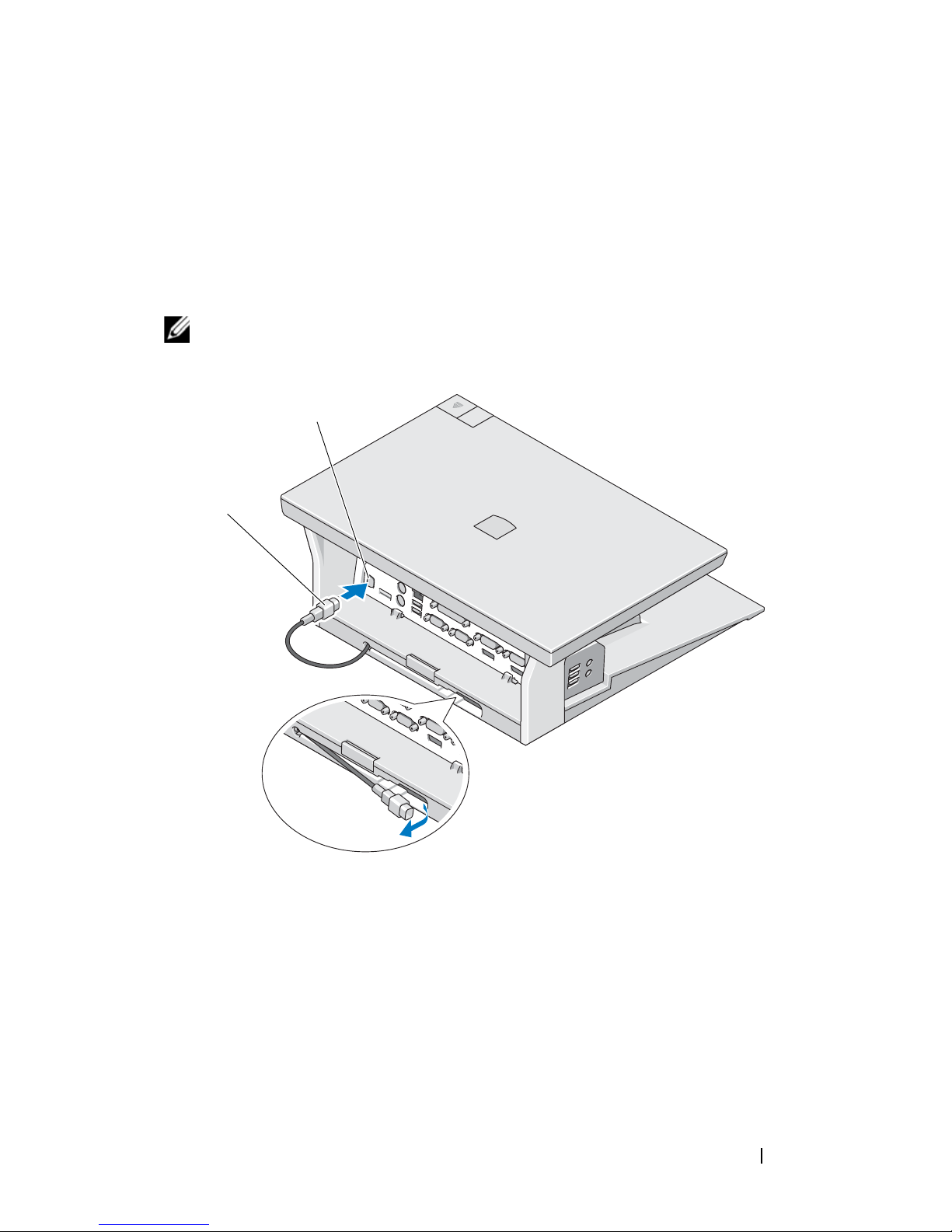
3
Pull the clear plastic tab to release the cable from the back of the monitor
stand, then remove the protective cap from the cable.
4
Connect the cable to the connector on the port replicator to provide power
to the monitor stand.
The monitor stand can receive power from the laptop’s battery, the
laptop’s AC adapter, or the port replicator’s AC adapter.
NOTE: For more information on using your port replicator, see the Dell E-Port User’s
Guide or the Dell E-Port Plus User’s Guide on support.dell.com.
1
2
1 port replicator connector 2 cable
DELL CONFIDENTIAL – PRELIMINARY 7/22/08 - FOR PROOF ONLY
Using Your E-Monitor Stand 9
Page 10

FILE LOCATION: C:\Documents and Settings\julie_Woodson\My
Documents\eDocs\Edocks\emon\en\source\using.fm
E-Monitor Stand Power and Docking Status
The E-Monitor Stand power button is used to turn a docked laptop on or off.
The power button light indicates the power status of the E-Monitor Stand or
a docked laptop. The docking light on the eject button indicates the AC
power and docking status of the E-Monitor Stand and the laptop.
The following table shows all of the possible conditions of docking, power,
laptop states and how these conditions are indicated by the E-Monitor Stand
power button and docking lights:
Power and Docking Status Laptop Status Power Button Light Docking Light
Unit undocked or no
AC adapter connected
Unit docked and
AC adapter connected
Unit docked using AC
or battery power
Unit docked using AC
or battery power
Hibernate or Off Off Off
Hibernate or Off Off On
Standby Breathing On
On On On
DELL CONFIDENTIAL – PRELIMINARY 7/22/08 - FOR PROOF ONLY
10 Using Your E-Monitor Stand
Page 11
FILE LOCATION: C:\Documents and Settings\julie_Woodson\My
Documents\eDocs\Edocks\emon\en\source\using.fm
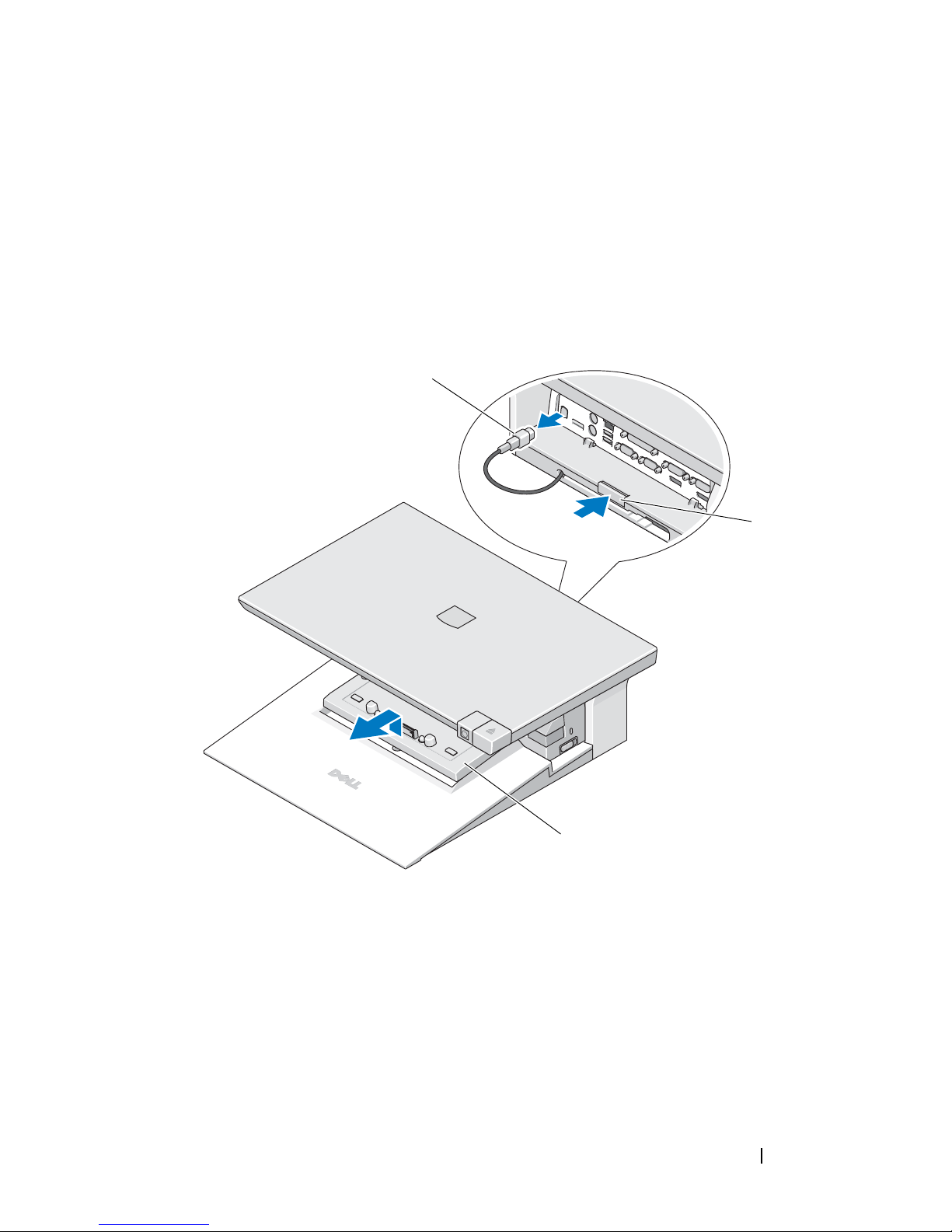
Removing a Port Replicator From the Monitor
Stand
1
Disconnect all cables from the port replicator.
2
Press the release button on the back of the monitor stand while
simultaneously lifting the front of the port replicator.
3
Remove the port replicator from the monitor stand.
1
2
1 cable 2 release button
3 port replicator
DELL CONFIDENTIAL – PRELIMINARY 7/22/08 - FOR PROOF ONLY
3
Using Your E-Monitor Stand 11
Page 12

FILE LOCATION: C:\Documents and Settings\julie_Woodson\My
Documents\eDocs\Edocks\emon\en\source\using.fm
DELL CONFIDENTIAL – PRELIMINARY 7/22/08 - FOR PROOF ONLY
12 Using Your E-Monitor Stand
Page 13

Specifications
Physical
Height
Depth
Width
System Level Operational Specifications
Variable Minimum Typical Maximum
Temperature (system external) 0°C 25°C 35°C
Temperature ramp rate 0°C/hr N/A 10°C/hr
Humidity (non-condensing) 10% N/A 80%
Humidity ramp rate 20% / hr
Altitude 0 m (0 ft) 3048 m (10,000 ft)
System Level Non-Operational & Shipping Specifications
Variable Minimum Maximum
143.5 mm (5.65")
347.44 mm (13.68")
390 mm (15.35")
Temperature –40°C 65°C
Temperature ramp rate 0°C/hr 20°C/hr
Humidity (non-condensing) 5% 95%
Humidity ramp rate N/A 20% / hr
Altitude 0 m (0 ft) 10,670 m (35,000 ft)
DELL CONFIDENTIAL – PRELIMINARY 7/22/08 - FOR PROOF ONLY
Template Last Updated - 2/7/2007 Specifications 13
Page 14

FILE LOCATION: C:\Documents and Settings\julie_Woodson\My
Documents\eDocs\Edocks\emon\en\source\spec.fm
DELL CONFIDENTIAL – PRELIMINARY 7/22/08 - FOR PROOF ONLY
14 Specifications
Page 15
Finding Information
Documents Contents
Safety, Regulatory, Warranty, and Support
Documentation
This type of information may have
shipped with your computer. For
additional regulatory information, see the
Regulatory Compliance Homepage on
www.dell.com at the following location:
www.dell.com/regulatory_compliance.
• Warranty information
• Terms and Conditions (U.S. only)
• Safety instructions
• Regulatory information
• Ergonomics information
• End User License Agreement
DELL CONFIDENTIAL – PRELIMINARY 7/22/08 - FOR PROOF ONLY
Template Last Updated - 2/7/2007 Finding Information 15
Page 16

FILE LOCATION: C:\Documents and Settings\julie_Woodson\My
Documents\eDocs\Edocks\emon\en\source\findinfo.fm
DELL CONFIDENTIAL – PRELIMINARY 7/22/08 - FOR PROOF ONLY
16 Finding Information
Page 17

FILE LOCATION: C:\Documents and Settings\julie_Woodson\My
Documents\eDocs\Edocks\emon\en\source\glossary.fm
Glossary
A
AC — alternating current — The form of electricity that powers your computer when
you plug the AC adapter power cable in to an electrical outlet.
D
docking device — provides port replication, cable management, and security features
to adapt your laptop to a desktop workspace.
DELL CONFIDENTIAL – PRELIMINARY 7/22/08 - FOR PROOF ONLY
Glossary 17
Page 18

FILE LOCATION: C:\Documents and Settings\julie_Woodson\My
Documents\eDocs\Edocks\emon\en\source\glossary.fm
DELL CONFIDENTIAL – PRELIMINARY 7/22/08 - FOR PROOF ONLY
18 Glossary
 Loading...