

Page 1

Dell EMC
VxRack™ System FLEX
Administration Guide
Document revision 1.3
June 2017
Page 2
Revision history
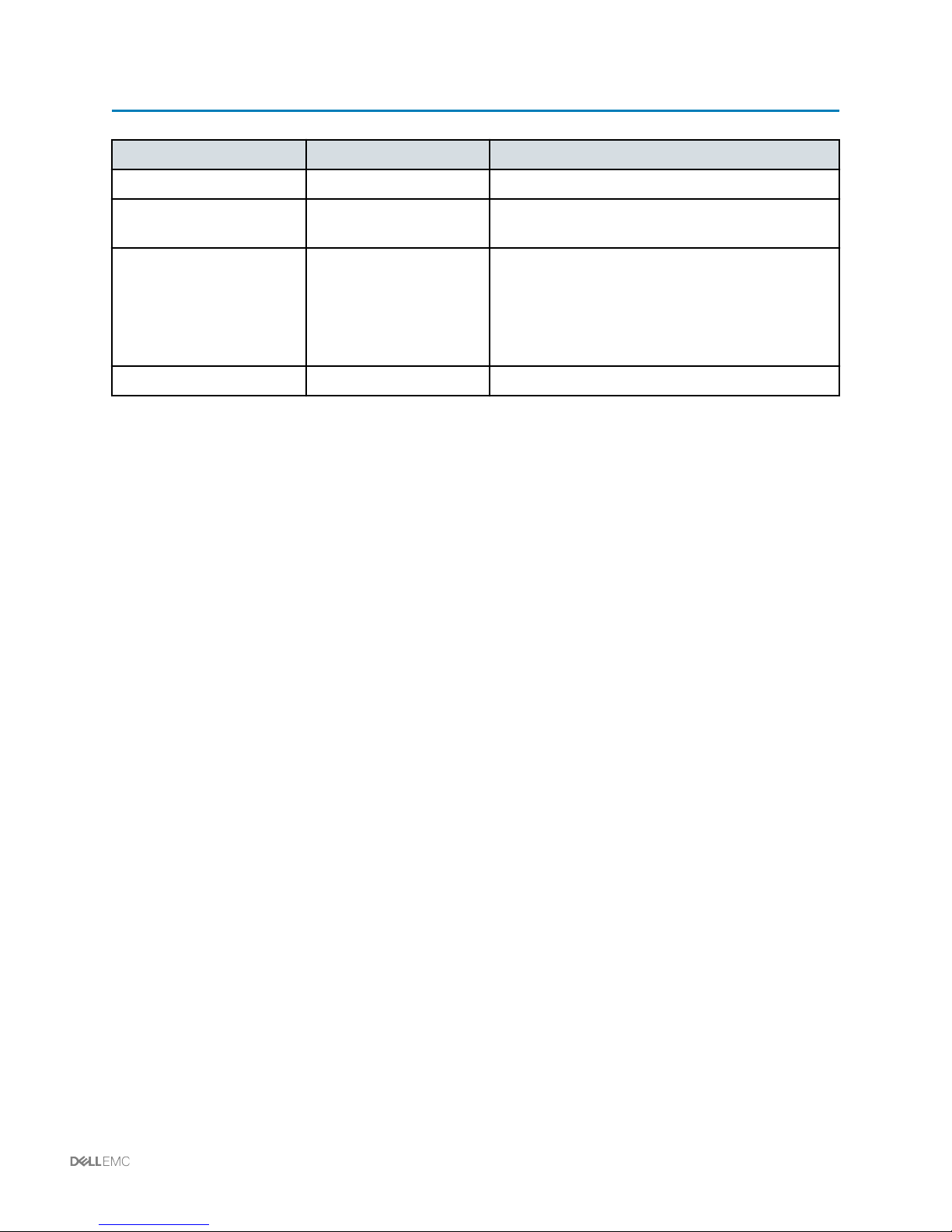
Date Document revision Description of changes
June 2017 1.3 Minor updates for GA release
April 2017 1.2 Added Configuring system monitoring for the VxRack
server
October 2016 1.1
July 2016 1.0 Initial release
Updated management software information
•
Updated to support ScaleIO 2.0
•
Updated product name
•
Added Configuring the baseboard management
•
controller to send SNMP alerts
Revision history | 2
Page 3

Contents
Introduction.................................................................................................................................................4
Managing VMware vSphere operations....................................................................................................5
Logging on to the VMware vSphere Web Client.................................................................................... 5
Monitoring VSAN....................................................................................................................................5
Managing ScaleIO operations....................................................................................................................7
Graphical User Interface (GUI)...............................................................................................................7
Command Line Interface (CLI)............................................................................................................... 7
VMware plug-in...................................................................................................................................... 8
Collecting ScaleIO logs.......................................................................................................................... 8
Collecting ScaleIO logs using the Installation Manager web client..................................................8
Collecting ScaleIO logs using the Installation Manager Command Line Interface (CLI)................. 9
Configuring ScaleIO features............................................................................................................... 10
Configuring SNMP and SMTP to monitor VxRack System FLEX.........................................................11
Configuring SNMP trap forwarding for Cisco Nexus Switches.............................................................11
Configuring VMware vCenter to send SNMP and SMTP alerts........................................................... 11
Configuring system monitoring for the VxRack server........................................................................ 13
VxRack System management software.................................................................................................. 14
Using Vision software...........................................................................................................................14
3 | Contents
Page 4

Introduction
This guide contains instructions for managing VxRack System FLEX after installation at the customer site.
The target audience for this document includes those responsible for managing VxRack FLEX, including
the system administrator and Dell EMC personnel responsible for remote management of VxRack FLEX.
The document assumes that the person administering VxRack FLEX:
Is familiar with VMware, ScaleIO, and Cisco networking technologies
•
Is familiar with VxRack FLEX concepts and terminology
•
Has VxRack FLEX troubleshooting skills
•
Refer to Glossary for terms, definitions, and acronyms.
Introduction | 4
Page 5

Managing VMware vSphere operations
Use the VMware vSphere Web Client to perform tasks such as the following on the VxRack System
FLEX:
Monitor VSAN
•
Manage servers and hosts. Refer to vCenter Server and Host Management in the VMware
•
vSphere 6.0 Documentation Center.
Administer VMware vSphere. Refer to vSphere Administration with the vSphere Client in the
•
VMware vSphere 6.0 Documentation Center.
Logging on to the VMware vSphere Web Client
The VMware vSphere Web Client enables you to connect to the VMware vCenter Server system to
manage VMware ESXi hosts through a browser.
About this task
Use this procedure to log on to the VMware vSphere Web Client on the VxRack Controller.
Procedure
1 Using a web browser, launch the VMware vSphere Web Client. Refer to the customer's Logical
Configuration Survey for the required (vCSA) URL.
2 When prompted, type the username and password.
3 Click Login.
Monitoring VSAN
Use this procedure to monitor VSAN on the VxRack Controller.
About this task
Exercise caution when accessing the VxRack Controller VMware vCenter. Do not make any
configuration changes other than those documented as it may result in loss of monitoring and
remote support capabilities.
Procedure
1 Log on to the VMware vSphere Web Client.
2 Click Hosts and Clusters.
3 Click the cluster hosting the VxRack Controller nodes.
4 Click Manage > Settings > Virtual VSAN > General.
5 | Managing VMware vSphere operations
Page 6

5 Verify the VSAN status:
a Ensure it displays the correct number of flash drives and data disks.
b Ensure the network status displays normal.
6 Click Monitor > Virtual SAN > Health.
7 Verify all test results display Passed. If a test result displays Warning or Failed, investigate and
troubleshoot the cause.
Managing VMware vSphere operations | 6
Page 7

Managing ScaleIO operations
You can provision, maintain, and monitor ScaleIO using the following management tools:
Graphical User Interface (GUI)
•
Command Line Interface (CLI)
•
VMware plug-in
•
Refer to the ScaleIO User Guide for detailed procedural information for each of the management tools.
Graphical User Interface (GUI)
The ScaleIO GUI enables you to perform standard configure and maintain activities, as well as monitor
the storage system's health and performance. You can use the GUI to view the entire system and then
drill down to different elements.
Procedure
1 To identify which Meta Data Manager (MDM) is the Master, open the ScaleIO Plugin within
VMware vCenter. Navigate to ScaleIO Systems, and select the system in the left pane, then
select the Summary tab. The manager that does not show a state status of normal is the Master
MDM.
2 Use a remote desktop session and the applicable IP address or hostname, as identified in the
customer's Logical Configuration Survey (LCS), to log on to the VxRack Controller jump server.
3 Click the ScaleIO icon on the desktop to launch the GUI.
4 Type the following details:
a Management IP address or host name of the Master MDM.
b User name
c Password
What to do next
Refer to the ScaleIO User Guide for information about using the GUI.
Command Line Interface (CLI)
The CLI enables you to configure, maintain, monitor the ScaleIO system, and map volumes.
To use the CLI commands, use SSH to access the MDM. To identify which MDM is the Master,
open the ScaleIO Plugin within VMware vCenter. Navigate to ScaleIO Systems, select the
system in the left pane, and select the Summary tab. The Manager that does not show a state
status of Normal is the Master MDM.
7 | Managing ScaleIO operations
Page 8

When adding a volume, if you use the --storage_pool_id parameter in the command, it is not
necessary to specify the Protection Domain ID/name and the Storage Pool name.
Refer to the ScaleIO User Guide for information about using the CLI.
VMware plug-in
The VMware plug-in enables you to provision and maintain the ScaleIO environment. It is the
recommended tool to use when carrying out front-end tasks, such as creating and mapping volumes.
About this task
Use this procedure to log on to the VMware plug-in.
Procedure
1 Using a web browser, launch the VMware vSphere Web Client. Refer to the customer's Logical
Configuration Survey for the required (vCSA) URL.
2 Log on with administrative privileges.
3 From the Home tab, click the ScaleIO icon.
What to do next
Refer to the ScaleIO User Guide for information about using the plug-in.
Collecting ScaleIO logs
Collecting ScaleIO logs using the Installation Manager web client
Use this procedure to gather ScaleIO logs from all nodes using the Installation Manager web client.
Before you begin
Obtain the administrator username and password for the Installation Manager.
Procedure
1 Log on to the VMware vSphere Web Client.
2 Click SIO plugin > ScaleIO Systems.
3 Right-click the ScaleIO System and click Open ScaleIO Gateway to launch the ScaleIO
Gateway/Installation Manager.
4 Log on to the ScaleIO Gateway.
5 Click Maintain.
Managing ScaleIO operations | 8
Page 9

6 Type the Master Meta Data Manager (MDM) IP address and password, and the Lightweight
Installation Agent (LIA) password.
7 Click Retrieve system topology.
8 Click Get Info.
9 Type the MDM password and enable the options as necessary.
10 When the process is complete, click Download logs to download the log files.
11 Click Mark operation completed.
Collecting ScaleIO logs using the Installation Manager Command Line
Interface (CLI)
Use this procedure to gather ScaleIO logs using the Installation Manager CLI.
Before you begin
Download the CLI from the ScaleIO Home screen.
•
Obtain the administrator username and password for the Installation Manager.
•
Procedure
1 Log on to the Installation Manager server using the CLI:
java -jar install-CLI.jar
im login --username admin --password <gateway admin password> --host <gateway IP
address> --no certificate validation true
2 Run the get_info command:
im get_info --mdm_ip <master mdm ip> --mdm_password <MDM password> --lia password <LIA
password> --output_path <output path> --non_interactive yes
3 Gather the logs for the specific node:
a On a Linux node, use the get_info.sh command:
i On the Master Meta Data Manager (MDM) node, type:
/opt/emc/scaleio/mdm/diag/get_info.sh -u admin -p <MDM_password> -d
<output_path>
ii On the Slave MDM node, type:
9 | Managing ScaleIO operations
Page 10
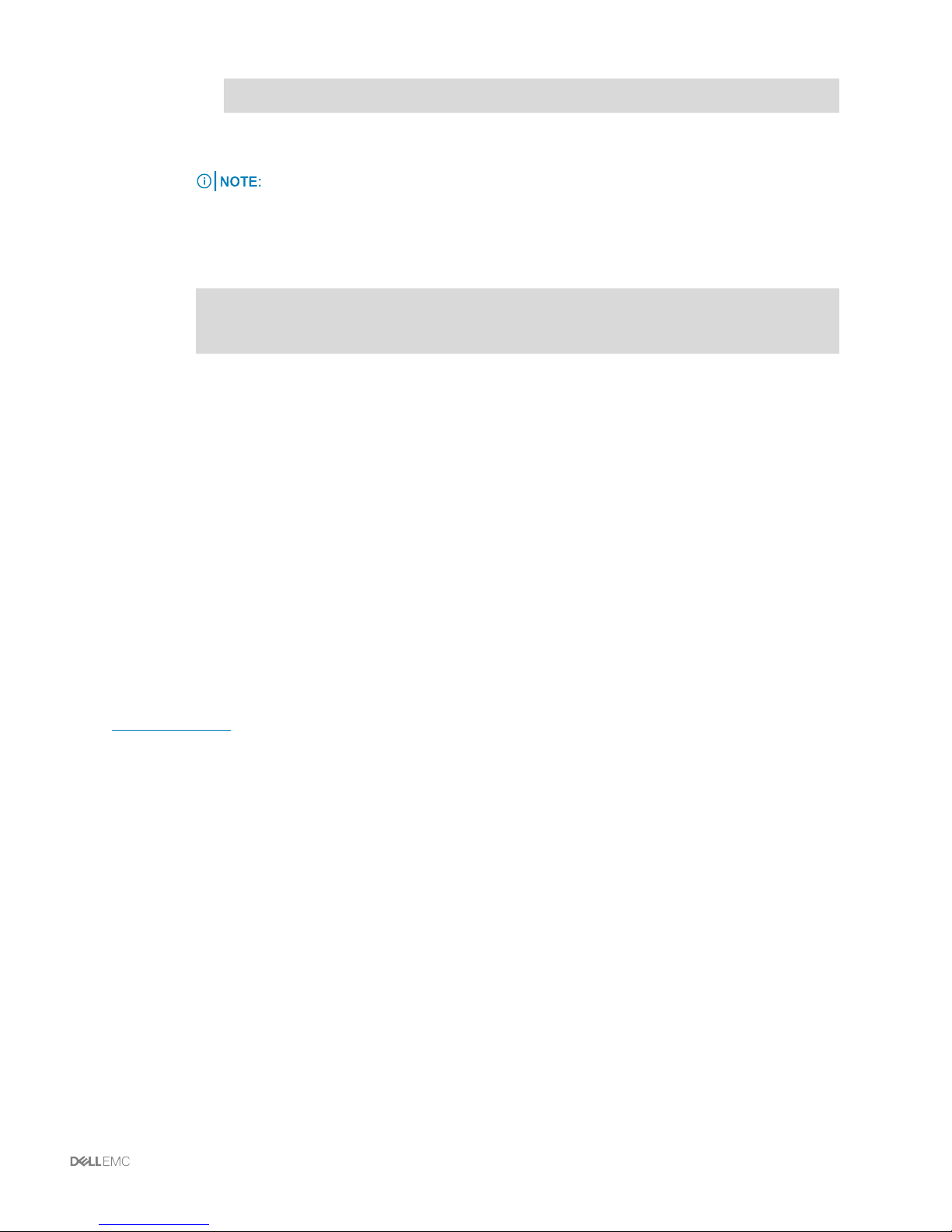
/opt/emc/scaleio/<component_name>/diag/get_info.sh -d <output_path
where the <component_name> can be mdm, tb, or sds.
The get_info.sh command removes everything in the <output_path>.
Ensure you back up any files you want to keep before running the command.
b On an SDC node, the Installation Manager collects only the drv_cfg.txt file. Use the
following commands to check the basic configuration and state:
/opt/emc/scaleio/sdc/bin/drv_cfg --query_mdms
/opt/emc/scaleio/sdc/bin/drv_cfg --query_tgts
/opt/emc/scaleio/sdc/bin/drv_cfg --query_vols
Configuring ScaleIO features
VxRack System FLEX supports the following ScaleIO features:
Extended 5-node Meta Data Manager (MDM) cluster
•
LDAP user authentication
•
In-flight checksum
•
Public and private key pair authentication
•
Instant maintenance mode
•
ESRS integration
•
For information on configuring ScaleIO features, refer to ScaleIO documentation located at
support.emc.com.
Managing ScaleIO operations | 10
Page 11

Configuring SNMP and SMTP to monitor VxRack
System FLEX
This section describes how to configure and use Simple Network Management Protocol (SNMP) and
Simple Mail Transfer Protocol (SMTP) to monitor VxRack System FLEX.
SMTP is required for systems running ScaleIO 1.32 only. It is not required for systems running
ScaleIO 2.x, where ESRS is used.
The procedures provided in this section should be configured on all of the included system components.
SNMP traps should be directed towards your active SNMP monitoring system to provide proactive
alerting for critical and warning level events. These events include, but are not limited to, hardware
failures requiring field replacement and software faults that could negatively impact the stability of the
system.
Configuring SNMP trap forwarding for Cisco Nexus Switches
Use this procedure to configure SNMP trap forwarding for Cisco Nexus Switches. Note that the system
forwards SNMP traps to the Vision software appliance by default.
Procedure
1 Access the management port on the Cisco Nexus Switch.
2 Type the following commands:
snmp-server host <customer-ip> traps <customer-snmp-string>
snmp-server enable traps
Configuring VMware vCenter to send SNMP and SMTP alerts
Use this topic to configure VMware vCenter to send VM alerts to monitor VxRack System FLEX.
Before you begin
Ensure you have access to the VMware vSphere Web Client.
•
Ensure you have access to the VMware vSphere 6.0 Documentation Center.
•
Procedure
Configure VMware vCenter Alerts to send SMTP emails.
1 Enter vcesys-supportalarms as the Alarm Name.
2 Select Hosts as the inventory object to Monitor.
3 Select specific conditions or state to monitor, for example, CPU usage.
11 | Configuring SNMP and SMTP to monitor VxRack System FLEX
Page 12

4 Select to trigger the alarm if ANY of the following conditions are met:
■
Host connection lost
■
Cannot connect host - network error
■
Hardware health changed
■
Host error
■
Host license expired
■
Lost network connectivity
■
Lost storage connectivity
5 Select Send a notification email as the action to take when the alarm state changes and apply
the following triggers:
■
Green to yellow: ONCE
■
Yellow to red: REPEAT
■
Red to yellow: ONCE
■
Yellow to green: ONCE
6 For repeat actions, enter Every 15 minutes.
Configuring SNMP and SMTP to monitor VxRack System FLEX | 12
Page 13
Configuring system monitoring for the VxRack
server
Use this procedure to configure system monitoring for the VxRack server.
Before you begin
Verify that you have access to the iDRAC.
Procedure
1 Log on to the iDRAC interface of the node.
2 Select Alerts and confirm that the radio button next to Enabled is active. If not, click the radio
button and then click Apply.
3 Under Alerts and Remote System Log Configuration select the alerts you wish to enable and
click Apply.
4 Select the SNMP and Email Settings tab.
The community string should already be populated for the Vision software server. Do
not remove this entry.
5 To add a second destination IP address for an existing customer monitoring system, type the
address into the Alert Destination2 IP field, check the State check box and click Apply.
Customer monitoring must support SNMP v2 and use the Community string already
configured on the VxRack System compute server for Vision software.
6 Under Destination Email Addresses type the information in the following fields:
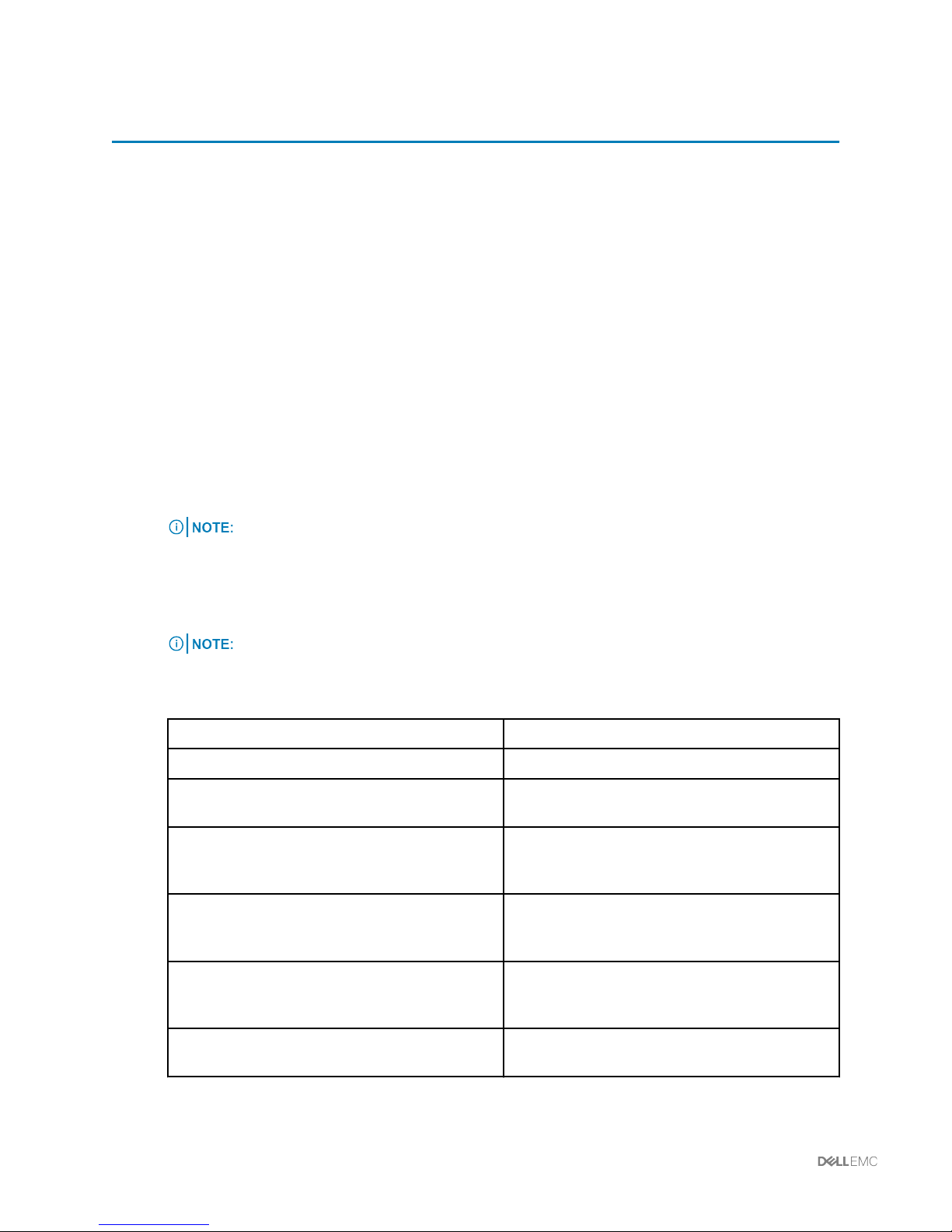
Parameter Description
Email Alert 1-4 Email address to send the alert.
Primary SMTP (Email) Server IP address or FQDN /
DNS Name
Enable Authentication Check this box if the SMTP server requires SMTP
User name Part of the authentication credentials for the primary
Password Part of the authentication credentials for the primary
The IP address associated with the primary SMTP
server to which email is sent.
authentication. This also enables setting the
username and password.
SMTP server. Used only if authentication is
enforced.
SMTP server. Used only if authentication is
enforced.
SMTP Port Number If the customer uses an SMTP port other than 25
7 Click Apply.
13 | Configuring system monitoring for the VxRack server
(i.e. 587).
Page 14

VxRack System FLEX management software
Using Vision software
Vision software includes the Vision software dashboard, which provides system inventory, health
monitoring, and RCM compliance management; and the Vision software shell, which provides network
configuration and other capabilities necessary to manage a VxRack System.
Dell EMC recommends using Vision software as your primary management interface for VxRack
Systems. For more information about Vision software, refer to the documentation on the Technical
Resource Center.
VxRack System FLEX management software | 14
Page 15

The information in this publication is provided "as is." Dell Inc. makes no representations or warranties of any kind with
respect to the information in this publication, and specifically disclaims implied warranties of merchantability or fitness
for a particular purpose.
Use, copying, and distribution of any software described in this publication requires an applicable software license.
Copyright © 2016, 2017 Dell Inc. or its subsidiaries. All Rights Reserved. Dell, EMC, and other trademarks are
trademarks of Dell Inc. or its subsidiaries. Other trademarks may be the property of their respective owners. Published
in the USA in June 2017.
Dell EMC believes the information in this document is accurate as of its publication date. The information is subject to
change without notice.
15 | Copyright
 Loading...