

Page 1
Safety Precautions
Safety Precautions
DO NOTS TA R EI N TOB E A M .
To ensure proper use of this product, please read this owner’s manual carefully
and retain for future reference. Should the unit require maintenance, contact an
authorized service location, or contact us.Only qualified service personnel should
remove the cover.
FCC NOTICE: This equipment has been tested and found to comply with
the limits for a Class B digital device. Pursuant with the FCC Rules, Part 1 5 .
These limits are designed to provide reasonable protection against harmful
interference in a residential installation.
This equipment generates,uses and can radiate radio frequency energy
and,if not installed and used in accordance with the i n s t r u c t i o n s , m a y
cause harmful interference to radio communication,However,this is no
guarantee that interference will not occurin a particular installation.If this
equipment does cause harmful interference to radio or television reception,
which can be determinedby turning the equipment off and on,the user is
encouraged to try to correct the interference by one of the following
m e a s u r e s :
- Reorient or relocate the receiving antenna.
- Increase the separation between the equipment and
receiver.
- Connect the equipment into an outlet on a circuit different from that to which the receiver is connected.
- Consult the dealer or an experienced radio/TV technician for help.
FCC Caution:To assure continued compliance,(example-use only
shielded interface cables when connecting to computer orperipheral
devices).Any changes or modifications not expressly approved by the
party responsible for compliance could void the user’s authority to
operate this equipment.
B AT T E RYWA R N I N G: The DVD player contains a Li-Pbattery pack. T h e r e
is a risk of fire and burns if the battery pack is handled improperly. Do not
disassemble, crush, puncture, short external contacts, or dispose of in fire or
w a t e r. Do not attempt to open or service the battery pack. Replace only with
the battery pack designated for this product. Discard used batteries
according to the manufacturer’s instructions.
GB-1
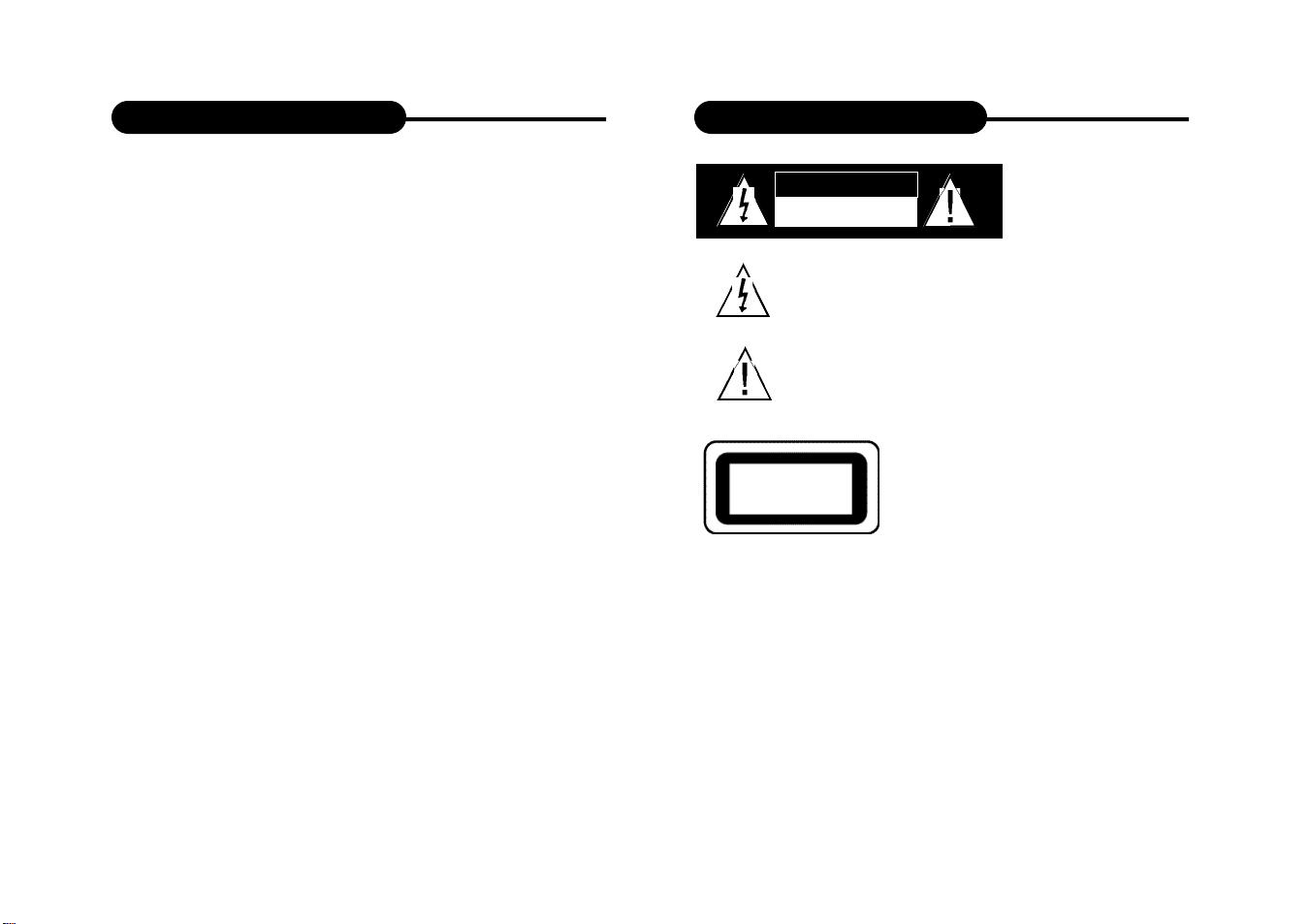
CAUTION
RISK OF ELECTRIC SHOCK
DO NOTOPEN
The lightning flash with an arrowhead symbol within an equilateral
triangle is intended to alert the user of the presence of uninsulated
"dangerous voltage" within the product's enclosure that may be of
s u fficient magnitude to constitute a risk of electric shock to persons.
The exclamation point within an equilateral triangle is intended to
alert the user of the presence of important operating and
maintenance (servicing) instructions in the literature accompanying
the appliance.
THIS DEVICE COMPLIES WITH PA RT 15 OF THE FCC
RULES. OPERATION IS SUBJECT TO THE FOLLOWING
CLASS 1
LASER PRODUCT
WARNING: DO NOT EXPOSE THIS APPLIANCE TO RAIN OR
MOISTURE, DUE TO THE HIGH RISK OF FIRE OR ELECTRIC SHOCK, DO
NOT OPEN THE CABINET DANGEROUS HIGH VOLTAGES A R E
PRESENT INSIDE THE ENCLOSURE. ONLYQUALIFIED SER V I C E
P E R S O N N E LSHOULD ATTEMPT THIS.
CAUTION: DURING PLAYBACK, THE DISC SPINS AT HIGH SPEED, SO DO
NOT LIFT OR MOVE THE PLAYER, DOING SO MAYDAMAGE THE DISC.
C A U T I O N :This Digital Video Disc Player employs a Laser System. Make sure
the device is shut down prior to opening player lid.Visible laser radiation
when open and interlocks defeated.Use of controls or adjustments or
performance of procedures other than those specified herein may result in
hazardous radiation exposure.
TWO CONDITIONS: (1)THIS DEVICE MAY N O T C A U S E
H A R M F U L INTERFERENCE, AND (2) THIS DEVICE MUST
A C C E P T A N Y INTERFERENCE RECEIVED. INCLUDING
INTERFERENCE T H AT M AY CAUSE UNDESIRED
O P E R AT I O N .
GB-2
Page 2
Safety Information
Safety Information
CAUTION: Use of controls or adjustments or performance
of procedures other than those specified herein may
result in hazardous radiation exposure.
Please carefully study this manual and always keep it
available. There are, however, some installation and operation
precautions which you should be aware of.
1.Read Instructions - All the safety and operating instructions
should be read before the product is operated.
2.Retain Instructions - The safety and operating instructions
should be retained for future reference.
3.Heed Warnings - All warnings on the product and in the
operating instructions should be adhered to.
4.Follow Instructions - All operating and use instructions should
be followed.
5.Cleaning - Unplug this product from the wall outlet before
cleaning. Do not use liquid cleaners or aerosol cleaners. Use a
damp cloth for cleaning.
6.Attachments - Do not use attachments not recommended by
the product manufacturer as they may cause hazards.
7.Water and Moisture - Do not use this product near water - for
example, near a bath tub, wash bowl, kitchen sink, or laundry
tub; in a wet basement; or near a swimming pool, etc.
8.Accessories - Do not place this product on an unstable cart,
stand, tripod, bracket, or table. The product may fall, causing
serious injury to a child or adult, and serious damage to the
product. Use only with a cart, stand, tripod, bracket, or table
recommended by the manufacturer, or sold with the product.
Any mounting of the product should follow the manufacturer’s
instructions, and should use a mounting accessory
recommended by the manufacturer.
9.A product and cart combination should be moved with care.
Quick stops, excessive force, and uneven surfaces may cause
the product and cart combination to overturn.
GB-3
10.Ventilation - Slots and openings in the cabinet are provided for
ventilation and to ensure reliable operation of the product and to
protect it from overheating, and these openings must not be
blocked or covered. The openings should never be blocked by
placing the product on a bed, sofa, rug, or other similar surface.
This product should not be placed in a built-in installation such as
a bookcase or rack unless proper ventilation is provided or the
manufacturer’s instructions have been adhered to.
11.Power Sources - This product should be operated only from
the type of power source indicated on the marking label. If you are
not sure of the type of power supply to your home, consult your
product dealer or local power company. For products intended to
operate from battery power, or other sources, refer to the
operating instructions.
12.Grounding or Polarization - This product may be equipped with
a polarized alternating-current line plug (a plug having one blade
wider than the other). This plug will fit into the power outlet only
one way. This is a safety feature. If you are unable to insert the
plug fully into the outlet, try reversing the plug. If the plug should
still fail to fit, contact your electrician to replace your obsolete
outlet. Do not defeat the safety purpose of the polarized plug.
Alternate Warnings - This product is equipped with a three-wire
grounding-type plug, a plug having a third (grounding) pin. This
plug will only fit into a grounding-type power outlet. This is a
safety feature, If you are unable to insert the plug into the outlet,
contact your electrician to replace your obsolete outlet. Do not
defeat the safety purpose of the grounding-type plug.
13.Power-Cord Protection - Power-supply cords should be routed
so that they are not likely to be walked on or pinched by items
placed upon or against them, paying particular attention to cords
at plugs, convenience receptacles, and the point where they exit
from the product.
14.Protective Attachment Plug - The product is equipped with an
GB-4
Page 3
Safety Information
Safety Information
attachment plug having overload protection. This is a safety
feature. See Instruction Manual for replacement or resetting of
protective device. If replacement of the plug is required, be sure
the service technician has used a replacement plug specified by
the manufacturer that has the same overload protection as the
original plug.
15.Outdoor Antenna Grounding - If an outside antenna or cable
system is connected to the product, be sure the antenna or cable
system is grounded so as to provide some protection against
voltage surges and built-up static charges. Article 810 of the
National Electrical Code, ANSI/NFPA70, provides information with
regard to proper grounding of the mast and supporting structure,
grounding of the lead-in wire to an antenna discharge unit, size or
grounding conductors, location of antenna-discharge unit,
connection to grounding electrodes, and requirements for the
grounding electrode.
16.Lightning - For added protection for this product during a
lightning storm, or when it is left unattended and unused for long
periods of time, unplug it from the wall outlet and disconnect the
antenna or cable system. This will prevent damage to the product
due to lightning and power-line surges.
17.Power Lines - An outside antenna system should not be
located in the vicinity of overhead power lines or other electric
light or power circuits, or where it can fall into such power lines or
circuits. When installing an outside antenna system, extreme care
should be taken to keep from touching such power lines or circuits
as contact with them might be fatal.
18.Overloading - Do not overload wall outlets, extension cords, or
integral convenience receptacles as this can result in a risk of fire
or electric shock.
19.Object and Liquid Entry - Never push objects of any kind into
this product through openings as they may touch dangerous
voltage points or short-out parts that could result in a fire or electric shock.Never spill liquid of any kind on the product.
GB-5
2 0.Servicing - Do not attempt to service this product yourself as
opening or removing covers may expose you to dangerous voltage
or other hazards. Refer all servicing to qualified service personnel.
2 1.Damage Requiring Service - Unplug this product from the wall
outlet and refer servicing to qualified service personnel under the
following conditions:
a. When the power-supply cord or plug is damaged.
b. If liquid has been spilled, or objects have fallen into the product.
c. If the product has been exposed to rain or water.
d. If the product does not operate normally by following the
operating instructions. Adjust only those controls that are covered
by the operating instructions as an improper adjustment of other
controls may result in damage and will often require extensive
work by a qualified technician to restore the product to its normal
o p e r a t i o n .
e. If the product has been dropped or damaged in any way, and
f. When the product exhibits a distinct change in performance - this
indicates a need for service.
2 2.Replacement Parts - When replacement parts are required, be
sure the service technician has used replacement parts specified
by the manufacturer or have the same characteristics as the
original part. Unauthorized substitutions may result in fire, electric
shock, or other hazards.
2 3.Safety Check - Upon completion of any service or repairs to this
product, ask the service technician to perform safety checks to
determine that the product is in proper operating condition.
2 4. Wall or Ceiling Mounting - The product should be mounted to a
wall or ceiling only as recommended by the manufacturer.
2 5. Heat - The product should be situated away from heat sources
such as radiators, heat registers, stoves or other products
(including amplifiers) that produce heat.
GB-6
Page 4
Introduction
Introduction
Your new Portable DVD player is
designed for you to enjoy all forms of
disc media. Its slim shape allows you to
easily carry it with you and enjoy
movies and music anywhere. Yo u r
player incorporates the latest digital
audio/video (AV) technologies to give
you the ultimate in listening and
viewing pleasure.
Your new player also supports CD and
JPEG. Your player also has several
unique features, including the
progressive scan (for greater picture
clarity), large active LCD screen, multiangle and multi-language, Parental
Control (to prevent children from
viewing inappropriate content), and
Kodak Picture CD compatibility (so you
can show photos on your TV). This is
a truly multimedia machine designed
for the multimedia world to enjoy.
UNPACKING
First inventory the contents of your Portable DVD player
package:
Portable DVD Player 1
Audio Cable 1 pair
Y, Pb, Pr Cable 1
Video & Coaxial Cable 1 pair
Li-Polymer Battery Pack 1
Remote Control 1
External Power Adapter 1
Power Cord 1
Cigarette Lighter Adapter 1
Operating Manual 1
Stereo Headphone 1
Carrying Bag 1
If any item should be damaged or missing, please
contact your dealer without delay.
Keep the packaging materials, you may need them to
transport your player in the future.
GB-7
WA R N I N G: Changes or modifications made to this equipment, not
expressly approved by us or parties authorized by us will void all
manufacture warranties.
GB-8
Page 5
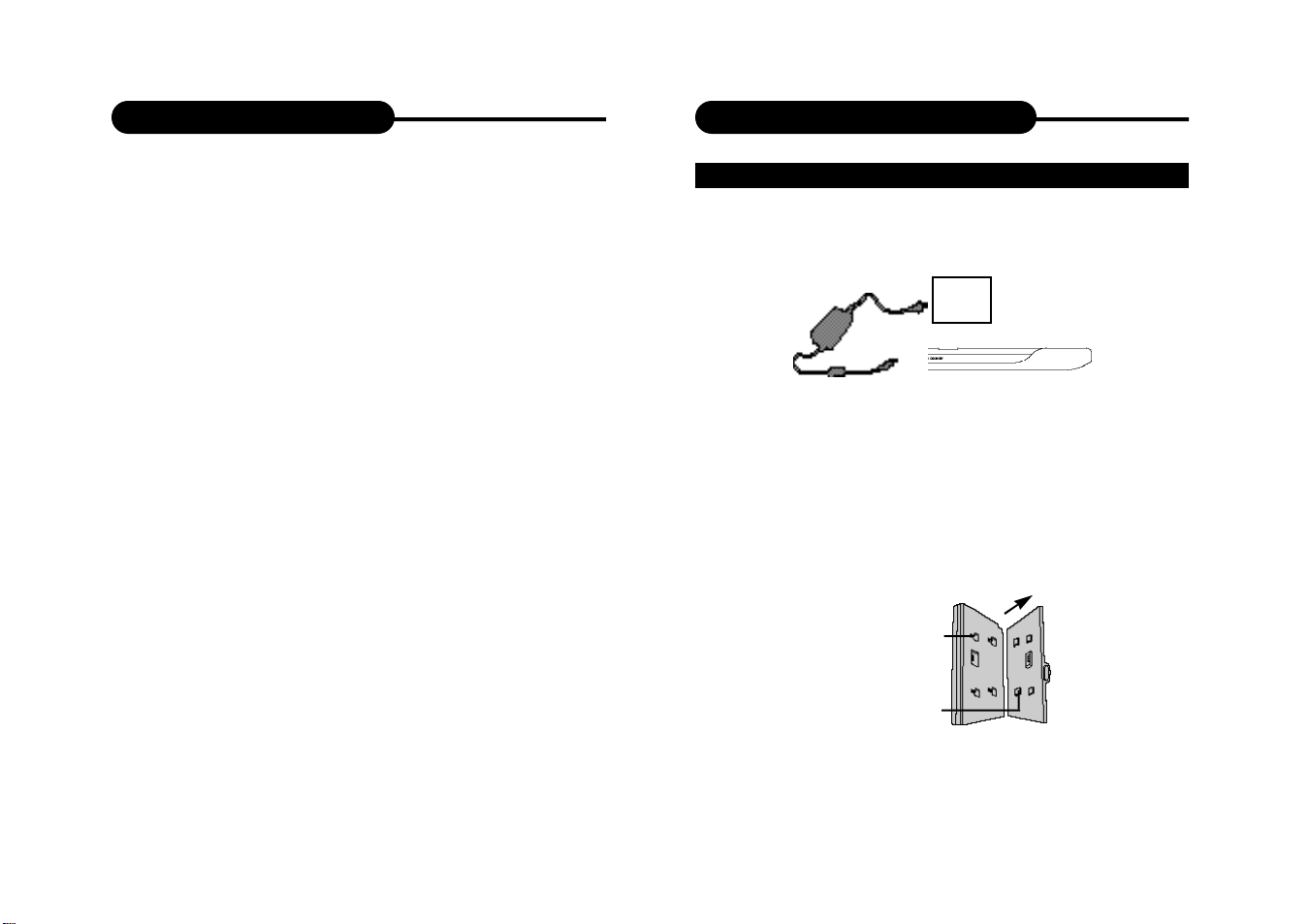
Table of Contents
Quick Starting Guide
Safety Precautions ................................ 1-6
Introduction ...................................... 7-8
Table of Contents .................................... 9
Quick Starting Guide ............................ 10-12
Connecting to a TV .............................. 13-14
Connecting to Optional Equipment ................ 15-18
Playing Back a Disc .............................. 19-23
KODAK Picture CD .............................. 24-25
JPEG Playback ................................ 26-27
Locating a Specific Title, Chapter or Track ............ 28
Playing Repeatedly .............................. 29-30
Playing in Favorite Order ........................ 31-32
Zooming a Picture .................................. 33
Selecting Subtitles .................................. 34
Using the On-Screen Display ........................ 35
Selecting the Camera Angle.......................... 36
Setting the Parental Lock ........................ 37-38
Battery Use & Maintenance .......................... 39
Customizing the Function Settings ................ 40-41
Trouble Shooting Guide ............................ 42
Carrying Bag Installation ............................ 43
POWER YOUR PLAYER
Power the player in 2 optional ways:
a. with mains adapter which is provided.
M a i n s
b. with your battery pack.
1) Locate the 4 alignment lugs in the slots on the base of the
p l a y e r.
2) Then pull the pack forward until it clicks into place.
Slots for lug
Alignment lug
GB-9
GB-10
Page 6
Quick Starting Guide
Quick Starting Guide
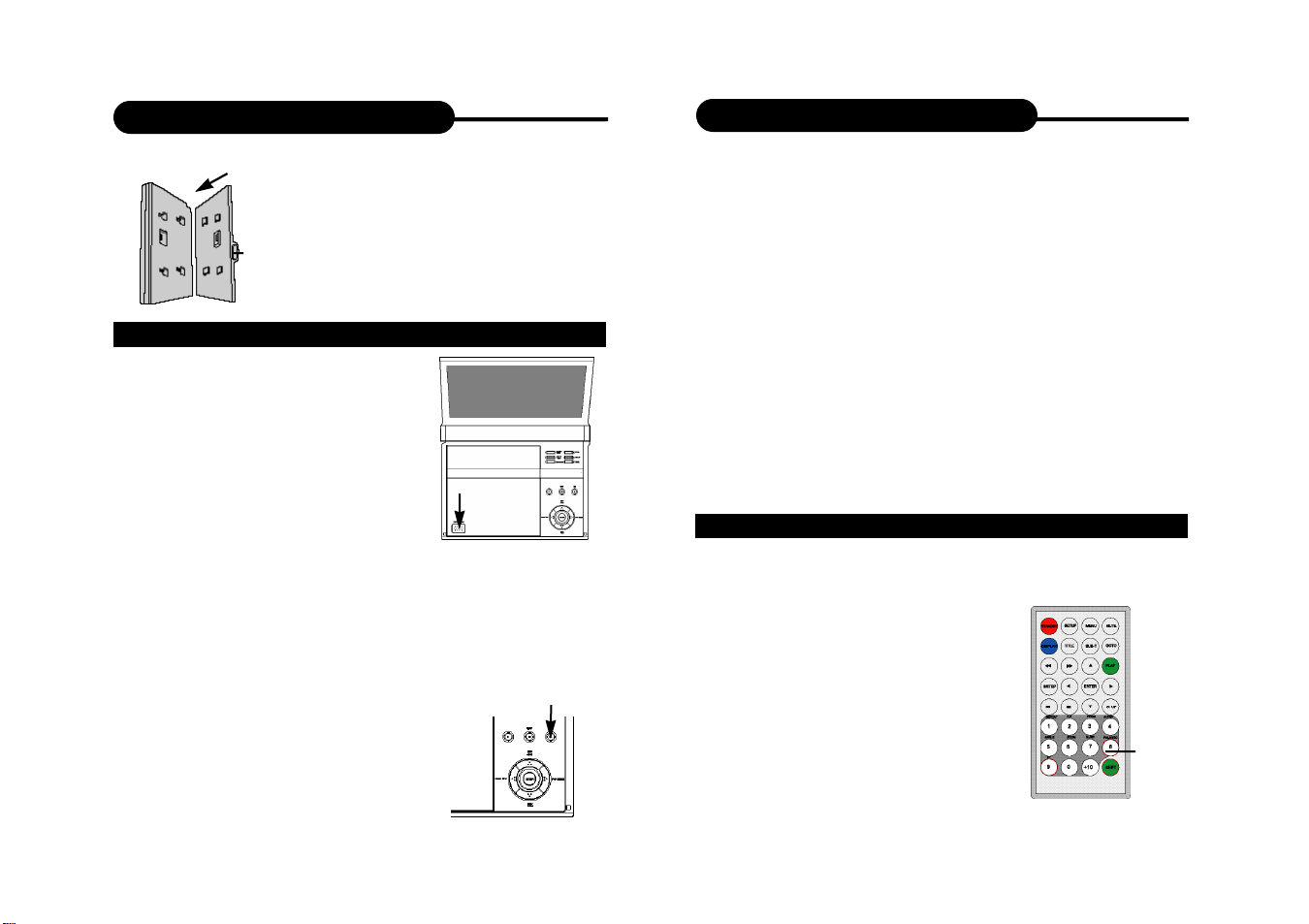
To remove the pack, press
and hold the button on the side
of it and push the pack
Release
button
GETTING STARTED
1. Open the player by raising the
screen.
2. Remove the protective plastic
tab from the disc compartment.
Recommend to load it again to cover
the laser mechanism when not use
for long time.
3. Press OPEN/PUSH on the left to open the
compartment door.
4. Place a DVD disc
Align the center of the DVD disc with the center of the
disc guide. Press gently down on the DVD to snap the
disc into place, then close the door.
5. To switch on the unit, press the
ON button and hold on for about 2
seconds.
backward untill it releases.
GB-11
6. Press ON again (less than 2 seconds) to start
playback.
In general, the DVD already inserted into the player
will start reading automatically when power is turned
on.
The DVD player will immediately start rendering
the DVD program.
When you want to stop, press the STOP button, it
will return to the power-on logo. To power off the
unit, slide the ON/OFF switch to the right.
The DVD player will automatically power off in three
minutes after entering screen saver mode. To reset
the unit, first press OFF and hold it for 3 seconds to
power off, and then power it on again.
TV TYPE
Your player can be set to one of the following TV
type:
• PALis used in the Europe and
the default setting.
• NTSC is used by some other
countries, e.g. USA.
The selection is made by
repeatedly pressing the P/N
button.
We recommend you keep this
PAL/NTSC
switch in the NTSC position
unless you are watching a PAL
disc.
GB-12
Page 7
Connecting to a TV
Connecting to a TV
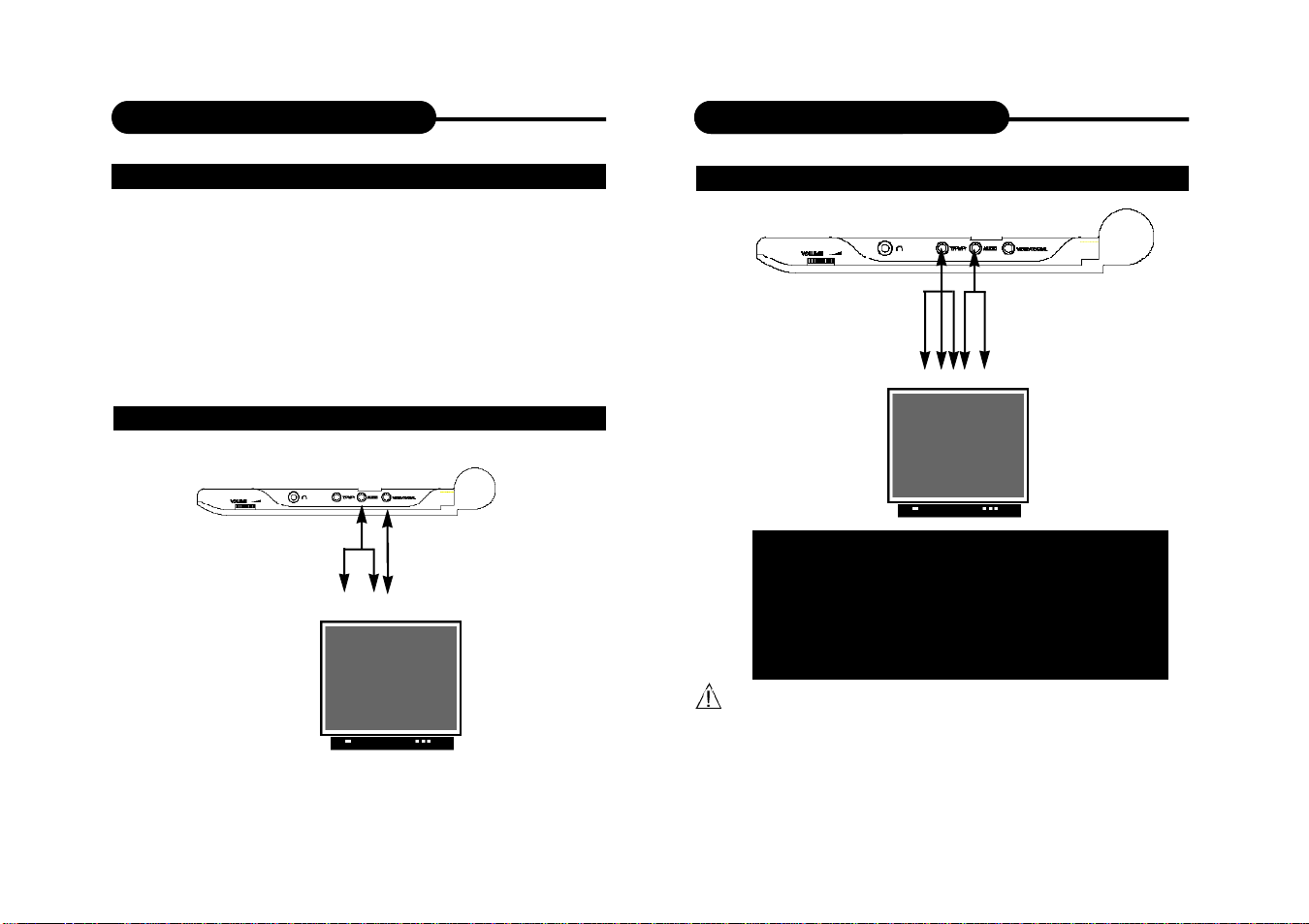
SETTING UP YOUR PLAYER
Step 1:connect the audio cables to AUDIO OUT of the
DVD player.
Step 2:connect the yellow cable to the VIDEO on the
side of your player.
(For TVs that support Progressive Scan please follow
the diagram “BETTER” bellow.)
GOOD
Red
Video Output
Yellow
Audio Output
White
BETTER
Component Video Output
Audio Output
Connect your player with Y Video, Pr Video
and Pb Video, if TV has Progressive Scan
with Component Video Input.
Press I/P button on the panel to switch
between Progressive Scan or Interlaced
Scan.
• Turn off the power and unplug both units before setting up
any connections.
• Make sure the player is in OUTPUT mode, the button
INPUT/OUTPUT on the panel is for the switch.
GB-13
GB-14
Page 8

Connecting to Optional Equipment
Connecting to Optional Equipment
CONNECTING HEADPHONES
1. Connect the earphones.
Earphones with a 3.5 mm stereo plug can be connected.
2. Adjust the volume by turning the dial.
•Avoid listening to sound at levels which may be harmful to
your ears.
Enjoying Dolby Pro Logic Surround Sound (GOOD)
Dolby Pro Logic Surround
Enjoy the dynamic realistic sound of Dolby Pro Logic
Surround by connecting an amplifier and speaker
system (right and left front speakers, a center speaker,
and one or two rear speakers).
Connection
Example
To audio
Front
speaker
(left)
ToAUDIO
input
OUT
Center
speaker
speaker
TV
Rear
Yellow
speaker
To VIDEO
OUT
Amplifier
equipped with
Dolby Pro
Logic Surround
Front
(right)
GB-15
GB-16
Page 9

Connecting to Optional Equipment
Connecting to Optional Equipment
This product incorporates copyright protection
technology that is protected by method claims of
certain U.S. patents and other intellectual property
rights owned by Macrovision Corporation and other
rights owners. Use of this copyright protection
technology must be authorized by Macrovision
Corporation, and is intended for home and other
limited viewing uses only unless otherwise
authorized by Macrovision Corporation. Reverse
engineering or disassembly is prohibited.
It is forbidden by law to copy, broadcast, show, play in
public, and rent copyrighted material without permission.
DVD video discs are copy protected, and any recordings
made from these discs will be distorted.
Manufactured under license from Dolby
Laboratories. “Dolby” and the double-D symbol are
trademarks of Dolby Laboratories. Confidential
Unpublished works.
c
1992-1997 Dolby Laboratories, Inc. All rights
reserved.
“DTS” and “DTS Digital Out” are trademarks of Digital
Theater Systems, Inc.
Enjoy Dolby Digital or DTS (BETTER)
Dolby Digital/DTS
Dolby Digital and DTS programming can deliver surround
sound with five discrete full range channels plus a sixth
channel for a subwoofer. You can enjoy your DVD with a
Dolby Digital System. All you need is to connect your
DVD player to a Dolby Digital/DTS receiver or a Dolby
Digital Ready receiver with an external decoder.
DVD SIDE
To PCM/BITSTREAM
Front
speaker
(left)
To VIDEO OUT
TV
Front
speaker
(right)
• Adjust the volume of your receiver to a comfortable
listening level to avoid any speaker damage.
• When connecting and disconnecting the DVD video player,
turn off the amplifier to avoid any speaker damage.
GB-17
Set "SPDIF Output" to "SPDIF/PCM" in "General Setup" from the
Setup Menu.
GB-18
Page 10

Playing Back a Disc
Playing Back a Disc
CONTROLS FOR BASIC PLAYBACK
13
1. OUTPUT/INPUT
(output/input switch for A u d i o / Vi d e o )
2. TITLE
3. DISPLAY MODE
4. SETUP
5. LCD MODE
6. MENU
7. PAUSE
8. OFF (combined function)
a. Power off (press and hold on for 2s)
b. Stop playback (press within 2s)
9. ON (combined function)
a. Power on
(press and hold on for 2s)
b. Play (press within 2s)
10. REV/FWD (reverse/forward)
(cursor up/cursor down)
11. ENTER
12. PREV/ NEXT ( p r e v i o u s / n e x t )
(cursor left/cursor right)
13. OPEN/PUSH
(open compartment cover)
Remote Control
1. STANDBY
2. SETUP
1
2
3
1
2
3
4
6
5
7
9
8
10
11
12
4
5
6
7
8
9
10
11
12
13
28
14
15
3. DISPLAY
16
4. TITLE
17
18
5. REVERSE
19
6. FORWARD
20
7. PAUSE/STEP
21
8. PREVIOUS
22
9. NEXT
23
24
10. REPEAT
25
11. A-B REPEAT
26
27
12. ANGLE
13. ZOOM
14. NUMBERS
15. MUTE
Note:
When you need to use the keys REPEAT,A-B, PRGM, AUDIO,
ANGLE, ZOOM, SLOW, PAL/NTSC, I/P which are combined with
numbers, set shift on by pressing SHIFT, and set shift off to use
NUMBERS by pressing SHIFTagain.
Note:
*PAL / NTSC: This switch changes the playback system PAL or NTSC.
NTSC is the default standard for the USA. We recommend you keep
this switch in the NTSC position unless you are watching a PALdisc.
*I/P : I/P stands for Interlace scan / Progressive scan.
16. MENU
17. GOTO
18. SUBTITLE
19. PLAY
20. DIRECTION
(Up/Down/Right/Left)
21. ENTER
22. STOP
23. AUDIO
24. PROGRAM
25. PAL/NTSC*
26. SLOW
27. SHIFT
28. I/P* (Interlace/
Progressive)
GB-19
GB-20
Page 11

Playing Back a Disc
Playing Back a Disc
HOW TO START PLAYBACK FROM THE MENU SCREEN
1. Press TITLE/MENU to
access the menu screen.
Title 1
Title 2
2. Press or
the number buttons to
select the title.
Title 3
Title 4
3. Press the ENTER or
PLAY button.
The DVD video player will
start playback from the title
selected.
Note:
ENTER
You also can input the
assigned number of the title
to select it directly.
HOW TO PAUSE PLAYBACK (STILLPLAYBACK)
Press the PAUSE/STEP once
during playback.
Press PAUSE/STEP repeatedly
during playback, the picture will
advance one frame each time,
PAUSE/STEP
then press PLAY button to
resume normal playback.
During the still playback the sound
is muted.
PLAY
HOW TO STOP PLAYBACK
Press the STOP button.
The player is stopped.
FAST FORWARD & REWIND
REV
FWD
PLAY
STOP
You can playback a disc at 2x, 4x, 8x,
16x or 32x the normal speed for fast
forward or rewind.
2x 4x
2x 4x
8x
8x
16x 32x
16x 32x
Press the REV or FWD button during playback.
The playback speed becomes double the normal speed.
The playback speed changes, each time you press the
REV or FWD button.
TO RESUME NORMAL PLAYBACK.
Press PLAY.
PLAY
Note:
The function is invalid on some DVD discs.
GB-21
GB-22
Page 12

Playing Back a Disc
Playing Back Your KODAK Picture CD
PLAYING IN SLOW-MOTION
A disc can also be played back in slowmotion.
1. Press SHIFT to set shift on so as
to use the SLOW button.
TV SCREEN
1/2
1/2
1/4
1/4 normal speed1/2 normal speed
1/4
1/8 1/16
1/8 normal speed
1/8
1/16 normal speed
1/16
2. Press the SLOW button during playback
The playback speed becomes 1/2, 1/4, 1/8, or 1/16 of
the normal speed each time you press the SLOW
button.
TO RESUME NORMAL PLAYBACK.
Press PLAY.
PLAY
PLAY
SLOW
SHIFT
NORMAL
When a KODAK Picture CD is loaded, an automated slide
show is launched, Each picture in the current directory
will be displayed consecutively in a slide-show fashion
and will be scaled to fit most of the screen. Sixteen
slideshow transition modes are provided. Use “GOTO”
key to select: Customers can set “transition” effects
for every picture at any time during the slideshow.
mode 1: Wipe Top
mode 2: Wipe Bottom
mode 3: Wipe Left
mode 4: Wipe Right
mode 5: Diagonal Wipe Left Top
GOTO
mode 6: Diagonal Wipe Right Top
mode 7: Diagonal Wipe Left Bottom
mode 8: Diagonal Wipe Right
Bottom
mode 9: Extend From Center H
mode 10: Extend From Center V
mode 11: Compress To Center H
mode 12: Compress To Center V
mode 13: Window H
mode 14: Window V
mode 15: Wipe From Edge To Center
RANDOM
• During REV, FWD and slow-motion playback, the
sound is muted.
• The function is invalid on some DVD discs.
GB-23
To display an image indefinitely, press the PAUSE key.
To view the Next or Previous picture press the or
keys. To resume the slideshow press the ENTER key.
GB-24
Page 13

Playing Back Your KODAK Picture CD
JPEG Playback
IMAGE ROTATION
There are four modes to transformation: “Invert”,
“Mirror”, “Left”, and “Right”. These operations are
allowed only when a picture is being displayed normally,
and will be cancelled automatically when a new picture
is displayed. The arrow keys are used to select the
different transformation modes:
UP -Invert/Normal
DOWN -Mirror/Normal
LEFT -Turn left
RIGHT -Turn right
Note: The function is invalid in ZOOM mode.
REPEATING THE SLIDESHOW
At the end of your picture slideshow, each image is
reduced to a “thumbnail” sized display. To view your
slideshow presentation again, press button.
Important: Let the player complete it’s layout of twelve
pictures before pressing button again to view the
next twelve. When at the beginning, press ENTER and
your presentation will begin.
MENU
The MENU key is used to display thumbnail pictures
from the stop position. After it is enabled, up to twelve
scaled-down thumbnail pictures will be displayed on the
screen. The and can be used to display the NEXT
and PREVIOUS twelve pictures in the current directory.
Note: On the thumbnail screen, You can highlight MENU
and enter it to get help information.
GB-25
YOU CAN USE YOUR DVD PLAYER TO VIEW
P H O TOGRAPHS STORED ON A CD-R. T H E
PHOTOGRAPHS ON THE DISC NEED TO BE SAVED IN
THE JPEG FILE FORMAT. FOR MORE INFORMATION
ABOUT JPEGS PLEASE VISIT WWW.JPEG.COM.
PLAYING BACK JPEG FILES
1. Place the CD on the disc tray.
2. Select a folder or a picture contained on the CD.
After the CD is loaded, a menu will appear on the
screen.
Press UP or DOWN to select a folder, and press
ENTER/PLAY to view folder contents (shown in right
column as below).
00:00 00:00
001\015
GIRL
AAAAAA
BBBBBB
CCCCCC
GB-26
Page 14

JPEG Playback
Locating a Specific Title, Chapter or Track
3. Start playback
Use UP or DOWN to select one image and press
ENTER/PLAY to view the pictures.
The pictures will be displayed in a style of a slideshow,
there are many styles of transition effects such as Wipe
Top (default mode), Wipe Bottom, Wipe Left, Wipe
Right, Diagonal Wipe Left Top, Diagonal Wipe Right Top,
Extend from Centre H, Compress to Centre H, Window
H, etc., use the GOTO button to change the slide style.
4. Rotate an image
During the slide show, you can use arrow keys to rotate
an image:
Press UP to invert an image.
Press DOWN to mirror an image.
Press LEFT to rotate an image to the left.
Press RIGHT to rotate an image to the right.
5. Zoom
This feature allows you to view a picture at 50%, 75%
125%, 150% or 200% in several increments. Press the
ZOOM button. An on screen message (“Zoom On”) will
verify your selection. Use and keys to control the
amount of zoom in and out. Press the direction keys to
shift the zoom point. With Zoom Off, the picture is
scaled to fit most of your TV screen.
6. Menu
During the playback, press MENU to access thumbnail
menu. For previewing JPEG files, press MENU again to
return to JPEG folders.
CREATING YOUR OWN PICTURE CDS
Using your computer save pictures as JPEG format and
burn them on a CD-R disc, then you can watch on your
TV.
GB-27
DVD DISCS ARE NORMALLY DIVIDED INTO TITLES
WHICH ARE SUB-DIVIDED INTO CHAPTERS.
MOREOVER, CDS ARE DIVIDED INTO TRACKS.
Chapter 1 Chapter 2 Chapter 1 Chapter 2 Chapter 3
TITLE 1
DVD Video Disc
TITLE 2
L O C ATING ATITLE USING THE TITLE MENU
You can locate a specific title using the title
menu function, if a DVD video disc contains a
title menu.
1. Press the TITLE button
On the LCD or TV screen, the title menu will
a p p e a r.
2. Press the button to select the
PREVIOUS
NEXT
PLAY
title you want.
You can also directly locate a specific title by
SHIFT
pressing its assigned number with the number
b u t t o n s .
3. Press the PLAYb u t t o n
This will cause the DVD video player to start playback from
chapter 1 of the title selected.
You also can use skip buttons to select a title or track
d e s i r e d :
Press or button repeatedly till the one displays.
GB-28
Page 15

Playing Repeatedly
Playing Repeatedly
THIS DVD VIDEO PLAYER ALLOWS YOU TO
PLAYBACK A SPECIFIC TITLE, CHAPTER, TRACK,
OR SEGMENT REPEATEDLY. (TITLE REPEAT,
CHAPTER/TRACK REPEAT,A-B REPEAT)
HOW TO REPEAT A TITLE, CHAPTER, OR DISC
During normal playback, press the REPEAT button
(set shift on).
The repeat mode changes, each time you press the
REPEAT button.
CHAPTER
TITLE
ALL
Repeats the same chapter.
Repeats the same title.
Repeats the whole disc
Resumes normal playback.
REPEAT
HOW TO REPEAT A SPECIFIC SEGMENT
1. Press the A-B button at the beginning of the
segment in which you want to repeat playback
(point A) (set shift on).
2. Press the A-B button again at the end of the
segment (point B)
The DVD video player will automatically return to point A
and start to repeat playback of the selected segment (AB).
3. Press the A-B button to cancel the A-B
repeat function
The DVD video player will resume to normal playback.
A
AB
Set point A
Set point B
Resumes normal playback.
A-B
SHIFT
GB-29
SHIFT
GB-30
Page 16

Playing in Favorite Order
Playing in Favorite Order
HOW TO SET TITLES, CHAPTERS, OR TRACKS IN A
FAVORITE ORDER
1. Press the PROGRAM button.
PROGRAM MENU displays on the screen.
PROGRAM:TT(01)/CH ( - - )
1 TT: CH: 6 TT: CH:
2 TT: CH: 7 TT: CH:
3 TT: CH: 8 TT: CH:
4 TT: CH: 9 TT: CH:
5 TT: CH: 10 TT: CH:
EXIT NEXT
2. Using the numbered button, select the items you
want in the order you want them programmed in.
The number of the item selected will be input into the
PROGRAM volume.
PROGRAM:TT(01)/CH ( - - )
1 TT: 01 CH: 01 6 TT: CH:
2 TT: CH: 7 TT: CH:
3 TT: CH: 8 TT: CH:
4 TT: CH: 9 TT: CH:
5 TT: CH: 10 TT: CH:
EXIT START NEXT
GB-31
3. Highlight START and press ENTER to start
program playback.
4. To clear the programmed, move the cursor to
STOP and then press ENTER to confirm it.
PROGRAM:TT(01)/CH ( - - )
1 TT: CH: 6 TT: CH:
2 TT: CH: 7 TT: CH:
3 TT: CH: 8 TT: CH:
4 TT: CH: 9 TT: CH:
5 TT: CH: 10 TT: CH:
EXIT STOP NEXT
GB-32
Page 17

Zooming a Picture
Selecting Subtitles
ZOOMING A PICTURE
This DVD video player allows you to zoom into a picture
as well as shift the zoom point.
Press ZOOM during normal
playback or slow - motion. (To use
the ZOOM button, it should be set
‘SHIFT ON’ by pressing SHIFT.)
ZOOM
SHIFT
The player magnifies in the center of
the picture.
If you press during zoom playback, the zoom
point shifts.
2x 3x 4x
Normal
Playback
HOW TO DISPLAY SUBTITLES
You have the option to select a preferred subtitle
from those included on the DVD video disc.
Press the SUBTITLE button
during playback.
SUBTITLE 1
SUBTITLE 3
SUBTITLE OFF
1/03
2/03SUBTITLE 2
3/03
To TURN OFF the subtitles.
Press the SUBTITLE during
playback until the subtitles
disappears.
SUBTITLE OFF
SUB-T
To cancel the zoom function, press ZOOM again.
GB-33
GB-34
Page 18

Using the On-Screen Display
Selecting the Camera Angle
THIS UNIT ALLOWS YOU TO VIEW THE
OPERATIONALSTATUS AND DISC INFORMATION ON
YOUR TV SCREEN.
CHECKING THE OPERAT I O N A LS TAT U S
With this function you can view on your TV the following:
-Current title
-Track number
-Total playing time
Current Title
Current Chapter
Title Elapsed
TT 01/12 CH 006/039 0:02:20
Title Remain
TT 01/12 CH 006/039 0:18:50
Chapter Elapsed
TT 01/12 CH 006/039 0:03:50
Chapter Remain
TT 01/12 CH 006/039 0:10:40
Display Off
GB-35
Playing time
Total Chapter
Total Title
DISPLAY
Press the DISPLAY
during playback to
turn on the ON
SCREEN DISPLAY
Press it again to turn it
off.
THIS DVD VIDEO PLAYER ALLOWS YOU TO SELECT
FROM SEVERAL DIFFERENT ANGLES.
ANGLE 1 ANGLE 2
Selecting the camera angle
ANGLE
HOW TO CHANGE THE CAMERA ANGLE
If the DVD video disc was recorded with multiple angles,
you have the option to change the camera angle of the
scene you are watching.
Press the ANGLE button while playing back a scene
recorded with multiple angles (set shift on).
• You may only press the ANGLE button when the angle
icon is flashing on the DVD display.
• Each time you press the ANGLE button, the angle will
change.
2/2
1/2
• The angle function will not work on DVD video discs
that does not contains recorded with multiple angles.
GB-36
Page 19

Setting the Parental Lock
Setting the Parental Lock
YOU CAN USE THE PARENTAL LOCK FUNCTION
ONLY WITH DVD VIDEO DISCS EQUIPPED WITH THE
PARENTAL LOCK FEATURE.
SETTING THE PA R E N TA L L O C K
DVD video discs equipped with the parental lock function
are rated according to their content. The contents allowed
by a parental lock level and the way a DVD video disc can
be controlled may vary from disc to disc. For example, if the
disc allowed, you could edit out violent scenes unsuitable for
children and replace them with more suitable scenes, or
lock out playback of the disc all together.
1. Press STOP during
SETUP
playback
DIRECTION
2. Press SETUP
STOP
The SETUP MENU appears
on the screen.
3. Select Preference Page,
press ENTER.
-- Preference Page --
Audio ENG
Subtitle ENG
Disc Menu ENG
Parental
Password
Default
Go To Preference Page
GB-37
4. Select Parental, press ENTER.
5. Select ratings, press ENTER
1 KID
SAFE
2 G
3 PG
4 PG 13
5 PGR
6 R
7 NC17
8 ADULT
OFF
6. Enter your password then press ENTER.
The pre-set password is 3308
Password
OK
7. Press SETUP to exit setup,
press ENTER to start.
TO CHANGE YOUR PA S S W O R D :
1. Follow step 4 to select password change.
2. Enter old password.
3. Enter new password.
4. Re-enter to confirm your new password.
5. Press ENTER.
6. Press SETUP to exit.
GB-38
SETUP
DIRECTION
STOP
Page 20

Battery Use & Maintenance
Customizing the Function Settings
This DVDplayer is supplied with a high-effective rechargeable
Li-Polymer battery. Such battery pack has a high storage
capacity and low level of degradation. The latter means that the
battery can also be recharged when only partly spent.
The provided battery can be recharged for about 300 times. It
takes about 5 hours to recharge the battery till the red indicator
turns green. Afully charged battery can power the unit for about
2.5 hours. Power consumption depends on the operations of the
player such as brightness of the screen, volume level, etc.
Recharge the battery timely when fully spent in order to
maximize its life.
Never recharge the battery which is already fully charged.
Under no circumstance should you short out the battery, store it
in a metal container, or leave it in a humid or damp environment.
Store the battery in an airtight container if possible. Recharge
e ffectiveness will degrade when environmental temperatures
drop below 10 ºC or exceed 30 ºC.
THIS UNIT ALLOWS YOU TO CUSTOMIZE THE
PERFORMANCE TO YOUR PERSONAL PREFERENCE.
SETUPMENU
Normal/PS
Normal/LB
-- General Setup Page --
TV Display Wide
Wide
On
Off
Angle Mark On
OSD Lang ENG
SPDIF Output RAW
Captions Off
Screen Saver On
Go To General Setup Page
1. Press SETUP.
2. Press
to select category
(highlight), then
press ENTER.
3. Press SETUPto
quit the menu.
/ / /
-- Speaker Setup Page --
Downmix
English
French
Italian
SPDIF Off
SPDIF/RAW
SPDIF/PCM
On
Off
Go To Speaker Setup Page
GB-39
LT/RT
Stereo
GB-40
Page 21

Customizing the Function Settings
Trouble Shooting Guide
-- Dolby Digital Setup --
Dual Mono
Dynamic
Go To Dolby Digital Setup
-- Video Setup Page --
TV Mode Interlace
Sharpness High
Brightness 00
Contrast 00
Go To Video Setup Page
-- Preference Page --
Audio ENG
Subtitle* E N G
Disc Menu ENG
Parental
Password
Default
Go To Preference Page
N o t e :The Subtitle has the "OFF" option,
and none of Audio and Disc Menu has it.
GB-41
Stereo
L-Mono
R-Mono
MIX-Mono
FULL
3 / 4
1 / 2
1 / 4
OFF
Interlace
P-SCAN
High
Medium
Low
Brightness 0
Contrast 0
English
French
Spanish
Chinese
Japanese
Korean
Russian
Italian
Off
1 KID SAFE
2 G
3 PG
4 PG 13
5 PGR
6 R
7 NC17
8 ADULT
9 OFF
Change
RESET
Symptom
No power
No picture/sound
Interference or
scrolling
Black & White
picture
The player does not
start playback
Correction
• Check if the AC adapter of power plug is
connected securely.
• If powered with the battery, check if it is
exhausted.
• Make sure it's set to correct mode, INPUT or
OUTPUT. INPUTis for signal in from external
equipment, and OUTPUT is for signal out by
playing disc itself.
• Make sure the connection is in good
condition; volume is not too low; audio
receiver or TV work normally; audio setting is
proper.
• Check if TV Type is correct: PAL/NTSC, the
button is on the remote combined with "8".
• Due to the effect of copy protection. Avoid
connecting to a VCR or TV/VCR combination.
• Adjust the vertical hold on your TV.
• The DVD+-RW you played should be
finalized, and not be an empty disc.
• Place the disc with the graphics side up and
make sure it's inside the guide.
• Make sure the disc is free from scratches &
fingerprints.
• Insert a playable disc. (Check the disc type
and color system).
• Do not playback a disc which region code is
different from that of of your player.
• Clean the disc.
• Cancel the parental lock function or change
the parental lock level. (The Pre-set password
is 3308.)
• Reset the player.
GB-42
Page 22

Carrying Bag Installation
On no account should this unit be used by the driver of a
moving motor vehicle, or left unsecured in the vehicle whilst
d r i v i n g .
If this unit is being used by a passenger in your vehicle, be
sure that it is secured or held safely, and does not obstruct
any safety device (i.e. airbag, seat belt etc.) that is fitted."
1. Insert the unit into bag as shown.
2. Insert the straps on carrying
bag as shown.
3. Take straps and hook up the
neck headrest of the driver's seat
as shown.
S A F E T Y WA R N I N G !
4. Adjust the straps tightly so that
the unit is secured.
GB-43
 Loading...