

Page 1

ELECTRONIC CASH REGISTER
DP-50 / DP-50D
MP-55B
ESTONIA
USERS MANUAL
Bulgaria, DATECS
Page 2

DP-50 / DP-50D / MP55-B - USERS MANUAL
Table of contents
Page
INTRODUCTION .................................................................................................................................. 4
MAIN FUNCTION AND TECHNICAL CHARACTERISTICS OF DATECS DP-50/ DP-50D/ MP-55B ...5
ECR OUTLOOK .................................................................................................................................... 7
KEYBOARD .......................................................................................................................................... 8
UNPACKING ........................................................................................................................................ 9
IMPORTANT INSTRUCTIONS............................................................................................................... 9
SWITCHING THE ECR ON/OFF .......................................................................................................... 9
OPERATION MODES ........................................................................................................................ 11
'PROGRAMMING' MODE .................................................................................................................... 13
FUNCTION OF THE KEYS IN 'PROGRAMMING' MODE '..................................................... 14
MODE PROGRAMMING P1 - PROGRAMMING OF ITEMS AND MAIN PARAMETERS .....17
Table 01: Item parameters ........................................................................................ 18
Example: Programming the name and the price of an item ..........................19
Table 02 : Shop organization ..................................................................................... 20
Table 03 : Operator names and passwords .............................................................. 20
Table 04 : Settings for the keys '%+' and '%-' in REG ..............................................21
Table 05 : Receipt format and copies .......................................................................21
Table 06 : Texts into receipt ..................................................................................... 21
Table 07 : Date and time .......................................................................................... 21
Table 08 : Setting up the alternative currency operations .........................................22
MODE P2 - PROGRAMMING OF SPECIFIC PARAMETERS ...............................................22
Table 03: Identification number of the tax obligated person (BULSTAT)...................22
Table 04: Tax groups ................................................................................................ 23
MODE P3 - SETTING UP THE FISCAL MEMORY IN USE ..................................................23
MODE R - REGISTERING ................................................................................................................. 24
FUNCTION OF THE KEYS IN 'REGISTERING' MODE '........................................................24
SPECIFIC CASES OF OPERATION IN ‘REGISTERING’ MODE ..........................................27
MODE X - ECR REPORTS ................................................................................................................ 28
MODE Z – REPORTS WITH CLEARING............................................................................................ 30
2
Page 3

DP-50 / DP-50D / MP55-B - USERS MANUAL
REPORTS FROM THE FISCAL MEMORY ........................................................................................ 31
STANDATIZED ...................................................................................................................... 31
PERIODICAL REPORT OF THE TURNOVER BY TAX GROUPS.........................................31
OTHER MODES.................................................................................................................................. 32
CONNECTION TO PC ........................................................................................................... 32
CONTROL TESTS .................................................................................................................32
PROGRAMMING AND REPORTING TO PC ........................................................................ 32
DISPLAYING THE ACCUMULTOR VALUE AND THE CURRENT DATE AND TIME ...........32
The information contained in this document is subject to change without notice. No
part of this document may be reproduced or transmitted, in any form or by any
means, mechanical, electrical or electronic without the prior written permission of
Datecs Ltd. Sofia 1784 - Bulgaria
e-mail: [email protected] http://www.datecs.bg
Some of the descriptions given in this manual may differ from your device,
depending on the software installed.
3
Page 4

DP-50 / DP-50D / MP55-B - USERS MANUAL
Doc. version: петък, 18 февруари 2011 г. , 09:15:24
INTRODUCTION
This manual presents the technical and functional characteristics of electronic
cash register DP-50 / DP-50D / MP-55B and its modes of operation. All important
instructions are given in order to prepare the ECR for operation, for its correct usage
and maintenance.
DATECS DP-50 / DP-50D / MP-55B is a portable cash register. Its possibilities
conform to the customer service requirements and financial accounting in shops,
supermarkets, pharmacies, restaurants or other kinds of trade organizations. The
cash register ensures complete accountancy for the manager of the trade
organisation and for the need of taxation authorities.
4
Page 5
DP-50 / DP-50D / MP55-B - USERS MANUAL
MAIN FUNCTION AND TECHNICAL CHARACTERISTICS
of DATECS DP-50 / DP-50D / MP-55B
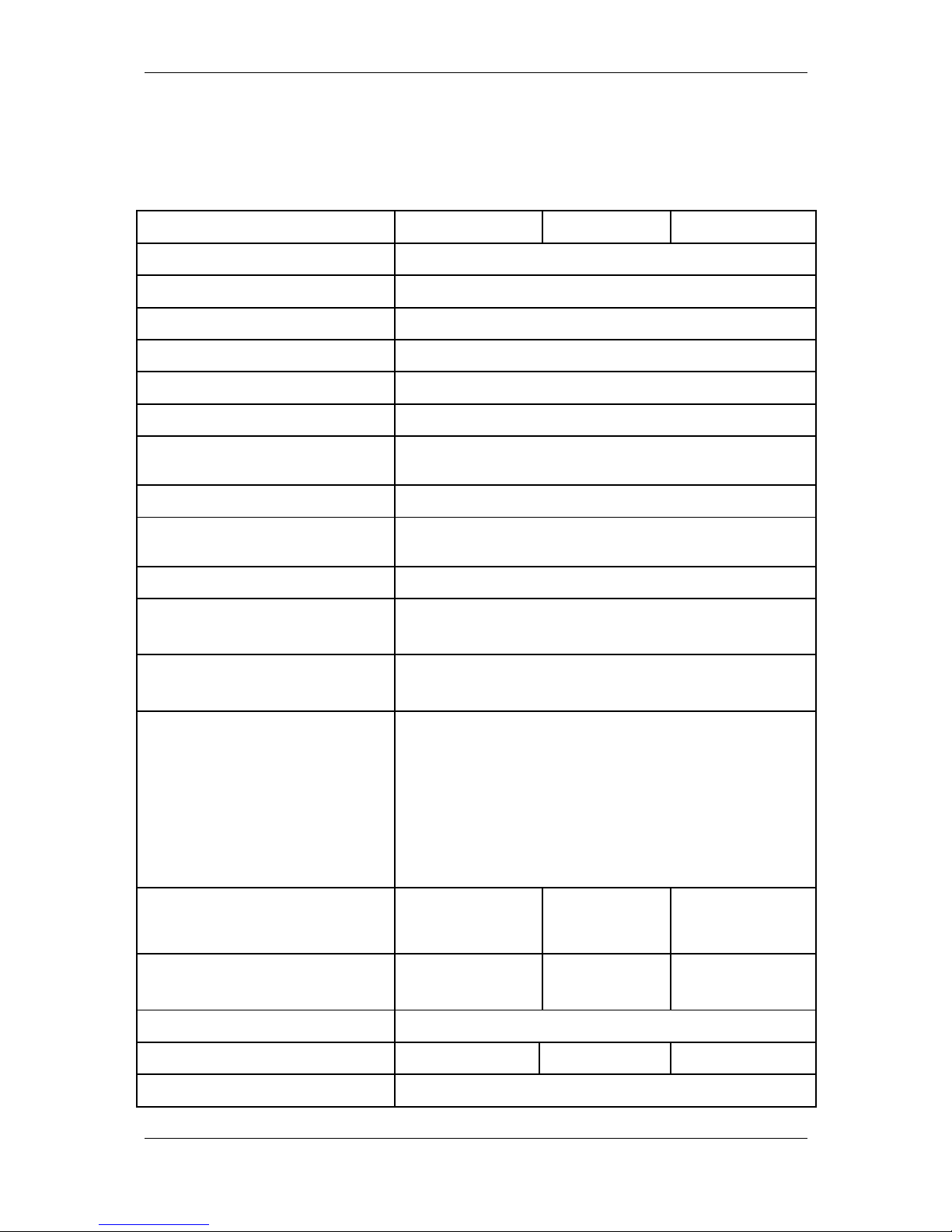
Function / Parameter / Feature DP-50 DP-50D MP-55B
PLU database 1000 items
Plu name length up to 22 characters
Maximal Sold quantity of one item up to 99 999,999kg (100,000 pieces)
PLU code range 1-9999
Barcode types EAN-13,EAN-8,UPC
Tax type VAT, up to 8 tax groups
Number of item groups and
departments
up to 10 item groups and up to 4 departments
Number of operators up to 30 - and of them up to 2 active
Maximal number of sales in one
receipt
above 150
Receipt copy up to 1
Types of service - Control of store exit
- ECR which serves one stand
Types of payment Cash, with check or with coupon;
Cash with alternative currency (EUR)
ECR operation modes - REG /Registration /
- Х Report
- Z /Report with clearing /
- Test
- Communication with PC
* programming and reporting;
* sales by PC request;
Journal Electronic,
min. 1500rows
with
simultaneous
printing
Electronic,
min. 1500rows
Receipt archive for reading from PC yes - up to
400 receipts
no yes - up to
400 receipts
Fiscal memory Non-volatile, can keep up to 1825 reports
Thermal printer type MLT289 MLT289 MLT288
Speed of printing 12 rows / sec
5
Page 6
DP-50 / DP-50D / MP55-B - USERS MANUAL
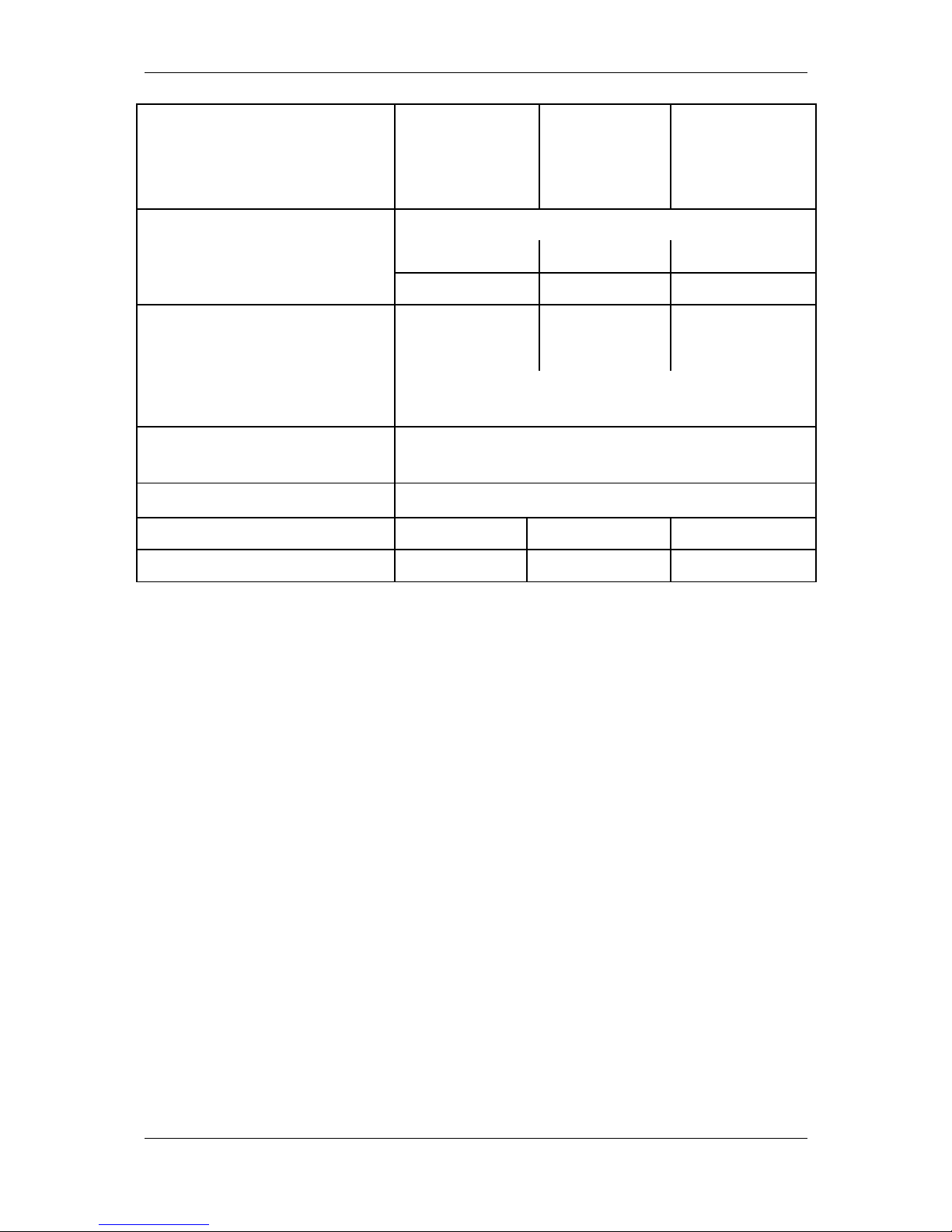
Built-in accumulator yes yes optional
LCD displays
operator's 2 rows/16 chars yes yes yes
optional - customer 2 rows/16 chars yes yes yes
Consumables - thermopaper roll - paper width
57mm
- paper width 28
mm for main and
journal tapes
-paper width 57mm
- thickness 60 ÷ 72µm
- roller diameter up to 55mm
Power supply mains adapter with operating voltage 220VAC +22/-33V 50Hz
for charging of built-in accumulator
Clock/calendar
Stores information for at least 90 days after switching off the
ECR
Interfaces 1 x RS232 1 x RS232 1 x RS232
Scale support no no yes
6
Page 7
DP-50 / DP-50D / MP55-B - USERS MANUAL
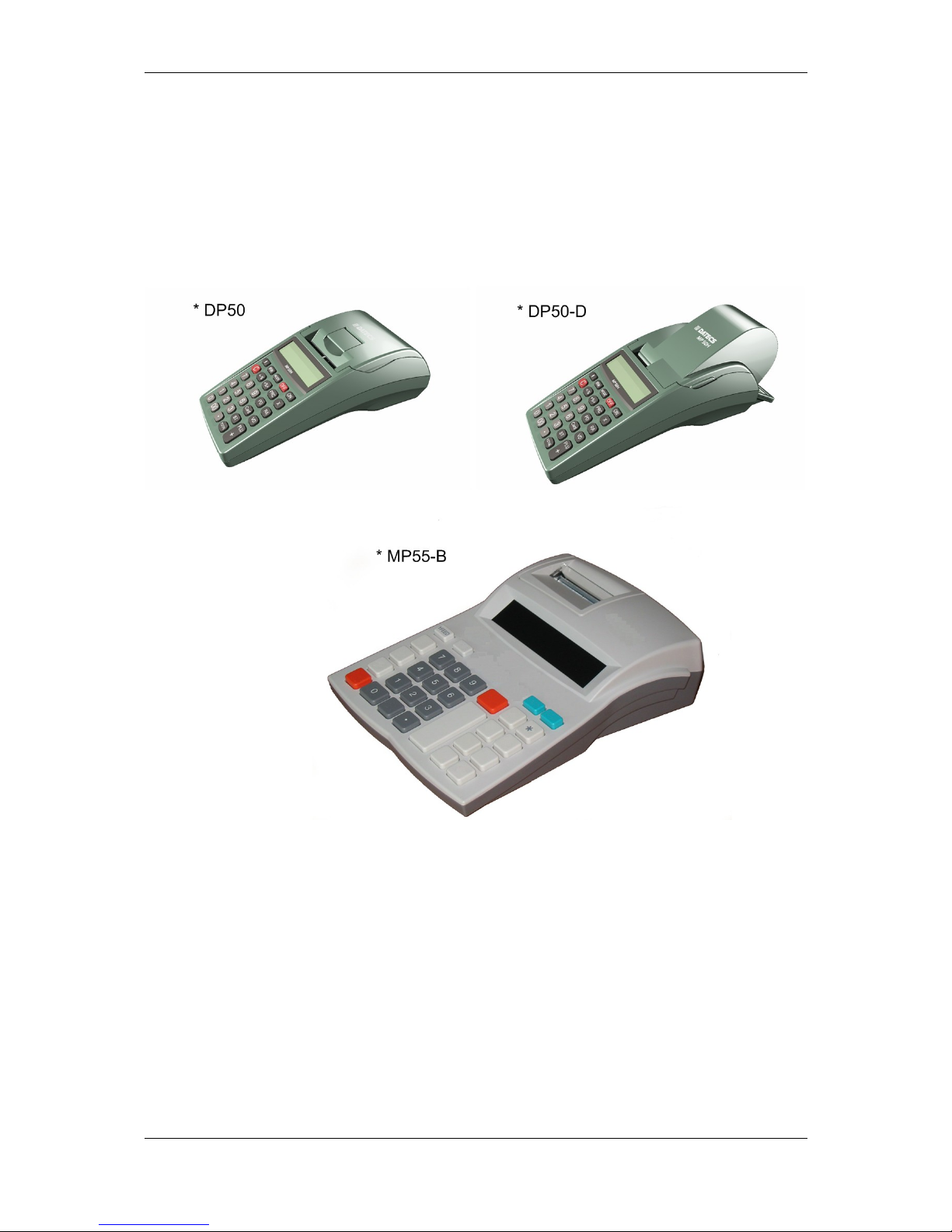
ECR OUTLOOK
7
Page 8
DP-50 / DP-50D / MP55-B - USERS MANUAL
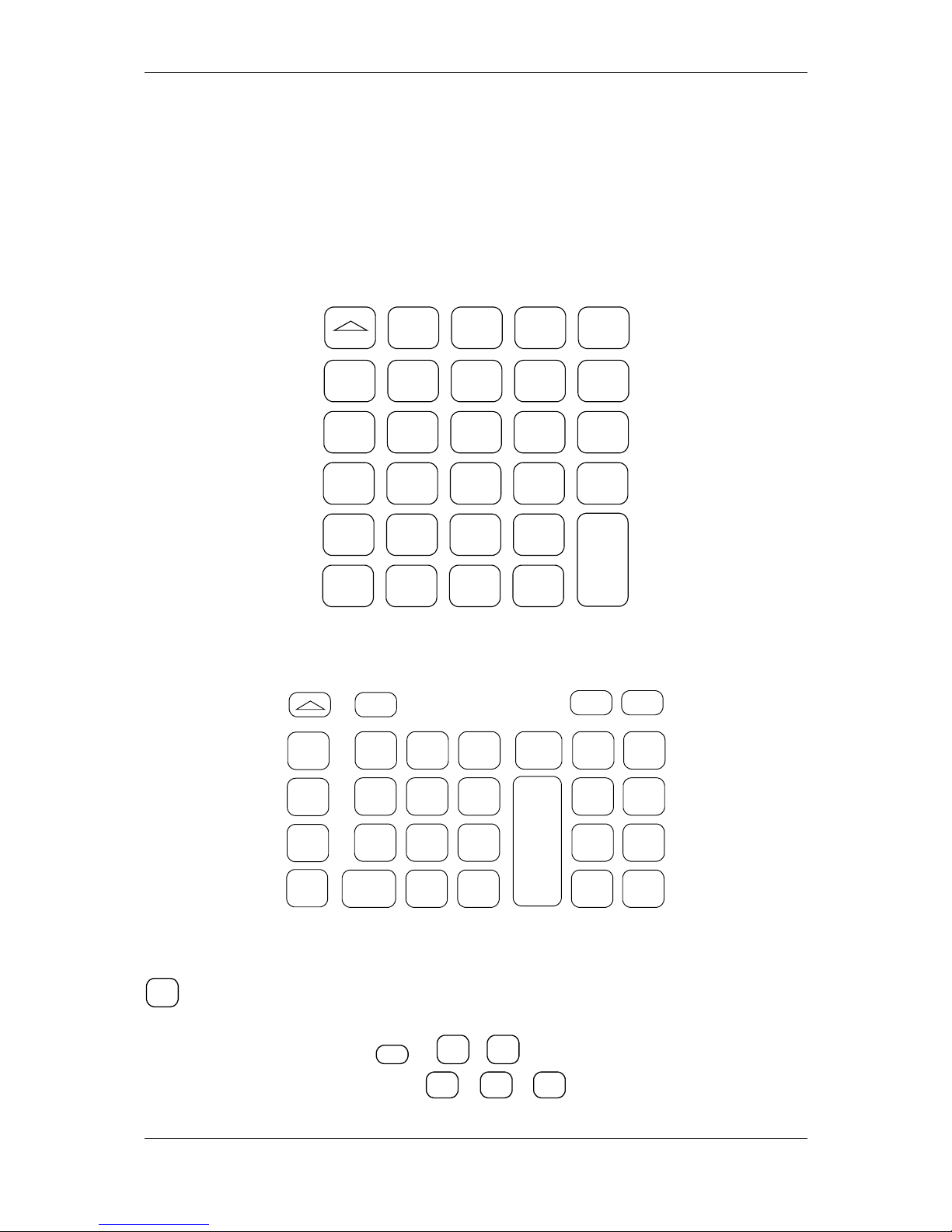
KEYBOARD
DP-50, DP-50D:
VD PRC %- %+ PLU
7 8 9 G1
CRD
4 5 6 G2 STL
1 2 3 G3
0 Q’ty . G4
<> ONPLC C
T
O
T
A
L
MP-55B:
%+
G2
G3
G4
*%-
G1
OFF PLU
7 8 9
4 5 6
1 2 3
0 X .
C
PLC
VD
ON
PRC
PY
STL
TL
IMPORTANT:
- МP55-B has one key more than the DP-50 / DP-50D ECR's. This is the key
*
. This key is used for payment in alternative currency. In DP-50 / DP-50D this
operation is performed using key sequence.
- Three of the keys
OFF
,
X
,
PY
of MP-55B have different symbol
appearance compared to the keys
<>
,
Q’ty
,
CRD
of DP-50 / DP-50D, but have
the same functionality.
8
Page 9
DP-50 / DP-50D / MP55-B - USERS MANUAL
UNPACKING
After you take out the ECR from its carton box and remove the pickings and
the plastic cover, you will find this manual and the device passport.
IMPORTANT INSTRUCTIONS:
1. DO NOT install the device under direct sunlight or near heating apparatus!
2. DO NOT install the device in locations that have steam, humidity and dust!
3. DO NOT use a mains connection in sockets shared by other power consumers (for
example refrigerators, motors, etc.)
4. Put the ECR on a place which able suitable work and which able both to the
customer and to the operator to see the information displayed.
SWITCHING THE ECR ON/OFF
The ECR comes complete with mains adapter. The adapter is intended to
operate with 220VAC +/- 22-33V / 50Hz input voltage.
The ECR can be switched on by pressing the key
ON
.
On the display is shown:
O F F
When on the display is shown 'OFF' for 30sec, the ECR will automatically turn
off. The ECR can also be switched off manually by pressing the key
0
.
If the ECR is into a sub-mode, the operator can turn it back into 'OFF' mode by
pressing the key
- for DP-50, DP-50D:
<>
- for МP55-B:
OFF
From any state the ECR can be switched off (emergency) by simultaneously
pressing the keys:
- for DP-50, DP-50D:
PLC C
- for МP55-B:
PY
STL
TL
Turn the ECR mains adapter to charge the built-in accumulator 24 hours
before starting to use the ECR.
BEFORE STARTING WORK, CHECK WHETHER THERE IS A PAPER ROLL
9
Page 10
DP-50 / DP-50D / MP55-B - USERS MANUAL
INSERTED INTO THE ECR!
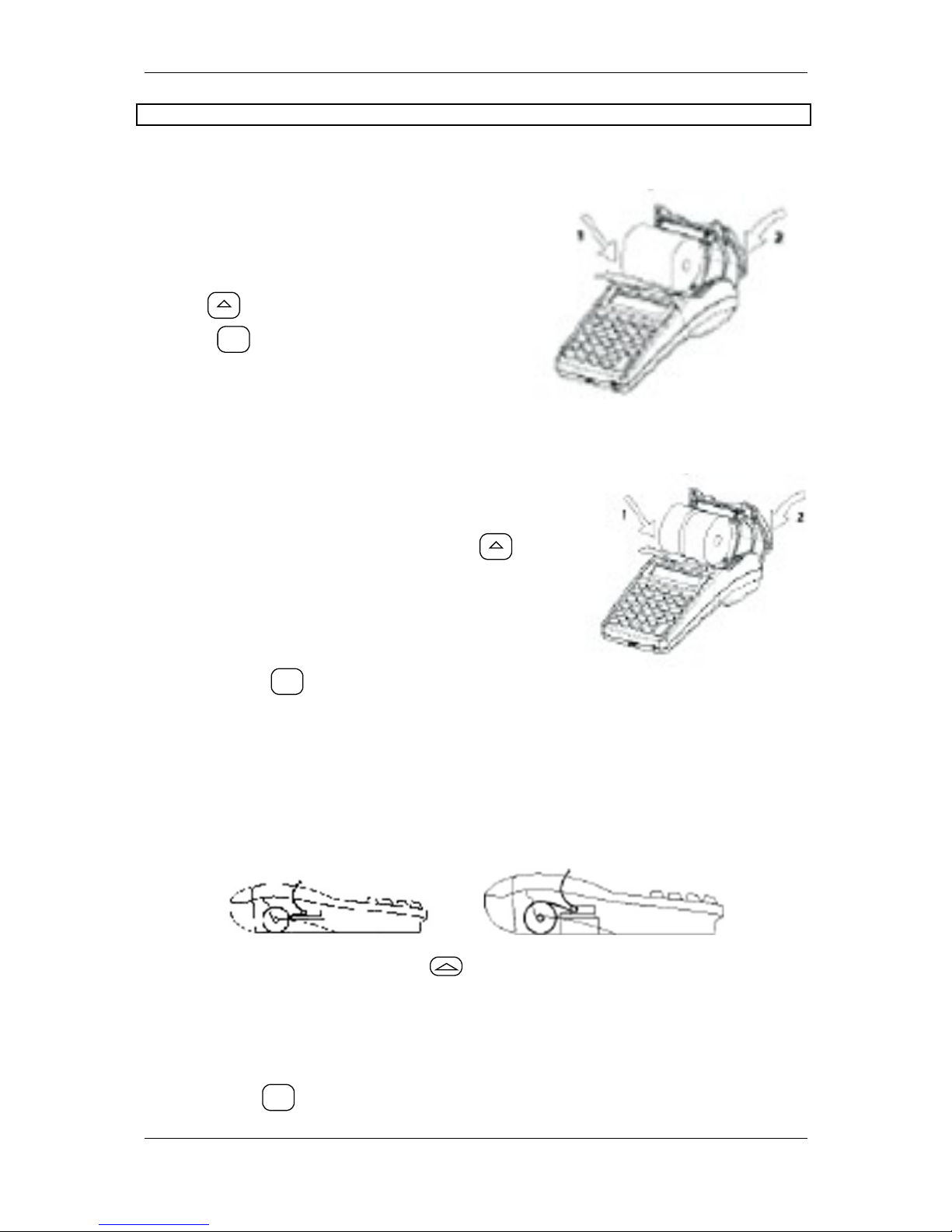
√ Loading the paper roll into DP-50
A/ Remove the printer cover;
B/ Set the paper roll as is shown in the
illustration ;
C/ Pull the paper tape out about 25-30 cm,
D/ Close the cover, to move the paper use
the key
E/ Press
C
.
√ Loading the paper rolls into DP-50D
A/ Remove the printer cover;
B/ Set the paper rolls as is shown in the
illustration;
C/ Close the cover, to move the paper use
D/ Pull the paper tape out about 25-30 cm,
E/ Store the tape for journal printing to the end of
the winding roll and turn the roll back to its place,
F/ Pass the main tape through the cover paper
slot and turn the cover back to its place.
G/Press the key
C
.
√ Loading the paper roll into MP-55B
A/ Remove the printer cover;
B/ Set the paper roll as is shown in the illustration below and pass its end through the
paper slot of the printing device until you feel resistance,
Correct Not correct
C/ To move the paper press the key till the tapes shows up over the slot,
D/ Pull the paper tape out about 25-30 cm,
E/ Pass the main tape through the cover paper slot and turn the cover back to its
place.
Press the key
C
.
10
Page 11

DP-50 / DP-50D / MP55-B - USERS MANUAL
OPERATION MODES
The ECRs working mode can be set when on the display is shown
O F F
by pressing the key:
1
REG - 'REGISTRATION', Registering of the sales;
2
X - 'X REPORTS', Reports of the ECR;
3
Z - 'Z REPORTS', Reports of the ECR with clearing;
4
PGM - 'PROGRAMMING', Programming of the ECR settings;
7
- Connection to PC for:
1. Reporting the fiscal memory (by using the applications
'Memory Reader' and 'Fiscal Memory Interpreter' or other with
similar functionality);
8
- Control tests ;
9
- Programming and reporting from PC
( by using the application "Ecr Tool" or its analog)
.
- Showing the battery voltage and the current date and time.
0
- Turning off the ECR when it is in "OFF" mode.
From any state of the ECR with the keys
<>
/
OFF
the current state changes to
O F F
The operators have no equal rights when accessing the modes. The access
permissions are defined as the follows:
- operators 1..24 (cashiers) are allowed to access only REG mode;
- operators 25, 26 are allowed to access REG and Х modes;
- operators 27, 28 are allowed to access REG, Х and Z modes;
11
Page 12
DP-50 / DP-50D / MP55-B - USERS MANUAL
- operators 29, 30 (managers) are allowed to access the modes REG, Х, Z and PGM;
- all operators are allowed to access the modes 8,9.
Access to the mode s which requires password :
Operator ⇒
1-24 25,26 27,28 29,30
Mode
⇓
1 REG + + + +
2 X - + + +
3 Z - - + +
4 PGM - - - +
After pressing a key to choose a mode on the display is shown invitation for
operator’s password entering:
PASSWORD:--------
R
To enter into a mode, the operator should enter his password and then to press the
TOTAL key.
IMPORTANT! In the modes "X" and "Z", the key sequences for starting daily
financial report and the reports of the fiscal memory are allowed. These sequences
are in accordance with Regulation 4/23 Feb 1999 of the Ministry of Finance
12
Page 13

DP-50 / DP-50D / MP55-B - USERS MANUAL
'PROGRAMMING' MODE
If you are programming your ECR by oneself read carefully this chapter.
If your ECR is already programmed by service specialist, skip this chapter and
read the chapter "MODE R - REGISTERING".
The item price changes are always allowed. For the other item parameters
programming is allowed any moment only for the items with zero turnover. The other
ECR settings can be programmed only after daily Z report.
There are three programming modes:
P, 1 - programming of items and main parameters
P, 2 - programming of specific parameters (tax groups parameters and
the identification number of the tax obligated person -BULSTAT)
P, 3 - Setting up the fiscal memory in use
1 In order to access the mode "Programming" from the 'OFF' state press key 4.
2 - In the left side on the display the letter 'P' is shown and on the next row is shown
an invitation for password entering.
PASSWORD:--------
P
Enter the password digits and press TOTAL.
3 - On the display is shown :
P 1-2-3
4 - Press key:
1
To program items and main parameters
2
To program specific parameters
3
Setting up the fiscal memory in use
13
Page 14

DP-50 / DP-50D / MP55-B - USERS MANUAL
FUNCTION OF THE KEYS IN 'PROGRAMMING' MODE
The programming of parameters is organized in a table structure. Each table
consist a given number of rows and any row consist fields. The fields can be symbol
or numeric type. The information of each field can be shown in two modes - field
address or field value. When a programming sub-mode is accessed, the current
position (e.g. the current parameter which can be programmed) is determined on the
display with the field address as is shown on the figure:
Field size
Table No
Row No
Field No
2 . 0 1 . 0 1 . 0 2
The only exception is the table for items programming. When this table is
programmed on the upper display row are shown the first 16 characters from the item
name, stored on the current table row.
The key functions in 'PROGRAMMING' mode are:
Q’ty
/
X
- Moving to the next table. The table with rearmost number is followed
by the table with the smallest number
%+
- Moving to a field with higher number
%-
- Moving to a field with lower number
PRC
- Moving to a row with higher number
VD
- Moving to a row with row with lower number
T
O
T
A
L
- Writing the information entered
STL
- Switching the mode of indication (address / value)
CRD
- Printing the fields value
PLC
- 1.Physically writing into the fiscal memory or into the clock-calendar
the contents of the table given (the operation must be accepted by
pressing the key
0
)
14
Page 15

DP-50 / DP-50D / MP55-B - USERS MANUAL
2. Accessing the row with number "N". For this purpose:
- if the current display mode is “value”, by pressing the key
STL
switch to “address” mode.
- press the key
PLC
- using the numeric keys enter the desired number N
- press again the key
PLC.G1
- One position forward when editing a symbol field
G2
- One position backward when editing a symbol field
C
- Clearing the field's contents
The editing of parameter is possible both from "address" state and from
"value" state on the display. With the beginning of the editing automatically the
display state changes to show the fields value. After the parameter editing in order to
save the value modified into ECR's memory the key TOTAL must be pressed. If the
operator omit to press the TOTAL, the last made modifications will be lost.
When editing a symbol field, the symbols are chosen by consecutively
pressing a key, and if the key remain un-pressed for a given time - this will cause the
cursor to move automatically on the next position on the display (this is made in a
similar way as when editing text in a mobile phone). By consecutively pressing the
key PLU, the appropriate alphabet can be chosen - Cyrillic, Latin or digits only. The
current alphabet selected can be determined by the three symbols which appear on
the right upper row:
For Cyrillic (АБВ)
For Latin (ABC)
For digits only (123)
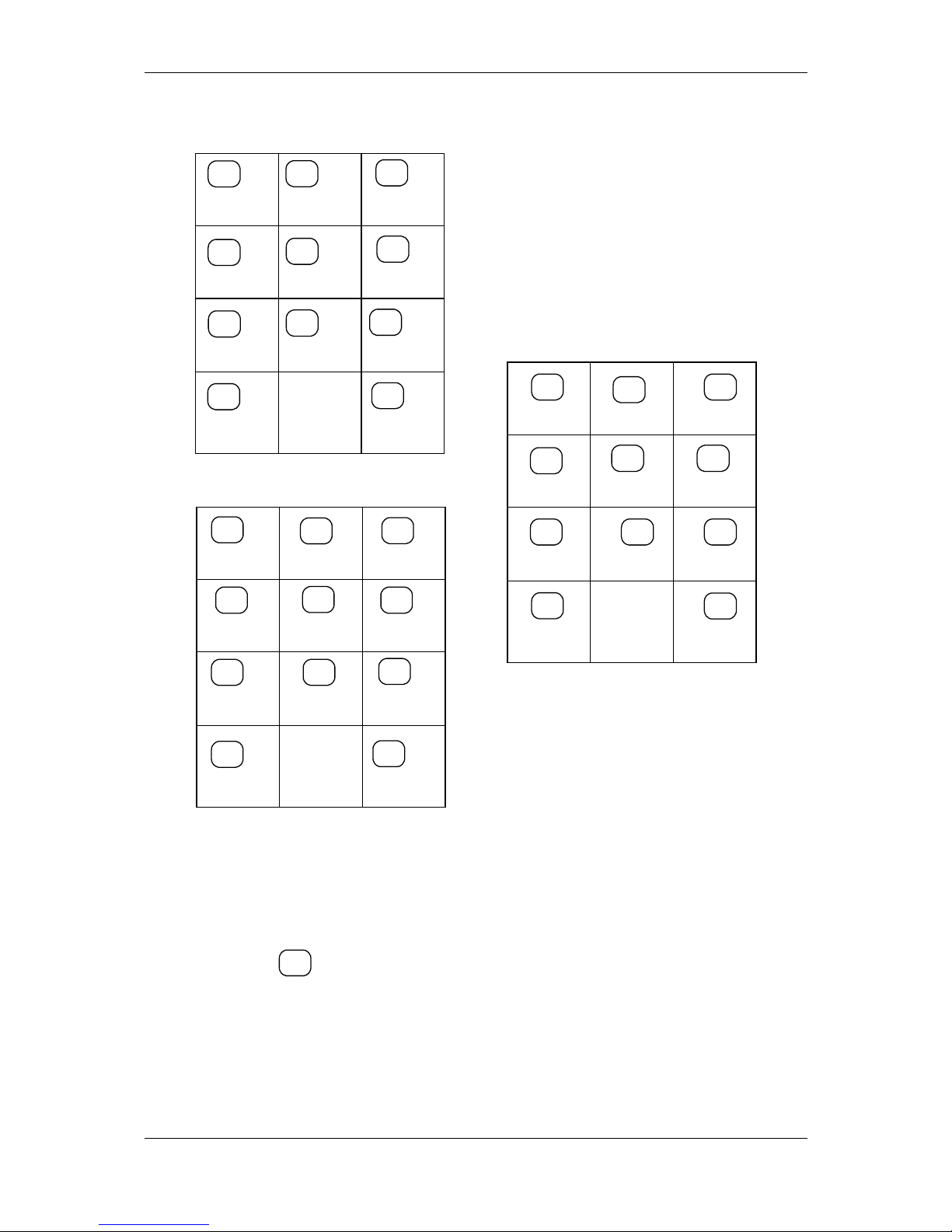
On the figures below is shown how can be chosen the symbols from the
different alphabets.
15
Page 16
DP-50 / DP-50D / MP55-B - USERS MANUAL
USING THE NUMERIC KEYS FOR SYMBOL EDITING
Cyrillic
0
*=:/? 0 @
1
ФХЦЧ1
4
ИЙКЛ4
7
8
АБВГ8
5
МНОП5
2
ШЩЪЬ2
9
ДЕЖЗ9
6
РСТУ6
3
ЮЯЫЭ3
.
space
Latin:
7
4
GHI4
1
PQRS1
0
8
ABC8
5
JKL5
2
TUV2
9
DEF9
6
MNO6
3
WXYZ3
.
space
Digits:
7
7
4
4
1
1
0
0
8
8
5
5
2
2
9
9
6
6
3
3
.
.
*=:/? 0 @
. , - № ! “7
. , - № ! “7
To choose a symbol, the appropriate key must be pressed one or several times till
the symbol desired is displayed.
Example:
When the alphabet selected is "Latin" - (ABC), the "C" letter can be chosen by
pressing the key
8
three times.
16
Page 17
DP-50 / DP-50D / MP55-B - USERS MANUAL
MODE PROGRAMMING P1 - PROGRAMMING OF ITEMS AND MAIN
PARAMETERS
This mode can be accessed from state "OFF" by consecutively pressing the
keys
4
, password, TOTAL,
1
.
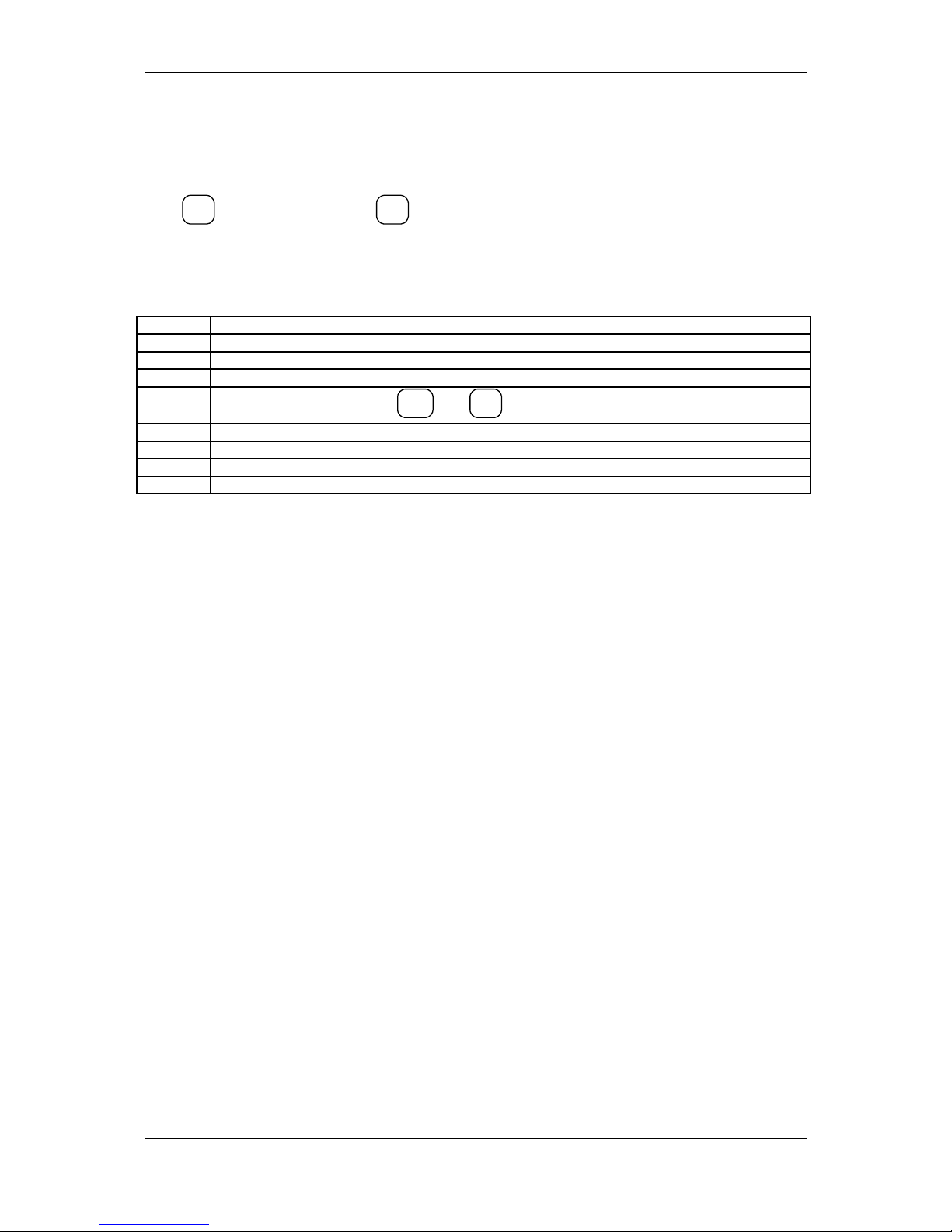
The parameters which can be programmed in this mode are summarized in
tables 1 - 8.
TABLE DESCRIPTION
1 ITEM PARAMETERS
2 SHOP ORGANIZATION
3 OPERATORS
4
SETTINGS OF THE KEYS
%-
and
%+
5 PARAMETERS FOR SETTING THE RECEIPTS OUTLOOK
6 TEXTS INTO RECEIPT
7 DATE AND TIME
8 PARAMETERS FOR SETTING THE WORK WITH ADDITIONAL CURRENCY
17
Page 18
DP-50 / DP-50D / MP55-B - USERS MANUAL
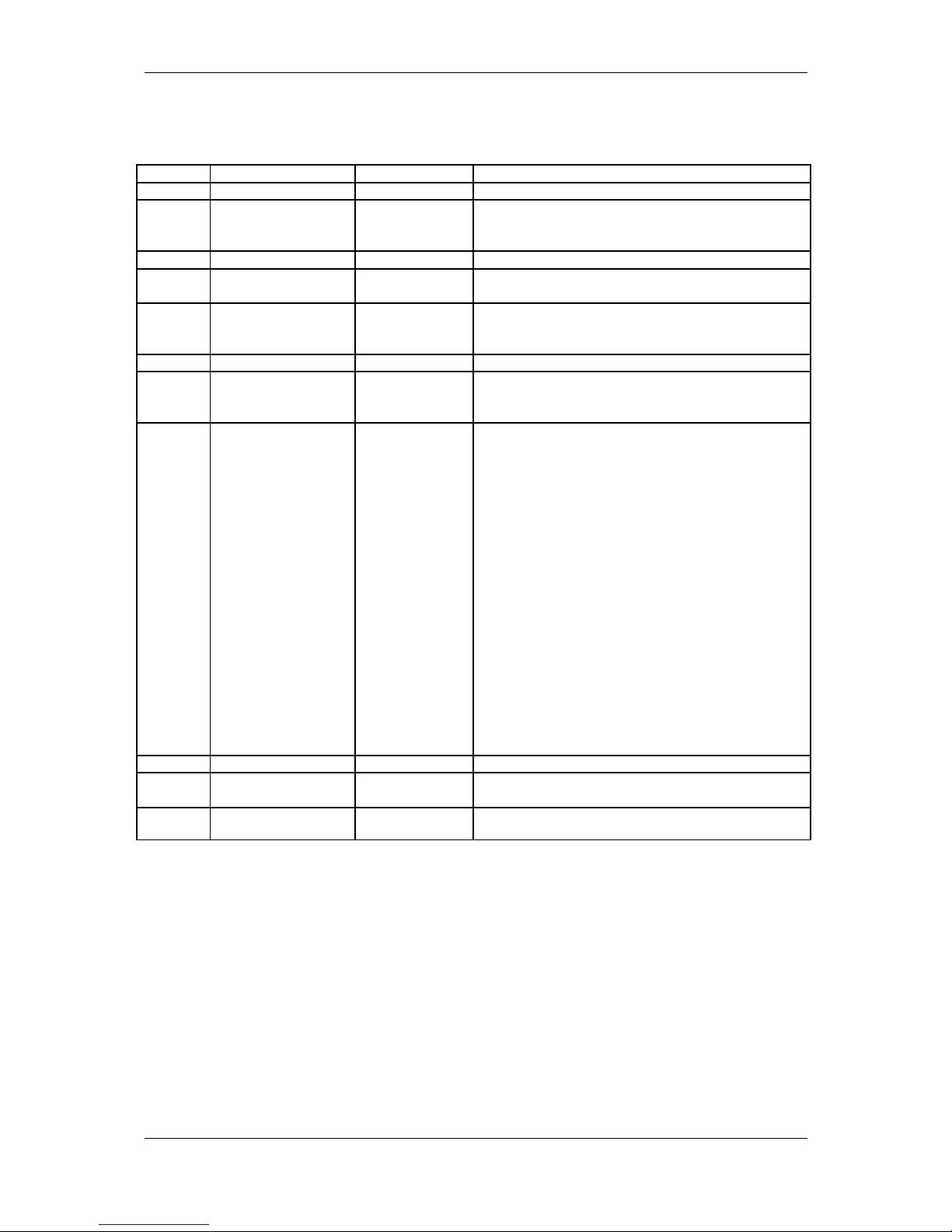
Table 01: Item parameters
This table consist 1000 rows - as is the maximal items number.
Each row consist 11 fields.
Field No
Description Range Note
1
PLU code
1 ÷ 9999 Default: the current row number
2 Name Up to 22
characters
Default:
For row 1 to 4:DEPARTMENT1-DEPARTMENT4
For the remaining rows (от 5 to 1000) : Space
3 Price Up to 8 digits Default: 0.00
4 Quantity Sold quantity of
this item
Read-only
5 Department
number
From 1 to 4 Default:
For row от 1 - 4 the stands number, respectively 1-4;
For the remaining rows (from 5 to 1000) : 4;
6 Item group From 1 to 10 Default: 1
7 Tax group From 1 to 8 Default:
For row 1 to 4: 2,
For the remaining rows: 0
8
PLU or PLU Type
0,1,2,4,5
Sale is possible:
0: Only with the programmed price
1: With programmed or free entered price
2: With a price which entered value is less than
the programmed one;
4 : Same as 1 ( with programmed and free
entered price) and automatically next sale of
a linked item. The code of the linked item
must be given into field 10, and the quantity
must be given into field 11. The quantity must
be given as shown: xxxxx.xxx, the dec.point
is fixed and can not be entered. The right 3
positions represents the fractional part of the
quantity
5: Same as 1 but with automatically finishing the
receipt with cash payment.
Default :
for items 1 to 4: 1
for items 5 to 1000: 0
9 Reserved
10 Barcode–most
significant digits
Up to 6 digits Default : 100000
11
Barcode–less
significant digits
8 digits Default : 0
Note: When an item parameter has unallowable value its sale is not possible. The
sale is also not possible if the field "Tax group' has value 0.
Note: The parameters for each item are written on a separate row in the PLU
database. The row number from table 1 which the parameters of item are stored is
called code (or PLC code) of the item. It is recommended when the PLU-code of an
item is programmed, the value programmed to be equal to the row number of Table 1
in which the parameters of that item are stored.
18
Page 19
DP-50 / DP-50D / MP55-B - USERS MANUAL
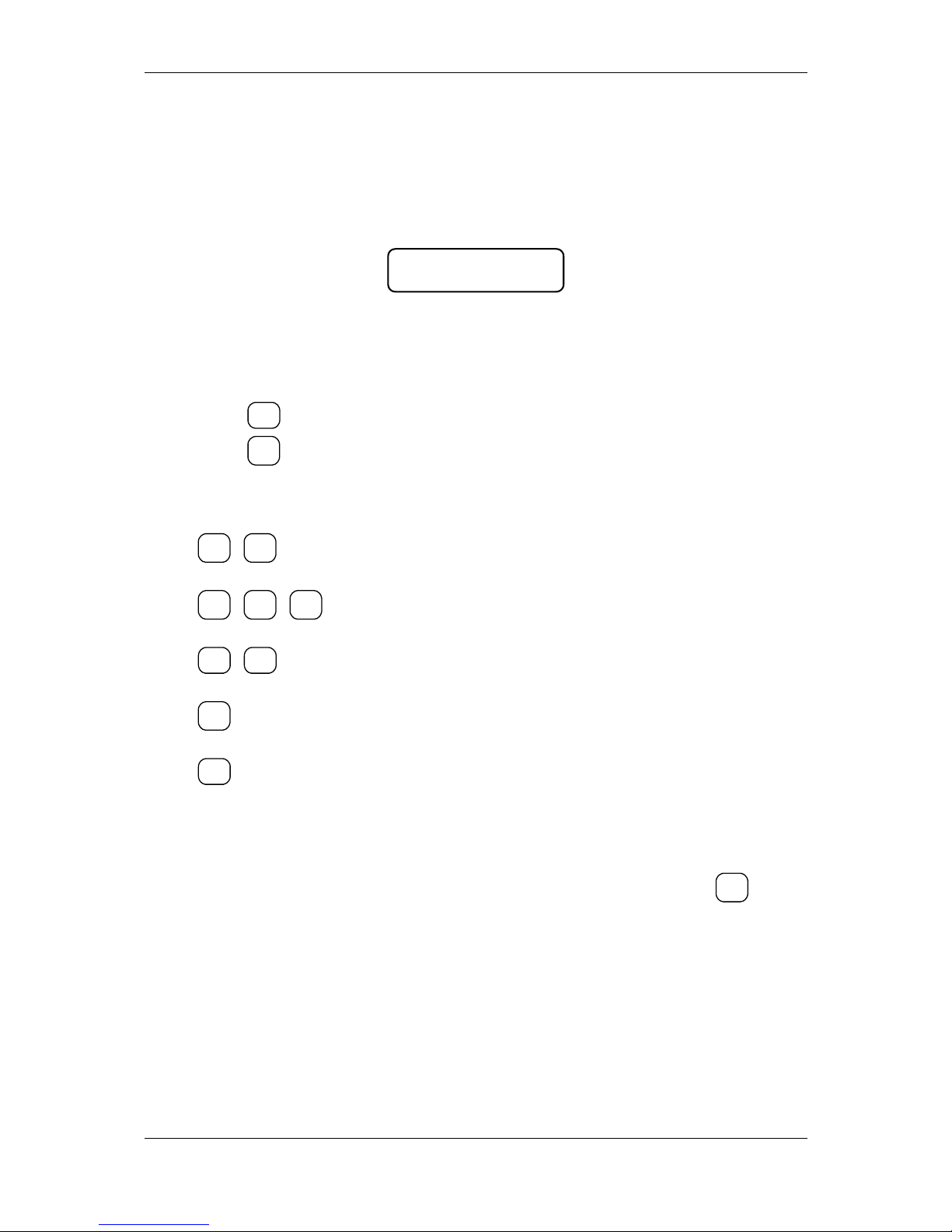
Example: Programming the name and the price of an item
1.Make daily financial report ( OFF,3,password,TOTAL)
2.Enter into mode for programming of main parameters (OFF,4,password,TOTAL,1)
3.The initial position is Table 1 field 1 row 1 ( editing of item parameters). On the
display are shown the name of the current item and the address value, for example:
1.0001.01.04
DEPARTMENT1
Note: When the symbol "=" is shown in the left lower corner on the display, this
indicates non-zero turnover for this item. In this case it is not allowed to edit the
name, the PLU code and the tax group for this item. In order to change these
parameters the turnover must be cleared.
4. Press key
%+
in order to move on the field 1.1.2.22 – items name;
5. Press key
STL
in order to move in “editing” mode;
6. Enter the name of the item (”BREAD”) as the follows:
B
8, 8R1, 1, 1
E
9, 9
A
8
D
9
7. Accept the writing by pressing TOTAL;
8. In order to program the price move to the next field by pressing the key
%+
;
9. Enter the price;
Note: The position of the decimal point always is fixed and can not be programmed
when the price field is changed.
10. To accept the new value, press TOTAL.
In similar way can be programmed the parameters stored in the other tables.
It is obligatory the “tax group” parameter to has acceptable value.
19
Page 20
DP-50 / DP-50D / MP55-B - USERS MANUAL
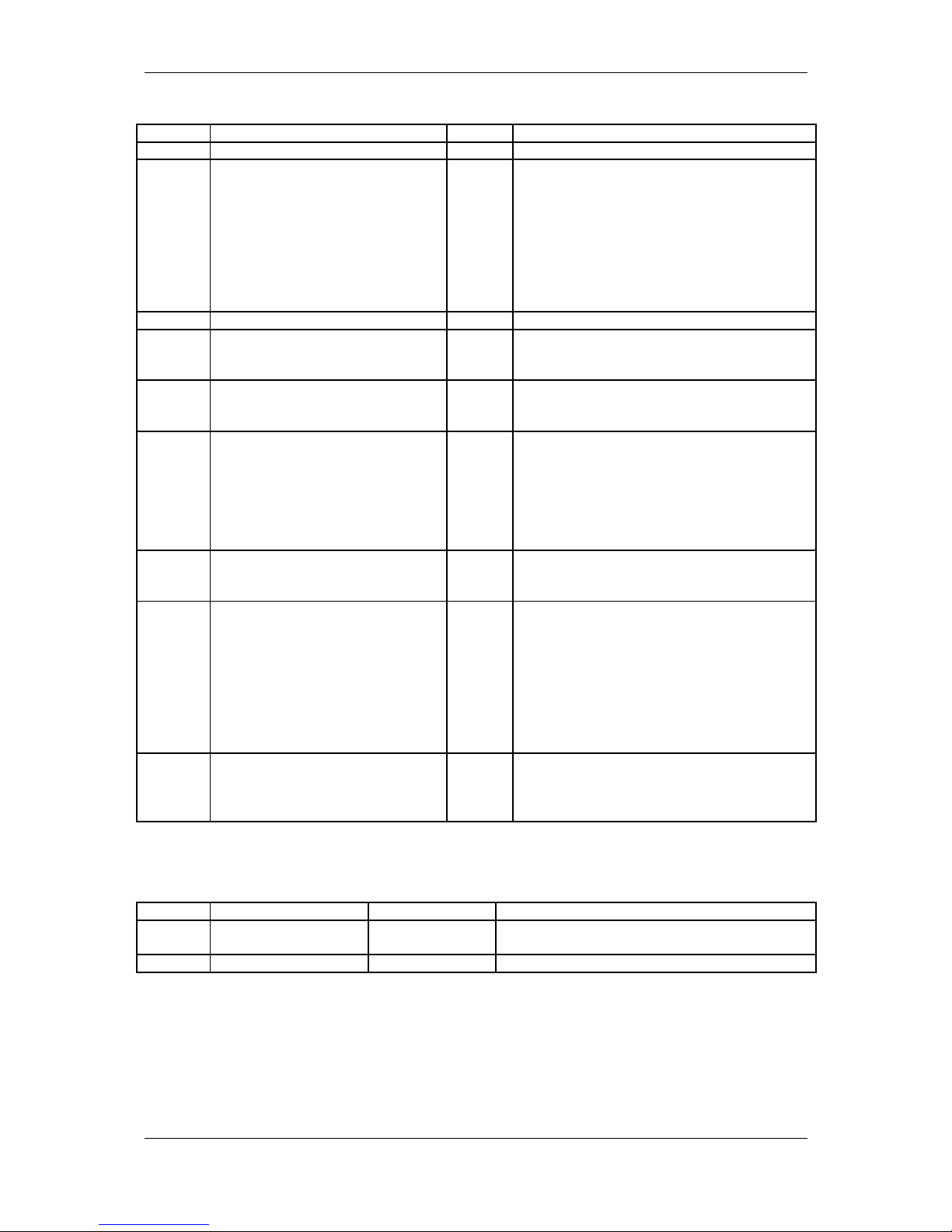
Table 02 : Shop organization , 1 row and 9 fields
Field No Description Range Note
1 ECR logical number into the shop 1÷99 Default:1
2 Type of the service 0,3,4 0: Control of the store exit or the ECR
serves only one stand.
3: Configured to work with a scale of type
DATECS
4: Configured to work with a scale of type
ANGEL or DIBAL
Default: 0
Note: The ECR can manage a scale only if
it has RS232 interface.
3 Reserved
4 No passwords are used 0 or 1 0: The passwords usage is disabled
1: The passwords usage is enabled
Default: 0
5 Function of the key PLC in REG
mode
0 or 1 0: Sales by code ( e.g. the row number)
1: Print a number
Default: 0
6 Auto Power Off in REG mode
between the receipts
0 or 1 0:Disabled
1: In REG mode the ECR automatically
turning-off if there is no active receipt and if
30seconds expires with no activity; By
pressing “ОN”, the ECR restores its state
back to REG mode.
Default: 1
7 Clearing of the quantities and
turnovers of the items when a
daily Z report is made
0 or 1 0:Disabled
1:Enabled
Default: 1
8 Sales by PC request in REG
mode, programming between the
receipts in REG mode
0,1,2,3 0: Disabled
1: Enabled programming between the
receipts in REG mode.
2: Enabled sales by PC request in REG
mode.
3: Enabled both 1 and 2
Default: 0
Note: This field is meaningful only when the
value from filed 2 is set to 0
9 Communication speed 1,2,3,4 1: 4800 bps
2: 9600 bps
3: 19200 bps
4: 38400 bps (default)
Table 03 : Operator names and passwords
Each row keeps the settings for one operator and the row number is equal to the
operator number. The rows are 30 as are the maximal operators supported, fields: 2
Field No Description Range Note
1 Operators name up to 10 symbols Default: ОПЕРАТОРxx (e.g. OPERATORxx)
(xx-the operators number)
2 Operators password up to 8 digits Default: same as the operators number.
20
Page 21
DP-50 / DP-50D / MP55-B - USERS MANUAL
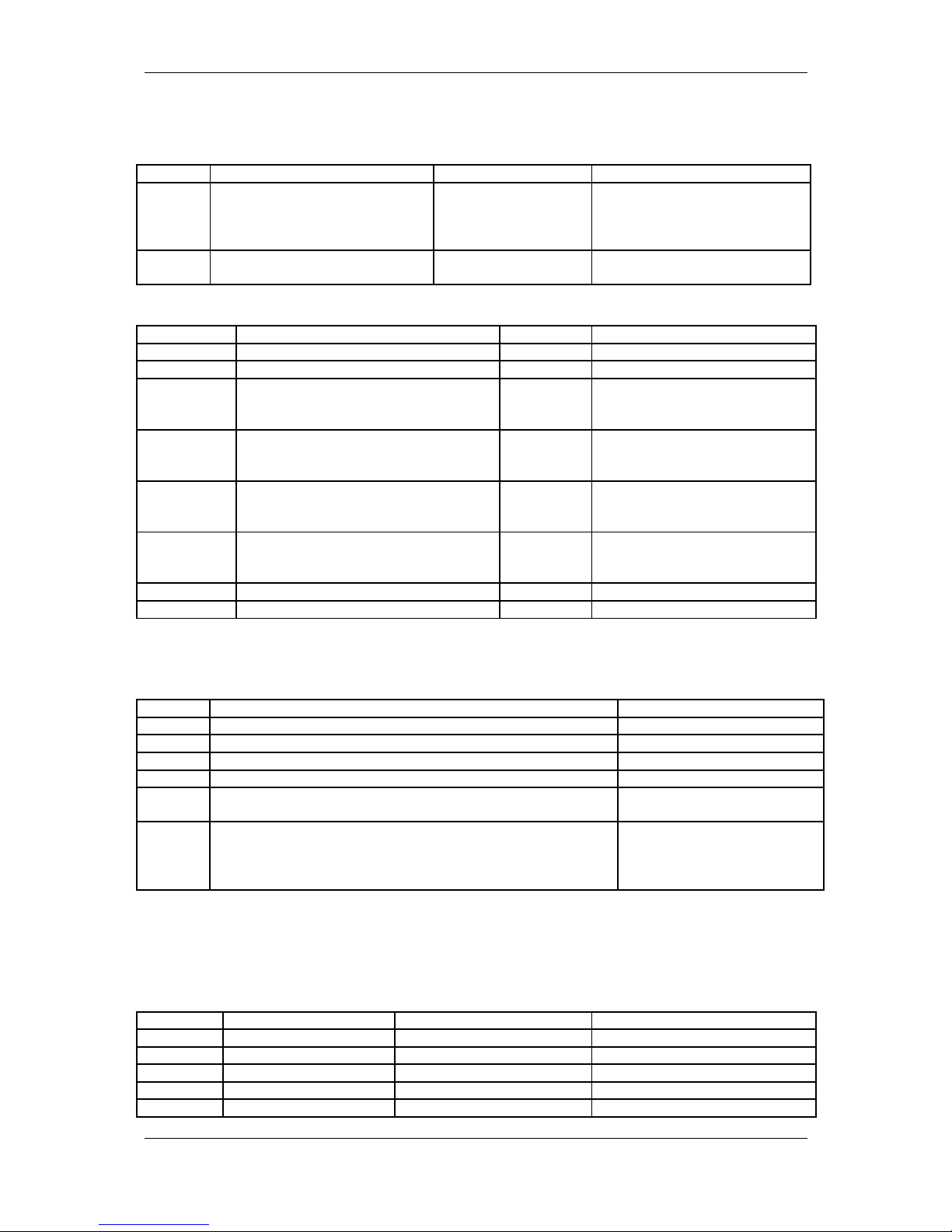
Table 04 : Settings for the keys '%+' and '%-' in REG.
This table consist 2 rows – row No 1 for “%+” and row No 2 for “%-“.
Each row has 2 fields:
Field No Description Range Note
1 Enables the key usage in REG
- to make "Surcharges" with the
key "%+" and to make
"Discharges" with the key "%-"
0 or 1 1: Enables the key usage
Default: 1
2 The value programmed for
operation with that key
0.00% to 99.99% Default: 0.00
Table 05 : Receipt format and copies, 1 row and 8 fields.
Field No Description Range Note
1 Printing contrast From 0 to 9 Default: 5
2 Reserved
3 Expanded printing of the sales in the
receipt
0 or 1 0: Disabled
1:Enabled
Default: 0
4 Printing the taxes into receipt 0 or 1 0:Disabled
1:Enabled
Default: 0
5 Expanded/Short electronic journal
(in DP-50D - reserved)
0 or 1 0:Short
1:Expanded
Default: 0
6 Separating total with blank lines 0 or 1 0:Disabled,
1:Enabled,
Default: 1
7 Reserved
8 Reserved
Table 06 : Texts into receipt
This table consist 6 rows.
Each row has 1 field which contains up to 42 symbols.
Row No
Text placed in the receipt Text by Default
1 1-st row from the slogan COMPANY NAME
2 2-nd row from the slogan COMPANY ADDRESS
3 3-th row from the slogan SHOP NAME
4 5-th row from the slogan SHOP ADDRESS
5 6-th row from the slogan -the tax number of the tax obligated
person
NOT PRESENTED
6 The first three symbols representing the name of the
national currency, the second three represent the name of
the alternative currency; the next eight symbols are the of
the identification name of the tax obligated person.
LV EUR TAX#
Note: For DP-50D can be programmed and displayed (and printed) only the first 18
symbols of the rows of table 6.
Table 07 : Date and time , 1 row, 5 fields;
Field No Description Range Note
1 Day From 1 to 31 Default: DD
2 Month From 1 to 12 Default: MM
3 Year From 00 to 99 Default: YY
4 Hour From 00 to 23 Default: 00
5 Minutes From 00 to 59 Default: 00
21
Page 22
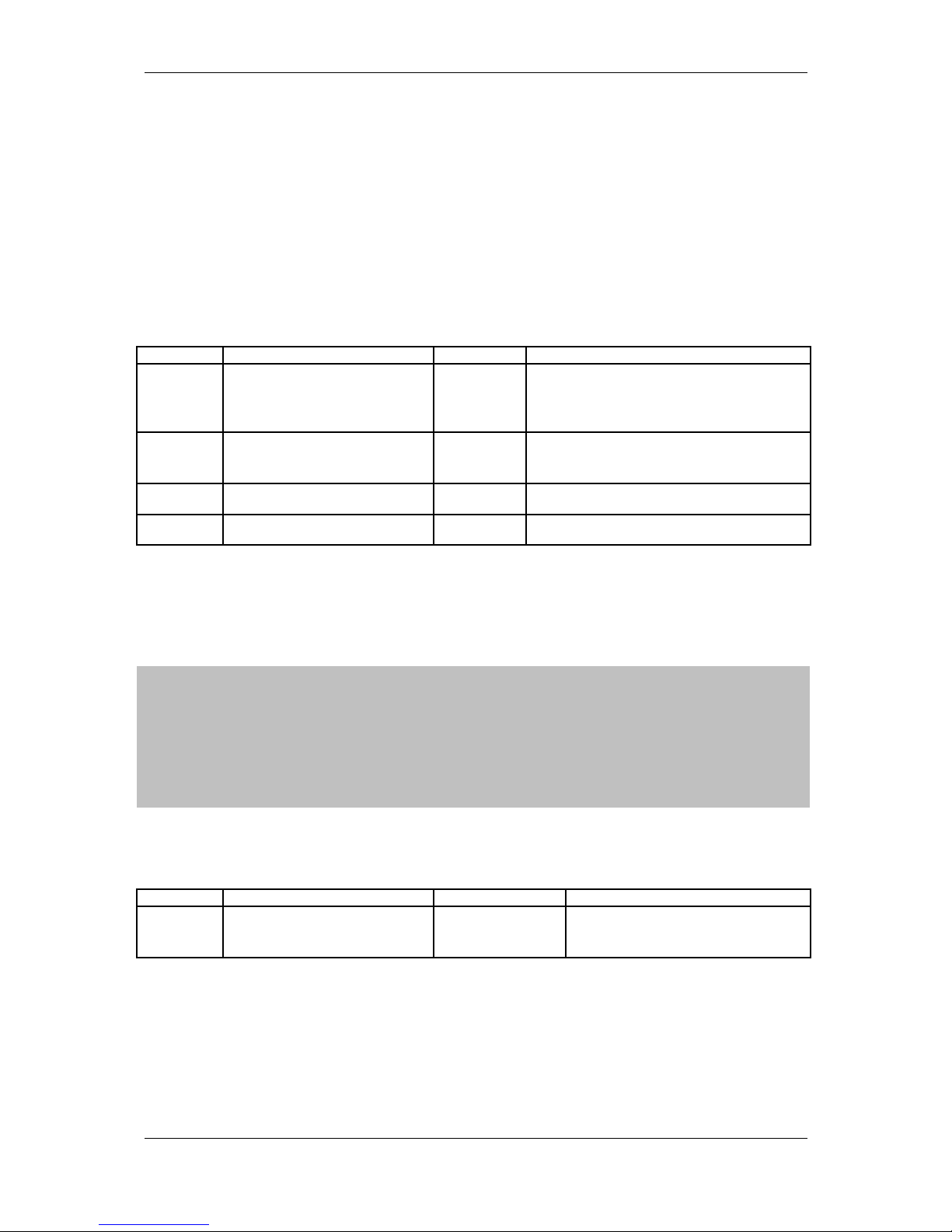
DP-50 / DP-50D / MP55-B - USERS MANUAL
Note: After entering a value in a field, it is needed the key "TOTAL" to be pressed.
After the fields are modified, in order the clock-calendar to be actualized, it is needed
the key "PLC" to be pressed, than a confirmation dialog appears. If the new date is
allowable, but differ forward more than 1 day from the current date, a warning
message appears on the display "PLEASE CHECK THE DATE”. In this case, if the
operator is sure, that he really wants to store into the clock the date entered, he must
press the TOTAL key.
Table 08 : Setting up the alternative currency operations, 1 row, 4 fields; ,
Field No Description Range Note
1 Printing the total in the receipt
into alternative currency and
its exchange rate in relation
to the main currency
0 or 1 0:Disabled
1:Enabled
Default: 0
2 Main currency
(Look at table 6 row 6)
0 or 1 0:The main currency is the left one
1:The main currency is the right one
Default: 0
3
Number of the integer digits into
exchange rate
From 0 to 5 Default 1
4
Exchange rate of the alternative
currency
up to 6 digits
Default:195583
MODE P2 - PROGRAMMING OF SPECIFIC PARAMETERS
The specific parameters are stored into fiscal memory.
The fiscal memory programming should be made by the manufacturer or by
authorized service! In order to set the fiscal memory in use after the ECR purchasing
and its installing into a store, it is necessary a qualified specialist from authorized
service to be called. This specialist must represent an authorized service, which has
a service contract with DATECS and which has a service contract with the trade
organization.
Table 03:Identification number of the tax obligated person (BULSTAT),
1 row,1 field;
Field No Description Range Note
1 Identification number of the
tax obligated person
(BULSTAT)
13 symbols Default:
"NOT PRESENTED"
When starting to program this field, the cursor is stored on the left side.After
each symbol entered, the cursor will moving on the right. The unused symbols should
contain 'space'. When this field is printed, the spaces, included into the field are
ignored.
Example:
The value entered: 123_4567890__
will be printed in the receipt as the follows: 1234567890
22
Page 23
DP-50 / DP-50D / MP55-B - USERS MANUAL
Note: If the default value of the identification number of the tax obligated person is
not changed, this will not permit the setting of the fiscal memory into use.
When fiscalization is made, the 9 - symbol BULSTAT code of the person (company)
should be entered, also when are fiscalized devices of company sections. The
BULSAT code of a physical person is 10-symbol and coincides with the personal
number of that person.
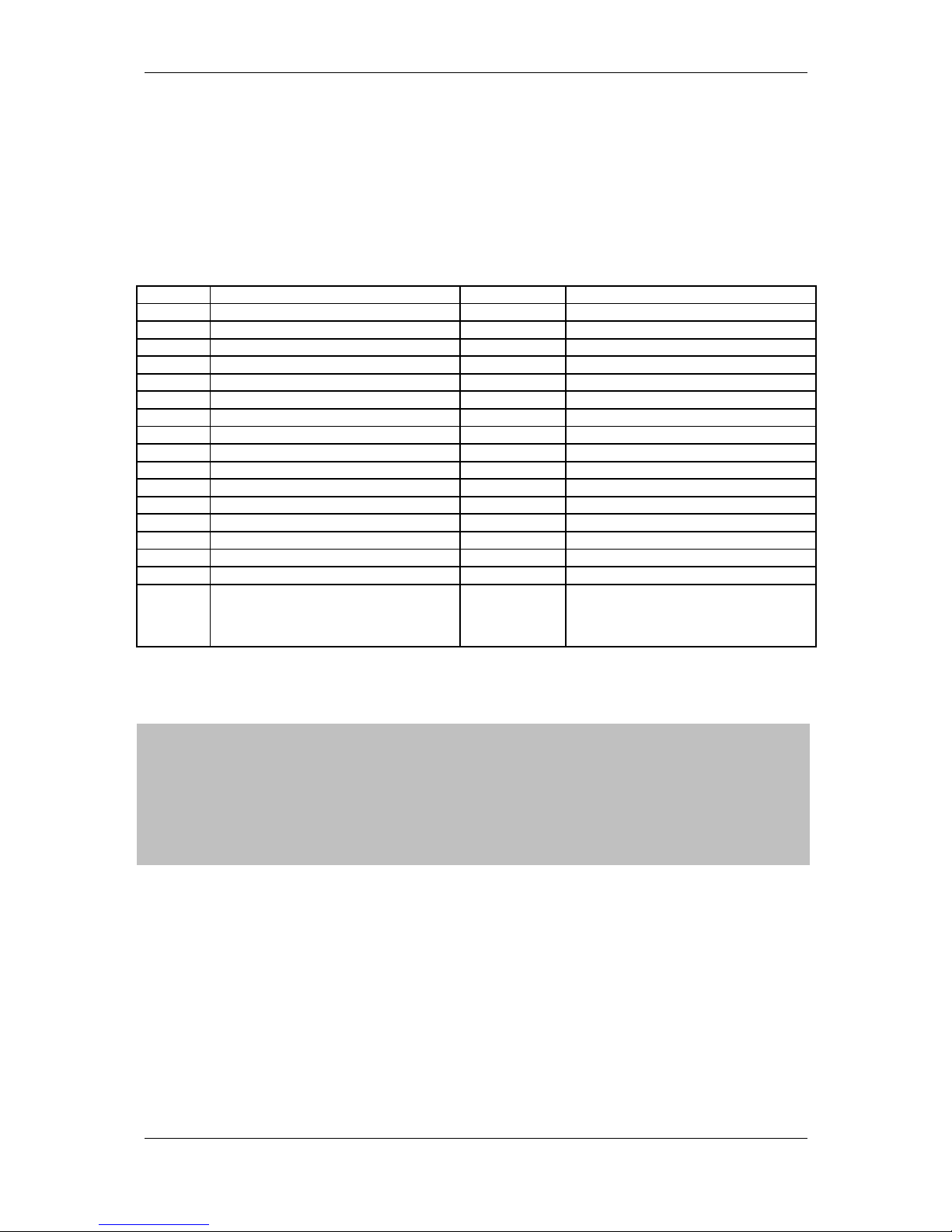
Table 04: Tax groups , 1 row, 17 fields
Field No
Description Range Note
1 Enables tax group A 0 or 1 Default: 1
2 Enables tax group B 0 or 1 Default: 1
3 Enables tax group C 0 or 1 Default: 0
4 Enables tax group D 0 or 1 Default: 0
5 Enables tax group E 0 or 1 Default: 0
6 Enables tax group F 0 or 1 Default: 0
7 Enables tax group G 0 or 1 Default: 0
8 Enables tax group H 0 or 1 Default: 0
9 Percentage for tax group A 0.00 ÷ 99.99 Default: 00.00
10 Percentage for tax group B 0.00 ÷ 99.99 Default: 20.00
11 Percentage for tax group C 0.00 ÷ 99.99 Default: 0.00
12 Percentage for tax group D 0.00 ÷ 99.99 Default: 0.00
13 Percentage for tax group E 0.00 ÷ 99.99 Default: 0.00
14 Percentage for tax group F 0.00 ÷ 99.99 Default: 0.00
15 Percentage for tax group G 0.00 ÷ 99.99 Default: 0.00
16 Percentage for tax group H 0.00 ÷ 99.99 Default: 0.00
17 The price has digits after decimal
point.
0 or 1 1: 2 digits after decimal point (0.00)
0: no digits after decimal point
Default: 1
MODE P3 - SETTING UP THE FISCAL MEMORY IN USE
The specific parameters are stored into fiscal memory.
The fiscal memory programming should be made by the manufacturer or by
authorized service! In order to set the fiscal memory in use after the ECR purchasing
and its installing into a store, it is necessary a qualified specialist from authorized
service to be called. This specialist must represent an authorized service, which has
a service contract with DATECS and which has a service contract with the trade
organization.
23
Page 24
DP-50 / DP-50D / MP55-B - USERS MANUAL
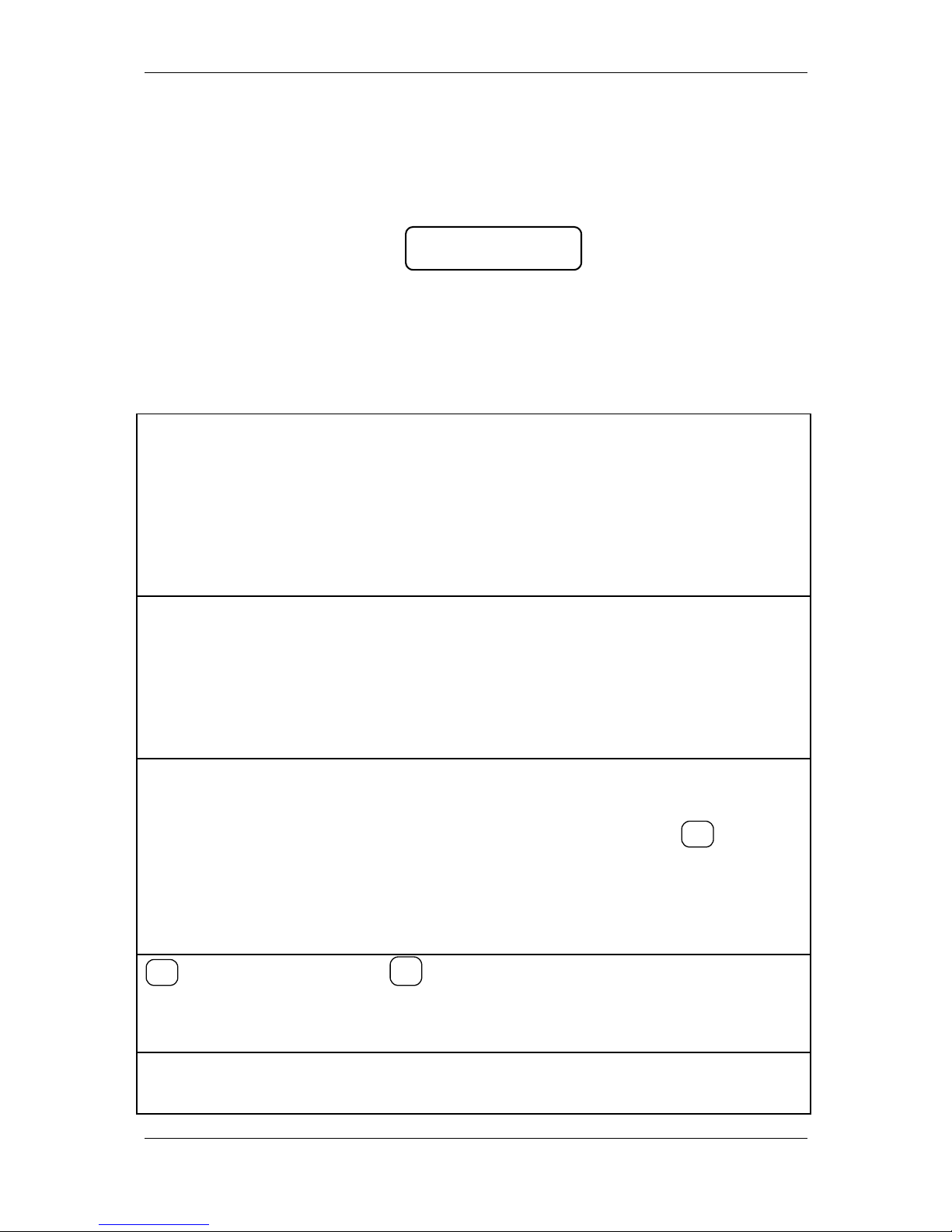
MODE R - REGISTERING
1. In order to access the R mode, from the OFF state press key 1.
2. On the left upper display corner the letter 'R' appears and the operator is invited to
enter his password.
PASSWORD:--------
R
Enter the numeric password sequence and press TOTAL.
FUNCTION OF THE KEYS IN 'REGISTERING' MODE
Function keys
keys G1, G2, G3, G4
They allow to access items or item groups stored on the rows from 1 to 4
respectively into the item parameters table. The key pressing causes accumulation
into the customer bill and also into the quantity and turnover registers of the item or
item group given. The value entered before pressing some of these keys is accepted
as a price. If the price is not entered, the programmed price is used.
Note: It is not allowed an item to be sold, if the price is zero. This will cause
alarm signal to be produced and error message "C" to be shown on the
display.
PLU
Specifies, that the previously entered number is a PLU-code of an item or
item group. Causes an accumulation of the selected PLU into the customer bill.
When the PLU-code is entered, the decimal point is ignored and the value entered is
assumed as integer one.
Note: If the price programmed is zero ( or any of the item parameters is not
allowable - for example the tax group) the operation will be refused and on the
display an error message "C" appears, and sound alarm is produced.
PRC
- Specifies, that the previously entered value is a price. The decimal point
position on the display is checked. This key is used for entering a free price for an
item or item group. First the price value is entered, than is pressed
PRC
. Than the
item code or item group code should be specified.
- It is used to select an item by its barcode. By pressing the key PRC before
entering a number, on the display appears "BARCODE", than the operator should
enter the barcode and again press PRC in order to make a sale with the item which
has such barcode.
Q’ty
- for DP-50 and DP-50D
X
- for MP-55B
Specifies, that the value entered is a quantity. The decimal point position on
the display is checked. When the ECR works with a scale, the pressing of that key
without prior entered value will cause the quantity from the scale to be received.
PLC
24
Page 25
DP-50 / DP-50D / MP55-B - USERS MANUAL
When a number is entered and than the PLC key is pressed will cause:
- Sale of an item which has PLC code equal to the number entered -if the
field 5 of table 1 is 0;
- Printing the number entered - if field 5 of table 1 is 1.
VD
1. With this key immediately after an item is accumulated a VOID (cancellation) of
that sale is performed. The co nsecutively pressing of that key will cause
consecutively cancellation of all sales in the receipt.
2. In order to cancel a sale which is not the last made(deep void), in an open receipt
the following keys should be consecutively pressed:
Q’ty
- for DP-50 and DP-50D
X
- for MP-55B
and
VD
,
than the sale parameters should be entered again. This operation can not be
performed, if the sale parameters are not the same as in the sale to be cancelled.
Note: The operator should enter the same parameters as they are printed in the
receipt on the row which he want to cancel. If there are surcharges/discharges made
over the item, they will be cancelled together with the sale cancellation.
C
Annuls all digits entered before a functional key pressing. Annuls any error, caused
by function key pressing. The errors are presented on the display by the error
message "C".
STL
- If this key is pressed after a sale made, this will cause the subtotal of the
customers bill to be shown on the display. If this key is pressed again, on the display
will be shown the subtotal, calculated in alternative currency if the usage of this
currency is enabled. These two modes are switched alternately.
- After pressing that key after entering a PLC - code of an item, on the display
will be shown PLU-code, price and the firs 16 symbols of the item name.
ТОТАL
Cause the customer bill to be closed and cause cash payment to be
performed. If before pressing this key is entered the amount which the customer has
paid in a cash, they are printed both the total amount and the change - if the
customer has paid in cash more money than needed. If he paid in cash less money
than needed - a partial paid is performed.
CRD
- for DP-50 and DP-50D
PY
- for MP-55B
Main purpose:
The key is used for 3 types of payment.
- with cheque
- with coupon
- with alternative currency in DP-50 / DP-50D, if the usage of alternative
currency is enabled.
First is entered the amount, which the customer gave. The key CRD is pressed. A
dialog message appears:
1=CHK 2=KUP 3=EU
where
25
Page 26
DP-50 / DP-50D / MP55-B - USERS MANUAL
EU - the name of the alternative currency if its usage is enabled.
When the choice is made a payment is performed.
The number entered for alternative currency should be not less than the amount
outstanding, calculated in this currency. If the customer pays more than the
outstanding amount, a dialog message will appear for choosing the currency for
change. The operator can show to the customer the outstanding amount by alternate
switching with the key
STL
.
A mixed payment is allowed. When a part of all amount is entered and a key
for payment is pressed this partial amount and the payment type are printed, and on
the display is shown the remaining part of outstanding amount. The receipt can be
closed also with other kind of payment. The payment with alternative currency is
always the last payment.
Additional function:
The key is used to start a receipt copy. For this purpose, the key must be pressed
immediately after finishing the original receipt.
%+
1. The pressing of this key will cause adding a percentage surcharge to the
amount of the last sale or if the key
STL
is prior pressed - it adds percentage
surcharge to the subtotal.
2. If there is no customer receipt open, this key able service entered amounts
This can be done by entering the amount value and pressing
%+
.
The percentage value can be in the range 00.00 to 99.99.
3. It able an item with a higher PLC-code and allowable tax group to be
accessed (look at "Specific cases of operation in 'Registering' mode)
%-
1. The pressing of this key will cause subtracting of a percentage discount
from the amount of the last sale or if the key
STL
is prior pressed - it subtracts
percentage discharge from the subtotal.
2. If there is no customer receipt open, this key able service amounts to be
taken out. This can be done by entering the amount value and pressing
%-
.
The percentage value can be in the range 00.00 to 99.99.
3. It able an item with a lower PLC-code and allowable tax group to be
accessed (look at "Specific cases of operation in 'Registering' mode)
Only for MP-55B
*
On the payment stage - after entering the amount, the pressing of this key is equal
to payment with alternative currency similar to (CRD,3) which is already explained
for DP-50 / DP-50D
When any of the working registers overflows, the operations are
possible only after report and clearing of the ECR. If the multiplication result
between quantity and price is more than ten digits, it is not the multiplication is
not allowed and an error is indicated.
26
Page 27

DP-50 / DP-50D / MP55-B - USERS MANUAL
NUMERIC KEYS
In this mode the numeric keys are used mainly for entering the:
- Quantity of an item ( valid decimal point)
- Price of item (valid decimal point )
- Code of an item (valid decimal point )
- Barcode value of an item (the decimal point is ignored)
SPECIFIC CASES OF OPERATION IN ‘REGISTERING’ MODE
Sale of an item using its barcode
By pressing the key PRC prior entering a digit, on the display appears
message ‘BARCODE’, than the operator should enter the barcode of item desired.
By pressing again the PRC key a sale is made with the item which has such barcode.
Sale of an item programmed after on the display are shown its name and price
The PLC-code of the item must be entered and after the key
STL
should be
pressed (instead the key PLC when the sale is initiated). On the display are shown
the PLU-code, the price and the first 16 symbols of the name for the item selected.
The operator can moves on the item rows "forward" with the key
%+
and
"backward" with the key
%-
. If the operator wants to return back to the main
registering mode without to make a sale with the item selected, he can do this by
pressing
C
, and if the operator wants to make the sale with the item selected - he
should press the key
PLU
.
Printing receipt copy
By pressing the key
CRD
- for DP-50 and DP-50D
PY
- for MP-55B
After finishing a receipt in REG mode will cause a copy of this receipt to be printed.
There is only 1 copy allowed. The copy has a label 'COPY' printed and contains all
rows which the original receipt has.
Printing the total in alternative currency. (table 8 field 1 )
When the field 1 from table 8 is set to 1, after the total amount is printed in
each receipt are printed:
- The total amount converted into additional currency (for instance EUR);
-The exchange rate of the alternative currency in relation to the main currency;
The exchange rate of the alternative currency is set in field 4 of table 8, and
the 3-symbols abbreviations of the two currencies (for instance BGL, EUR) are set in
row 6 of table 6.
27
Page 28

DP-50 / DP-50D / MP55-B - USERS MANUAL
Expanded printing of sales into receipt
When in field 3 from table 5 a value 1 is set in the receipt for each sale of an
item on separate rows are printed the item name, its single price, the sold quantity
and the total amount of this sale.
MODE X - ECR REPORTS
1 In order to access the X mode, from OFF state press the key '2'.
2 - In the left upper corner on the display the letter 'X' is shown and on the next row
shows an invitation for operators password.
PASSWORD:--------
X
Enter numeric key sequence (the password), press TOTAL.
3 - On the display is shown:
PLU TL STL
X CRD PLC %+
4 - Press a key:
PLU Report of the turnovers by departments and by item groups
The report includes:
- the turnover for each department;
- the total amount of the departments turnover;
- the turnovers by items groups;
- the total amount of the turnover for the item groups;
TOTAL Daily financial report
It includes:
- the turnovers and the tax debts for each tax group
- the turnovers divided by sales, surcharges and discharges
- the turnovers divided by payment types
- the turnovers from 'void'/'correction' operations
STL Report of the operators tax debts
On the display is shown:
X OPERATOR 1-30
The report can be executed for all operators (by pressing TOTAL) or
only for one operator (by entering the operators number and pressing
TOTAL).
The report includes:
- The turnovers divided by sales, surcharges and discharges
- The turnover for each payment type
- the turnovers from 'void'/'correction' operations
From the mode "operators report" can be leaved by pressing 'Q'ty' if
28
Page 29

DP-50 / DP-50D / MP55-B - USERS MANUAL
the wish is to go in the main X mode menu or by pressing '<>' if the
wish is to go in 'OFF' mode.
CRD/PY Reporting the items turnover
The report can be executed for all items (by pressing TOTAL) or
selected range of items. The range can be set with determining the
first item. The first item from the range is determined with the row
number from table 1 on which this item is stored. Using the keys %- and
%+ you can move "forward" and "backward" over the table 1 rows.
Pressing the key TOTAL starts the report printing from the first row to
last in PLU database (row 1000).
If before pressing the key TOTAL an integer value n is entered,
the report includes information for only n items with non-zero turnover.
After finishing the report for initial item is set the first item with greater
PLU code and non-zero turnover.
The report includes:
- The PLU-code;
- The row number;
- The name;
- The tax group identification;
- The sold quantity;
- The turnover for the item;
After finishing the report printing for the range selected, a new
report can be chosen for another range. This mode can be leaved with
the key 'Q'ty' to go in the main 'X' menu or with the key "<>" to exit into
the 'OFF' mode.
PLC Reporting the programmed parameters of the items
The report can be executed for all items (by pressing TOTAL) or for a
given items range. The range setting-up is made in the same way as
for the report started with a key PY.
All items parameters are printed for the selected number of items.
After finishing the report printing for the range selected, a new
report can be chosen for another range. This mode can be leaved with
the key 'Q'ty' to go in the main 'X' menu or with the key "<>" to exit into
'OFF' mode.
%+ Office report from the fiscal memory - it includes:
- The date and the time when the fiscal memory is entered into
use.
- Block number,tax value of the enabled tax groups, decimal
point position;
.
29
Page 30

DP-50 / DP-50D / MP55-B - USERS MANUAL
MODE Z – REPORTS WITH CLEARING
1 In order to access the mode Z from the OFF state - press the key '3'.
2 In the left upper side on the display the letter 'Z' appears and on the next row an
invitation for password is shown.
PASSWORD:--------
Z
Enter the numeric keys password sequence and press TOTAL.
3 The display shows:
G4 TL STL
Z
4 Press key:
TOTAL Daily report and clearing
They are reported and cleared:
- the turnovers and the tax debts for each tax group,
- the turnovers divided by sales, surcharges and discharges
- the turnovers divided by payment types
- the turnovers from 'void'/'correction' operations
After the reports are printed the registers involved are
cleared automatically.
When the field 7 of table 2 is set to 1, the turnovers and
quantities of items, departments and item groups are also
cleared.
STL Reporting and clearing the operators debts.
On the display is shown ‘ 1 – 30 ‘. The report can be
executed for all operators ( by pressing TOTAL only) or for
separate operator by entering operators number and after
pressing TOTAL.
In the report are included and after cleared:
- the turnovers by sales, surcharges and discharges
- the turnovers divided by payment types
- the turnovers from 'void'/'correction' operations
PLU Reporting and clearing the turnovers and the quantities of the
items and departments.
The turnovers for the departments and item groups are printed.
The turnovers of the items and item groups are cleared.
This report is available only when the field 2 from table 2 is
set to 0.
G4 Only for DP-50 and МP-55B: Printing and clearing the electronic
journal. After the electronic journal is successfully printed - it is
automatically cleared
30
Page 31
DP-50 / DP-50D / MP55-B - USERS MANUAL
REPORTS FROM THE FISCAL MEMORY
STANDATIZED
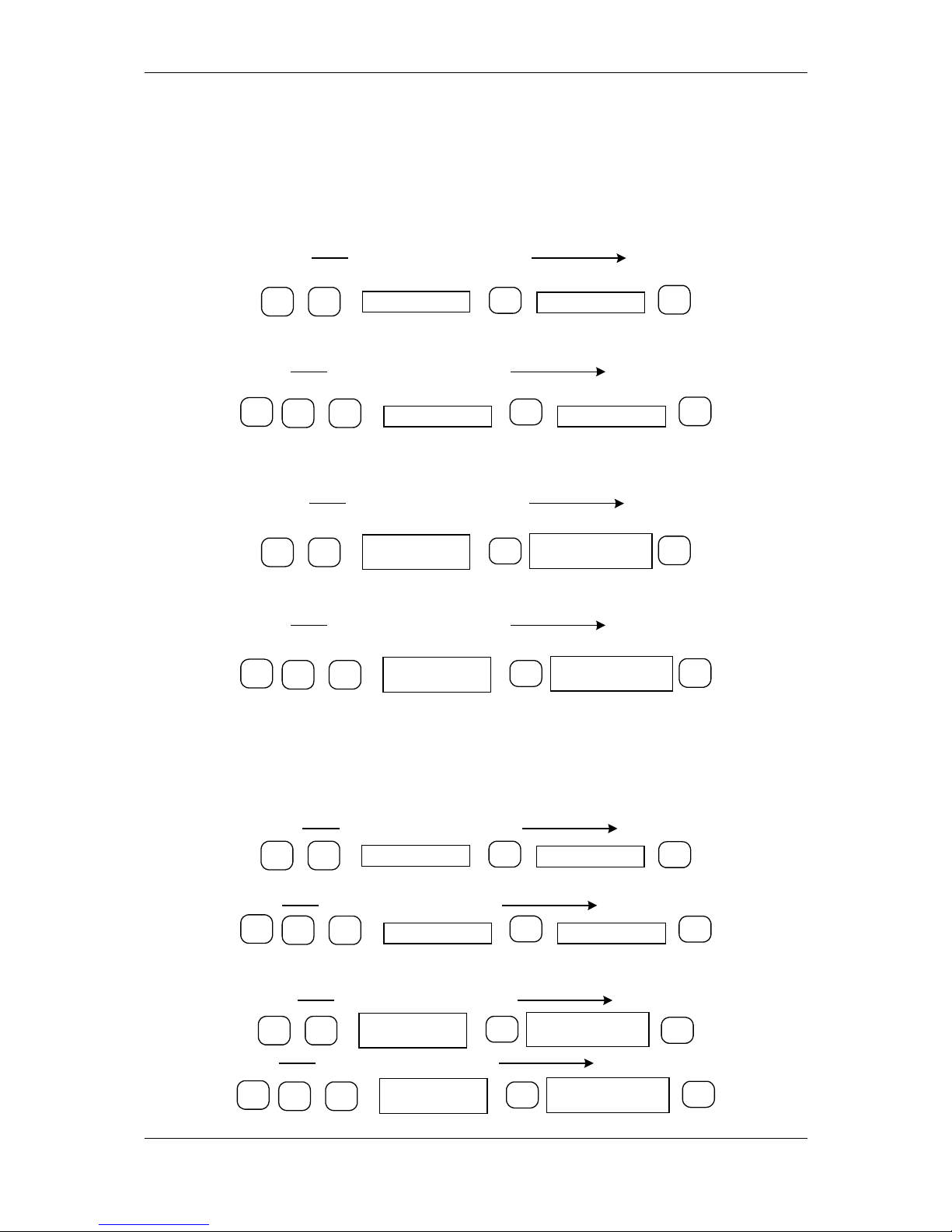
The fiscal memory can be reported through the standard key sequences. For this
purpose a X or Z mode must be accessed (according the written above). The
following reports can be made for a fiscal memory blocks:
1.1. Detailed report of the fiscal memory for period determined by date to date.
1
STL
DDMMYY
Q’ty
VD
DDMMYY
sequence of operations
1.2. Short report of the fiscal memory for period determined by date to date.
1
STL
Q’ty
VD
1
DDMMYY DDMMYY
sequence of operations
1.3. Detailed report of the fiscal memory for period determined by block to
block
2
STL
Initial block
number
Q’ty
VD
Last block number
sequence of operations
1.4. Short report of the fiscal memory for period determined by block to block
2
STL
Initial block
number
Q’ty
VD
1
Last block number
sequence of operations
PERIODICAL REPORT OF THE TURNOVER BY TAX GROUPS
1.5. Report of the fiscal memory for period determined by date to date.
1
STL
DDMMYY
Q’ty
DDMMYY
PLU
sequence of operations
1
STL
Q’ty
1
DDMMYY DDMMYY
PLU
sequence of operations
1.6. Report of the fiscal memory for period determined by block to block.
2
STL
Initial block
number
Q’ty
Last block number
PLU
sequence of operations
2
STL
Initial block
number
Q’ty
1
Last block number
PLU
sequence of operations
31
Page 32

DP-50 / DP-50D / MP55-B - USERS MANUAL
OTHER MODES
CONNECTION TO PC
From OFF state of the ECR with the key '7' go to state:
"FM READING" .
The speed of communication in this mode is determined by the value in field 8 of
table 2.
CONTROL TESTS
From state 'OFF' of the ECR, with key 8 accesses the state:
0 1 - 8
TEST
The tests are activated with the keys from 1 to 8, the key ‘.’ Is used, and the pressing
the key 0 will cause automatically execution of the tests from 1 to 5.
The tests types are:
1 - Printer test
2 - Display test
3 - Memory test
4 - Keyboard test
5 - Test - reading from the fiscal memory
6 - Test - writing into the fiscal memory
7 - Clock test - the current date and time will be shown till 1 minute expires
from the beginning of this test or till any key is pressed.
8 - Full fiscal memory test
9 - The accumulator voltage level is shown
TOTAL - printing parameters, which identify the ECR.
. - the tests 1 to 5 repeats any 10 minutes in a loop
PROGRAMMING AND REPORTING TO PC
From the ECRs OFF state, by pressing the key 9 you will access the state:
O F F - L I N E
In mode 9 the ECR is waiting for communication – programming and reporting
from PC. The correct communication baud rate must be prior given into PGM1 mode,
table 3 field 8. For programming and reporting is used the application Ecr Tool or its
analog.
DISPLAYING THE ACCUMULTOR LEVEL AND THE CURRENT DATE AND TIME
From the ECRs OFF state, after pressing the key "." for several seconds on
the display the accumulator voltage will be shown, after on the display will appear the
current date and hour.
32
 Loading...