

Page 1

Quick Start Guide
EHC-09B/EHC-09/EHC-09DL
Ultrasonic
Thickness Gages
Software version 1.0
Ver: 2.0A 1
Page 2
1. Installing Batteries
In order to install batteries in any of EHC-09 series unit, open the battery door at the bottom left of
the unit. Slide in two AA batteries with positive terminal of both batteries facing towards top of the
unit. Close the battery door tight enough so that the batteries make contact with both the battery
terminals.
2. Powering ON/OFF
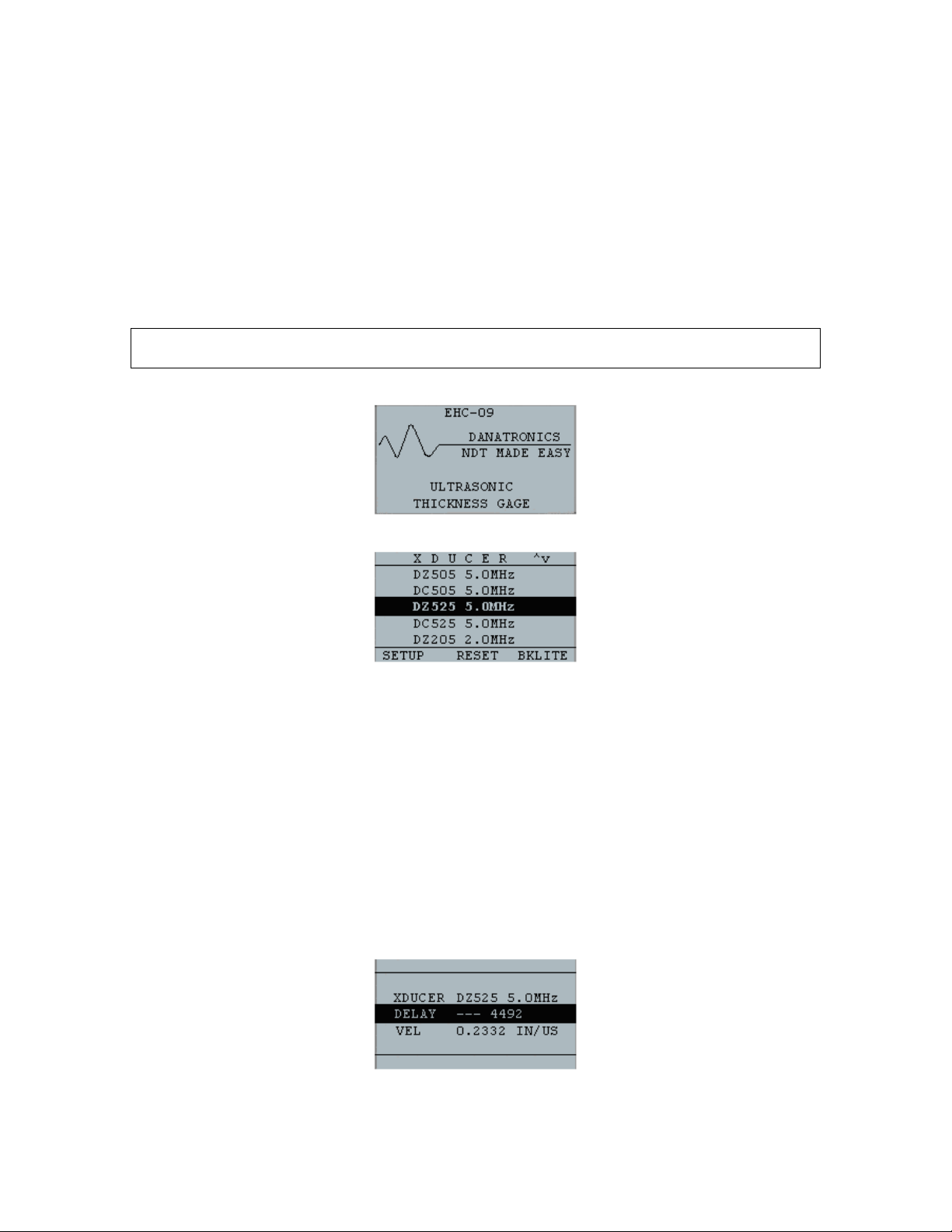
To power ON the unit press and hold the F1 key for about three seconds. The LCD will display
the company information briefly and then go to transducer selection screen. These two screens
are as shown below. To turn off the unit press and hold the F1 key for about three seconds. The
LCD will briefly display the company information with a ‘counting down’ clock and then turn off.
NOTE: If the gage is set up for right hand operation, the F1 and F3 display prompts will be
reversed.
Company information screen
Transducer selection screen
3. Selecting transducer and performing Auto Zero
A new transducer can be selected from the Transducer selection screen which appears after the
device powers on. The transducer selection screen can also be accessed from the Measure
mode by pressing Menu/OK key and then selecting the Setup option using the up and down
arrow keys. You can then select the Xducer option from the Setup screen and press OK to go to
the transducer selection screen.
While in the transducer selection screen, go to the transducer option that matches the part
number on the actual transducer by pressing up or down arrow keys. If you are using non-listed
vendor transducer at 5.0 MHz, select ‘User 5 MHz’ option. Then press OK key to select the
highlighted transducer. The unit will briefly display a ‘Wipe off Couplant’ instruction and then
perform an Auto Zero. During Auto Zero, the unit will show a ‘Performing Auto Zero’ sign. It will
then briefly display the delay line and velocity values as shown below before going to the
Measure mode.
Example of Velocity and Zero values after Auto zero
Ver: 2.0A 2
Page 3

4. Calibrating the gage
Calibrating is the process of adjusting the gage for a specific material and transducer before
testing the material to make sure that all measurements are accurate. You must always calibrate
before measuring material for standard accuracy. The following steps show how to perform
velocity cal, zero cal, velocity and zero cal and delay-line cal. You will require a test step block of
known thicknesses to perform accurate calibration.
a. Velocity Calibration Only
To perform any calibration, first go to the measure mode and press Menu/OK. Then go to the Cal
option in the Menu screen and press OK. The following Cal mode screen should appear. To exit
the cal screen without performing any calibration, press OK. To proceed to velocity cal, follow the
following instructions.
Cal screen for non-datalogger version
While measuring the thicker step, select VEL by pressing F3. After selecting VEL, you can take
the transducer off the test block. If the displayed measurement is different than the known value
of the step, use the up or down arrow key to adjust the displayed value to the known value of the
step. Press OK to perform the calibration. The unit will briefly display the calibrated velocity value
in the top of the screen and then return to measure mode.
b. Zero Calibration Only
To perform a zero calibration, go to the Cal mode as shown in part a. Then while measuring the
thinner step, select ZERO by pressing F2. After selecting ZERO, you can take the transducer off
the test block. If the displayed measurement is different than the known value of the step, use the
up or down arrow key to adjust the displayed value to the known value of the step. Press OK to
perform the calibration. The unit will briefly display the calibrated zero value in the top of the
screen and then return to measure mode.
c. Velocity and Zero Calibration
To calibrate both: velocity and zero at the same time, first go to the Cal mode as shown in part a.
While measuring the thicker step, select VEL by pressing F3. After selecting VEL you can take
the transducer off the test block. If the displayed value is different than the known value of the
step, adjust the value by pressing up or down arrow keys and press F1/CAL. Then while
measuring the thinner step select ZERO by pressing F2. After selecting ZERO you can take the
transducer off the test block. If measured value is different than the known value of the step,
adjust the measured value by pressing up or down arrow key and then press OK. The unit will
briefly display the calibrated zero value and then return to Measure mode. Note that the order of
Velocity and Zero calibration could be reversed. If Velocity calibration is performed after Zero
calibration, the calibrated velocity value will be displayed at the end of the calibration process.
d. Delay Line Calibration
Delay line calibration is done every time the thickness gage is powered on and a transducer is
selected, or when a different transducer is selected during normal operation. Please see section 3
above for instructions on Delay line calibration which is the same as performing an Auto-zero.
NOTE: Once any of the above calibrations is performed, verify the accuracy of the readings using
the test step block.
Ver: 2.0A 3
Page 4

5. Taking measurements
Once an Auto-zero is performed on the selected transducer, the unit automatically goes to the
measure mode as shown below.
Measure mode without datalogger
Measure mode with datalogger
To take thickness readings, the user can simply apply the couplant to the surface and put the
transducer to measure thickness. Depending on the parameter settings, the display may show
other parameters. For more detailed information on Measure mode, please refer to the EHC-09
series User’s Guide on the CD provided with the gage.
6. Changing the parameter settings
The following is a list of available parameters:
GAIN LOW dB
FAST OFF
BKLIGHT OFF
ALARM OFF
VEL 0.2332 IN/US
XDUCER DZ525 5.0MHz
UNITS IN
HOLD OFF
DIFF OFF
LOCK OFF
NOTES OFF
D-BASE OFF
E-TO-E OFF
BSCAN OFF
USER LEFT HAND
CLOCK 10:10 AM
To change any parameter settings press Menu/OK and then go to the Setup option by pressing
up or down arrow keys. Press OK to go to the Setup screen. The Setup screen should list the
parameters as shown above. Go to the desired parameter from the list by pressing up or down
arrow keys. You can change the settings for that parameter directly from the Setup screen by
pressing the left and right arrow keys. Otherwise you can press OK to list all the settings for that
parameter on a new screen and then go to the desired setting from the list and press OK. The
display will return to Setup screen with the new setting. For more detailed information on
parameter settings, please refer to EHC-09 series User’s Guide on the CD provided with the
gage.
Ver: 2.0A 4
 Loading...