

Page 1

Handset
Quick Reference
For the Cygnion® CG 2400
Professional Cordless Phone System
DG 200 Handset
Irvine, California
Page 2

Handset Quick Reference for the CG 2400
Professional Cordless Phone System DG
200 Handset
Part Number LZTU 104 08 P2
© 1999, 2000 by Cygnion Corporation. All rights
reserved.
Third printing August 2000
Printed in the United States of America
This document contains proprietary information
that is protected by copyright. No part of this
document may be reproduced or transmitted in
any form or by any means, electronic or
mechanical, including photocopying, recording,
or by any information storage and retrieval
system, or translated into another language,
without prior written consent of Cygnion
Corporation.
NOTICE
The information in this document is subject to
change without notice.
CYGNION MAKES NO WARRANTY OF ANY KIND
WITH REGARD TO THIS MATERIAL, INCLUDING,
BUT NOT LIMITED TO, THE IMPLIED
WARRANTIES OF MERCHANTABILITY AND
FITNESS FOR A PARTICULAR PURPOSE. Cygnion
shall not be held liable for errors contained
herein nor for incidental or consequential
damages in connection with the furnishing,
performance or use of this material.
TRADEMARKS
Cygnion and CyberGenie are registered
trademarks of Cygnion Corporation.
The DG 200 Handset is produced and sold by
Cygnion Corporation. The Ericsson trademark is
used under license by Cygnion.
Other brands and their products are trademarks
or registered trademarks of their respective
holders and should be noted as such.
Published by Cygnion Corporation
41 Discovery, Irvine, CA 92618
Page 3

Contents
The Handset Display ..................... 2
The Handset .................................. 3
Getting Started ............................. 4
Calls ............................................ 4
Messages ..................................... 5
Other Features .............................. 7
Voice/Keypad Quick Reference ..... 8
The Handset Display
Menu Tree ................................ 10
Menu Options: Connected Mode ..... 11
Menu Options: Idle Mode .............. 11
Tips for Using CyberGenie ........... 15
Modes of Operation ..................... 16
Handset Quick Reference
General Precautions .................... 17
5
Page 4
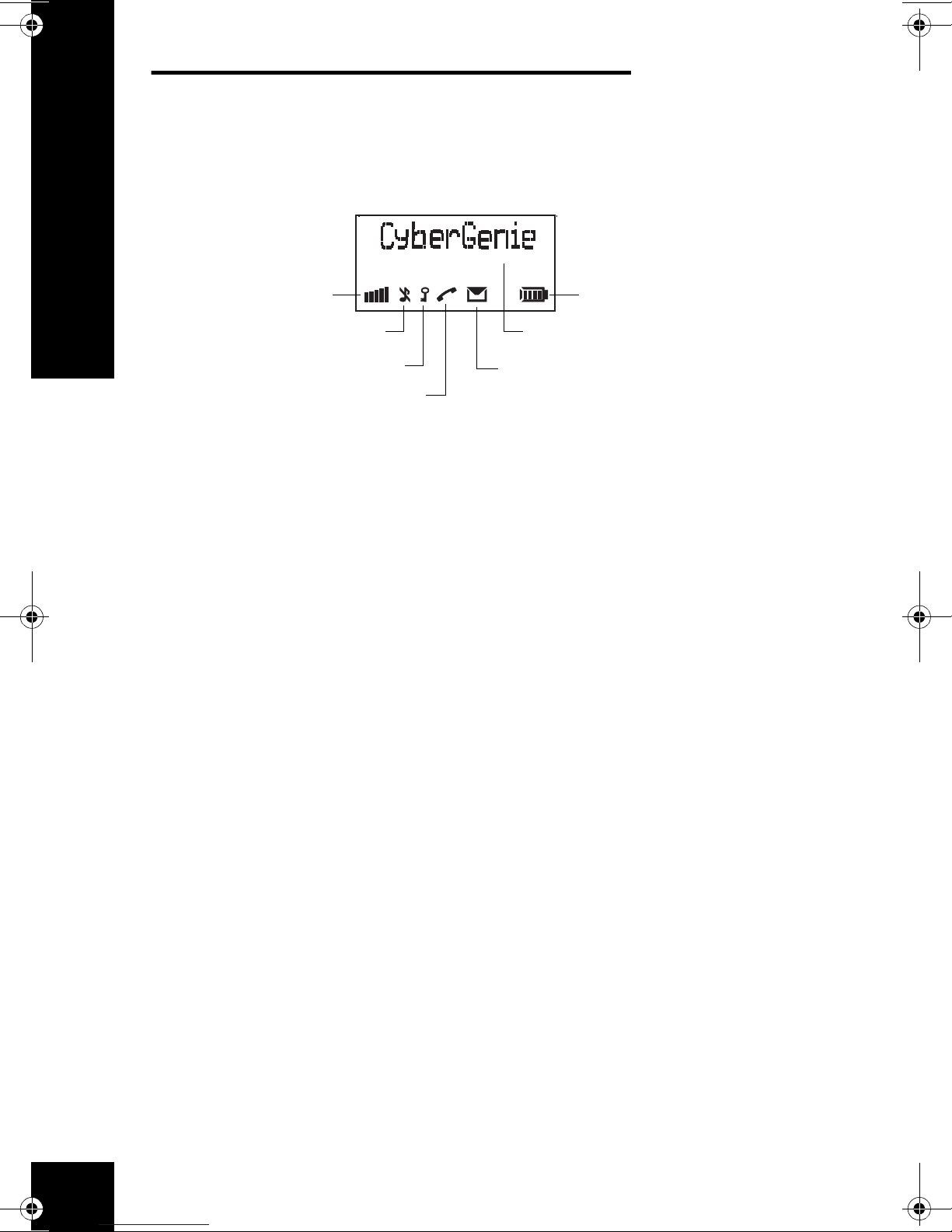
The Handset Display
Battery chargeSignal strength
Handset Quick Reference
Handset ringer
Handset keylock
Off-hook
Signal strength Shows signal strength. When too far away from the base
station, the signal diminishes.
Handset ringer Indicates handset ringer is turned off.
Handset keylock Indicates handset keylock is turned on. (Keylock on
does not stop incoming calls, but only prevents outgoing
calls.)
Off-hook Indicates handset is off-hook. If no call is placed, the
handset eventually returns to the on-hook state and the
icon disappears.
Messages Indicates that messages are waiting in your personal or
system inbox.
Battery Charge Shows remaining battery charge. This icon always
appears.
Text display Changes based on the handset’s state:
Text display
Messages
6
Idle mode (no active call) The user’s name and
extension appears.
Call in progress The dialed number appears.
Call ended The duration appears briefly, then the
display returns to idle.
While accessing the menu Current menu option
appears.
Page 5
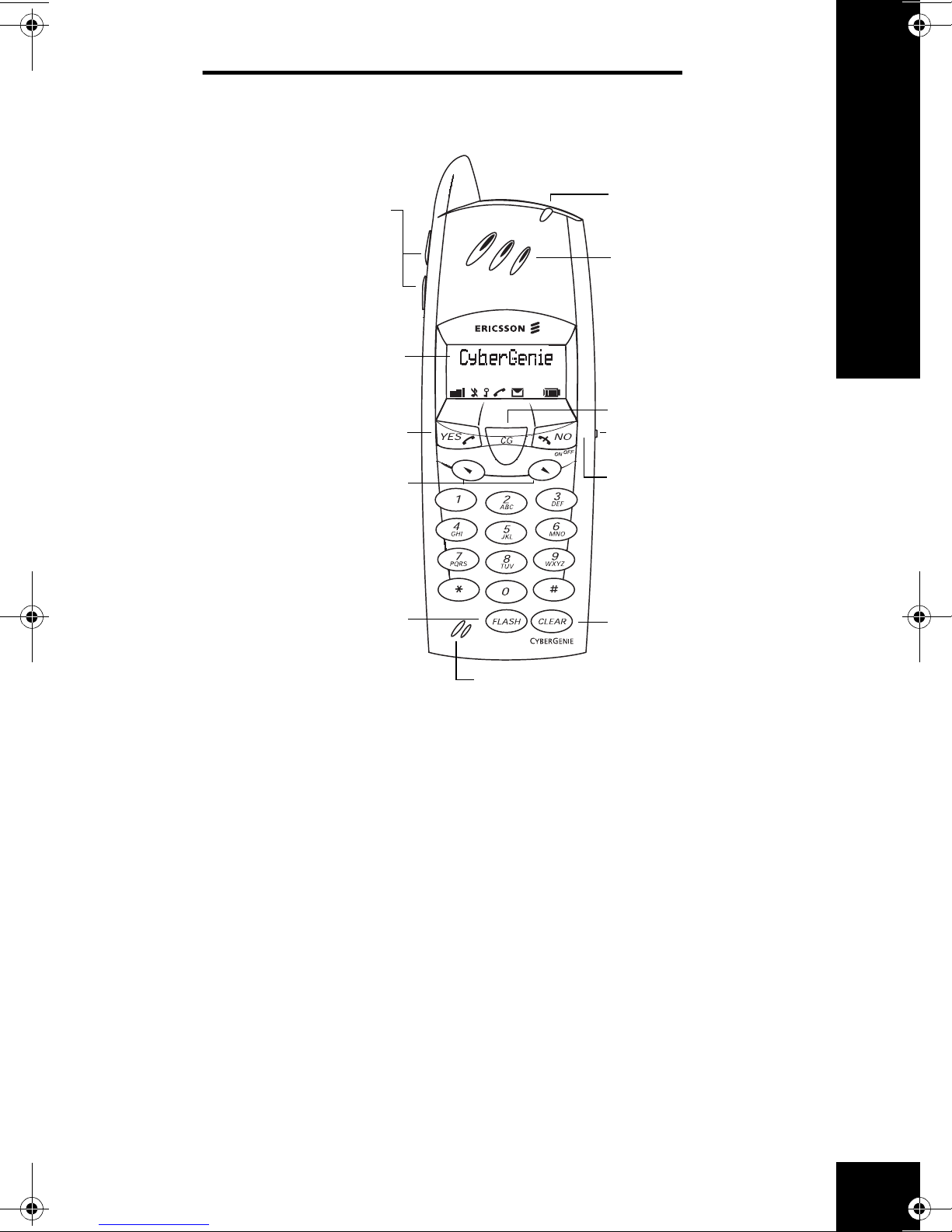
The Handset
Volume controls
Handset display
YES / off-hook
Indicator light
Earpiece
Handset Quick Reference
CyberGenie key
Headset jack
Menu / up-down
Flash hook
Microphone
Volume controls Press to adjust the earpiece volume. (While on the
handset menu >RingVolume option, press to adjust ring
signal volume.)
YES / off-hook Press to answer a call or send a pre-dialed call.
Menu / up-down Press up or down to activate and navigate the handset
menus.
Flash hook Press to switch between call waiting calls on the same
line (if feature is available), or to answer an incoming call
when handset menu is active.
On / off / NO / on-hook
Clear / mute
CyberGenie key Press to start a CyberGenie session.
On / off / NO / on-hook Press and hold to turn phone on or off. When the
Clear / mute Press to delete the last character entered on the display.
handset menu is active, press to return to the previous
menu option.
Press to mute your voice during a call. When in a menu,
press to clear the menu and return to idle.
7
Page 6
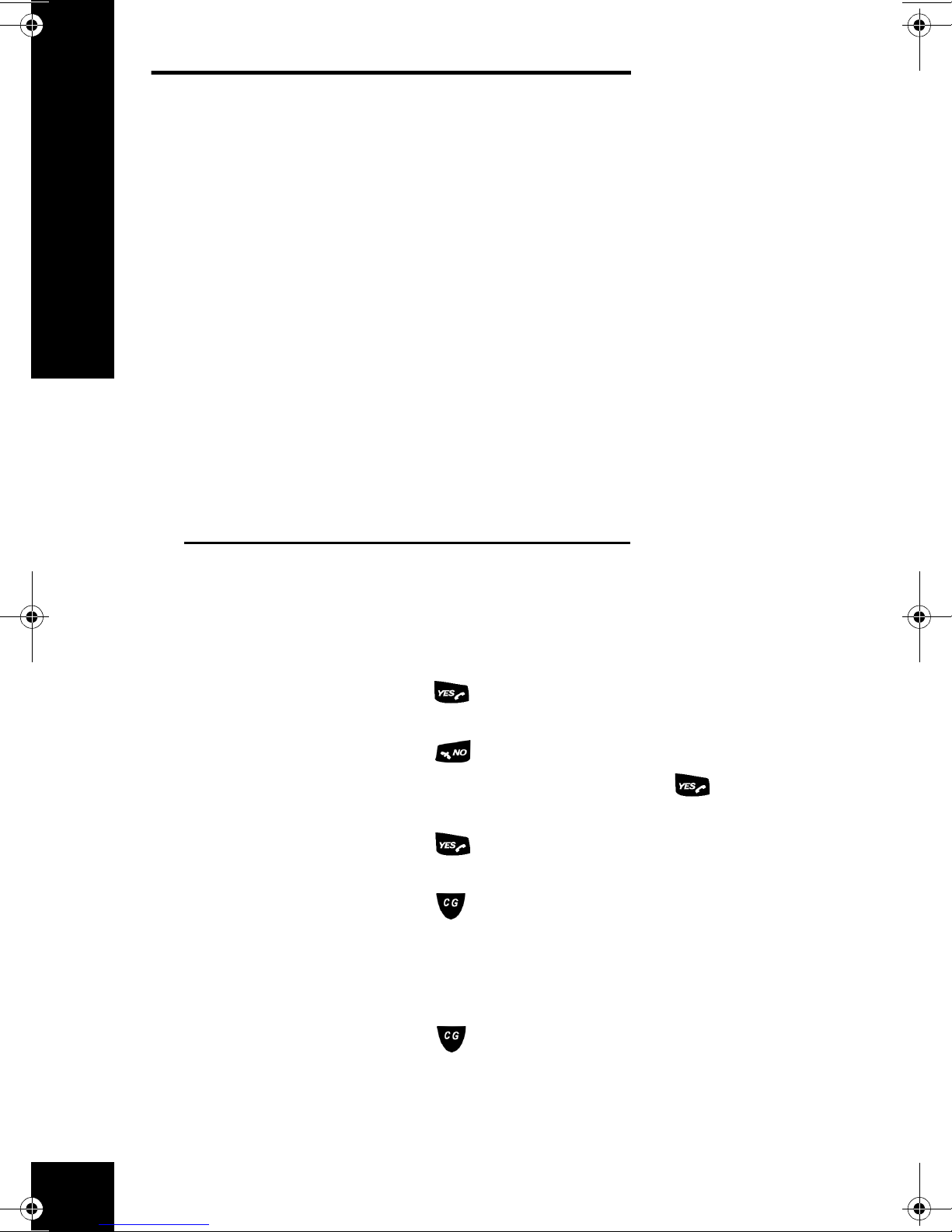
Getting Started
Handset Quick Reference
Speech commands
Keypad
Handset display
Calls
Use CyberGenie to place calls, activate
features, and access other options.
Use the keypad to place and receive
calls, make menu selections, activate
features and access other options.
Use the handset display menu to
access features and customize the
handset’s operation.
You cannot combine speech and
handset keypad commands in a single
CyberGenie “session.” If you start with
speech then switch to the keypad, the
speech interface becomes inactive
until the current call activity is ended.
Receive a call
End a call
Place an external call
with the keypad
Access CyberGenie
Call by name with
CyberGenie
Calls are either external (to an outside
number) or internal (to another
handset or to CyberGenie).
Press on the handset to answer an
incoming call.
Press to end a call.
Pre-dial the number and press
to
send the call, or
Press to get a dial tone, then dial
the number.
Press to access the speech
interface. CyberGenie will ask
Who would you like to call?
To call a number that has been set up
on the computer for voice activation,
press . When prompted, say the
person’s name. If CyberGenie is not
sure of the name, you will be asked to
confirm it.
8
Page 7
Place an internal call
Pre-dial the handset extension number
then press , or
Press twice, press . then enter
the extension number.
Cancel
Park a call
Retrieve a call
Three-way call
Transfer a call
Cancel the call by saying No, Don’t;
or Stop.
To park an active call, press twice,
then press .
To retrieve a call, whether active on
another line or parked, press
once, then press . Specify which
line to retrieve from (Line 1 or Line 2).
Use the retrieve function above to
“barge in” (join) a call on another
handset. (See “To set barge-in
control:” on page 82 in your User
Guide to ensure this feature is on for
your system.)
To transfer an active call to another
handset user, press to
activate the handset menu, then select
>IntCall. Enter the user’s extension
number, then press and select
>Transfer. (See “Transferring a Call”
on page 167 for more transfer
options.)
Handset Quick Reference
Messages
Outgoing voicemail
Tell CyberGenie
Use Keypad
Notification
message
Message
To set up your personal voicemail
greeting:
1. Press , then say CyberGenie.
2. When prompted, say Personal
greetings or Personal voicemail
announcement.
Press 8 1 1
When new messages are waiting,
CyberGenie notifies you:
9
Page 8
• The icon appears on the
handset when you have messages.
• If you’ve set up your handset for
this option, the indicator light also
blinks.
• If set up on the computer, the
handset also notifies you with a
distinctive ring.
Handset Quick Reference
Listen to Messages
Tell CyberGenie
Use Keypad
Tell CyberGenie
Use Keypad
Tell CyberGenie
Use Keypad
To hear your messages:
1. Press , then say CyberGenie.
2. When prompted, say Check my
new mail or I want my new
messages.
Press 7 1
After a message plays, you can repeat
it, delete it, or go to another message
without deleting.
To repeat a message:
Repeat it or Repeat message
Press 3
To delete a message:
Delete it or Delete message
Press 4
Tell CyberGenie
Use Keypad
Tell CyberGenie
Use Keypad
10
To hear the next message (without
deleting current message):
Next or Next message
Press 1
To hear the previous message:
Read the previous one or Back
up one
Press 2
Page 9
Other Features
Set up a conference
call
Tell CyberGenie
Use Keypad
Return to the
main menu
Set up CyberGenie conference call
when you have no calls or when you
have two calls on hold:
Press , then say Conference
or Set up a conference.
To set up a new conference call
press 6 5.
To start a conference with two calls
on hold, press 6 2.
You cannot set up a CyberGenie
conference with two calls on the same
line. (This is called network call waiting
and must be available from your local
phone service.)
Return to the main menu at any time
by saying: Start over or Could you
start again? or CyberGenie.
Handset Quick Reference
Get help from
CyberGenie
NOTE: If you press a
key while in the speech
interface, you will no
longer have access to
the speech commands
for that call session.
If you are not sure what to do or say,
CyberGenie will help.
Depending on the feature you are
using, CyberGenie will either repeat
the question or provide more detailed
help or options.
If you have trouble answering a
prompt, remain silent and CyberGenie
will repeat the prompt.
For more assistance, say I need help,
or Help me. You can also press 0 at
any time to get help.
Once you are familiar with the system,
you can bypass the prompts by
speaking or pressing a key.
11
Page 10

Voice/Keypad
Quick Reference
Basic commands
Handset Quick Reference
V
OICE (SAY
C
YBERGENIE
S
TART OVER
Y
ES
O
N
HONE MENU 6 A
P
) K
EY
1 YES (IN
2 NO (IN
MAIL MENU 7 A
GREETINGS
MENU
G
OOD-BYE
I
NEED HELP
V
OICE (SAY
C
ALL BY NAME
D
IAL EXTERNAL
NUMBER
) K
8 A
9 END C
0 GET
EY
6 1 S
6 2 D
O
PTION DESCRIPTION
A
CCESS THE CYBERGENIE SPEECH INTERFACE MENU
R
ETURN TO TOP LEVEL FROM ANYWHERE IN MENU TREE
RESPONSE TO CYBERGENIE
RESPONSE TO CYBERGENIE
CCESS CALL MANAGEMENT MENU
CCESS MAIL MENU
CCESS GREETINGS MENU
YBERGENIE SESSION
HELP FROM CYBERGENIE FOR CURRENT ACTIVITY
)
)
Call management
O
PTION DESCRIPTION
TART CALL-BY-NAME PROCEDURE
IAL EXTERNAL NUMBER
D
IAL EXTENSION
S
WITCH CALL
R
ETRIEVE
ANG UP
H
SET UP
CONFERENCE
CALL
P
ARK THIS CALL
F
ORWARD MY
CALLS
S
TOP
FORWARDING
R
EJECT CALL
6 3 D
6 3 S
6 4 R
6 4 END AN
6 5 SET UP A
6 5 P
6 6 F
6 7 S
6 8 S
IAL EXTENSION
WITCH BETWEEN TWO CALLS WHEN ONE IS ON HOLD
ETRIEVE A PARKED CALL WHEN A PARKED CALL IS
WAITING (ONLY ALLOWED WHEN HANDSET IS IDLE
ACTIVE CALL
CONFERENCE CALL WHEN THERE ARE CALLS
ON TWO LINES
ARK THE CALL ON HOLD WHEN ONLY ONE CALL IS ON
THE LINE
ORWARD ALL CALLS
TOP CALL FORWARDING
END CALL TO REJECTION MESSAGE AND DISCONNECT
)
12
Page 11

Unified mail management
VOICE (SAY) KEY OPTION DESCRIPTION
R
EAD NEW MAIL
R
EAD SAVED
MAIL
R
ECORD A MEMO
7 1 R
7 2 R
7 3 R
EAD NEW MAIL
EAD SAVED MAIL
ECORD A MEMO
Outgoing message
management
V
OICE (SAY
V
OICEMAIL GREETINGS (AND/OR
ERSONAL GREETINGS
P
VOICEMAIL GREETINGS (AND/OR)
S
YSTEM GREETINGS
W
ELCOME GREETINGS (THEN
BUSINESS HOURS GREETING
W
ELCOME GREETINGS (THEN
NON-BUSINESS HOURS GREETING
WELCOME GREETINGS (THEN)
TEMPORARY GREETING
) K
)
)
)
EY
8 1 1 A
8 1 2 A
8 2 1 A
8 2 2 A
8 2 3 A
O
PTION DESCRIPTION
CCESS PERSONAL GREETINGS
CCESS SYSTEM GREETINGS
CCESS BUSINESS HOURS
GREETING
CCESS NON-BUSINESS HOURS
GREETING
CCESS TEMPORARY WELCOME
GREETING
Handset Quick Reference
R
EJECTION MESSAGE
8 3 A
CCESS REJECTION MESSAGE
13
Page 12
The Handset Display
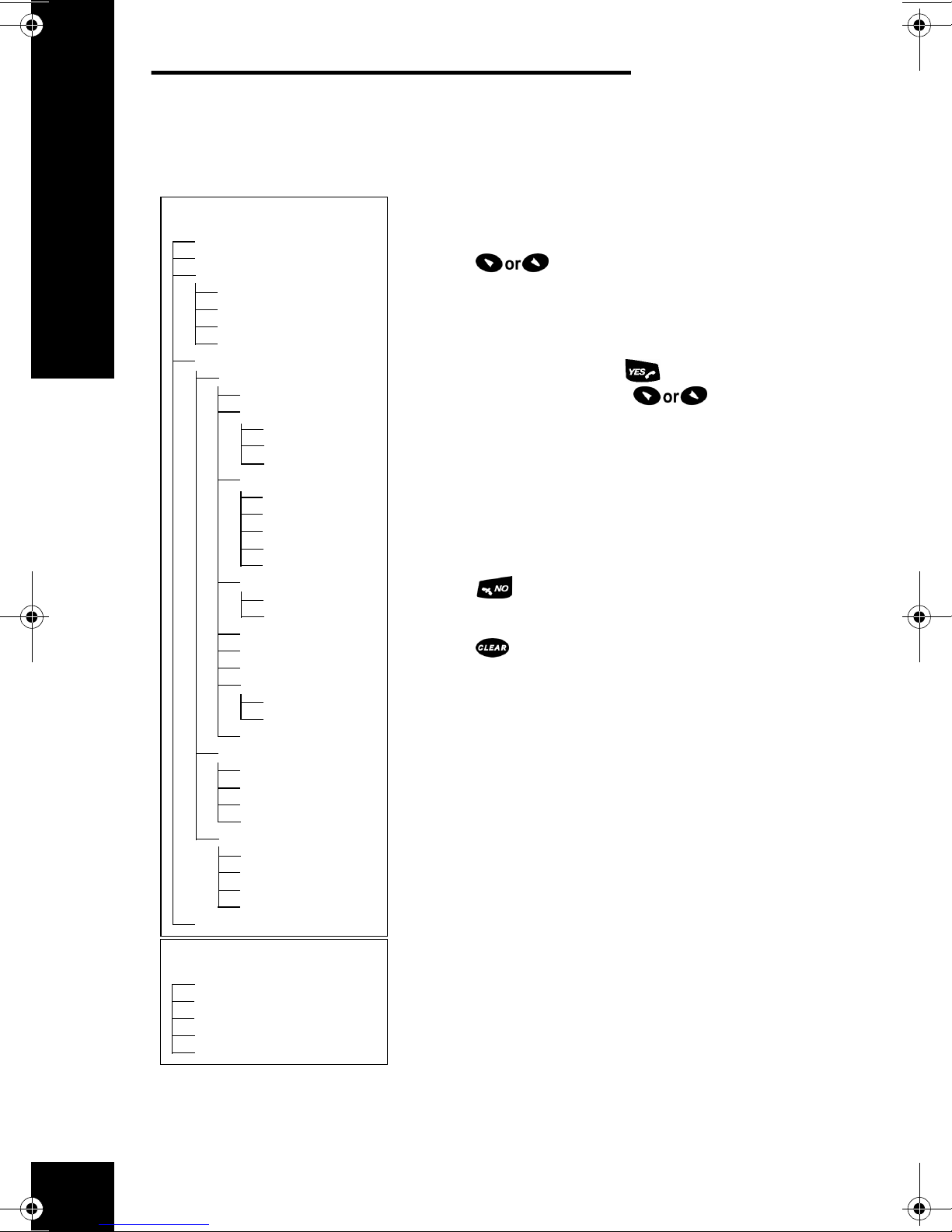
Menu Tree
Handset Quick Reference
Handset Menu Tree
In Idle Mode
>Retrieve
>IntCall
>PhoneBook
>CallName
>Status
>Download
>DeleteAll
>Settings
>Handset
>AutoKeyLock
>BabyPhone
>Activate
>Set PhoneNo
>InfoTone
>Alerts
>RingVolume
>RingType
>KeySound
>DiscreetRing
>MsgLight
>PhoneLock
>PowerOn
>ChangePIN
>DirectCall
>MasterReset
>Language
>Display
>Light
>Contrast
>AutoAnswer
>BaseStation
>Select
>Rename
>Delete
>Subscribe
>Information
>LastCall
>TotalCalls
>Show IPEI
>Version
>Redial
Handset Menu Tree
In Connected Mode
>Retrieve
>ParkCall
>IntCall
>Transfer
>DialMode
Navigate the
menu options:
Press
menu and move through menu
options.
The active option is indicated by
a > to the left. Press to
select an option, then
to move through the sub-menu
options.
When additional menu options
are available, the handset will
display More below the active
option.
Press at any time to move
up one level of menu options.
Press to exit the menu and
return to idle mode on the
handset display.
to access the
14
Page 13
Menu Options: Connected Mode
When a handset is in use, whether for
an external call, a call between
handsets, or a call to CyberGenie, it is
in connected mode.
>Retrieve
>ParkCall
>IntCall
>Transfer
>DialMode
Retrieve a parked call while another
call is in progress. Specify Line 1 or
Line 2.
Handset Quick Reference
Park an external call.
Place an internal call while another call
is in progress.
Transfer an active call to another
handset user.
Change the length of the tone sent
when a handset key is pressed. When
set to DTMF-long, the tone will
transmit for as long as the key is
pressed.
Menu Options: Idle Mode
>Redial
>Retrieve
>IntCall
>PhoneBook
Scroll through and select from a list of
up to ten recently dialed numbers to
dial again. For quick access, press
twice. With the number selected, press
to dial an external call, or to
dial an internal call.
Retrieve a parked call, or barge in on a
call on another handset or analog line
(an instant three-way call). Specify
Line 1 or Line 2.
Place an internal call from the handset.
Access phone book information stored
in the handset:
15
Page 14

>PhoneBook
>CallName
Access and dial a contact stored in the
handset phone book.
Handset Quick Reference
>PhoneBook
>Status
>PhoneBook
>Download
>PhoneBook
>DeleteAll
>Settings
>Settings
>Handset
>Settings
>Handset
>AutoKeyLock
>Settings
>Handset
>BabyPhone
Display the date and time of the most
recent phone book download.
Download flagged names and phone
numbers from the contacts list on the
computer.
Delete all phone book records from the
handset.
Access the Settings menu:
Access specialized handset options:
Lock the keys on the handset to
prevent accidental calling.
Use the handset as a baby monitor:
>Settings
>Handset
>BabyPhone
>Activate
>Settings
>Handset
>BabyPhone
>SetPhoneNo
>Settings
>Handset
>BabyPhone
>InfoTone
>Settings
>Handset
>Alerts
>Settings
>Handset
>Alerts
>RingVolume
Turn on the BabyPhone feature by
placing a call from the monitor phone
to the speaker phone.
Set the handset number to be used as
a speaker for the BabyPhone monitor.
Turn off or on an information tone that
alerts you that the BabyPhone monitor
is working.
Control the sound type and volume for
different types of handset alerts:
Set the ring volume for incoming calls.
16
Page 15
>Settings
>Handset
>Alerts
>RingType
Set the type of ring for internal or
external calls, callbacks, message
notification, or pages.
>Settings
>Handset
>Alerts
>KeySound
>Settings
>Handset
>Alerts
>DiscreetRng
>Settings
>Handset
>Alerts
>MsgLight
>Settings
>Handset
>PhoneLock
>Settings
>Handset
>PhoneLock
>PowerOn
Set the handset keys to make a
clicking sound when you press the key
or to remain silent.
Turn on or off a feature that starts a
ring quietly and gradually increases
the volume.
Turn on or off a feature that makes the
red indicator light on the handset act
as a message waiting notification.
When on, it follows the function of the
icon on the handset display.
Control handset access:
Prevent a user without the handset
PIN from operating the phone.
Handset Quick Reference
>Settings
>Handset
>PhoneLock
>ChangePIN
>Settings
>Handset
>DirectCall
>Settings
>Handset
>MasterReset
>Settings
>Handset
>Language
>Settings
>Handset
>Display
Change the handset PIN. The default is
0000.
Set the handset to dial a specific
number regardless of which key is
pressed.
Reset all handset features to defaults.
Change the language that shows on
the handset display. Options are
English, French and Spanish.
Change the display’s appearance:
17
Page 16

>Settings
>Handset
>Display
>Light
Turn the back light on or off.
Handset Quick Reference
>Settings
>Handset
>Display
>Contrast
>Settings
>Handset
>AutoAnswer
>Settings
>BaseStation
>Settings
>BaseStation
>Select
>Settings
>BaseStation
>Rename
Adjust the contrast.
Set the phone to answer automatically
when using the optional headset for
full hands-free operation.
Subscribe or unsubscribe a handset to
a base station:
Select a specific base station for the
handset or set automatic subscription
for the base station with strongest
signal.
Enter a new name for the base station
on the handset.
>Settings
>BaseStation
>Delete
>Settings
>BaseStation
>Subscribe
>Settings
>Information
>Settings
>Information
>LastCall
>Settings
>Information
>TotalCalls
>Settings
>Information
>ShowIPEI
Unsubscribe a handset from a base
station.
Subscribe a handset to a base station
or to a second base station.
View information about calls recently
placed from this handset:
View the most recent call’s duration.
Total calling time from this handset.
View the handset IPEI (International
Portable Part Equipment Identity) code
for the handset.
18
Page 17

>Settings
>Information
>Version
View the current firmware version
used in your handset.
Tips for Using
CyberGenie
Practice speaking
Background noise
CyberGenie does not learn how to
listen to a user, but you may need to
adjust your speech when talking to
CyberGenie.
CyberGenie rejects most background
noise, but short, loud sounds can
interfere with its speech recognition.
The following can negatively affect
system performance:
• Jewelry rubbing on the phone.
• Surrounding noises (such as loud
television, sneezing, dog barking,
and so on).
• Proximity to transmitting devices
operating at 2.4 GHz, such as
wireless LANs, cordless phones and
video sending units.
Handset Quick Reference
More is better
• Proximity to interfering devices
such as microwave ovens.
In environments where background
noise poses a continuous problem, use
the keypad commands. (Once you
start using the keypad, speech
commands are no longer available for
the rest of that session.)
The more information you give, the
easier it is for CyberGenie to
understand what you say. For
example, say Read the Previous
One instead of Previous to move to
an earlier message in the mail system.
19
Page 18

Speak normally
Pronounce words clearly as you would
during everyday conversation.
Whispering or shouting is difficult for
CyberGenie to understand.
Handset Quick Reference
Statements,
not questions
Phrase your commands as statements,
not questions. For example, if you
want to record a memo, say Record a
memo!, not Record a memo?
Yes and no
When
Cyb
erGenie asks a question,
most often your response will be Yes
or No. If CyberGenie has trouble
understanding, try saying Yes,
please; Yep; No, thanks or Nope; or
press 1 on the handset for Yes or 2
for No.
Modes of Operation
Full function
mode
When the CG 2400 system is working
with an active PC, it is in full function
mode.
Stand-alone
mode
If the PC is off or the USB cable is
unplugged, the CG 2400 can run in
stand-alone mode, which lets you
place and receive external calls but
does not provide CyberGenie functions
or support handset-to-handset calls.
20
Page 19

General Precautions
To avoid interference, do not place the DG
200 Handset near audio or video
equipment or microwave devices.
Avoid exposing the handset to direct
sunlight for long periods. Keep the handset
away from excessive heat and moisture.
It is illegal to have the handset switched on
when in an aircraft.
Do not use the handset in the vicinity of
refueling points, fuel depots, or chemical
plants, or when blasting operations are in
progress.
Medical electronic products (for example,
hearing aids and heart pacemakers) may
not be adequately shielded, and could be
affected. Please consult your doctor if in
doubt.
In the Event of Power Failure
Handset Quick Reference
NOTE: The handset
does not function with
discharged batteries.
This equipment is not designed for making
emergency calls when the power fails.
Alternative arrangements should be made
for accessing emergency services.
If there is a power failure and no backup
power source is available, all functions
through the PC, the base station, and the
handset, and communications with
CyberGenie, are lost. However, even
without power, you can still use the
external phone line by disconnecting the
CG 2400 system phone line from the wall
socket and reconnecting an analog phone.
21
 Loading...