

Page 1
®
Wi-Fi Enabled
Thermostat
3:37 PM
Heat
Mode
Auto
Fan
30%
Set
78
USER GUIDE
Page 2

CONTENTS
USER GUIDE
BUTTONS / ICONS
BASIC FUNCTIONS
MENU CONFIGURATIONS
IOS APP SETTINGS
ANDROID APP SETTINGS
WIRING TERMINALS
3
4
5-6
7-8
9-10
11
BACK OF THE THERMOSTAT
DAISY Wi-Fi Thermostat / USER GUIDE 2
12
Page 3
BUTTONS / ICONS
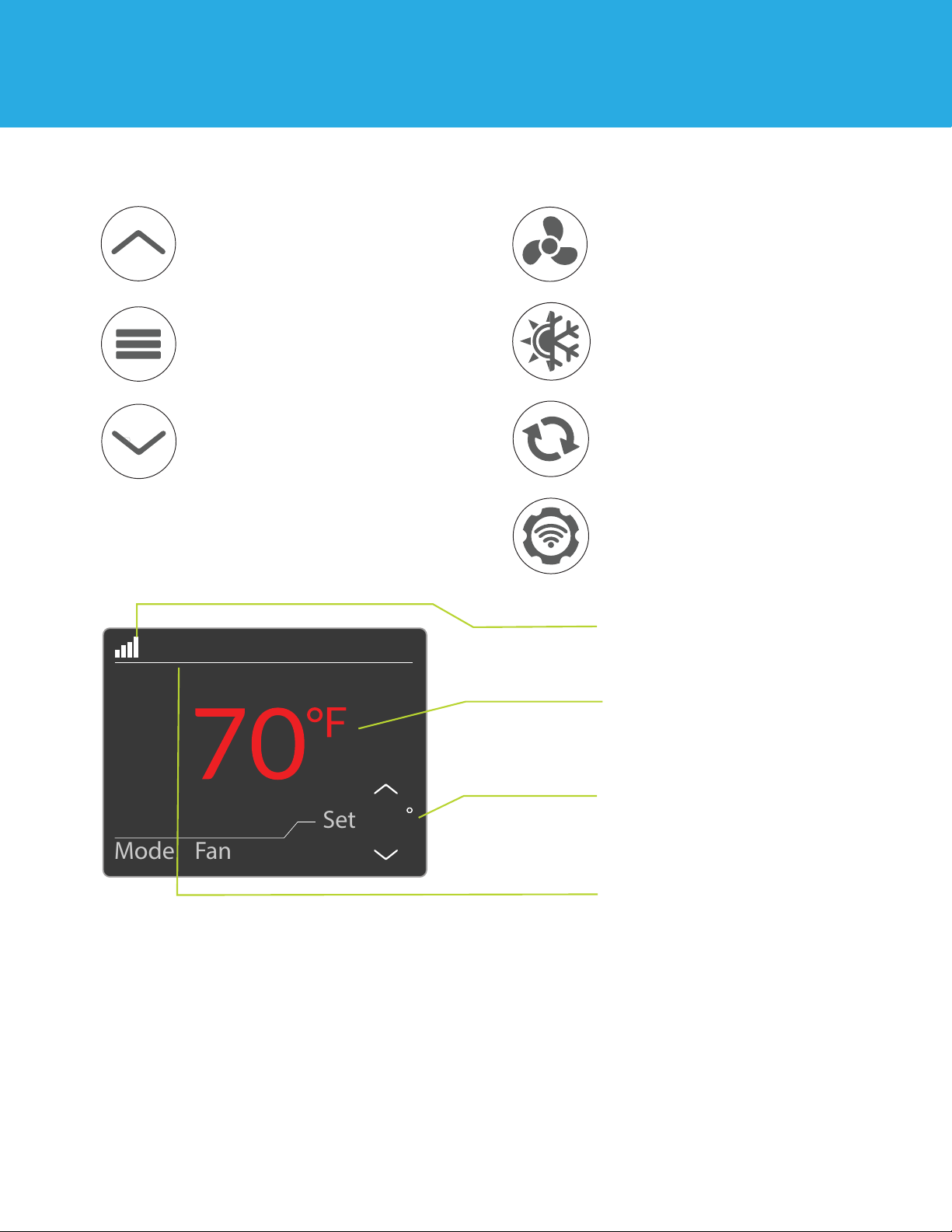
UP ARROW BUTTON
Adjusts the temperature set point
or thermostat configuration.
MENU BUTTON
Switches system mode to
setup/settings.
DOWN ARROW BUTTON
Adjusts the temperature set point
or thermostat configuration.
3:37 PM
30%
FAN BUTTON
Switches fan mode from
Auto or no.
MODE BUTTON
Switches system mode between
Heat, Cool, Aux, or Off.
REFRESH BUTTON
Restarts the thermostat’s
device and display screen.
Wi-Fi SETUP BUTTON
Used to enter listening mode
during Wi-Fi setup
WI-FI STATUS ICON
Indicates Wi-Fi Connection.
Heat
Mode
Auto
Fan
Set
78
CURRENT TEMPERATURE
Indicates current room temperature at the thermostat.
TEMPERATURE HOLD
Current set temperature the
thermostat will maintain.
TIME
Displays current time.
DAISY Wi-Fi Thermostat / USER GUIDE 3
Page 4
BASIC FUNCTIONS
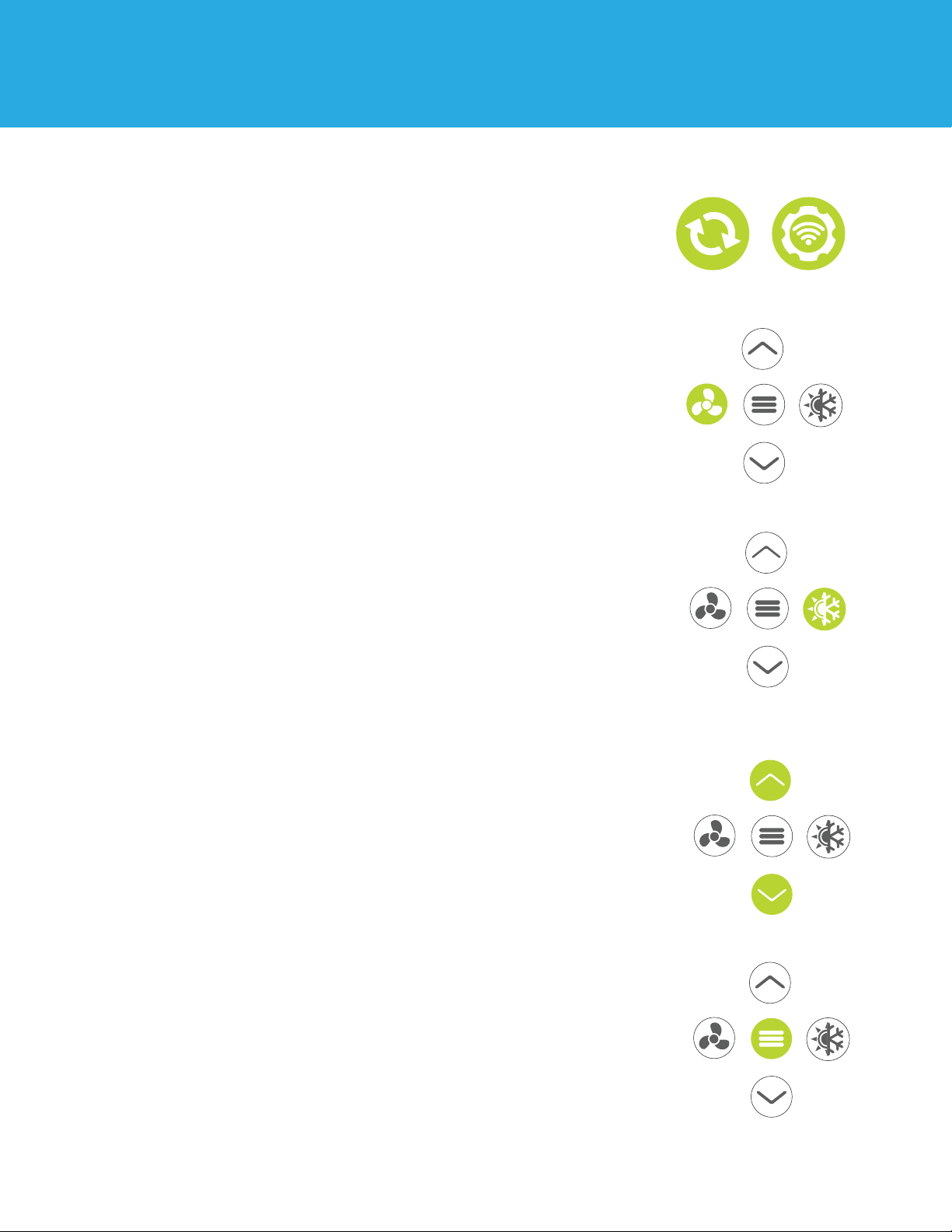
REFRESH / WI-FI SETUP BUTTONS
Press the refresh button to restart thermostat.
Press and hold the Wi-Fi setup button for 3
seconds to enter Listening Mode. The on-board
LED should be blinking blue. Connect to
thermostat using the CYDaisy app.
FAN MODE
Press the fan button to switch between available
fan modes. Setting the fan mode to “Auto” allows
heat/cool modes to determine fan function.
SWITCHING SYSTEM MODE
Press the heat/cool button to switch between
all available system mode. When mode is “Off”,
the thermostat will not activate any heating or
cooling systems.
SETTING TEMPERATURE
To hold specific temperature, adjust using the up
and down arrow buttons to desired temperature.
Temperature will hold until next programmed
schedule or next manual adjustment.
MENU BUTTON
Press menu button to toggle thermostat
configuration as noted on next page.
DAISY Wi-Fi Thermostat / USER GUIDE 4
Page 5
MENU CONFIGURATIONS
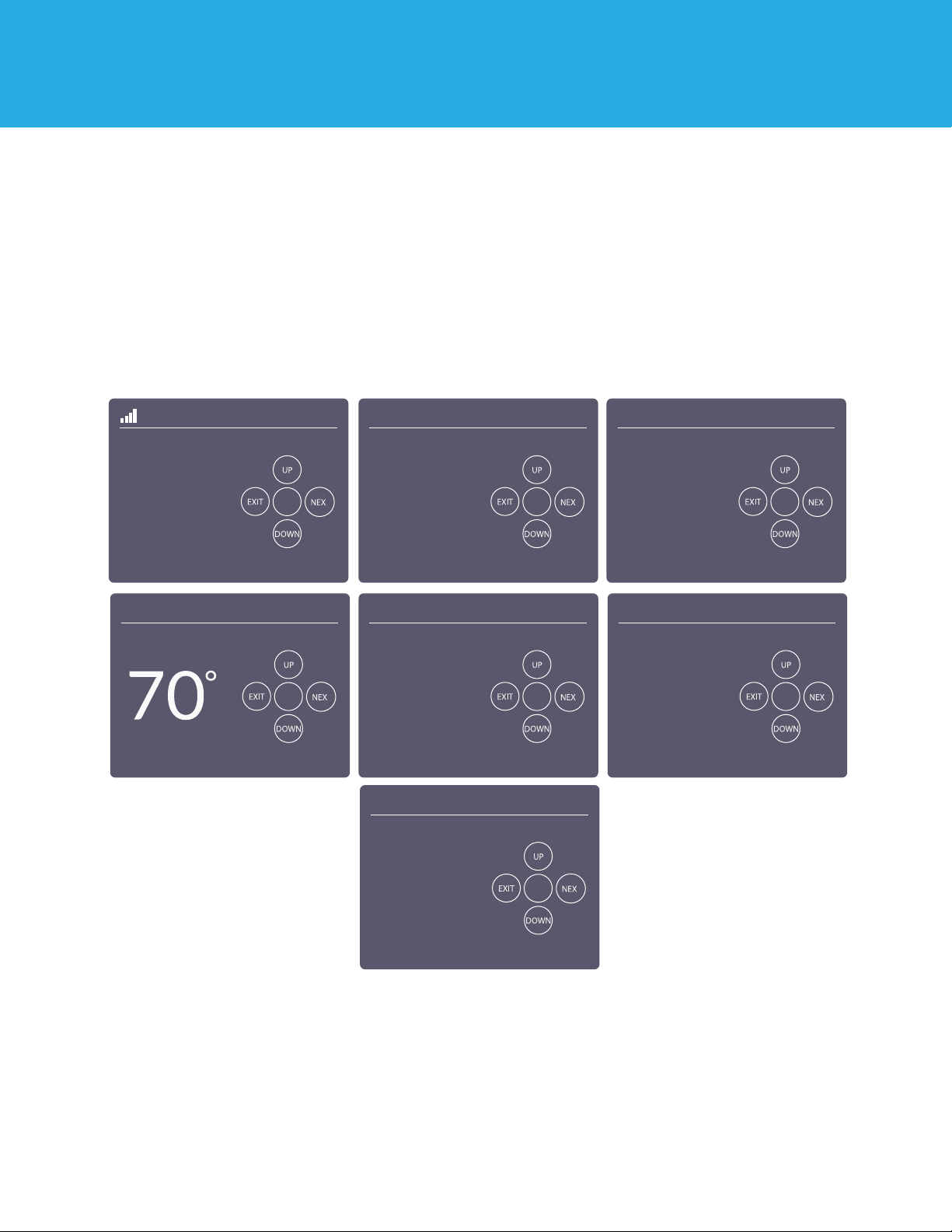
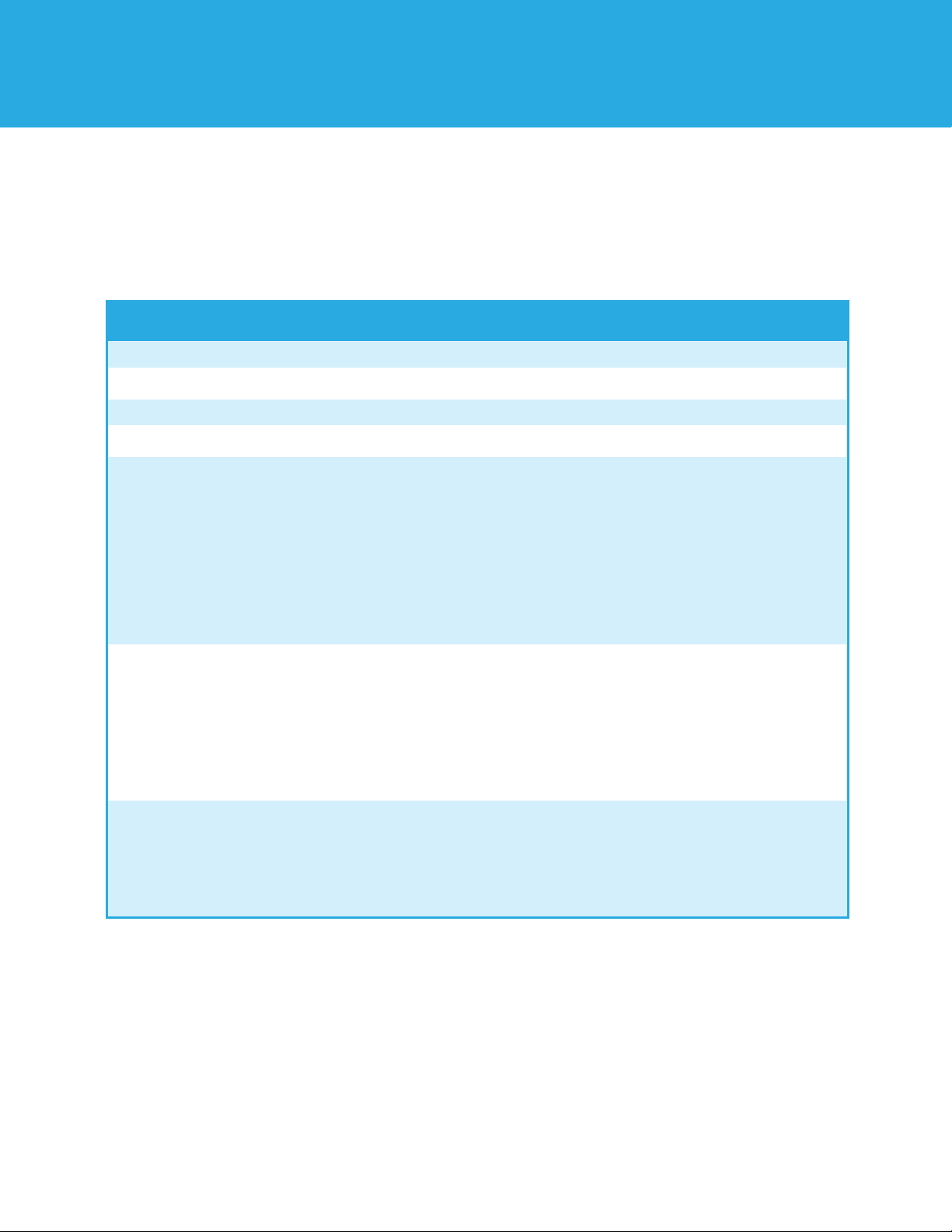
The Menu Button on your thermostat allows you to customize the thermostat for
your specific HVAC system. Refer to the chart on the next page for the listing of
thermostat configurations and what they represent. For initial installation of your
Daisy Thermostat, we recommend downloading the CYDaisy app.
Below are sample screen shots of customizable options available with Daisy Thermostat.
Setup
Version 9
Setup
Version 9
On
Wireless
◦
F
F/C
Setup
Version 9
Setup
Version 9
Setup
Off
Schedule
AC1
Outdoor
O
O/B
Setup
Version 9
Setup
Version 9
On
Sleep
GA1
Indoor
DAISY Wi-Fi Thermostat / USER GUIDE 5
Version 9
Page 6
MENU CONFIGURATIONS
Configuration Menu Items Reference
No. Menu Item Default Options
1
2
3
4
5
Wireless
Schedule
Sleep
Fahrenheit or Celsius
Outdoor HVAC Settings
Conventional A/C or Heat pump
systems.
ON
OFF
ON
F
AC1
ON/OFF
ON/OFF
ON/OFF
F, C
AC1 -
(Single Stage)
Conventional Cooling 1
AC2 -
(Two Stage)
Conventional Cooling 2
HP - Heat Pump
AC0 - Heating or Fan
6
Indoor HVAC Settings
Gas (oil, propane and boiler) or
electric heat systems.
GA1
GA1 -
GA2 -
E1 -
(Single Stage)
E2 -
(Two Stage)
FAN - (
(Single Stage)
(Two Stage)
Electric 2
No Heat)
Fan
Gas 1
Gas 2
Electric 1
7
DAISY Wi-Fi Thermostat / USER GUIDE 6
Reversing Value Settings
Default reversing valve position is the
wire in the “O/B” terminal. It’s relevant
for heat pumps, zone valves, and zone
panel systems.
O
O - Energize in Cool
B - Energize in Heat
Page 7
iOS APP SETTINGS
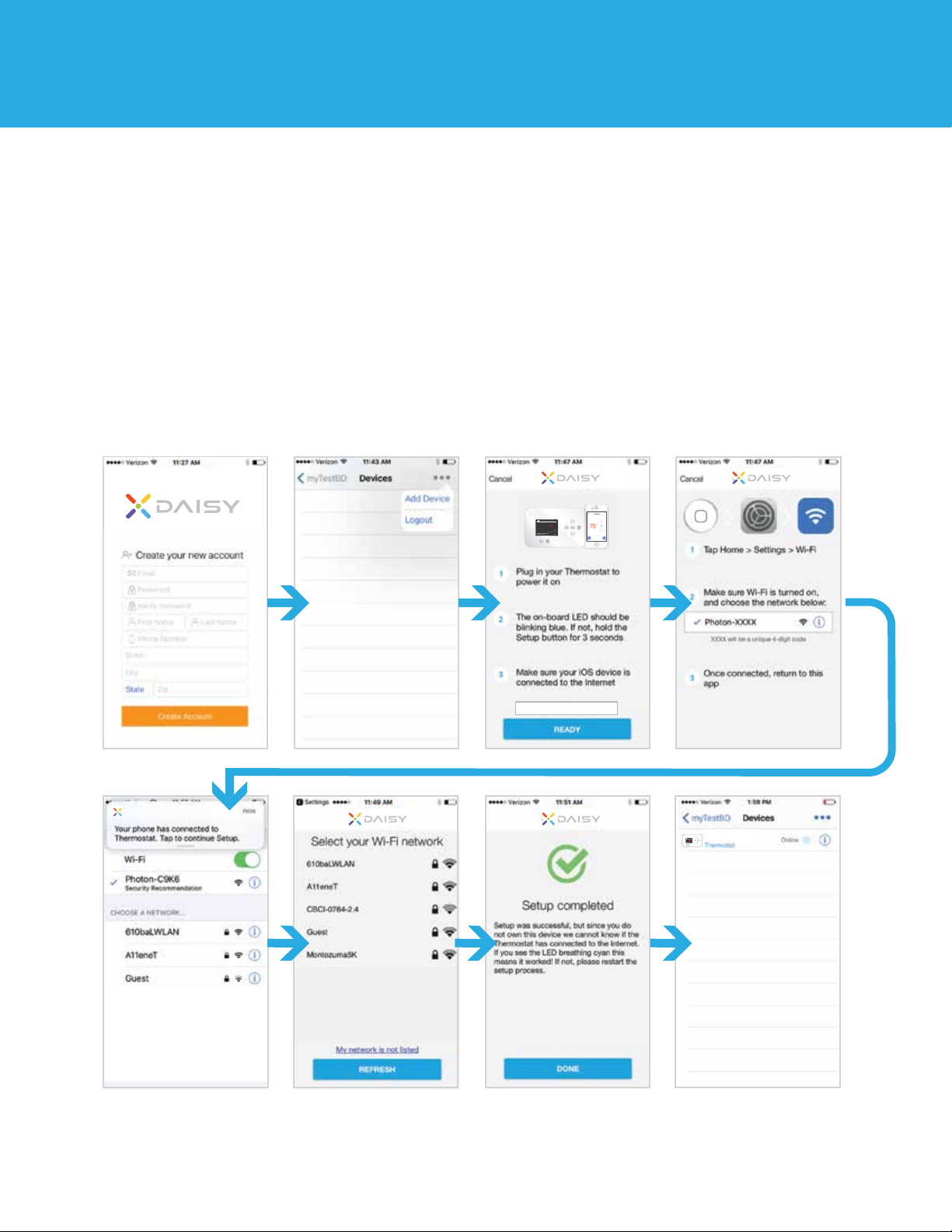
CREATE DAISY ACCOUNT WITH AN iOS APP
You can create a Daisy account with the CYDaisy app on your mobile device. Download the
CYDaisy app on your mobile device from the Apple App store.
iOS New Account Setup:
1 Open App, select “Create Account/Login” and complete all required fields.
2 After login, select the options tab and press “Add Device”.
3 Follow in app instructions, then select “Ready” button.
4 Follow in app instructions to connect to device, select network, and complete setup.
30%
3:37 PM
68
Set
Auto
Heat
70
Fan
Mode
DAISY
30%
3:37 PM
Set
Auto
Heat
78
Fan
Mode
Thermostat
DAISY Wi-Fi Thermostat / USER GUIDE 7
Page 8
iOS APP SETTINGS
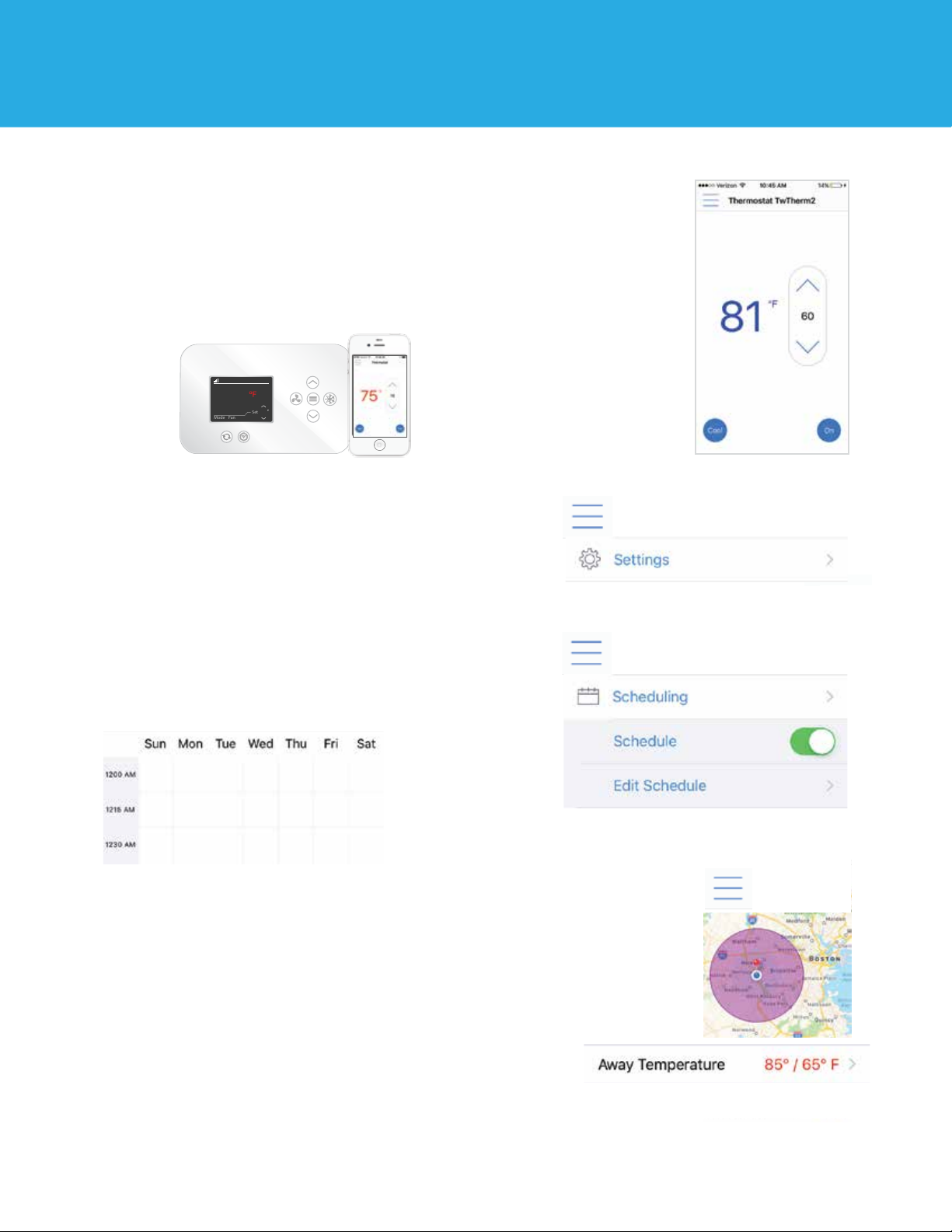
GENERAL APP FUNCTIONS
The CYDaisy app home screen can be used to control
thermostat temperature set points, switch between
heat/cool modes, and operate fan modes. Enter the
settings tab on top left to access additional features.
30%
3:37 PM
68
Set
Auto
Heat
70
Fan
Mode
SETTING TIME
To set device time zone enter the settings tab.
Select appropriate region.
SETTING SCHEDULE
Turn on schedule under the schedule tab.
Edit schedule to customize temperature
schedule for each day.
GEOFENCING
When no-one is home to help you save energy, you
can use geofencing to assist. This feature will use
your phone’s location to help tell when you’ve left
and returned home. Set geofencing (home) range
and maximum/minimum away temperatures.
DAISY Wi-Fi Thermostat / USER GUIDE 8
Page 9
ANDROID APP SETTINGS
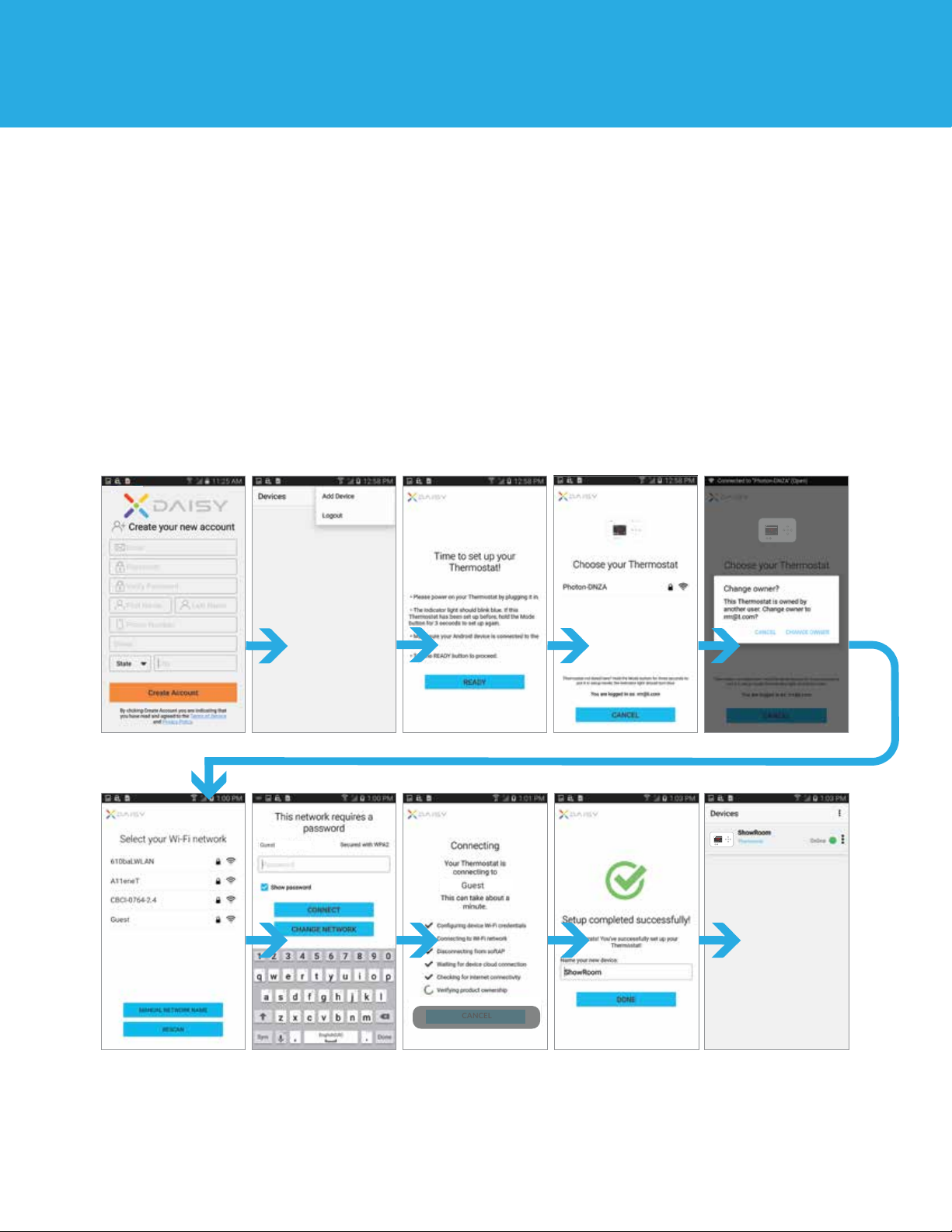
CREATE A DAISY ACCOUNT WITH ANDROID APP
You can create a Daisy account with the CYDaisy app on your mobile device. Download the
CYDaisy app on your mobile device from Google Play.
Android New Account Setup:
1 Open App, select “Create Account/Login” and complete all required fields.
2 After login, select the options tab and press “Add Device”.
3 Follow in app instructions, then select “Ready” button.
4 Follow in app instructions to connect to device, select network, and complete setup.
30%
3:37 PM
Set
Auto
Heat
78
Fan
Mode
30%
3:37 PM
Set
Auto
Heat
78
Fan
Mode
Connected to Wi-Fi network Guest.
CANCEL
DAISY Wi-Fi Thermostat / USER GUIDE 9
Page 10
ANDROID APP SETTINGS
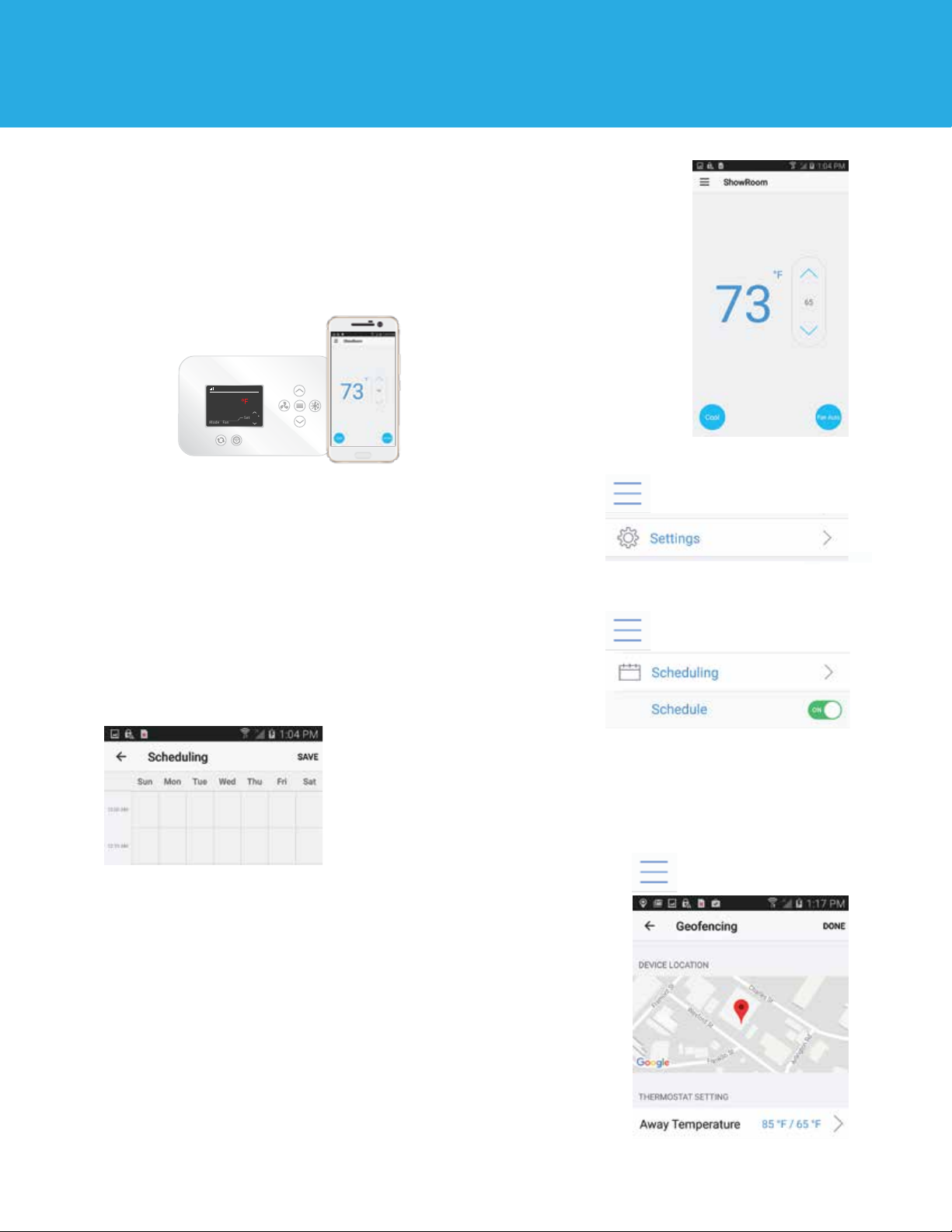
GENERAL APP FUNCTIONS
The CYDaisy app home screen can be used to control
thermostat temperature set points, switch between
heat/cool modes, and operate fan modes. Enter the
settings tab on top left to access additional features.
30%
3:37 PM
68
Set
Auto
Heat
70
Fan
Mode
SETTING TIME
To set device time zone enter the settings tab.
Select appropriate region.
SETTING SCHEDULE
Turn on schedule under the schedule tab.
Edit schedule to customize temperature
schedule for each day.
GEOFENCING
When no-one is home to help you save energy, you
can use geofencing to assist. This feature will use
your phone’s location to help tell when you’ve left
and returned home. Set geofencing (home) range
and maximum/minimum away temperatures.
DAISY Wi-Fi Thermostat / USER GUIDE
10
Page 11
WIRING TERMINALS
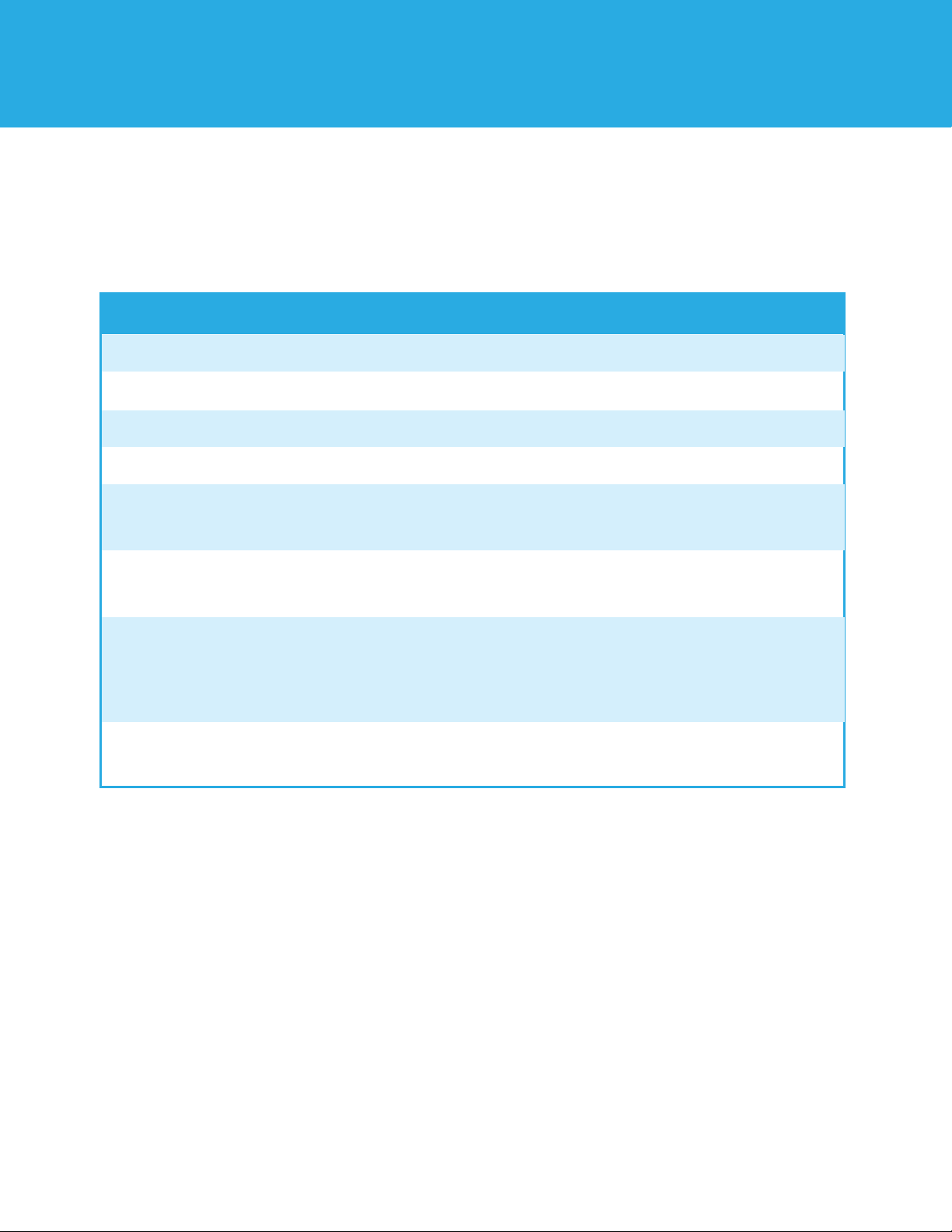
Refer to the chart below for definitions of the wiring terminals
found on the back of the thermostat. Wire colors do not
necessarily represent the thermostat terminal letters.
Terminal Label
R
RC
C*
G
Y
Y2
W(O/B)
W2
Definition
24V Power for heating
24V Power for cooling
24V Common wire
FAN
1st stage outdoor cooling on conventional
systems or 1st heat and cool on heat pump systems.
2nd stage outdoor cooling on conventional systems.
1st stage indoor heat on conventional systems or
changeover (reversing valve) connection for heat pump or
zone panel systems.
2nd stage indoor heat on conventional systems
*
The C-Wire, or “common wire” enables the continuous flow of 24 VAC power to the
thermostat. It’s a wire that (if you have one) runs all the way from your furnace to your
thermostat.The common wire could be labeled “C” on your old thermostat, or it could
be labeled “B” or “X.” Please refer to the owner’s manual of your old thermostat
for clarification.
DAISY Wi-Fi Thermostat / USER GUIDE 11
Page 12
BACK OF THE THERMOSTAT
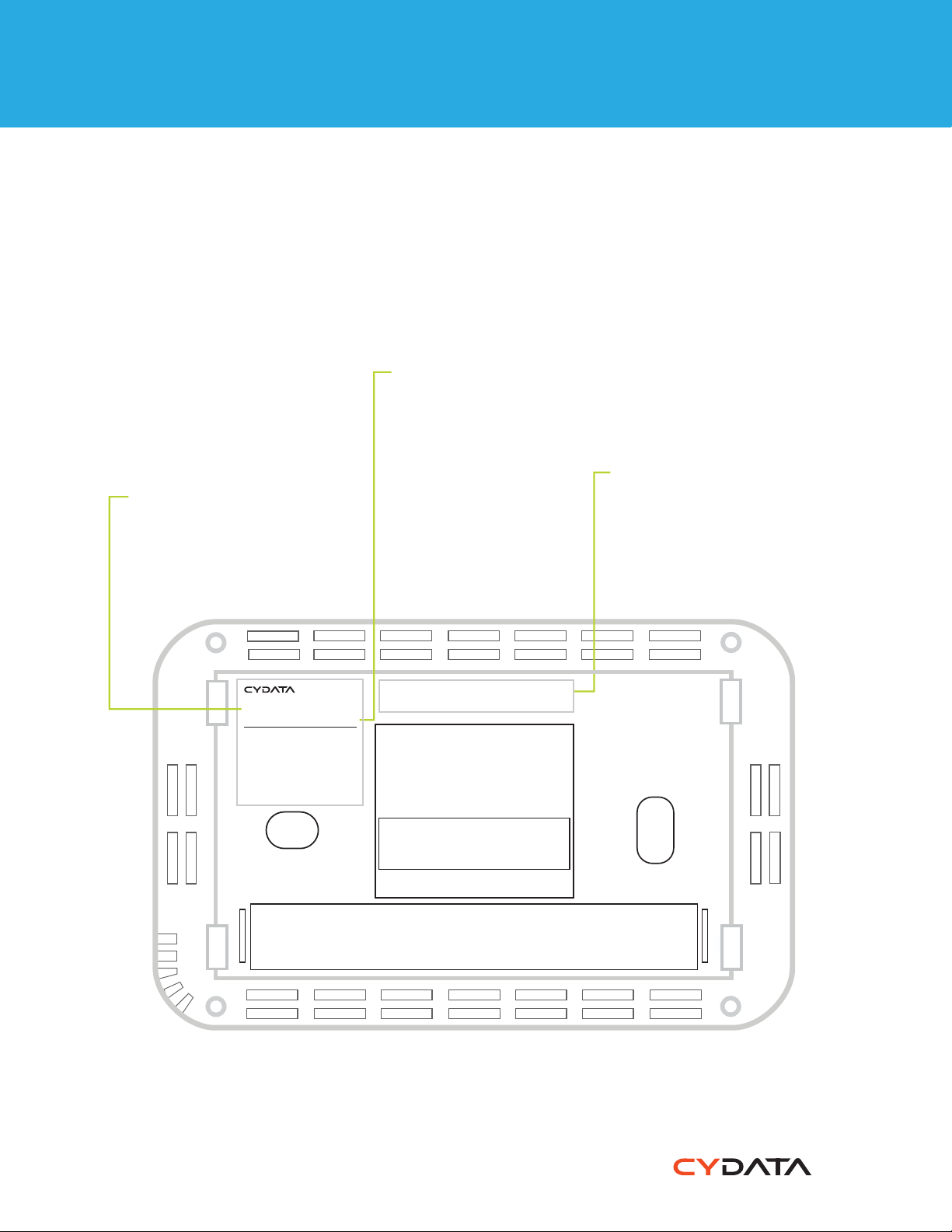
Below is a picture of the back of the Daisy thermostat where you can view the
thermostats information as noted below.
FCC ID
Federal Communications
Commission Identification
number
DEVICE ID
MODEL NUMBER
Illustrates what model
device you have purchased
24 digit Identification
number
www.cydatainc.com
MODEL #: CY917B
Contains FCC ID: 2AFMI-PHOTON
WARNING: CLASS 2 LOW VOLTAGE
WIRING ONLY. DO NOT CONNECT TO
HIGH VOLTAGE. WILL VOID WARRANTY
DOES NOT WORK WITH ELECTRIC
BASEBOARD HEAT (120-240 V)
REQUIRES 24 VAC POWER (“C” WIRE)
MADE IN CHINA
DEVICE ID #
XXXXXXXXXXXXXXXXXXXXXXXX
DAISY Wi-Fi Thermostat / USER GUIDE 12
 Loading...