

Page 1

-
S
checker
TechnicalManual
Page 2

FCC Notice
reasonable protection against
harmful interference
residential installation
y
This equipment has been tested and found to comply with the limits for a Class B digital
device, pursuant to Part 15 of the FCC Rules. These limits are designed to provide
This equipment generates, uses and can radiate radio frequency energy and, if not
installed and used in accordance with the instructions, may cause harmful interference
to radio communications. However, there is no guarantee that interference will not occur
in a particular installation. If this equipment does cause harmful interference to radio or
television reception, which can be determined by turning the equipment off and on, the user is
encouraged to try to correct the interference by one or more of the following measures:
Reorient or relocate the receiving antenna. Increase the separation between the equipment
and the receiver. Connect the equipment to an outlet on a circuit different from that to which
the receiver is connected. Consult the dealer or an experienced radio/TV technician for help.
This device complies with part 15 of the FCC Rules. Operation is subject to the following two
conditions:
(a) This device may not cause harmful interference, and
(b) This device must accept any interference received, including interference that may cause
undesired operation.
in a
.
(FCC Part 15.21) Caution: changes or modifications not expressly approved by the party
responsible for compliance could void the user’s authority to operate the equipment.
FCC Radiation Exposure Statement:
This equipment complies with FCC radiation exposure limits set forth for an uncontrolled
environment. This equipment should be installed and operated with a minimum distance
of 20 cm between the radiator and your body. This transmitter must not be co-located or
operated in conjunction with any other antenna or transmitter.
Page 3
[Use S-checker]
injury, and
checker or other
assets could be impairment
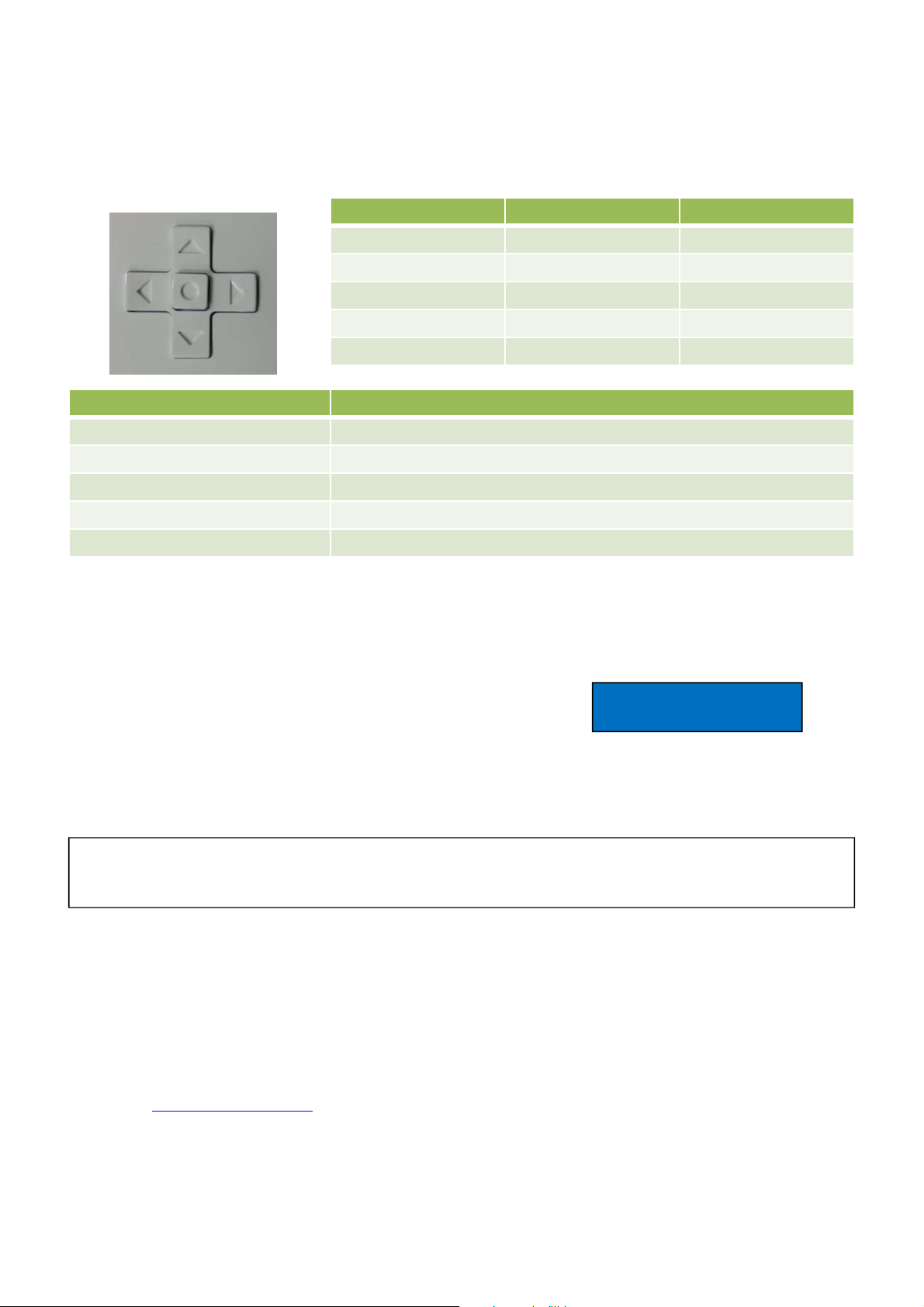
S-checker LCD for users convenience, Shows equipments information and control each
functions with Button.
Button Contents Remarks
Left Button Enter the top-menu ESC
Right Button Enter the sub-menu Include input menu
Up Button Setting + Increase the value
Down Button Setting - Decrease the value
Select Button Enter Setting
Menu Contents
Time & Date Display set date and time, Modify mode switching when it clicked
Mem Usage View Monitor of storage space and available space at SD card
Event Command Lock outdoor unit function and approach Refrigerant detection mode
EEPROM Set Record outdoor unit EEPROM
S/W Version S/W version of S-checker
[How to Inspect Communication Line]
S-checker can find out error of communication with the LED, When it first communicate
with In & Outdoor unit. After communication inspection, if it founds error LCD will show
the message.
S-checker XXXXXX
Normal communication : RS-485 LED will blink
No Device
Can not communicate 30seconds : LCD Message display
[Important Safety and Handling Information]
Warning
If you do not follow the safety instructions, There is Risk of fire, electric shock or other
S-
.
For the first time use S-checker please read this manual document.
Do not removal battery.
[More Information]
User can find more information at http://www.cyclogic.net
S-checker has 6month warranty period. If you look for technical information please
contact to [email protected] or +82-31-789-8030.
Page 4
Welcome to use S-checker.
System Debug USB (PC)
pin
n
Terminal 1 (6pin)
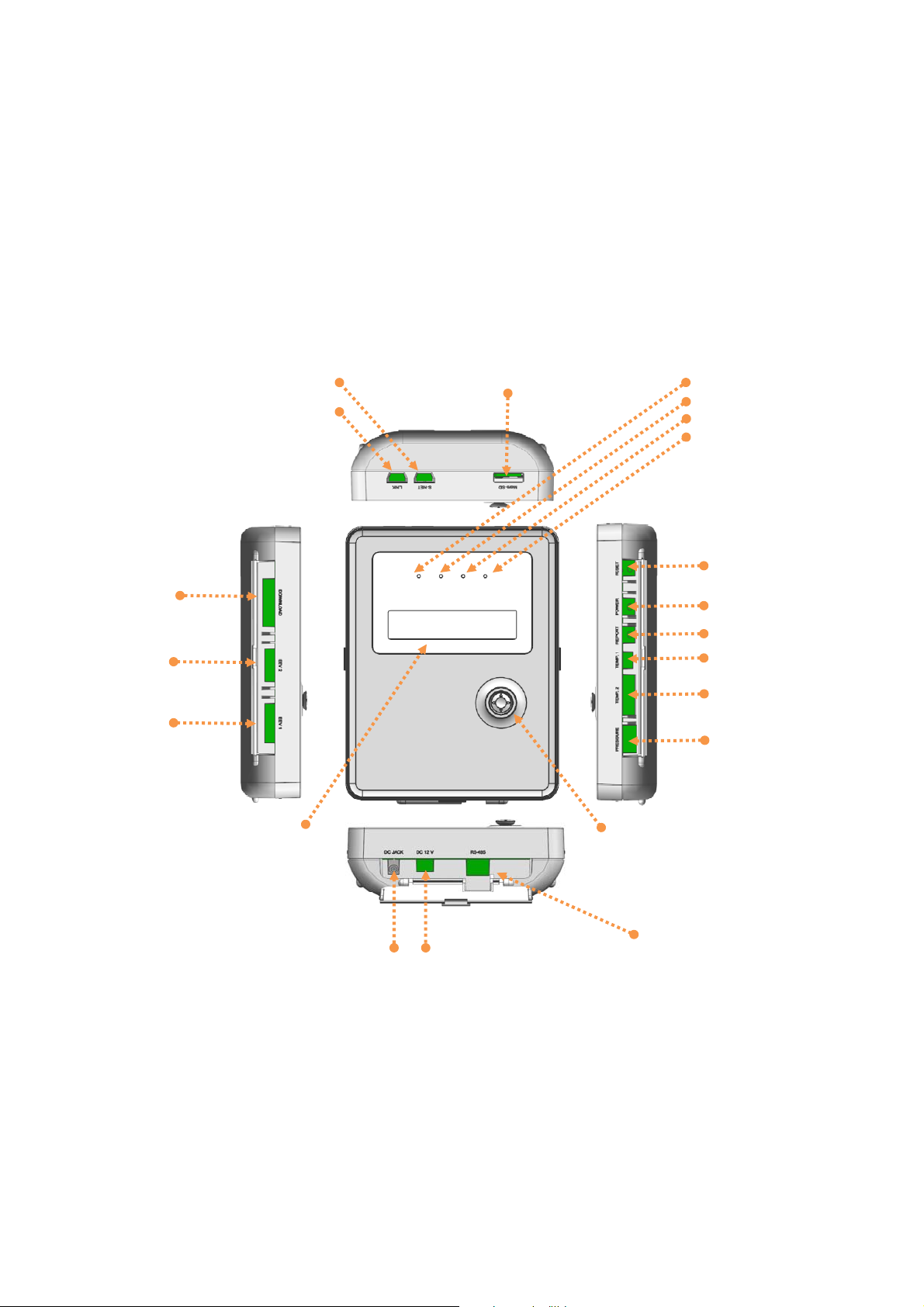
S-checker use for Samsung System Air-conditioner, Equipment of installation and Servicing for
Smart Phone or Tablet PC. User can utilize Auto Test Report, Refrigerant detection, Part inspection,
Various functions with S-checker.
[Appearance]
For S-Net Pro USB (PC)
PBA download
Terminal (PC)
EEV inspection
Terminal 2 (5pin)
EEV inspection
LCD Display
micro SD Slot
System condition LED
WI-FI condition LED
RS-485 condition LED
System Error LED
Reset Button
Power Button
Report Button
Temperature Sensor
Inspection Terminal (2
Temperature Sensor
Inspection Terminal (8pi
Input Sensor
Inspection Terminal
Jog Button
DC 12V
Adapter
DC 12V
For Set Terminal
RS-485
Communication Terminal
Page 5
[Installation App.]
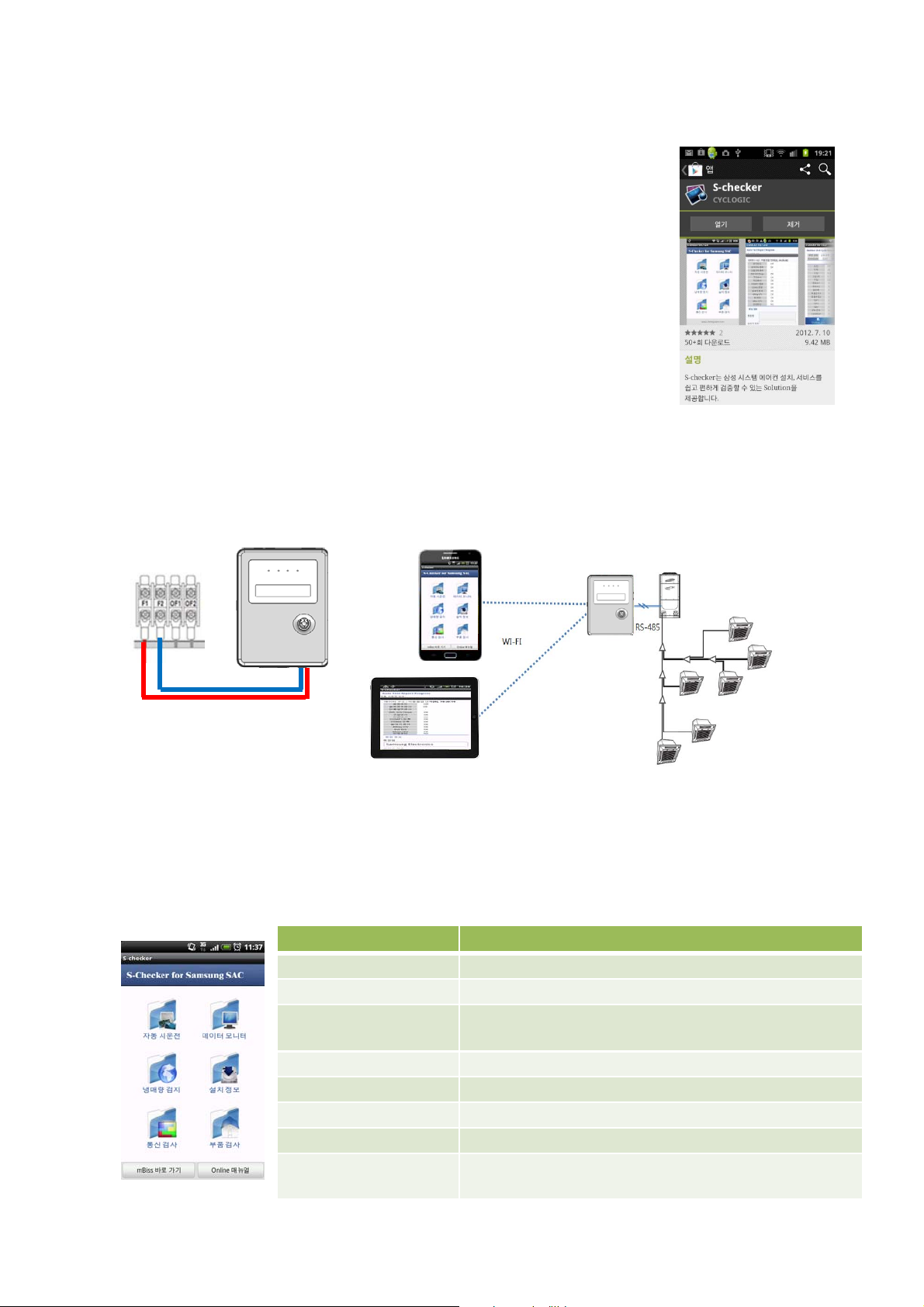
For use S-checker user should install S-checker App on Smart
Phone or Tablet PC.
Search at Google Play(Market) “S-checker” and user can
find a picture like right side.
Press Install to automatic installation.
[Installation S-checker]
Use RS-485 connector which included in S-checker, and connect with indoor & outdoor
communication terminal with F1,F2.
There is no communication polarity, So user can connect any side of terminal.
Afterwards, Use magnet (back of S-checker) can be attached to the outside of the
outdoor unit, when user want to receive long-term data.
[How to use S-checker App]
To use S-checker, Connect with S-checker SSID on the mobile network.
SSID displayed Schecker_XXXXXX(6digit back of S/N)
Wi-Fi connect with S-checker following picture will show up.
Menu Contents
Auto Test Report Create report of system auto test
Data Monitor Real-time Data monitoring
Refrigerant detection Set refrigerant output
Installation Info. Information of in & outdoor unit installation
Part Inspection EEV, Temperature, Press Part Check
Comm. Inspection Installation of comm. equipment to perform inspection
Online Manual Manual for S-checker
Move to mBiss
Links with mBiss site
(when mBiss App. Installed)
 Loading...