

Page 1
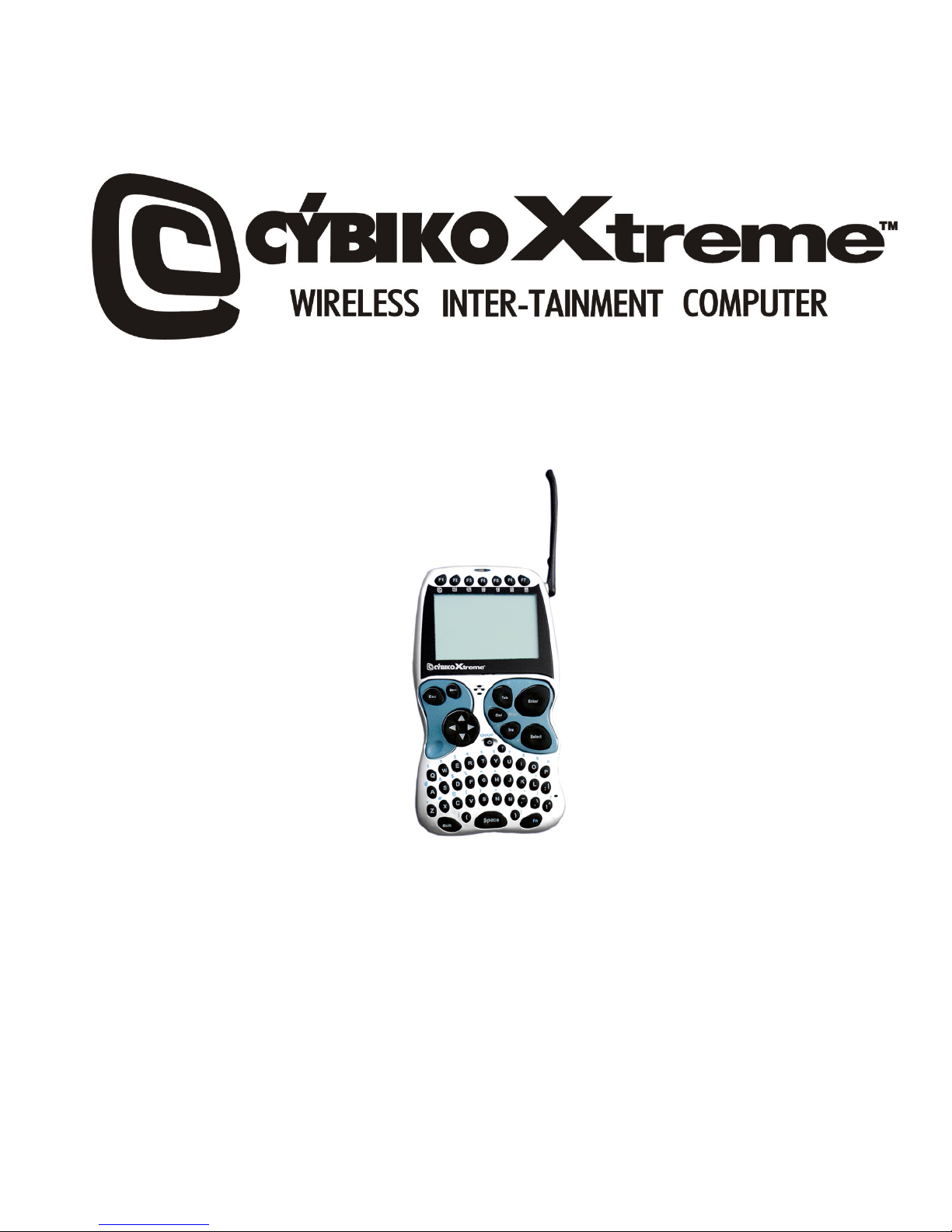
Quick Start Guide
WWW.CYBIKOXTREME.COM
© 2001 CYBIKO, Inc.
INSTALL YOUR CD NOW!
ver 2.1
Page 2

Page 2
Now you are ready to customize your Cybiko Xtreme. Insert your Installation CD and you’re ready to
begin your Xtreme Experience! The Installation CD will give you everything you need to personalise
your Xtreme the way you want it!
Turning ON your Cybiko Xtreme
Cybiko Xtreme has a conveniently located On/Off button
in the middle of the device that allows
you to turn power On and Off. The first time you switch your Cybiko Xtreme on you need to charge it
by plugging the small end of the USB cable into the Cybiko Xtreme and the large end of the USB
cable into the AC Adapter. Cybiko Xtreme will load setup asking you to adjust display contrast, pick
a name for you and your device, as well as verify the correct date and time in your geographic
location. Pressing the On/Off button again will cause a menu to appear providing you with the
options to: Turn off, Silent, or Sleep. You may choose Turn Off or hold On/Off button for 2 seconds
to turn off your Cybiko Xtreme. Silent removes all sound effects and Sleep will put your device into
power-saving mode. If the device is not used and has no communication activity within a 5 minute
period, your Cybiko Xtreme will automatically enter Sleep mode.
Charging your Cybiko Xtreme
Your Cybiko Xtreme will tell you when your battery is low on power or needs recharging. There is a
battery icon on the bottom right of the Cybiko Xtreme desktop that provides a battery charge reading.
You will notice when the Cybiko Xtreme is plugged into a power outlet, the battery will have a blinking
“C” for Charging with a blinking battery in the background. When your battery is fully charged, you
will have a blinking “F” for Full on your main desktop. To charge your Cybiko Xtreme, plug the small
end of the USB cable into the Cybiko Xtreme and the large end of the USB cable into the AC
Adapter. Then plug the AC Adapter into a wall socket. The Cybiko Xtreme also charges while the
USB cable is plugged into your computer.
Note: The batteries in your Cybiko Xtreme are not removable.
Fully charging your Cybiko Xtreme should take approximately 5 hours (depending upon power
level and charging source).
DO NOT CHARGE CYBIKO XTREME BATTERIES FOR MORE THAN 15 HOURS
CONSECUTIVELY, OR BATTERY LIFE WILL BE REDUCED.
Note: Use only self-powered USB ports to charge or transfer data to/from Cybiko Xtreme (examples:
Monitor USB port, PC Root USB port).
Accessing Games and Applications
Each Game and Application on your Cybiko Xtreme can be accessed three ways. First, you can
choose the appropriate icon of the game or application on the Desktop, then press <Enter> to begin.
Second, you can choose the appropriate icon of the game or application, press <Menu>; choose
Run. The third way to access games and applications is from File Manager. Choose Files on the
Main Desktop and press <Enter>. Select filename for the application or game you want and press
Page 3
Page 3
<Enter>. The appropriate file will have the extension app. You can also customize your Cybiko
Xtreme by running the Cybiko Installation CD to get games and applications.
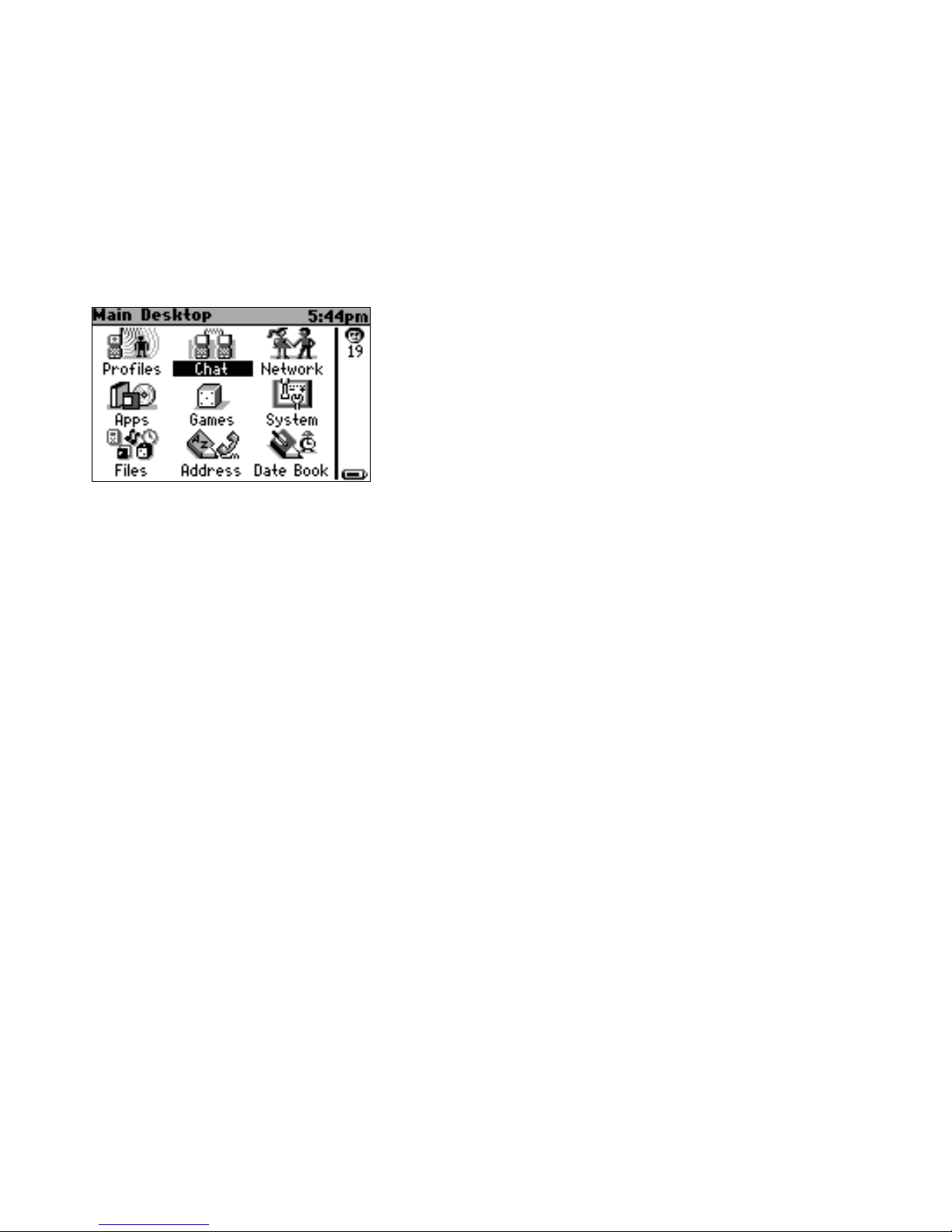
Chat, Friend Finder, Network
Cybiko Xtreme allows you and others in your Virtual Wireless Network to chat and share text
messages within a range of up to 50 m indoors and up to 300 m outdoors, depending on the
environment. Choose the Chat icon on the Main Desktop.
Then, select a specific ‘chat room’ of interest. You can chat
with any or all of your friends (up to 100 persons) in your area.
On the Main Desktop you’ll find the Network icon. This will
show you all Cybiko computer users within your area or you
can limit your search to Male or Female. The Finder option
gives you a list of Cybiko computer users in your area
compatible with the information you have specified in Profiles
on the Main Desktop.
Top 10 Cybiko Xtreme Question & Answers
1. Q: How do I download Games and Applications?
A: Use the EZ Loader PC application.
When you insert the Installation CD after the registration procedure, the installation of EZ Loader
automatically begins. Connect your Cybiko Xtreme to your computer using the USB cable
provided. You will see your Cybiko Xtreme in My Computer under My Cybiko section. You may
drag-and-drop a file to the sub-folder of Cybiko Xtreme disk.
To download games and application onto your Cybiko Xtreme from the Installation CD choose
Ace Apps or Mega Games section, click on the Download near game or application description
and if your Cybiko Xtreme is connected to your PC via the USB cable, it will be downloaded to
your Cybiko Xtreme when you choose its sub-folder.
For more information read Help of EZ Loader.
Note: Do not connect your Cybiko Xtreme to PC before EZ Loader installation. First, install EZ
Loader (from the Installation CD), and then connect the Cybiko Xtreme.
2. Q: Is the Cybiko Xtreme compatible with Windows ’95, NT, or MAC?
A: No, the Cybiko Xtreme will be compatible with the following Operating Systems: Windows ’98,
2000, and ME.
3. Q: Can I send and receive Global E-mails?
A: Yes, download the E-mail application onto your Cybiko Xtreme from the Installation CD (under
PHAT Apps section).
Your Cybiko Xtreme already has a global e-mail address combining your CyID (seven characters
on the back label of your Cybiko Xtreme) with @cybiko.com. (Example: [email protected]).
Your Cybiko Xtreme will try to send/receive E-mail messages in one of the following ways:
Page 4

Page 4
-It will look for the recipient/sender in the wireless network;
- It will look for a Cybiko Wireless Internet Gate (CyWIG) in your area (a special device that
allows wireless internet communication or Cybiko computer with special software). To read more
about CyWIG, visit the Cybiko website.
- It will wait for you to:
• Connect your Cybiko Xtreme to your PC using USB cable,
• Connect your PC to the Internet,
• Right click on the EZ Loader icon in the System tray of your PC and choose this
Cybiko computer in the list of connected ones, then click “Synchronization”,
• Check the "Send/Receive e-mail" box if not yet checked,
• Click the Start button and let the synchronization complete.
4. Q: What is the slot on the back of my Cybiko Xtreme for?
A: The slot on the back of your Cybiko computer is an expansion port. In fact, we already have
peripherals slated for release! Be sure to visit the Cybiko web page often, as news will be
announced as products are released!
5. Q: Why should I register on the Cybiko Website?
A: Registration allows you ALL ACCESS to the Cybiko website. It also allows you to complete
the warranty process by inputting your product Serial Number (CyID) during registration. It allows
you to participate in Cybiko promotions, contests, and events. Finally, registration of your product
allows you to synch your Cybiko Xtreme to your FREE Cybiko Internet E-mail account.
6. Q: How do I reprogram function keys?
A: Choose System application on the Desktop. Use <Down arrow> to select the item Function
Buttons and press <Enter>. Select the item with the function key you’d like to reprogram using
<Up/Down arrows> or <Tab> and in the selected item use <Left/Right arrows> or <Select> to
choose an application or game you want to be launched by the appropriate key.
Remember that <F1> is not reprogrammable – it is a button that switches between already
opened applications or games and executing an action on an active application or game.
7. Q: How do I upload files to another Cybiko computer?
A: Select a file you want to upload and press <Menu>, choose Upload item in the context menu.
Select the recipient using <Up/Down arrows> and press <Enter>. The recipient agrees to accept
by pressing <Enter> when the upload request window appears.
You may also share your files and other users can download them using Shared Content
application that can be installed from the Installation CD.
8. Q: What does the LED indicator light mean?
A:
• Red is on while Cybiko Xtreme is connected to a power supply or USB port;
• Blinking red - transferring data to another devices in the radio-range of your Cybiko
Xtreme;
• Blinking green - receiving data from another device in the radio-range of your Cybiko
Xtreme.
Page 5

Page 5
9. Q: Does my Cybiko Xtreme have a convenient key lock function?
A: Yes, to lock your keys just hold down the <F1> button for two seconds. To unlock repeat the
same operation.
10. Q: How is the <Menu> button used?
A: Pressing this button will show you the list of actions you may use in your current status, called
Context Menu.
Remember
• Your computer must have an available USB port in order to download games and applications
from the Cybiko website or Installation CD.
• You should not operate a Personal Computer that is not commercially specified, qualified or
inspected, when synching to the Cybiko Xtreme device to perform file transfers.
• The Complete Online Instruction Guide can be found on the installation CD.
• For technical issues or questions regarding the Cybiko Xtreme device, send an E-mail to
General precautions
Cybiko Xtreme is a wireless communications computer using digital RF transmissions. It meets all
safety requirements as issued by:
• Radio Equipment and Telecommunications Terminal Equipment (R&TTE) Directive 1999/5/EC
• The Electromagnetic Compatibility (EMC) Directive 89/336/EEC
• Toy Safety directive 88/378/EEC
In some indoor locations, "dead spots" can be found where RF reception is very difficult. But they are
usually very localized, and can be avoided by moving around.
Rechargeable NiMH battery warning
This equipment contains rechargeable NiMH batteries.
The rechargeable NiMH batteries contained in this equipment may explode if disposed of in a fire.
Do not short-circuit the batteries.
Note: The batteries in your Cybiko Xtreme are not removable.
Important safety instructions
When using Cybiko Xtreme, these basic safety precautions should always be followed to reduce the
risk of fire, electric shock, and personal injury. Please read and make sure you understand these
instructions:
• Unplug this product from the wall socket before cleaning. Use a dry cloth for cleaning. DO NOT
use liquid or aerosol cleaners.
Page 6

Page 6
• Do not place this product on an unstable surface. If your Cybiko Xtreme is dropped, serious
damage may result.
• Slots and openings in the plastic case are provided for ventilation and the addition of cartridges.
To protect the product from overheating, these openings must not be blocked or covered. This
product should never be placed near or over a radiator or heater. This product should not be
placed in a closed environment unless proper ventilation is provided.
• This product should be operated only from the type of power source indicated on the marking
level. If you're not sure of the type of power supply to your home, consult your dealer or local
power company.
• Do not allow anything to rest on the USB cord. Do not locate this product where the cord can be
damaged by persons walking on it.
• Do not overload wall socket and extension cords, as this can result in the risk of fire or electric
shock.
• Never push objects of any kind into this product through the open slots other than the items
designed specially for Cybiko Xtreme, as they may touch dangerous voltage points or short out
parts that could result in the risk of fire or electric shock. Never spill liquid of any kind on the
product.
• To reduce the risk of electric shock, do not disassemble this product. Take it to qualified service
personnel when service or repair work is required.
Note: Disassembling of the product can void your warranty.
Cybiko, Inc. DOES NOT represent this unit to be waterproof. To reduce the risk of fire, electric shock,
or damage to the unit, DO NOT expose this unit to rain or moisture.
Important electrical considerations
Unplug all electrical appliances when you know an electrical storm is approaching. Lightning can
pass through your household wiring and damage any device connected to it, including the Cybiko
Xtreme.
Warning! Please do not attempt to unplug any appliance during an electrical storm.
CYBIKO wants you to know
This device has been tested and found to comply with the safety requirements: Radio Equipment and
Telecommunications Terminal Equipment (R&TTE) Directive 1999/5/EC, The Electromagnetic Compatibility (EMC)
Directive 89/336/EEC, Toy Safety directive 88/378/EEC. These limits are designed to provide reasonable protection
against harmful interference in a residential installation. This device generates, uses, and can radiate radio frequency
energy and, if not installed and used in accordance with the instructions, may cause harmful interference to radio
communications. However, there is no guarantee that interference will not occur in a particular installation. If this device
does cause harmful interference to radio or television reception, the user is encouraged to try to correct the interference
by one or more of the following measures:
• Reorient or relocate the receiving antenna.
• Increase the separation between the computer and receiver.
• Plug the computer into an outlet on a different circuit from the one to which the receiver is connected.
Page 7

Page 7
• Consult an experienced radio/TV technician for help.
Caution: Any changes or modifications not expressly approved by the guarantee of this device could void the user's
authority to operate the equipment.
Warranty Information
Cybiko, Inc. Limited Hardware Warranty ("Warranty") obligations are limited to the terms set forth below. Cybiko, Inc.
("Cybiko") warrants this hardware product against defects in materials and workmanship for a period of one (1) year from
the date of original retail purchase, with the exception of the rechargeable batteries included in the supply which are
warranted for six (6) months. If a defect exists in the Cybiko Xtreme computer, USB cord and or power adapter, Cybiko or
its Authorized Distributor will either repair or replace the product at no charge. To do so, Cybiko or its Authorized
Distributor may use either new or refurbished parts, or may exchange the product with a product that is new or which has
been manufactured from new or serviceable used parts and is at least functionally equivalent. A replacement product
assumes a warranty of 30 days. If Cybiko or its Authorized Distributor does not either restore the product to good working
condition after a reasonable number of attempts or replace the product, the Authorized Distributor will refund the
purchase price of the product. When a product or part is exchanged or a refund given, the replacement item, if any,
becomes your property and the replaced items, or the item for which the refund was given, becomes the property of
Cybiko or its Authorized Service Provider.
Exclusions and Limitations
This Warranty applies only to hardware products manufactured by or for Cybiko that can be identified by the Cybiko
trademark, trade name, or logo affixed to them. Cybiko and its Authorized Service Providers are not liable for any
damage to or loss of any programs, data, or other information stored on any media, or any products or parts not covered
by this Warranty. Recovery and reinstallation of system and application software and user data are not covered under
this Warranty.
This Warranty does not apply: (a) to damage caused by accident, abuse, misuse, or misapplication; (b) to damage
caused by service (including upgrades and expansions) performed by anyone who is not a Cybiko Authorized Service
Provider; (c) to a product or a part that has been modified without the written permission of Cybiko; or, (d) if any Cybiko
computer serial number has been removed or defaced.
Governing Law
This Warranty shall be governed by the laws of the United Kingdom and does not effect any statutory rights provided to a
consumer applicable in the country of purchase
Note: All purchases made through a retailer are subject to that specified retailer’s Return Policy.
Customer Service
Please contact Customer Service at [email protected], or visit WWW.CYBIKO.COM/UK & click on Technical
Support & FAQ, or call 0870 905 0401 for trouble shooting assistance. In some instances, it may be necessary for you to
send the complete product, FREIGHT PREPAID AND INSURED FOR LOSS OR DAMAGES, to the nearest service
location. Please do not send any products to Cybiko without contacting us first.
License Agreement
CYBIKO, INC. ('CYBIKO') IS WILLING TO LICENSE THE ENCLOSED CYBIKO PRODUCT AND USER GUIDE
('PRODUCT') TO YOU ONLY ON THE CONDITION THAT YOU ACCEPT THE TERMS AND CONDITIONS OF THIS
LICENSE AGREEMENT ('AGREEMENT').
Page 8

Page 8
YOUR USE OF THE PRODUCT INDICATES YOUR ACCEPTANCE OF THE TERMS AND CONDITIONS OF THIS
AGREEMENT. IF YOU DO NOT AGREE TO THE TERMS AND CONDITIONS OF THIS AGREEMENT, THEN DO NOT
PROCEED ANY FURTHER AND RETURN THE UNUSED PRODUCT, IN AS NEW CONDITION AND IN UNDAMAGED
PACKAGING TO THE AUTHORIZED RESELLER FROM WHOM YOU OBTAINED THE PRODUCT WITHIN TEN (10)
DAYS OF PURCHASE FOR A FULL REFUND OF THE PURCHASE PRICE.
The enclosed Product contains both hardware and software components. The software is licensed to you. You agree to
use the Product solely for your personal use and enjoyment as permitted in the User Guide.
The Product is protected by national and international patent, copyright, trade secret, trademark and other intellectual
property laws, regulations and treaties. Cybiko and its licensors retain exclusive ownership of the software and all
intellectual and other proprietary rights in or related to the Product. You may not delete or obscure any proprietary or
confidentiality legends on the Product. You shall not copy, modify or prepare derivative works of the Products, in whole or
in part. You shall not reverse engineer, decompile, disassemble the Products, or apply any process, technique, or
procedure or make any attempt to ascertain or derive any source code in or related to the Products, except as and to the
extent you are legally authorized to do so under applicable law despite this restriction.
Get full On-line Guide from the Installation CD.
Intended for use in the UK and Eire.
Page 9

Page 9
DECL ARATION OF CONFORMITY
Manufact urers Name:
Cybiko, Inc.
Manufact urers Address:
One Tiffany Pointe,
Suite 105,
Bloomingdale,
Illinois 60108,
USA.
Declares that the product:
Cybiko Xtreme
TM
Computer
Model Names:
Cybiko Xtreme
TM
Computer, Part No. CY44802
Conforms to the following European Union directives and standards identified in this declaration:
EU Directives:
Radio Eq uipment and T elecommunic ations T erminal Equipment (R&TTE) Directive 1999/5/EC
The Electromagnetic C ompatibility (EMC) Directive 89/336/EEC
Toy Safety dir ective 88/378/EEC
Standards:
EN 300 220-3 Electromagnetic compatibility and Radio spectr um Matt ers (ER M); S hort Range Devices (SRD); Radio equipment to be used
in the 25 MHz t o 1 000 MHz frequenc y range with power levels ranging up to 500 mW; Part 3: Harmonized EN covering
essenti al requirements under article 3.2 of the R&TTE Directive
EN 301 489-3 Electromagnetic compatibility and Radio spectr um Matt ers (ER M); El ectroMagnetic Compatibility (EMC) standard f or radio
equipment and services; Part 3: Specific c onditions for Short-R ange Devic es (SRD) operating on frequencies between 9 kHz
and 40 GH z
EN 50088 Safety of electrical toys
EN 71-1 Safety of T oys, Mechanical and physic al properties
EN 71-2 Flammability
EN 71-3 Specification for migration of c ertain elements
Technical Construction File (TCF) number
TC-CY44802-001-01
Notified Body
SGS United Kingdom Ltd.
Unit 10,
South Industrial Estate,
Bowburn,
Co. Durham
DH6 5AD,
United Kingdom.
Notified Body No. 0890
Test Report Numbers:
Test reports DUR 23417/EMC/LS/01, DUR23417/RAD/LS/01, DUR23417/LVD/LS/01
 Loading...