

Page 1
Setup Guide
Page 2
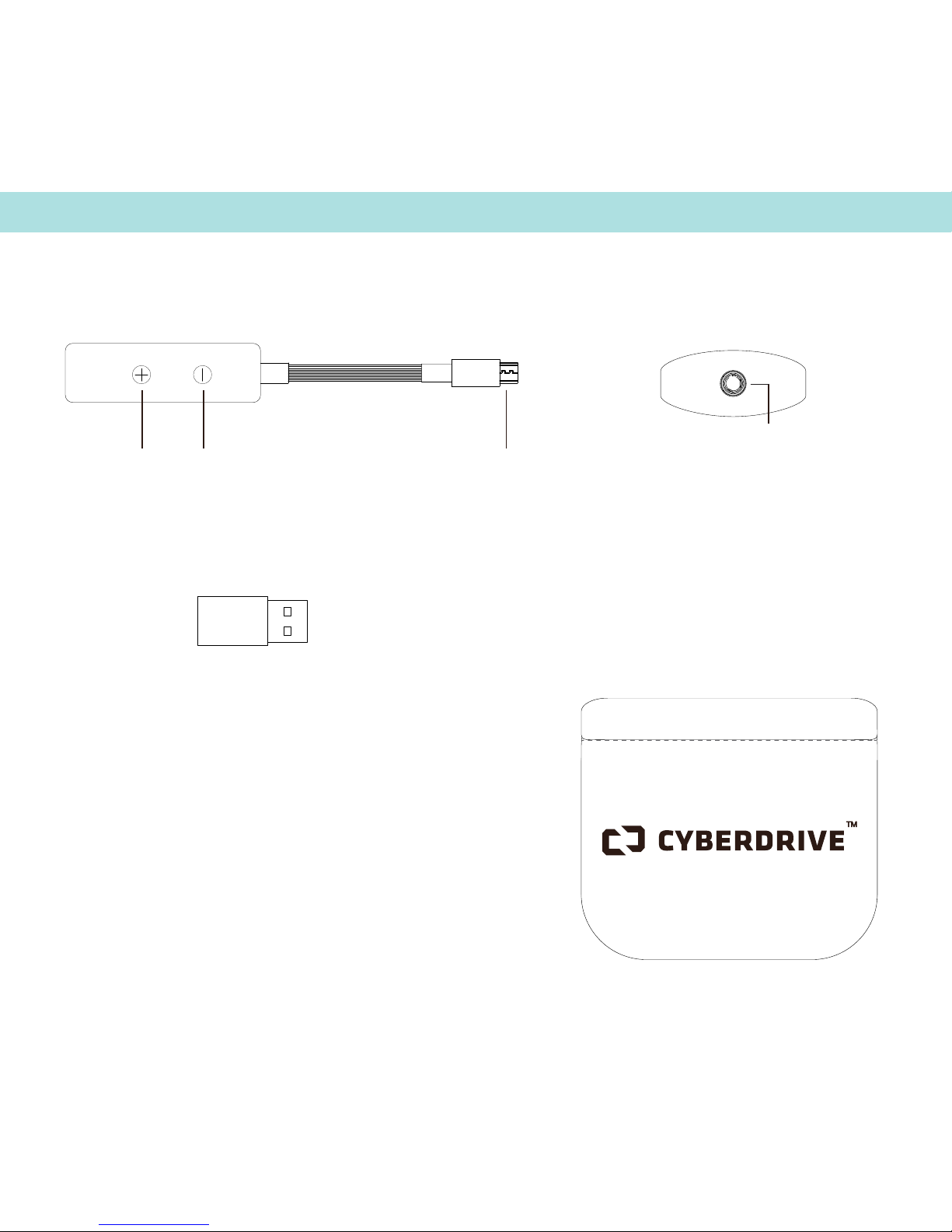
Package Contents
Aura DAC
Micro to
USB Adapter
Travel Case
1 2 3
4
1. Volume Up
2. Volume Down
3. Micro USB
4. Headphone Jack
(Optional)
Page 3

Table of contents
3
Product & Features. . . 4
Troubleshooting. . . . . . . 5
iOS Setup . . . . . . . . 6
Android Setup . . . . . 8
Mac OS X Setup . . . 10
Windows Setup . . .12
Legal Disclaimers . . . 14
Warranty & Safety . . .15
Page 4

4
Product & Features
The Aura DAC is a Mobile USB DAC + Headphone Amp capable
of decoding DSD and PCM audio les up to 11.6MHz/1bit and
192KHz/24bit (respectively). The Aura features a Micro USB plug + USB
Type-A converter so it is versatile enough to work with all your favorite
devices.
This short manual will take you through the simple steps required to set
up your computer/mobile OS so that sound from music, movies, web
videos, etc., will play through Aura with the best possible sound quality.
However, rst we must discuss how to adjust volume, because this part
of the guide is not OS specic.
When using Aura with headphones,
powered speakers, or a power amplier,
it’s best to start at a low volume until
the desired volume level is achieved.
When using Aura we recommend the
following procedures:
• Music player application volume
control should be set to maximum.
• Computer’s main OS volume control
should be set to 25% of maximum.
• Adjust to desired volume using the
computer’s main volume control.
SPECS
DSD 64/128/256
DoP Support
PCM from 44.1/16Bit - 192KHz/ 24bit
UAC 2.0, HID, DFU
3.5MM PHONE JACK
SNR: 112dB
THD+N: 0.0085%
FREQUENCY RESPONSE: 5Hz-384KHz
POUT: 40mW - 110mW 16Ω
HEADPHONE AMPLIFIER: DirectDrive
OS Support
Mac OS X 10.6 & Up
Windows 7 & Up
iOS & Android
Linux
Page 5

5
Troubleshooting
GENERAL
-Check if USB is fully inserted into the
device’s USB Port.
-Using a non-powered USB hub will
degrade the sound quality.
-Check the Volume level for both the
system and the player application.
-Try restarting the device.
WINDOWS
-Close all media/voice/sound
applications.
-Make sure ‘Cyberdrive Hi-Res Audio
Device’ is set as default sound device
in ‘Sound Devices’ panel.
-Check if Skype is running (known to
cause problems for some users).
-Disable “selective USB-Suspend”
in your Energy-Options (under Power
Option/USB Settings)
-Try Switching USB Ports
-Make sure there are no other
applications taxing your computer
MAC OS X
-Close all media/voice/sound
applications.
-Open System Preferences.
-Select Sound/Output tab and make
sure ‘Cyberdrive Hi-Res Audio Device’
is selected.
-Try Switching USB Ports
-Make sure there are no other
applications taxing your computer
ANDROID
-Close all open apps
-Make sure USB mode is set to ‘Host
Mode’ (varies from device to device)
-Make sure device is fully charged
(some Android devices will disable
OTG/Host Mode if low on power.)
iOS
-Close all open apps
-Make sure device is up to date
-Make sure device is fully charged.
Page 6
6
Setup iOS devices
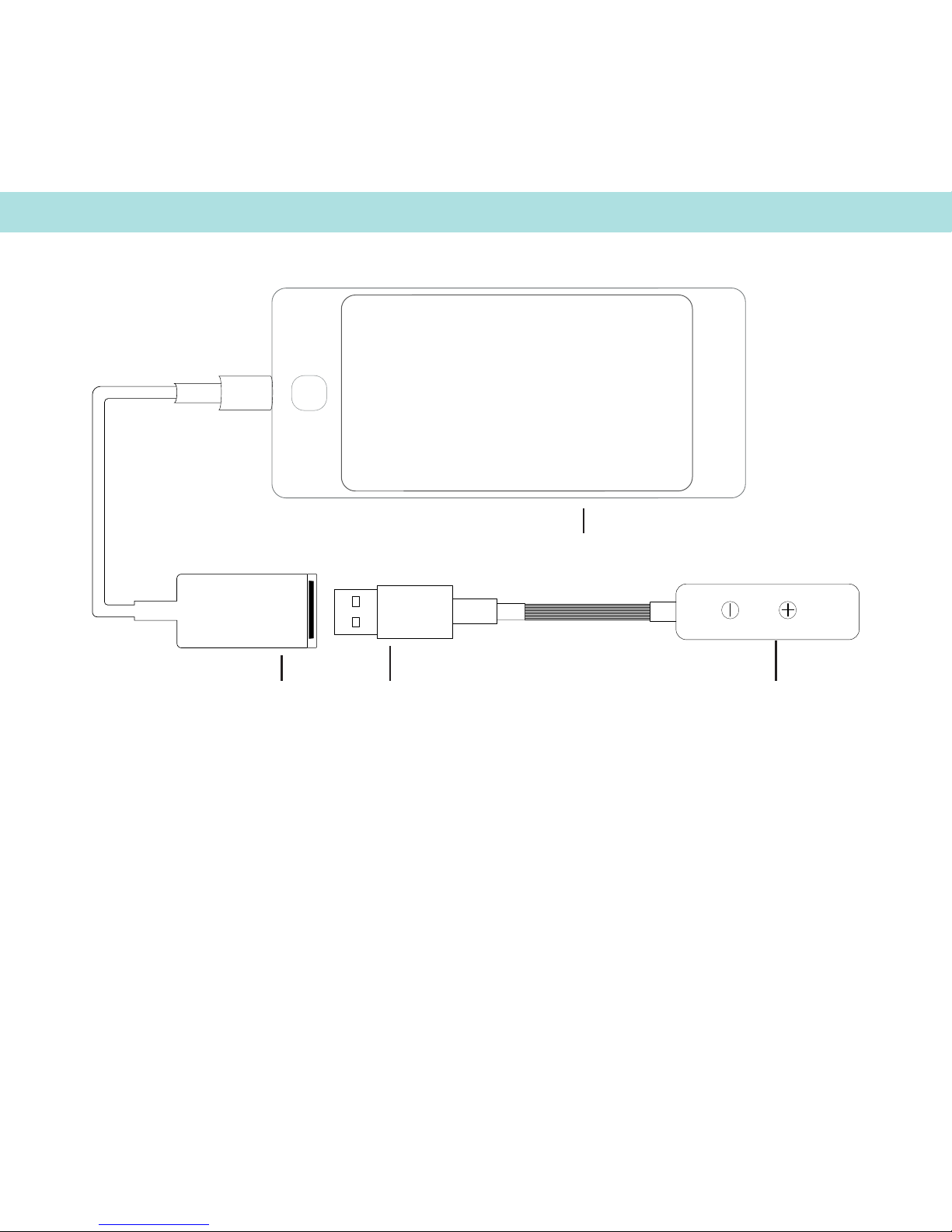
To use the Aura with iOS devices just connect your Aura DAC to any iOS
device using the included Micro USB - USB adapter and Apple’s Camera
Connection Kit (CCK)1.
123
4
1. Aura DAC
2. Micro USB to USB Converter
3. Apple Camera Connection Kit
4. iOS Device
Page 7

7
You will need the correct CCK2 depending on which device you’re
connecting to.
- iPhone 5 & iPad 5 and newer need the Lightning CCK.
- iPhone 4S & iPad 3 and older will need the 30Pin CCK.
To get the most out of the Aura, we recommend using the free VOX
3
Player App for iOS made by our friends over at Coppertino.
The VOX Player App will let you listen to FLAC, ALAC, APE, WMA & CUE
les.
You can nd the VOX Player available on the Apple iOS App Store
4
using the following url: http://apple.co/1fmaN33
1. Please note that only the ocial Apple CCK will transmit audio over USB, generic variants will not recognize the
device. 2. The Apple CCK is not included with the Cyberdrive Aura DAC, nor is it covered by the Aura DAC warranty.
3. VOX is a trademark of Coppertino Inc. 4. The iOS App Store trademark is property of Apple, Inc. 5. Cyberdrive,
Inc is not responsible for any damage to to your iOS device caused by either the CCK or the Vox Player App.
Page 8
8
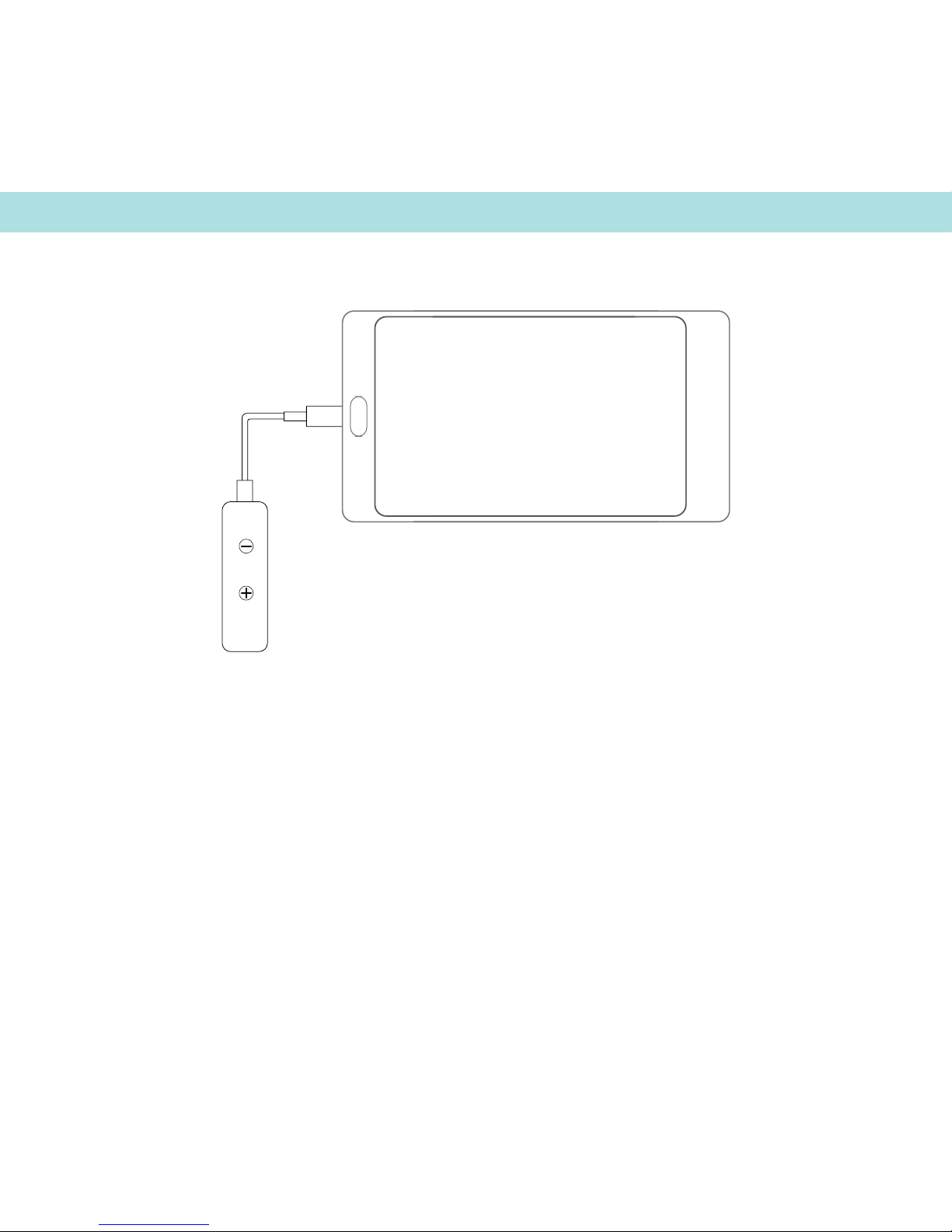
While you can plug the Aura directly into most Android Phones/tablets,
your device has to be OS 4.2.21 (or higher) in order to work with the
Aura DAC.
Many phones require you to change the USB settings to ‘OTG Host
Mode’ in order to work correctly. Procedures vary from phone to phone.
To get the most out of your Aura DAC, download Zeus App from the
Google Play Store2 and seamlessly play Hi-Res DSD & PCM les.
Setting up Android devices
Page 9

9
Full Compatibility3:
•Nexus 5, 6 & 9
•Samsung Galaxy Note 2, 3, 4 & Edge
•Samsung Galaxy S3, S4, S5 & S6
•Sony Xperia - Z1, Z1c, Z2, Z2c, Z3, Z3c, Z4, Z4c, Z5 & Z5c
•LG Optimus G Pro
•LG G2, G3, G4, G Flex2
•HTC One X, M7, M8, M9
•Motorola Moto G (Gen 1,2,3) & Moto X (Gen 1,2)
•ASUS Padfone S
Partial Compatibility (Audio Works, Volume Buttons don’t work):
•HP Slate 7 Extreme tablet
•Asus MemoPad 7 ME70CX
No Compatibility:
•Galaxy S4 Mini
•LG Nexus 4
•Asus Memo 7’ ME173X / ME176C
•Samsung Galaxy SII
For Android devices not mentioned here, please check with the manufacturer.
1. Being able to install OS 4.2.2 or higher doesn’t guarantee compatibility. 2. The Google Play Store is a registered
trademark owned by Google, Inc. 3. Cyberdrive cannot guarantee compatibility if stock OS has been modied in any
way. 4. Nexus is a registered trademark of Google, INC. Samsung Galaxy & Galaxy Note are registered trademarks
of Samsung Electronics. Xperia is a registered trademark of Sony Corp. Optimus G is a registered trademark of
LG Electronics INC. Moto G is a registered trademark of Motorola Mobility. Padfone S is a registered trademark of
ASUSTek Computer Inc. Slate 7 Extreme is a registered trademark of HP Inc.
Compatible Android Devices
Page 10
10
To use the Aura with your Mac OS X1 Computer, you will need to use
the included USB Micro to USB Type-A adapter.
Mac OS X 10.6 and above natively supports USB Audio Class 2.0.
What this means is setting up your Aura is a breeze!
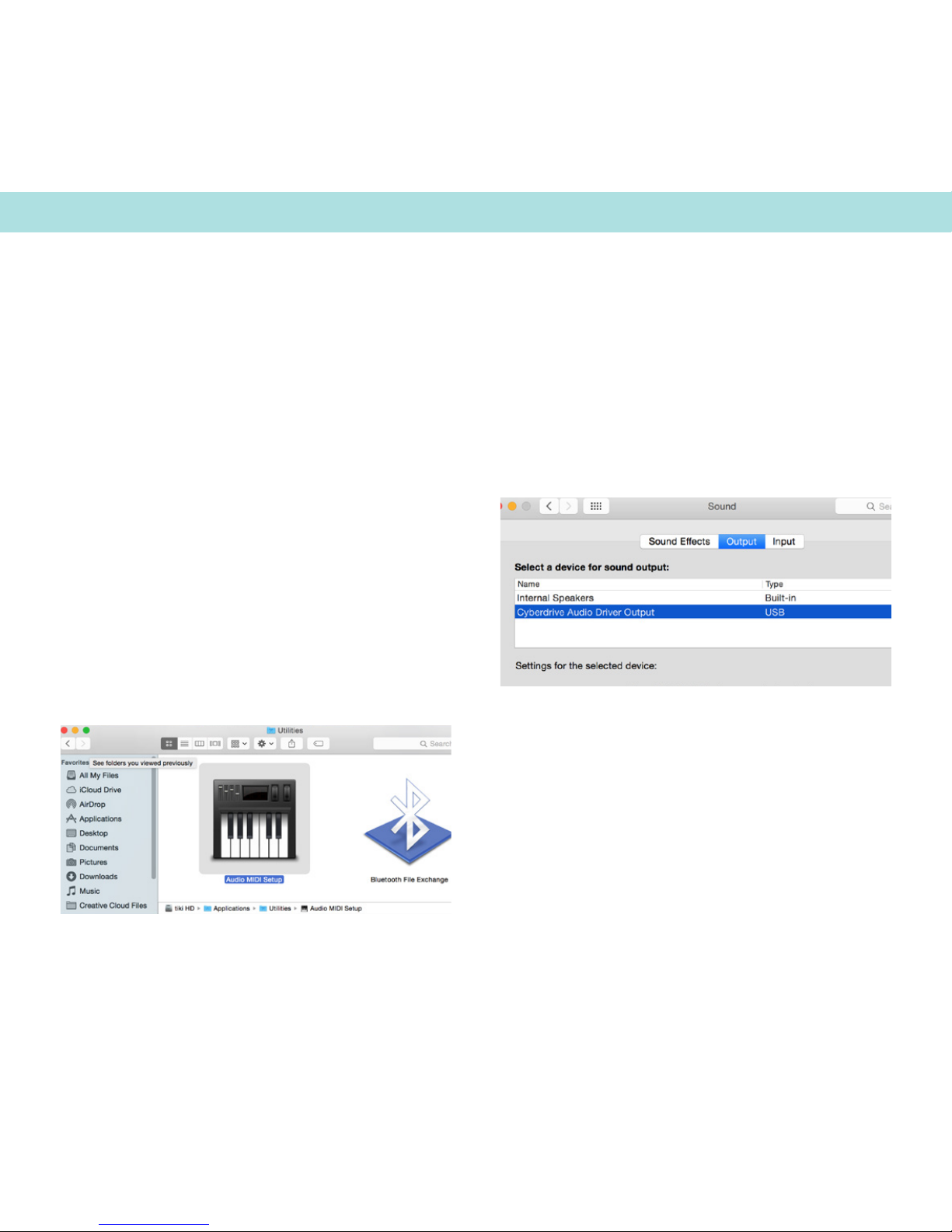
Setup mac os x
1. Go to System Preferences >
Sound. Select Cyberdrive Audio
Driver Output
2. Go to Applications > Utilities
> Audio MIDI Setup
Page 11

11
Setup iOS devices
To get the most out of your Aura DAC on Mac OS X recommend the
using Vox Player2, made by our friends at Coppertino.
Just go to http://coppertino.com/vox/mac to download the latest
version. The VOX Player App will let you listen to FLAC, ALAC, APE,
WMA & CUE les.
For DSD playback we recommend using: Audirvana Plus3 or BitPerfect4.
1. The Mac OS X trademark is property of Apple, Inc. 2. VOX Player is a trademark of Coppertino Inc. 3. Audirvana
Plus is property of Audirvana. 4. BitPerfect is property of BitPerfect Sound. 5. Cyberdrive is not liable for any damage
or loss of data caused to your computer by using either Vox Player, Audirvana or BitPerfect applications. You install
these apps at your own risk.
3. Set the audio output to the
desired sample rate
(Use 2ch-24bit)
Page 12
12
To use the Feather with your Windows1 Computers just plug in your
Feather DAC and then follow the steps below.
You will need to download the Cyberdrive Audio Class 2.0 USB driver
and the Zeus Hi-Res Music Player at:
http://cyberdrive.audio/pages/windows-support
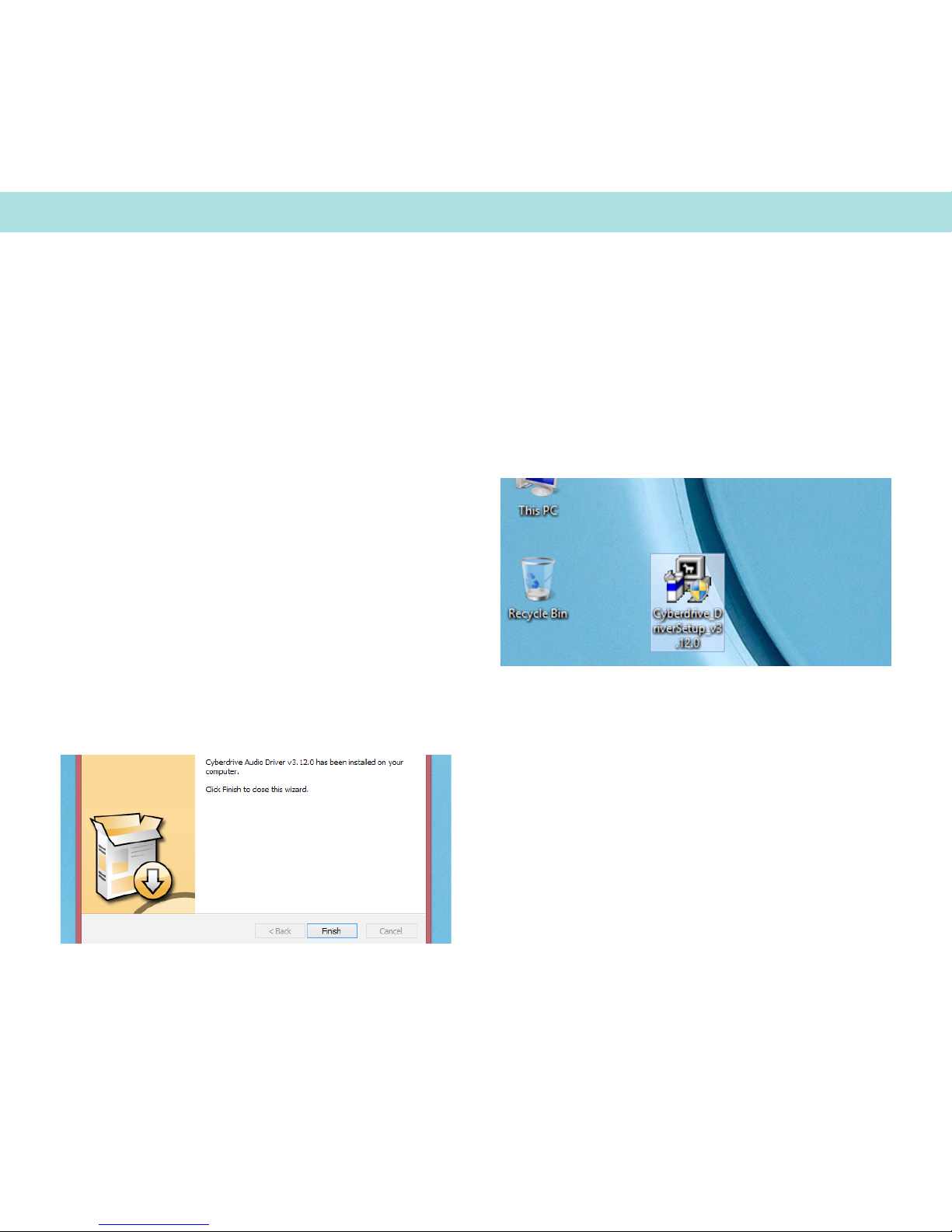
Setup Windows
1. Connect the Aura to an available USB port .
2. Download and unzip the driver.
3. Open the ‘Cyberdrive Audio Driver v3.12.0.exe’
4. Click Next to install the new USB driver, then click
Install to start the update.
5. Click Finish to complete the installation.
Page 13
13
Setup iOS devices
To get the most out of your Feather DAC, we recommend you
download our Zeus Hi-Res Music Player from http://cyberdrive.
audio/windows-support to play Hi-Res DSD & PCM les with
ease.
1. Windows is a trademarked property of Microsoft, Inc.
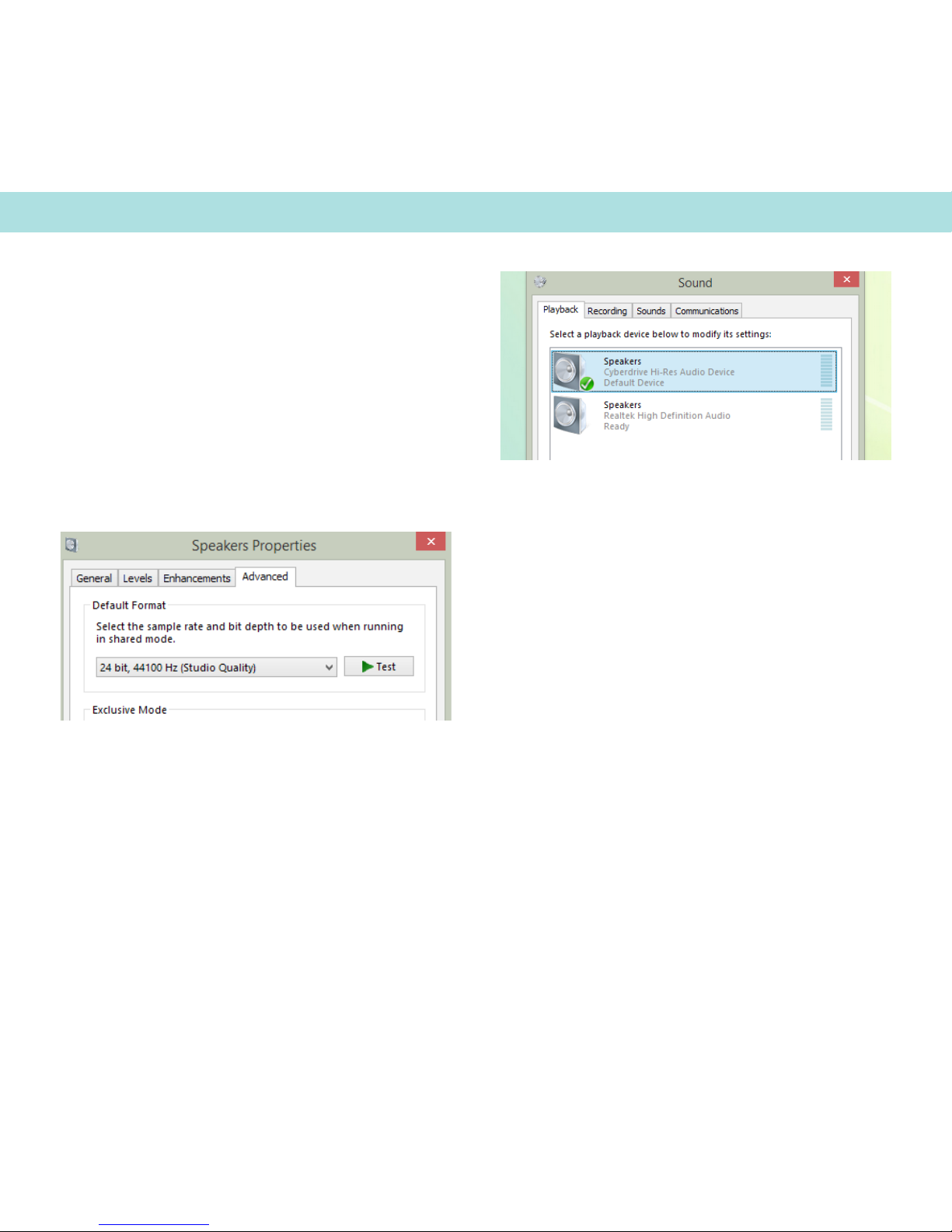
5. Go to the Sound menu in Control Panel, and
ensure that ‘Cyberdrive Hi-Res Audio Device’ is set
as the default playback device.
6. Go to the Speakers Properties of the Cyberdrive
Audio Driver and choose the sample rate output. (For
most users we recommend 44,100Hz / 24bit).
Page 14

14
SAFETY INSTRUCTIONS:
Keep these instructions.
Heed all warnings.
Follow all instructions.
Do not use this apparatus near water.
Clean only with dry cloth.
Do not install near any heat sources such as radiators, heat registers, stoves or other apparatus
that produce heat.
Only use attachments / accessories specied by the manufacture.
Unplug this apparatus during lighting storms or when unused for long periods of time.
Refer all services to qualied service personal.
Servicing is required when the apparatus has been damaged in any way, such as plug damage,
liquid has been spilled or objects have fallen into the apparatus, the apparatus has been
exposed to rain or moisture, does not operate normally, or has been dropped.
Do not dismantle or attempt to repair your product.
Do not expose your product to temperatures outside the range of 0°C to 40°C (32°F to 104°F).
Do not pierce, crush or set re to your product.
SAFETY WARNINGS:
TO REDUCE THE RISK OF FIRE OR ELECTRIC SHOCK, DO NOT EXPOSE THIS APPARATUS
TO RAIN OR MOISTURE.
Do not expose the unit to dripping or splashing.
Do not place any object lled with liquid, such as a vase, on the unit.
Do not place naked ame sources, such as lighted candles, on the unit.
To avoid overheating leave at least 10cm around the equipment for sucient ventilation.
Do not position the unit in direct sunlight, near heat sources or directly on top of heat producing
equipment.
To avoid interference do not position the unit near strong electrical or magnetic radiation, such
as near a power amplier.
LEGAL DISCLAIMERS
Page 15

15
LEGAL DISCLAIMERS
WARRANTY:
The Aura Mobile DAC is covered by warranty to be free from defects in materials and
workmanship for one year form the date of purchase; subject to the limitations and conditions
outlined below.
This warranty covers the cost of labor and materials for any repair deemed necessary by the
Cyberdrive Service Team. Proof of purchase or a copy of the sales receipt will be required for
any claim made against the warranty.
LIMITATIONS AND CONDITIONS:
The Aura Mobile DAC is covered under the warranty only if the following conditions have been met:
It has been used in accordance with the instructions given in the section Safety Instructions and Safety
Warnings elsewhere in this document.
It has not been altered or modied in any way.
It has not been purchased from an unauthorized dealer.
It has not been subjected to an unauthorized repair or service.
In order to make a claim against the warranty, the approved process for returning a faulty unit for repair
or replacement must be followed.
To learn about this process please contact Support at: [email protected].
RADIO INTERFERENCE:
FCC Warning: This equipment generates and can radiate radio frequency energy and if not installed and used
correctly in accordance with our instructions may cause interference to radio communications or radio and
television reception. It has been type-tested and complies with the limits set out in Subpart J, Part 15 of FCC
rules for a Class B computing device. These limits are intended to provide reasonable protection against such
interference in home installations.
EEC: This product has been designed and type-tested to comply with the limits set out in EN55013 and EN55020.
Use with USB 1.1, 2, 3, 3.1 only.
Power rating 5V 2.5W max.
Page 16

©2015 CYBERDRIVE. All rights reserved. Cyberdrive, the Cyberdrive logo, and all other Cyberdrive trademarks are owned
by Cyberdrive and may be registered. The Hi-Res work mark and logos are registered trademarks owned by Japan Audio
Society and any use of such marks by Cyberdrive is under license. All other trademarks are property of their respective
owners. Cyberdrive assumes no responsibility for any errors that may appear in this manual. Information contained herein is
subject to change without notice.
 Loading...