

Page 1

VoIP Ceiling Speaker with
Allworx 6x Server Setup Guide
CyberData Corporation • 2555 Garden Road • Monterey, CA • 93940 • T:831-373-2601 • F: 831-373-4193
www.CyberData.net
Page 2
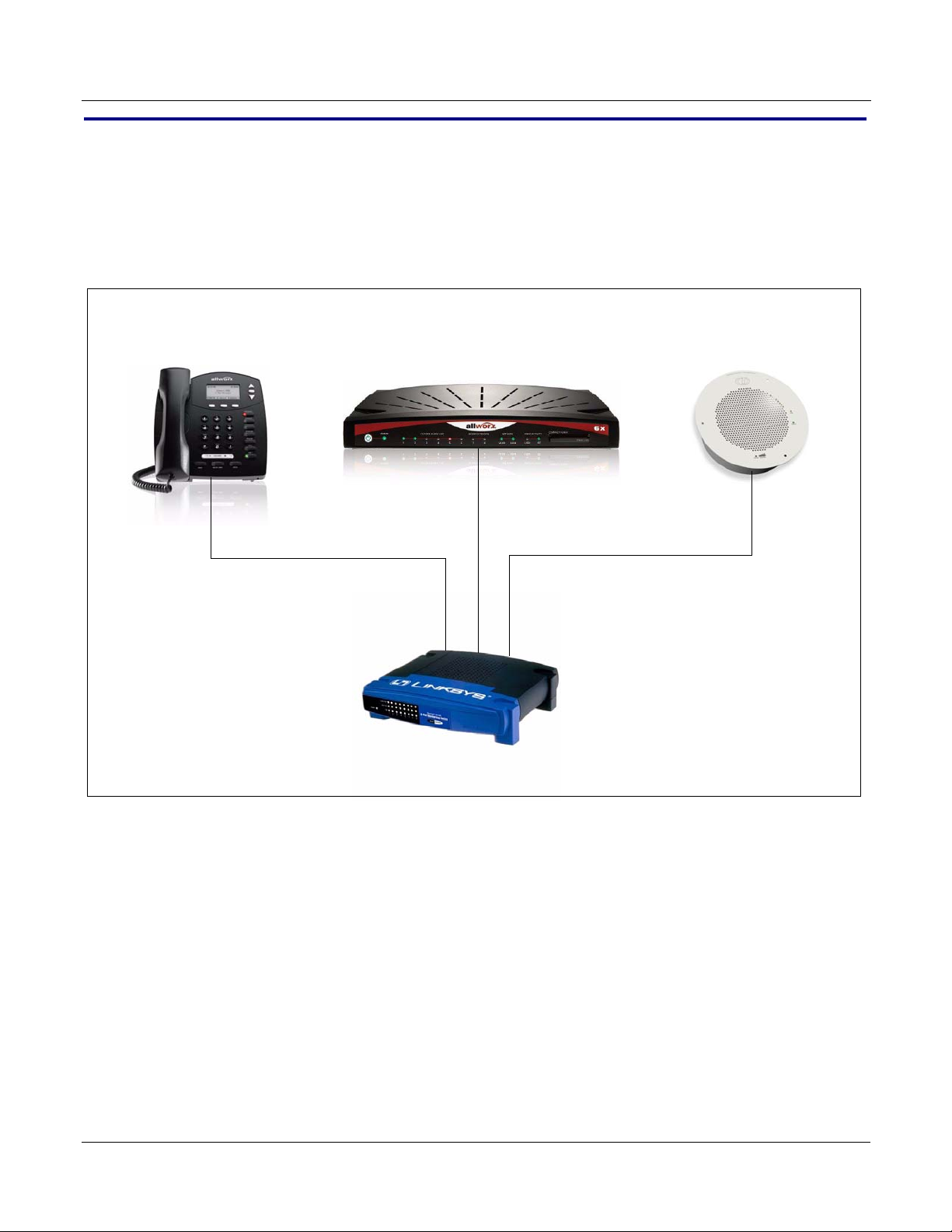
1.0 Setup Diagram
Allworx 9112 IP Phone
192.168.2.xx
CyberData VoIP Ceiling Speaker
192.168.2.xx
Allworx 6x System
192.168.2.254 (default)
Linksys EtherFast 10/100 8-port Workgroup Hub
Figure 1-1 is a setup diagram for a single VoIP speaker configuration. In this configuration, the
ceiling speaker acts as a standalone SIP telephony device.
2
Figure 1-1. Setup Diagram
Server Setup Guide 930249A CyberData Corporation
Page 3

2.0 Host PC Environment
Table 2-1. Host PC Environment Details
Description
Hardware Type Allworx 6x
Hardware Version Configuration 04
Software Type
Software Version 6.8.3.1
3.0 Test Setup Equipment
3
Table 3-1. Test Setup Equipment
Equipment Model Version
Allworx VoIP Phone 9112 1.8.2.1
Notes:
Allworx System 6x 6.8.3.1
Notes:
CyberData VoIP Ceiling Speaker 010844D 4.01
Notes:
t W
Linksys EtherFast 10/100 8-por
Notes:
Notes:
Notes:
Notes:
orkgroup Hub EFAH08W 2.0
Notes:
Notes:
Server Setup Guide 930249A CyberData Corporation
Page 4
4.0 Setup Procedure
Password
Login
To set up the Allworx 6x SIP Server for the CyberData VoIP Ceiling Speaker,
4
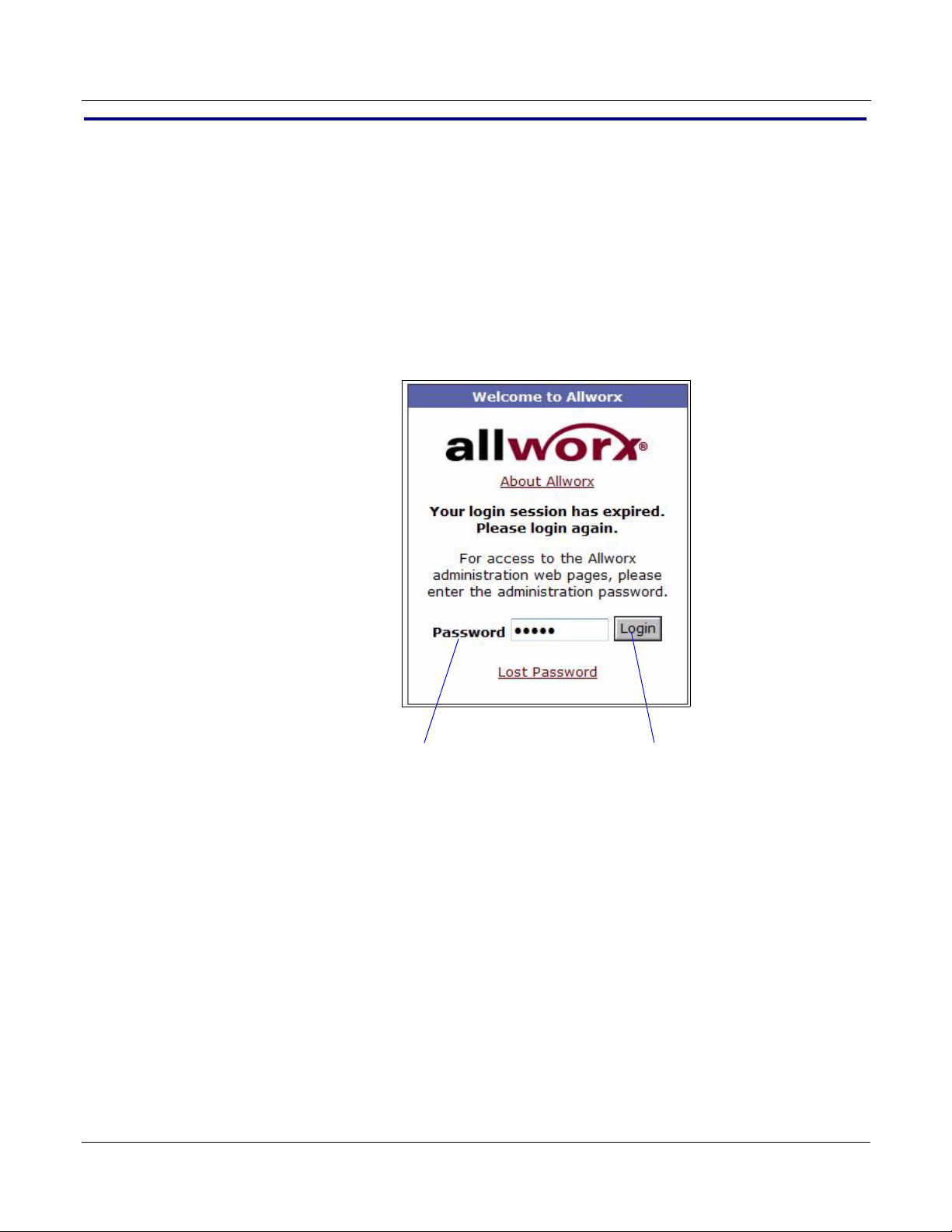
1. Go to the Login page
192.168.2.254:8080
2. On the Login page, enter the passwor
password is admin.
. By default, the login can be found at the following web address:
d and clic
Figure 4-2. Login
k on Login to go to the Home page. The default
Server Setup Guide 930249A CyberData Corporation
Page 5
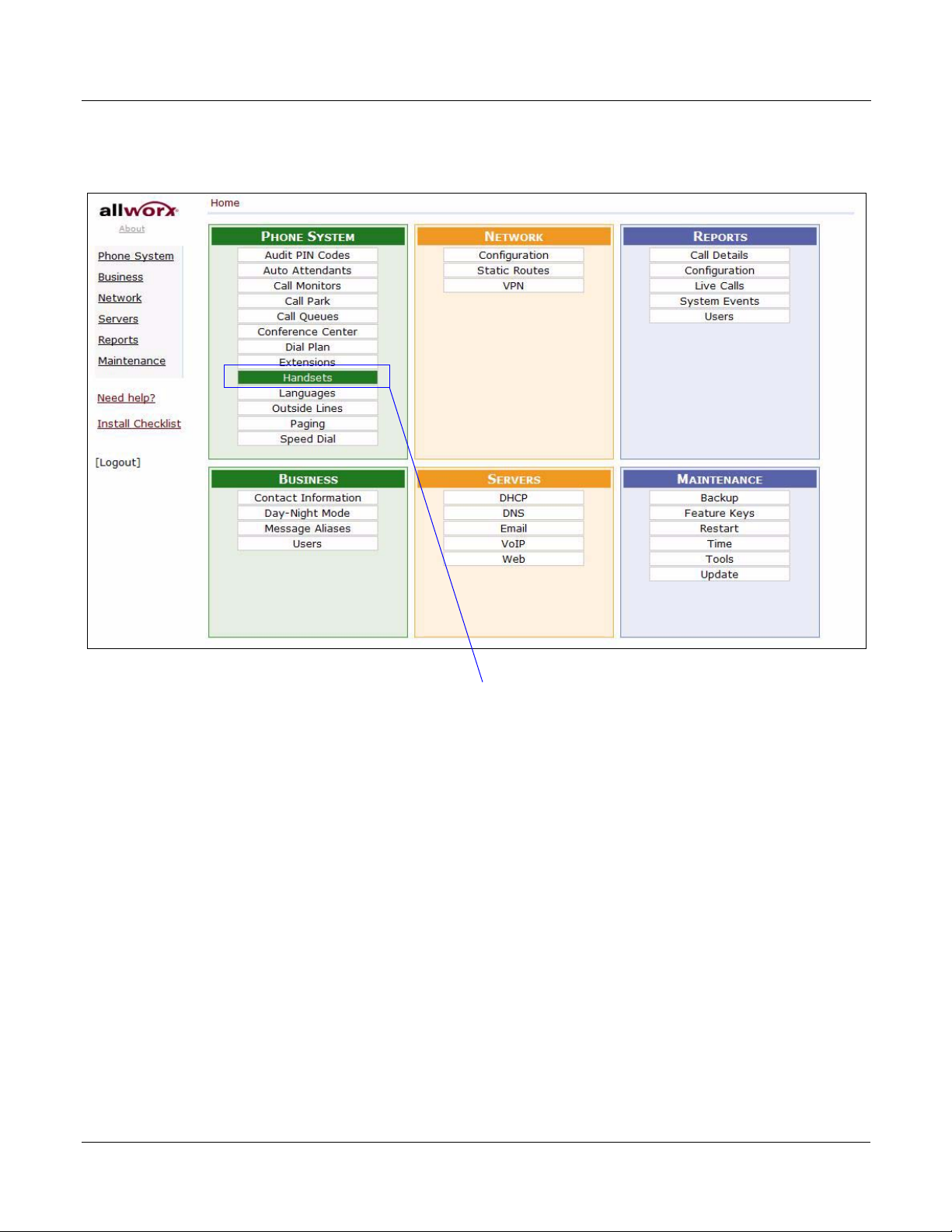
3. On the Home page, go to the PHONE SYSTEM section and click on Handsets to go to the
Handsets
Handsets page.
Figure 4-3. Home Page
5
Server Setup Guide 930249A CyberData Corporation
Page 6
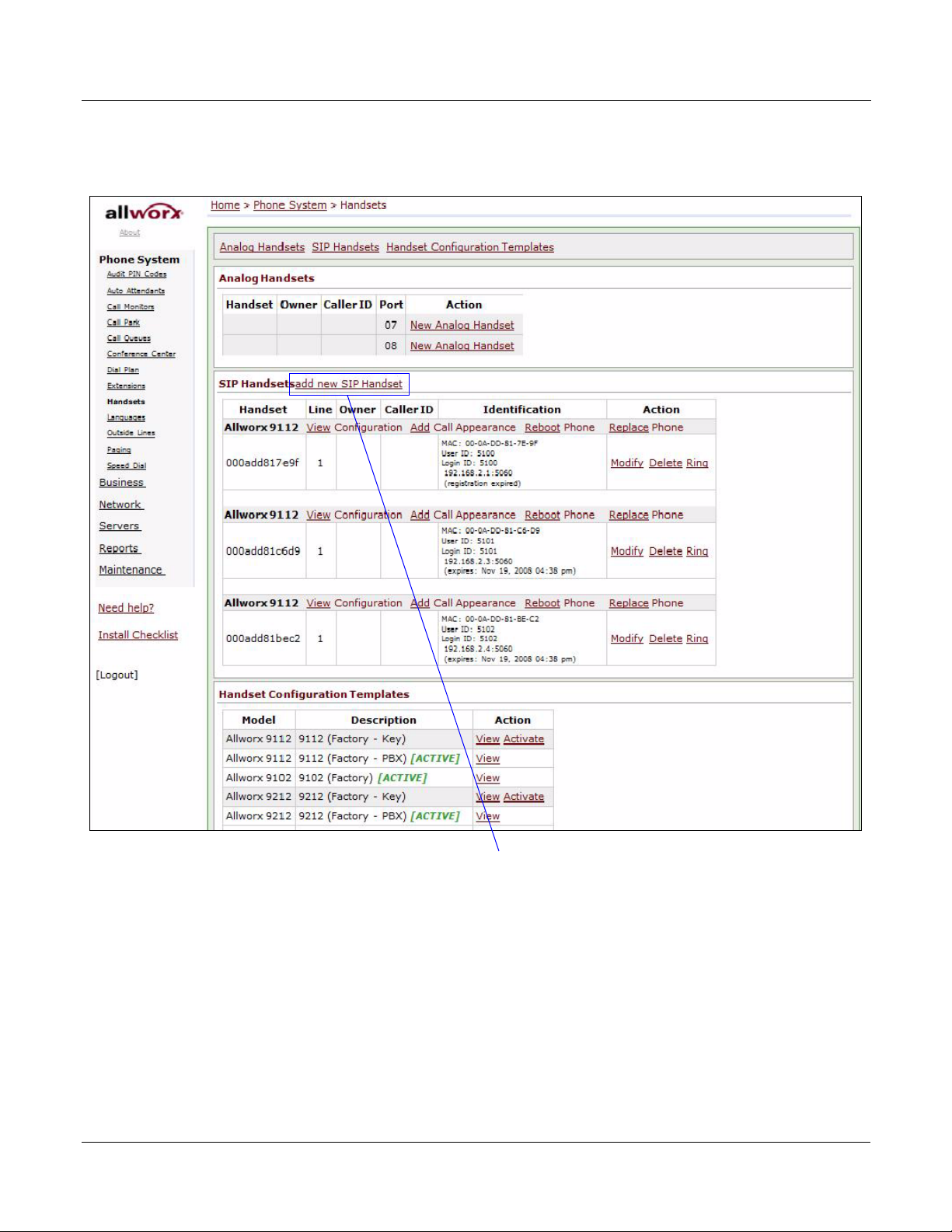
4. On the Handsets page, go to the SIP Handsets section and click on Add new SIP Handsets to
add new SIP Handset
go to the Add new SIP Handsets page.
Figure 4-4. Handset Page
6
Server Setup Guide 930249A CyberData Corporation
Page 7
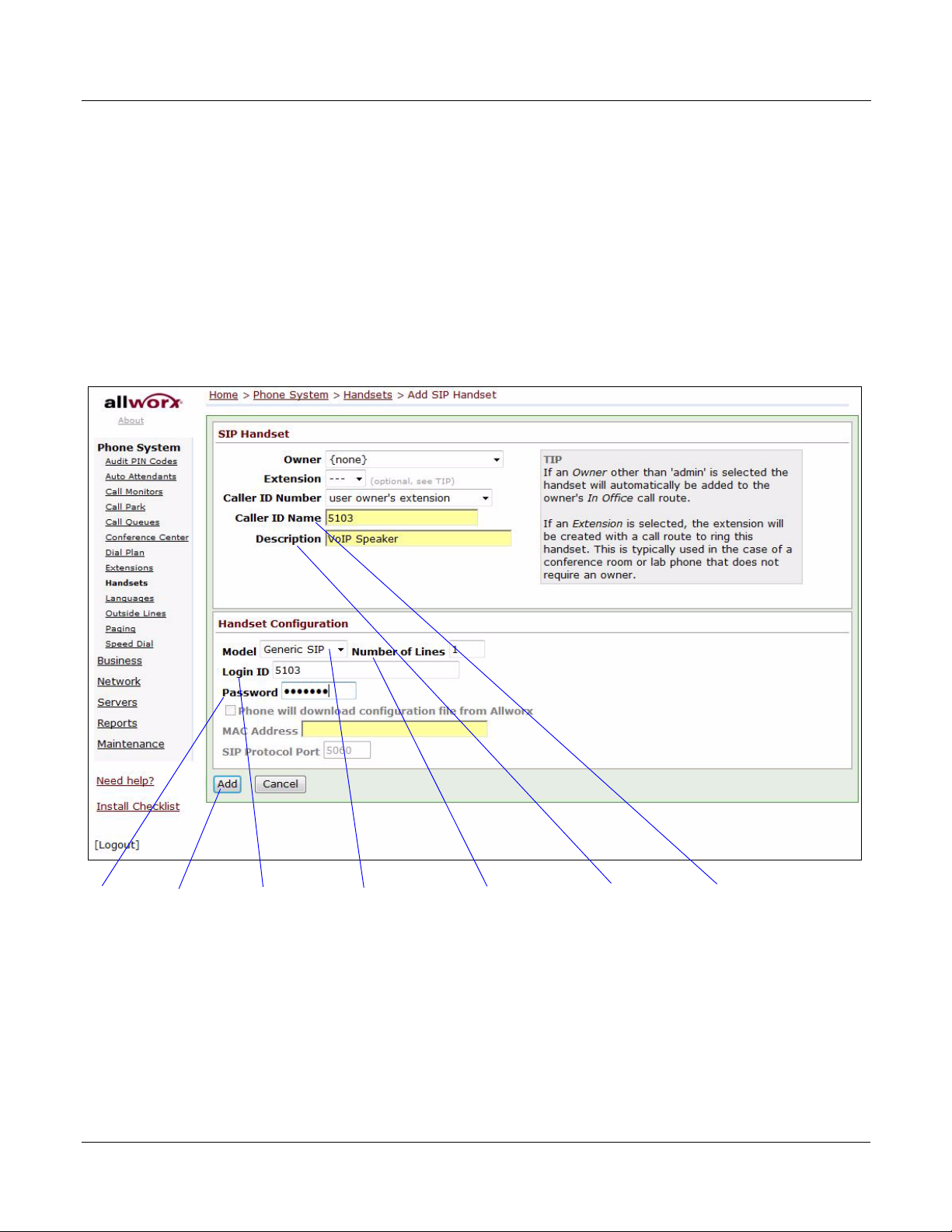
5. On the Add SIP Handsets page, enter the following information as shown in Figure 4-5:
Caller ID NameDescriptionModel Number of LinesLogin IDPassword Add
•Caller ID Name
•Description
•Model
• Number of Lines
•Login ID
• Password
7
Note The information that you en
In Figure 4-5, the speaker is set for extension 5103.
Figure 4-5. SIP Handset Add
ter must match the SIP information in the Ceiling Speaker.
Server Setup Guide 930249A CyberData Corporation
Page 8
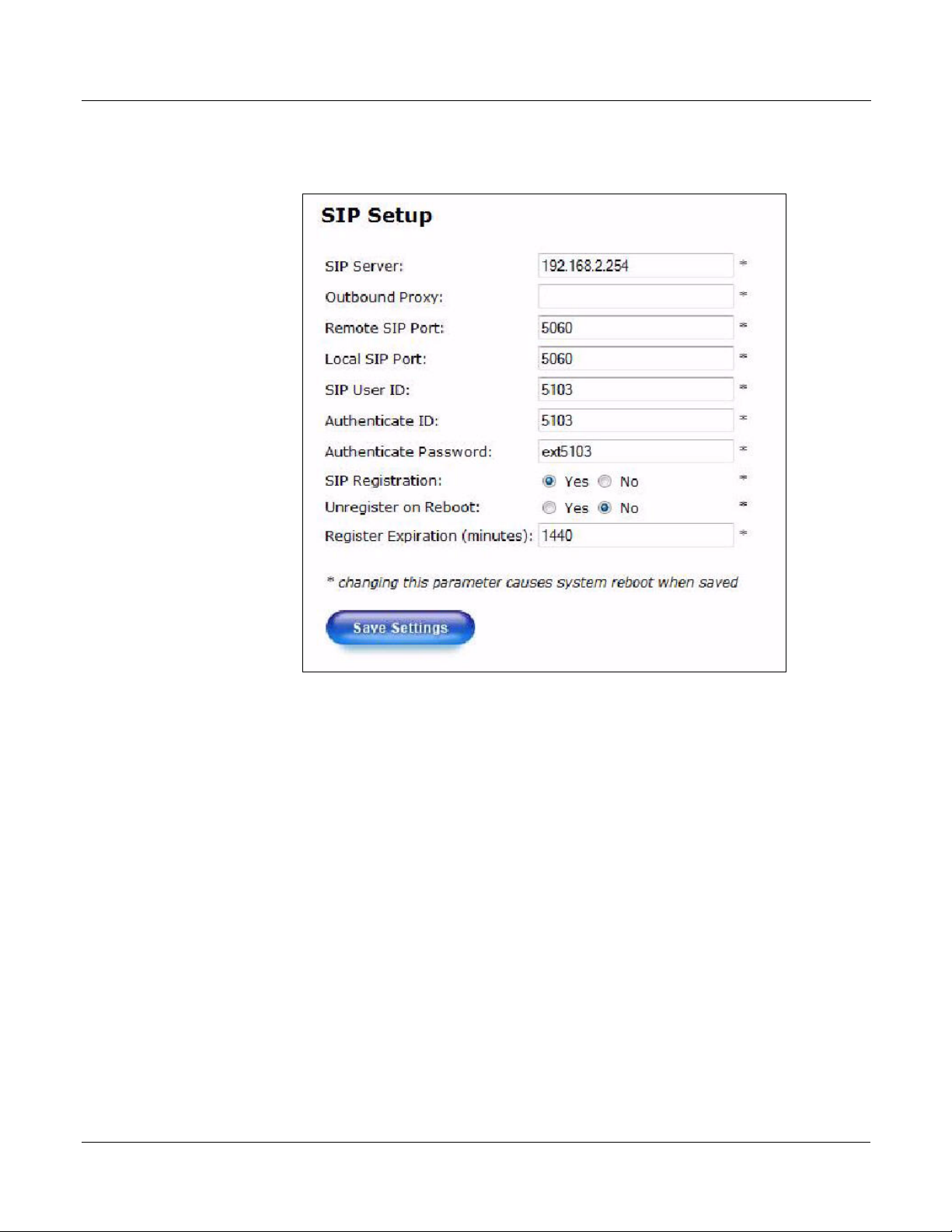
Note Figure 4-6 is an example of a CyberData VoIP Ceiling Speaker that is configured to
extension 5103.
Figure 4-6. Ceiling Speaker Configured to Extension 5103
8
6. Click Add
Server Setup Guide 930249A CyberData Corporation
to go back to the SIP Handsets page.
Page 9
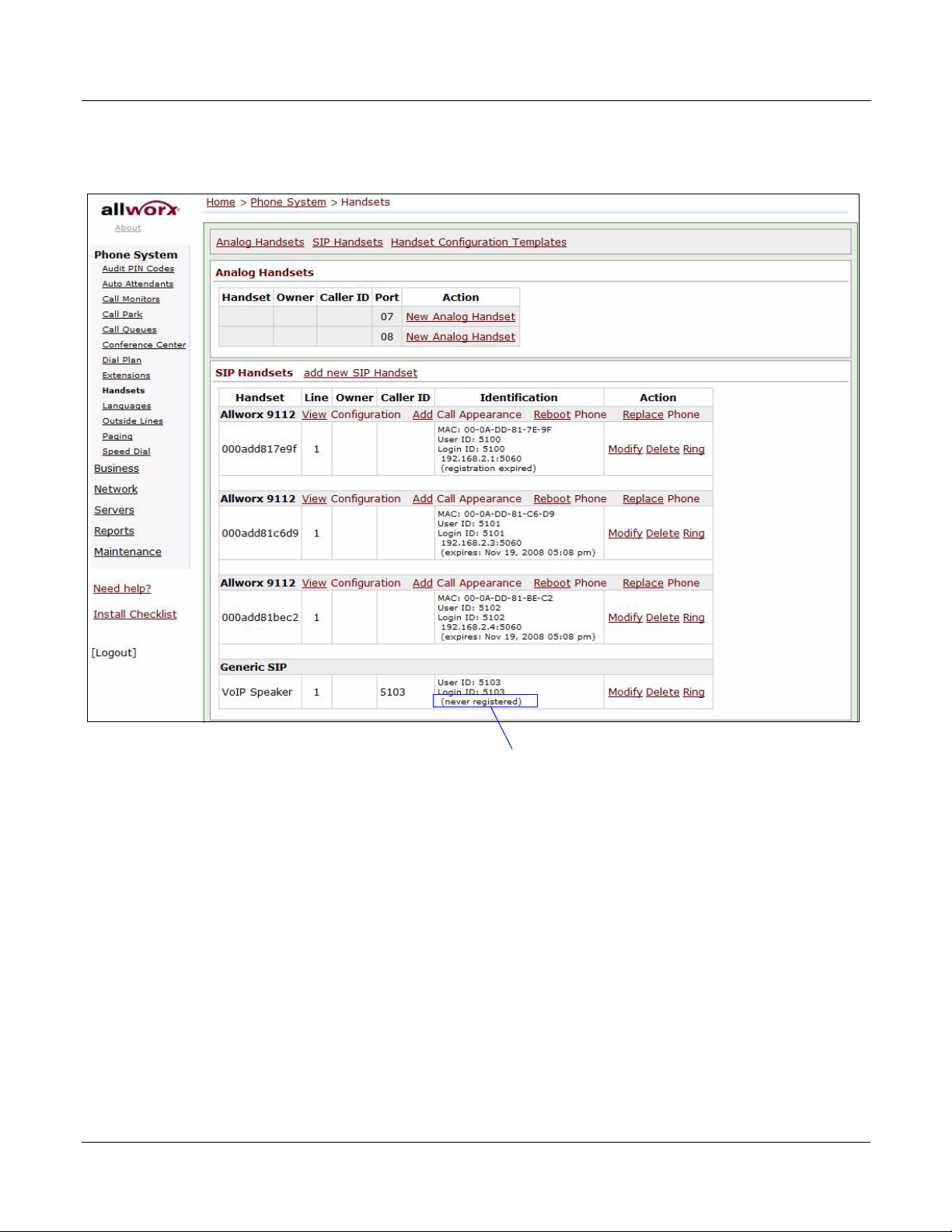
7. Upon returning to the SIP Handsets page, you will see (never registered) in the Identification
(never registered) in the Identification column
column of the Generic SIP section.
Figure 4-7. SIP Handset Never Registered
9
8. To register the speaker, you will need to reboot the speaker by logging into the CyberData
Configuration Home page.
Server Setup Guide 930249A CyberData Corporation
Page 10
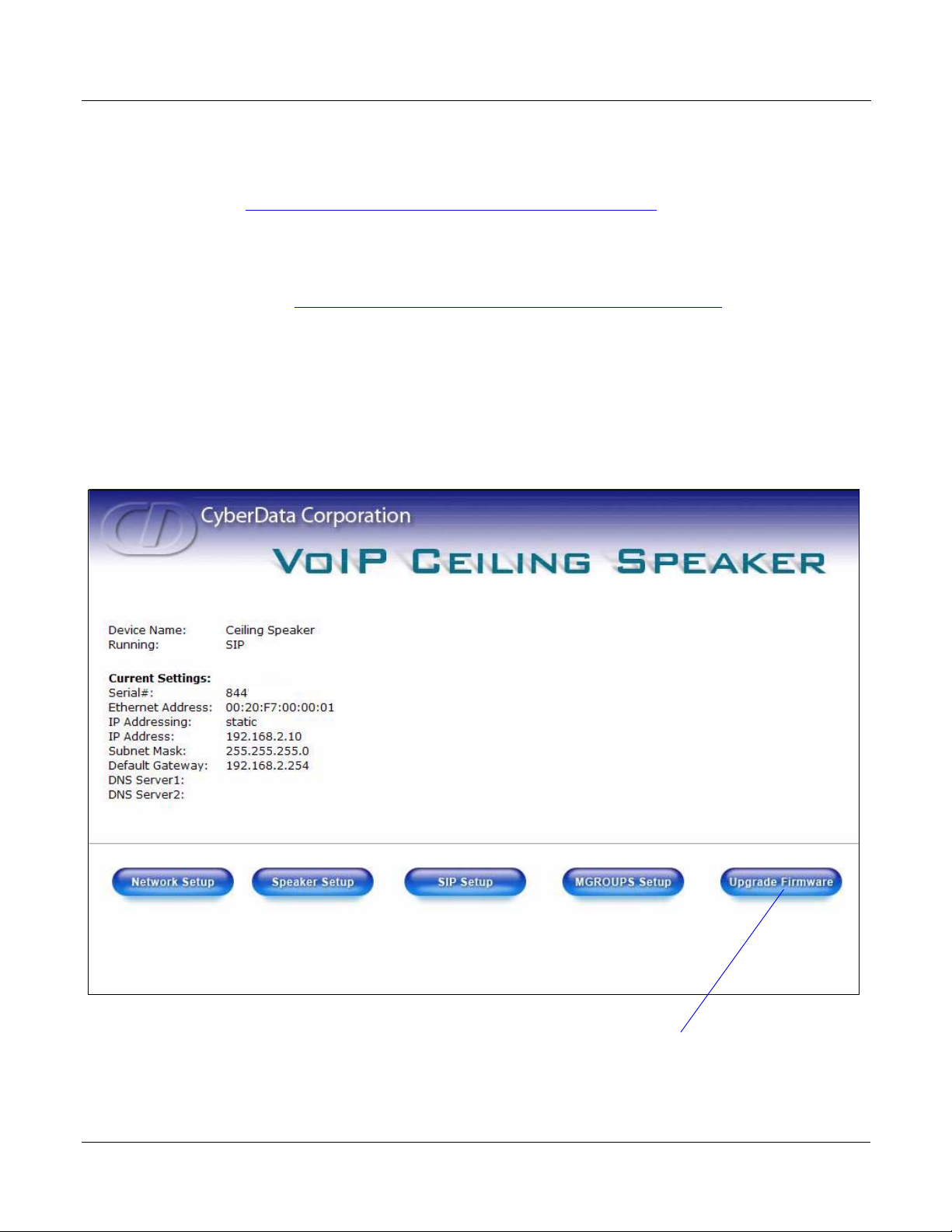
9. Log into the CyberData Configuration Home page (Figure 4-8) by pointing your browser to the
Upgrade Firmware
000000
speaker’s IP address.
For the initial configuration of the speaker, refer to the V
oIP Ceiling Speaker Operation Guide
which can be found at the following web address:
http://www.cyberdata.net/support/voip/ceilingspeaker.html
Note You may also download CyberData’s VoIP Discovery Utility program which allows you
to easily find and configure the default web address of the CyberData VoIP products.
CyberData’s VoIP Discovery Utility program is available at the following web address:
http://www.cyberdata.net/support/voip/discovery_utility.html
10. When prompted, enter the following Web Access Username and Web Access Password to
access the CyberData Configuration Home page (Figure 4-8):
Default Login:
Web Access Username: admin
mi
Web Access Password: ad
n
10
Figure 4-8. CyberData Conf
iguration Home Page
11. Click Up
Server Setup Guide 930249A CyberData Corporation
grade Firmware to open the Firmware Upgrade page.
Page 11
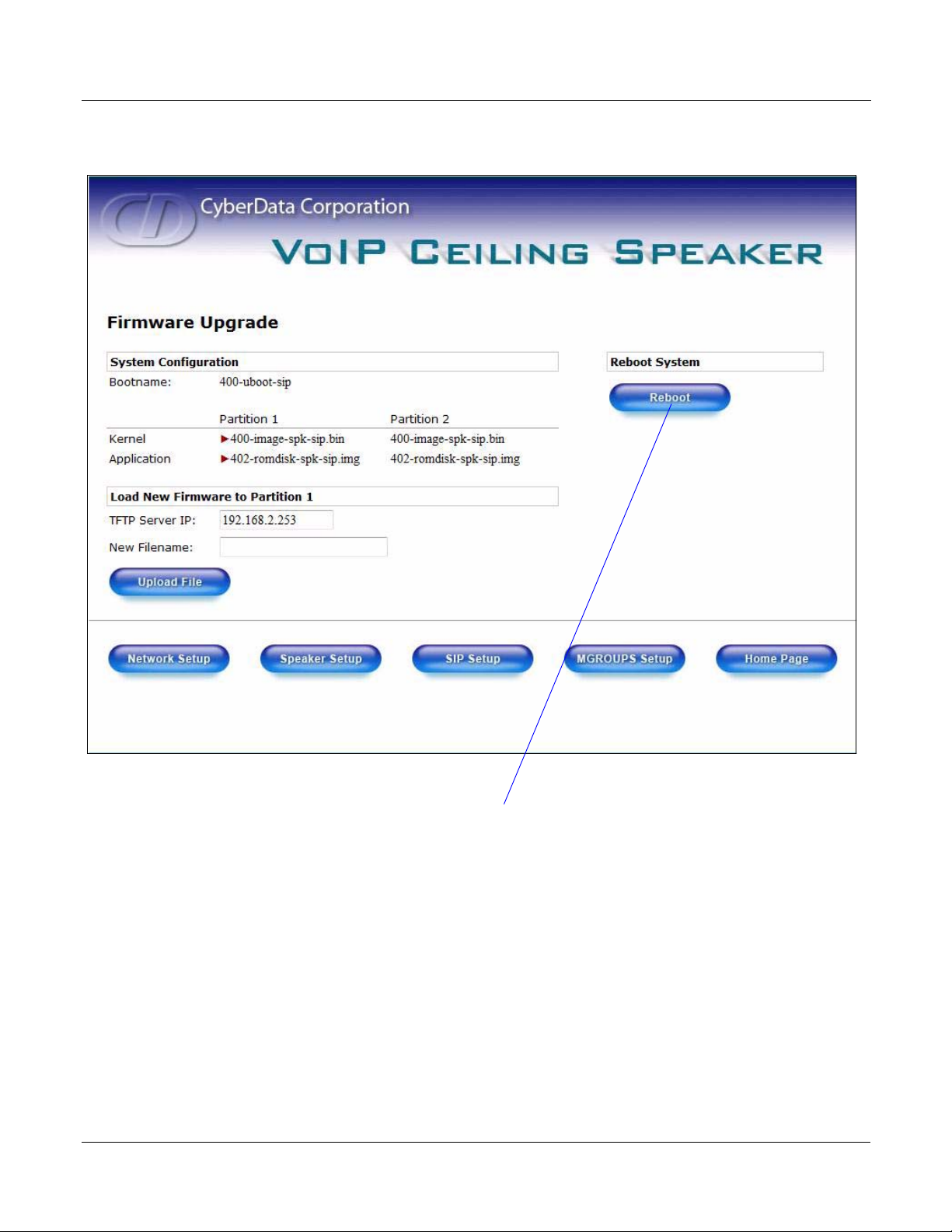
12. On the Upgrade Firmware page, click on Reboot.
Reboot
Figure 4-9. Reboot VoIP Speaker
11
Server Setup Guide 930249A CyberData Corporation
Page 12
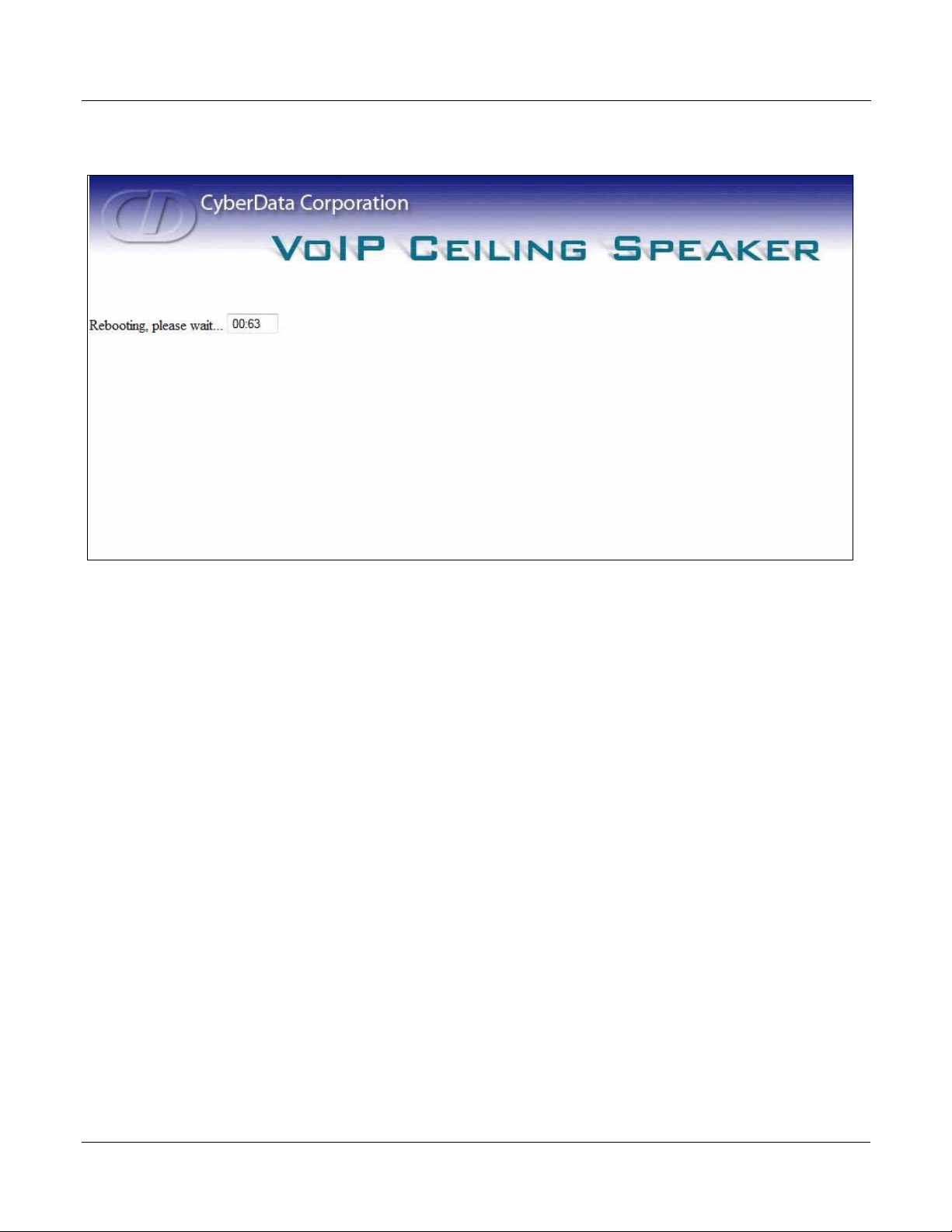
13. After clicking on Reboot, a reboot timer countdown will begin.
Figure 4-10. Speaker Reboot Timer
12
14. After the speaker reboots, the green Status LED
intervals to indicate normal operation.
Note If Yes is
selected for Speaker Beep After Initialization on the Speaker Setup page, you
will hear a tone after the initialization sequence is complete.
on the speaker will blink at one second
Server Setup Guide 930249A CyberData Corporation
Page 13
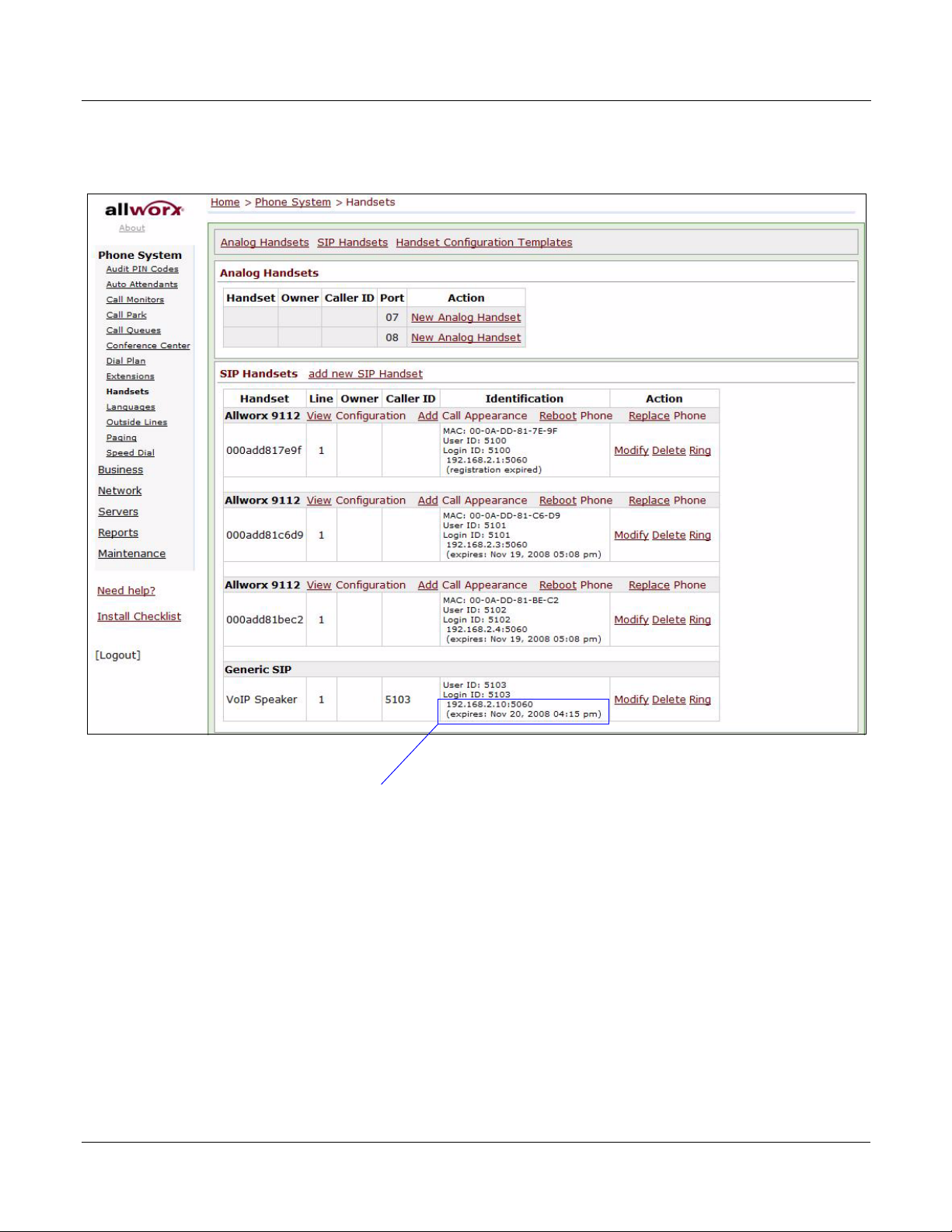
15. Refresh the SIP Handsets web page and verify that the speaker is registered. The Identification
Address and Port Number
column of the Generic SIP row shows the address and port that the speaker is using.
Figure 4-11. Successfully Registered Speaker
13
16. To test the speaker, pick up any phone that is configured to the Allworx system and call the
speaker’s extens
17. When a connection is established (as indicated by a beep),
ion number.
speak into the phone and verify that
you can hear your voice through the speaker.
Server Setup Guide 930249A CyberData Corporation
Page 14

14
CyberData Corporation 930249A Server Setup Guide
 Loading...