

Page 1

TM
TM
Cyber ExerCycle
Cyber ExerCycle
Cyber ExerCycleCyber ExerCycle
TMTM
Game Controller for Your Exercise Equipment
Game Controller for Your Exercise Equipment
Game Controller for Your Exercise EquipmentGame Controller for Your Exercise Equipment
USER GUIDE
Rev A.
Page 2

TABLE OF CONTENTS
TABLE OF CONTENTS
TABLE OF CONTENTSTABLE OF CONTENTS
1. CEC_KIT1 COMPONENTS ............................................................................................. 2
2. INSTALLING CYBER EXERCYCLE ON YOUR BIKE .................................................... 5
3. CONNECTING THE GAME CONTROLLER TO THE PC............................................ 3
4. INSTALLING AND RUNNING CYBER EXERCYCLE SETUP APPLICATION............ 8
5. INTERFACE DESCRIPTION - JOYSTICK MODE ...................................................... 11
6. INTERFACE DESCRIPTION - NETATHLON MODE ................................................ 13
7. INTERFACE DESCRIPTION - KEYBOARD MODE.................................................... 14
8. INTERFACE DESCRIPTION - KEYBOARD AND MOUSE MODE........................... 16
9. REQUIREMENTS............................................................................................................. 18
10. PRECAUTIONS ............................................................................................................... 19
11. TERMS AND CONDITIONS.......................................................................................... 20
12. RETURN AND WARRANTY.......................................................................................... 20
1
Page 3
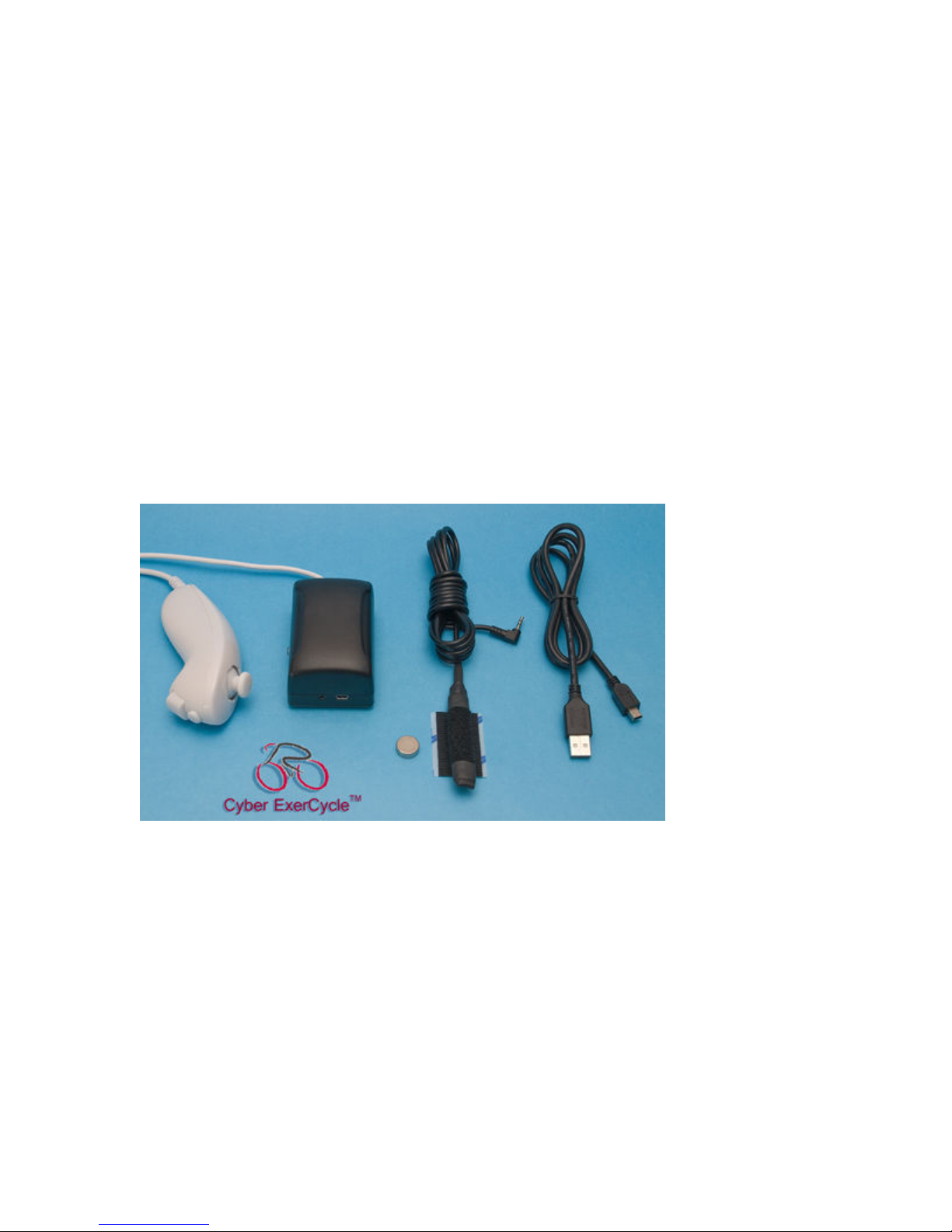
1. CEC_KIT1 COMPONENTS
Cyber ExerCycle Kit contains the following components:
1. Nunchuk style joystick with 2 ft cable.
2. Speed sensor with 6ft cable and a small magnet. Attaches to the bike using
velcro.
3. Controller box. Contains sensor connector and mini USB.
4. 3 ft USB cable. A USB extension cable may be added (not included with the kit).
5. User Guide that includes a quick start guide and installation instructions
(electronic download, PDF format).
6. Setup utility. Windows program used to configure different operating modes
(electronic download).
Notes:
Colors may not be exactly as shown.
Excessive USB extension cabling may cause incorrect operation.
2
Page 4
2. INSTALLING CYBER EXERCYCLE ON YOUR BIKE
Connect Cyber ExerCycle to your exercise equipment in three steps:
1. Attach the sensor and the magnet to the pedals of your bike
2. Mount the controller to the frame of your bike.
3. Plug the controller into a USB port of your computer.
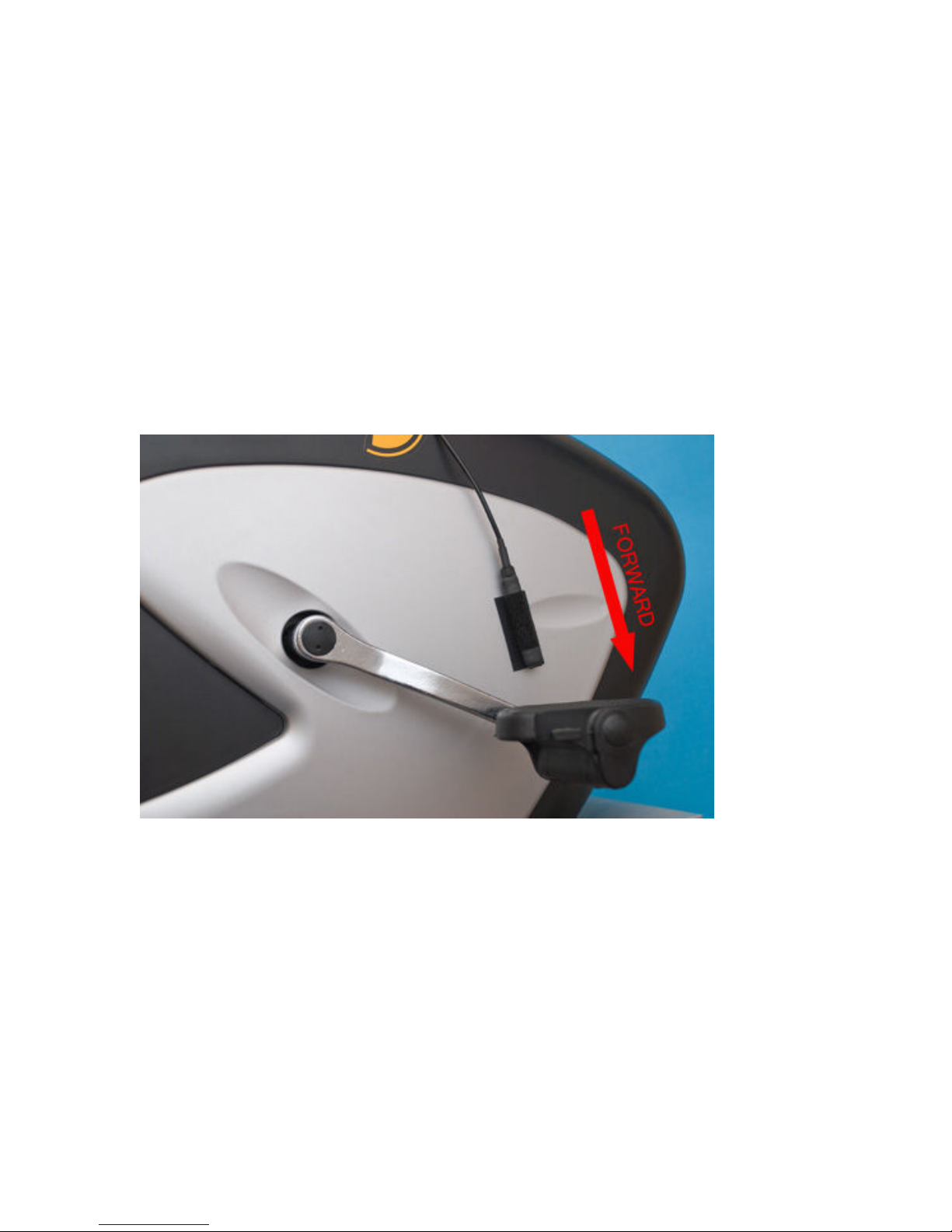
Attach the sensor to the stationary parts of the bike. Run the sensor cable up the frame.
Wrap the cable around the frame if required, so that the cable is not loose. Ensure that
the cable will not get tangled in the pedals. Note the orientation of the sensor to get
correct forward pedalling direction.
Mount the magnet so that it does not interfere with the sensor (ensure that the
minimum distance between the sensor and the magnet is between 0.25" to 1").
If the crank arm is made our of steel, the magnet may simply stick to the metal.
Optionally use double sided tape to attach the magnet.
As you move the pedals the magnet should come close to the sensor once per full
rotation on the crank set.
3
Page 5
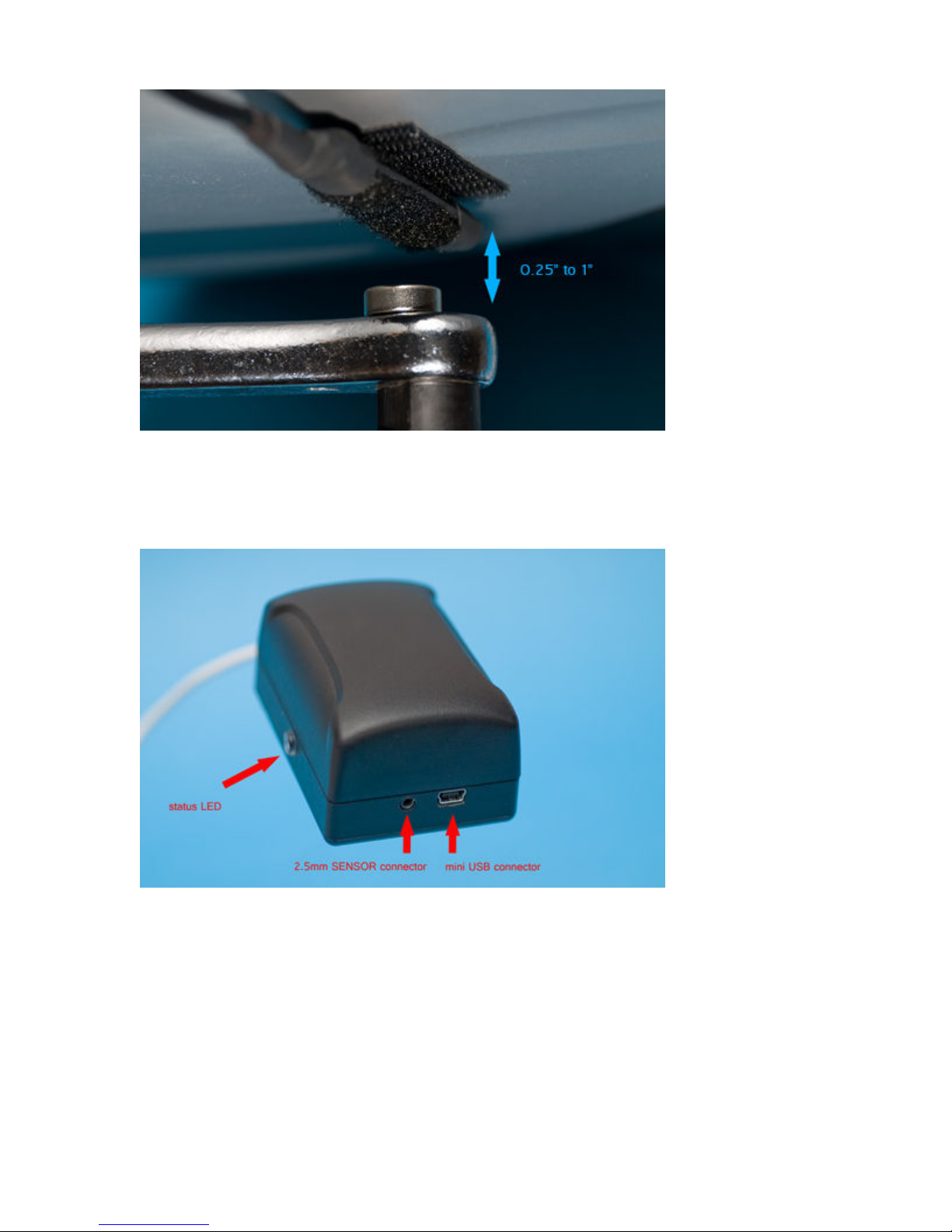
Mount the controller box to the frame of your bike using Velcro. The controller box
should typically be located close to the bike handles (makes handling the joystick easier)
The sensor attaches to the controller box using 2.5mm plug.
PC connects to the controller box through the mini USB connector.
If you have any questions regarding the installation, please email us at
[email protected]
4
Page 6
3. CONNECTING THE CONTROLLER TO THE PC
Connect the game controller to your PC using the supplied USB cable. The controller
operates as a standard HID device, therefore does not require any special drivers. The
controller requires USB port 1.0 or later.
After connecting the controller to your PC, Windows will automatically install all the
required drivers. When running the status LED on the side of the controller box will turn
on green.
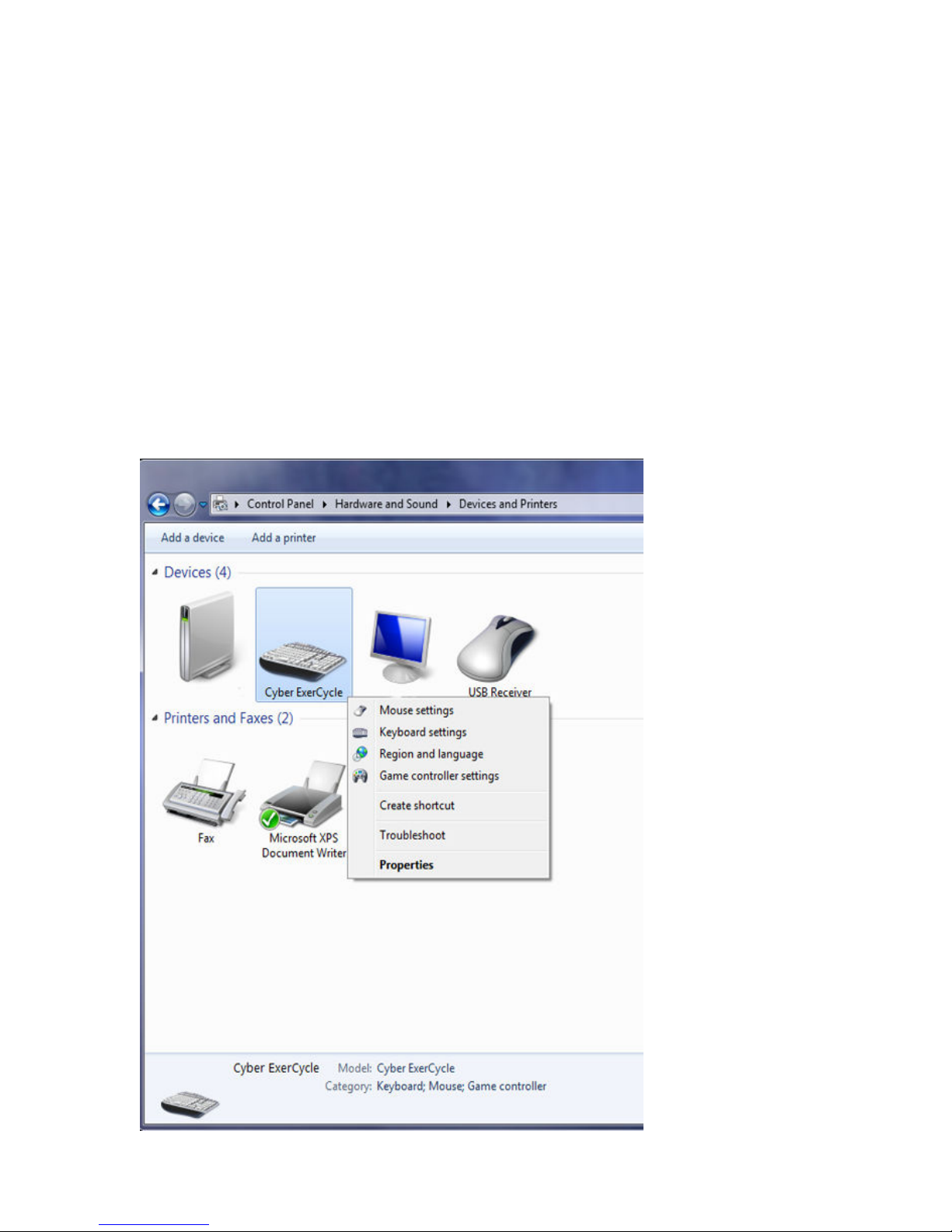
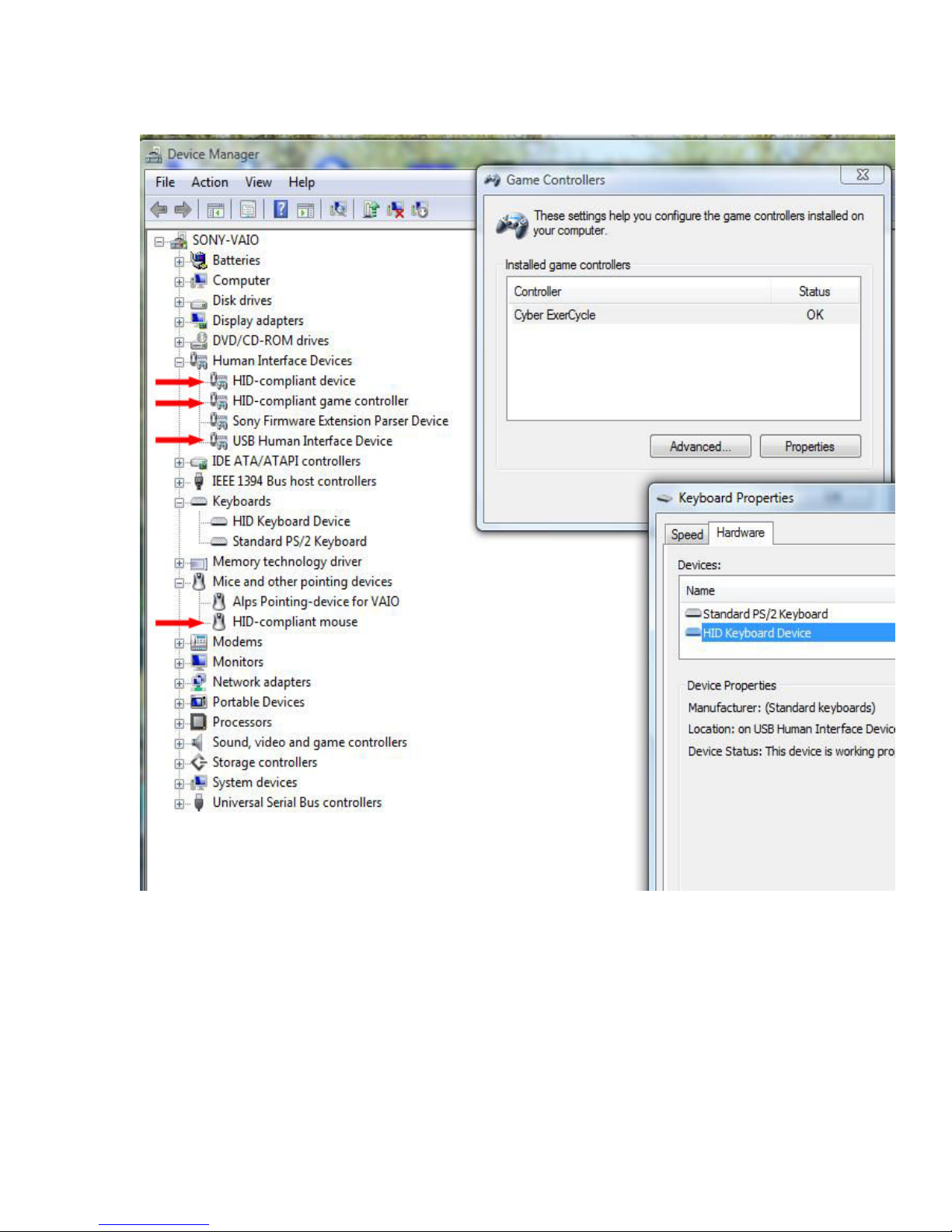
Confirm the installation of the device by opening the control panel and viewing installed
devices. The controller emulates a keyboard, joystick and a mouse.
Windows 7:
5
Page 7
Windows Vista:
6
Page 8
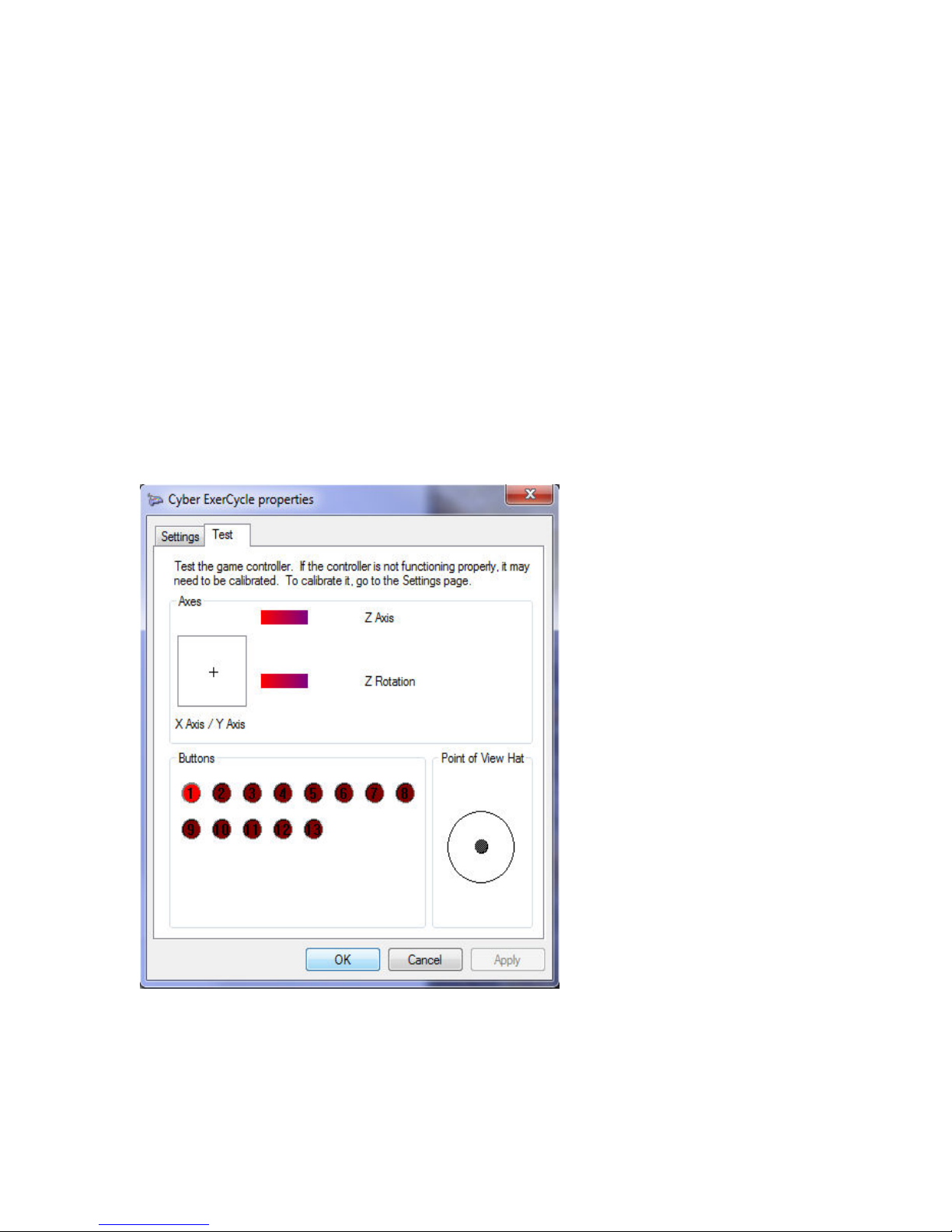
After mounting all the components and connecting the controller to the PC, verify the
operation of Cyber ExerCycle:
• Pressing "Z" button on the joystick should make the LED on the controller turn
solid green.
• Moving the magnet close to the sensor forces the status LED to turn sold green.
As you move the magnet away, the status LED should start blinking again.
• Open Game Controller Properties and try different controller inputs such as
pressing buttons, shaking the joystick. When pedaling you should see the Y Axis
of the display move. (make sure that the controller is setup for Joystick Mode see next section)
7
Page 9
4. INSTALLING AND RUNNING CYBER EXERCYCLE
SETUP APPLICATION
Cyber ExerCycle can be configured for one of 4 modes.
1. Joystick Mode
Joystick Mode. The controller emulates joystick.
Joystick ModeJoystick Mode
2. NetAthlon Mode
NetAthlon Mode. The controller emulates joystick and mouse.
NetAthlon ModeNetAthlon Mode
3. Keyboard Mode
Keyboard Mode. The controller emulates joystick.
Keyboard ModeKeyboard Mode
4. Keyboard and Mouse Mode
Keyboard and Mouse Mode. The controller emulates keyboard and mouse.
Keyboard and Mouse ModeKeyboard and Mouse Mode
The controller allows you to configure pedaling intensity. This determines on how fast
you need to pedal to move your character or a vehicle on the screen. The settings range
from very easy (40 RPM) to very hard (185 RPM).
Once configured, the controller will remember your selections even if the controller is
connected to another PC.
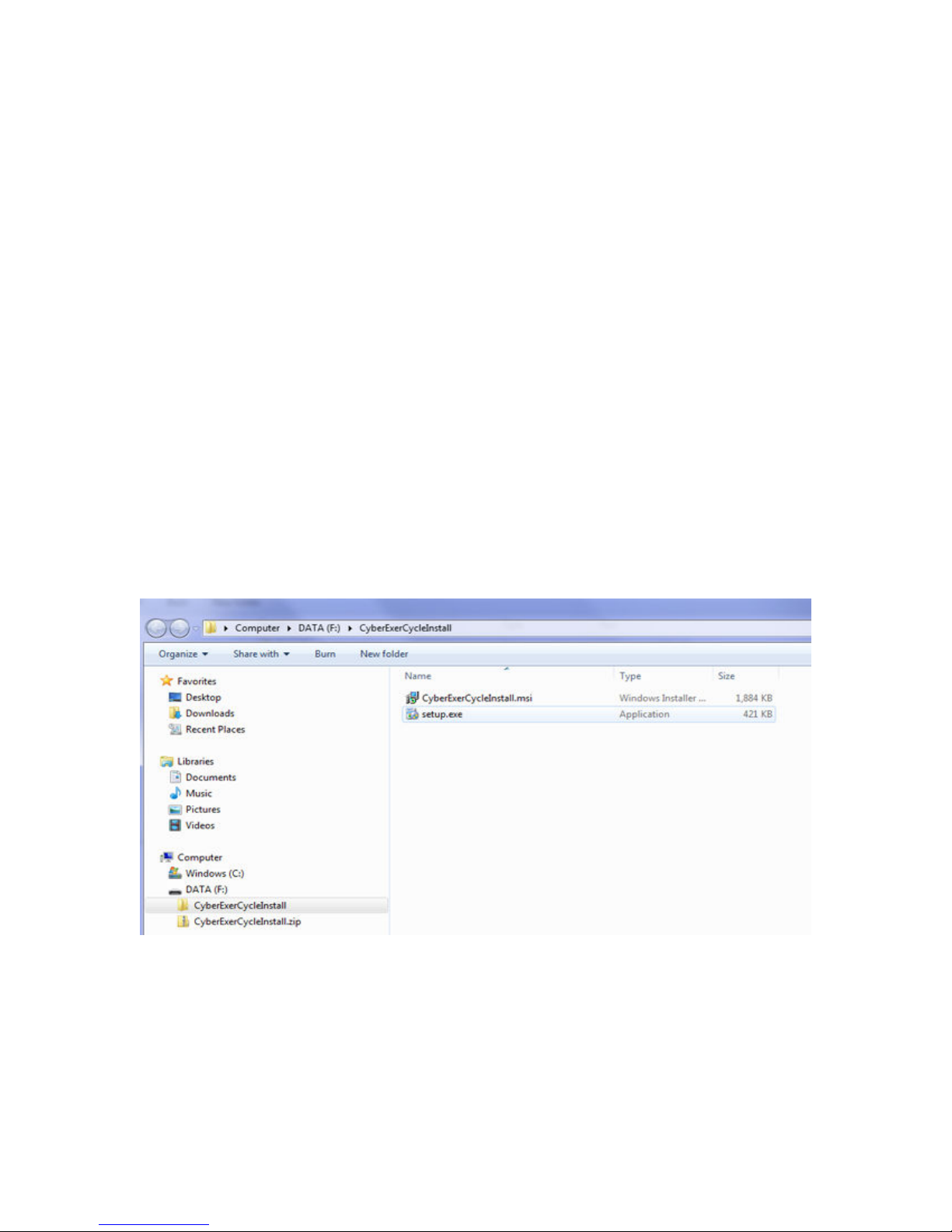
Once you download the file. Unzip it into a temporary folder and run the setup file.
8
Page 10
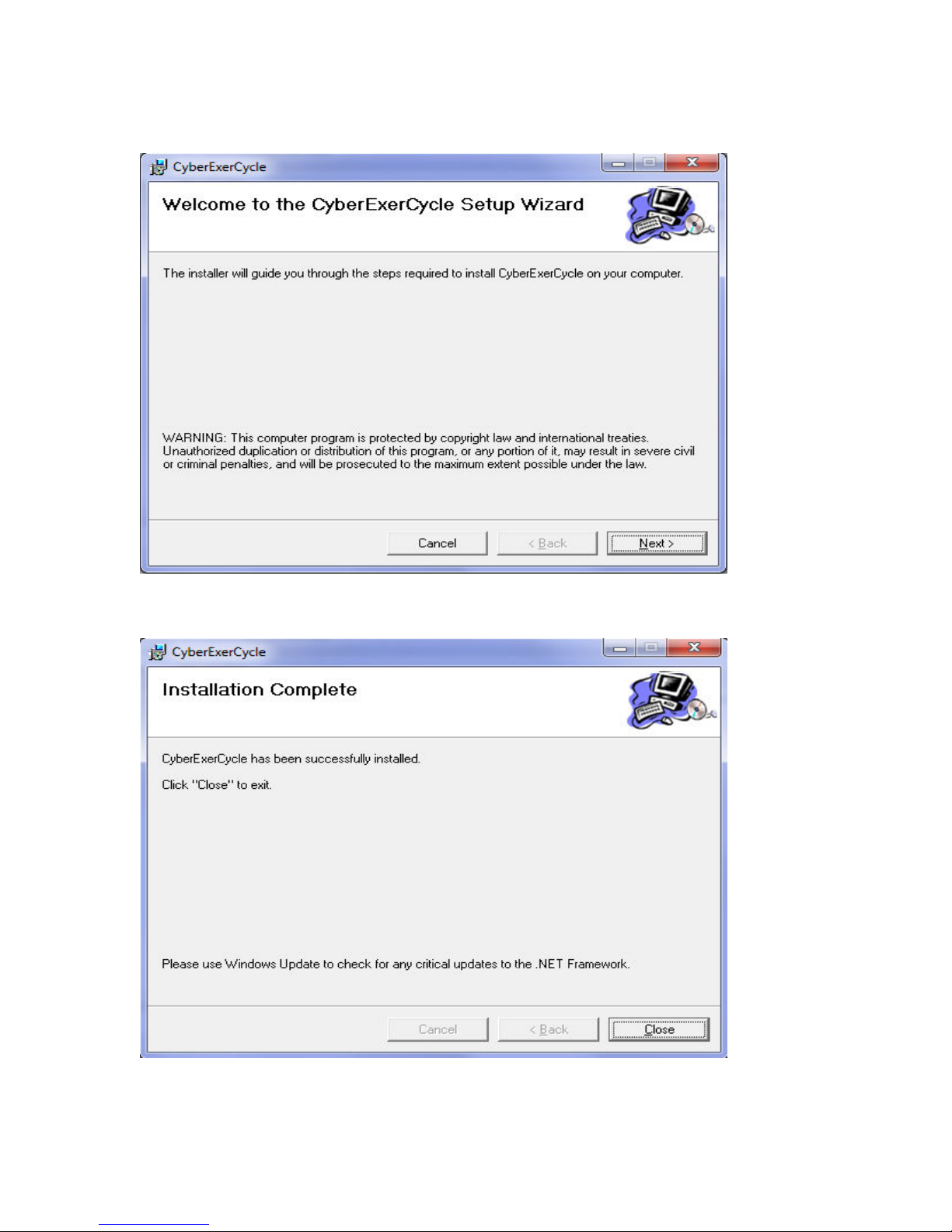
Follow installation instructions of the setup file:
Press next to continue.
9
Page 11
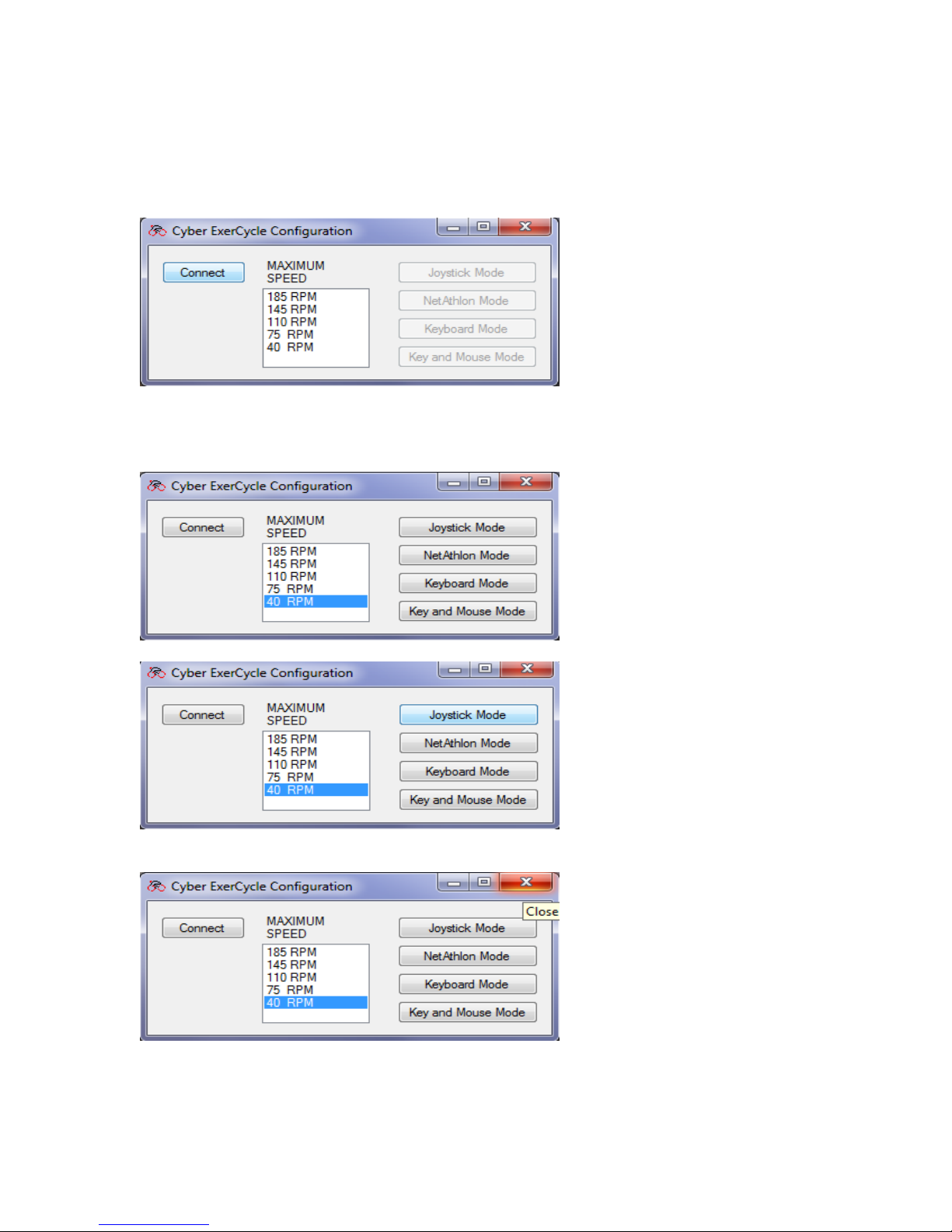
Once installed, you can locate the application in CyberExerCycle folder
(on Windows 7, START button -> ALL Programs -> CyberExerCycle)
Run the application. You will see the following screen. Note that the buttons on the right
side are grayed out.
Connect the controller to the USB port and press "Connect" button. Set the maximum
pedaling speed and select the operation mode by simply clicking on one of the mode
buttons:
Finish by closing the application:
10
Page 12
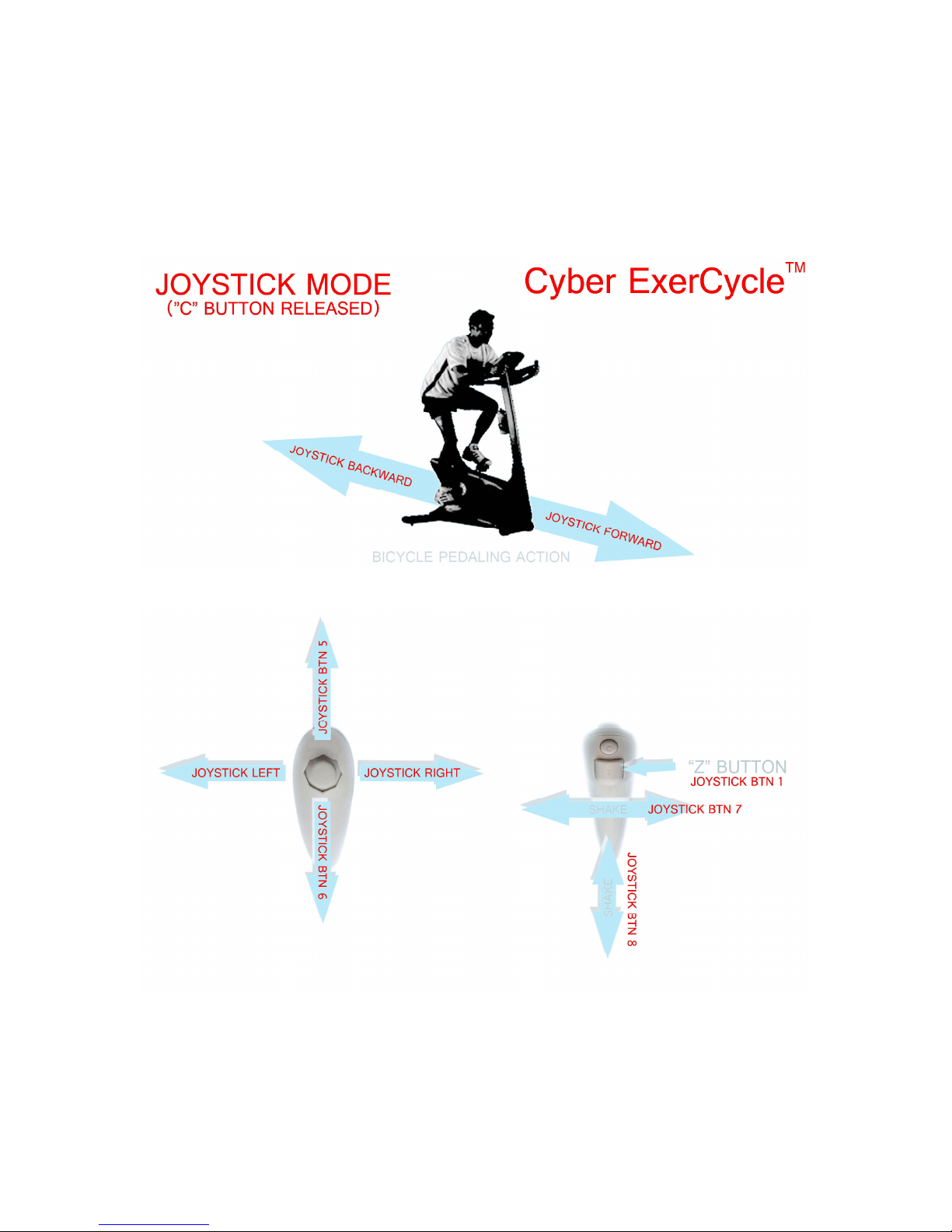
5. INTERFACE DESCRIPTION - JOYSTICK MODE
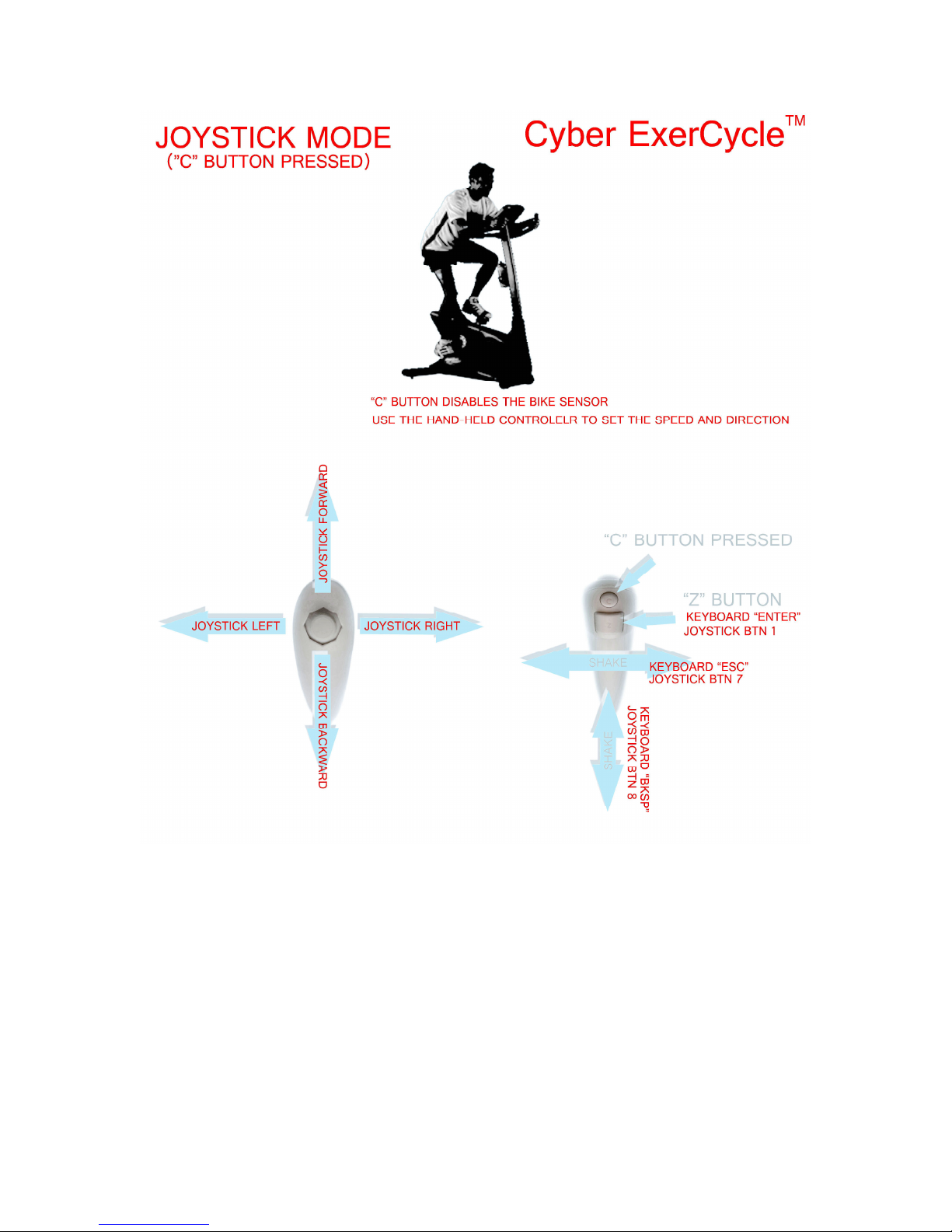
The controller emulates joystick. This mode is used for most car racing games.
11
Page 13
12
Page 14
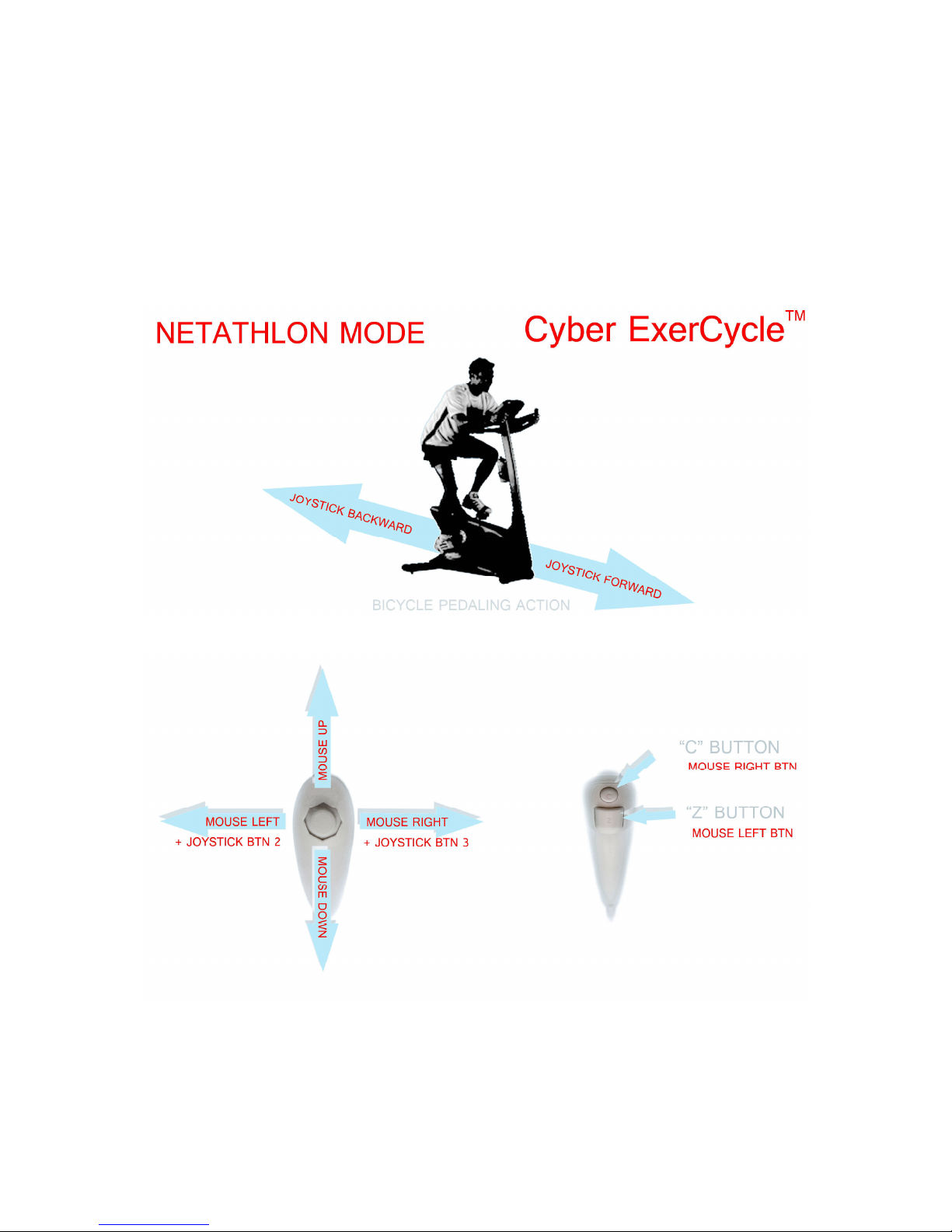
6. INTERFACE DESCRIPTION - NETATHLON MODE
The controller emulates joystick and mouse. The interface has been specifically designed
to play NetAthlon bike racing game. Joystick is used for actual racing and mouse
interface is used for game setup.
13
Page 15
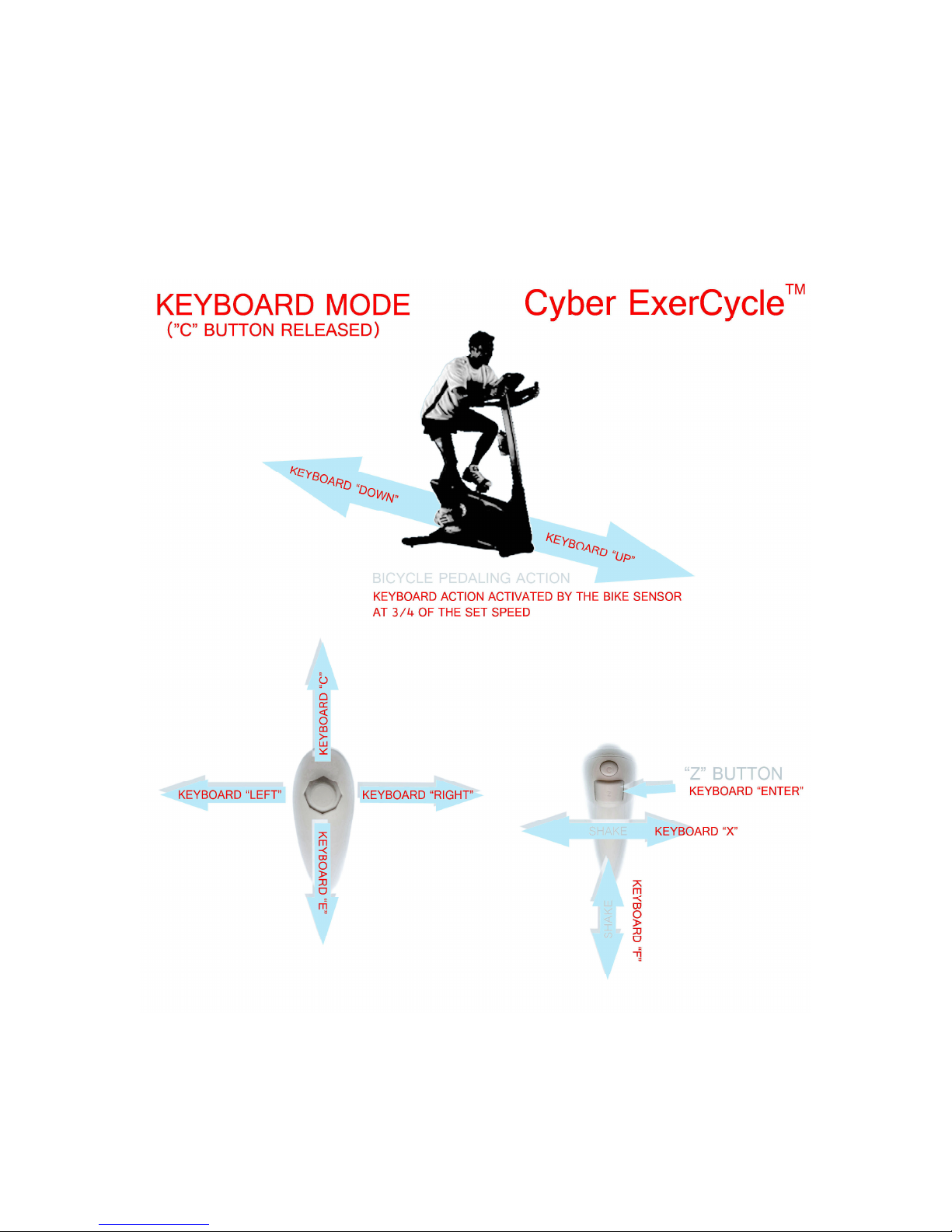
7. INTERFACE DESCRIPTION - KEYBOARD MODE
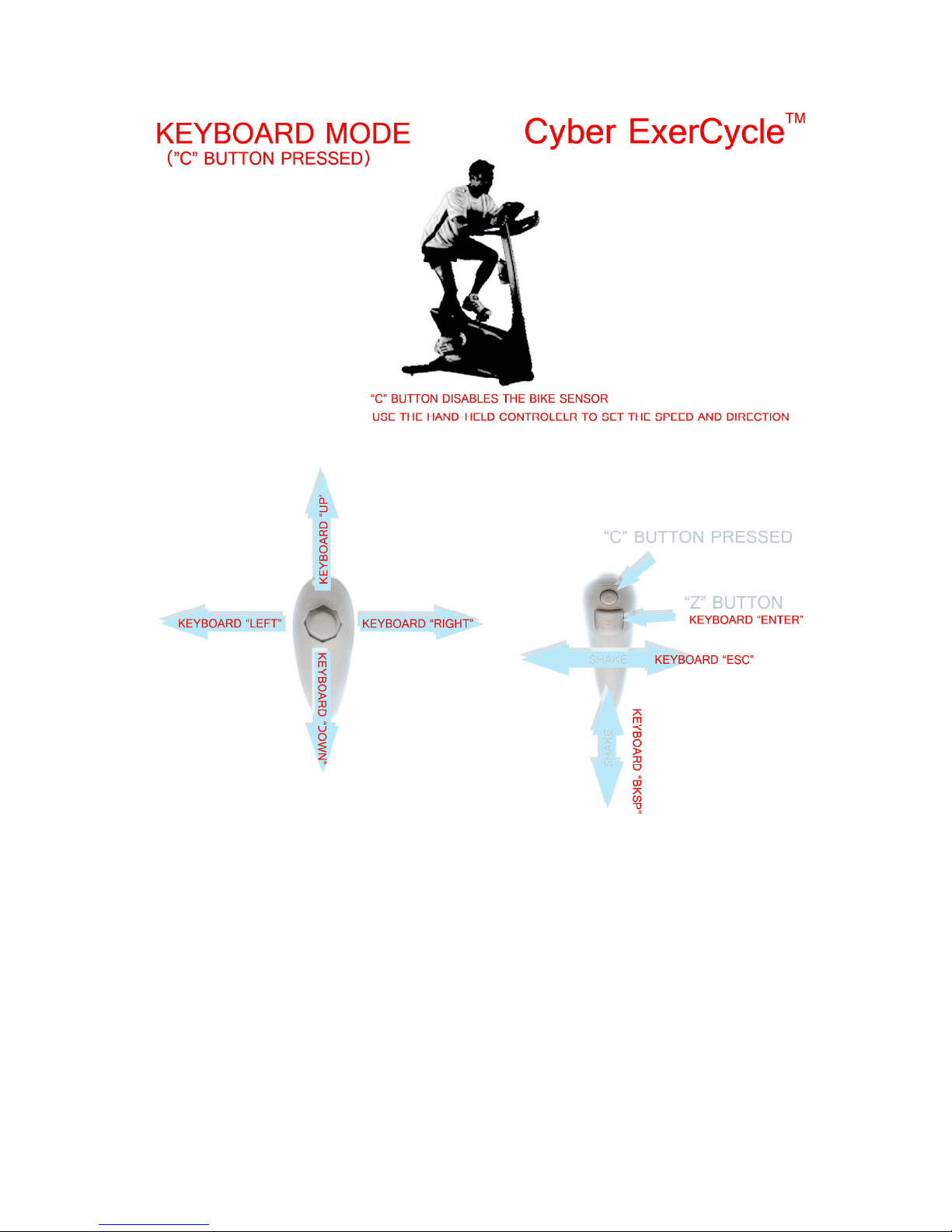
All controller actions translate to button presses such as UP. DOWN, LEFT and RIGHT
keys. Use this mode for some racing games and such games as Second Life.
14
Page 16
15
Page 17
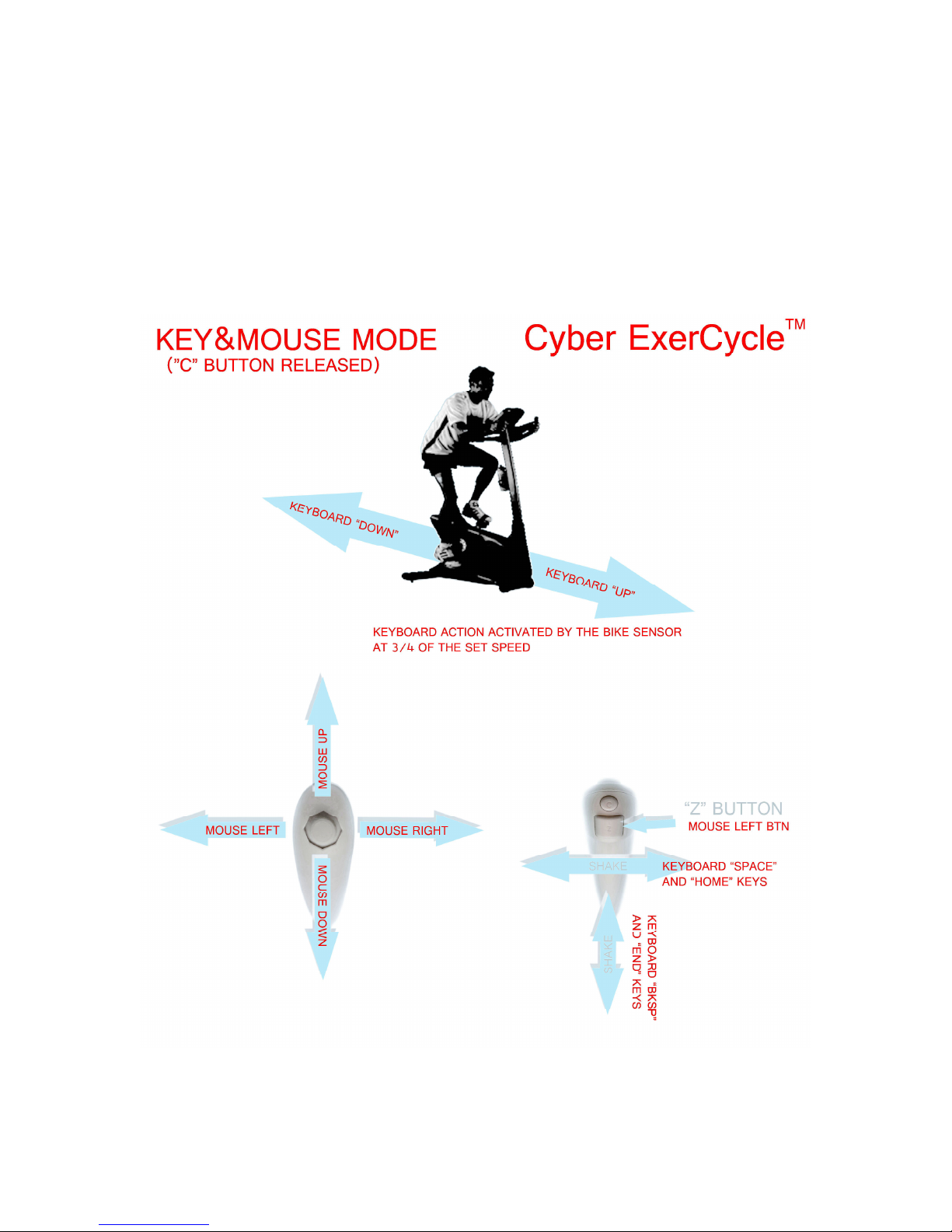
8. INTERFACE DESCRIPTION - KEYBOARD AND MOUSE
MODE
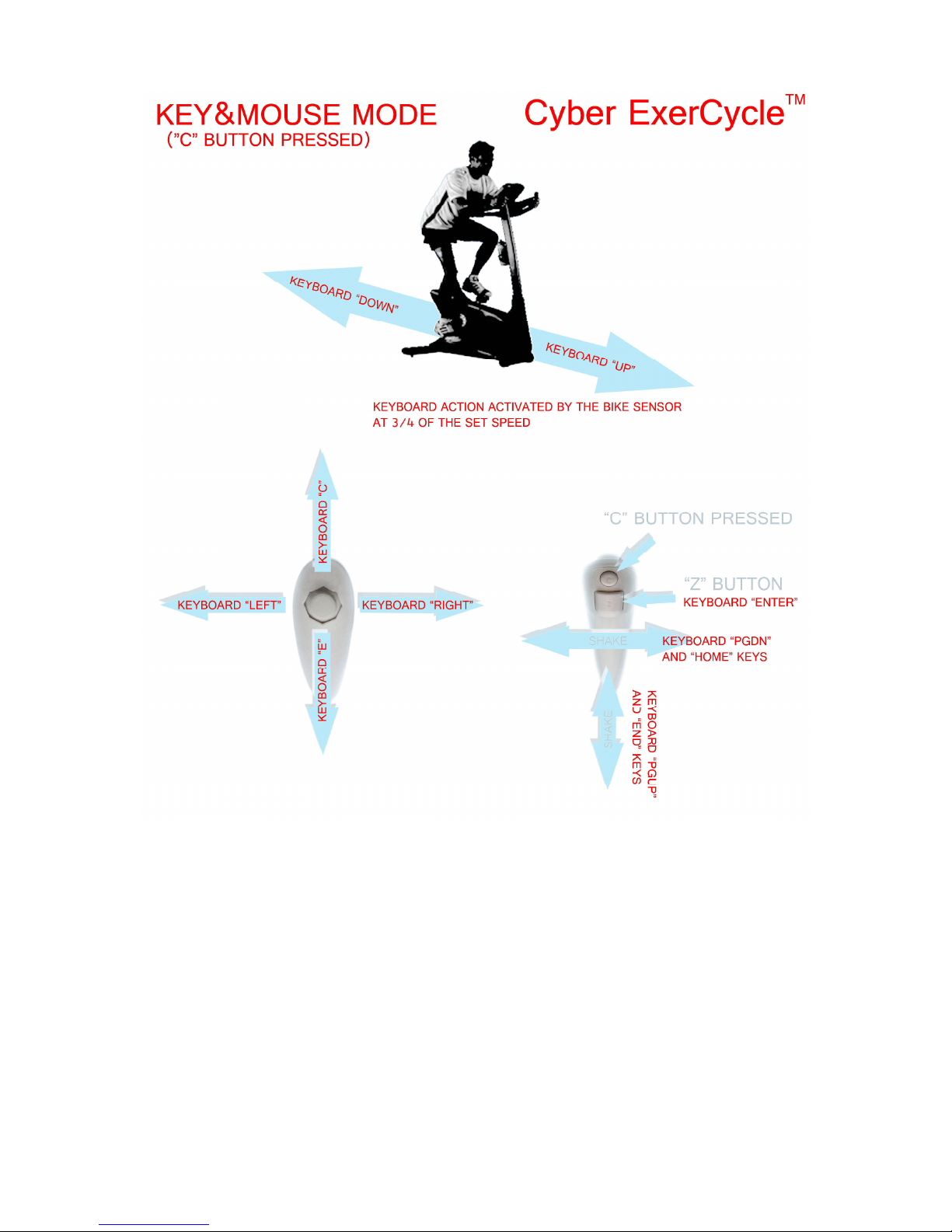
The controller emulates keyboard and mouse. This mode is used for such games as
Oblivion, where you use keys to move a character but direction control is mostly done
using a mouse.
16
Page 18
17
Page 19

9. REQUIREMENTS
The controller and the software is compatible with the following operating systems:
Windows XP
Windows Vista
Windows 7
In-game configuration may be required. A simple utility may need to be installed on
Windows (uses .Net framework 2) computer to configure the controller.
Please confirm that your PC meets minimum requirements of the games you wish to
play.
Many of the games provide a free demo download, allowing you to evaluate the game
and your computer performance. Please contact respective game manufacturer for game
support.
18
Page 20

10. PRECAUTIONS
Some people may have seizures or blackouts triggered by light flashes or patterns, such
as while watching TV or playing video games, even if they have never had a seizure
before. Anyone who has had a seizure, loss of awareness, or other symptom linked to
an epileptic condition should consult a doctor before playing a video game.
Parents should watch when their children play video games.
Stop playing and consult a doctor if you or your child have any of the following
symptoms:
• Convulsions
• Altered Vision
• Eye or Muscle Twitching
• Loss of Awareness
• Disorientation
• Involuntary Movements
Always maintain a good grip on the exercise equipment to ensure that you do not fall
during exercise. Limit the game play to avoid repetitive motions injuries and eyestrain.
All exercise comes with the some precautions. If you're currently inactive, it is always a
good idea to consult with your doctor before jumping into an exercise program. This is
especially true if you're overweight, have a medical condition, or are getting up there in
the years.
Also remember to warm up thoroughly before each workout. Your risk of injury drops
dramatically if you spend 5 minutes warming up and lightly stretching before getting
down to the serious workout.
For more information, please consult user guide your exercise equipment. Also, please
follow all safety precautions as indicated by the manufacturer of the exercise
equipment.
19
Page 21

11. TERMS AND CONDITIONS
Refer to http://www.cyberbiking.com/terms_and_cond.html for full details on terms and
conditions policy.
12. RETURN AND WARRANTY
Refer to http://www.cyberbiking.com/warranty.html for full details on returns and
warranty policy.
20
Page 22

Copyright Universal Timer Ltd. © 2010 - 2011
An electronic version of this manual in PDF format can be downloaded from:
http://www.cyberbiking.com/download/CyberExerCycle_RevA.pdf
Setup application for the controller (for windows) can be downloaded from:
http://www.cyberbiking.com/download/CyberExerCycleInstall.zip
21
 Loading...