

Page 1
G L A N C E Scale Kale
User Manual
Page 2
1
Things to note
Bare Foot
Hard Surface
App
Web
• Use Glance Scale with bare
foot, otherwise the scale
cannot measure the fitness
info accurately
• Place Glance Scale on a
hard, flat surface during
use, e.g. on the floor.
•
Avoid placing Glance Scale
on soft surface, e.g. carpet.
• Glance scale App is available
in iOS and Android
•
Search “Glance Scale” on
App Store or Google Play
•
Find out more on P.7
• You can view your weight and
health info on Glance Cloud
•
Link:
www.fitglance.com/mycloud
Page 3

2
Contents
What’s in the box------------------------------------------3
Know your Scale-------------------------------------------4
Insert Batteries---------------------------------------------5
Place the Scale---------------------------------------------6
Download App---------------------------------------------7
Set up App--------------------------------------------------8
Know the App----------------------------------------------9
Use the Scale---------------------------------------------13
Glance Cloud----------------------------------------------16
Error massages-------------------------------------------17
Specifications---------------------------------------------18
FAQ--------------------------------------------------------19
Warning----------------------------------------------------20
Ensure Accuracy------------------------------------------20
Care and maintenance-----------------------------------20
Page 4
3
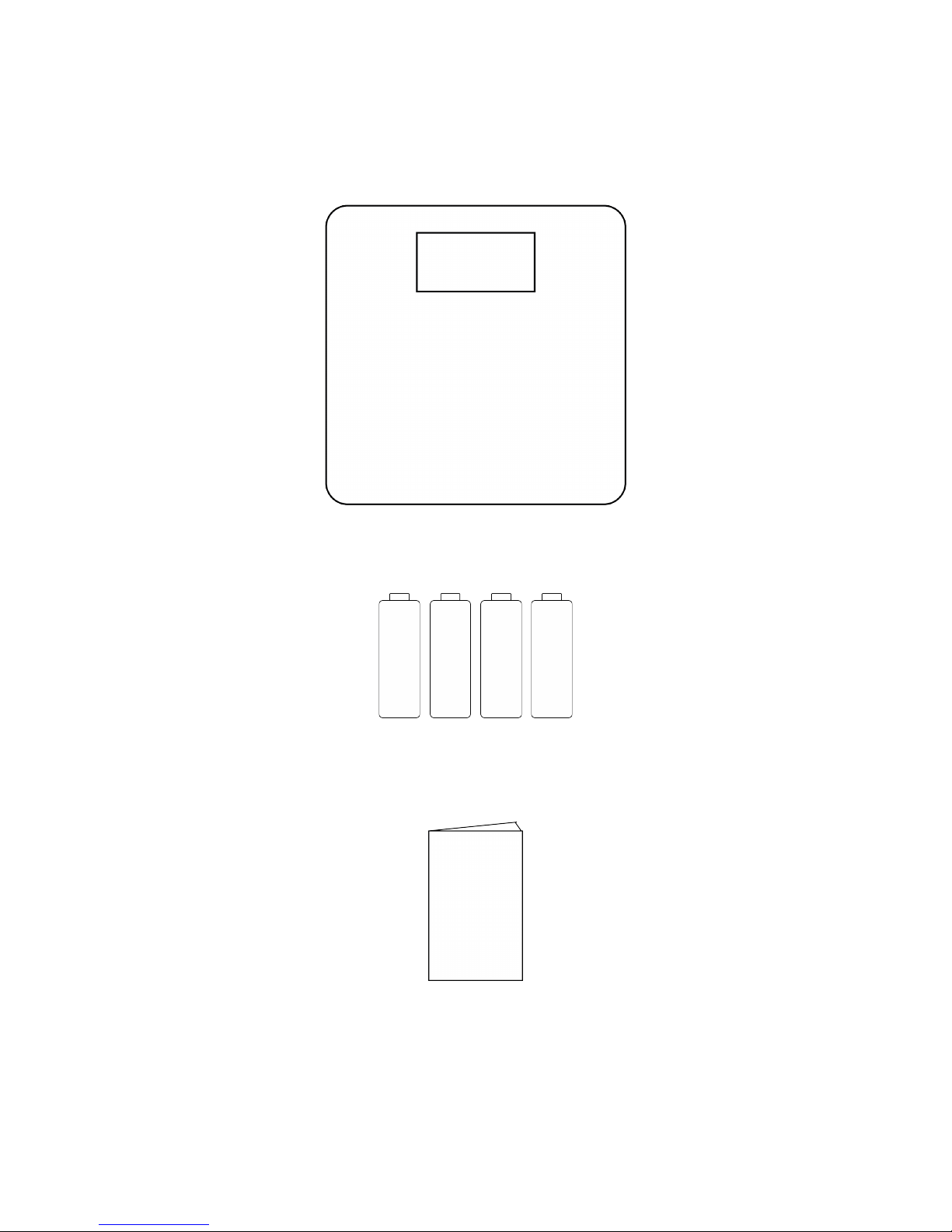
What’s in the box
Glance Scale
AAA Battery x4
Quick Start Guide
Page 5
4
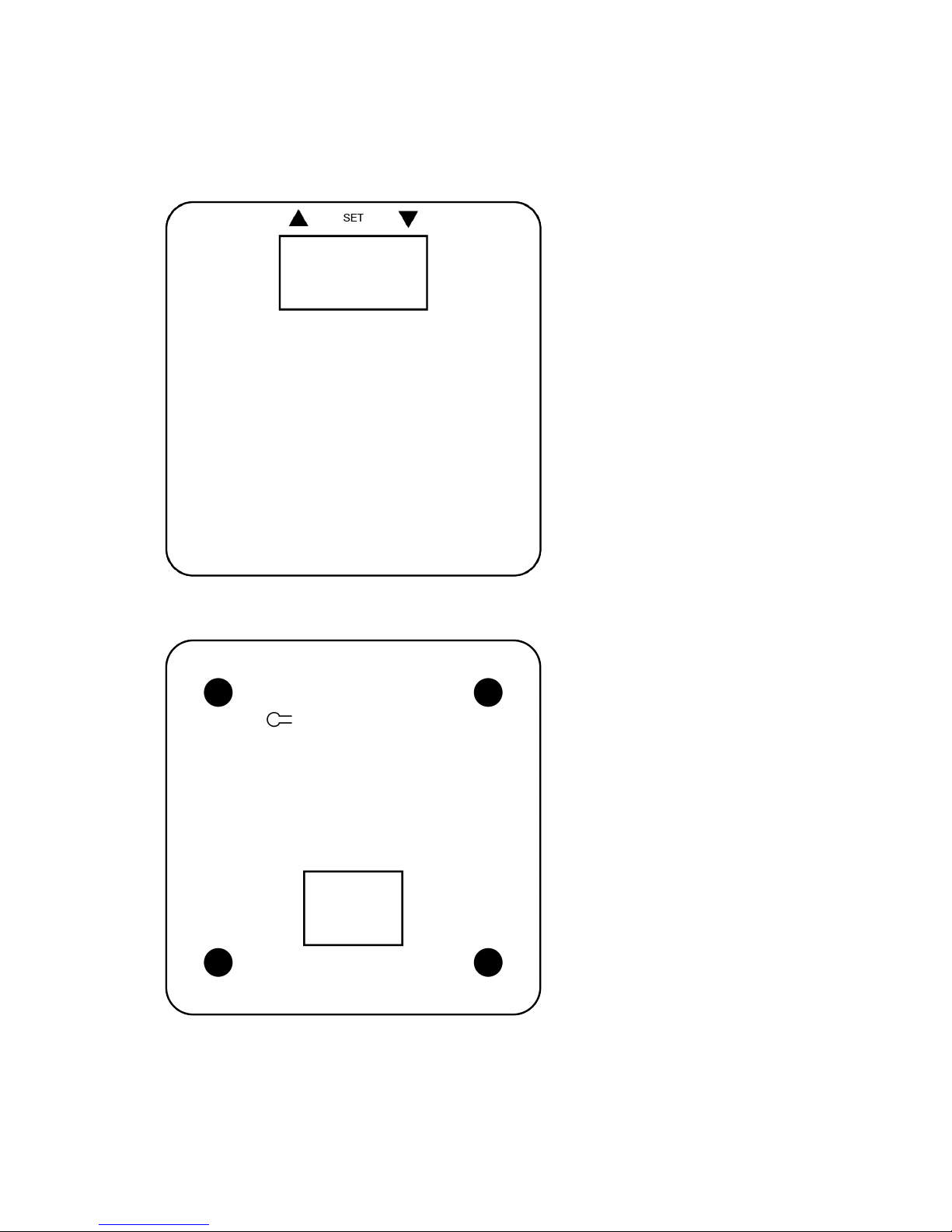
Know your Scale
Front:
Back:
① ② ④ ⑤
①%Up,%Down%and%Set%buttons%
%
②%LED%Display
③Battery%door%
%
④%Unit%button%
%
⑤%Weight%sensors
③
⑤ ⑤ ⑤
Page 6
5
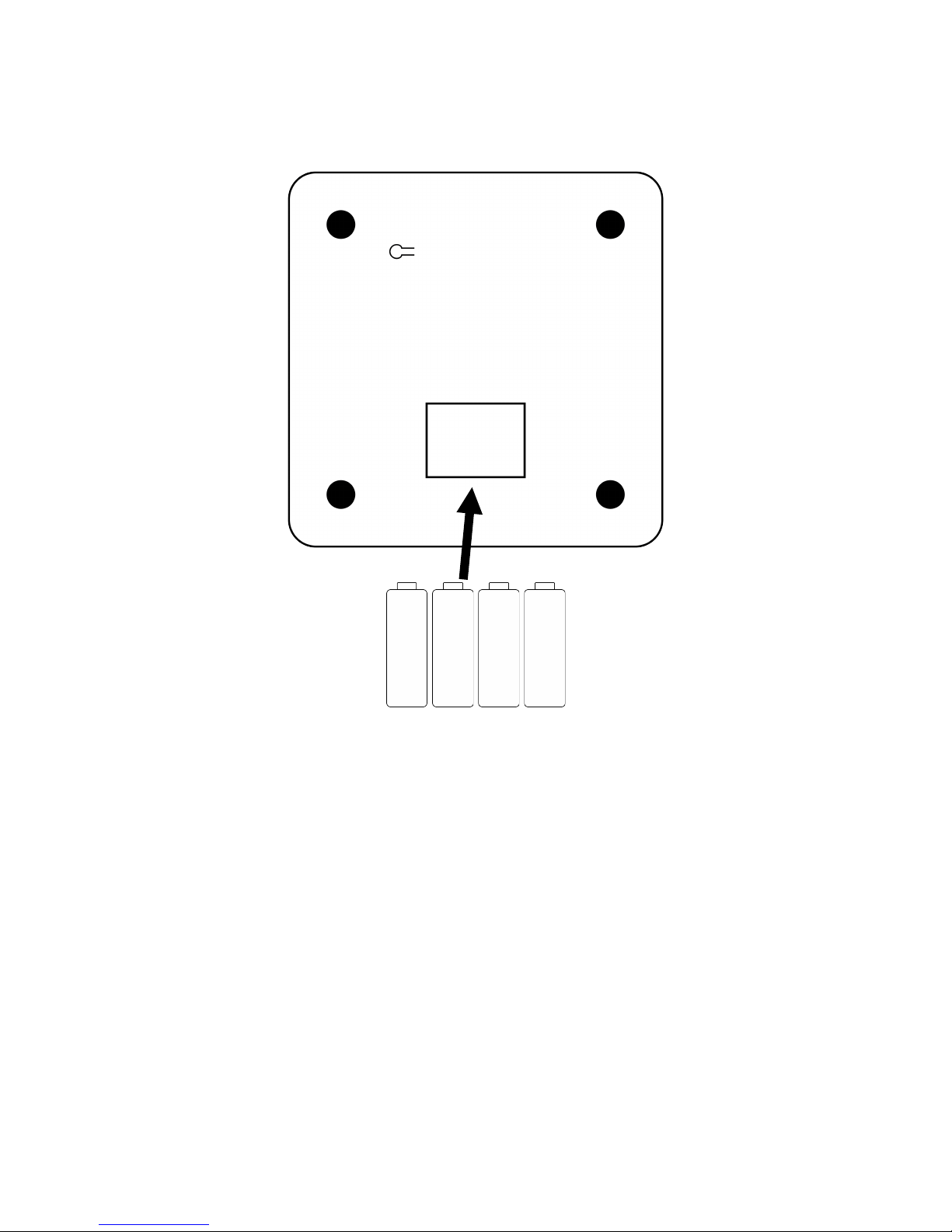
Insert Batteries
- 4 AAA batteries are included in the package.
- Open the battery door on the back of the Scale.
- Insert 4 batteries with correct orientation.
Page 7
6
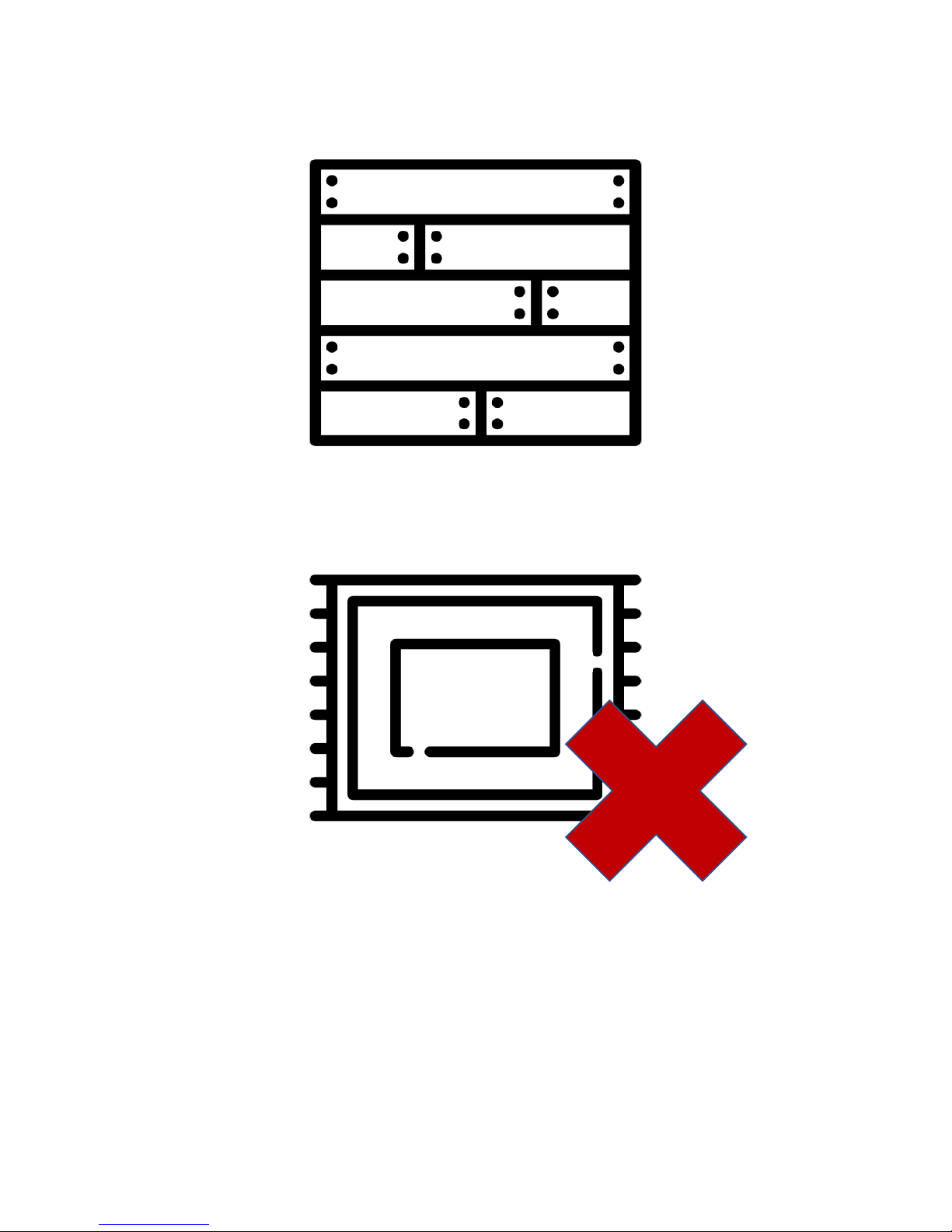
Place the Scale
- Place Glance Scale on a hard and flat surface
- e.g. on the floor
- Avoid placing Glance Scale on soft surface
- e.g. carpet
Page 8
7
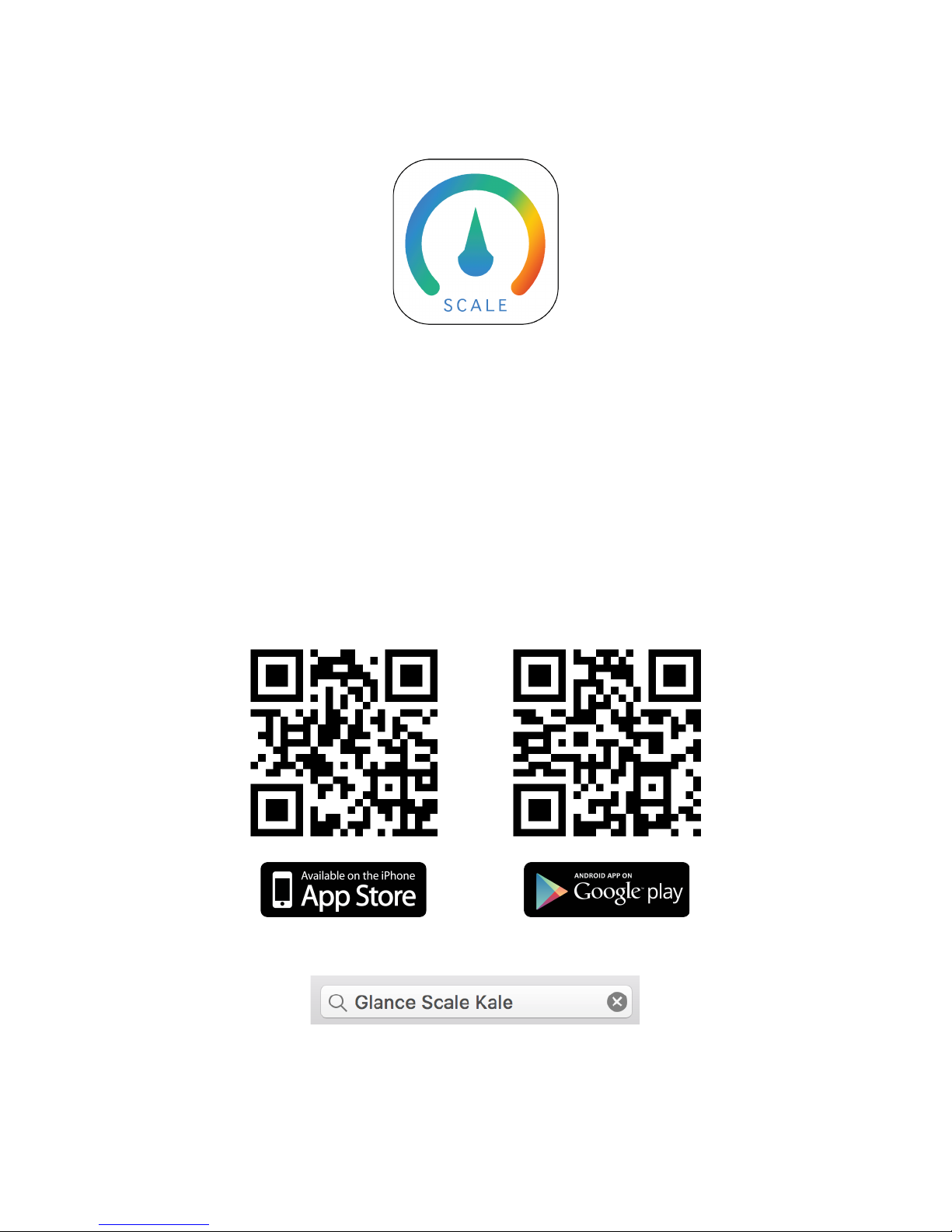
Download App
Glance Scale App is compatible with iOS and Android devices.
(For device requirement, please refer to P.15 specifications of this manual)
Depending on your device, download the Glance Scale App from Apple App Store
or Google Play.
Download Glance App by scanning the QR code below, or search “Glance Scale
Kale” on App Store/Google Play
Page 9
8
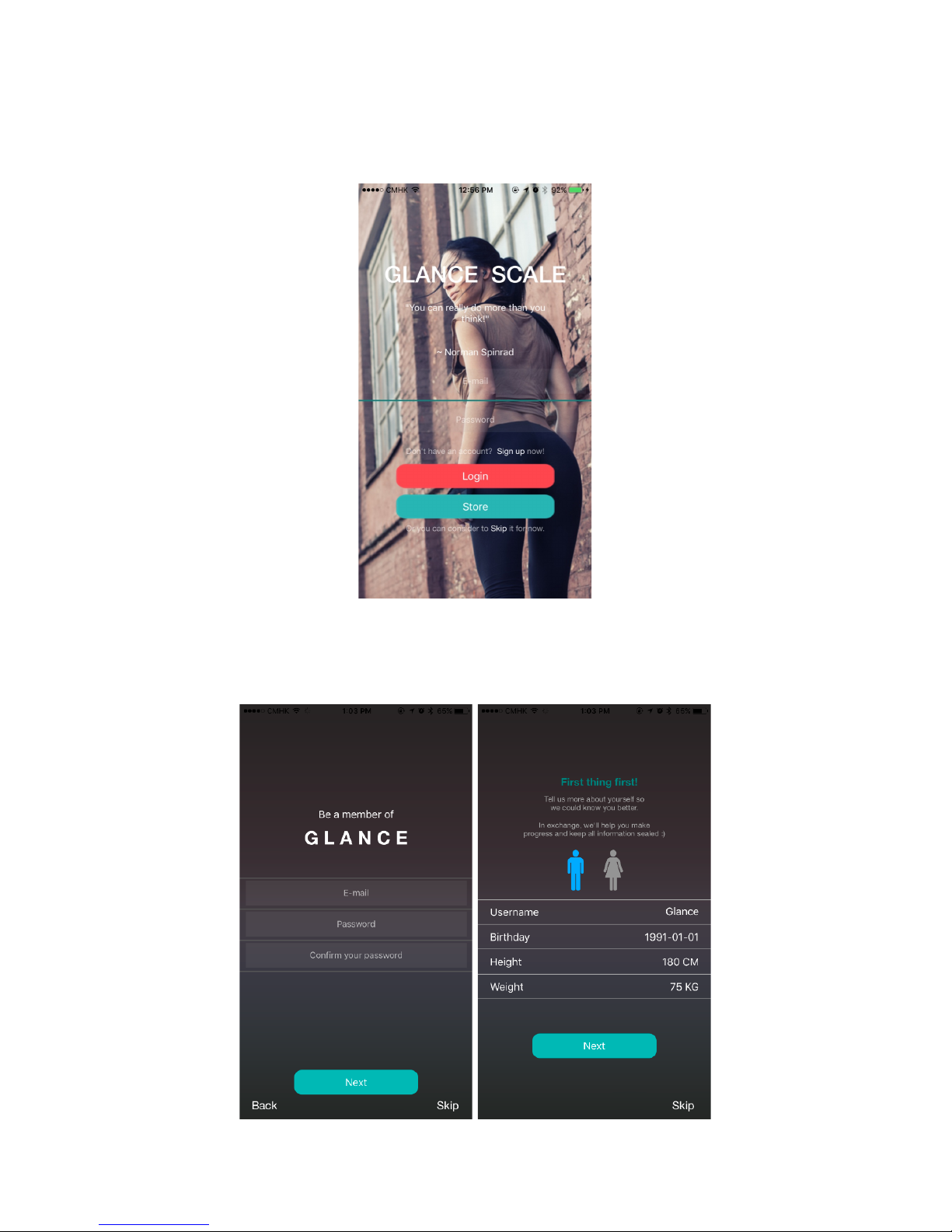
Set up App
After installing the App, log into your Glance account if you have one.
Otherwise, press Sign up to create an account. Personal data such as birthday and
height are required to determine your health condition more accurately.
Page 10
9
Know the App
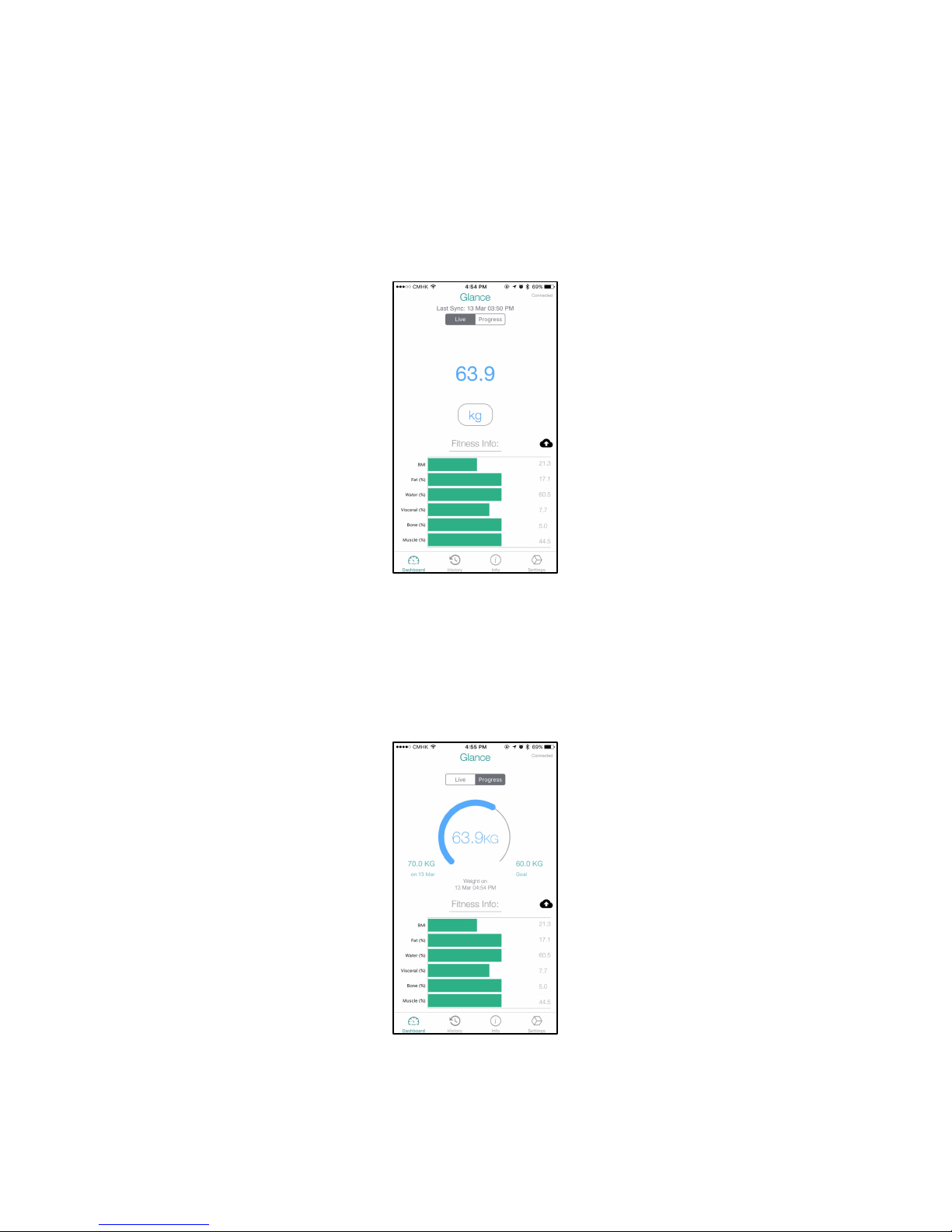
Dashboard
You can have quick access of your fitness info here. There are two view modes.
Dashboard - Live View
Live fitness info are shown here, including weight, BMI, Fat ratio, Water ratio,
Visceral ratio, Bone ratio and Muscle ratio.
*This view is effective only when you are using your Glance Scale.
Dashboard - Progress View
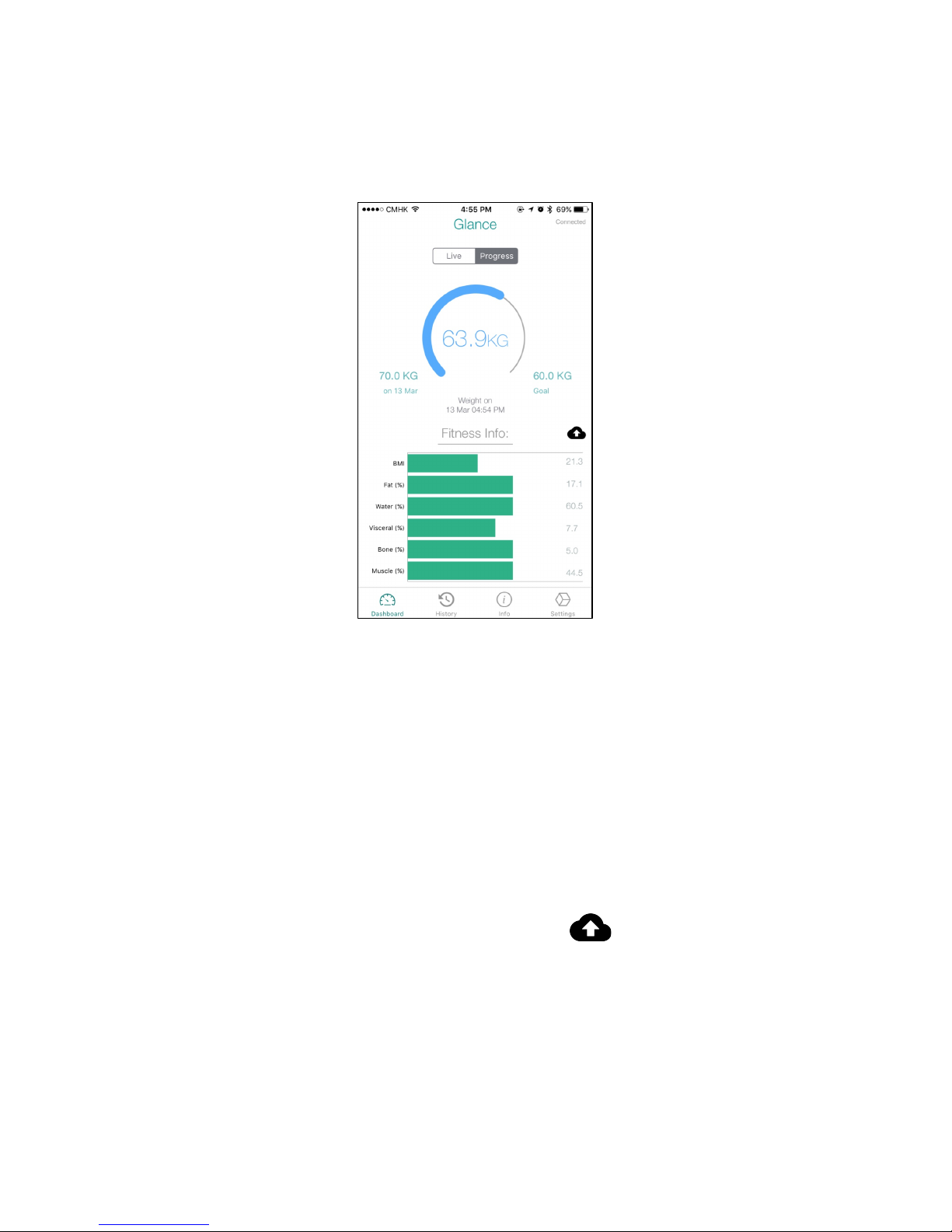
Your starting weight, latest weight and goal weight are shown here, also with
your latest fitness info.
Page 11
10
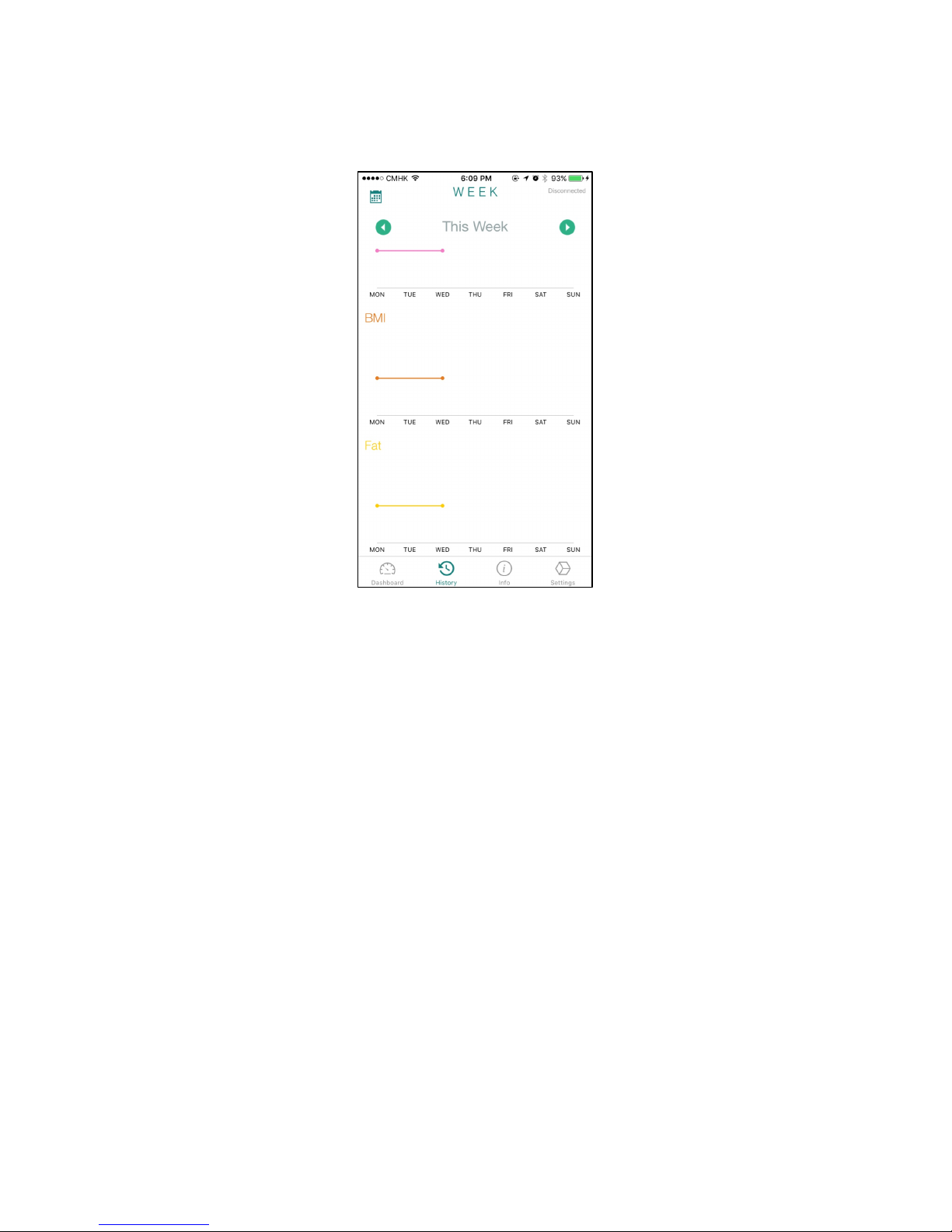
History
Your pervious fitness histories are stored here, in the form of line chart. You
can change between week view and month view by tapping the Calandar icon at
the top left corner.
Page 12
11
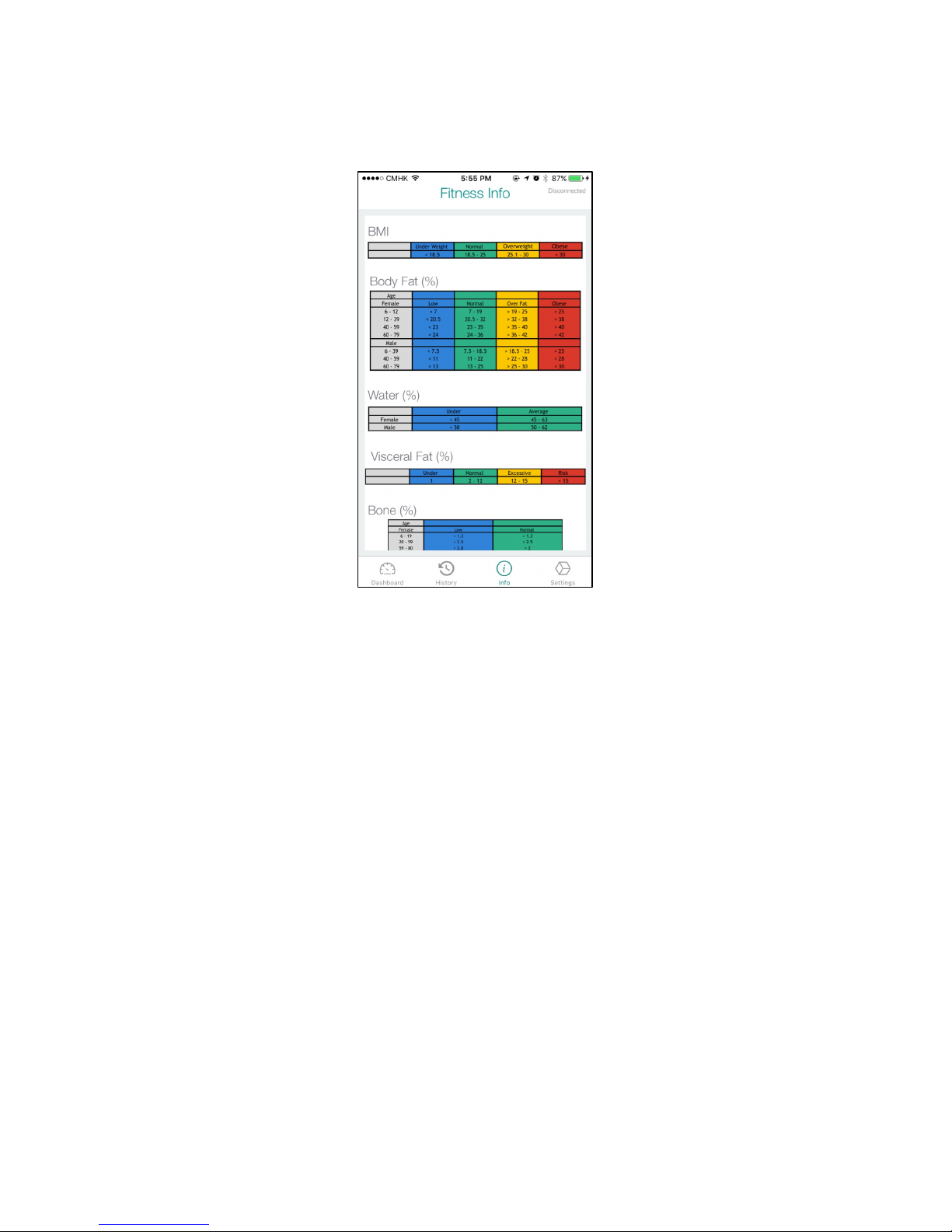
Info
The standard figures of each single fitness info are shown here, you can
check you fitness status with the table in this page.
*The figures shown are for illustration only. Pleas check with your personal
physician and/or meidcal doctor for recommendations.
Page 13
12
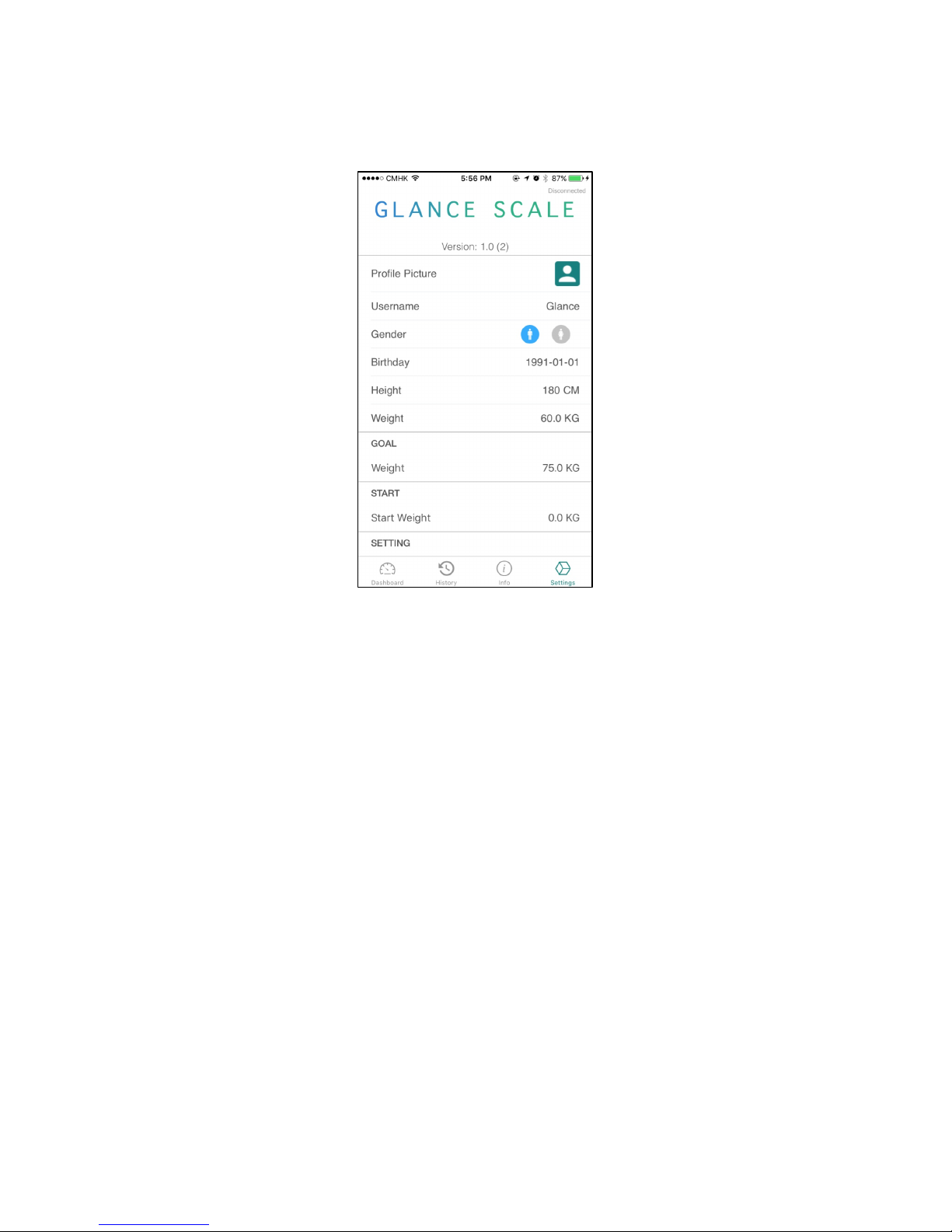
Settings
User’s info can be modified here.
Following Items can be modified in this page:
- Profile Picture
- User Name
- Gender
- Birthday
- Height
- Weight
- Goal Weight
- Start Weight
- Unit
You can also login/logout and visit our store from this page
Page 14
13
Use the Scale
There are two usages of Glance Scale: Live weighting and Progress Tracking.
Live Weighting
- Use with the Glance Scale
- Check your current body weight and fitness info
- Scale App shows the live information
Progress Tracking
- Can be used without Glance Scale
- See your fitness progress anytime
- The starting, current and goal weight will be shown
*Please take off shoes and socks and keep your bare feet in touch with the
electrodes when using the scale.
Page 15
14
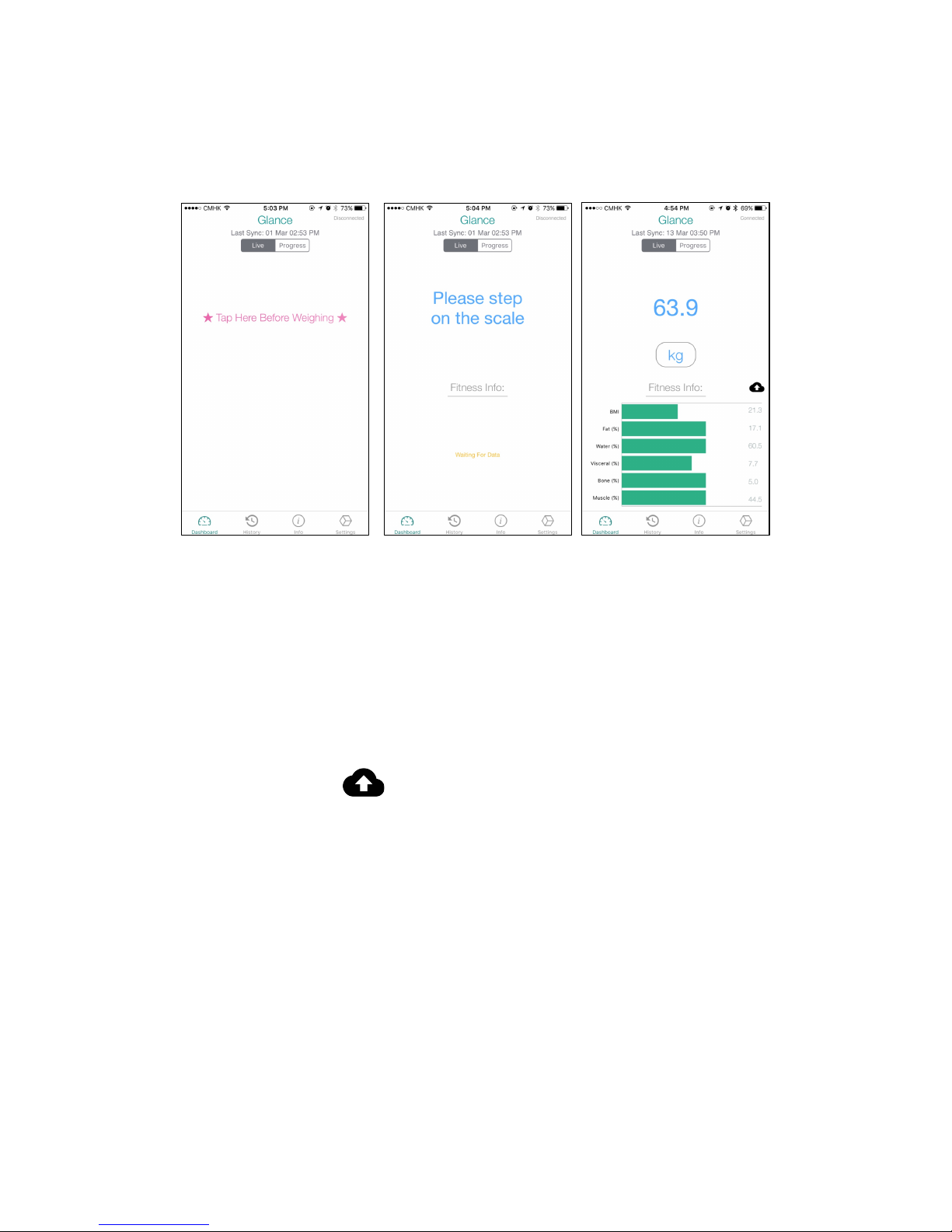
Live Weighting
- Check your current weight and fitness info
1. Open Glance Scale App
2. Go to Dashboard Live view
3. Tap to the pink word when you are ready
4. Step on the scale, it will be turned on automactiacally
5. Stay still on the scale until all Fitness Info are received
6. Your current weight and fitness info will be shown on the screen
7. Tap the cloud button to upload the info to the cloud, your user info will be
updated
Page 16
15
Progress Tracking
- Keep track on your fitness progress.
1. Set starting and goal weight
- You can set your starting and goal weight under Settings.
2. Track your progress:
- Go to Dashboard Progress view
- Three weight are shown: starting weight, (latest weight and goal weight
- A circular bar shows your progress
- The bars underneath shows your latest fitness info
3. Upload your latest data
- Upload latest data by tapping the cloud button in Dashboard
Progress view
4. View your fitness info across devices
- Once your data is uploaded, you can view them with any device using the
same Glance a/c
Page 17
16
Glance Cloud
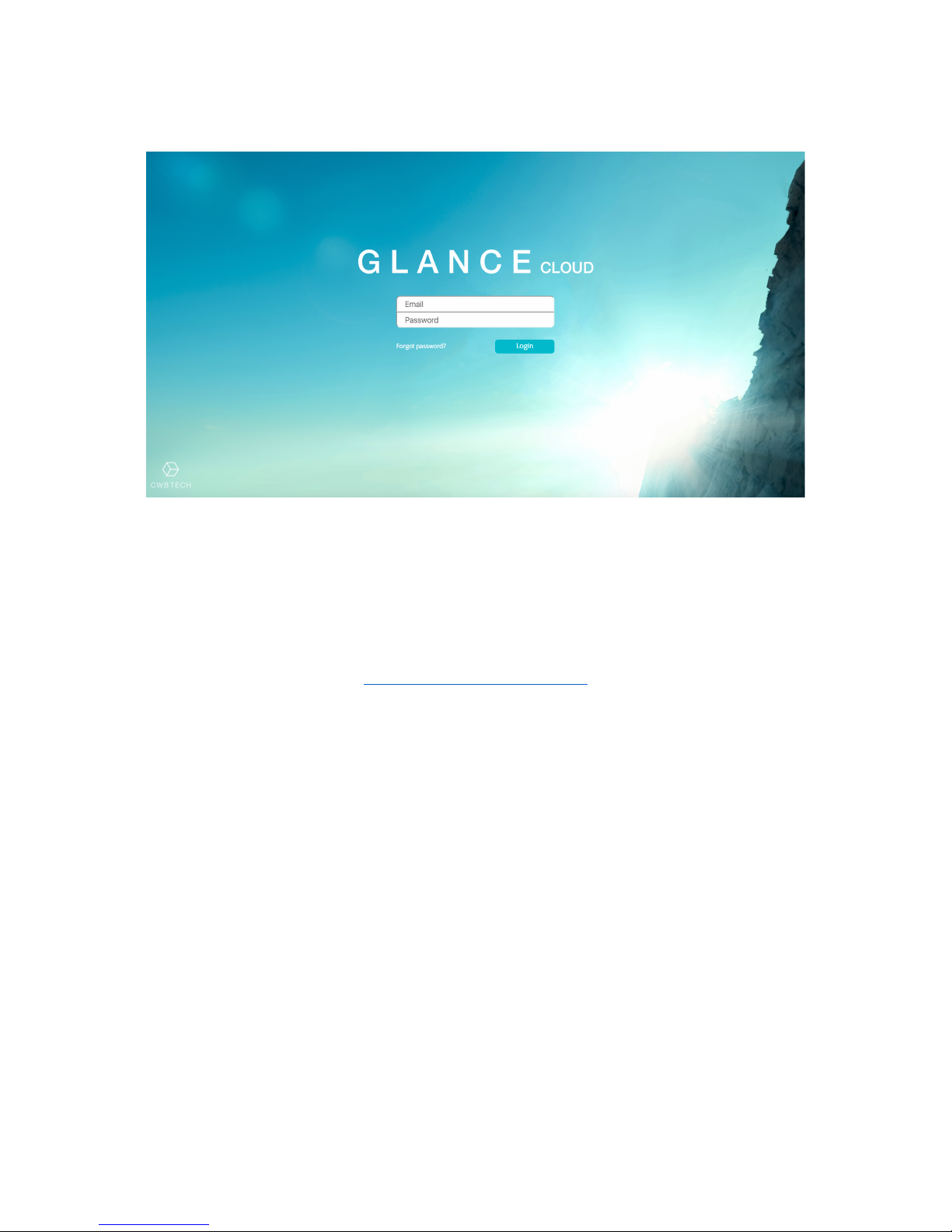
Apart viewing your health info on App, you can also view it on web, with Glance
Cloud
You can access by clicking the link below or copy it to your browser:
www.fitglance.com/mycloud
Page 18
17
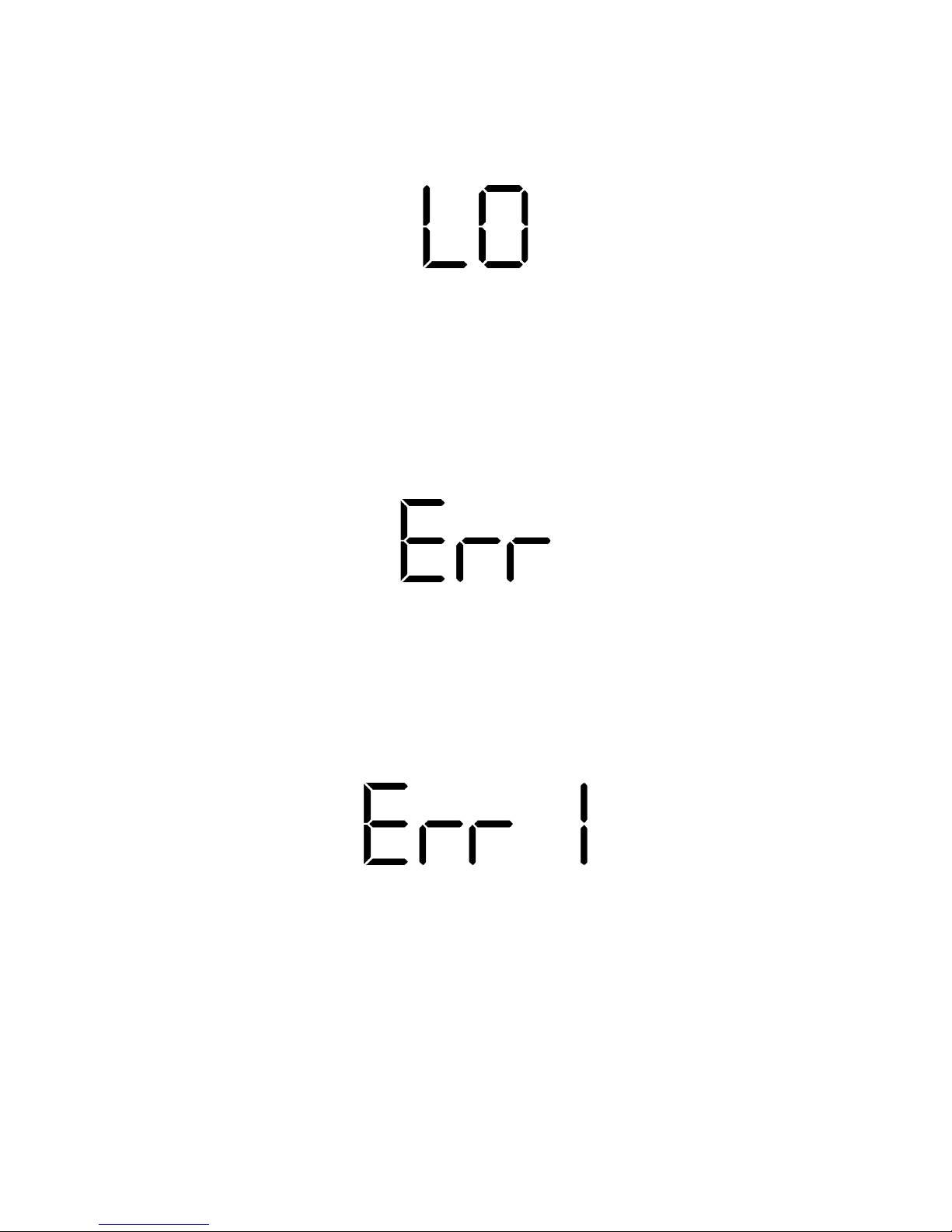
Error messages
Low Battery
- The Scale Screen will display “LO” when the battery level is low.
- Low battery level may affect the measurment of fitness info.
- Please open the battery door on the back of Glance Scale and replace the
batteries with new one.
Overload
- The Scale Screen would display “Err” when Glance Scale is overloaded.
- That means the object on the Scale exceeds the limit of 180kg/400lb.
- Please remove the object immediately and avoid damage to the Scale.
Faulty measurement
- The Scale Screen would display “Err 1” when Glance Scale cannot measure the
fitness info.
- Please take off shoes and socks and keep your bare feet in touch with the
electrodes when using the scale.
- Stand on the Scale and wait until the fitness info is measured.
Page 19

18
Specifications
Dimensions: 280 x 280 x 26 mm
Weight: 1.42 kg
Measurement range: 7 lb – 400 lb (3kg - 180kg)
(The scale will be switched on when a weight of 6kg or more is
placed on. After switching on, a minmum weight of 3kg can be
measured)
Accuracy: 0.2 lb / 0.1 kg
Measure units: lb, kg
Power: 4 x AAA batteries
Phone/Tablet Requirement: Android: 4.3 or higher,
iOS: iOS 8.0 or higher,
Bluetooth LE is required
Page 20

19
FAQ
How to turn on the Scale?
Glance Scale will be turned on automacally when you step on it (6kg or more). If it
still doesn’t turn on, please check and replace the batteries.
How to turn off the Scale?
After you measured your weight and ifitness info, the scale will show your info
twice, then turn off automactically.
How to measure my weight and fitness info?
Open the Glance Scale App and follow the instructions. Please refer to “Live
Weighting” on P.12
How do I know if I am healthy or not?
After you measured your fitness info, bars will be shown. Different colors of the bars
mean the healthy level. Green is healthy, yellow is medium and red is not healthy.
You may also refer to the “Info” tab of the app (P.9).
How can I change the unit of my weight?
For changing unit in the app, go to “Settings” tab of the app (P.10).
For changing unit in the Scale, press the Unit button on the back of Glance Scale.
Page 21

20
Warning
- Do not use if you have a pacemaker or any other internal medical device.
- Do not use if you are pregnant.
- Not designed for use by children under 10.
- Glance Scale should not be used to diagnose or treat any medical condition.
Always consult your physician.
- Do not jump on the Scale.
- Do not disassembly the Scale.
- The surface of Glance Scale is made by tempered glass, handle with care and
avoid breaking it.
- The Scale surface will be slippery when wet. Dry the surface before using.
Ensure Accuracy
- Use Glance Scale with bare foot, otherwise the scale cannot measure the fitness
info accurately.
- Make sure your feet are dry when you using the scale.
- Place Glance Scale on a hard, flat surface during use, e.g. on the floor.
- Avoid placing Glance Scale on soft surface, e.g. carpet.
- Try to balance your feet evenly between two feet.
- Weight yourself at the same time each day to see consistent trends. Your weight
and body fat percentage may naturally vary over the day.
Care and maintenance
- Do not submerge the scale or use high-pressure water jets (e.g. shower head) to
clean the surface.
- Wipe the surface with a damp cloth with suitable amout of diluted alcohol or
glass cleaner. Dry it before use.
- Do not use soap or chemicals.
- Keep it away from water, heat and exetreme coldness.
Page 22

21
For any more information, please contact us at:
http://www.fitglance.com/
 Loading...