

Page 1
SideKeys SideKeys SideKeys SideKeys SideKeys SideKeys SideKeys SideKeys SideKeys SideKeys SideKeys SideKeys SideKeys SideKeys SideKeys SideKeys SideKeys SideKeys SideKeys SideKeys SideKeys SideKeys
SideKeys SideKeys SideKeys SideKeys SideKeys SideKeys SideKeys SideKeys SideKeys SideKeys SideKeys SideKeys SideKeys SideKeys SideKeys SideKeys SideKeys SideKeys SideKeys SideKeys SideKeys SideKeys
SideKeys SideKeys SideKeys SideKeys SideKeys SideKeys SideKeys SideKeys SideKeys SideKeys SideKeys SideKeys SideKeys SideKeys SideKeys SideKeys SideKeys SideKeys SideKeys SideKeys SideKeys SideKeys
SideKeys SideKeys SideKeys SideKeys SideKeys SideKeys SideKeys SideKeys SideKeys SideKeys SideKeys SideKeys SideKeys SideKeys SideKeys SideKeys SideKeys SideKeys SideKeys SideKeys SideKeys SideKeys
SideKeys SideKeys SideKeys SideKeys SideKeys SideKeys SideKeys SideKeys SideKeys SideKeys SideKeys SideKeys SideKeys SideKeys SideKeys SideKeys SideKeys SideKeys SideKeys SideKeys SideKeys SideKeys
SideKeys SideKeys SideKeys SideKeys SideKeys SideKeys SideKeys SideKeys SideKeys SideKeys SideKeys SideKeys SideKeys SideKeys SideKeys SideKeys SideKeys SideKeys SideKeys SideKeys SideKeys SideKeys
SideKeys SideKeys SideKeys SideKeys SideKeys SideKeys SideKeys SideKeys SideKeys SideKeys SideKeys SideKeys SideKeys SideKeys SideKeys SideKeys SideKeys SideKeys SideKeys SideKeys SideKeys SideKeys
SideKeys SideKeys SideKeys SideKeys SideKeys SideKeys SideKeys SideKeys SideKeys SideKeys SideKeys SideKeys SideKeys SideKeys SideKeys SideKeys SideKeys SideKeys SideKeys SideKeys SideKeys SideKeys
SideKeys SideKeys SideKeys SideKeys SideKeys SideKeys SideKeys SideKeys SideKeys SideKeys SideKeys SideKeys SideKeys SideKeys SideKeys SideKeys SideKeys SideKeys SideKeys SideKeys SideKeys SideKeys
SideKeys SideKeys SideKeys SideKeys SideKeys SideKeys SideKeys SideKeys SideKeys SideKeys SideKeys SideKeys SideKeys SideKeys SideKeys SideKeys SideKeys SideKeys SideKeys SideKeys SideKeys SideKeys
SideKeys SideKeys SideKeys SideKeys SideKeys SideKeys SideKeys SideKeys SideKeys SideKeys SideKeys SideKeys SideKeys SideKeys SideKeys SideKeys SideKeys SideKeys SideKeys SideKeys SideKeys SideKeys
SideKeys SideKeys SideKeys SideKeys SideKeys SideKeys SideKeys SideKeys SideKeys SideKeys SideKeys SideKeys SideKeys SideKeys SideKeys SideKeys SideKeys SideKeys SideKeys SideKeys SideKeys SideKeys
SideKeys SideKeys SideKeys SideKeys SideKeys SideKeys SideKeys SideKeys SideKeys SideKeys SideKeys SideKeys SideKeys SideKeys SideKeys SideKeys SideKeys SideKeys SideKeys SideKeys SideKeys SideKeys
SideKeys SideKeys SideKeys SideKeys SideKeys SideKeys SideKeys SideKeys SideKeys SideKeys SideKeys SideKeys SideKeys SideKeys SideKeys SideKeys SideKeys SideKeys SideKeys SideKeys SideKeys SideKeys
SideKeys SideKeys SideKeys SideKeys SideKeys SideKeys SideKeys SideKeys SideKeys SideKeys SideKeys SideKeys SideKeys SideKeys SideKeys SideKeys SideKeys SideKeys SideKeys SideKeys SideKeys SideKeys
SideKeys SideKeys SideKeys SideKeys SideKeys SideKeys SideKeys SideKeys SideKeys SideKeys SideKeys SideKeys SideKeys SideKeys SideKeys SideKeys SideKeys SideKeys SideKeys SideKeys SideKeys SideKeys
SideKeys SideKeys SideKeys SideKeys SideKeys SideKeys SideKeys SideKeys SideKeys SideKeys SideKeys SideKeys SideKeys SideKeys SideKeys SideKeys SideKeys SideKeys SideKeys SideKeys SideKeys SideKeys
SideKeys SideKeys SideKeys SideKeys SideKeys SideKeys SideKeys SideKeys SideKeys SideKeys SideKeys SideKeys SideKeys SideKeys SideKeys SideKeys SideKeys SideKeys SideKeys SideKeys SideKeys SideKeys
SideKeys SideKeys SideKeys SideKeys SideKeys SideKeys SideKeys SideKeys SideKeys SideKeys SideKeys SideKeys SideKeys SideKeys SideKeys SideKeys SideKeys SideKeys SideKeys SideKeys SideKeys SideKeys
SideKeys SideKeys SideKeys SideKeys SideKeys SideKeys SideKeys SideKeys SideKeys SideKeys SideKeys SideKeys SideKeys SideKeys SideKeys SideKeys SideKeys SideKeys SideKeys SideKeys SideKeys SideKeys
SideKeys SideKeys SideKeys SideKeys SideKeys SideKeys SideKeys SideKeys SideKeys SideKeys SideKeys SideKeys SideKeys SideKeys SideKeys SideKeys SideKeys SideKeys SideKeys SideKeys SideKeys SideKeys
SideKeys SideKeys SideKeys SideKeys SideKeys SideKeys SideKeys SideKeys SideKeys SideKeys SideKeys SideKeys SideKeys SideKeys SideKeys SideKeys SideKeys SideKeys SideKeys SideKeys SideKeys SideKeys
SideKeys SideKeys SideKeys SideKeys SideKeys SideKeys SideKeys SideKeys SideKeys SideKeys SideKeys SideKeys SideKeys SideKeys SideKeys SideKeys SideKeys SideKeys SideKeys SideKeys SideKeys SideKeys
SideKeys SideKeys SideKeys SideKeys SideKeys SideKeys SideKeys SideKeys SideKeys SideKeys SideKeys SideKeys SideKeys SideKeys SideKeys SideKeys SideKeys SideKeys SideKeys SideKeys SideKeys SideKeys
SideKeys SideKeys SideKeys SideKeys SideKeys SideKeys SideKeys SideKeys SideKeys SideKeys SideKeys SideKeys SideKeys SideKeys SideKeys SideKeys SideKeys SideKeys SideKeys SideKeys SideKeys SideKeys
SideKeys SideKeys SideKeys SideKeys SideKeys SideKeys SideKeys SideKeys SideKeys SideKeys SideKeys SideKeys SideKeys SideKeys SideKeys SideKeys SideKeys SideKeys SideKeys SideKeys SideKeys SideKeys
SideKeys SideKeys SideKeys SideKeys SideKeys SideKeys SideKeys SideKeys SideKeys SideKeys SideKeys SideKeys SideKeys SideKeys SideKeys SideKeys SideKeys SideKeys SideKeys SideKeys SideKeys SideKeys
SideKeys SideKeys SideKeys SideKeys SideKeys SideKeys SideKeys SideKeys SideKeys SideKeys SideKeys SideKeys SideKeys SideKeys SideKeys SideKeys SideKeys SideKeys SideKeys SideKeys SideKeys SideKeys
Simple, Powerful Participation Tools
Current
Works
Wireless Computer Input
User’s Guide
for USB
Toll Free: 888-526-1200 Phone: 847-497-9650 Fax: 847-497-9680
www.currentworks.com www.quizworks.com
Simple, Powerful Participation Tools
Shipping address:
1395 Horizon Drive
Johnsburg, IL 60051
Mailing address:
P.O. Box 203
Ringwood, IL 60072
060707
The
uizWORKS
Company
o
?
The
uizWORKS
Company
o
?
Computer Tools For Whole Class Participation
Current
Works
Computer Tools For Whole Class Participation
SideSlammers
™
SideKeys
®
Page 2

Sales & Service
To order additional Inserts, Transmitters or SideKeys compatible software.
International Customers:
Contact your Sales/Customer Service Representatives from where you
purchased the product
Manufacturer:
Call toll free: 1-888-526-1200 USA only
1-847-497-9650 Outside USA
or E-mail us at: [email protected]
www.currentworks.com
www.quizworks.com
Guarantee
Your satisfaction is guaranteed! If this product does not meet all of
your expectations, you may return it, for any reason, within the first
year, for a complete money back guarantee.
page 2 page 19
Page 3

page18
page 3
Guarantee................................................................... 2
Sale & Service........................................................... 2
Contents..................................................................... 3
SideKeys.................................................................... 4
Features of Transmitters.............................................4
Installation of Receiver..............................................5
Set-Up of Transmitters...............................................6
Pre-Set Transmitters...................................................6
Lettering................................................................... 6
Transmitters defined to the Receiver......................... 7
Lockout Function.......................................................8
Low Battery................................................................8
Storage....................................................................... 8
Cleaning..................................................................... 9
Troubleshooting....................................................... 9
Swap...........................................................................10
How Swap Works.......................................................11
How to Create a Swap Presentation...........................12
Setup Procedure for Swap..........................................13
Important SideKeys Information............................... 14
PowerPoint keyboard shortcuts................................. 15
Conclusion................................................................. 15
Warranty and Repair.................................................. 16
FCC information........................................................ 17
Declaration of Conformity.........................................18
Contents
SideKeys
®
© Copyright 2007 Current Works Inc.
Declaration of Conformity
The EU Directives covered by this Declaration:
Radio & Telecommunications Terminal Equipment Directive, 1999/5/EC
The Basis Upon Which Conformity Is Being Declared:
The products identified above comply with the requirements of the above EU
directives by meeting the following standards:
ETSI EN 301 489-01 V1.4.1 (2002-08)
ETSI EN 301 489-03 V1.4.1 (2002-08)
ETSI EN 300 220-1 V1.3.1 (2000-09)
ETSI EN 300 220-2 V1.3.1 (2000-09)
ETSI EN 300 220-3 V1.1.1 (2000-09)
CENELEC EN 50371: 2002
The Products Covered by this Declaration
SideKeys® Wireless Radio-Frequency Audience Response System for computers
Keypads are Product # SK0433TX and USB Receiver is # 1USB-SK/REC
for only units that are labeled CE certified on receiver & transmitter back labels.
Manufacturer:
Current Works, Inc.
1395 Horizon Drive
Johnsburg IL 60051 USA
Signature
I, the undersigned, hereby declare that the equipment specified above conforms to
the above Directives and Standards. The CE mark was first applied in: 2004
___Robert L Schroyer_____ Date: October 25, 2004
Robert L Schroyer, President, Current Works, Inc. Johnsburg, IL 60051 USA
ATTENTION!
The attention of the specifier, purchaser, installer, or user is drawn to special
measures and limitations to use, which must be observed when the product is taken
into service to maintain compliance with the above directives. Details of these
special methods and limitations to use are available on request, and are also
contained in the product manual. The USB cable that connects the computer to
the SideKeys® Receiver must be shielded and cannot be more than 3 meters in
length.
Page 4
page 17
SideKeys
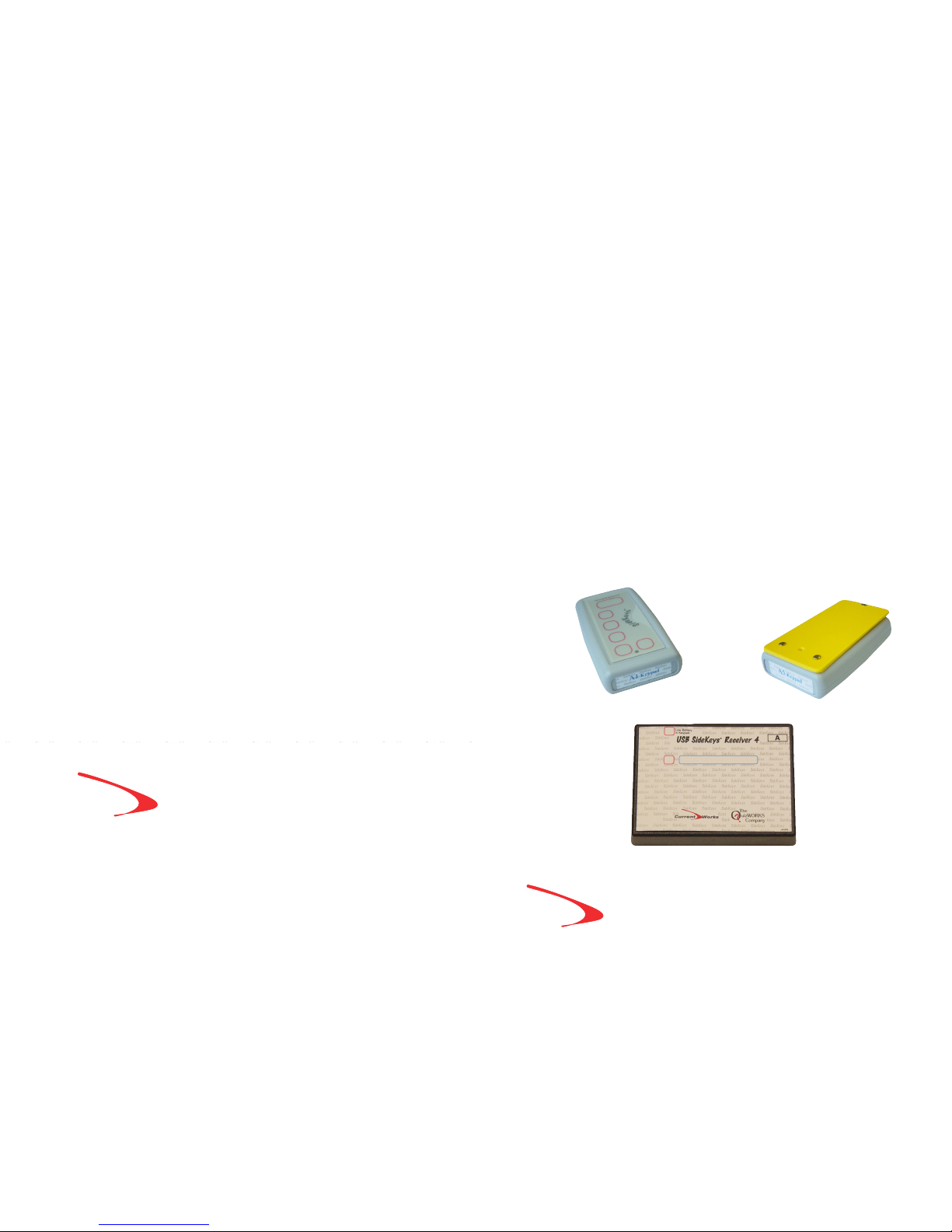
SideKeys is a unique product that allows several teams to use a single
computer simultaneously. These wireless transmitters send keystrokes to
the computer from anywhere in the classroom. Radio frequency
technology allows SideKeys to operate without line-of-sight requirements.
The Features of Your SideKeys
• Transmitters can simultaneously input to one computer
• There are 6 independent keys on each SideKeys keypad
• Transmitters have a range of up to 100 feet
• Receiver works on USB operating systems of your computer
• No software to install, plug one cable into your computer
• Receiver displays when a keypad has low battery
• Transmitters have low battery indication
• Leader keypad has control functions for the software
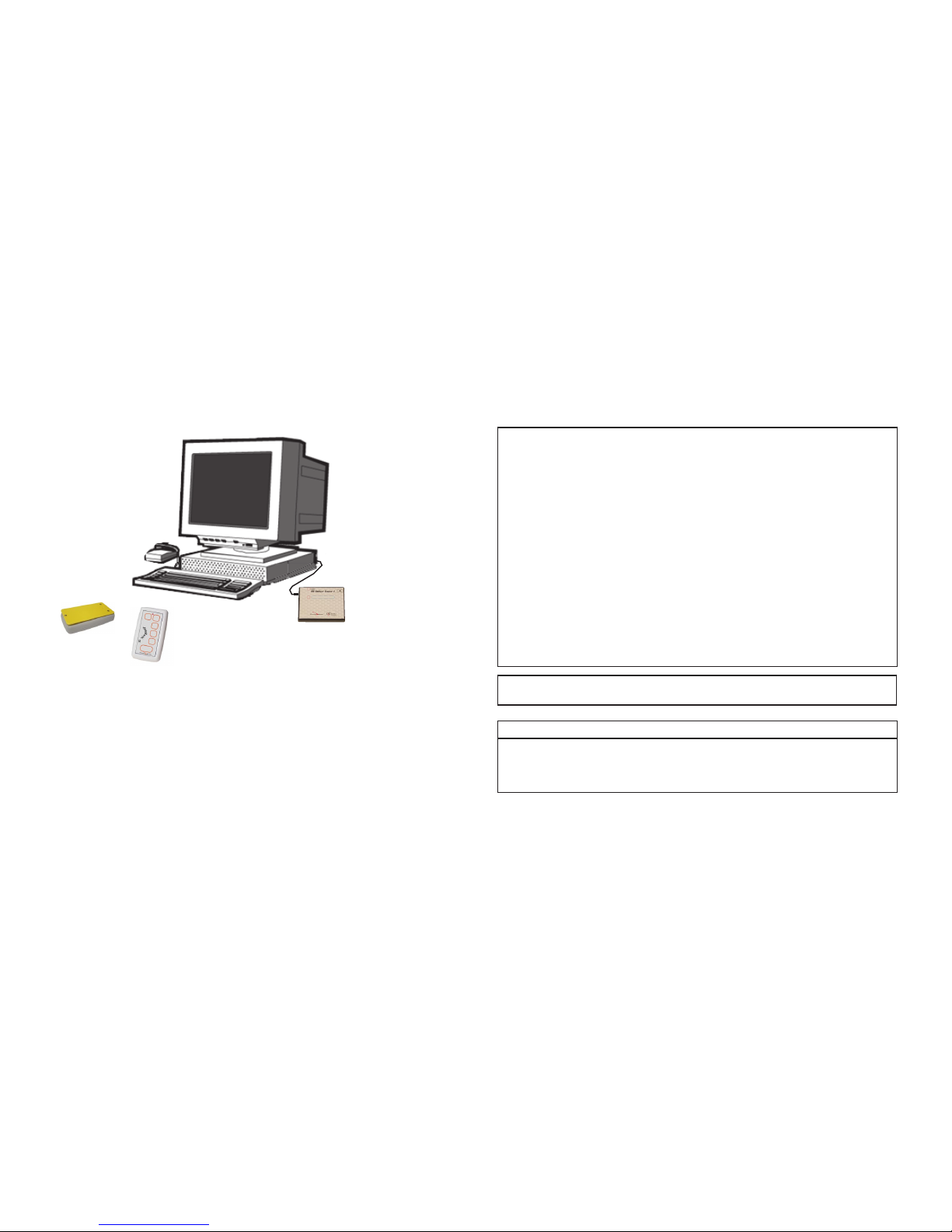
Receiver plugs into
any USB port on the
computer
You can also plug
the receiver into a
USB port on the
computer keyboard
or external hub.
page 4
Note: This equipment has been tested and found to comply with the limits for a
Class B digital device, a TV interface device, and a low power transmitter, pursuant
to Part 15 of the FCC Rules. These limits are designed to provide reasonable
protection against harmful interference in a residential installation. This equipment
generates, uses and can radiate radio frequency energy and, if not installed and used
in accordance with the instructions may cause harmful interference to radio
communications. However, there is no guarantee that interference will not occur in
a particular installation. If this equipment does cause harmful interference to radio
or television reception, which can be determined by turning the equipment off and
on, the user is encouraged to try to correct the interference by one or more of the
following measures:
- Reorient or relocate the receiving unit.
- Increase the separation between the equipment and the receiver.
- Connect the equipment into an outlet on a circuit different from that to which
the receiver is connected.
- Consult the dealer or an experienced radio/TV technician for help.
- A shielded cable must be used when connecting a peripheral to the parallel
or serial ports. The printer cable must have metal connector shells.
Changes or modifications to this equipment by other than an authorized service
technician could void authorization to use this equipment
FCC ID: LYN20TX Canada: IC-4101A-104513A US Patent No: 6,571,299 B1
This device complies with Part 15 of the FCC Rules. Operation is subject to the
following two conditions: (1) This device may not cause harmful interference, and
(2) this device must accept any interference received, including interference that
may cause undesired operation.
FCC Compliance
Current Works makes no warranties, expressed or implied, including warranties as
to the merchantability or fitness for a particular use and shall not be liable for any
losses or damage incurred, whether directly or indirectly, arising from the use of its
products. Neither the customer, its dealers, or agents have any right to make any
other representation, warranty, or promise with respect to the product.
© Copyright 2007 Current Works, Incorporated. All rights reserved SideKeys is a
trademark of Current Works, Incorporated. Macintosh is a registered trademark of
Apple Computer, Inc.
Page 5
page 16 page 5
Installation of Receiver
Use any open USB port on your computer. You can also attach the USB
SideKeys Receiver to a USB hub. No special software needs to be loaded
and no external power is needed to operate the interface.
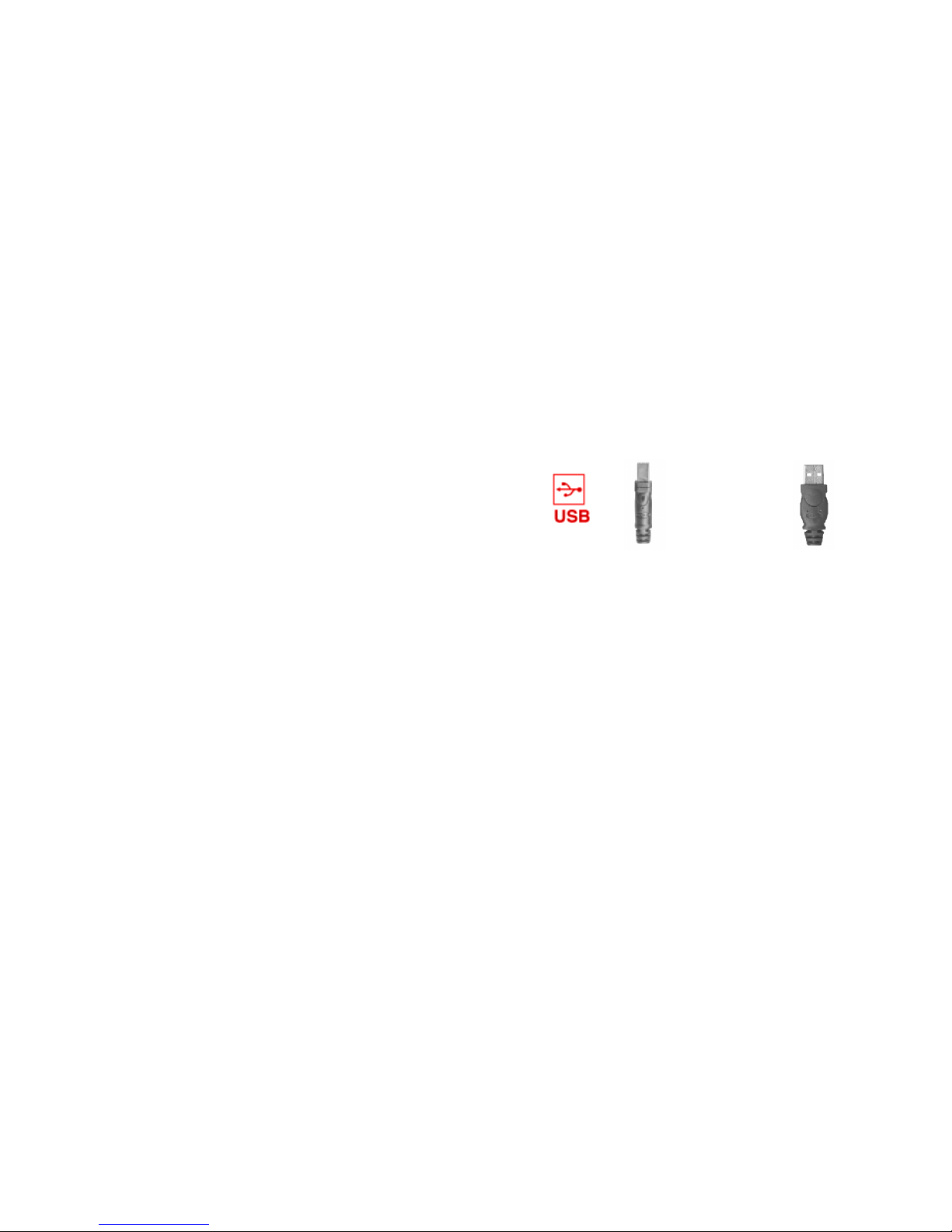
1. Connect the USB-B connector (Figure-1) of the USB cable into the port
on the USB Sidekeys Receiver.
2. Connect the USB-A connector (Figure-2) of the USB cable into the USB
port of the computer or one open port of a USB hub, keyboard or other.
USB USB
B-Connector A- Connector
Figure 1 Figure 2
3. The first time the USB SideKeys Receiver is used in 2000, XP, and Vista
the drivers needed should automatically be installed.
4. When the USB Receiver is properly installed, one red LED on the
receiver will be lit.
Warranty or Repair Service
SideKeys products are warranted against manufacturing defects for
one (1) year from the date of invoice. Warranty service covers materials
and labor for the repair or replacement of your product. Problems caused
by abuse, mishandling, improper installation, or improper storage are not
covered by warranty. Any modification or repair attempt by the customer
will invalidate the warranty.
We suggest you contact us at 888-526-1200 about any difficulties you
may experience with SideKeys. We may be able to solve your
problem quickly. If the product still needs to be returned for warranty or
repair service, Customer Service will give you a Return Authorization
number (RA#). Ship the product under prepaid postage to:
Current Works, Inc./QuizWorks
Attn: Repairs
1395 Horizon Drive
Johnsburg, IL 60051
Please include with it:
• the “RA” Number given to you by Customer Service
• a brief description of the problem
• your return address
• a day-time phone number or e-mail address
• a proof of date of purchase such as product registration card (on
file @ CWI), a photocopy of the packing slip, invoice,
purchase order or canceled check.
If it is a non-warranty repair over $25, we will contact you with a cost
estimate for your “Approval to Repair” paid with VISA,
MASTERCARD, otherwise, we will repair the product and return it with
an invoice.
When repair service is required, ship the product to us under prepaid
postage, whatever way is convenient for you. Our goal is to return ship
the product within 48 hours of receiving it, or within 48 hours of the
“Approval to Repair”, if necessary.
Page 6

Set Up of Transmitters
Install one, 9-volt alkaline battery in the rear battery case of each
transmitter. The battery must be installed with proper polarity.
See icon inside of the battery case. Depending on which bundle was
purchased, the batteries may be stored in the battery compartment, in this
case pull out the plastic battery isolator label.
Pre-Set Transmitters
If you purchased SideKeys/SideSlammers bundled with a specific
software program, the transmitters are preset to match that software. Just
install the SideKeys Receiver and the bundled software on your computer
and begin.
Lettering
The transmitters are numbered (see the front end of the transmitter)
and defined to a specific receiver. For any specific application Keypad
"letter" P(PC) or M(MAC) is used as the Leader's or Instructor's keypad.
The transmitter #1 is used for Player or Team #1, transmitter #2 is used for
Player or Team # 2, etc.
If a Leader’s Keypad was included in the set of SideKeys, the insert
will need to be changed to match the software application..
PowerPoint keyboard shortcuts:
To do this Keystroke equivalents
Black/unblack screen b, .(period)
White/unwhite screen w, ,(coma)
show/hide pointer a, =
erase screen annotations e
advance on mouse click m
advance to hidden slide h
advance to next slide n
return to previous slide p
Conclusion:
Current Works provides this Guide as another tool to support
your successful presentations. We believe that active participation
increases learning and that both participants and the trainer benefit
from effective training tools.
Please let us know how these tools work for you and contact us
about any concerns, questions or ideas you have for us.
Bob Schroyer, President
Current Works, Inc.
1-888-526-1200
®
page 6 page 15
Page 7
“Swap” setup (cont.)
8) The Leader’s SideKeys remote controller
can run the Power Point
Slide Show forward and backwards
with the arrow buttons, as
well as Pausing the Quiz
as needed. With the USB SideKeys
receiver the Leader has a lock out function
as well. While presenting the leader may
choose to lock out participants’ keypads
to avoid any chances of inadvertant
key events.
Important SideKeys information:
SideKeys keypads send keystrokes to the computer. PowerPoint
and other participation software use keystrokes to perform a variety of
functions. Be aware that participants may press the SideKeys keypads and
send keystrokes during your presentation.
What to do......
• Give the participants guidelines before your presentation, (please
do not handle the keypads during the PowerPoint presentation)
• Know your presentation software key equivalents and the actions
that take place, so you can undo it quickly.
• Upgrade to USB SideKeys Receiver to enable the Lock out function.
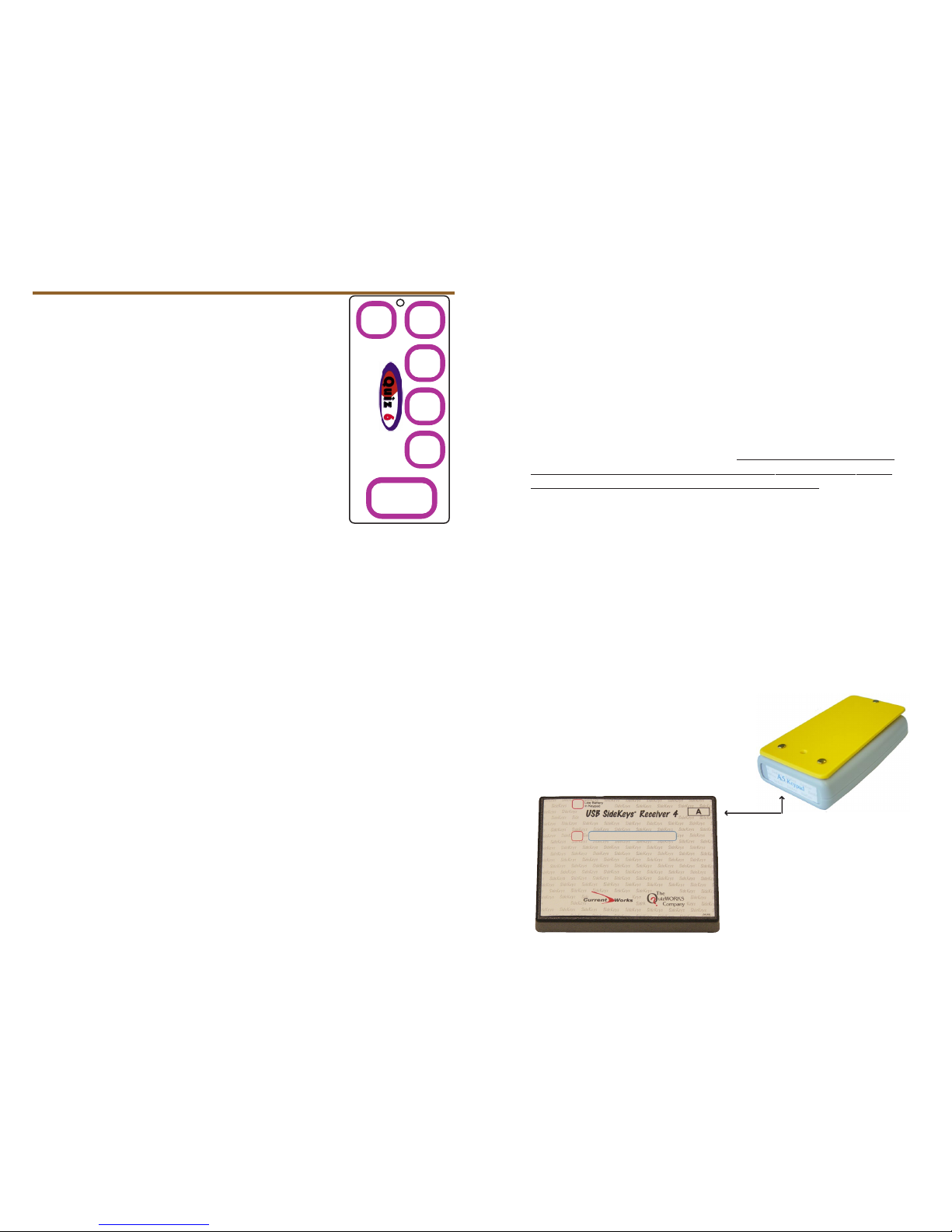
SideKeys Insert for the
Leader’s keypad
®
Next
Play/Pause
USB Sidekeys
Leader
®
Swap
Lock
out
This set of SideKeys includes the USB Receiver, which is connected directly
to the computer, and several transmitters, whose ID numbers are defined in the
memory of this specific Receiver.
Each transmitter has a unique ID # and the Receiver only responds to those
transmitter that are actually programmed to interact with that Receiver. This
allows Instructors to utilize these wireless radio frequency transmitters within
close proximity to other SideKeys systems without having interference
between the systems. This also means that the User must always maintain
the transmitters with their assigned Receiver. You can not interchange
the transmitters between two or more SideKeys systems. If you purchase
additional SideKeys systems that will be used in the same facility, we will
configure the new systems so that they do not conflict with your existing
SideKeys. The transmitter will be "Defined" to work with the Receiver before
they leave the factory. USB SideKeys systems have an alphabetical letter(A,
B, C... or A-B, C-D, E-F...) on the label of each component, to identify the
system. We encourage the users to use such labeling schemes to keep the
systems clearly separated.
Transmitters are labeled with a letter
and a number from 1 thru 30 and they
must match the letter on the receiver for
them to function.
SideSlammer
Transmitter
SideKeys Receiver
™
Transmitters Defined to the Receiver
page 14 page 7
Page 8
Lockout Function
The lockout function available with this USB SideKeys system allows the
Leader to lockout all other transmitters, except the Leader's wireless
keypad. This function is useful to control random input to the
computer from participants who push buttons on their
transmitters. This is especially valuable if you Swap to
applications (like PowerPoint) where a certain keystroke
input can disrupt your presentation.
The lockout function can be turned "on" and back "off" again from the
Leader's keypad. When the lockout function is "on" the red LED on the
receiver flashes and only the Leader's keypad will be operational. A single
touch of the "Lockout" button on the Leader's keypad turns the LED to
continuous glow, and restores the functionality of all SideKeys.
Low Battery
On the top of the transmitter, the clear hole has a red light called a LED.
The LED has 3 settings:
No light = sleep mode, no/dead battery
Dim light = stand-by, low battery when key pressed
Bright light = good battery/transmitting signal
The transmitters have a low battery indication. When a battery becomes low,
the transmitter will still function except the LED will not be bright. The 9volt alkaline battery must be changed soon or the transmitter will stop
functioning completely.
When used with a SideKeys Receiver 4, the Low Battery LED will light
up for a second when it receives the signal from a transmitter with a low
battery.
Storage
Your SideKeys product is equipped with a sleep mode in order to
preserve battery life. However, for long term storage (more than a month),
you should remove the battery from the transmitters. Batteries can leak and
damage equipment if left for long periods of time.
SetUp Procedure for “Swap”
In order to use the remote controlled “Swap” function on your
Personal Computer (this function does not work on Macintosh systems)
you must setup the PowerPoint and
participation software in a specific
order. The following procedure will assure your success.
1) Close all other applications and launch the Participation software
you plan to use.
2) Move through the setup of this application and Pause the activity
just before the first question appears.
3) Minimize this participation software program.
4) Launch the PowerPoint or alternative application with which you
plan to SWAP.
5) Get the PowerPoint into the Slideshow mode, or the alternative
application to the point where you are ready to begin presenting.
6) Press & hold the ‘alt’ key on the keyboard. Do not release this key
during this step, until told to do so. Press once and quickly release
the ‘tab’ key on the keyboard. (keep that ‘alt’ key down)
7) A pop-up window showing all active folders and applications on your
desktop will appear in a horizontal list of small icons. (keep that ‘alt’
key down)The second icon in this list will be highlighted with a
description of that application shown in a text box below the icons.
8) Press and release the ‘tab’ key, again. With each press the of the ‘tab’
key the highlighter will step through the list of icons. When the
Participation software application you want to SWAP with is
highlighted, then release the ‘alt’ key. This will move that application
to the left of all other applications in this list.
9) This procedure should put the two applications you wish to SWAP
between as first & second in this horizontal list of “alt – tab” icons.
The SWAP function only alternates between these two applications.
Both of these programs, Power Point Slide Show and the participation
software
must be set up in this manner for the applications to “Swap”
properly.
page 8 page 13
Page 9
page 12
page 9
How to create a “Swap” presentation
• First create your PowerPoint presentation .
• Identify the significant learning points presented on each slide.
• Create a question set that corresponds to each of these learning
points. Keep the questions in sequence with the slide slow.
• Print out a copy of the questions in the created sequence. Note
which questions are related to which slide.
• Create a chart to coordinate which questions to play after
which slides are presented.
• Decide how many slides to cover, before swapping to the
participation software. Note how many of the questions
correspond to those slides presented.
• Plan your presentation and when you will “Swap” back and
forth between the Slide Show and the questions. You can
even add slides to indicate when to “Swap” and what
questions to answer for example; “Swap to Answer questions 4-8.”
Helpful Hints:
PowerPoint’s outline format is a wonderful tool for laying out
the sequence of your questions.
You can copy text directly off of your PowerPoint presentation
slides and paste it into the question field in the
construction program. You can swap between the
applications for this work.
For a short Slide Show presentation, you can wait to ask the
question until the end of the presentation.
You can also play the entire participation software again at the
end of the presentation, or at the start up of the next session
as a refresher of what was already covered.
Troubleshooting
Cleaning
SideKeys may be cleaned using a soft, clean cloth dampened with clean
water or a plastic cleaner.
Keypad
The red LED doesn’t turn
on when a key is pressed.
No signal received by the
computer, but red LED
light on the Transmitter is
bright.
Replace battery with a
new 9-volt alkaline
battery.
-Be sure you are using
Transmitter # and letter
that matches receiver
-Reinstall Receiver
(see pg. 5)
-Move closer to the
computer
-Move Receiver and/or
computer to different
location or orientation.
-Press Lockout button on
Leader’s remote
-Replace battery with a
new 9-volt alkaline
battery
-Move Transmitter/
Receiver off the metal
surface
Battery is dead or missing
• Receiver not installed
correctly
• Transmitter is too far
away from the receiver
• Radio frequency noise in
the environment
• Check for Lockout mode
• Battery Power is low
in the transmitter
• Transmitter/Receiver is
resting on a metal surface
Symptom
Problem
Solution
Page 10
page 10
page 11
Introduction:
The PowerPoint presentation software has become the standard
choice of trainers for introducing information to their audiences. This
powerful tool and all of the available enhancement products enable the
trainer to quickly customize a professional presentation with color,
graphics, sounds and movies.
SideKeys works in combination with
PowerPoint and various participacion software
to facilitate an extremely interactive presentation.
The participation software supports the quick and
easy creation of custom quizzes and survey
questions and presents these quizzes in a fun,
interactive format. The SideKeys® hardware
provides wireless keypads to allow up to 60 participants
to buzz-in and answer the questions. The Leader’s SideKeys keypad allows
for remote control of both the PowerPoint and the participacion software.
This provides immediate feedback to the participants and the Leader on
how each participant/team is answering the questions.
“Swap”“Swap”
“Swap”“Swap”
“Swap” is our term for switching between two active applications
on the computer. This “Swap” function allows the leader to have the
PowerPoint slide show application actively presenting the information to
the participants. At the same time the participation software is also active
on the same computer, but hidden in the background. The trainer uses the
SideKeys wireless keypad to click through the slide show, then, at the touch
of a different button on the same keypad “Swap” over to the participation
software, hiding the Slide Show in the background. Other buttons on this
remote keypad allows the trainer to remotely control this participation
software.
How “Swap” works:
PowerPoint + participation software
When these two products, PowerPoint and the participation
software, are combined via the “Swap” function, they yield a dynamic
interactive process of presentation and corresponding participation
activity. The typical process involves the presentation of a few slides and
then “Swap” over to a short set of questions directly related to these slides.
Quickly get participants actively working in teams, answering questions,
and see how well the participants understand the important points just
presented. Then, “Swap” back to the slide show where you can go back
and review any slides that require more discussion, or go on with the
presentation, with the confidence that the audience comprehends your
message.
This process changes the attentiveness of the audience during the
presentation of the slides. It also engages the participants in active
discussions and helps to integrate the information through the interactive
process. These dynamics reassure the trainer of comprehension, reinforce
the learning and increase retention.
This Guide is intended to help you structure your presentation,
and the questions, and to take full advantage of the “Swap” between
PowerPoint and the participation software.
®
Swap
 Loading...