

Page 1
Page 2
ROFL USER GUIDE
CUOL
TM
BOOK
See You Online
www.planetcuol.com
CUOL ™ WORLD - Be CUOL ™, stay connected
Page 3

Table of Contents
4-14
4-15
4-15
4-16
4-17
4-17
4-17
4-18
4-19
4-21
4-21
4-21
4-22
4-22
4-23
4-24
4-25
4-26
4-26
Surfing the Internet
Advance Settings for Internet Explorer
Changing your Homepage
Changing Your Browsing Experience
Accessing Your Emails
Setting up an Email account
POP3 Settings
SMTP Settings
Setting up another Email account
Chatting with friends and family
MSN Messenger Login Page
SKYPE Login Page
Working on the CUOL™ BOOK
Office Applications
Document Writer
Spreadsheet Maker
PDF Viewer and Presentation Viewer
Email Manager
Play on the CUOL™ BOOK
Media Player 9
TCPMP
Table of Contents
1-2
1-3
1-3
1-3
1-4
1-4
1-4
1-5
2-2
2-6
2-7
2-8
3-2
3-2
3-3
3-3
3-4
3-5
3-5
3-5
3-7
3-7
3-8
3-8
4-2
4-3
4-3
4-4
4-5
4-5
4-5
4-9
4-12
4-13
Chapter 1: Using Your CUOL™ BOOK
Using the Guide
Charging Your Batteries
Battery Safety
Going on long trips
Safety Precautions
Transportation Precautions
Airport Precautions
Important Notes
Chapter 2: Getting to know your CUOL™ BOOK
Top View
Right View
Left View
Bottom View
Chapter 3: Getting started using your CUOL™ BOOK
Battery and Power System
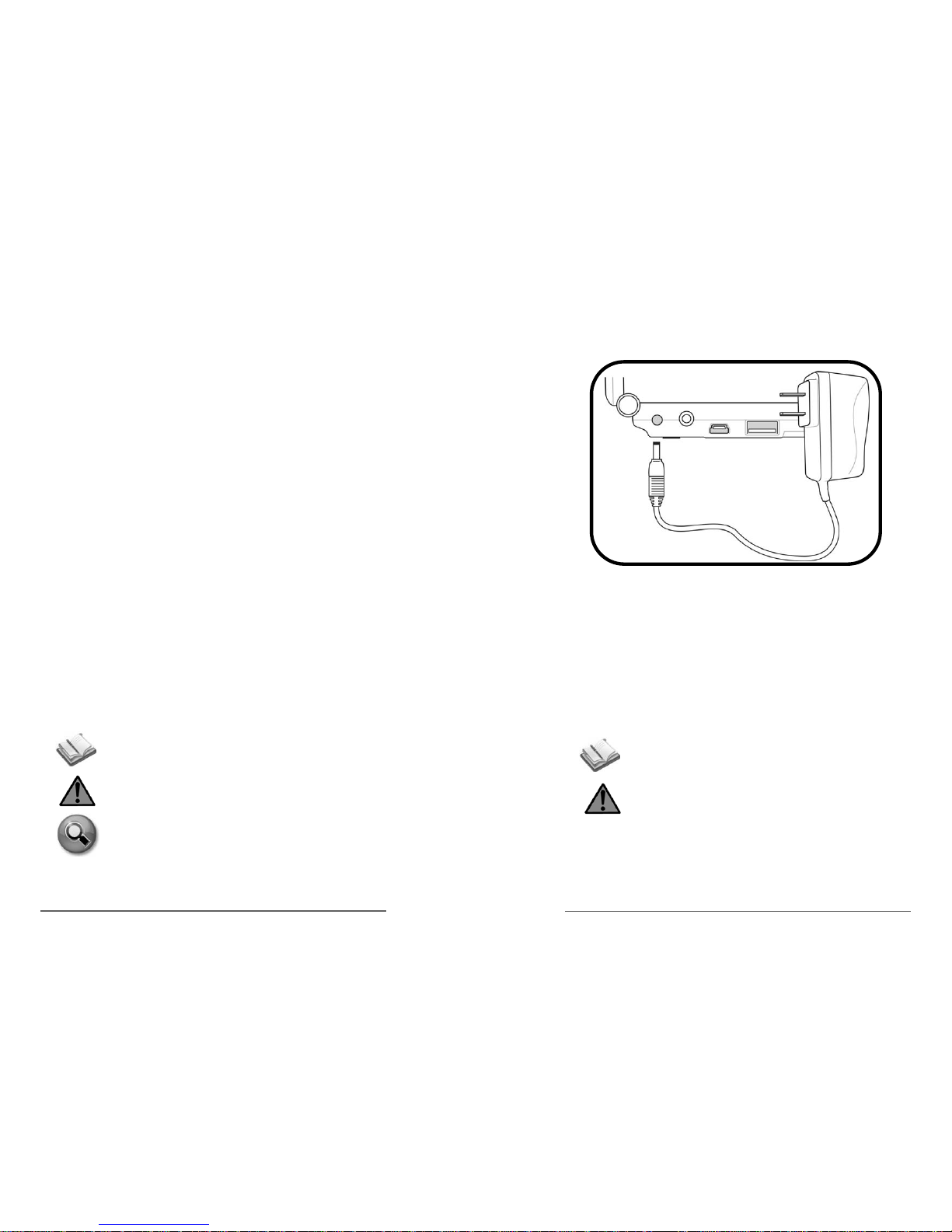
Charging your CUOL™ BOOK and using AC Power
Using the Battery Power
Emergency Shutdown and Reset
Keyboard Mouse
First Run Wizard
Date and Time
Region and Language
Security
Owner Properties
User Interface
Desktop Icons
Chapter 4: Using the CUOL™ BOOK
Internet
Configuring a wireless network connection
Setting Up a Wireless Network Connection
Adding a Specific Wireless Network
Adding a Wireless Network Connection
Setting up your connection
Configuring a wired network connection
Setting up using a dynamic IP
Setting up using a Static IP
Configuring a Virtual Private Network
Configuring a PPPoE (Point-to-Point Protocol over
the Ethernet
Page 4

1
Using Your
CUOL ™ BOOK
Page 5
Using the Guide
You are reading the CUOL™ BOOK User’s Manual. This User’s
Manual will guide you through the initial setup of your computer,
provide information regarding the different components in your
CUOL™ BOOK and learn how to use them.
The following are the major sections of the this User’s Manual:
1. Introducing the CUOL™ BOOK
- this part of the manual introduces the CUOL™ BOOK to you
- do(s) and don't do(s)
2. Getting to know your CUOL™ BOOK
- Provide information on the CUOL™ BOOK’s components
3. Getting Started
- Provide information on getting started with your
CUOL™ BOOK
- A detailed guide on the initial setup
4. Using your CUOL™ BOOK
- Provides information on using the CUOL™ BOOK’s programs
- Provides information on using the CUOL™ BOOK’s utilities
1-2 Chapter 1: Introducing the CUOL™ BOOK
Important Notes
A few notes and warning icons have been used all throughout this
guide which allows you to understand the importance of each task
to be carried out carefully and efficiently. The meaning of each
icons are as follows:
NOTE: Information that can be helpful and must pay
special attention to in order to complete the task
WARNING: Important information that must be followed
for safe operation of the CUOL™ BOOK.
TASKS: Following this pointers will make the task at
hand easier to complete.
1-3
CUOL™ BOOK - ROFL
Charging Y our Batteries
Battery Safety
The battery should be initially charged for 8 hours to prolong the
lifespan of the battery pack.
Going on long trips
If you have plans of using the CUOL™ BOOK running on battery
power, ensure that you have fully charged your CUOL™ BOOK. A
fully charged battery pack can power your CUOL™ BOOK for about
3-4 hours. However, power can be drained easily with more
application running on your CUOL™ BOOK which would result to
less computer time usage.
(NOTE: The battery charges as long as the AC adapter
is plugged in an AC power source)
WARNING: DO NOT LEAVE YOUR CUOL™ BOOK TO
CHARGE OVERNIGHT OR LEAVE IT PLUGGED INTO
AN AC POWER OUTLET FOR LONG PERIODS OF
TIME TO AVOID OVERHEATING OF NOTEBOOK.
Page 6
Safety Precautions
The following safety precautions will increase the lifespan of your
CUOL™ BOOK. Follow all instructions and warnings listed in this
guide. Do not attempt to open or take apart your CUOL™ BOOK. If
there are any problems with your CUOL™ BOOK, refer all
servicing to qualified personnel or contact our service hotline to find
information on our nearest service center.
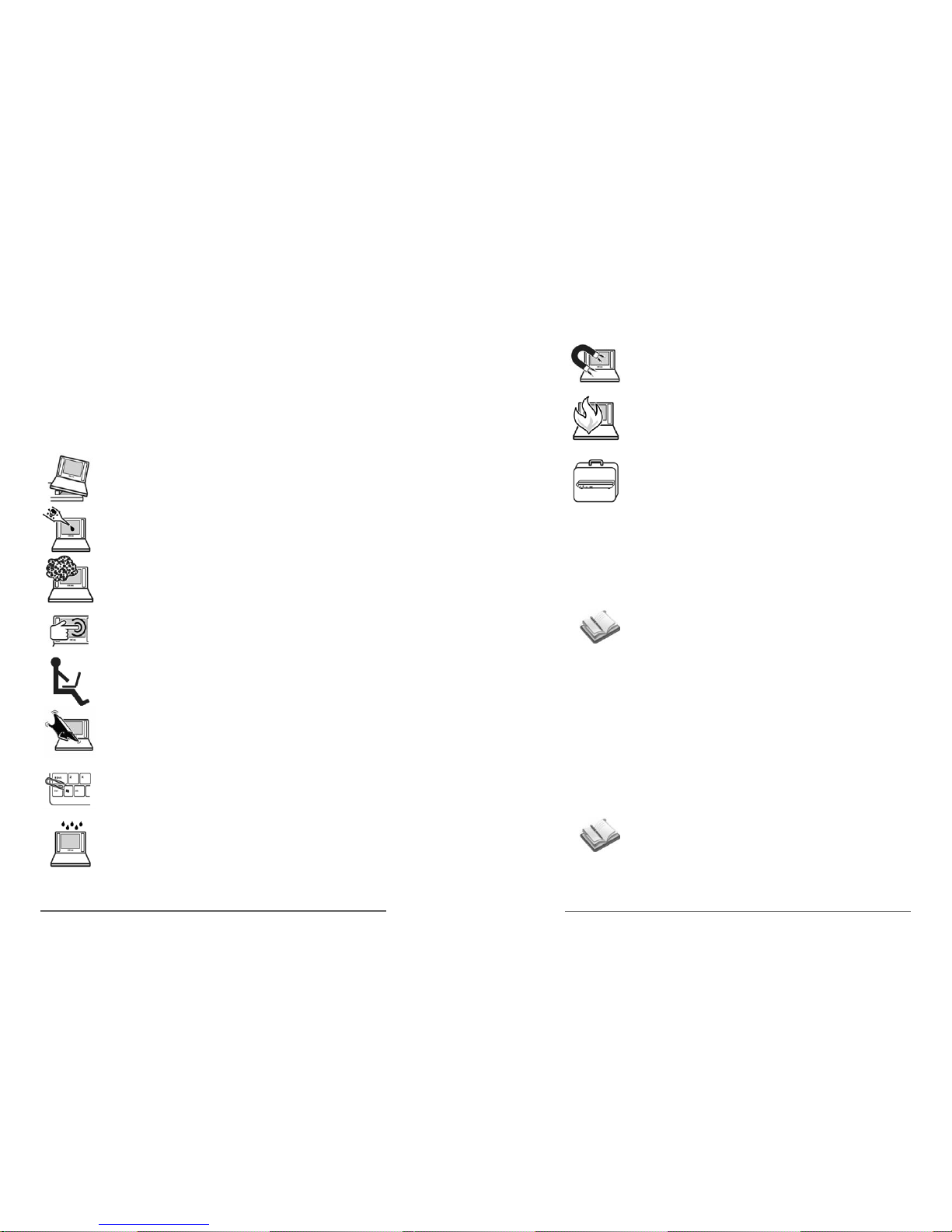
• Do not place the device on unstable surfaces.
Always make sure that the device is operating on an
even or balanced area.
• Do not use any chemical liquids on the display panel
or the surface of the device.
• Do not expose to excess dust or to dirty environments.
• Do not press or apply excessive force to the display
panel.
• Do not operate the device on your lap or any part of
your body for a long period of time to prevent injury
from heat exposure dissipated by the device.
• Do not place or drop any objects on the device as
this may lead to the leakage of the display panel.
• Do not put or force foreign objects into the vents or
open holes on the device. Foreign objects may
disrupt the power within the device and cause
damage.
• Do not expose or use the device near liquids, water
or excessive moisture. When there is an electrical
storm, avoid using any electrical devices since
electrical current supply could be unstable.
1-4 Chapter 1: Introducing the CUOL™ BOOK
• Do not expose to strong magnetic or electrical fields.
• Do not expose your device to extreme heat.
• Properly shut down the device after using. Do not
cover the device while it is powered ON. Keep
materials away that would reduce the air circulation
within the device.
Airport Precautions
Contact your airline or your flight attendant if you plan to use your
CUOL™ BOOK on the airplane. Most airlines will have restrictions
and rules when using electronic devices onboard.
There are three main airport security devices used: X-ray Machines
( mostly used to check items on a conveyer belt), magnetic or metal
detectors ( used on people for security checks) and handheld
magnetic devices. Do not expose your device to magnetic devices
as this may damage your laptop.
(NOTE: Make sure to turnoff your Wi-Fi when on the
plane as this may disrupt the airline communication.)
Transportation Precautions
The CUOL™ BOOK is a mobile solution for all your basic computer
needs. When travelling with a CUOL™ BOOK, be sure to turn OFF
your device when on the move. This will prevent damage to the
hard disk and to other internal hardware.
(NOTE: Be sure to turn OFF your device before closing
the display panel. Do not close the display panel while
the device is ON.)
1-5
CUOL™ BOOK - ROFL
Page 7

2
Getting to know your
CUOL™ BOOK
Page 8

2
Getting to know your
CUOL™ BOOK
Page 9
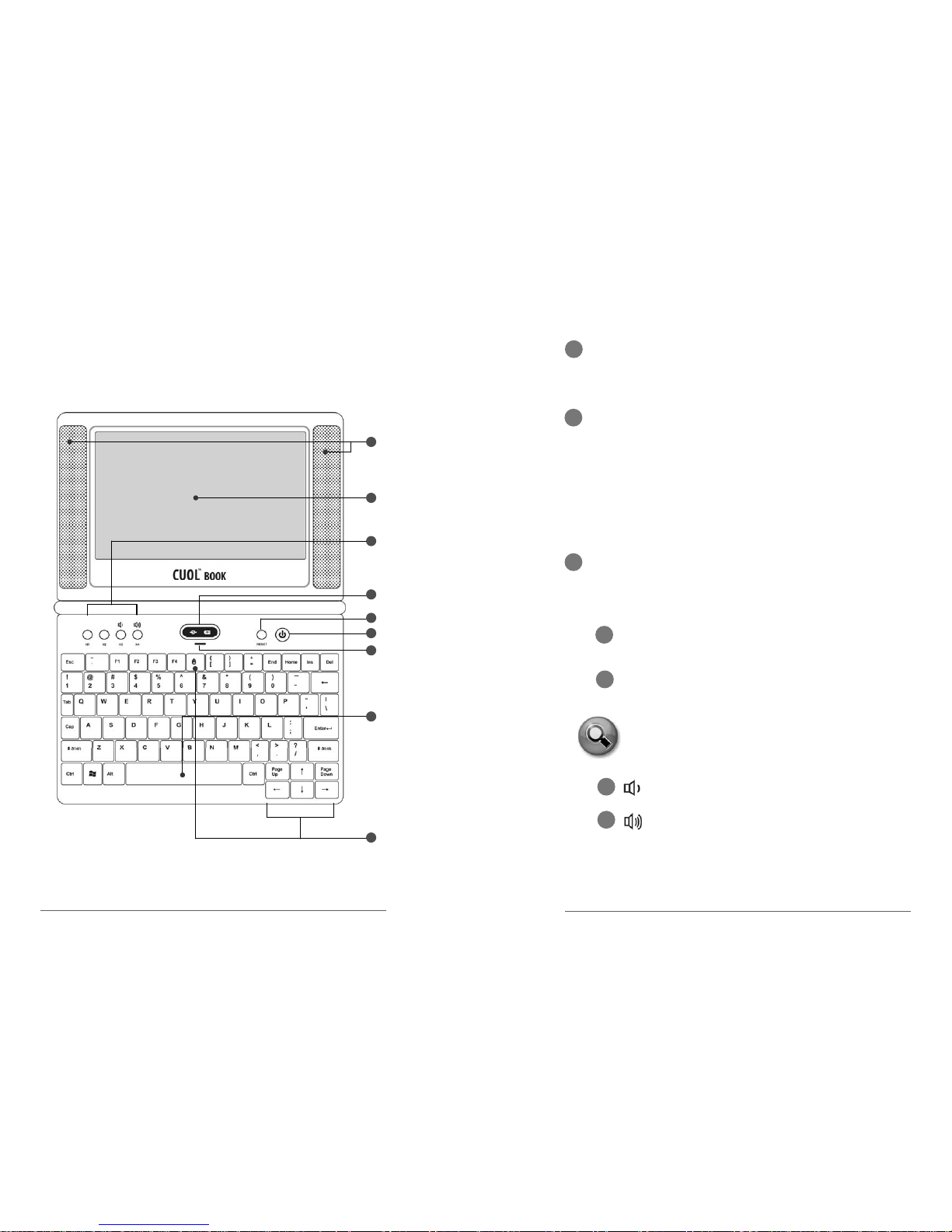
Opened - Top View
Refer to the diagram below to identify the components on this side
of the CUOL™ BOOK.
1
2
3
4
5
6
7
8
9
Chapter 2: Getting to know your CUOL™ BOOK
2-2
H1 H2
H3 H4
1
Built-in Speakers
The built-in speakers allow users to listen to music and videos
2
Display Panel
The display panel functions the same as a desktop monitor.
The CUOL™ BOOK uses an TFT LCD, which provides crystal
viewing like that of desktop monitors. The LCD panel does not
produce radiation, so it is easier on the users eyes.
(NOTE: Use a soft cloth with water to clean the display panel.
Do not use any liquid chemical to clean the display panel )
3
HOT keys
The HOT keys function as a shortcut to installed application
on the CUOL™ BOOK.
H1
Internet Browser Button
Allows users to surf the net with ease.
H2
Personal Email Button
Checking emails has never been easier with just a press
of a button.
H3
Volume Down
Turns the master volume down.
H4
Volume Up
Turns the master volume up.
TASKS: Please refer to Chapter 3-1 for email
configurations and settings
2-3
CUOL™ BOOK - ROFL
Page 10
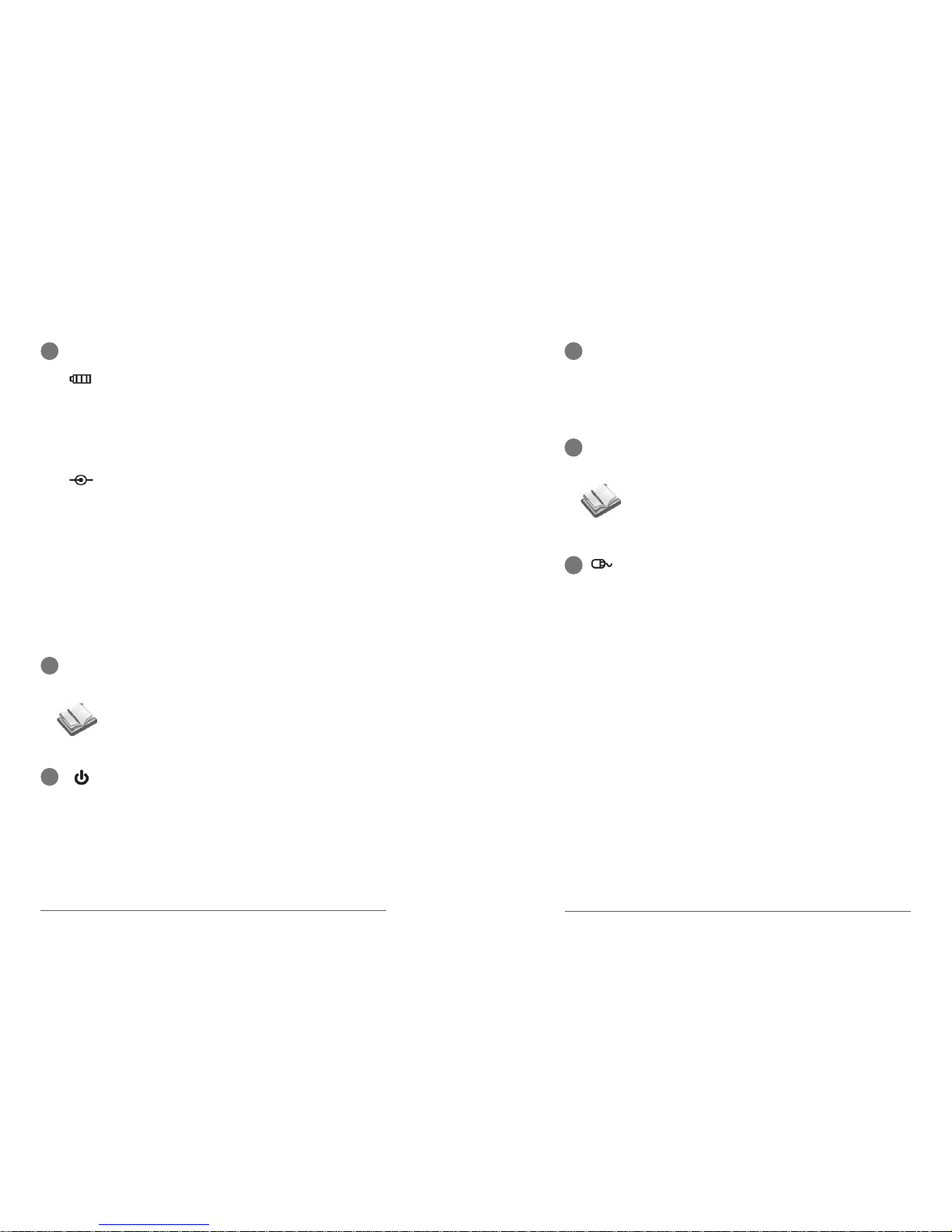
Battery Charge Indicator
The battery charge indicator shows the status of the
battery’s power as follows:
ON: The battery is completely charged and is
running on AC power.
OFF: The CUOL™ BOOK is running on battery.
Blinking: The battery is charging when running on AC
power or the battery power is less than 20% when
running on battery power.
5
Reset Button
When the CUOL™ BOOK is not responding or has hanged,
pressing the reset button will restart the computer.
6
Power Button
The power switch allows powering ON and OFF of the
CUOL™ BOOK. Press the switch once to turn on and
hold it to turn OFF the CUOL™ BOOK.
4
Status Indicators (Center)
Power Indicator
The power indicator lights (BLUE) when the
CUOL™ BOOK is turned ON and blinks slowly when
the CUOL™ BOOK is shutting down (suspend mode).
The indicator is OFF when the CUOL™ BOOK is turned
off.
(NOTE: This button does not restore the computer to its
original factory settings)
Chapter 2: Getting to know your CUOL™ BOOK
2-4
7
Built-in Microphones
The built-in microphones allow users to talk to other people via
VOIP (Voice-Over-Internet-Protocol) using MSN, Skype or
Yahoo.
8
Keyboard
The keyboard provides keys with comfortable touch and easy
use for travel. The key size are similar to desktop keyboards.
9
Keyboard Mouse (Arrow Keys)
The keyboard mouse (arrow keys) comprises a pointing
device that provides the same functions such as that of a
desktop mouse.
The cursor will move with accordance to the direction of
the arrow. The “Page Up” button is the select button
while the “Page Down” button is the menu button, this is
similar to the right and left click on a desktop mouse.
(Note: Keyboard layout will differ according to supplied
location.)
2-5
CUOL™ BOOK - ROFL
Page 11
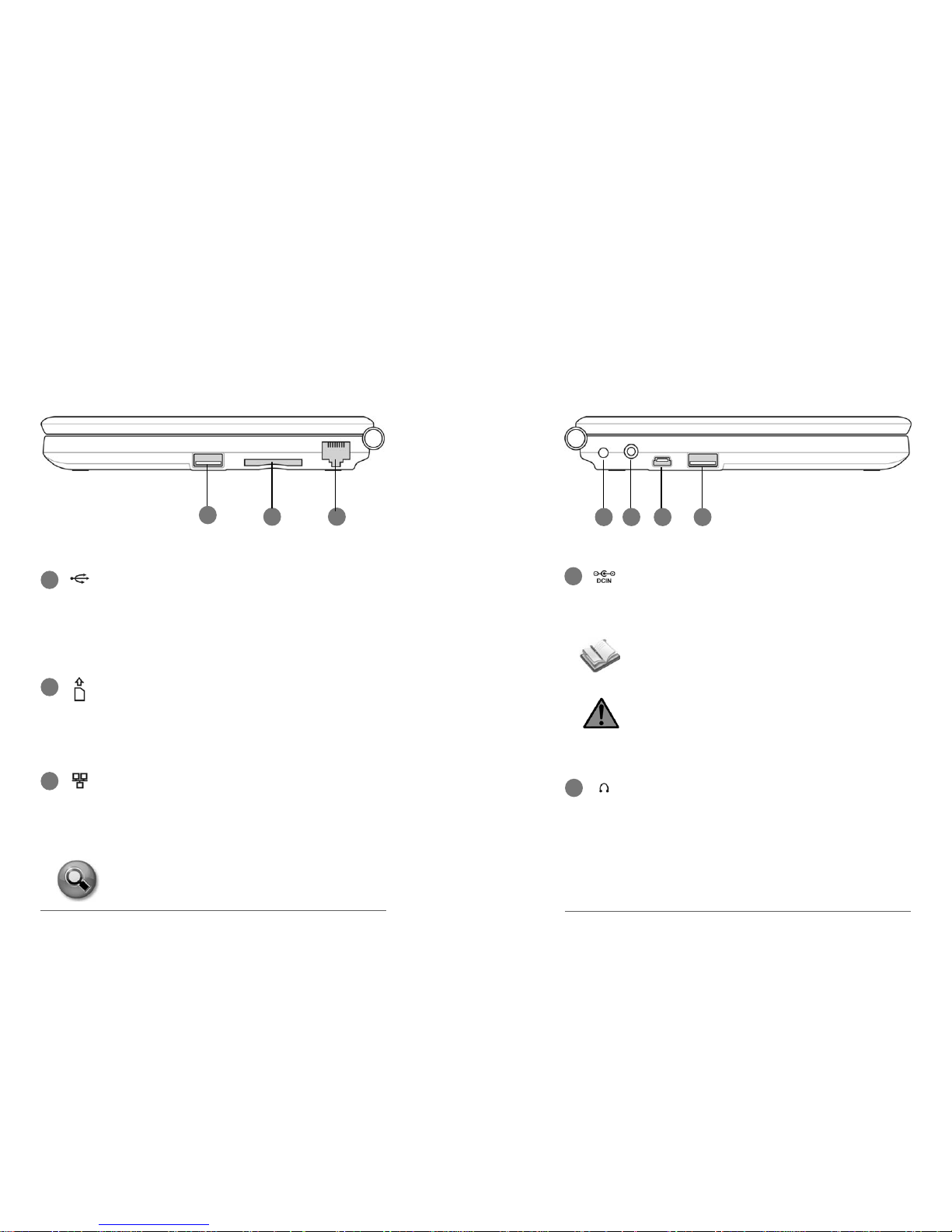
Refer to the diagram below to identify the components on this side
of the CUOL™ BOOK.
3
LAN Port
The LAN port (10/100M Bit) supports an international
standard Ethernet cable for connection to a local
network. There is no need for any additional adapters,
this provides users the convenience to easily connect to
a local network.
1
2 3
1
USB PORT (1.1)
The USB (Universal Serial Bus) port is compatible with
USB 1.1 devices such as keyboards, pointing devices,
web cams, camera and other plug and play storage
Devices. The USB allows many devices to run
simultaneously on a single computer.
2
Memory Card Slot
The built-in memory card reader can read SD/MMC
cards from devices such as digital cameras,
MP3 players, PDA and mobile phones. It can support
memory cards with memory capacities up to 4GB.
Right Side View
TASKS: Please refer to Chapter 3-1 for connection
settings and configurations
Chapter 2: Getting to know your CUOL™ BOOK
2-6
Left Side View
Refer to the diagram below to identify the components on this side
of the CUOL™ BOOK.
1 2 3 4
1
Power (DC) Input
The supplied power adapter converts the AC power
supplied to DC power for the CUOL™ BOOK to use.
Power supplied through the use of this jack powers the
CUOL™ BOOK and charges the internal battery pack.
WARNING:
THE ADAPTER MAY BECOME VERY HOT, BE SURE
NOT TO COVER THE ADAPTER WHEN IN USE AND
ALWAYS KEEP AWAY FROM SKIN CONTACT.
2
Headphone Output Jack
The 1/8” stereo headphone jack (3.55mm) connects the
CUOL™ BOOK’s audio output signal to speakers or
headphones. When the headphone jack is in use, the
built-in speakers with be automatically disabled.
(Note: Do not use other power adapters, please use the
supplied power adapter to prevent damage to the
CUOL™ BOOK.)
2-7
CUOL™ BOOK - ROFL
Page 12
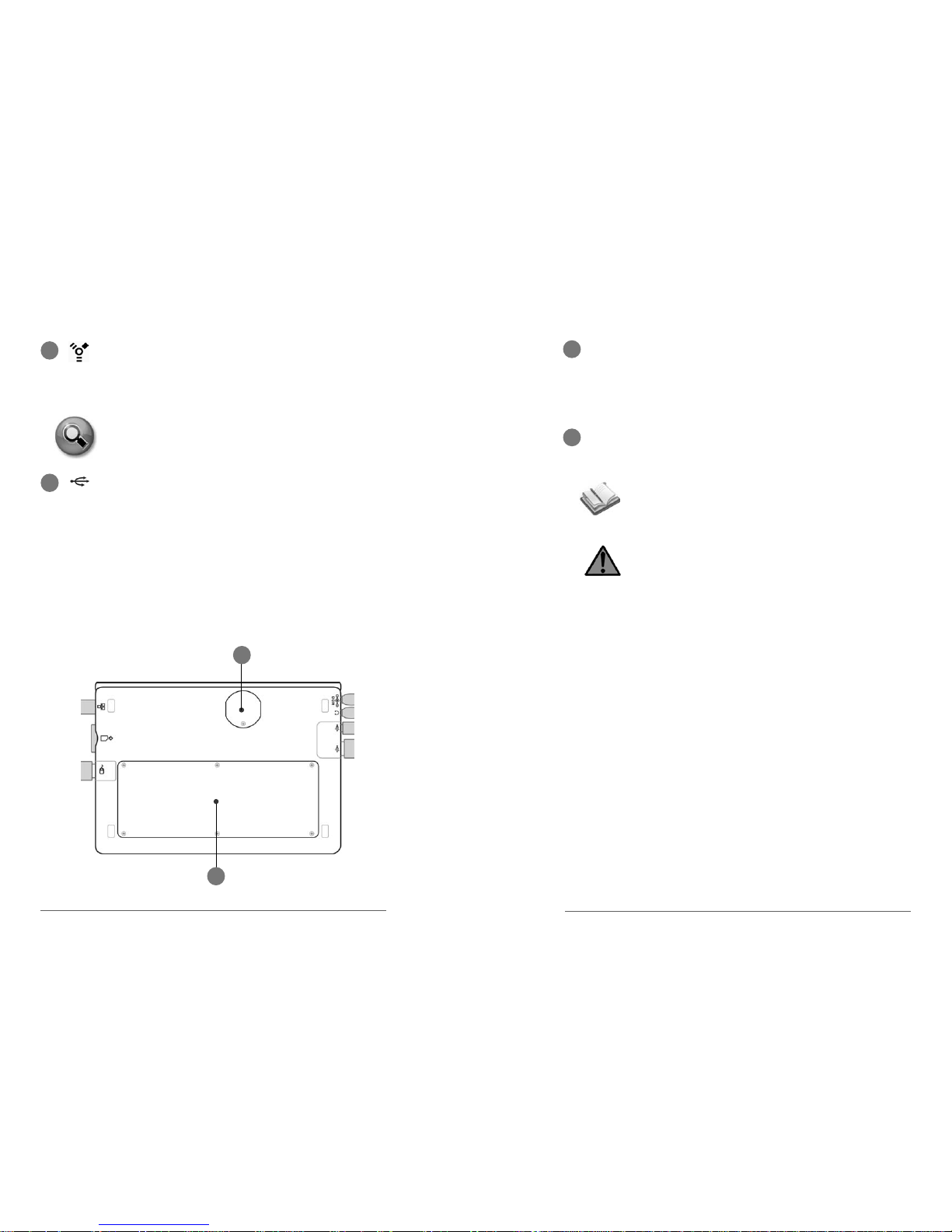
Bottom View
Refer to the diagram below to identify the components on this side
of the CUOL™ BOOK.
1
2
4
USB PORT (1.1)
The USB (Universal Serial Bus) port is compatible with
USB 1.1 devices such as keyboards, pointing devices,
web cams, camera and other plug and play storage
devices. The USB allows many devices to run
simultaneously on a single computer.
3
4-Pin FireWire 400 Connectors
The mini USB port can be used to sync your device with
your desktop or laptop computers.
Data transfer and application installation on your CUOL™
BOOK are made easy.
(TASKS: Please refer to chapter 4-1 for installations and
configurations.)
Chapter 2: Getting to know your CUOL™ BOOK
2-8
1
Lithium Battery Compartment
This is a dedicated compartment for the motherboard’s
battery. This battery supplies power to your on board time and
date. If your operating system is resetting its time, be sure to
chance the battery and set time and date.
2
SSD (solid-state disk) and Memory Compartment
This is a dedicated compartment where the hard-disk drive
and memory are secured.
WARNING:
THE BOTTOM OF THE CUOL™ BOOK MAY BECOME
VERY HOT. BE CAREFUL WHEN HANDLING THE
CUOL™ BOOK WHEN IT IS IN OPERATION. DO NOT
USE ANY FABRIC ( i.e. SOFA, BED OR BLANKETS )
UNDERNEATH THE CUOL™ BOOK BECAUSE THIS
MAY BLOCK THE VENT OF THE NOTEBOOK. DO
NOT PUT THE CUOL™ BOOK AT ANY DIRECT SKIN
CONTACT TO AVOID INJURY FROM THE HEAT.
(NOTE: The memory module installed with your
CUOL™ BOOK is used for CUOL™ BOOK only and is
not compatible with other notebooks)
2-9
CUOL™ BOOK - ROFL
Page 13

3
Getting Started with
your CUOL™ BOOK
Page 14
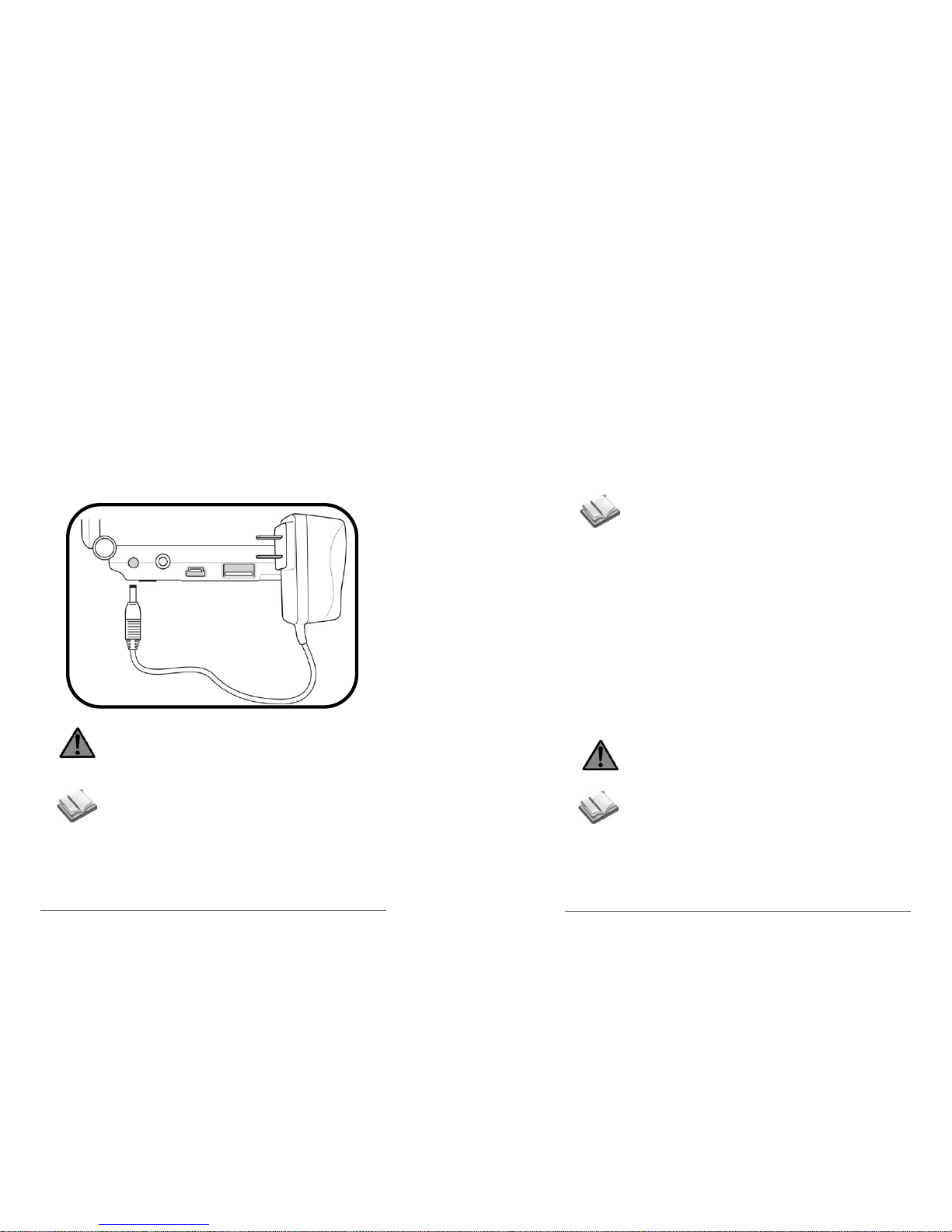
Battery and Power System
Charging your CUOL™ BOOK and using AC Power
The power adapter converts the AC power from a source into a DC
power in order for your device to work. The CUOL™ BOOK comes
along with a universal AC-DC adapter for connection to either a
110V-120V or a 220V-240V outlets. There are no switches to adjust
and no need to purchase a power converter when traveling to
different countries. You may be required to purchase a plug
converter separately to convert US-standard AC power cord to a
different standard.
WARNING: THE ADAPTER MAY BECOME HOT
WHEN IN USE FOR A PERIOD OF TIME. BE SURE
NOT TO COVER THE ADAPTER AND KEEP IT AWAY
FROM ANY SKIN CONTACT
NOTE:
1. The CUOL™ BOOK adapter may have a two or
three-prong plug depending on the country it was
purchased in.
2. Damage may be caused if a different adapter is
used to power the CUOL™ BOOK. Always use the
adapter that came with the device.
Chapter 3: Getting started with your CUOL™ BOOK
3-2
Using the Battery Power
The battery pack that comes with the CUOL™ BOOK is secured in
place. The battery consists of a set of batteries housed together. A
fully charged battery will provide 3-4 hours of battery life on your
CUOL™ BOOK.
Do not use any other adapter except those provided by your
CUOL™ BOOK retailers. Universal power adapters may have a
different voltage and current output that may permanently damage
your CUOL™ BOOK when used.
(NOTE: Remember to fully charge the battery before first
use and whenever it is completely drained. This
common practice will prolong the battery life of the
CUOL™ BOOK.)
Emergency Shutdown and Reset
In any case that your CUOL™ BOOK’s operating system cannot
work properly or is not responding, there are some other ways to
shutdown or reset your CUOL™ BOOK.
SHUTDOWN: Hold the Power button down until the
system shuts down.
RESET: Press the reset button and the system will
reboot (restart).
WARNING: WHEN YOU PERFORM AN EMERGENCY
SHUTDOWN OR RESET, ALL UNSAVED DATA WILL
BE LOST.
(Note: Make it a practice to save your work from time to
time to avoid data lose in case your system fails to
response.)
3-3
CUOL™ BOOK - ROFL
Page 15
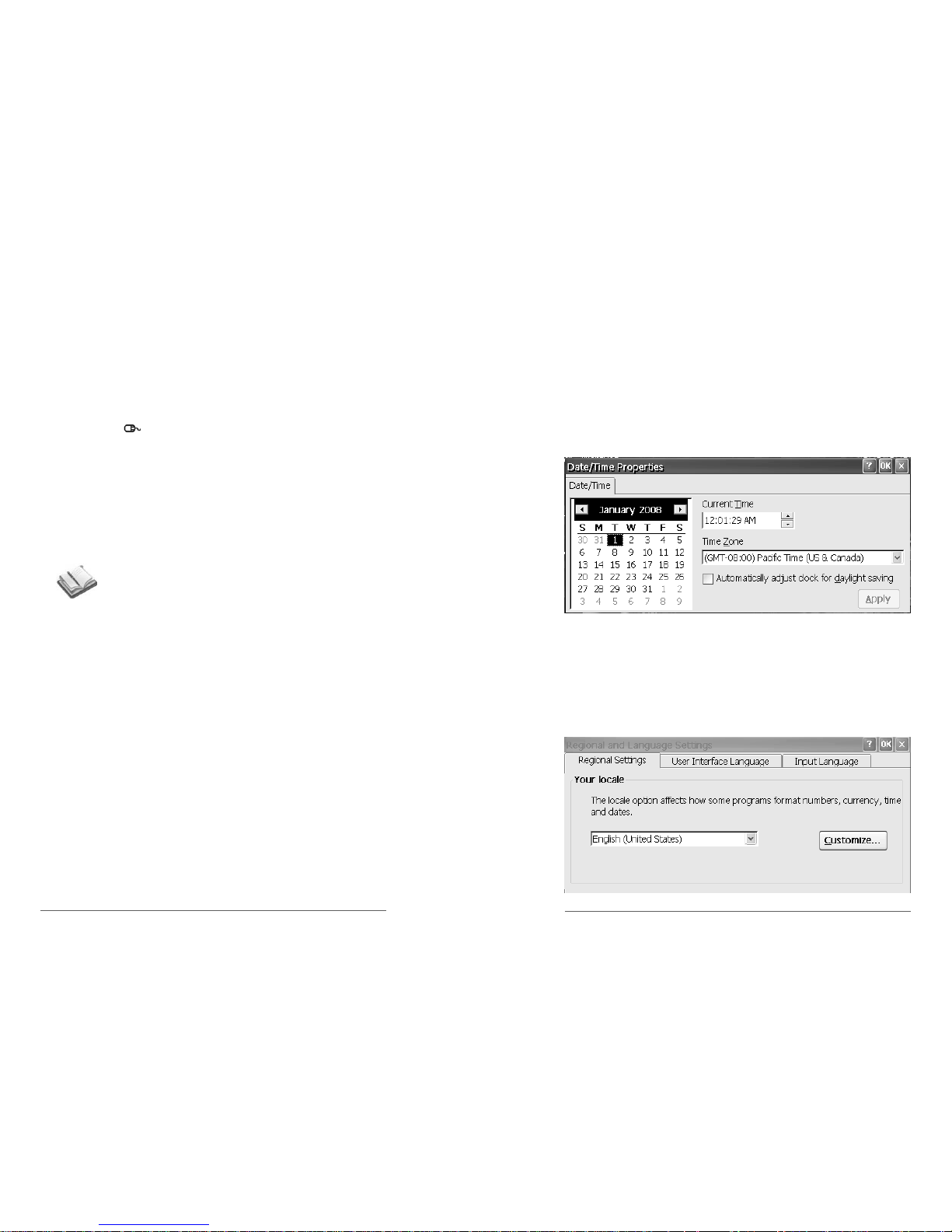
Keyboard Mouse
Using Your Keyboard Mouse
Your CUOL™ BOOK comes with a portable USB mouse. In the
event that you cannot use your USB mouse, the keyboard mouse
can be used for maneuvering around your screen and system.
There is a key located at the top center of the keyboard with a
mouse symbol.
1. Press the mouse button to activate the keyboard mouse, and a
mouse icon will appear on the taskbar.
2. To move the cursor on your screen, use the directional button.
3. The “page up” button becomes the select button while the
“page down” button becomes the menu button. These buttons
functions like the buttons on a standard mouse.
4. Press the mouse button again to deactivate the keyboard
mouse.
(NOTE: Any standard USB mouse can be used with the
CUOL™ BOOK.)
Chapter 3: Getting started with your CUOL™ BOOK
3-4
First Run Wizard
3-5
CUOL™ BOOK - ROFL
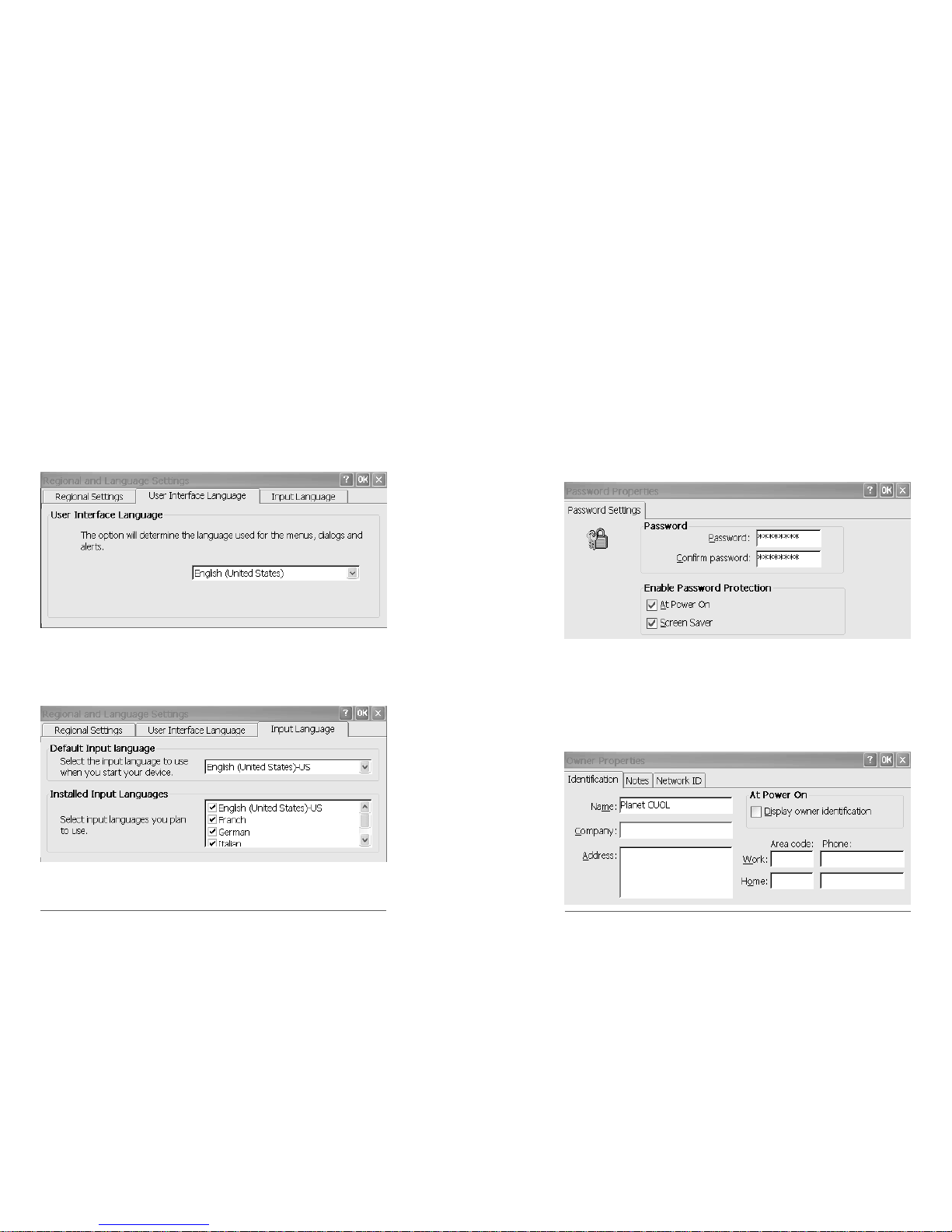
Setting the Date and Time
On the bottom of the desktop screen, double click on the time to
open the date and time properties.
You can also set the time in the control panel
Go to START > Settings > Control Panel > Date/Time > Set time
and date > OK
Setting Region and Language
Set your regional settings to the location you are currently located.
You will be able customize the date, currency and other settings to
your own region.
Go to START > Settings > Control Panel > Regional Settings >
Set Country > OK
Page 16
First Run Wizard
Chapter 3: Getting started with your CUOL™ BOOK
3-6
The User Interface Language gives you the option to change the
language used for the menus, dialogs and alerts. The language
available are English, French, German, Italian and Spanish.
The language availability will defer according to country of
purchase.
Go to START > Settings > Control Panel > Regional Settings >
User Interface Language >Set UI Language > OK
The Default Input Language is English.
Go to START > Settings > Control Panel > Regional Settings >
User Interface Language > Set Input Language > OK
First Run Wizard
3-7
CUOL™ BOOK - ROFL
Security
There is an option where a password can be set to keep your
CUOL™ BOOK secure.
A password will be prompted at the start up and whenever the
screen saver is activated.
Go to START > Settings > Control Panel > Password > Enter
Password > OK
Owner Properties
You can enter your personal identification and other important
information which can be displayed in the beginning of the system
start up.
Go to START > Settings > Control Panel > Owner > Enter Infor-
mation > OK
TM
Page 17
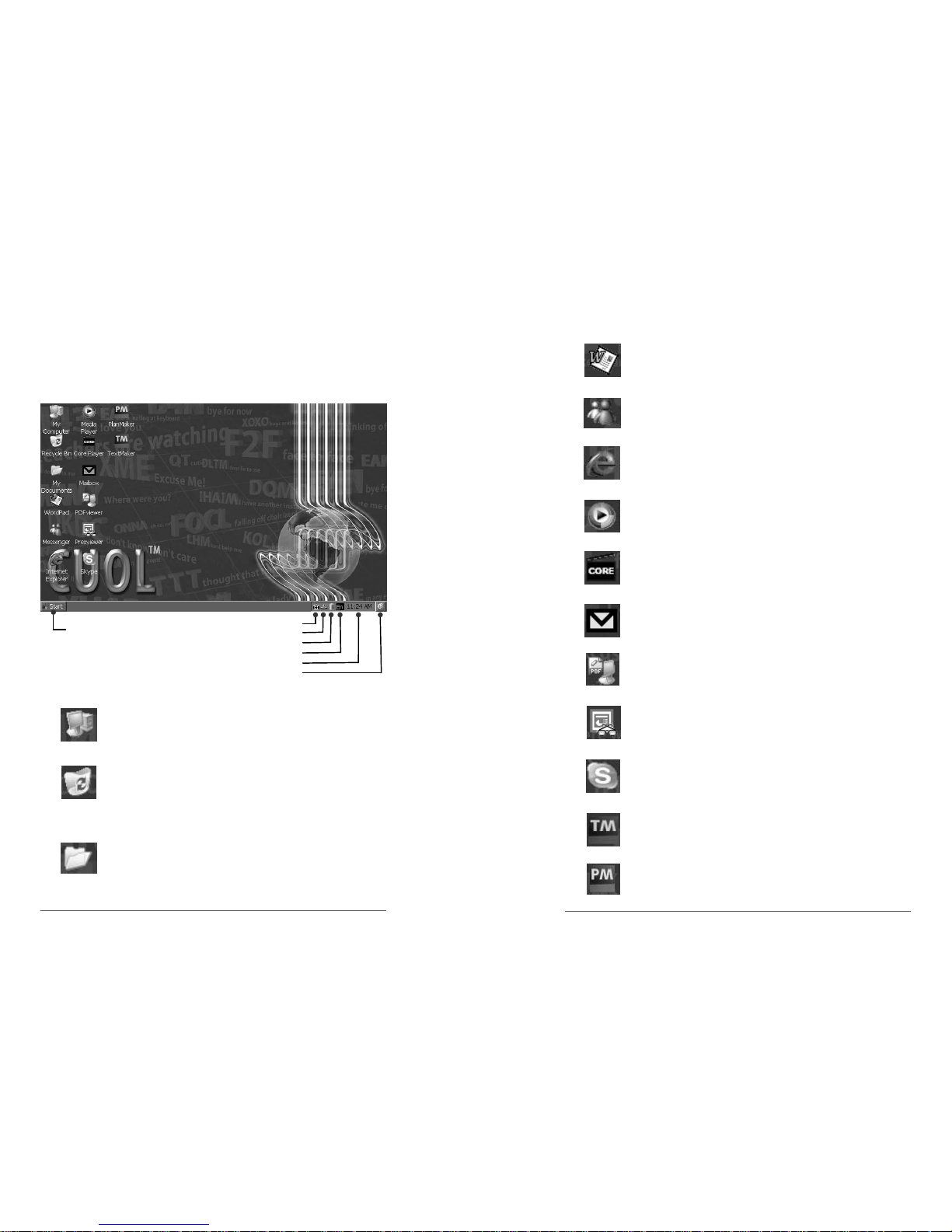
User Interface
The CUOL™ BOOK’s system is designed for ease and
convenience. All the applications you need are at your fingertips.
The simple interfacing makes it easy to navigate through your
system files and documents.
Start Button
Mouse Status
Displays Network Status
Displays Battery Status
User Interface Language
Time and Date
Show Desktop
Desktop Icon
My Computer
My Computer displays all the files that are stored in your
CUOL™ BOOK.
Recycle Bin
The Recycle Bin displays files that you have deleted
from your computer. When deleting a file, your file is
moved to the recycle bin in case you want to restore
them.
My Documents
My Documents is a shortcut to all your personal files.
Chapter 3: Getting started with your CUOL™ BOOK
3-8
3-9
CUOL™ BOOK - ROFL
WordPad
You can create a simple text document using the
WordPad.
Windows™ CE Messenger
This is the Windows™ Messenger V.5. You will be able
to use you MSN account to login to the messenger.
Internet Explorer 6
Windows CE comes with Internet Explorer 6.
Media Player 9
You can play your Music and Video using the Media
Player 9.
The Core Pocket Media Player
You can also play other formats of music and videos
using this media player.
Mailbox
This is mailbox manager where you can manage up to
10 email accounts with a single application.
PDF Viewer
You can view your common PDF document using this
PDF Viewer.
Presentation Viewer
You can view your presentations quickly with the
CUOL™ BOOK Presentation Viewer.
Skype
This is a Skype Compact Edition, you can use your
Skype account and login into the client and start chatting
and receiving calls.
Doc Writer
Document Writer opens and lets you edit your Microsoft
Documents with ease.
Spreadsheet Maker
Spreadsheet Maker opens and lets you edit your
Microsoft Excel Documents.
Page 18

4
Using the
CUOL™ BOOK
Page 19
Internet
Configuring a wireless network connection
Chapter 4: Using the CUOLBOOK
4-2
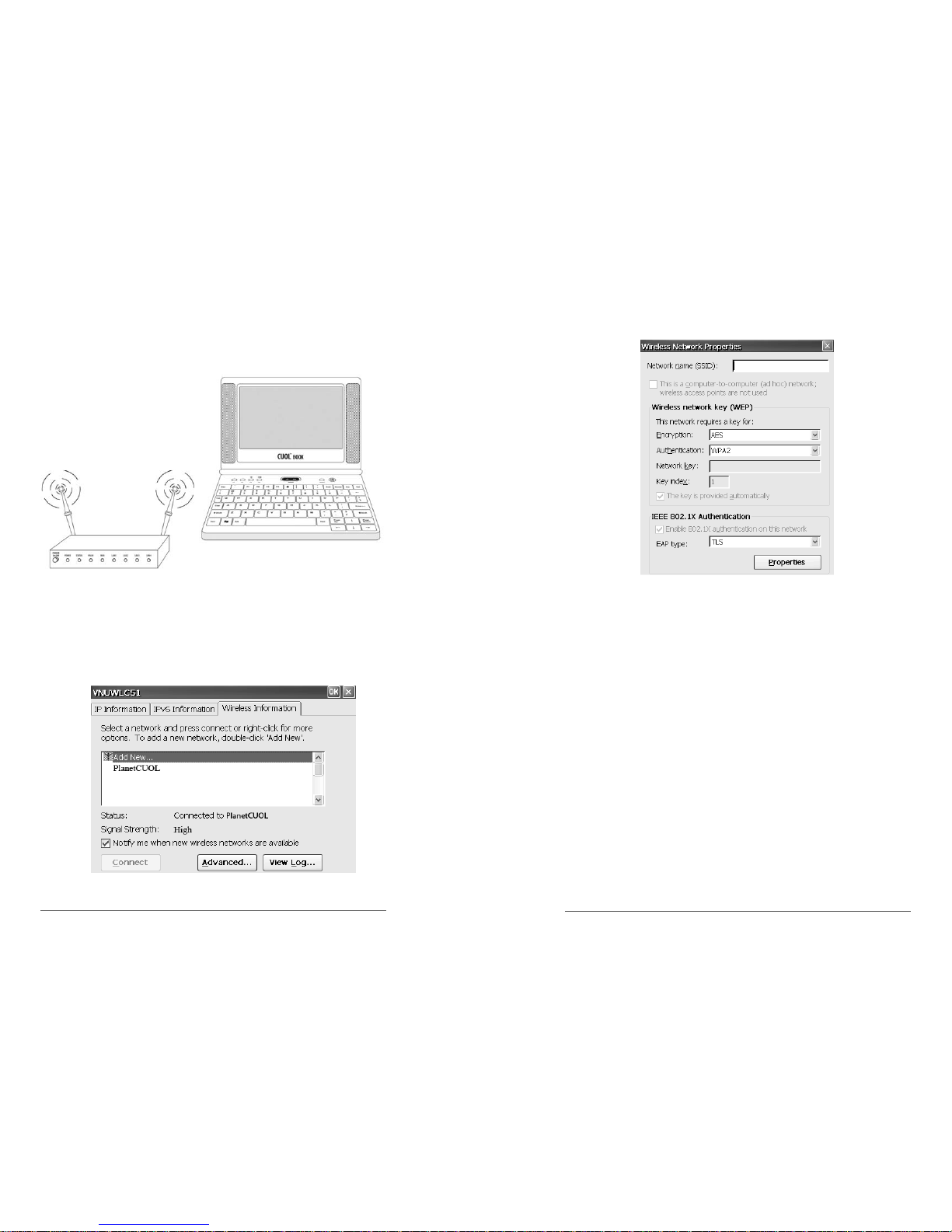
The CUOL™ BOOK comes with a built-in Wi-Fi for wireless
connections. You can access the internet provided that a wireless
transmission is available in the area. When connected via wireless
internet, you will be able to access your emails, browse the internet
and chat with friends using MSN or SKYPE.
Setting Up a Wireless Network Connection
4-3
CUOL™ BOOK - ROFL
Adding A Specific Wireless Network
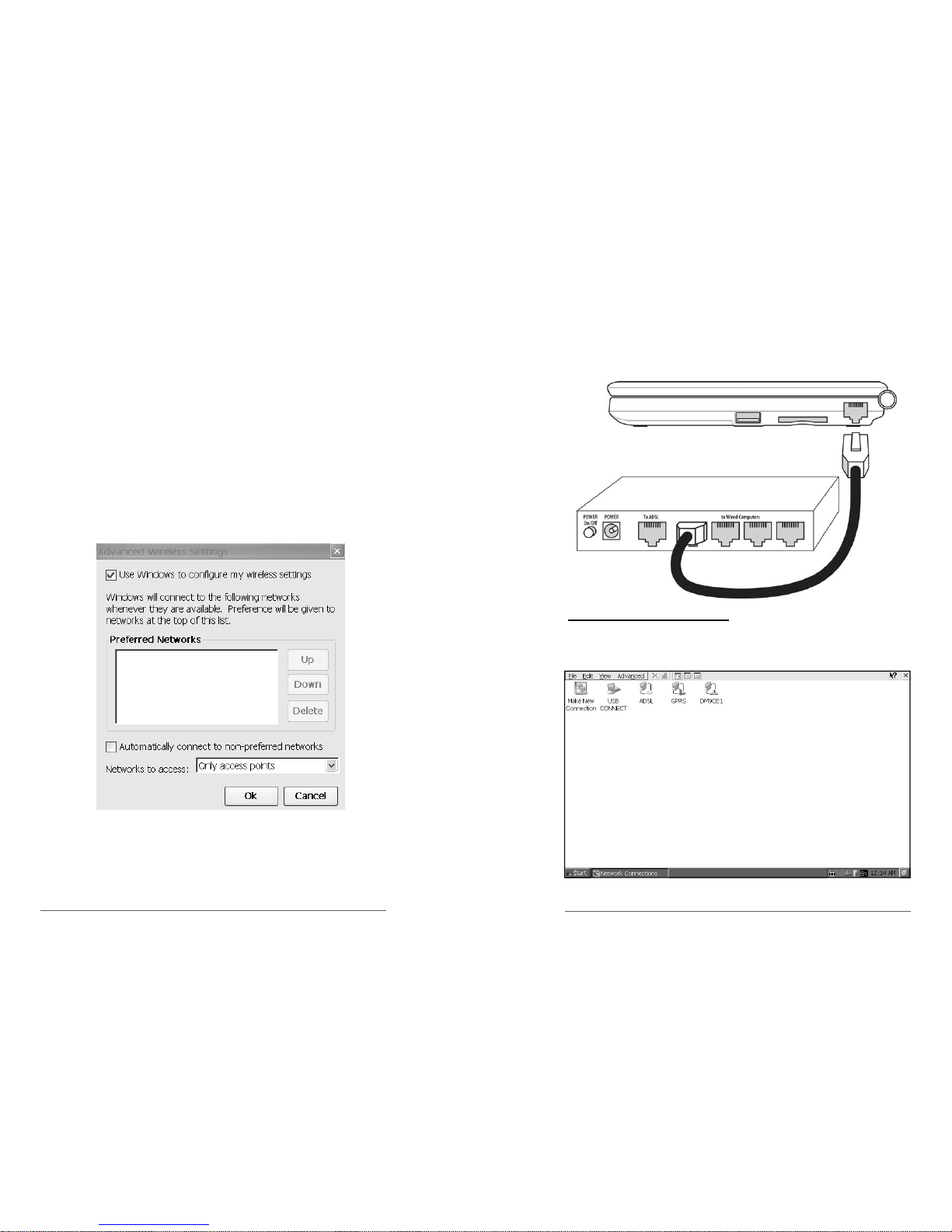
Go to the Wireless Network Properties in the Network and Dial-up
Connections.
Enter the Network Name of the connection in the SSID ( Service
Set Identifier) in the space provided.
When configuring your wireless network key (WEP - Wired
Equivalent Privacy), request from your provider the specific
information for the advance configuration of your connection.
There are two types of data encryption, AES (Advance Encryption
Standard) and TKIP (Temporal Key Integrity Protocol).
There are 6 types of authentication which are Open, Shared, WPA
or WPA2 (Wi-Fi Protected Access), WPA-PSK or WPA2-PSK
( Wi-Fi Protected Access - Pre-shared Key)
EAP (Extensible Authentication Protocol) has two types which are
the TLS (Transport Layer Security) and PEAP ( Protective
Extensible Authentication Protocol)
Page 20
Adding a Wireless Connection
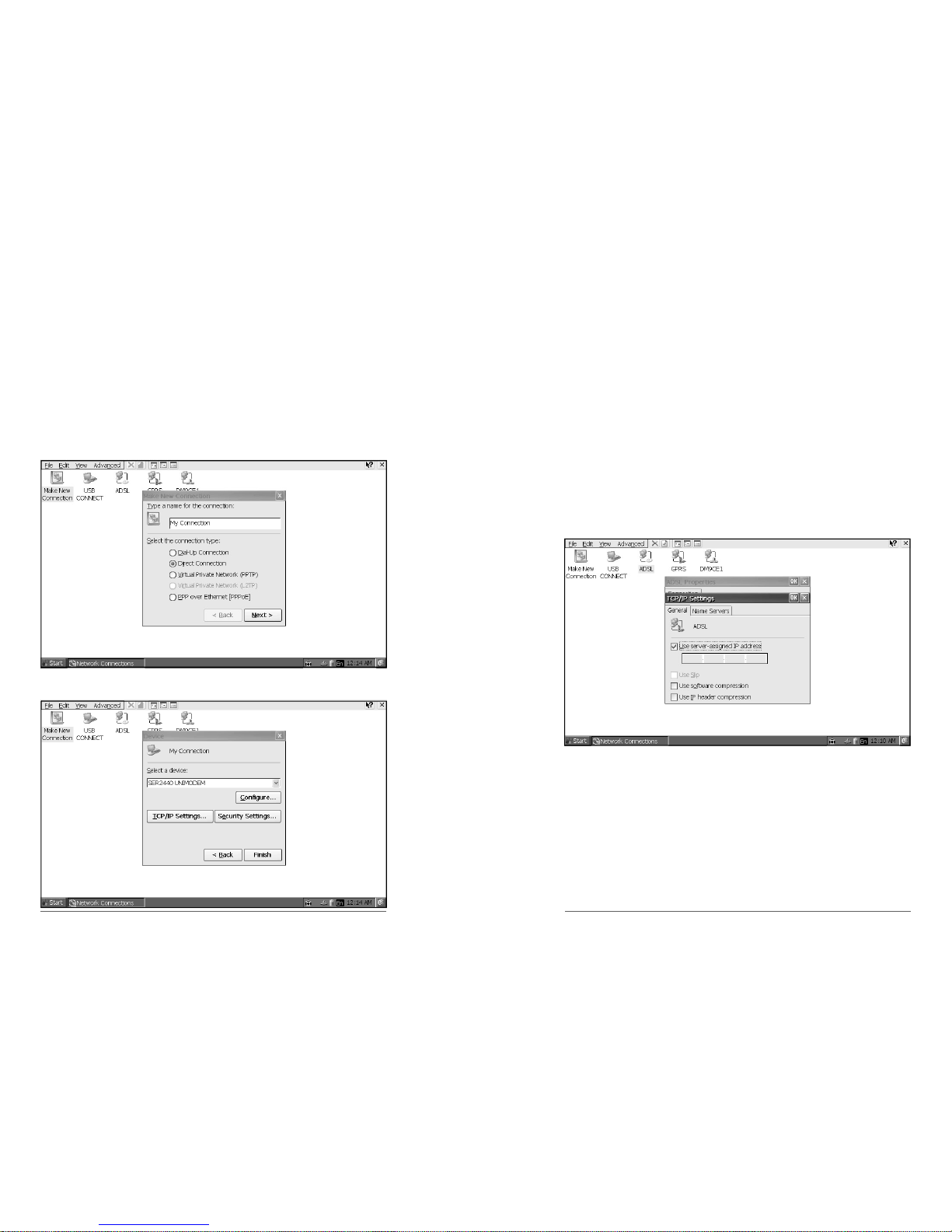
The CUOL™ BOOK’s Wi-Fi will automatically scan the area for a
wireless internet connection.
You can use windows to automatically configure your wireless
settings. Set your internet connection to your Preferred
Network of connection.
When your internet connection is in range, the CUOL™ BOOK will
automatically connect and configure your connection. A secure
connection will require a username and password to access the
service.
Chapter 4: Using the CUOLBOOK
4-4
4-5
CUOL™ BOOK - ROFL
Configuring a wired network connection
Setting up using a dynamic IP
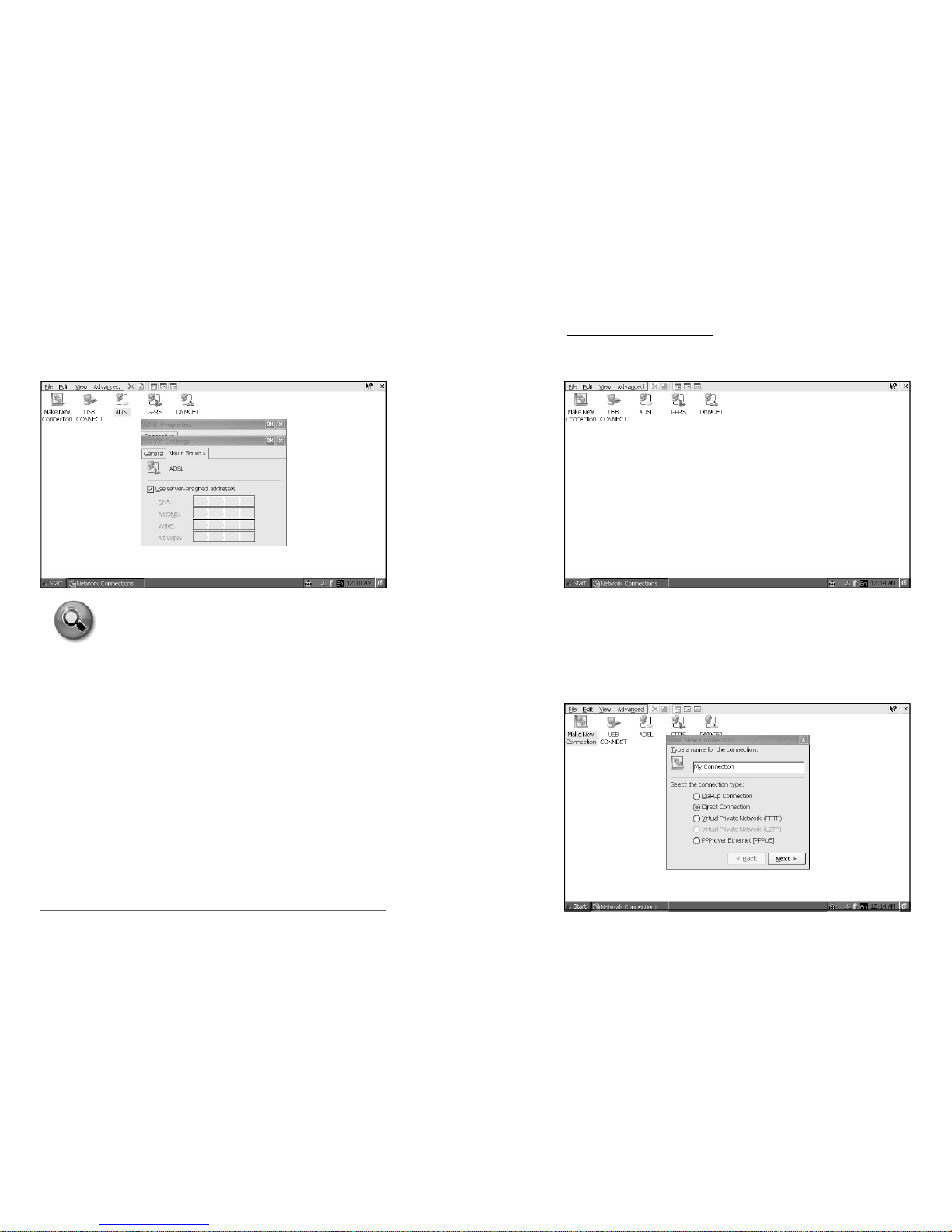
1. Network Connections Window
Go to Start > Settings > Network and Dial-up Connections.
Setting up your connection
Page 21
2. Make New Connection
You can name the connection your are configuring to avoid any
confusion. The Dial-Up connection are for dial-up modems. The
Direct connection uses the broadband internet via ADSL cable to
connect directly to the internet.
Enter a name for this connection >Select Make
New Connection > Direct Connection > Next
The built-in Ethernet device is the default device used.
Select Device > TCP/IP Settings
Chapter 4: Using the CUOLBOOK
4-6
4-7
CUOL™ BOOK - ROFL
Select TCP/IP Settings > General Tab > Check Use server-
assigned IP address > Press OK
3. ADSL Properties
You do not need to specify an IP address if you are configuring
your account to use a dynamic IP.
Just allow the CUOL™ BOOK to retrieve an IP Address from the
router or switch . After a stable connection has been made to the
network devices, your CUOL™ BOOK is ready to connect to the
internet.
Refer to the following figures:
Page 22
Select TCP/IP Settings > Name Servers > Check Use serverassigned addresses > Press OK
TASKS: Your connection should be finished and is
now able to access the internet. If you are still not
able to connect to the internet, restart your
CUOL™ BOOK and repeat steps 1-3.
If your connection requires an IP address, please
contact your internet provider with the needed
information and follow the guide for static IP
configuration.
Chapter 4: Using the CUOLBOOK
4-8
4-9
CUOL™ BOOK - ROFL
Setting up using a Static IP
1. Network Connections Window
Go to Start > Settings > Network and Dial-up Connections
2. Make New Connection
You can name the connection your are configuring to avoid any
confusion.
Enter a name for this connection >Select Make New
Connection > Direct Connection
Page 23
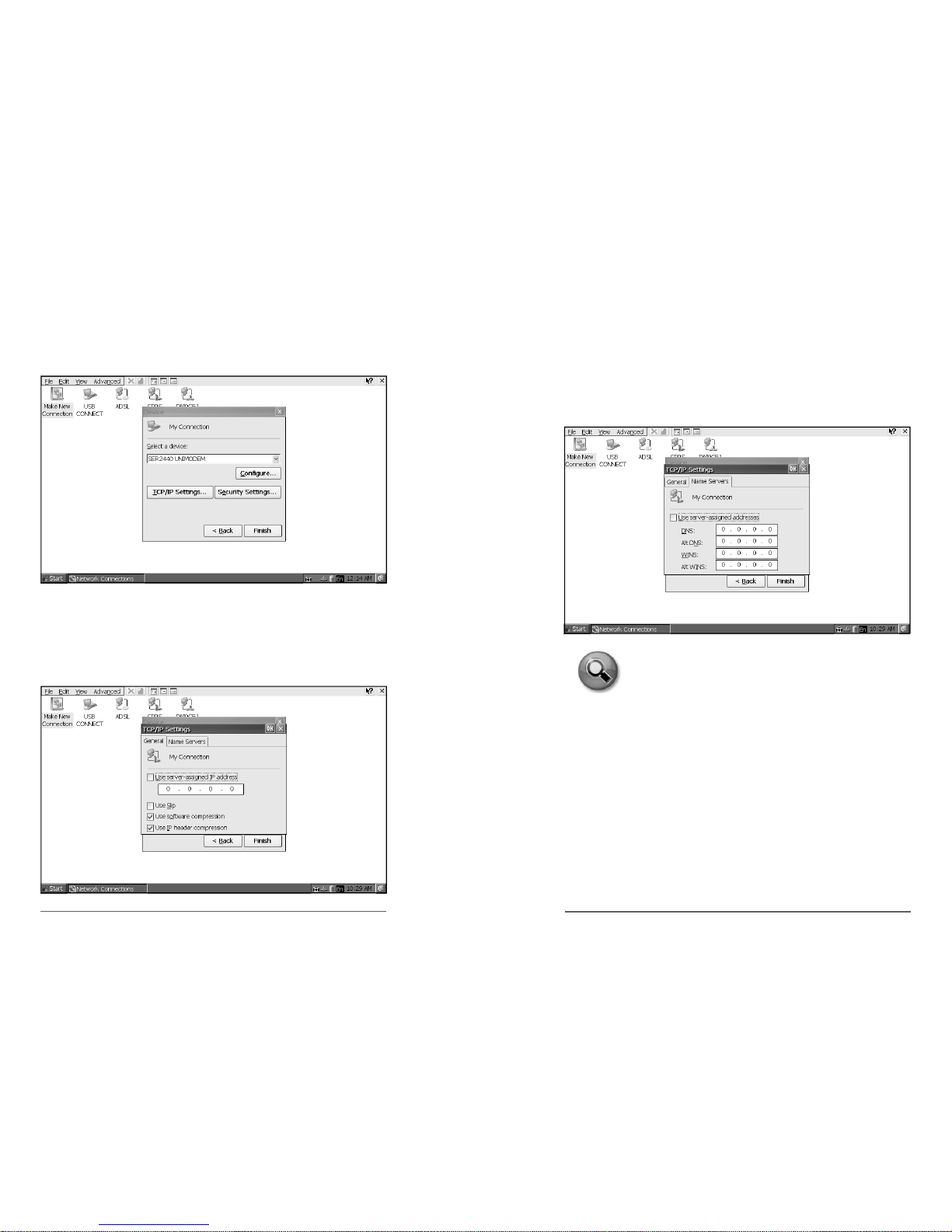
The built-in Ethernet device is the default device used.
Select Devices > TCP/IP Settings
Select TCP/IP Settings > General Tab > Uncheck Use server-
assigned IP address > Enter IP Address
(NOTE: Please contact your internet provider for the information
needed to proceed with setup.)
Chapter 4: Using the CUOLBOOK
4-10
4-11
CUOL™ BOOK - ROFL
Select TCP/IP Settings > Name Servers tab > Uncheck Use
server-assigned IP address > Enter other information > Finish
(NOTE: Please contact your internet provider for the information
needed to proceed with setup.)
TASKS: Your connection should be finished and is
now able to access the internet. If you are still not
able to connect to the internet, restart your
CUOL™ BOOK and repeat steps 1-3.
Please make sure to have all the information needed
and verify with your internet provider all the
information for setup.
Page 24
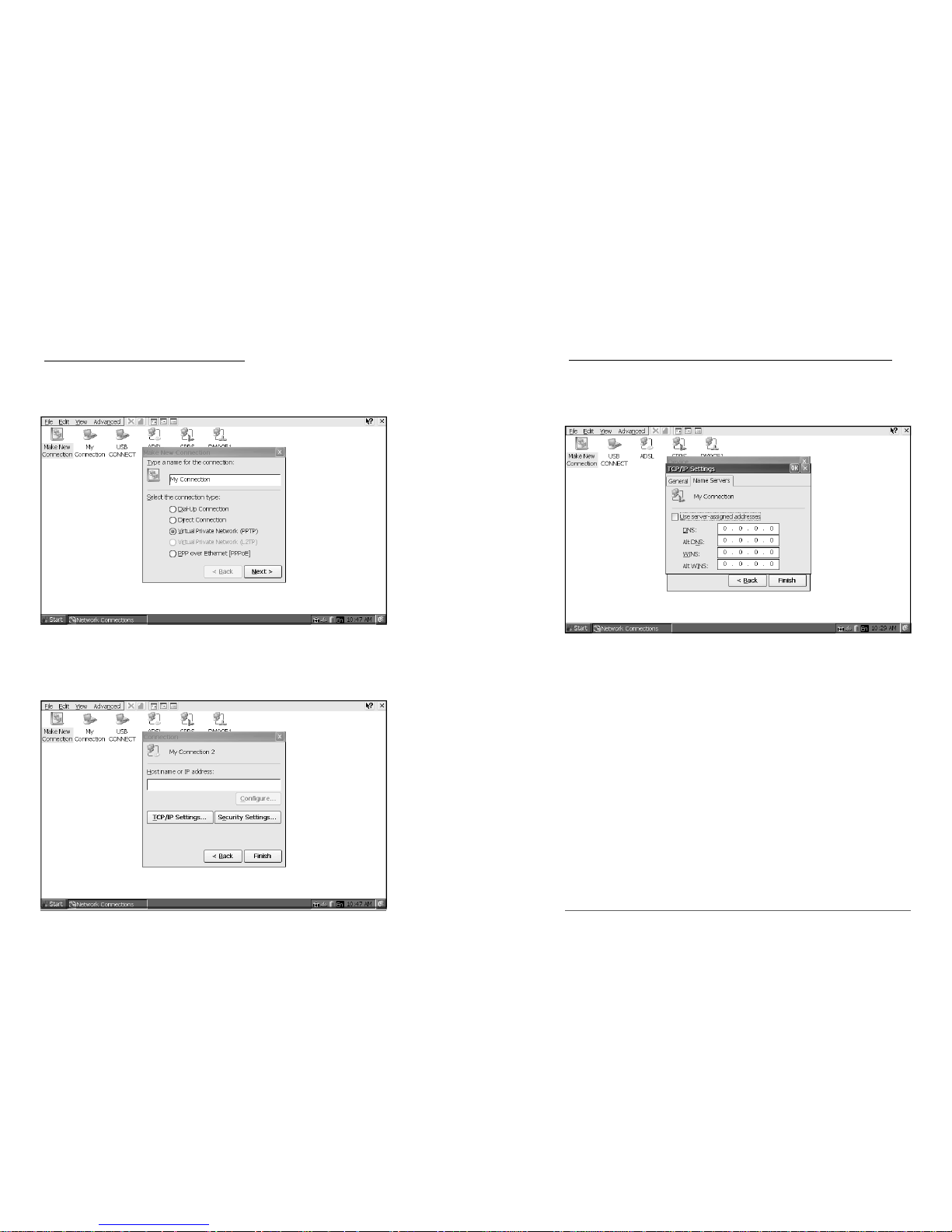
Configuring a Virtual Private Network
1.Make New Connection
Enter a name for this connection >Select Virtual Private
Network (PPTP) > Next
Enter the Host name and IP Address and configure your TCP/IP
settings.
(NOTE: Contact your Network Administrator for the configurations,
username and password to use the VPN access option)
Chapter 4: Using the CUOLBOOK
4-12
4-13
CUOL™ BOOK - ROFL
Configuring a PPPoE (Point-to-Point Protocol over Ethernet)
1. Make New Connection
Enter name for this connection > Select PPP over Ethernet
(PPPoE) > Next
Page 25
Surfing the Internet
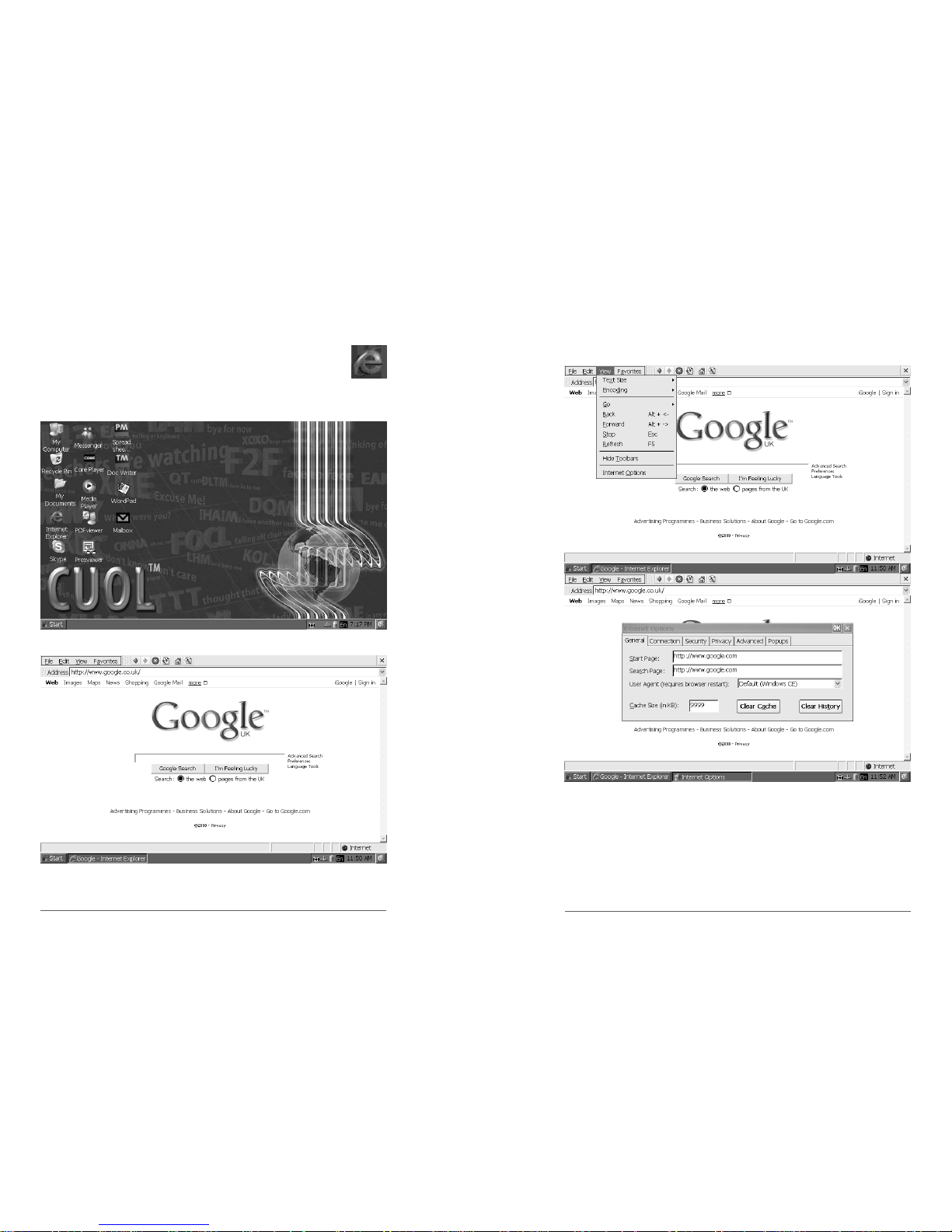
After you have finished the network setup, launch the
internet explorer located on the desktop and you can start surfing
the net.
Chapter 4: Using the CUOLBOOK
4-14
4-15
CUOL™ BOOK - ROFL
Advance Settings for Internet Explorer
Changing your Homepage
Open Internet Explorer > View > Internet Options > General >
Change your “Start Page” > Press OK
Page 26
Changing Your Browsing Experience
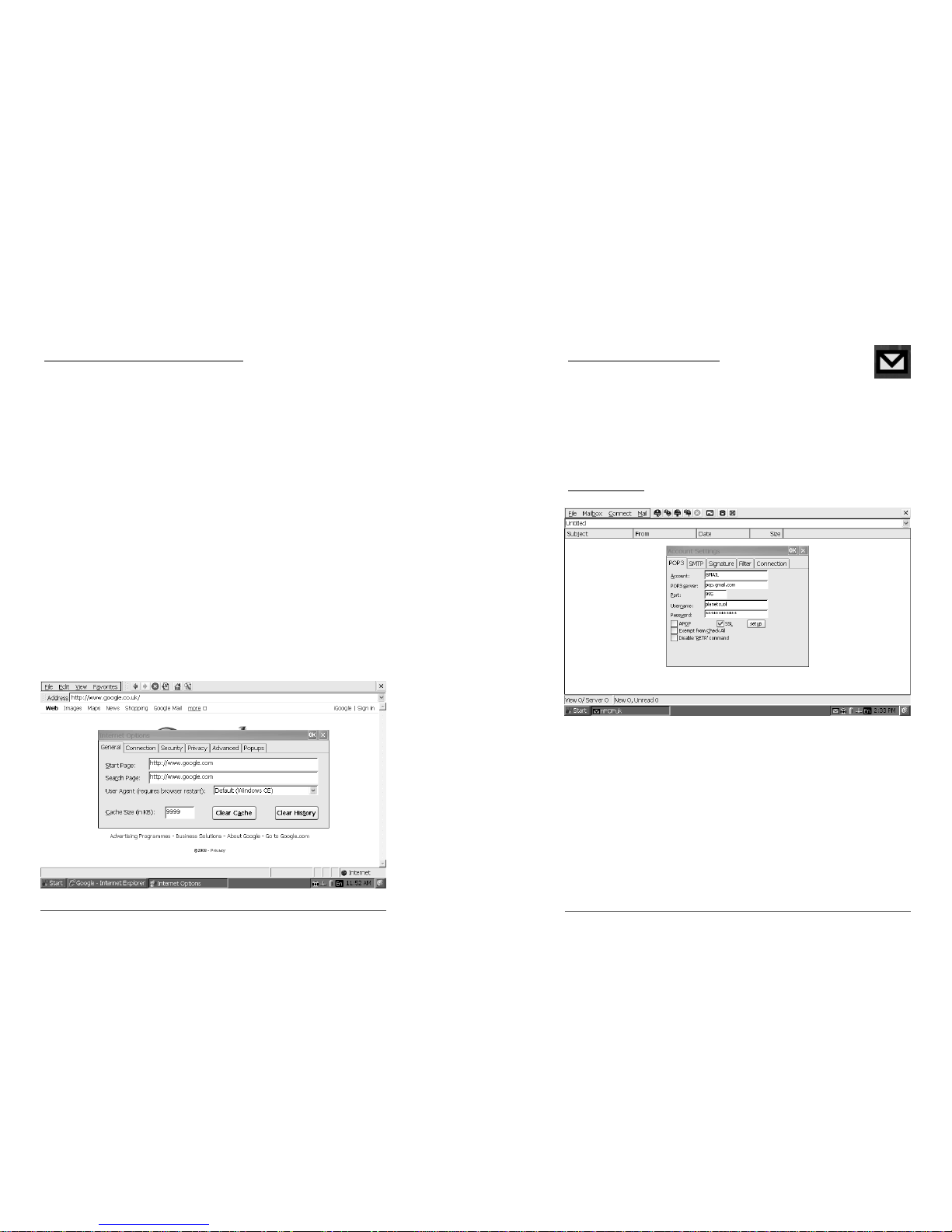
You can view your web content or media in 3 different ways:
1. Windows CE
2. Pocket PC
3. Same as Windows XP
You can surf the net using the default “Windows CE” , “Pocket PC”
and “Same as Windows XP” option.
Using the “Windows CE (Default)” and “Pocket PC” option will
provide you with a faster connection and faster loading of your web
contents, however, the contents on each page will be different as
your experience on a desktop computer.
Using “Same as Windows XP” option will provide you with a slower
page load but the browsing experience will be the same on a standard desktop computer.
Open Internet Explorer > View > Internet Options > Change
User Agent option > Select your choice of user agent > Press
“OK” > Restart Internet Explorer
Chapter 4: Using the CUOLBOOK
4-16
4-17
CUOL™ BOOK - ROFL
Accessing Emails
Setting up an Email account
You are able to set multiple email accounts using the
CUOL™ BOOK’s email manager.
There is a dedicated icon on your desktop named Mailbox. Open
the mail manager by double clicking on the icon or by pressing the
H2 button (located on the top corner) which is the shortcut to the
mail manager application.
POP3 settings
You can have access to 10 email accounts in one single
application.
You can set your email account in a matter of minutes. Here, for
example, setting up a Gmail account from Google:
1. Account - Names the particular account you are setting.
2. POP3 Server - Refer to your provider for the POP3 server
address. In the diagram above, we used the
Gmail account and the POP3 address is
pop.gmail.com.
3. Port - The default port used is 110. In the above example,
Gmail has specified the port 995 to be used.
Page 27
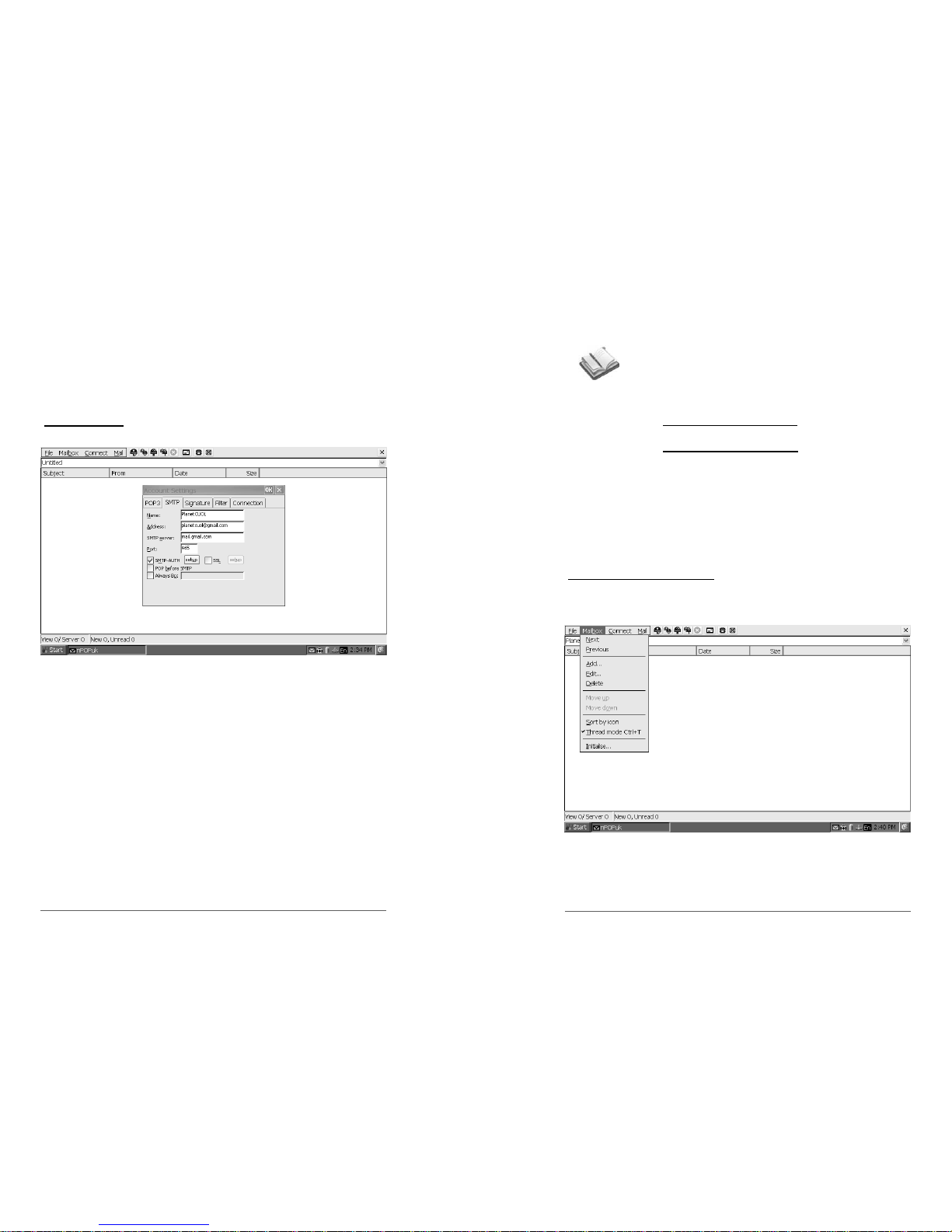
4. Username - Enter your account username
5. Password - Enter your account password
The POP3 settings should be all set.
SMTP Settings
1. Name - Provide the name that will appear to your mail’s
recipient.
2 Address - Provide your email address.
3. SMTP server - Refer to your provider for the SMTP server
address.
4. Port - By default the port is 25.
The SMTP should be all set now.
After entering the required information for your email account, you
should start receiving your emails.
Chapter 4: Using the CUOLBOOK
4-18
NOTE:
1. The Illustration used is as an example of configuring
your Gmail account into your CUOL™ BOOK email
manager.
2. Example of POP3 address :
Pop.yourdomainname.com
3. Example of SMTP address:
mail.yourdomainname.com
4. The port allocation is set to default, 110 for POP3
and 25 for SMTP. If your email provider does not
specify any port allocation, do not change the
default values.
5 Some email provider will require the SSL and SMTP
-AUTH, make sure to check all the configurations
sent to you by your email provider.
Setting up another account
Select Mailbox > Add > refer to the guide previously
discussed
4-19
CUOL™ BOOK - ROFL
Page 28
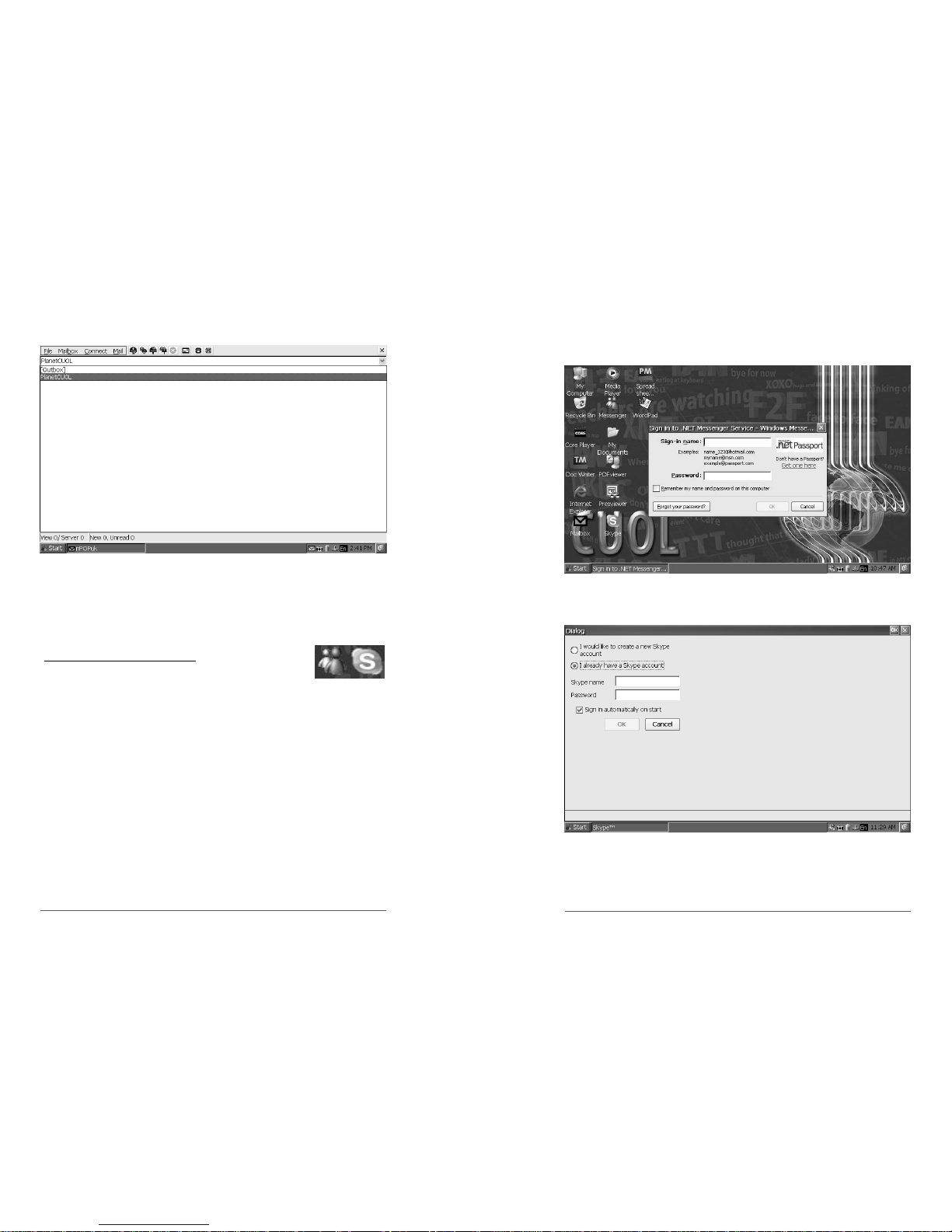
All email accounts will be displayed in the pull down menu. You can
switch from one account to another be selecting the account you
want.
Chapter 4: Using the CUOLBOOK
4-20
Chatting with friends and families
MSN Messenger and SKYPE
You can stay connected with your families and
friends using the MSN Messenger V.5 or SKYPE. The applications
will prompt for your username and password in the first start of the
Application but you will be automatically logged in the next time you
start the application.
SKYPE Login Page
4-21
CUOL™ BOOK - ROFL
MSN Messenger Login Page
Page 29
Office Applications
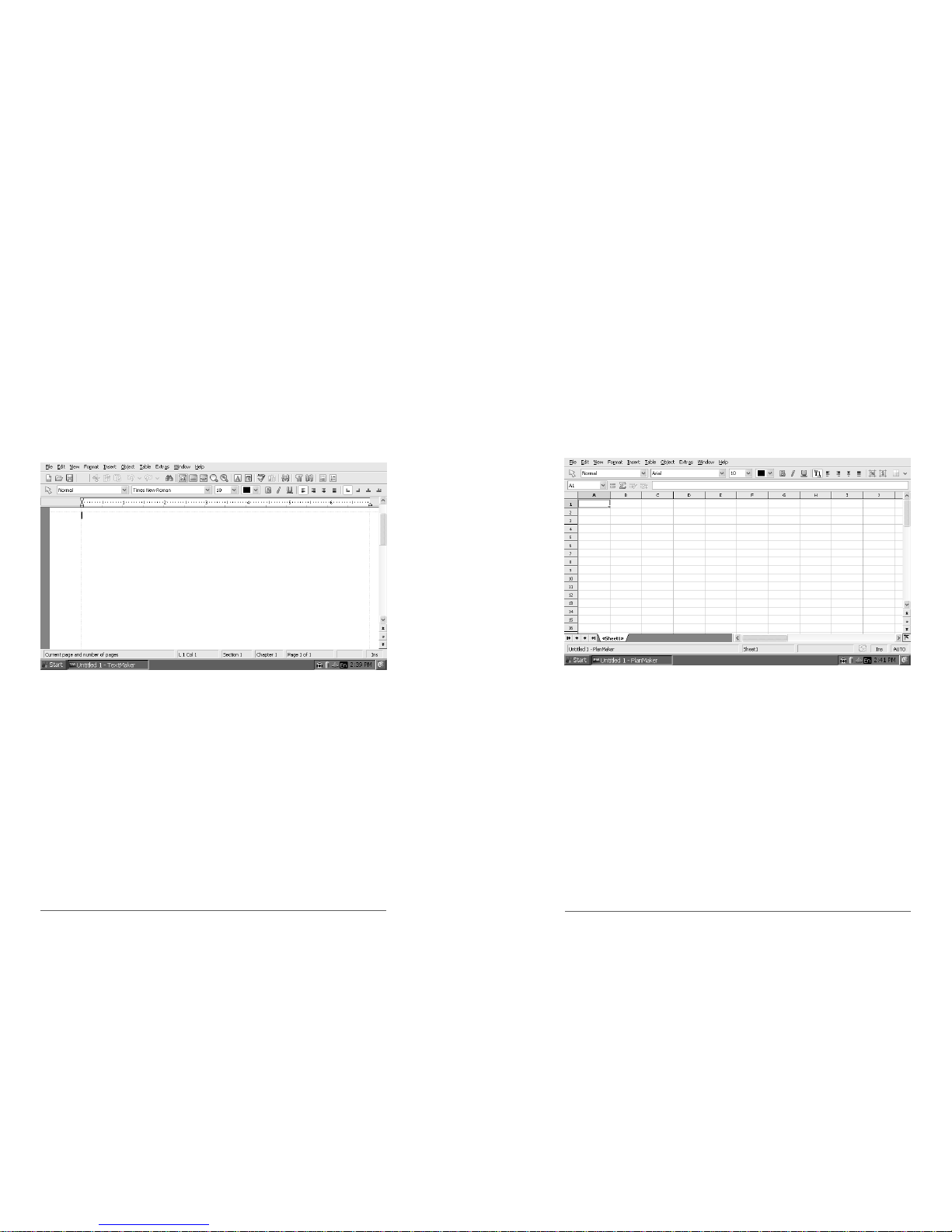
Document Writer
The Document Writer application allows you to read and write on
any Microsoft Word Document 2003 and below. All the common
functions are provided in the Document Writer. All documents
edited or created in the Document Writer can be viewed on any
computer running Microsoft Office 2003 and below.
Chapter 4: Using the CUOLBOOK
4-22
Spread Sheet Maker
The Spread Sheet Maker application allows you to read and write
on any Microsoft Excel Document 2003 and below. All the common
functions are provided in the Spread Sheet Maker. All documents
edited or created in the Spread Sheet Maker can be viewed on any
computer running Microsoft Office 2003 and below.
4-23
CUOL™ BOOK - ROFL
Page 30
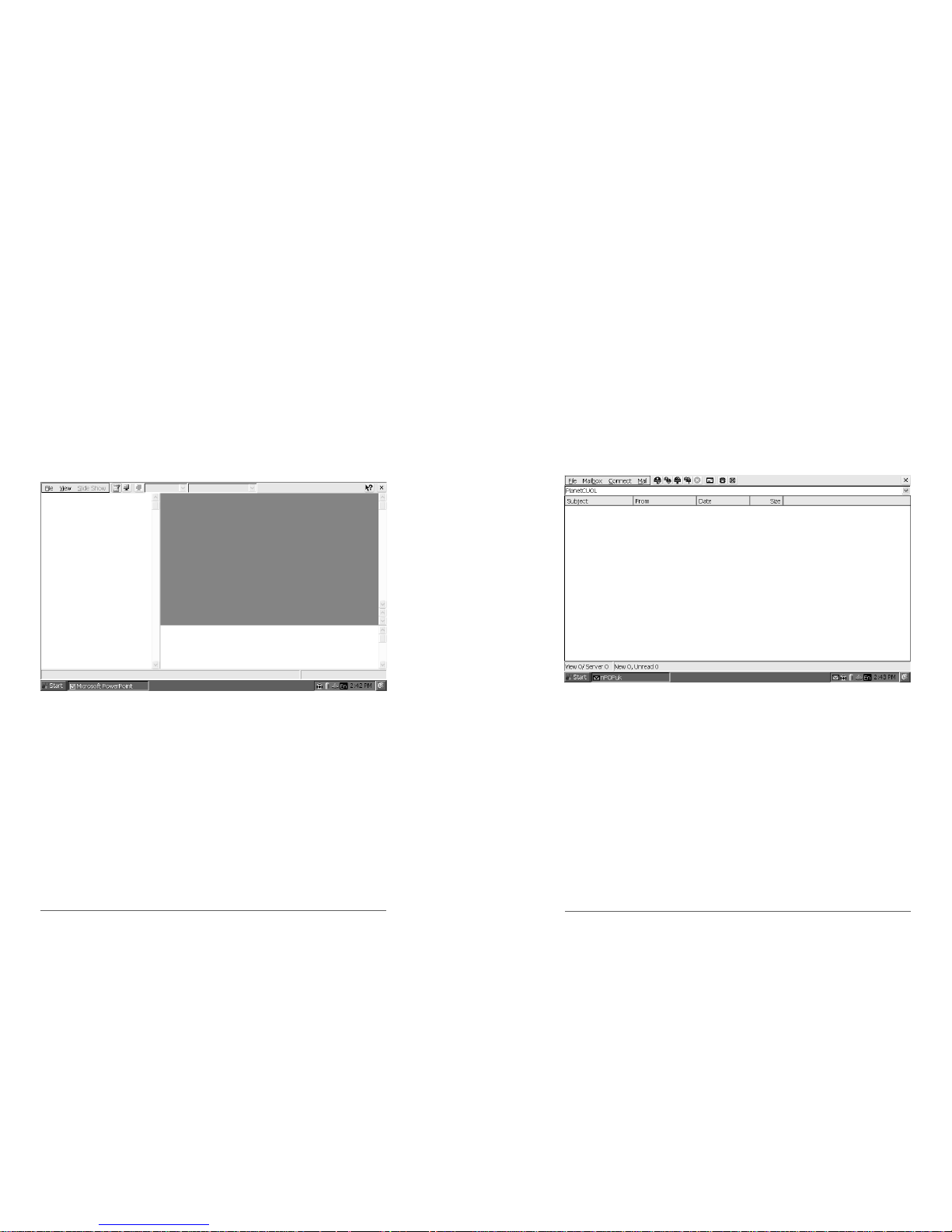
Presentation Viewer / PDF Viewer
The CUOL™ BOOK comes with a PowerPoint Presentation Viewer
and a PDF Viewer.
You can use the CUOL™ BOOK to view your presentations and
read eBooks (PDF FORMAT) on the go. Users will be able to go
through their presentations while on the move or read their favorite
ebooks anywhere anytime.
Chapter 4: Using the CUOLBOOK
4-24
Email Manager
The Email Manager is your all-in-one email management tool. You
can have multiple email accounts under one application and
organizing your emails has never been made this easy.
All email accounts can be checked at a press of a button.
Refer to 4-16 in setting up your email account
4-25
CUOL™ BOOK - ROFL
Page 31
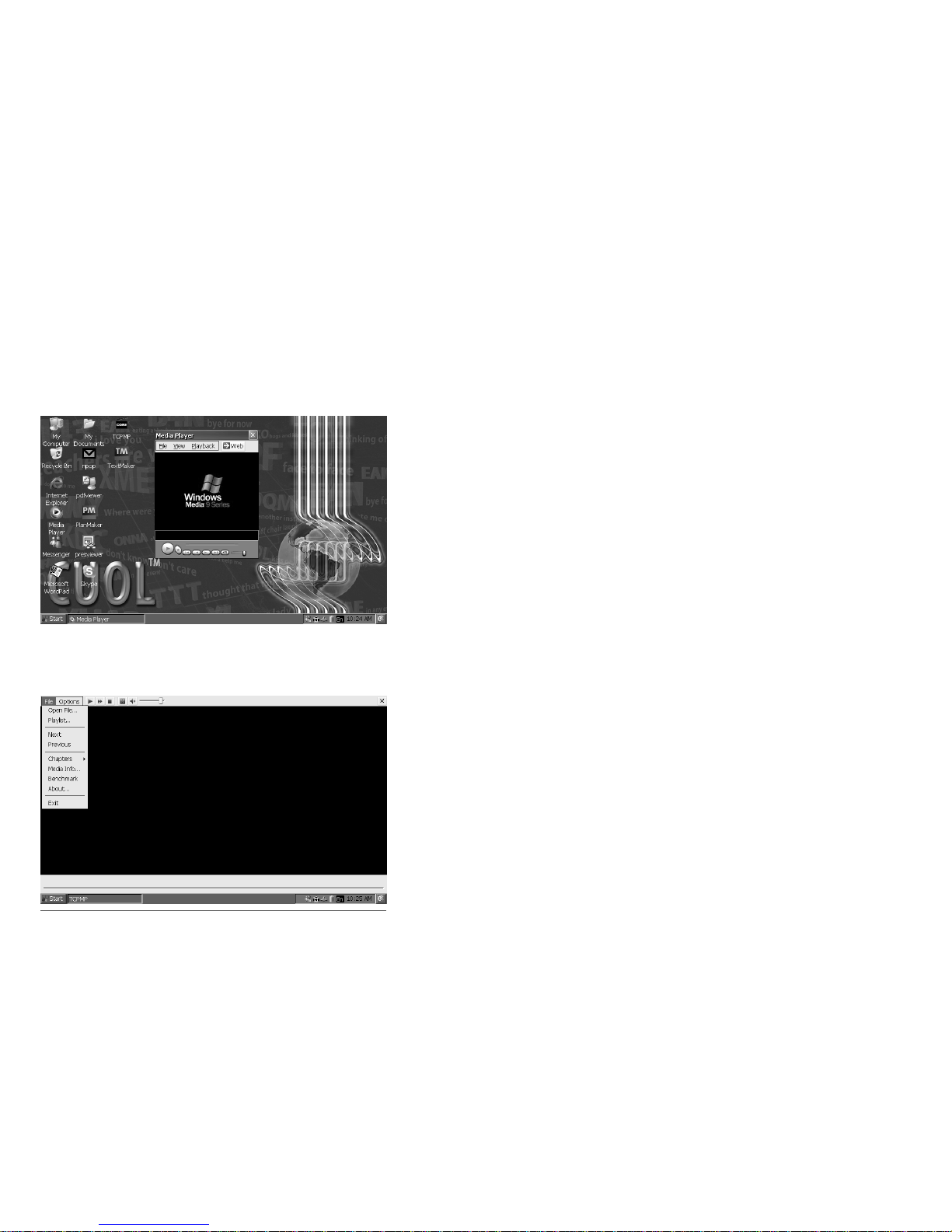
Media Player 9
The CUOL™ BOOK comes with your very own Media Player 9. It
can play all your favorite music (MP3 and WMA) and videos (MP4
and AVI). The media player 9 is very flexible and easy to configure.
Chapter 4: Using the CUOLBOOK
4-26
Play On the CUOL™ BOOK
TCPMP (CORE Media Player)
When streaming online videos, (e.g www.ytpocket.com), the TCPMP
is configured to play it automatically. The TCPMP can also play
music and videos files which are not compatible with media player 9.
 Loading...