

Page 1

WebGUI versIon 0.7
User Manual
Page 2

UM044_01_WebGUI
07.10.2011
Copyright © CUE, a.s., Praha, Czech Republic 1990 - 2011
All rights reserved. Specications are subject to change without prior notice.
Page 3

Contents
4 IntroductIon
4 Overview
4 Requirements
5 regIstratIon
6 How webguI works
6 Overview
6 Simulation Mode
7 Hardware Mode
7 Working Mode
8 How to use webguI
8 Project Preparation
10 Web Pages Creation
12 Web Pages Simulation and Upload
13 Programming
16 webguIgrapHIccollectIon
16 WebGUIBuilder
18 Page
19 PushButton
21 Label
22 TextBox
23 Bargraph
24 InputTextForm
WebGUI
26 webguIserver
26 Overview
26 Properties
26 Events
27 Functions
28 software and fIrmware lIcense
29 notes
www.cuesystem.com
User Manual
Page 3
Page 4
IntroduCtIon
Overview
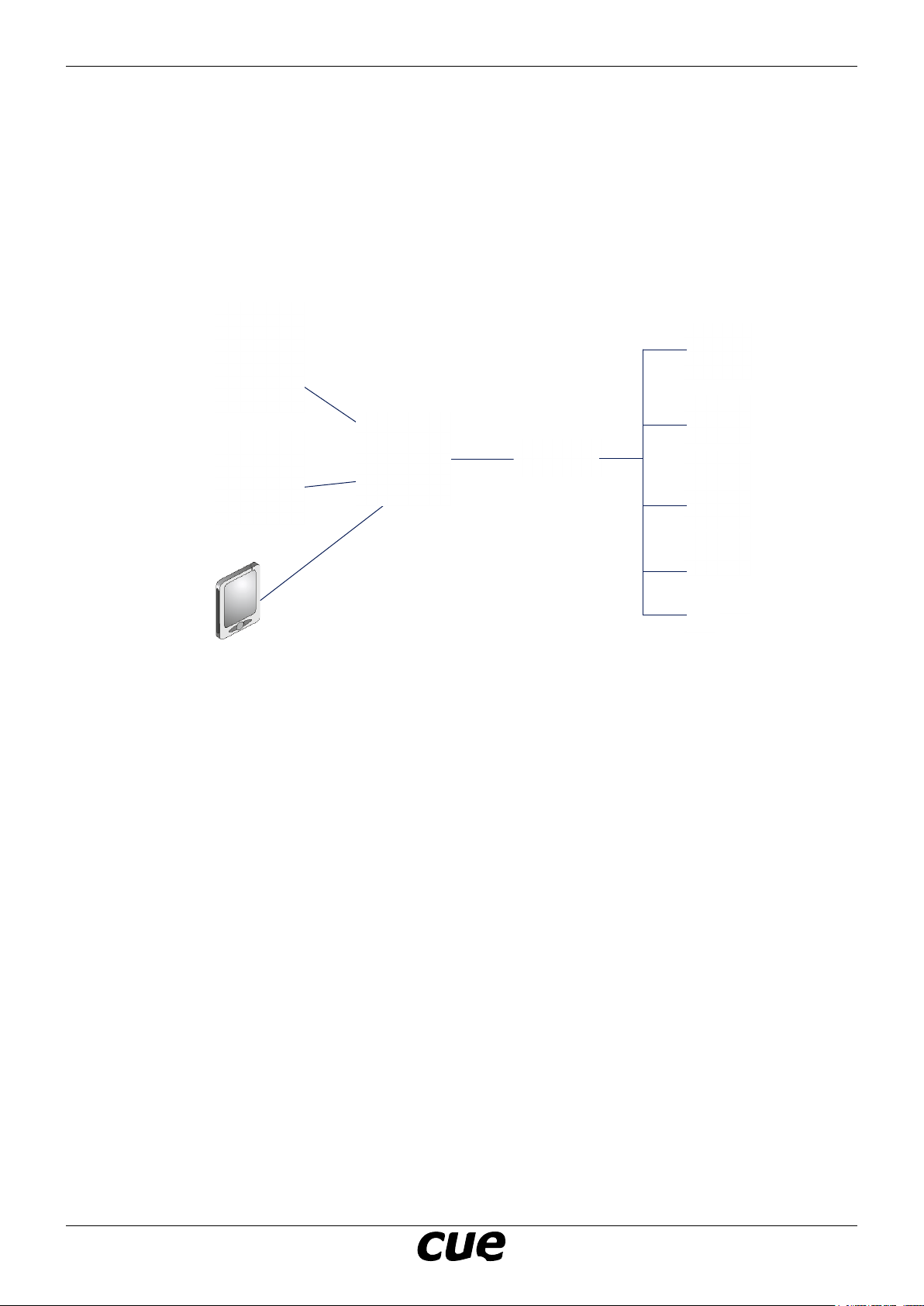
WebGUI is a new application that expands the range of user functions offered by the Cue System. It is
a software solution allowing to design and run web pages stored in touch panel or controller. Web pages
can serve for remote monitoring and controlling of Cue System using standard internet browser. Web
pages are designed by the same way as touch panel layouts. That means no special knowledge about
web page design is required.
Controlled Devices
Windows PC
running
Internet Browser
Windows Laptop
running
Internet Browser
Controller or Touch Panel
WebGUI
Smartphone or
TabletPC
running
Internet Browser
Requirements
• Resources WebGUIResources_x.xx.zip downloaded from
http://www.cuesystem.com/software_application_resources.aspx.
You need a login.
• PC with Cue Visual Composer version 1.40 or higher
• Internet browse
www.cuesystem.com
User Manual
Page 4
Page 5

regIstratIon
In order to use WebGUIServer software it has to be registered. Registration is bound to the hardware
product serial number (where WebGUIServer is connected), e.g. CS0253.000001.
To register WebGUIServer please
1. Send serial number of your hardware product to [email protected].
2. You will get back LicenseKey le.
3. Open this le in the Notepad.
WebGUI
4. Copy WebGUI Serial Number and Registration Number to appropriate properties of an instance of
WebGUIServer.
Notes
• Without registration WebGUIServer runs for 1 hour and then stops.
• In Cue Visual Composer simulation / debugging mode WebGUIServer runs without any limitation.
www.cuesystem.com
User Manual
Page 5
Page 6
How webguI works
Overview
WebGUI is XPL2 pre-programmed widget which allows to generate and run web pages stored in a touch
panel or in a controller.
WebGUI consists of following components
• Graphic collection WebGUIGraphicCollection
• Device driver WebGUIServer
• Module WebGUIInterface
Web pages are designed by the same way as touch panel layout using objects included in
WebGUIGraphicCollection. These objects are prepared to generate web pages automatically. The basic
object is window WebGUIBuilder. It isn’t included in target web pages, but it must be used for web pages
design and for communication during page simulation and generation. All other objects included in
graphic collection generate the same objects for web pages. Current WebGUI version includes following
objects
• Page
• PushButton
• Label
• TextBox
• InputTextForm.
Device driver WebGUIServer must be connected to CUEunit (controller or touch panel) where web
pages are automatically generated and stored. Module WebGUIInterface connects graphic collection and
WebGUIServer during page design and simulation.
Web pages are generated during debug of the application.
For more details about WebGUIComponents see approprite chapters.
WebGUI
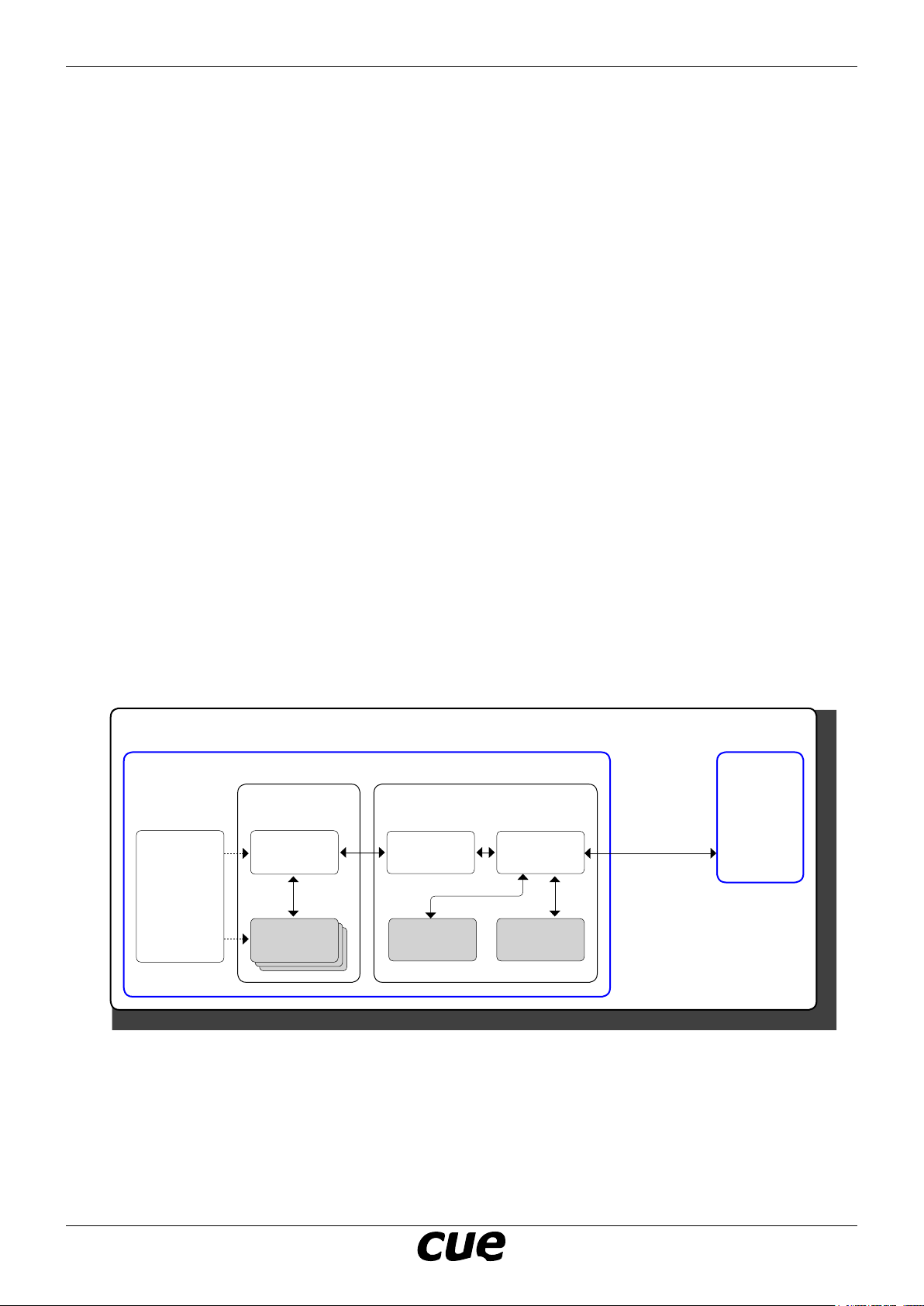
Simulation Mode
Cue Visual Composer
WebGUI
touch panel
WebGUIGraphic
Collection
In the Simulation Mode WebGUI touch panel
and controller are simulated in the PC using Cue
Visual Composer simulation mode.
Web pages are generated by WebGUI touch
panel and WebGUIserver creates web les to
lestorage of the controller. In this mode the
lestorage is temporary folder in the PC.
WebGUIBuilder
Pages incl.
Pages incl.
Pages incl.
objects
objects
objects
PC
WebGUI
Interface
Module
Filestorage
incl.
web page les
Controller
Internet
browser
WebGUIServer
User module
localhost
Internet browser running on the same PC
in localhost mode can be used for web page
preview.
www.cuesystem.com
User Manual
Page 6
Page 7
Hardware Mode
WebGUI
PC
Cue Visual Composer
WebGUI
touch panel
WebGUIGraphic
Collection
WebGUIBuilder
Pages incl.
Pages incl.
Pages incl.
objects
objects
objects
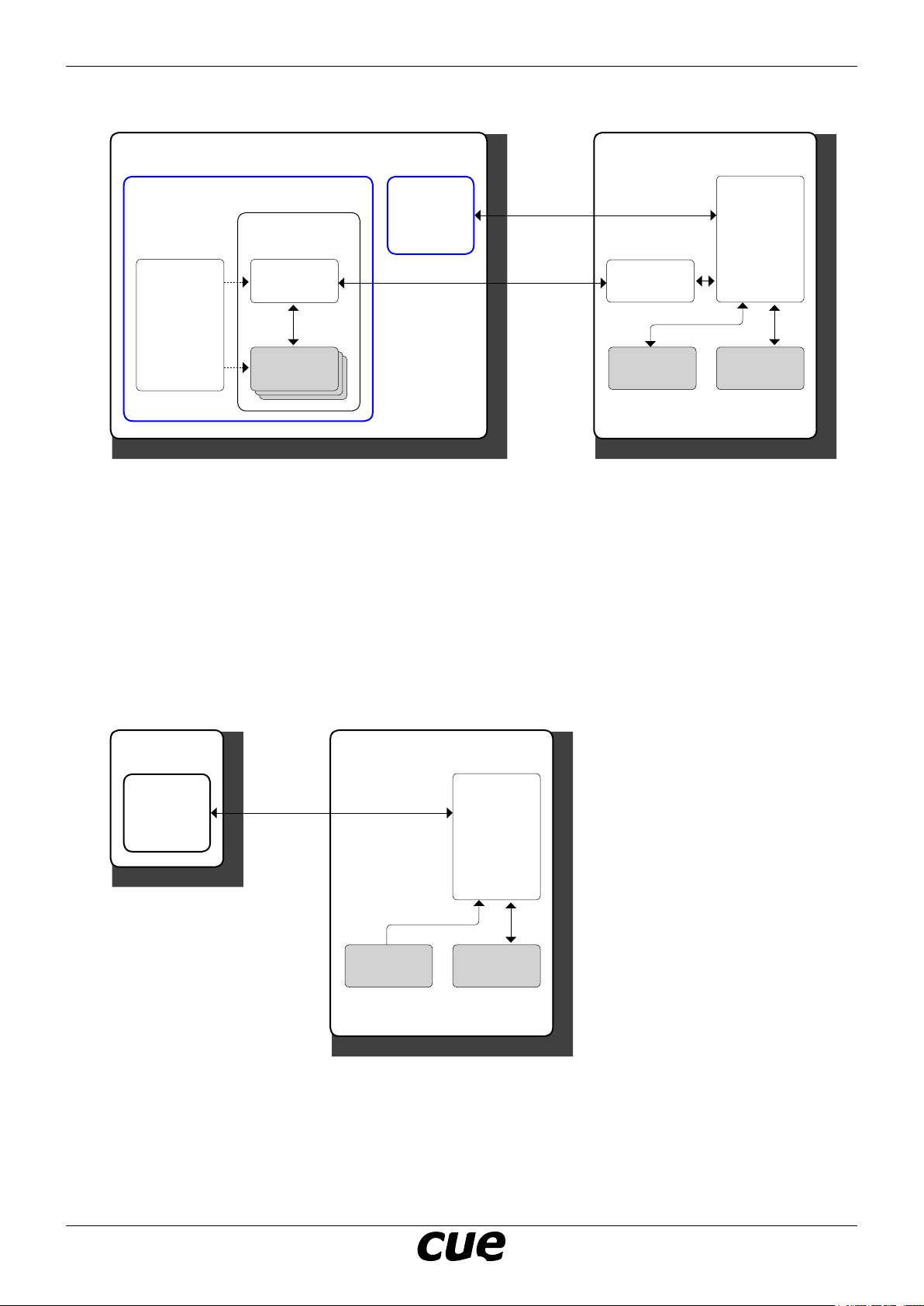
In the Hardware Mode WebGUI touch panel is
simulated in the PC using Cue Visual Composer
simulation mode and controller is running in
hardware mode. That means real unit must be
connected.
Web pages are generated by WebGUI touch
panel and WebGUIserver writes appropriate les
to lestorage of the real controller. That means
web page les are prepared for for working
mode.
Internet
browser
Controller
WebGUIServer
Ethernet
Ethernet
This mode is used for
• web pages simulation from real unit
• nal web pages les upload
Internet browser running on the same PC can
be used for web page preview. IP address and
port of the real unit is used.
WebGUI
Interface
Module
Filestorage
incl.
web page les
User module
Working Mode
PC
Internet
browser
In this mode web pages can be used directly
from controller. WeGUIServer reads web page
les stored in lestorage of the unit.
Ethernet
Controller
Filestorage
incl.
web page les
WebGUIServer
User module
Application upload using Final in CVC must be
done before start of this mode.
www.cuesystem.com
User Manual
Page 7
Page 8
How to use webguI
Provide the following steps in sequence as described below.
Project Preparation
CVC Project Creation
• Create a new Cue Visual Composer project or open your existing project, where WebGUI will be
implemented.
• CVC version 1.38 or later is required.
Resources
Add the following software components to the project resources
• Driver CUE_WEBserver_WebGUIserver_Tcp_Server_x.xx.cvcd
• Graphic collection WebGUIGraphicCollection_x.xx.cvcg
All these components are included in the le WebGUIResources_x.xx.zip.
Conguration
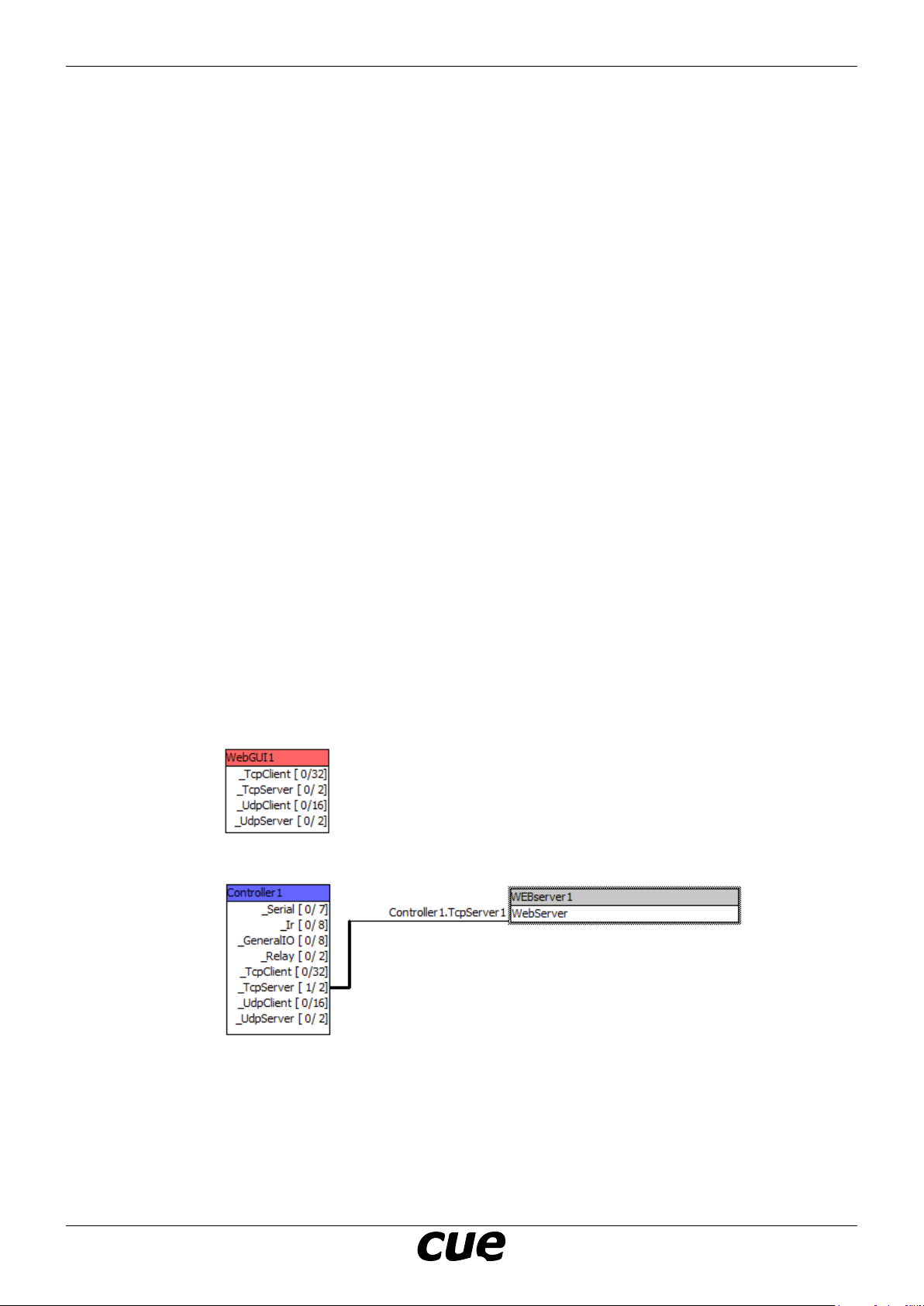
• Insert one CUEunit (touch panel) to your conguration
• Change name to WebGUI1. This instance name is default name used in module WebGUIInterface.
• Set properties Display Width and Display Height of the WebGUI1 to requested values. These
values dene default size of web pages.
• Insert one CUEunit (controller) to your conguration or use existing CUEunit where web pages will be
stored.
• Create an instance of WebGUIServer (drag this driver from resources area to conguration tab) and
keep instance name WebServer1.
• Connect the WebServer connector to TcpServer1 or TcpServer 2 conector of the CUEunit where web
pages will be stored.
WebGUI
• Set property Port of the WebServer1. Default value is 8080 and we recommend to keep it.
• Only one instance of WebServer can be used in one CUEunit.
www.cuesystem.com
User Manual
Page 8
Page 9

WebGUI
Interface Module
• Import module WebGUIInterface.cvcm to Modules of the CUEunit where driver is connected.
• This module is included in the le WebGUIResources_x.xx.zip.
WebGUIBuilder
• Create an instance of WebGUIBuilder window in WebGUI1 touch panel (drag and drop WebGUIBuilder
from graphic resources to touch panel WebGUI1.
• Keep instance name WebGUIBuilder1.
Debug Proles
• Create Debug prole Simulation and set Debug Mode Simulation for units WebGUI1 and for
Controller1 too. This prole will be used for web simulation on your PC. All les are generated and
stored in your PC.
• Create Debug prole Hardware and set Debug Mode Simulation for unit WebGUI1 and set Debug
Mode Hardware for Controller1. This prole will be used for web simulation from real hardware unit
and for nal upload to real hardware unit.
Test
• Start Debug in Simulation prole. In the simulation window you see WebGUIBuilder screen with error
message “No pages“.
• For more information about WebGUIBuilder see chapter WebGUIGraphicCollection / WebGUIBuilder.
www.cuesystem.com
User Manual
Page 9
Page 10

Web Pages Creation
Page
• Drag and drop object Page from WebGUIGraphicCollection to Windows section of WebGUI1 unit.
• Default value of property ID is 1. This is correct value for home page. For other Pages set ID to value
> 1. Web IDs of all pages must be unique. ID is displayed in left top corner of the page.
• Start debug Simulation mode. Application starts and you can check errors in simulation window.
• For more details about Page object see chapter WebGUIGraphicCollection / Page.
Pushbutton
• Drag and drop object PushButton from WebGUIGraphicCollection to your page.
• Default value of property ID is 1. For other PushButtons set ID to value > 1. Web IDs of PushButtons
on the same Page must be unique. ID is displayed in left top corner of the object.
• Set the properties of PushButton. For more details see chapter WebGUIGraphicCollection /
PushButton.
Flip Pages
• Insert more pages to your project and set unique IDs.
• Insert PushButtons to ip pages.
• Set property FlipToPage of the PushButton to ID of target page.
WebGUI
Page 1, ID = 1
PushButton
property FlipToPage = 2
Page 2, ID = 2
PushButton
property FlipToPage = 1
Other Objects
• Drag and drop other objects from WebGUIGraphicCollection to your pages.
• Default value of property ID for all objects is 1. If you use more objects of the same type on one
page, set IDs to value > 1. Web IDs for objects of the same type on the same Page must be unique.
ID is displayed in left top corner of the object.
www.cuesystem.com
User Manual
Page 10
Page 11

Page Design Preview Using Simulation Window
• Start your project using Simulation debug prole as described above.
• Web GUIBuilder is displayed in simulation window.
• In case of error follow instructions in Output window.
• In case of message No errors web pages are generated and web server is now running on your PC.
WebGUI
• Use button Preview to preview your web page design in CVC simulation window.
• Using long press of left mouse button you can leave your pages and go back to WebGUIBilder. Mouse
pointer must be outside the button.
www.cuesystem.com
User Manual
Page 11
Page 12

Web Pages Simulation and Upload
Simulation Using PC
• Start your project using Simulation debug prole as described above.
• In case of message No errors web pages are generated and web server is now running on your PC
• Start your Internet browser and write localhost:8080 to address line. Port 8080 is default port. In
case you changed WebGUIServer property Port to different value, use this value.
• Now you can test your web pages.
Simulation Using Hardware Unit
• Connect hardware unit (controller).
• Start your project using Hardware debug prole as described above. Web pages are generated in
real CUEunit (Controller1) and web server is now running in real unit (Controller 1).
• Start your Internet browser and write ipaddress:8080 to address line, where ipaddress is IP address
od CUEunit (controller). Port 8080 is default port. In case you changed WebGUIServer property Port
to different value, use this value.
• Now you can test your web pages running from hardware unit.
Final Upload
• Start your project using Hardware debug prole as described above. Web pages are generated in
hardware unit (Controller1).
• Upload application to CUEunit (Controller1) using section Final. Before upload uncheck WebGUI1 unit,
because typically this CUEunit hasn’t real hardware representation.
• Switch off and on CUEunit Controller1.
• Start your Internet browser and write ipaddress:8080 to address line, where ipaddress is IP address
od CUEunit (controller). Port 8080 is default port. In case you changed WebGUIServer property Port
to different value, use this value.
• Now you can nally test your web pages running from the hardware unit.
WebGUI
www.cuesystem.com
User Manual
Page 12
Page 13

Programming
Overview
All communication with web pages is done through device WebGUIServer which serves events and
function for user programming.
Folowing chapters describe examples how to use events and functions of the server. For more details see
chapter WebGUIServer.
PushButtons
WebGUIServer generates event OnPushButton with parameter pushbuttonID.
WebGUI
Page 1, ID = 1
Private Process WEBServer1_OnButtonPush( pushbuttonid As Long ) Link WEBServer1.OnButtonPush
Select pushbuttonid
Case 1 // Code executed after pressing PushButton 1 on Page 1
Case 2 // Code executed after pressing PushButton 2 on Page 1
Case 3 // Code executed after pressing PushButton 3 on Page 2
Case 4 // Code executed after pressing PushButton 4 on Page 2
End Select
End Process
Page 2, ID = 2
www.cuesystem.com
User Manual
Page 13
Page 14

WebGUI
TextBoxes
Every TextBox is identied by ID. For TextBoxes displayed above use following functions of WebGUIServer
WebServer1.SetTextBoxText(1, “Hello“) // Sets TextBox 1 text to value Hello
WebServer1.SetTextBoxText(2, txtHello) // Sets TextBox 2 text to value from resource txtHello
Bargraphs
Every BarGraph is identied by ID. For BarGraphs displayed above use following functions of
WebGUIServer
WebServer1.SetBarGraphValue(1, 30) // Sets BarGraph 1 to value 30
WebServer1.SetBarGraphValue(2, 50) // Sets BarGraph 2 to value 50
www.cuesystem.com
User Manual
Page 14
Page 15

WebGUI
InputTextForms
WebGUIServer1 generates event OnInputTextForm with parameter inputtextformid. Input texts are
passed using ParamArray. First text is ParamArray[1], second text is ParamArray[2] etc. Maxium number
of input texts is 8.
Private Process WEBserver1_OnInputTextFormSubmit(
inputtextformid As Long, ParamArray ) Link WEBserver1.OnInputTextFormSubmit
Private Var Login As AddressOf Text
Private Var Password AddressOf As Text
Select pageid
Case 1 Select inputtextformid
Case 1 // Code executed after pressing button Submit on InputTextForm 1
Login := ParamArray[1]
Password := ParamArray[2]
End Select
End Process
www.cuesystem.com
User Manual
Page 15
Page 16

webguIgrapHICColleCtIon
WebGUIBuilder
Description
The WebGUIBuilder is graphic object which serves for web pages generation and in additionally it
displayes errors and status. By button Preview it is possible to start web pages design preview in CVC
simulation window. Window output displayes errors and other messages.
This object must be inserted to every WebGUI and it isn’t displayed as web page.
Button Preview starts page design preview.
Displayes Debug Mode
• Simulation - web pages are generated in PC
• Hardware - web pages are generated in real
hardware
Web pages wer built
WebGUI
Properties
This object has no properties to be set.
Number of pages in the WebGUI.
No erros found
List of les generated in PC or real hardware
depending on simulation mode.
www.cuesystem.com
User Manual
Page 16
Page 17

WebGUI
Errors
Error 1: Wrong page ID
Page ID must be > 0. Wrong IDs are indicated by red triangle label on the object.
Check all pages and set ID to correct value.
Error 2: Wrong object ID.
Object ID must be > 0. Wrong IDs are indicated by red triangle label on the object.
Check all objects and set ID to correct value.
Error 3: Page with ID = 1 is missing.
Home (start) page of the WebGUI is identifed by ID = 1. That means every project must have page with
ID = 1. Check pages and set one of them to correct value.
Error 4: Page IDs are not unique.
Page IDs must be unique. Check all pages and set unique IDs.
Error 5: Object IDs are not unique.
Objects of the same type (PushButton, Label, TextBox, InputTextForm, Bargraph) on one page must have
unique IDs. Objects with not-unique IDs are indicated in simulation mode by blinking of the red label.
Check all objects of the same type on the page and set unique IDs.
Error 6: Target CUEunit is not available.
Communication with target CUEunit (unit where web pages will be stored) isn’t possible.
Possible causes in Simulation mode
• Target CUEunit isn’t inserted the project.
• Module WebGUIInterface is missing.
Possible causes in Hardware mode
• Target CUEunit isn’t inserted the project.
• Module WebGUIInterface is missing.
• CUEunit isn’t connected or there ara some troubles with Ethernet communication.
Error 7: No pages.
No pages are inserted in the project.
Insert page.
Error 8: Too many pages.
Maximum number of pages is 32. In case there are more pages in the project, this error is indicated.
Reduce number of pages.
Error 9: Too many objects on page.
Maximum number of objects on page is 64. In case there are more objects on page, this error is
indicated.
Reduce number of objects on page.
www.cuesystem.com
User Manual
Page 17
Page 18

Page
Description
Page is a container for other objects. Maximum number of pages is 32. Page is identied by ID and all
pages must have unique ID > 0. Every project must contain page with WeID = 1 because this page is
default home page of web interface. Width and height of web page generated of WebGUI are set to the
same values as width and height of the page in CVC has. That means it is possible to use different page
sizes in one project.
BackgroundColor and BrowserBackgroundColor can be set using appropriate properties.
BackgroundColor - grey
WebGUI
BrowserBackgroundColor - white
WebGUI generates web page les named Page1.htm, Page2.html etc., where Page is default name and
number is value of ID property.
Properties
Property Name Data Type Allowed Values Default Value Description
Behavior Group
ID Long From 1 to 32 1 This number identies Page and it
Appearance Group
BackgroundColor Long Any Grey Solid color of page.
BrowserBackgroundColor Long Any _COLOR_WHITE Solid color of browser
must be unique.
background.
www.cuesystem.com
User Manual
Page 18
Page 19

PushButton
Description
This button behaves like a simple push button. It has only two states - State Up and State Pushed.
Button is in State Pushed when it is pushed, otherwise it is in State Up. Button generates OnPush event
when it is pushed. The object is identied by ID and all objects on the same page must have unique ID
> 0. When the property RepeatInterval is set to value > 0 and a button is pushed, it starts to generate
OnPush event periodically with time period RepeatInterval until the button is released. When property
FlipToPage is set to ID of existing page, the button switches pages.
Properties
Property Name Data Type Allowed Values Default Value Description
Behavior Group
ID Long > 0 1 This number identies
FlipToPage Long 0 ID of a target page.
RepeatInterval Time Any non-negative 00:00:00.00 Period of generating
Caption Group
Align Long Left-Top := 1
Left-Middle := 2
Left-Bottom := 3
Center-Top := 4
Center-Middle := 5
Center-Bottom := 6
Right-Top := 7
Right-Middle := 8
Right-Bottom := 9
FontColor Long Any _COLOR_BLACK Color of Caption text.
FontName Text Verdana := “Verdana” Verdana := “Verdana” Font name.
FontSize Long 12
16
20
FontStyle Long Regular := 1
Italic := 2
Bold := 3
Bold Italic := 4
OffsetX Long 0 Axis x offset of the
OffsetY Long 0 Axis y offset of the
Text AddressOf Text Any txtCaption = ”Caption” Text shown on the button.
Center-Middle := 5 Horizontal and vertical
12 Font height in pixels.
Regular := 1 Denes style of the font.
object and it must be
unique for PushButtons
placed on the same page.
events while button is
pushed.
align of Caption text.
caption text in pixels.
caption text in pixels.
It is converted to single
line text automatically.
WebGUI
Events
Event OnPush As Process ()
This event is generated when the button is pushed.
www.cuesystem.com
User Manual
Page 19
Page 20

Button Graphics
Graphics for all PushButtons is the same. Default graphics is described on following pictures.
Up Down
If you want to change graphics for all buttons, change picButtonUp and picButtonDown in the
WebGUIGraphicCollection, section Pictures.
Steps are
1. Open WebGUIGraphicCollection in restricted access mode.
WebGUI
2. Go to section Pictures.
3. Double click to picture line in column Default.
4. Use button Select Picture ...
5. Import your picture using Open Dialog Box.
Note: don’t change picture name.
www.cuesystem.com
User Manual
Page 20
Page 21

Label
Description
Label is object which allows to display text dened during web page design.
Properties
Property Name Data Type Allowed Values Default Value Description
Appearance Group
BackgroundColor Long Any Grey Solid color of object.
BorderColor Long Any BackgroundColor Solid color of borders.
BorderWidth Long Any positive 1 Width of borders in
Caption Group
Align Long Left-Top := 1
FontColor Long Any _COLOR_BLACK Color of Caption text.
FontName Text Verdana := “Verdana” Verdana := “Verdana” Font name.
FontSize Long 12
FontStyle Long Regular := 1
OffsetX Long Any 0 Axis x offset of the
OffsetY Long Any 0 Axis y offset of the
Text AddressOf
Text
Left-Middle := 2
Left-Bottom := 3
Center-Top := 4
Center-Middle := 5
Center-Bottom := 6
Right-Top := 7
Right-Middle := 8
Right-Bottom := 9
16
20
Italic := 2
Bold := 3
Bold Italic := 4
Any txtCaption = ”Caption” Text shown on the label.
Center-Middle := 5 Horizontal and vertical
12 Font height in pixels.
Regular := 1 Denes style of the font.
WebGUI
pixels.
align of Caption text.
caption text in pixels.
caption text in pixels.
It is converted to single
line text automatically.
www.cuesystem.com
User Manual
Page 21
Page 22

TextBox
Description
TextBox is object which allows to display text. Default text is “Text“ and it can be set during run time
using function SetTextBox.
The object is identied by ID and all objects on the same page must have unique ID > 0. More objects
placed on different pages can use the same ID.
Properties
Behavior Group
Property Name Data Type Allowed Values Default Value Description
Behavior Group
ID Long From 1 to 32 1 This number identies object
Appearance Group
BackgroundColor Long Any Grey Solid color of object.
BorderColor Long Any BackgroundColor Solid color of borders.
BorderWidth Long Any positive 1 Width of borders in pixels.
Caption Group
Align Long Left-Top := 1
Left-Middle := 2
Left-Bottom := 3
Center-Top := 4
Center-Middle := 5
Center-Bottom := 6
Right-Top := 7
Right-Middle := 8
Right-Bottom := 9
FontColor Long Any _COLOR_BLACK Color of Caption text.
FontName Text Verdana :=
“Verdana”
FontSize Long 12
16
20
FontStyle Long Regular := 1
Italic := 2
Bold := 3
Bold Italic := 4
OffsetX Long 0 Axis x offset of the caption
OffsetY Long 0 Axis y offset of the caption
Center-Middle := 5 Horizontal and vertical align
Verdana := “Verdana” Font name.
12 Font height in pixels.
Regular := 1 Denes style of the font.
and it must be unique for
TextBoxes placed on the
same page.
of Caption text.
text in pixels.
text in pixels.
WebGUI
Functions
SetText(newtext As Text) As Boolean
This function sets current text of TextBox to newtext.
GetText() As AddressOf Text
This function returns address of current text.
www.cuesystem.com
User Manual
Page 22
Page 23

Bargraph
Description
Bargraphs is object for indication of analog value. Type type is dened by property FloodType and default
type is BottomToTop.
BottomToTop TopToBottom LeftToRight RightToLeft
The object is identied by ID and all objects placed on the same page must have unique ID > 0. More
bargraphs placed on different pages can use the same ID.
Default bargraph value is 50 and it can be set from 0 to 100.
Maximum number of bargraphs is 256.
Properties
WebGUI
Property Name Data Type Allowed Values Default Value Description
Behavior Group
ID Long From 1 to 256 1 This number identies object and it
FloodType Long BottomToTop := 1
TopToBottom := 2
LeftToRight := 3
RightToLeft := 4
Appearance Group
BackgroundColor Long Any Grey Solid color of object.
BorderColor Long Any BackgroundColor Solid color of borders.
BorderWidth Long Any positive 1 Width of borders in pixels.
FloodColor Long Any Blue Color of ood.
BottomToTop := 1 Denes type of bargraph.
must be unique for Bargraphs placed
on the same page.
Functions
SetValue(newvalue As Long) As Boolean
This function sets value of bargraph to newvalue. The newvalue can be from 0 to 100.
GetValue() As Long
This function returns current value of bargraph. Current value can be from 0 to 100.
www.cuesystem.com
User Manual
Page 23
Page 24

InputTextForm
Description
InputTextForm allows to enter up to 8 texts and send it to a controller. Number of input text boxes is
equal to index of last nonempty LabelText.
Caption
Input text boxes
Button submit
Labels
Properties
Property Name Data Type Allowed Values Default Value Description
Behavior Group
ID Long > 0 1 This number identies
Appearance Group
BackgroundColor Long Any Grey Solid color of object.
BorderColor Long Any BackgroundColor Solid color of borders.
BorderWidth Long Any positive 1 Width of borders in pixels.
Caption Group
Align Long Left-Top := 1
Left-Middle := 2
Left-Bottom := 3
Center-Top := 4
Center-Middle := 5
Center-Bottom := 6
Right-Top := 7
Right-Middle := 8
Right-Bottom := 9
FontColor Long Any _COLOR_BLACK Color of Caption text.
FontName Text Verdana := “Verdana” Verdana := “Verdana” Font name.
FontSize Long 12
16
20
FontStyle Long Regular := 1
Italic := 2
Bold := 3
Bold Italic := 4
Text AddressOf Text Any txtCaption = ”Caption” Text shown on the caption.
Center-Middle := 5 Horizontal and vertical
12 Font height in pixels.
Regular := 1 Denes style of the font.
object and it must be
unique for InputTextForms
placed on the same page.
align of Caption text.
It is converted to single
line text automatically.
WebGUI
www.cuesystem.com
User Manual
Page 24
Page 25

WebGUI
Property Name Data Type Allowed Values Default Value Description
Input TextBoxes
This group containes common properties for labels and input text boxes.
BackgroundColor Long Any _COLOR_WHITE Solid color of input text
BorderColor Long Any _COLOR_BLACK Solid color of input text
BorderWidth Long Any positive 1 Width of input text boxes
FontColor Long Any _COLOR_BLACK Text color of labels and
FontName Text Verdana := “Verdana” Verdana := “Verdana” Font name of labels and
FontSize Long 12
16
20
FontStyle Long Regular := 1
Italic := 2
Bold := 3
Bold Italic := 4
LabelAlign Long Left
Center
Right
Input TextBox 1 to 8
LabelText Text Verdana := “Verdana” Verdana := “Verdana” Text shown in labels
Type Text Text := “Text”
Password := “Password”
Button
FontColor Long Any _COLOR_BLACK Color of button text.
FontName Text Verdana := “Verdana” Verdana := “Verdana” Font name.
FontSize Long 12
16
20
FontStyle Long Regular := 1
Italic := 2
Bold := 3
Bold Italic := 4
Text AddressOf Text Any txtCaption = ”Caption” Text shown on the button.
12 Font height in pixels for
Regular := 1 Denes style of the font
Center Horizontal align of lebels.
Text := “Text” Denes how input text is
12 Font height in pixels.
Regular := 1 Denes style of the font.
boxes background.
boxes borders.
borders in pixels.
input text boxes.
input text boxes.
labels and input text
boxes.
for labels and input text
boxes.
before input text box. If
empty input text is not
displayed. Last no-empty
label denes number of
input texts. It is converted
to single line text
automatically.
displayed
• Text means input text
is displayed.
• Password means input
text is masked.
It is converted to single
line text automatically.
www.cuesystem.com
User Manual
Page 25
Page 26

webguIserver
Overview
WebGUIServer is a device driver connected to _TCPServer port of the CUEunit. It serves for
communication with internet browser (client) and it uses web page les stored in the CUEunit. In addition
this driver generates events (OnPushButton, ...) and it has functions for object current value settings
and reading (bargraphs, ...).
All application programming connected to web pages is done using events and functions of this driver.
CUEunit
WebGUI
Internet browser
Properties
Property Name Data Type Allowed Values Default Value Description
Connection Group
Port Long Any except 80 8080 Denes IP port for communication
SerialNumber ByteString From License Key le. Empty Serial number of WebGUI. It is
RegistrationNumber ByteString From License Key le. Emty Registration number of WebGUI. It is
Ethernet
WebGUIServer User Module
Filestorage
Web page les
...
Events
Functions
with an internet browser.
including in License Key le.
including in License Key le.
Events
OnButtonPush(pushbuttonID As Long) As Process
This event is generated when the button is pushed. Button is identied by parameter pushbuttonid.
OnInputTextFormSubmit(inputtextformid As Long, ParamArray) As Process
This event is generated when the button Submit on InputTextForm is pressed. Object is identied by
parameter inputtextformid.
Input texts are passed using ParamArray. InputText 1 is passed as ParamArray[1], ..., InputText 8 is
passed as ParamArray[8].
For more details about InputTextForm object see chapter WebGUIGraphicCollection / InputTextForm.
www.cuesystem.com
User Manual
Page 26
Page 27

Functions
Bargraphs
SetBargraphValue(bargraphid As Long, newvalue As Long) As Boolean
Function sets all Bargraphs identied by bargraphid to newvalue. More bagraphs can use the same ID and
all of them are set to the same value.
The function returns True if bargraphid is from 1 to 256 and newvalue is >= 0 and <= 100. Else it returns
false.
GetBargraphValue(bargraphid As Long) As Long
Function returns current value of Bargraph identied by bargraphid.
TextBoxes
SetTextBoxText(textboxid As Long, newtext As Text) As Boolean
This function sets current text of TextBox identied by textboxid to newtext.
As newtext you can use direct value of text (TextBoxSetText (“Hello”)). In this case you will lose the
possibility of changing the language of this text. You can also use addressof text (TextBoxSetText
(txtHello)) as parameter (txtHello must be declared in MyCommon/Text resources). In this case it is
possible to change the language of this caption.
The function returns True if textboxid is from 1 to 32 and text length is max. 64 characters. Else it
returns false.
WebGUI
GetTextBoxText(textboxid As Long, ByRef currenttext As Text)
Text variable currenttext is lled by current value of the TextBox identied by textboxid.
Other
DisableControl () As Boolean
This function disconnects all clients connected to the server and closes server.
EnableControl () As Boolean
This function starts server.
IsControlEnabled () As Boolean
This function returns True if server is running. Else it returns False.
www.cuesystem.com
User Manual
Page 27
Page 28

software and fIrmware lICense
END-USER NOTICE AND LICENSE AGREEMENT FROM CUE, a.s.
NOTICE TO END-USER: CAREFULLY READ THE FOLLOWING LEGAL AGREEMENT (THIS “LICENSE”).
INSTALLATION OR USE OF THE ENCLOSED CUE, a.s. SOFTWARE PROGRAMS (COLLECTIVELY,
“SOFTWARE”) ON YOUR COMPUTER SYSTEMS OR HARDWARE DEVICES CONSTITUTES YOUR
ACCEPTANCE OF THESE TERMS. IF YOU DO NOT AGREE TO THE TERMS OF THIS LICENSE, PROMPTLY
DELETE THE SOFTWARE FROM YOUR COMPUTER SYSTEMS AND HARDWARE DEVICES, DESTROY ANY
COPIES YOU MADE OF THE SOFTWARE OR ANY INSTALLATION MEDIA OF THE SOFTWARE INCLUDED
WITH YOUR SYSTEM, AND DISPOSE OF ALL WRITTEN MATERIALS IN YOUR POSSESSION REGARDING
THE SOFTWARE.
License Grant: CUE grants to You, as an individual, a license to install and use one (1) copy of the
Software on a single computer at a time; provided, however, that You may make copies of the Software
solely for Your development of applications for CUE hardware and demonstration versions of such
applications. Any applications created with the Software may only be used with Cue hardware. Your
license to use the Software is conditioned upon Your compliance with the terms of this License. A License
is required for each end-user of the Software. A license is required for each installation of the Software.
You may make one (1) copy of the Software for archival purposes only. You may use this Software only
in connection with CUE hardware. You must have acquired the Software directly in connection with the
purchase of CUE hardware from CUE or from a CUE approved reseller for this license to be effective. If
You have purchased a Site License, You may complete only the number of installations specied in the
License Agreement accompanying the Software.
Copyright: The Software and software built into CUE hardware (“Firmware”) are protected by copyright
law and international treaty provisions. You acknowledge that no title to the intellectual property in the
Software and Firmware is transferred to You. You further acknowledge that title and full ownership rights
to the Software and Firmware will remain the exclusive property of CUE, and You will not acquire any
rights to the Software and Firmware except as expressly set forth in this License. You agree that any
copies of the Software will contain the same proprietary notices which appear on and in the Software.
Prohibited Uses: Without obtaining prior written permission from CUE, You may not (a.) use, copy,
modify, alter, or transfer the Software or documentation except as expressly provided in this License;
(b.) translate, disassemble, decompile, reverse program or otherwise reverse engineer the Software
and Firmware; (c.) sublicense or lease the Software or its documentation (d.) use this Software with
any hardware other than products produced by CUE or in connection with applications being developed
for CUE hardware; or (e.) use the Software in a multi-user, network, or multiple computer environment
or in a rental, time sharing or computer service business. Without prejudice to any other rights, CUE
may terminate this License if You fail to comply with its terms and conditions. In such event, You must
immediately destroy all copies of the Software.
No Other Warranties: CUE DOES NOT WARRANT THAT THE SOFTWARE AND FIRMWARE IS ERROR FREE.
CUE DISCLAIMS ALL WARRANTIES WITH RESPECT TO THE SOFTWARE AND FIRMWARE, EITHER EXPRESS
OR IMPLIED, INCLUDING BUT NOT LIMITED TO IMPLIED WARRANTIES OF MERCHANTABILITY, FITNESS
FOR A PARTICULAR PURPOSE AND NONINFRINGEMENT OF THIRD PARTY RIGHTS. SOME JURISDICTIONS
DO NOT ALLOW THE EXCLUSION OF IMPLIED WARRANTIES OR LIMITATIONS OF HOW LONG AN IMPLIED
WARRANTY MAY LAST, OR THE EXCLUSION OF LIMITATION OF INCIDENTAL DAMAGES, SO THE ABOVE
LIMITATIONS OR EXCLUSIONS MAY NOT APPLY TO YOU. THIS WARRANTY GIVES YOU SPECIFIC LEGAL
RIGHTS AND YOU MAY ALSO HAVE OTHER RIGHTS WHICH VARY FROM JURISDICTION TO JURISDICTION.
No Liability for Consequential Damages: IN NO EVENT SHALL CUE BE LIABLE TO YOU FOR ANY
CONSEQUENTIAL, SPECIAL, INCIDENTAL, OR INDIRECT DAMAGES OF ANY KIND ARISING OUT OF THE
PERFORMANCE OR USE OF THE SOFTWARE, EVEN IF CUE HAS BEEN ADVISED OF THE POSSIBILITY OF
SUCH DAMAGES.
Label on Hardware: Use of this hardware and the software programs controlling this hardware is subject
to the terms of the Software and Hardware License Agreements (the “License Agreements”). You should
not use the software and hardware until you have read the License Agreements. By using the software
and hardware, you signify that you have read the Licenses Agreements and accept their terms. The
“License Agreement” is available at www.cuesystem.com.
Trademark Notice: CUE and the CUE logo are trademarks of CUE, a.s. in the United States and in other
countries.
WebGUI
www.cuesystem.com
User Manual
Page 28
Page 29

notes
..............................................................................................................................................
..............................................................................................................................................
..............................................................................................................................................
..............................................................................................................................................
..............................................................................................................................................
..............................................................................................................................................
..............................................................................................................................................
..............................................................................................................................................
WebGUI
..............................................................................................................................................
..............................................................................................................................................
..............................................................................................................................................
..............................................................................................................................................
..............................................................................................................................................
..............................................................................................................................................
..............................................................................................................................................
..............................................................................................................................................
..............................................................................................................................................
..............................................................................................................................................
..............................................................................................................................................
..............................................................................................................................................
www.cuesystem.com
User Manual
Page 29
Page 30

 Loading...