

Page 1
Page 2

Android 10.0
user manual
Page 3

WELCOME
Congratulations on the purchase of your Mobile
phone. Your phone provides many functions which
are practical for daily use, such as a hands-free ,
loudspeaker, camera, MP3 player and ultra clear
video
You can read the ma nual to understand how to use
your mobile phone and experience the
well-established functions and simple operation
method. Pleas e use the original accessories in order
to achieve the best use of your device. Phone shall
not be responsible for any damage in the machinery
due to use of non-original accessories.
Page 4

User precautions
Before using your handset, it is important that you
read the following recommendations:
•Minimize exposing your phone to water and any
other liquid. Keep your phone dry and avoid humid
spaces.
•Use only authorized accessories
•Do not try to open your phone.
•If the phone or any accessory is not working
properly, take it to a qualified service center.
•The use headphones or earphones for a prolonged
time (at high volume) may cause serious damage to
your hearing.
•Do not use the phone while charging.
•In extreme heat or cold: avoid temperatures below
-10 ° C / 14 ° F or above 40 ° C / 104 ° F.
Page 5
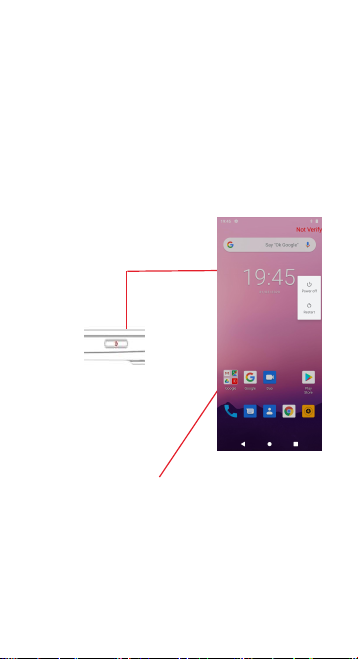
YOUR PHONE FUNCTIONS
CHARGE THE BATTERY
TURNING THE PHONE ON & OFF
Hold down the power
button to turn the phone
on.
Page 6
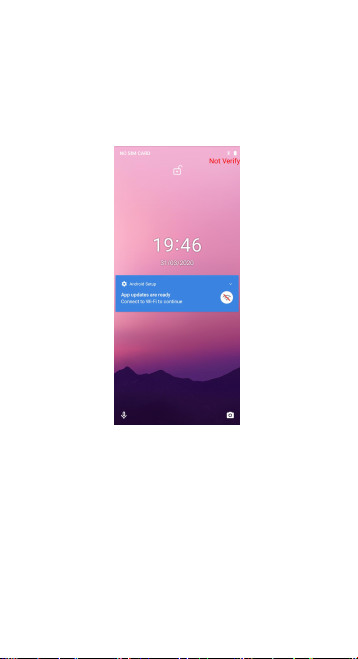
DIM, LOCK & WAKING THE PHONE
When the power is on and you want to dim the screen,
press the power button.
When the screen is dimmed and you want to wake the
phone, press the power button and slide your finger
from middle to right.
Page 7
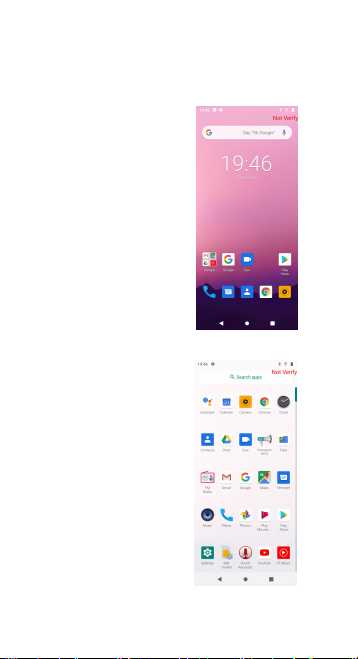
HOME SCREEN
1. Touch it to enterapp tray.
2.Touch an app tolaunchit
Page 8
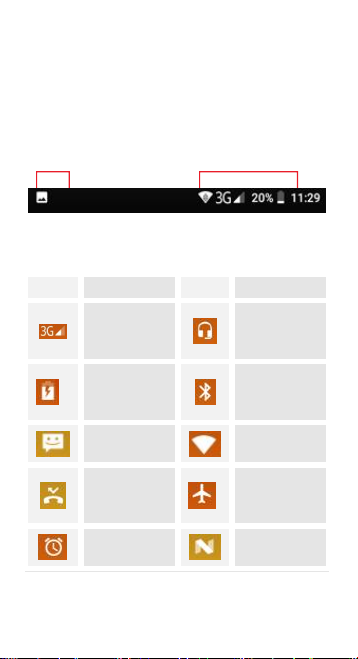
STATUS BAR
Icon
Statement
Icon
Statement
SIM
Network
signal level
Headset is
inserted
Indicates
battery
capacity
Bluetooth is
activated
Unread
messages
Wi-Fi is
connected
Missed calls
Airplane
mode is
activated
Alarm is
activated
USB is
connected
The status bar shows your phone’s status and
notifications. (Notifications are described on the next
page.)
Notification icons Status icons
Status icons
The following status icons may appear on your
screen:
Page 9
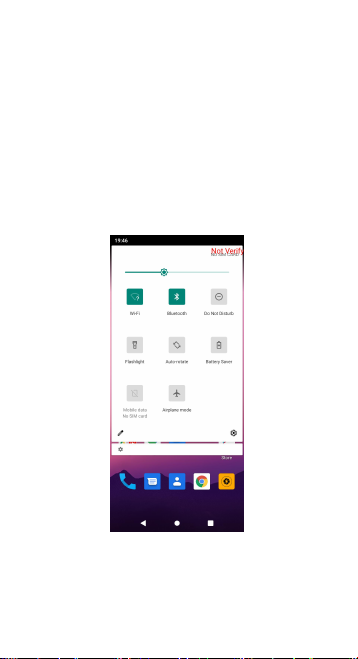
NOTIFICATION PANEL
The notification panel is your center for new events: like
new e-mail, voicemail, updates, and more.
Drag down to display notifications.
Touch a notification to respond
Page 10
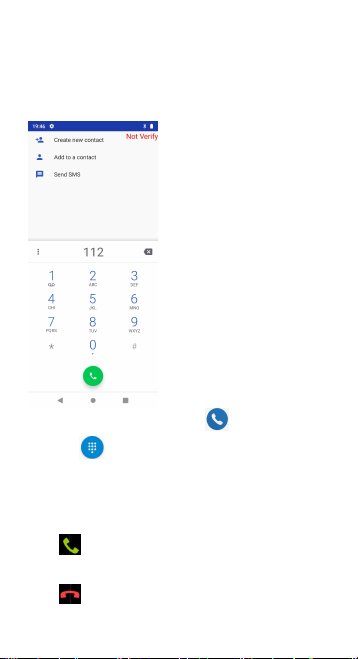
MAKE & ANSWER A CALL
1. From the Home screen, touch
2. Touch to show the dial pad
3. Dial a number, then touch
to initiate the call.
Answer a call
Drag to the right
Decline a call
Drag to the left
Page 11
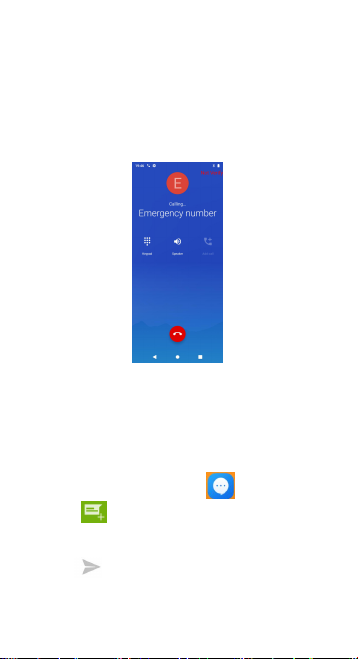
VOLUME CONTROL WHEN CALLING
Volume key is at the left side of the phone. During a
conversation, you can press the volume key to tune the
sound volume.
SEND A TEXT
1. From the Home screen, touch
2. Touch
3. Touch the “To” field, then enter a recipient.
4. Touch the Type message field, then enter a message
5. Touch Send the message
Page 12
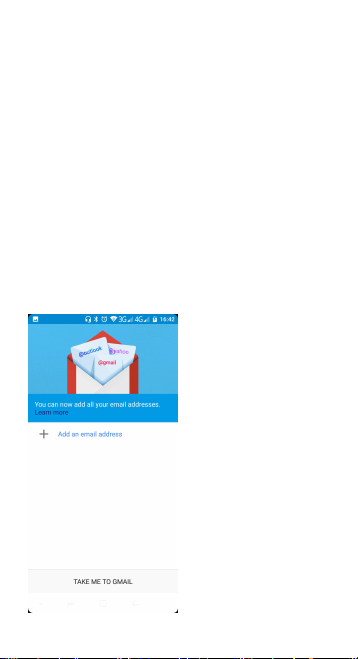
ADDING EMAIL ACCOUNTS
The first time you open Email, you will be prompted to
set up an email account. After that, you can configure
Email to send and receive email from additional
accounts.
To add an email account:
1)Tap the e-mail icon. In Your account interface, tap
Next. In e-mail address option, enter your e-mail
address. In password option, → enter your e-mail
password. Tap Next.
2)Filling the email address and password, tap next to
setup email
3)Tap next to enter your email.
Page 13

SETTINGS
Wi-Fi
You can use Wireless & Network
settings to manage your SIM card,
configure and manage
connections to networks and
devices by using Wi-Fi. You can
set Bluetooth, data usage,
airplane mode, VPN, tethering &
portable hotspot and mobile
networks in this interface.
Bluetooth
Press the switch to power on
Bluetooth. Once o n, the Bluetooth
will automatically scan for any nearby
open equipment.
SIM cards
Press the switch to power on SIM
cards. When insert two cards, click to
set cellular data、Calls、SMS
messages
.
More
Airplane Mode
Tethering, Portable
Hotspot
VPN.
Display
You can set Wallpaper,
Auto-rotate screen, Brightness,
Daydream, wireless display, Sleep
The settings for various features of the phone
Get to know the settings on your phone so that you can
personalize them to your own requirements. Go to
Settings to configure how your phone looks, sounds,
communication, privacy, and operations in a variety of
ways:
Page 14

and Font size in this interface.
Notification
Control all apps notification
messages.
Sound
This option sets the phone ring tone
settings for receiving calls and
notifications.
Gesture
Settings
•
Finger Gesture.
• Gesture Motion
•
Smart Motion
Apps
You can use the Applications
settings to view details about the
applications installed on your
phone, to manage their data and
force them to stop, to view and
control services that are currently
running, and to view the storage
used by applications, etc.
Storage
Use the Storage settings to
monitor the used and available
space on your phone and on your
SD card and to manage your SD
card.
Battery
You can view your battery status,
battery level and battery use in
this interface.
Page 15

Memory
View average Memo ry usage.
Users
You can add and switch users
DuraSpeed
DuraSpeed helps boots the
foreground APP by re tricting
background APPs
Location
You can turn on Wi-Fi & mobile
network location, GPS satellites,
etc through this function.
Security
You can set the parameters
related to security through this
function.
Accounts
You should add an account first
before using this function.
Google
Location information
Security
Advertising
Search and Instant
Language &
input
Use the Language & Keyboard
settings to select the language for
the text on your phone and for
configuring the input method.
Page 16

Backup &
reset
You can backup your data and
reset your phone in this interface.
Data & time
You can use Date & Time settings
to set your preferences for how
dates are displayed. You can also
use these settings to set your own
time and time zone, rather than
obtaining the current time from
the network, etc.
Accessibility
Enable your installed accessibility
applications and adjust related
settings.
Printing
You may print files via Cloud Ready
printers.(Please check Google Cloud
Print website f or printer compatibility
information).
Developer
Options
If the phone does not display
Developer options p ress “build
number” seven (7) times in the about
phone tab in settings.
Scheduled
power on &
off
Schedule power o n and off
About phone
This function enables you to view
some phone related information.
Page 17

SET A RINGTONE
Press Sound & notification, select the profiles
you want to set, you can customize the ringtone and
volume of incoming call, notification ringtone in this
interface.
MULTIMEDIA
listen, watch, capture and enjoy it!
FM RADIO
1. Insert earphone, then Tap the Power icon to stop or
play FM.
2. Tap the forward by 0.1 MHz or scroll the knob icon to
change channel frequency. Press volume key to adjust
the volume.
3. Tap Auto search, Record and Favorites icon to adjust.
Page 18
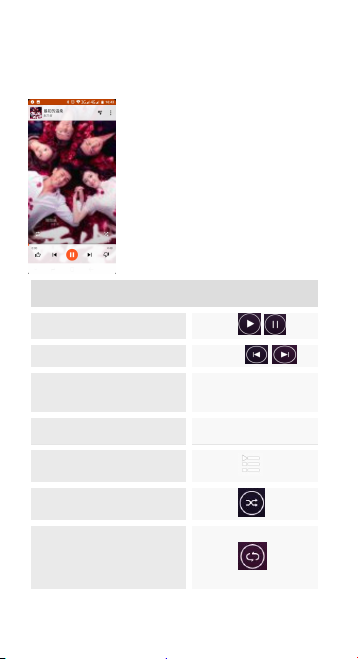
MUSIC
Controls
Play/Pause
Touch /
Previous/Next
Touch /
Rewind/Forward
Touch the Progress
bar
Volume adjust
Press side key
Now playing: Touch to
open the current playlist.
Touch
Shuffle: Touch to shuffle
the current playlist.
Touch
Repeat: Touch to repeat
the current playlist; touch
again to repeat the
current track.
Touch
Page 19

Camera
1. Launch the camera by pressing the camera icon on
the home screen
2. In the camera app, tap the screen to focus on a
specific area.
3. Press the camera button all the way down to take a
picture.
SHOOT A VIDEO
1. Press the camera icon.
2. In the Camera app, select video
3. Press the camera button to begin filming and press
again to stop filming.
Calculator
1. Launch the calculator by pressing the calculator icon
on the home screen.
2. In the calculator app, enter numbers and arithmetic
operators on the basic screen.
Calendar
You can use the calendar to keep track of important
events. After entering the calendar function menu you
can select year, month and date. Slide the Calendar
screen up and down to switch month.
Page 20

Sound Recorder
Use this function to record audio files. Two function
icons at the bottom of the Recorder screen are
corresponding to start recording and review recorded
file.
Clock
The clock allows you to view time and date. You can also
add an alarm, set the alarm and turn it on. Then, the
alarm can ring at a specific time you set.
Gallery
Both pictures and videos taken by camera or stored in
SD card can be scanned through this function.
Browser
To let you browse the Internet.
File Manager
This phone supports an SD card. You can use the File
Explorer to conveniently manage various directories and
files on the SD card.
Page 21
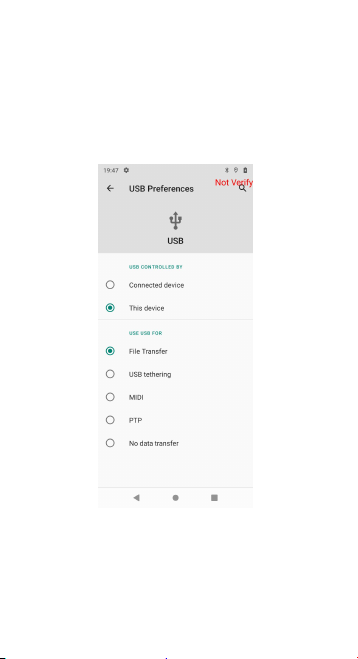
USE AS MODEM VIA USB
You can connect your phone to a computer with a USB
cable, to transfer music, pictures, and other files
between your phone’s SD card and the computer.
Page 22
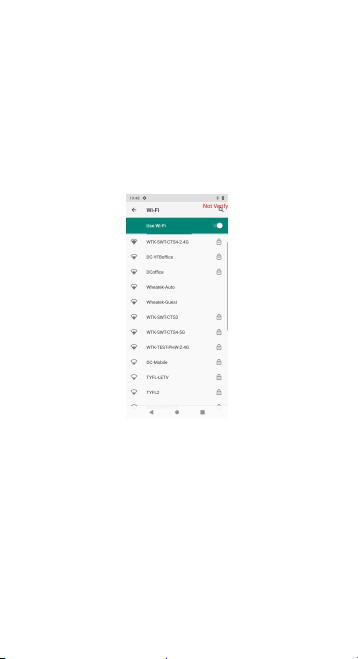
CONNECT TO Wi-Fi NETWORKS
Wi-Fi is a wireless networking technology that can
provide Internet access at distances of up to 100 meters,
depending on the Wi-Fi router and your surroundings.
Touch Settings> WI-FI. Check Wi-Fi to turn it on. The
phone scans for available Wi-Fi networks and displays
the names of those it finds. Secured networks are
indicated with a Lock icon.
Page 23

Certification information (SAR)
Your phone is designed not to exceed the limits of
emission of radio waves recommended by
international guidelines. These guidelines include
safety margins designed to assure the protection of
all persons, regardless of age and health.
SAR (specific absorption rate) is the unit of
body-absorbed RF quantity when the phone is in
use. SAR value is ascertained according to the
highest RF level generated during laboratory tests.
The true SAR level during phone usage will be far
lower than this level.
The SAR value of the phone may change depending
on factors such as how close you are to a network
tower, use of accessories and other enhancements.
The highest SAR value of the device is 0.67W/kg
(head) and 0.95 W/kg (body) averaged over 10 gm
of human tissue.
The SAR value may differ depending on national
reporting, testing requirements and the network
band.
Page 24

SAR recommendations
Use a wireless hands-free system (headphone,
headset) with a low power Bluetooth emitter.
Please keep your calls short and use SMS whenever
more convenient. This advice applies especially to
children, adolescents and pregnant women.
Try to use your cell phone when the signal quality is
good.
People having active medical implants should
preferably keep the cell phone at least 15 cm away
from the implant.
Maintain a preferable distance of 15 mm from the
device.
Safe driving
Do not use the phone while driving. When you have
to use the phone, please use the personal
hands-free kit.
Please do not put the phone onto any passenger
seat or any place from which it may fall down in
case of vehicular collision or emergency braking.
During flight
Flight is influenced by interference caused by the
phone. It is illegal to use a phone on the airplane.
Please turn off your phone or switch to flight mode
during a flight.
Page 25

In hospitals
Your phone’s radio waves may interfere with the
functioning of medical devices. Consult a physician
or the manufacturer of the medical device to
determine whether they are adequately shielded
from external radio frequency. Switch off your
device when regulations instruct you to do so.
Do not carry the wireless device in the breast
pocket.
Turn off the phone if there is any reason to suspect
that interference is taking place.
Unsafe areas
Please turn off your phone when you are close to a
gas station or in the vicinity of any place where fuel
and chemical preparations, or any other dangerous
goods are stored.
Taking care of your device
Your device is a product of superior design and
craftsmanship and should be handled with care. The
following suggestions will help you protect your
phone.
Keep the device dry. If your device gets wet,
remove the battery without turning on the device,
Page 26

wipe it with a dry cloth and take it to the service
center.
Do not store the device in high or cold temperature.
High temperatures can shorten the life of electronic
devices and damage batteries.
Do not use or store the device in dusty, dirty areas.
Its moving parts and electronic components can be
damaged.
Do not attempt to open the device other than as
instructed in this guide. Repairing the phone by
yourself and not using our authorized service
agents/centers goes against the warranty rules.
Do not drop, knock or shake the device. Rough
handling can break internal circuit boards and fine
mechanics.
Do not use harsh chemicals, cleaning solvents, or
strong detergents to clean the device. Only use a
soft, clean, dry cloth to clean the surface of the
device.
Do not store your device near magnetic fields or
allow your device to come in contact with magnetic
fields for extended periods of time.
Battery recommendations
Please put the battery in a well-ventilated place out
of direct sunlight. Charge the battery at room
temperature range.
Page 27

If the time span of the battery after charging
becomes much shorter than usual, the battery life is
at an end. Replace the battery with a new battery of
the same make and specification.
Do not discard the battery with household trash.
Please dispose of the used battery according to
your local environmental laws and guidelines.
Use manufacturer approved batteries, chargers,
accessories and supplies. We will not be responsible
for the user’s safety when using unapproved
batteries or accessories.
Recycle your phone
The WEEE logo (shown at the left) appears on the
product (battery, handset, and charger) to indicate
that this product must not be disposed of or
dumped with your other household waste. You are
liable to dispose of all your electronic or electrical
waste equipment by relocating over to the specified
collection point for recycling of such hazardous
waste.
Collection and proper recovery of your electronic
waste equipment at the time of disposal will allow
us to help preserve the environment. Recycling of
the electronic waste equipment will ensure safety
of human health and the environment.
Page 28

Disclaimers
The colours and specifications shown/mentioned in
the user manual may differ from the actual product.
Images shown are for representation purposes only.
Other product logos and company names
mentioned herein may be trademarks or trade
names of their respective owners.
The content of this manual may vary from the
actual content displayed on the mobile phone. In
such a case, the latter shall govern.
We keep the right to make modifications to any of
the content in this user guide without public
announcement or prior notification.
For devices with external power supplies, the plug
socket should be placed in short distance and be
easily accessible.
Using the wrong type of battery replacement may
increase the chance of explosion. Be sure to follow
the instructions for disposal of used batteries.
Page 29

Copyrights
To prevent possible hearing damage,
do not listen at high volume levels of
long periods.
All rights reserved. Reproduction, transfer,
distribution or storage of part or all of the contents
in this document in any form without the prior
written permission of is strictly prohibited.
To use the device only with the earphones included,
never change the earphones included for another
one.
 Loading...