

Page 1
1
1. Activation
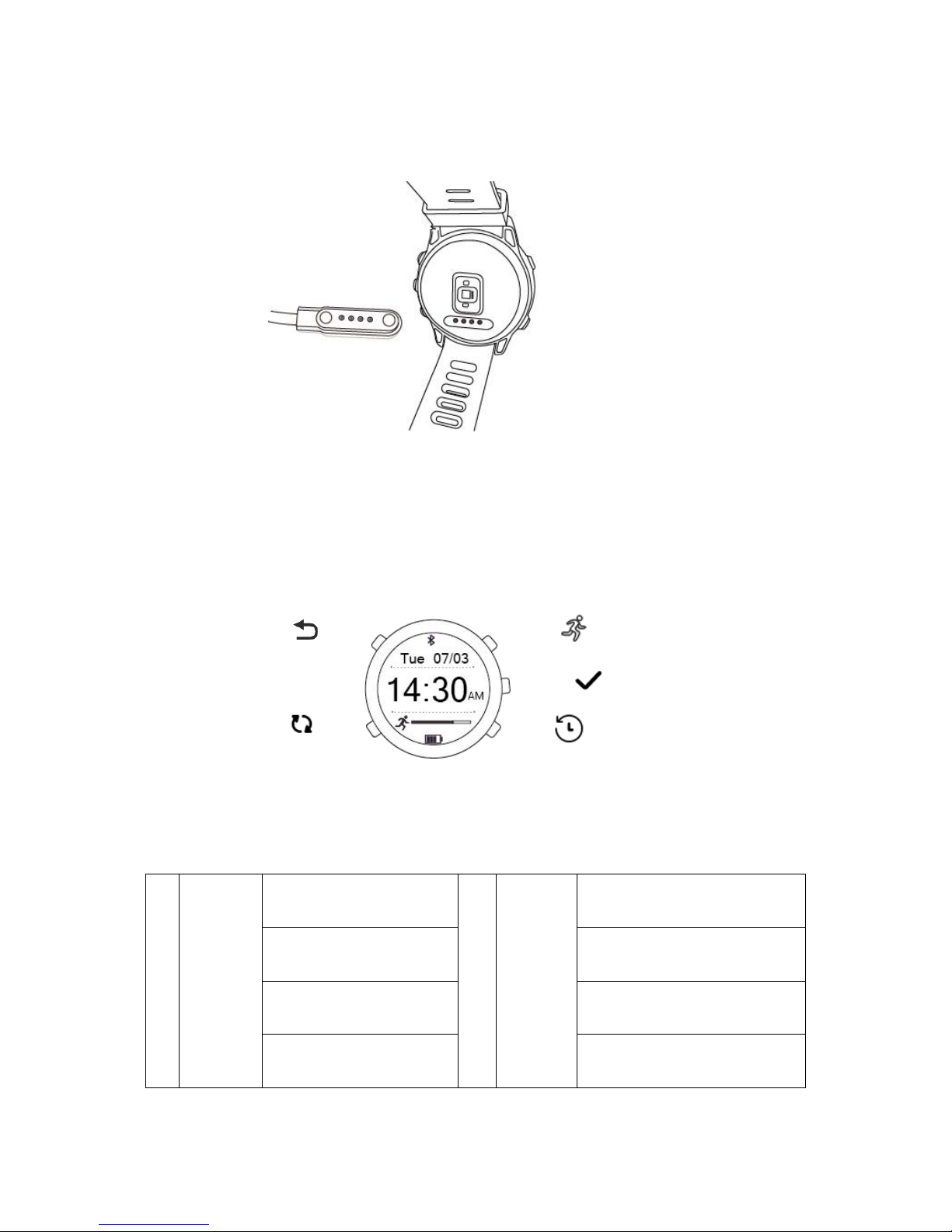
Connect the watch data link, insert to computer port or use charger to activate.
2. Buttons
Smart watch provides five buttons, through which all functions are accessible.
Functions of the buttons
1
Home
Turn on/turn off
4
adjust
Count down setting:switch to hour/
minute
Press to return to the time
interface
Confirm option
One press to
notification interface
Check lap records
Backlighting
remote control of confirming
picture taking
Home
menu
start
stop
adjust
mode
lap
Page 2
2
3. Browse the main interface
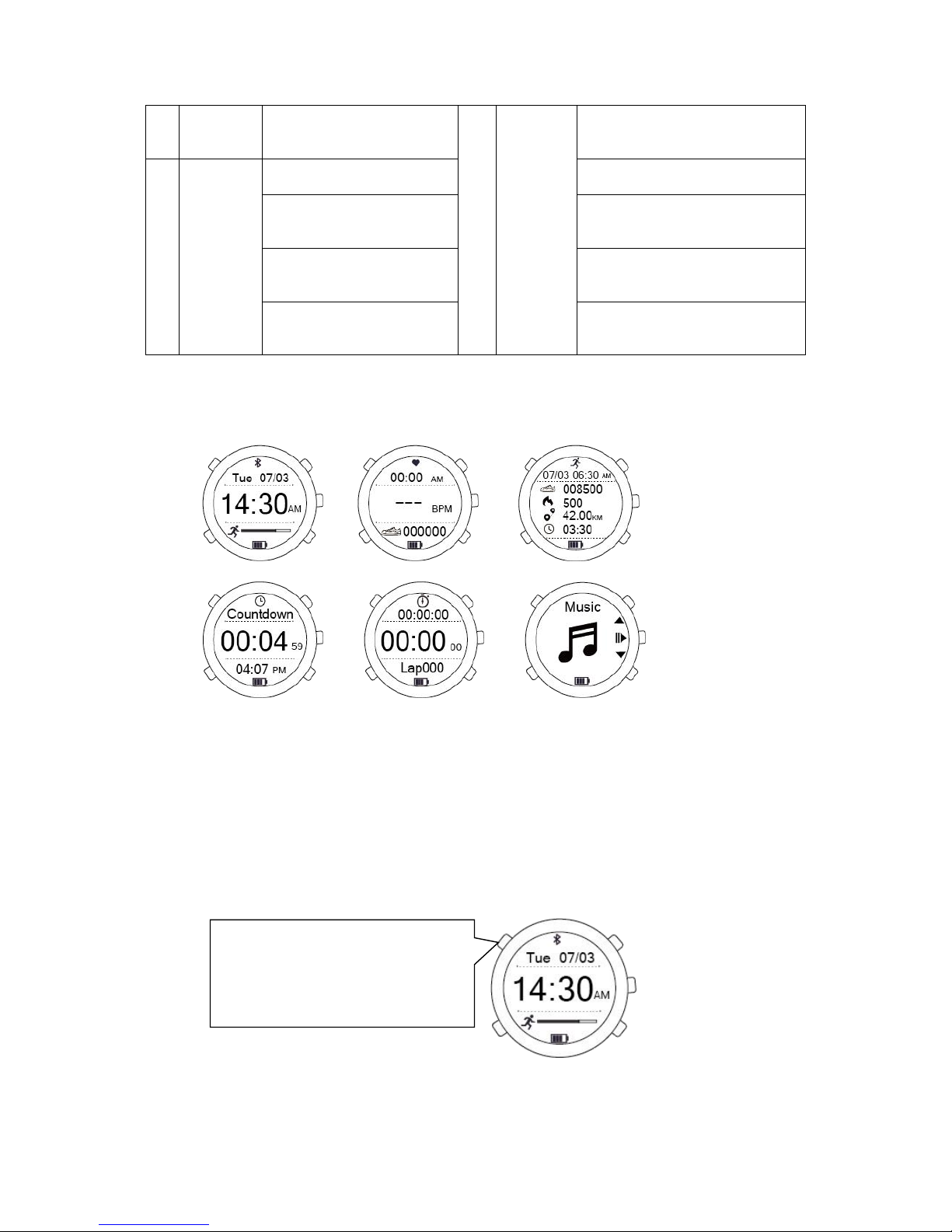
Press “menu”,check the main interface circularly.
4. Introduction of functions.
You are able to check current date, time and the achievements of exercises by time interface.
First line: Date of the day
Second line: Time of the day
Third line: Achievement of the exercises
2
menu
Press to check six main
interfaces circularly
5
mode.lap
Page down
3
start.stop
Start or stop
Decrease the number
Increase the number
Stopwatch mode : calculating 、
clearing
Page up
Heart rate:switch to step、calorie、
distance、time
Music interface:switch to the
previous song
Music interface:switch to the next
song
1. Shortly press to light up the backlight
2. One press to enter the notification
interface
3. long press 6 seconds to turn on/off
Page 3
3
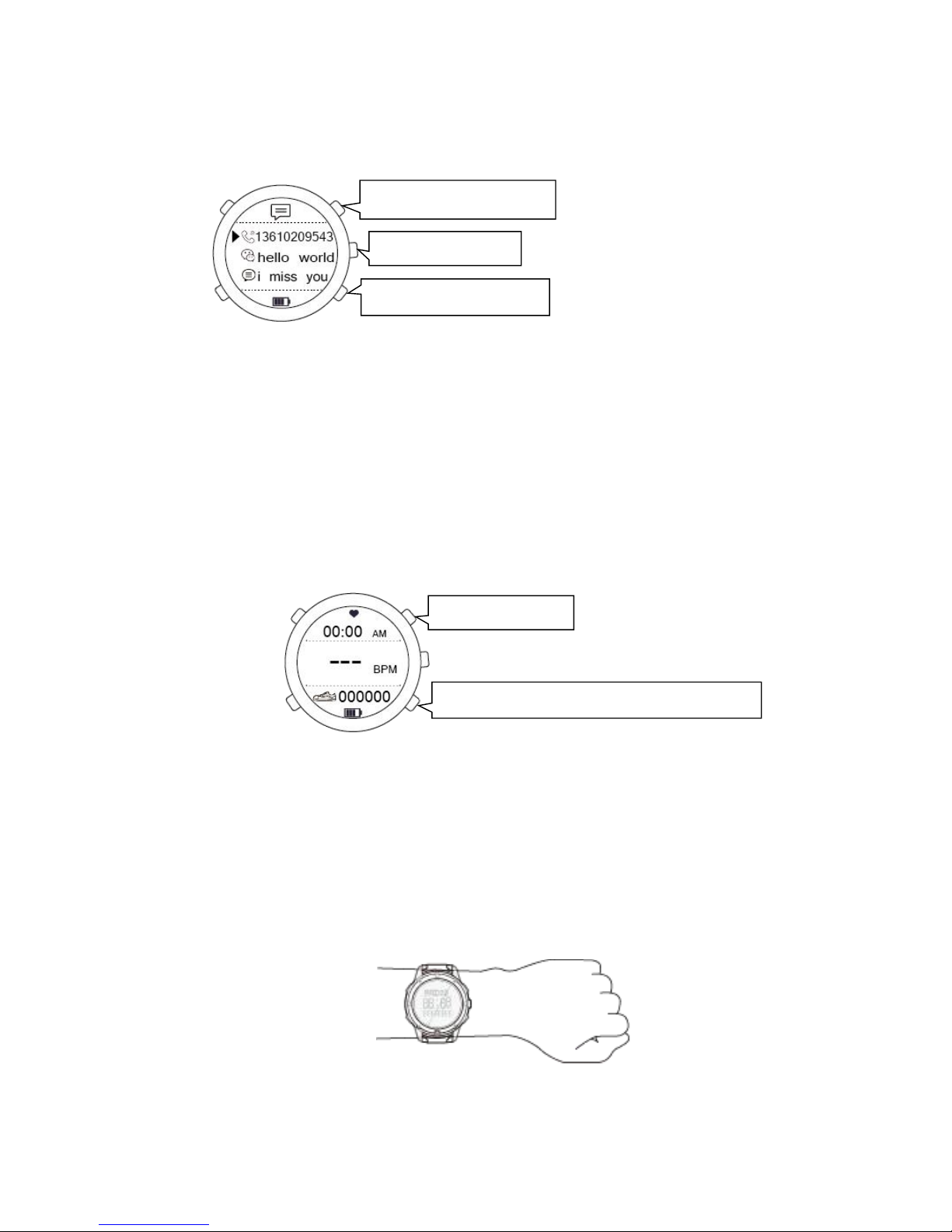
Smart watch can store eight latest news records. You can check the details on the notification interface.
5. Heart rate
Users can start real time heart rate measuring and the whole day heart rate monitoring by clicking “start
to measure “on heart rate interface in the application or pressing the button of start/ stop. It takes
approximately 8-15 seconds to measure the heart rate
Please synchronize the history of heart rate to the application if you need to check the details.
First line:Time of the day
Second line: current BPM
Third line:steps、calorie、distance、time
Tips: For all-day wearing when you’re not exercising, your tracker should usually remain a finger’s
width below your wrist bone and lay flat, just same as wearing a watch. CUBOT heart rate tracking
system is designed to be most accurate when the tracker is worn on the top of your wrist.
Exercise may bring you higher heart rate, because blood flow in your arm increases the farther up you
go, moving the tracker up a couple inches can improve the heart rate signal. Also, many exercises such
as push-ups cause you to bend your wrist frequently, which is more likely to interfere with the heart
rate signal if the tracker is lower on your wrist.
Press to go up the page
Press to confirm
Press to go down the page
Press to switch to step, calorie, distance and time
Press to start/stop
Page 4
4
6. Monitoring exercises
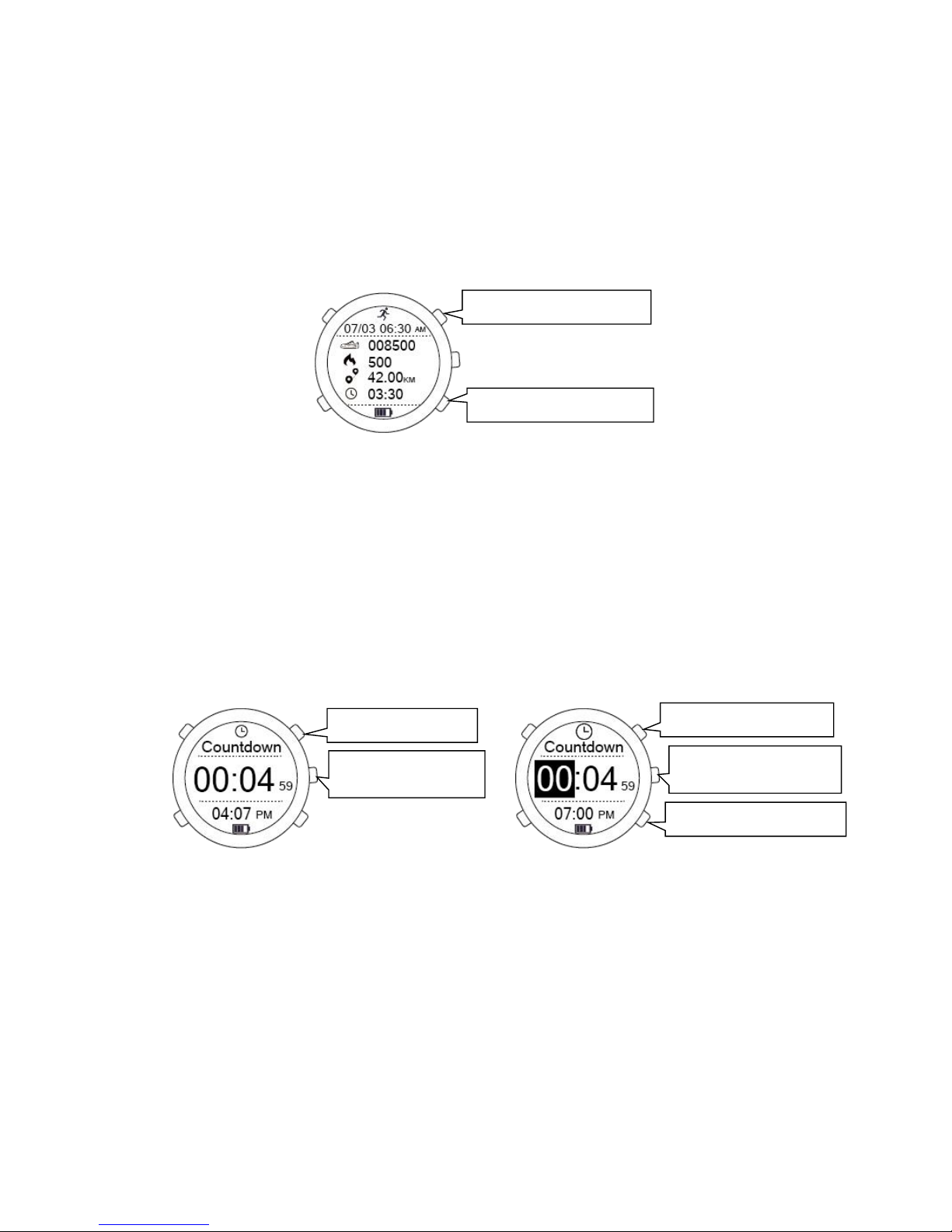
F1 can automatically monitor the daily activities of the user and immediately check the latest six days’
details of the exercises.
Please synchronize the details of the exercises to the application if you need to check details for more
than six days.
7. Countdown
When counting down the time, you can count down from preset time to zero; the maximum support for
counting down is 23 hours 59 minutes. The watch will remind users the ending of countdown by
vibrating per second in the last countdown ten seconds.
You can switch the setting of hour/ minute by pressing the button [adjust] and press the button
[start.stop] or [mode.lap] to increase or decrease the number when it’s under stop mode
Second line: countdown time(hour、minute、second)
Third line: current system time
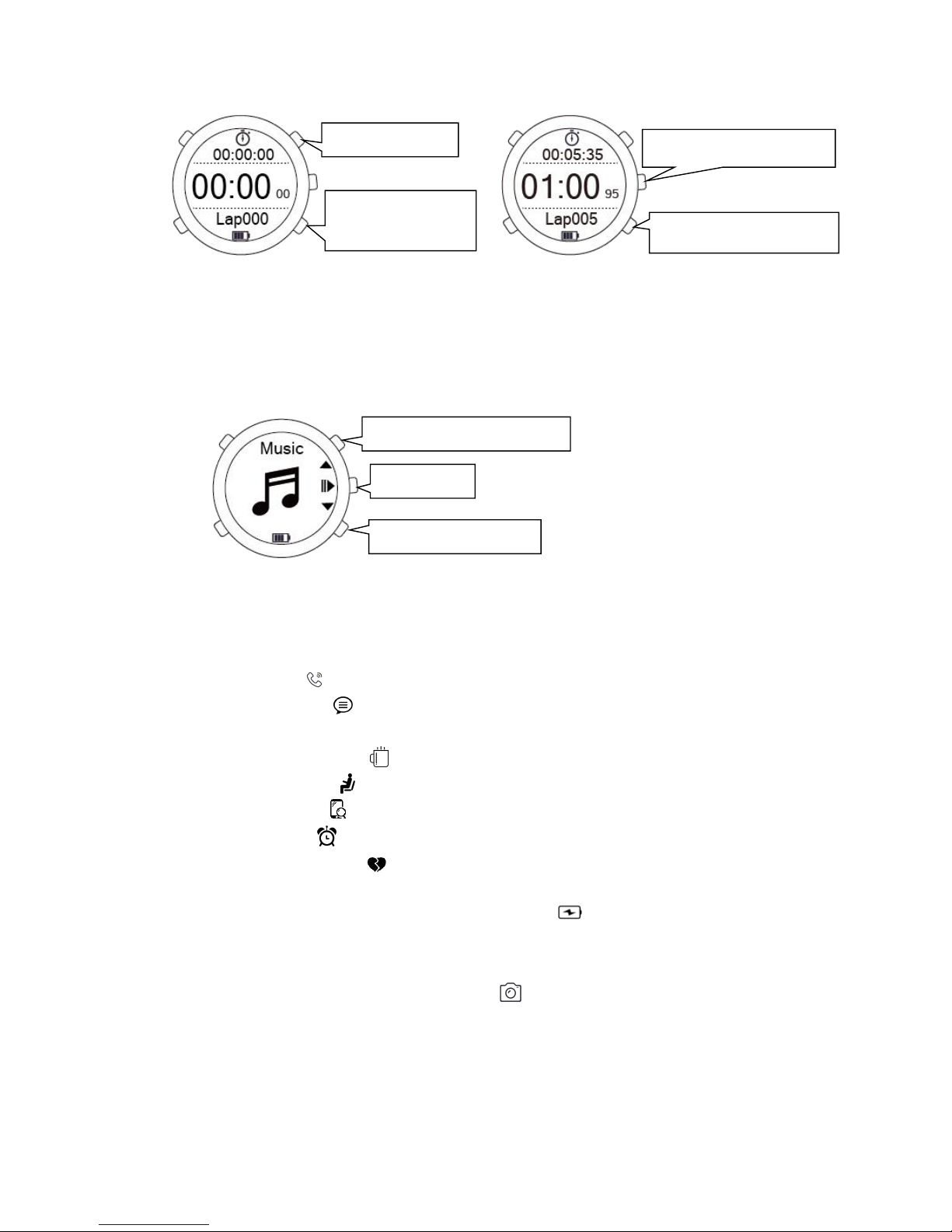
8. Stopwatch
You can check the lap record by stopwatch manual recording when you are exercising
You can check the single lap record in sequence by pressing button [adjust] and zero clear data by
pressing button [mode .lap] when it’s under stop mode
First line: time of the laps
Second line: current time of the lap
Third line:Lap (support maximum 20 laps)
Press to go down the page
Press to go up the page
Decrease the number
Increase the number
Press to switch to hour or
minute
Press to start/stop
Press to enter setting
mode
Page 5
5
9. Music control
After connect smart watch with smart phone, you can control the watch to play the music in your
cellphone or switch to the previous song or the next song
10. Smart reminder
You can receive reminding of promoting information from cellphone by turning on the reminder button
in application after successfully connecting the watch and the application Bluetooth
● call reminder
● message reminder
● other reminder(QQ\Wechat\FaceBook\Twitter\whatsapp\instagram)
● water drinking reminder
● sedentary reminder
● search thevwatch
● alarm reminder
● heart rate early warning
Others:
● low battery reminder: There will be vibration as reminder when the watch is under low
battery condition
● remote control photo taking: click the“remote control photo taking”in the application and press
button “adjust” to take a photo when the sign appears on the watch .
Press to start/stop
Press to calculate the
laps
Press to clear the record
Press to check the single lap
Switch to the previous song
Switch to the next song
Play/stop
Page 6
6
11. Download and Install the Application.
• ensure your cellphone has connected with data network or WLAN;
• scan the two dimensional code below to download and install or enter any application stores to
download and install“CUBOT Sport”APP(IPhone users, please go to“APP Store”and
search“CUBOT Sport”to download,Android users, please go to Google Play’s Play store and
search“CUBOT Sport”to download).
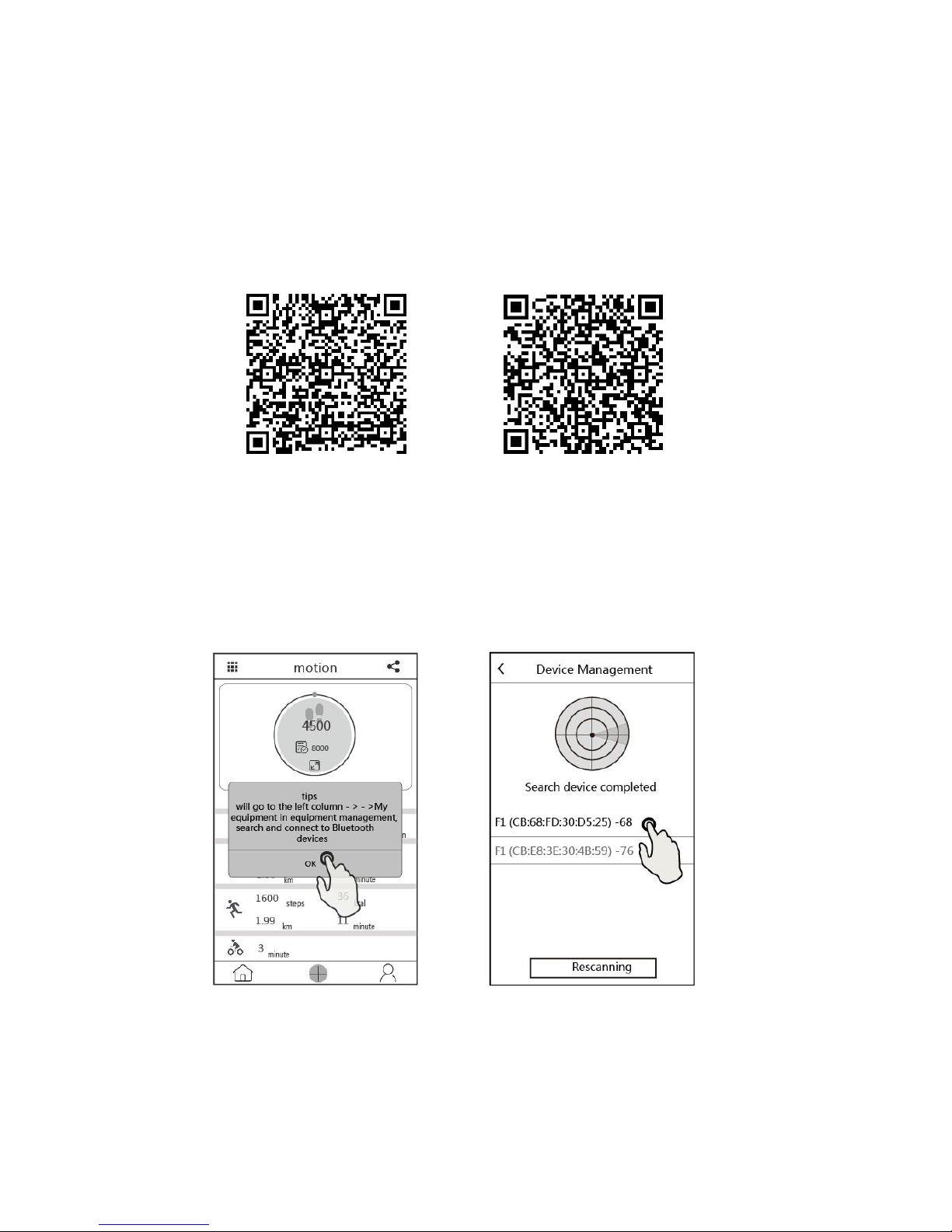
12. Initial binding device
Turn on blue tooth on cellphone , go to“
CUBOT Sport
”APP, pop up a prompt like ( picture 1) ,
confirm > go to“device management”,search device > click binding specific device, finish binding.
Tips:Android phone needs to open the GPS function.
For more details related to using the APP, please check:APP >sidebar > use help > animated guides for various
functions
IOS
Android
Page 7

7
FCC Caution.
§ 15.19 Labelling requirements.
This device complies with part 15 of the FCC Rules. Operation is subject to the following
two conditions: (1) This device may not cause harmful interference, and (2) this device
must accept any interference received, including interference that may cause undesired
operation.
§ 15.21 Information to user.
Any Changes or modifications not expressly approved by the party responsible for
compliance could void the user's authority to operate the equipment.
§ 15.105 Information to the user.
Note: This equipment has been tested and found to comply with the limits for a Class B
digital device, pursuant to part 15 of the FCC Rules. These limits are designed to provide
reasonable protection against harmful interference in a residential installation. This
equipment generates uses and can radiate radio frequency energy and, if not installed
and used in accordance with the instructions, may cause harmful interference to radio
communications. However, there is no guarantee that interference will not occur in a
particular installation. If this equipment does cause harmful interference to radio or
television reception, which can be determined by turning the equipment off and on, the
user is encouraged to try to correct the interference by one or more of the following
measures:
-Reorient or relocate the receiving antenna.
-Increase the separation between the equipment and receiver.
-Connect the equipment into an outlet on a circuit different from that to which the
receiver is connected.
-Consult the dealer or an experienced radio/TV technician for help.
* RF warning for Portable device:
The device has been evaluated to meet general RF exposure requirement. The device can
be used in portable exposure condition without restriction.
 Loading...