

Page 1
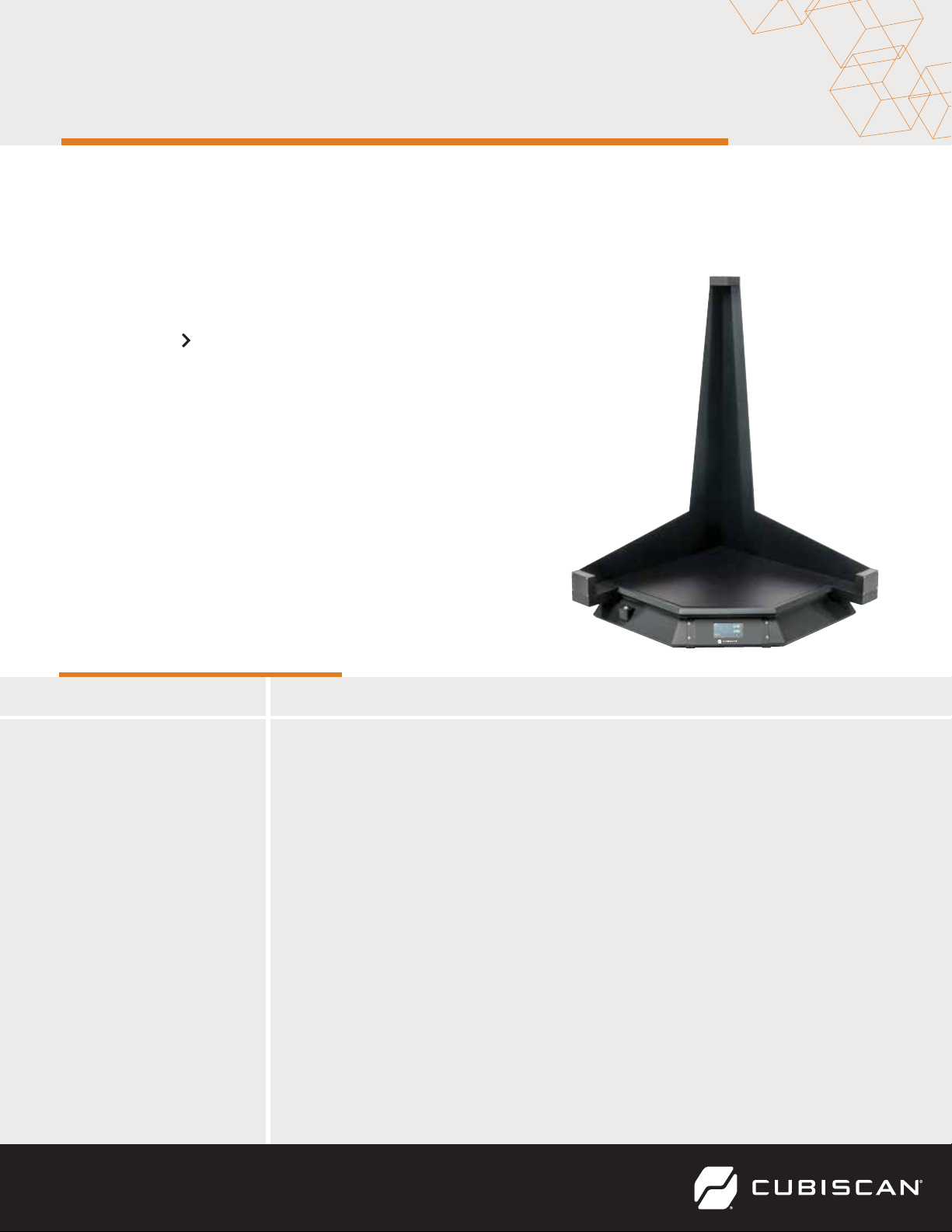
CUBISCAN 100-T OPERATION
QUICK REFERENCE GUIDE
This quick reference guide provides an overview and instructions for operating the Cubiscan
100-T. For more detailed instructions, see the Cubiscan 100-T Operations and Technical Manual.
SUMMARY
The Cubiscan 100-T, an integrated cubing and
weighing system, provides complete and accurate
dimensional data in any distribution center or
warehouse application. The design and functionality of
this dimensioner is simple and intuitive. Its modular
design allows for easy user setup and maintenance
while the user-definable “dim factors” (measurement
settings) provide customizable dim-weight calculations.
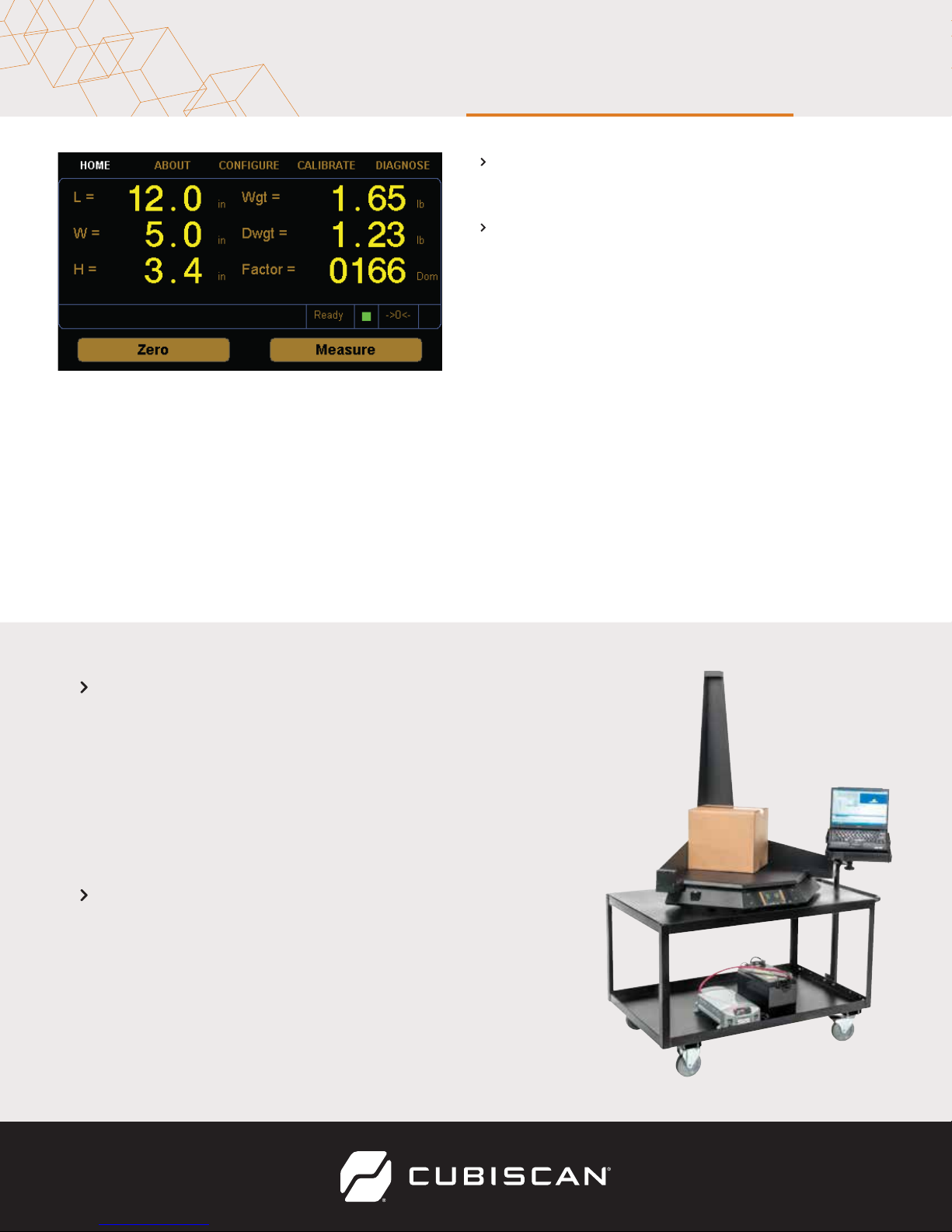
TOUCHSCREEN OVERVIEW
Buttons/Indicators
L, W, H
Wgt
Dwgt
Factor
Ready (indicator)
->0<- (indicator)
Zero (button)
Measure (button)
Meaning
These display the measured dimensions in inches or centimeters.
This displays the measured weight in pounds (lb) or kilograms (kg) as
selected.
This displays the dimensional weight in pounds (lb) or kilograms (kg) as
selected.
This displays the dimensional factor currently being used to calculate
dimensional weight.
This indicates that the Cubiscan 100-T is ready for cubing and weighing.
This indicates that the scale platform is empty and ready to receive a
package.
Tap this key to reset the sensors and scale to “zero” (make sure the
platform is empty).
Tap this key to prompt a measurement. The weight and dimensions of
the object on the platform will be displayed on the screen.
Page 2
MEASURING OBJECTS
1 Turn the Cubiscan 100-T on.
2 Zero the scale if needed and
place the package or object to be
cubed and weighed on the
platform and slide it against the
back corner until it is in contact
with both side panels. The ->0< indicator light should go out.
Do not lean on or touch the Cubiscan platform or the package while a
package is being cubed and weighed. Any kind of contact with the
platform during the measurement process can alter the weight or
sensor reading.
3 Tap Measure. The length, width,
height, weight, and dim weight of
the package are displayed. The
factor used to determine the dim
weight is also displayed.
4 Remove the package from the
platform. Wait for the ->0< indicator to light before placing
the next package on the platform.
Copyright© 2017 by Quantronix, Inc.
All right reserved.
V 11/14/17
 Loading...