

Page 1

Universal Rear
v1
R2
Speaker Kit
NS-HURSK18
FPO
USER GUIDE
Before using your new product, please read these instructions to prevent any damage.
Page 2

Contents
Introduction . . . . . . . . . . . . . . . . . . . . . . . . . . . . . . . . . . . . . . . . . . . . . . . . . . . . .2
Important safety instructions . . . . . . . . . . . . . . . . . . . . . . . . . . . . . . . . . . . . .2
Package contents . . . . . . . . . . . . . . . . . . . . . . . . . . . . . . . . . . . . . . . . . . . . . . . .5
Features . . . . . . . . . . . . . . . . . . . . . . . . . . . . . . . . . . . . . . . . . . . . . . . . . . . . . . . . .6
Using the remote control . . . . . . . . . . . . . . . . . . . . . . . . . . . . . . . . . . . . . . . .10
Setting up your speakers . . . . . . . . . . . . . . . . . . . . . . . . . . . . . . . . . . . . . . . .11
Using your speakers. . . . . . . . . . . . . . . . . . . . . . . . . . . . . . . . . . . . . . . . . . . . .16
Maintaining your speakers . . . . . . . . . . . . . . . . . . . . . . . . . . . . . . . . . . . . . .17
Troubleshooting . . . . . . . . . . . . . . . . . . . . . . . . . . . . . . . . . . . . . . . . . . . . . . . .18
Specifications . . . . . . . . . . . . . . . . . . . . . . . . . . . . . . . . . . . . . . . . . . . . . . . . . . .19
Legal notices. . . . . . . . . . . . . . . . . . . . . . . . . . . . . . . . . . . . . . . . . . . . . . . . . . . .19
ONE-YEAR LIMITED WARRANTY . . . . . . . . . . . . . . . . . . . . . . . . . . . . . . . . . .21
Speakers. . . . . . . . . . . . . . . . . . . . . . . . . . . . . . . . . . . . . . . . . . . . . . . . . . . .6
Transmitter . . . . . . . . . . . . . . . . . . . . . . . . . . . . . . . . . . . . . . . . . . . . . . . . .7
Receiver . . . . . . . . . . . . . . . . . . . . . . . . . . . . . . . . . . . . . . . . . . . . . . . . . . . .8
Remote control . . . . . . . . . . . . . . . . . . . . . . . . . . . . . . . . . . . . . . . . . . . . .9
Programming a universal remote . . . . . . . . . . . . . . . . . . . . . . . . . . .10
Step 1 - Choosing your connection . . . . . . . . . . . . . . . . . . . . . . . . .11
Step 2 - Connecting the transmitter . . . . . . . . . . . . . . . . . . . . . . . .11
Step 3 - Connecting the speakers to the receiver . . . . . . . . . . . .12
Step 4 - Connecting the AC adapter . . . . . . . . . . . . . . . . . . . . . . . .13
Step 5 - Connecting the receiver to the transmitter . . . . . . . . . .14
Positioning the speakers . . . . . . . . . . . . . . . . . . . . . . . . . . . . . . . . . . .15
Replacing the remote control battery. . . . . . . . . . . . . . . . . . . . . . .17
Introduction
Congratulations on your purchase of an Insignia Universal Rear Speaker Kit. It
features a variety of connections and a remote control for easy operation.
This user guide explains how to correctly install, operate, and get the best
performance from your speaker kit. Read this user guide carefully before
installing your system, and then keep it handy for quick reference.
Important safety instructions
1 Read these instructions.
2 Keep these instructions.
3 Heed all warnings.
4 Follow all instructions.
www.insigniaproducts.com
2
Page 3

Universal Rear Speaker Kit
5 Do not use this apparatus near water.
6 Clean only with dry cloth.
7 Do not block any ventilation openings. Install in accordance with the
manufacturer's instructions.
8 Do not install near any heat sources such as radiators, heat registers,
stoves, or other apparatus (including amplifiers) that produce heat.
9 Do not defeat the safety purpose of the polarized or grounding-type plug.
A polarized plug has two blades with one wider than the other. A
grounding type plug has two blades and a third grounding prong. The
wide blade or the third prong are provided for your safety. If the provided
plug does not fit into your outlet, consult an electrician for replacement of
the obsolete outlet.
10 Protect the power cord from being walked on or pinched particularly at
plugs, convenience receptacles, and the point where they exit from the
apparatus.
11 Only use attachments/accessories specified by the manufacturer.
12 Use only with the cart, stand, tripod, bracket, or table
specified by the manufacturer, or sold with the apparatus.
When a cart is used, use caution when moving the
cart/apparatus combination to avoid injury from tip-over.
13 Unplug this apparatus during lightning storms or when
unused for long periods of time.
14 Refer all servicing to qualified service personnel. Servicing is required
when the apparatus has been damaged in any way, such as when the
power-supply cord or plug is damaged, liquid has been spilled or objects
have fallen into the apparatus, the apparatus has been exposed to rain or
moisture, does not operate normally, or has been dropped.
15 To reduce the risk of fire or electric shock, do not expose this device to
rain, moisture, dripping, or splashing, and no objects filled with liquids,
such as vases, shall be placed on it.
16 An apparatus with a three-prong, grounding-type plug is a Class I
apparatus, which needs to be grounded to prevent possible electric
shock. Make sure that you connect any Class I device to a grounding-type,
three-prong outlet.
17 DO NOT overload wall outlets or extension cords beyond their rated
capacity as this can cause electric shock or fire.
18 The wall plug is the disconnecting device. The plug must remain readily
operable.
19 No naked flame sources, such as lighted candles, should be placed on the
apparatus.
20 The ventilation should not be impeded by covering the ventilation
openings with items, such as newspapers, tablecloths, curtains, etc.
www.insigniaproducts.com
3
Page 4
NS-HURSK18
21 The remote control supplied with this product contains a coin/button cell
battery. If the coin/button cell battery is swallowed, it can cause severe
internal burns in just two hours and can lead to death.
22 Batteries should not be exposed to excessive heat such as sunshine, fire,
or the like.
Warning
Danger of explosion if the remote control battery is
incorrectly replaced. Replace only with the same or
equivalent type.
23 Keep new and used batteries away from children.
24 If the battery compartment does not close securely, stop using the
product and keep it away from children.
25 If you think batteries might have been swallowed or placed inside any
part of the body, seek immediate medical attention.
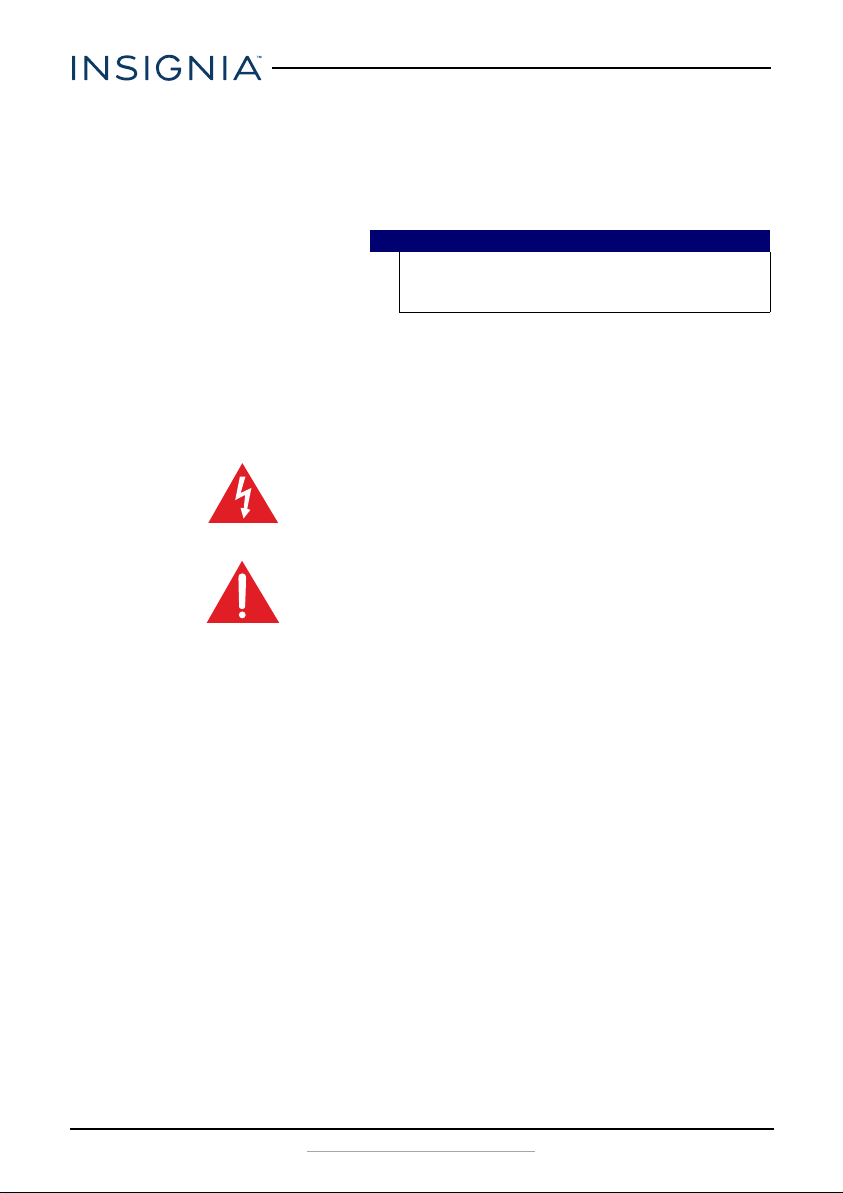
The lightning flash with arrowhead symbol within an equilateral triangle is
intended to alert the user to the presence of uninsulated “dangerous
voltage” within the product’s enclosure that may be of sufficient magnitude
to constitute a risk of electrical shock to persons.
The exclamation point, within an equilateral triangle, is intended to alert
the user to the presence of important operating and maintenance
(servicing) instructions in the literature accompanying the product.
Placement
• The speaker cabinets are made out of plastic and are therefore sensitive to
extreme temperatures and humidity. Do not put it in locations subject to
direct sunlight or in humid places, such as near an air conditioner,
humidifier, bathroom, or kitchen.
• Do not put water or other liquids close to the speakers. If liquid is spilled on
top of the speakers, they may be damaged.
• The speakers should be placed on a sturdy, flat surface that is free from
vibration, or mounted on a wall. Do not put the speakers on an uneven or
unstable surface, where they may fall and cause damage.
Using close to a TV or computer
Some older TVs and computer monitors are magnetically sensitive devices.
They are likely to suffer discoloration or picture distortion when conventional
speakers are placed nearby. If discoloration problems persist, try moving the
speakers away from your TV or monitor.
4
www.insigniaproducts.com
Page 5
Package contents
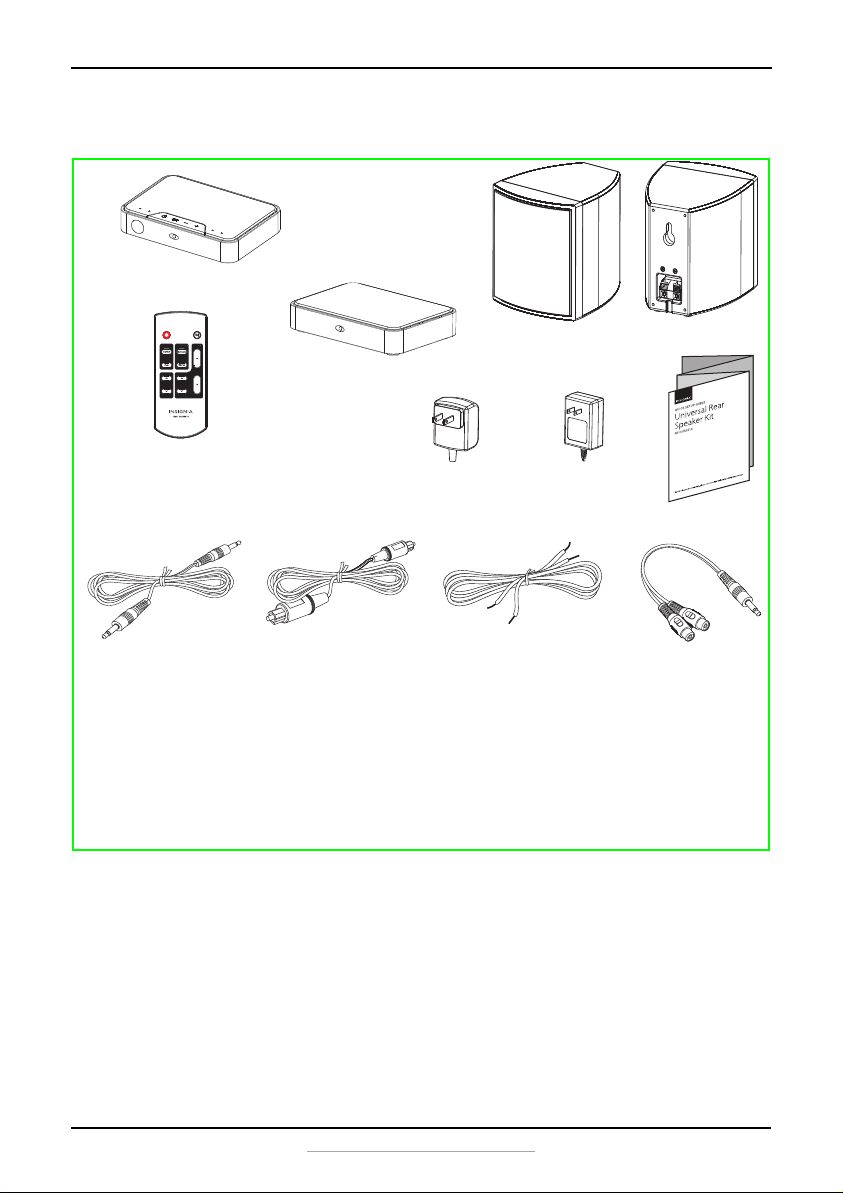
Speakers
Remote Control with
CR2025 battery
3.5 mm Audio Cable
Quick Setup Guide
Tra nsm it te r
Receiver
Optical Cable
AC Adapter
5V 1A
AC Adapter
12V 1.5A
Speaker wires
3.5 mm to RCA adapter
The 3.5 mm to RCA adapter is not
mentioned in the manual. Is this
provided and when is it used?
Universal Rear Speaker Kit
www.insigniaproducts.com
5
Page 6
Features
Back view
Speakers
NS-HURSK18
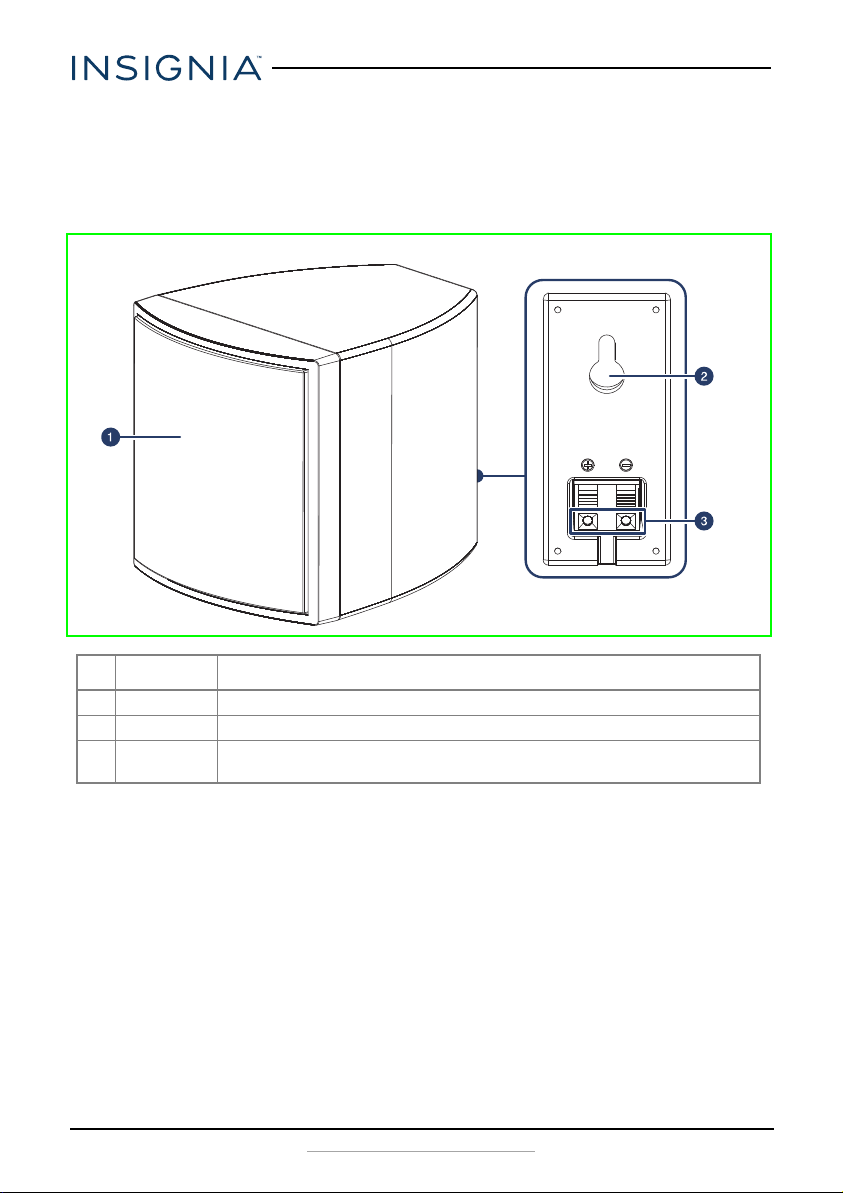
# ITEM DESCRIPTION
1 Speaker Produces sound.
2 Hanging hole Used to hang your speaker on a wall.
3 Speaker jacks Connect speaker wires from the receiver (red wires to red jacks and black wires to black jacks) to
6
the speakers here.
www.insigniaproducts.com
Page 7
Universal Rear Speaker Kit
Back view
Tra nsmitter
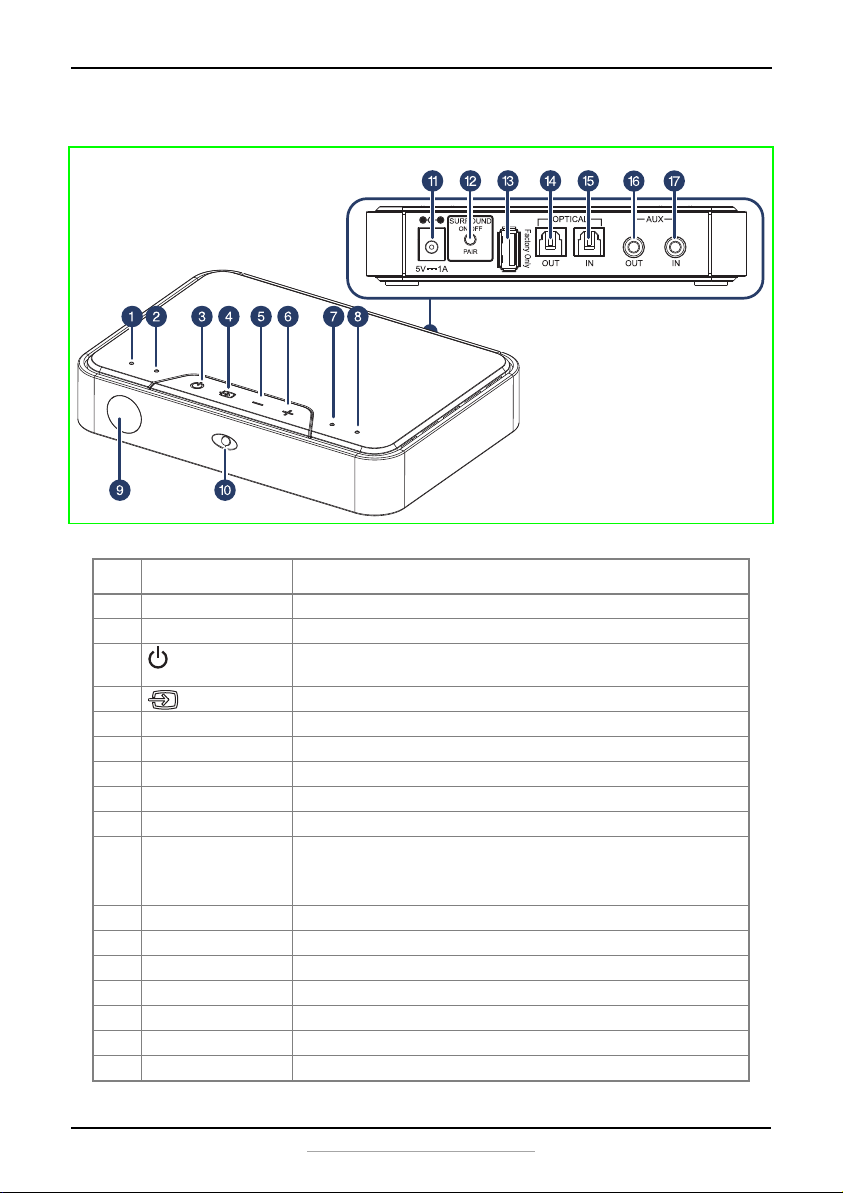
# ITEM DESCRIPTION
1 Optical indicator LED Lights when using an optical (TV or DVD) sound source (def ault).
2 AUX indicator LED Lights when using an AUX (tablet or mobile device) sound source.
3 (power) button Press to turn on the transmitter. Press again to put the transmitter into standby
4 (source) button Press to toggle between the optical and aux sound sources.
5 - (volume down) Press to lower the volume.
6 + (volume up) Press to raise the volume.
7 Dolby indicator LED Lights when the audio has Dolby 5.1 content.
8 PCM indicator LED Lights when the PCM audio is being received.
9 IR sensor Aim the remote control at this sensor to control the transmitter.
10 Power indicator - Lights red when the transmitter is in standby mode.
11 DC IN jack Connect the 5V 1A AC adapter to this jack to power the transmitter.
12 Pairing button Press and hold to pair the transmitter to the receiver.
13 Factory only DO NOT USE. This jack is for factory use only.
14 Optical out jack Connect your sound bar to this jack with a digital optical cable (included).
15 Opti cal in jack Connect you r TV or DVD player to this jack with a digital optical cable (included).
16 AUX out jack Connect your sound bar to this jack with a 3.5 mm cable (included).
17 AUX in jack Connect your TV or DVD player to this jack with a 3.5 mm cable (included).
mode.
- Blinks red when the transmitter is muted.
- Turns off when the transmitter is turned on.
www.insigniaproducts.com
7
Page 8
NS-HURSK18
Back view
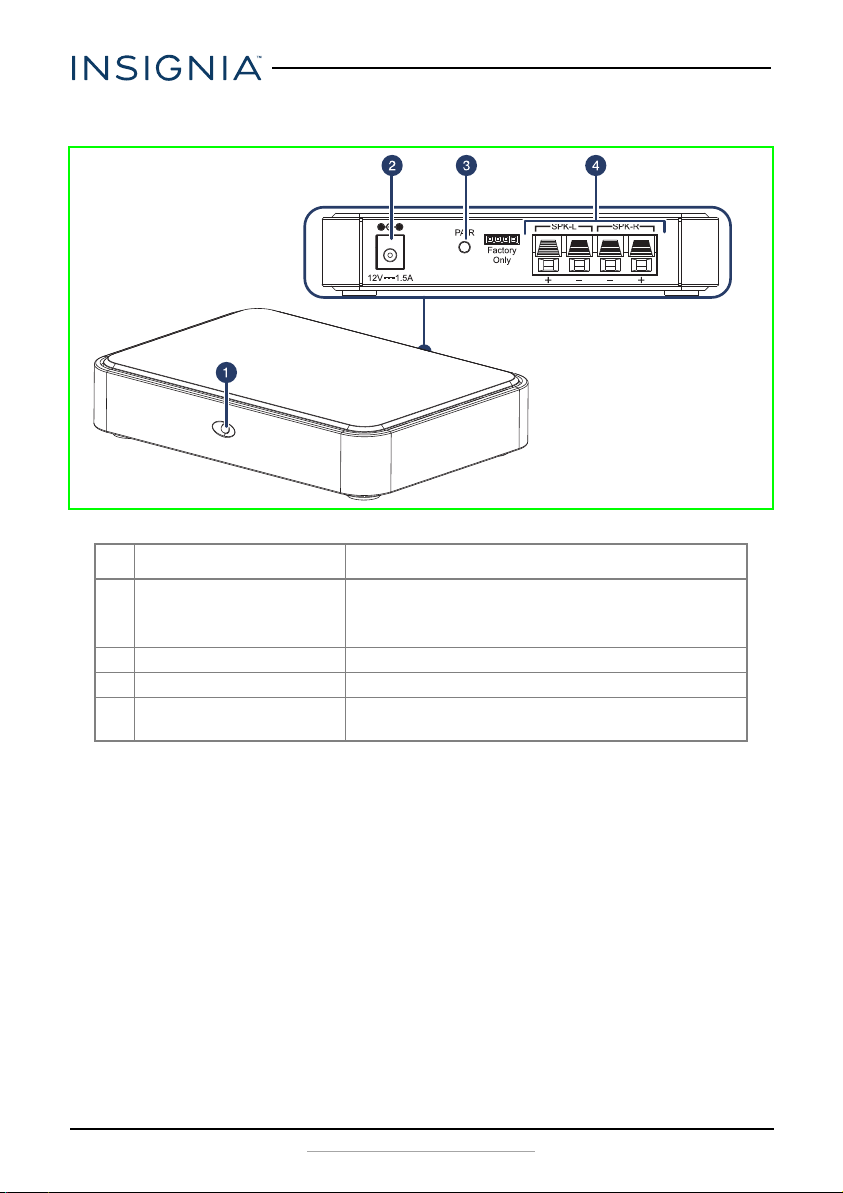
Receiver
# ITEM DESCRIPTION
1 Power indicator - Lights blue when the receiver is on and paired with the transmitter.
- Blinks blue when the receiver is in pairing mode.
- Turns off when the receiver is turned off.
2 DC IN jack Connect the 12V 1.5A AC adapter to this jack to power the receiver.
3Pairing button Press and hold to pair the receiver to the transmitter.
4 Speaker jacks Connect speaker wires from these jacks (red wires to red jacks and black
wires to black jacks) to the speakers.
8
www.insigniaproducts.com
Page 9
Universal Rear Speaker Kit
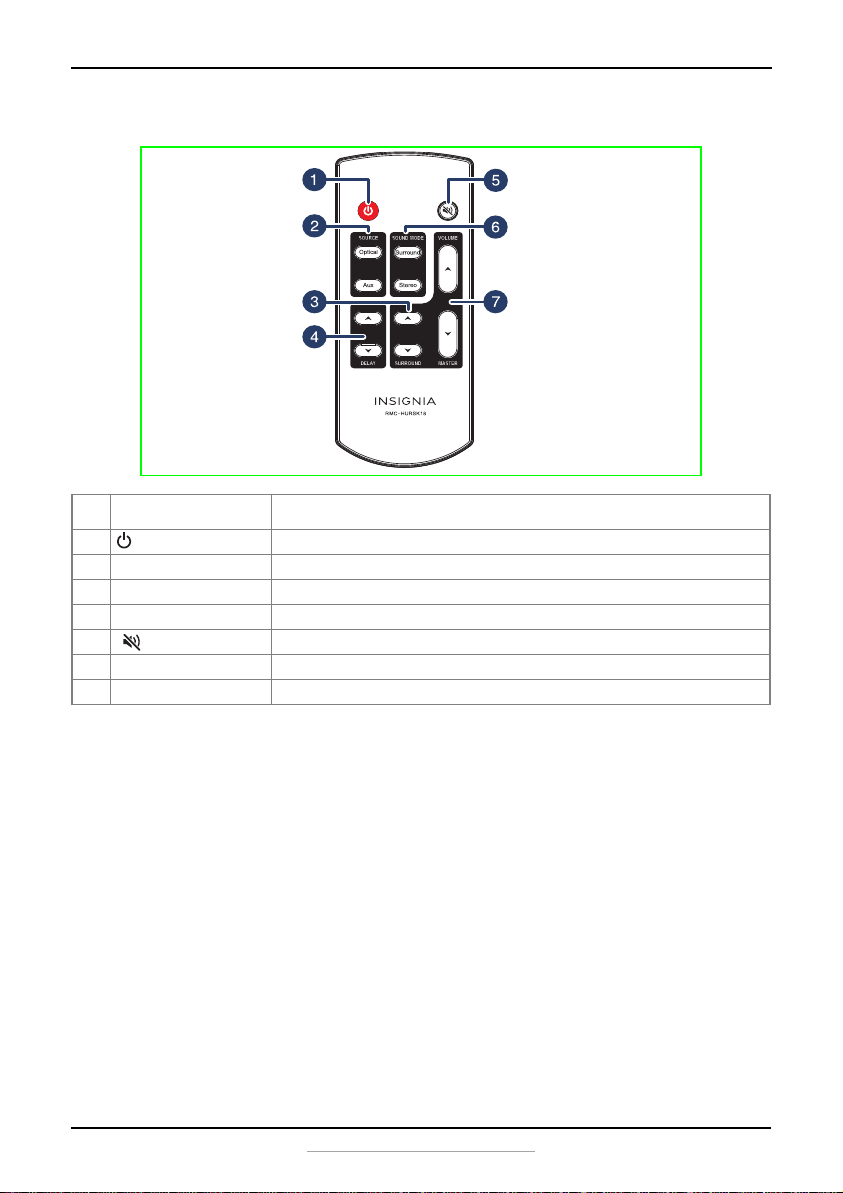
Remote control
#BUTTON DESCRIPTION
1 (Power) Press to turn on the speakers. Press again to put the speakers into standby mode.
2 SOURCE Press to select the OPTICAL or AUX sound source.
3 SURROUND Press + to increase the surround effect or - to decrease the surround effect.
4 DELAY Press + to increase the sound delay or - to decrease the sound delay. (Please explain)
5 (Mute) Press to mute the sound from the speakers. Press again to restore the sound.
6 SOUND MODE Press to select the SURROUND or STEREO sound mode.
7 MASTER VOL +/– buttons Press to increase or decrease the volume of the speakers.
www.insigniaproducts.com
9
Page 10
Using the remote control
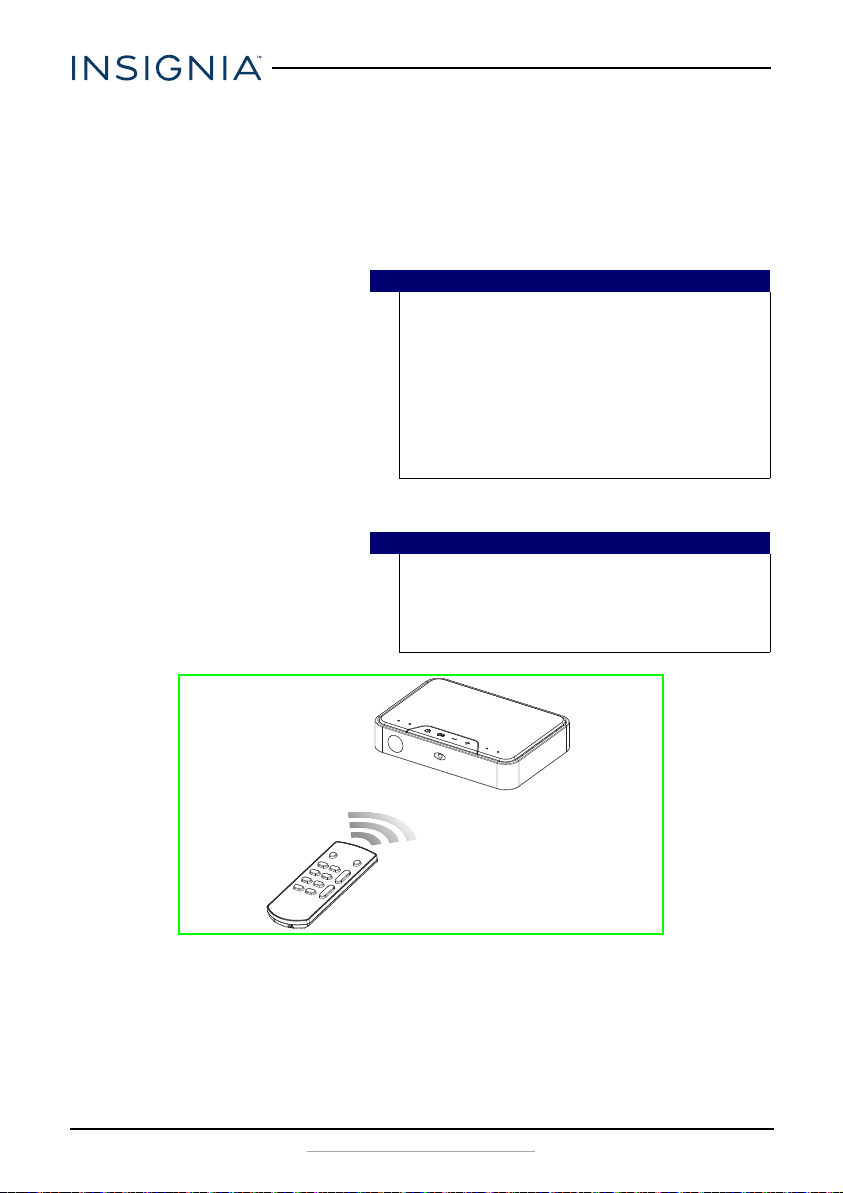
1 Remove the plastic tab from the battery compartment before using the
remote control for the first time.
2 Point the remote control directly at the IR sensor on the front of the
transmitter. You must be within approximately 23 ft. (7 m) of the
transmitter.
Cautions
• Do not spill water or any liquid on the remote
control.
• Do not place the remote control on a wet
surface.
• Do not place the remote control in direct
sunlight or near sources of excessive heat.
• If the remote control is not going to be used for
a long time, remove the battery to avoid any
damage that may be caused by leakage and
corrosion.
Programming a universal remote
Note
To control your speakers' volume you can use an Insignia TV
remote or program a universal remote. Insignia TV remotes and
universal remotes will not be able to change your speakers’ audio
source or DSP sound mode. Use the controls on your speakers or
the remote that came with it to change these settings.
NS-HURSK18
If you program your universal remote to an Insignia TV, it will control your
speakers’ volume. To program your remote:
1 Go to www.insigniaproducts.com/remotecodes.
2 Find your remote's brand from the list of remote codes.
10
www.insigniaproducts.com
Page 11
Universal Rear Speaker Kit
Digital optical cable
(included)
Audio source (TV,
Blu-ray, or cable box)
Back of the transmitter
Sound bar
3 Follow the directions that came with your remote to program a remote
code. If several remote codes are provided, you may need to try several
until you find one that works.
Note
Make sure that you program the speakers to a device on your
remote that is not in use.
Setting up your speakers
Step 1 - Choosing your connection
• Look at the back of your sound source device, such as a TV, DVD/Blu-ray
player, cable box, tablet, or mobile device to identify your audio OUT
ports. Choose the connection option below that fits your audio source.
You can connect several devices and switch the sound source as required.
Caution
Turn off or unplug all devices while you are making connec tions.
AUDIO QUALITY JACK TYPE CABLE
Digital Optical cable (included). See “Digital
Best
Good
Optical connection (best)” on page 11.
3.5 mm to 3.5 mm cable (included). See “AUX
connection (good)” on page 12.
Step 2 - Connecting the transmitter
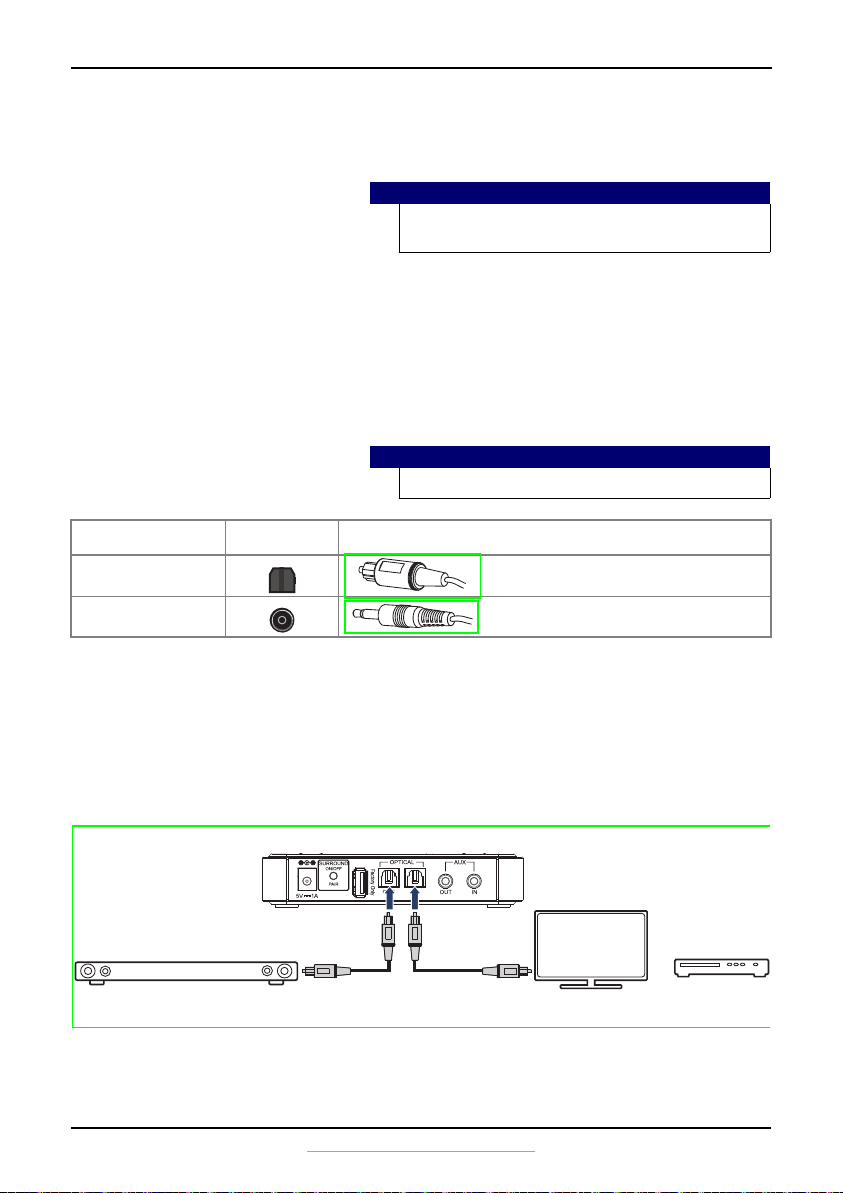
Digital Optical connection (best)
1 Connect one end of the digital optical cable (included) to the transmitter.
2 Connect the other end into the Digital Optical Output port on your
audio source device.
3 Change the device’s audio output to RAW format (typically found in audio
settings). Refer to the documentation that came with your audio source
device for more information.
www.insigniaproducts.com
11
Page 12
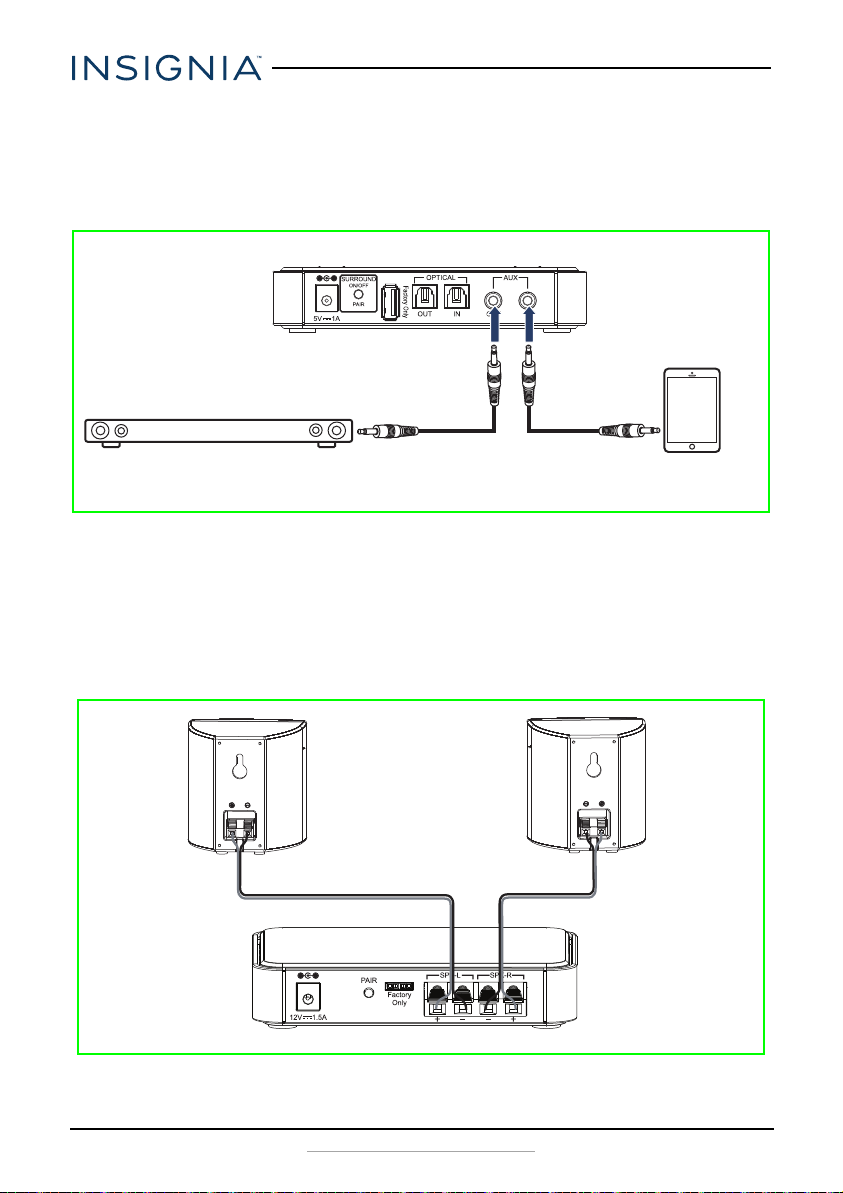
AUX connection (good)
3.5 mm cable (provided)
Audio source (tablet
or smartphone)
Back of the transmitter
Sound bar
Back of the receiver
Left speaker Right speaker
1 Connect one end of the included 3.5 mm audio cable (included) to the
transmitter.
2 Connect the other end of the 3.5 mm audio cable into the Audio Output
ports on your audio source device, such as a tablet or mobile device.
Step 3 - Connecting the speakers to the receiver
1 Connect one end of the speaker wires (included) to the jacks on the back
of the speakers, red wires to red jacks and black wires to black jacks.
2 Connect the other end of the speaker wires to the SPK-L (left speaker) and
SPK-R (right speaker) jacks on the back of the receiver, red wires to red
jacks and black wires to black jacks.
NS-HURSK18
12
www.insigniaproducts.com
Page 13
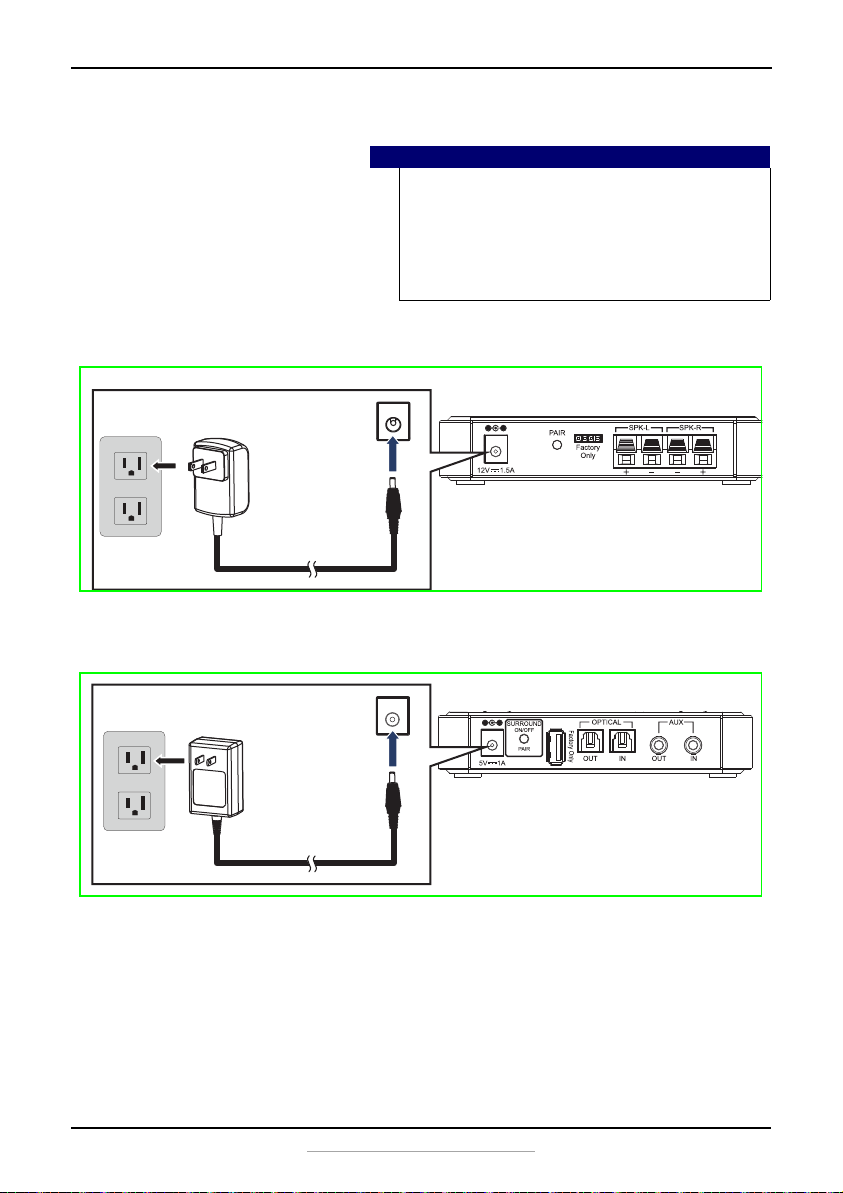
Step 4 - Connecting the AC adapter
Cautions
• Make sure that the electrical outlet matches the
• Use only the AC adapter provided for the device
• Plug in the AC adapter only after all other
1 Connect the 5V 1A AC adapter to the DC IN jack on the back of the
transmitter.
2 Connect the 12V 1.5A AC adapter to the DC IN jack on the back of the
reveiver.
Universal Rear Speaker Kit
AC adapter’s input requirements of 100-240 V,
50/60 Hz before connecting.
specified.
connections have been made.
3 Plug the other end of the AC adapters into a power outlet or surge
protector.
www.insigniaproducts.com
13
Page 14

Step 5 - Connecting the receiver to the transmitter
Before you can use your speakers, you need to pair the transmitter to the
receiver.
Note
Place the transmitter and receiver within 30 ft. (10 m) of each
other.
Pairing your devices
1 Turn on the transmitter and receiver.
2 Press and hold the Pairing button on the back of the receiver for three
seconds. When paired, the LEDs light solid blue.
Disconnecting your devices
• Turn off the transmitter and receiver.
NS-HURSK18
14
www.insigniaproducts.com
Page 15
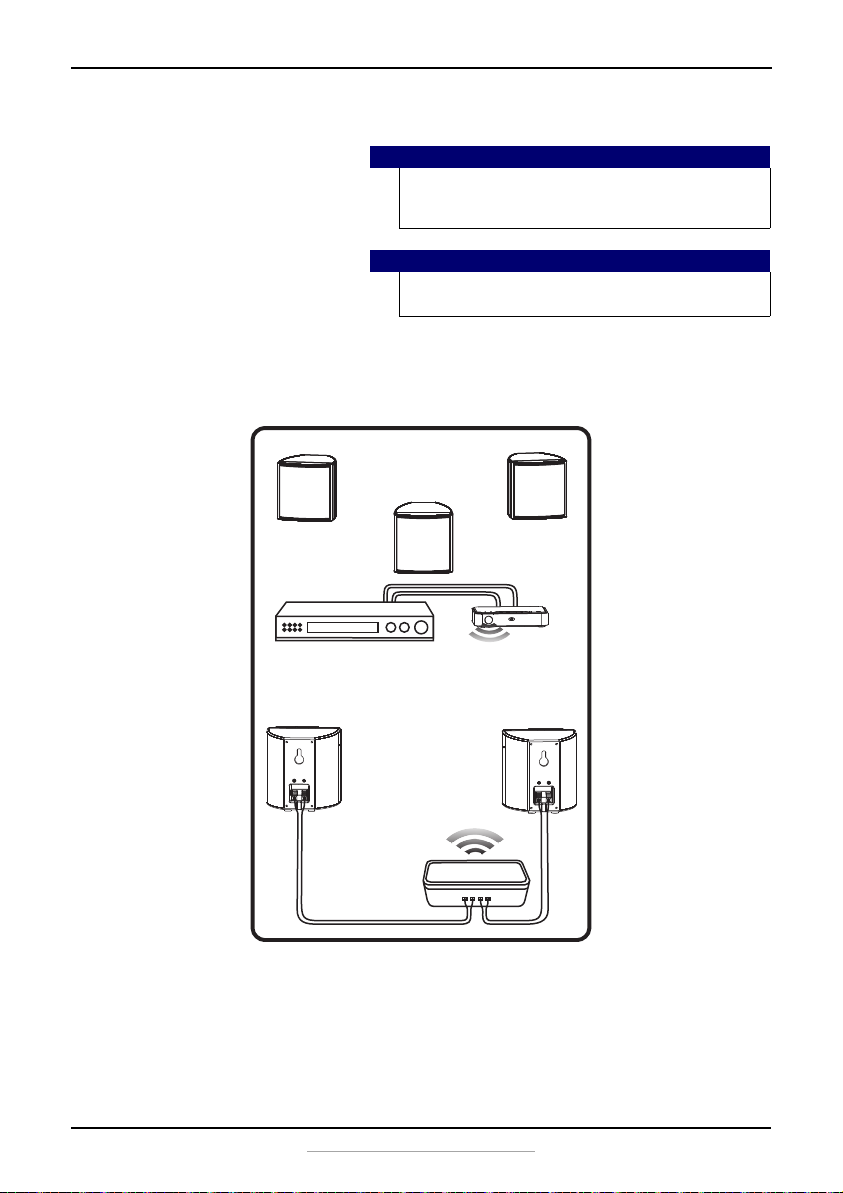
Positioning the speakers
Receiver
Transmitter
Sound source
You can set the speakers on a flat surface or mount them on a wall. To
mount them on a wall, install a screw or nail for each speaker at the
position you want, then hang the speakers on the screw/nail.
Universal Rear Speaker Kit
Warning
Improper installation can result in serious injury or
damage to your speakers. If necessary, seek the
assistance of a professional.
Cautions
If you are installing screws into drywall or concrete,
use wall anchors designed for that type of surface.
www.insigniaproducts.com
15
Page 16
Using your speakers
This system lets you access two different sound sources: Optical or AUX.
Listening to your speakers
1 Press the (Power) button on the transmitter or the remote control to
turn on your speaker system. The power indicator on the transmitter turns
off.
2 Turn on the audio source device connected to your speakers and begin
playback.
3 Press the
or press the selected source button on the remote control until you hear
sound from your speakers.
4 Adjust the volume on the transmitter, or with the remote control, or on
the audio source device to a comfortable level.
(source) button on the transmitter to select the audio source
Note
When you use the OPTICAL connection, the audio
content should be PCM or Dolby 5.1. Refer to the
manual you received with the output device for
additional information.
Warning
Continuous use of high volume sound may
permanently damage your hearing.
NS-HURSK18
16
5 Press the
(Power) button again to turn off your speaker system. The
power indicator on the transmitter lights red.
www.insigniaproducts.com
Page 17
Maintaining your speakers
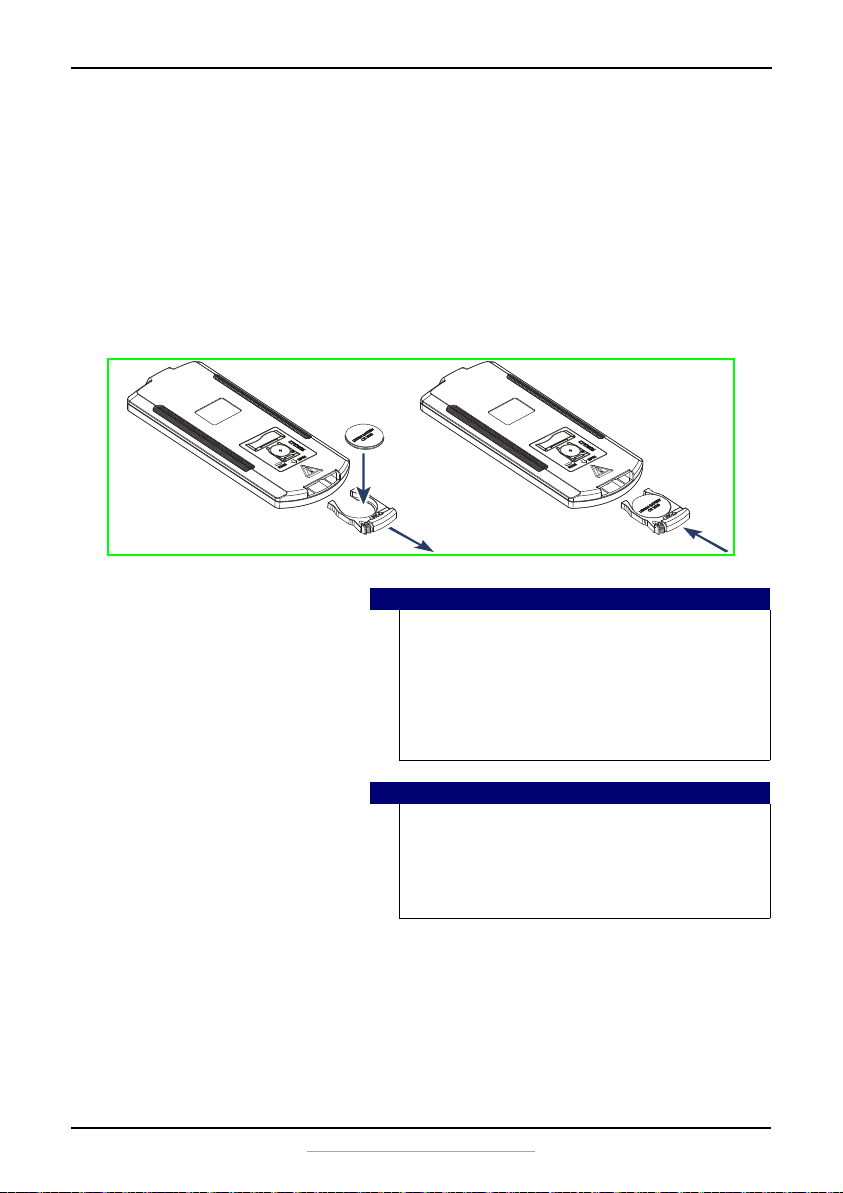
Replacing the remote control battery
1 Squeeze the battery tray’s sides together and slide it out of the remote
control.
2 Remove the old battery and insert the new 3V lithium battery (CR2025)
into the battery tray. Match the polarity of the new battery with the plus
sign (+) in the battery tray.
3 Slide the battery tray back into the battery compartment until it clicks into
place.
Cautions
• The battery should not be exposed to excessive
heat, such as sunshine, heat registers, or fire.
• Battery chemicals can cause a rash. If the battery
leaks, clean the battery compartment with a
cloth. If chemicals touch your skin, wash
immediately.
• Make sure that the battery is disposed of
correctly. Do not burn or incinerate.
Universal Rear Speaker Kit
Notes
• Remove the battery when the charge is
depleted.
• If the remote control is not going to be used for
a long time, remove the battery to avoid any
damage that may be caused by leakage and
corrosion.
www.insigniaproducts.com
17
Page 18
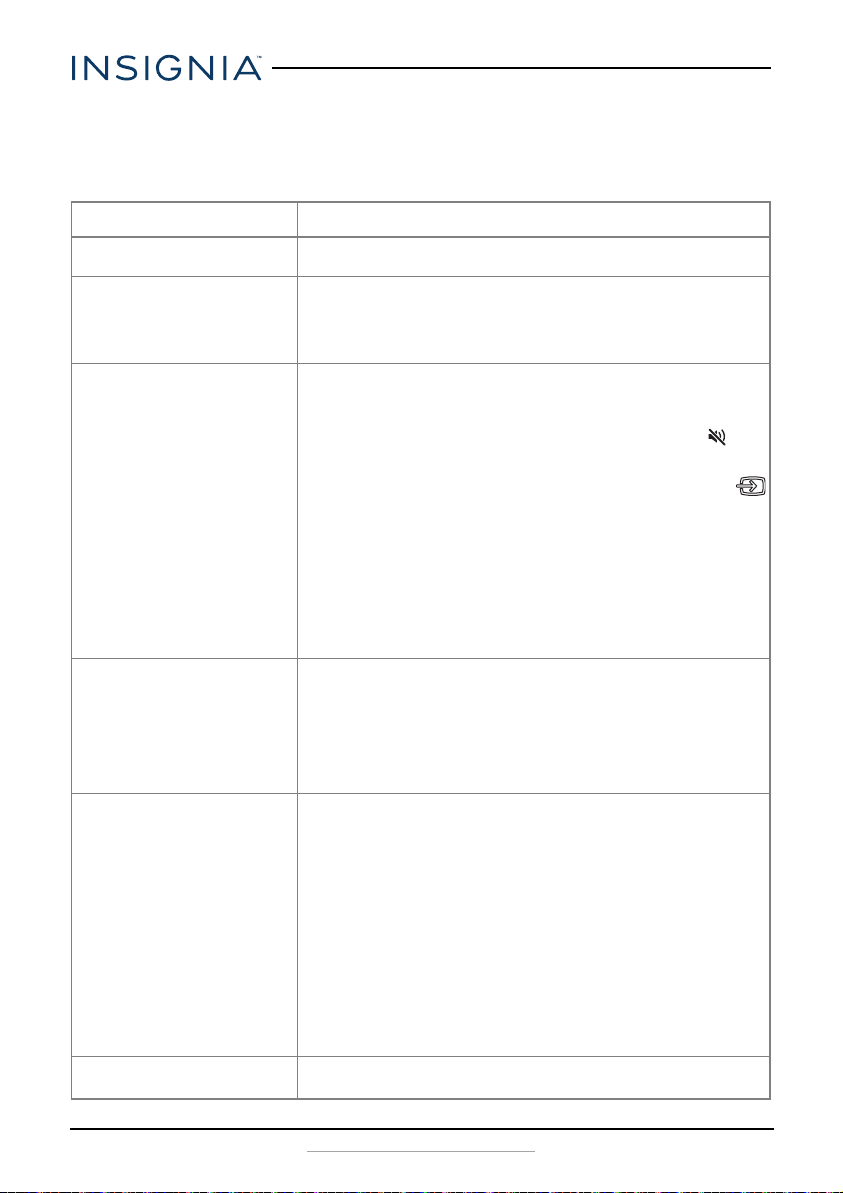
Troubleshooting
Check this list for a possible troubleshooting solution before calling for
service.
PROBLEM POSSIBLE SOLUTIONS
The power does not come on.
The remote control does not work.
There is no sound or very low-level
sound is heard from the speakers.
Your speakers are not working properly.
The sound is breaking up or buzzing.
I can hear sound from both my TV and
my speakers.
• Make sure that the AC adapter is securely plugged into the power
outlet and the affected transmitter or receiver.
• Remove any obstacles between the remote control and the IR
sensor on the speakers.
• The remote control battery may be exhausted, replace it.
• Move closer to the speakers. The remote control is only effective
to approximately 23 ft. (7 m).
• Make sure that you are connected to an audio OUT jack on your
sound source. The port will not send audio out if it is an INPUT.
• Make sure that the volume level of the speakers is set to an
adequate level.
• Make sure that the volume level is not muted. Press the
(mute) button on the remote control again to restore the sound
output.
• Make sure that the correct audio source is selected. Press the
button on the transmitter or the source button on the remote
control to switch to the correct audio source.
• Make sure that the power is on and all connections are secure.
• Make sure that the volume is turned up on your sound source.
• If you are using the OPTICAL connection, make sure that the
source device’s audio source is set to “PCM” format. Refer to the
documentation your received with the audio source device (such
as a TV or DVD/Blu-ray player, etc.) for additional information.
• Make sure that the audio cable you are using is not damaged or
broken. Try using another one.
• Unplug the AC adapters from the wall outlet and then try
plugging them in again after 30 seconds.
• If you are using the OPTICAL connection, make sure that the
source device’s audio source is set to “PCM” format. Refer to the
documentation your received with the audio source device (such
as a TV, DVD/Blu-ray player, etc.) for additional information.
• Make sure that the audio cable you are using is not damaged or
broken. Try using another one.
• Make sure that you are connected to an audio OUT jack on your
sound source. The port will not send audio out if it is an INPUT.
• Make sure that all connections are secure and cables are not
broken or damaged.
• If you are using the OPTICAL connection, make sure that the
source device’s audio source is set to “PCM” format. Refer to the
documentation your received with the audio source device (such
as a TV or DVD/Blu-ray player, etc.) for additional information.
• Connect to a different source device (such as a TV or DVD/Blu-ray
player) to see if the buzzing still occurs. If it does not, this may
indicate an issue with the original source device.
• Use a different connection method (for example, try Optical
instead of AUX) between the transmitter and the source device to
make sure that the jacks on both devices are still working.
• Make sure that the audio cable you are using is not damaged or
broken. Try using another one.
• Turn off or mute the internal speakers of your T V. Refer to the TV’s
manual for instructions.
NS-HURSK18
18
www.insigniaproducts.com
Page 19

PROBLEM POSSIBLE SOLUTIONS
My TV remote does not control my
speakers.
My s keep unpairing.
• If you are using a universal remote control, make sure that it is
programmed to your speakers. See Programming a universal
remote on page 10.
• Universa l remotes will on ly control your speakers’ volume. Use the
controls on your speakers or the remote that came with it to
change the speakers’ audio source or sound mode.
• Make sure that you aim your universal remote at the remote
sensor on the front of your speakers.
• Make sure that you select the correct source on your universal
remote.
• Shorten the distance between the s.
Specifications
Designs and specifications are subject to change without notice.
Power output Left and right channel
Frequency response 20Hz-20 KHz
Dimensions (approx.)
(H x W x D)
Weig ht Transmitter: 5.3 oz. (0.15 kg)
Battery 3V lithium battery (CR2025)
Inputs AUX (3.5 mm stereo audio) jack
Transmitter Module: 1.04 x 5.04 x 3.6 in. (26.5 x 128 x 91mm)
Receiver Module: 1.04 x 5.04 x 3.7 in. (26.5 x 128 x 93.4 mm)
Surround speaker Module: 3.6 x 3.5 x 4.15 in.(92 x 90 x 105.5 mm)
Receiver: 5.6 oz. (0.16 kg)
Digital optical audio jack
Universal Rear Speaker Kit
Legal notices
FCC Part 15
This device complies with Part 15 of the FCC Rules. Operation of this product is subject to the
following two conditions: (1) this device may not cause harmful interference, and (2) this device
must accept any interference received, including interference that may cause undesired
operation.
This equipment has been tested and found to comply within the limits for a class B digital device,
pursuant to Part 15 of the FCC Rules. These limits are designed to provide reasonable protection
against harmful interference in a residential installation. This equipment generates, uses, and can
radiate radio frequency energy and, if not installed and used in accordance with the instructions,
may cause harmful interference to radio communications. However, there is no guarantee that
interference will not occur in a particular installation. If this equipment does cause harmful
interference to radio or television reception, which can be determined by turning the equipment
off and on, the user is encouraged to try to correct the interference by one or more of the
following measures:
• Reorient or relocate the receiving antenna.
• Increase the separation between the equipment and receiver.
• Connect the equipment into an outlet on a circuit different from that to which the receiver
is connected.
www.insigniaproducts.com
19
Page 20

NS-HURSK18
• Consult the dealer or an experienced technician for help.
FCC warning
Changes or modifications not expressly approved by the party responsible for compliance with
the FCC Rules could void the user’s authority to operate this equipment.
Canada IC statement
This device complies with Industry license-exempt RSS standard(s). Operation is subject to the
following two conditions: (1) this device may not cause interference, and (2) this device must
accept any interference, including interference that may cause undesired operation of the
device.
Ce dispositif est conforme à la norme de l'industrie RSS exempts de licence (s). Son
fonctionnement est soumis aux deux conditions suivantes: (1) cet appareil ne peut pas
provoquer d'interférences et (2) cet appareil doit accepter toute interférence, y compris les
interférences qui peuvent causer un mauvais fonctionnement du dispositif."
This equipment complies with IC radiation exposure limits set forth for an uncontrolled
environment.
Cet équipement est conforme à l'exposition aux rayonnements IC limites établies pour un
environnement non contrôlé.
20
www.insigniaproducts.com
Page 21

ONE-YEAR LIMITED WARRANTY
Definitions:
The Distributor* of Insignia branded products warrants to you, the original purchaser of this
new Insignia-branded product (“Product”), that the Product shall be free of defects in the
original manufacturer of the material or workmanship for a period of one (1) year from the
date of your purchase of the Product (“Warranty Period”).
For this warranty to apply, your Product must be purchased in the United States or Canada
from a Best Buy branded retail store or online at www.bestbuy.com or www.bestbuy.ca, and
is packaged with this warranty statement.
How long does the coverage last?
The Warranty Period lasts for 1 year (365 days) from the date you purchased the Product.
Your purchase date is printed on the receipt you received with the Product.
What does this warranty cover?
During the Warranty Period, if the original manufacture of the material or workmanship of
the Product is determined to be defective by an authorized Insignia repair center or store
personnel, Insignia will (at its sole option): (1) repair the Product with new or rebuilt parts; or
(2) replace the Product at no charge with new or rebuilt comparable products or parts.
Products and parts replaced under this warranty become the property of Insignia and are
not returned to you. If service of Products or parts are required after the Warranty Period
expires, you must pay all labor and parts charges. This warranty lasts as long as you own your
Insignia Product during the Warranty Period. Warranty coverage terminates if you sell or
otherwise transfer the Product.
How to obtain warranty service?
If you purchased the Product at a Best Buy retail store location, please take your original
receipt and the Product to any Best Buy store. Make sure that you place the Product in its
original packaging or packaging that provides the same amount of protection as the original
packaging. If you purchased the Product from a Best Buy online web site (www.bestbuy.com
or www.bestbuy.ca), mail your original receipt and the Product to the address listed on the
web site. Make sure that you put the Product in its original packaging or packaging that
provides the same amount of protection as the original packaging.
To obtain warranty service, in the United States call 1-888-BESTBUY, Canada call
1-866-BESTBUY. Call agents may diagnose and correct the issue over the phone.
Universal Rear Speaker Kit
Where is the warranty valid?
This warranty is valid only in the United States and Canada at Best Buy branded retail stores
or websites to the original purchaser of the product in the county where the original
purchase was made.
What does the warranty not cover?
This warranty does not cover:
• Customer instruction/education
•Installation
•Set up adjustments
•Cosmetic damage
• Damage due to weather, lightning, and other acts of God, such as power surges
•Accidental damage
•Misuse
•Abuse
•Negligence
www.insigniaproducts.com
21
Page 22

NS-HURSK18
• Commercial purposes/use, including but not limited to use in a place of business or in
communal areas of a multiple dwelling condominium or apartment complex, or
otherwise used in a place of other than a private home.
• Modification of any part of the Product, including the antenna
• Display panel damaged by static (non-moving) images applied for lengthy periods
(burn-in).
• Damage due to incorrect operation or maintenance
• Connection to an incorrect voltage or power supply
• Attempted repair by any person not authorized by Insignia to service the Product
• Products sold “as is” or “with all faults”
• Consumables, including but not limited to batteries (i.e. AA, AAA, C etc.)
• Products where the factory applied serial number has been altered or removed
• Loss or Theft of this product or any part of the product
• Display panels containing up to three (3) pixel failures (dots that are dark or incorrectly
illuminated) grouped in an area smaller than one tenth (1/10) of the display size or up
to five (5) pixel failures throughout the display. (Pixel based displays may contain a
limited number of pixels that may not function normally.)
• Failures or Damage caused by any contact including but not limited to liquids, gels or
pastes.
REPAIR REPLACEMENT AS PROVIDED UNDER THIS WARRANTY IS YOUR EXCLUSIVE REMEDY
FOR BREACH OF WARRANTY. INSIGNIA SHALL NOT BE LIABLE FOR ANY INCIDENTAL OR
CONSEQUENTIAL DAMAGES FOR THE BREACH OF ANY EXPRESS OR IMPLIED WARRANTY ON
THIS PRODUCT, INCLUDING, BUT NOT LIMITED TO, LOST DATA, LOSS OF USE OF YOUR
PRODUCT, LOST BUSINESS OR LOST PROFITS. INSIGNIA PRODUCTS MAKES NO OTHER
EXPRESS WARRANTIES WITH RESPECT TO THE PRODUCT, ALL EXPRESS AND IMPLIED
WARRANTIES FOR THE PRODUCT, INCLUDING, BUT NOT LIMITED TO, ANY IMPLIED
WARRANTIES OF AND CONDITIONS OF MERCHANTABILITY AND FITNESS FOR A PARTICULAR
PURPOSE, ARE LIMITED IN DURATION TO THE WARRANTY PERIOD SET FORTH ABOVE AND
NO WARRANTIES, WHETHER EXPRESS OR IMPLIED, WILL APPLY AFTER THE WARRANTY
PERIOD. SOME STATES, PROVINCES AND JURISDICTIONS DO NOT ALLOW LIMITATIONS ON
HOW LONG AN IMPLIED WARRANTY LASTS, SO THE ABOVE LIMITATION MAY NOT APPLY TO
YOU. THIS WARRANTY GIVES YOU SPECIFIC LEGAL RIGHTS, AND YOU MAY ALSO HAVE OTHER
RIGHTS, WHICH VARY FROM STATE TO STATE OR PROVINCE TO PROVINCE.
Contact Insignia:
For customer service please call 1-877-467-4289
www.insigniaproducts.com
INSIGNIA is a trademark of Best Buy and its affiliated companies.
Distributed by Best Buy Purchasing, LLC
7601 Penn Ave South, Richfield, MN 55423 U.S.A.
©2017 Best Buy. All rights reserved.
Made in China
22
www.insigniaproducts.com
Page 23

www.insigniaproducts.com
1-877-467-4289 (U.S. and Canada) or 01-800-926-3000 (Mexico)
INSIGNIA is a trademark of Best Buy and its affiliated companies.
Distributed by Best Buy Purchasing, LLC
7601 Penn Ave South, Richfield, MN 55423 U.S.A.
©2017 Best Buy. All rights reserved.
Made in China.
V1 ENGLISH
17-0287
 Loading...