

Page 1
Quick Start Guide
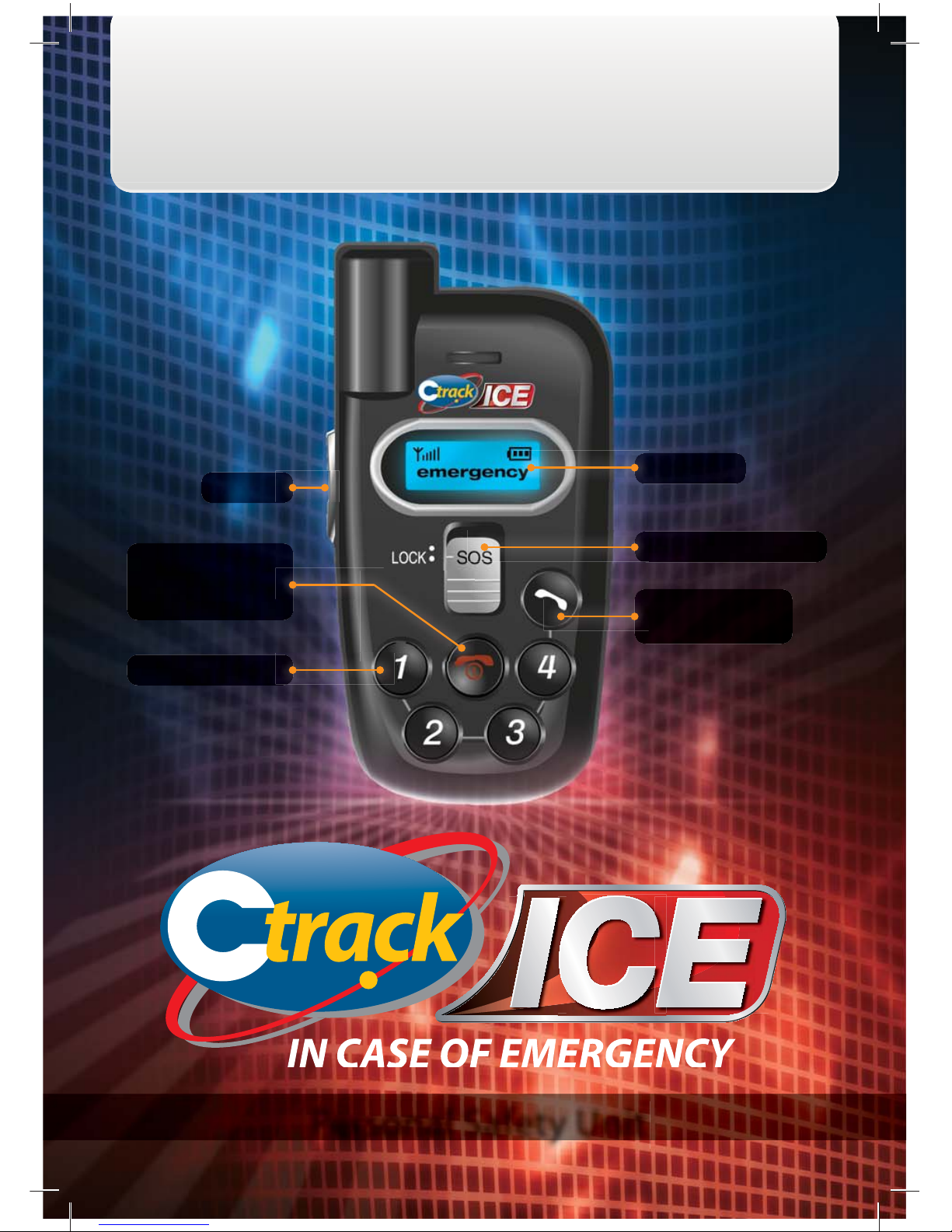
LCD Screen
Main menu/
OK Key/Send Key
SOS Emergency Switch
Side Key
Power ON/OFF Key/
End Key/Key Lock/
Clear Key
Speed Dial Keys 1-4
Personal Safety Unit
Page 2
Inserting the SIM card and battery
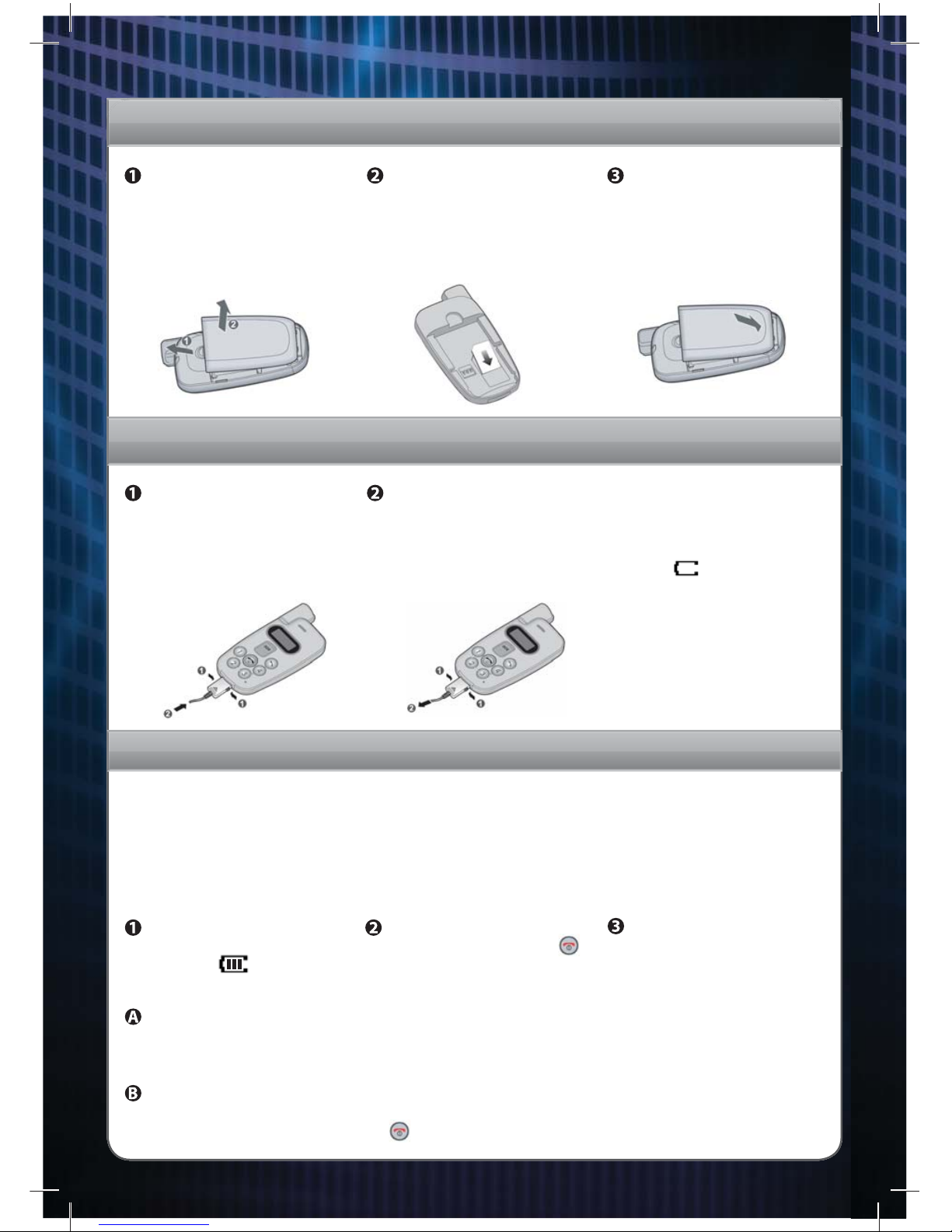
To remove the battery, push
the release latch outwards
and pull the battery away.
Insert the SIM card into the
SIM card socket. Make sure
that the notched corner is at
the top right and the golden
contact area on the card is
facing downwards.
To insert the battery, apply
downward pressure until
you hear the fastening
mechanism, then lock the
battery into position.
Charging the unit (NOTE: You must fully charge the battery before using your unit for the rst time)
To insert the charger adaptor
into the unit press the
buttons on both sides of the
connector and insert the
adaptor. Plug the adaptor into
a standard AC wall outlet.
To remove the adaptor from
the unit, press the buttons on
both sides of the connector
and pull the adaptor out.
Low Battery Indicator
When the battery charge
level is low, a text message
and an empty battery status
icon appears at the top
right of the display. When the
battery level gets too low, the
unit turns o automatically.
Watch the battery status icon
and make sure your battery is
adequately charged.
How to set-up the unit
When you rst switch on your C-track ICE unit all settings relating to the numbers on the speed dial keys
and the SOS alert will be uploaded. These are managed through a web based platform operated by your
service provider. Commands are sent from this platform over the air, which updates the C-track ICE device
automatically. To make changes to your settings e.g. the speed dial numbers, you can either access this web
based platform using the user name and password issued to you or contact the Support Centre, by using the
SOS function.
To ensure that the setting
up of your unit has been
successful, please follow the
following process:
Your unit will be fully charged
once you see the following
indicator.
Switch your unit on by
pressing and holding the
key in for 3 seconds or until
the screen illuminates.
Unlock the keypad as explained below and press each of the keys numbered 1 through 3 in turn, checking
that your speed dial numbers are displayed as you press each key, and that key number 4 is linked as the
speed dial for number 112;
Next use the SOS key as described below. This will connect you (by means of a voice call) to the Support
Centre. Once they answer this call con rm your details, that they have your correct GPS location and when
nished terminate the call using the key.
Page 3
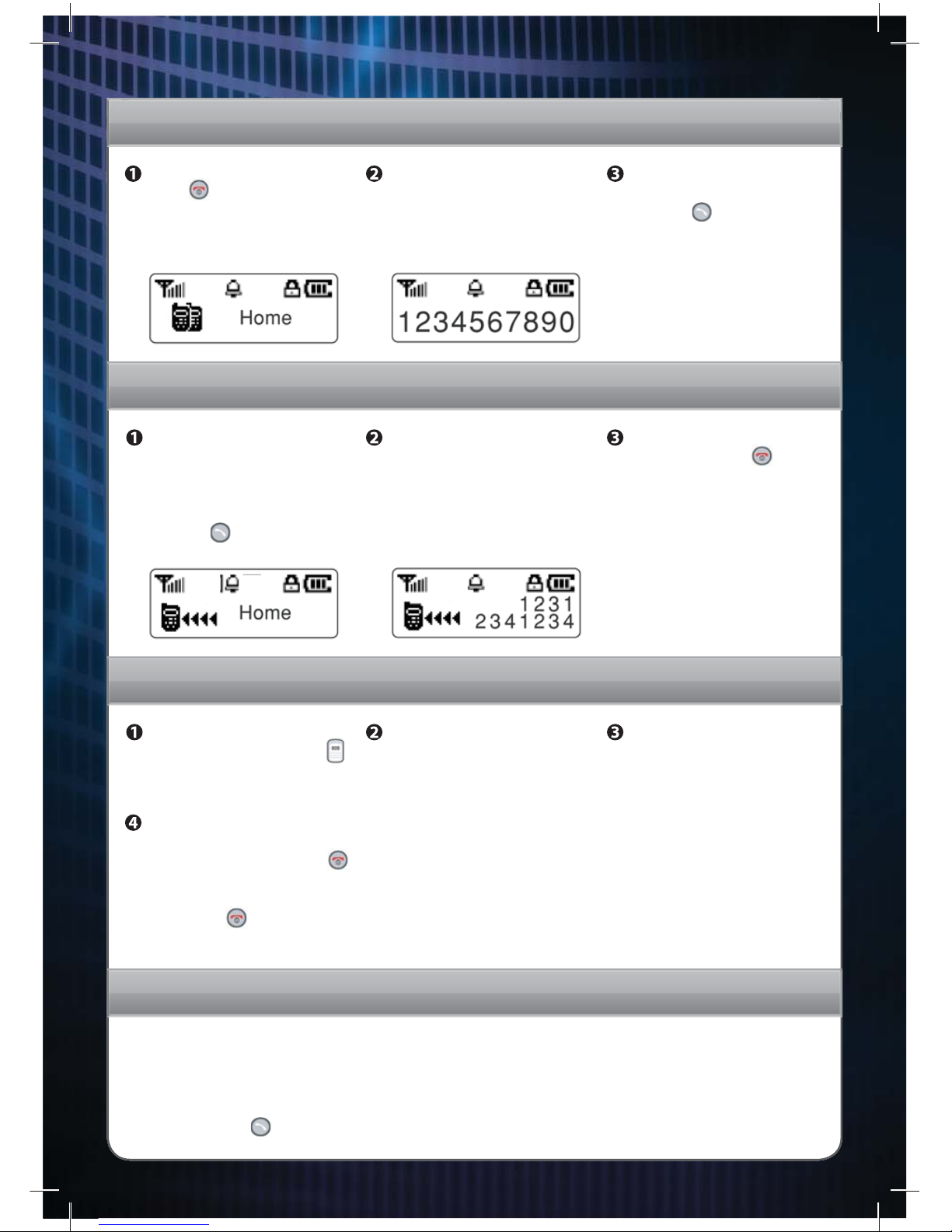
If you do not want to answer
the call, press the key to
reject it.
How to make a call
You can switch between the
two by pressing the same
Speed Dial key. In the event
that there is no Name, the
Number will be shown.
After you have pressed on a
Speed Dial you wish to call,
press the key to initiate the
call. You can also make a call
by holding down the chosen
Speed Dial key for 3 seconds.
To “unlock” the keypad press
the key. If you press
a Speed dial key, you will
see a Name rst, then their
corresponding Number.
How to receive a call
If your unit receives a call, it is
displayed on the screen and
the unit will ring or vibrate
according to your settings.
Press the key to accept
the call.
If the name of the incoming
number is stored then it
is displayed. If no name is
stored, only the unit number
is displayed.
How to raise a SOS Alert
Please note: Service is dependent on GSM and GPS service coverage and availability.
The C-track ICE unit will
simultaneously open a 2-way
voice call with a Support
Centre operator and aquire
your current GPS location
(Or last known location held
on the Platform). This will be
transmitted to the operator.
Within a few seconds the
call with the Support Centre
operator will be connected.
Please advise the Support
Centre operator of the
situation.
To make a SOS Emergency
Call, press and push the SOS
switch upwards, the unit will
vibrate to con rm.
When your call to the Support
Centre is concluded and if the
emergency is over, press the
key to conclude the call and
slide the SOS switch back down
towards the key.
How to call for assistance (other than the services provided as part of your contract)
• To make a call directly to 112 for assistance not included under the services provided in
terms of your contract, unlock the unit keypad, press and hold key number four until the
screen displays that the unit is dialing 112.
• Alternatively, unlock the keypad, press a speed dial number (1,2 or 3) then key number four
and then the key.
Page 4
If the device requests that you enter the SIM card’s PIN number, the screen will display ten digits namely (1 through 9, 0
and function digits, one being the “Enter” arrow). Using the side key to scroll, please follow the following procedure:
Entering PIN if required to do so
Use side key to select each
numeral of the PIN in turn.
Once you have selected and
“entered” all the numerals of
your PIN, use the side key to
scroll to the “Enter” icon and
select by pressing the key.
When you have positioned
the box over the required
numeral, press the key.
• Internet Explorer 6.5 or higher.
• RAM: 512 Mb for application
• CPU: 1GHz
• Operating system: Microsoft Windows XP
• Internet connection: 128 kbps
Minimum computer / IT speci cations (required for you to access web based software)
To return to the main screen
press key.
How to receive a text message
C-track ICE can receive SMS text messages, but cannot send them. Up to 30 messages can be stored and retrieved.
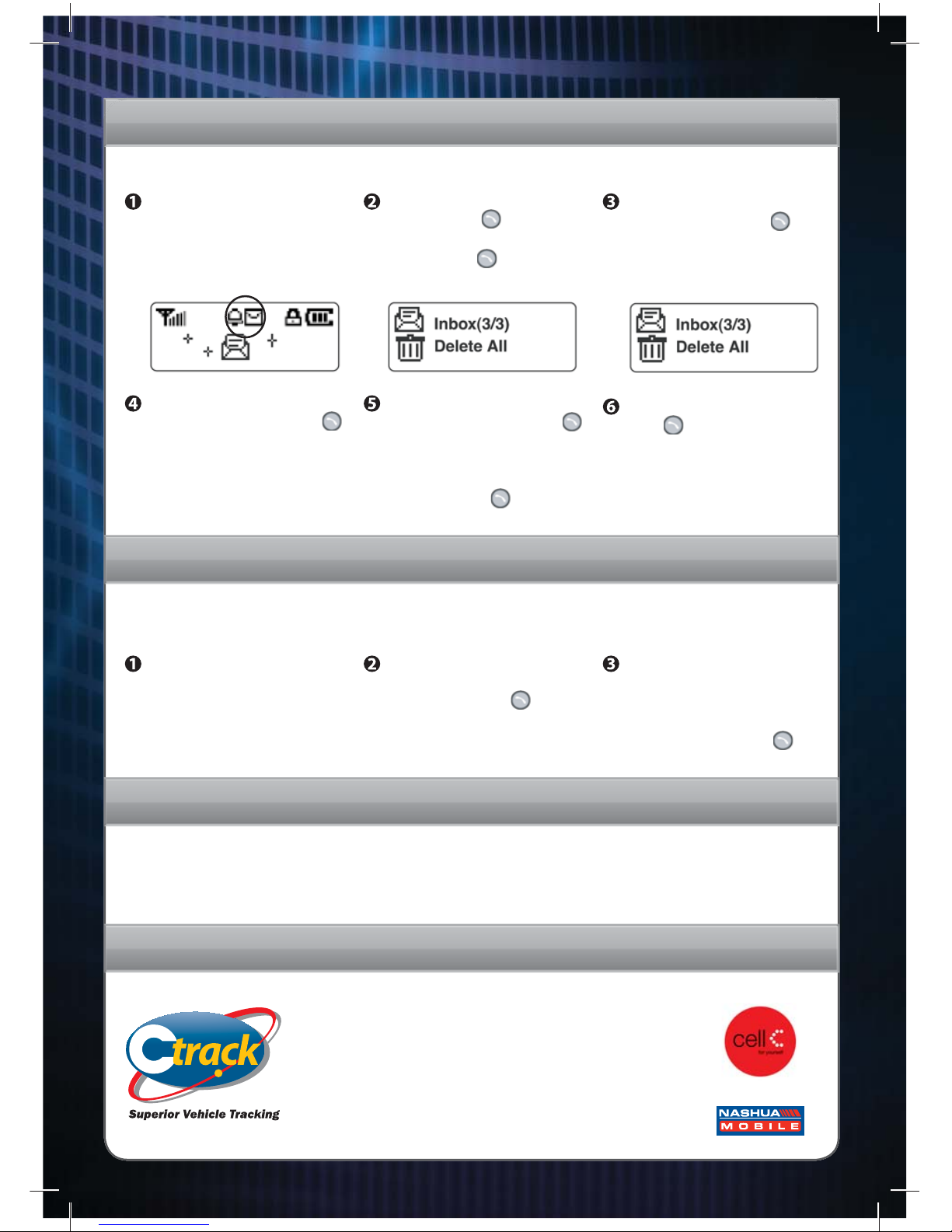
On receiving a text message,
the C-track ICE will vibrate
or ring to notify of a new
message and display an
unread message icon.
Access the main menu by
pressing the key. Scroll
using the side key to Message,
and press the key.
Inbox will be highlighted on
the screen, press the key.
All messages will be displayed
in the in box from the newest
unopened message rst.
Scroll to the message you
wish to read and press the
key.
Deleting a message is simply
performed by pressing the
key while checking the
message. This will display the
option of Delete? Con rm this
by pressing the key again.
Contact information
For technical support on the C-Track ICE unit contact:
0860 CTRACK • www.ctrack.co.za
C-track systems use DigiCore’s PATENTED technology
©2009 C-track South Africa
A division of JSE listed DigiCore Holdings Ltd.
Powered by
Available exclusively through
 Loading...